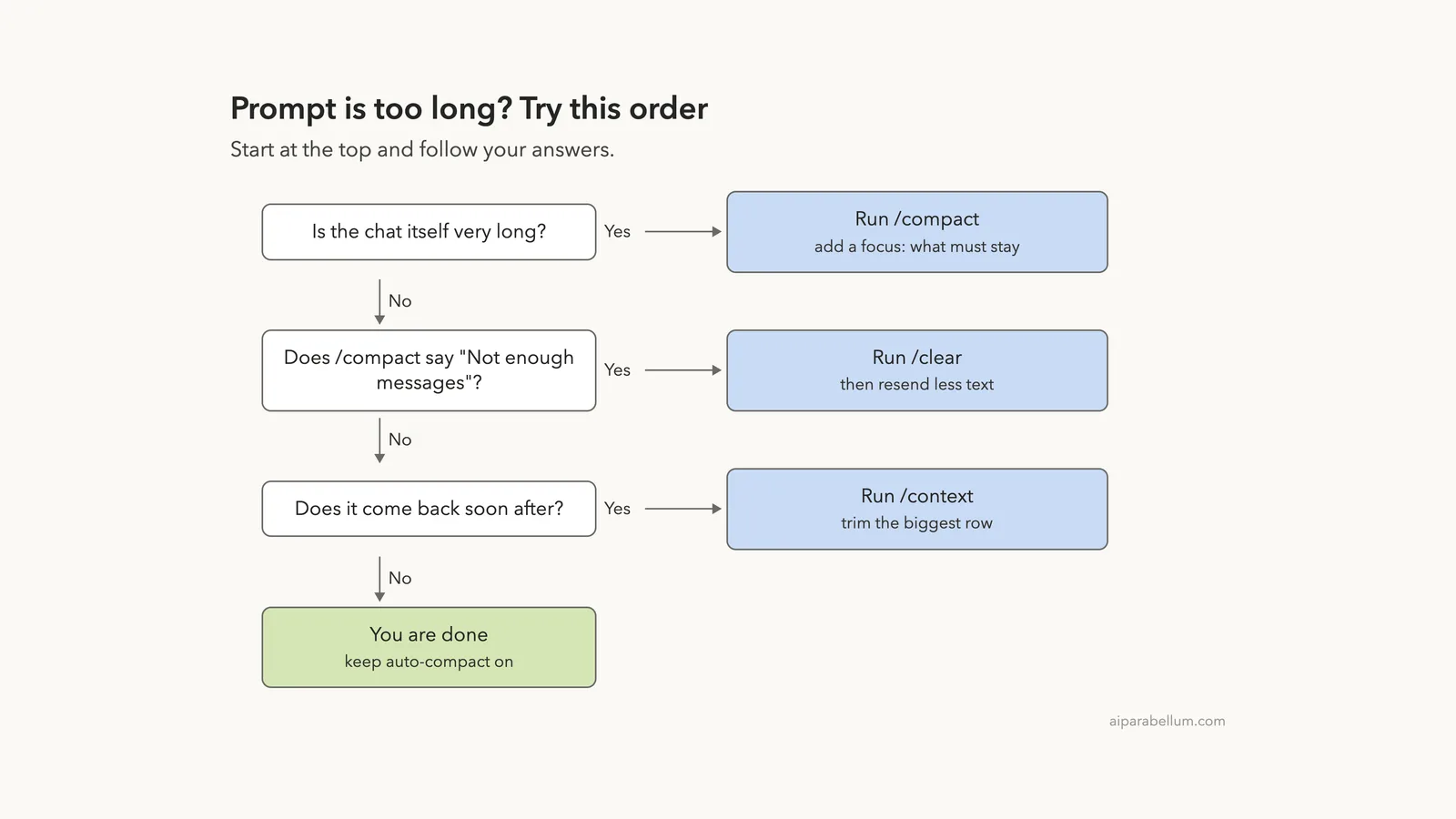
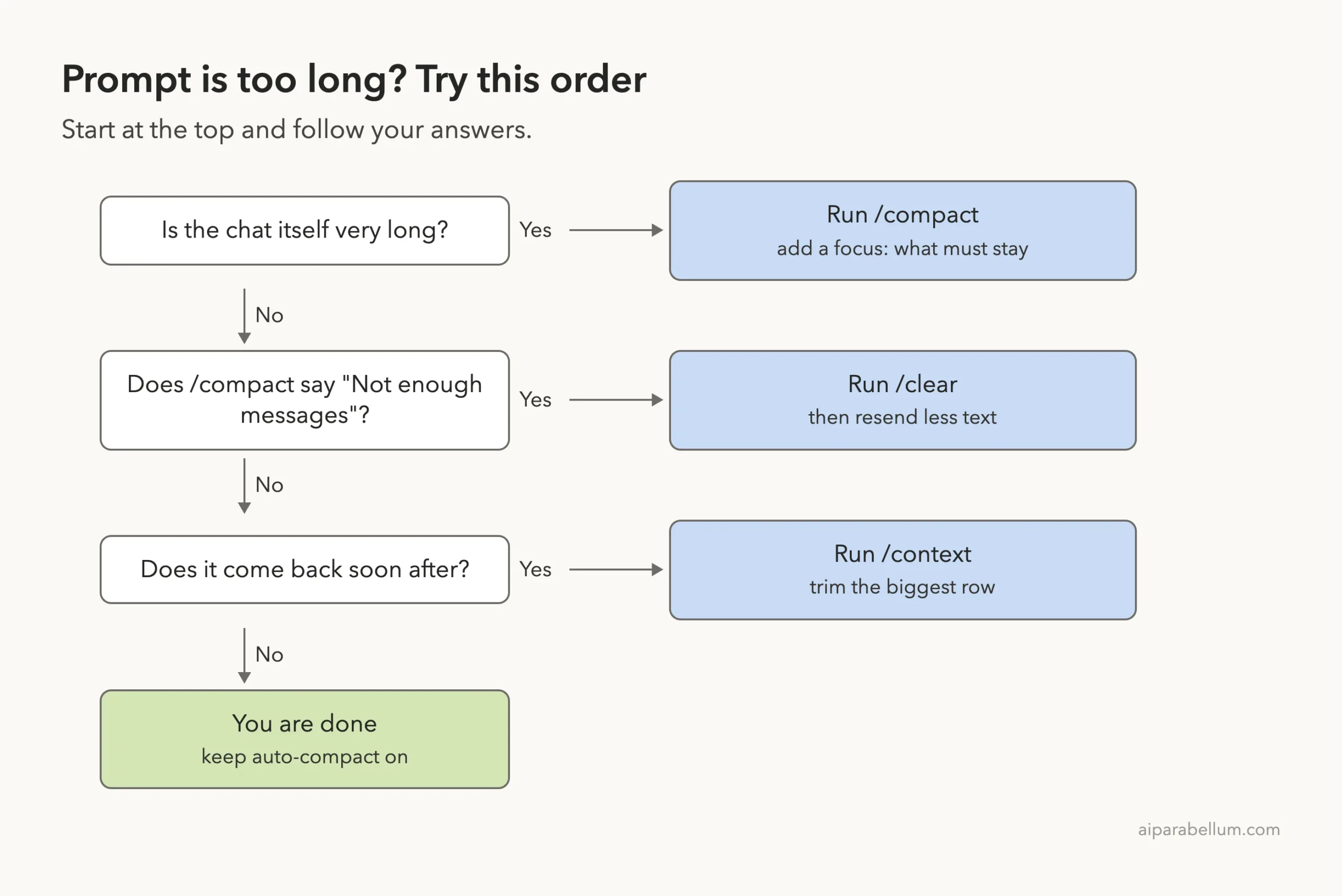
If Claude Code says the prompt is too long, it means your conversation, plus every file and tool it sends along, no longer fits in the model’s context window. The quick fix is to run /compact to summarize the earlier turns, or /clear to start fresh.
If /compact says “Not enough messages to compact,” one large paste is the problem, so run /clear and send less text. If the error keeps coming back, run /context, find the biggest row, and trim it. That is the whole idea, and the rest of this guide shows each step in a real session and covers the rarer causes.
This is a help article in our Claude Code tutorials collection. It pairs well with our fix for Claude Code stuck on compacting.
Tested with Claude Code v2.1.310 on October 27, 2026, on macOS. We tested on macOS; the Windows and Linux steps follow Anthropic’s official instructions.
Quick Answer: Fix Prompt Is Too Long
| What you see | What to do | Why it helps |
|---|---|---|
| “Prompt is too long” after a long chat | Run /compact, ideally with a short focus | Earlier turns become a summary and space is freed |
| /compact says “Not enough messages to compact” | Run /clear and resend with less pasted text | One big message is the problem, so there is nothing to summarize |
| The error returns soon after compacting | Run /context and trim the biggest row | Something large keeps refilling the window |
| You turned auto-compact off | Turn it back on in /config | Auto-compact normally prevents this error |
| The message mentions an image or “Request too large” | Shrink or remove the image, or run /compact | Images and documents count toward a separate size limit |
What the Claude Code Prompt Is Too Long Error Means
Claude can only read a limited amount of text at once. That limit is the context window, and it is measured in tokens, which are small chunks of text, roughly a short word or a piece of a longer one.
According to the official error reference, this error appears when the conversation plus attached files exceeds the model’s context window. In plain words, you asked Claude to hold more than it can hold.
Each request carries everything: your chat, every file Claude has read, every command output, and the content Claude Code loads on its own. Our guide to the context window explains this in more depth.
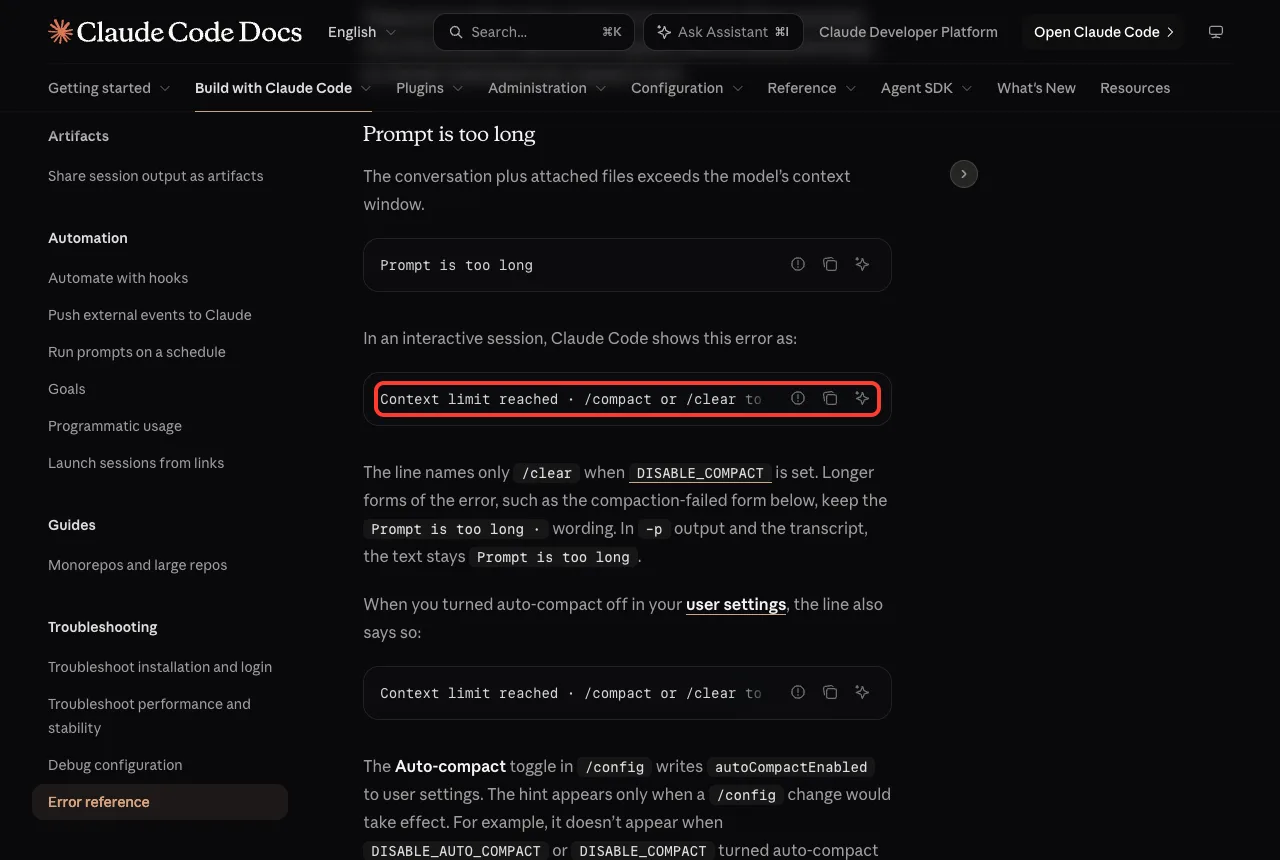
In an interactive session, the docs say Claude Code shows the error as “Context limit reached” followed by /compact or /clear. In -p (print) output and in the transcript, the text stays “Prompt is too long.” Both mean the same thing.
The error is not a crash. It is Claude Code telling you the desk is full.
What Fills the Window
Many people blame their chat, but the chat is only one part. The official docs say /context shows a breakdown of what is consuming the window: the system prompt, tools, memory files and messages.
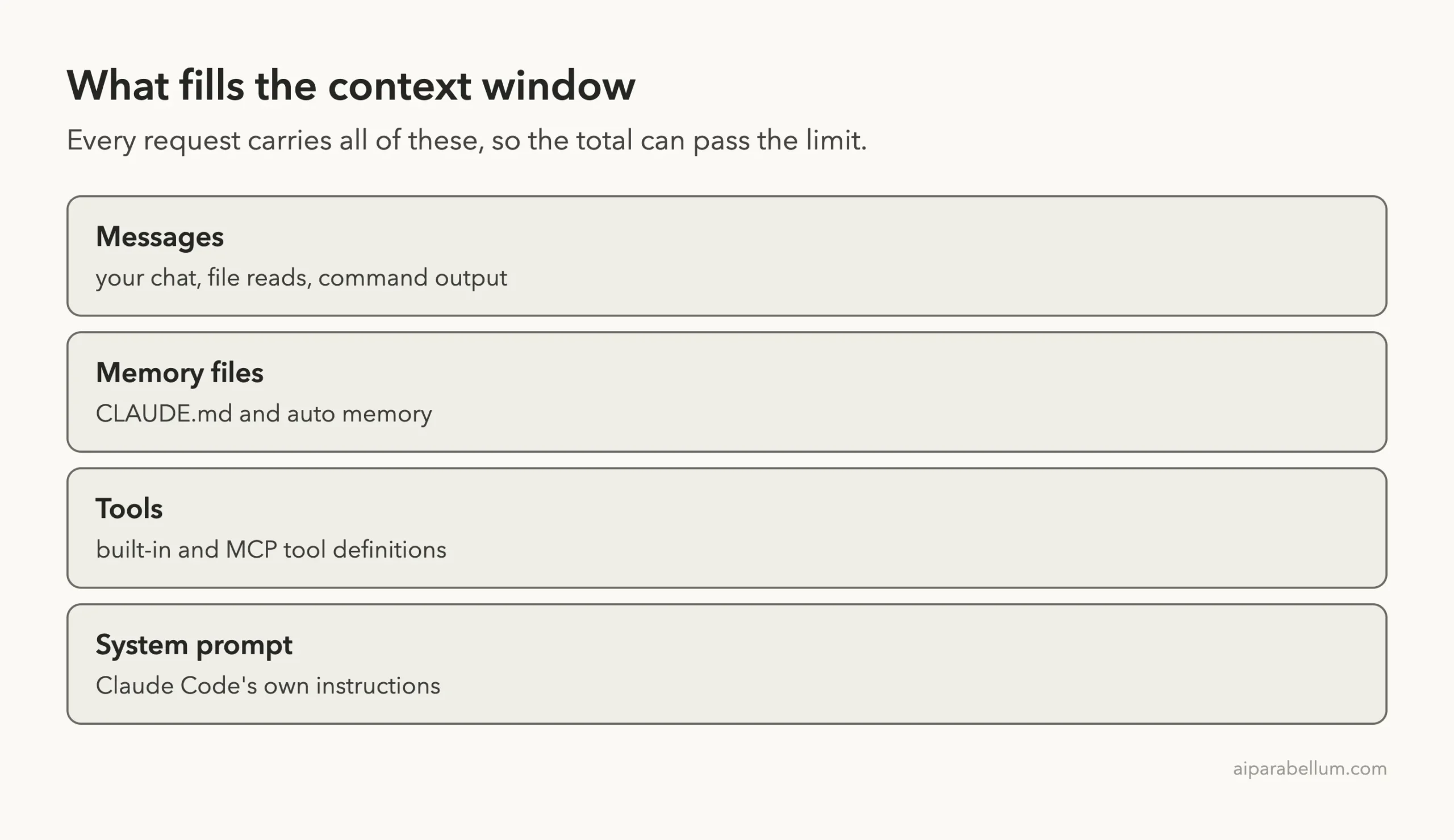
Messages grow as you work. The other three are loaded for you at the start of each session, so a long CLAUDE.md or many connected tool servers can leave less room before you type a word.
Step 1: Run /context to See What Is Big
Before you fix anything, look. For our test we made a small throwaway project with one made-up Python file of about 4,500 lines, then asked Claude Code to read it.
Read @src/shop.py and tell me in one sentence what it does.
/context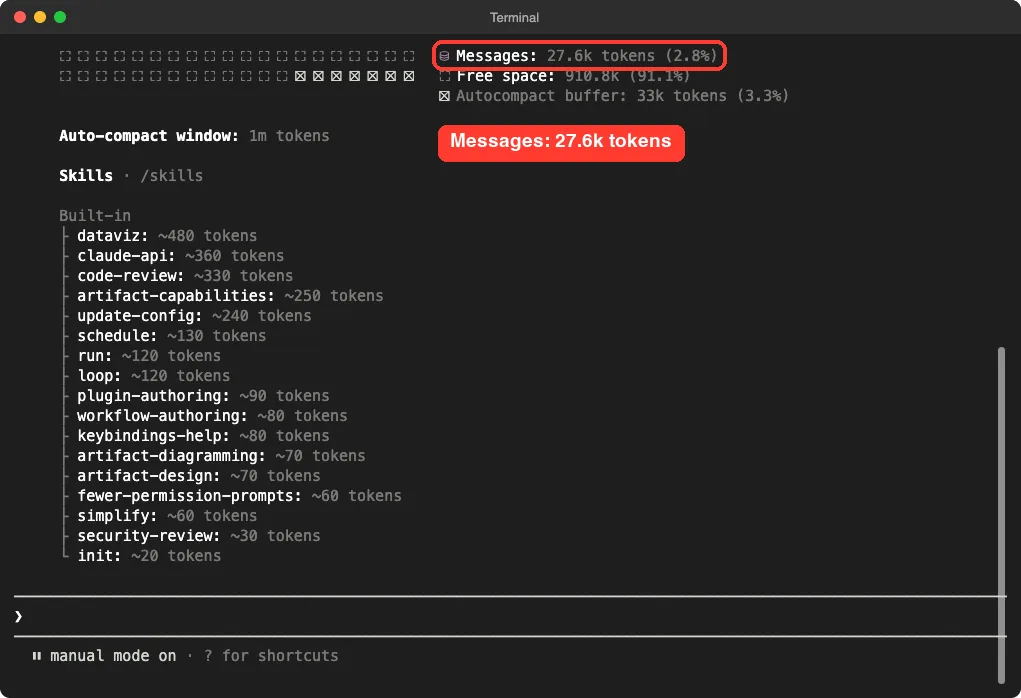
One file read made the Messages row jump to 27.6k tokens. Free space was 910.8k tokens, and the auto-compact window showed 1m tokens, so we were nowhere near the limit. A real session that hits the error is simply this picture repeated many times over.
The screen also lists the autocompact buffer, which is space reserved so that compaction can run. We ran this test with –safe-mode so the screen stays short; safe mode turns off CLAUDE.md, skills, plugins, hooks and MCP servers for the session, so your own numbers will differ.
Step 2: Run /compact With a Focus
The first fix in the docs is /compact, which summarizes earlier turns and frees space. A plain /compact lets Claude Code guess what matters. A focused one tells it what to keep.
/compact keep only the file name and what it does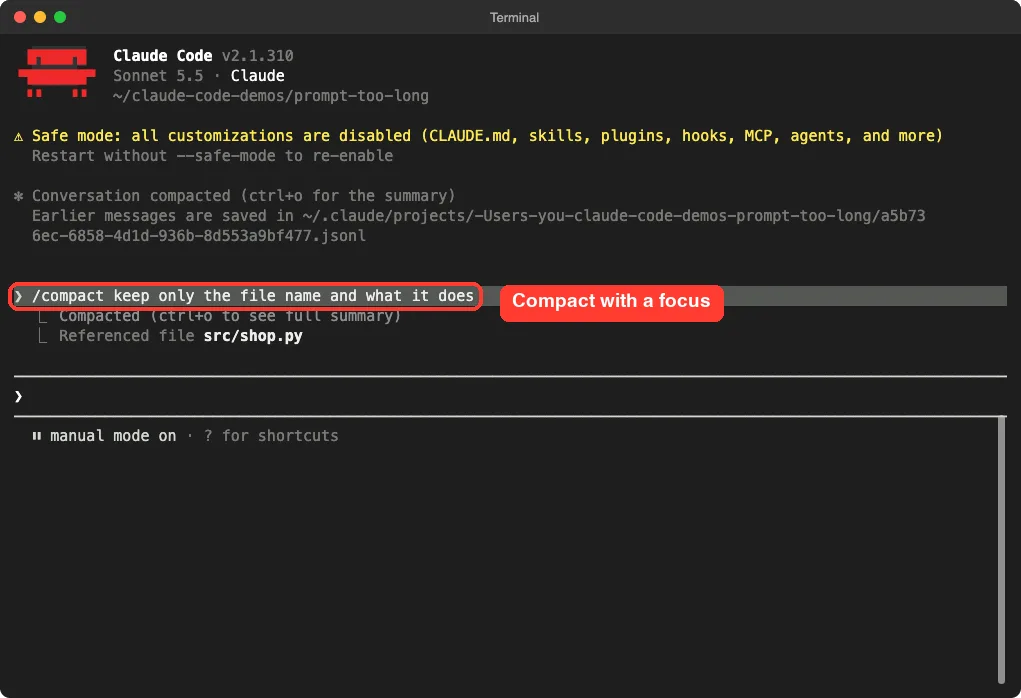
Claude Code printed “Conversation compacted” and noted that the earlier messages are saved in a session file on disk. So compaction shortens what Claude holds in memory, while the earlier messages are still saved on your computer.
Check That It Worked
Run /context again to see the difference.
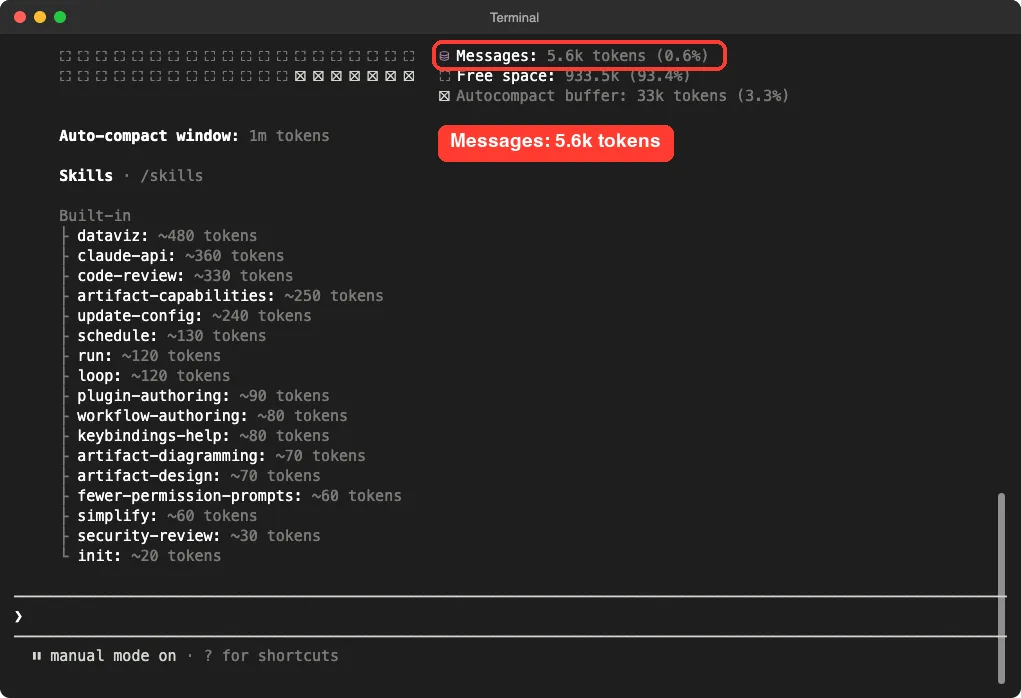
Messages dropped from 27.6k to 5.6k tokens, and free space grew to 933.5k. In a long real session the gap is much bigger, which is why a focused compact is the most useful first move.
Step 3: Use /clear When You Do Not Need the Old Chat
/clear starts completely fresh. The context window page says to run it when you switch to unrelated work, because old conversation crowds out the files you need next and costs tokens on every message.
/clear
/context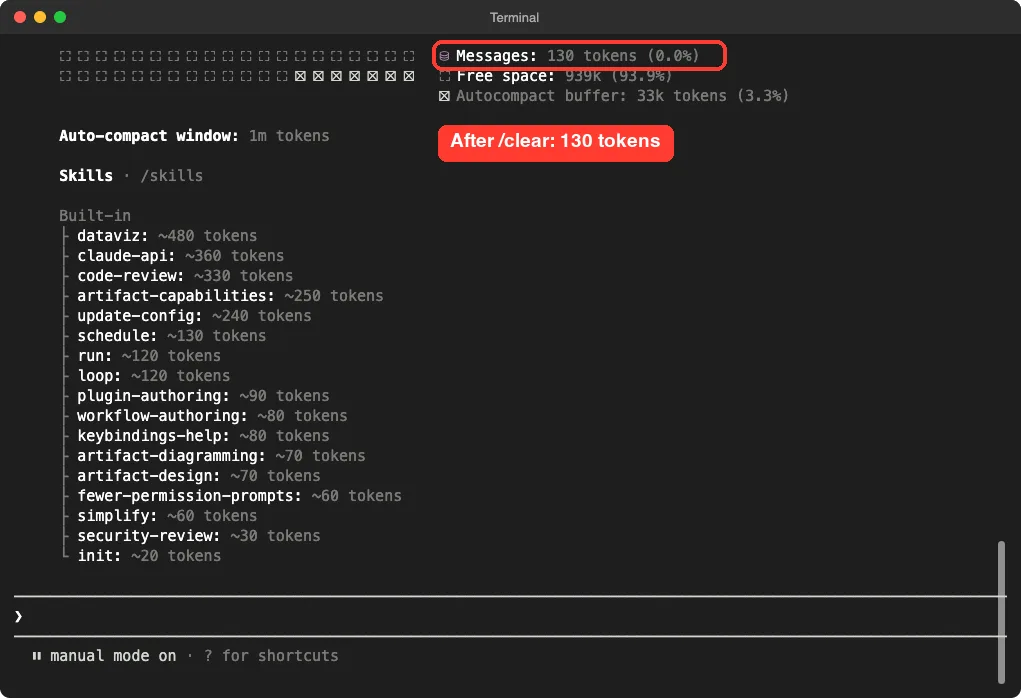
Messages fell to 130 tokens. The trade-off is simple: /compact keeps a summary so you can continue the same task, while /clear throws the conversation away. Try a focused /compact first unless you are done with the topic.
Fix Prompt Is Too Long When /compact Fails
Sometimes you run /compact and get “Not enough messages to compact.” The docs explain what that means. The conversation is a single exchange with nothing earlier to summarize, so the space is taken by that one prompt and by what Claude Code sends with every request.
The official fix is to run /clear and resend with less pasted text or smaller attachments, or to reduce the tool definitions and memory files. A good habit is to save a huge log or document to a file and give Claude the path, so it can read it in chunks.
Read only lines 1 to 120 of build.log and tell me which step failed. Do not open the rest of the file.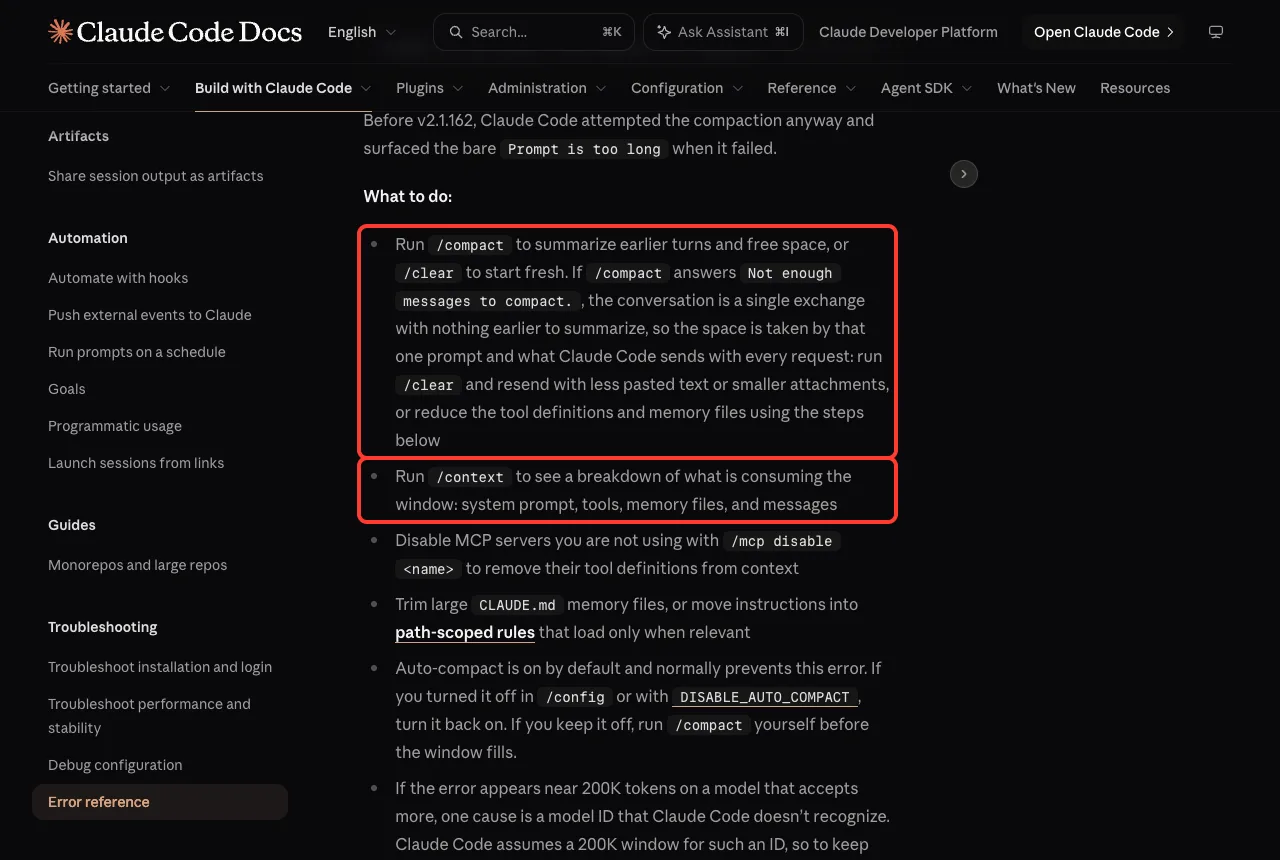
Reduce What Loads Before You Type
If the error comes back even after /clear, the startup content may be too big. The docs list two common culprits.
- MCP servers you do not use: run /mcp disable followed by the server name to remove its tool definitions from context.
- A large CLAUDE.md: trim it, or move instructions into path-scoped rules that load only when they are relevant.
Our guides to Claude Code MCP and the CLAUDE.md file explain both. Each tool server adds definitions to every request, so a few unused ones can take real space.
Turn Auto-Compact Back On
The docs say auto-compact is on by default and normally prevents this error. If you turned it off in /config or with the DISABLE_AUTO_COMPACT setting, turn it back on. If you keep it off, you must run /compact yourself before the window fills.
The interactive message also tells you when you turned auto-compact off in your settings. The line names only /clear when the DISABLE_COMPACT setting is on, because compacting is then unavailable. We did not turn these settings off in our test, so we only report what the docs say.
Less Common Causes
These come straight from the official error reference. They are rarer, but they explain some confusing cases.
Error Near 200K Tokens on a Model That Accepts More
The docs say one cause is a model ID that Claude Code does not recognize. Claude Code then assumes a 200K window for it. If you use a custom ANTHROPIC_BASE_URL, the docs advise setting the model’s context window.
They also note that before v2.1.299 the message “Prompt is too long · automatic compaction failed” could appear near the assumed 200K window instead of the request being sent. Update to v2.1.299 or later.
Error After You Stopped a Compaction
If the error appeared right after you stopped Claude while it was compacting, your conversation is unchanged and still large enough to need compacting. Run /compact and send your message again. The docs say to update to v2.1.304 or later so this does not recur.
Error That Hides Another Error
On v2.1.305, with many MCP tools and a direct connection to the Anthropic API, this error can hide an unrelated 400 or 422 error. The docs say to update to v2.1.306 or later to see the original error. Run claude update, then claude –version to confirm.
“Request Too Large” With Images or Documents
A related message says the request is too large, with a size of 32MB mentioned in the docs. When images or documents pushed it over, Claude Code retries with them stripped. Otherwise, run /compact, which drops accumulated images and attachments, or press Esc twice to step back past the turn that added the large content.
For single images, the docs say the API accepts up to 8000 pixels on the longest edge, or 3000 pixels when more than 20 images are in context. A tighter screenshot of the region you need is usually the better choice.
How To Stop It Coming Back
- Run /clear when you switch to unrelated work.
- Run a focused /compact before starting a long new task, such as /compact focus on the auth bug fix.
- Send big reads to a subagent so file contents stay in its own window. See our guide to Claude Code subagents.
- Reference large files by path so Claude can read them in chunks.
- Keep your CLAUDE.md short and disable unused MCP servers.
- Keep auto-compact on, and consider /autocompact with a token count such as 500k if you want it to run earlier.
These habits also lower your bill, because every message carries the whole context. Our guide to Claude Code costs shows how. For a general checkup of your setup, our doctor guide helps, and the full list of commands is in our slash commands guide.
Try It Yourself
Practice in a throwaway folder, never in a real project. Create one large text or code file, start Claude Code, and follow this plan:
- Ask Claude to read the file and summarize it in one sentence.
- Run /context and write down the Messages number.
- Run /compact with a short focus sentence.
- Run /context again, then /clear and /context once more.
Read @bigfile.txt and tell me in one sentence what it is about.
/context
/compact keep only the file name and the one-sentence summary
/context
Common Mistakes
- Sending the same long message again and again. The size does not change, so the error will not either.
- Using /clear when you still need the work. Try a focused /compact first.
- Pasting a giant log into the chat instead of saving it to a file.
- Only trimming the chat and ignoring the startup rows in /context.
- Leaving unused MCP servers connected.
Pro Tips
- Run /context early in a long session, not only after something breaks.
- Write your compact focus as a short list of what must survive, such as the plan, file names and open bugs.
- Use –safe-mode as a test to see if your add-ons are the cause, not as a permanent setup.
- Press Esc twice to step back past a turn that added too much content.
Cheat Sheet
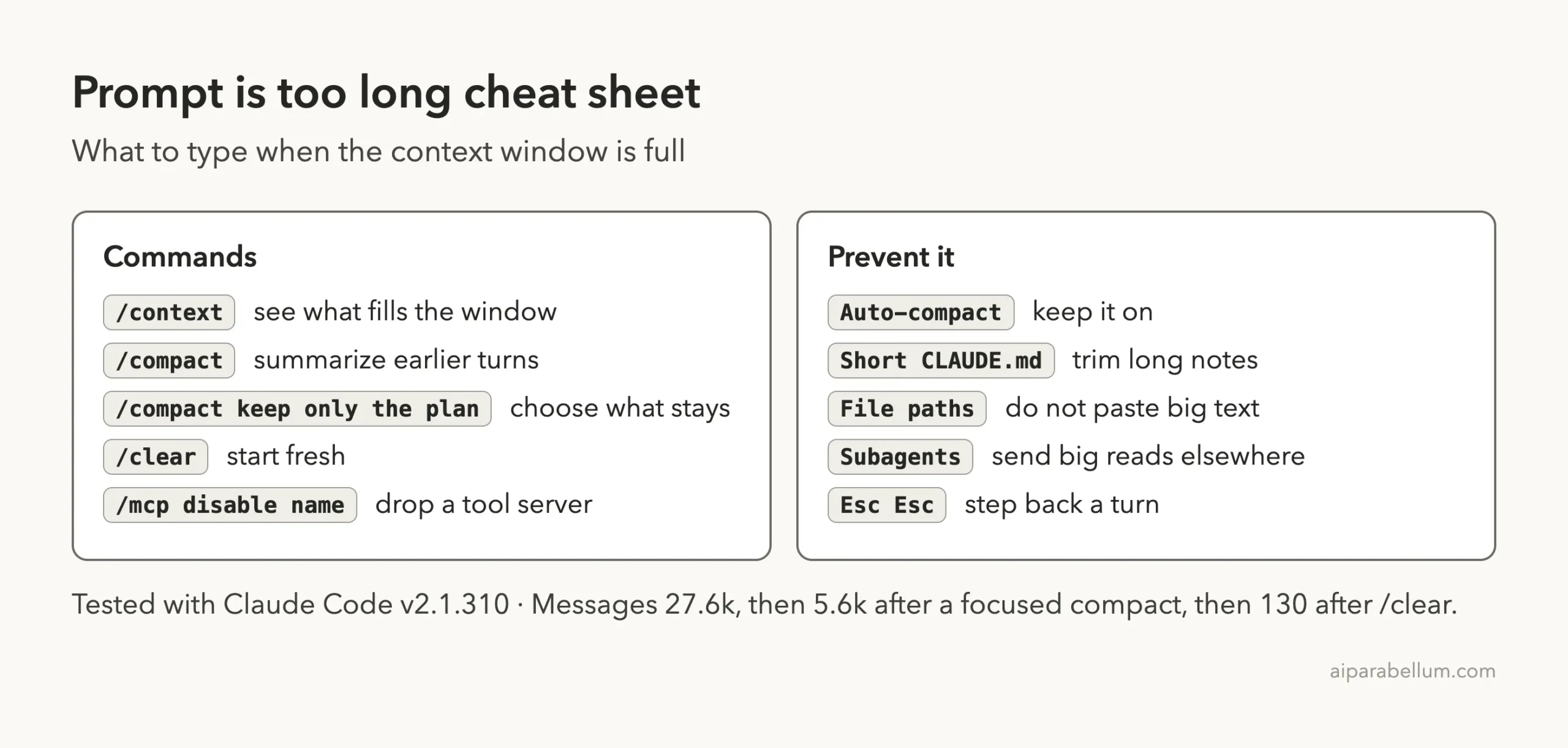
Frequently Asked Questions
Is “prompt is too long” the same as hitting a usage limit?
No. This error is about the size of one conversation versus the model’s context window. A usage limit is about how much you can use over time, and the docs treat them separately.
Will I lose my work if I run /compact?
Compaction replaces the chat in memory with a summary. Claude Code told us the earlier messages are saved in a session file, and your project files are not changed by compaction.
Should I use /compact or /clear?
Use /compact to keep going on the same task and /clear when you are switching topics. If /compact says there are not enough messages, use /clear.
Can I stop this error from ever happening?
We cannot promise that. The docs say auto-compact normally prevents it, so keep it on, keep memory files short and avoid pasting huge text.
Why did it happen on a short chat?
The space may be taken by startup content, such as memory files and tool definitions, or by one large paste. Run /context to see which row is biggest.
Conclusion
When Claude Code says the prompt is too long, check what is filling the window with /context, free space with a focused /compact or /clear, and trim large memory files and unused MCP servers so it does not return. Browse all our Claude Code tutorials for more fixes, and learn more about the tool itself on our Claude AI page.