If Claude Code keeps logging out and asks you to sign in again every few hours or every morning, something is stopping it from keeping your saved login. The cause is usually one of three things: the login could not be renewed, the macOS Keychain refused to store it, or you are working over SSH, WSL2 or a container where the browser cannot reach Claude Code.
The short answer: run /login to sign in again, then run claude doctor in your terminal. On a Mac, if the report shows a warning that starts with “macOS Keychain is not writable,” unlock the Keychain with the security command shown below, and sign in once more. If you are on SSH, WSL2 or a container, paste the login code the browser shows into the “Paste code here” prompt.
This is a help article. Browse all our Claude Code tutorials for the full series. If you got an error message with a number in it, our guide to authentication errors explains each one.
Tested with Claude Code v2.1.310 on October 28, 2026, on macOS. We tested on macOS; the Windows and Linux steps follow Anthropic’s official instructions.
We ran the read-only claude doctor check on a real Mac to see what a healthy Keychain looks like. We did not log out or touch any saved login, because breaking a working setup just to reproduce a problem is a bad trade. The loop itself cannot be triggered safely, so the problem screens come from the official docs, shown in highlighted screenshots.
Quick Answer: Why Claude Code Keeps Logging Out
Find the row that matches your situation, then jump to the matching fix.
| What you notice | Likely cause | First fix |
|---|---|---|
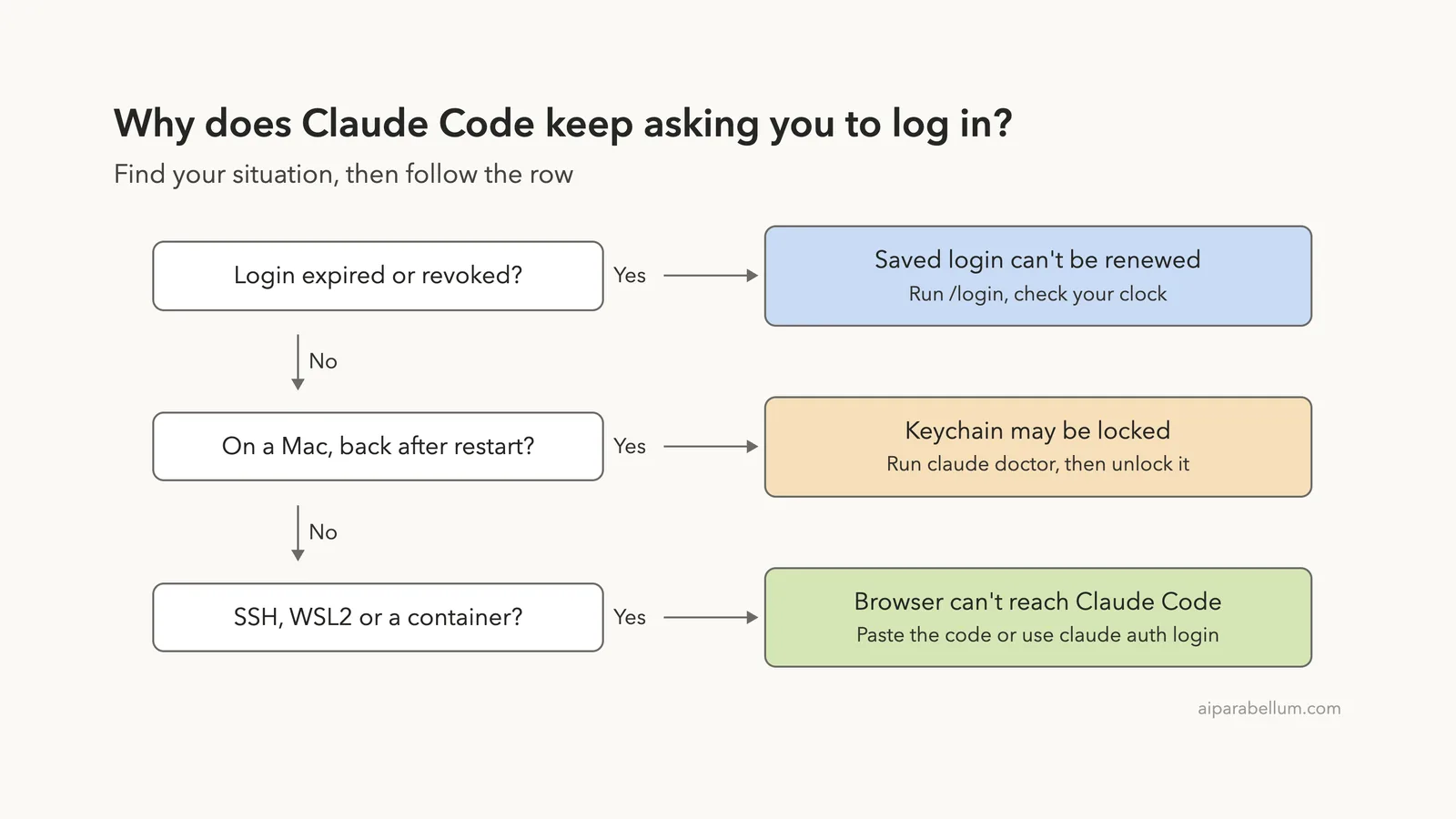
| Asked to log in again after a session | The saved login expired and could not be renewed | Run /login, check your clock |
| Login prompt returns after a restart on a Mac | The login Keychain is locked or out of sync | Run claude doctor, then unlock the Keychain |
| All your open sessions log out at once | Old versions renewed the same token twice after sleep | Update Claude Code |
| Browser shows a code instead of finishing | SSH, WSL2 or a container | Paste the code, or run claude auth login |
| OAuth error: Invalid code | The code expired or was cut off while copying | Press Enter to retry, finish quickly |
| Login prompt shows during first-launch setup | Expired sign-in, or an organization login rule | Log in with the right account |
A login loop is rarely about your account. It is almost always about where Claude Code can save the login, or whether the saved login can be renewed.
Why Claude Code Keeps Logging Out: How Your Login Is Saved
When you run /login, Claude Code gets a token that proves who you are and saves it on your computer. Next time you start claude, it reads that saved login instead of asking you again. A login loop means that reading or renewing step is failing.
According to the official authentication guide, where the token is saved depends on your system. On macOS it goes into the encrypted login Keychain. On Linux it goes into a file named .credentials.json inside your .claude folder, and on Windows it is the same file name inside your user profile.
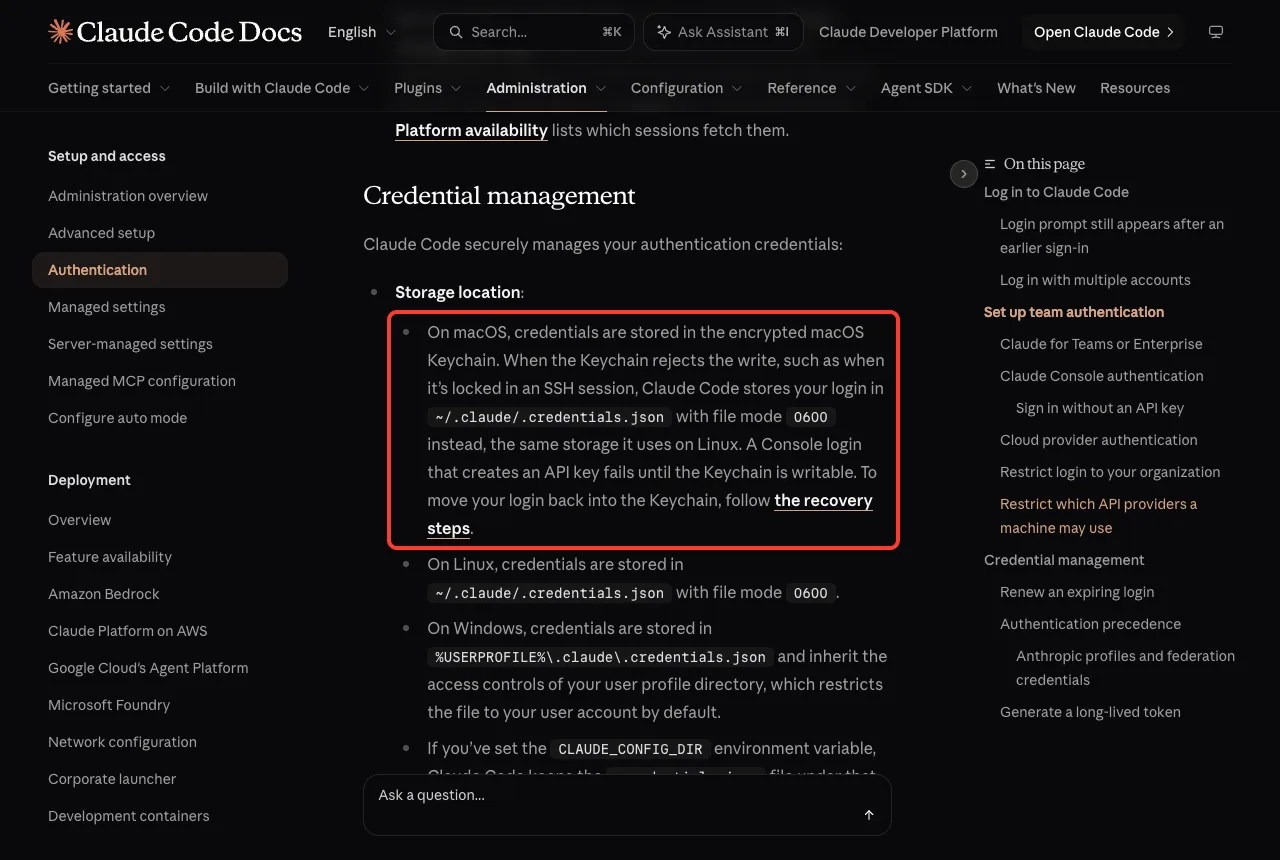
The macOS case has a catch that explains many loops. When the Keychain rejects the write, such as when it is locked in an SSH session or its password is out of sync with your account password, Claude Code saves your login to the plaintext ~/.claude/.credentials.json file instead.
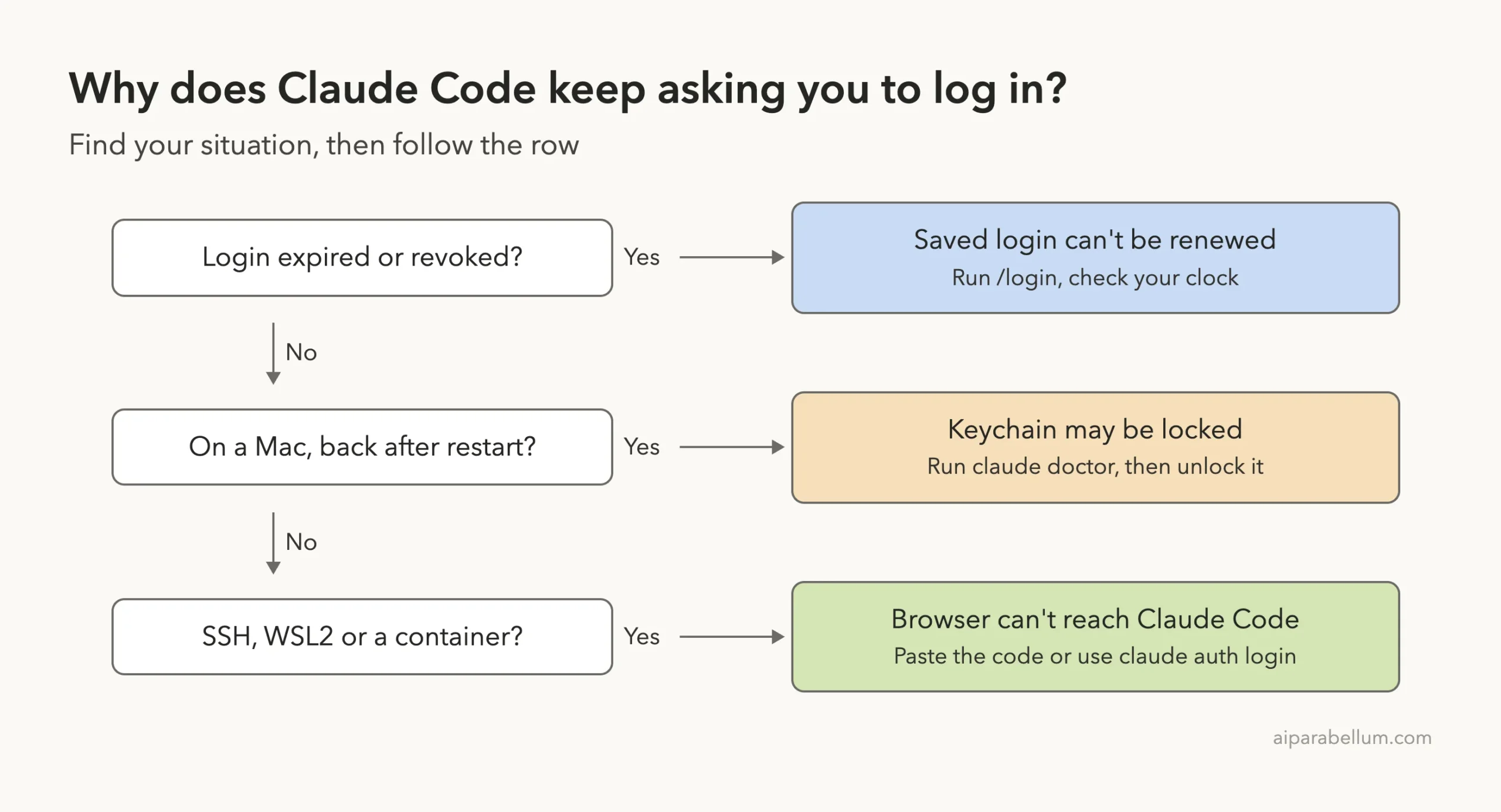
The diagram below turns the most common situations into a quick decision ladder.
Fix 1: Stop Claude Code Logging Out With /login and a Correct Clock
The official troubleshooting guide covers the plain version first. If Claude Code prompts you to log in again after a session, your OAuth token may have expired. Type /login to re-authenticate, and your session picks up the new login.
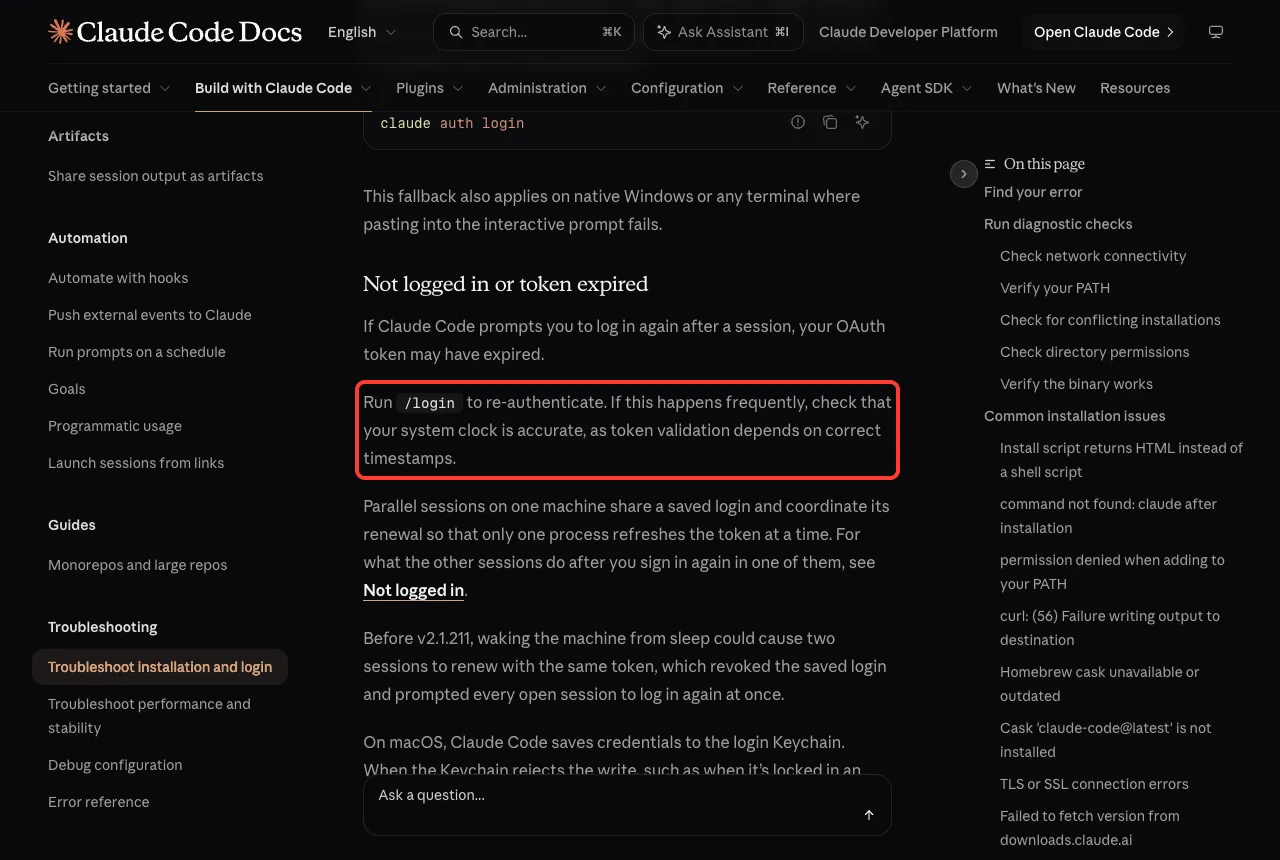
The same section adds a tip that surprises people: if it happens frequently, check that your system clock is accurate, because token validation depends on correct timestamps. A clock that is off by a lot, for example after a dead battery or a virtual machine that was paused, can make a perfectly good token look invalid.
On a Mac, open System Settings, go to General, then Date and Time, and turn on automatic time. On other systems, use the matching setting in your operating system. After fixing the clock, run /login once and see whether the loop stops.
If you are logged out in every window at once
The guide describes a specific old bug. Parallel sessions on one machine share a saved login and coordinate its renewal, so only one process refreshes the token at a time. Before v2.1.211, waking the machine from sleep could cause two sessions to renew with the same token, which revoked the saved login and prompted every open session to log in again at once.
If you see that pattern after your laptop wakes up, check your version with claude –version. The fix is part of v2.1.211 and later, so running claude update removes this cause.
Fix 2: Repair the macOS Keychain
This is the fix to try when you are on a Mac and the prompt comes back even after a clean sign-in. The docs describe the problem like this: Claude Code saves credentials to the login Keychain, and when the Keychain rejects the write, it falls back to the plaintext file instead.
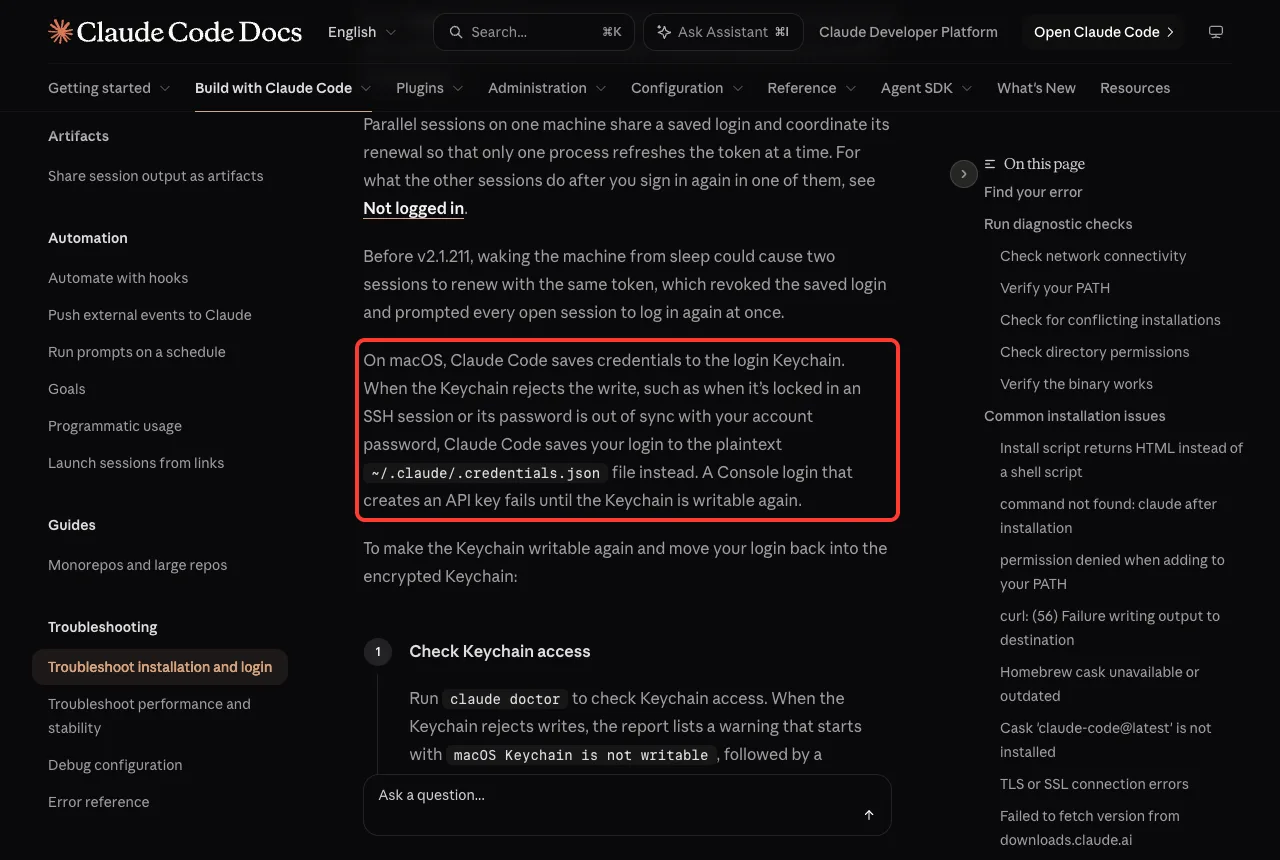
The guide gives four steps to make the Keychain writable again and move your login back into it.
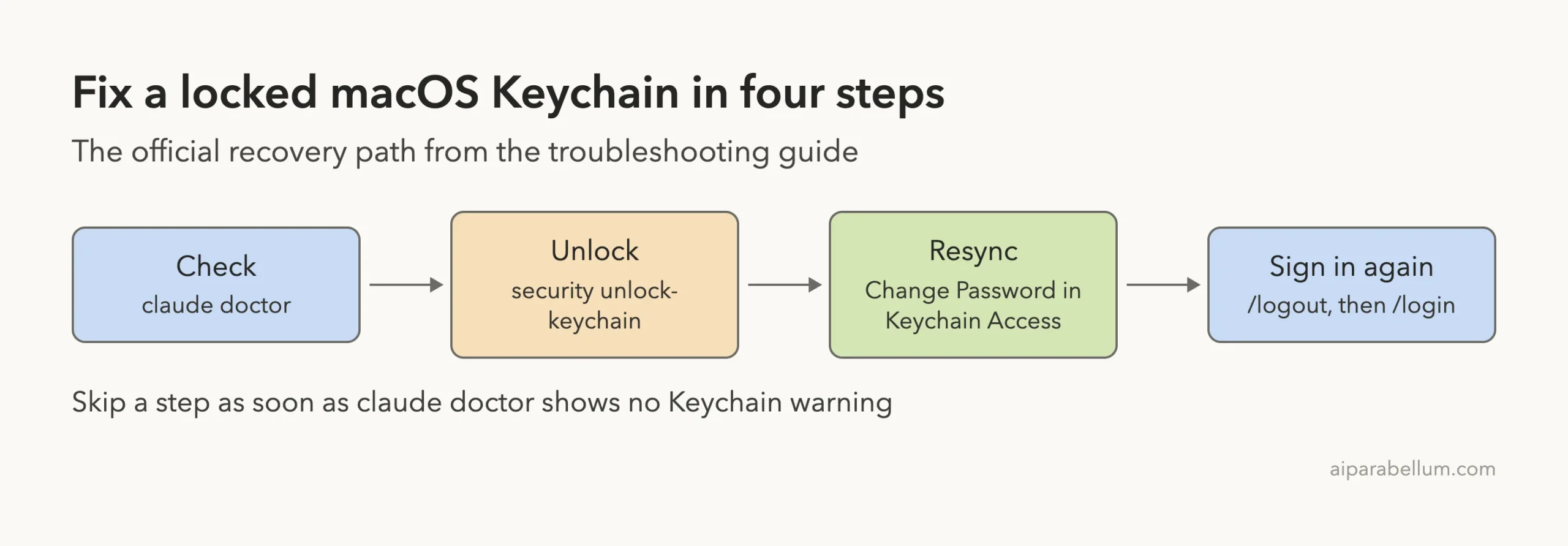
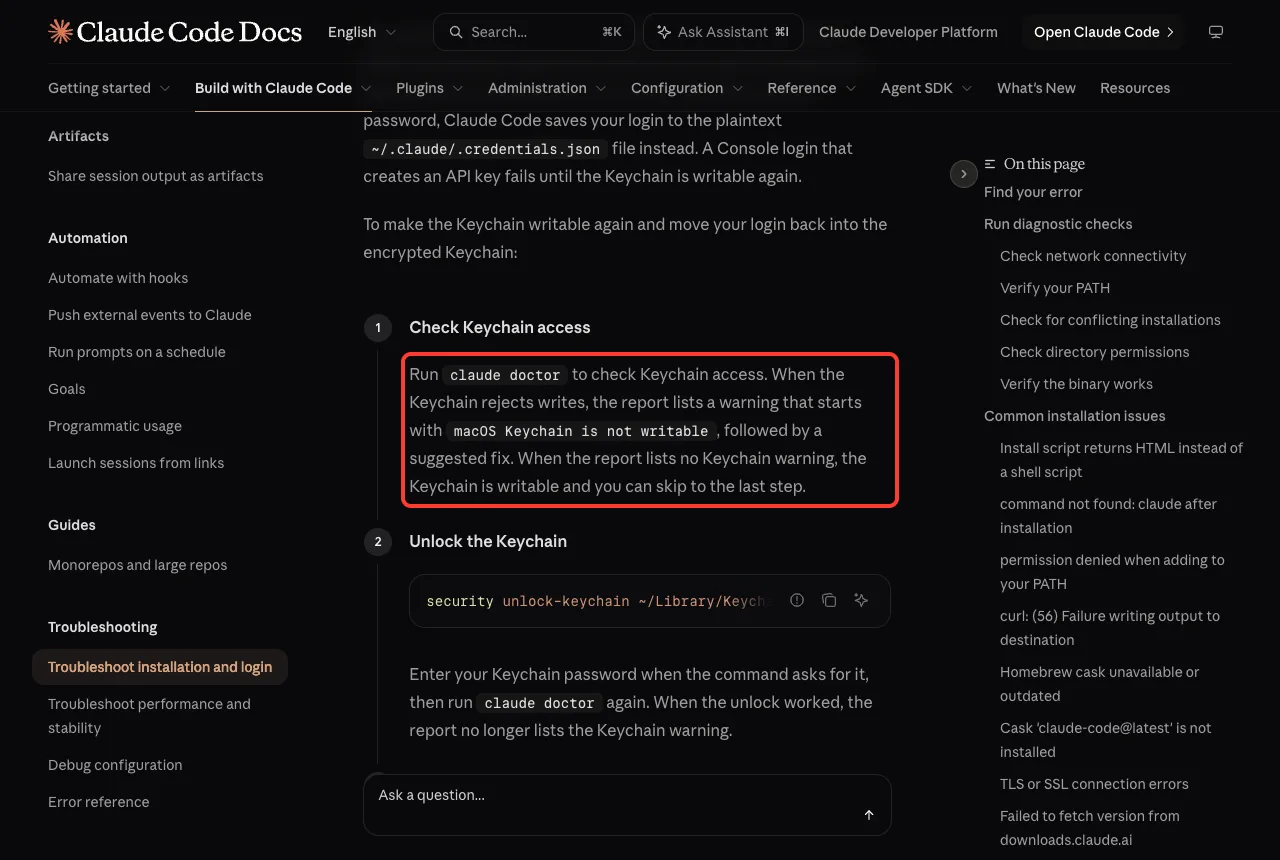
Step 1: Check Keychain access with claude doctor
Run claude doctor in your terminal. When the Keychain rejects writes, the report lists a warning that starts with “macOS Keychain is not writable,” followed by a suggested fix. When the report lists no Keychain warning, the Keychain is writable and you can skip to the last step.
Here is what a healthy report looked like on our Mac. We filtered out two account-related lines with grep so that no plan details show, but nothing else was changed. There is no Keychain warning, so this machine could skip ahead.
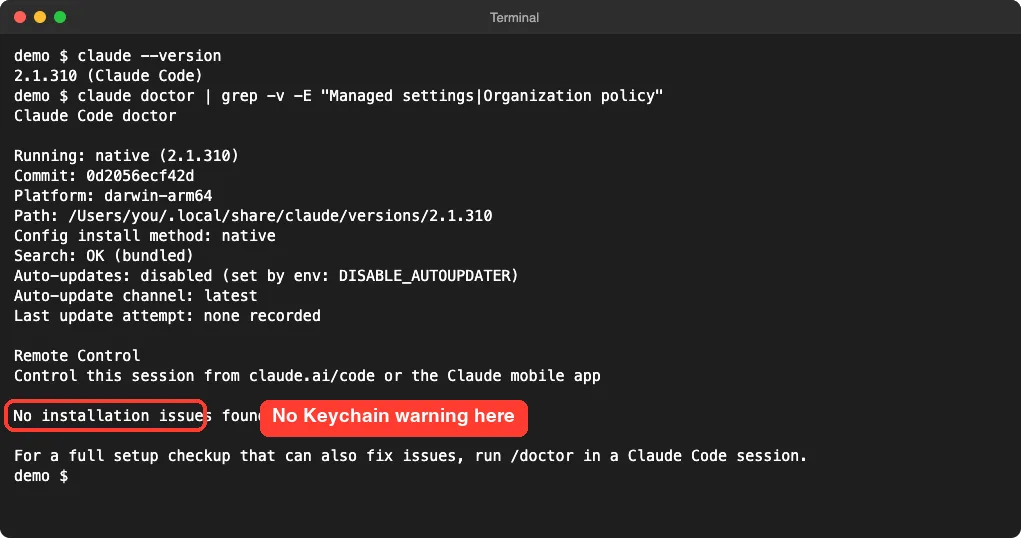
Our doctor command guide explains the rest of that report in plain English.
Step 2: Unlock the Keychain
If the warning appears, run this command from the docs in the same terminal. It asks for your Keychain password, which is typed at the prompt and nowhere else.
security unlock-keychain ~/Library/Keychains/login.keychain-dbThen run claude doctor again. When the unlock worked, the report no longer lists the Keychain warning.
Step 3: Resync the Keychain password
If unlocking does not help, the Keychain password may be out of sync with your account password. Open Keychain Access, select the login keychain, and choose Edit, then Change Password for Keychain “login,” to resync it with your account password. Run claude doctor again until the warning is gone.
Step 4: Log out and back in
Claude Code moves your credentials back the next time it writes one. To force it now, run /logout and then /login.
Be careful here, because the guide warns that logging out removes all stored credentials, including the plaintext file’s contents, saved MCP server logins and plugin sensitive values. Expect to re-authorize your MCP servers and re-enter plugin secrets afterwards.
Fix 3: Logging In Over SSH, WSL2 or a Container
Remote setups cause a different kind of loop. The docs explain that when Claude Code runs in WSL2, on a remote machine over SSH, or inside a container, the browser usually opens on a different host. Its redirect cannot reach Claude Code’s local callback server, so the sign-in never completes by itself.
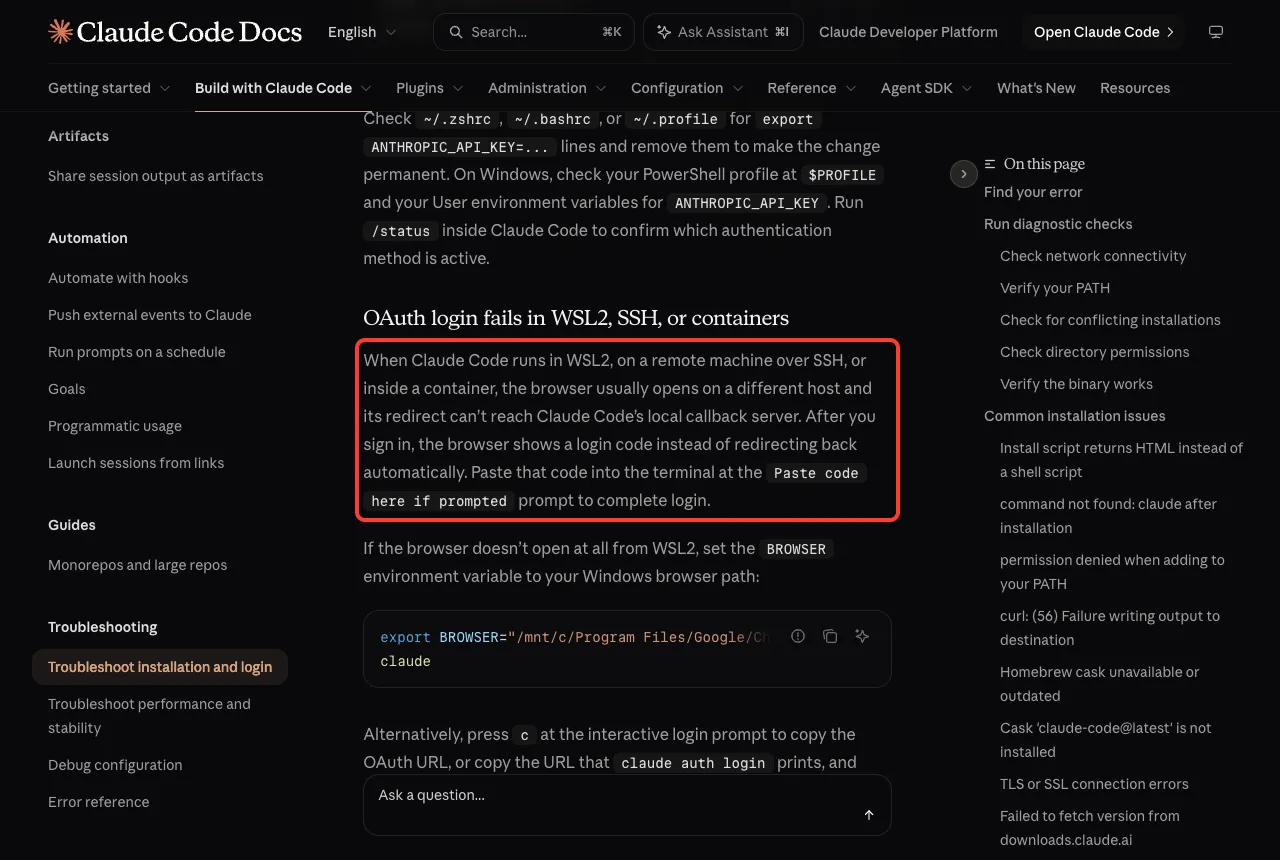
After you sign in, the browser shows a login code instead of redirecting back. Paste that code into the terminal at the “Paste code here if prompted” prompt to complete the login. Here are the other options from the guide.
- Press c at the login prompt to copy the sign-in URL, then open it in a browser on your own computer.
- If the browser does not open at all from WSL2, set the BROWSER environment variable to your Windows browser path, then run claude.
- If pasting into the prompt does nothing, try your terminal’s other paste shortcut, such as right-click or Shift+Insert in Windows Terminal.
- Run claude auth login instead, which reads the pasted code from standard input. The docs say this fallback also works on native Windows.
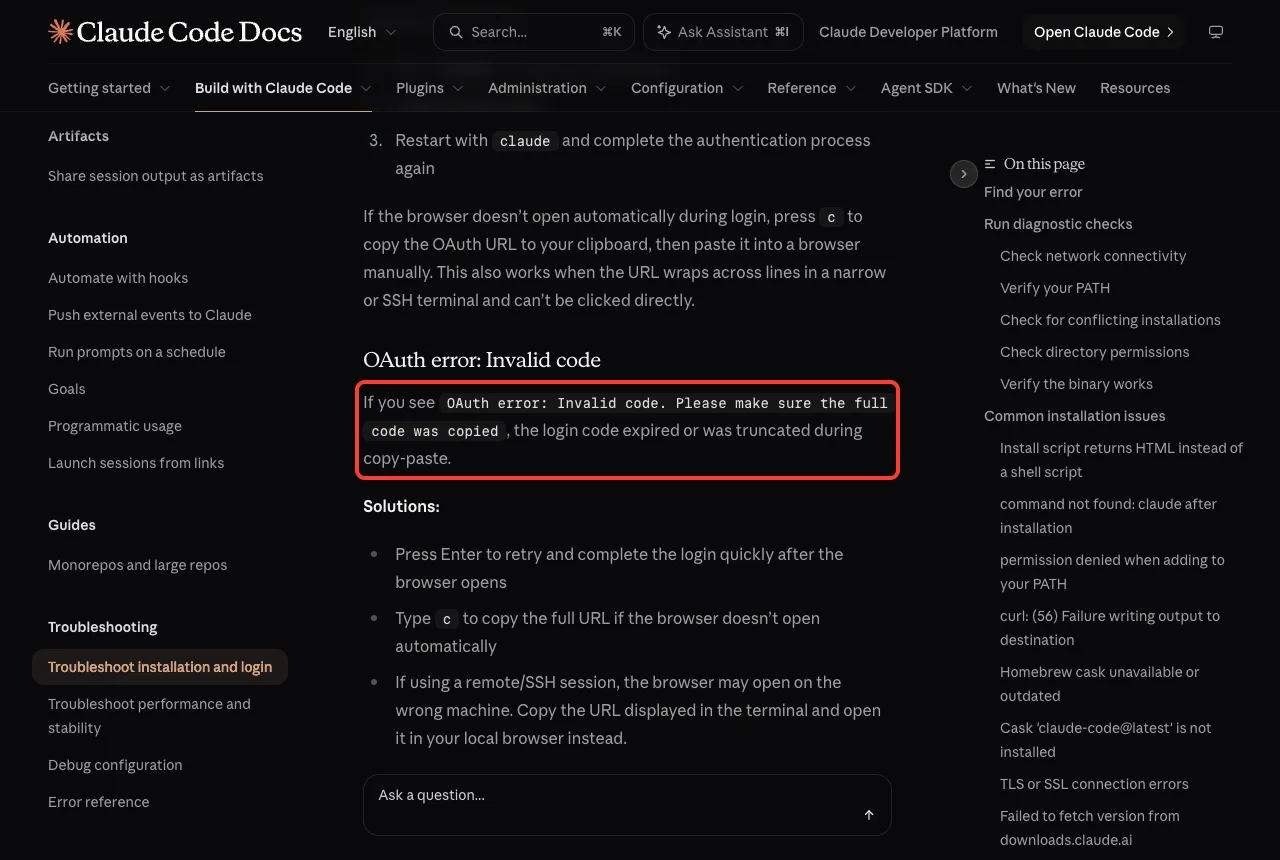
“OAuth error: Invalid code”
If you see “OAuth error: Invalid code,” the login code expired or was cut off during copy and paste.
Press Enter to retry and finish the login quickly after the browser opens. Over SSH, the browser may also open on the wrong machine, so copy the URL from the terminal and open it locally.
Fix 4: The Login Prompt Appears During First-Launch Setup
The authentication guide has a short list for a related situation. You signed in earlier, but the first-launch setup shows the login prompt instead of skipping it. It lists these causes.
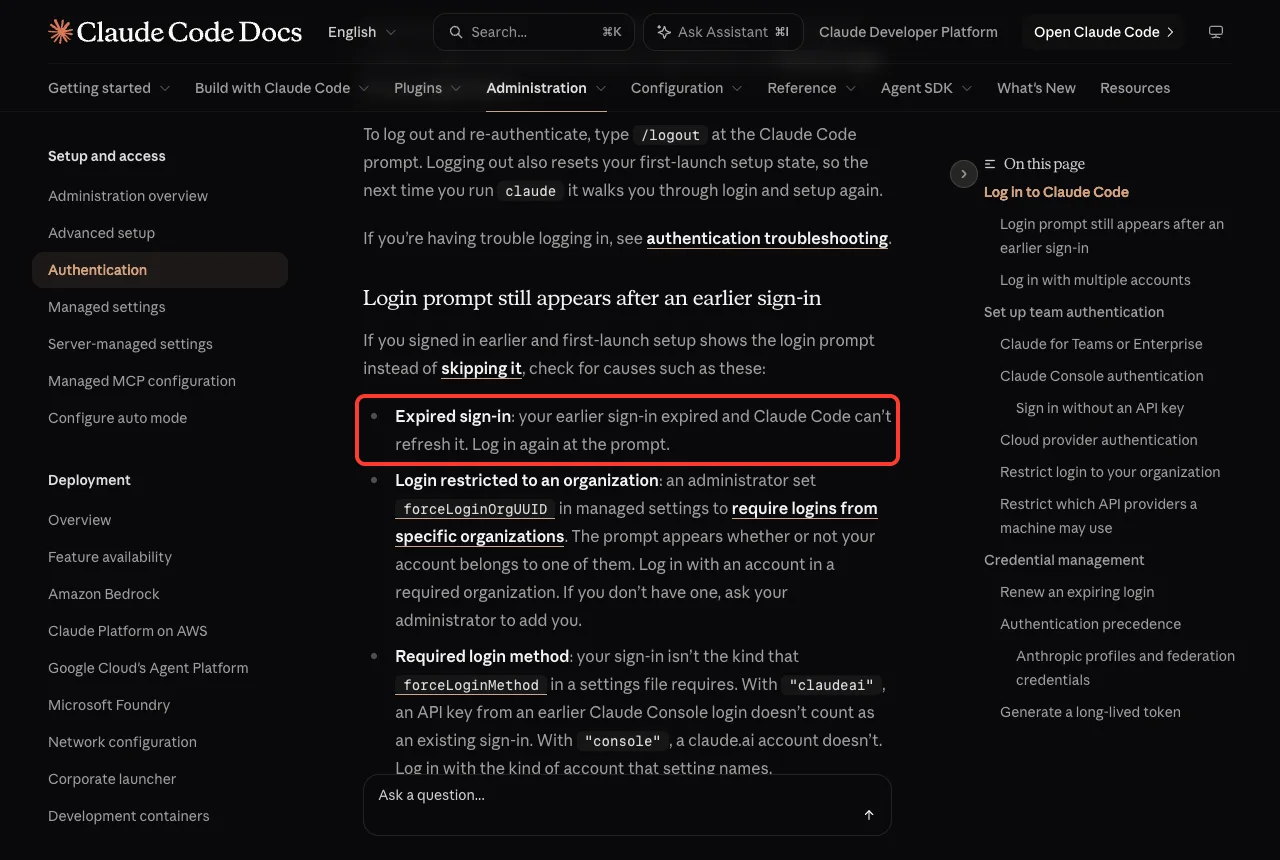
- Expired sign-in: your earlier sign-in expired and Claude Code cannot refresh it, so log in again at the prompt.
- Login restricted to an organization: an administrator set forceLoginOrgUUID in managed settings, so the prompt appears whether or not your account belongs to a required organization. Log in with an account in one, or ask your administrator to add you.
- Required login method: your sign-in is not the kind that forceLoginMethod requires. Log in with the kind of account that setting names.
- Older version: before v2.1.290, the prompt appeared during setup whether or not you were signed in. Update Claude Code to skip it.
The last cause is the easiest to fix. Run claude update and start Claude Code again. If you work in a company, the two middle causes are policies, and only your administrator can change them.
What If It Still Keeps Happening?
Work through this short checklist before giving up.
- Run claude –version and update if you are before v2.1.211.
- Check your system clock.
- Run claude doctor and read every warning.
- Do the clean reset: /logout, close Claude Code, start claude and sign in again.
- Run /status to confirm which credential is active, in case an environment variable is overriding your login.
If none of that works, the official guide says that a login loop is a problem with your account rather than the install, so contact Anthropic support.
Sign in at claude.ai (Console users: platform.claude.com), click your initials in the lower left, and select Get help. Inside Claude Code, /feedback also reports problems. Our common errors guide and install problems cover neighboring problems.
Real Examples
These short stories show how the fixes play out. They follow the official docs, not user reports.
Example 1: Asked to log in every Monday
You close your laptop on Friday and open it on Monday to find a login prompt. First check your version, because versions before v2.1.211 could log every session out after waking from sleep. Run claude update, then /login once.
Example 2: Fine until you reboot
On a Mac, you sign in and everything works, but after a restart the prompt is back. Run claude doctor and look for the Keychain warning. Unlock the Keychain, and if needed resync its password in Keychain Access.
Example 3: Working on a remote server
You connect over SSH and the browser opens on the server, which has no screen. Press c to copy the sign-in URL, open it on your own computer, sign in, and paste the code back into the terminal.
Try It Yourself
Practice reading your own setup without changing anything. Run these two commands in a normal terminal, and note whether the doctor report shows any warning.
claude --version
claude doctor
Then start Claude Code in a small demo folder and paste this prompt. It only explains, and it never prints a key or token.
Explain which login method this Claude Code session is using, using what /status shows. Do not print any key or token. Then tell me what I should check first if I get asked to log in again every day.Common Mistakes
- Running /login again and again without finding the cause. Check the version, the clock and claude doctor first.
- Running /logout before you note your MCP servers and plugin secrets. Logging out clears them, so you must set them up again.
- Ignoring the Keychain warning in claude doctor, then wondering why the login never sticks on a Mac.
- Using a login URL that was cut off in a narrow terminal. Press c to copy the full URL instead.
- Waiting too long after the browser opens. A slow paste can produce an invalid code.
- Posting screenshots of credential files or tokens in a forum. Keep them private.
Pro Tips
- Keep Claude Code updated with claude update so known login bugs stay fixed.
- Turn on automatic date and time so token checks never fail on a wrong clock.
- Run claude doctor right after any macOS password change.
- For scripts and CI that cannot open a browser, read our headless mode guide and use a token made for automation.
- Read the official troubleshooting guide and authentication guide when your situation does not match the table above.
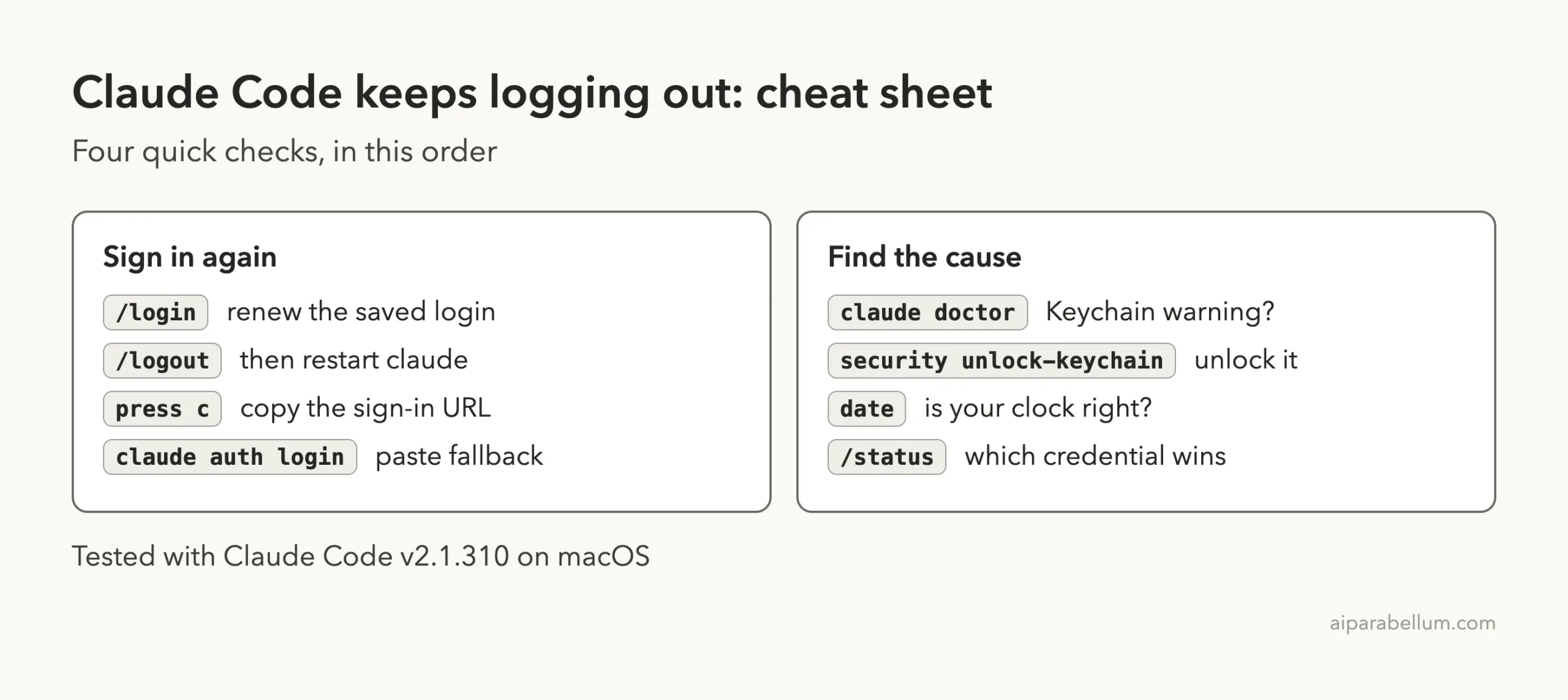
Cheat Sheet
Save this card for the next time the login prompt keeps returning.
Frequently Asked Questions
Why does Claude Code keep asking me to log in?
Usually the saved login expired and could not be renewed, the macOS Keychain refused to store it, or you are in an SSH, WSL2 or container session where the browser cannot reach Claude Code. Check your clock, run claude doctor, and use /login.
Does Claude Code log you out after a certain time?
The docs describe expiring logins that Claude Code tries to renew automatically. If renewal fails, you are asked to sign in again. Running /login renews it, and a correct system clock helps renewals succeed.
Why does Claude Code log out when my Mac sleeps?
Before v2.1.211, waking the machine could cause two sessions to renew with the same token, which revoked the login for every open session. Update Claude Code to get the fix.
What does “macOS Keychain is not writable” mean?
It means the Keychain rejected Claude Code’s attempt to save your login, so the login went to ~/.claude/.credentials.json instead. Unlock the Keychain, resync its password if needed, then run /logout and /login.
Where does Claude Code store my login?
On macOS it uses the encrypted login Keychain, with the credentials file as a fallback. On Linux it uses ~/.claude/.credentials.json, and on Windows the same file name in your user profile folder.
Conclusion
When Claude Code keeps logging out, start with the simple checks: run /login, confirm your system clock, and update to the latest version. On a Mac, claude doctor will tell you whether the Keychain is the problem, and in SSH, WSL2 or container sessions you only need to paste the login code. If it still loops, contact support, and keep our Claude guide handy for account questions.