
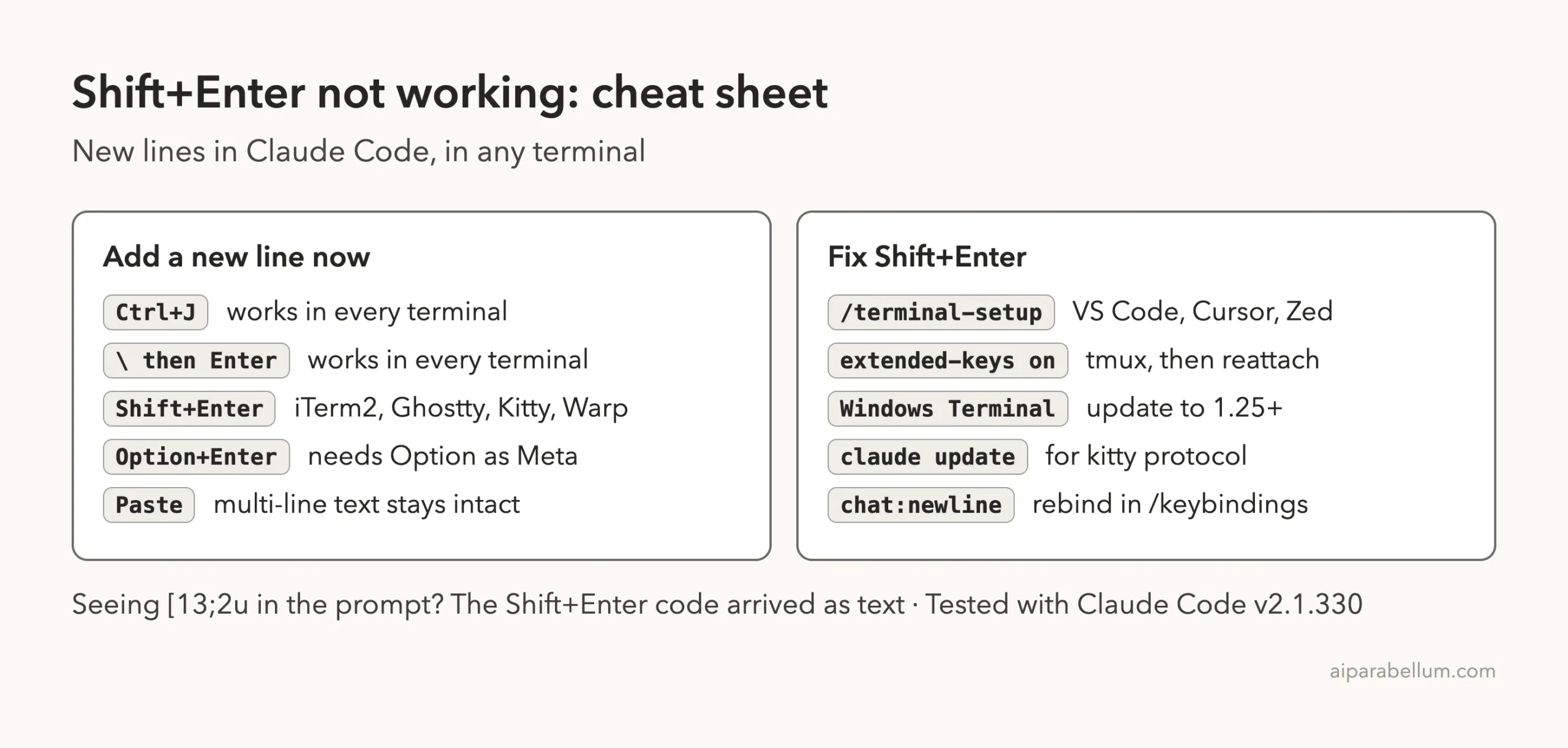
If Claude Code Shift+Enter is not working and your half-written prompt gets sent instead of moving to a new line, press Ctrl+J instead. Ctrl+J adds a line break in every terminal with no setup at all. Typing a backslash \ and then pressing Enter does the same thing.
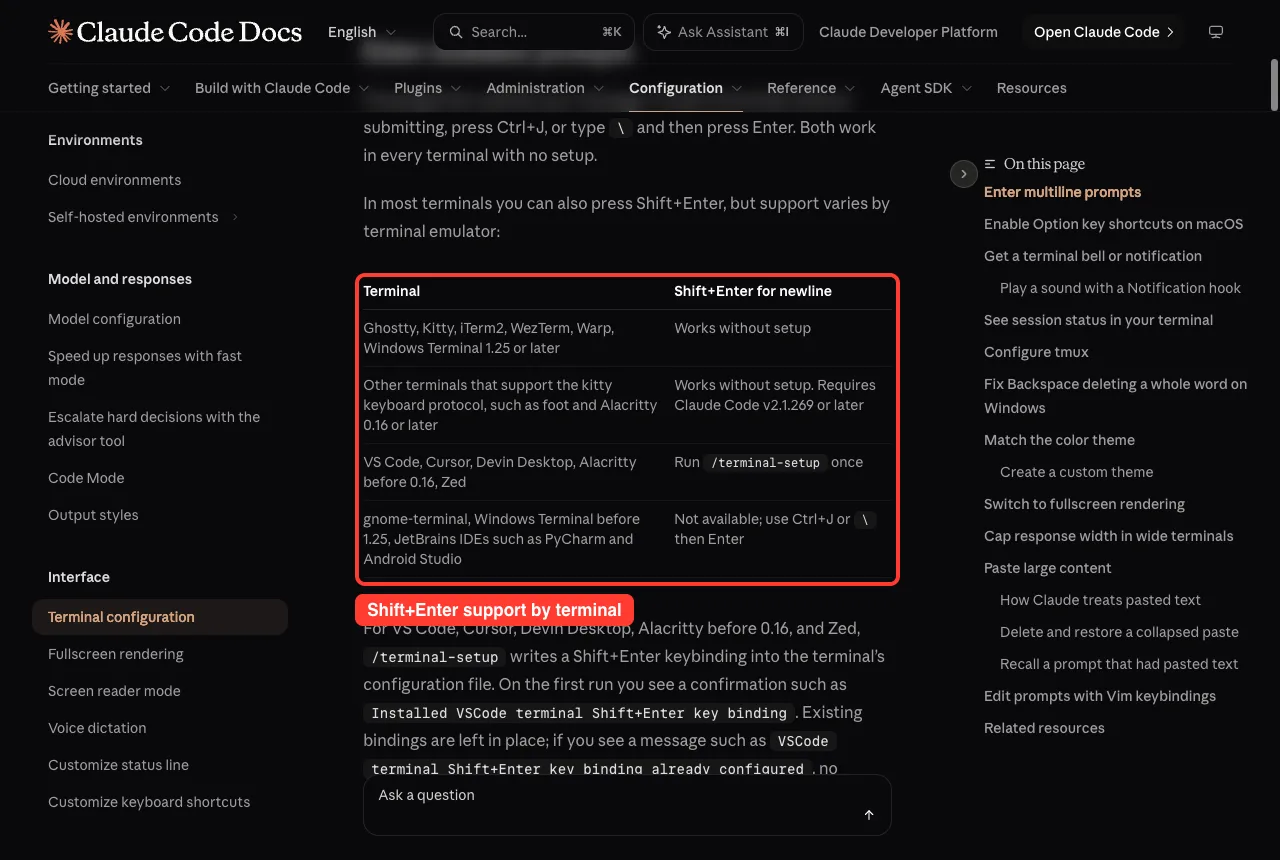
Shift+Enter itself depends on your terminal. It works out of the box in iTerm2, Ghostty, Kitty, WezTerm, Warp and Windows Terminal 1.25 or later. VS Code, Cursor, Zed and older Alacritty need one run of /terminal-setup, tmux needs two extra config lines, and gnome-terminal and JetBrains IDEs can’t do it at all.
Below, we show what each newline method really does in a live Claude Code session, why the Shift key gets lost on the way, and the exact fix for each terminal.
Browse all our Claude Code tutorials for more fixes and how-tos.
Tested with Claude Code v2.1.330 on macOS on November 24, 2026, in a throwaway demo project. Every terminal screenshot shows a real session. We tested on macOS; the Windows and Linux steps follow Anthropic’s official instructions, and the editor and tmux steps come from the official terminal docs.
Quick Summary
| Your terminal | Shift+Enter today | What to do |
|---|---|---|
| Any terminal, right now | Doesn’t matter | Press Ctrl+J or type \ then Enter |
| iTerm2, Ghostty, Kitty, WezTerm, Warp | Works without setup | Nothing, unless you run tmux |
| Windows Terminal | Works from 1.25 | Update Windows Terminal |
| foot, Alacritty 0.16 or later | Works with Claude Code v2.1.269 or later | Run claude update |
| VS Code, Cursor, Devin Desktop, Zed, older Alacritty | Sends the prompt | Run /terminal-setup once |
| tmux (any terminal) | Sends the prompt | Add the extended-keys lines, reattach, restart |
| gnome-terminal, older Windows Terminal, JetBrains IDEs | Not available | Use Ctrl+J or \ then Enter |
Why Claude Code Shift+Enter Is Not Working
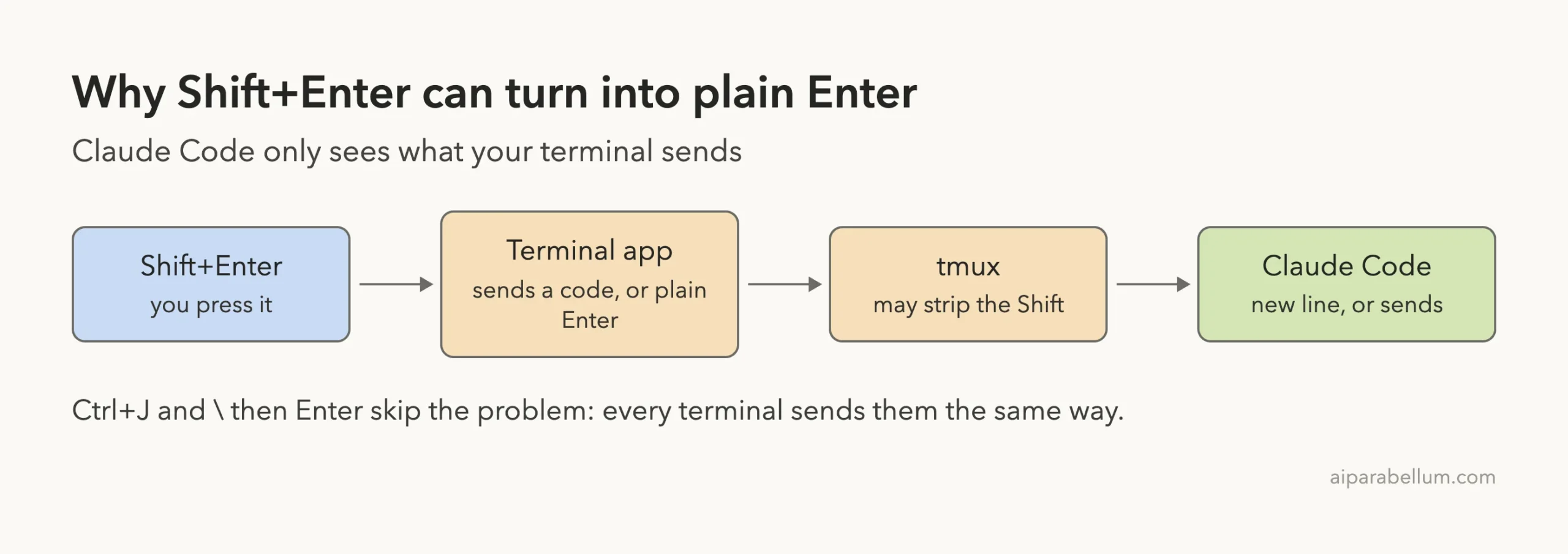
Claude Code runs inside your terminal, and it can only react to the bytes the terminal hands it. Plain Enter arrives as one simple code. Many older terminals send the very same code for Shift+Enter, so Claude Code has no way to know you held Shift, and it submits.
Newer terminals send a longer, special code for Shift+Enter, through what is called the kitty keyboard protocol or a similar extended-keys mode. When that code reaches Claude Code, it inserts a new line. When something in the middle drops it, you are back to plain Enter.
The official terminal configuration guide lists which terminals send the right code, which need a setup command, and which can’t do it at all.
Fix 1: Use Ctrl+J or Backslash Enter (Works Everywhere)
Before you change any settings, learn the two methods that never fail. Ctrl+J sends a line feed, which is a different byte from Enter in every terminal. A backslash at the end of a line tells Claude Code to keep going instead of sending.
We typed a first line and pressed Ctrl+J, typed a second line ending in \ and pressed Enter, then typed a third line. The input box grew to three lines and nothing was sent.
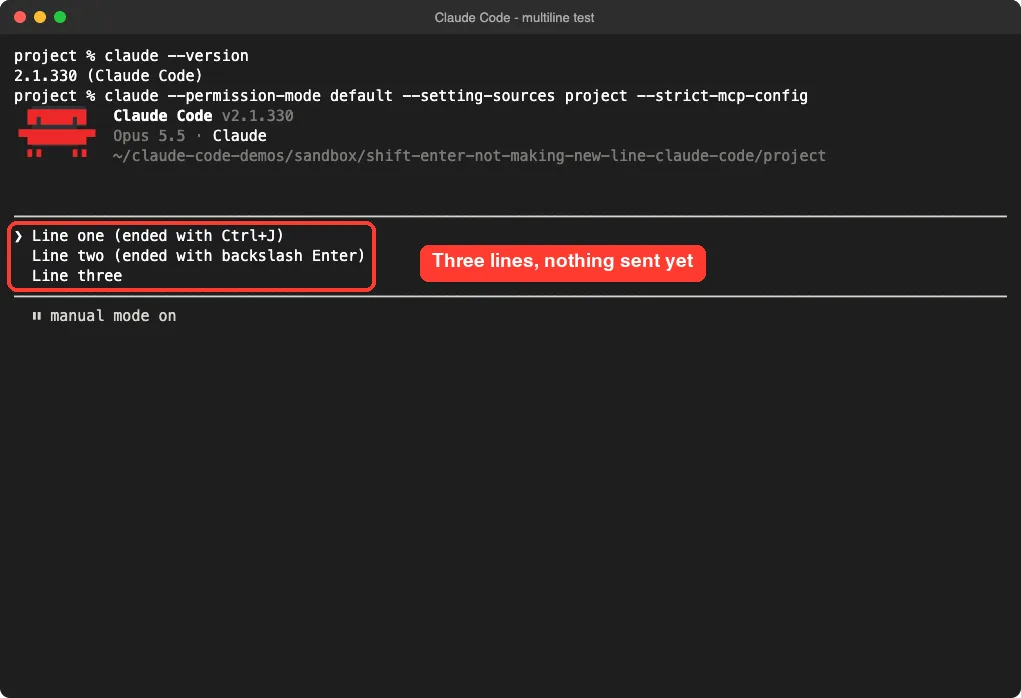
Learn Ctrl+J once and you never depend on your terminal for new lines again.
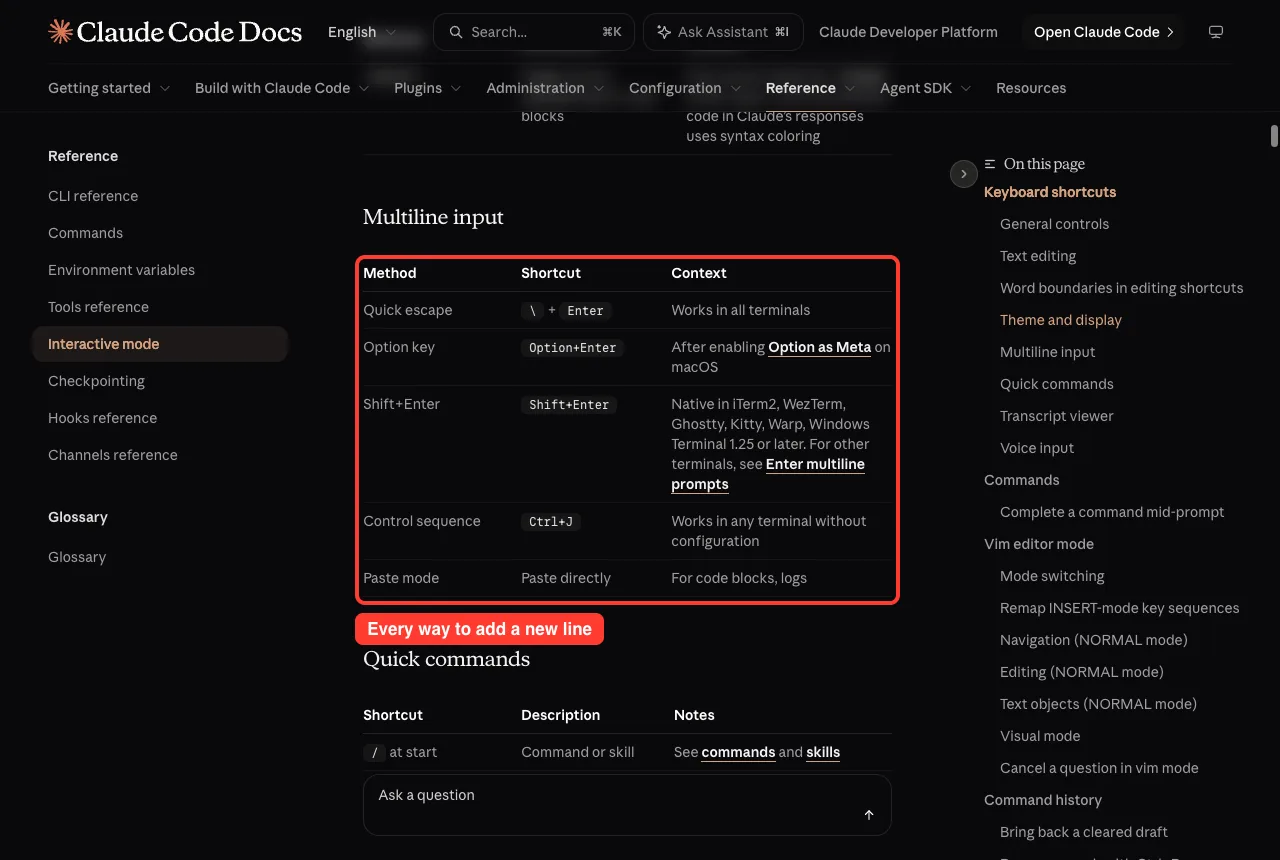
You can also paste multi-line text straight into the prompt. The docs list paste mode as a newline method for code blocks and logs, so you don’t need any special key for pasted text.
Fix 2: Run /terminal-setup in VS Code, Cursor and Zed
The integrated terminals in VS Code, Cursor, Devin Desktop and Zed, plus Alacritty before 0.16, don’t send a separate Shift+Enter code by default. Claude Code ships a built-in command that adds a Shift+Enter key binding to that terminal’s config file.
- Open Claude Code in the editor’s built-in terminal, not inside tmux or screen.
- Type
/terminal-setupand press Enter. - Look for a confirmation such as “Installed VSCode terminal Shift+Enter key binding”.
- If it says the binding is “already configured”, nothing changed, so the cause is somewhere else.

In VS Code, Cursor and Devin Desktop, the command also changes two editor settings. It sets terminal.integrated.gpuAcceleration to "off" to prevent garbled text, and it sets terminal.integrated.mouseWheelScrollSensitivity for smoother scrolling. To undo the GPU change, set it back to "auto" and reload the window.
In Zed, the command edits your keymap.json. If the keymap already has other bindings, it first saves a backup copy next to it, such as keymap.json.1a2b3c4d.bak. If the keymap is a symlink, or Claude Code can’t read or verify it, the file stays unchanged and you add the binding yourself.
We showed the command in our menu but didn’t run it in our test terminal, since it writes to a real editor’s config. If the VS Code side of Claude Code gives you other trouble, our VS Code fixes guide covers it.
Fix 3: Add the extended-keys Lines for tmux
tmux sits between your terminal and Claude Code, and by default it hands on Shift+Enter as plain Enter. That’s why Shift+Enter can work in iTerm2 on its own and then break the moment you open tmux.
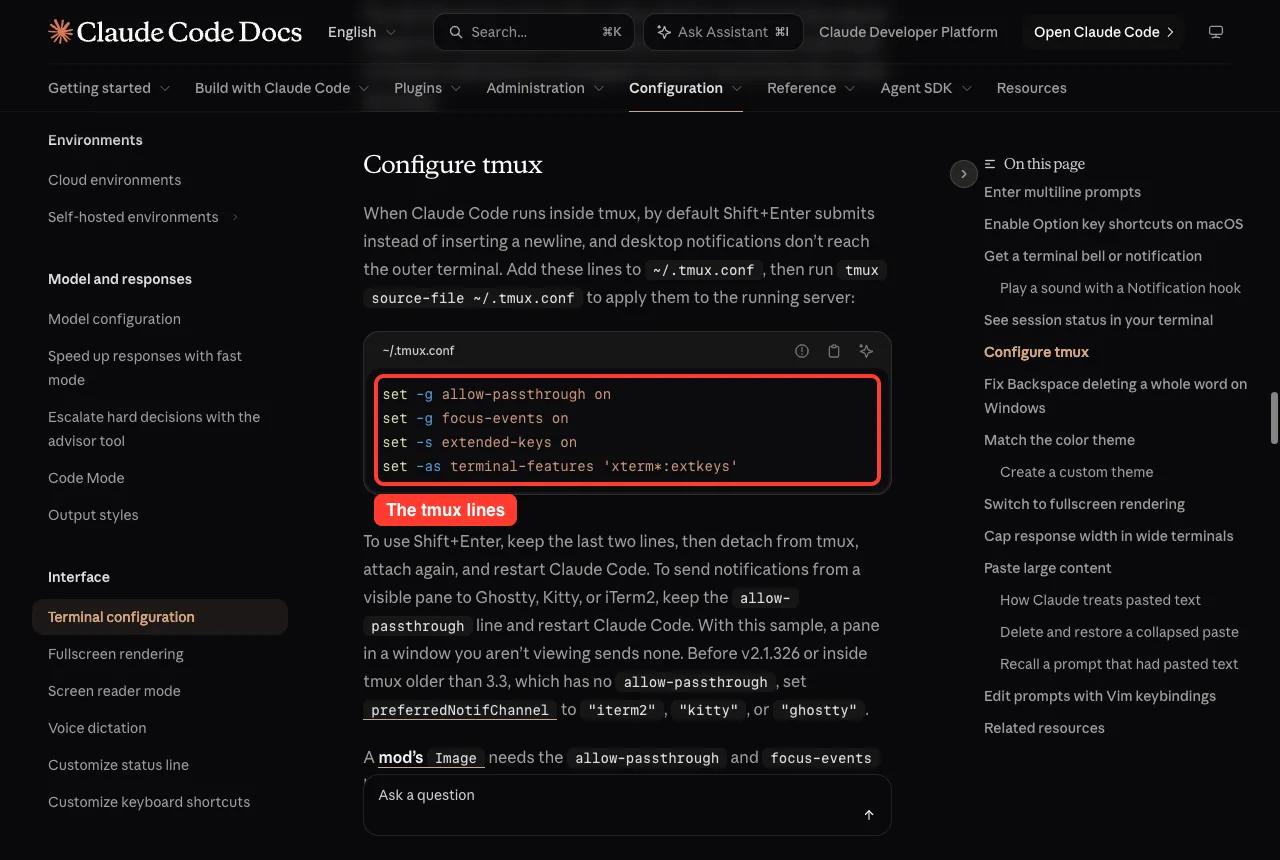
Add these lines to ~/.tmux.conf, as the docs show:
set -g allow-passthrough on
set -g focus-events on
set -s extended-keys on
set -as terminal-features 'xterm*:extkeys'
The last two lines are the ones for Shift+Enter; the first two help notifications reach your outer terminal. Then run tmux source-file ~/.tmux.conf, detach from tmux, attach again, and restart Claude Code. Skipping the reattach and restart is the most common reason this fix seems to fail.
Also remember to run /terminal-setup outside tmux. It needs to write to the host terminal’s config, not tmux’s.
Fix 4: Update the Terminal or Claude Code
Two version numbers matter. Windows Terminal sends Shift+Enter correctly from version 1.25, so older builds need an update. Terminals that use the kitty keyboard protocol, such as foot and Alacritty 0.16 or later, need Claude Code v2.1.269 or later.
Check your Claude Code version with claude --version and update with claude update. Our test session was on 2.1.330, well past that line.
Seeing [13;2u or [27;2;13~ in Your Prompt?
Sometimes Shift+Enter neither sends nor adds a line. Instead, odd characters like [13;2u appear in the prompt. That means the terminal did send a special Shift+Enter code, but Claude Code wasn’t reading it as a key in that session.
We reproduced this by feeding both common Shift+Enter codes into a session whose terminal hadn’t announced support for them. Claude Code printed them as plain text.
![Claude Code prompt showing the raw Shift+Enter codes [13;2u and [27;2;13~ typed as text](https://aiparabellum.com/wp-content/uploads/2026/11/shift-enter-not-making-new-line-claude-code-02-shift-enter-codes-as-junk-text.webp)
If you see this, delete the stray characters and use Ctrl+J for now. Then restart Claude Code in a fresh terminal window, update Claude Code, and if you use tmux, make sure the extended-keys lines are loaded and you reattached.
What About Option+Enter on a Mac?
The docs list Option+Enter as a newline method on macOS after you turn on Option as Meta.
In Apple Terminal that’s Settings, Profiles, Keyboard, “Use Option as Meta Key”. In iTerm2, set the Left and Right Option keys to “Esc+”. In VS Code, add "terminal.integrated.macOptionIsMeta": true.
With Option as Meta on, a terminal sends Option+Enter as Esc followed by Enter. We sent exactly that pair of bytes into Claude Code v2.1.330 from our capture tool, and it sent the prompt instead of adding a line.
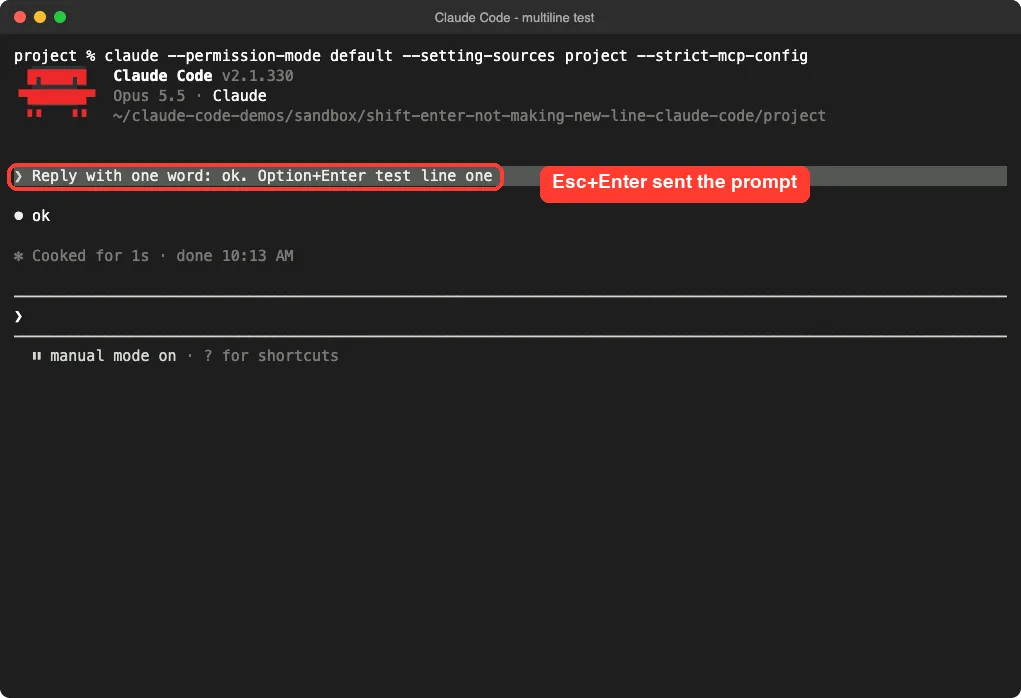
That was a scripted test, not a real key press in Apple Terminal, so Option+Enter may still behave as documented in your setup. If it sends your prompt, don’t fight it: Ctrl+J is the safer habit. Apple Terminal also isn’t in the docs’ Shift+Enter table, so test it yourself before relying on Shift+Enter there.
Fix 5: Rebind the Newline Key
If your terminal can’t send Shift+Enter, you can pick a different key for new lines. Claude Code names the action chat:newline, bound to Ctrl+J by default, and sending is chat:submit, bound to Enter.
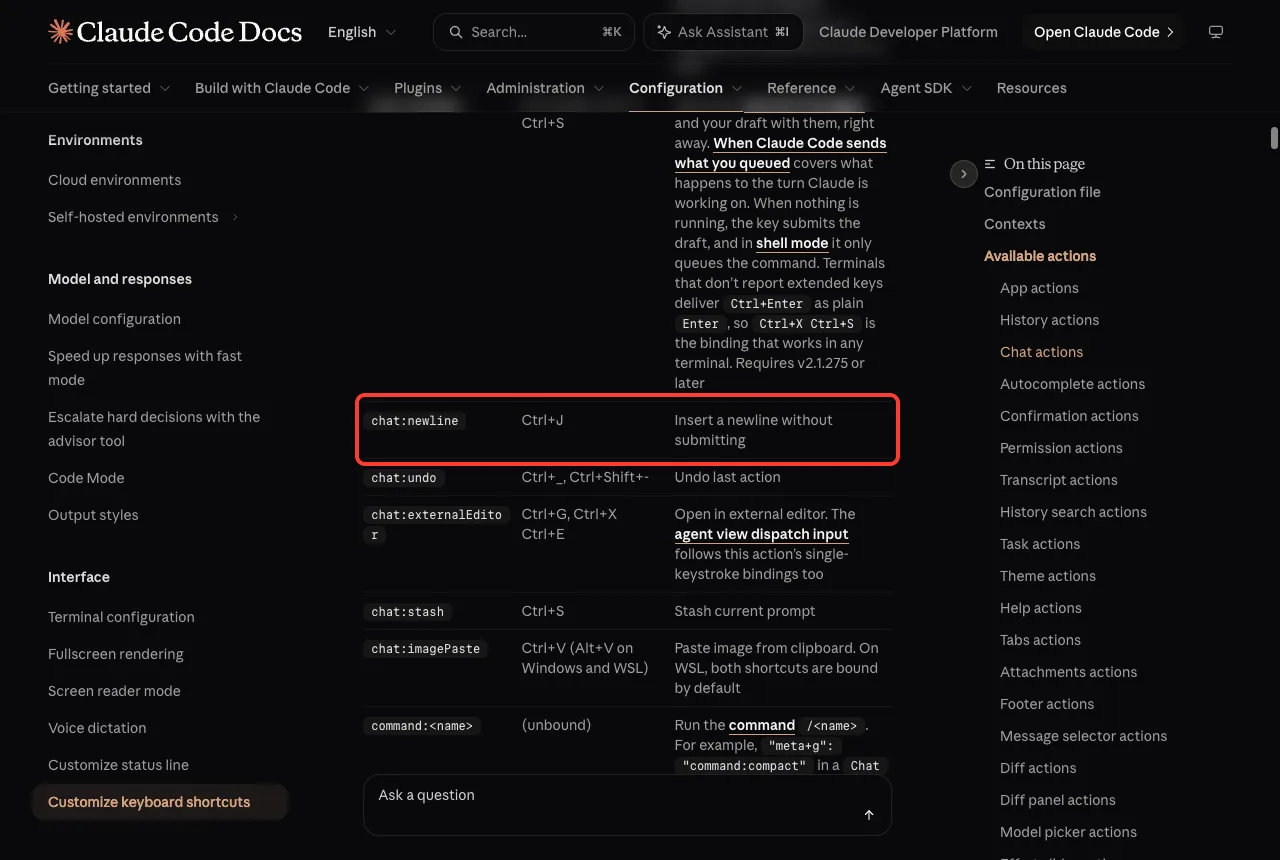
Run /keybindings to open ~/.claude/keybindings.json, then add a binding in the Chat context. This example makes Option+N (Alt+N elsewhere) add a line:
{
  "bindings": [
    {
      "context": "Chat",
      "bindings": {
        "meta+n": "chat:newline"
      }
    }
  ]
}
You can even swap the two so Enter adds a line and Shift+Enter sends, but only in a terminal that already tells the two keys apart. A rebind can’t fix a terminal that sends Shift+Enter as plain Enter. Our keybindings guide walks through the whole file.
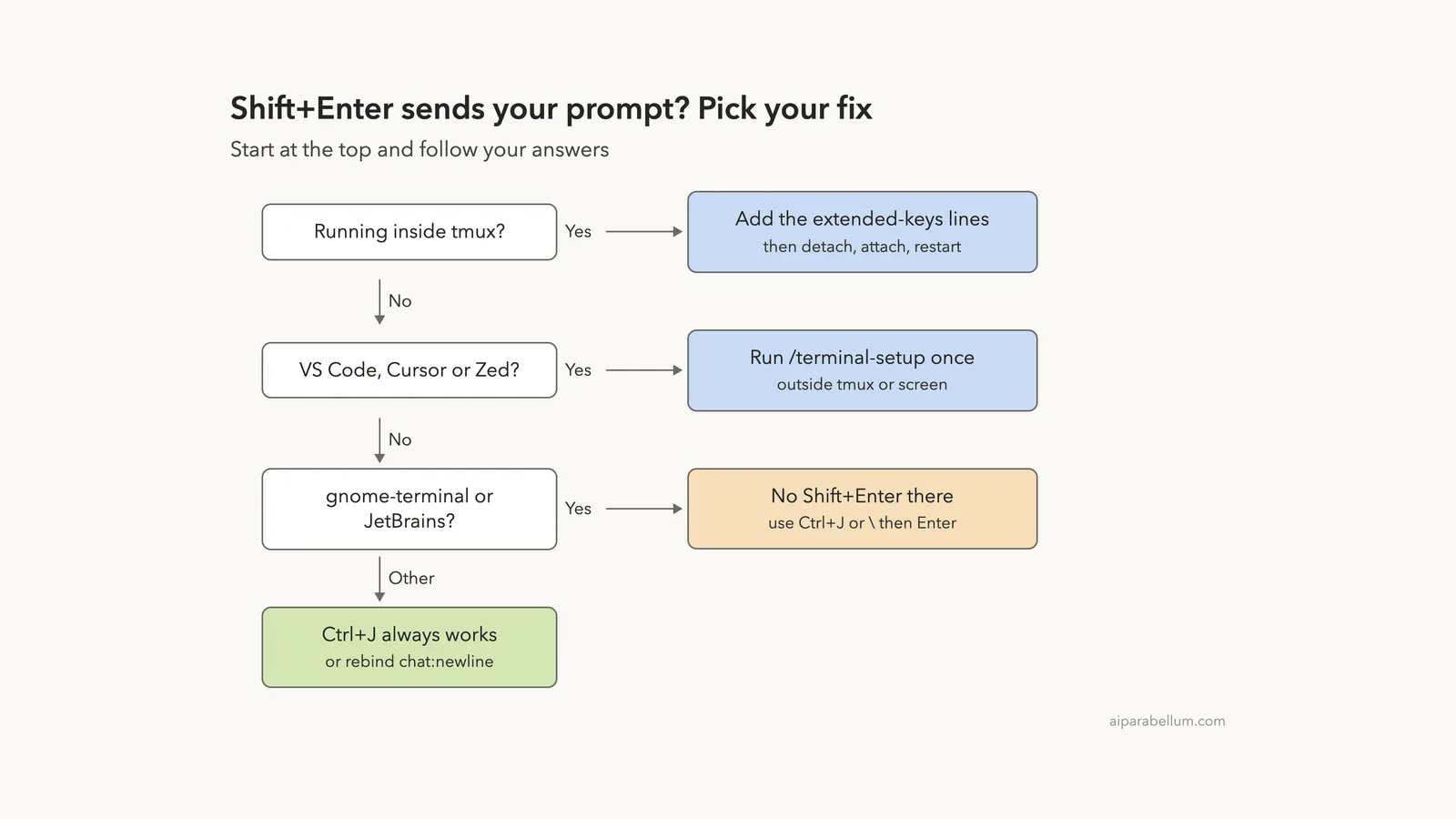
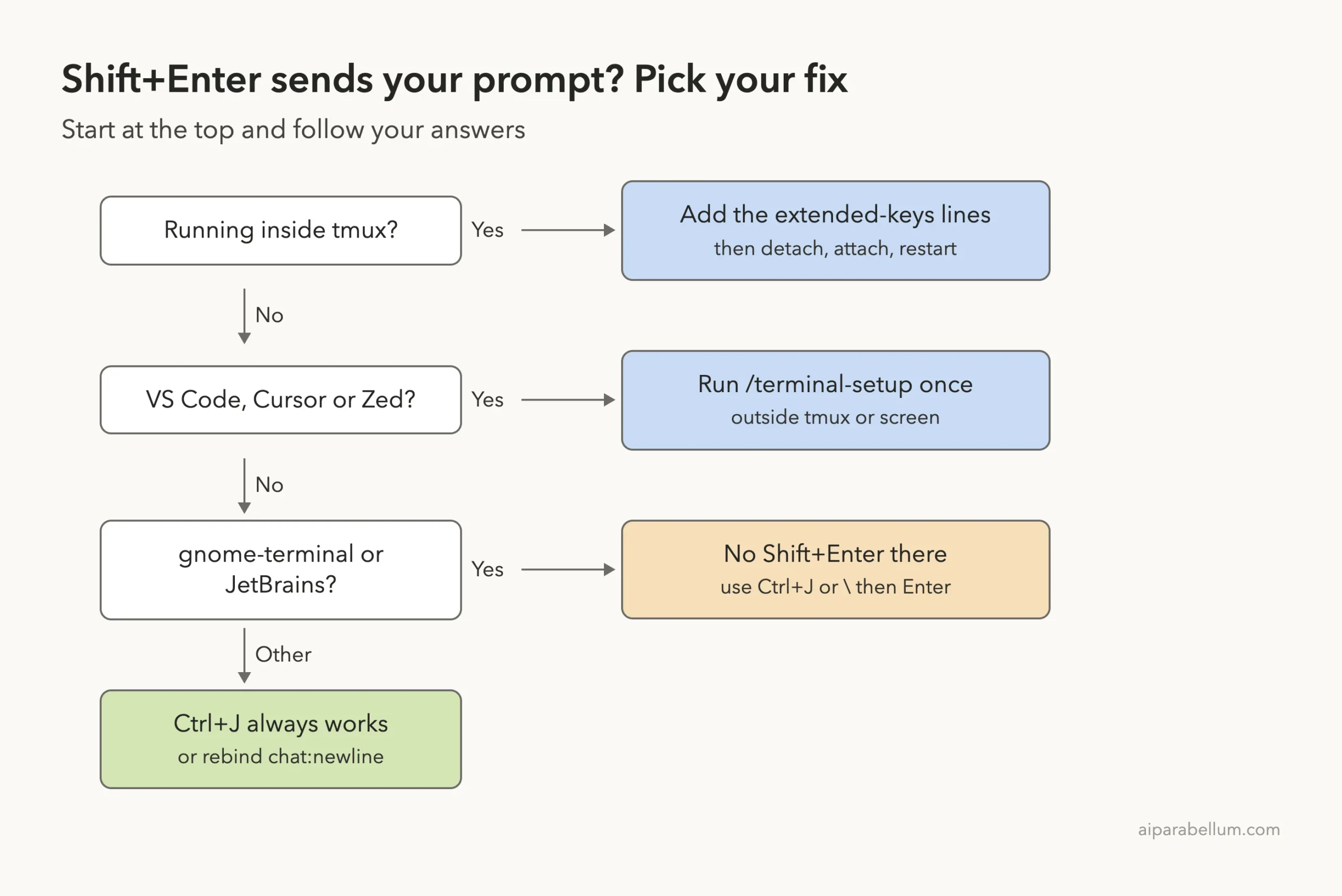
Which Claude Code Shift+Enter Fix Do You Need?
Work through the questions from the top. Most people stop at the first or second one.
What Plain Enter Does
For comparison, here is a normal Enter press. The prompt went out at once, mid-sentence, and Claude answered. This is exactly what you see when a terminal turns Shift+Enter into plain Enter.

Try It Yourself
Open Claude Code in a small practice folder and test every method in one prompt. Type the first line and press Ctrl+J, end the second with a backslash and Enter, end the third with Shift+Enter, then paste this last line and press Enter:
Tell me how many separate lines my message had, and list them.If Claude counts four lines, Shift+Enter works in your terminal. If the message went out early at the third line, follow the fix for your terminal above.
Common Mistakes
- Running
/terminal-setupinside tmux or screen, where it can’t reach the host terminal’s config. - Editing
~/.tmux.confbut not reattaching and restarting Claude Code. - Running
/terminal-setupin iTerm2 or Ghostty to fix Shift+Enter, when those already work and tmux is the real cause. - Trying to make Shift+Enter work in a JetBrains IDE terminal, where the docs say it isn’t available.
- Expecting a keybinding to fix a terminal that sends Shift+Enter and Enter as the same code.
Pro Tips
- Build the Ctrl+J habit. It works in every terminal, over SSH and inside tmux, so you never think about it again.
- For long prompts, paste them or open your editor with
Ctrl+G, covered in our shortcuts guide. - After any terminal change, test with a harmless prompt like the one above before typing something long.
- If Esc acts up in the same tmux session, our Esc fix guide covers the related key timing issues.
Cheat Sheet
Frequently Asked Questions
How do I add a new line in Claude Code without sending?
Press Ctrl+J, or type a backslash and press Enter. Both work in every terminal. Shift+Enter also works in iTerm2, Ghostty, Kitty, WezTerm, Warp and Windows Terminal 1.25 or later.
Why does Shift+Enter work in iTerm2 but not in tmux?
tmux passes Shift+Enter on as plain Enter by default. Add the extended-keys lines to ~/.tmux.conf, reload it, detach, attach again and restart Claude Code.
Does /terminal-setup work in every terminal?
No. It writes a Shift+Enter binding for VS Code, Cursor, Devin Desktop, Zed and Alacritty before 0.16. Terminals like gnome-terminal and JetBrains IDEs can’t use Shift+Enter, so use Ctrl+J there.
Can I make Enter add a line and Shift+Enter send?
Yes, by mapping chat:newline and chat:submit in ~/.claude/keybindings.json. It only works in a terminal that tells Shift+Enter apart from Enter.
Where is the full terminal setup guide?
Our terminal setup guide covers newlines, Option keys, alerts, tmux and themes in one place. For other problems, see our common errors list and our Claude overview.
Conclusion
When Claude Code Shift+Enter is not working, press Ctrl+J or type a backslash before Enter and keep going, because both work in every terminal. Then fix Shift+Enter where it’s possible: run /terminal-setup once in VS Code, Cursor or Zed, add the extended-keys lines and reattach in tmux, update Windows Terminal to 1.25, and keep Claude Code current for kitty-protocol terminals. In gnome-terminal and JetBrains IDEs, Ctrl+J is simply the answer.