
If Claude Code Esc is not working and Claude keeps writing after you press the key, the quickest way out is Ctrl+C. Claude Code hardcodes Ctrl+C as its interrupt key, so it stops the current turn even when Esc never arrives. Claude keeps the work done so far and waits for your next message.
Then find the cause. The usual ones are vim editor mode, where the first Esc only leaves INSERT mode; the VS Code panel’s escapeStopsClaude setting being switched off; tmux or a slow SSH link holding the key; or something focused in the footer that Esc closes first. Each one has a short fix, and you can check whether your terminal sends Esc at all with cat -v.
Below, we reproduce the normal Esc interrupt, the Ctrl+C fallback and the vim mode trap in real terminal sessions, then walk through the tmux, VS Code and SSH fixes.
Browse all our Claude Code tutorials for more fixes and how-tos.
Tested with Claude Code v2.1.330 on macOS on November 24, 2026, in a throwaway demo project with zsh. Every terminal screenshot shows a real run. tmux isn’t installed on our test Mac, so the tmux steps follow tmux’s own options and Anthropic’s terminal docs, and we say so where it matters.
Quick Summary
| Cause | What you notice | Fix |
|---|---|---|
| Any cause, right now | Claude keeps writing | Press Ctrl+C |
| Vim editor mode | First Esc changes the mode label, Claude keeps going | Press Esc a second time |
| VS Code panel setting | Esc closes menus but never stops Claude | Turn escapeStopsClaude back on, or click Stop |
| tmux | Esc feels slow or gets mixed with the next key | Lower tmux’s escape-time |
| SSH | The interrupt lands late | Wait a moment, or use Ctrl+C |
| Footer item selected | Esc deselects a row instead | Press Esc again |
| Custom keybindings | Esc does something else | Check ~/.claude/keybindings.json |
What Esc Should Do in Claude Code
Anthropic’s interactive mode reference describes Esc as “Interrupt Claude, or close a dialog”. It stops the current response or tool call mid-turn so you can redirect, and Claude keeps the work it has already done.
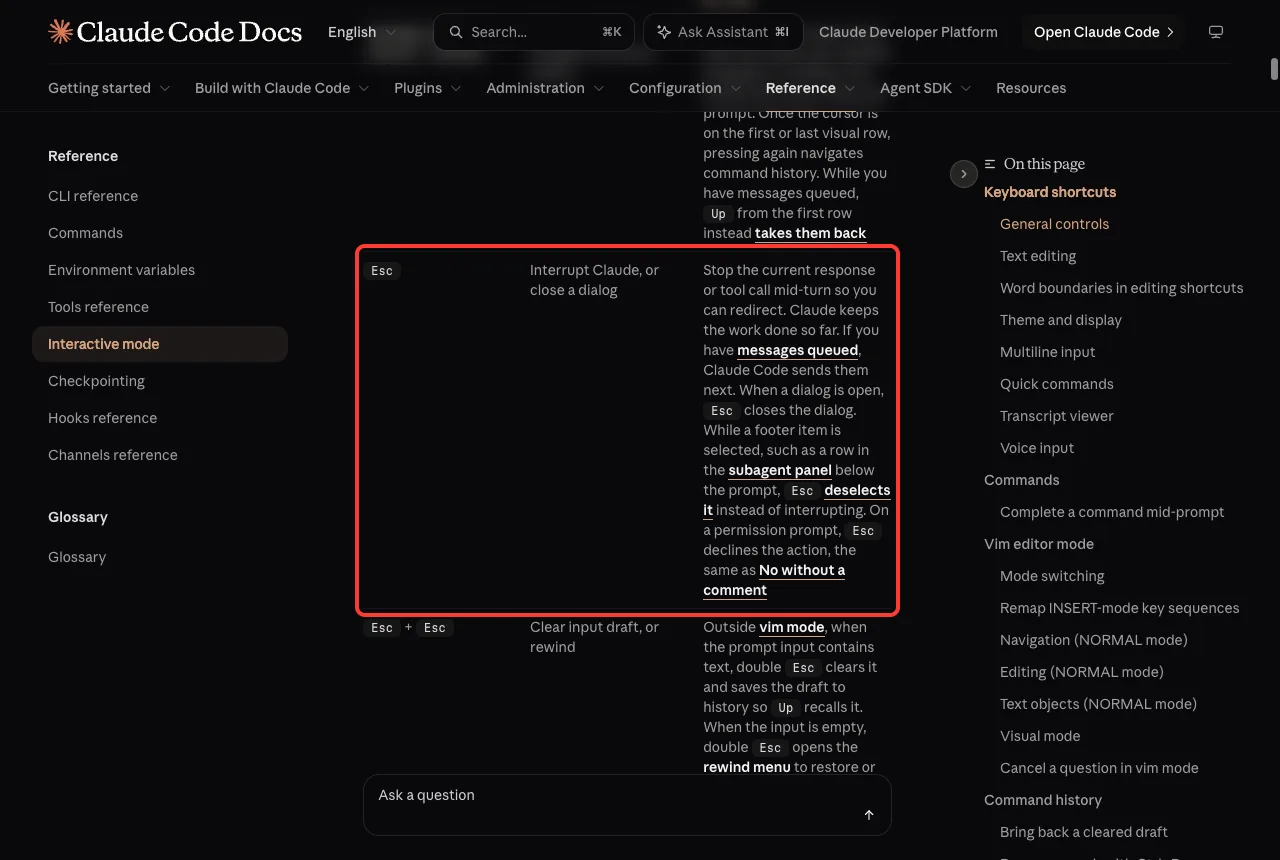
The same row lists the cases where Esc does something else first. When a dialog is open, Esc closes it, and on a permission prompt it declines the action. When a footer item is selected, such as a row in the subagent panel, Esc deselects it instead of interrupting.
So “Esc doesn’t work” sometimes means it did work, just on the thing in front. A second press then reaches the running turn.
The normal case, tested
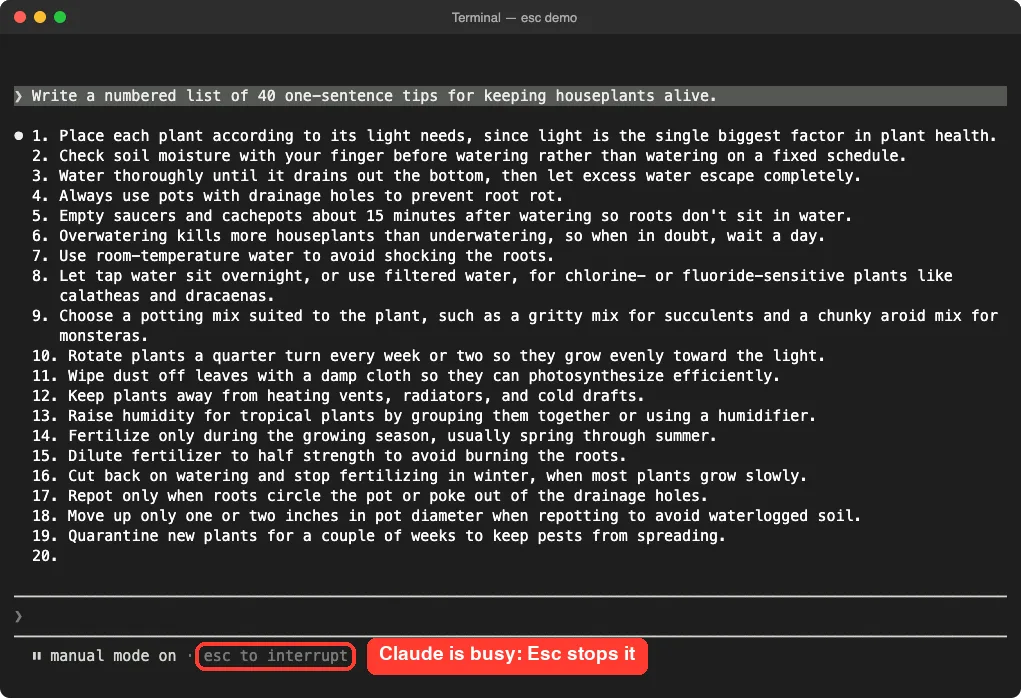
To see a clean baseline, we asked Claude in a demo folder to write a numbered list of 40 houseplant tips. While it was writing, the footer showed esc to interrupt.
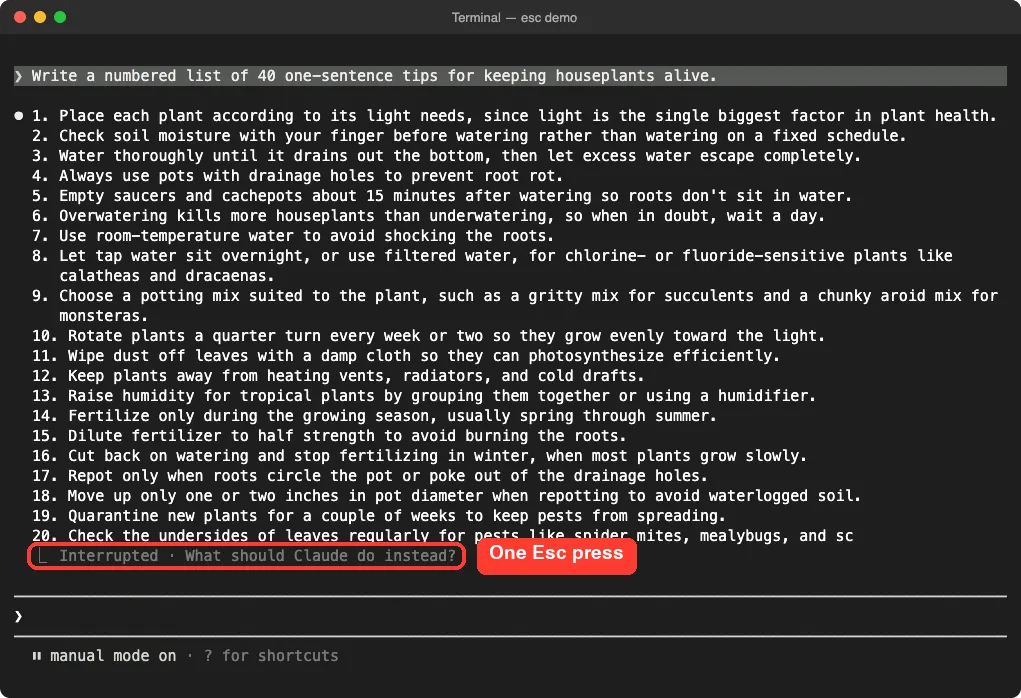
One Esc press stopped it in the middle of tip 20. Claude Code printed its Interrupted line, asking what Claude should do instead, and the footer went back to its shortcuts hint.
If you see the hint but Esc still does nothing, the key is being caught before Claude Code reads it. The rest of this guide is about finding where.
Fix 1: Use Ctrl+C When Esc Fails
Ctrl+C is the safety net. The keybindings page lists it as a reserved shortcut with the reason “Hardcoded interrupt/cancel”, which means no settings file can take it away.
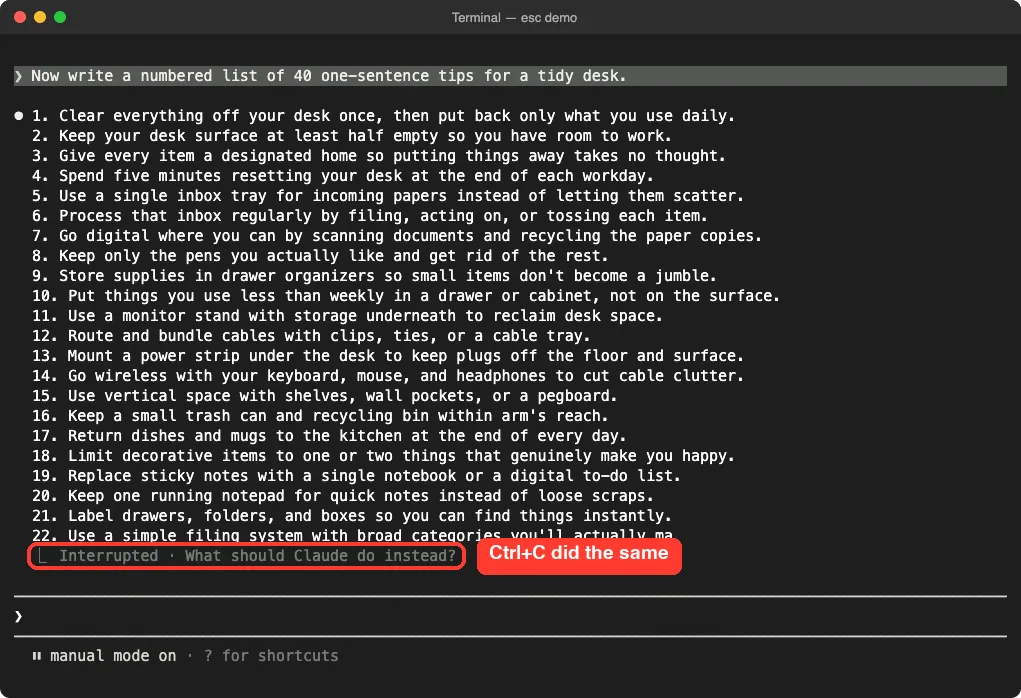
We tested it with a second long list. Ctrl+C stopped Claude at tip 22 and showed the same Interrupted line as Esc.
Two cautions keep Ctrl+C safe to use:
- Press it once. If nothing is running, the first press clears your prompt text and a second press exits Claude Code.
- If a draft gets cleared by mistake, press Up to bring it back, as the docs describe.
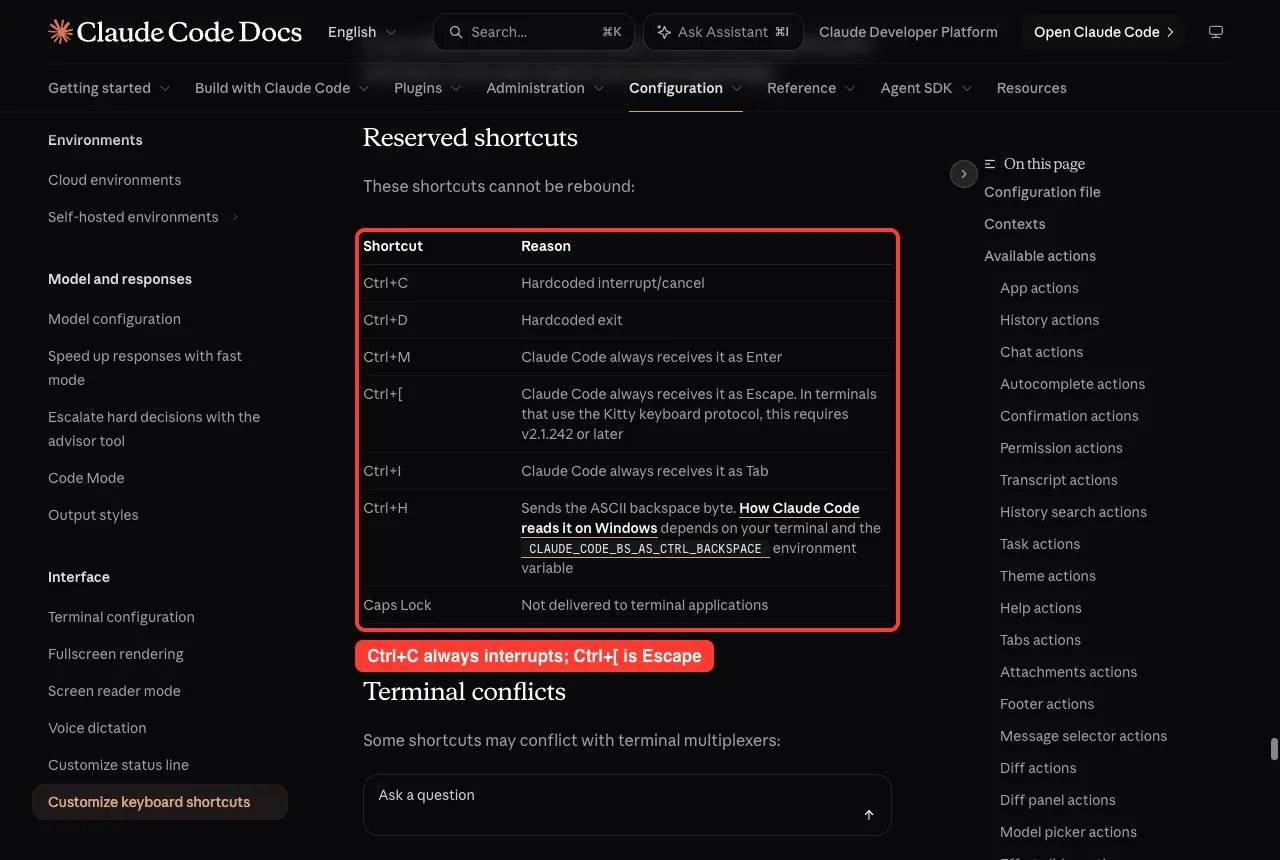
The same table holds a handy second option. Ctrl+[ is always received as Escape, so it helps when the Esc key itself is grabbed by another app or remapped on your keyboard. In terminals that use the Kitty keyboard protocol, this needs v2.1.242 or later.
Fix 2: Press Esc Twice in Vim Mode
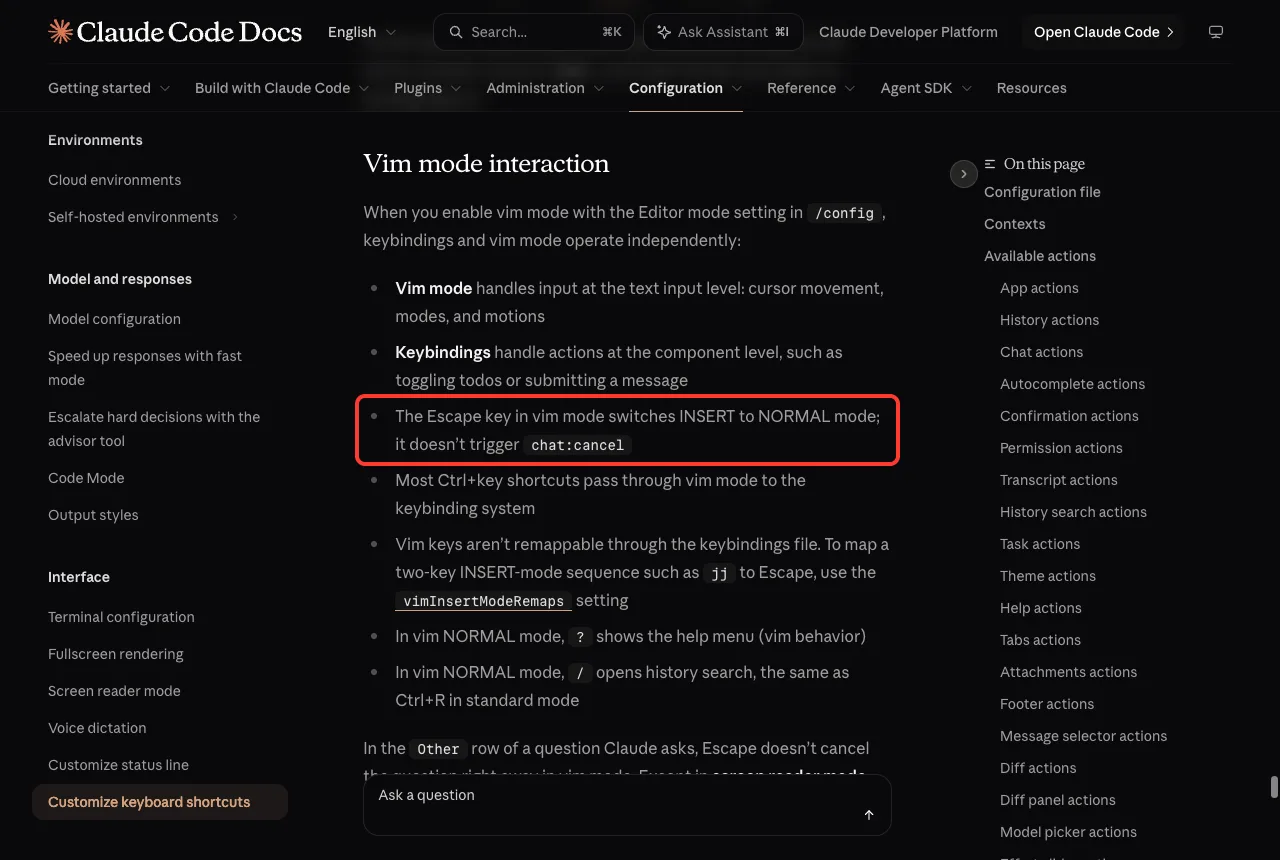
This is the cause we could reproduce most clearly. With vim editor mode on, Esc belongs to the editor first. The docs say Esc “switches INSERT to NORMAL mode; it doesn’t trigger chat:cancel“.
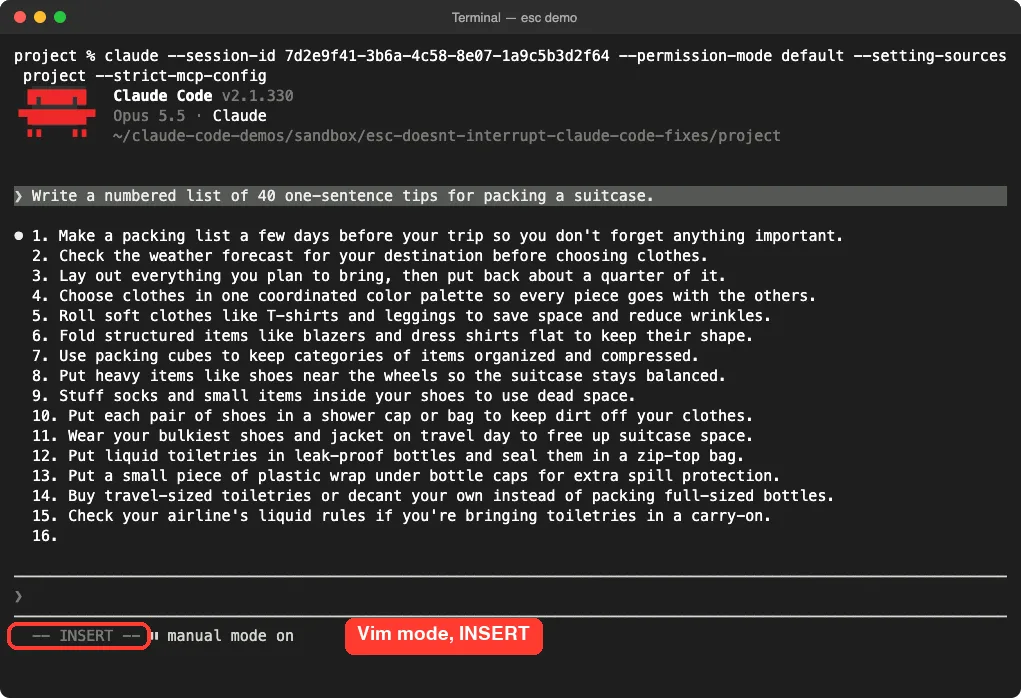
We turned on vim mode for the demo project only, with "editorMode": "vim" in its .claude/settings.json, and asked for 40 packing tips. The footer showed -- INSERT -- while Claude wrote.
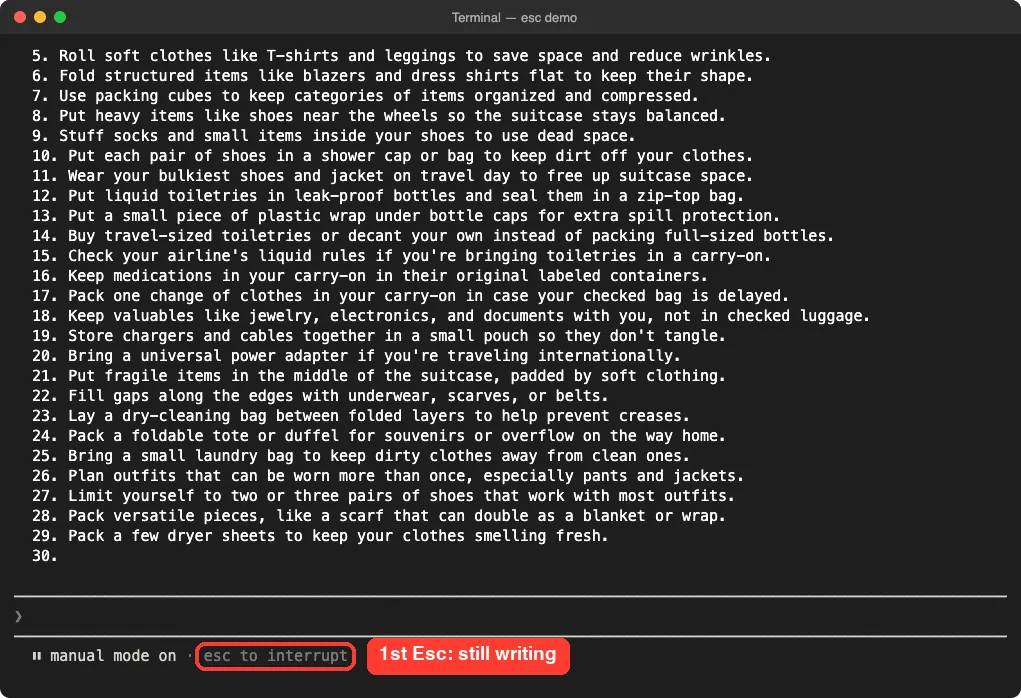
The first Esc press removed the INSERT label, but Claude kept writing. Two seconds later it was on tip 30 and the footer still said esc to interrupt.
The second Esc press, now in NORMAL mode, stopped the turn with the usual Interrupted line.
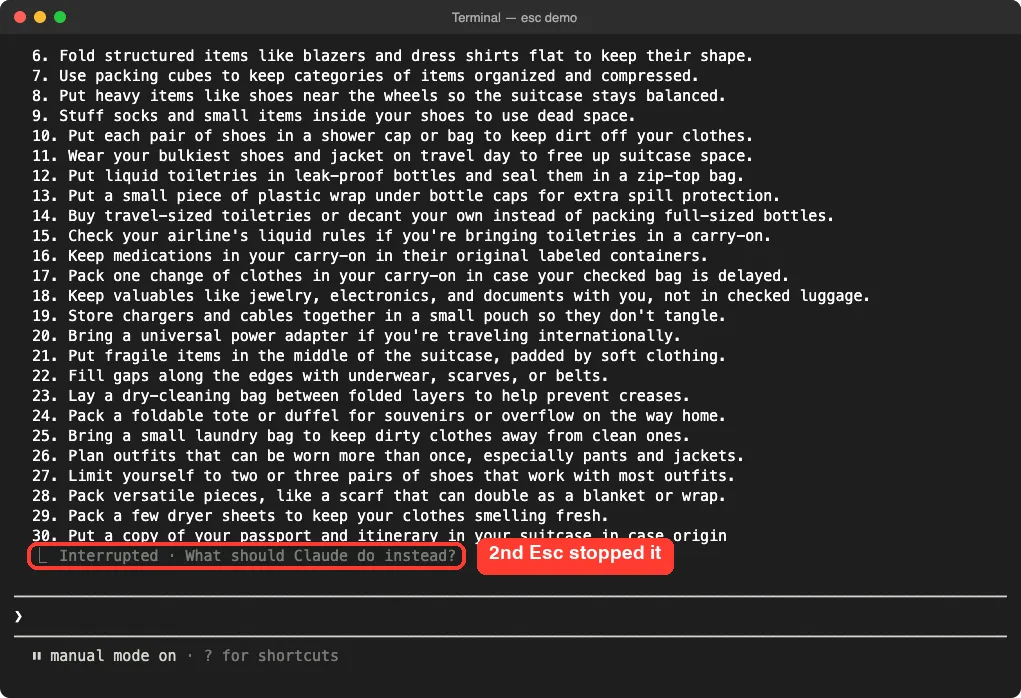
So in vim mode, think “Esc, Esc” to stop Claude, or use Ctrl+C for a single press. If you don’t use vim keys, turn it off in /config under Editor mode. If you love vim mode, the vimInsertModeRemaps setting can map a pair like jj to Escape, so leaving INSERT mode doesn’t use up your Esc press:
{
  "editorMode": "vim",
  "vimInsertModeRemaps": { "jj": "<Esc>" }
}
Claude Code reads vimInsertModeRemaps only from your user settings, the --settings flag or managed settings, never from a project’s files.
In vim mode, the first Esc talks to the editor. The second one talks to Claude.
Fix 3: Check the VS Code Panel Setting
If you use the Claude Code panel in VS Code rather than the terminal, there is a setting for exactly this. The VS Code docs list escapeStopsClaude, which is on by default and needs Claude Code v2.1.330 or later.
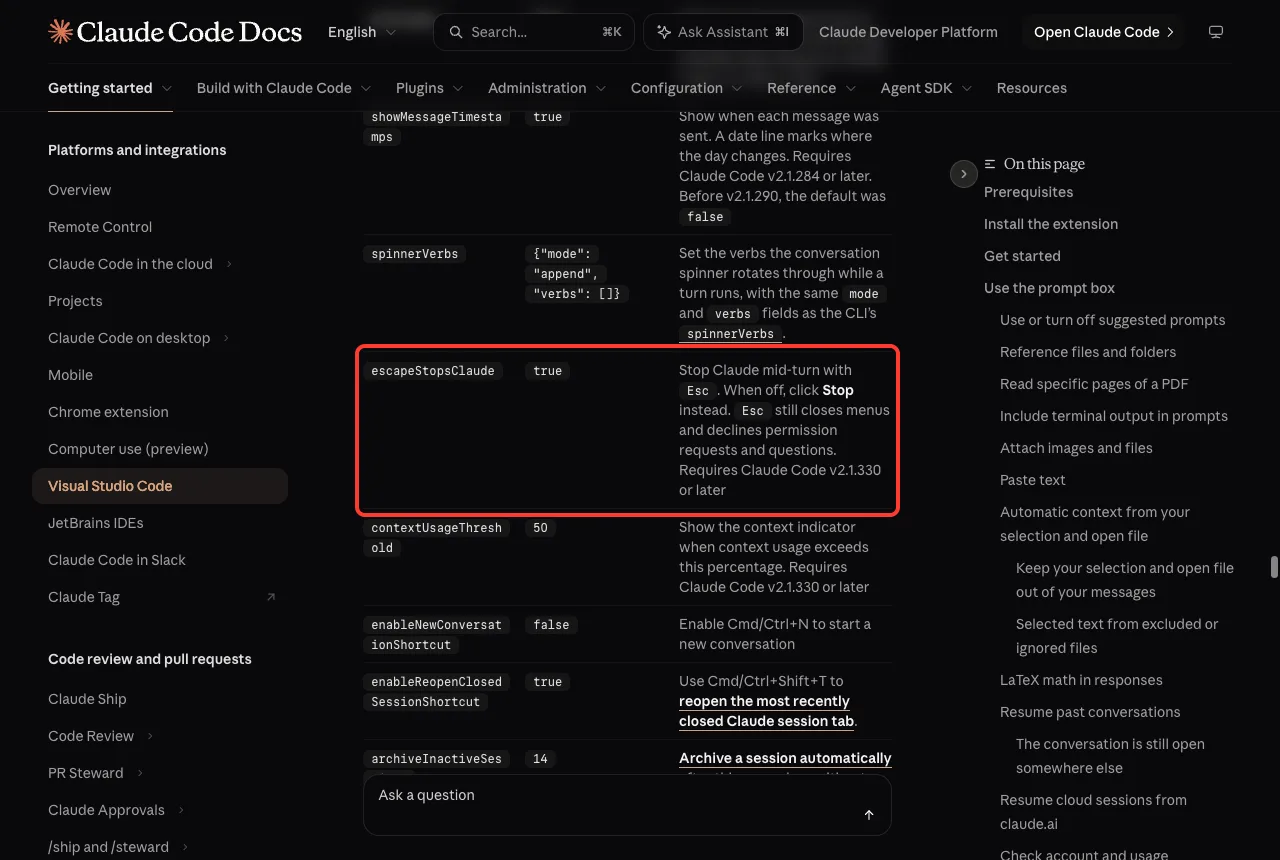
When it is off, Esc still closes menus and declines permission requests and questions, but it no longer stops Claude mid-turn. You click the Stop button instead. That combination looks exactly like a broken Esc key, so it is worth checking first:
- Open VS Code Settings and search for
escapeStopsClaude. - Make sure the box is checked.
- If it was already on, update the extension, since older versions don’t have the setting.
Claude Code in the VS Code terminal
If you run the claude command inside VS Code’s built-in terminal, the extension setting doesn’t apply. There, VS Code passes keys to the terminal unless one of its own keyboard shortcuts claims them first.
Open the Keyboard Shortcuts editor with Cmd+K Cmd+S (or Ctrl+K Ctrl+S), search for Escape, and look for bindings added by extensions, such as a vim emulation extension, that run while the terminal has focus. Remove or narrow that binding, or press Ctrl+C in the terminal instead.
One related macOS surprise: on macOS Tahoe and later, the system Game Overlay shortcut takes Cmd+Esc, which the extension uses to focus Claude. The docs explain how to free it under Keyboard Shortcuts in System Settings. Our VS Code fixes guide covers the other panel problems.
Fix 4: Esc Inside tmux
tmux sits between your terminal and Claude Code, and it reads every key first. A lone Esc byte is also the start of many longer key sequences, such as arrow keys and Alt combinations, so tmux waits briefly after an Esc to see whether more bytes follow.
That wait is tmux’s escape-time option. If it is long, Esc feels slow, and if you press another key right after it, tmux can join them into an Alt key press, so Claude Code never sees a plain Esc. Lowering the wait is the common fix:
# ~/.tmux.conf
set -sg escape-time 10
Then reload with tmux source-file ~/.tmux.conf. This is a tmux setting, not a Claude Code one, and we couldn’t run tmux on our test Mac, so check man tmux on your machine for the exact default your version uses.
Anthropic’s terminal configuration guide covers the other tmux lines Claude Code wants, for Shift+Enter and notifications. Its keybindings page also lists where tmux and GNU screen conflict with Claude Code keys.
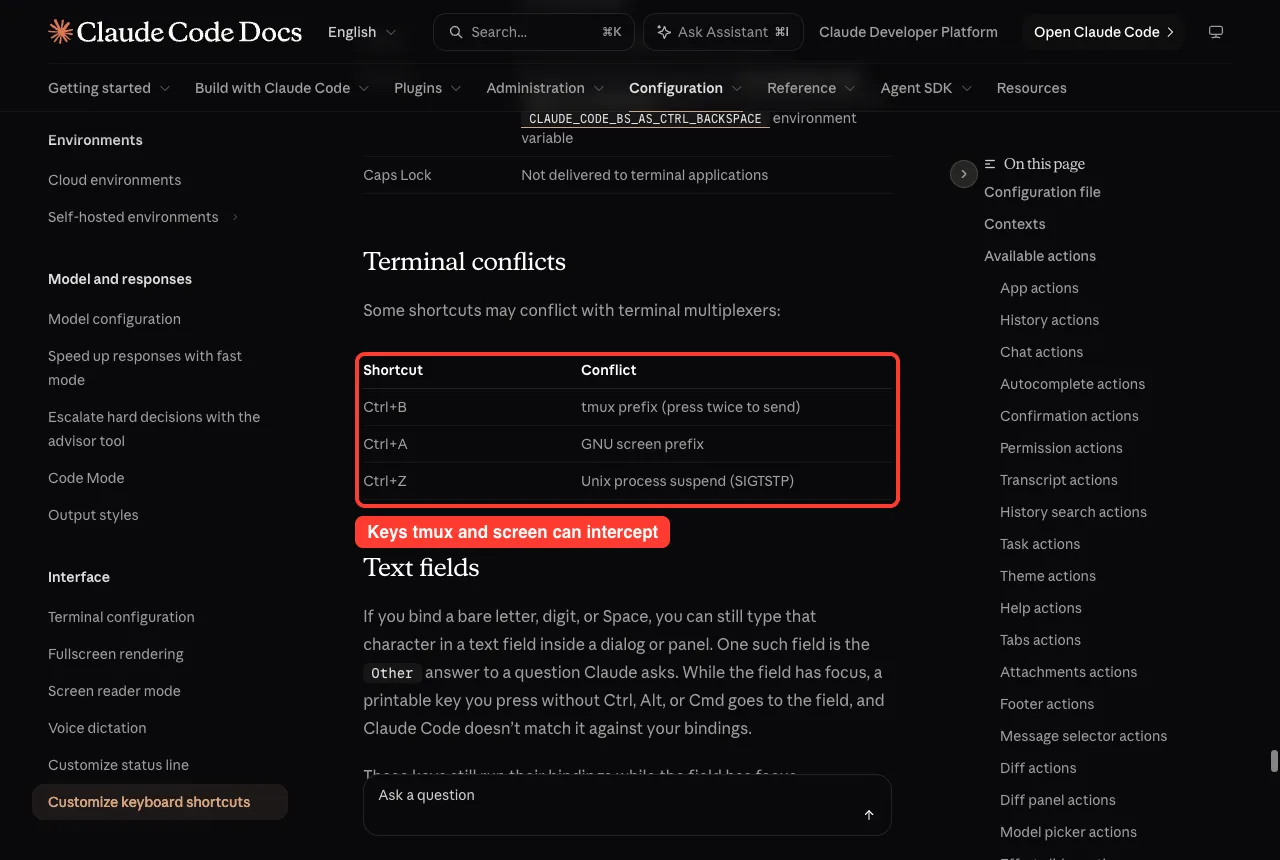
Esc isn’t in that table, but the lesson carries over: inside tmux, Ctrl+B needs two presses because it is the tmux prefix. If your tmux setup binds Escape itself, for example in a custom copy mode setup, remove that binding or use Ctrl+C. Our terminal setup guide walks through the full tmux configuration.
Fix 5: Esc Over SSH
Over SSH, Esc travels as the same single byte as any other key. It has to cross the network, reach Claude Code on the remote machine, and the result has to travel back before you see the Interrupted line.
On a slow or busy connection, that round trip can make Esc feel ignored. Pressing it again and again doesn’t help; each extra press may land on the next thing on screen, such as closing a dialog.
- Press Esc once and wait a second or two for the Interrupted line.
- If nothing changes, press Ctrl+C once.
- If you use tmux on the remote machine, the tmux fix above applies there too, since that tmux is reading your keys.
- If the session is truly frozen, close the terminal, reconnect and run
claude --resumein the same folder, as the troubleshooting docs suggest.
Fix 6: Check What Your Terminal Sends
If you are still not sure where the key goes, test it outside Claude Code. Quit Claude, run cat -v, press Esc and then Enter. Press Ctrl+D to leave.
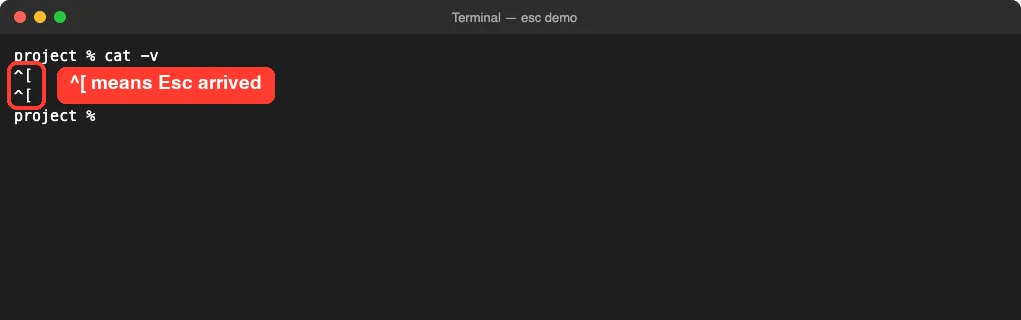
Seeing ^[ means your terminal, tmux and SSH all pass Esc through, so look at Claude Code’s own settings: vim mode, the footer, or keybindings. Seeing nothing means something earlier caught the key, such as a terminal app shortcut, a keyboard remapping tool or an editor binding.
Custom keybindings
Claude Code’s default binding for Esc in the chat is the chat:cancel action. If you or a dotfiles repo edited ~/.claude/keybindings.json, run /keybindings to open it and look for any entry for escape or esc.
Starting Claude with claude --debug shows warnings for bad or conflicting bindings. Our keybindings tutorial explains the file in detail.
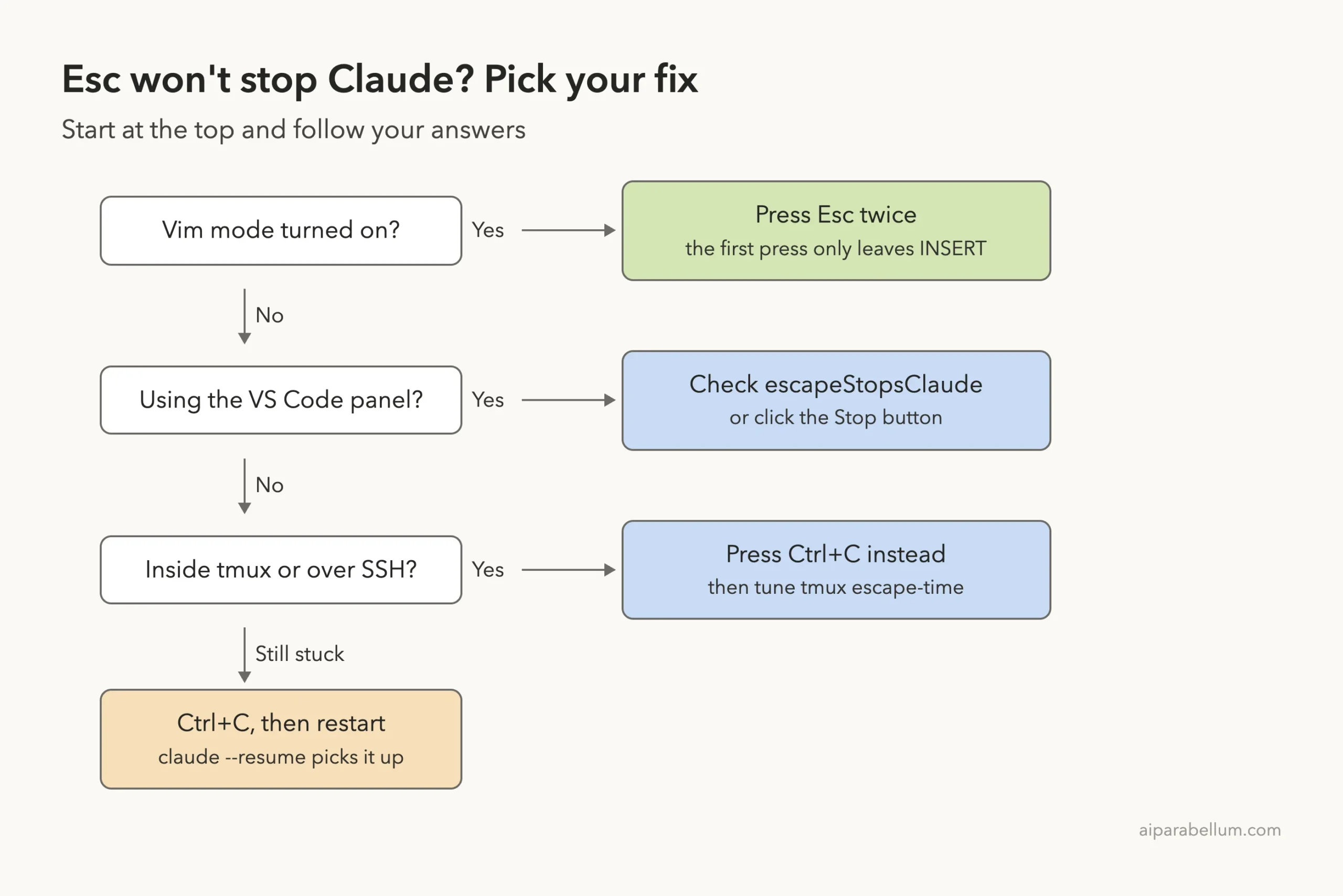
Which Fix Do You Need?
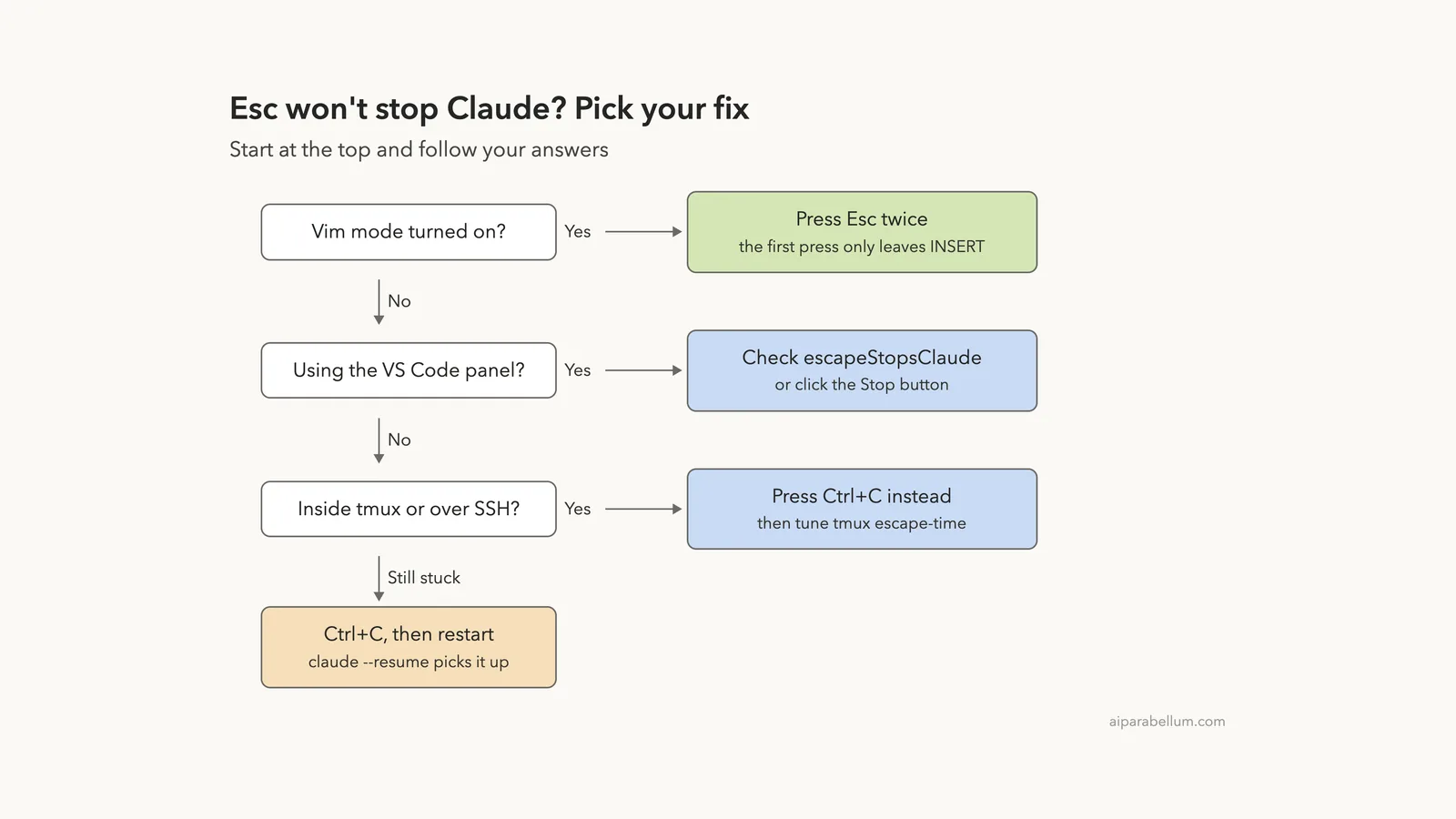
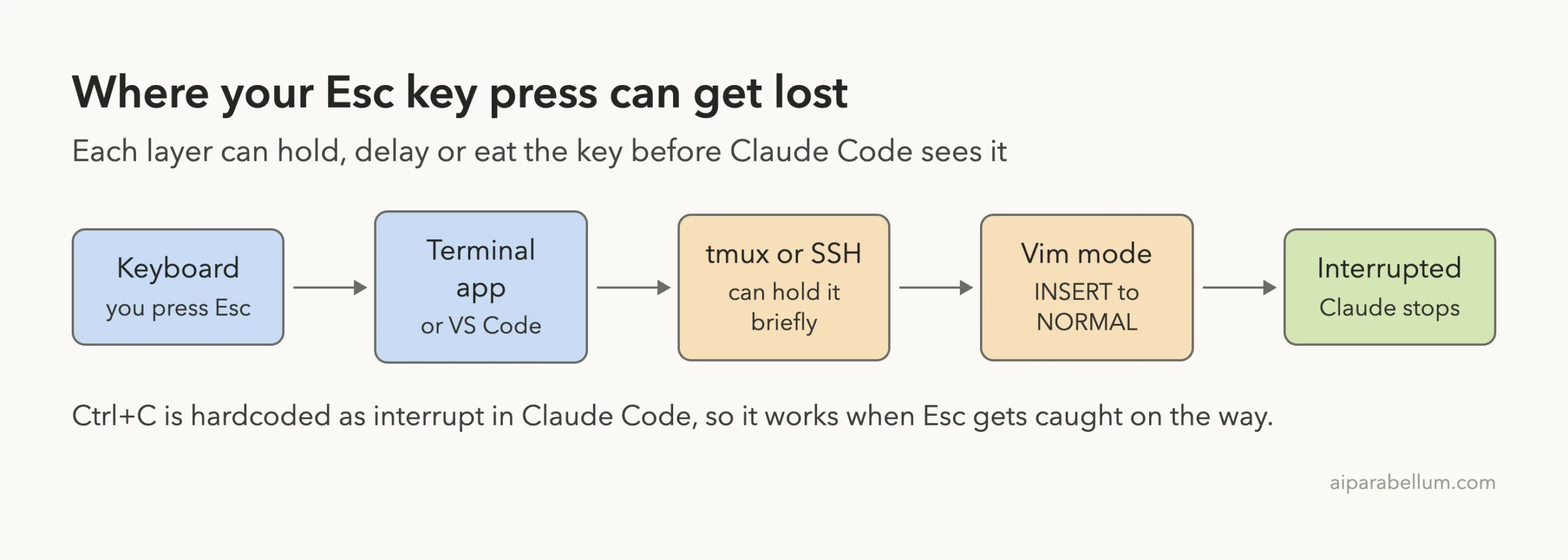
Here is how an Esc press travels from your keyboard to Claude Code. Every box in orange is a place where it can stall.
Start at the top of this ladder and stop at the first yes.
Try It Yourself
Practice once in a throwaway folder so you know how each key feels before you need it. Make an empty folder, start claude, and paste this prompt:
Write a numbered list of 40 one-sentence tips for keeping houseplants alive.Then try these steps:
- While the list streams, check the footer for
esc to interruptand press Esc once. - Send the prompt again and stop it with Ctrl+C this time.
- Add
{ "editorMode": "vim" }to the folder’s.claude/settings.json, restart Claude, and watch how many Esc presses it takes. - Quit, run
cat -v, press Esc and Enter, and look for^[.
Common Mistakes
- Hammering Esc. Extra presses can decline a permission prompt or close a dialog you wanted to read.
- Pressing Ctrl+C twice. The second press at an empty prompt exits Claude Code.
- Forgetting vim mode is on. Look for
-- INSERT --in the footer. - Testing in the VS Code panel and fixing the terminal, or the other way round. They use different settings.
- Blaming Claude Code for a tmux delay. Run
cat -vinside and outside tmux to compare.
Pro Tips
- Queue a message instead of interrupting. Type and press Enter while Claude works; Claude Code holds it, and Esc interrupts and sends your queued message next.
- Use
Ctrl+[as a spare Esc if your keyboard or a remapping tool takes the real key. - Commit or check your files before a long task, so stopping halfway is never scary.
- If Claude looks frozen rather than busy, our stuck on thinking guide helps.
- Pressed Ctrl+Z instead? That pauses the whole program. See our Ctrl+Z recovery guide.
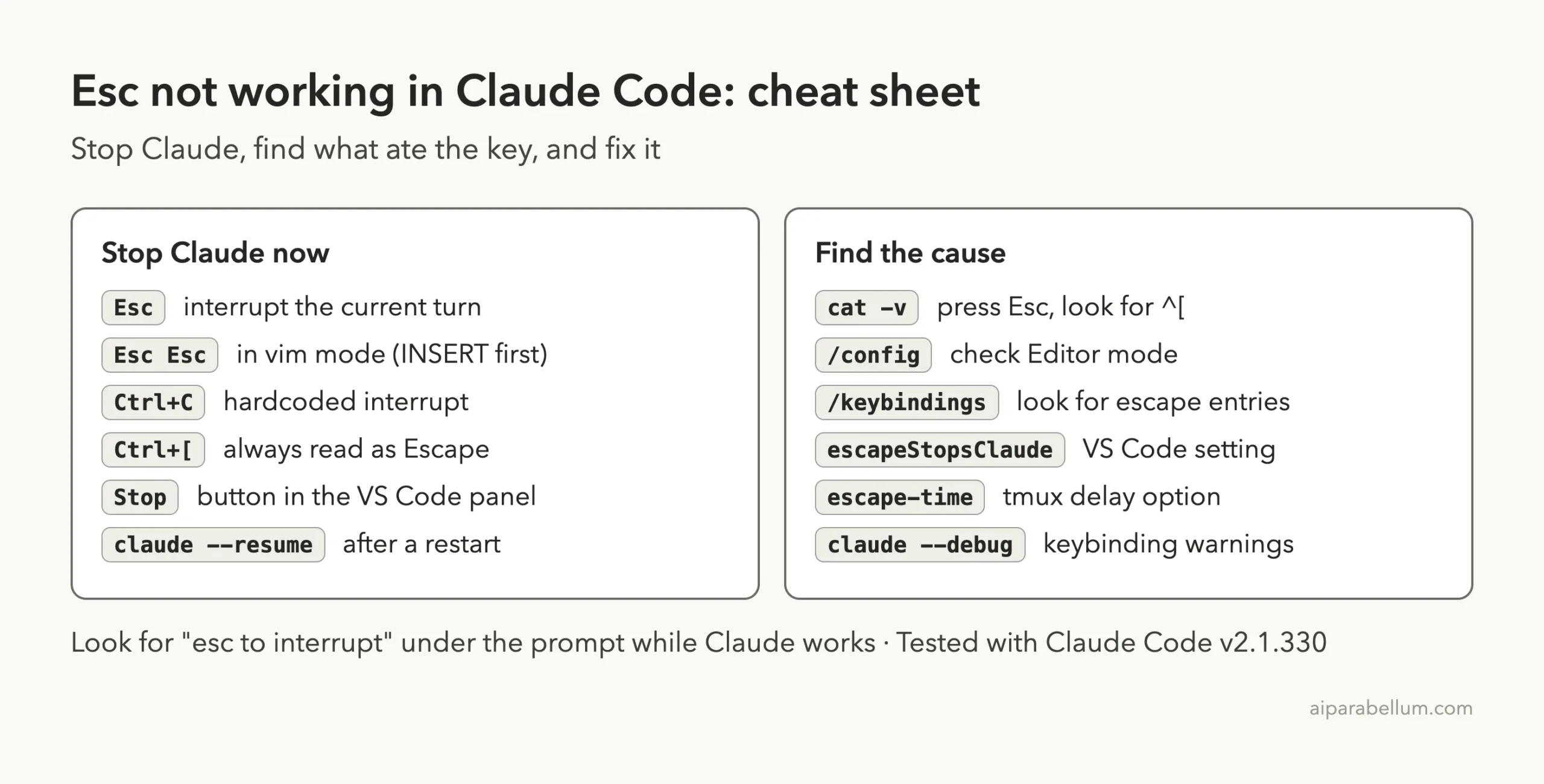
Claude Code Esc Not Working: Cheat Sheet
Frequently Asked Questions
How do I stop Claude Code if Esc does nothing?
Press Ctrl+C once. It is a hardcoded interrupt that no setting can remove, and it stops the current turn the same way Esc does.
Why does Esc need two presses in Claude Code?
Usually because vim editor mode is on. The first Esc switches INSERT to NORMAL mode, and the second one interrupts Claude. A selected footer row or an open dialog can also take the first press.
Does Esc undo what Claude already did?
No. Claude keeps the work done so far, including file edits. To undo edits, use /rewind, explained in our shortcuts guide.
Why does Esc stop working in the VS Code extension?
Check the escapeStopsClaude setting. When it is off, Esc only closes menus and declines prompts, and you stop Claude with the Stop button.
Is Esc slower inside tmux?
It can be, because tmux waits after an Esc byte to see if a longer key sequence follows. Lowering tmux’s escape-time option usually fixes it. Our common errors guide and Claude overview cover more of the basics.
Conclusion
When Claude Code Esc is not working, press Ctrl+C to stop the turn right away, then track down what caught the key: vim mode needs a second Esc, the VS Code panel needs escapeStopsClaude turned on, tmux needs a short escape-time, and SSH just needs a moment for the round trip. A quick cat -v test tells you whether the key reaches the terminal at all, and from there each fix takes less than a minute.