
If you pressed Claude Code Ctrl+Z and the whole screen vanished, don’t panic: nothing was deleted. On macOS and Linux, Ctrl+Z suspends Claude Code and drops you back at your shell prompt. Type fg and press Enter, and the same session comes back exactly where you left it, including any half-typed prompt.
Most people hit Ctrl+Z because they wanted undo. In Claude Code, undo for the text you are typing is Ctrl+_ (or Ctrl+Shift+-), and undo for Claude’s file edits is /rewind, which also answers to /undo. If you already closed the terminal while the session was paused, run claude --continue in the same folder to reopen the conversation.
Below, we reproduce the whole thing in a real terminal: the suspend message, bringing the session back with fg, the shell warning you get if you try to leave, recovering after the process is gone, and the two kinds of undo you probably meant to press.
Browse all our Claude Code tutorials for more fixes and how-tos.
Tested with Claude Code v2.1.330 on macOS on November 24, 2026, in a throwaway demo project with zsh. Every terminal screenshot shows a real run. We tested on macOS; the Windows and Linux notes follow Anthropic’s official instructions.
Quick Summary
| What happened | What you see | Fix |
|---|---|---|
| You pressed Ctrl+Z by accident | Claude Code is suspended and a shell prompt | Type fg and press Enter |
| Several programs are paused | More than one entry in jobs | fg %1, fg %2 and so on |
| You closed the terminal or exited the shell | The session is gone | claude --continue or claude --resume |
| You wanted to undo typing | Wrong words in the input box | Ctrl+_ or Ctrl+Shift+- |
| You wanted to undo Claude’s edits | Files changed in a way you don’t like | /rewind, /undo or Esc twice |
| You are on native Windows | No suspend | Anthropic lists Ctrl+Z suspend as Unix only |
Why Ctrl+Z Suspends Claude Code Instead of Undoing
In most desktop apps, Ctrl+Z means undo. In a Unix terminal, it has meant something else for decades: pause the program that is running and give the shell back to you. The shell calls that a suspended job.
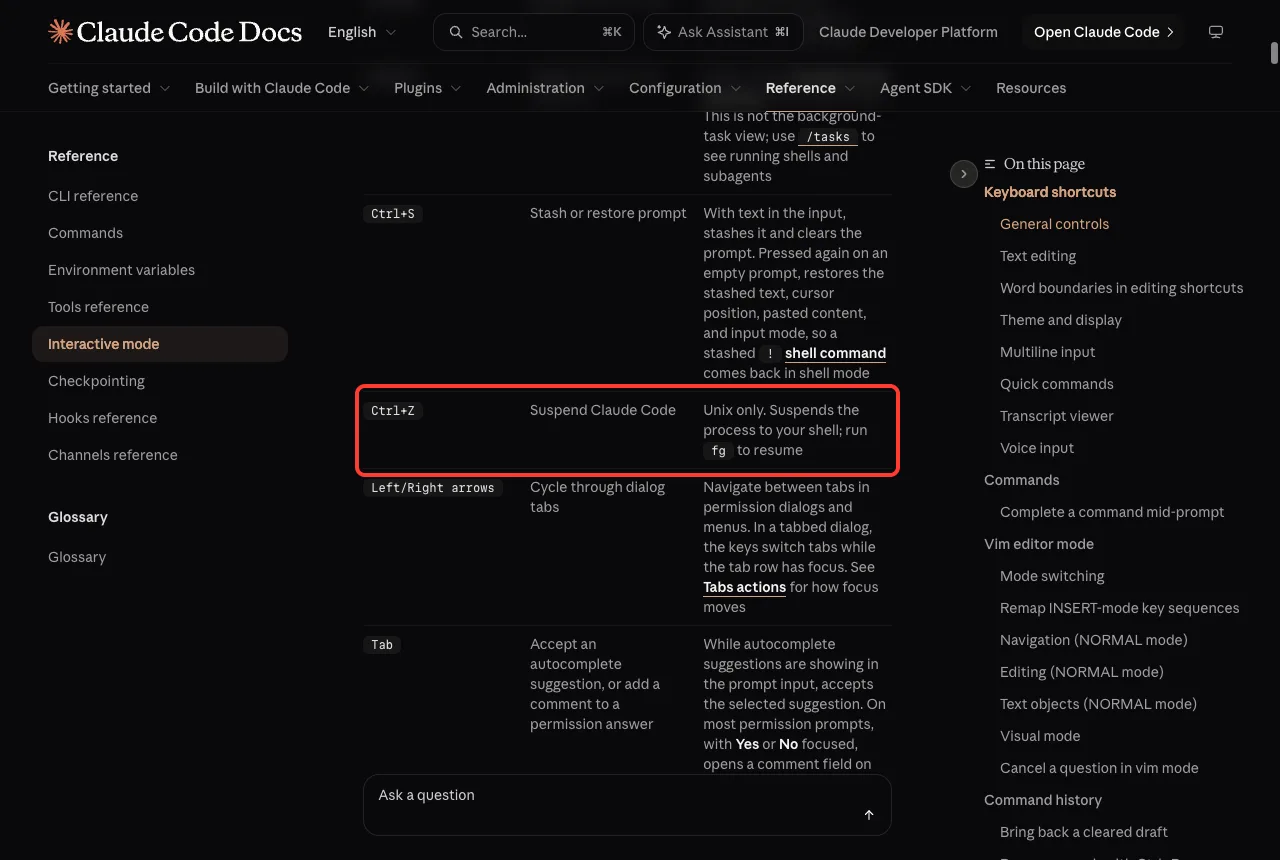
Claude Code follows that terminal rule. Anthropic’s interactive mode reference lists Ctrl+Z as “Suspend Claude Code” and notes that it is Unix only, with fg to resume.
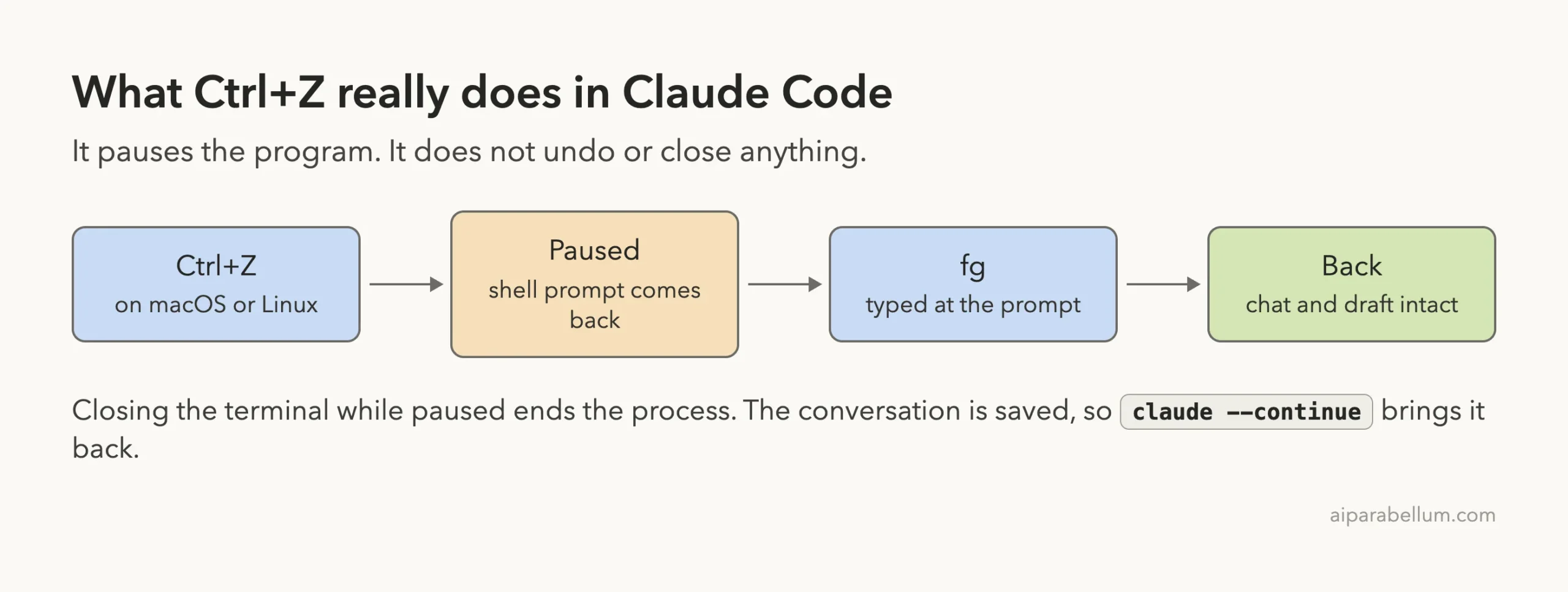
A suspended program is frozen, not closed. It keeps its memory, its conversation and its place on the screen. It simply stops running until you bring it back to the front.
Ctrl+Z in a terminal is a pause button, not an undo button. Your session is waiting for you.
Step 1: Read the Suspend Message
We started a session in a small demo folder, asked Claude to add one line to a notes file, and then typed a new draft without sending it. Then we pressed Ctrl+Z.
Claude Code printed its own note before handing the terminal back. It says the session is suspended, tells you to run fg to bring it back, and points to ctrl+_ for undoing typing.
Right under it, zsh confirmed the pause with a zsh: suspended claude ... line and a fresh prompt.
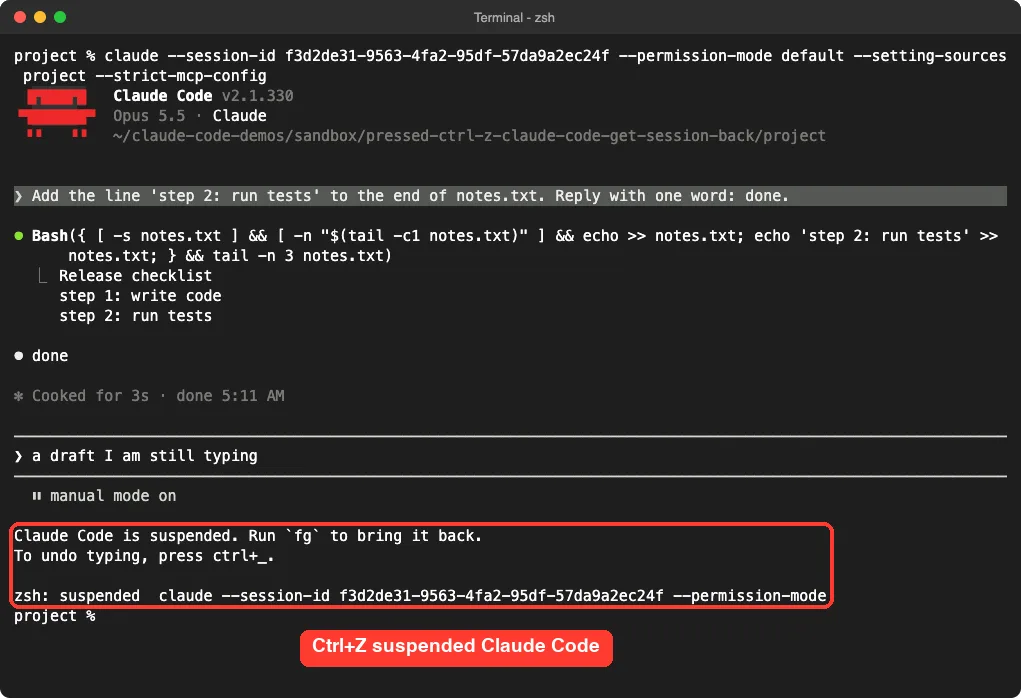
If you use bash instead of zsh, the shell line looks a little different and uses the word Stopped. It means the same thing.
Step 2: Bring the Session Back With fg
At the shell prompt, you can do anything you like first. We ran jobs to list paused programs, and cat notes.txt to confirm Claude’s earlier change was saved on disk.
Then we typed fg. The shell printed continued, Claude Code redrew its screen, and the unsent draft was still sitting in the input box.
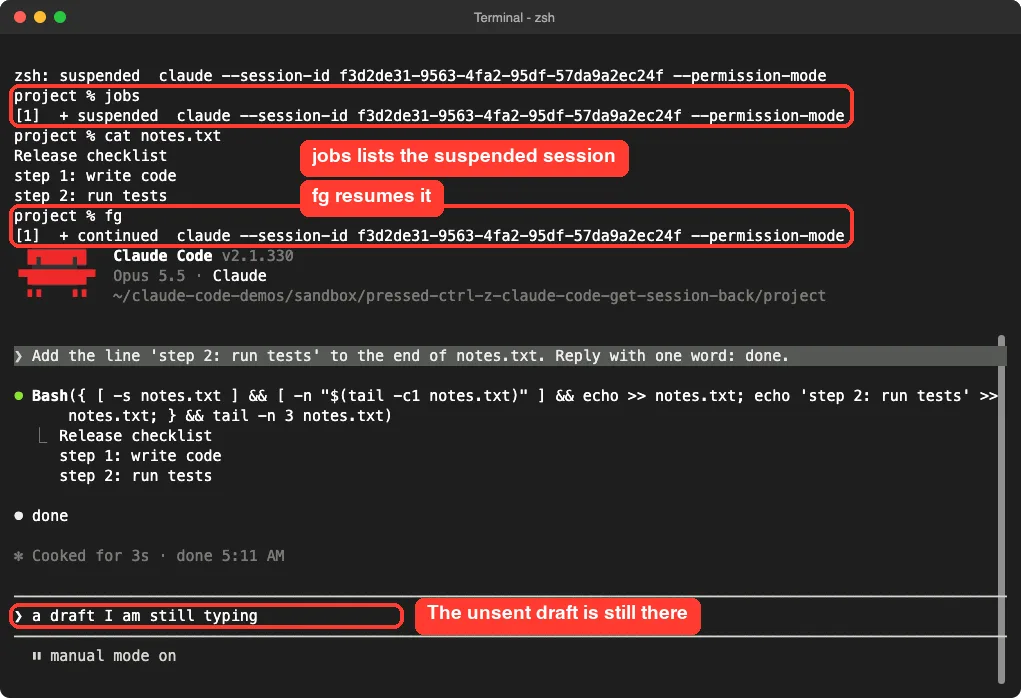
Here are the exact commands, in order:
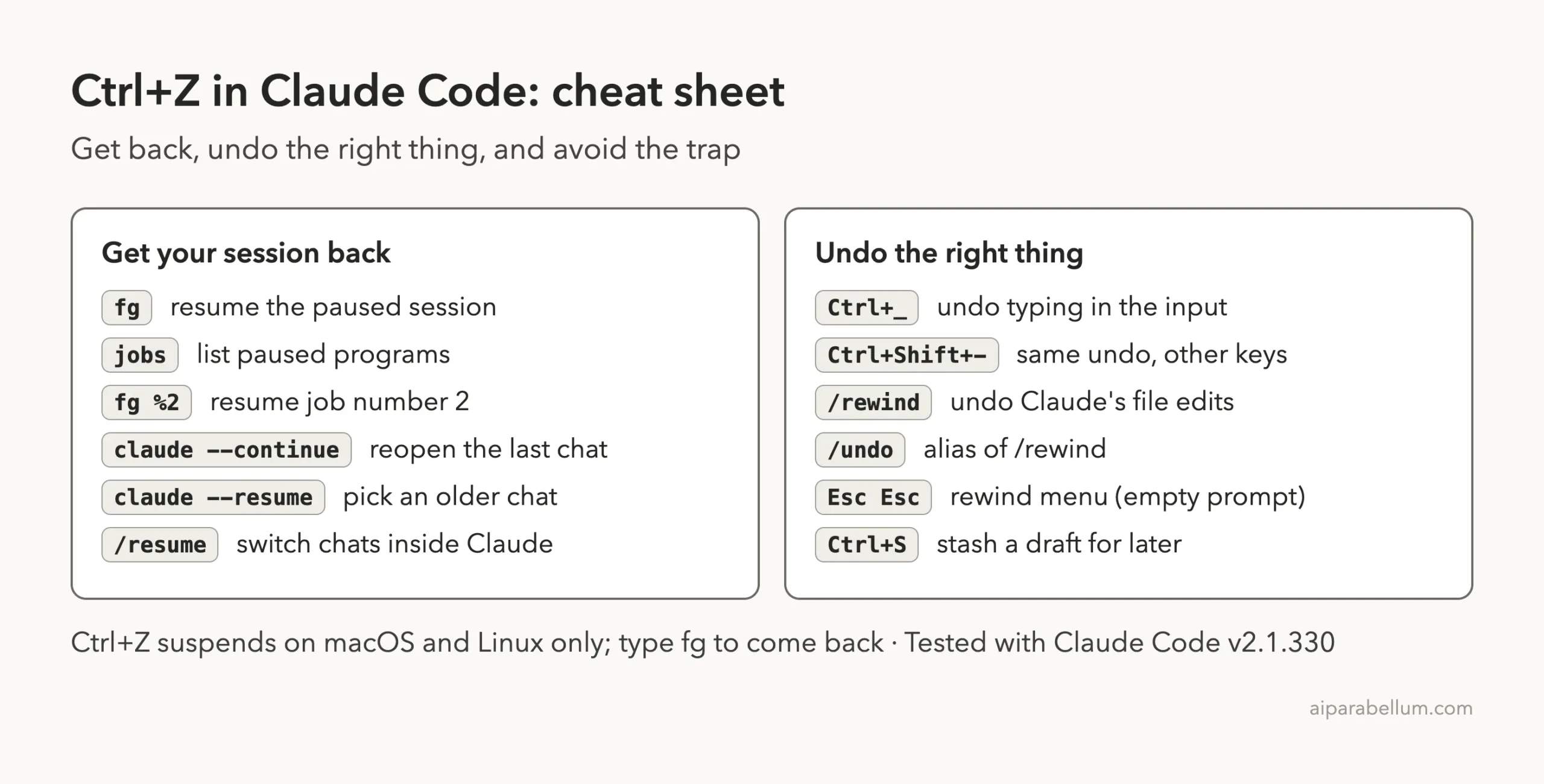
jobs      # list paused programs in this shell
fg        # resume the most recent one
fg %2     # resume job number 2 if you have several
When you have more than one paused job
If you pressed Ctrl+Z more than once, maybe in different programs, jobs shows a numbered list. Pick the one that says claude and run fg with its number, like fg %1.
Don’t use bg for Claude Code. It moves a job to the background, but an interactive program like this needs the terminal in the foreground to read your keys.
Step 3: Don’t Close the Terminal While It Is Paused
The risky moment is right after the suspend. The screen looks like Claude Code is gone, so it is tempting to type exit or close the window.
zsh tries to protect you. When we typed exit with Claude Code paused, the shell refused the first time and said zsh: you have suspended jobs.
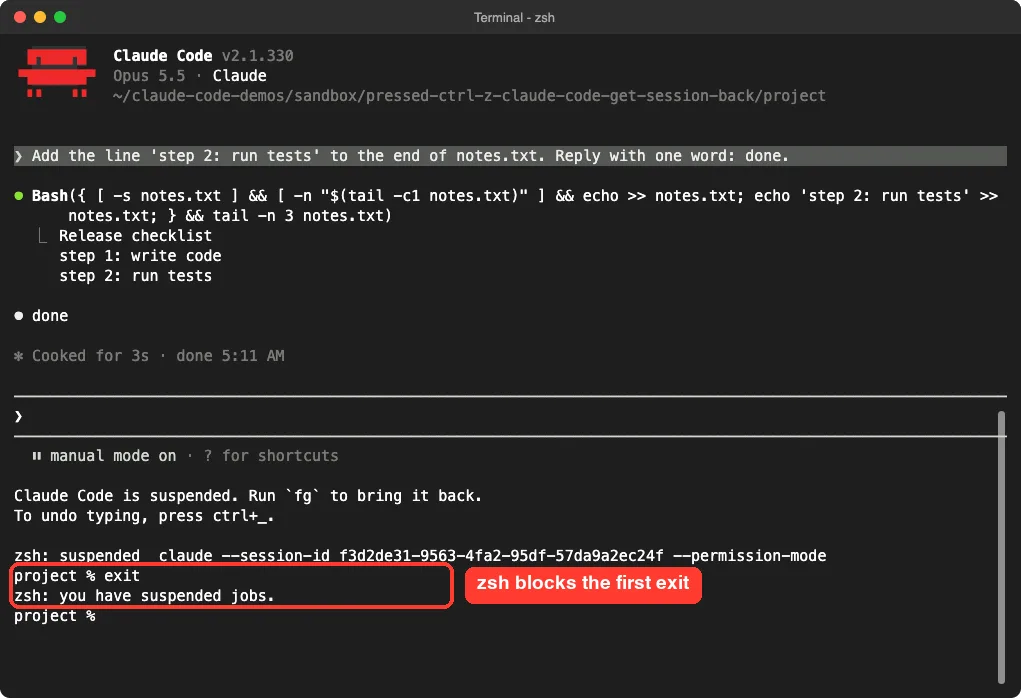
If you type exit a second time, the shell leaves anyway and the paused Claude Code process ends with it. Closing the terminal window has the same effect. That is the moment to switch to the next step.
Step 4: Recover After the Process Is Gone With claude –continue
Even if the process is gone, your conversation is not. Claude Code saves sessions as you work, so you can reopen them from a new terminal.
We opened a fresh shell, checked that no old claude process was left, and ran claude --continue in the same project folder. The previous conversation came straight back, with the earlier prompt, the command Claude ran and its reply.
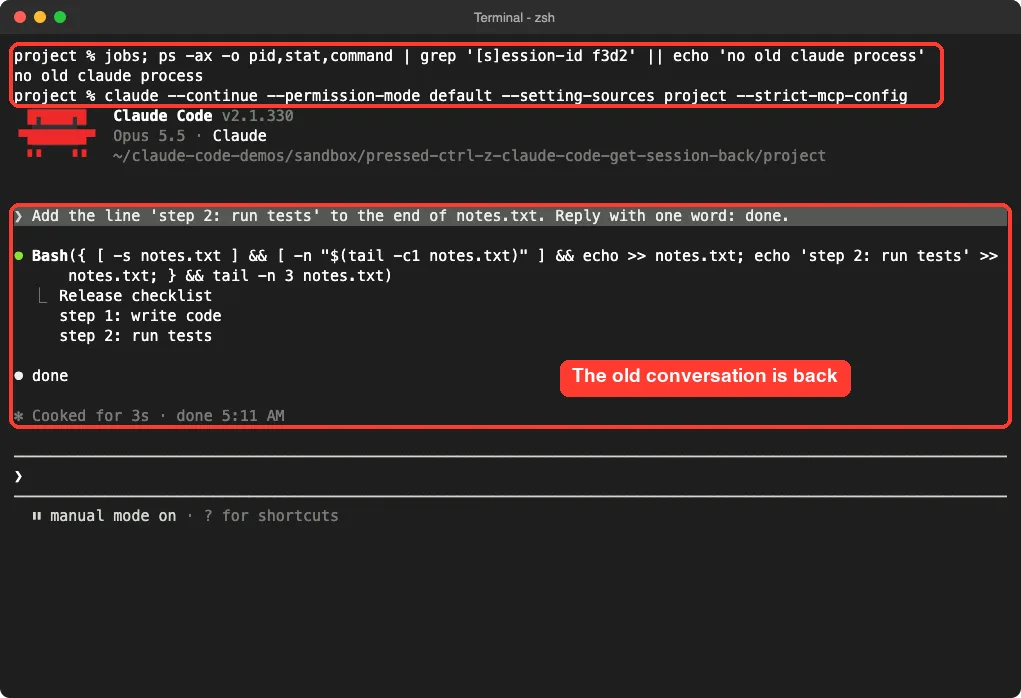
Two commands cover almost every case:
claude --continuereopens the most recent conversation in the current folder.claude --resumeshows a list so you can pick an older one, and/resumedoes the same from inside a running session.
One thing does not come back: the unsent draft. In our run, the input box was empty after --continue. If a long prompt matters to you, copy it before you close anything.
Our guide to resuming sessions covers naming and picking sessions in detail. The session loading fix helps if the resume itself errors out.
Step 5: Undo Typing With Ctrl+_
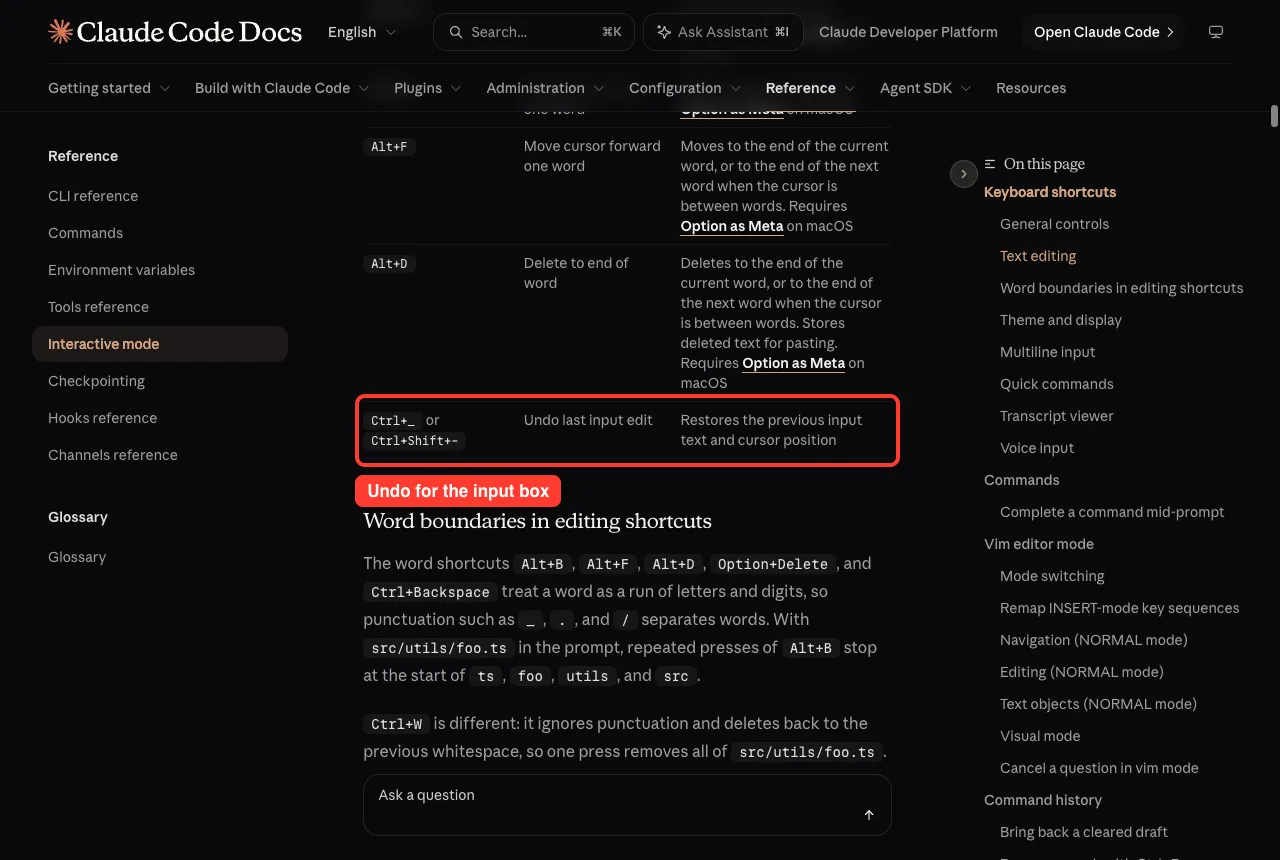
If you pressed Ctrl+Z because you wanted to take back something you typed, the key you were looking for is Ctrl+_. On many keyboards that means Ctrl+Shift+minus, which Claude Code also accepts as Ctrl+Shift+-.
The docs describe it as “Undo last input edit”: it restores the previous input text and cursor position. We typed ” plus words I regret” after our draft and pressed Ctrl+_ twice.
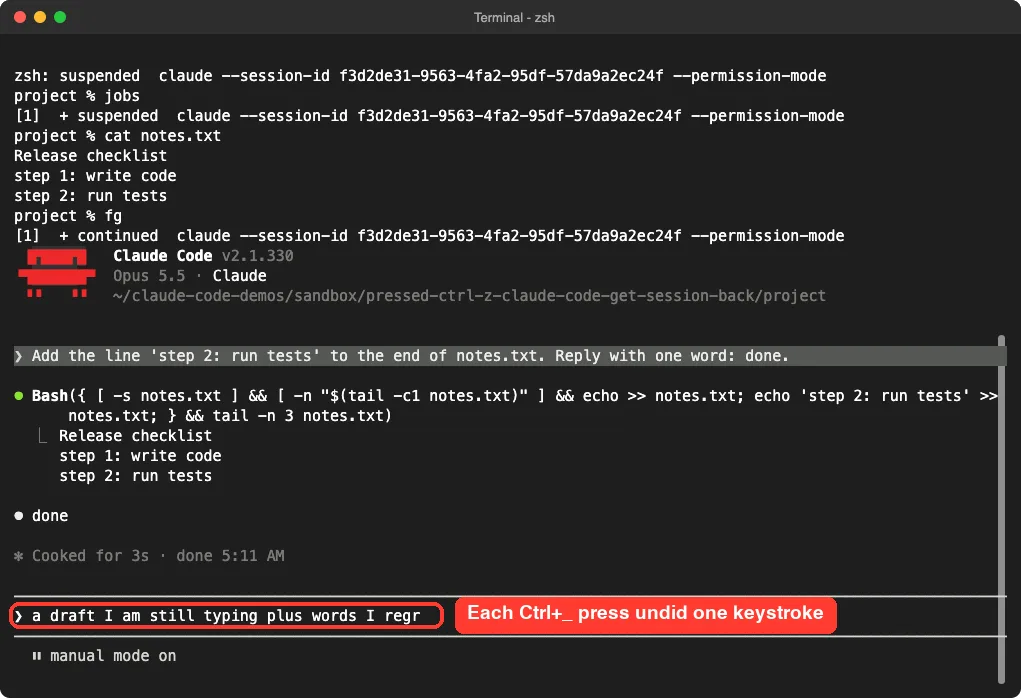
In our run, each press stepped back one keystroke, because we typed one character at a time. Keep pressing until the text looks right; the cursor goes back to where it was before each edit.
Two more ways to save a draft
- Press
Ctrl+Sto stash the current prompt and clear the box. Press it again on an empty prompt to bring the text back. - Press Esc twice with text in the box to clear it. Claude Code saves the draft to history, so the Up arrow brings it back.
Step 6: Undo Claude’s File Edits With /rewind
The other kind of undo is for the changes Claude made to your files. That is what checkpoints are for. Run /rewind, its alias /undo, or press Esc twice on an empty prompt to open the rewind menu.
To test it, we asked Claude to change "Hello, " to "Hi, " in a small app.py with its Edit tool. Then we opened the menu and picked that prompt.
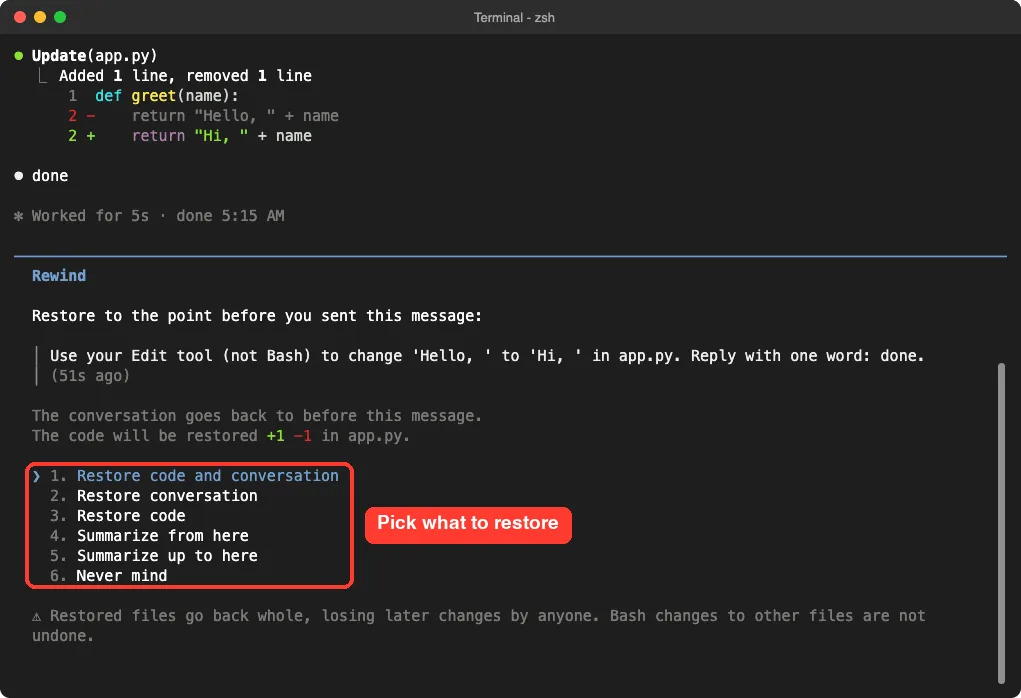
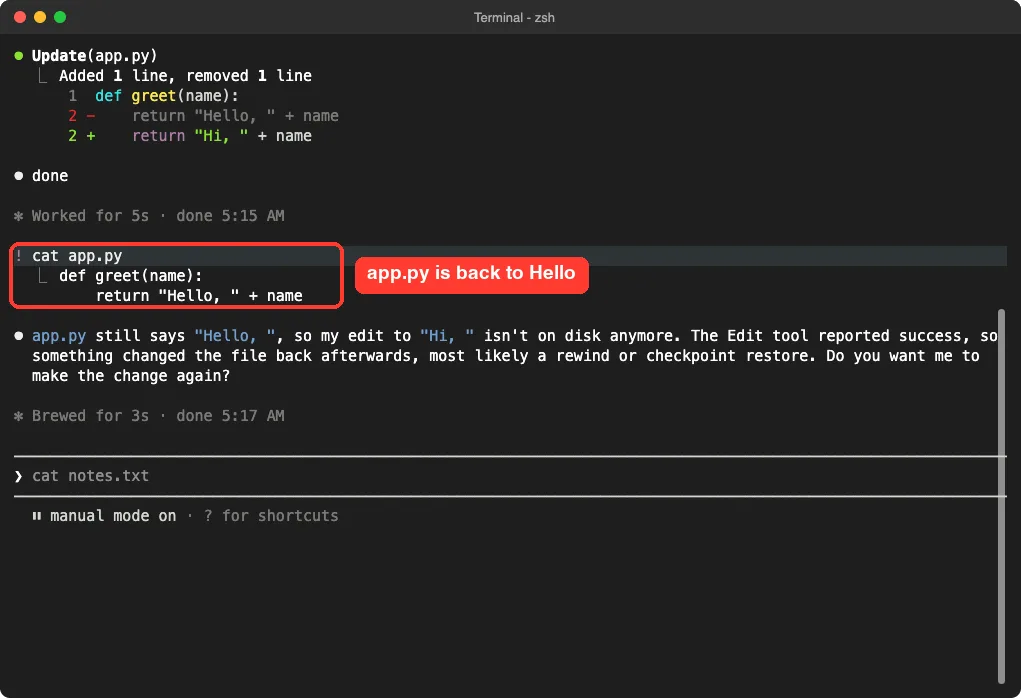
We chose Restore code, which reverts the file but keeps the chat. A quick cat app.py showed the file was back to "Hello, ".
The catch: changes made through shell commands
Our first edit went differently. Claude added a line to notes.txt with a shell command instead of its Edit tool, and the rewind menu showed “Code changes unknown” with only conversation options.
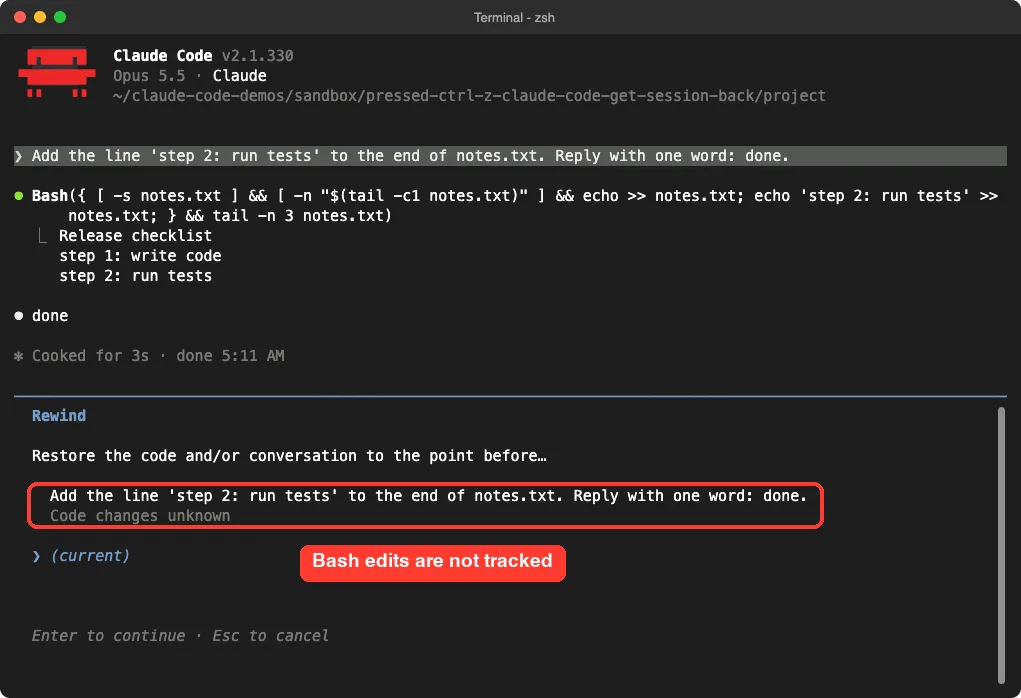
That matches the checkpointing docs: a file that only Bash commands changed isn’t tracked. Use Git for those. Our full guide to checkpoints and rewind walks through every menu option.
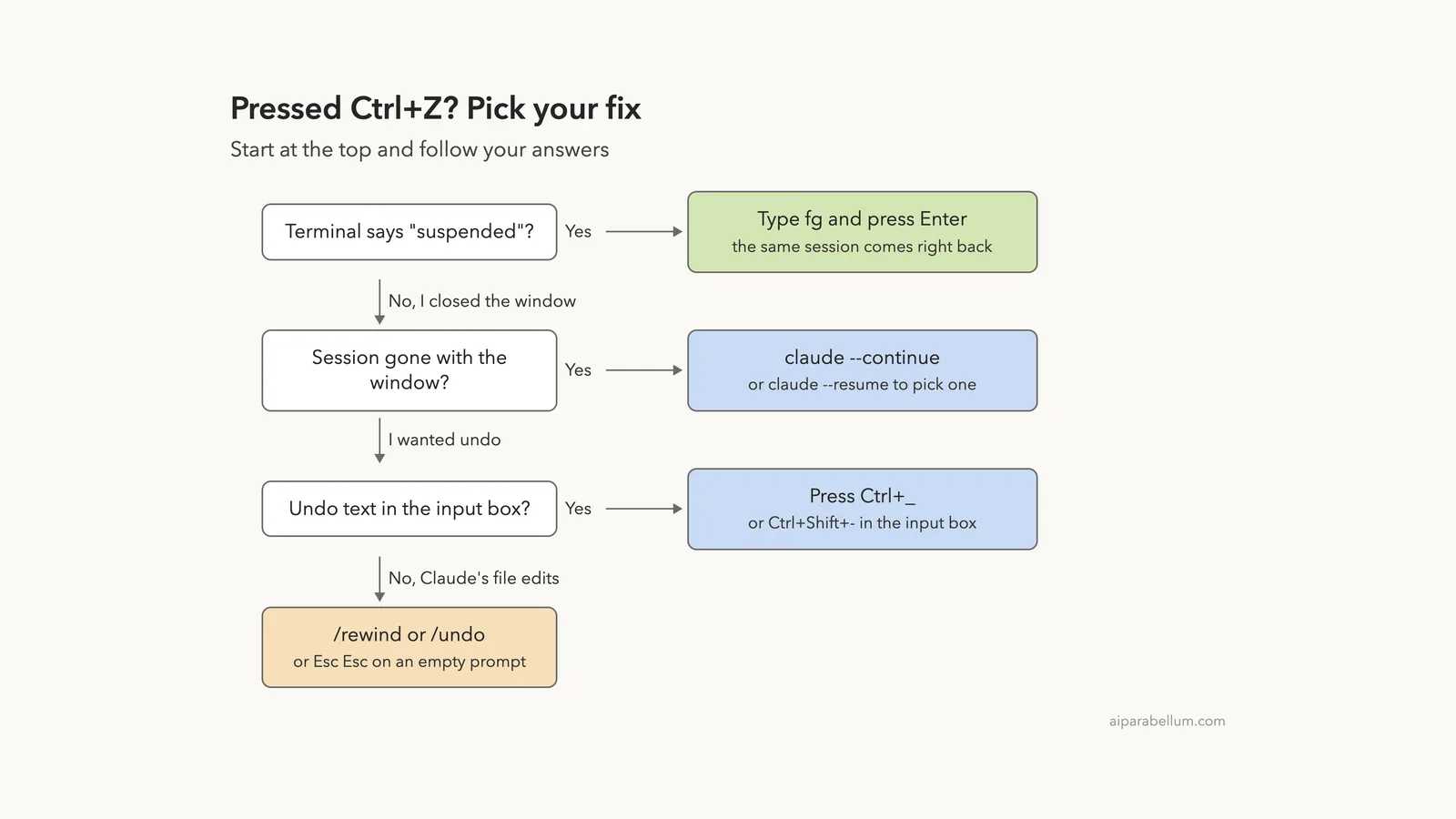
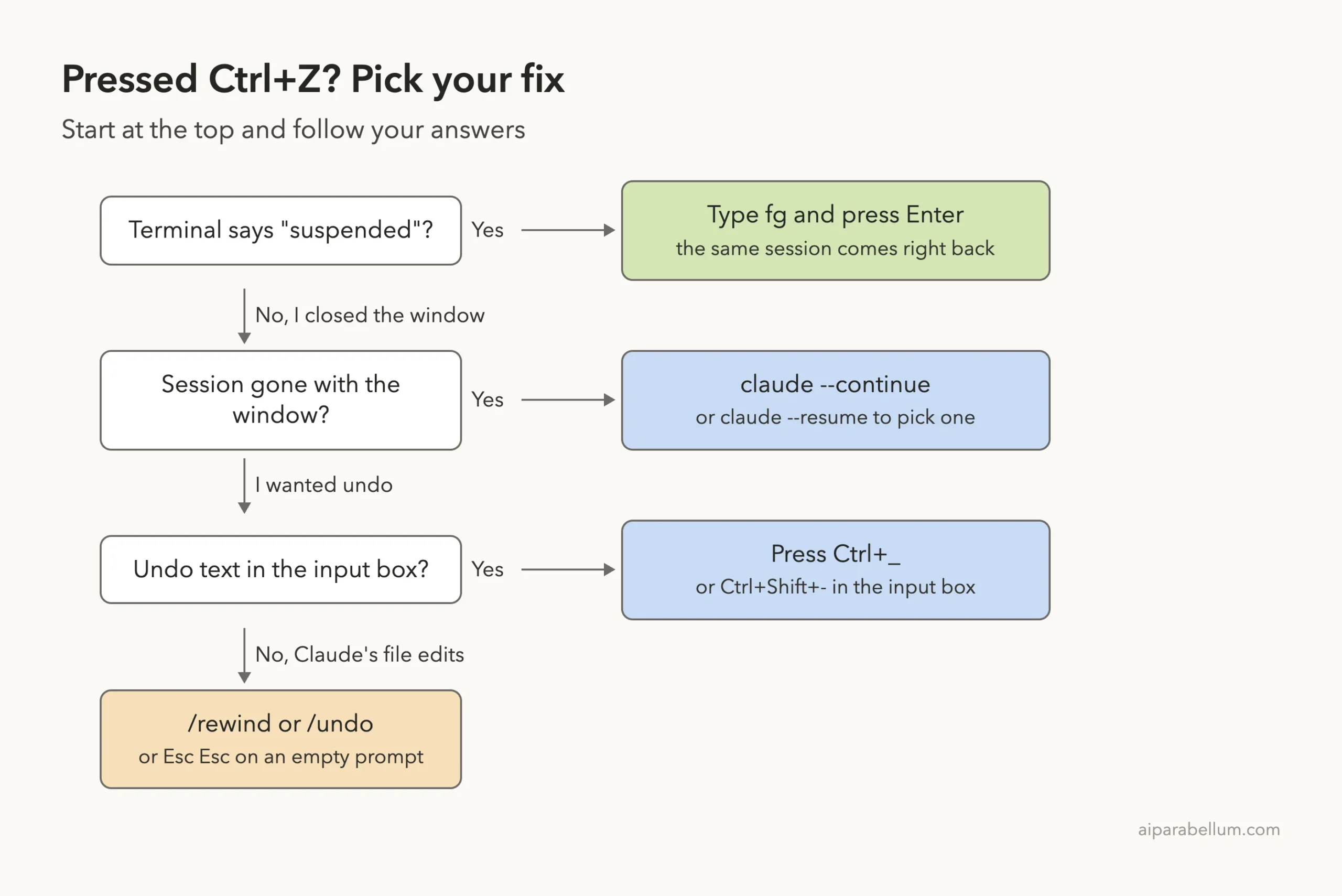
Which Fix Do You Need?
If you are not sure what went wrong, start at the top of this ladder and follow your answers. Most people only need the first box.
Ctrl+Z on Windows, tmux and IDE Terminals
Anthropic lists the Ctrl+Z suspend as Unix only, which covers macOS, Linux and WSL. On native Windows, it doesn’t suspend Claude Code, so there is no paused job to bring back.
The keybindings page lists Ctrl+Z under terminal conflicts as the Unix process suspend signal, SIGTSTP. It isn’t one of Claude Code’s own actions, so the dependable fix is learning Ctrl+_ for undo.
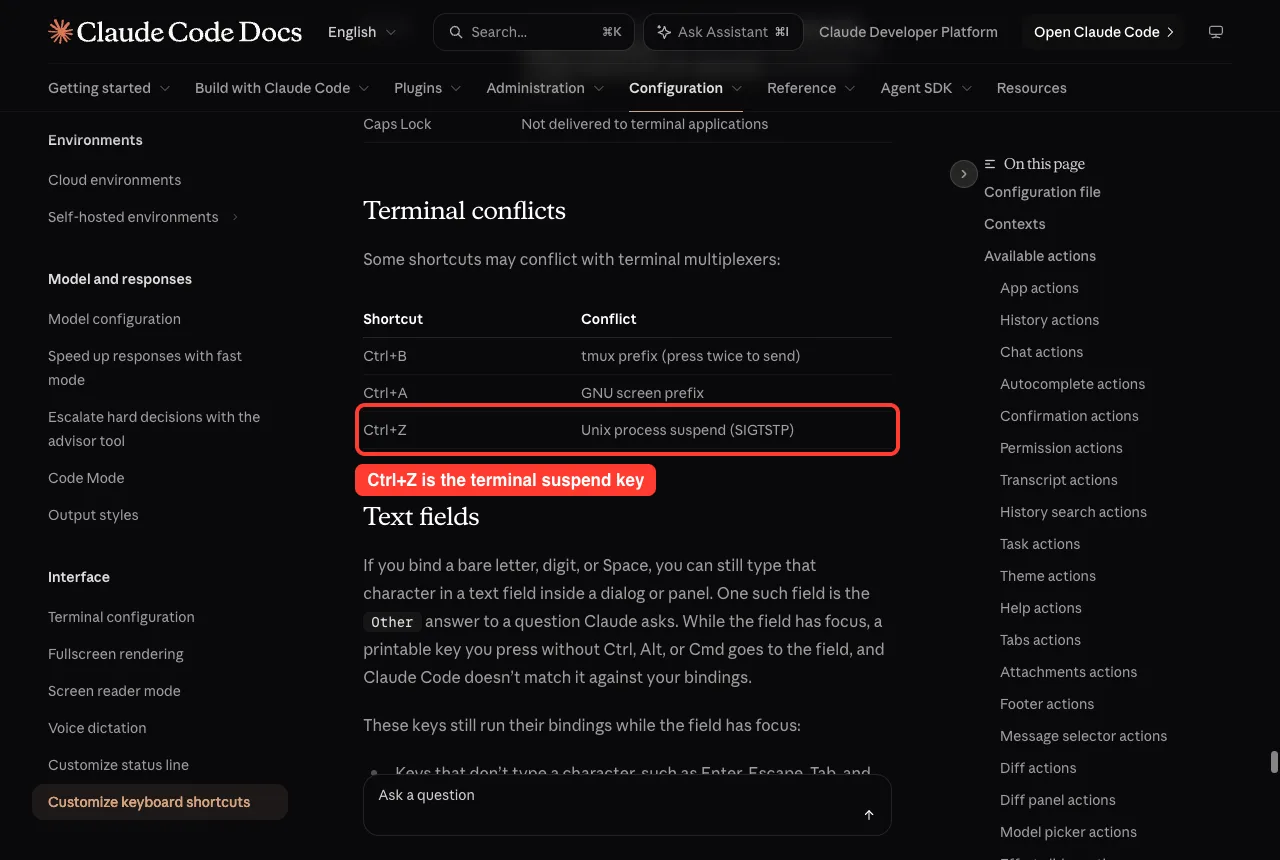
Inside tmux or the built-in terminal of an editor like VS Code, the shell is still the one handling Ctrl+Z. The same jobs and fg steps apply in that pane. For other keys worth knowing, see our Claude Code shortcuts guide, and if you want to change the keys you can remap, our keybindings tutorial shows how.
Try It Yourself
Practice once in a throwaway folder, so the real thing never scares you again. Make a folder with one small file, start claude, and paste this prompt:
Create a file called hello.txt with the single line "first version". Reply with one word: done.Then do these steps in order:
- Type a draft without sending it, then press Ctrl+Z.
- Run
jobs, thenfg, and check your draft is still there. - Press
Ctrl+_a few times and watch the draft shrink. - Clear the box, run
/rewind, pick your prompt and choose Restore code. - Exit with
/exit, then runclaude --continueto reopen the chat.
Common Mistakes
- Closing the window right after Ctrl+Z. The session looks gone but is only paused; type
fgfirst. - Typing
exittwice. The second exit ends the paused process. Your conversation is still saved, but the unsent draft is lost. - Pressing Ctrl+Z again to “redo”. Each press after
fgjust pauses the session again. - Expecting
/rewindto undo shell commands. It restores files changed by Claude’s edit tools, not files only a command touched. - Running
bginstead offg. Claude Code needs the foreground to read your keys.
Pro Tips
- Use Ctrl+Z on purpose. It is a fast way to run a quick shell command, like checking a file, and then
fgstraight back into the same session. - Prefer the
!prefix for one-off commands inside Claude Code when you want the output in the conversation. - Stash long prompts with
Ctrl+Sbefore trying anything risky in the terminal. - Commit to Git before big tasks. Checkpoints are great, but they don’t cover shell changes or remote side effects.
- If you are done for the day, quit properly. Our guide on exiting Claude Code covers every clean way out.
Claude Code Ctrl+Z Cheat Sheet
Frequently Asked Questions
Did Ctrl+Z delete my Claude Code session?
No. It paused the process. Type fg in the same terminal and the session returns with its conversation and any unsent draft.
What is the undo shortcut in Claude Code?
For text in the input box, press Ctrl+_ or Ctrl+Shift+-. For Claude’s file edits, run /rewind or /undo, or press Esc twice on an empty prompt.
I closed the terminal after pressing Ctrl+Z. Is my work lost?
Your conversation is saved. Open a terminal in the same folder and run claude --continue, or claude --resume to pick a session. Files Claude already wrote stay on disk.
Can I turn off Ctrl+Z suspend in Claude Code?
The official keybindings docs list Ctrl+Z as a terminal conflict, the Unix suspend signal, not as a Claude Code action. The practical answer is to use Ctrl+_ for undo and keep fg in mind for slips.
Does Ctrl+Z suspend Claude Code on Windows?
Anthropic marks the suspend as Unix only. It works on macOS, Linux and WSL; native Windows doesn’t suspend the session. Our common errors guide covers other Windows-specific problems, and our Claude overview covers the wider product.
Conclusion
Pressing Claude Code Ctrl+Z only pauses the session, so the fix is almost always one word: type fg and you are back with your chat and draft intact. If the terminal was closed, claude --continue reopens the conversation, and if you really wanted undo, use Ctrl+_ for typing and /rewind or /undo for Claude’s file edits, keeping in mind that changes made only by shell commands need Git instead.