
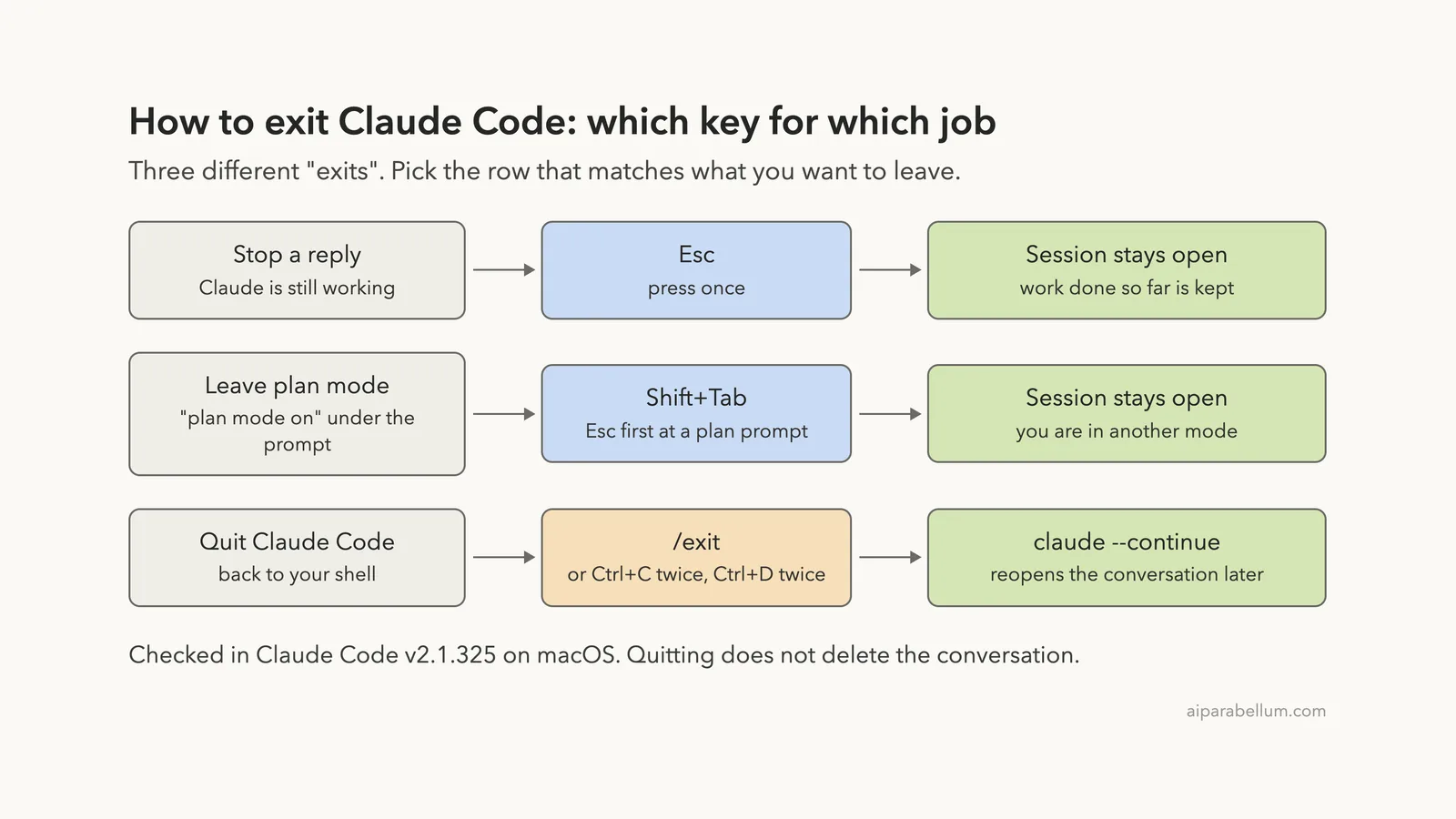
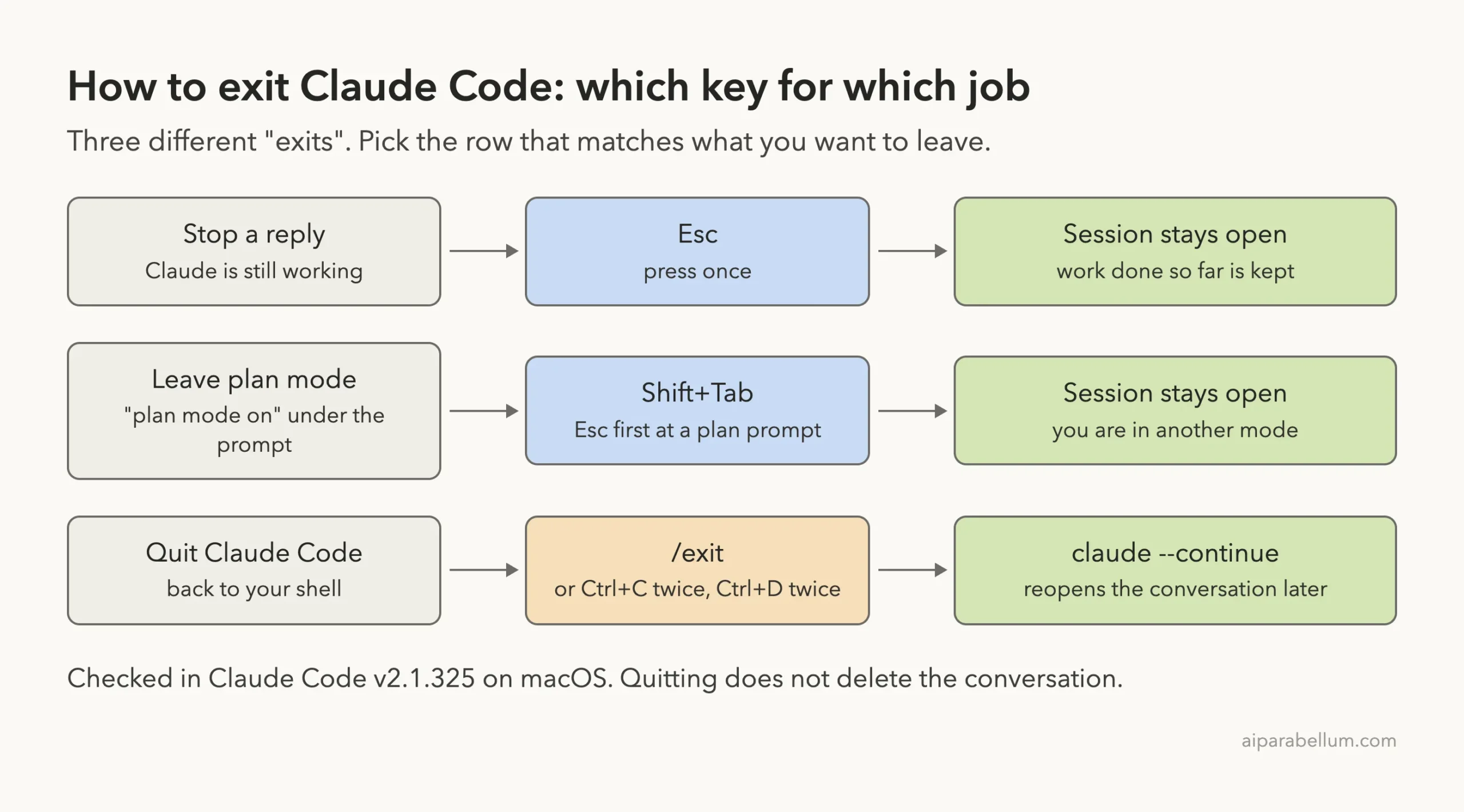
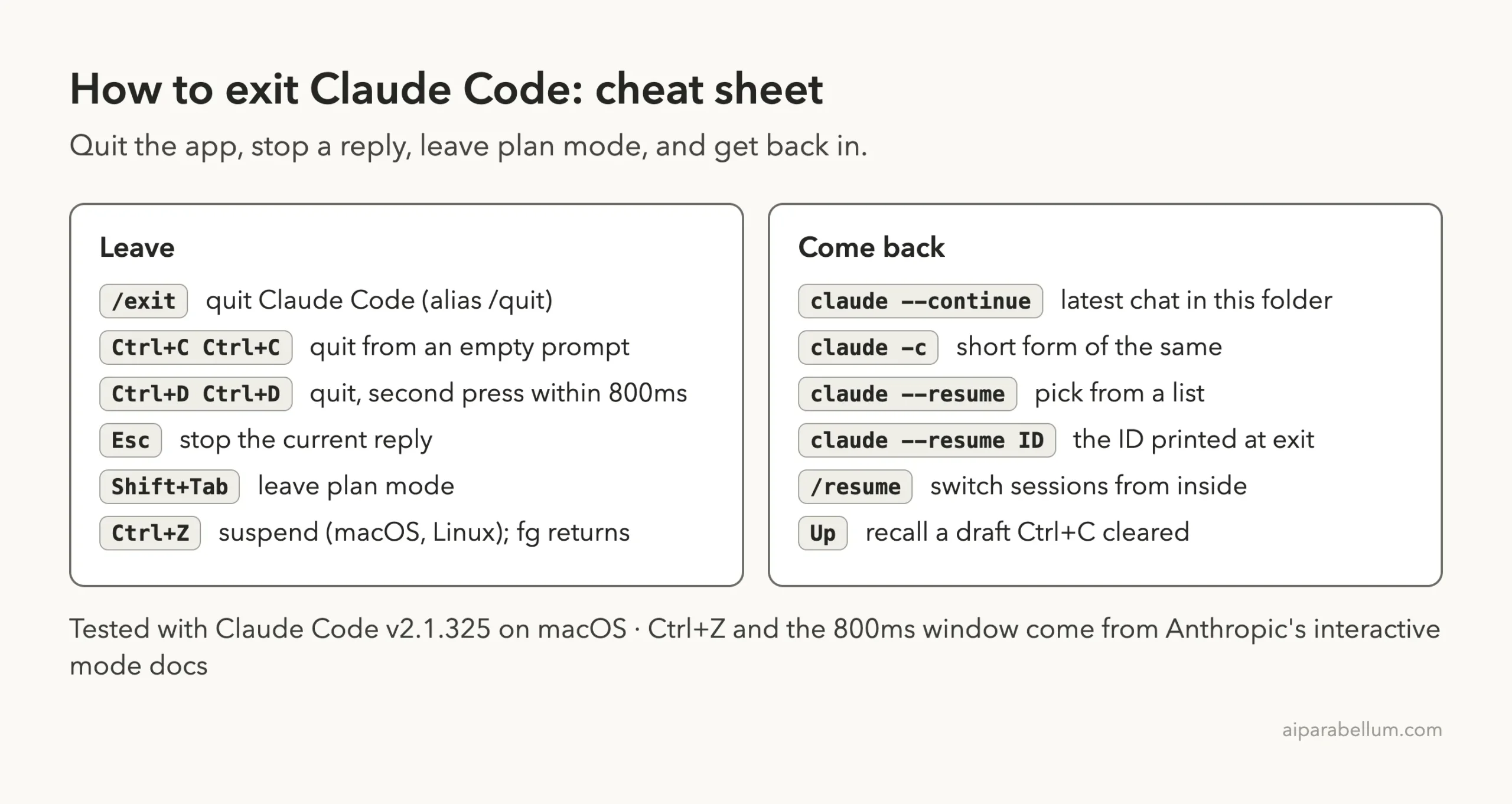
If you are wondering how to exit Claude Code, the short answer is to type /exit at the prompt and press Enter. You can also press Ctrl+C twice or Ctrl+D twice on an empty prompt. All three quit Claude Code and drop you back into your normal terminal.
If you only want to stop a reply that is still being written, press Esc once. If you want to leave plan mode, press Shift+Tab. Neither of those closes your session.
Quitting does not throw your conversation away. Run claude --continue in the same folder later and you are back where you left off.
This guide is part of our help series. Browse all our Claude Code tutorials for more fixes and how-tos.
Tested with Claude Code v2.1.325 on macOS on November 16, 2026. Every terminal capture below is real and comes from a small throwaway demo folder.
We tested on macOS; the Windows and Linux steps follow Anthropic’s official instructions. The keys are the same on all three, with two small differences that we point out along the way.
How to Exit Claude Code: Quick Summary
| What you want | What to press | What happens |
|---|---|---|
| Quit Claude Code | /exit then Enter | Session closes, a resume command is printed |
| Quit with the keyboard | Ctrl+C twice | First press shows a hint, second press quits |
| Quit with the keyboard | Ctrl+D twice, quickly | Same hint, then quits |
| Stop a reply | Esc | Claude stops, the session stays open |
| Leave plan mode | Shift+Tab | Switches to the next permission mode |
| Turn down a plan | Esc at the plan prompt | Plan is rejected, plan mode stays on |
| Pause Claude Code | Ctrl+Z, then fg | Suspends it to your shell (macOS and Linux) |
| Come back later | claude --continue | Reopens the latest conversation in that folder |
Why Leaving Claude Code Feels Confusing
Most terminal programs stop the moment you press Ctrl+C. Claude Code does not, and that is on purpose. Inside a session, the same key also interrupts running work and clears a half-typed prompt, so a single press quitting the whole thing would be easy to do by accident.
There is a second source of confusion. People say “exit” for three different things: closing the app, stopping an answer, and getting out of plan mode. Each one has its own key.
Before you press anything, ask what you want to leave: the reply, the mode, or the whole session.
If you are new to Claude AI in the terminal, our first session walkthrough shows what a normal session looks like from start to finish.
How to Quit Claude Code With the Exit Command
The clearest way out is the built-in command. Follow these steps:
- Make sure Claude is not in the middle of a reply. If it is, press
Escfirst. - Type
/exitat the prompt. - Press Enter.
As you type, the command menu shows the match with the description “Exit the CLI”. That is how you know you have the right command before you press Enter.
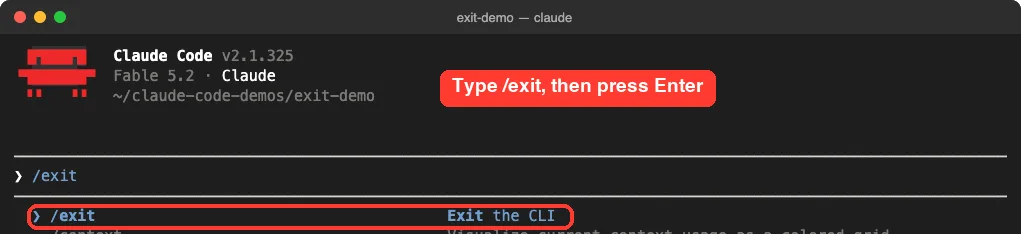
The official commands page lists /quit as an alias. In our test, typing /quit showed the same entry in the menu, written as /exit (quit). Use whichever word you remember.
One detail from Anthropic’s docs is worth knowing. If you are attached to a background session, /exit detaches you and that session keeps running. To end a background session for good, the docs point to /stop instead.
How to Exit Claude Code in the Terminal With Ctrl+C or Ctrl+D
If you would rather not type a command, two keyboard shortcuts quit Claude Code. Both need two presses, and both show a hint after the first one.
Ctrl+C Twice
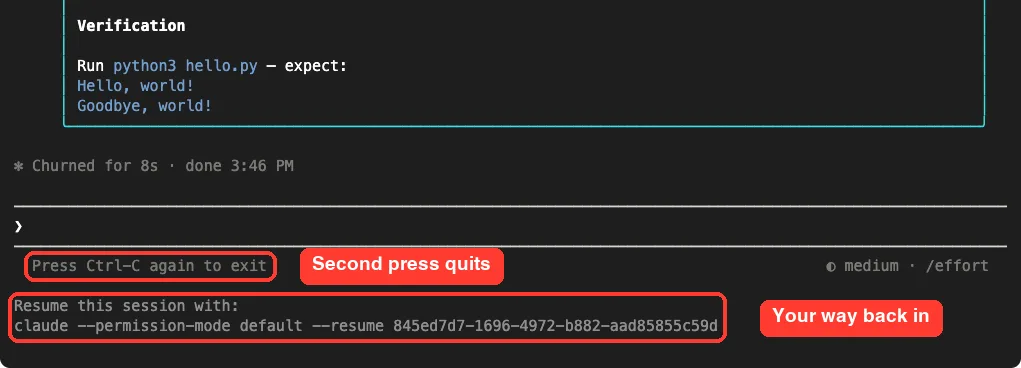
With an empty prompt, press Ctrl+C once. A line appears under the prompt that reads “Press Ctrl-C again to exit”. Press it again and Claude Code closes.
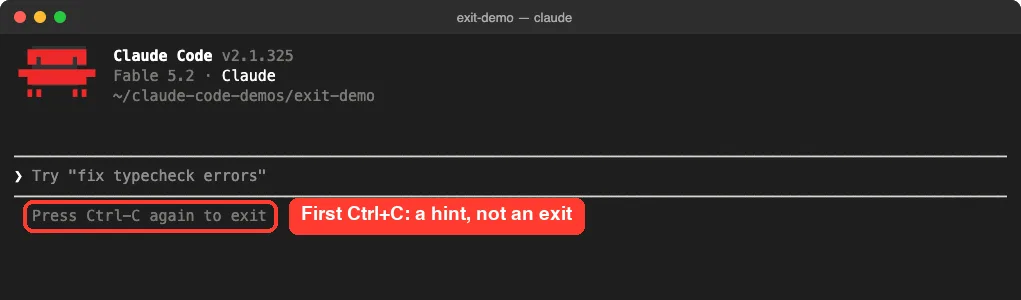
The hint does not stay forever. In our test it was gone a few seconds later, and the next Ctrl+C counted as a first press again. So press twice in a row, not once now and once later.
If your prompt has text in it, the first press does a different job: it clears your draft. In our run, the draft vanished and the exit hint appeared in the same moment. Anthropic’s docs say you can press Up to get a cleared draft back.
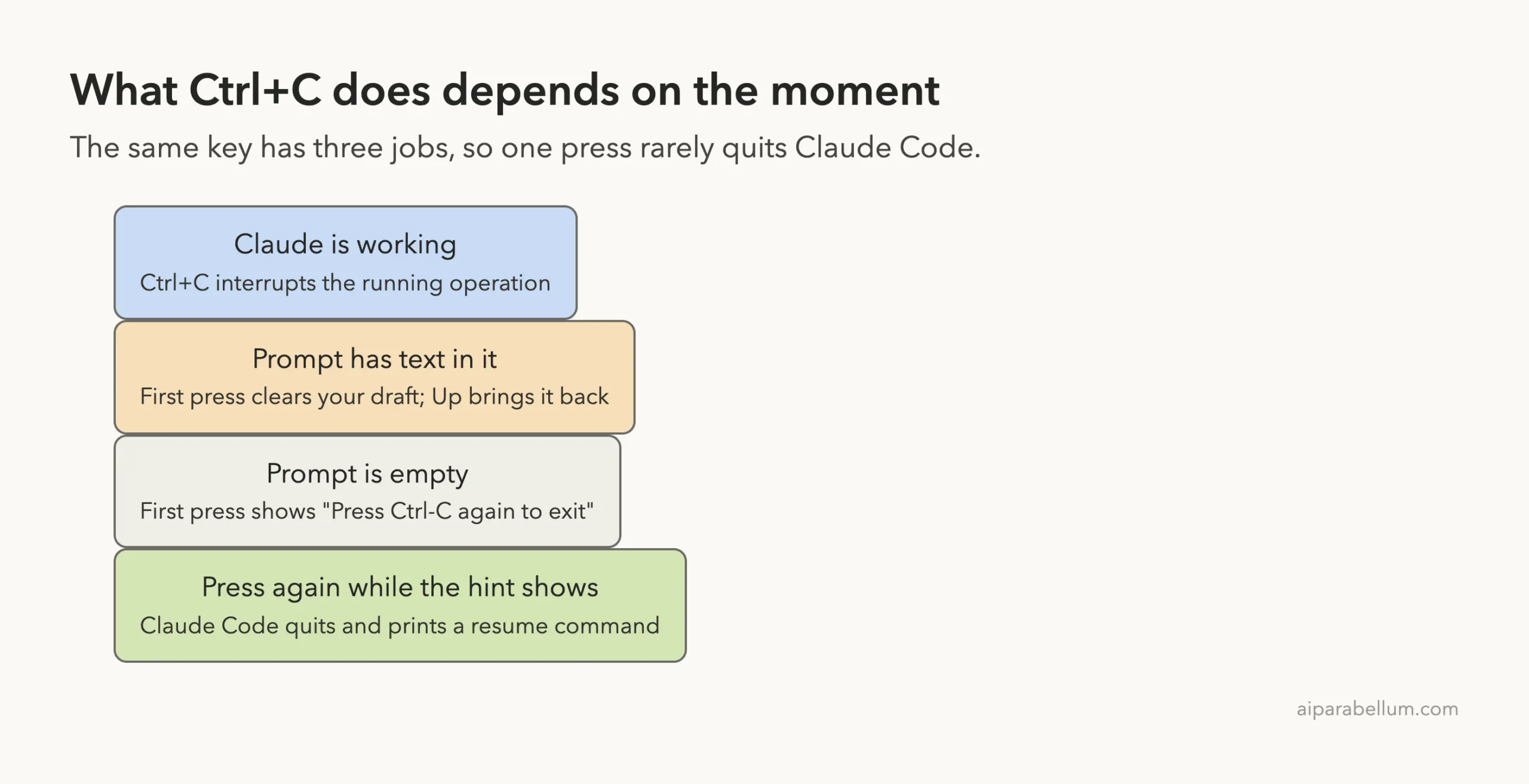
After the second press, Claude Code prints a short goodbye note: “Resume this session with:” followed by a ready-made command. Hold on to that line if you plan to come back to this exact conversation.
Ctrl+D Twice
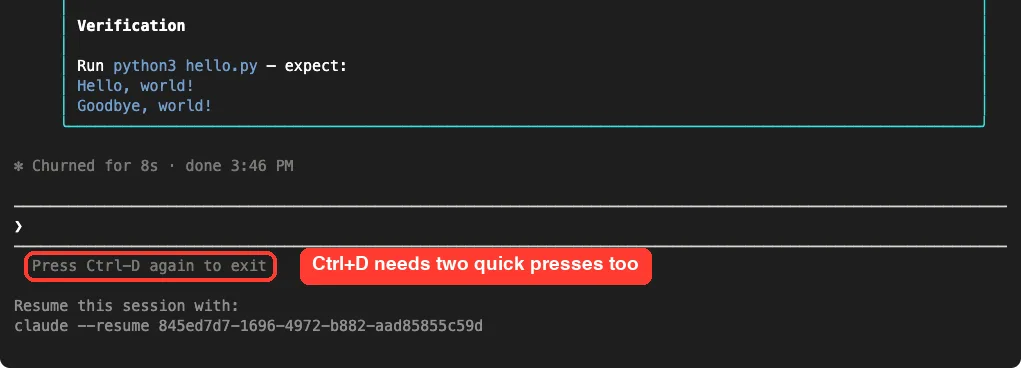
Ctrl+D works the same way, with one twist. The docs say the second press has to land within 800 milliseconds of the first. In practice that means a quick double tap.
We pressed it twice about a quarter of a second apart, and Claude Code quit and printed the resume command. When the prompt has text in it, the docs note that Ctrl+D deletes the character after the cursor instead, so clear the prompt first.
Ctrl+Z to Pause Without Quitting
On macOS and Linux, the docs list Ctrl+Z as a way to suspend Claude Code to your shell. It is paused, not closed. Type fg to bring it back.
The docs mark this one as Unix only, so it is not an option in a native Windows terminal. We did not capture it for this guide. For the full list of keys, see the official interactive mode reference or our guide to Claude Code shortcuts.
How to Stop a Reply Without Quitting
Sometimes Claude heads in the wrong direction and you just want it to stop talking. That is what Esc is for. Press it once while Claude is working.
We asked for a 400-word story and pressed Esc about five seconds in. The text stopped mid-sentence and Claude Code added the line “Interrupted · What should Claude do instead?”. The prompt was ready for a new message right away.
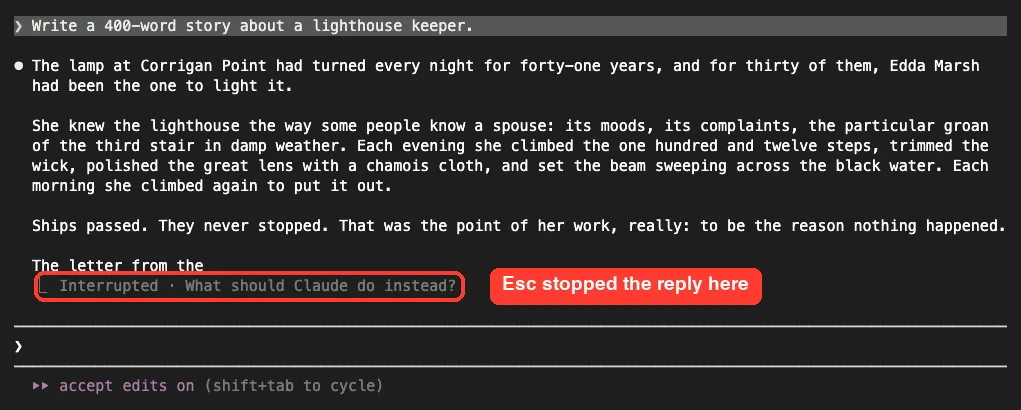
According to the docs, Claude keeps the work done so far when you interrupt it. So stopping a reply is not the same as undoing it. If Claude already edited files and you want them back, use checkpoints and rewind.
Esc has a few other jobs listed in the docs:
- When a dialog is open, it closes the dialog.
- On a permission prompt, it declines the action.
- Pressed twice with text in the prompt, it clears your draft.
- Pressed twice on an empty prompt, it opens the rewind menu.
Ctrl+C also interrupts a running operation. We still suggest Esc for this job, because a stray extra Ctrl+C is how sessions get closed by accident. If Claude seems frozen and not just wrong, our guide on stuck on thinking covers that case.
How to Exit Plan Mode in Claude Code
Plan mode tells Claude to research and propose changes without making them. You can tell you are in it by the line “plan mode on” under the prompt. Getting out depends on where you are.
At the Normal Prompt
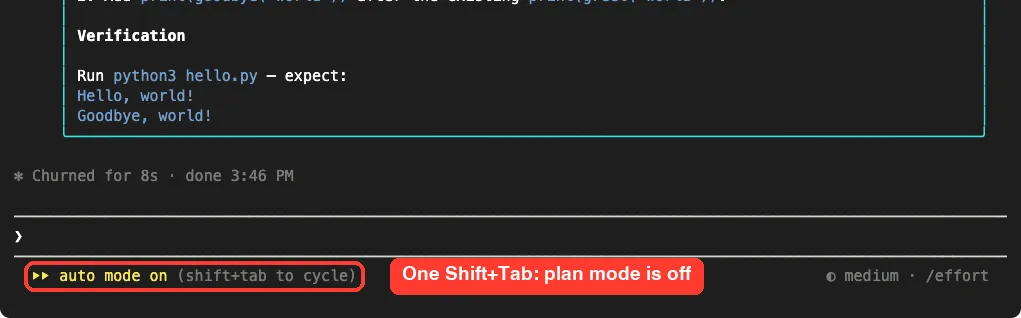
Press Shift+Tab. Each press moves to the next permission mode, and the line under the prompt changes to match. Keep pressing until you see the mode you want.
On our Mac, the cycle ran in this order: manual mode, accept edits, plan mode, auto mode, then back to manual mode. So one press from plan mode landed on auto mode, and a second press took us to manual mode. Your list can differ, because the docs say optional modes such as auto only appear where they are available.
At the Plan Approval Prompt
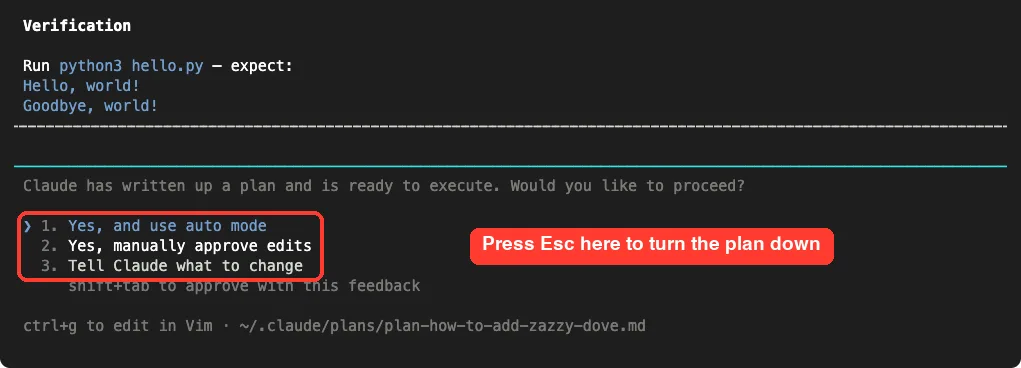
This is the spot that catches people. When Claude finishes a plan, it asks whether to proceed. Do not press Shift+Tab here to get out: the docs warn that at this prompt, Shift+Tab approves the plan.
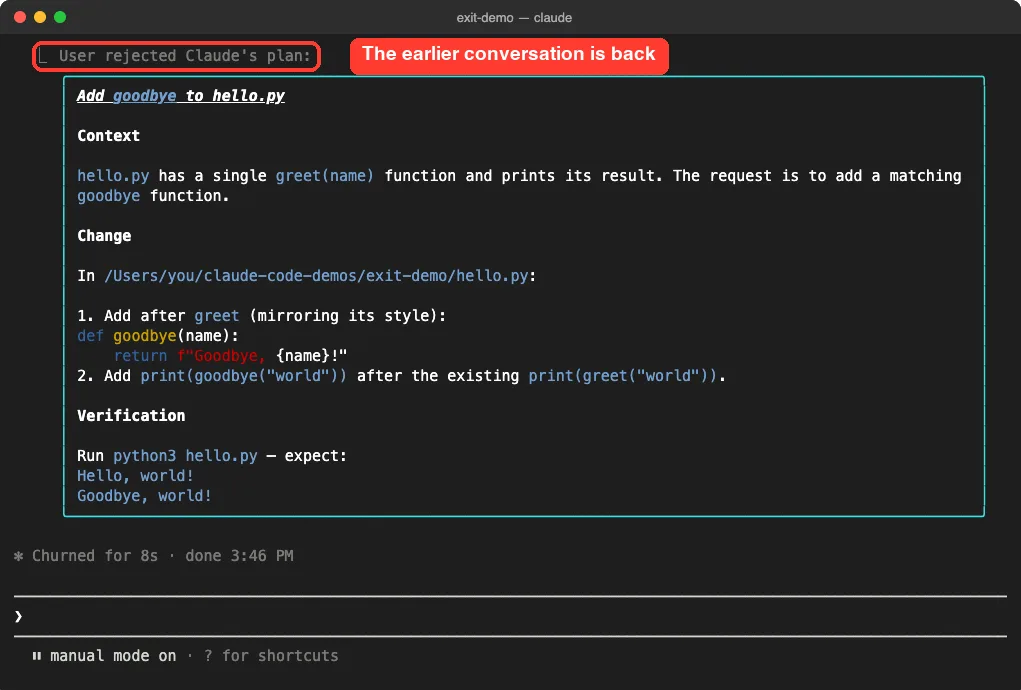
Press Esc first. In our test, the prompt offered “Yes, and use auto mode”, “Yes, manually approve edits” and “Tell Claude what to change”. After Esc, the session showed “User rejected Claude’s plan” and no file was edited.
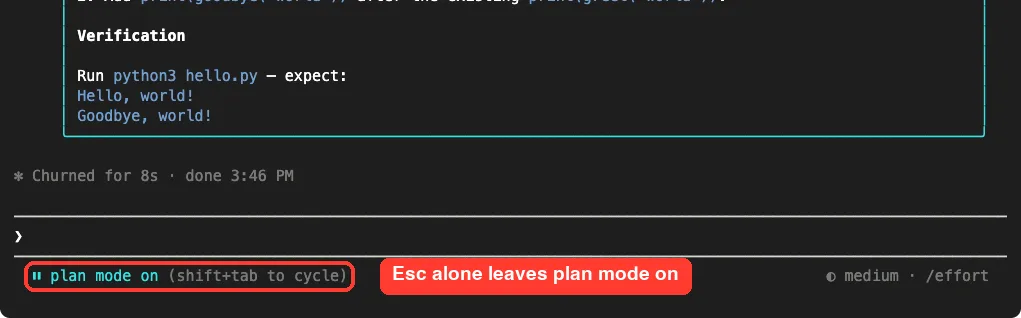
Turning the plan down does not switch modes. The line under our prompt still read “plan mode on” afterward. From there, Shift+Tab is safe again and takes you out.
Approving a plan also ends plan mode, since Claude then starts editing in the mode that option names. For more on planning, read our plan mode guide and the overview of permission modes. The official permission modes page has the full rules.
One Windows note from the docs: if Shift+Tab does nothing in your terminal, Alt+M cycles the modes instead in some setups.
How to Resume After You Exit
Closing Claude Code does not delete the conversation. You have three ways back in, and we ran the first two.
Continue the Latest Conversation
Open a terminal in the same project folder and run this:
claude --continueThe short form is claude -c. The docs describe it as loading the most recent conversation in the current directory. In our test it reopened the plan-mode session we had just quit, with the rejected plan still on screen.
Pick a Session From a List
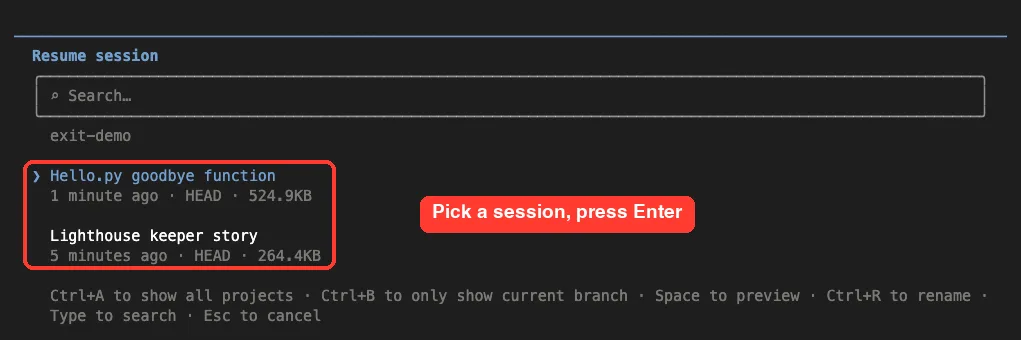
If the latest one is not the one you want, run claude --resume with nothing after it. Claude Code shows a picker with your sessions for that folder. Ours listed both demo sessions with short names and their age.
Use the Command Printed at Exit
The line Claude Code prints when it quits is the third way. It looks like this, with your own session ID at the end:
claude --resume 845ed7d7-1696-4972-b882-aad85855c59dWe noticed the printed command can repeat a flag you started with. Our first sessions were launched with --permission-mode default, and the exit line included it. Our guide to resuming sessions goes deeper, and the CLI reference lists every flag.
Try It Yourself
The safest way to learn these keys is in a folder you do not care about. Make an empty folder, start claude in it, and send this prompt:
Write a 400-word story about a lighthouse keeper.Then run through this drill:
- Press
Escwhile the story is being written and watch for the “Interrupted” line. - Press
Shift+Taba few times and read the mode line after each press. - Press
Ctrl+Conce, read the hint, and wait for it to fade. - Type
/exitand press Enter. - Run
claude --continueand check that your story is still there.
Common Mistakes
- Pressing
Ctrl+Conce and assuming Claude Code closed. It only showed a hint. - Pressing
Ctrl+Cto clear a draft, then again out of habit, and quitting by accident. - Pressing
Shift+Tabat the plan approval prompt to leave. That approves the plan. - Pressing
Ctrl+Dtwice too slowly. The second press has to come within 800 milliseconds. - Closing the terminal window to get out. It works, but you miss the printed resume command.
- Using
/clearwhen you meant to quit. That starts a new conversation and keeps Claude Code open. See clear vs compact for the difference. - Running
claude --continuefrom a different folder and wondering where the conversation went.
Pro Tips
- Use
/exitwhen you want to be sure. It does one thing and cannot be mistaken for an interrupt. - Reach for
Esc, notCtrl+C, to stop a reply. It never quits the session. - Glance at the line under the prompt before you send anything. It always names the current mode.
- Copy the resume command before you close the terminal tab if the session matters.
- If a shortcut clashes with your terminal, you can rebind the keys.
- If Claude Code will not respond to any key at all, treat it as a crash. Our list of common errors is a good next stop.
Cheat Sheet
Frequently Asked Questions
What is the command to exit Claude Code?
Type /exit and press Enter. The official commands list also gives /quit as an alias. Both close the CLI and return you to your shell.
Why does Ctrl+C not close Claude Code?
Because one press is treated as an interrupt or a clear, not a quit. On an empty prompt it shows “Press Ctrl-C again to exit”. Press it a second time while that hint is visible.
Does exiting Claude Code delete my conversation?
No. In our test, claude --continue brought the whole conversation back after we quit. You can also pick an older one with claude --resume.
How do I get out of plan mode without approving the plan?
If the approval prompt is open, press Esc to turn the plan down. Then press Shift+Tab to switch to another mode. Pressing Shift+Tab first would approve the plan, according to the docs.
How do I stop Claude Code from answering?
Press Esc once while it is working. The reply stops, the work done so far is kept, and you can type a new instruction right away.
Conclusion
Knowing how to exit Claude Code comes down to matching the key to the job: /exit, a double Ctrl+C or a quick double Ctrl+D closes the session, Esc stops a reply, and Shift+Tab leaves plan mode once any plan prompt has been dismissed with Esc. None of these lose your work, because claude --continue and claude --resume bring a conversation back. For the exact wording behind each key, check the official commands list.