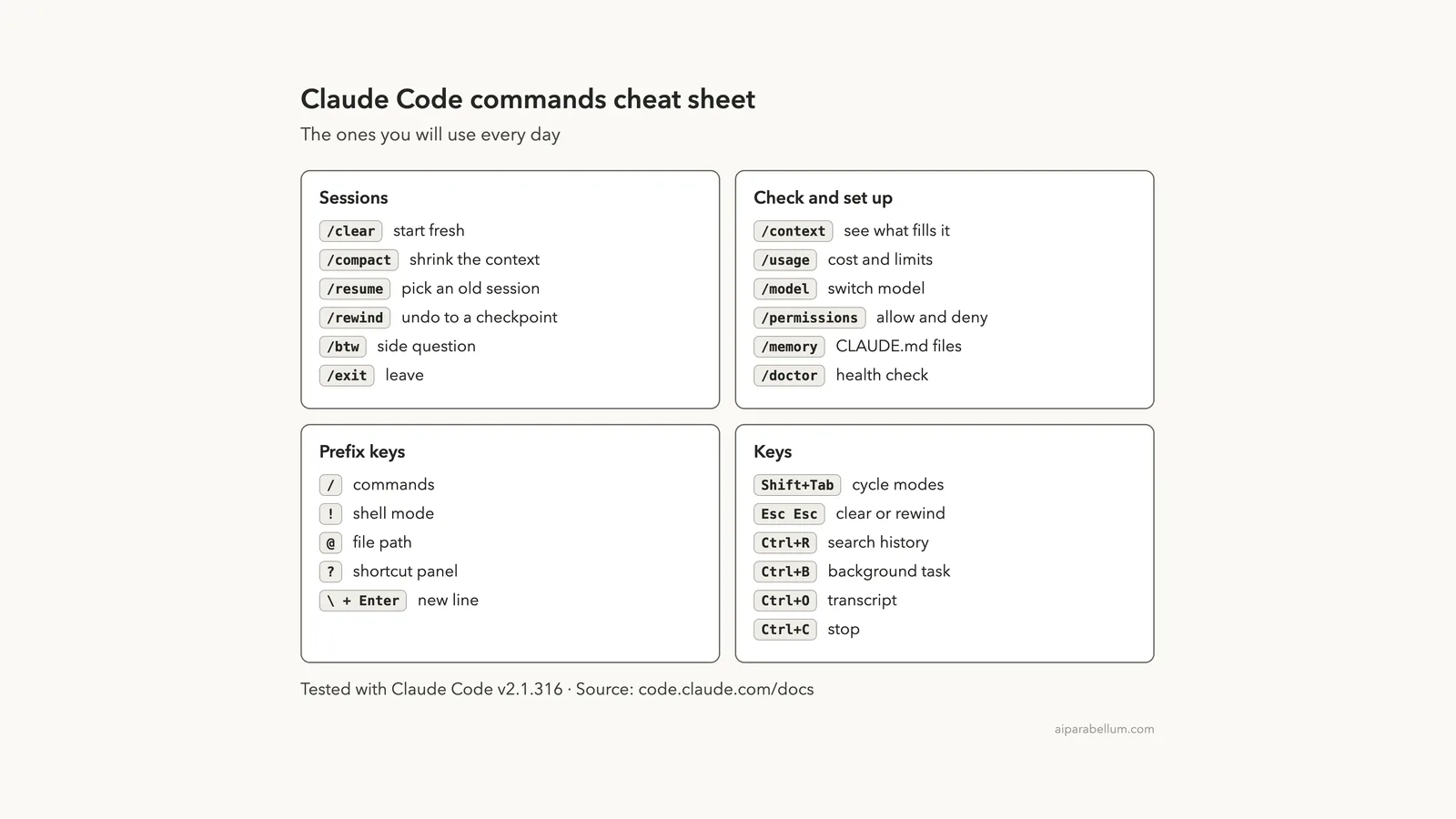
This Claude Code commands cheat sheet puts the slash commands, prefix keys and keyboard shortcuts you will actually use on one page. You can read it below, or grab the printable PDF further down and keep it next to your keyboard.
Claude Code ships with well over a hundred commands and skills, so nobody remembers them all. We opened a real session, tried the menus and shortcuts ourselves, and checked every entry against Anthropic’s official reference.
This post is part of our Claude Code tutorials collection, where each post answers one specific question. If you also want to know what each command costs in tokens, see our guide on checking token usage.
Tested with Claude Code v2.1.316 on November 2, 2026. We tested on macOS; the Windows and Linux steps follow Anthropic’s official instructions.
Quick Answer: The Commands to Learn First
If you only memorize a handful, make it these. They cover starting fresh, saving space, checking what is going on and changing how Claude behaves.
| Command or key | What it does |
|---|---|
/clear | Starts a new conversation with empty context |
/compact | Summarizes the conversation to free up context |
/context | Shows how full the context window is |
/model | Switches the AI model |
/permissions | Manages allow, ask and deny rules |
/resume | Reopens an earlier conversation |
Shift+Tab | Cycles through permission modes |
! at the start | Runs a shell command directly |
Claude Code Commands Cheat Sheet as a Printable PDF
We rendered the full cheat sheet to a single A4 page, so it prints cleanly on one sheet. It groups the commands into sessions, context and cost, setup, working, prefix keys and keyboard shortcuts.
Learn five commands and four prefix keys first. The slash menu can teach you the rest.
The commands list changes with each release. The PDF matches the version we tested, so type / in your own session to see what your copy offers.
How to Open the Command Menu
You never need to type a command from memory. Type / at the start of the prompt and Claude Code lists what is available.
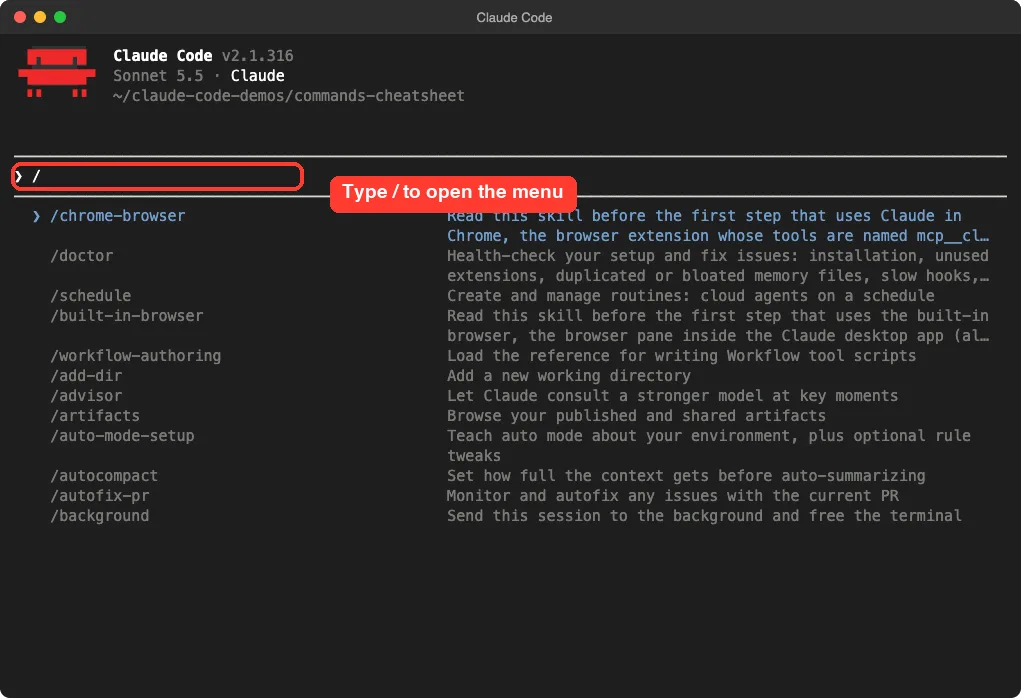
/ opens the menu of commands and skills.The menu mixes built-in commands with skills, so it may also show skills from plugins you installed. In our demo it listed items such as /doctor, /add-dir and /autocompact next to a short description of each.
Filter the menu as you type
Keep typing and the list narrows. We typed com and /compact rose to the top, with the matching letters shown in white.
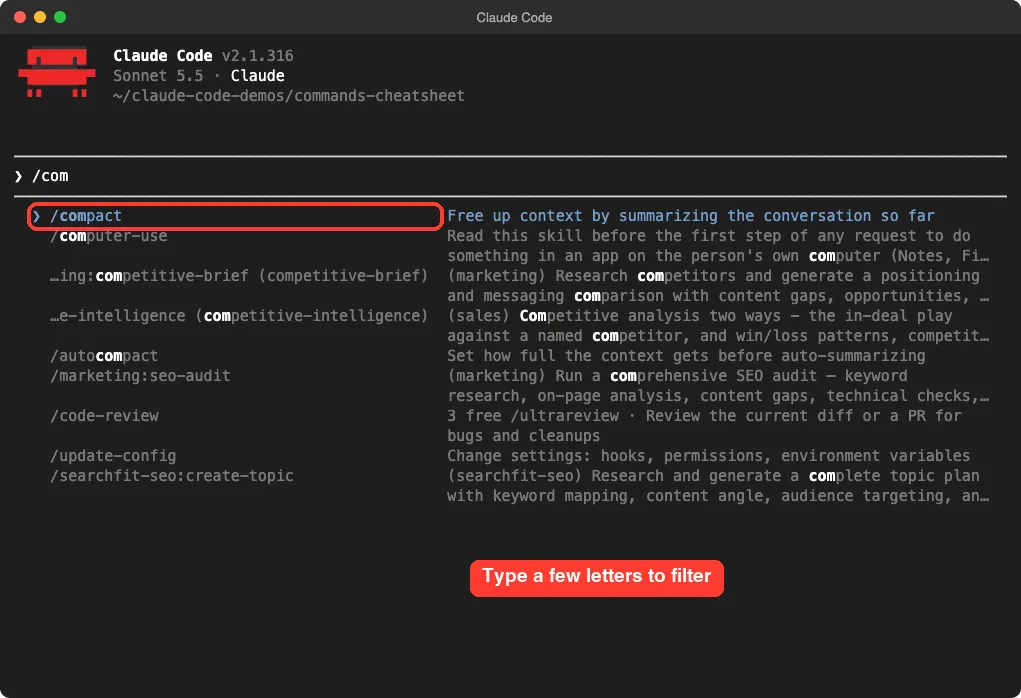
/com puts /compact at the top of the list.According to the official docs, Claude Code highlights the top suggestion only when your letters match the start of a command name, or the start of a word inside it. Typing /adddir highlights /add-dir, and typing /new highlights /clear through its alias.
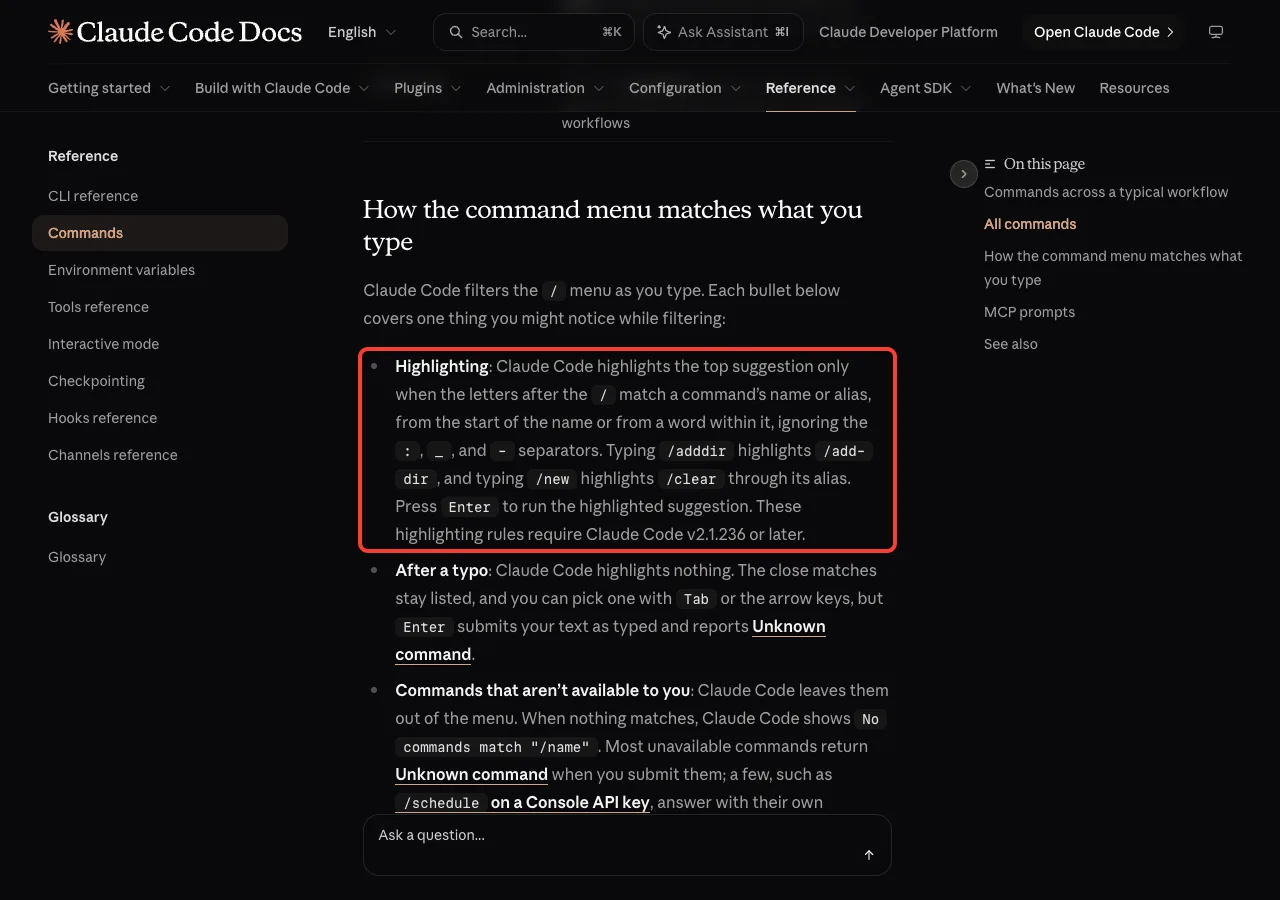
Two more details from that page are worth knowing. After a typo, nothing is highlighted, and pressing Enter sends your text as typed and reports an unknown command. Commands you cannot use are left out of the menu entirely.
See the full list with /help
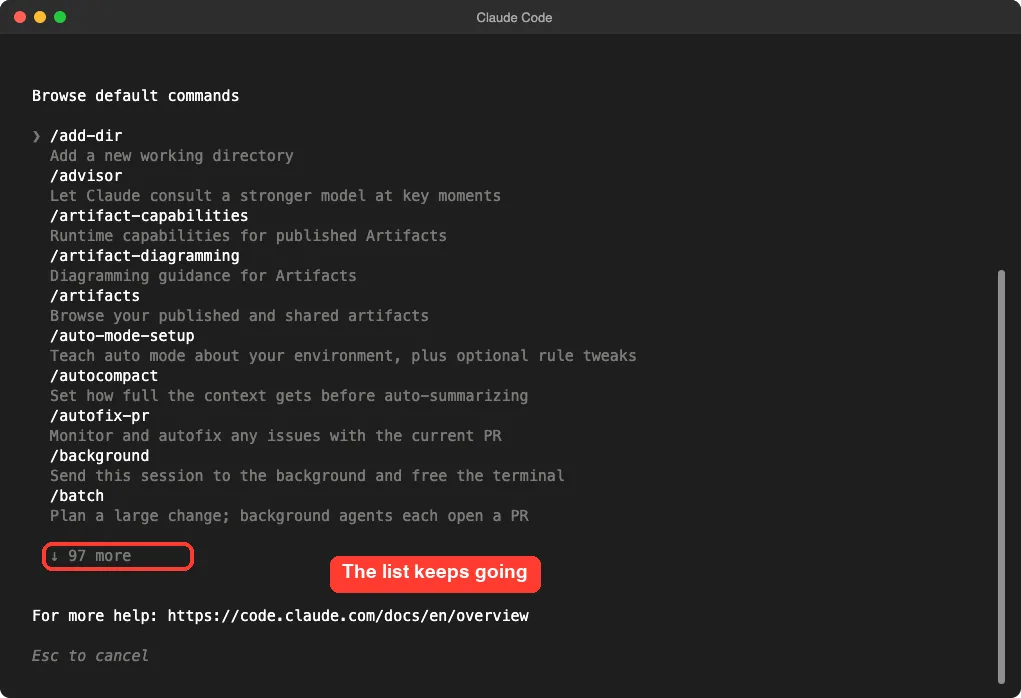
Run /help and press the right arrow to reach the commands tab. In our session it showed a block of commands and a counter reading 97 more below them.
The Official Claude Code Commands Reference
For the complete list with every argument, use Anthropic’s reference. Each row gives the command, its arguments in brackets and a plain description.
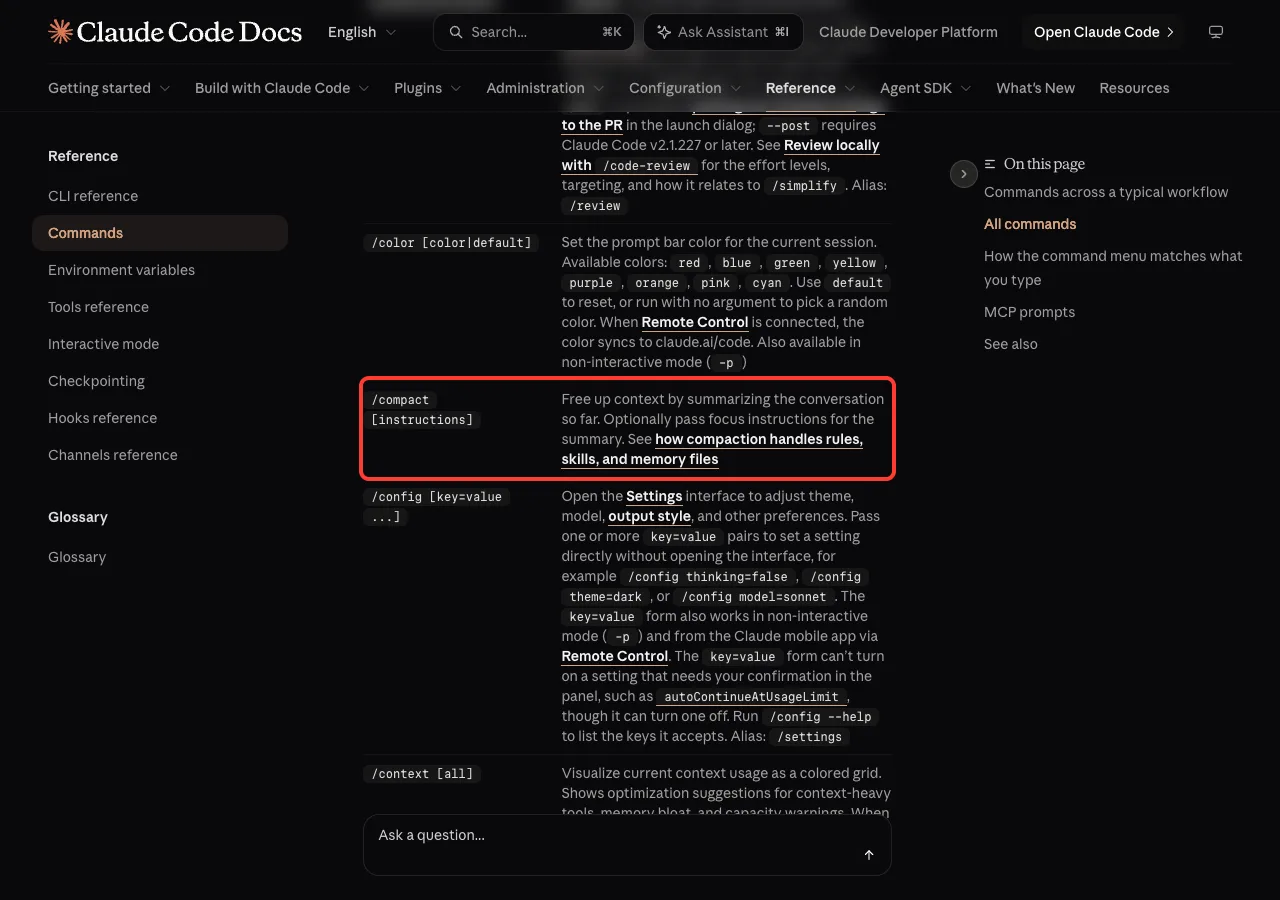
/compact [instructions] and every other command with its arguments.The commands reference also marks which entries are skills, such as /batch, /loop and /simplify, and which are plain built-in commands. It notes a few hidden ones, such as /heapdump, that only run when you type the full name.
Claude Code Session Commands
These control the conversation itself: starting, shrinking, saving and going back.
| Command | What it does |
|---|---|
/clear | Starts a new conversation with empty context. Pass a name to label the old one in the resume picker |
/compact [instructions] | Summarizes the conversation so far. You can pass focus instructions |
/resume [session] | Resumes a conversation by ID or name, or opens the picker |
/rename [name] | Renames the current session |
/branch [name] | Branches the conversation so you can try another direction |
/rewind | Rewinds the conversation, the code, or both to an earlier point |
/export [filename] | Exports the conversation as plain text |
/copy [N] | Copies the last response, or the Nth-latest |
/exit | Exits the CLI. /quit is an alias |
If your question is about wiping history rather than starting fresh, our guide on clearing session history covers it.
Context and Cost Commands
Long conversations get expensive and less sharp. These commands show you where you stand.
/contextshows context usage as a colored grid, with suggestions for heavy tools and bloated memory files./usageshows session cost, plan limits and activity. The docs list/costand/statsas aliases for it./diffreviews the changes in your working tree, including the edits Claude has made./btw [question]asks a side question without adding it to the conversation./focustoggles a view that shows only your last prompt, a one-line tool summary and the final response./tasksshows and manages background work in the current session.
Be careful with account screens. Commands such as /usage and /status can show account details, so we left them out of our screenshots and avoid pasting them in public.
Setup and Configuration Commands
Run these once, or whenever you change how Claude should work in a project.
| Command | What it does |
|---|---|
/init | Creates a CLAUDE.md guide for the project |
/memory | Edits CLAUDE.md files and shows auto memory entries |
/config | Opens settings for theme, model, output style and more |
/model [model] | Switches the model and saves it as your default |
/effort [level] | Sets the effort level |
/permissions | Manages allow, ask and deny rules |
/hooks | Shows hook configurations |
/mcp | Manages MCP server connections |
/plugin | Manages plugins |
/skills | Lists available skills |
/agents | Points you to creating and managing subagents |
/doctor | Runs a setup checkup |
/theme | Changes the color theme |
/keybindings | Opens your keyboard shortcuts file |
Many of these edit files you can also change by hand. See our settings.json examples and the CLAUDE.md template for what to put inside. For the effort levels, read our post on effort levels.
Commands for Getting Work Done
These start bigger jobs. Several are skills, which means they are prompts bundled with Claude Code rather than hard-coded commands.
/plan [description]enters plan mode straight from the prompt./goal [condition]keeps Claude working across turns until the condition is met./loop [interval] [prompt]runs a prompt repeatedly while the session stays open./code-reviewreviews the current diff or a pull request./reviewis an alias./security-reviewanalyzes your branch changes for security problems./simplifyreviews changed code for cleanup and applies the fixes./batchplans a large change and splits it across background agents./backgrounddetaches the session to run in the background and frees the terminal.
Some commands need extra setup or a specific plan. The reference notes, for example, that /schedule is not available on a Console API key, so your menu may differ from ours.
Prefix Keys: Slash, Bang, At and Question Mark
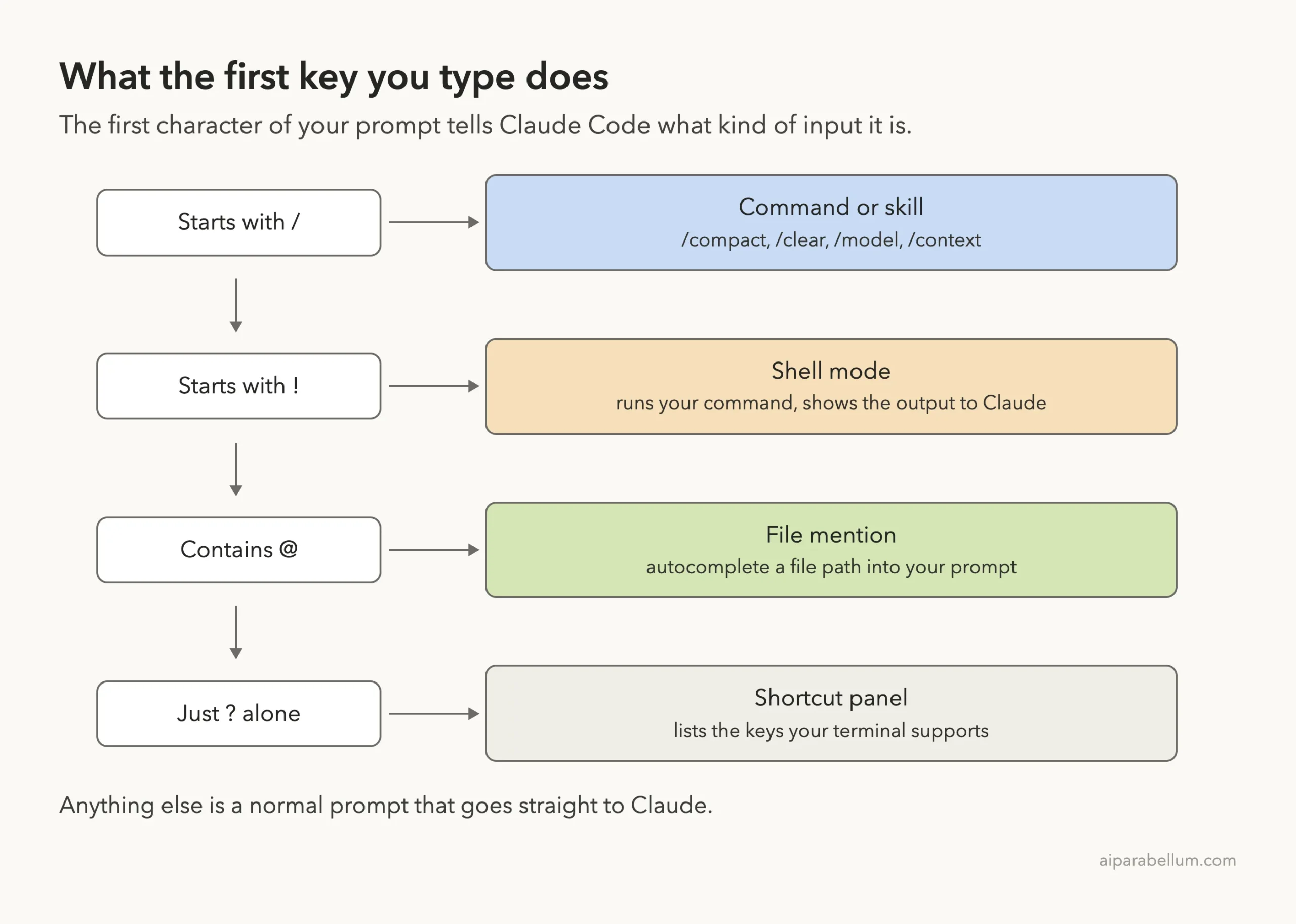
The first character of your prompt changes what Claude Code does with it. This is the part most beginners miss.
Press ? to see shortcuts
On an empty prompt, type ? and a panel lists the shortcuts your terminal supports. Our panel showed the prefix keys in the first column and keys such as shift + tab, ctrl + o and ctrl + t in the next ones.
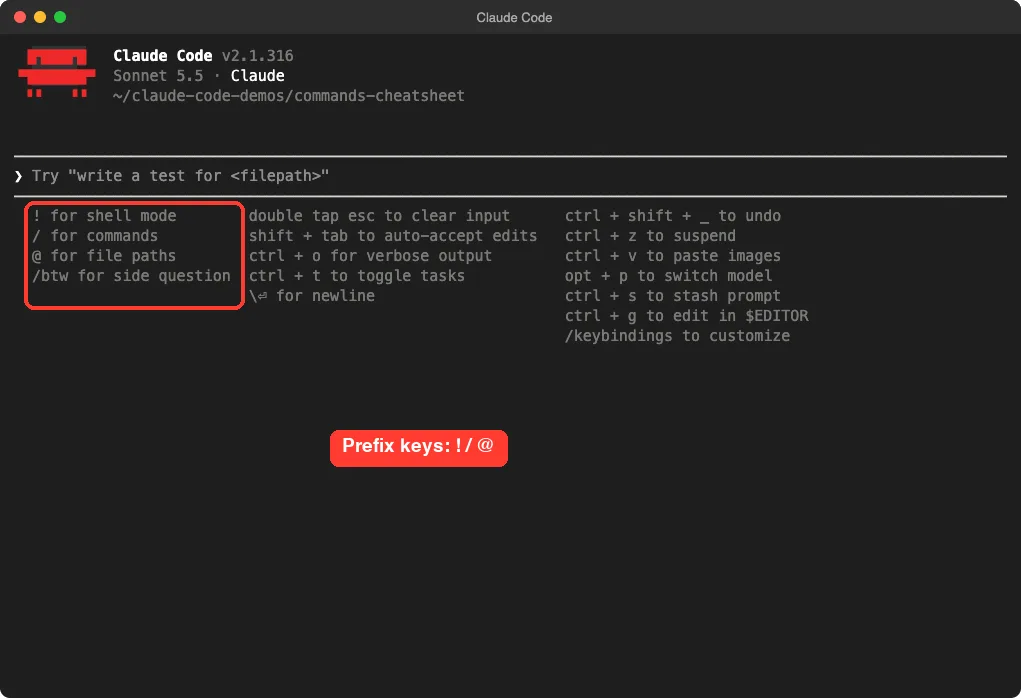
? panel gathers the prefix keys and common shortcuts in one place.Typing ? when the prompt already has text just inserts the character. That is how the docs describe it, and it matches what we saw.
Run shell commands with !
Start a prompt with ! and Claude Code switches to shell mode. In a demo folder we ran ls this way, and it listed two files at once with no approval prompt.
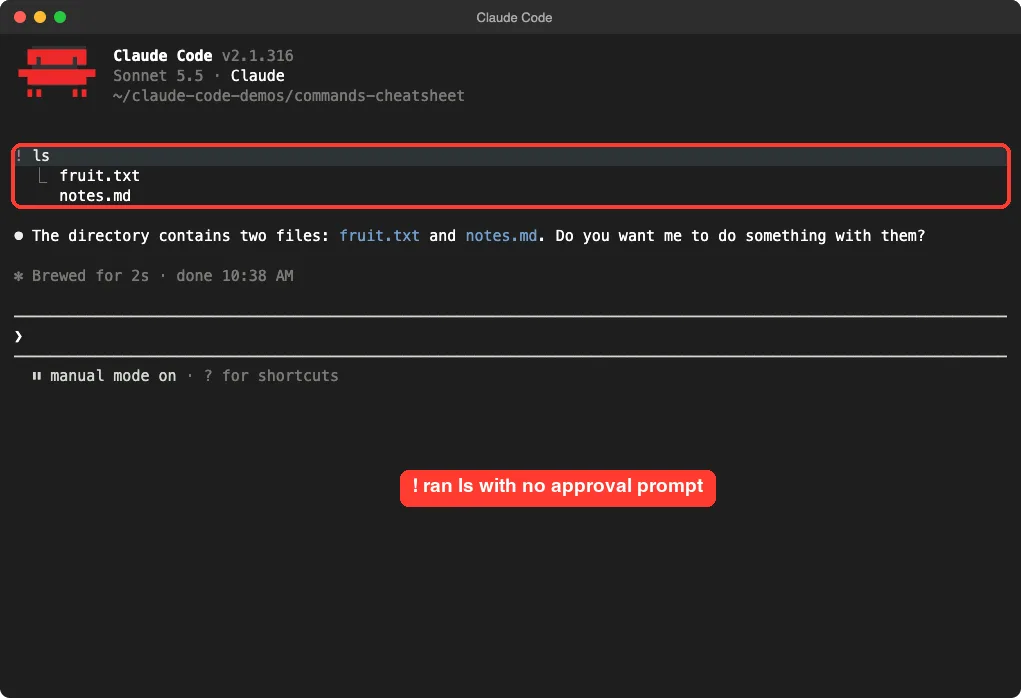
ls directly, and Claude then replied about the output.The docs say shell mode runs the command, adds its output to the session and lets Claude respond to it. That reply costs a little, so use plain ! for quick checks only.
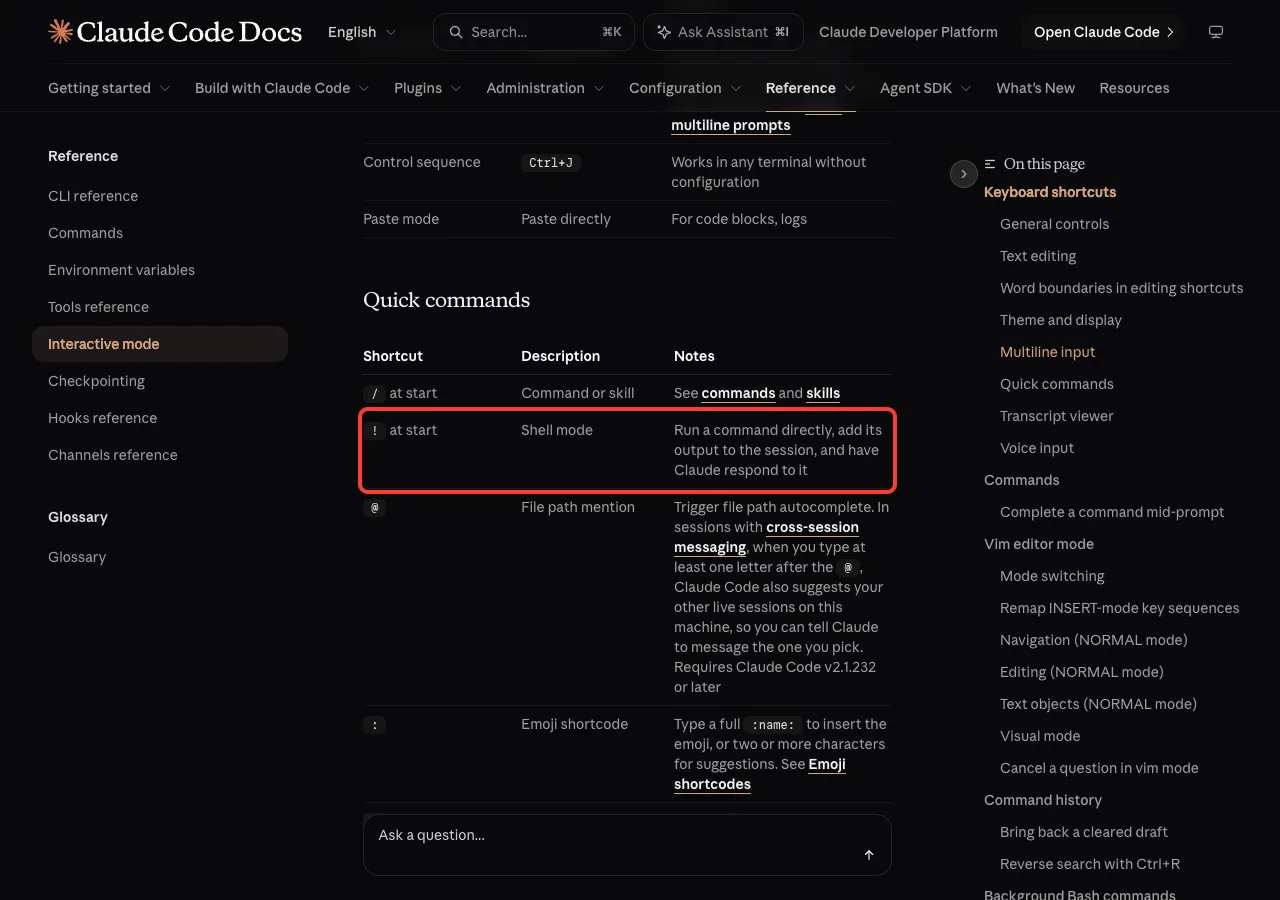
/, !, @ and ? as quick commands.Mention files with @
Type @ in a prompt to trigger file path autocomplete, so Claude knows exactly which file you mean. It saves you from typing long paths by hand.
Keyboard Shortcuts You Will Use Daily
The interactive mode reference has dozens of shortcuts. These are the ones worth keeping in muscle memory.
| Shortcut | What it does |
|---|---|
Shift+Tab | Cycles permission modes |
Esc | Interrupts Claude mid-turn without losing the work done so far |
Esc twice | Clears your draft, or rewinds when the input is empty |
Ctrl+C | Interrupts, or clears input. A second press with nothing running exits |
Ctrl+D | Exits the session |
Ctrl+R | Searches your command history |
Ctrl+B | Moves a running command to the background |
Ctrl+T | Shows or hides Claude’s task checklist |
Ctrl+O | Toggles the transcript viewer |
Ctrl+G | Opens your prompt in your default text editor |
Ctrl+S | Stashes your prompt, and restores it on the next press |
Option+P (macOS) | Switches model without clearing your prompt |
Cycle permission modes with Shift+Tab
Press Shift+Tab and the status line under the prompt changes. In our run it moved from manual mode to accept edits on, and it said to press shift+tab to cycle.
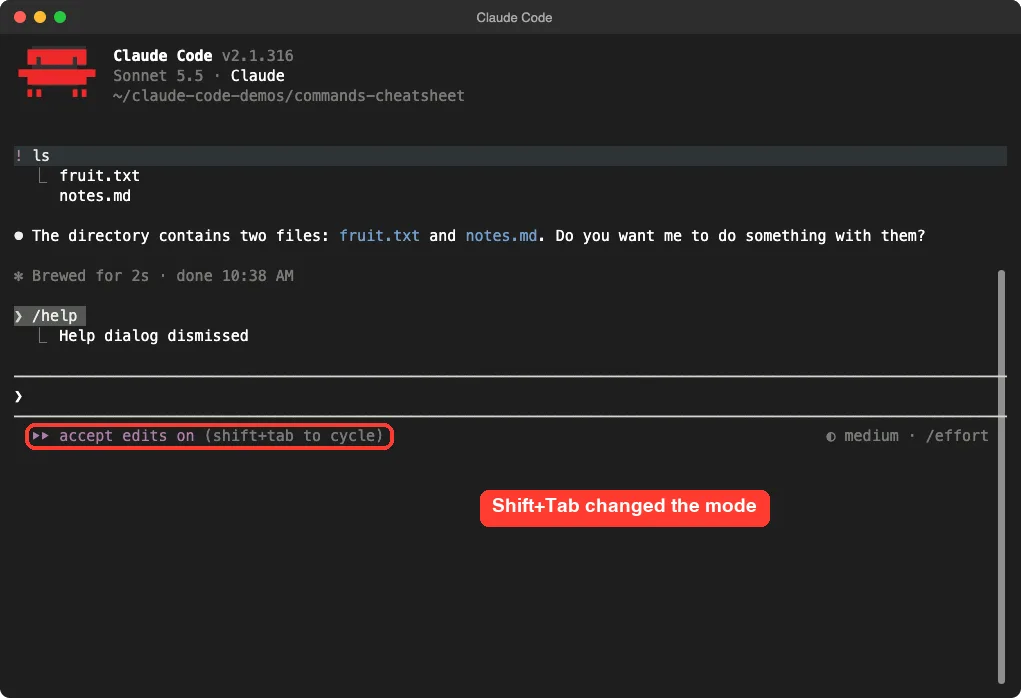
Shift+Tab press changed the mode shown under the prompt.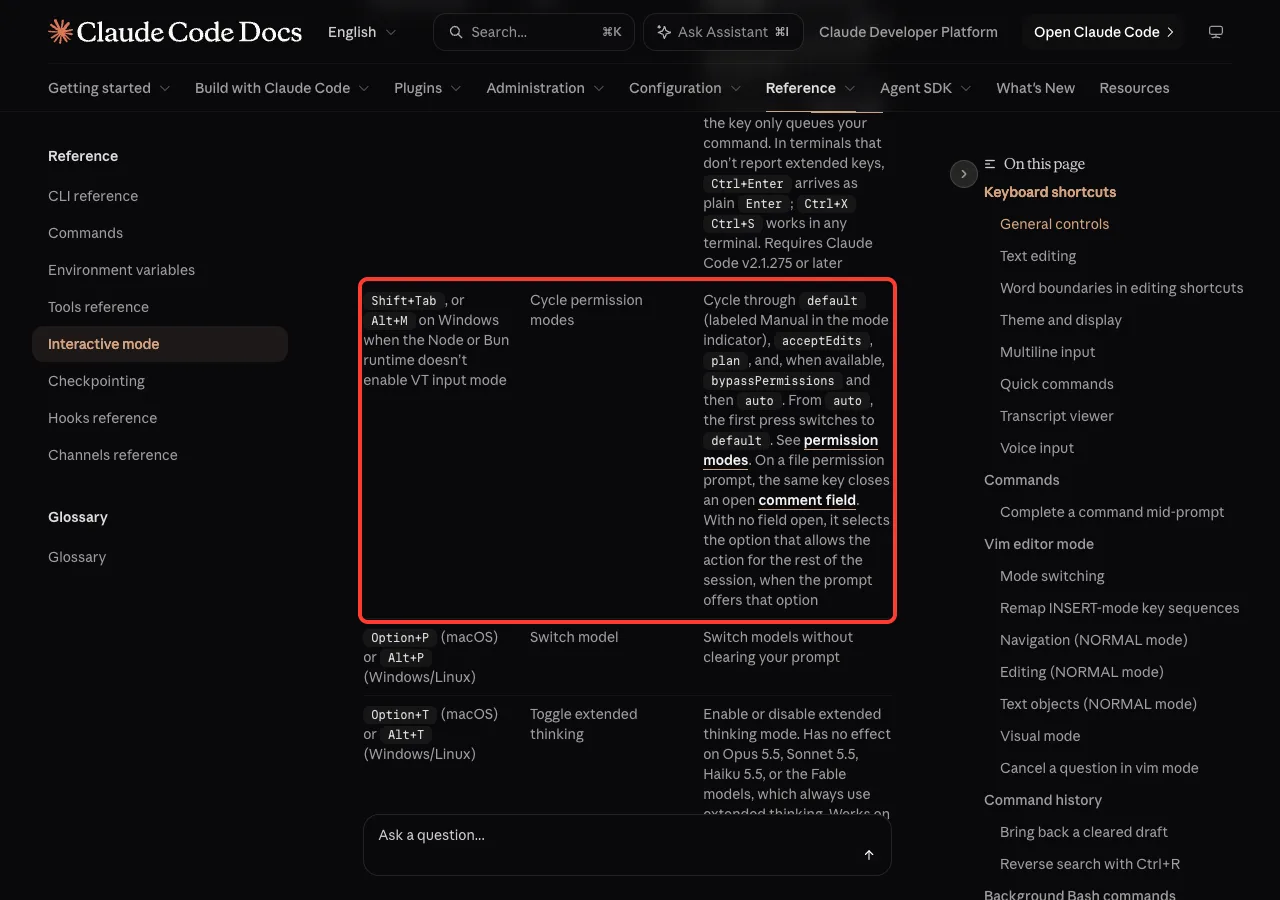
Shift+Tab cycles through the permission modes.The reference lists default, acceptEdits and plan, plus bypassPermissions and auto when they are available to you. Know which mode you are in before you walk away from a long task.
Start a new line without sending
Typing \ and then Enter works in every terminal. Ctrl+J also works without any setup, and Shift+Enter works natively in several terminals, including iTerm2, WezTerm, Ghostty, Kitty, Warp and Apple Terminal.
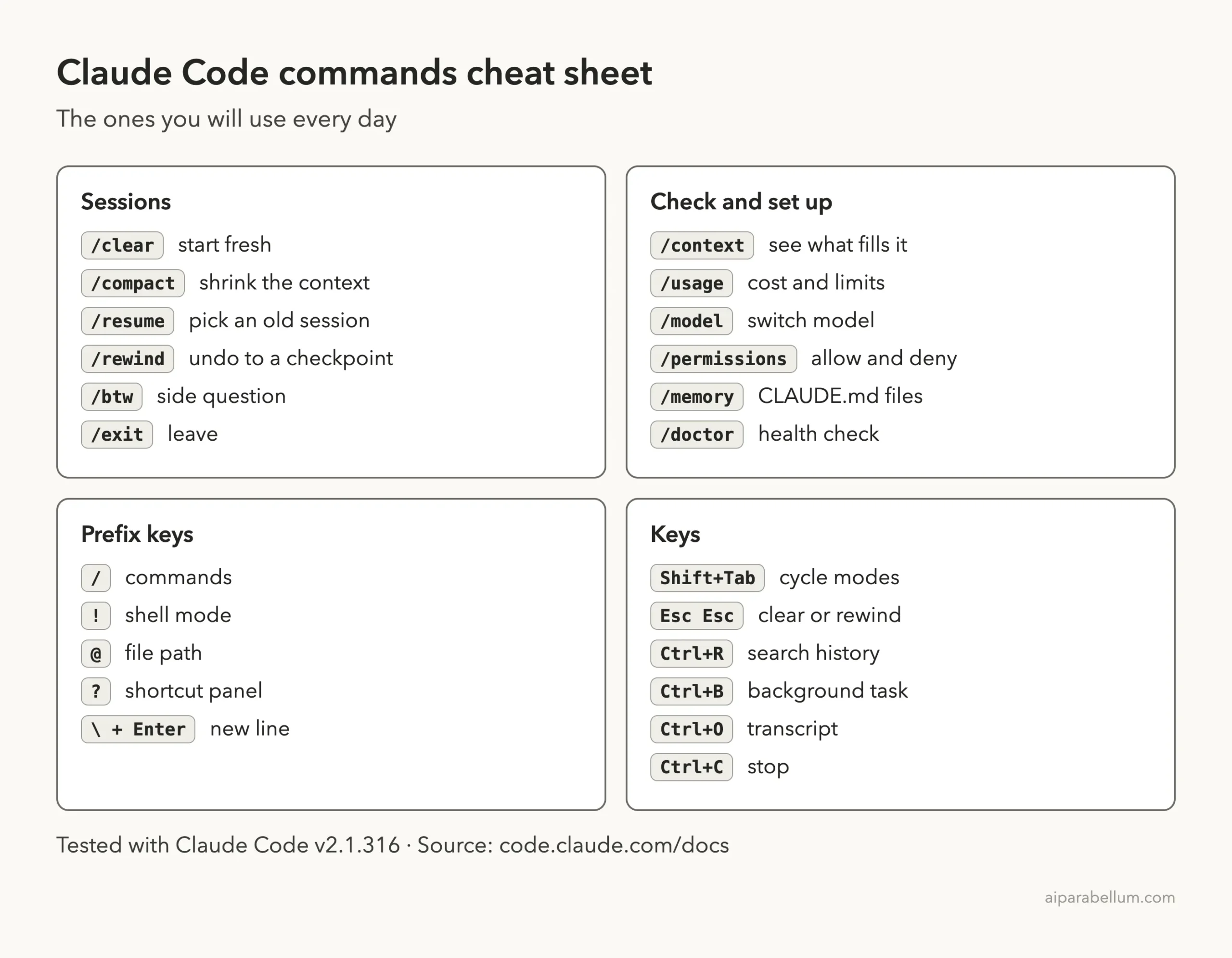
Claude Code Commands Cheat Sheet Card
Here is the compact card version. Save the image, or use the PDF for the longer list.
Try It Yourself
Practice in a throwaway folder so nothing real is at risk. Make an empty folder, start Claude Code there and follow these steps.
- Type
/and scroll the menu with the arrow keys, then press Esc. - Type
/comand notice which command is highlighted. - Type
?on an empty prompt to read the shortcut panel. - Type
! lsand press Enter. - Press
Shift+Taband read the new mode on the status line.
Then ask Claude to teach you more with this prompt:
Explain what /context, /compact and /clear each do in one sentence, and tell me when I should use each one.Common Mistakes
- Typing a command with a typo and pressing Enter. The docs say Enter submits your text as typed and reports an unknown command.
- Using
/clearwhen you wanted/compact. Clearing starts empty, while compacting keeps a summary. - Forgetting which permission mode is active after pressing
Shift+Tab. - Expecting every command to exist on every plan or install. Some are hidden, removed in newer versions or limited to certain accounts.
- Pressing
Ctrl+Ctwice by habit. With nothing running, the second press exits Claude Code.
Pro Tips
- Use
/compactwith focus instructions, such as keeping the failing test names, so the summary keeps what matters. - Use
/btwfor quick questions that should not clutter the main conversation. - Press
Ctrl+Rto search old prompts instead of retyping them. - Press
Ctrl+Gto write a long prompt in your own editor. - If you queued a message by mistake, see our guide on cancel queued messages.
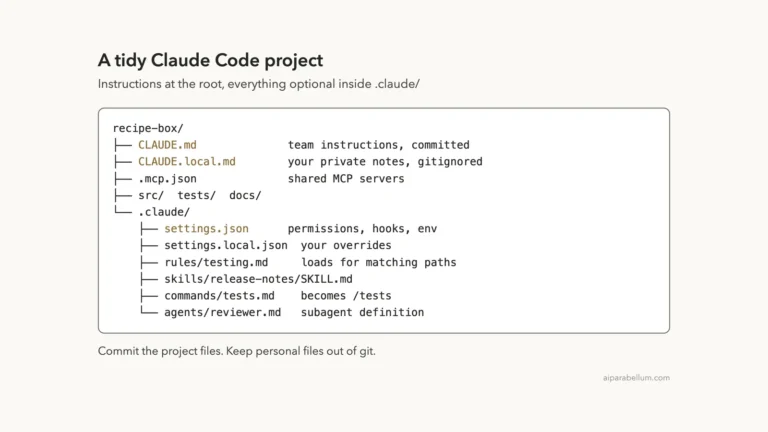
- Learn where project instructions live in our project structure guide.
Frequently Asked Questions
How many commands does Claude Code have?
It depends on your version, plan and plugins. Our help screen counted about a hundred commands in the list, and the official reference page lists more than that. Type / to see yours.
How do I see all Claude Code commands?
Type / for the filtered menu, or run /help and open the commands tab. The full list with arguments lives in the official commands reference.
What is the difference between a command and a skill?
Built-in commands are part of Claude Code. Skills are prompts that Claude follows, and they appear in the same menu. The reference marks skill rows with the word Skill.
How do I run a terminal command inside Claude Code?
Start the prompt with !, for example ! ls. It runs directly, and the output goes into the session.
Why is a command missing from my menu?
Claude Code leaves out commands that are not available to you. Some are also hidden on purpose and appear only when you type the full name.
Conclusion
You do not need to learn every command in Claude Code. Learn /clear, /compact, /context, /model and /permissions, remember the prefix keys /, !, @ and ?, and add Shift+Tab to your habits. Print the PDF, tape it nearby, and use the / menu for everything else. For deeper details, the official interactive mode reference covers every shortcut, and you can use Claude through our Claude AI overview if you are new to it.