
If a claude code keychain access prompt keeps popping up on your Mac, or Claude Code says “Couldn’t save your login. If your Mac’s keychain is locked, unlock it and log in again.”, the cause is almost always the same: Claude Code can’t read or write your login Keychain. On macOS, Claude Code stores your sign-in in the encrypted login Keychain, so a locked Keychain or a Keychain password that no longer matches your Mac password breaks every save.
The quick fix has three parts.
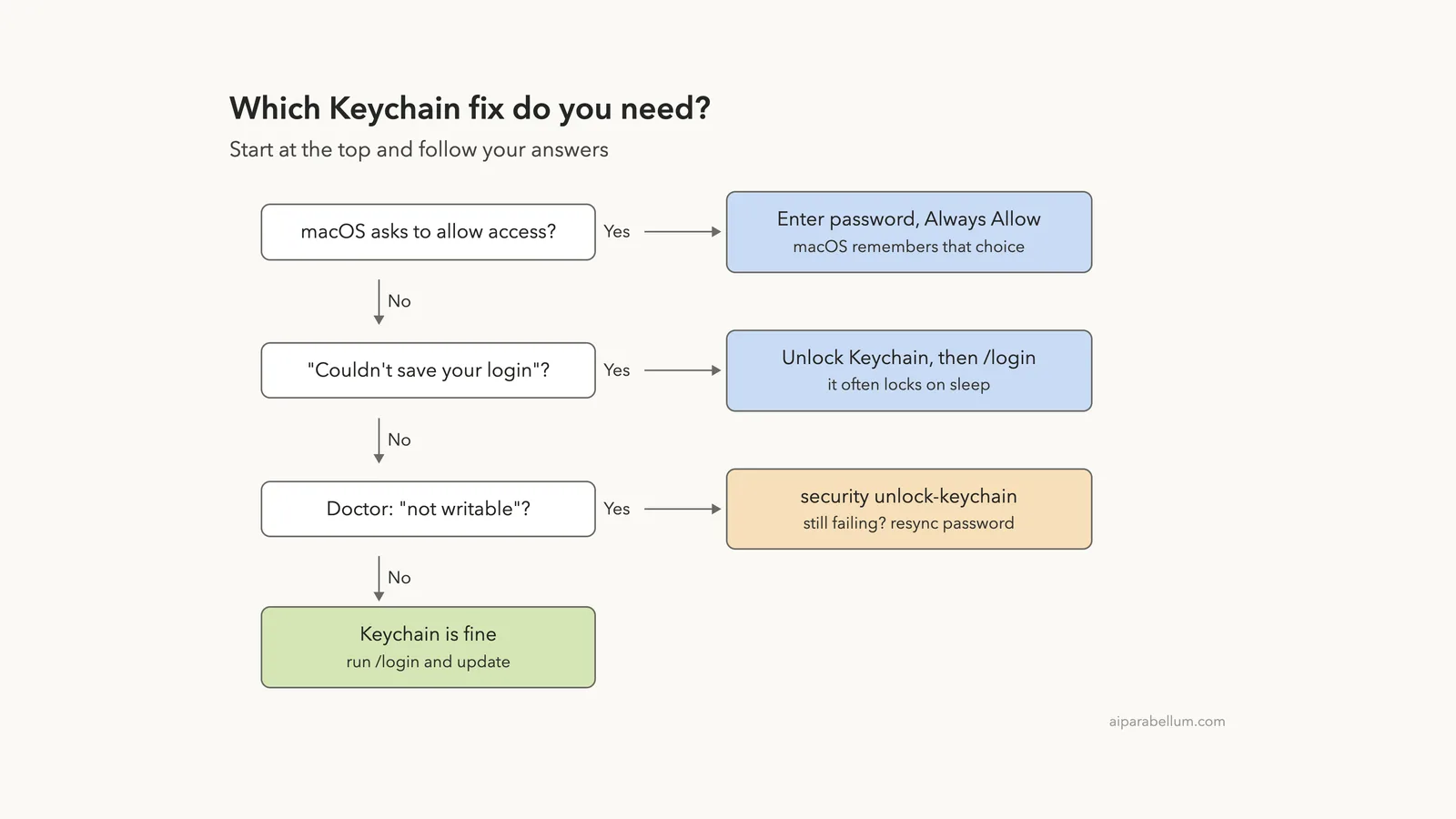
Run claude doctor and look for a warning that starts with macOS Keychain is not writable. If you see it, unlock the Keychain with security unlock-keychain ~/Library/Keychains/login.keychain-db, then run /login again. If macOS itself shows a “wants to use your confidential information” dialog every time, type your Mac password and click Always Allow instead of Allow.
Below we explain why Claude Code uses the Keychain at all, what each message means, and every fix in order, from the one-minute unlock to resyncing the Keychain password. We also cover SSH sessions, MCP server sign-ins and the plaintext fallback file.
Browse all our Claude Code tutorials for more fixes and how-tos.
Tested with Claude Code v2.1.330 on macOS on November 25, 2026. We ran only safe, read-only checks on our own Mac (claude doctor, a file check and the Keychain lock setting). We did not lock, unlock or change a real Keychain to trigger the error, so the error messages and recovery steps below come from Anthropic’s official authentication, troubleshooting and error reference docs.
Quick Summary
| What you see | Likely cause | Fix |
|---|---|---|
| macOS asks for Keychain access over and over | You clicked Allow, which works only once | Enter your Mac password and click Always Allow |
| “Couldn’t save your login” | The login Keychain locked, often after sleep or idle | Unlock the Keychain, then run /login |
claude doctor says “macOS Keychain is not writable” | Keychain locked or its password is out of sync | security unlock-keychain, then resync the password |
| Login prompts in every SSH session | The Keychain is locked in SSH sessions | Unlock it in that SSH shell |
| “Couldn’t read the stored credentials for MCP server” | Locked Keychain while an MCP server needs its sign-in | Unlock, then retry or reconnect in /mcp |
A ~/.claude/.credentials.json file appeared | Claude Code fell back to a plaintext file | Fix the Keychain, then /logout and /login |
Why Claude Code Uses the macOS Keychain
When you sign in with /login, Claude Code has to keep your login token somewhere so you don’t sign in every time you start a session. On Linux and Windows it uses a file. On a Mac it uses the login Keychain, the same encrypted store that Safari and other apps use for passwords.
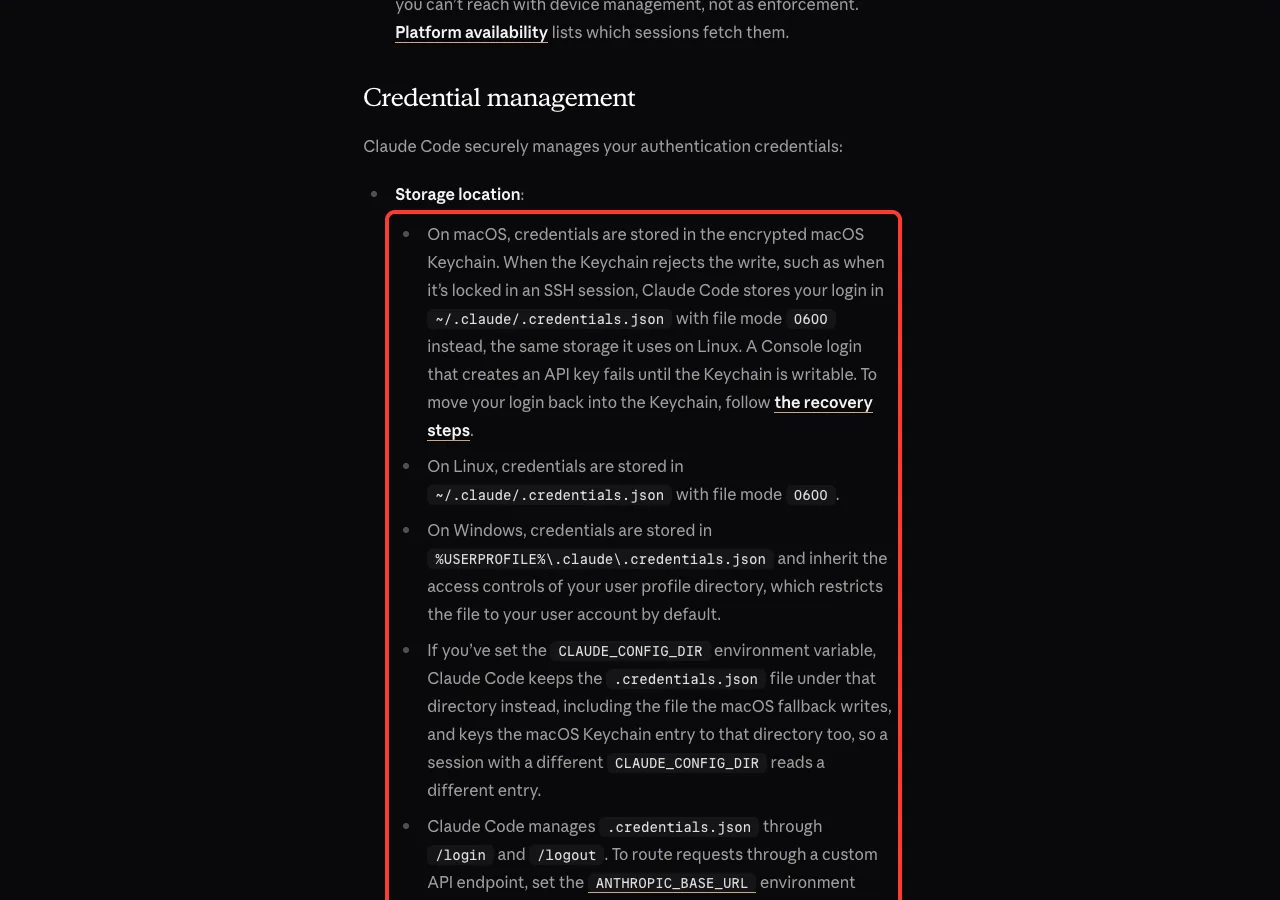
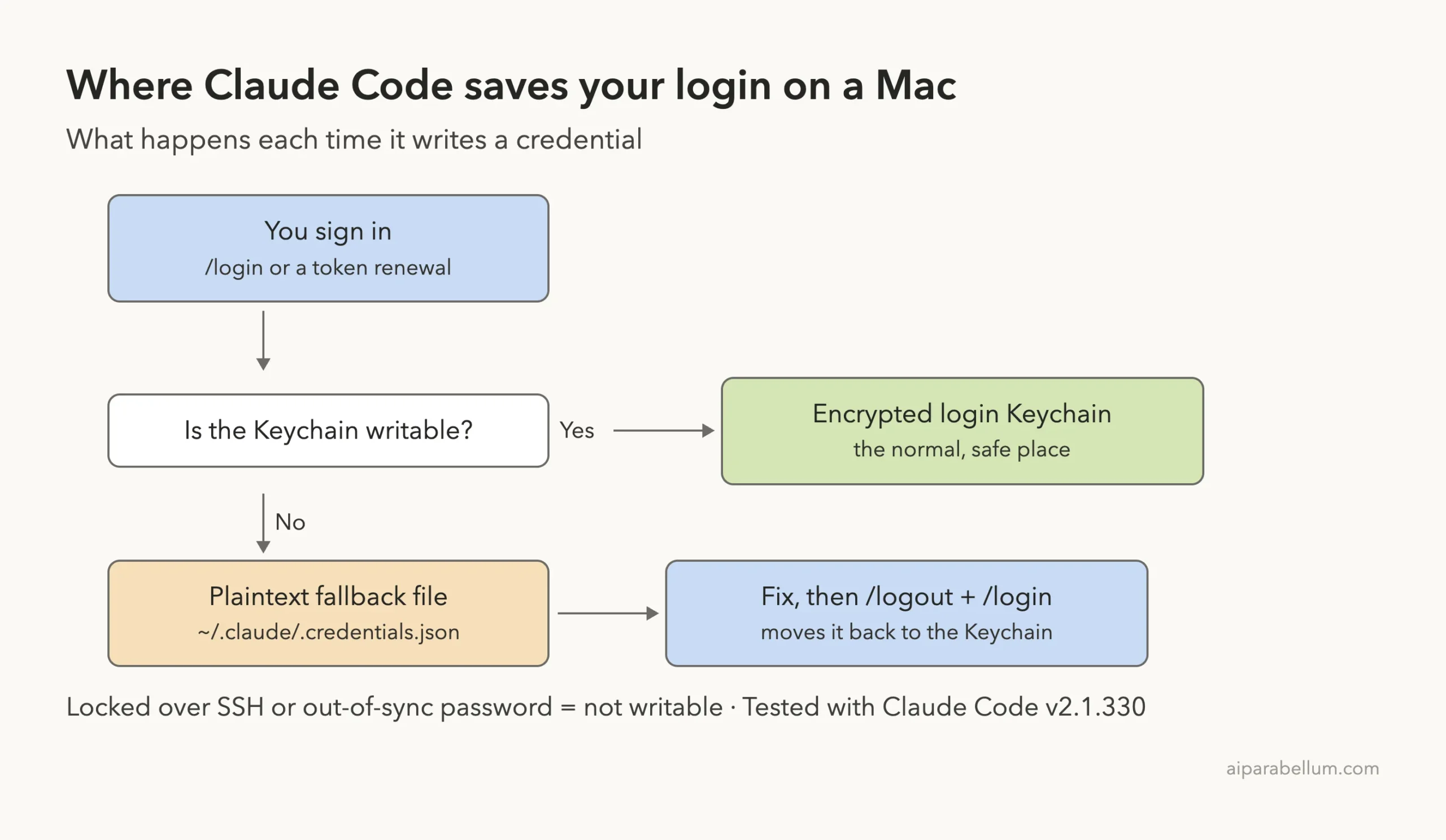
The authentication docs say that when the Keychain rejects a write, for example when it’s locked in an SSH session, Claude Code stores your login in ~/.claude/.credentials.json with file mode 0600 instead. That’s the same file Linux uses. It still works, but it’s a plaintext file rather than encrypted storage.
Claude Code doesn’t only save your main login there. The docs and changelog also mention saved MCP server sign-ins and plugin values marked sensitive.
So a locked Keychain can affect more than /login. If you want the bigger picture of how sign-in works, our guide to Claude Code login covers the basics.
The CLAUDE_CONFIG_DIR detail
The docs add one detail that explains some “it keeps asking me to log in” reports. If you set the CLAUDE_CONFIG_DIR environment variable, Claude Code keys its Keychain entry to that folder. A session with a different CLAUDE_CONFIG_DIR reads a different entry, so it looks signed out even though another setup is signed in.
The Three Keychain Problems You Might See
People searching for a claude code keychain access fix usually hit one of three different things. They look alike, but the fixes differ.
The macOS “allow access” dialog keeps returning
This prompt comes from macOS, not from Claude Code. When a program asks for a Keychain item, macOS can ask you to type your login password and choose Deny, Allow or Always Allow.
Allow grants access once, so the dialog returns next time. Always Allow adds that program to the item’s access list, so macOS stops asking.
Anthropic’s docs don’t describe this dialog, so treat it as standard macOS behavior. One clue from the official changelog: an older fix mentions data passed to macOS’s built-in security command.
That means the dialog may name security rather than Claude Code. Only click Always Allow when you started Claude Code yourself and the prompt appeared right then.
“Couldn’t save your login”
This message means you signed in with claude.ai, but Claude Code couldn’t save the login to its credential store, so the login didn’t complete. The error reference says this can happen on a Mac when the login Keychain locks, for example on sleep or idle, after Claude Code already used it in the same session.
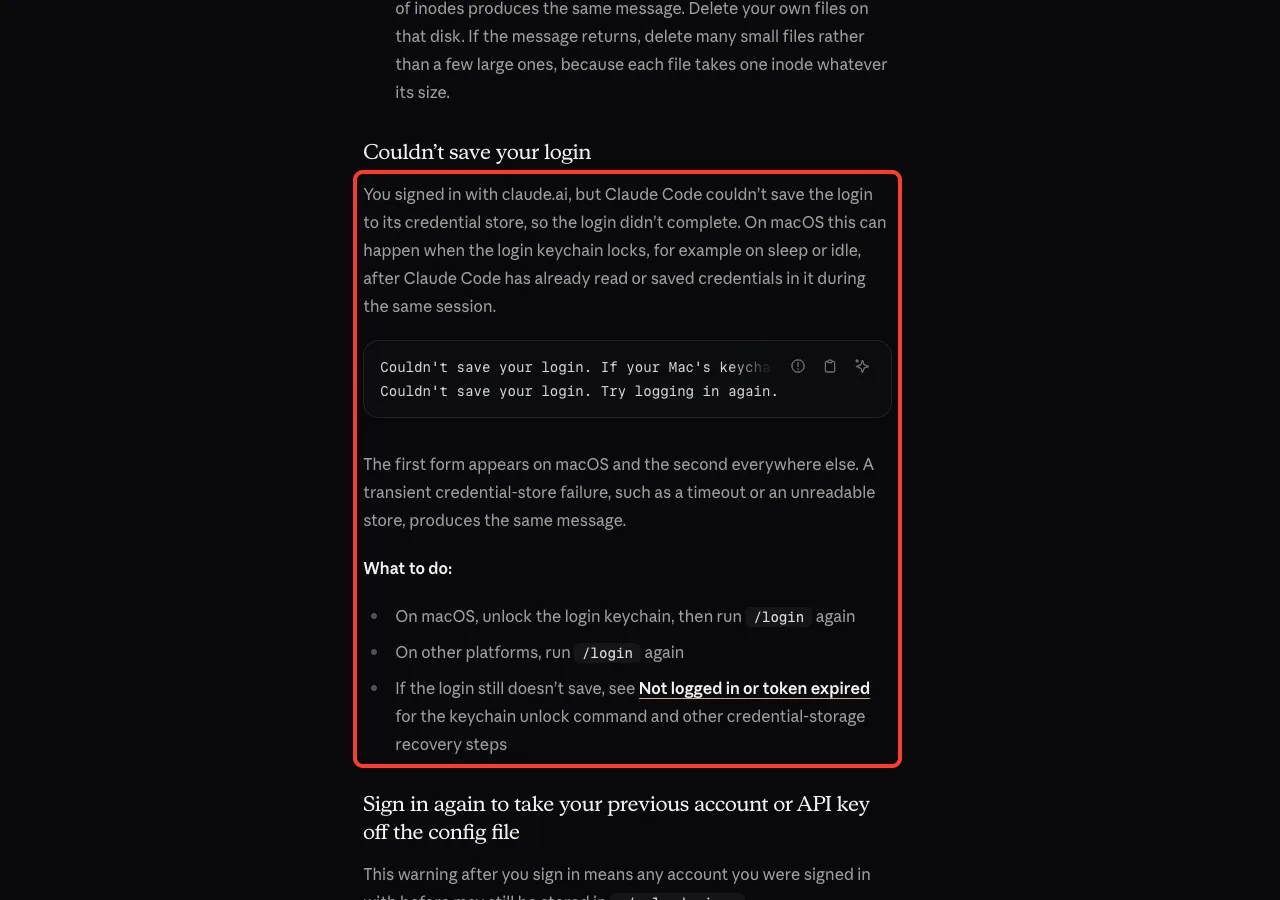
The Mac version of the message mentions the keychain. Other platforms show “Couldn’t save your login. Try logging in again.” A short credential-store failure, such as a timeout, can produce the same text.
“macOS Keychain is not writable” in claude doctor
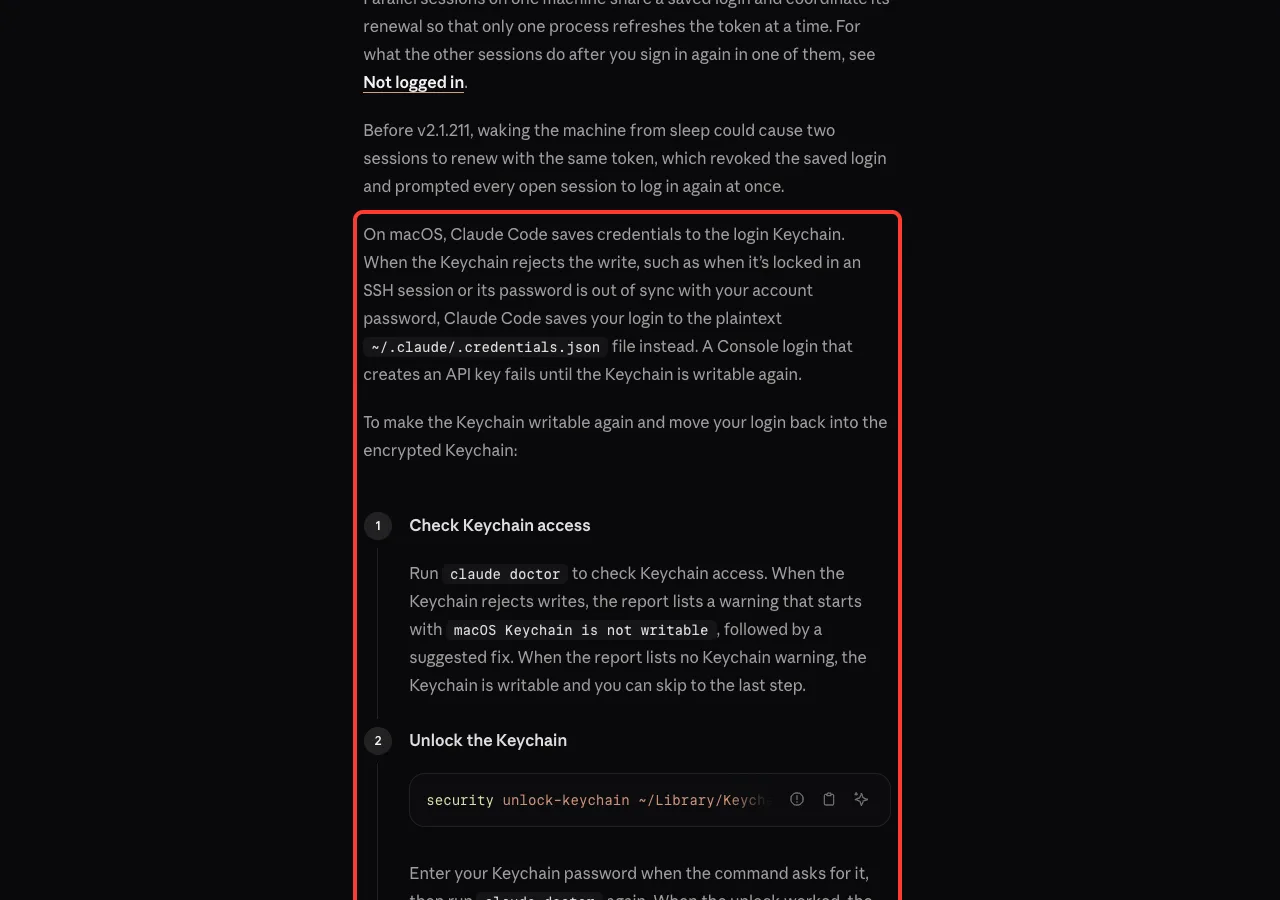
This is the warning claude doctor prints when the Keychain rejects writes. The troubleshooting docs name two causes: a Keychain that is locked, such as in an SSH session, or a Keychain password that’s out of sync with your Mac account password. While this is true, a Console login that creates an API key fails, and a claude.ai login falls back to the plaintext file.
How to Fix the Claude Code Keychain Access Prompt, Step by Step
Work through these in order. Most people are done after step 2 or 3.
Step 1: Run claude doctor
Open a normal terminal, the same kind you run Claude Code from, and run claude doctor. If the Keychain rejects writes, the report shows a warning starting with macOS Keychain is not writable and a suggested fix. If there’s no Keychain warning, the Keychain is fine and you can skip to step 5.
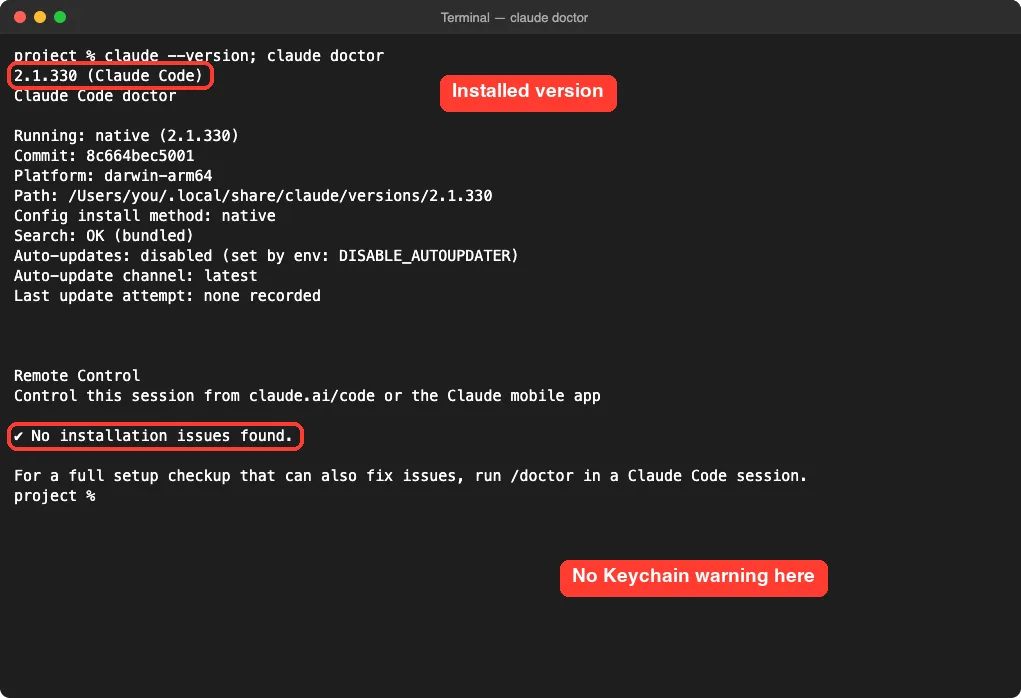
Our own run on v2.1.330 ended with “No installation issues found.” That’s what a writable Keychain looks like. For more on this command and its in-session cousin, see our guide to the /doctor check.
Step 2: Check for the fallback file and the lock setting
Two quick read-only checks tell you more. First, see whether the plaintext fallback file exists. Second, see when your login Keychain locks itself.
test -f ~/.claude/.credentials.json && echo 'Plaintext fallback file found' || echo 'No fallback file: login lives in the Keychain'
security show-keychain-info ~/Library/Keychains/login.keychain-db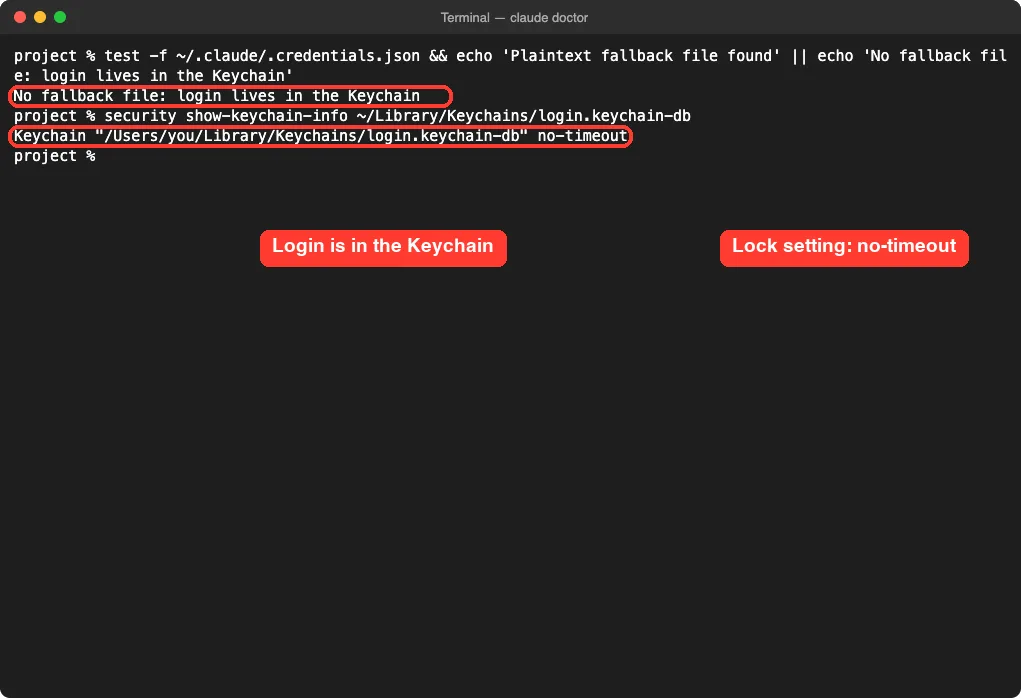
If the file exists, Claude Code couldn’t write to the Keychain at some point. If show-keychain-info mentions a timeout or lock-on-sleep, your Keychain locks itself, which matches the “Couldn’t save your login” after sleep. On our Mac it printed no-timeout, so it stays unlocked while we’re logged in.
Step 3: Unlock the login Keychain
Run the unlock command from the official troubleshooting page and enter your Keychain password when asked:
security unlock-keychain ~/Library/Keychains/login.keychain-dbThen run claude doctor again. If the warning is gone, the unlock worked. Start Claude Code and run /login if it asked you to sign in.
Step 4: Resync the Keychain password if unlocking doesn’t help
Sometimes the unlock fails because your Keychain password no longer matches your Mac password. This can happen after a password was reset. The docs say to open Keychain Access, select the login keychain, and choose Edit, then Change Password for Keychain “login”.
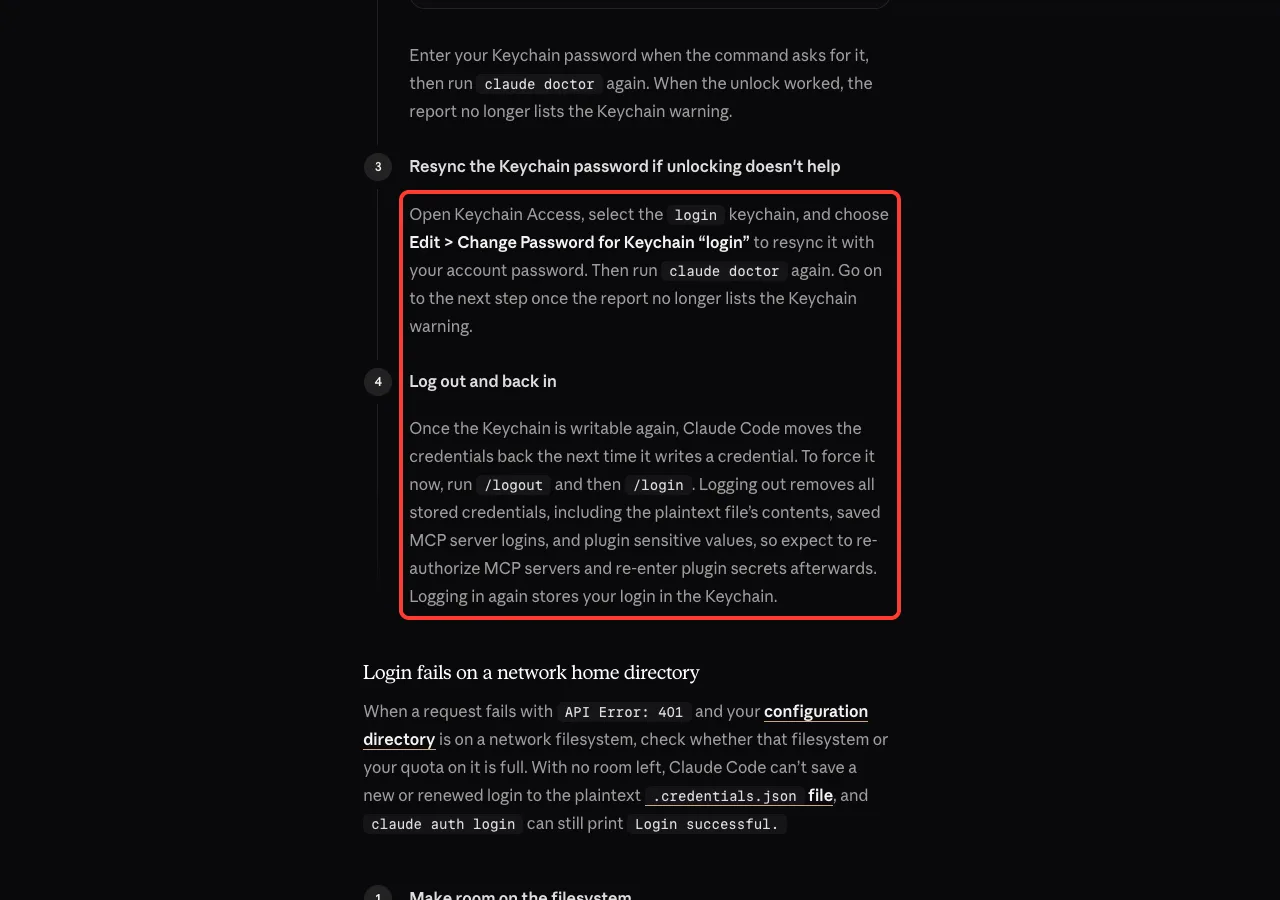
After the resync, run claude doctor again. Move on only when the Keychain warning is gone.
Step 5: Log out and back in to move your login
Once the Keychain is writable, Claude Code moves your credentials back the next time it writes one. To do it now, run /logout and then /login. Your new login goes into the Keychain.
Know what logout removes first. The docs say it clears all stored credentials, including the plaintext file’s contents, saved MCP server logins and plugin sensitive values. Expect to sign in to MCP servers again and re-enter plugin secrets afterward.
Step 6: Update Claude Code
Several Keychain bugs were fixed recently, so an old version can cause prompts by itself. The official changelog lists these, among others:
- v2.1.329 (November 19, 2026): fixed repeated sign-outs on macOS when Claude Code could read the Keychain but not save to it
- v2.1.329: fixed
claude doctoradvising a Keychain unlock inside a macOS sandbox, where unlocking can’t help - v2.1.323 (November 12, 2026): fixed “Not logged in · Please run /login” coming back right after a successful
/loginwhen the keychain was slow to answer - v2.1.290 (October 5, 2026): fixed
/loginreporting success when the keychain refused the new login
Run claude update, then check claude --version. If updates fail, our guide on updating Claude Code walks through the common blocks.
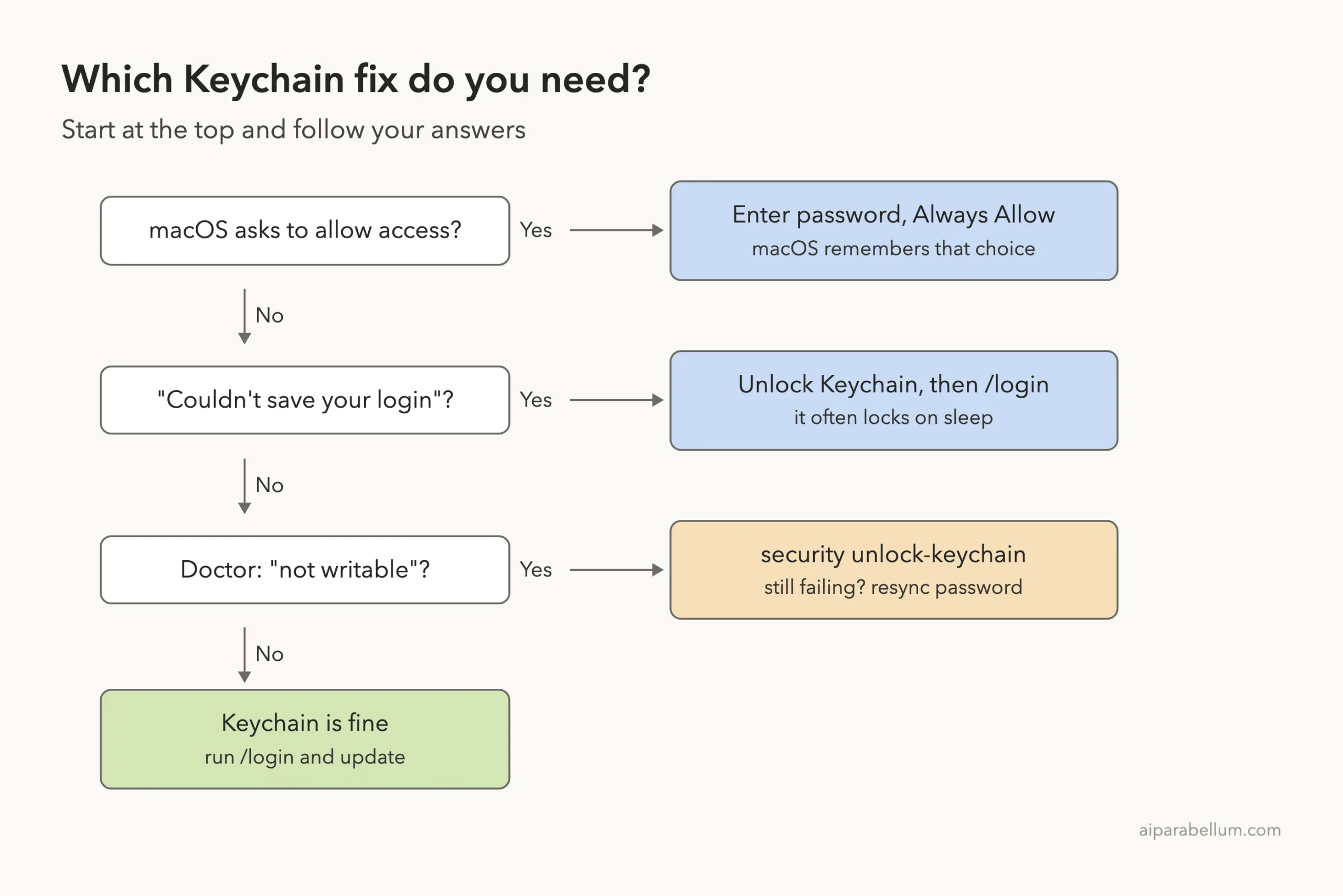
A Keychain prompt is almost never an account problem. Unlock or resync the Keychain first, then sign in again.
Keychain Problems Over SSH and in Scripts
If you SSH into a Mac and run Claude Code there, the login Keychain is often locked in that session. The docs call this out directly. Claude Code then falls back to ~/.claude/.credentials.json, and a Console login that creates an API key fails.
The fix is to run security unlock-keychain ~/Library/Keychains/login.keychain-db inside the same SSH session before starting Claude Code. Unlocking in a different window doesn’t count, because the check is per session.
MCP servers and claude -p
OAuth sign-ins for MCP servers live in the same credential store. When it’s locked, you may see “Couldn’t read the stored credentials for MCP server” with a note to unlock your Mac’s keychain. Your saved sign-ins are unchanged, so you don’t need to sign in again right away.
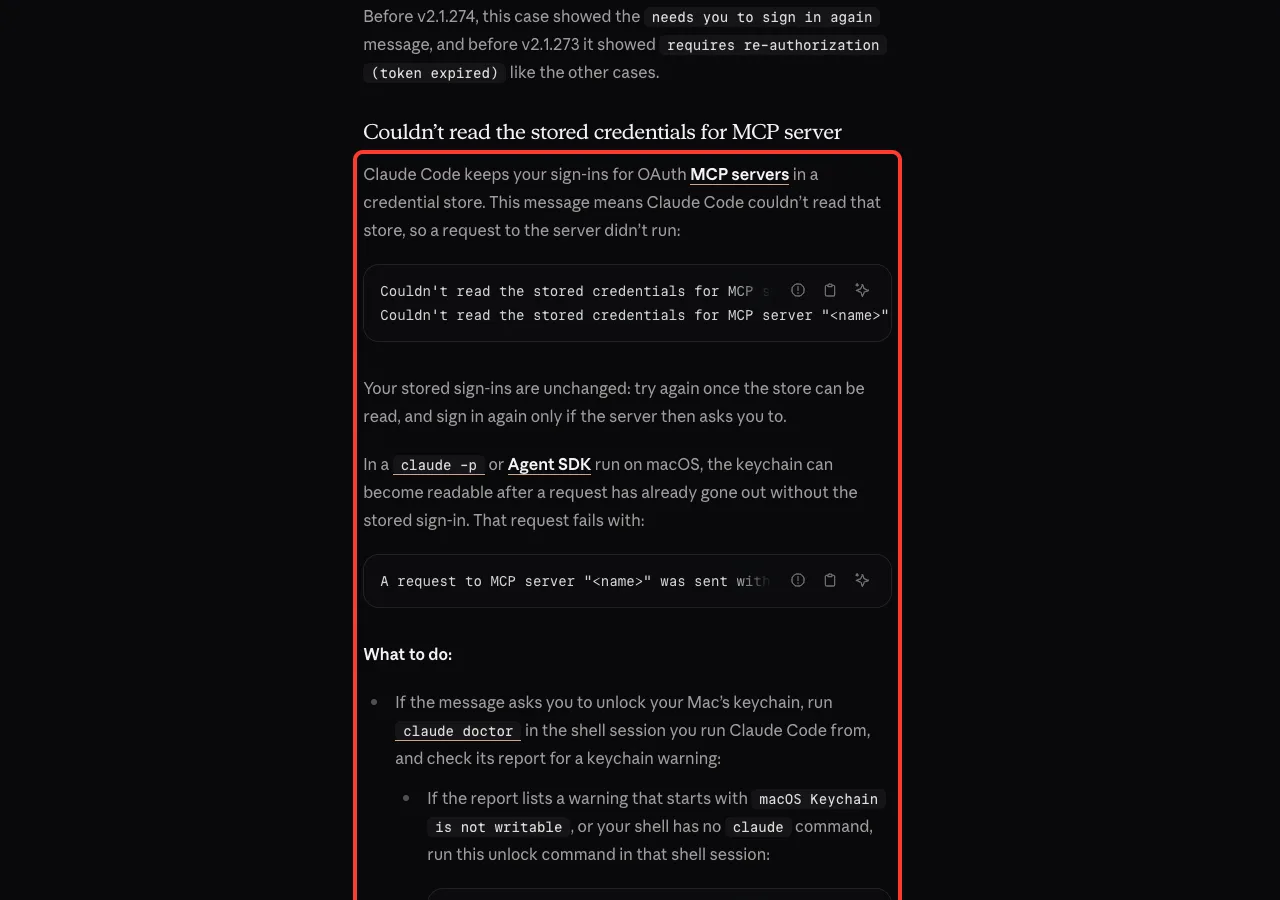
In a claude -p run, the docs say to run claude doctor in that shell, unlock if it shows the warning, and run the command again. In an interactive session, reconnect the server from /mcp if it shows as failed. Our guide to fixing MCP errors covers the other causes.
Real Examples
Example 1: You close your laptop lid, come back an hour later, and run /login because your token expired. It fails with “Couldn’t save your login.” Your Keychain locked on sleep. Unlock it with the security command or by unlocking it in Keychain Access, then run /login again.
Example 2: After an IT password reset, every new session asks you to sign in and claude doctor says the Keychain is not writable. Unlocking with your new password fails. Resync the Keychain password in Keychain Access, confirm claude doctor is clean, then /logout and /login.
Example 3: A macOS dialog asks to allow access to a Keychain item every time Claude Code starts. You’ve been clicking Allow. Next time, type your Mac password and click Always Allow so the choice sticks.
Try It Yourself
You can check your own Keychain health in under a minute without changing anything. Paste this into a terminal:
claude --version
claude doctor
test -f ~/.claude/.credentials.json && echo 'Fallback file in use' || echo 'Login is in the Keychain'
security show-keychain-info ~/Library/Keychains/login.keychain-db
If all four look healthy, your Keychain isn’t the problem. In that case, a login prompt is more likely an expired sign-in. Our fix for “Not Logged In” covers that case.
Common Mistakes
- Clicking Allow instead of Always Allow, which brings the macOS dialog back each time.
- Unlocking the Keychain in one terminal and running Claude Code over SSH in another.
- Running
/logoutbefore the Keychain is writable, which only puts the new login back in the plaintext file. - Forgetting that logout also clears MCP sign-ins and plugin secrets.
- Deleting the
loginkeychain or random Keychain items to “start fresh.” That can remove passwords for other apps and isn’t part of the official fix. - Mixing different
CLAUDE_CONFIG_DIRvalues and wondering why each one wants its own login.
Pro Tips
- Run
claude doctorfirst, every time. It tells you in seconds whether the Keychain is the problem. - Stay on a current version. The changelog shows Keychain fixes landing as recently as v2.1.329.
- If your Keychain locks on sleep, it’s a macOS setting you can change in Keychain Access under Edit, then Change Settings for Keychain “login”. Weigh the security trade-off first.
- For scripts and CI where no Keychain is available, the docs point to
claude setup-tokenand theCLAUDE_CODE_OAUTH_TOKENvariable, which takes precedence over keychain-stored credentials. See our environment variables guide. - To wipe login and settings fully, follow our guide to reset Claude Code rather than deleting files by hand.
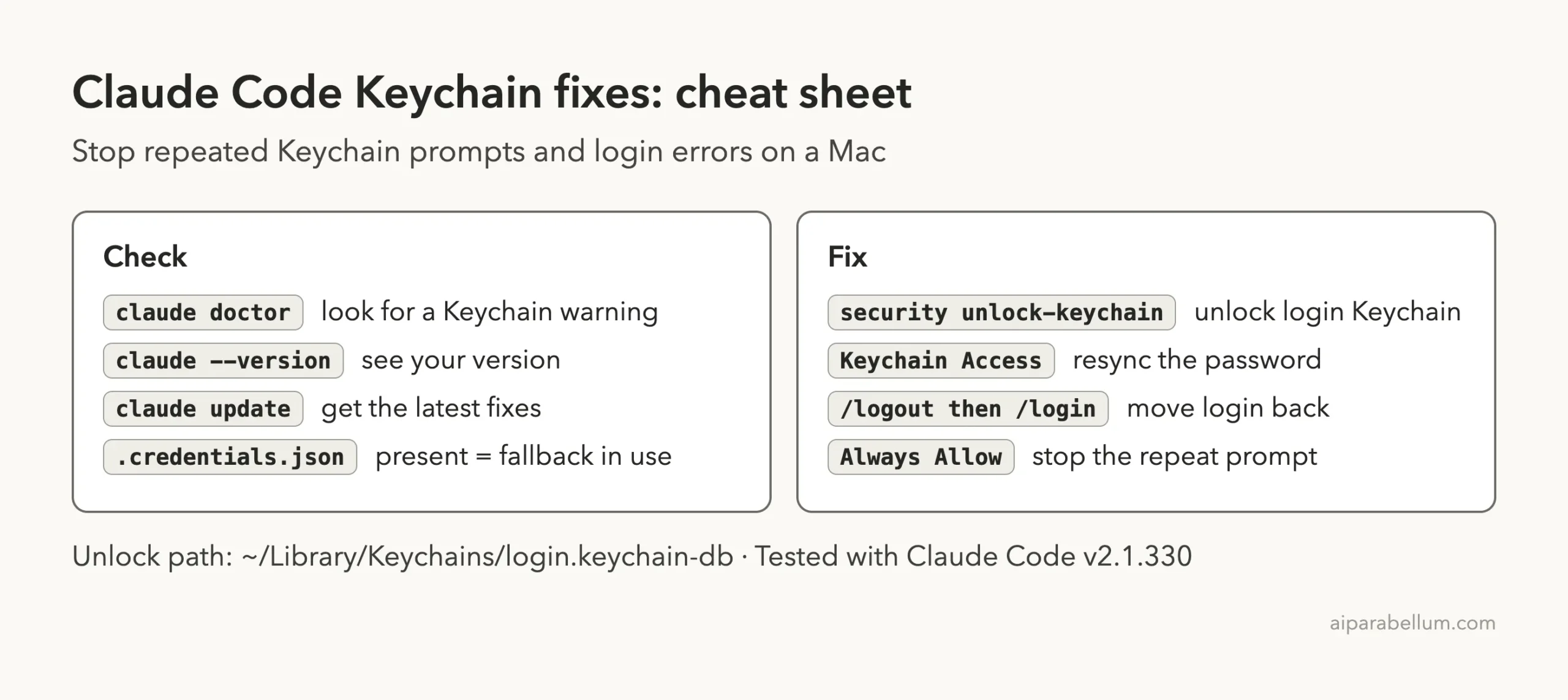
Claude Code Keychain Cheat Sheet
Frequently Asked Questions
Why does Claude Code need Keychain access on my Mac?
It stores your login there so you stay signed in between sessions. The macOS Keychain is encrypted, which is safer than a plain file. MCP server sign-ins and sensitive plugin values are stored there too.
Is it safe to click Always Allow?
It’s safe when you just started Claude Code yourself and the dialog appeared right then. Always Allow only lets that program read that one item without asking. If a prompt appears when you didn’t run anything, click Deny.
Is the credentials.json fallback file a security risk?
It’s less protected than the Keychain because it’s plaintext, though the docs say it uses file mode 0600 so only your user can read it. Fix the Keychain, then run /logout and /login to move your login back.
Does this happen on Windows or Linux?
No, the Keychain is macOS only. Linux uses ~/.claude/.credentials.json, and Windows uses %USERPROFILE%\.claude\.credentials.json, so you’ll see the shorter “Couldn’t save your login. Try logging in again.” message there.
Where can I find other Claude Code error fixes?
Our list of common Claude Code errors covers the most frequent messages. For an overview of Claude itself, see our Claude AI page.
Conclusion
A repeating claude code keychain access prompt or a “Couldn’t save your login” error almost always means the Mac login Keychain is locked or out of sync, not that your account is broken. Run claude doctor, unlock the Keychain with security unlock-keychain, resync its password if needed, then /logout and /login to move your login back into encrypted storage, and keep Claude Code updated for the latest Keychain fixes. For the official details, see Anthropic’s installation and login troubleshooting, the error reference and the authentication docs.