The claude code excel skill lets you describe a spreadsheet in plain words and get a real .xlsx file back, with live formulas instead of pasted totals. Anthropic publishes it as the xlsx skill in its official skills collection. We loaded it into a throwaway project, turned a small CSV file into a two-sheet workbook, and then checked the numbers ourselves.
This guide is part of our Claude Code tutorials. Find more add-ons in our Skills Directory.
Tested with Claude Code v2.1.318 on November 6, 2026, using the xlsx skill from the anthropics/skills collection at commit ca45fc4 (October 28, 2026). Everything ran in a sandbox folder with --setting-sources project, so nothing was added to the global Claude Code setup.
Quick Summary
| Question | Answer |
|---|---|
| What is it? | A skill that teaches Claude Code to create, edit and read spreadsheet files |
| Who makes it? | Anthropic, in the anthropics/skills collection |
| What we asked for | A workbook from a six-row CSV: a Revenue column, a total row and a Summary sheet |
| What came out | A real .xlsx file with a Sales sheet and a Summary sheet, all built from formulas |
| Did the numbers get checked by the skill? | No. The recalculation step could not run on our Mac |
| Biggest catch | The skill expects Python 3.10 or newer and LibreOffice, and we had neither |
| A surprise | Claude’s own mental arithmetic in its summary was $20 too low |
What the Claude Code Excel Skill Does
A skill is a folder with a SKILL.md file that Claude loads when a task matches its description. If you are new to the idea, our guide to Claude Code skills explains how they work.
The xlsx skill describes itself as the one to use any time a spreadsheet is the main input or output. That covers opening, editing or fixing .xlsx, .xlsm, .csv and .tsv files, building a new workbook, and cleaning messy tabular data. It says not to use it when the main result is a Word file, an HTML report or a standalone script.
Its rules are what make it more than a prompt. It says to use formulas and never hardcoded results, to use a professional font such as Arial, to keep the sheet at zero formula errors, and to write down every assumption where the reader can see it.
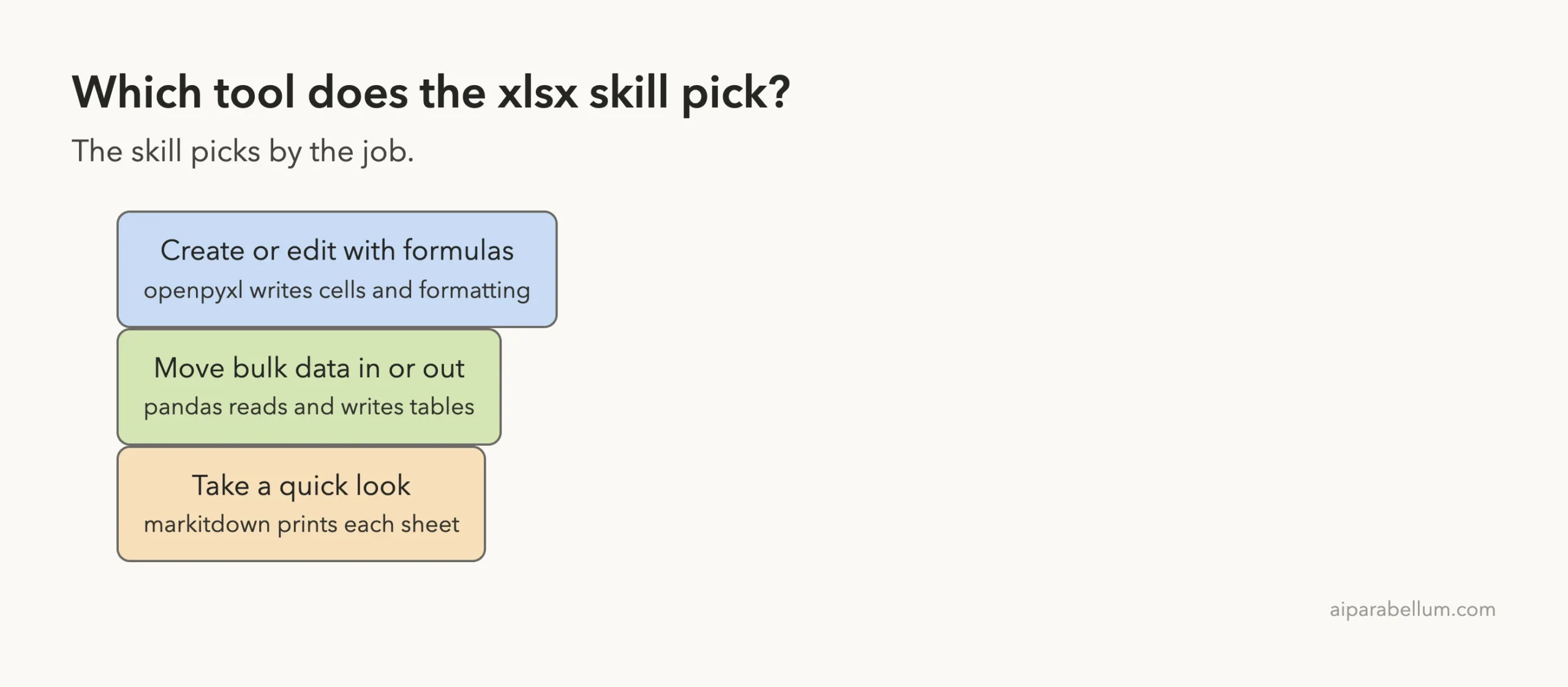
| Job | Tool the skill names |
|---|---|
| Create or edit with formulas and formatting | openpyxl |
| Move bulk data in or out | pandas |
| Take a quick look at a sheet | markitdown |
| Recalculate and check for errors | scripts/recalc.py, which uses LibreOffice |
The Recalculation Step Is the Heart of It
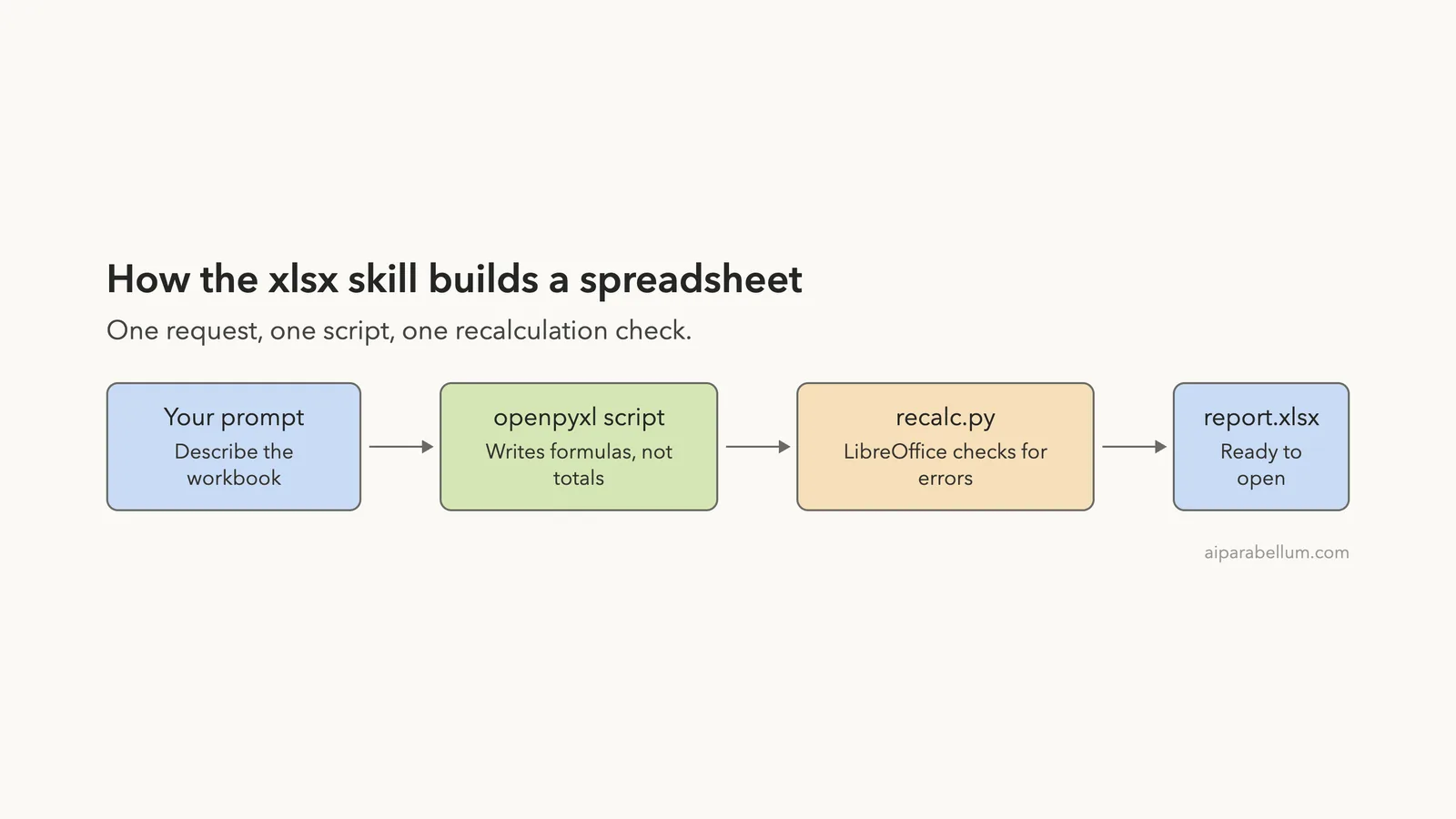
Here is the part most people miss. A Python library such as openpyxl writes a formula as plain text and stores no result. Until something calculates it, a tool that reads the file may see an empty cell.
The skill’s answer is a script called recalc.py. It opens the file in LibreOffice, calculates every formula, saves the file again and prints a short report with the number of formulas and any errors.
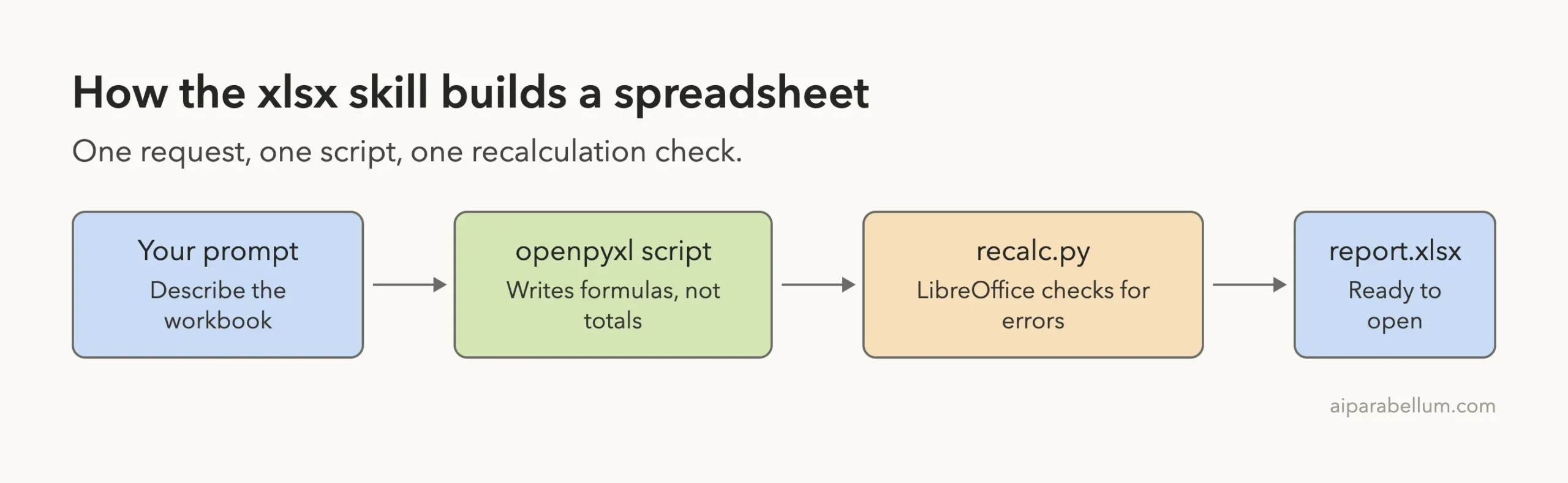
The skill is also blunt about what that report proves. A clean result shows that your formulas run, not that they are right. A range that is off by one row still gives you a clean, wrong number.
A Note on the License Before You Copy It
The skill’s front matter lists its license as proprietary and points to a LICENSE.txt file for the full terms. We used a copy only inside our sandbox and left your own setup alone.
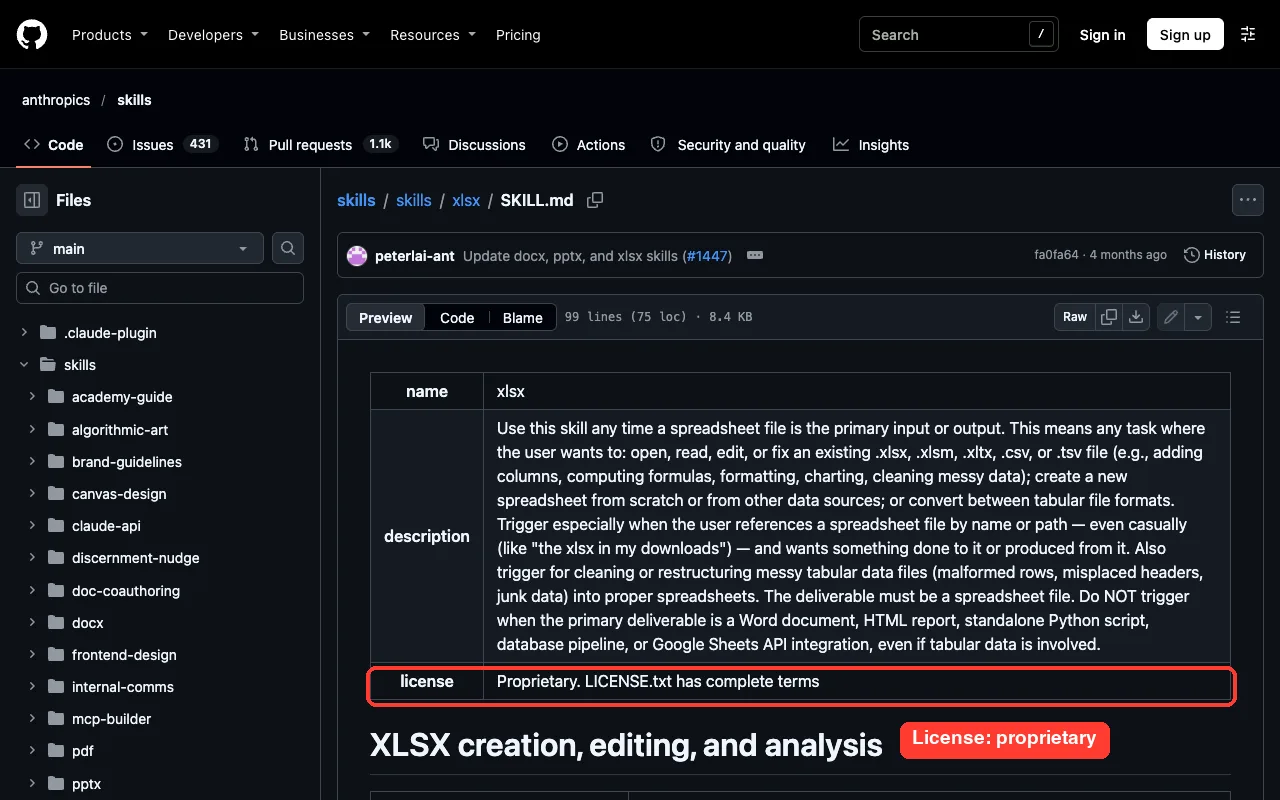
If you want it yourself, use the official route. Our skills repo guide walks through it, and the two commands are these:
/plugin marketplace add anthropics/skills
/plugin install document-skills@anthropic-agent-skills
Those commands change your own Claude Code setup, so try them in a project you do not mind experimenting in. The same collection holds a Word skill, which we cover in our Word skill guide.
How We Set Up the Test
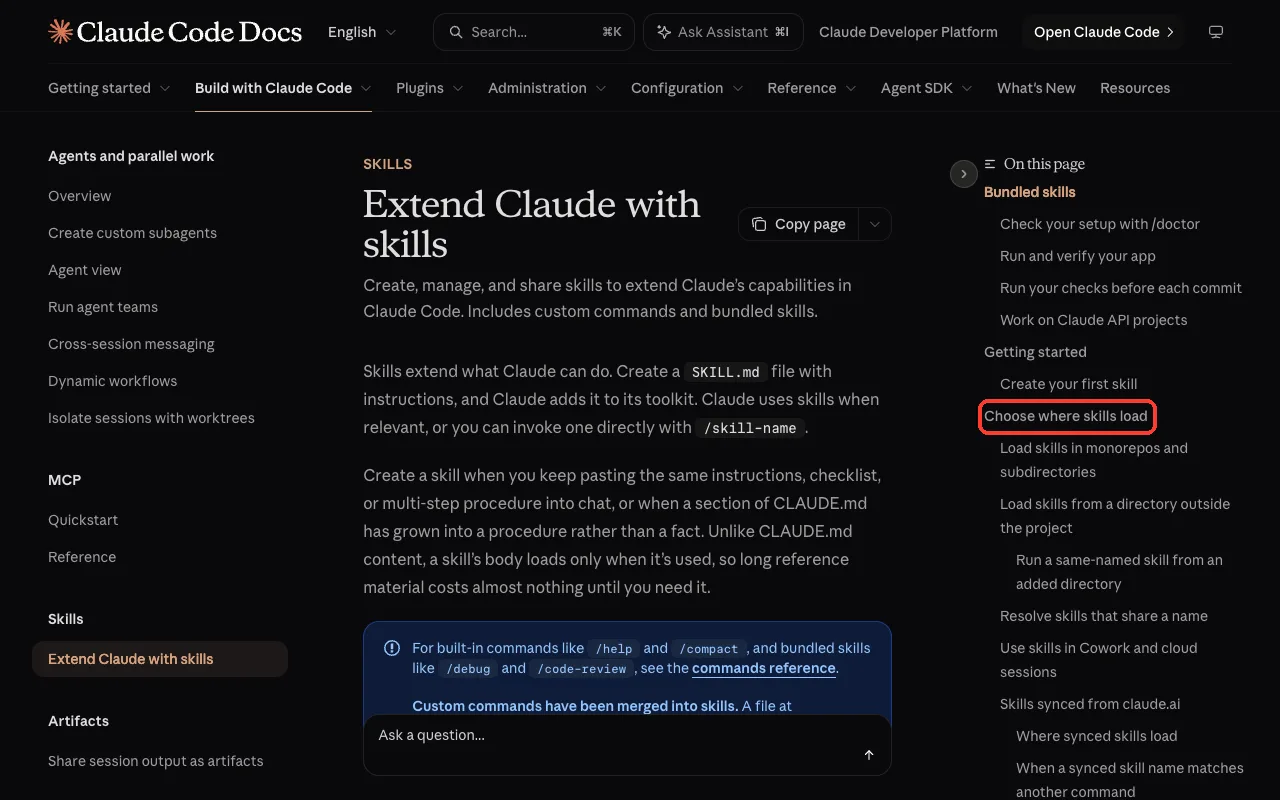
We made a demo project under ~/claude-code-demos/, copied the skill into .claude/skills/xlsx/ and started Claude Code there. Project skills are one of the places Claude Code loads skills from, and Anthropic’s skills documentation lists the locations.
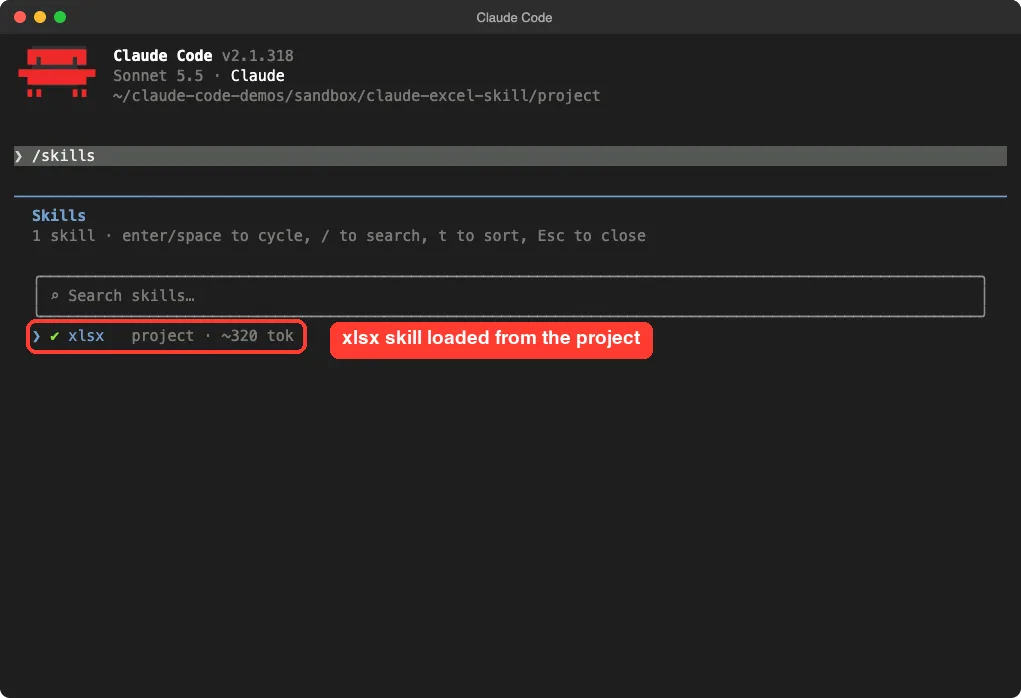
Running /skills confirmed that Claude Code saw it. The list showed xlsx as a project skill that costs about 320 tokens while idle.
What the skill expects on your machine
The skill’s notes say that openpyxl, pandas and markitdown are preinstalled. That is true in Anthropic’s own environment, not on a plain Mac. We made a virtual environment inside the demo project and installed openpyxl and pandas there.
The notes also name LibreOffice for the recalculation step. We did not install LibreOffice, because a large desktop app did not belong in a throwaway test. That decision shaped the rest of the result.
We read the skill’s scripts before running anything. The recalculation script writes a small LibreOffice macro and launches LibreOffice, and nothing else.
Testing the Claude Code Excel Skill on a CSV File
The demo project held one file, sales.csv, with six rows of made-up sales data. Each row had a month, a product, units sold and a price.
| Month | Product | Units | Price |
|---|---|---|---|
| Jan | Notebook | 120 | 4.50 |
| Jan | Pen | 300 | 1.20 |
| Feb | Notebook | 150 | 4.50 |
| Feb | Pen | 280 | 1.20 |
| Mar | Notebook | 170 | 4.75 |
| Mar | Pen | 320 | 1.25 |
We typed one prompt that named the file, the formulas and the second sheet. We ran in the acceptEdits permission mode and approved the shell commands Claude asked to run.
Using the xlsx skill, turn sales.csv into sales-report.xlsx: a Revenue column (Units times Price) as formulas, a total row, and a Summary sheet with revenue per product using SUMIF formulas.What Claude built
Claude wrote a Python script with openpyxl and saved sales-report.xlsx. We opened the file ourselves with a second openpyxl script and read every cell back. Here is what the two sheets held.
| Sheet | What is in it | Example formula |
|---|---|---|
| Sales | The six CSV rows plus a Revenue column and a Total row | =C2*D2 |
| Sales, total row | Total units and total revenue | =SUM(E2:E7) |
| Summary | One row per product, plus a Total row | =SUMIF(Sales!$B$2:$B$7,A2,Sales!$E$2:$E$7) |
That matches what we asked for. Every Revenue cell is a formula, and the Summary sheet uses SUMIF against the Sales sheet, with the ranges locked by dollar signs so they stay put.
Claude also followed the skill’s style rules. It set the font to Arial, colored the hardcoded Units and Price cells blue, and formatted the money columns as dollars. It also added a Total row to the Summary sheet that we had not asked for, and it said so.
What Happened When the Recalculation Failed
This is where it got interesting. Claude ran the skill’s recalc.py script, and it crashed.
Our sandbox used the Mac’s system Python, which is version 3.9, and the script needs 3.10 or newer. LibreOffice was not installed either, so the command-line check printed soffice not found.
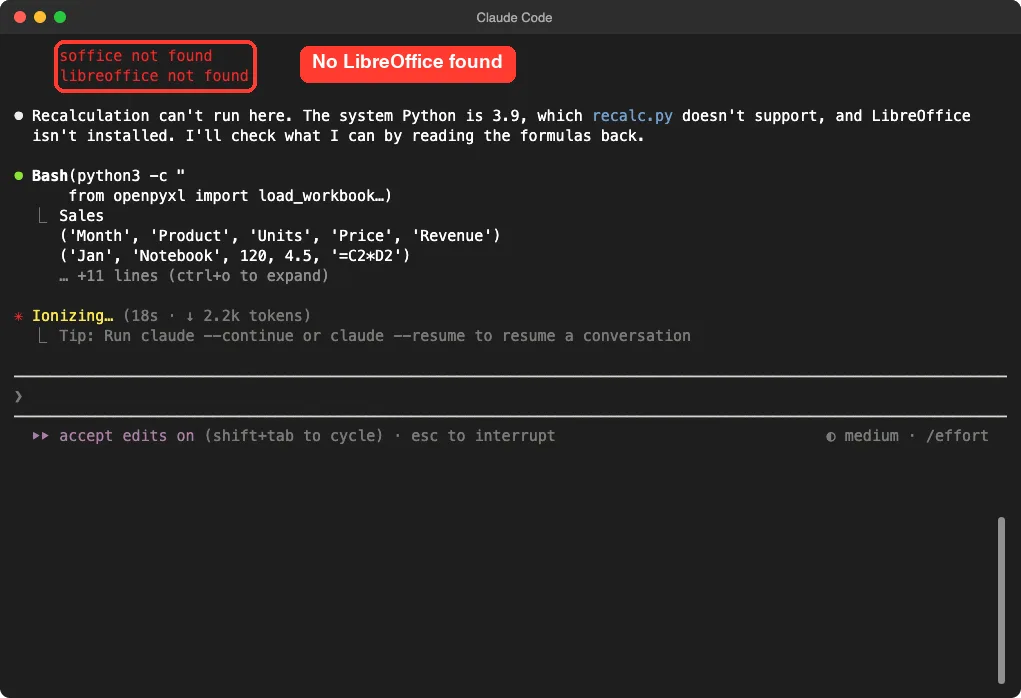
Claude did not pretend. It said recalculation could not run, read the formulas back instead, and told us the results were unverified. It also warned that the file had no stored values, so some previewers, and pandas, would show the formula cells as empty until a spreadsheet app calculated them.
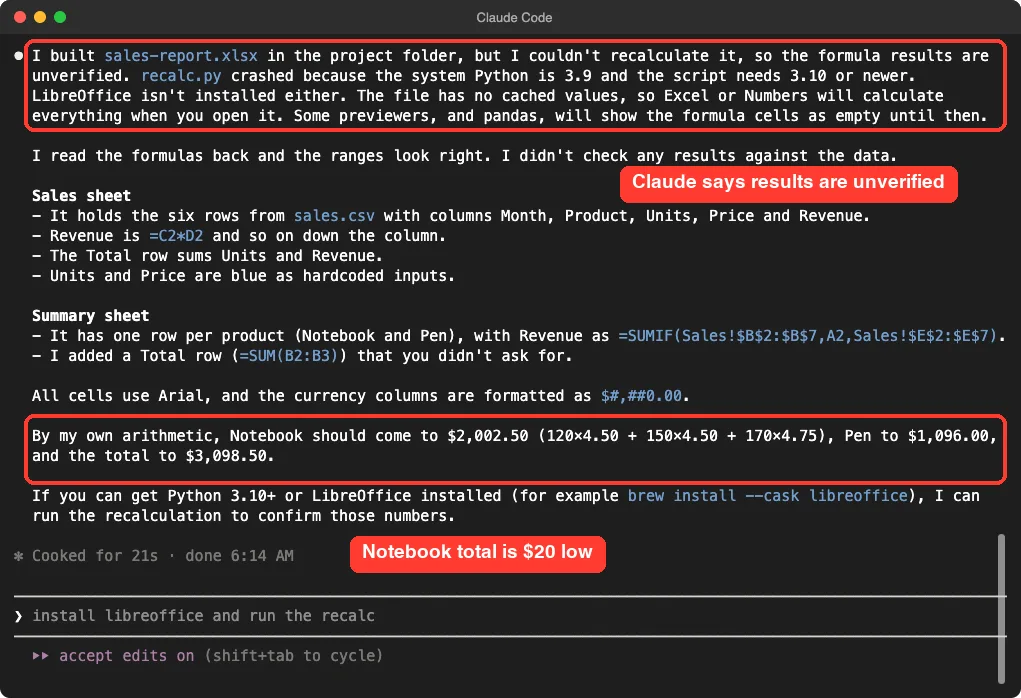
Claude’s arithmetic was wrong
In the same report, Claude offered its own sums as a rough check. It said Notebook should come to $2,002.50, Pen to $1,096.00 and the total to $3,098.50.
We checked those with a short script that read sales.csv directly. Notebook is $2,022.50, Pen is $1,096.00 and the total is $3,118.50. Claude was $20 low on Notebook and on the total, because 170 times 4.75 is 807.50 and its mental math slipped.
| Product | Claude’s mental math | Our check from the CSV |
|---|---|---|
| Notebook | $2,002.50 | $2,022.50 |
| Pen | $1,096.00 | $1,096.00 |
| Total | $3,098.50 | $3,118.50 |
The workbook itself was not affected, since it holds formulas and not Claude’s guesses. By our own calculation, those formulas give the correct numbers once a spreadsheet app computes them. We did not open the file in Excel, Numbers or LibreOffice, so we cannot show you the calculated sheet.
The lesson is a good one for any AI-built spreadsheet. The formulas are the product, and any total quoted in chat should be checked against them.
A clean recalculation proves your formulas run. Only your own check proves they are right.
What We Could and Could Not Check
| Check | Result |
|---|---|
| Skill loads from the project folder | Yes, shown in /skills |
| Workbook has two sheets with the requested columns | Yes, read back from the file |
| Revenue uses formulas, not typed totals | Yes, =C2*D2 and so on |
Summary uses SUMIF | Yes |
Recalculation and error report from recalc.py | Not run: Python 3.9 and no LibreOffice |
| Calculated values shown in a spreadsheet app | Not checked |
| Totals checked against the CSV | Yes, by our own script |
Try It Yourself
Make a small CSV of your own, such as monthly expenses, and put it in a new empty folder. Install the skill in a test project with the official commands, then start Claude Code and paste a prompt like this one.
Using the xlsx skill, turn expenses.csv into expenses.xlsx. Add a Total column as a formula, a total row, and a Summary sheet with spending per category using SUMIF. List any checks you could not run.Before you trust it, work out one total by hand and compare it with the sheet. If you can, install Python 3.10 or newer and LibreOffice first, so the recalculation step can run.
Common Mistakes
- Assuming the packages are installed. The notes call
openpyxlandpandaspreinstalled, which holds only in Anthropic’s own environment. - Running the skill on Python older than 3.10. The recalculation script crashed for us on 3.9.
- Reading a file with
pandasbefore recalculating. Formula cells show up empty until something calculates them. - Trusting totals quoted in chat. Ours were $20 low, and the file was fine.
- Using
XLOOKUP,FILTERorUNIQUE. The skill says its LibreOffice cannot evaluate them, and recommendsINDEXandMATCHinstead.
Pro Tips
- Ask Claude to list every check it could not run. In our test it did this without being asked, which made the report trustworthy.
- Name the sheets, the columns and the formulas in your prompt. The skill says to follow your spec literally.
- Put assumptions in their own cells. The skill asks for each assumption to be documented where readers can see it.
- Check the money columns. Claude chose the
$#,##0.00format for ours, so confirm it is what you want. - Run
claude --versionand note it, because skills and Claude Code both change quickly.
Our Verdict on the Claude Code Excel Skill
The skill did the main job. One prompt gave us a tidy two-sheet workbook with live formulas, consistent styling and a Summary sheet that pulls from the Sales sheet. Its habit of saying what it could not verify is a real strength.
It is not plug and play on a bare Mac. You need Python 3.10 or newer and LibreOffice for the recalculation step, which is the skill’s main safety net, and we could not confirm calculated values. We would use it for repeatable reports and clean-ups, and we would open every file in a spreadsheet app and check one total by hand before sharing it.
To compare it with other add-ons, read our skills versus plugins comparison and our guide to Claude Code plugins. You can also read about the models behind these tools on our Claude AI page. Anthropic’s plugin install guide covers the install route.
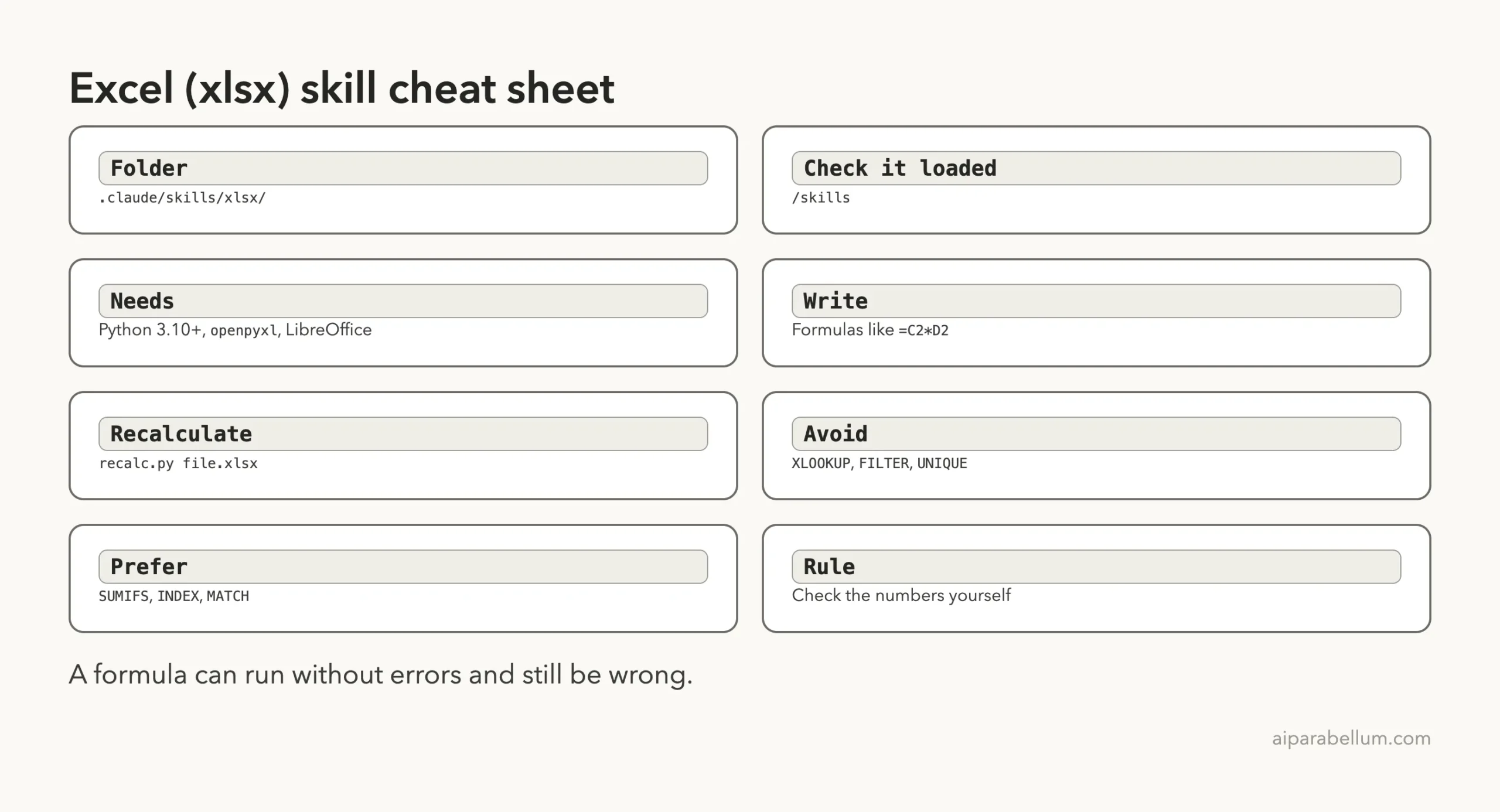
Cheat Sheet
Frequently Asked Questions
Does Claude Code have an Excel skill?
Yes. Anthropic’s official skills collection includes an xlsx skill for creating, editing and reading spreadsheets. It is not built into Claude Code, so you add it as a skill or through a plugin.
Do I need Microsoft Excel installed to use it?
No. The skill writes the file with openpyxl. The skill does want LibreOffice for its recalculation step, so install that if you want the built-in error check.
Does the skill write real formulas or just numbers?
It writes real formulas. Its rules say to use formulas and never hardcoded results, and our workbook used =C2*D2 and SUMIF as asked.
Why did my formula cells look empty?
A library such as openpyxl stores the formula but no result. The skill’s recalc.py script fills in the values by calculating the file in LibreOffice. A spreadsheet app also calculates them when you open the file.
Is the xlsx skill free to use?
Its front matter lists a proprietary license and points to LICENSE.txt for the terms. Read that file and use the official install route.
Conclusion
The claude code excel skill turns a short description into a real workbook with live formulas, and it is honest when it cannot verify its own work. Install Python 3.10 or newer and LibreOffice so the recalculation check can run, ask Claude to list what it did not check, and compare at least one total with your source data before you share the file.