
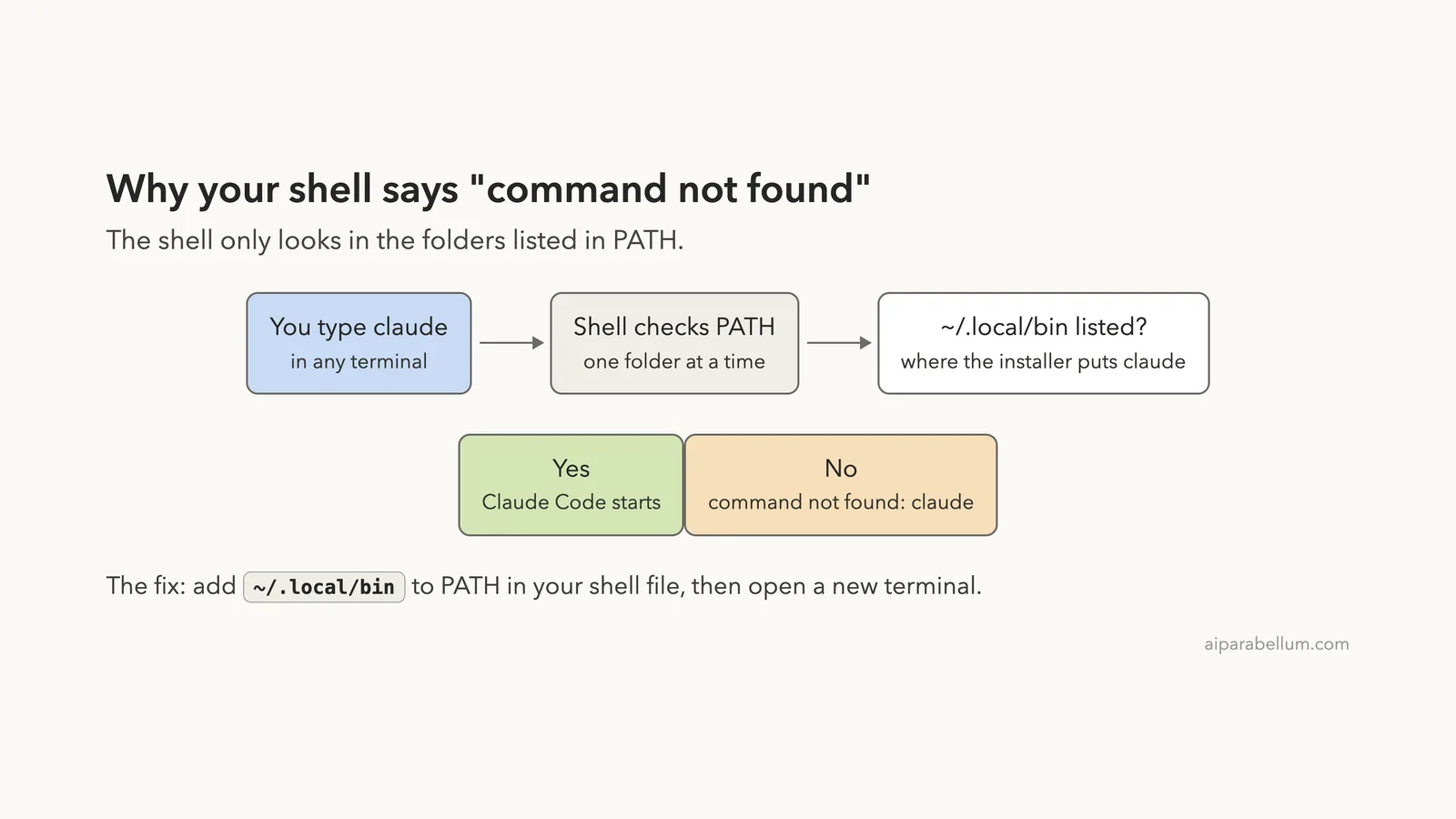
If your terminal says claude command not found right after you installed Claude Code, the install almost always worked. Your shell just does not know where to look. The installer puts the program at ~/.local/bin/claude, and if that folder is not in your PATH, typing claude fails.
The fix takes two commands. On a Mac with the default Zsh shell, run these, then open a new terminal window:
echo 'export PATH="$HOME/.local/bin:$PATH"' >> ~/.zshrc
source ~/.zshrc
On Linux with Bash, use ~/.bashrc instead of ~/.zshrc. For Bash on macOS, use ~/.bash_profile.
Then run claude --version, and you should see a version number. The rest of this guide shows each check for real, plus the less common causes: an old window, the wrong shell file, a VS Code-only install and duplicate copies.
This guide is part of our help series. Browse all our Claude Code tutorials for more fixes and how-tos.
Tested with Claude Code v2.1.325 on macOS on November 18, 2026. We broke PATH on purpose in a throwaway shell, ran a fresh install into a throwaway home folder (it pulled v2.1.327), and every terminal capture below is real. Our real shell config files were never changed.
We tested on macOS; the Linux steps follow Anthropic’s official instructions, and Bash behaves the same way on both.
Claude Command Not Found: Quick Summary
The exact wording depends on your shell. Here is what each one prints and what to do about it.
| Where you see it | Exact message | Fix |
|---|---|---|
| macOS (Zsh) | zsh: command not found: claude | Add ~/.local/bin to ~/.zshrc |
| Linux (Bash) | bash: claude: command not found | Add ~/.local/bin to ~/.bashrc |
| macOS (Bash) | bash: claude: command not found | Add ~/.local/bin to ~/.bash_profile |
| Installer output | Native installation exists but ~/.local/bin is not in your PATH | Run the command the installer prints |
| Still failing after the fix | Same message in an old window | Open a new terminal or restart your editor |
Why Claude Code Says “Command Not Found”
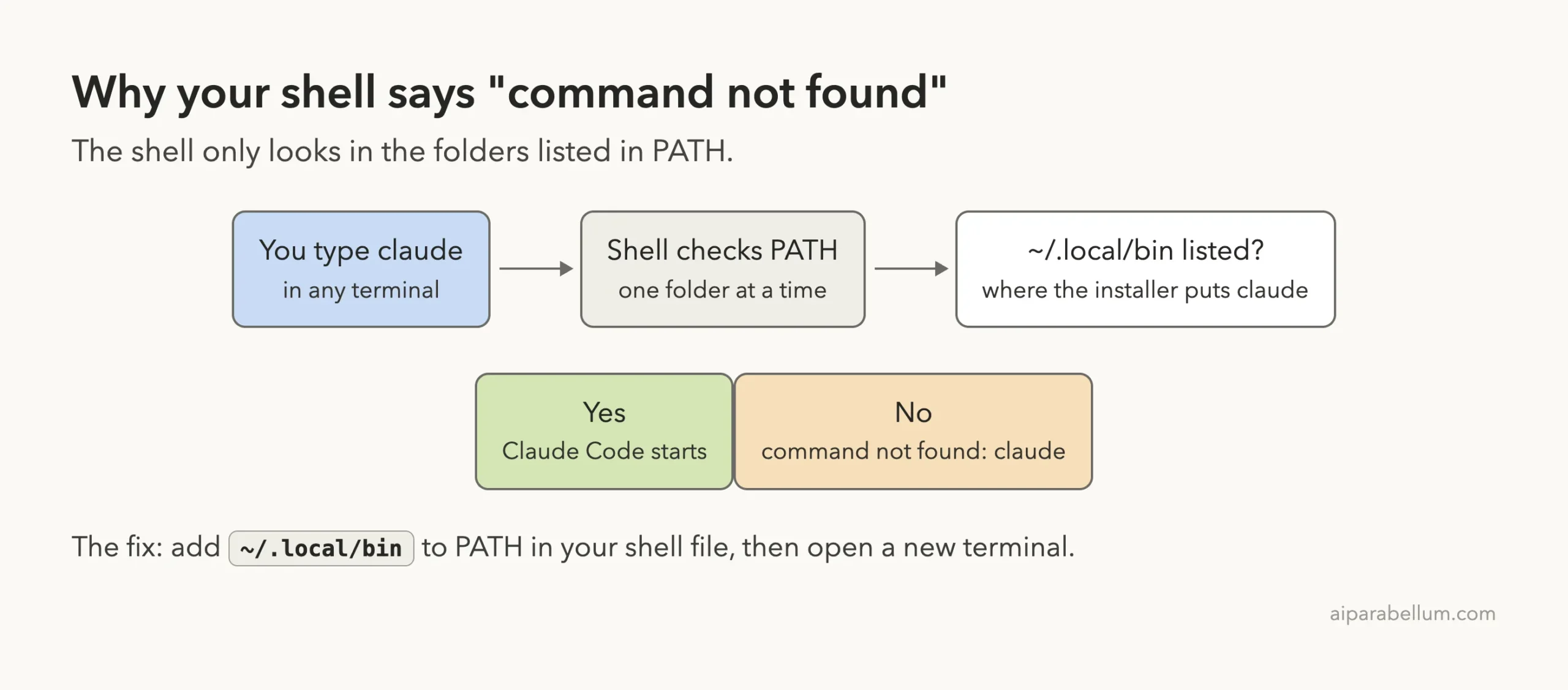
When you type a command, your shell does not search your whole disk. It checks a short list of folders stored in a variable called PATH, one folder at a time. If none of them holds a program named claude, you get the error.
The native installer, which Anthropic recommends, places the claude launcher in ~/.local/bin. On macOS and many Linux setups, that folder is not in PATH by default. So the install succeeds, the file sits on disk, and the shell still cannot find it.
Here is the error reproduced on our Mac. We started a shell with a trimmed PATH that leaves out ~/.local/bin. The program is still there, but the shell cannot see it.
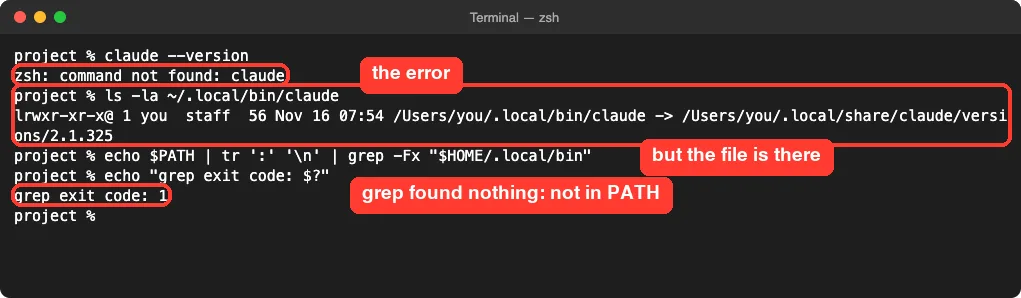
Command not found rarely means the install failed. It means your shell is looking in the wrong places.
The Installer Warns You (If You Catch It)
The native installer actually spots this problem. To show it, we ran the official install command with a throwaway home folder and a trimmed PATH, so our working Claude Code was never touched.
curl -fsSL https://claude.ai/install.sh | bashThe install finished with a green success line. Right below it, a Setup notes section warned that the install folder was not in PATH and printed the exact fix.
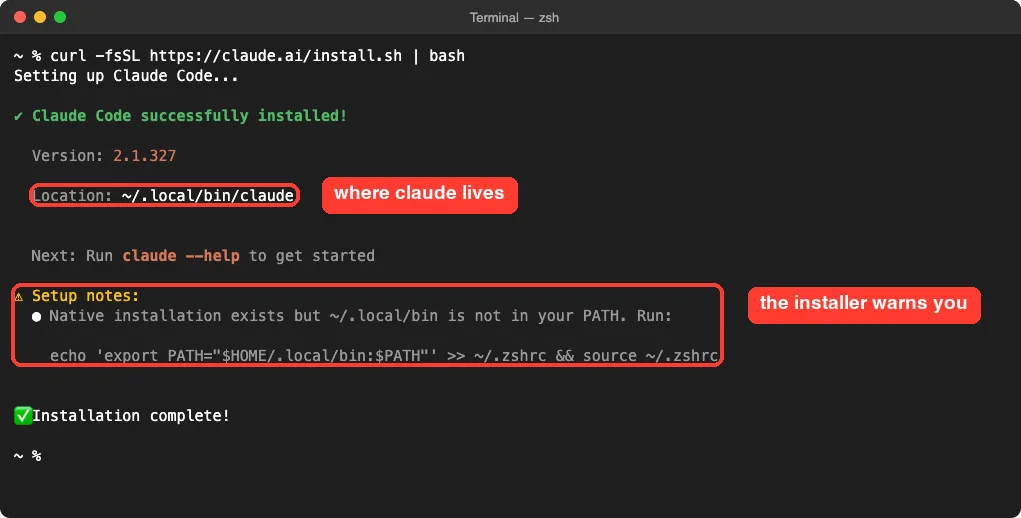
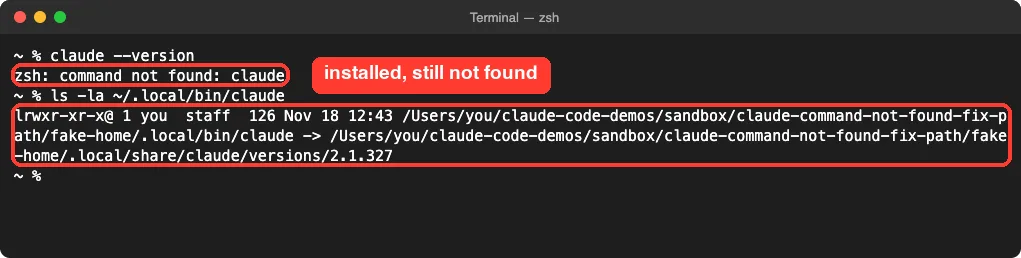
Anthropic’s docs confirm the installer prints the fix but does not change PATH itself. Many people scroll past this note, run claude, and hit the error a second later. That is exactly what happened in our test.
Step-by-Step Fix for Claude Command Not Found
Work through these steps in order. Each one comes from Anthropic’s official install troubleshooting guide, and we ran every macOS command ourselves.
Step 1: Check that the program is installed
ls -la ~/.local/bin/claudeIf you see a listing, the program is there, so move on. A native install shows a symlink pointing into ~/.local/share/claude/versions/. If you see No such file or directory, there is no native install at that spot, so jump to the section on other install methods below.
Step 2: Check whether the folder is in PATH
echo $PATH | tr ':' '\n' | grep -Fx "$HOME/.local/bin"This splits PATH into one folder per line and looks for the install folder. If it prints your .local/bin path, PATH is fine and the problem is elsewhere. If it prints nothing, as in our screenshot above, keep going.
Step 3: Find out which shell you use
echo $0Most Macs print zsh or -zsh. Most Linux systems print bash. The answer decides which file you edit in the next step.
Step 4: Add the folder to your shell file
Pick the line for your shell. The echo command saves the setting for every future terminal, and source applies it to the window you are in. The echo command prints nothing when it works.
| Your shell | File to edit | Commands |
|---|---|---|
| Zsh (macOS default) | ~/.zshrc | echo 'export PATH="$HOME/.local/bin:$PATH"' >> ~/.zshrc then source ~/.zshrc |
| Bash on Linux | ~/.bashrc | echo 'export PATH="$HOME/.local/bin:$PATH"' >> ~/.bashrc then source ~/.bashrc |
| Bash on macOS | ~/.bash_profile | echo 'export PATH="$HOME/.local/bin:$PATH"' >> ~/.bash_profile then source ~/.bash_profile |
Why the Mac Bash difference? Terminal on macOS starts Bash as a login shell, which skips ~/.bashrc.
According to Anthropic’s docs, it reads only the first of ~/.bash_profile, ~/.bash_login or ~/.profile that exists. If you already have ~/.bash_login or ~/.profile and no ~/.bash_profile, put the line in that existing file instead.
For our demo we pointed Zsh at a demo config folder with ZDOTDIR, so the real ~/.zshrc stayed untouched. The commands are otherwise the same ones you will run.
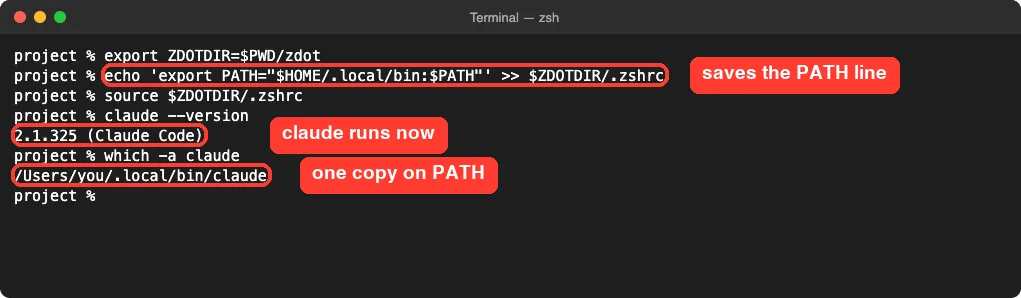
Step 5: Open a new terminal and confirm
claude --versionA working setup prints a version number such as 2.1.325 (Claude Code). Do this in a fresh window, because a window that was already open keeps its old PATH. Our next capture shows both sides: the old shell still fails, while a new shell reads the saved line and works.
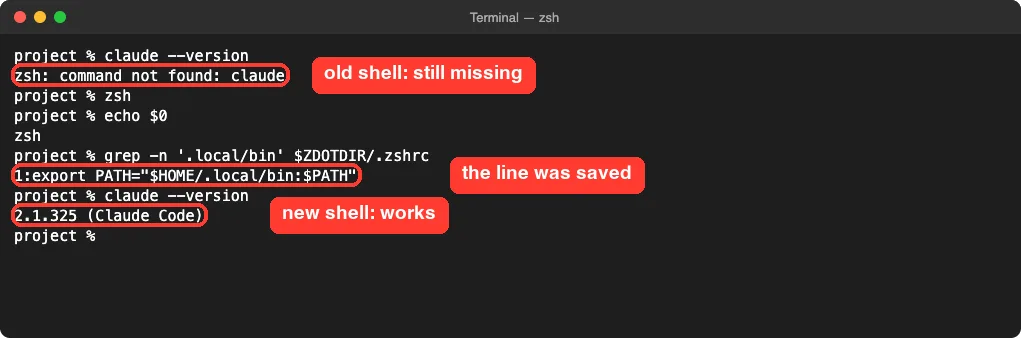
Fixing Claude Command Not Found in Bash
On Linux, and on Macs where you switched to Bash, the error reads a little differently: bash: claude: command not found. The cause and the fix are the same. We started a clean Bash shell with a minimal PATH to show it.
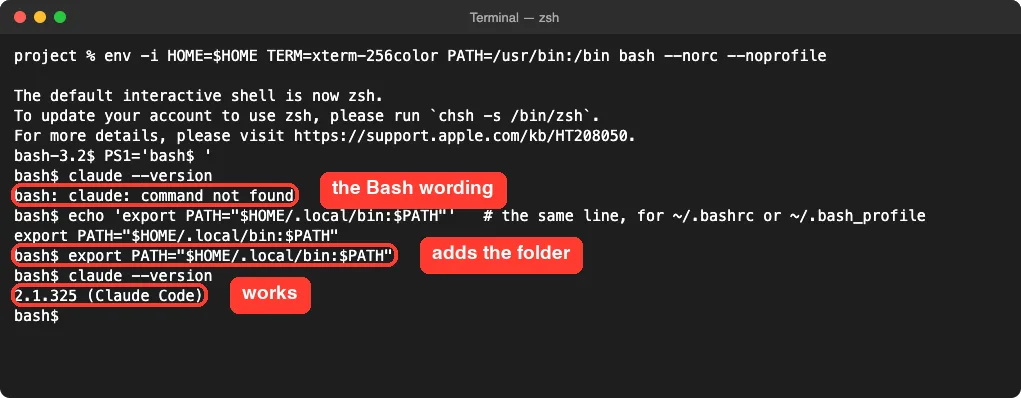
In this capture we only exported PATH for that one shell. To make it stick, save the same line to ~/.bashrc on Linux or ~/.bash_profile on macOS, as shown in Step 4. For other shells such as fish or Nushell, the docs say to add ~/.local/bin using that shell’s own config syntax and then restart the terminal.
Still Not Found? Check These Causes
If claude --version still fails after Step 4, one of these is usually to blame. All of them are listed in Anthropic’s troubleshooting guide.
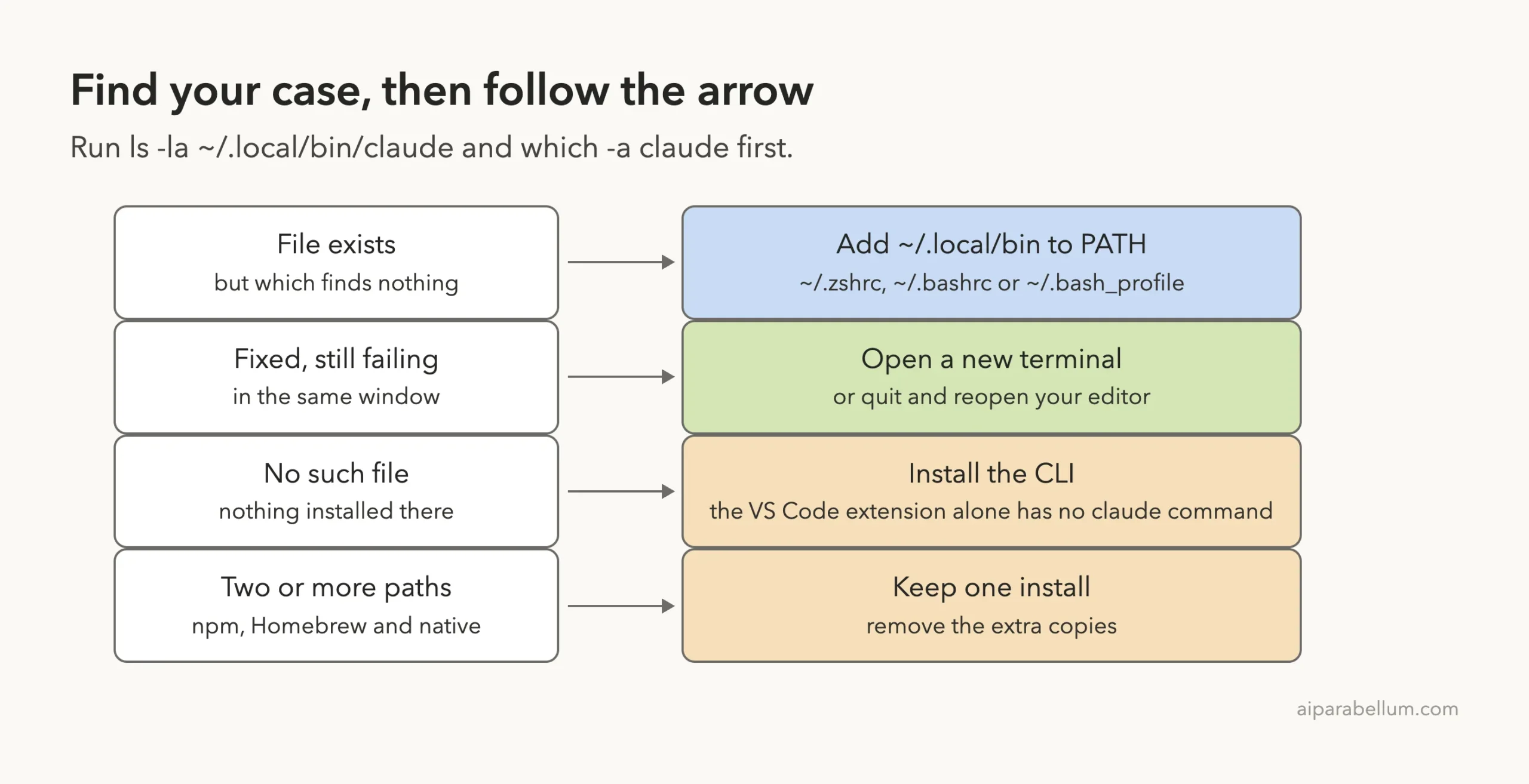
The terminal is older than the fix
A window opened before the change keeps its old PATH. A terminal inside an editor such as VS Code takes its PATH from the editor itself. Open a new window, or quit and reopen the editor completely.
The line was not saved
Check that the line is really in the file. Use your own shell file’s name:
grep -n '.local/bin' ~/.zshrcIt prints the line with its line number when it is there. If it prints nothing, run the two commands from Step 4 again.
The line went into the wrong shell’s file
Adding the line to ~/.bashrc does nothing if you use Zsh, and the reverse is also true. Run echo $0 again and repeat Step 4 for the shell it names.
“permission denied” when saving the line
If the echo command prints zsh: permission denied: /Users/you/.zshrc or a similar Bash message, nothing was saved. Run ls -l ~/.zshrc and look at the third field, which is the owner.
If another user such as root owns it, the docs suggest sudo chown $(whoami) ~/.zshrc. If you own it, it is read-only, so run chmod u+w ~/.zshrc, then repeat Step 4.
You only installed the VS Code extension
The VS Code extension bundles its own private copy of the CLI for its chat panel. It does not put claude in ~/.local/bin or add anything to PATH.
If you want to type claude in a terminal, run the standalone install too. Our guide on how to install Claude Code walks through it.
Other Install Methods and Conflicting Copies
Claude Code can also come from npm, Homebrew, WinGet or a Linux package manager. Each one puts the program somewhere else, and having more than one can confuse your shell. The docs suggest these checks:
which -a claude
ls -la ~/.local/bin/claude
ls -la ~/.claude/local/
npm -g ls @anthropic-ai/claude-code 2>/dev/null
which -a claude lists every claude on your PATH, in the order the shell tries them. ~/.claude/local/ is an old local npm install made by earlier versions. The npm command shows a global -g install.
A No such file or directory result is not an error; it just means nothing is installed there.
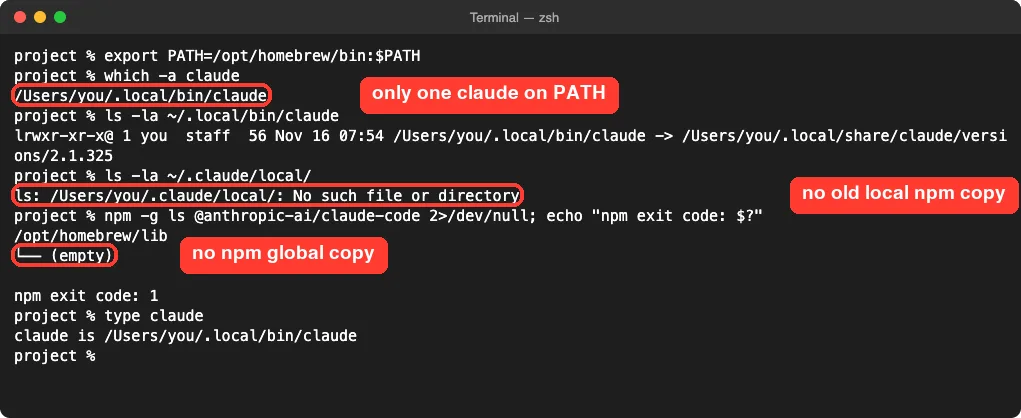
If you find more than one, keep one. Anthropic recommends the native install at ~/.local/bin/claude. These are the official removal commands for the extras:
| Extra copy | Remove it with |
|---|---|
| npm global install | npm uninstall -g @anthropic-ai/claude-code |
| Old local npm install | rm -rf ~/.claude/local |
| Homebrew (macOS) | brew uninstall --cask claude-code (or claude-code@latest) |
Our step-by-step guide to uninstalling Claude Code covers each method in more detail. If an npm install prints Error: claude native binary not installed instead of command not found, that is a different problem: the postinstall step did not run, and the docs cover it separately.
Real Examples From Our Test
Here is what each check returned on our Mac, so you know what healthy and broken results look like.
| Check | Broken shell | Fixed shell |
|---|---|---|
claude --version | zsh: command not found: claude | 2.1.325 (Claude Code) |
ls -la ~/.local/bin/claude | Symlink to versions/2.1.325 | Same symlink |
| PATH grep | No output, exit code 1 | Prints the .local/bin path |
which -a claude | Nothing found | One path: ~/.local/bin/claude |
| Fresh install note | Warns ~/.local/bin is not in PATH | No note needed |
The key lesson: in every broken case, the file was on disk the whole time. Only PATH changed. If you are new to the tool, our overview of Claude AI explains how Claude Code fits in with the rest of the family.
Try It Yourself
You can see the error safely without touching your real setup. This only changes PATH inside one shell, and closing it puts everything back:
zsh -f
export PATH=/usr/bin:/bin:/usr/sbin:/sbin
claude --version
export PATH="$HOME/.local/bin:$PATH"
claude --version
exit
The first claude --version fails, and the second one works. Once Claude Code runs, you can ask it to check your setup with a prompt like this:
Explain what my PATH variable contains, which shell config file my shell reads at startup, and whether ~/.local/bin is listed. Do not change any files.Common Mistakes
- Testing the fix in the same old terminal window, which still has the old PATH.
- Adding the line to
~/.bashrcon a Mac that runs Zsh, or on Mac Bash, which reads~/.bash_profile. - Typing the line with double quotes outside, so
$PATHexpands at save time. Copy the version with single quotes outside. - Reinstalling over and over. The install is fine; only PATH needs fixing.
- Running the installer with
sudo, which puts Claude Code in root’s home folder, so your own shell cannot find it. The installer now refuses to run undersudofor this reason. - Keeping npm, Homebrew and native copies side by side, then wondering which version runs.
Pro Tips
- Read the Setup notes at the end of the installer output. If one is there, it gives you the exact fix line.
- Use
type claudeorwhich -a claudeany time you are unsure which copy runs. - After any shell config change, open a fresh window before you judge the result.
- Once
clauderuns, useclaude doctorto check your install. Our doctor guide shows what a healthy report looks like. - If a script or app says the process exited with code 127, that is the same “command not found” problem. Our guide to exit codes explains it.
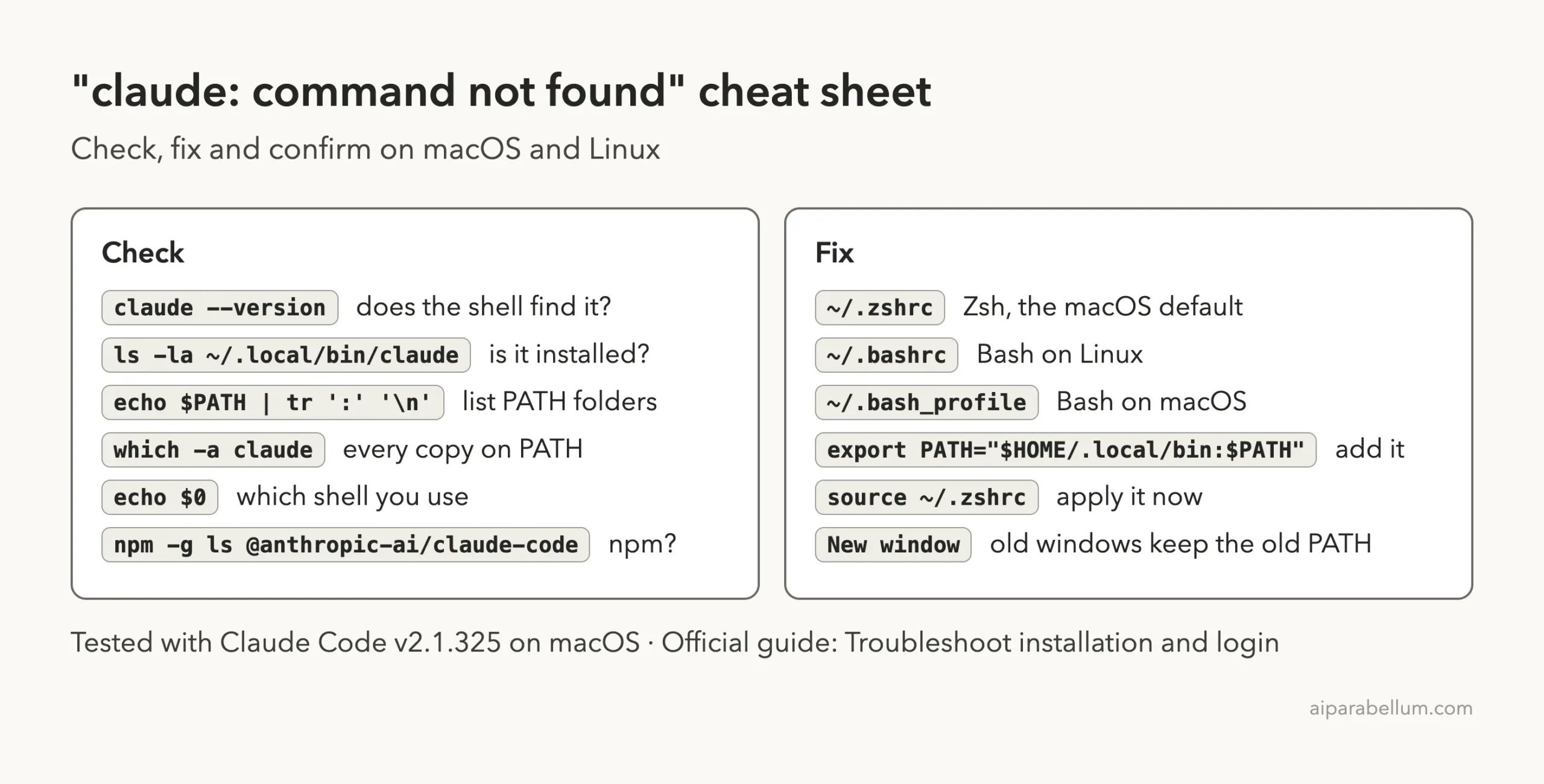
Claude Command Not Found Cheat Sheet
Frequently Asked Questions
Why does it say claude command not found right after installing?
The installer put Claude Code in ~/.local/bin, but that folder is not in your PATH. Add it to your shell file as shown in Step 4, then open a new terminal.
Where does Claude Code get installed on Mac and Linux?
The native installer places the launcher at ~/.local/bin/claude. It is a symlink to the real program in ~/.local/share/claude/versions/.
Do I need to reinstall Claude Code to fix this?
No. In our tests the file was on disk the whole time. Fixing PATH and opening a new window was enough.
Which file should I edit, .zshrc or .bashrc?
Run echo $0. Edit ~/.zshrc for Zsh, ~/.bashrc for Bash on Linux, and ~/.bash_profile for Bash on macOS.
It works in Terminal but not in VS Code. Why?
The VS Code terminal takes its PATH from the editor when it starts. Quit VS Code completely and open it again so it picks up the new PATH.
Conclusion
The claude command not found error after installing Claude Code is almost never a broken install; it is a PATH that does not include ~/.local/bin. Confirm the file exists, check PATH, add the export line to the right shell file for your shell, and test in a brand-new window. If it still fails, look for an old window, the wrong config file, a VS Code-only install or duplicate copies. For a wider set of fixes, see our guide to login problems and our roundup of common errors, and keep Anthropic’s setup guide nearby for new install options.