Planning with files for Claude Code means writing your plan to disk, so it is still there after you clear the chat. The Planning With Files plugin does this for you. It keeps three Markdown files in your project and reloads them with hooks every time a session starts.
We loaded the plugin in a sandbox, had Claude plan a small tool, and then wiped the conversation with /clear. Here is what happened, what the plugin adds to your session, and who should bother installing it.
This guide is part of our Claude Code tutorials. Find more add-ons in our Claude Code Skills Directory.
Tested with Claude Code v2.1.318 on November 8, 2026. The plugin is planning-with-files version 3.28.1 from OthmanAdi/planning-with-files at commit 2362ca3. The repository was active and not archived when we tested.
Quick Summary
| Question | Answer |
|---|---|
| What is it? | A plugin that keeps your plan in task_plan.md, findings.md and progress.md |
| Install command | /plugin marketplace add OthmanAdi/planning-with-files then /plugin install planning-with-files@planning-with-files |
| Start a plan | /planning-with-files:plan followed by your task |
| Check progress | /planning-with-files:status |
| Needs an outside account | No |
| Our verdict | Handy for multi-step work that spans several sessions; overkill for small fixes |
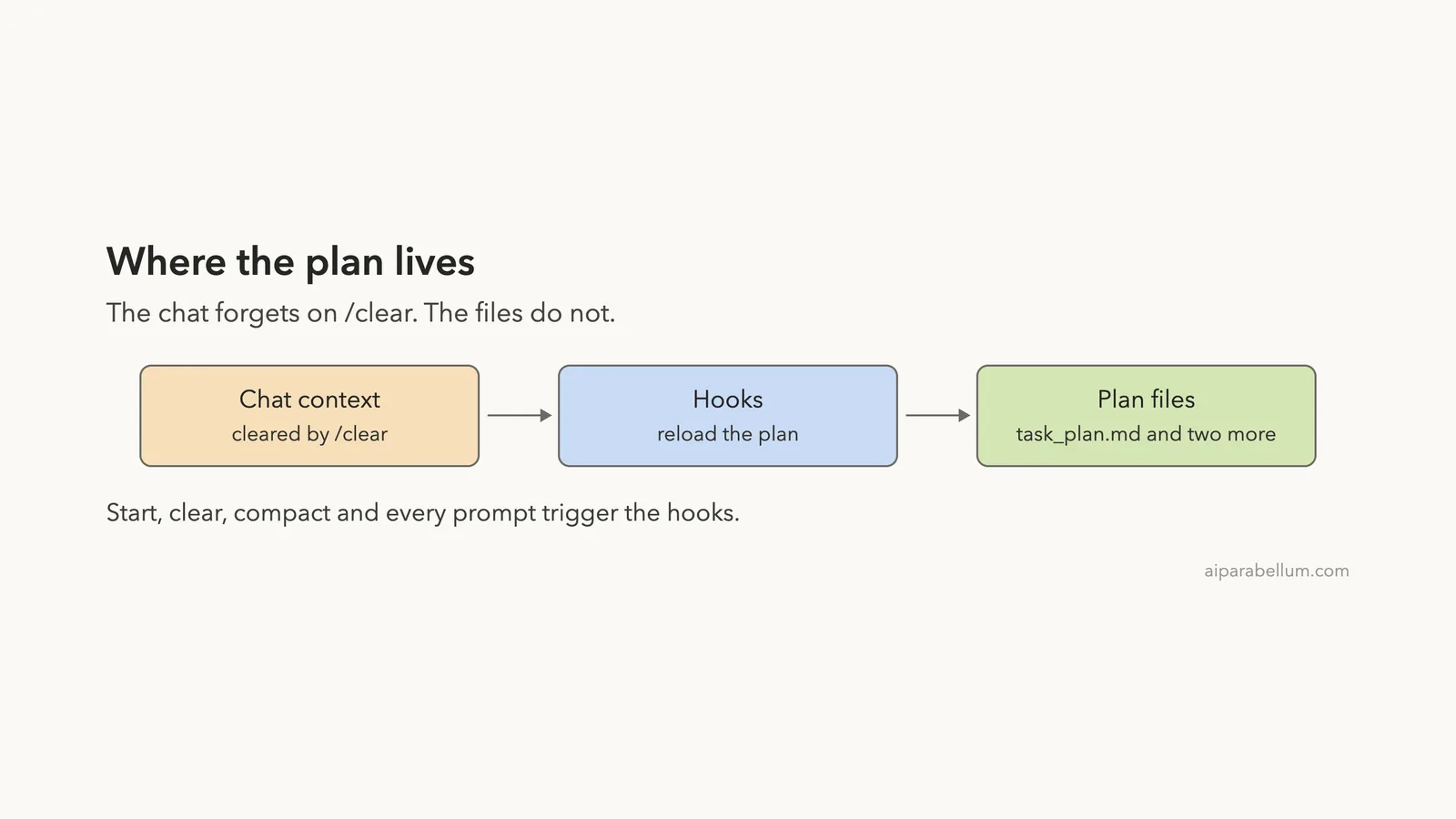
The chat is short-term memory. The plan files are long-term memory.
Why Plans Disappear in Claude Code
Claude Code keeps everything you say in a context window. When you run /clear, that window is emptied. When the window gets full, Claude Code compacts it into a summary, and details can get lost along the way.
For a quick question that is fine. For a job that takes many steps, it hurts. You come back after a break and Claude has forgotten which phase you were on, what you decided and what already failed.
The fix is old and simple: write the plan down. A file on disk does not care about your context window. The Planning With Files plugin makes that habit automatic.
What Is the Planning With Files Plugin?
It is a community plugin by OthmanAdi, with more than 27,000 GitHub stars at the time of writing. It follows a “working memory on disk” idea: the chat is the short-term memory, and the files are the long-term memory.
The plugin adds a skill that tells Claude how to plan, a few slash commands, and a set of hooks. If you are new to these pieces, our guides to Claude Code plugins and Claude Code hooks explain them.
| File | What goes in it |
|---|---|
task_plan.md | The goal, the phases, their status and the next step |
findings.md | Requirements, research and decisions |
progress.md | A log of what was done, test results and errors |
How the Hooks Bring the Plan Back
We read the plugin’s hooks/hooks.json before running anything. It registers hooks for six moments: session start, every prompt you submit, before a tool runs, after a file edit, before compaction and when Claude tries to stop.
The session start hook matches startup, resume, clear and compact. That is the part that matters for this guide. Every time a session begins or the chat is wiped, the hook looks for a plan in your project and, if it finds one, injects the plan context.
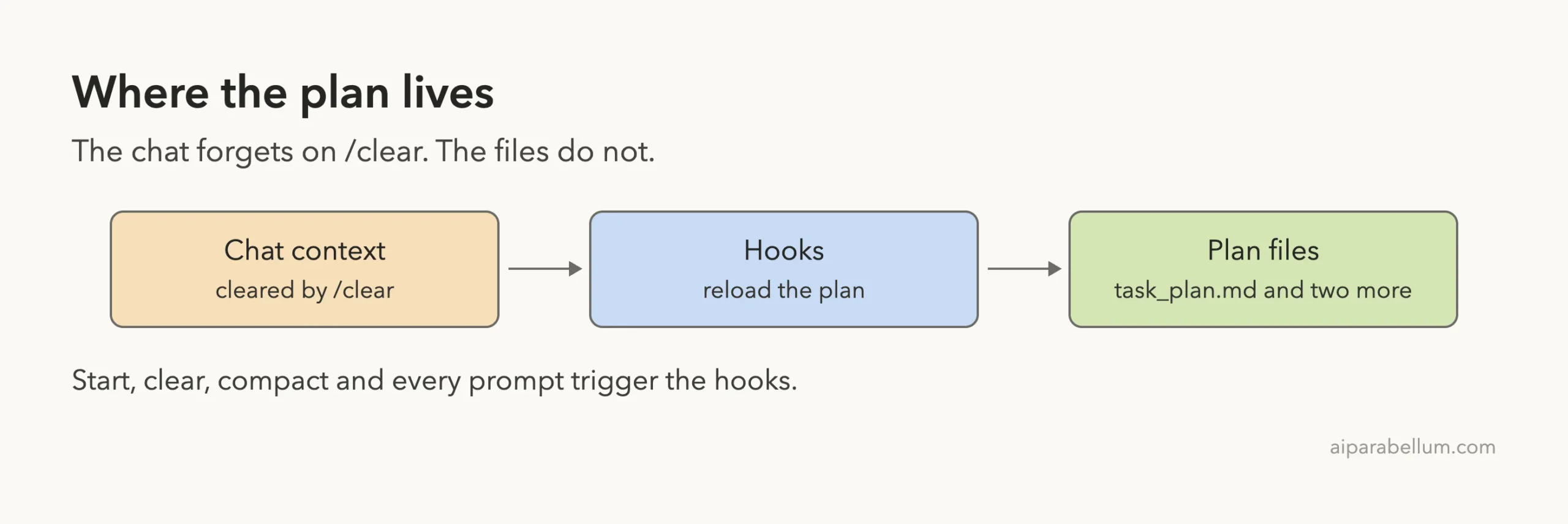
We also read the dispatcher script. If your project has no task_plan.md and no .planning folder, it exits at once and does nothing.
The hook scripts we checked write small cache files under ~/.cache, and we saw no network calls in the hook scripts we read. The plugin’s own description also says it has no network upload path.
If you ever want the hooks off, the dispatcher exits early when the environment variable PLANNING_DISABLED=1 is set.
How to Install the Planning With Files Plugin
The plugin has its own marketplace, so installing takes two commands inside Claude Code.
/plugin marketplace add OthmanAdi/planning-with-files
/plugin install planning-with-files@planning-with-files
We did not run those on our everyday setup. To keep it untouched, we cloned the repository into a throwaway folder and loaded it for one session only. We also pointed XDG_CACHE_HOME at the sandbox so the hooks’ cache files stayed there too.
claude --plugin-dir path/to/planning-with-files --setting-sources projectThe official discover plugins and plugins docs cover how marketplaces and plugin folders work. We tested on macOS, and the Windows and Linux steps follow Anthropic’s official instructions.
Type /planning-with-files: to see the commands. The list also holds translated versions of the plan command in Arabic, German, Spanish and Chinese.
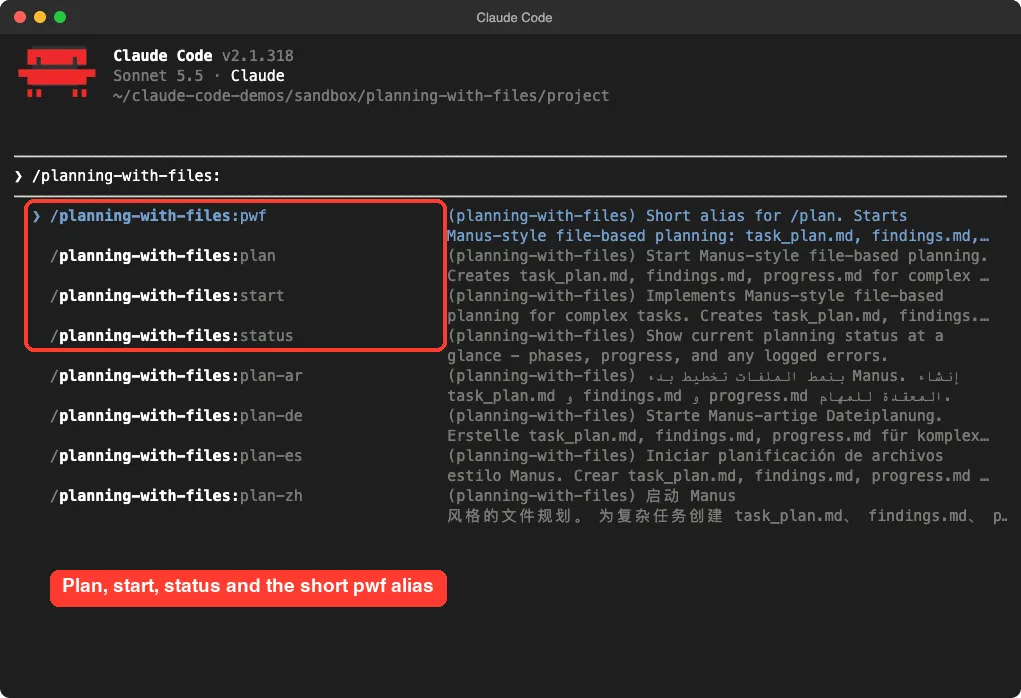
Our Test: Plan a Small Tool, Then /clear
We made an empty demo folder with one file, sample.txt. Then we asked Claude to plan a word-count command line tool and finish only the first phase. This is the exact prompt.
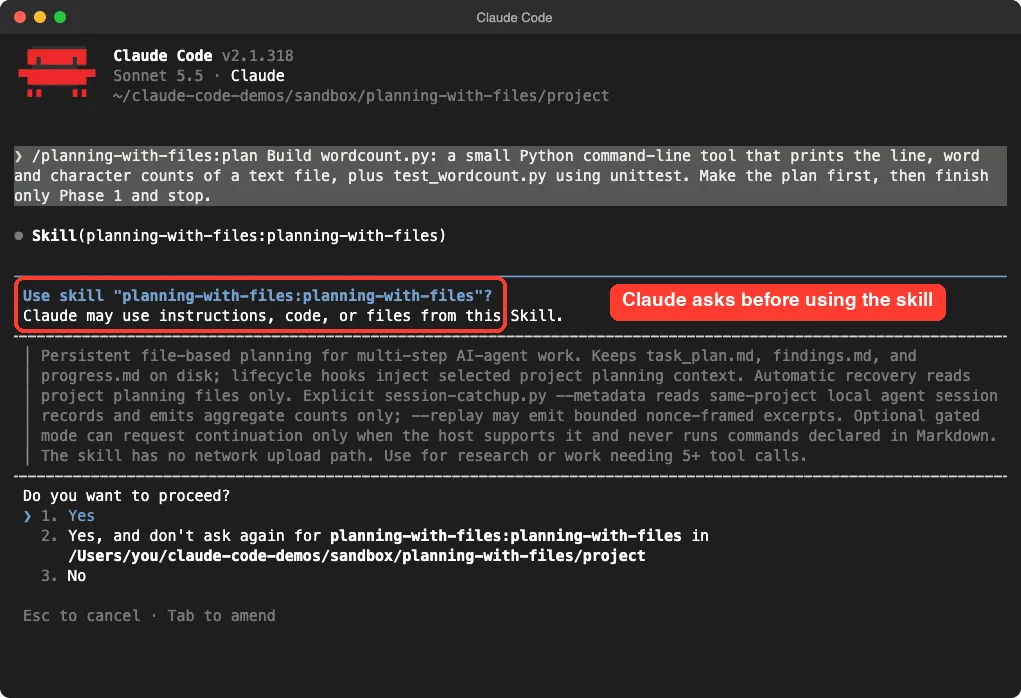
/planning-with-files:plan Build wordcount.py: a small Python command-line tool that prints the line, word and character counts of a text file, plus test_wordcount.py using unittest. Make the plan first, then finish only Phase 1 and stop.Step 1: Claude Asks Before Using the Skill
The first thing we saw was a permission prompt. Claude Code asked whether it could use the planning skill, and showed the skill’s description. We chose the first option, which allows it once.
Step 2: Claude Builds the Plan
Claude ran the plugin’s initializer, which created the three files, and then tailored them to our task. It split the job into five phases and finished Phase 1 only, as we asked. The whole run took 26 seconds.
A hook then printed “Plan format valid (5 phases)”, which is the plugin checking that the plan keeps the structure it expects.
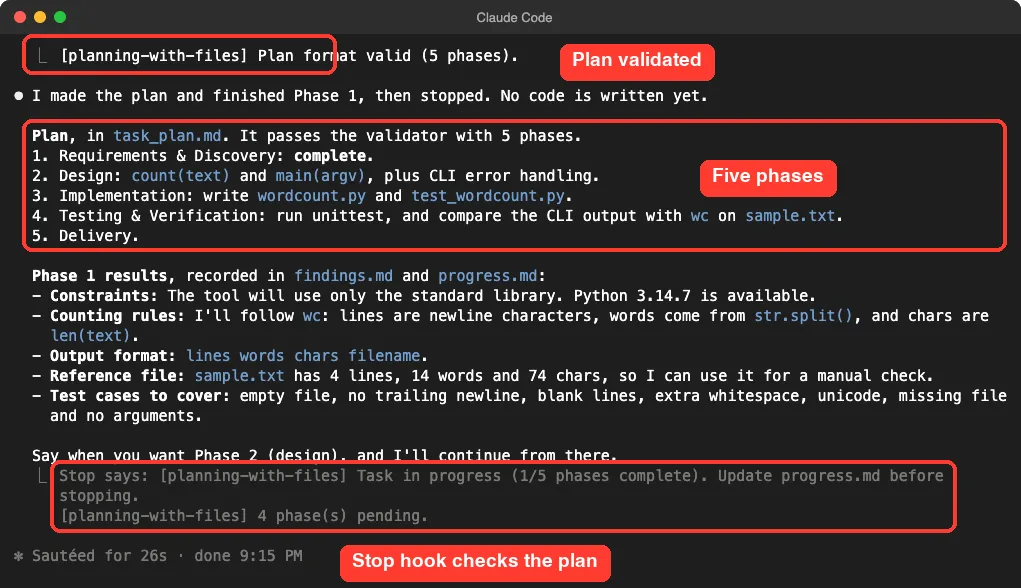
Look at the grey “Stop says” message at the bottom. That comes from the stop hook. It told Claude the task was still in progress with four phases pending, and reminded it to update progress.md.
What the Plan File Looks Like
This is the top of the real task_plan.md Claude wrote, trimmed to the first two phases.
# Task Plan: wordcount CLI tool

## Goal
Build wordcount.py, a Python CLI that prints line, word and character counts of a text file, with unittest tests in test_wordcount.py.

## Next Step
Phase 1 is complete. Stop and wait for the user; Phase 2 (design) is next when they continue.

## Current Phase
Phase 1

## Phases

### Phase 1: Requirements & Discovery
- [x] Understand user intent
- [x] Identify constraints (stdlib only, sample.txt exists for manual checks)
- [x] Document requirements and edge cases in findings.md
- **Status:** complete

### Phase 2: Design
- [ ] Define API: count(text) -> (lines, words, chars) and main(argv)
- [ ] Define CLI behaviour and error handling (missing file, bad encoding)
- **Status:** pending
Each phase has exactly one status line. The plugin’s skill says to keep that format, because the hooks and the validator read it.
Step 3: A Fresh Session Picks Up Where We Left Off
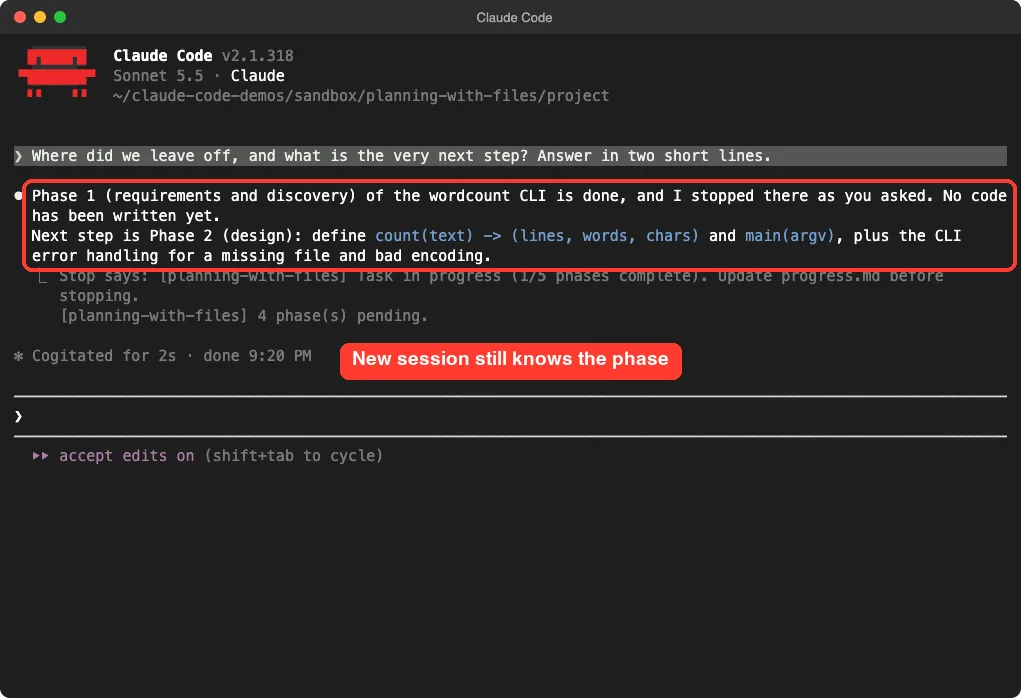
We closed Claude Code and started a brand new session in the same folder. Before typing anything else, we asked where we had left off.
Where did we leave off, and what is the very next step? Answer in two short lines.Claude answered correctly in two seconds: Phase 1 was done, no code was written, and Phase 2 (design) was next. No file-reading step appears on screen before the answer, so the plan seems to have arrived through the hooks.
Step 4: The Real Test, /clear
Next we ran /clear inside that session and asked which phase we were in. The question was one line, and the answer was correct again.
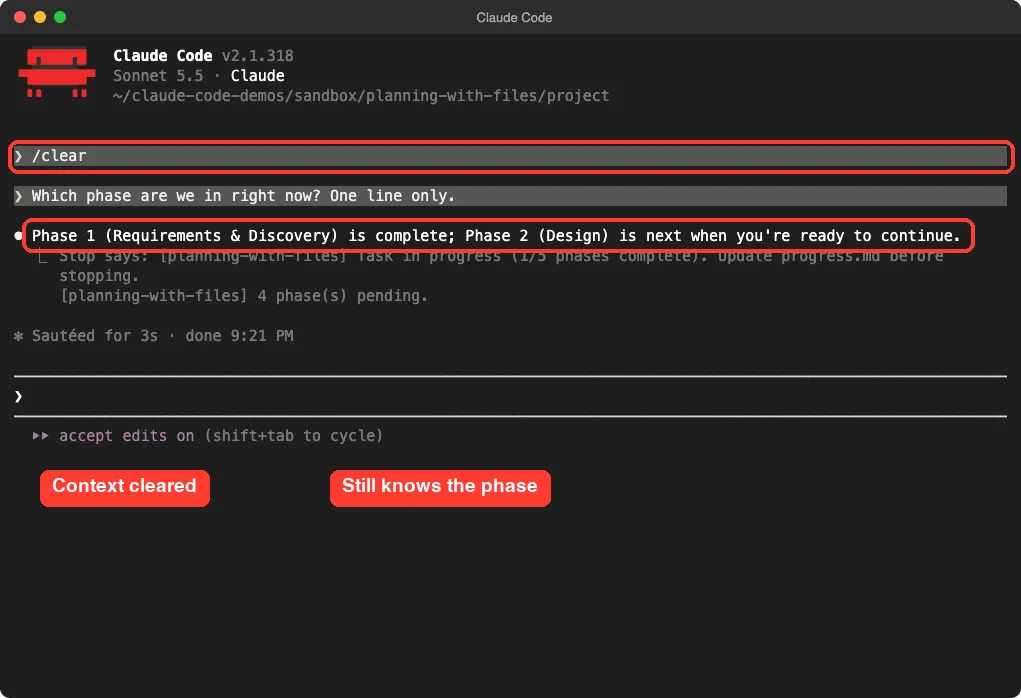
/clear the chat is empty, yet Claude still knows the phase (labels sit below the boxes)Be careful about what this proves. The screen shows the correct answer and no file read before it. It does not show us the injected text itself, so we are inferring the hook did the work.
Step 5: Continue the Plan
Finally we asked Claude to continue with Phase 2 and stop. It wrote the design into findings.md, ticked the boxes in task_plan.md, logged the work in progress.md and stopped. The stop hook now reported 2 of 5 phases complete.
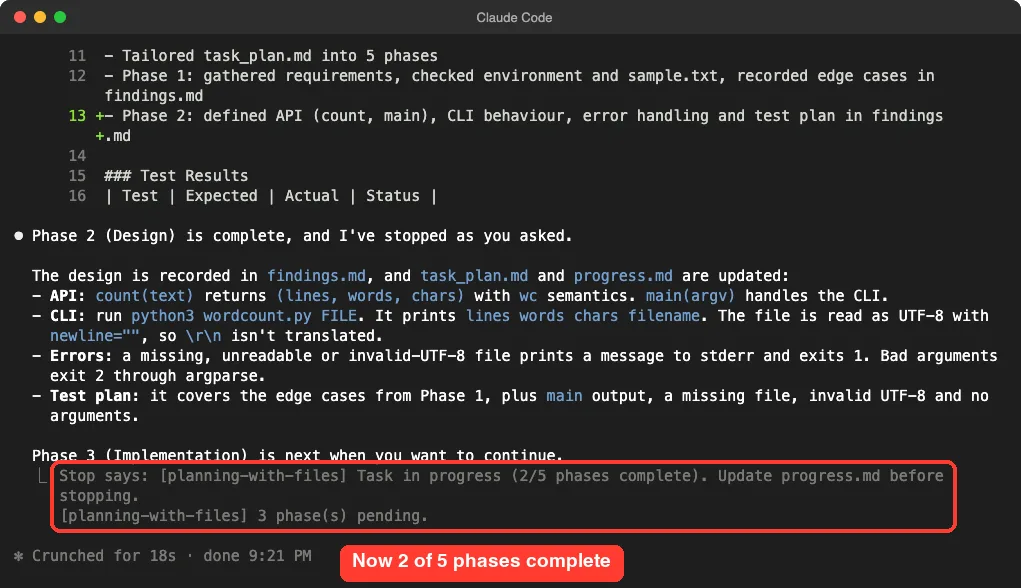
We then opened task_plan.md on disk. Its next step line now read that Phase 2 was complete and Phase 3 was next, so the file really had moved forward with the work.
What We Did Not Test
The plugin has more features than one demo can cover, and we would rather say so than guess. The repository describes an autonomous mode, a gated mode that can ask Claude to keep going, plan attestation, named plans under a .planning folder, and an optional session catch-up script. There are also commands such as plan-doctor, plan-goal and plan-loop.
We loaded the plugin and ran the standard path: plan, stop, restart, clear, continue. We did not run the other modes, and we did not test it on a large, messy project. Everything above comes from one small task.
Planning With Files vs Plan Mode and CLAUDE.md
Claude Code already has built-in ways to hold on to instructions. They solve different problems, so here is how they compare.
| Option | Best for | Survives /clear |
|---|---|---|
CLAUDE.md | Rules that never change, such as code style | Yes |
| Plan mode | Thinking before editing in one session | No, unless you save the plan |
| Planning With Files | Multi-phase work that spans sessions | Yes, through the plan files |
You can use them together. Keep your lasting rules in CLAUDE.md and let this plugin track the moving parts of the current job.
Who Should Install It?
We think it fits you if you work on tasks that take many steps or span several days, if you clear the chat often to save usage, or if you want a written trail of decisions and errors. A file you can open and read is also easy to review or commit.
It is probably too much for one-line fixes or quick questions. The plugin adds a hook on each prompt and each tool call, but only when a plan exists in the folder. In a project with no plan files, the dispatcher exits right away.
Try It Yourself
Make an empty practice folder, start Claude Code with the plugin loaded, and run this prompt. Then run /clear and ask which phase is next.
/planning-with-files:plan Build a small Python script that renames every .txt file in a folder to lowercase. Make the plan first, then finish only Phase 1 and stop.After that, run /planning-with-files:status to see the phases at a glance, and open task_plan.md in your editor to see what Claude wrote.
Common Mistakes
- Running the plugin in a real project before trying it in a practice folder
- Editing
task_plan.mdby hand and removing the**Status:**lines the hooks read - Planning a tiny job that needs no plan, which only adds files to your folder
- Forgetting that the plan files live in your project, so they can end up in version control
- Expecting
/clearto keep chat details that never made it into a plan file
Pro Tips
- Ask Claude to finish one phase at a time, as we did, so each phase ends with updated files
- Read
findings.mdafter each phase; it is where decisions are recorded - Use
/planning-with-files:statuswhen you return after a break - Keep durable rules in
CLAUDE.mdand the current job in the plan files - Set
PLANNING_DISABLED=1if you want the hooks off for a while - Read any plugin’s hooks before you install it; our plugin marketplace explainer shows where to look
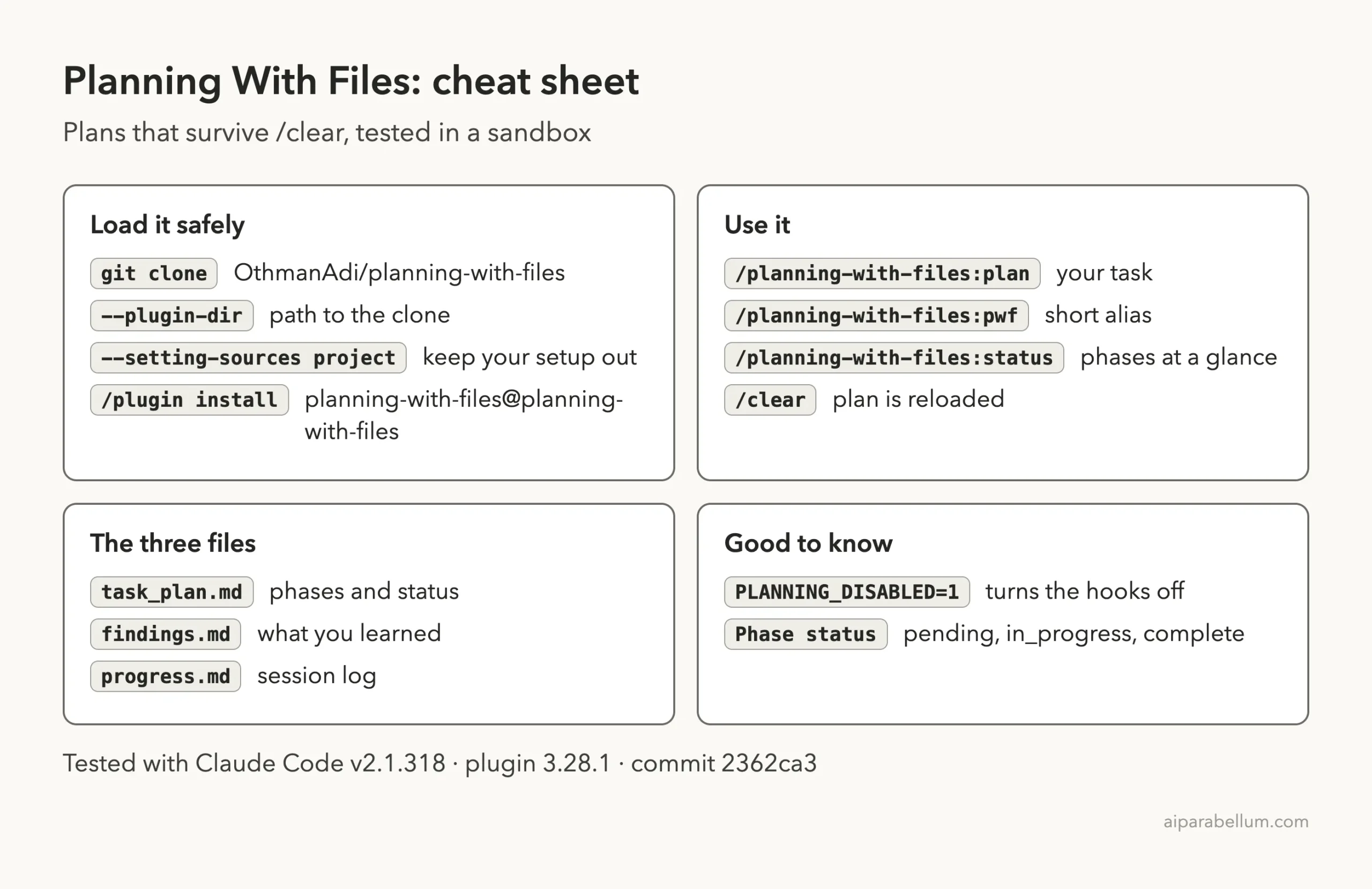
Cheat Sheet
Frequently Asked Questions
What is the Planning With Files plugin for Claude Code?
It is a community plugin that keeps your plan in three Markdown files and uses hooks to reload it when a session starts, after /clear and after compaction.
Does the plan really survive /clear?
In our test, yes. After /clear Claude correctly named the current and next phase without us pasting anything. We ran one small task, so treat it as one demo and not a guarantee.
How do I install it?
Run /plugin marketplace add OthmanAdi/planning-with-files and then /plugin install planning-with-files@planning-with-files. To try it first without touching your setup, load a clone with --plugin-dir.
Does it need an account or an API key?
No. It uses local shell scripts and Markdown files, and the plugin states it has no network upload path.
Where are the plan files saved?
In your project folder. By default they are task_plan.md, findings.md and progress.md at the project root, and named plans can live under .planning.
Conclusion
Planning With Files for Claude Code turns your plan into something that outlives the chat. In our sandbox test it built a five-phase plan, kept it in three files, and answered correctly about the current phase in a new session and after /clear. It is worth installing if your jobs run across many steps or sessions, and you can try it risk-free with --plugin-dir. For more add-ons, browse the plugin’s GitHub repository and our Claude guides.