
If you want to know what’s new in ChatGPT this week, here is the short answer: ChatGPT Wallet lets your dot pay for things after you approve, Advanced and Standard voice now have a retirement date of December 11, 2026, and Business Hub gives business owners a place to claim their business. OpenAI’s official release notes list three entries for the week, dated November 10 and November 13, 2026.
We read the release notes and then opened the three Help Center articles they link to, so every detail below comes from OpenAI’s own pages and nothing else. We could not use the ChatGPT apps’ own screens for this roundup, so the screenshots are highlighted captures of the official pages.
You can find more of our coverage on our ChatGPT tool page. If you missed the last edition, see our previous ChatGPT roundup.
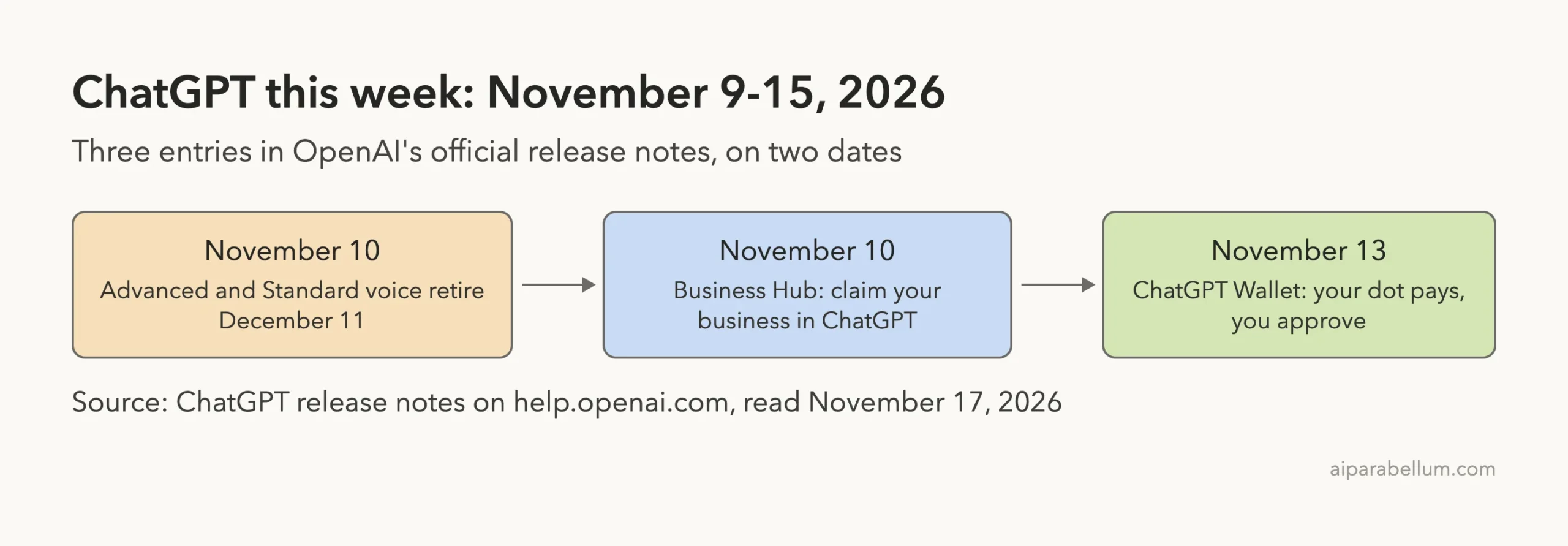
What’s New in ChatGPT: The Week at a Glance
Here is every entry the release notes dated inside the week, with who gets it and the current status.
| Date | Change | Who gets it | Status |
|---|---|---|---|
| November 10 | Retiring Advanced and Standard voice | Everyone who uses ChatGPT Voice | Notice given; retirement on December 11, 2026 |
| November 10 | Business Hub in ChatGPT | Business owners and authorized representatives; agents for eligible US ecommerce and online service businesses | Available from the sidebar in ChatGPT on the web |
| November 13 | ChatGPT Wallet | Pro subscribers age 18 or older in the United States | Rolling out gradually |
That is a short list, but each entry links to a long Help Center article with the real rules. The sections below walk through those rules in plain English.
One note on dates: the release notes also show an entry dated November 16 about ChatGPT for Clinicians. It falls outside this week, so it belongs in the next roundup.
ChatGPT Wallet: Your Dot Can Pay After You Approve
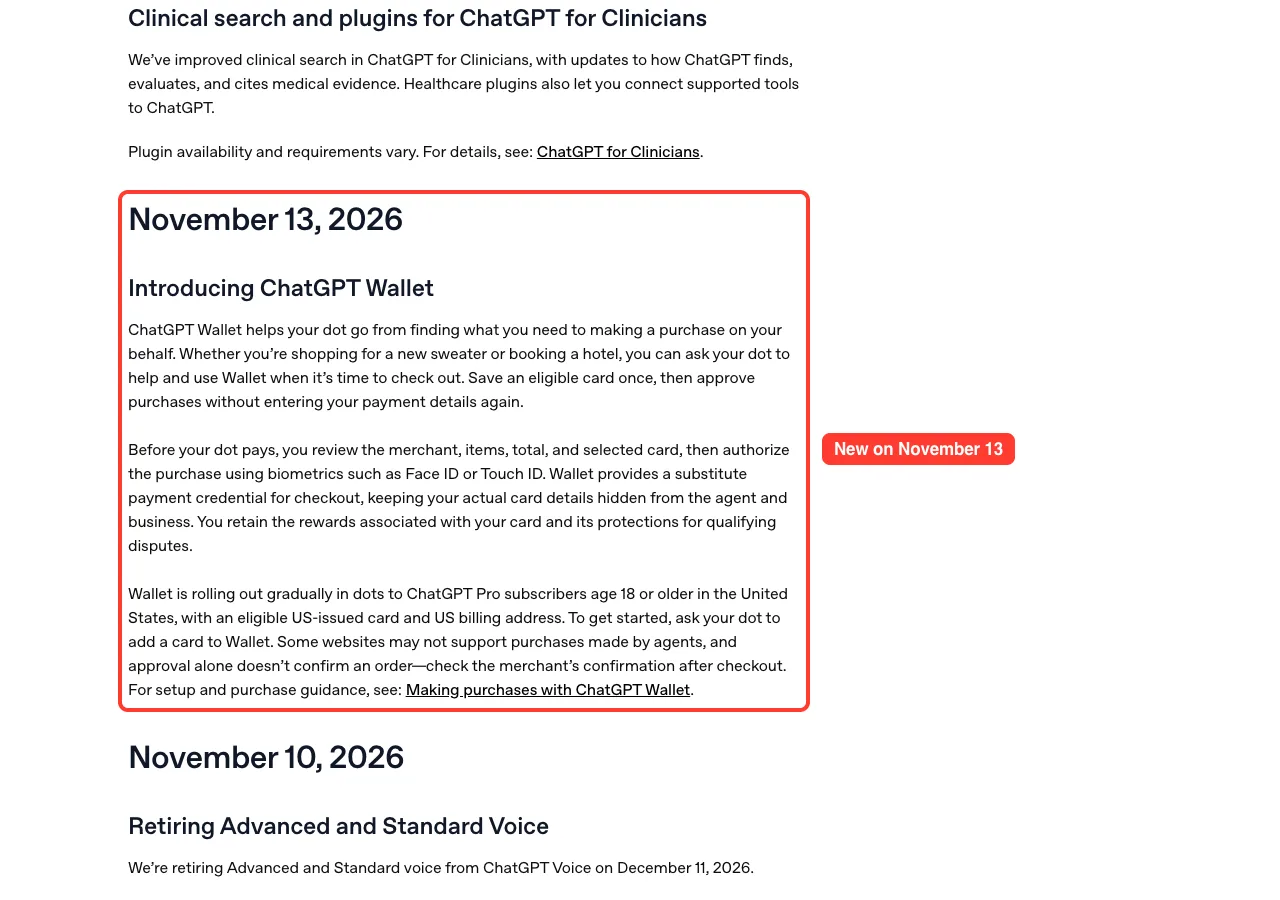
The biggest consumer change this week is ChatGPT Wallet, listed on November 13. It lets your dot, the personal agent inside ChatGPT, go from finding what you need to buying it on your behalf.
The release notes give two examples: shopping for a new sweater or booking a hotel. You save an eligible card once, and after that you approve purchases without typing your payment details again.
We covered the launch as news in our Wallet launch story. This section sticks to the practical details from the Help Center.
Who can use ChatGPT Wallet
Wallet is narrow at launch. According to OpenAI’s Help Center, all of these must be true:
- You are on a ChatGPT Pro plan and live in the United States.
- You are 18 or older.
- You have an eligible US-issued American Express, Chase, Mastercard or Visa credit card with a US billing address.
- You have set up a dot, because Wallet only works in conversations with your dot.
- You have a supported device for biometric approval, such as Face ID or Touch ID.
Wallet is not available in Chat, Work or standalone Codex threads. OpenAI also says the rollout is gradual, so an eligible Pro user in the US might not have access yet.
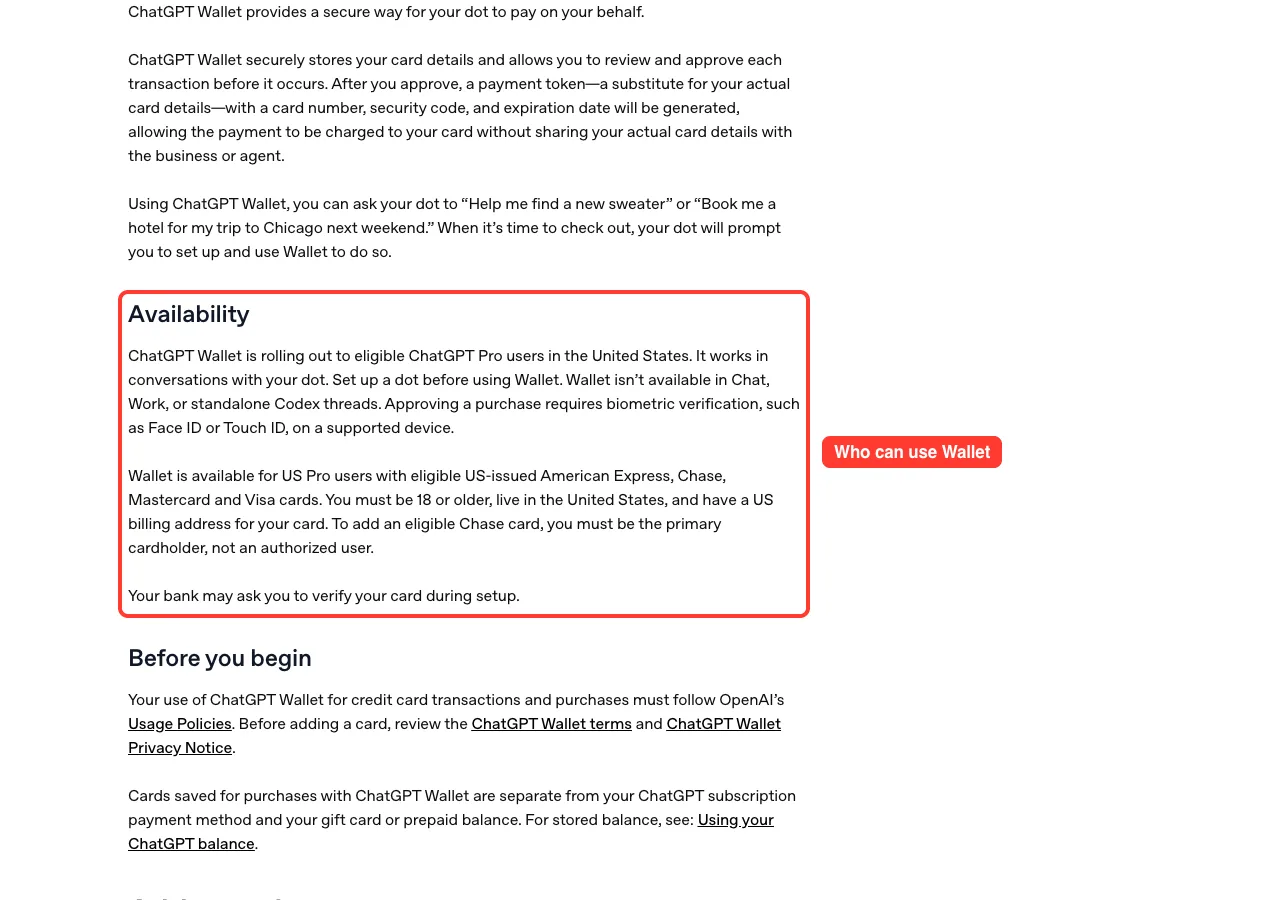
A few card rules are easy to miss. Debit cards are not supported, virtual cards are not supported at launch, and for a Chase card you must be the primary cardholder, not an authorized user.
How to add a card
There are two ways in. You can ask your dot, or you can start from the Wallet section of the Settings page.
- In a conversation with your dot, ask: Help me add a card to Wallet.
- Open the secure card-setup request or link that appears in the conversation.
- Select Add Card and enter the card number, expiration date and security code in the secure form.
- Review the ChatGPT Wallet terms and Privacy Notice, then select Add card.
- Complete bank verification if your bank asks for it, and wait for the Card added message.
The key safety rule is in step 3. Card details go into the secure form, never into the chat itself, and the same is true for bank verification codes.
Cards you save in Wallet are also separate from the card that pays for your ChatGPT subscription and from any gift card or prepaid balance.
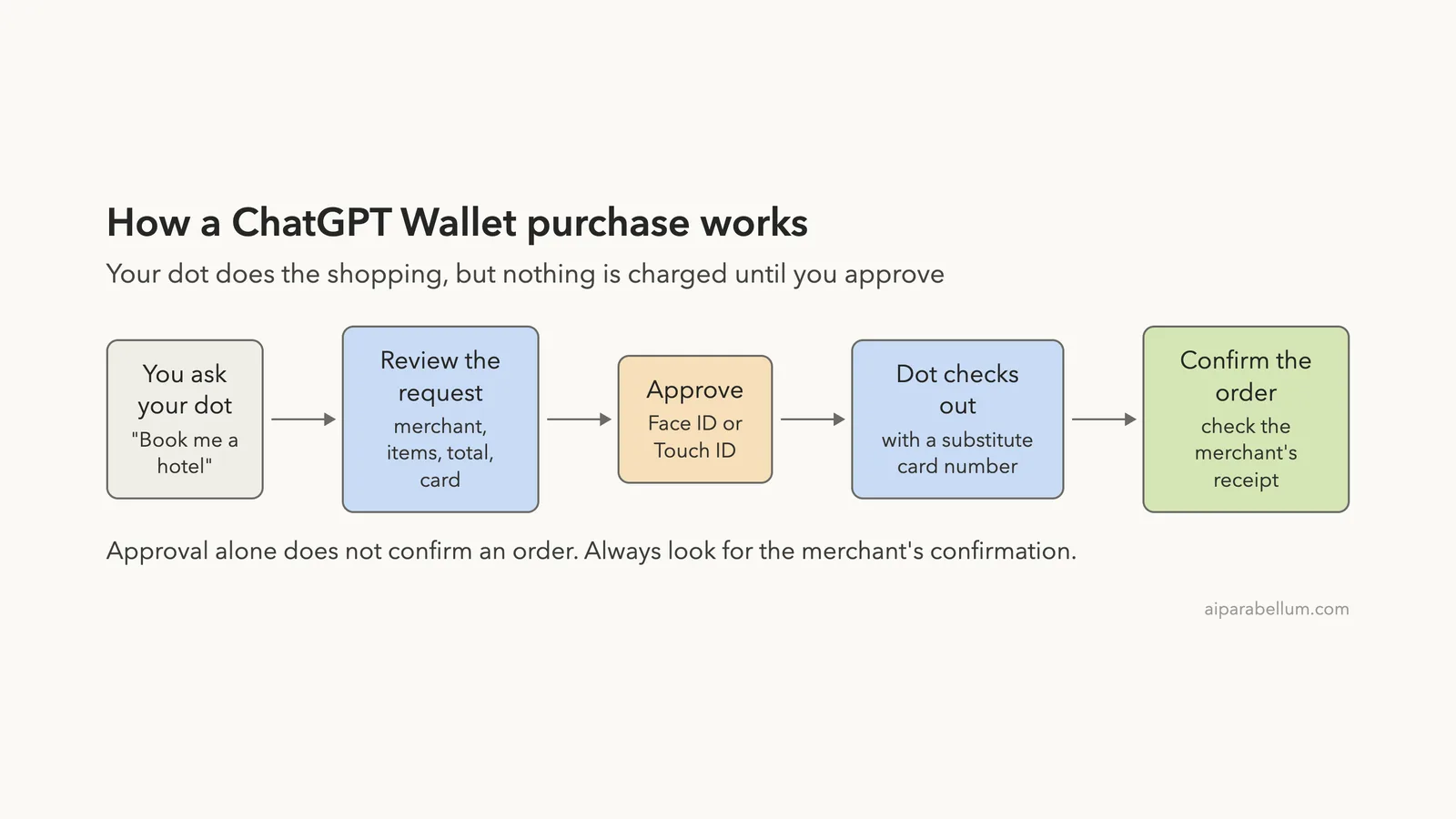
How a purchase works
Saving a card does not give your dot a blank check. Every purchase needs its own approval, and the Help Center lays the steps out clearly.
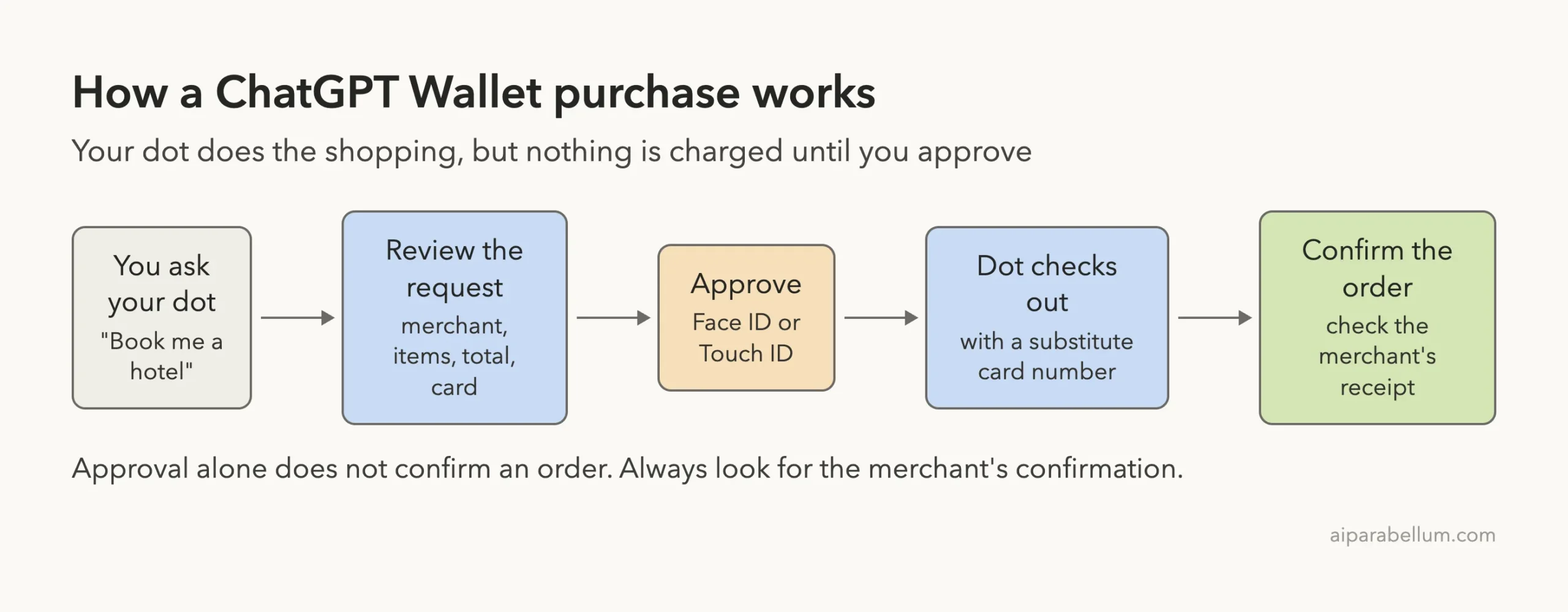
- Check the purchase details: the merchant, items, total, selected card and any shipping or recurring-payment terms.
- Select Approve and complete biometric verification, such as Face ID or Touch ID.
- Your dot continues checkout and reports the result.
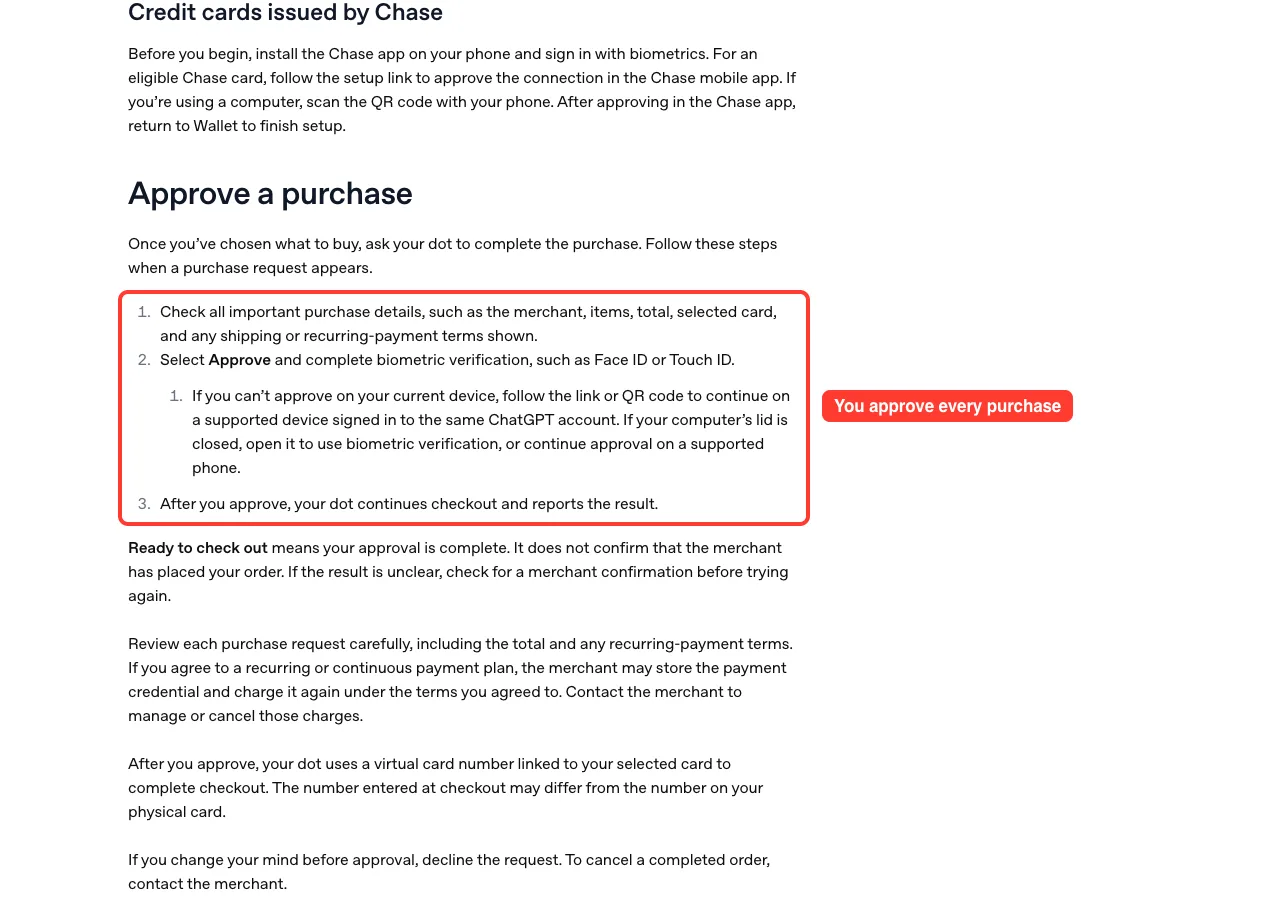
If you can’t approve on the device you are using, you can follow a link or QR code and finish on a supported device signed in to the same ChatGPT account. If you change your mind before approving, just decline the request.
What Wallet hides and what it does not promise
After you approve, Wallet creates a payment token. That is a substitute card number, security code and expiration date, so the business and the agent never see your real card details.
This is why the number on a receipt may not match the number on your physical card. The release notes add that you keep your card’s rewards and its protections for qualifying disputes.
There are honest limits too. Some websites may not support purchases made by agents, and a Ready to check out message only means your approval is complete.
Approval is not a receipt. Always look for the merchant’s own order confirmation before you try again.
Watch recurring plans as well. If you agree to a recurring payment, the merchant may store the payment credential and charge it again under those terms, and you manage or cancel those charges with the merchant.
Who to contact when something goes wrong
| Problem | Who to contact |
|---|---|
| Order status, cancellations, returns or refunds | The merchant |
| Declined, pending, disputed or unrecognized charges, or bank verification problems | Your card issuer |
| Wallet errors, or a purchase different from what you approved | OpenAI Support |
For every setup and support detail, read OpenAI’s full Wallet help article.
Advanced and Standard Voice Retire on December 11
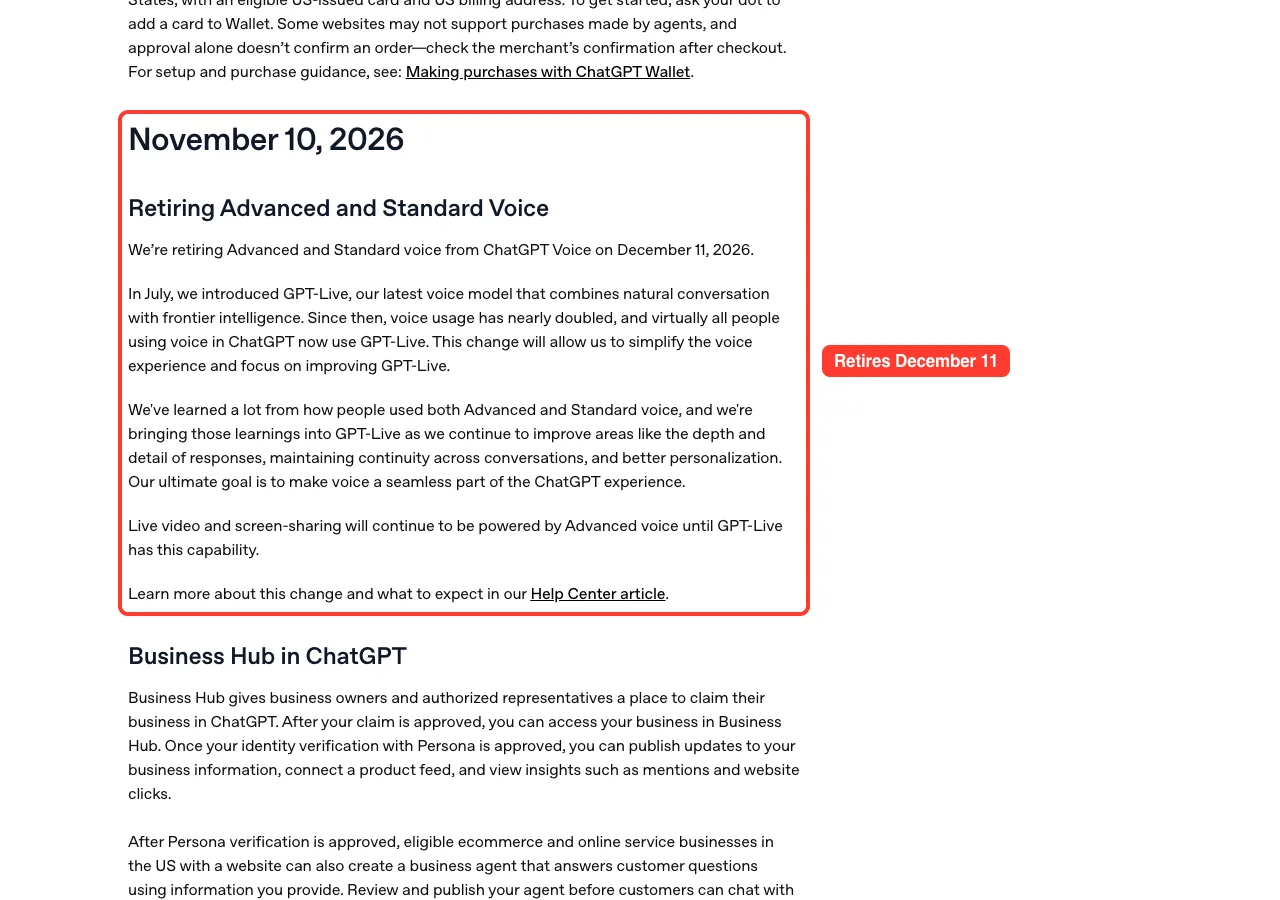
The second change is a goodbye. On November 10, OpenAI said it is retiring Advanced and Standard voice from ChatGPT Voice on December 11, 2026.
The reason given is GPT-Live, the voice model OpenAI introduced in July. The release notes say voice usage has nearly doubled since then and that virtually all people using voice in ChatGPT now use GPT-Live.
The retirement timeline
The Help Center article breaks the change into three stages.
| When | What happens |
|---|---|
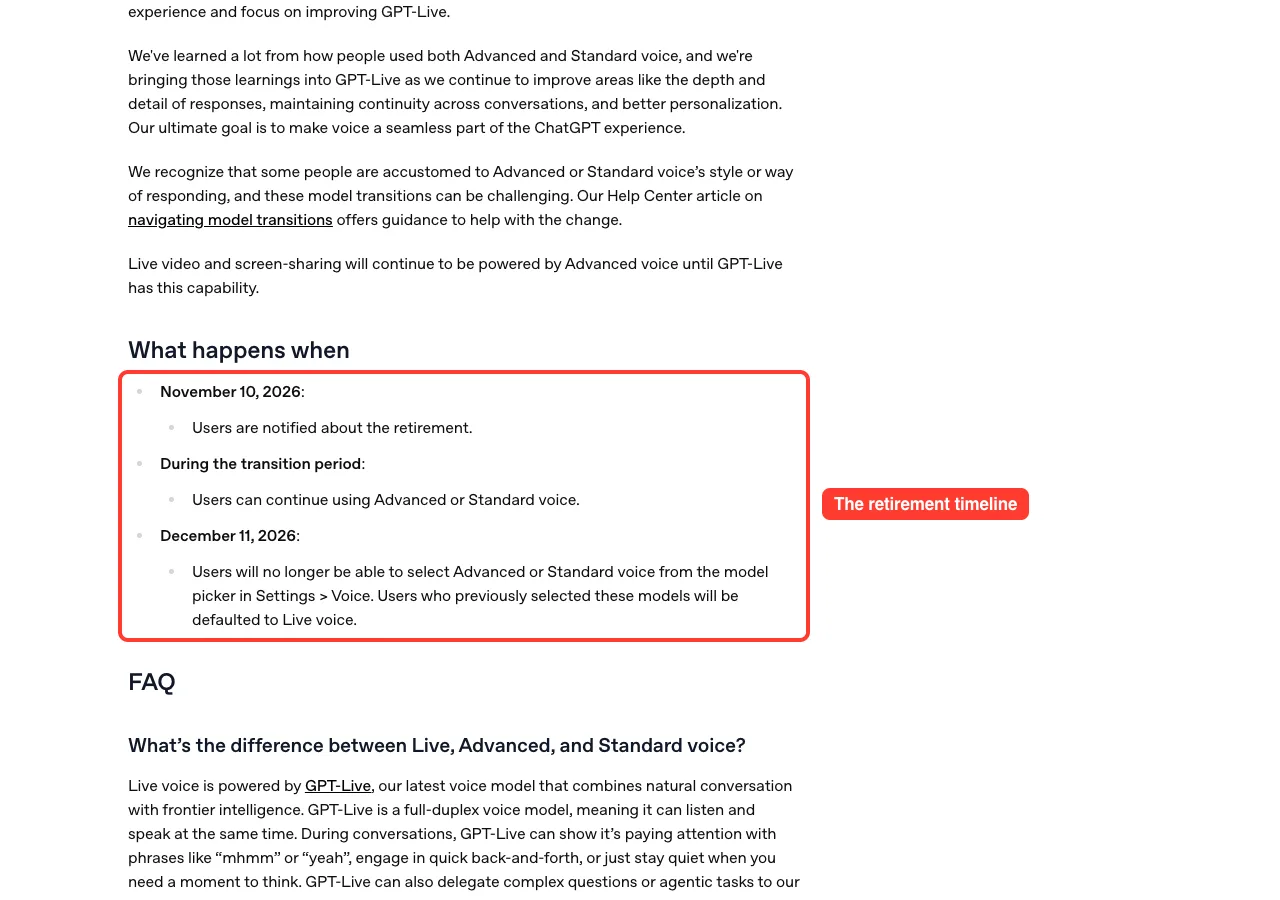
| November 10, 2026 | Users are notified about the retirement |
| Transition period | You can keep using Advanced or Standard voice |
| December 11, 2026 | Advanced and Standard can no longer be selected in the model picker in Settings > Voice; anyone who had picked them is moved to Live voice |
How the three voice modes differ
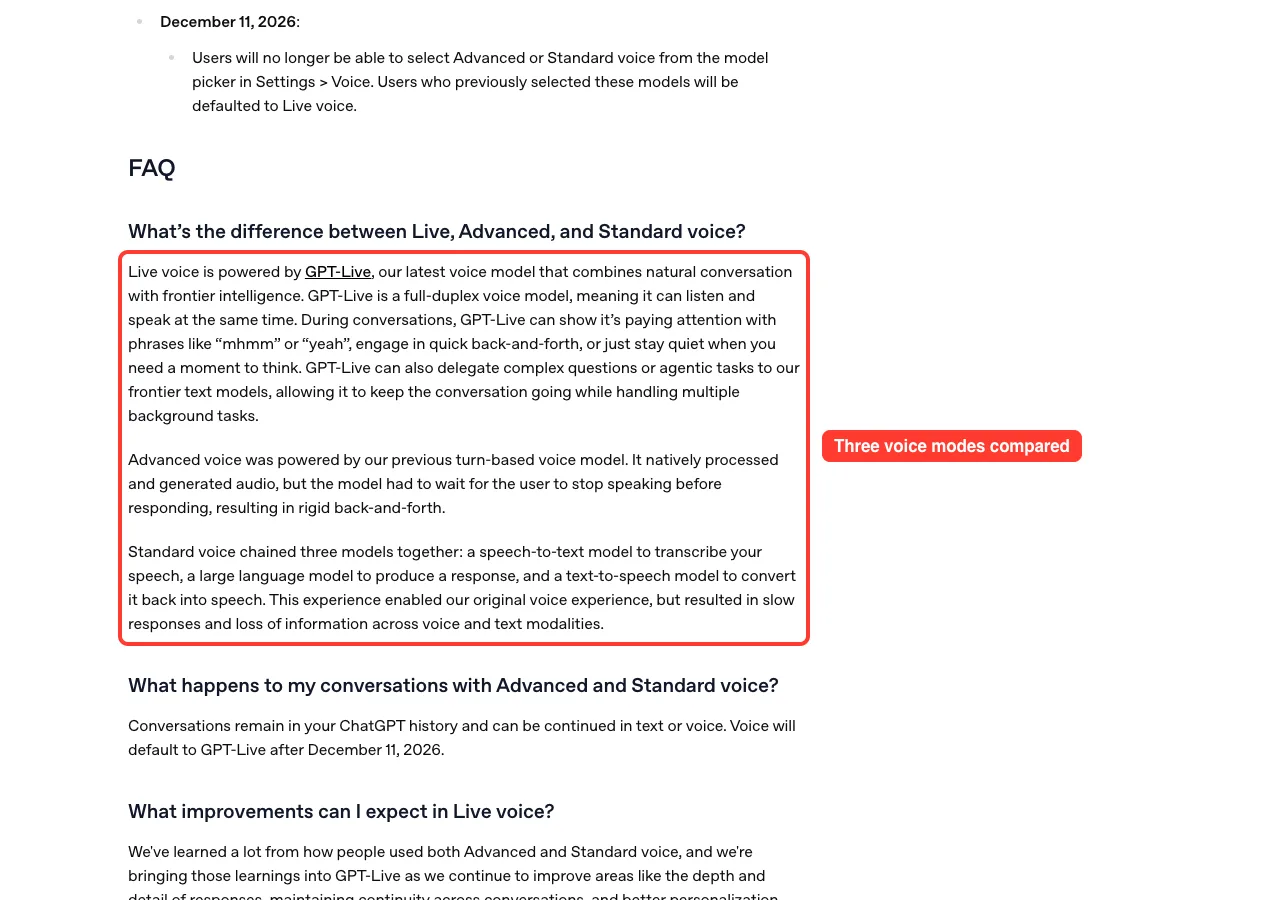
If you never looked at the voice picker, the names can blur together. Here is how OpenAI describes each one.
| Voice mode | How it works | What it feels like |
|---|---|---|
| Live (GPT-Live) | Full-duplex model that can listen and speak at the same time | Quick back-and-forth; it can say things like mhmm, or stay quiet while you think |
| Advanced | Previous turn-based model that handled audio directly | It waited for you to stop speaking, which made the exchange rigid |
| Standard | Three models chained together: speech-to-text, a language model, then text-to-speech | Slower responses, with information lost between voice and text |
OpenAI also says GPT-Live can hand complex questions or agentic tasks to its frontier text models. That lets it keep talking while work happens in the background.
What stays the same
- Your conversations remain in your ChatGPT history and can be continued in text or voice.
- Live video and screen-sharing will keep running on Advanced voice until GPT-Live has this capability.
- Voice with custom GPTs keeps using Advanced voice until custom GPTs are deprecated, which is also set for December 11, 2026.
OpenAI admits the switch may be hard for people who like the older style. It says it is bringing lessons from both older modes into GPT-Live, with work on depth and detail of responses, continuity across conversations and personalization.
The full notice is in OpenAI’s voice retirement article.
Business Hub in ChatGPT: Claim and Manage Your Business
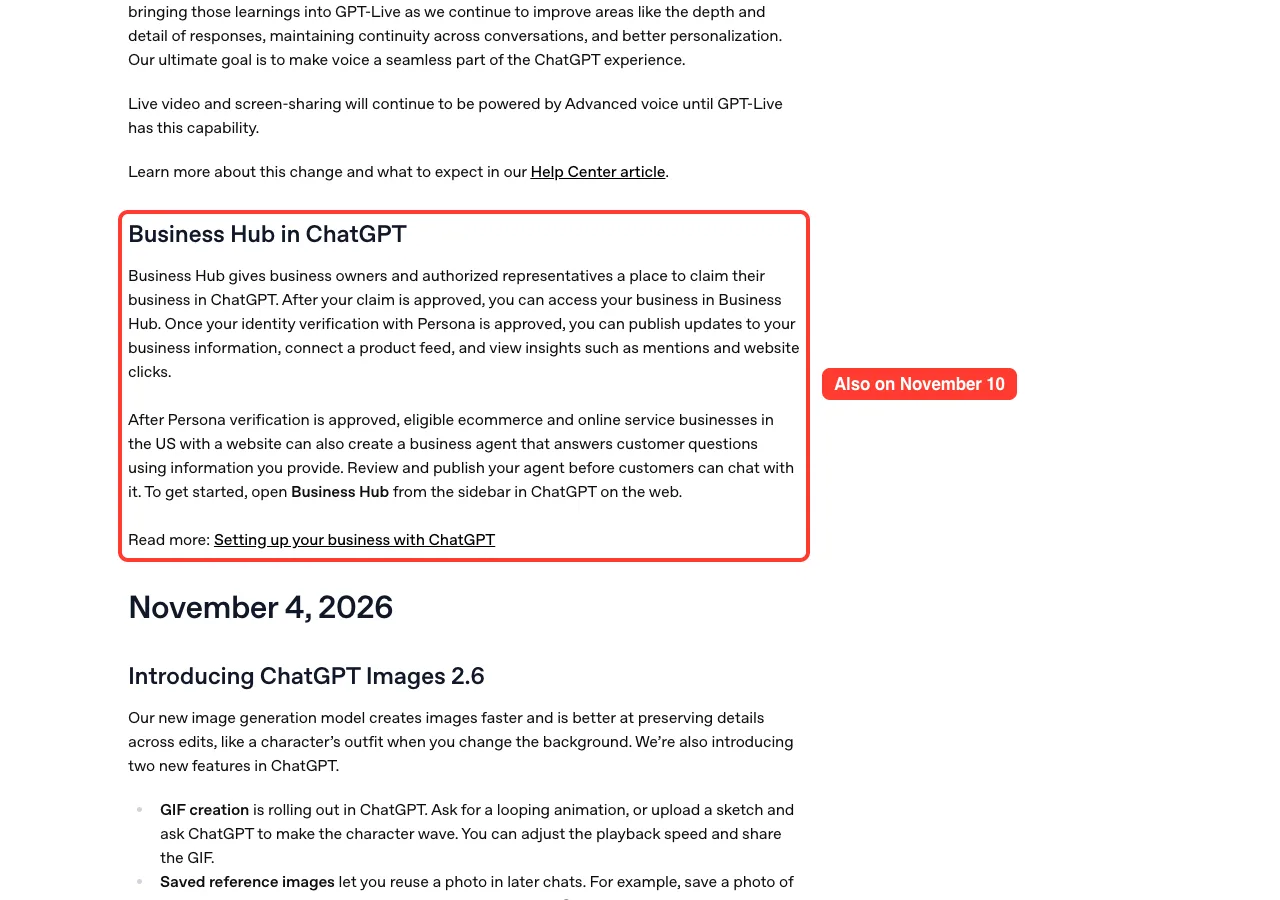
The third entry, also dated November 10, is for people who run a business. Business Hub gives owners and authorized representatives a place to claim their business in ChatGPT.
Once approved, you can publish updates to your business information, connect a product feed and view insights such as mentions and website clicks. Our Business Hub story covers the launch itself.
Two approvals, not one
The part most people will trip on is that there are two separate checks. First you claim the business, then you complete identity verification with Persona.
| Step | What it unlocks |
|---|---|
| Claim approved | Access to your business in Business Hub |
| Persona verification approved | Publishing changes, connecting a product feed, viewing Insights, creating an agent if eligible, and the blue check verified badge |
You don’t need an Ads account or a ChatGPT Enterprise agreement to claim an eligible business. For Persona, OpenAI says you may need a government-issued ID, business registration information and proof that you’re authorized to represent the business.
How to verify a claim
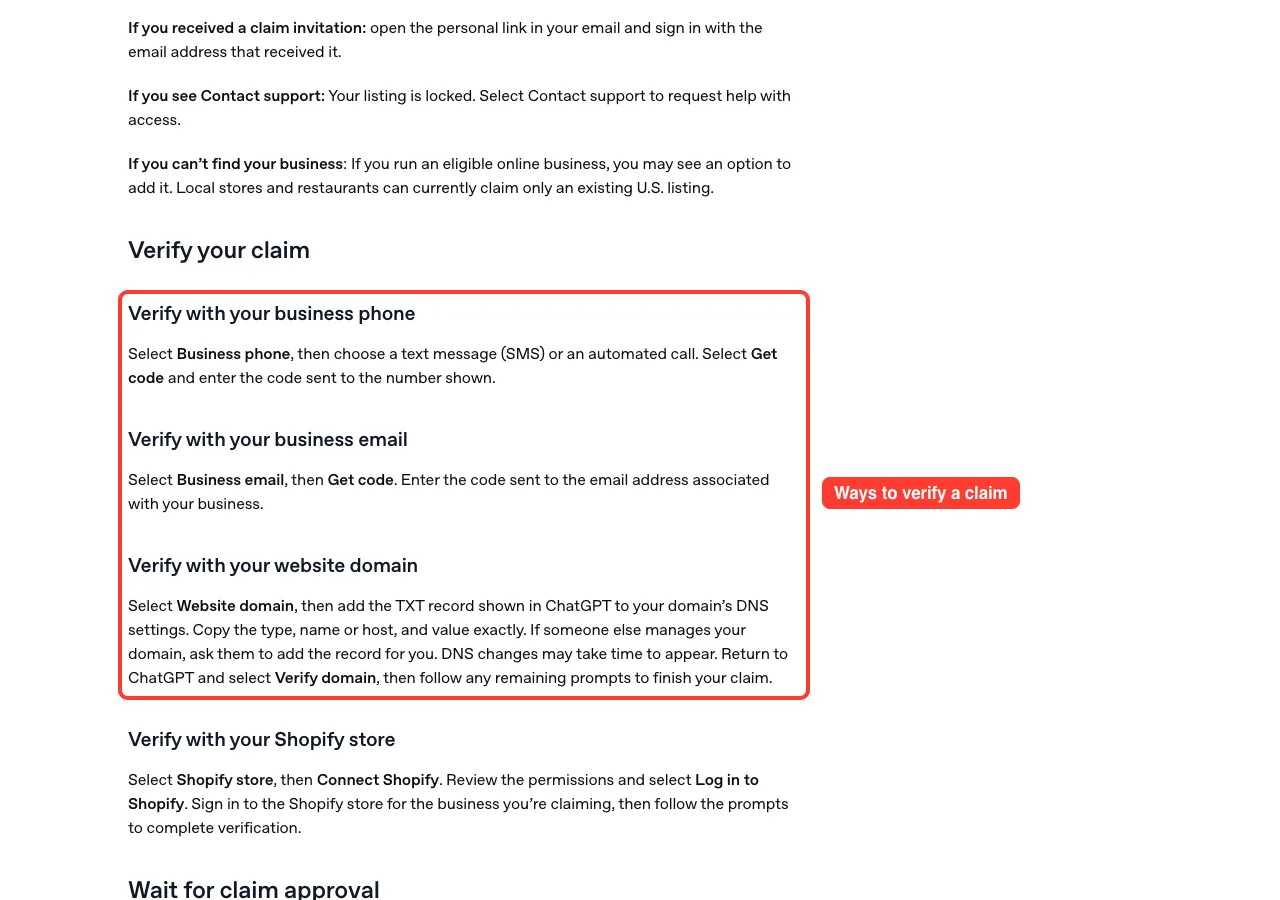
To start, open Business Hub from the sidebar in ChatGPT on the web, pick the listing that matches your business and choose a verification method. The help article lists four.
- Business phone: get a code by text message or automated call.
- Business email: get a code at the email address associated with your business.
- Website domain: add the TXT record shown in ChatGPT to your domain’s DNS settings, then select Verify domain.
- Shopify store: connect Shopify and log in to the store for the business you’re claiming.
OpenAI then reviews the claim and emails its decision or a request for more information. If you can’t find your business, eligible online businesses may see an option to add one, while local stores and restaurants can currently claim only an existing US listing.
What Insights shows
Insights report aggregate activity over the past 28 days. There are three parts.
- Mentions: for an online business, a mention counts when ChatGPT references the business’s website. The brand name alone doesn’t count.
- Website clicks: how often people click through to your website.
- Discovery topics: common themes in ChatGPT answers that mentioned or cited your business.
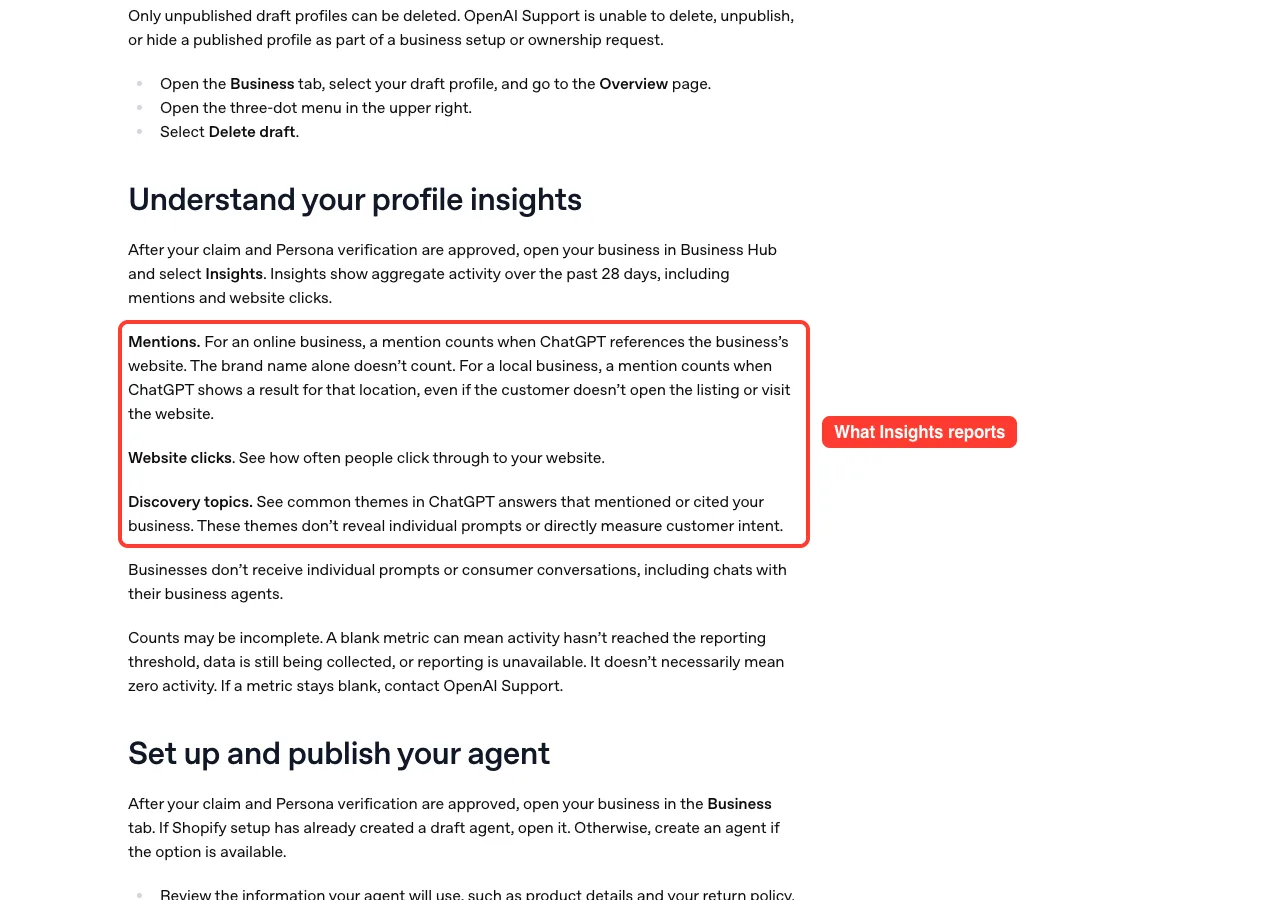
Businesses don’t receive individual prompts or consumer conversations, including chats with their own business agents. A blank metric also doesn’t necessarily mean zero activity; it can mean the data hasn’t reached the reporting threshold yet.
Business agents and their limits
Eligible ecommerce and online service businesses in the US with a website can also create a business agent. It answers customer questions using information you provide, and customers can only chat with it after you review and publish it.
The agent has clear limits today. It can explain products and policies and link to your website, but it can’t complete purchases, make bookings or check a customer’s order.
Claiming a business lets you manage your information. It does not guarantee that ChatGPT recommends you more often.
That last point comes straight from OpenAI’s FAQ, which also says advertising doesn’t influence ChatGPT’s independent answers. The full steps are in OpenAI’s business setup guide.
What’s New in ChatGPT and What This Means for You
Three changes, three different audiences. Here is the quick read for each.
- If you are a Pro user in the US: Wallet may show up in your dot soon. Start with a small purchase, read every approval screen and check the merchant’s confirmation afterward.
- If you are on another plan or outside the US: Wallet is not for you yet. The release notes list no date for other plans or regions.
- If you use ChatGPT Voice: nothing breaks today. If you still pick Advanced or Standard on purpose, try Live voice before December 11 so the change doesn’t catch you off guard.
- If you share your screen or camera in voice chats: those features stay on Advanced voice for now.
- If you own a business: claiming is free of any ads requirement, so it is worth a look. Have your ID and registration details ready for Persona.
- If you only chat in text: this week changes nothing for you.
Comparing assistants before you commit to one? Our assistant comparison puts ChatGPT next to Claude and Gemini.
Common Mistakes to Avoid
- Typing card numbers or bank codes into the chat. They belong only in the secure form.
- Treating Ready to check out as an order confirmation. It only confirms your approval.
- Retrying a failed checkout right away. Check for a merchant confirmation and any pending charge first.
- Trying to add a debit or virtual card to Wallet. Neither is supported at launch.
- Assuming a claimed business is a verified business. The blue check only appears after Persona approval.
- Reading a blank Insights metric as zero activity.
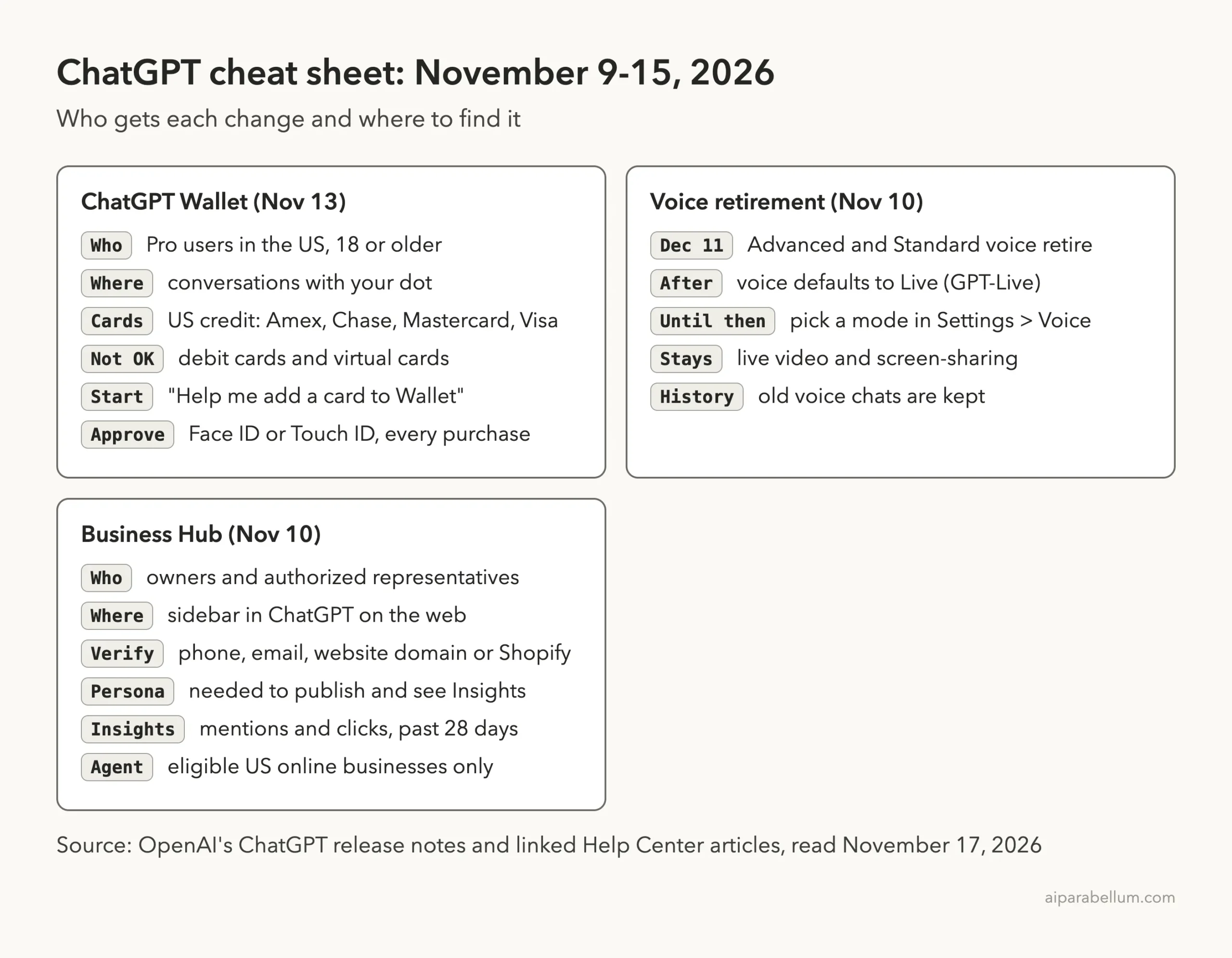
Cheat Sheet: This Week in ChatGPT
Save this card if you want the plans, dates and settings in one place.
Follow other tools too? We also publish a weekly Claude Code roundup and covered the Claude apps in our Claude app roundup.
Frequently Asked Questions
What’s new in ChatGPT this week?
The official release notes list three entries for November 9-15, 2026: ChatGPT Wallet on November 13, plus the retirement notice for Advanced and Standard voice and the launch of Business Hub on November 10.
Who can use ChatGPT Wallet?
ChatGPT Pro subscribers age 18 or older in the United States, with an eligible US-issued credit card and a US billing address. It works only in conversations with your dot and is rolling out gradually.
Can I use a debit card with ChatGPT Wallet?
No. OpenAI’s help article says Wallet doesn’t support debit cards, and virtual cards are not supported at launch either. You need an eligible US-issued credit card.
When do Advanced and Standard voice go away?
On December 11, 2026. After that date you can no longer select them in Settings > Voice, and voice defaults to Live voice, which is powered by GPT-Live. Your past conversations stay in your history.
Does claiming my business make ChatGPT recommend it more?
No. OpenAI says claiming lets you manage the information you provide, but it doesn’t guarantee more visibility or give you control over ChatGPT’s independent recommendations.
Conclusion
This was a short but meaningful week for ChatGPT: Wallet turns your dot into something that can actually check out for you, with an approval step in front of every charge; Advanced and Standard voice now have a firm end date of December 11, 2026; and Business Hub gives owners a way to claim and manage how their business appears. Each change comes with clear limits on plans, regions and features, so check the fine print before you rely on it. You can read every entry yourself in the ChatGPT release notes, and we will be back next week with the next batch.