
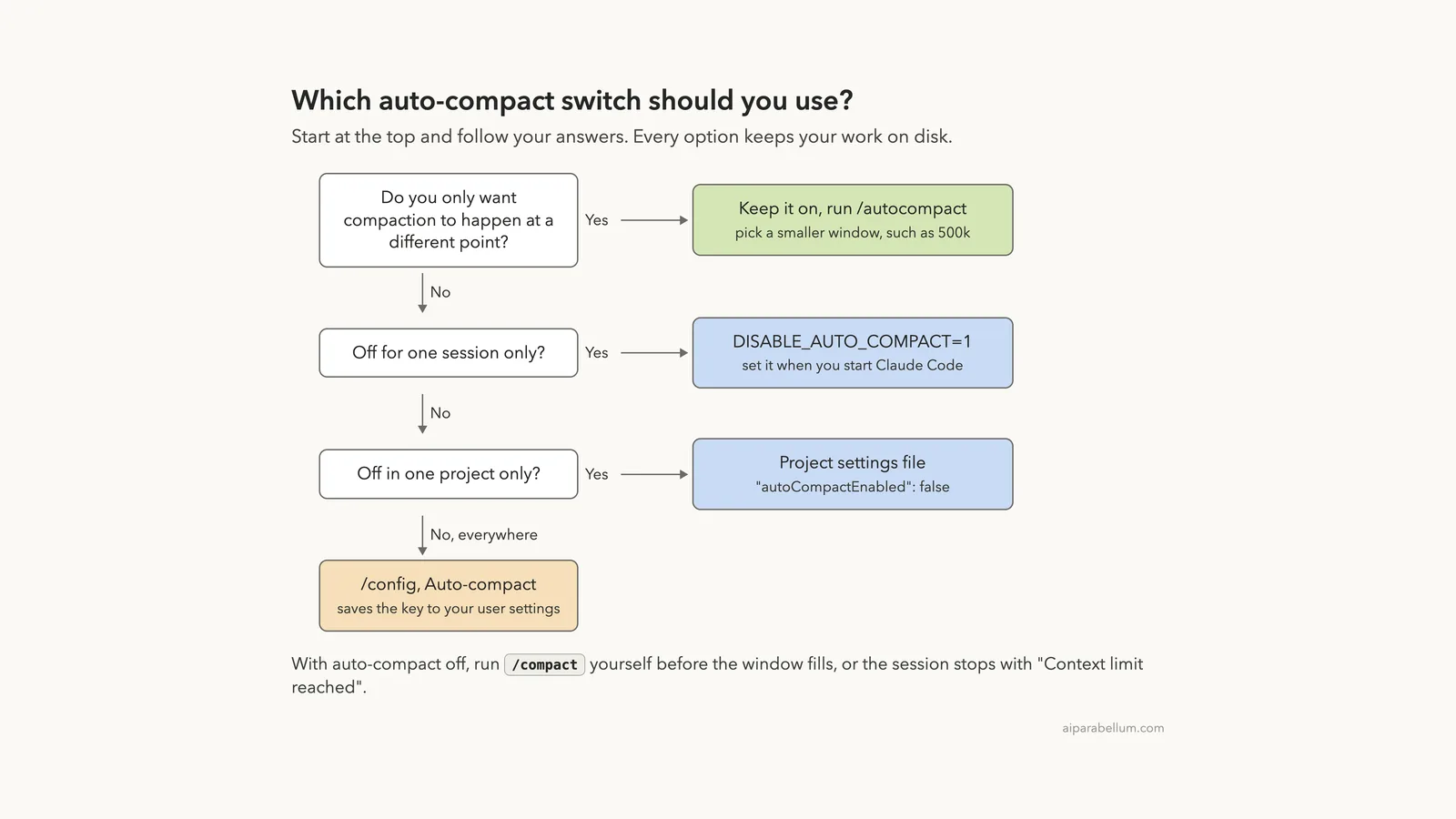
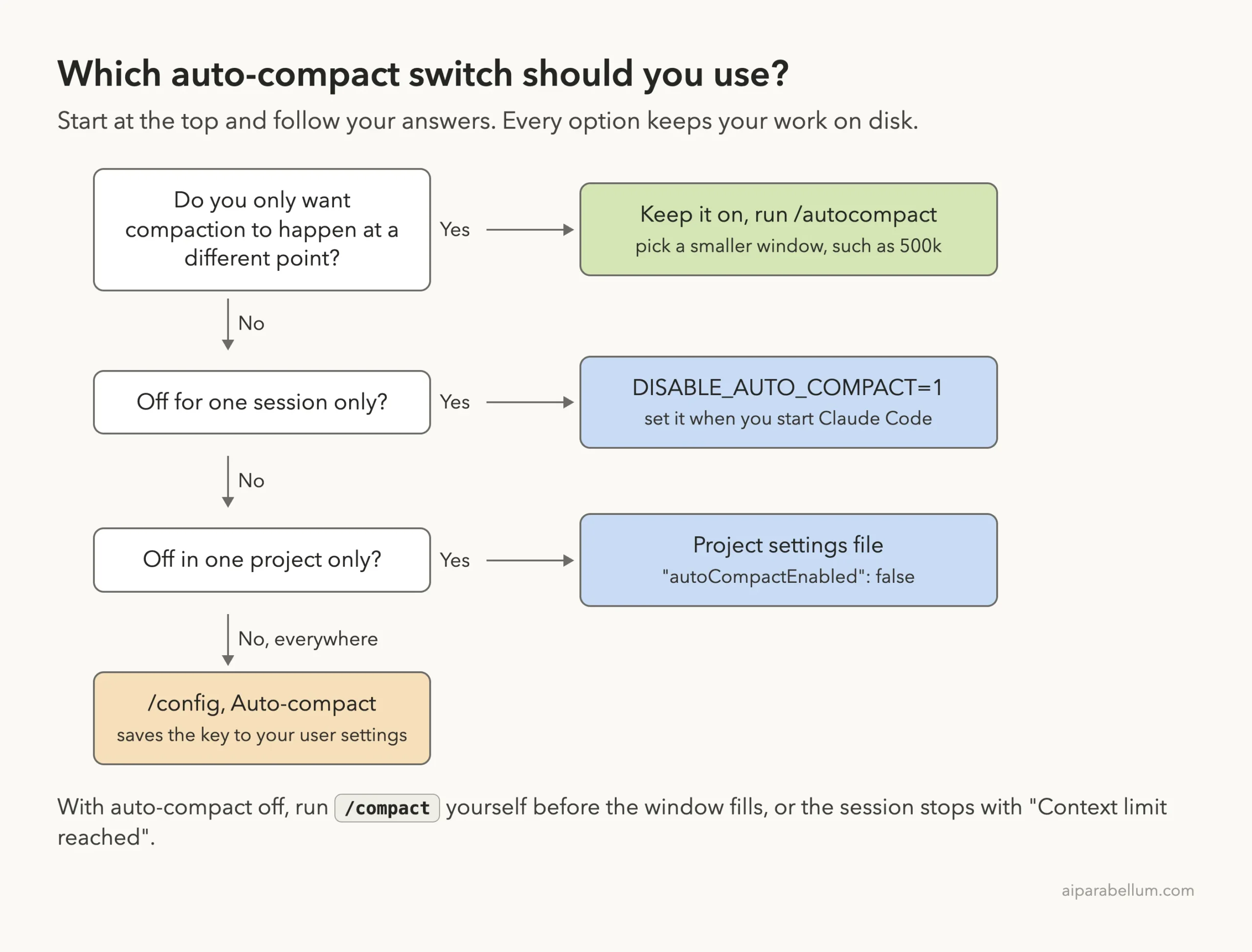
To disable auto-compact in Claude Code, run /config, find the Auto-compact row and switch it from true to false. That saves "autoCompactEnabled": false to your user settings, and Claude Code stops summarizing your conversation on its own.
You have two other switches. Add "autoCompactEnabled": false to a project settings file to turn it off for one project, or start Claude Code with DISABLE_AUTO_COMPACT=1 to turn it off for one session.
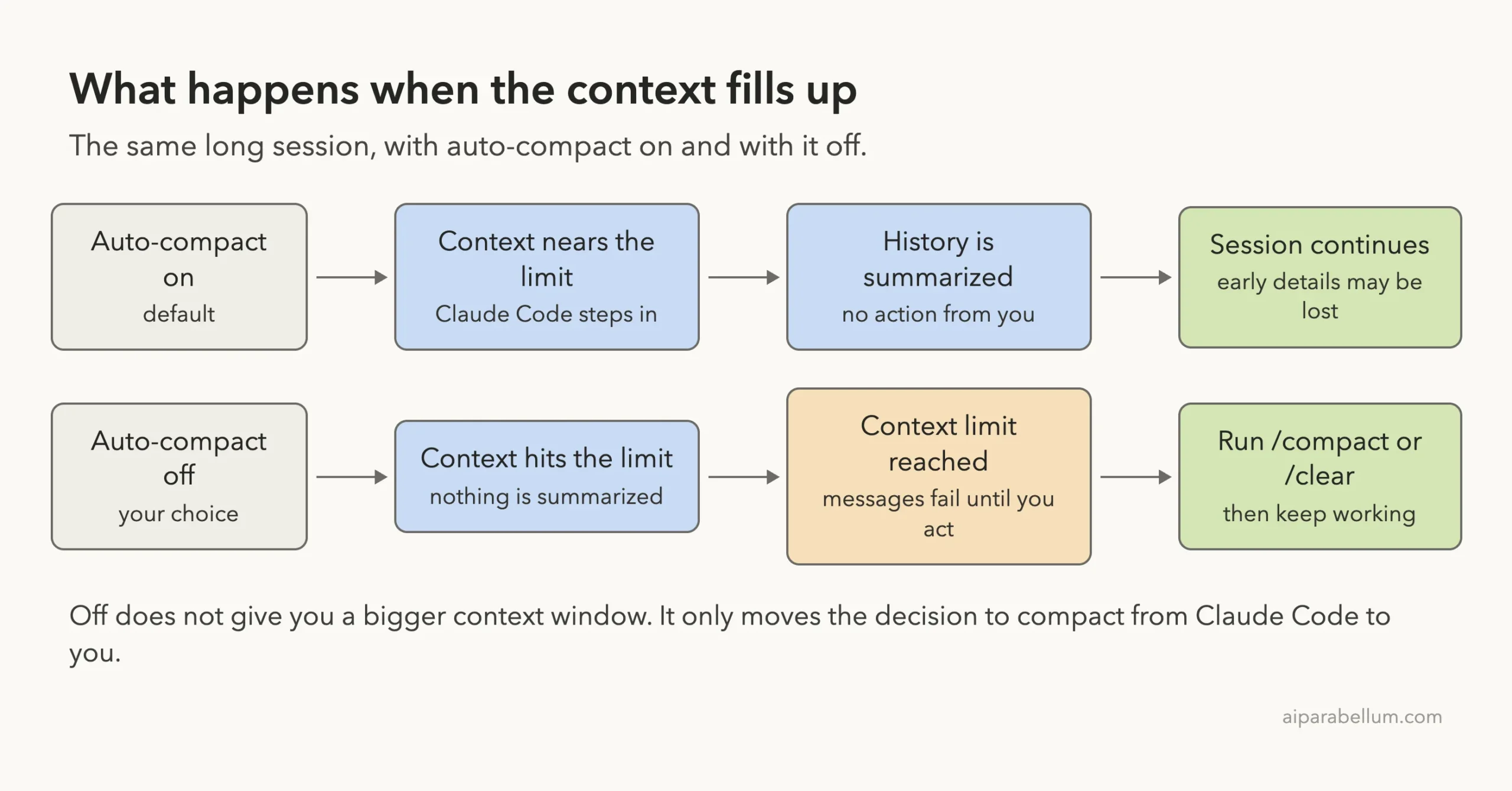
There is a catch. With auto-compact off, a full context window ends in a “Context limit reached” error, and you have to run /compact or /clear yourself before you can keep working.
This guide is part of our help series. Browse all our Claude Code tutorials for more fixes and how-tos.
Tested with Claude Code v2.1.325 on macOS on November 16, 2026. We tested the settings key at project scope and both environment variables in a small throwaway demo folder, and every terminal capture below is real.
We tested on macOS; the Windows and Linux steps follow Anthropic’s official instructions. The settings key and the variable names are the same on all three.
Disable Auto-Compact in Claude Code: Quick Summary
| What you want | What to use | Where it applies |
|---|---|---|
| Off everywhere | /config, Auto-compact row | Your user settings, every project |
| Off in one project | "autoCompactEnabled": false in .claude/settings.json | That project only |
| Off for one session | DISABLE_AUTO_COMPACT=1 | The session you start with it |
| Stop only the idle pass | "idleCompaction": false | Conversations you step away from |
| Compact earlier, not never | /autocompact 500k | The current model, saved for later sessions |
| Remove compaction completely | DISABLE_COMPACT=1 | Auto-compact and /compact, one session |
What Auto-Compact Does and Why It Exists
Claude Code keeps your whole conversation in a context window: your prompts, the files it read, command output and its own replies. That window has a size limit. Auto-compact is the safety net that keeps a long session alive when the window gets full.
When the conversation gets close to the limit, Claude Code replaces the older history with a summary. According to the official docs, the summary keeps your requests and key code snippets, but detailed instructions from early in the conversation may be lost.
That last part is why people go looking for the off switch. If you gave Claude a careful rule in the first ten minutes, a compaction can quietly blur it. Our guide to the context window covers how the window fills up in the first place.
Auto-compact trades some early detail for a session that never hits a wall.
Where to See the Setting
Type /config and press Enter, then type the word compact to filter the list. In our session three rows showed up: Auto-compact, Idle compaction and Precompute compaction, all set to true.
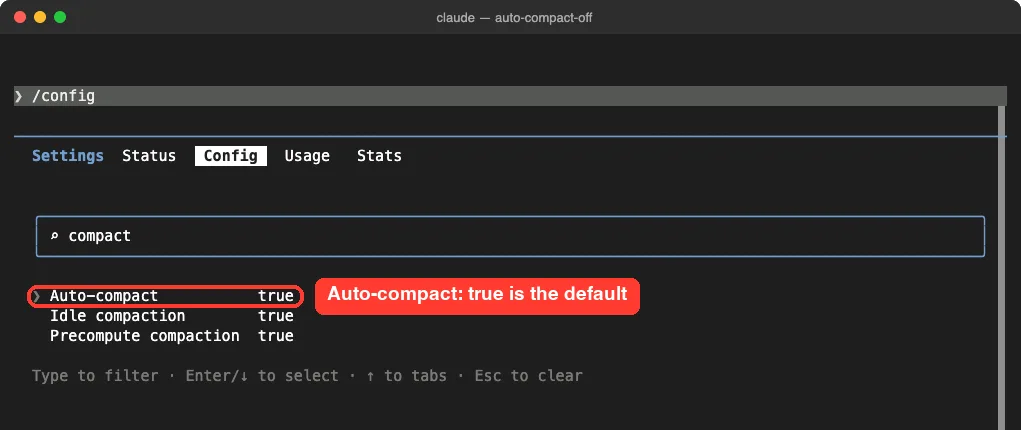
The first two rows are covered in the official settings reference. The Precompute compaction row is not described in the pages we read, so we left it alone and this guide does not cover it.
Fix 1: Turn Off Auto-Compact With /config
This is the method Anthropic documents for most people. Tested or docs: from the official docs, because the toggle writes to user settings; we tested the same key in a project file in Fix 2.
- Type
/configand press Enter. - Type compact to filter the list, then press Enter or the down arrow to move into the rows.
- With Auto-compact selected, press Enter or Space to change true to false.
- Press
Escto close the screen.
The docs say the toggle writes autoCompactEnabled to your user settings, which is the file at ~/.claude/settings.json. It then applies to every project on your machine, unless a project or managed settings file says otherwise.
To turn it back on, repeat the steps and switch the row back to true. If you are not sure which file a setting lives in, see our guide on settings.json locations.
Fix 2: Set autoCompactEnabled to False in a Settings File
The settings reference lists autoCompactEnabled with the scope “Any file”. That means you can put it in user, project or local settings. Tested or docs: tested at project scope.
We created .claude/settings.json inside the demo project with one key:
{
  "autoCompactEnabled": false
}
Then we started a new session in that folder and opened /config again. The Auto-compact row now read false, without us touching the toggle.
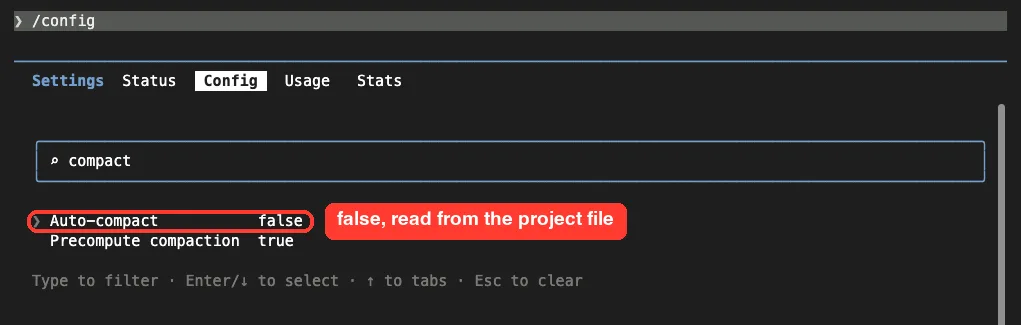
Use .claude/settings.json if the whole team should get the setting, or .claude/settings.local.json if it is only for you. Our settings files guide explains which file wins when two of them disagree.
How to Confirm It Is Really Off
The /config row tells you what the setting says. The /context command tells you what the session is actually doing, and it costs no tokens to run. Here is /context with auto-compact on.
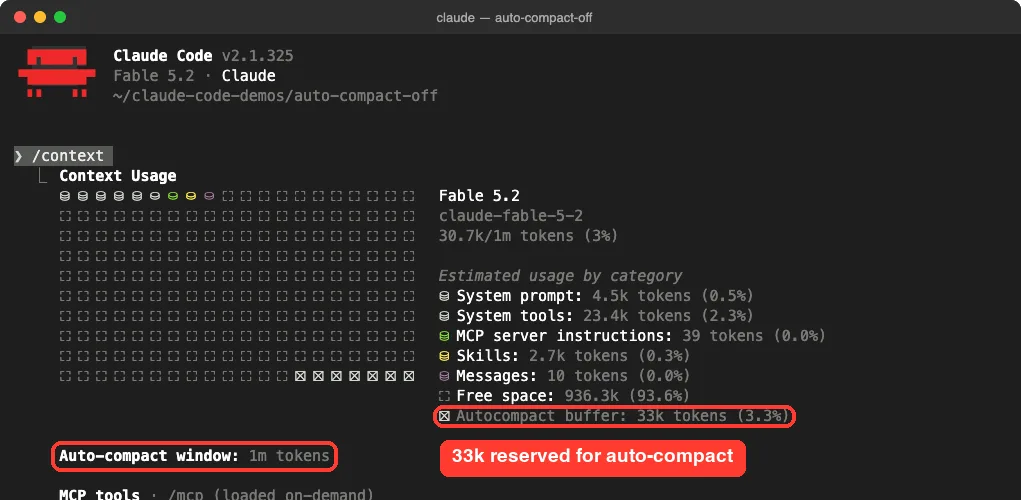
And here is the same command in the same folder after we added the project setting. The Autocompact buffer row and the Auto-compact window line are gone, and a small Compact buffer row takes their place.
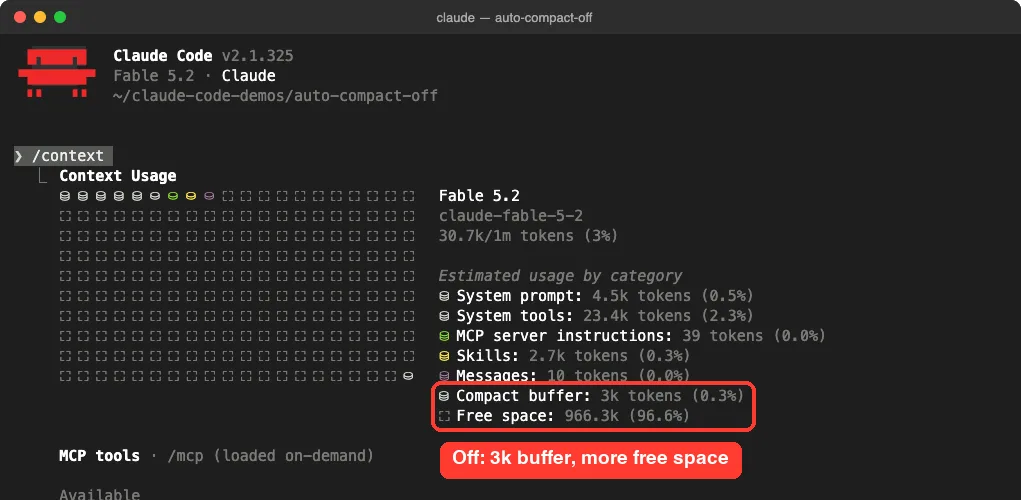
Row in /context | Auto-compact on | Auto-compact off |
|---|---|---|
| Buffer | Autocompact buffer: 33k tokens (3.3%) | Compact buffer: 3k tokens (0.3%) |
| Free space | 936.3k (93.6%) | 966.3k (96.6%) |
| Auto-compact window line | 1m tokens | Not shown |
These numbers come from one fresh session on a model with a 1 million token window. Yours will differ with your model and setup, but the pattern is the quick check: no Autocompact buffer row means auto-compact is off.
Fix 3: Use DISABLE_AUTO_COMPACT for One Session
If you only want it off for a single run, set an environment variable when you start Claude Code. Tested or docs: tested.
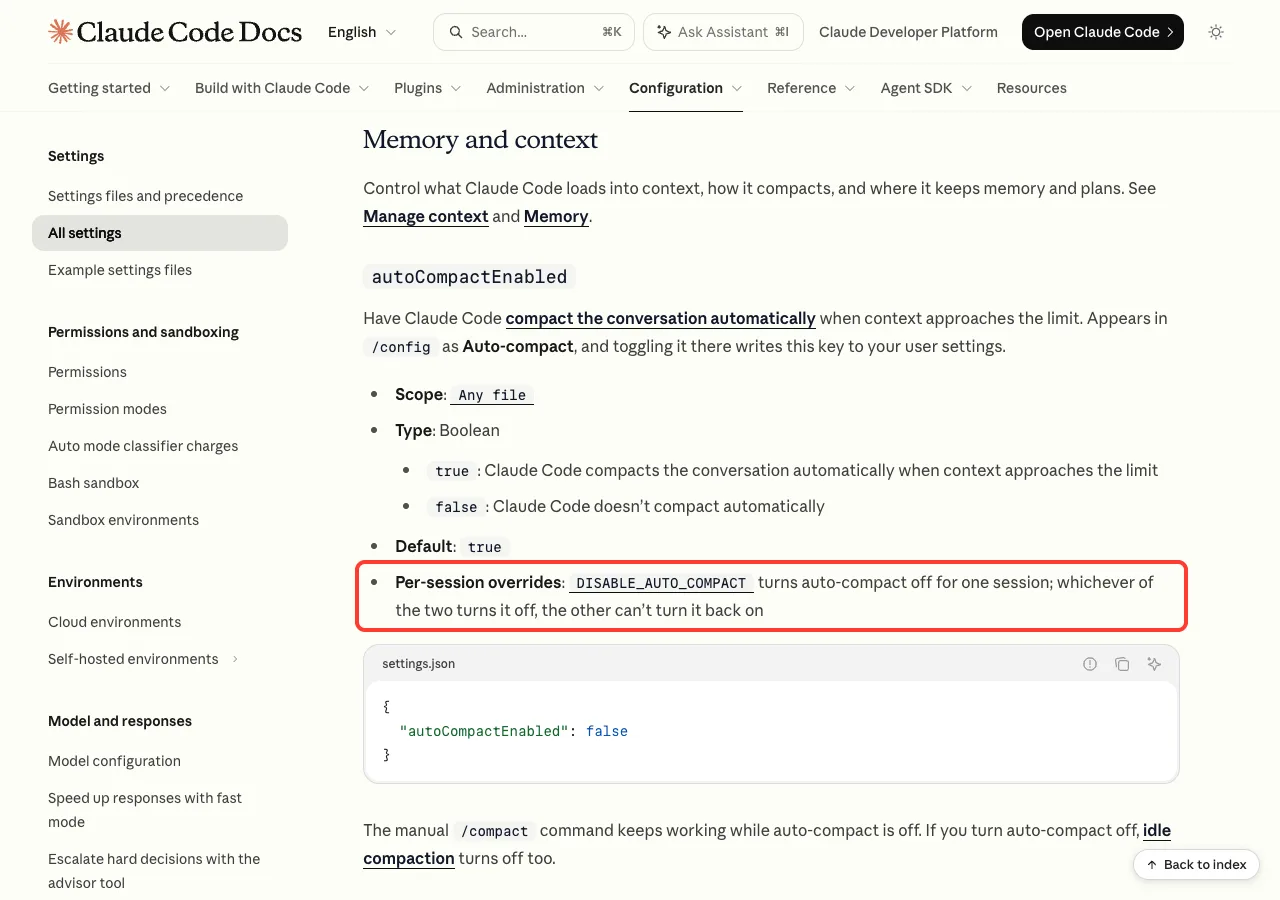
DISABLE_AUTO_COMPACT=1 claudeThe docs describe this variable as the way to disable automatic compaction and idle compaction while keeping the manual /compact command. They also say that whichever of the two turns auto-compact off, the setting or the variable, the other cannot turn it back on.
In our test, /context showed the same off pattern as Fix 2: a 3k Compact buffer and 966.3k of free space. One thing surprised us, though. The /config row still said true.
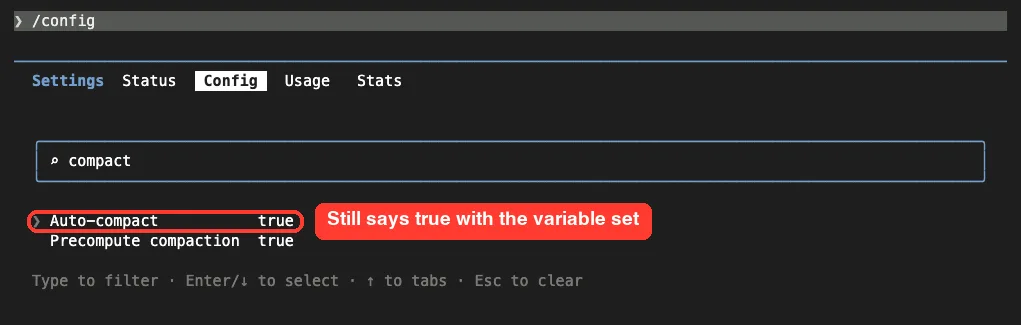
So do not trust the /config row alone when a variable is in play. Run /context and look for the Autocompact buffer row instead.
DISABLE_COMPACT Is a Different Switch
There is a second variable with a similar name. DISABLE_COMPACT=1 disables all compaction, both the automatic pass and the manual /compact command.
We started a session with it and typed /compact. The command was missing from the menu, and only /autocompact was offered.
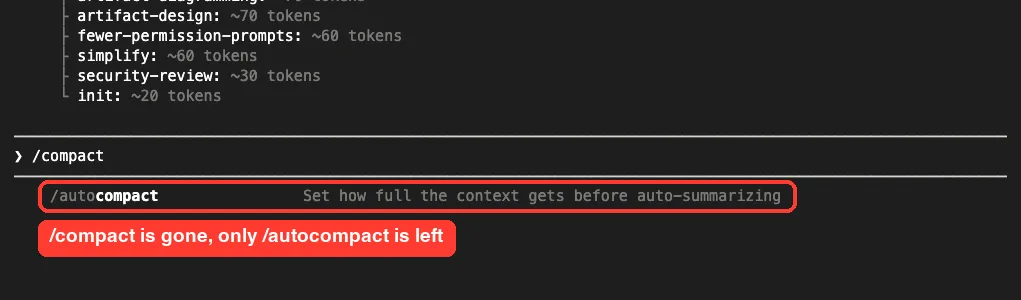
Most people do not want this one. With it set, your only way out of a full window is /clear, which starts a new conversation.
What Happens at the Context Limit When It Is Off
Turning auto-compact off does not give you a bigger context window. It only changes who decides when to summarize. Tested or docs: from the official error reference, since filling a 1 million token window for a screenshot is not a reasonable test.
According to the docs, an interactive session shows this line when the window is full and auto-compact was turned off in your user settings:
Context limit reached · /compact or /clear to continue · auto-compact is off · /config to turn it on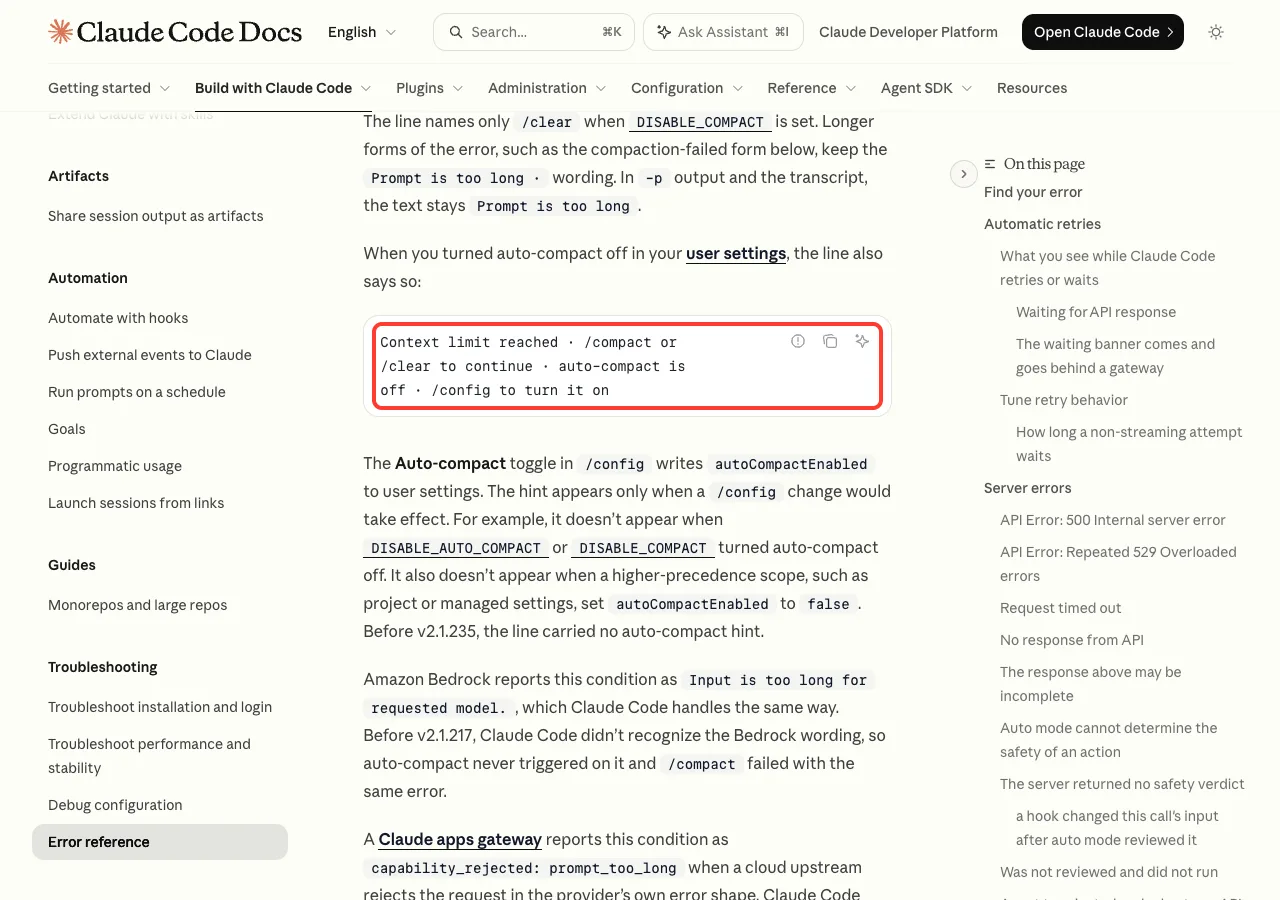
The docs add a few details worth knowing:
- Until you run
/compactor/clear, new messages keep failing with the same error. - In
-poutput the text is “Prompt is too long” instead. - The “/config to turn it on” hint only appears when a
/configchange would work. It does not appear if a variable or a project file turned auto-compact off. - If
/compactanswers “Not enough messages to compact.”, the window was filled by one huge prompt, so run/clearand send less.
For the full list of related messages, see our roundup of common errors.
When You Shouldn’t Turn Off Auto-Compact
The official error reference is direct about this: auto-compact is on by default and normally prevents the “Prompt is too long” error. Leave it on in these cases.
- Long tasks you do not watch. If Claude is working while you are away, a full window stops the work until you come back.
- Scripts that use
-p. There is nobody at the keyboard to type/compact, so the run simply fails. - Auto mode. The docs note that when a conversation is too long for auto mode’s safety check, Claude Code tries to compact first, and they tell you to turn auto-compact back on if you had switched it off.
- You are new to Claude Code. The default handles context for you while you learn the rest.
When Turning It Off Makes Sense
- You want to choose the moment. A manual
/compactat a natural break, with a focus, keeps what you pick instead of what the automatic pass guesses. - You are in the middle of delicate work and do not want the history rewritten halfway through.
- You prefer to
/clearbetween tasks and rarely reach the limit anyway.
Off is a good fit only if you already check /context out of habit.
Better Options Than Switching It Off
Often the real complaint is not that compaction happens, but when it happens or what it forgets. Each of these keeps the safety net.
Compact Earlier With /autocompact
The /autocompact command sets how full the window gets before the automatic pass runs. Run it with no value to see the current window, or pass a size such as /autocompact 500k. Sizes from 100K to 1M tokens are accepted, and /autocompact auto returns to the default.
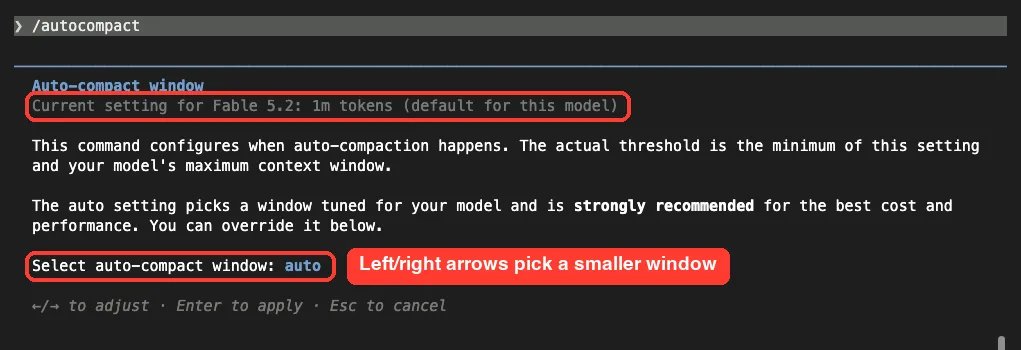
We opened the dialog and closed it with Esc without changing anything. Claude Code confirmed the window was unchanged at 1m tokens, the default for the model.
Tell Compaction What to Keep
You can guide the summary instead of avoiding it. Run /compact with a focus, such as /compact focus on the API changes, or add a section to your CLAUDE.md file:
# Compact instructions

When you are using compact, please focus on test output and code changes
The docs also recommend putting rules that must survive into the project-root CLAUDE.md, because it is reloaded after a compaction while conversation history is summarized.
Stop Only Idle Compaction
Idle compaction is a separate pass. It compacts a long conversation after you have been away for about an hour, so your next message sends a summary instead of the whole history. By default it applies once a conversation reaches 200,000 tokens.
If that is the part that bothers you, set "idleCompaction": false in a settings file or change the Idle compaction row in /config. Auto-compact itself stays on. The key requires Claude Code v2.1.290 or later.
Try It Yourself
You can repeat our check in two minutes without changing your user settings. Make an empty folder, add the project file from Fix 2, and start Claude Code there.
mkdir compact-test
cd compact-test
mkdir .claude
echo '{ "autoCompactEnabled": false }' > .claude/settings.json
claude
Run /context and look for the Compact buffer row. Then delete the settings file, start a new session, and run /context again to see the Autocompact buffer come back.
If you want Claude to explain your own setup, paste this prompt:
Check this project's .claude/settings.json and .claude/settings.local.json.
Tell me whether autoCompactEnabled or idleCompaction is set, and in which file.
Do not change anything.
Common Mistakes
- Expecting more room. Off does not raise the limit; it removes the automatic rescue.
- Mixing up the two variables.
DISABLE_AUTO_COMPACTkeeps/compact, whileDISABLE_COMPACTremoves it. - Toggling
/configwhen a project file already says false. The project file wins, so change the key there. - Trusting the
/configrow while a variable is set. In our test it still said true. - Turning it off to fix a stuck compaction. That is a different problem; see our fix for a session stuck compacting.
Pro Tips
- Run
/contextbefore a big task. If the window is already well used, compact with a focus first. - Use
/clearwhen you switch to unrelated work. Our comparison of clear vs compact shows when each one fits. - Keep the window small in the first place. These token saving tips help you reach the limit less often.
- Put a context meter in your status line so you see the window fill up without asking.
- If you use Claude AI on a team, agree on the project setting before you commit it, since it changes behavior for everyone.
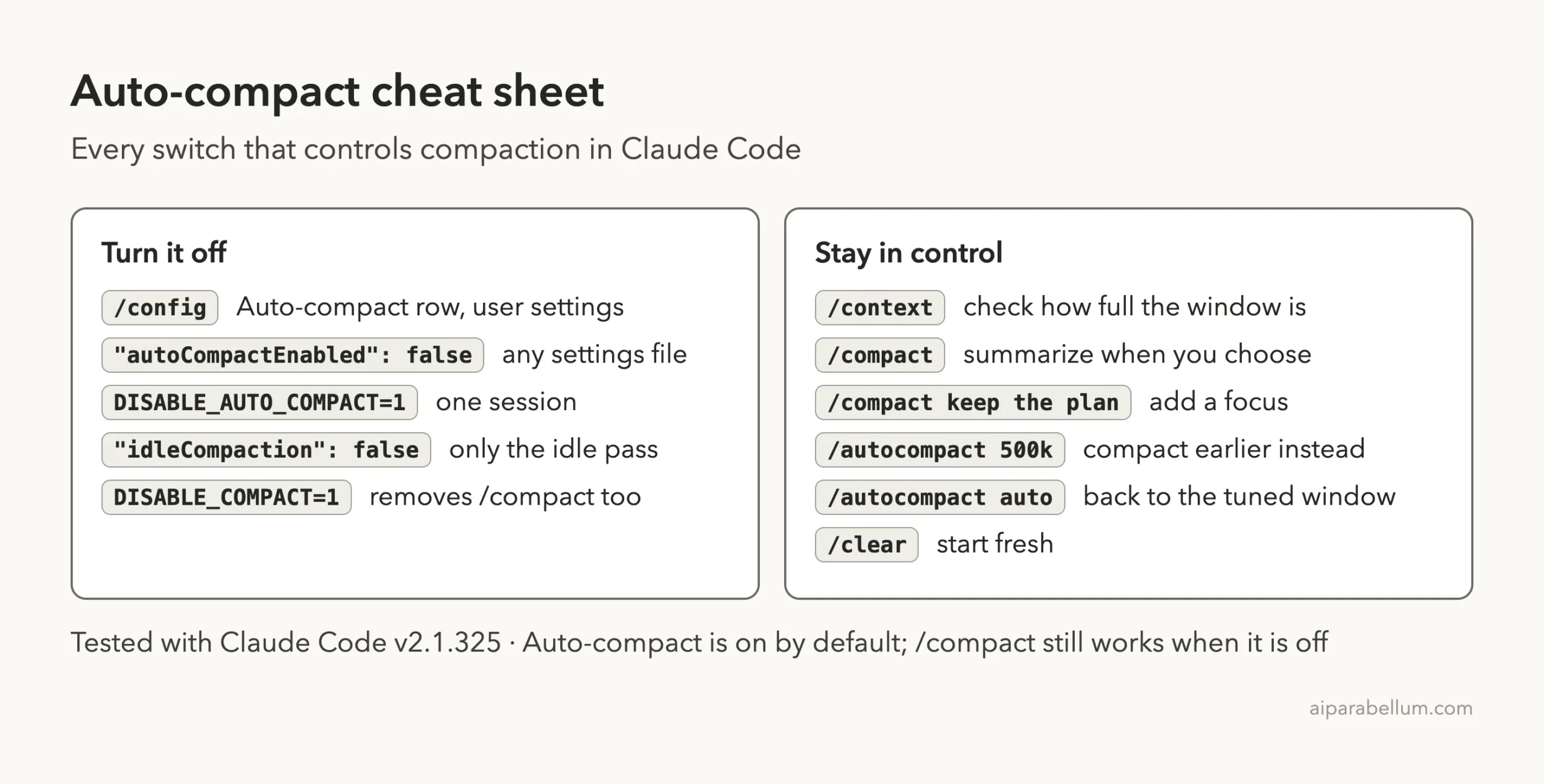
Auto-Compact Cheat Sheet
Frequently Asked Questions
How do I turn off auto-compact in Claude Code?
Run /config, filter for compact, and switch the Auto-compact row to false. You can also add "autoCompactEnabled": false to a settings file, or start a session with DISABLE_AUTO_COMPACT=1.
Does /compact still work when auto-compact is off?
Yes. The official docs say the manual /compact command keeps working. It only goes away if you set DISABLE_COMPACT=1, which we confirmed in our test.
What happens when the context fills up with auto-compact off?
According to the docs, messages fail with “Context limit reached” until you run /compact or /clear. Your files and your transcript are not deleted; the session just cannot send more until you free space.
Does turning off auto-compact also stop idle compaction?
Yes. The settings reference says that if you turn auto-compact off, idle compaction turns off too. To stop only the idle pass, set "idleCompaction": false and leave auto-compact on.
How do I turn auto-compact back on?
Switch the Auto-compact row in /config back to true, or remove "autoCompactEnabled": false from the settings file that holds it. If you used the environment variable, start Claude Code without it.
Conclusion
Turning off auto-compact in Claude Code takes one toggle in /config, one line in a settings file, or one variable at launch, and /context shows you in seconds whether it worked. The price is that a full window now stops your session with “Context limit reached” until you run /compact or /clear, so it suits people who watch their context and want to pick the moment themselves. If your real goal is to keep early instructions or compact sooner, try /autocompact, a focused /compact or compact instructions in CLAUDE.md first. For the exact wording of every key, check the official settings documentation.