
If Claude Code says “Image was too large” or “an image in the conversation could not be processed and was removed”, the picture you attached broke one of the Claude API’s image rules: too many pixels, a file it can’t decode, or too many images in one chat. The Claude Code image too large error is almost always fixed by resizing the image, re-saving it as a plain PNG or JPEG, or removing it from the conversation.
Your project and files are safe. Only the image was refused, and the message usually names the exact problem, so you can match it to one fix below.
Here is the short fix list:
- Resize the image so its longest edge is well under the limit. The API accepts up to 8000 pixels for a single image, or 3000 pixels when more than 20 images are in the chat.
- If the message says “Unable to resize image” or names a format, re-save the file as a PNG or JPEG and attach it again.
- Take a tighter screenshot of just the part that matters, not your whole screen.
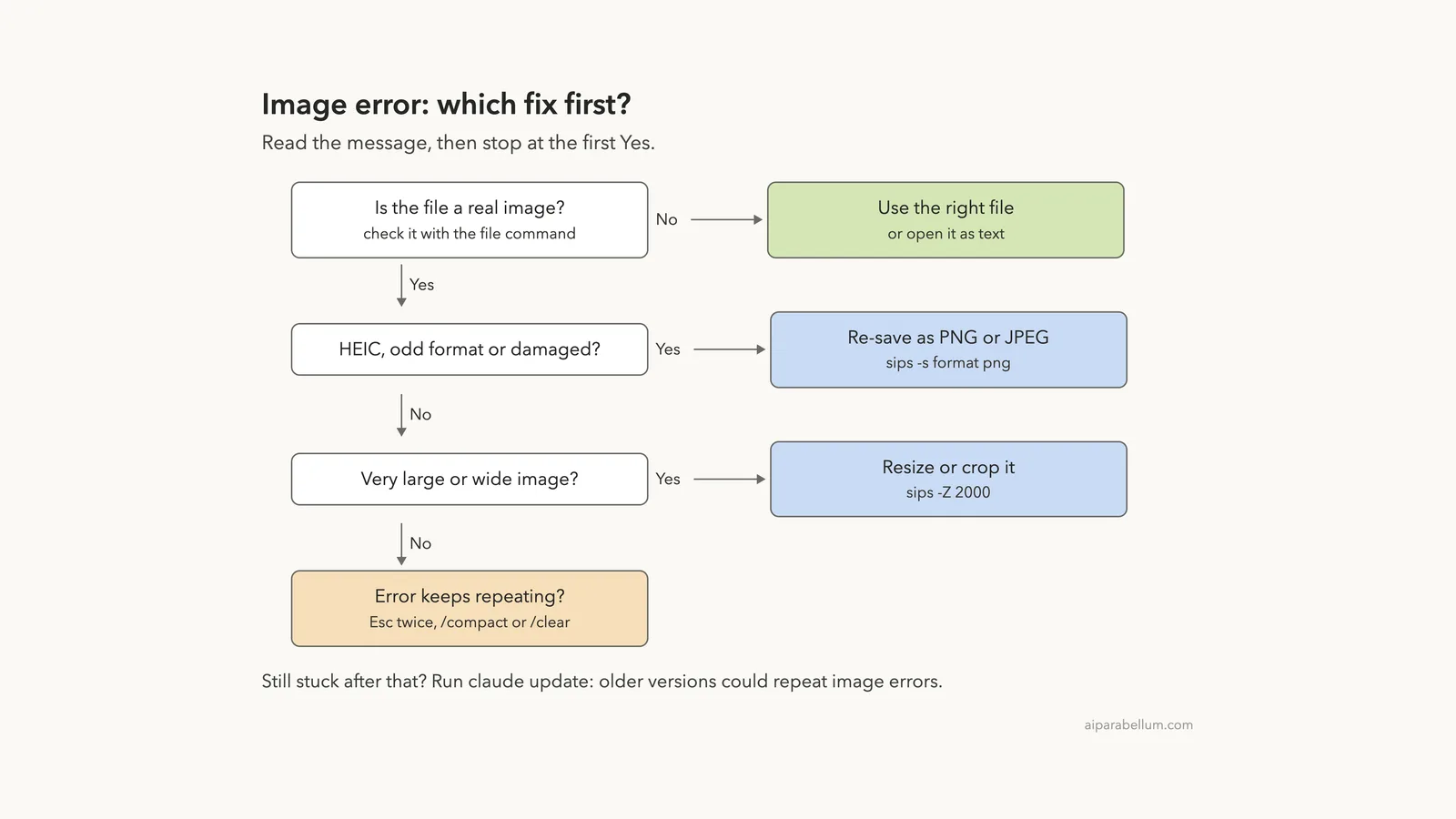
- If the error keeps repeating, press Esc twice to step back before the image, run
/compact, or run/clear, then runclaude update.
This guide is part of our help series. Browse all our Claude Code tutorials for more fixes and how-tos.
Tested with Claude Code v2.1.328 on macOS on November 19, 2026. We built five problem images in a demo folder (a 9000-pixel-wide chart, a damaged PNG, a HEIC photo, a CMYK JPEG and a text file named like a PNG) and fed each one to a real session. Every terminal capture below is genuine.
The API-side messages never fired in our test, because Claude Code caught or shrank every file first, so that text comes from Anthropic’s official error reference, shown in highlighted screenshots.
Claude Code Image Too Large: Quick Summary
| Question | Short answer |
|---|---|
| Messages you may see | Image was too large, could not be processed and was removed, Unable to resize image |
| API size rule | 8000 pixels on the longest edge, or 3000 pixels with more than 20 images in context |
| Formats that work best | PNG, JPEG, GIF and WebP |
| Does Claude Code resize for you? | Yes, normally. Our 9000-pixel image went through with no error |
| Fastest fix on a Mac | sips -Z 2000 in.png --out out.png |
| Error keeps coming back | Esc twice, /compact or /clear, then claude update |
What the Image Was Too Large Error Means
Claude can read screenshots, diagrams and photos, as our guide on on reading images explains. But every image you add travels to the Claude API with your message, and the API has hard limits on what it accepts.
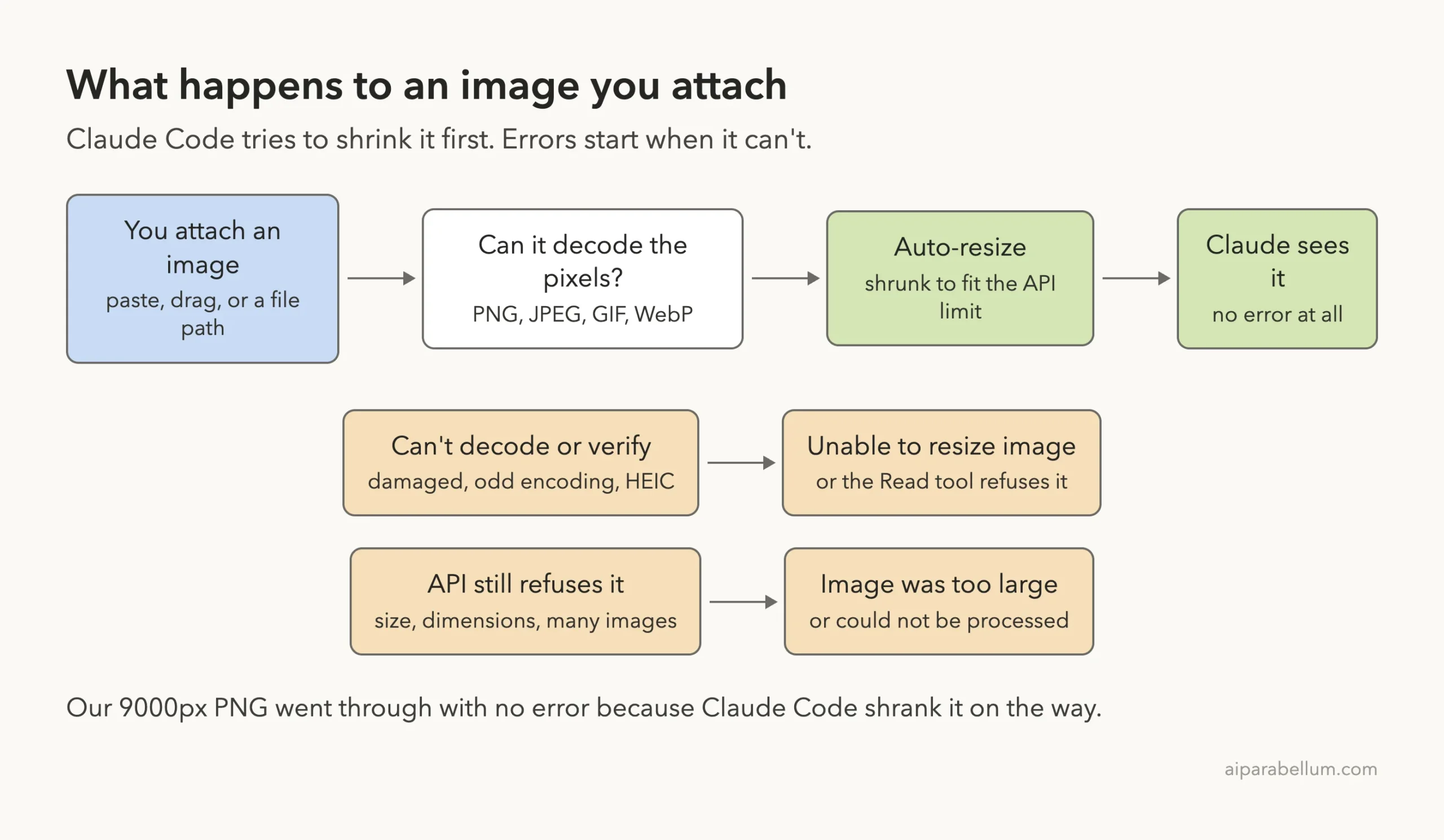
Claude Code tries to protect you from those limits. Before it sends an image, it shrinks big pictures to a size the API allows. Errors only show up when that step fails, or when the API still refuses something.
The four API messages, word for word
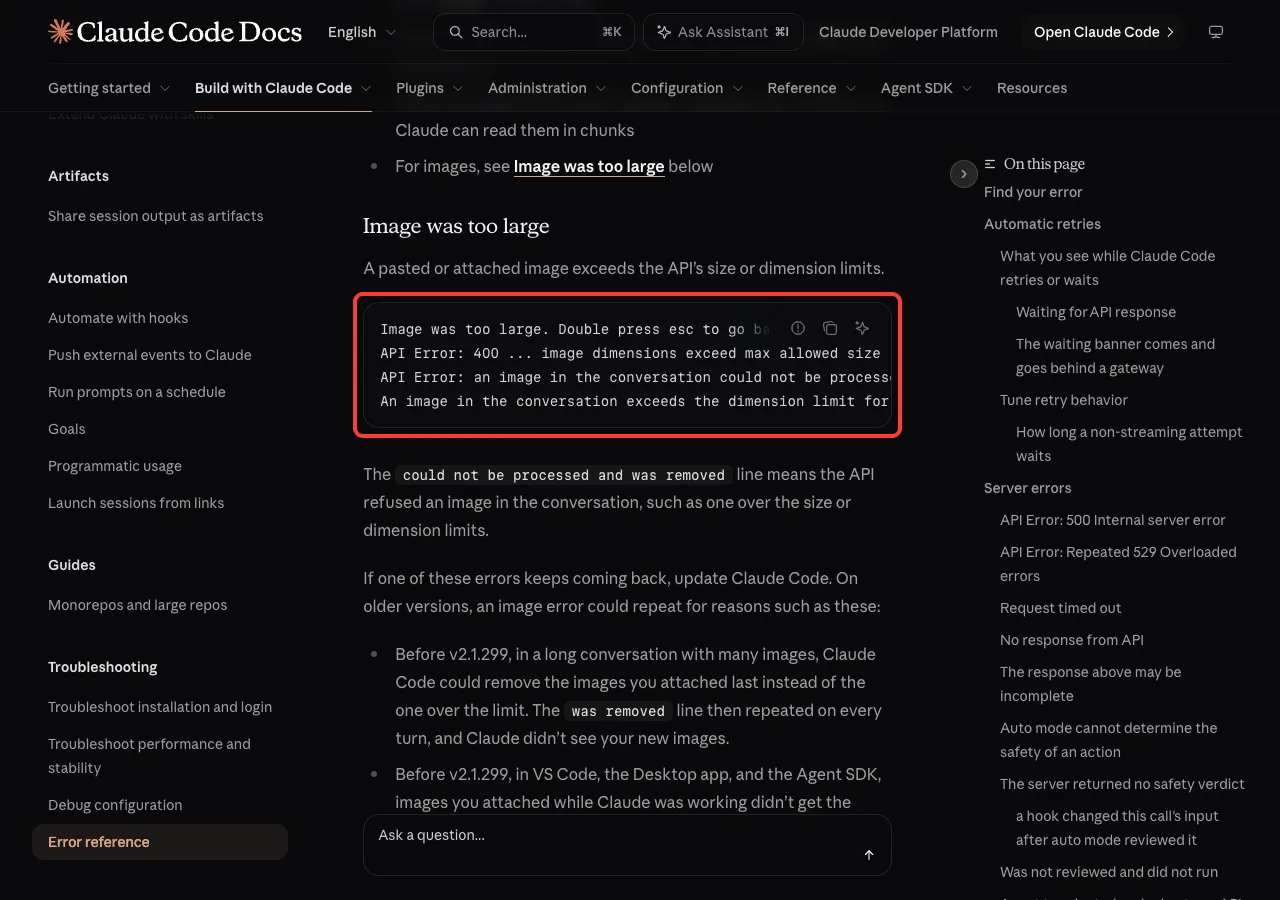
Anthropic’s error reference lists these lines under the Image was too large entry:
Image was too large. Double press esc to go back and try again with a smaller image.
API Error: 400 ... image dimensions exceed max allowed size
API Error: an image in the conversation could not be processed and was removed.
An image in the conversation exceeds the dimension limit for many-image requests (3000px). Run /compact to remove old images from context, or start a new session.
The “could not be processed and was removed” line means the API refused one image in the chat, for example because it was over the size or pixel limit. Claude Code drops it so the rest of the conversation can carry on.
The local message: Unable to resize image
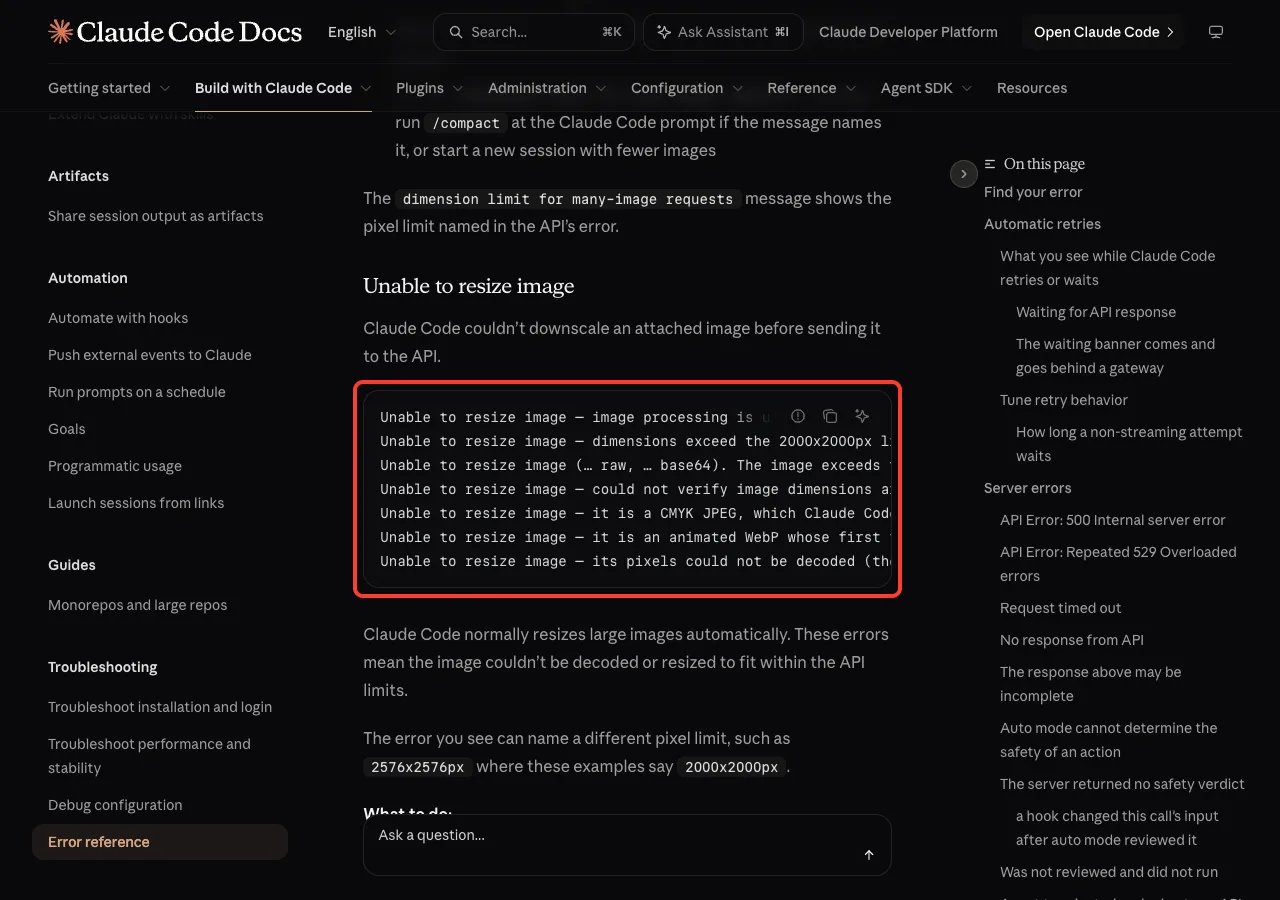
A second group of messages starts with “Unable to resize image”. These come from Claude Code itself, before anything reaches the API. They mean it couldn’t decode the picture or couldn’t shrink it far enough.
The docs list causes such as a CMYK JPEG, an animated WebP, a damaged file, or a format Claude Code can’t read the size of. The pixel limit in the message can differ: the docs show 2000x2000px, and our session said 2576x2576px.
We Tested Five Problem Images in Claude Code
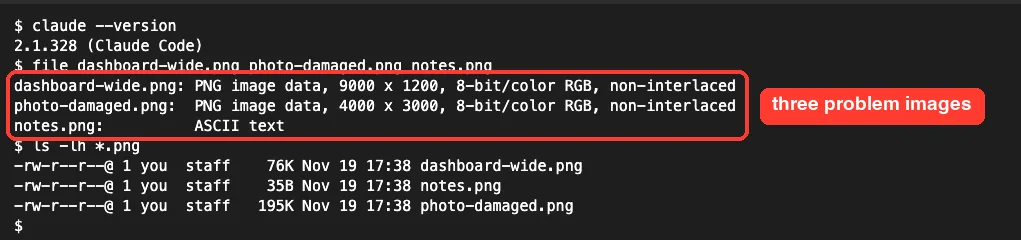
To see what really happens, we made a throwaway folder with five files. A quick file command shows what each one really is, which is the first check you should run too.
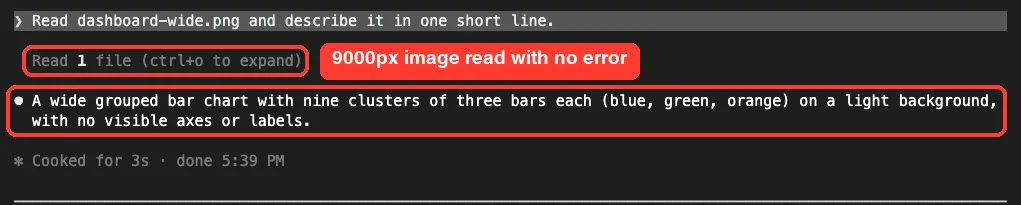
Test 1: a 9000-pixel-wide image worked fine
Our chart was 9000 pixels wide, which is over the API’s 8000-pixel limit. We asked Claude to read it, and it described the chart with no error at all.
That is the auto-resize at work. So if your image is merely big, Claude Code will usually handle it, and the error means something else is going on.
Test 2: a damaged PNG triggered Unable to resize image
Next we gave Claude a PNG whose header claims 4000×3000 pixels but whose pixel data is junk, like a download that broke halfway. Pressing Ctrl+O opens the detailed view, which shows the full error from the Read tool.
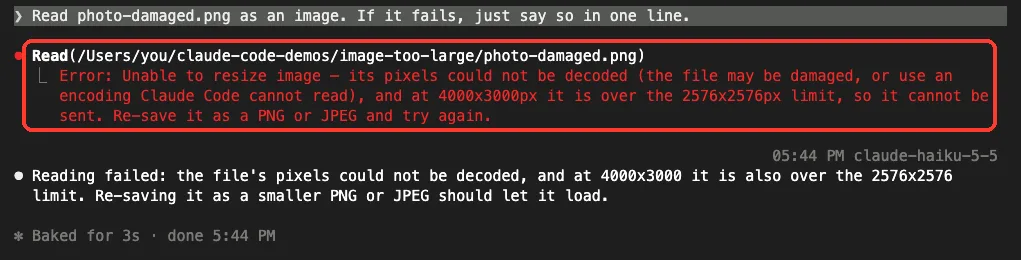
The message tells you two things: the pixels couldn’t be decoded, and the image is over the pixel limit, so Claude Code can’t send it. The fix it names is to re-save the file as a PNG or JPEG.
Test 3: HEIC failed, but the CMYK JPEG worked
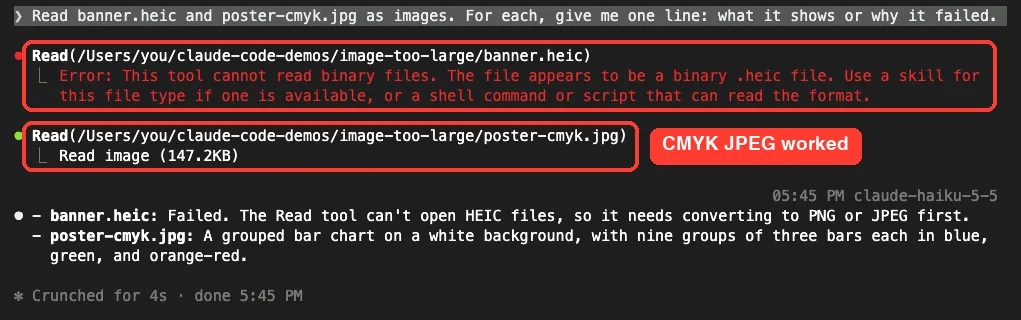
iPhone photos are often HEIC files. When we asked Claude to read one, the Read tool refused it as a binary file it can’t read and suggested using a shell command instead.
Our CMYK JPEG, a color mode used for print, read fine on this Mac. The docs say a CMYK JPEG can fail when Claude Code can’t decode it, so treat it as a possible cause, not a sure one.
Test 4: a text file wearing a .png name
Sometimes the “image” isn’t an image at all. A failed download or a renamed file can carry a .png name while holding plain text.
Claude spotted this right away. It said the file isn’t a valid PNG, JPEG, GIF or WebP and that the first bytes are plain text.

How to Fix the Claude Code Image Too Large Error
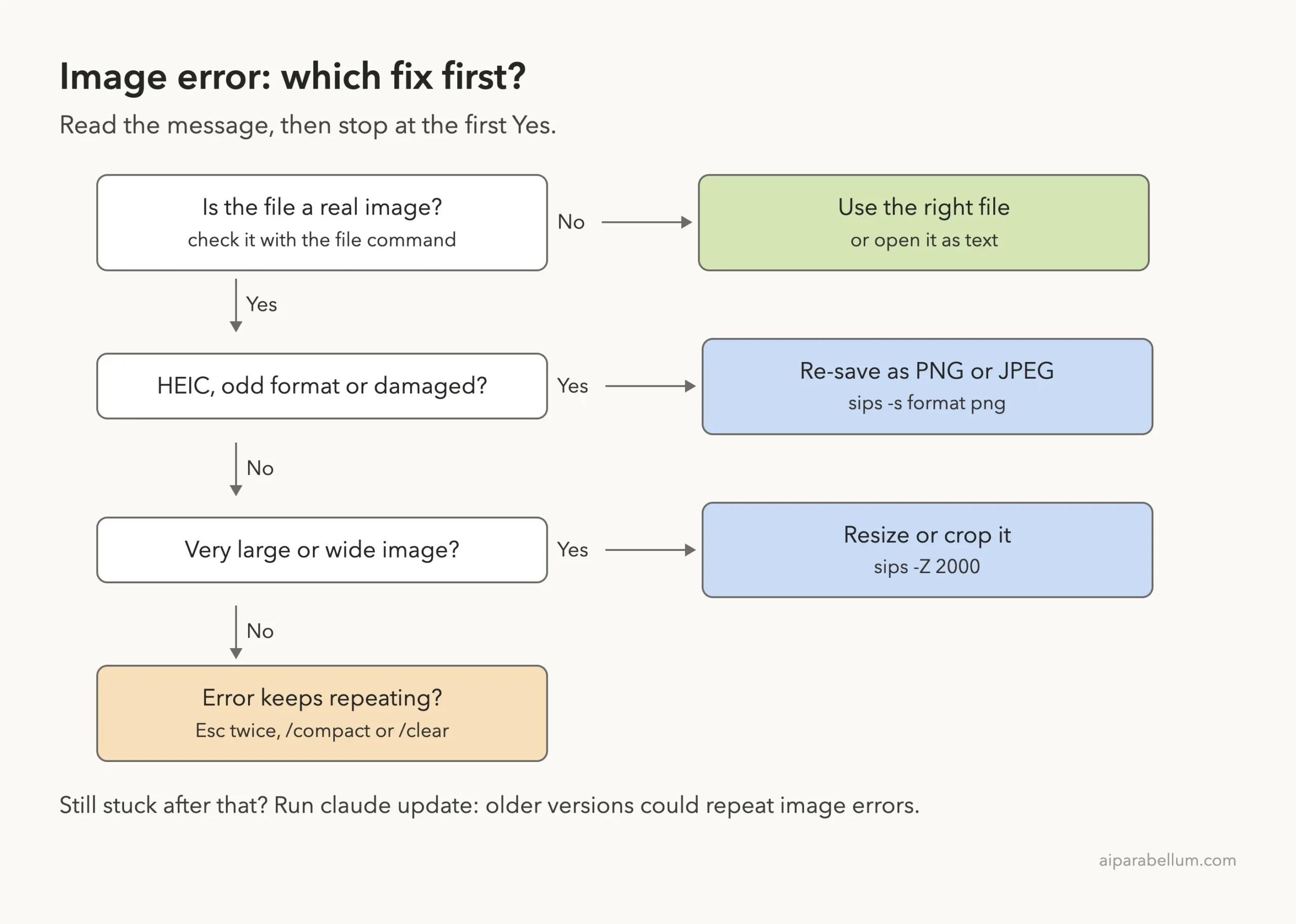
Work through these fixes in order and stop at the first one that matches your message. Fixes 1 to 4 we ran in our demo session; fixes 5 and 6 follow the official docs.
Fix 1: Check that the file really is an image
Run file yourimage.png in your terminal. It should say PNG, JPEG, GIF or WebP image data with real dimensions.
If it says text, HTML or “data”, the file is broken or mislabeled. Download or export it again from where it came from.
Fix 2: Re-save HEIC, odd formats and damaged files as PNG or JPEG
On a Mac, the built-in sips tool converts images with no installs. These are the exact commands we ran:
sips -s format png banner.heic --out banner.png
sips -Z 2000 -m '/System/Library/ColorSync/Profiles/sRGB Profile.icc' poster-cmyk.jpg --out poster-rgb.jpg
The second command shrinks the CMYK poster and switches it to the standard RGB color profile in one step.
For a damaged file, a converter usually can’t rescue the pixels. Export a fresh copy from the app, phone or website the image came from.
Fix 3: Resize or crop very large images
The -Z option in sips shrinks an image so its longest edge fits the number you give, keeping the shape. We took our 9000-pixel chart down to 2000 pixels:
sips -Z 2000 dashboard-wide.png --out dashboard-2000.png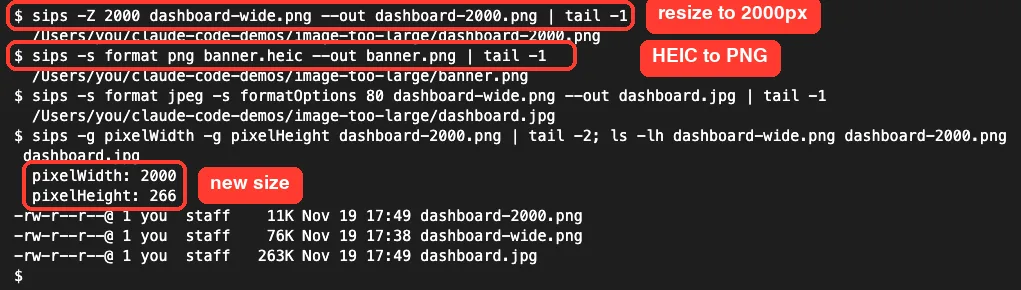
One honest note from our test: the JPEG copy of our flat chart came out bigger than the PNG. JPEG saves space on photos, but for screenshots and charts, PNG is often smaller.
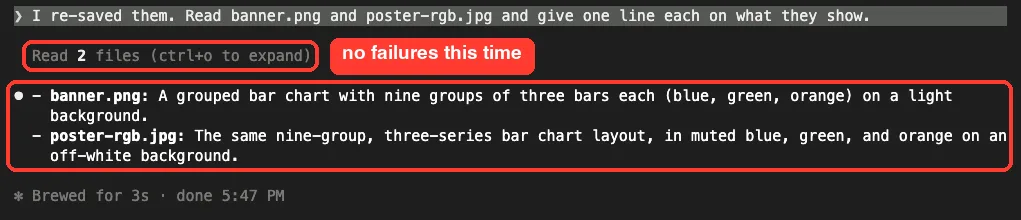
Fix 4: Attach the fixed copy and check it worked
After converting, we pointed Claude at the new files. Both read with no failures, and Claude described what each one showed.
Fix 5: Remove the bad image from the conversation
If the same error repeats on every message, the bad image may still be part of the chat. Press Esc twice to open the rewind menu and step back to before the turn that added it. Our rewind guide covers the menu in detail.
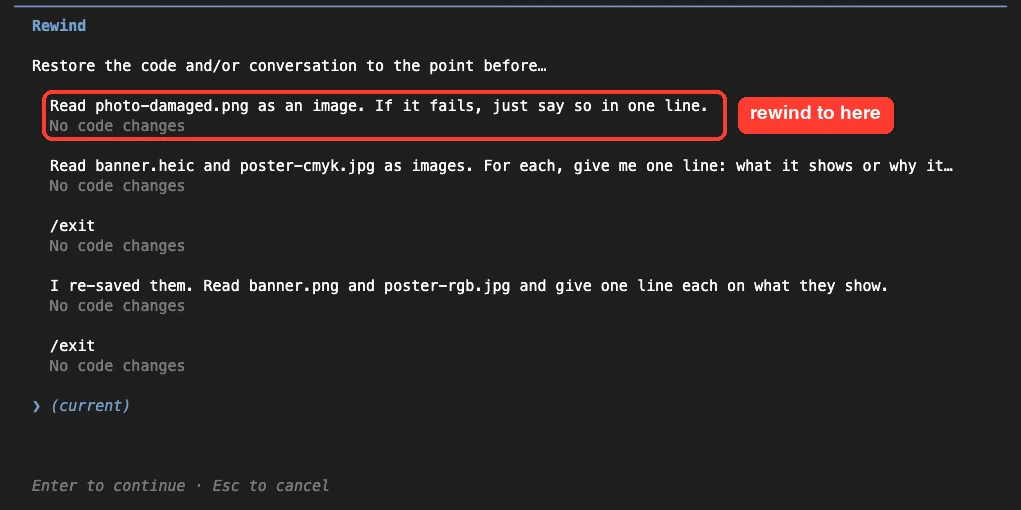
You can also run /compact, which drops older images while keeping a summary, or /clear to start fresh. Not sure which? Our clear vs compact comparison helps you pick.
Fix 6: Handle the many-images limit and update Claude Code
The “dimension limit for many-image requests” message appears when a chat holds lots of images, because the API then allows only 3000 pixels per image. The docs say to run /compact if the message names it, or start a new session with fewer images.
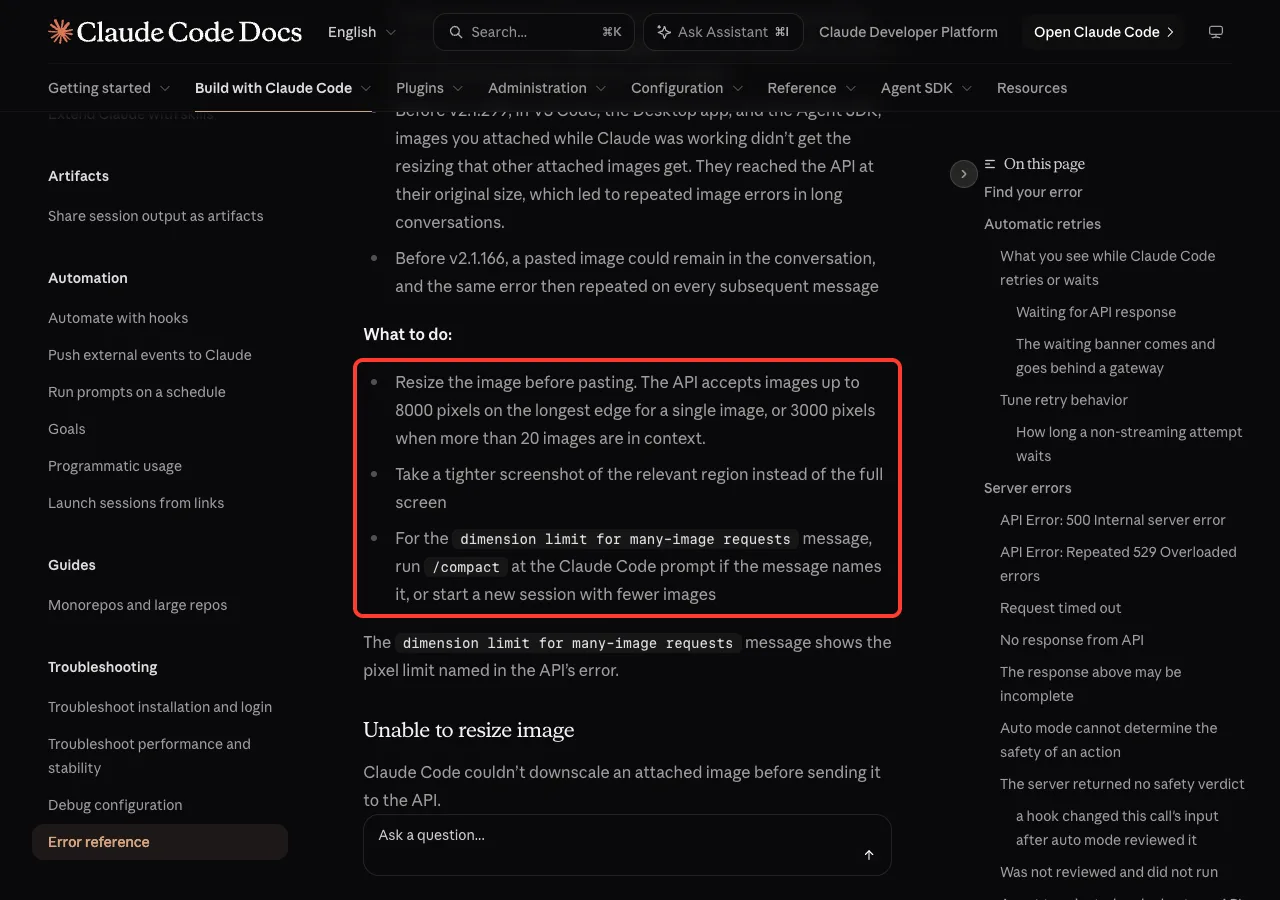
Also update. The docs note that before v2.1.299, long chats could remove the wrong images and repeat the “was removed” line every turn, and before v2.1.166 a pasted image could stay in the chat and repeat the error.
Run claude update, then claude --version. If updating fails, see our update fix guide.
Real Examples: Message, Cause and Fix
| What you see | Likely cause | Fix |
|---|---|---|
Image was too large | Image over the API’s size or pixel limit | Resize or crop, then attach again |
could not be processed and was removed | The API refused one image in the chat | Re-attach a smaller, clean copy |
dimension limit for many-image requests | More than 20 images in context | /compact or a new session |
Unable to resize image, pixels not decoded | Damaged file or odd encoding | Export a fresh PNG or JPEG |
| Read tool: cannot read binary files | HEIC or another unsupported format | sips -s format png |
| Not a valid PNG, JPEG, GIF or WebP | Text or HTML with an image name | Download the real image again |
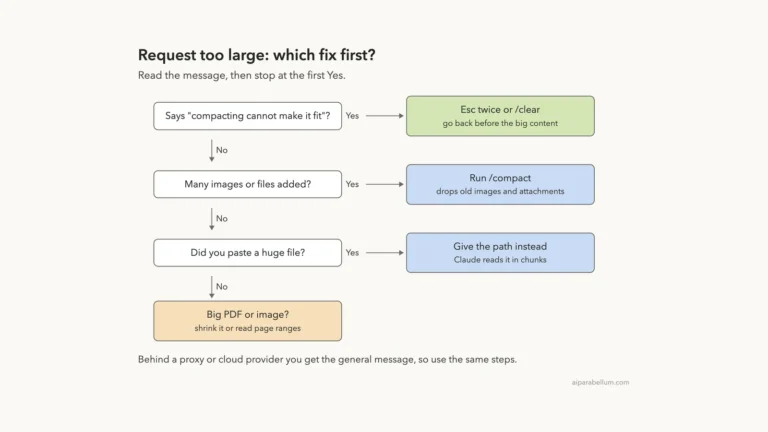
Images aren’t the only attachment that can push a chat over a limit. If you see “Request too large (max 32MB)”, read our 413 error guide, and for every other message, check our common errors list.
Most image errors are file problems, not Claude problems. Check the file, fix the file, attach it again.
Try It Yourself
Make a demo folder, drop in one big screenshot and one HEIC photo, then start Claude Code there and paste this prompt:
Read every image in this folder. For each one, give me one line: what it shows,
or the exact reason it failed. Don't convert anything yet.
Then fix the failures with sips, ask Claude to read the new copies, and compare. To learn every way to add a picture, see our guide on pasting images.
Common Mistakes
- Pasting a full-screen capture from a large monitor when only one dialog matters.
- Renaming a
.heicfile to.png. That changes the name, not the format, so the file still fails. - Re-sending the same message over and over while the bad image stays in the chat.
- Assuming every big image will fail. Claude Code shrinks most of them, so look for a format or damage problem first.
- Running an old version and fighting errors the docs say newer versions fixed.
Pro Tips
- On a Mac,
Cmd+Shift+4lets you drag a box around just the part of the screen you need. - Give Claude a file path instead of pasting. If a read fails, Claude can tell you why and suggest a shell command to fix it.
- Use
Ctrl+Oto see the full error text when the summary only says “1 failed”. - In long design or debugging sessions with lots of screenshots, run
/compactbefore you pass about 20 images. - Keep a “for-claude” folder of resized copies so you never touch your originals.
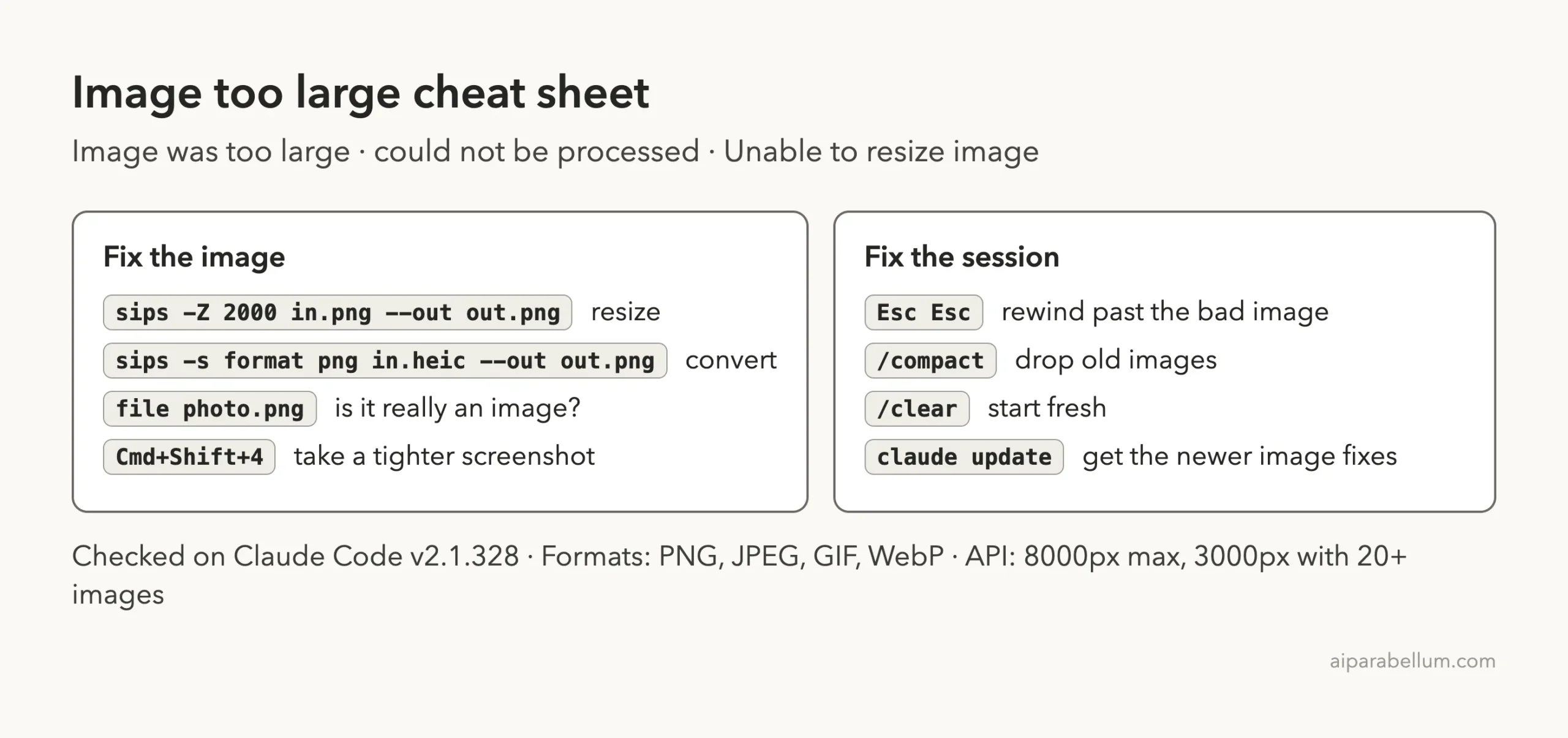
Image Errors Cheat Sheet
Frequently Asked Questions
What is the maximum image size for Claude Code?
The docs say the API accepts images up to 8000 pixels on the longest edge, or 3000 pixels when more than 20 images are in context. Claude Code usually shrinks larger images for you before sending.
Why does Claude Code say “could not process image”?
The full line is “an image in the conversation could not be processed and was removed”. The API refused that image, often for size or pixel limits, so Claude Code removed it. Attach a smaller, clean PNG or JPEG.
Can Claude Code read HEIC photos?
Not in our test. The Read tool refused the HEIC file as binary. Convert it first with sips -s format png photo.heic --out photo.png.
How do I stop the image error from repeating every message?
Press Esc twice and rewind to before the image, or run /compact or /clear. Then run claude update, since older versions could keep repeating image errors.
Did I lose my work?
No. Only the image was refused. Your files are untouched, and the rest of the conversation stays as it was.
Conclusion
The Claude Code image too large and could not process image errors mean an attached picture broke the API’s rules or couldn’t be decoded, and the fix almost always lives in the file itself: check it with file, re-save odd formats like HEIC as PNG or JPEG, shrink oversized images with sips -Z, and clear a stuck image from the chat with Esc twice, /compact or /clear. Keep Claude Code updated so its automatic resizing does most of the work, and explore more of what Claude AI can do across our guides.