
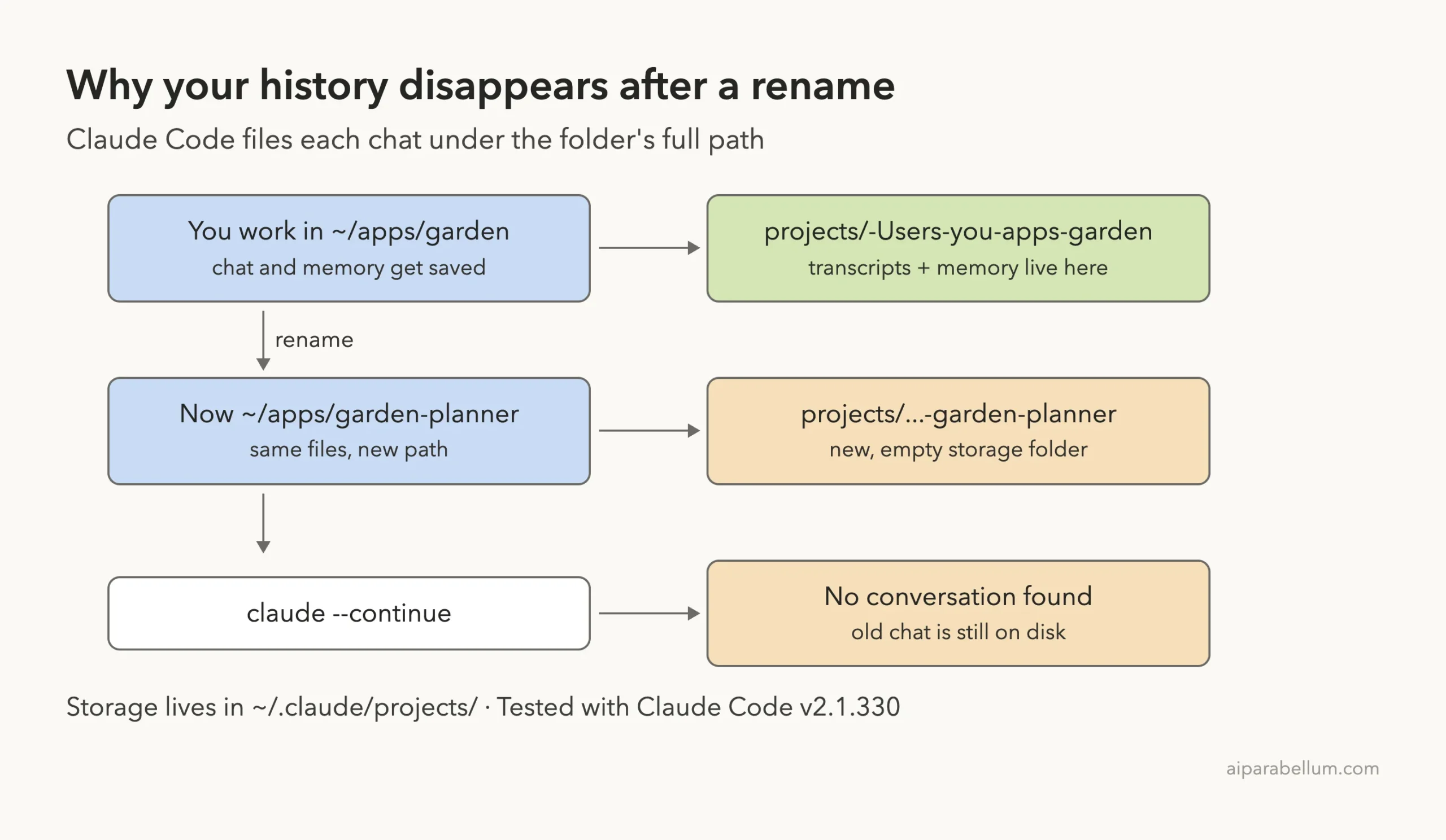
Claude Code history lost after moving folder paths around? Don’t worry, it’s almost never deleted. Claude Code files every conversation under the full path of the folder you worked in, so when you rename or move that folder, the new path points at an empty storage spot and your old chats seem to vanish.
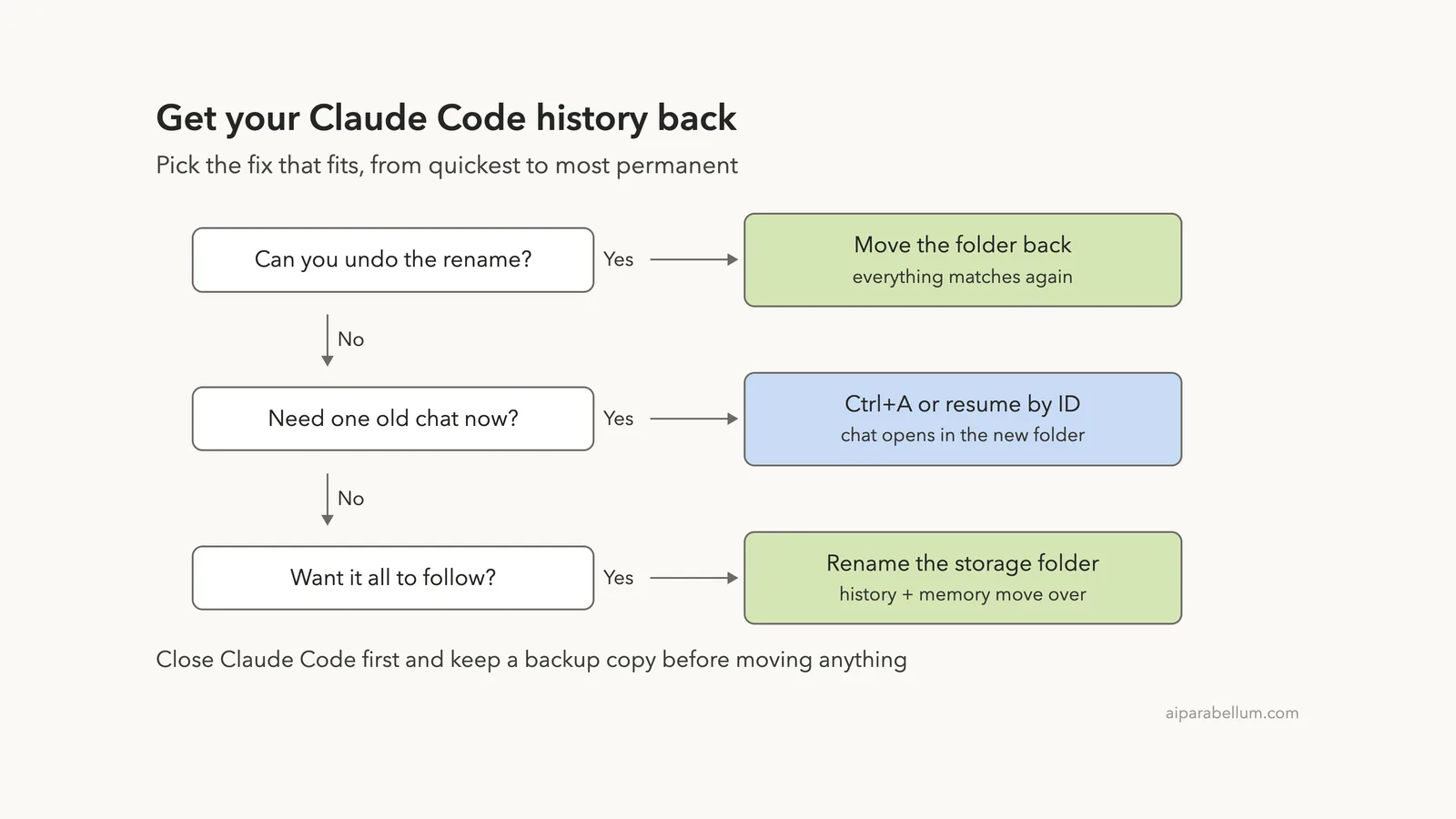
The quick fix: run claude --resume from the new folder and press Ctrl+A to show sessions from every project. Your old chat is still listed under the old path, and picking it opens it right in your new folder. To make all of your history and Claude’s project memory follow the folder for good, close Claude Code and rename the matching storage folder inside ~/.claude/projects/ to match the new path.
Below we rename a real project folder, watch the history disappear, and try every way to get it back, including the one that also brings back Claude’s saved memory for the project.
Browse all our Claude Code tutorials for more fixes and how-tos.
Tested with Claude Code v2.1.330 on macOS on November 25, 2026. Every test ran in small throwaway demo folders. We tested on macOS; the Windows and Linux steps follow Anthropic’s official documentation for the same storage layout.
Quick Summary
| What you see | Why it happens | Fix |
|---|---|---|
No conversation found to continue after a rename | Storage is keyed by the old folder path | Resume with Ctrl+A, or rename the storage folder |
Empty /resume list: “No sessions in this project yet” | The picker only shows the current path by default | Press Ctrl+A to show all projects |
claude --resume my-name finds no match | Names resolve in the current project only | Press Ctrl+A in the picker, or resume by ID |
| Claude forgot project notes it saved before | Auto memory is keyed by path too | Rename the storage folder to the new path |
Old chat opens, but --continue still fails later | Resuming doesn’t move the transcript | Rename the storage folder, or move the project back |
Why Claude Code History Is Lost After Moving a Folder
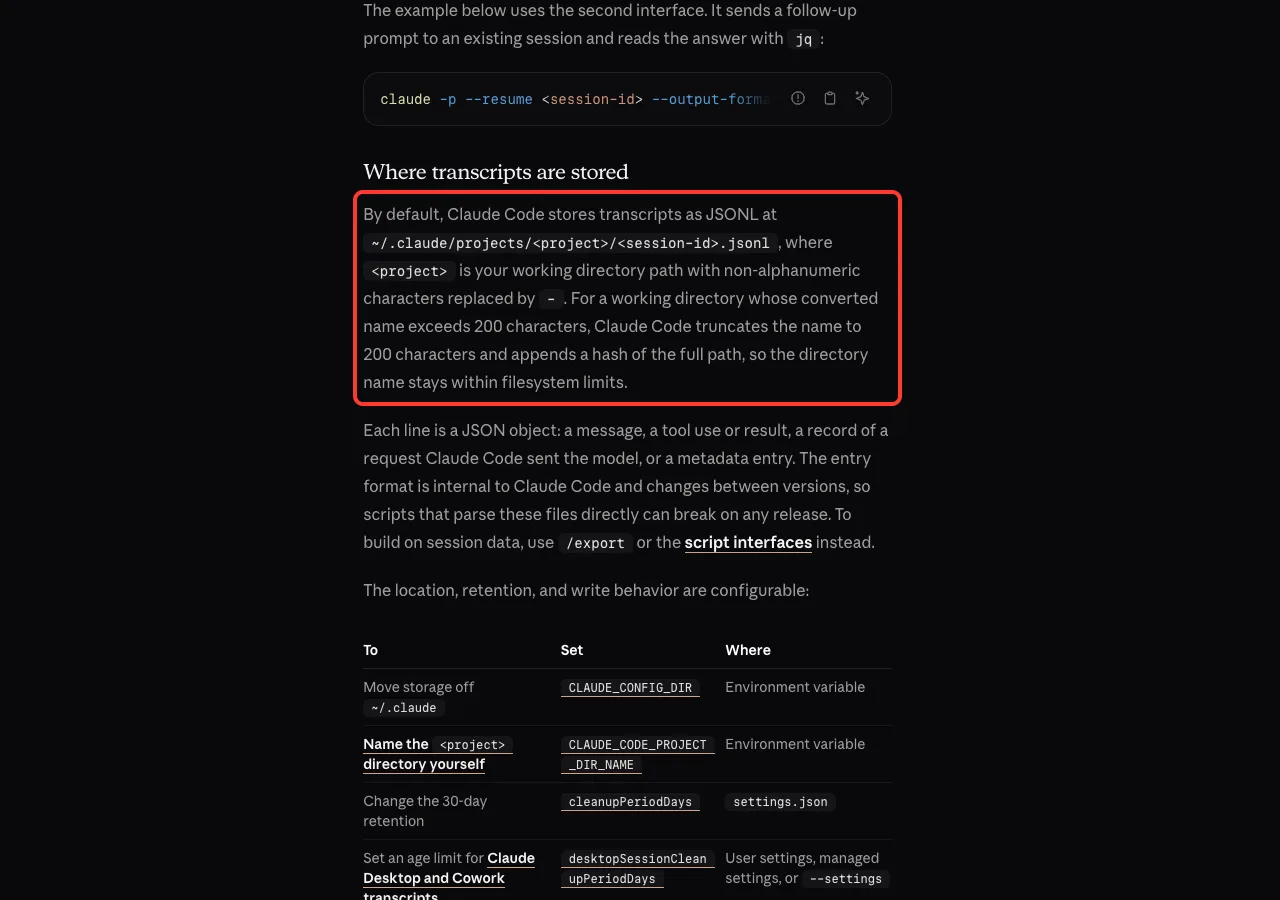
Claude Code saves each conversation as a transcript file on your computer. By default it lives at ~/.claude/projects/<project>/<session-id>.jsonl, where the project part is your folder’s full path with every character other than letters and digits turned into a dash.
So a folder at /Users/you/apps/garden gets the storage folder -Users-you-apps-garden. Rename it to garden-planner and Claude Code now looks in -Users-you-apps-garden-planner, which doesn’t exist yet. Nothing was deleted; Claude Code is just looking in a different drawer.
Your history isn’t gone. It’s filed under the old folder’s name.
Very long paths are a special case. If the converted name is over 200 characters, Claude Code cuts it to 200 and adds a hash of the full path, so you can’t rebuild those names by hand.
Memory is keyed by path too
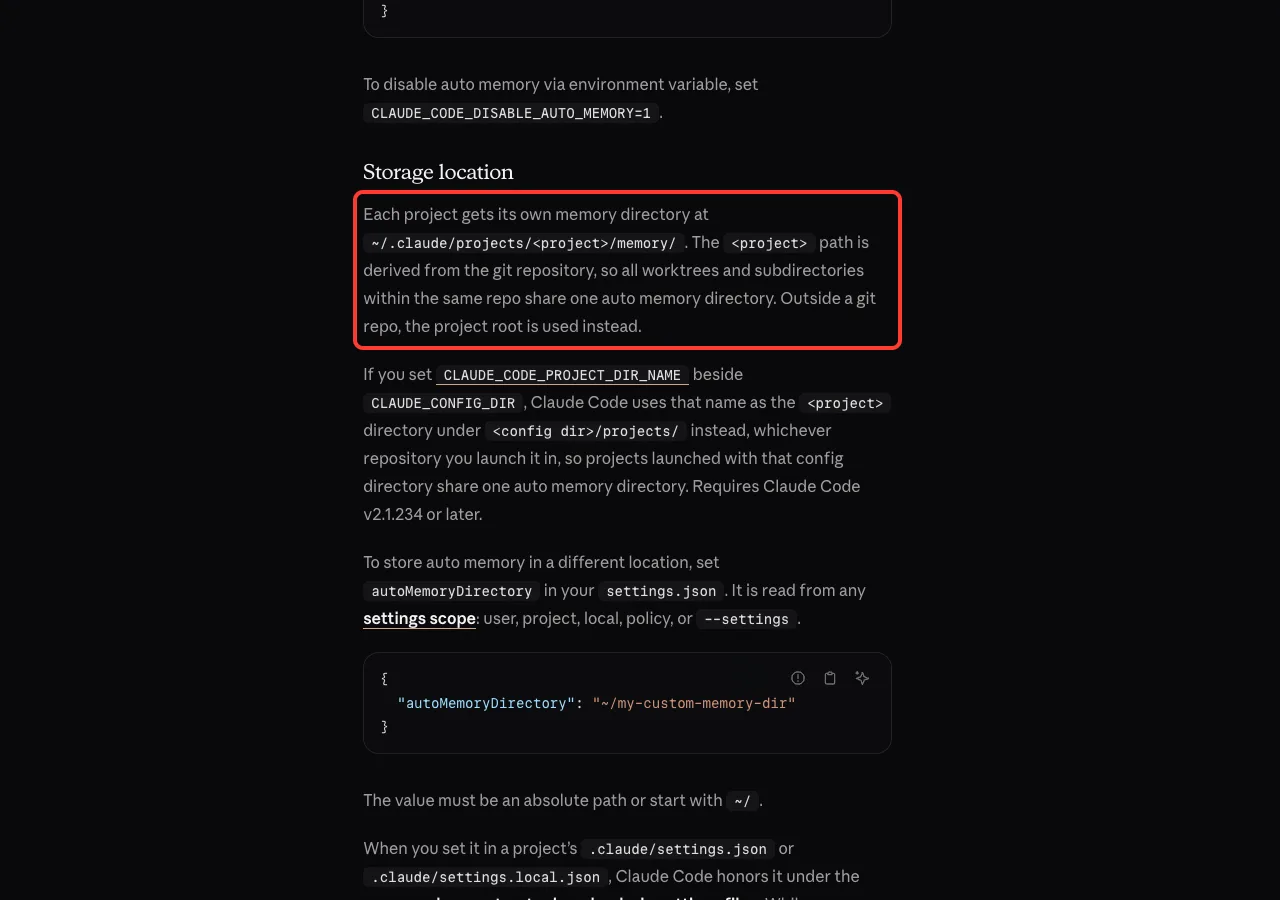
It’s not only chats. Claude Code’s auto memory, the notes Claude saves for itself across sessions, sits in ~/.claude/projects/<project>/memory/.
In a git repository, the docs say the project part comes from the repository, so all worktrees and subfolders of one repo share one memory folder. Outside git, it’s the project folder.
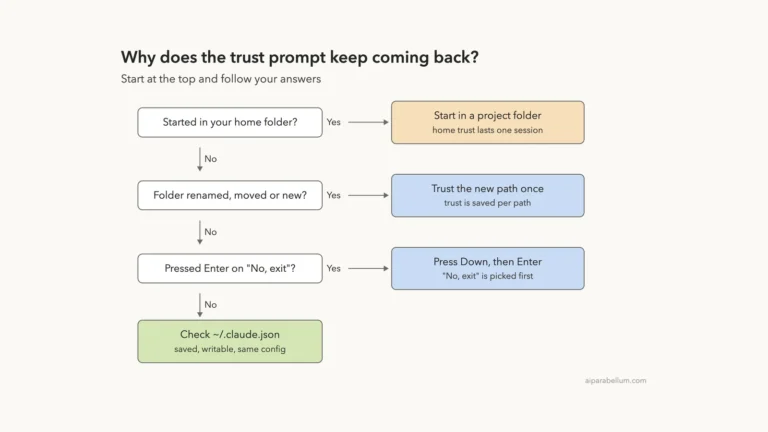
Your folder’s trust answer is saved per path as well, which is why a renamed folder also asks the safety question again. Our guide on the trust folder prompt covers that part.
We Reproduced It: Claude Code History Lost After a Rename
We made a tiny demo project called garden with three text files. Then we started a named session and asked Claude to remember a code word for the project.
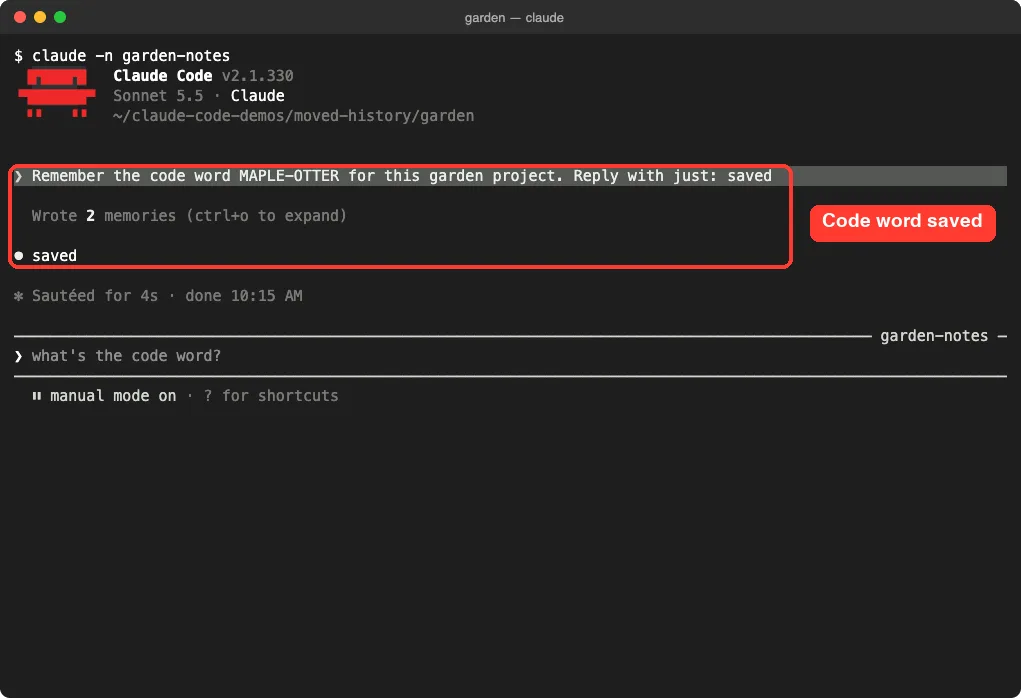
After we closed it, both the transcript and the memory files sat in a storage folder named after the path:
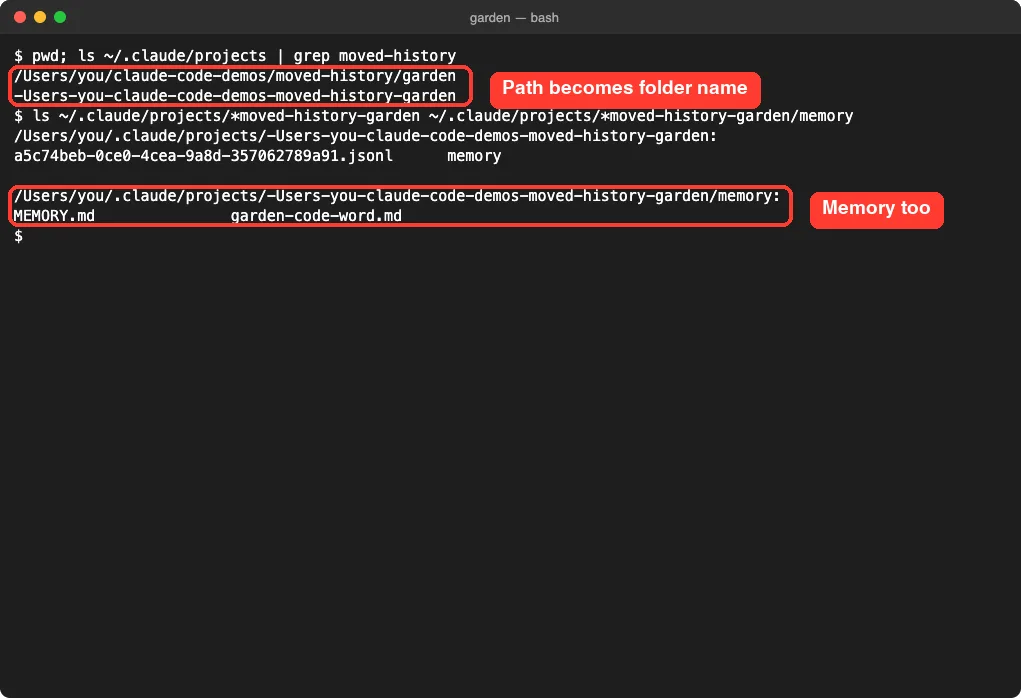
Then we renamed the folder from garden to garden-planner and ran claude --continue. After the trust question for the new path, Claude Code stopped with an error:
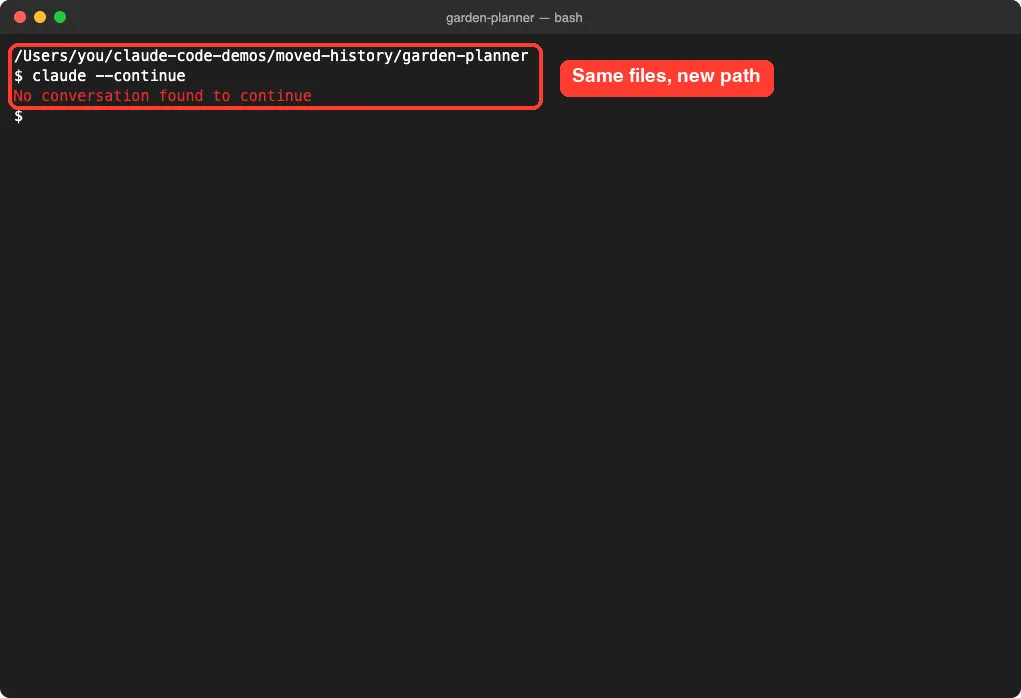
claude --continue finds nothing.The session picker agreed. claude --resume showed “No sessions in this project yet”, and claude --resume garden-notes said no sessions matched the name.
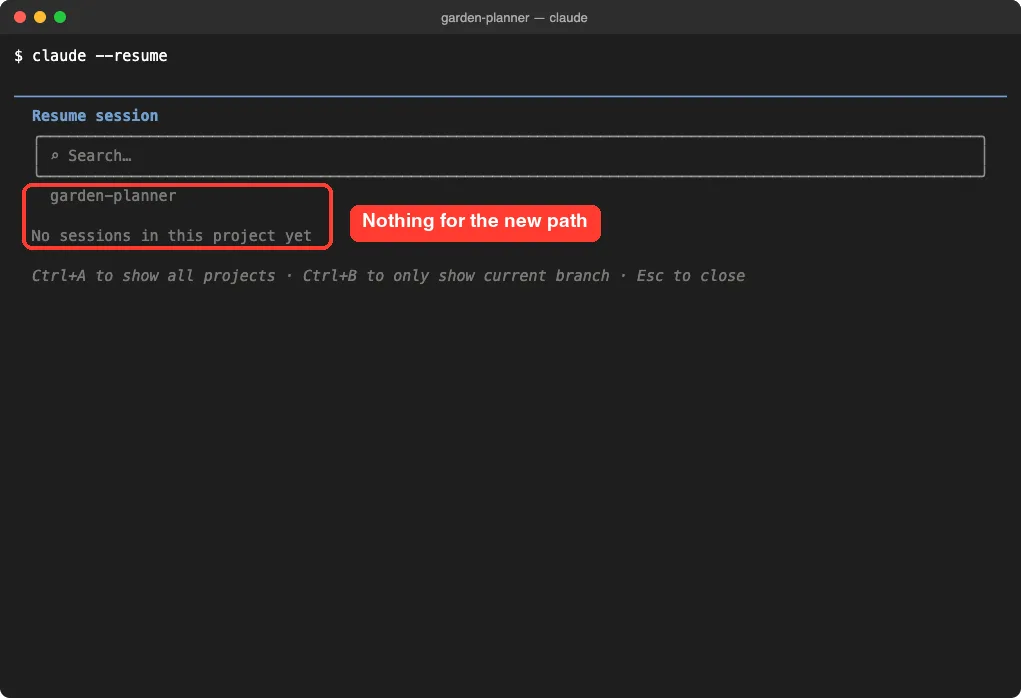
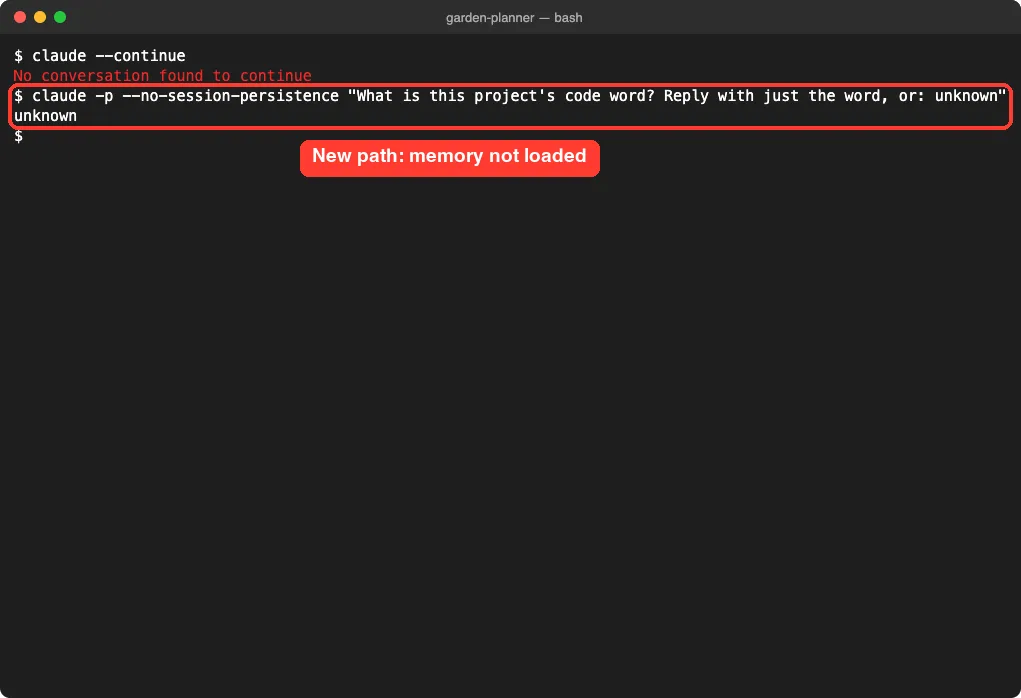
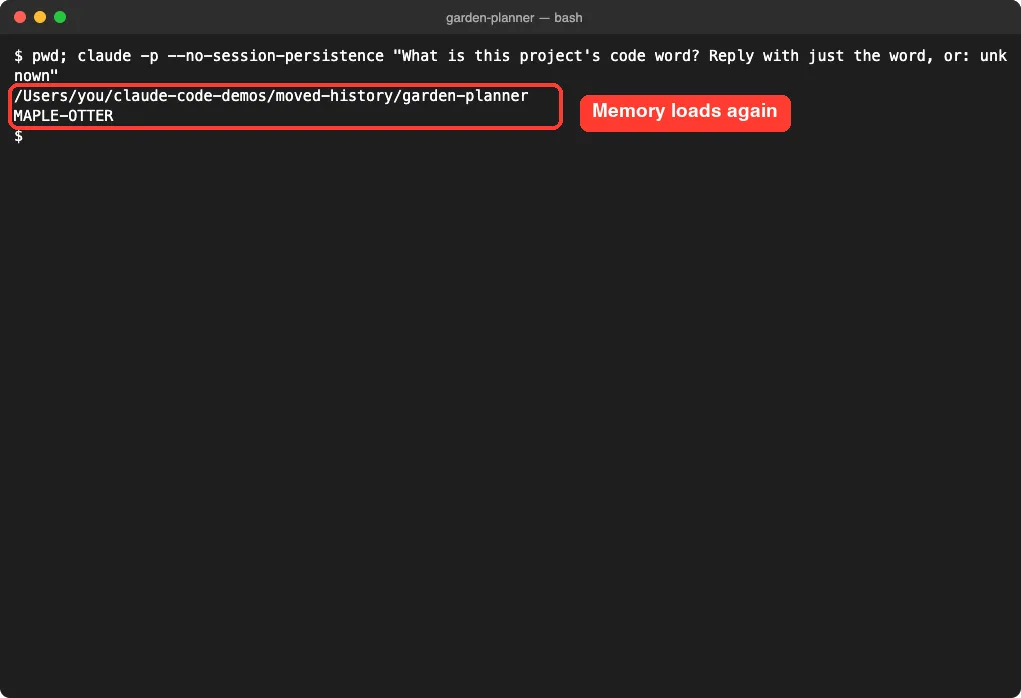
Ctrl+A hint at the bottom.A fresh question showed the memory was gone for this path too. We asked a one-off claude -p run (with --no-session-persistence, so it saved nothing) for the code word:
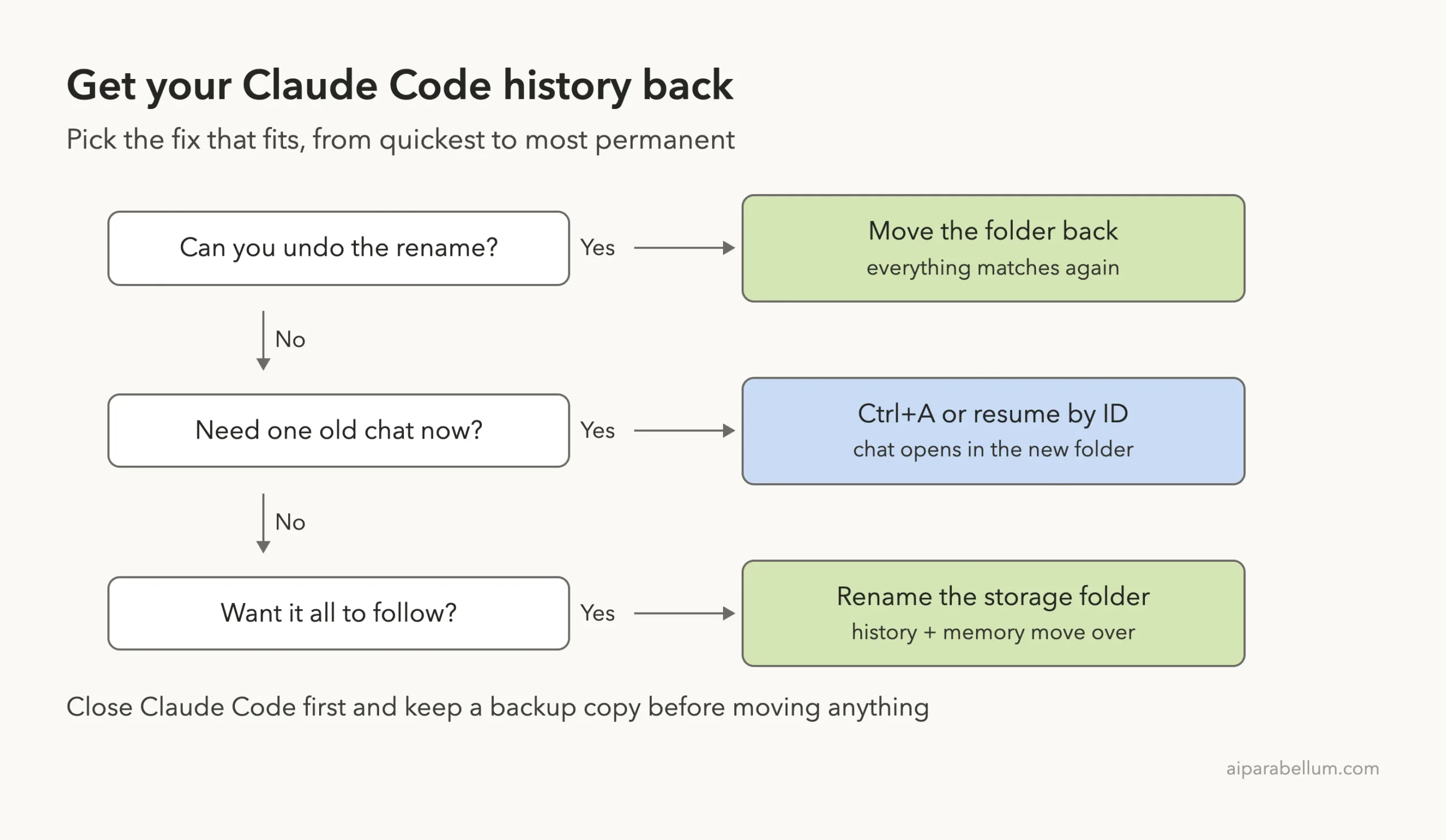
Fix 1: Move the Folder Back
If the rename was an accident, the fastest fix is to undo it. Put the folder back at its exact old path and everything lines up again: chats, memory and the trust answer.
cd ~/apps
mv garden-planner garden
cd garden
claude --continue
This works because nothing in Claude Code’s storage changed when you renamed the folder. Use it when the old name is fine, or when you moved a folder by mistake, for example by dragging it into another folder in Finder.
Fix 2: Find the Old Session With Ctrl+A
When you want to keep the new name and just need one old chat, the session picker can reach across projects. Run claude --resume (or claude --resume <name>) and press Ctrl+A. The docs describe it as widening the list to every project on this machine.
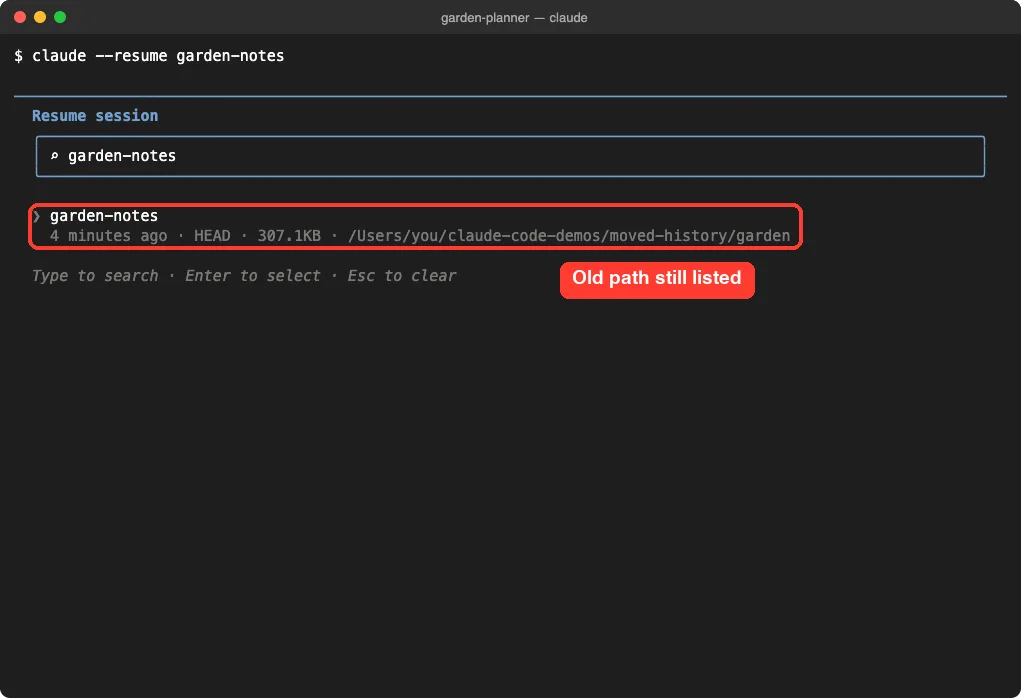
Ctrl+A, the session appears with its old path.Type a few letters of the name to filter the list. That matters if you have many projects, because Ctrl+A lists all of them. In our test, the first Enter moved from the search box to the list, and the second Enter resumed the session.
Because the old folder no longer existed, Claude Code opened the chat in our current folder. That matches the docs: if the session’s project folder is gone, it resumes in your current directory instead of copying a cd command that would fail.
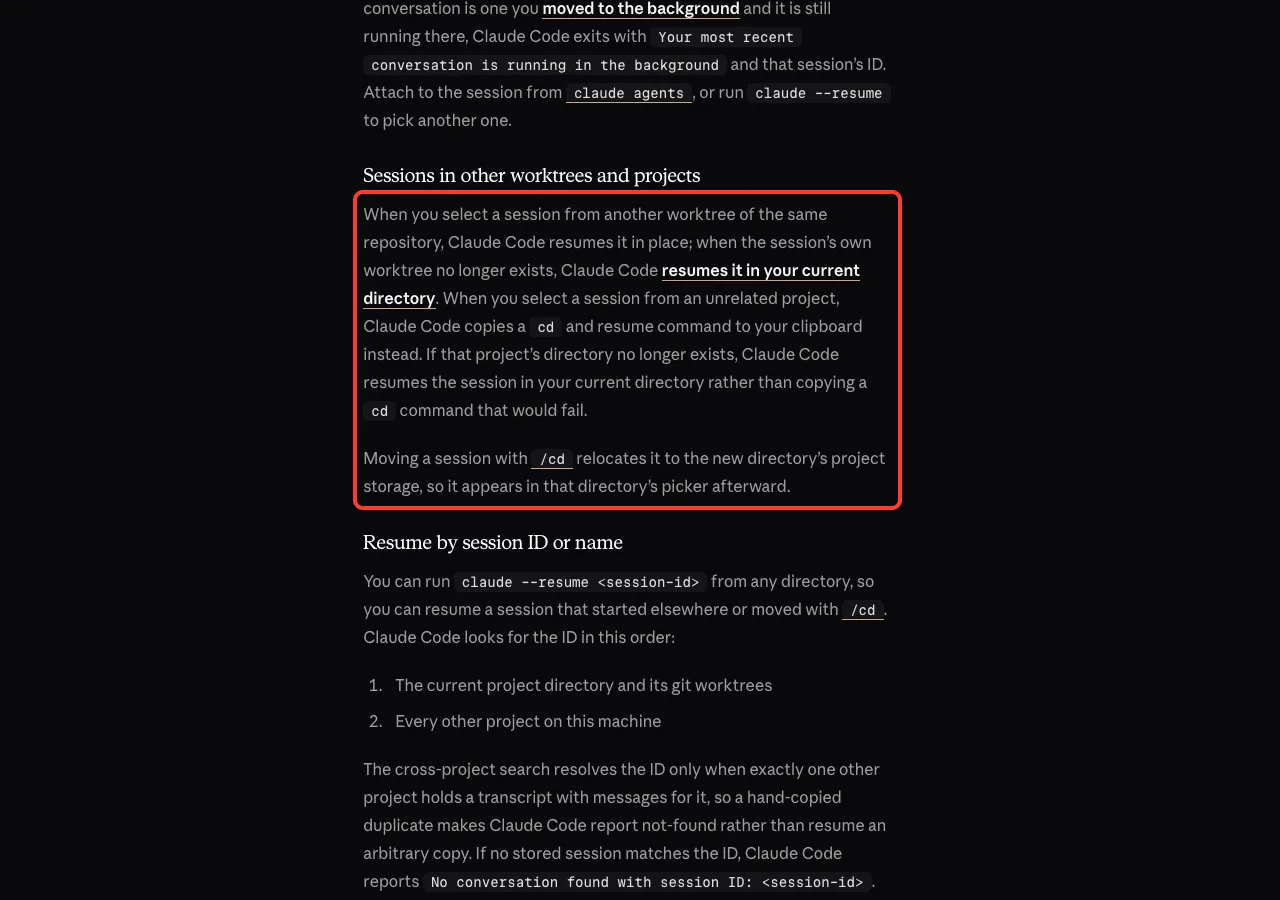
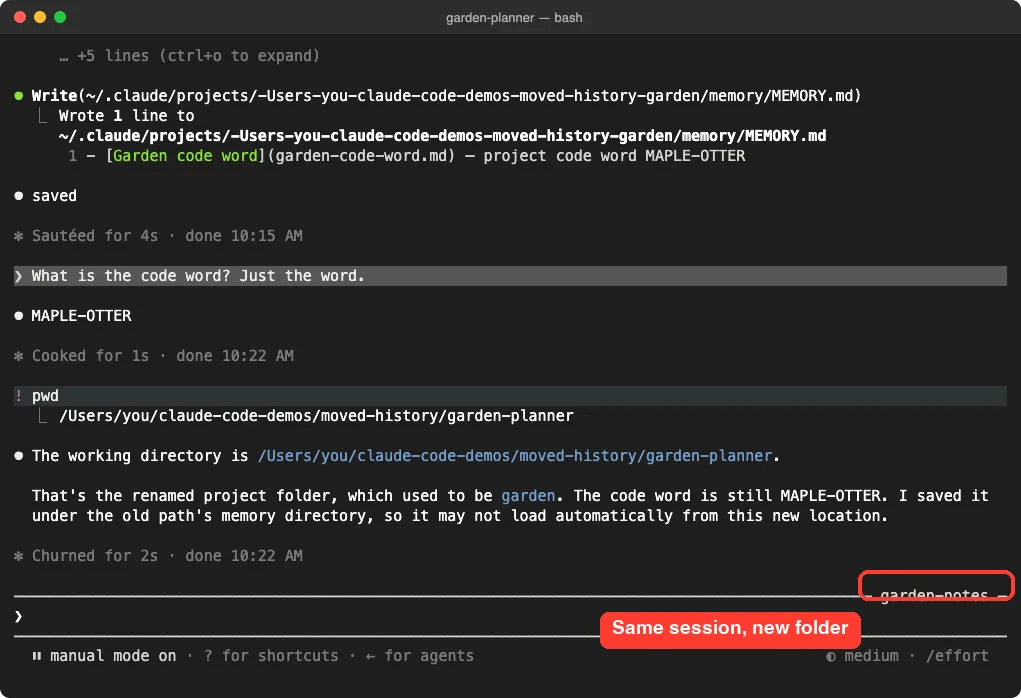
/cd relocates a session.The chat came back in full. Claude remembered the code word, and a quick !pwd confirmed it was working in garden-planner. Claude itself pointed out that the memory was still under the old path:
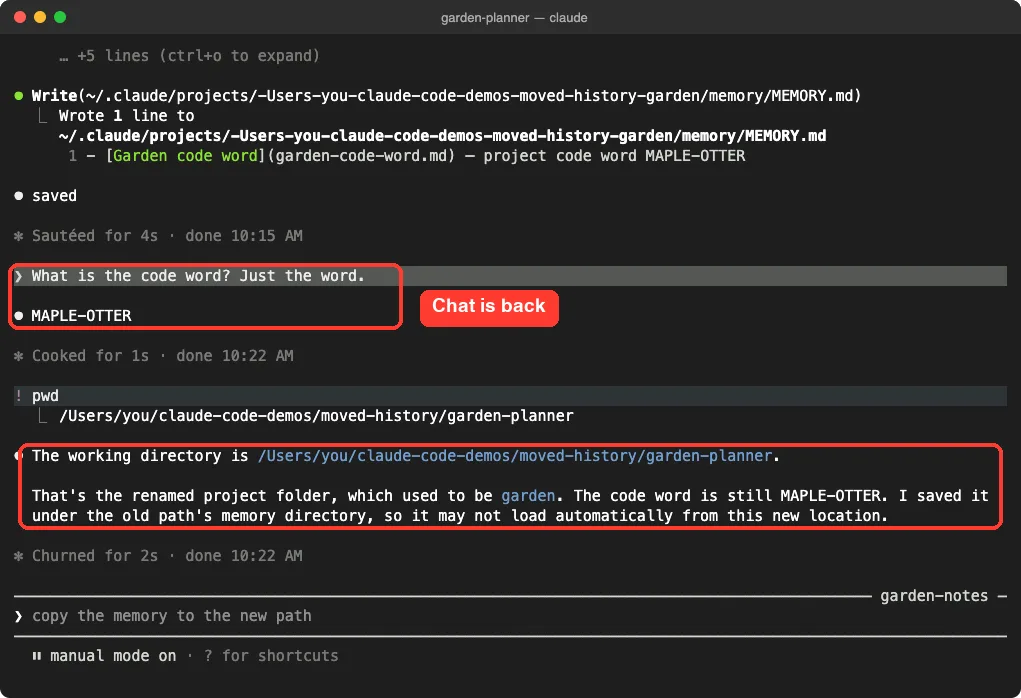
One catch: resuming doesn’t move anything. In our test the new messages went into the same transcript file in the old storage folder, and claude --continue in garden-planner still said “No conversation found to continue” afterward. Fix 2 is a way in, not a permanent fix.
If the old folder still exists
If you copied the project instead of moving it, the old path is still there. Then picking a session from another project doesn’t open it. Claude Code prints a cd and resume command and copies it to your clipboard, so you can jump to the original folder.
Our post on the session error fix shows that screen.
Fix 3: Resume by Session ID From Any Folder
Every session has an ID, and Claude Code prints it when you exit, on the line after Resume this session with:. You can pass it from any folder:
claude --resume a5c74beb-0ce0-4cea-9a8d-357062789a91According to the docs, Claude Code first looks in the current project and its git worktrees, then in every other project on the machine. It only resolves the ID when exactly one other project holds it, so a hand-copied duplicate makes it report “not found” instead of guessing.
Don’t have the ID? Each transcript file is named after its session ID, so list the old storage folder:
ls ~/.claude/projects | grep garden
ls ~/.claude/projects/-Users-you-apps-garden
Like Fix 2, this opens the chat but leaves the files where they were. To learn more about names, IDs and the picker, see our guide to resuming sessions.
Fix 4: Bring Back Lost Claude Code History for Good
This is the permanent fix. You rename the storage folder in ~/.claude/projects/ so its name matches the new path. Then claude --continue, the normal picker and auto memory all work in the new folder.
Anthropic’s docs don’t list this as an official step, and they say the transcript format is internal. We only renamed a folder and didn’t edit any file inside it, and it worked in our test on v2.1.330. Close every Claude Code session for this project and make a backup copy first.
Step 1: Work out both names
Run these from the new folder. The sed command does the same swap Claude Code does: anything that isn’t a letter or digit becomes a dash.
P=~/.claude/projects
OLD=$(echo ~/apps/garden | sed 's/[^a-zA-Z0-9]/-/g')
NEW=$(echo "$PWD" | sed 's/[^a-zA-Z0-9]/-/g')
echo $OLD
echo $NEW
ls "$P" | grep garden
Check that $OLD really appears in the ls output before you go on. If the path has non-English letters or is very long, the names may not match this simple rule; look in the list for the right folder instead.
Step 2: Back up, then move
cp -R "$P/$OLD" ~/claude-history-backup
rmdir "$P/$NEW/memory" "$P/$NEW"
mv "$P/$OLD" "$P/$NEW"
The rmdir line is there because Claude Code may already have created an empty folder for the new path the first time you opened it. rmdir only removes empty folders, so it fails safely if anything is inside. If it does fail, the new path already has its own sessions; move the old .jsonl files into it one by one instead of replacing the folder.
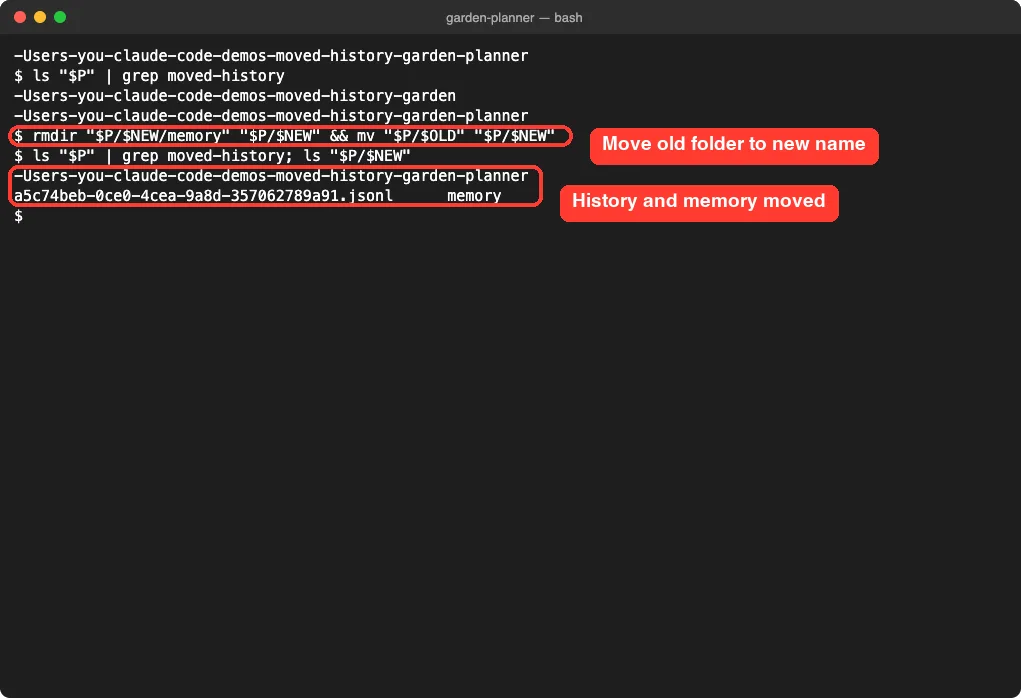
Step 3: Check it worked
Back in the project folder, claude --continue opened the garden-notes session straight away, with the full conversation:
And the memory came along too. The same one-off question that answered “unknown” before now gave the right code word:
Delete the backup copy only after you’ve checked your chats for a few days.
Which Fix Should You Use?
| Fix | Brings back chats | Brings back memory | Tested by us |
|---|---|---|---|
| Move the folder back | Yes | Yes | Follows from the storage rule |
Ctrl+A in the picker | One chat at a time | No | Yes |
| Resume by session ID | One chat at a time | No | Shown in our related post |
| Rename the storage folder | Yes, all of them | Yes | Yes |
Planning a Move? Do It the Safe Way
If you know a folder is about to move, you can plan ahead. Write down the session IDs you care about, or name your sessions with claude -n or /rename so they’re easy to find with Ctrl+A later.
Claude Code also has a /cd <path> command.
The docs say it moves the current session to a new working directory, keeping the conversation, and relocates it to that directory’s project storage. That suits a project you copy to a new place: open the session, run /cd with the new path, and the session appears in that folder’s picker afterward. We took this from the docs and didn’t test it here.
On Windows and Linux the storage folder is the same .claude/projects folder inside your user’s home folder, so the same fixes apply. On Windows, the path’s drive letter, colon and backslashes also turn into dashes.
Try It Yourself
Practice on a throwaway folder before you touch a real project. Make a folder, start a session, and paste this prompt:
Remember the code word TEST-FOLDER for this project. Reply with just: savedExit, rename the folder, and try claude --continue. Then get it back with Ctrl+A, and finally rename the storage folder and confirm a new session still knows the code word.
Common Mistakes
- Running
ls -d *garden*inside~/.claude/projects. Every storage folder name starts with a dash, solsandrmdirread them as options. We hit exactly this: “unrecognized option”. Use full paths like"$P/$OLD"instead. - Moving the storage folder while Claude Code is still open in that project. Close every session first.
- Copying the transcript into two projects. The docs say a duplicate ID makes resume-by-ID report not-found.
- Deleting the old storage folder “to clean up” before checking the new one works.
- Expecting Fix 2 or Fix 3 to be permanent. They open the chat but leave the files under the old name.
- Forgetting a custom config folder. If
CLAUDE_CONFIG_DIRis set, look in that folder’sprojectsfolder, not~/.claude.
Pro Tips
- Name important sessions. A name like
garden-notesis much easier to find withCtrl+Athan a random title. - Copy the exit line. The
claude --resume <id>line Claude Code prints when you quit works from any folder. - Keep history longer if you move things often. Transcripts are deleted after 30 days by default; the
cleanupPeriodDayssetting changes that. Our guide to session history cleanup explains it. - For long-term notes, write them in a
CLAUDE.mdfile inside the project. It travels with the folder because it lives in the folder. - Seeing an error about a missing folder inside a running session? That’s a different problem; see our missing directory fix.
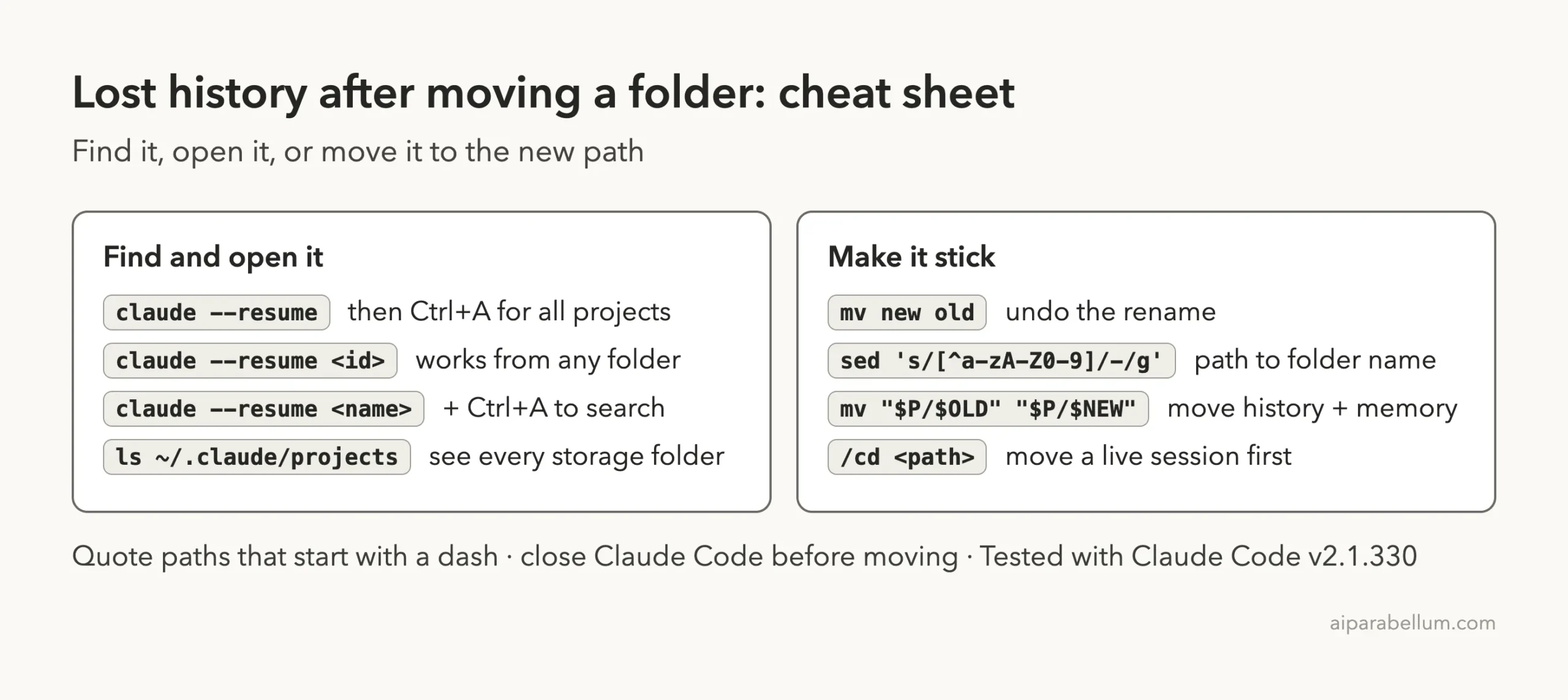
Cheat Sheet
Frequently Asked Questions
Did moving the folder delete my Claude Code history?
No. The transcripts stay in ~/.claude/projects/ under the old path’s name. Claude Code just doesn’t look there from the new path.
They are only removed by the normal 30-day cleanup or if you delete them.
Why does claude –continue say no conversation found?
--continue only checks the storage folder for your current path. After a rename, that folder is new and empty. Use Ctrl+A in the picker, resume by ID, or rename the storage folder.
Will Claude remember my project after I rename the folder?
Not automatically. Auto memory is stored per path, so in our test a new session in the renamed folder didn’t know what Claude had saved. After we renamed the storage folder, it did.
Notes in a CLAUDE.md file inside the project aren’t affected.
Does this happen when I rename a git branch?
No. Storage depends on the folder path, not the branch. Git worktrees are separate folders, though, and the picker has Ctrl+W to show sessions from all worktrees of a repository.
Where can I find more Claude Code fixes?
Our list of common Claude Code errors covers the most frequent messages. For a general overview of Claude, visit our Claude AI page.
Conclusion
When your Claude Code history looks lost after moving a folder, it’s still on disk: Claude Code stores chats and auto memory under a folder named after the old path, so the new path simply starts empty. Move the folder back if you can, use Ctrl+A in claude --resume or a session ID to open one old chat, and for a permanent fix close Claude Code, back up, and rename the storage folder in ~/.claude/projects/ to match the new path. For the full details, read Anthropic’s sessions guide and memory docs.