
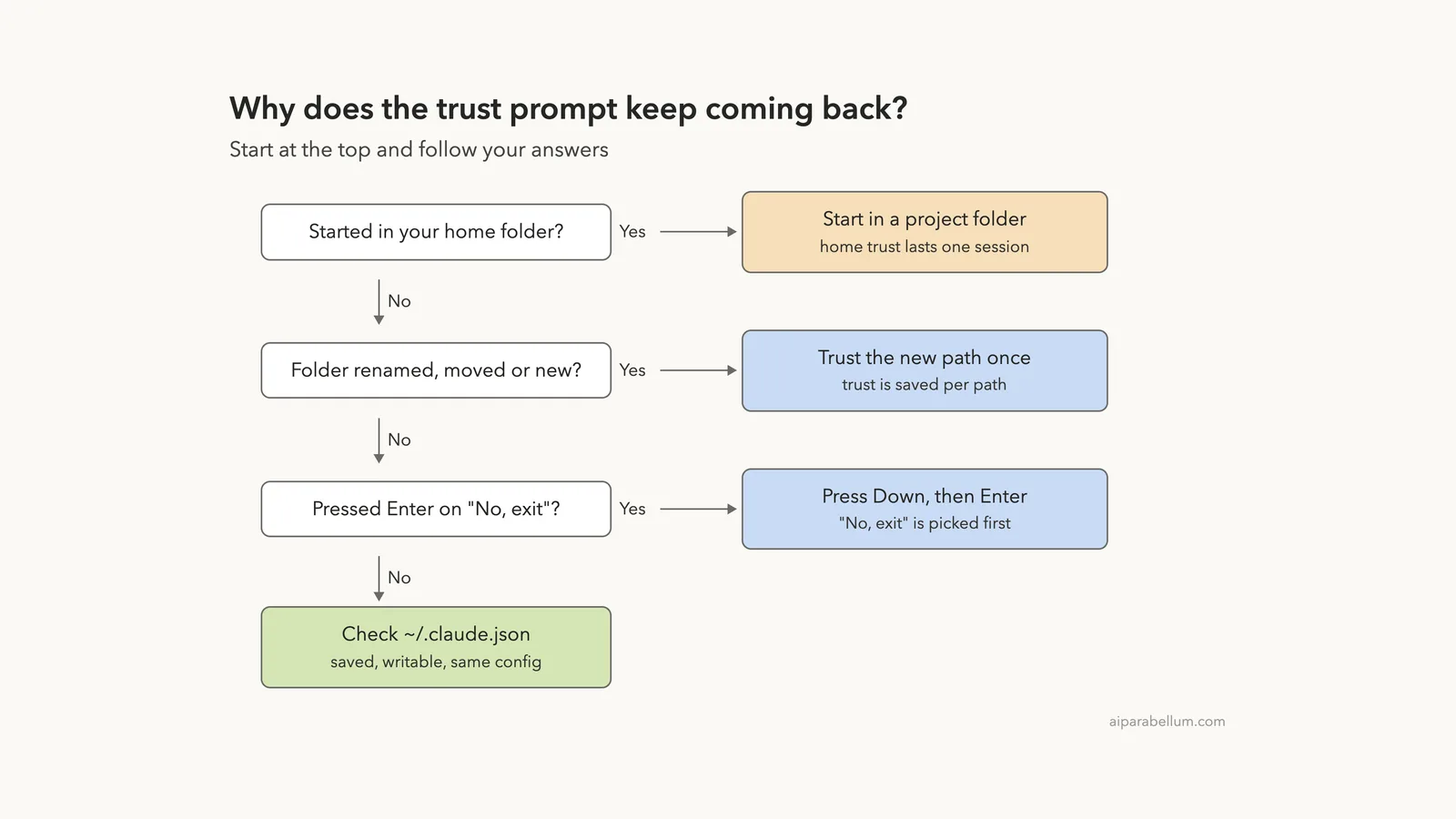
If the claude code trust this folder prompt shows up every time you start a session, Claude Code isn’t remembering your answer for that exact folder. Most of the time the reason is simple: you started Claude Code in your home folder, where a Yes only lasts for the current session, or you opened a folder whose path changed since you last said Yes.
The quick fix: start Claude Code inside a project folder, not your home folder, and choose “Yes, I trust this folder” with the Down arrow and Enter. Pressing Enter right away picks “No, exit”, because that option is selected first. Claude Code then saves your answer in ~/.claude.json and won’t ask again for that folder or its subfolders.
Below we reproduce every case in a real session: where the answer is saved, why it repeats, what changes inside a git repository, and how to trust a folder for claude -p scripts that never show the prompt. Many people still search for the older wording, “Do you trust the files in this folder?”, so we cover both.
Browse all our Claude Code tutorials for more fixes and how-tos.
Tested with Claude Code v2.1.330 on macOS on November 25, 2026. To keep our real setup untouched, every run used a separate test config folder set with CLAUDE_CONFIG_DIR and small demo folders. That’s why the screenshots say “Not logged in”: the trust prompt appears before any sign-in check, so it didn’t matter for these tests.
Quick Summary
| What you see | Likely cause | Fix |
|---|---|---|
| Prompt on every launch | You start Claude Code in your home folder | Start in a project folder instead |
| Prompt after renaming or moving a folder | Trust is saved per path | Answer Yes once for the new path |
| “Claude Code didn’t start because this folder isn’t trusted” | You pressed Enter on “No, exit” or pressed Esc | Run claude, press Down, then Enter |
| Prompt in every new clone or worktree checkout | Each repository root is a new path | Trust each new repository once |
“this workspace has not been trusted” in claude -p | Print mode never shows the prompt | Trust the folder interactively once |
| Prompt returns even though you chose Yes | ~/.claude.json couldn’t be saved, or a different config folder is in use | Check the file and CLAUDE_CONFIG_DIR |
What the Claude Code Trust This Folder Prompt Is
A project folder can carry its own Claude Code configuration in .claude/settings.json, .mcp.json and similar files. Some of those settings grant real power, such as permission rules that let commands run without asking. The trust prompt is a safety check that stops a folder you just downloaded from switching those on silently.
In v2.1.330 the prompt starts with “Accessing workspace:”, shows the folder path, then asks: “Quick safety check: Is this a project you created or one you trust?” If the folder’s settings would pre-approve tools, it lists them in a yellow warning before you answer.
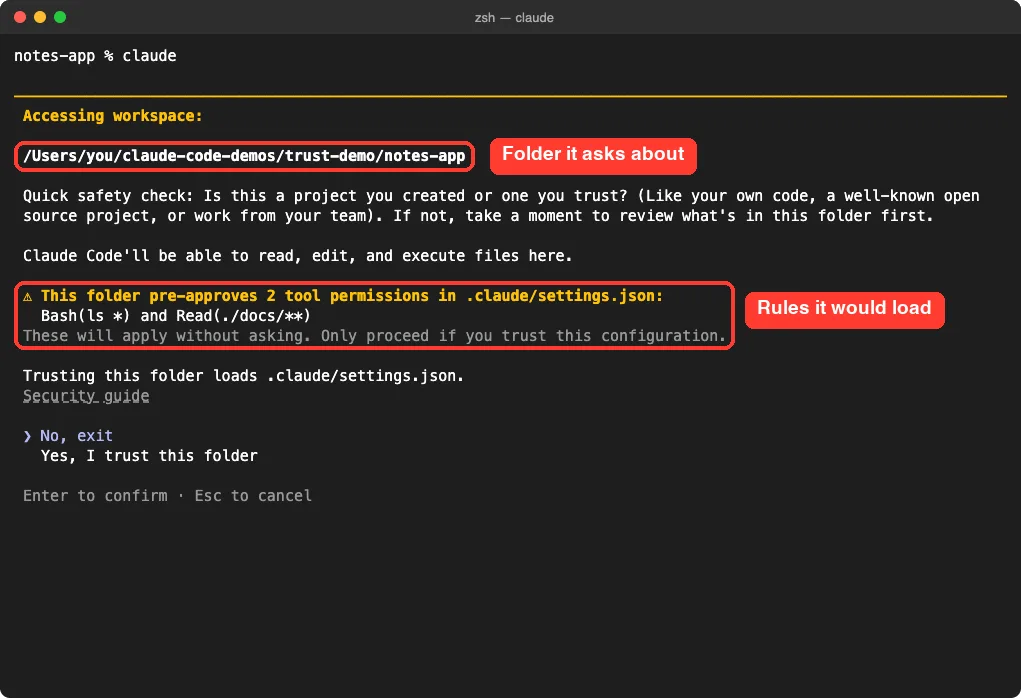
Our demo folder had a .claude/settings.json with two allow rules, Bash(ls *) and Read(./docs/**). The prompt listed both and warned that they “will apply without asking.” That’s the point of the check: you see what a folder would switch on before it happens.
According to the official permissions docs, permissions.allow rules and permissions.additionalDirectories from project settings apply only after you accept. Deny and ask rules apply right away, since they only restrict. Our guide to permission rules explains how those rules work.
How to answer it correctly
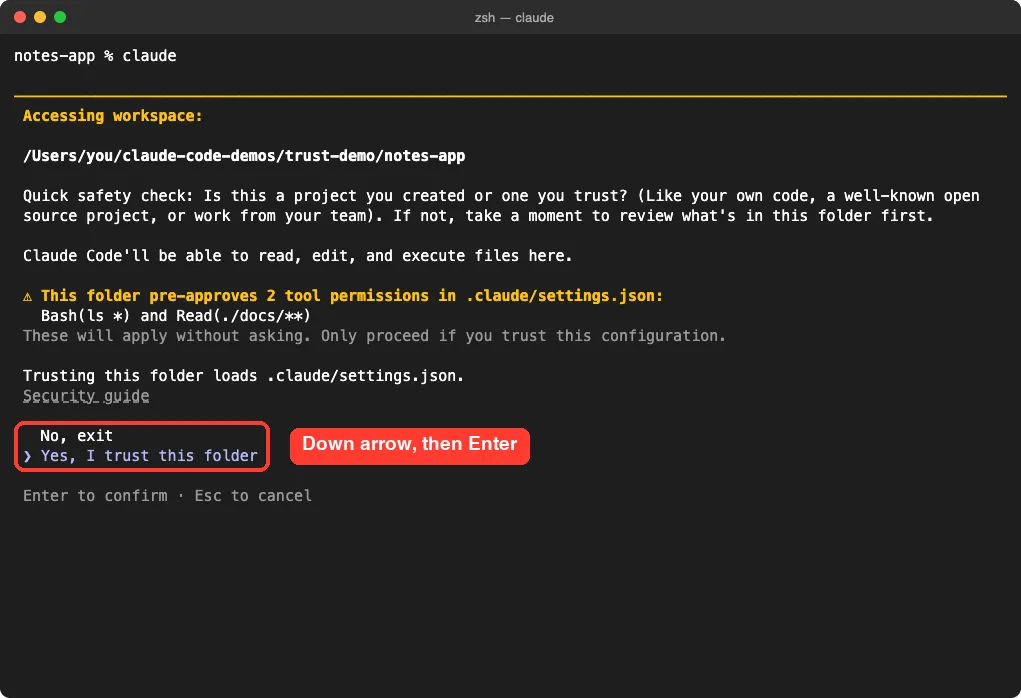
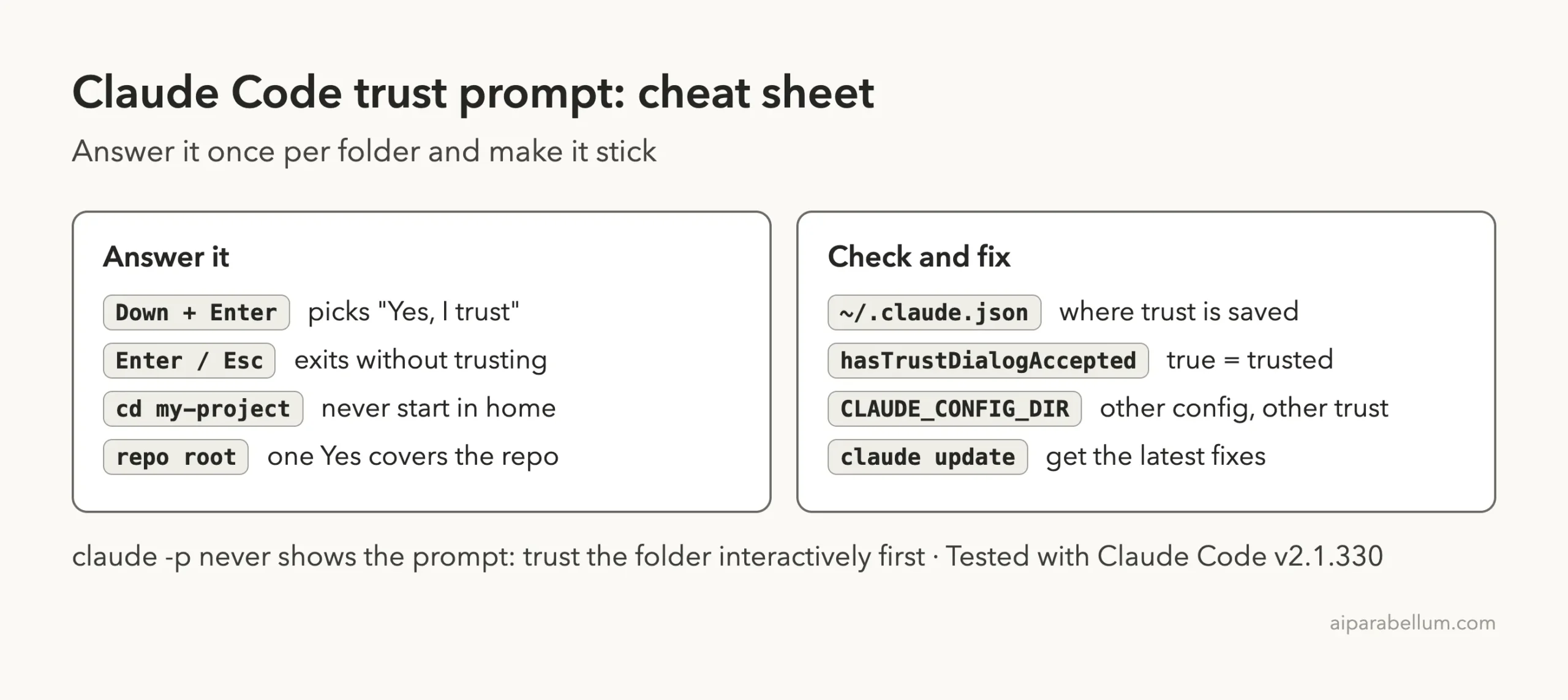
Look closely at the two choices. “No, exit” is selected when the prompt opens, so a quick Enter press closes Claude Code instead of trusting the folder. Press the Down arrow once so “Yes, I trust this folder” is highlighted, then press Enter.
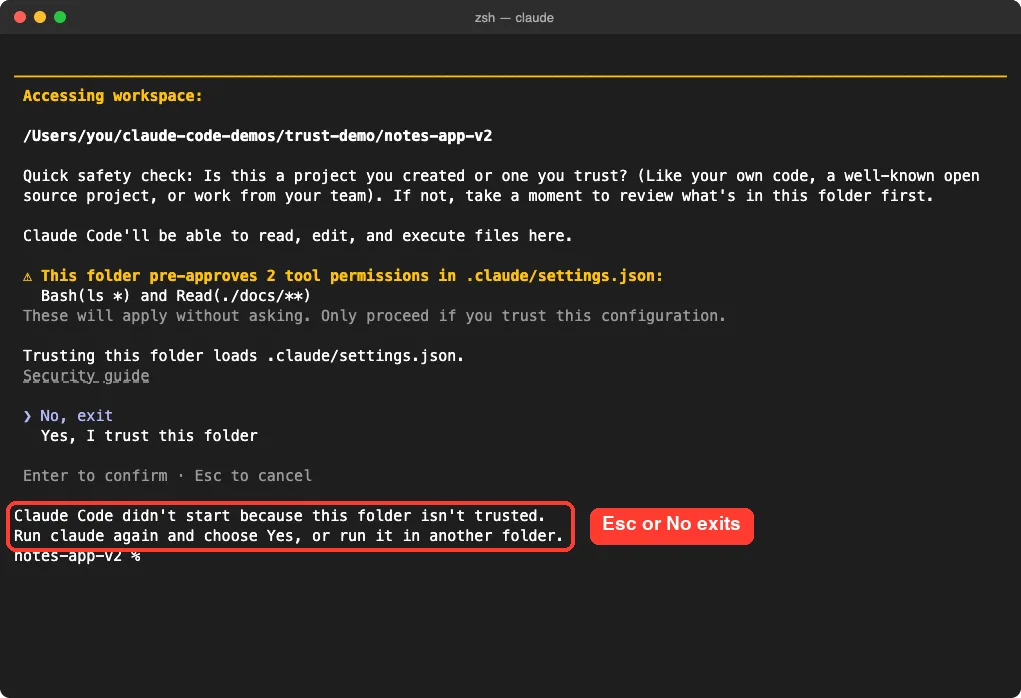
If you press Enter on “No, exit” or press Esc, Claude Code stops and prints a short note. Nothing is saved, so the prompt is back the next time you run claude there.
Where Claude Code Saves Your Answer
When you choose Yes, Claude Code writes it to ~/.claude.json, the app-state file it manages itself. The docs describe this file as holding account details, MCP servers and “per-project state such as trust decisions.” Each folder gets an entry under projects, and the trust answer is the hasTrustDialogAccepted key.
We wrote a tiny Python script that only reads this file and prints each project path with its trust value. Here it is if you want to check your own:
python3 -c "import json,os; p=json.load(open(os.path.expanduser('~/.claude.json'))).get('projects',{}); [print(k, v.get('hasTrustDialogAccepted')) for k,v in p.items()]"If you set CLAUDE_CONFIG_DIR, replace ~/.claude.json with .claude.json inside that folder. The command only reads; don’t edit the file by hand unless a fix below tells you to.
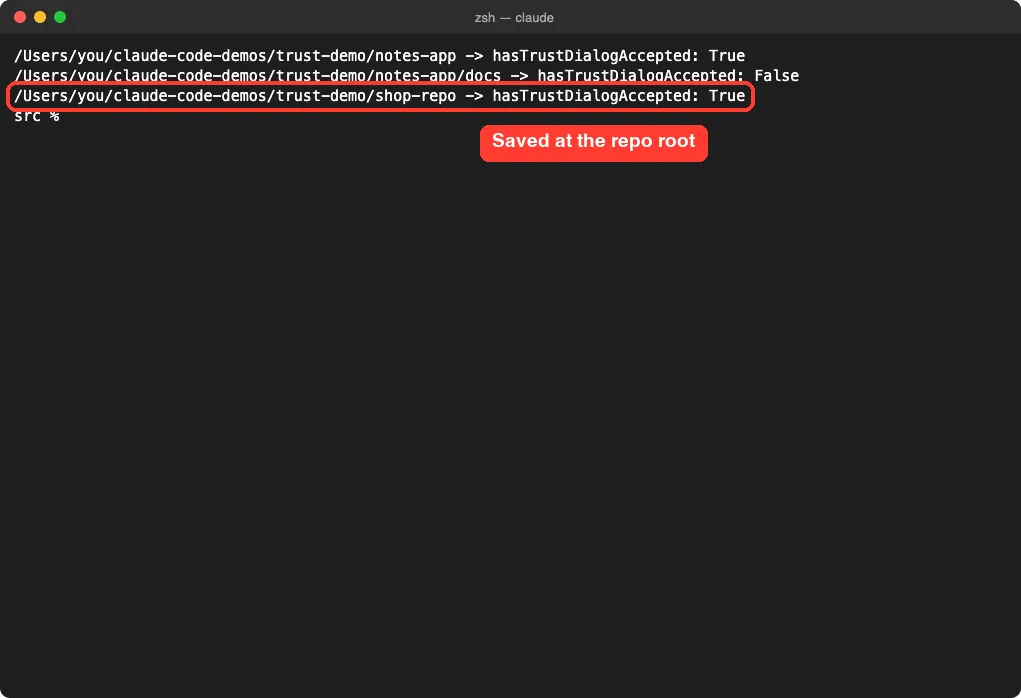
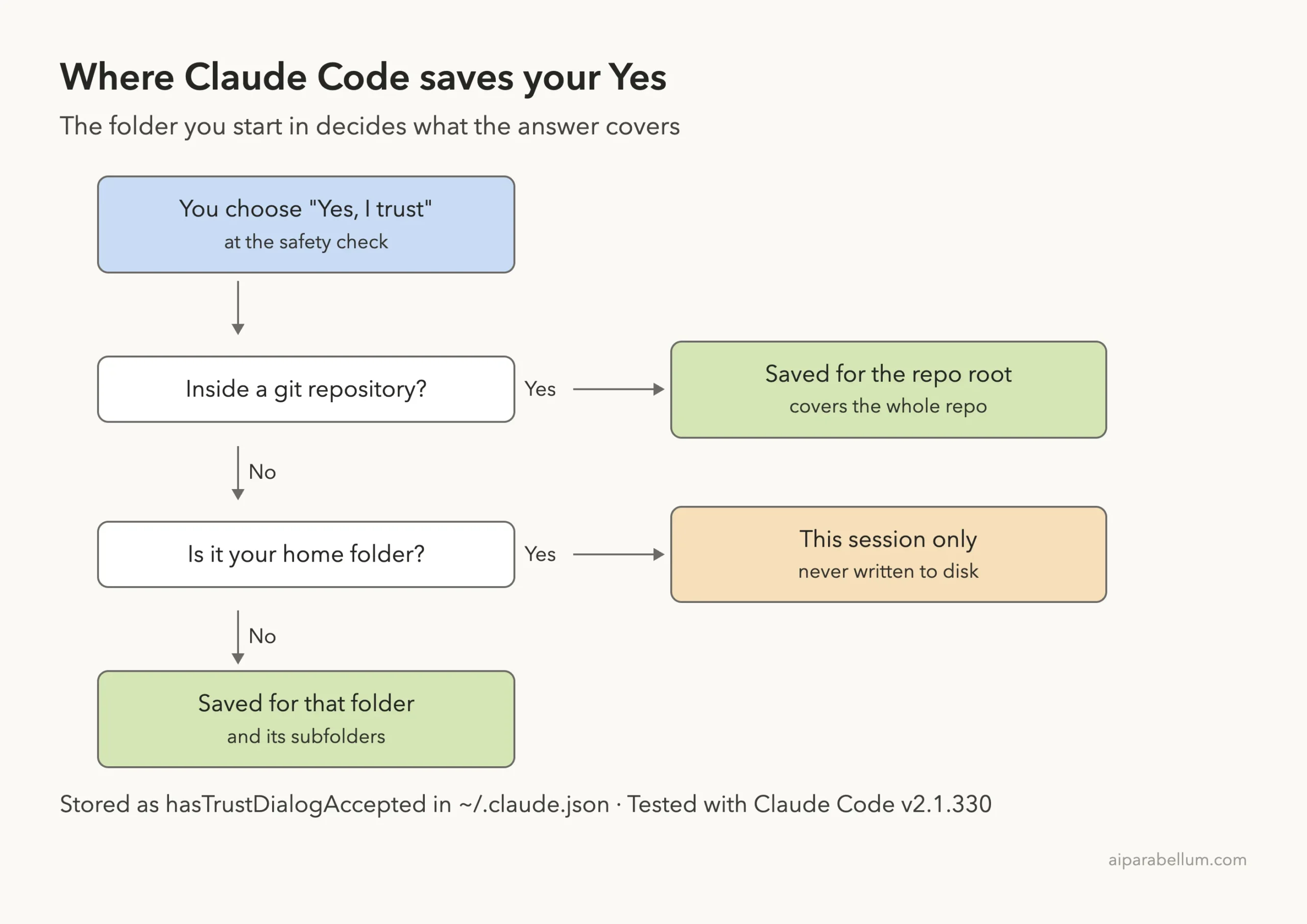
Which path gets saved depends on where you start. We started Claude Code inside shop-repo/src, a subfolder of a git repository.
The prompt showed the src path, but the saved entry was shop-repo, the repository root. That matches the docs: in a repository, trust is keyed on the git root and covers the whole repository.
Subfolders of a trusted folder
Outside a repository, trust covers the folder you started in and every subfolder. We trusted notes-app, then started Claude Code in notes-app/docs. It opened straight to the input box with no prompt.
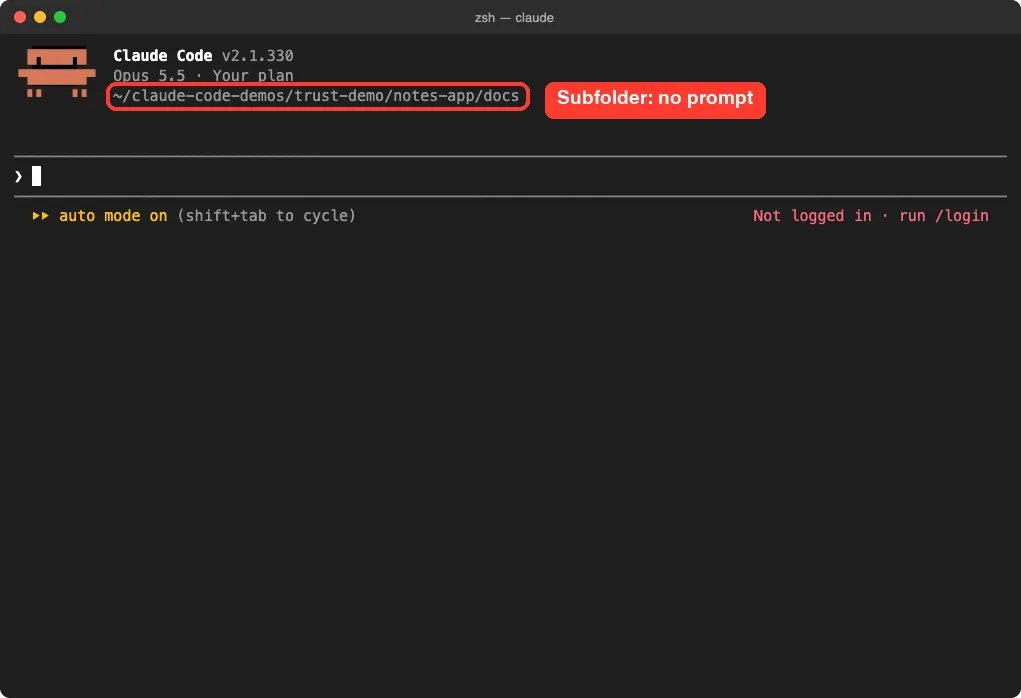
Notice one detail in the saved list: the docs folder got its own entry with hasTrustDialogAccepted set to False. That isn’t a problem.
The docs say a covered subfolder counts as a folder whose parent you trusted, so the parent’s Yes is what lets it start. There’s one exception: a git repository nested inside a trusted folder, such as a clone, asks for its own trust.
Why the Claude Code Trust Prompt Keeps Coming Back
Here are the causes we confirmed in real runs and in Anthropic’s docs, from most to least common.
Cause 1: You start Claude Code in your home folder
This is the big one. The security docs say that in your home directory, trust “is held for the current session only and is not written to disk, so the prompt reappears on each launch.” They add that there is no setting to change this.
Claude Code v2.1.330 now says so right in the prompt: “This is your home folder, so Yes lasts for this session only.” In our test we answered Yes in the home folder, exited, and checked the saved file. The home entry was False, and the next launch asked again.
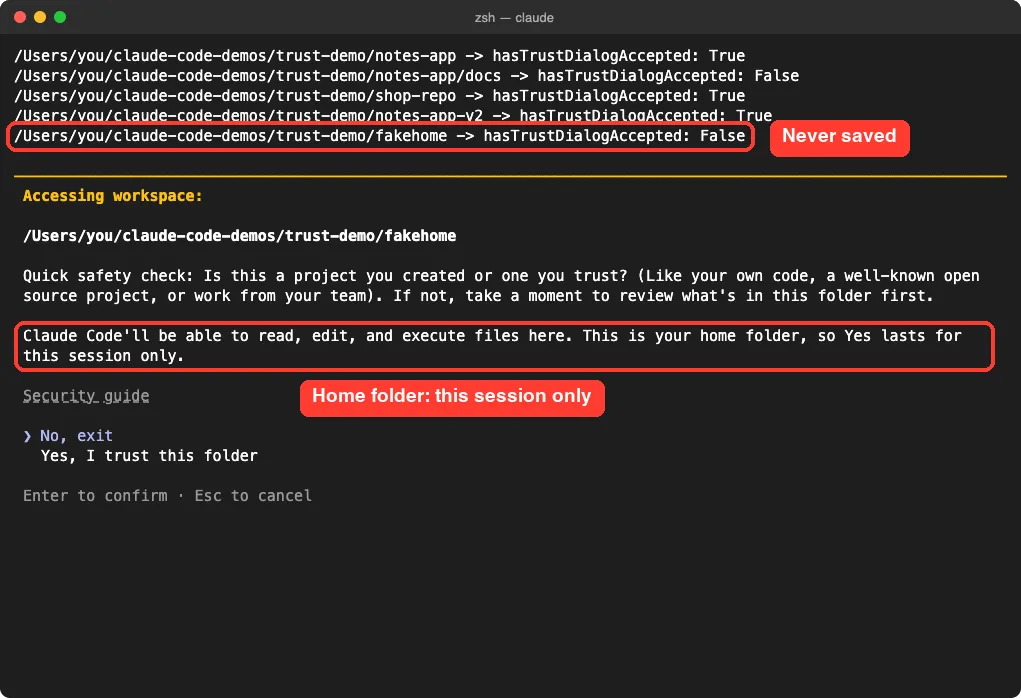
The fix is to make a folder for your work and start there:
mkdir -p ~/projects/my-project
cd ~/projects/my-project
claude
A new terminal window often opens in your home folder, which is why this catches so many people. Run cd into a project first, or set your terminal to open in a project folder.
Cause 2: The folder path changed
Trust is tied to the exact path. When we renamed notes-app to notes-app-v2, the next launch showed the full prompt again, including the allow-rule warning. The same happens when you move a folder, clone a repository again, or unzip a fresh copy somewhere else.
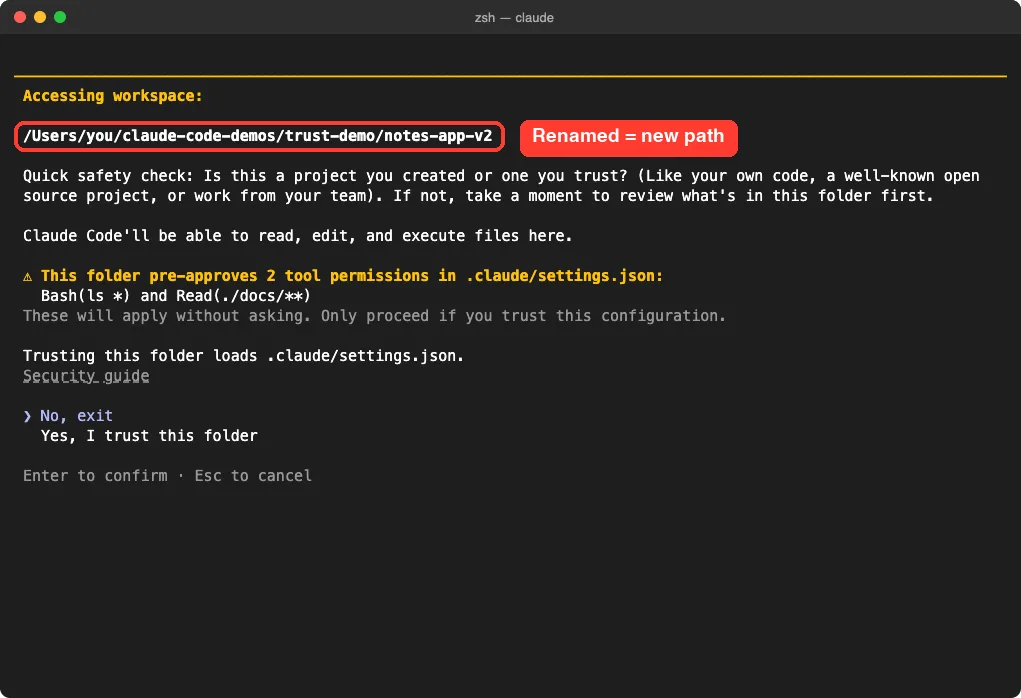
This is expected, not a bug. Answer Yes once for the new path and it sticks. If your build tool creates a new folder for every checkout, trust a stable parent folder that isn’t a repository itself; it covers the subfolders below it, except nested git repositories.
Cause 3: You answered No without meaning to
As shown above, “No, exit” is the default choice. If you press Enter quickly, Claude Code exits with “Claude Code didn’t start because this folder isn’t trusted.” Nothing is saved, so the prompt keeps returning until you choose Yes. Older versions had a related keyboard bug: v2.1.326 fixed Up then Enter answering Yes at the prompt shown under an already trusted parent folder.
Cause 4: Your answer couldn’t be saved
Trust lives in ~/.claude.json, so anything that stops Claude Code from writing that file also stops trust from sticking. The error reference lists a notice for this case:
Make this change again later: /home/user/.claude.json could not be updated, so it applies to this session only.The docs name “an answer to a trust prompt” as one change this notice covers. Fix whatever blocks the write, such as a file owned by another user, a full disk or a broken network home folder, then answer the prompt again. The changelog shows v2.1.318 fixed trust changes being dropped with no message on shared network home folders, so update if you’re on an older version.
A damaged ~/.claude.json causes the same symptom, because Claude Code can’t read your saved answers. Our guide to the corrupted config file error shows how to restore it from the backups Claude Code keeps.
Cause 5: A different config folder is in use
If CLAUDE_CONFIG_DIR is set, Claude Code reads and writes .claude.json inside that folder instead of your home. A folder you trusted under one config folder isn’t trusted under another. We saw this ourselves: our test config had none of our real trusted folders, so every demo folder asked.
Check with echo $CLAUDE_CONFIG_DIR in the terminal where the prompt keeps appearing. If a script, shell profile or tool sets it, either use one config folder consistently or trust the folder once under each.
The docs also describe a rarer warning, “Two Claude Code config files exist”, for when an older .config.json sits next to .claude.json. Only one is in use, so trust saved in the other doesn’t count until you follow that warning’s steps.
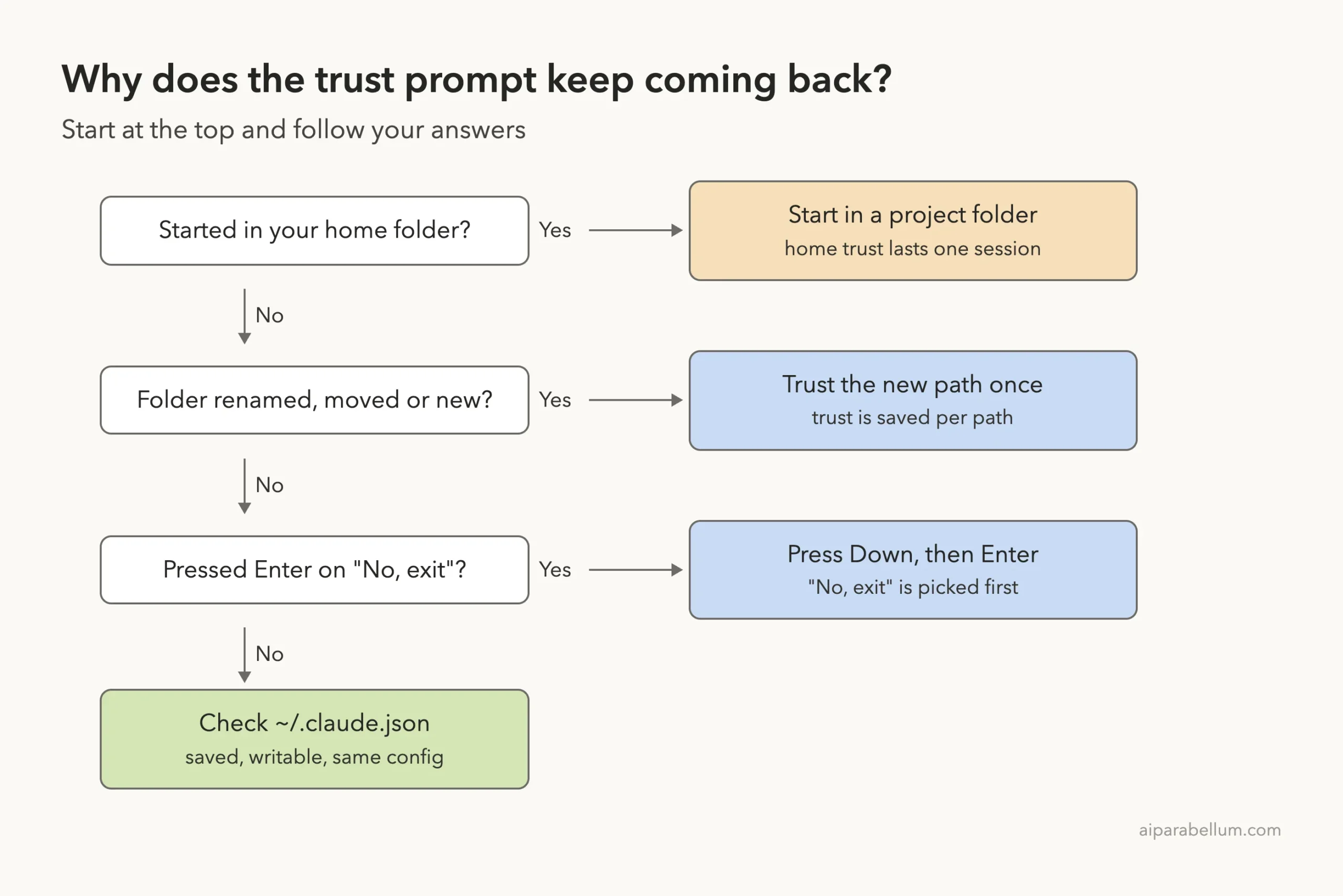
The trust prompt repeating is almost never random. It means Claude Code sees a path it has no saved Yes for.
Trust in claude -p, Scripts and Other Places
The prompt only appears in interactive terminal sessions. A claude -p run or an SDK session never shows it, and the docs say Claude Code then skips the folder’s project allow rules. We ran claude -p in our renamed, untrusted folder and got this warning on stderr:
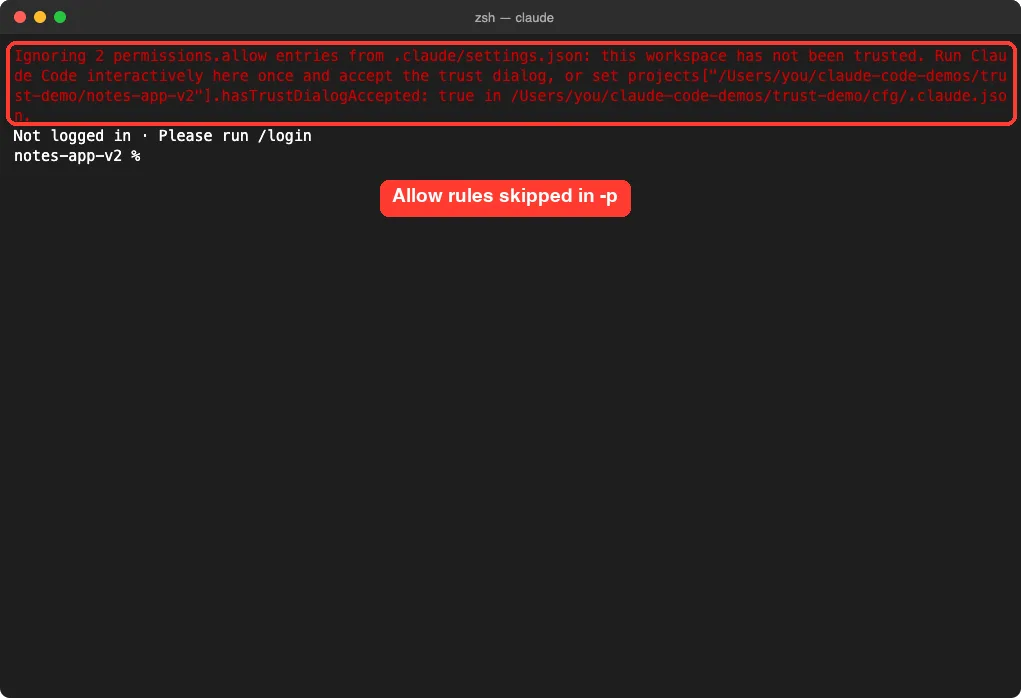
The message gives you two fixes. The easy one is to run claude interactively in that folder once and choose Yes. The second, for machines where you can’t do that, is to set the key yourself, using the exact path the message prints:
"projects": {
  "/path/to/your/project": {
    "hasTrustDialogAccepted": true
  }
}
Only do this for folders you wrote or fully trust, and close Claude Code before editing, since it rewrites the file. Our guide to headless mode covers more about claude -p in scripts.
Other places that ask for trust
- The VS Code extension shows its own dialog titled
Trust this folder in Claude Code?before the first session in a folder. - Adding a folder with
--add-diror/add-dir, or moving with/cd, asks to trust that folder if your current trust doesn’t cover it. - Starting a background session with
claude --bgchecks trust first; in a script it exits with a “Workspace not trusted” error instead. claude ultrareviewasks too, and the docs say scripts can pass--trust-workspacefor code you trust.
Real Examples
Example 1: You open a new terminal and type claude every morning, and every morning it asks. Your terminal opens in your home folder. Start in ~/projects/your-app instead and the prompt appears once, then never again for that folder.
Example 2: Your team’s repository is cloned into a new folder for each task. Each clone is a new repository root, so each asks once. Trust each clone when you start, or reuse one checkout with branches or worktrees, which the docs say use the main checkout’s root.
Example 3: A nightly script runs claude -p and prints “this workspace has not been trusted.” Open the folder once with claude, choose Yes, and the next run applies the allow rules.
Try It Yourself
You can see trust in action without touching your real projects. Make a throwaway folder, start Claude Code there, answer Yes with Down and Enter, then exit with /exit and start it again:
mkdir -p ~/trust-test/demo
cd ~/trust-test/demo
claude
The second launch should open with no prompt.
Now rename the folder with cd .. && mv demo demo2 && cd demo2 and run claude again to watch the prompt return for the new path. Delete the test folder when you’re done.
Common Mistakes
- Pressing Enter as soon as the prompt appears, which picks “No, exit.”
- Running Claude Code from your home folder and expecting the Yes to stick.
- Deleting
~/.claude.jsonto “reset” the prompt. That also removes your saved folders, MCP servers and app state, so every folder asks again. - Setting
hasTrustDialogAcceptedby hand for code you haven’t read. That turns on the folder’s allow rules without the warning you would have seen. - Mixing different
CLAUDE_CONFIG_DIRvalues and wondering why trust doesn’t carry over.
Pro Tips
- Keep your work in one parent folder, like
~/projects, and start Claude Code inside each project. The prompt then shows up once per project. - Read the yellow warning before saying Yes. If a downloaded repository pre-approves tools you don’t expect, choose No and inspect
.claude/settings.jsonfirst. - For untrusted code in scripts, the docs suggest
--setting-sources useror--bareso the project’s settings aren’t read at all. - Stay current with
claude update. Recent versions improved the prompt’s wording and fixed several trust bugs, including the Windows/resumedrive-letter case fixed in v2.1.325. - If allow rules still don’t apply after you trust a folder, our guide on settings file locations helps you check you edited the right file, and the /doctor check spots broken settings.
Claude Code Trust This Folder Cheat Sheet
Frequently Asked Questions
Can I turn off the Claude Code trust prompt completely?
No. The security docs say there’s no setting to save trust for your home folder, and the prompt is a deliberate safety check. You can make it appear only once per project by starting in project folders and answering Yes.
Is it safe to click “Yes, I trust this folder”?
It’s safe for your own code and projects you know. For a repository you just downloaded, read the warnings in the prompt first, because Yes lets that folder’s settings apply. If you’re unsure, choose No and check its .claude folder and .mcp.json.
Where is the trust setting stored?
In ~/.claude.json, under projects, as hasTrustDialogAccepted for each saved path. With CLAUDE_CONFIG_DIR set, it’s in the .claude.json inside that folder.
Why does a subfolder sometimes ask and sometimes not?
A plain subfolder of a trusted folder doesn’t ask. A git repository nested inside it, like a clone or submodule, does, because trust is keyed on each repository root.
Where can I find other Claude Code fixes?
Our list of common Claude Code errors covers the most frequent messages, and our guide on how to stop permission prompts helps with the separate tool prompts. For an overview of Claude itself, see our Claude AI page.
Conclusion
When the claude code trust this folder prompt keeps coming back, Claude Code simply has no saved Yes for that exact path: you started in your home folder, where trust lasts one session, the folder’s path changed, you picked the default “No, exit”, or ~/.claude.json couldn’t be saved or isn’t the config file in use. Start in a project folder, press Down then Enter, and check hasTrustDialogAccepted if it still repeats; for claude -p, trust the folder interactively once. For the full rules, see Anthropic’s permissions guide and settings docs.