
To stop a background task in Claude Code, type /tasks, use the arrow keys to highlight the shell or subagent you want to end, and press x. The task disappears from the list right away, and the footer count of running shells drops by one.
There are three other ways to handle a Claude Code stop background task job. You can ask Claude to stop it, which makes Claude call its built-in Stop Task tool, or press Ctrl+X Ctrl+K twice to stop every running background subagent. You can also exit Claude Code, which cleans up its background tasks, with one catch we explain below.
In this guide we start a real local web server and a looping script in the background, then stop each one in a different way. We also cover background subagents, background sessions, and how to switch background tasks off completely.
Browse all our Claude Code tutorials for more fixes and how-tos.
Tested with Claude Code v2.1.332 on macOS on November 26, 2026, in a throwaway demo project with a tiny tick.sh script and Python’s built-in web server. Every terminal screenshot comes from that real session. The keys work the same way on Windows and Linux according to Anthropic’s official docs; we tested on macOS.
Quick Summary
| What you want to stop | How to do it | Where we checked it |
|---|---|---|
| One background shell or subagent | /tasks, highlight it, press x | Tested in our session |
| A task, without opening any menu | Ask Claude: “Stop the http.server background task” | Tested in our session |
| All background subagents | Ctrl+X Ctrl+K, pressed twice within 3 seconds | Prompt tested; behavior from the docs |
| Whatever Claude is doing right now | Esc (or Ctrl+C) | Official docs |
| Everything when you leave | /exit; background tasks are cleaned up at exit | Tested, with one surprise |
| A whole background session | /stop inside it, or claude stop <id> in your shell | Tested claude stop |
| Background tasks altogether | CLAUDE_CODE_DISABLE_BACKGROUND_TASKS=1 | Official docs |
What a Background Task in Claude Code Is
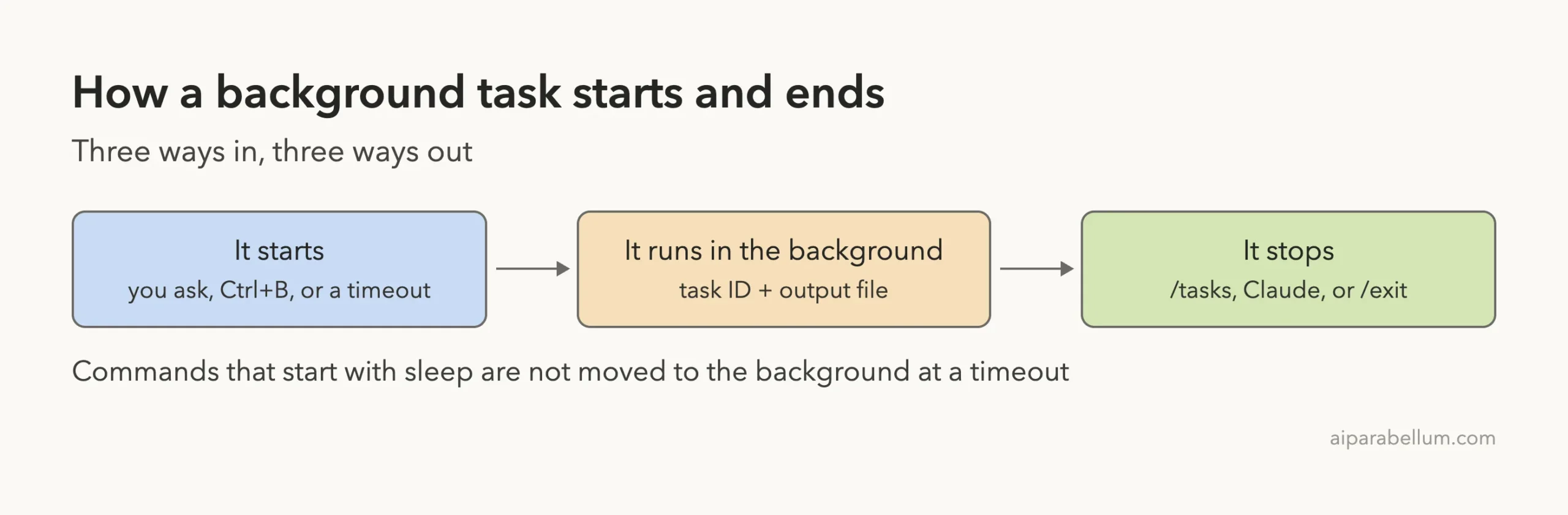
A background task is a command or subagent that keeps running while you and Claude carry on with other work. Dev servers, watch builds, test runners and long scripts are the usual examples. Each one gets a short task ID, and its output goes to a file that Claude can read later.
According to the interactive mode docs, a task can land in the background in three ways:
- You ask Claude to run something in the background, and it sets the command to run that way.
- You press
Ctrl+Bwhile a command is running in the foreground. Tmux users press it twice. - A foreground command reaches its timeout, and Claude Code moves it to the background instead of killing it. Commands that start with
sleepare the exception.
Subagents count too. With nothing configured, most subagents that Claude starts from your main conversation run in the background, so they show up in the same task list. Our guide to subagent best practices covers when that’s useful.
The reason people go looking for a stop button is simple. A forgotten dev server keeps holding its port, a watch loop keeps burning CPU, and a stuck subagent keeps waiting on a command that never ends.
Step 1: See What Is Running in the Background
You can’t stop what you can’t see, so start by checking the footer under the prompt. When anything runs in the background, Claude Code shows a count such as “1 shell” or “2 shells” next to a “↓ to manage” hint.
In our demo we started Python’s web server through shell mode with ! python3 -m http.server 8765. Then we pressed Ctrl+B, and Claude Code printed “Command was manually backgrounded by user”, gave the task an ID, and showed where the output file lives.
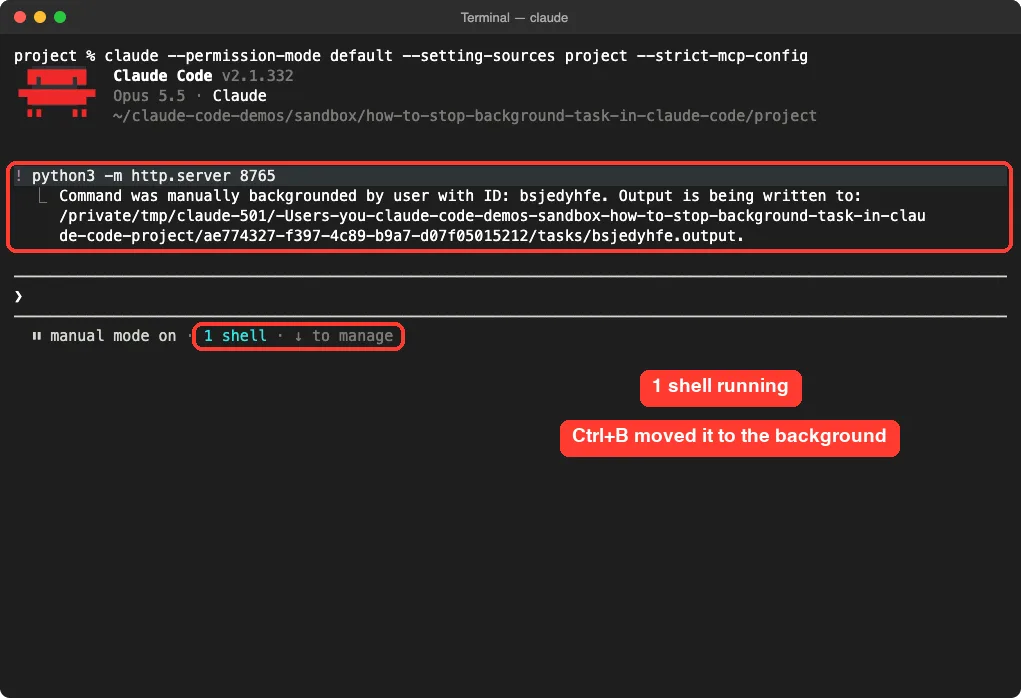
Next we asked Claude, “Start ./tick.sh as a background task.” Claude ran the script with the Bash tool, marked it “Running in the background”, and replied with its task ID. The status line then read “2 shells still running”.
Open the task list with /tasks
Type /tasks and press Enter. The panel lists every background shell and subagent in the current session, with its status. The commands reference says the same command is also available as /bashes, its older name.
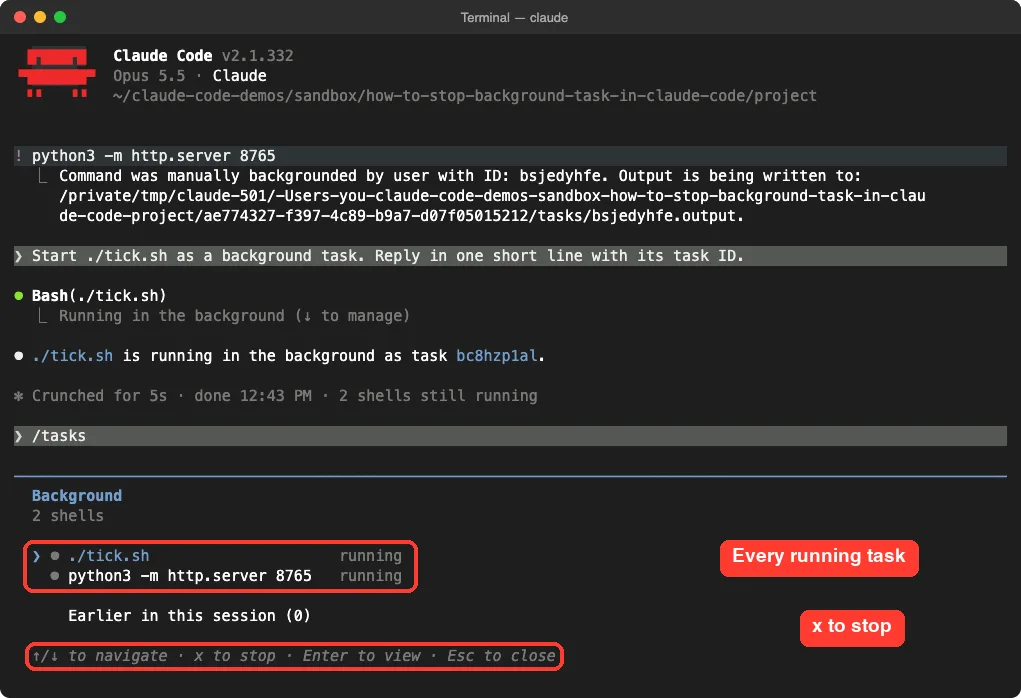
Keep an eye on the hint line at the bottom. In v2.1.332 it reads “↑/↓ to navigate · x to stop · Enter to view · Esc to close”. Those four keys are all you need.
Step 2: Stop a Background Task From /tasks
This is the main fix and the one we recommend. It works for shells and subagents alike.
- Type
/tasksand press Enter. - Use the Up and Down arrows to highlight the task you want to end.
- Optional: press Enter to open its detail view and check the output first.
- Press
xto stop it. - Press
Escto close the panel.
Check the output before you stop it
If you aren’t sure which task is which, press Enter on a row. The detail view shows the task’s name, type, status, runtime, the exact command and the last lines of output. Our tick.sh had been printing a timestamp every two seconds for 39 seconds.
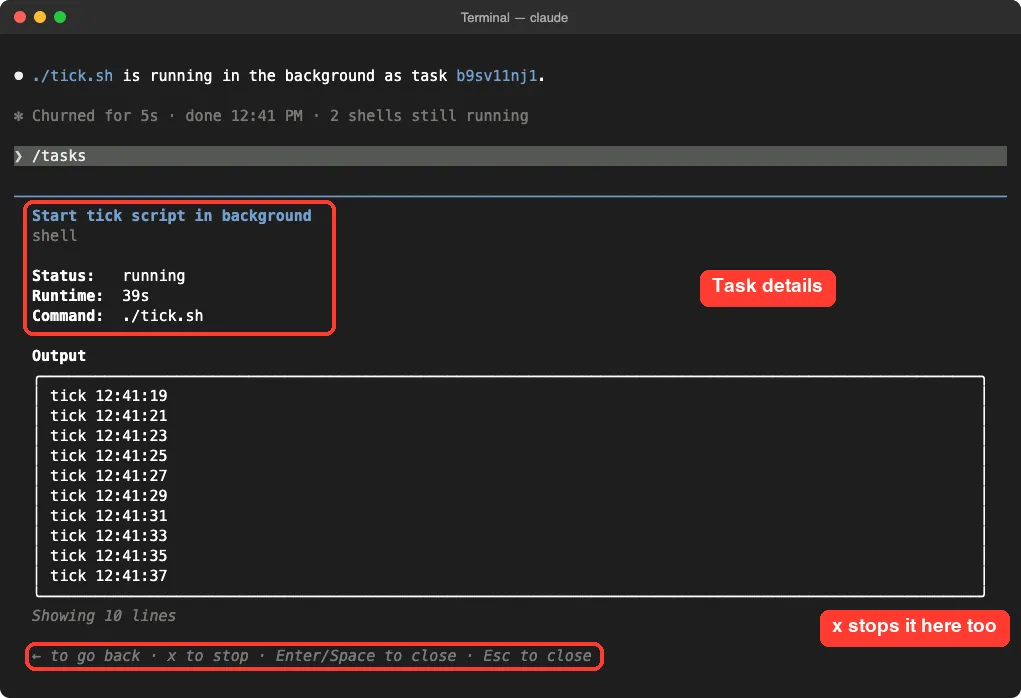
You don’t have to go back to the list to stop it. The detail view has its own “x to stop” hint, so one key press ends the task from either screen.
What you see after pressing x
We highlighted ./tick.sh and pressed x. The row vanished at once, the header changed to “1 shell”, and the status line above changed to “1 shell still running”. Only the web server was left.
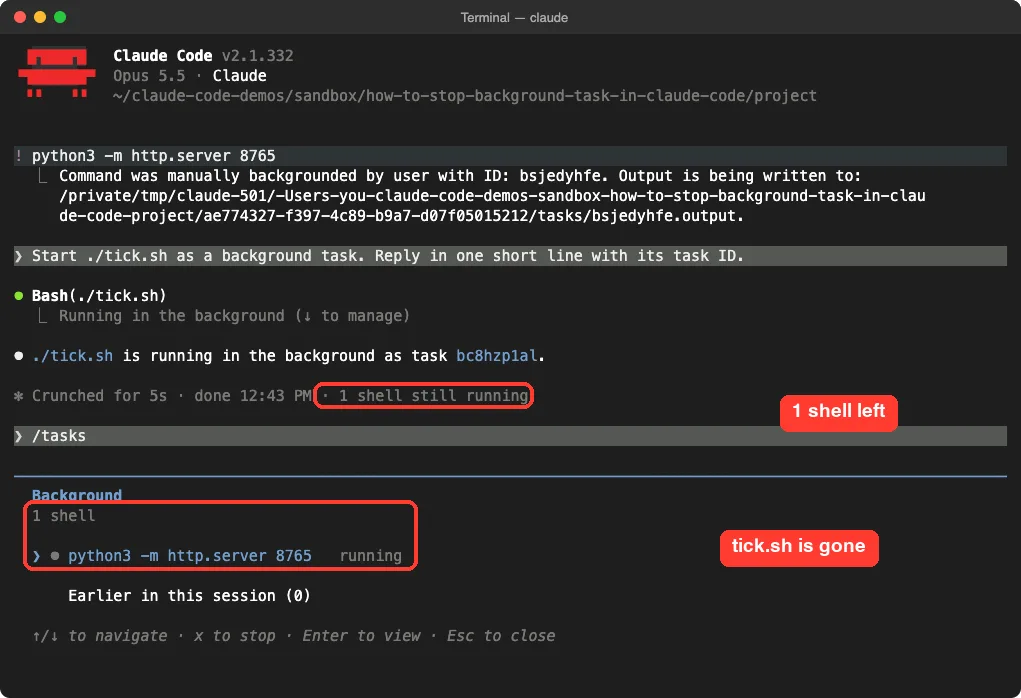
The docs add a useful detail for macOS and Linux. When you stop a task from /tasks, processes that detached from the task’s shell, such as ones started under setsid or timeout, stop too. And once you stop a command there, Claude moves on instead of waiting for it.
Step 3: Ask Claude to Stop the Task for You
Sometimes it’s quicker to just say what you want. Claude has a built-in tool called TaskStop that stops a running background task by its ID, as listed in the tools reference. You don’t need to know the ID; Claude tracks the tasks it can see.
We typed “Stop the http.server background task.” Claude called Stop Task, the tool result read “python3 -m http.server 8765 · stopped”, and Claude confirmed that port 8765 was free again. It also noticed that we had already stopped tick.sh ourselves.
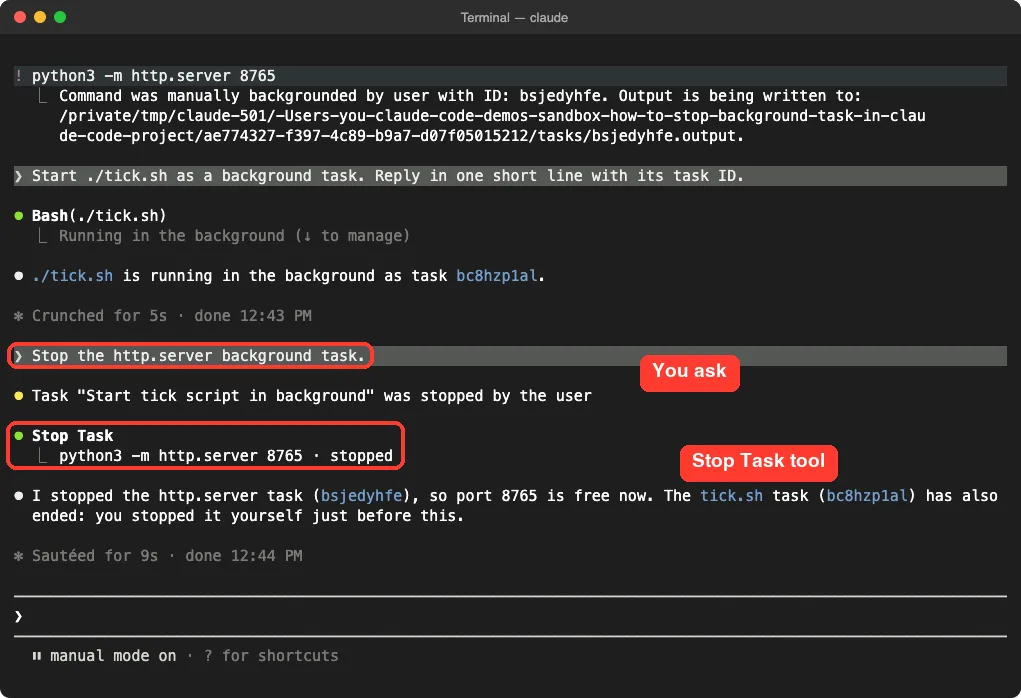
This route costs a short model turn, so /tasks is faster and free when you only need to press a key. Asking Claude is handy when you want it to stop a task and then do something next, such as restarting the server on another port.
Use /tasks when you know what to stop. Ask Claude when stopping is only the first step.
Step 4: Stop Background Subagents
Background subagents show up in two places: the /tasks list and a subagent panel under the prompt. You can stop a single one from /tasks with x, exactly like a shell. The keybindings docs add that x also stops an agent when you select its row in the panel below the prompt.
Stop all of them with Ctrl+X Ctrl+K
To stop every running background subagent at once, press Ctrl+X and then Ctrl+K. Claude Code asks you to confirm by pressing the same pair again within 3 seconds. The same shortcut also turns off artifact auto-replies for the rest of the session.
In our demo we asked Claude to run a background subagent that waited on a 90-second command. After the first press, the footer showed “Press ctrl+x ctrl+k again to stop background agents”.
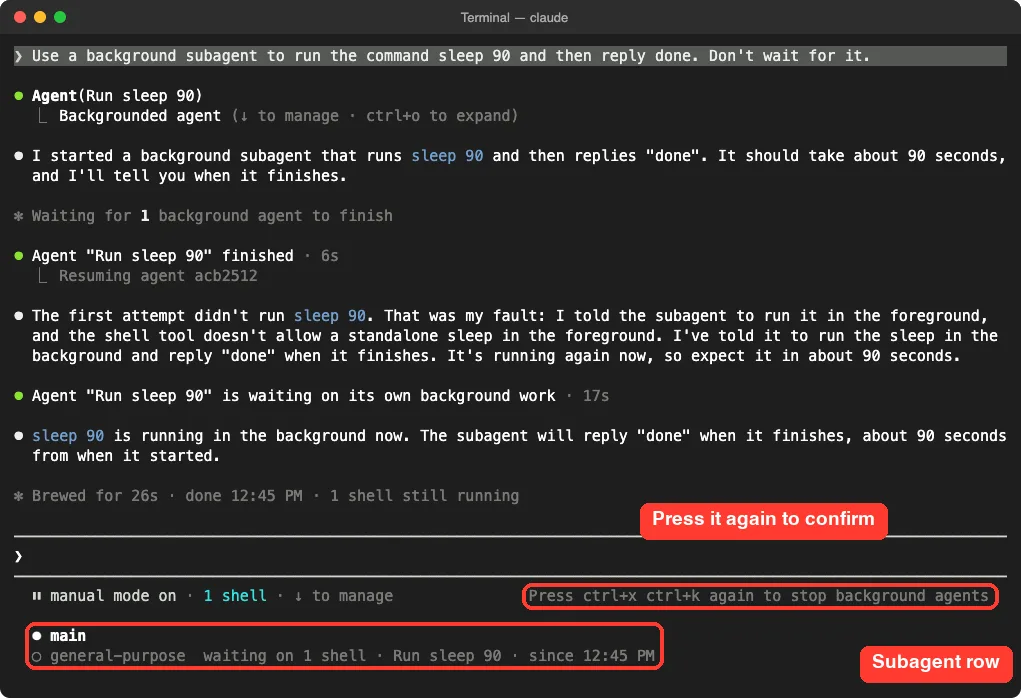
One honest note from our run: our subagent had already finished its own turn and was only waiting on a background shell it had started, and its row was still in the panel a few seconds after the second press. If a row stays, open /tasks and stop the shell itself with x. That handles both cases.
Step 5: Exit Claude Code (and Watch for Background Sessions)
The docs say background tasks are cleaned up automatically when Claude Code exits. So /exit is the bluntest way to stop everything. We confirmed it after our first demo: once we left, no tick.sh or port 8765 server was left running.
Our second demo had a surprise. Background work was still active when we typed /exit and pressed Enter, and instead of quitting, Claude Code printed “Moving to background…” and “backgrounded”, followed by the session’s ID. It also said one shell couldn’t be moved and was stopped.
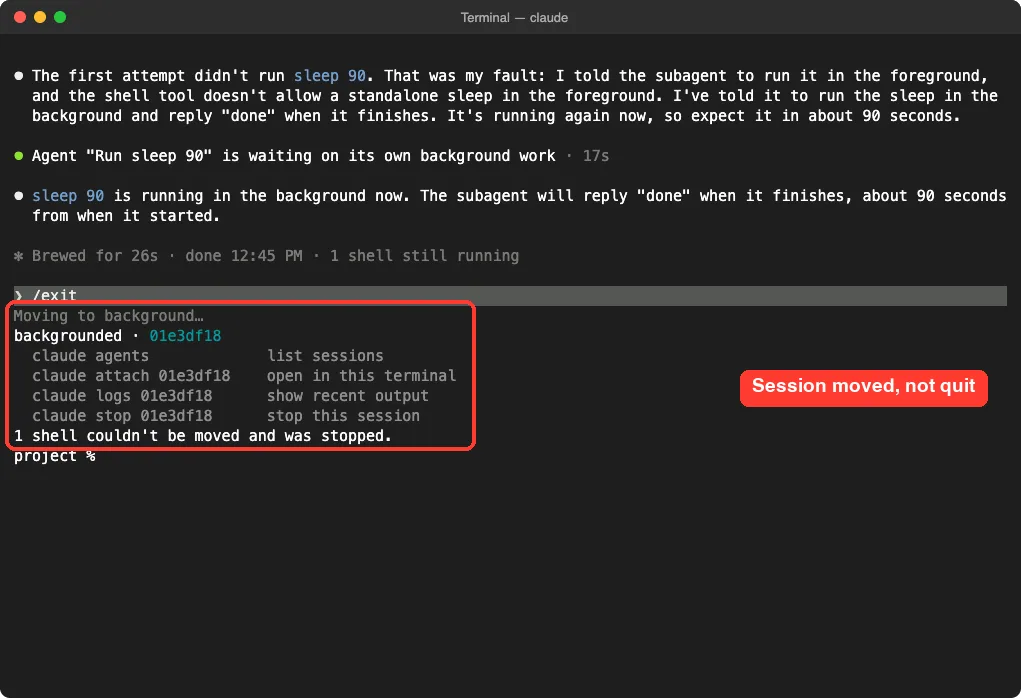
This matches the agent view docs. If you exit while some kinds of background work are running, such as subagents or workflows, Claude Code shows a “Background work is running” dialog. Its “Move to background and exit” option keeps the session alive as a background session.
Stop a background session
A background session keeps its own background tasks running. To end it for good, use one of these:
claude stop <id>in your shell, using the ID Claude Code printed. We ranclaude stop 01e3df18and got back “stopped 01e3df18”.claude killworks too./stopwhile you are attached to the session. It keeps the transcript and any worktree.claude agentsto list sessions first if you lost the ID.
Note the difference: inside an attached background session, /exit only detaches and the session keeps running. Use /stop when you really want it gone.
Which Stop Method Should You Use?
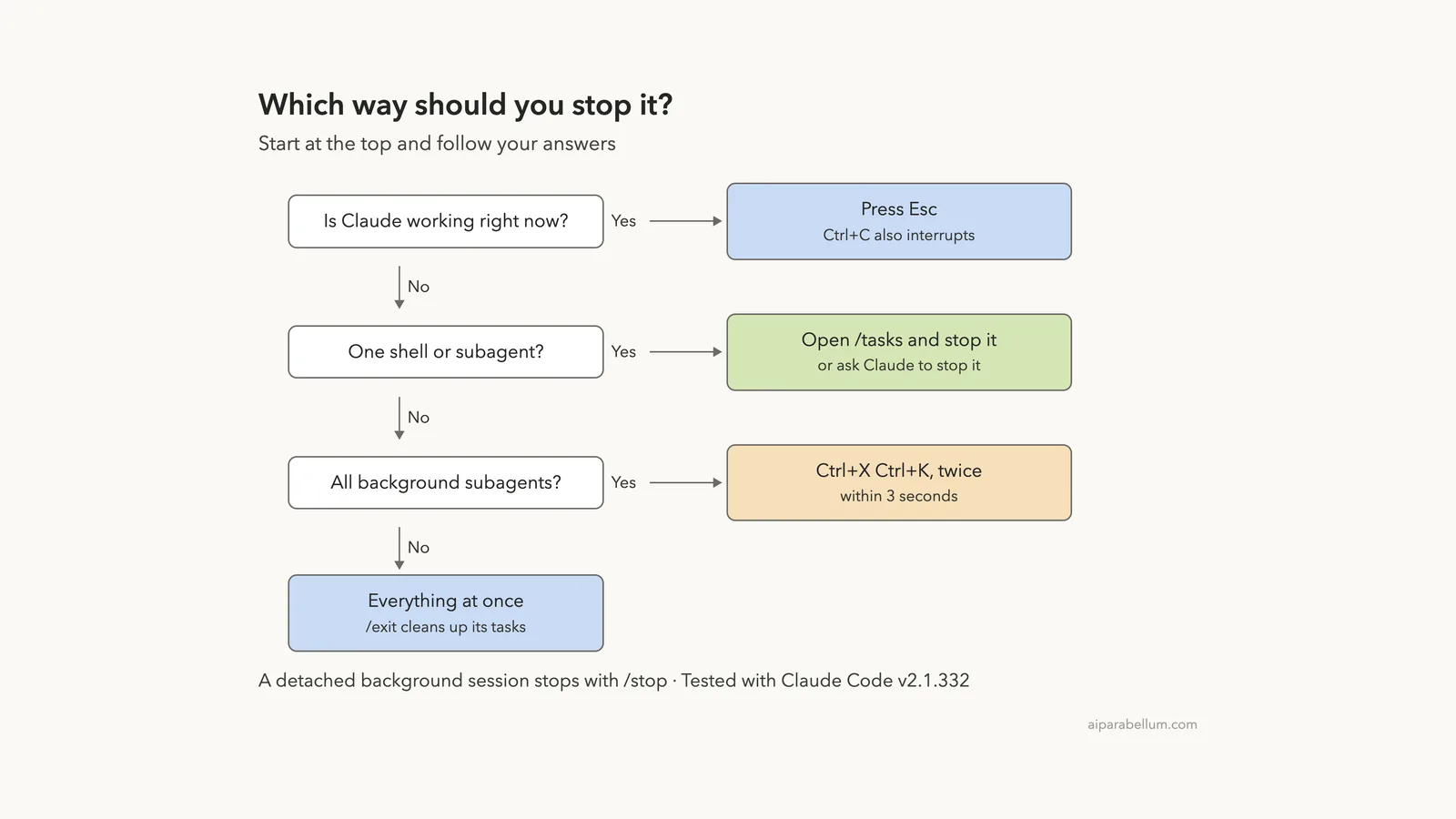
Most of the time the answer is /tasks and x. The ladder below covers the rest.
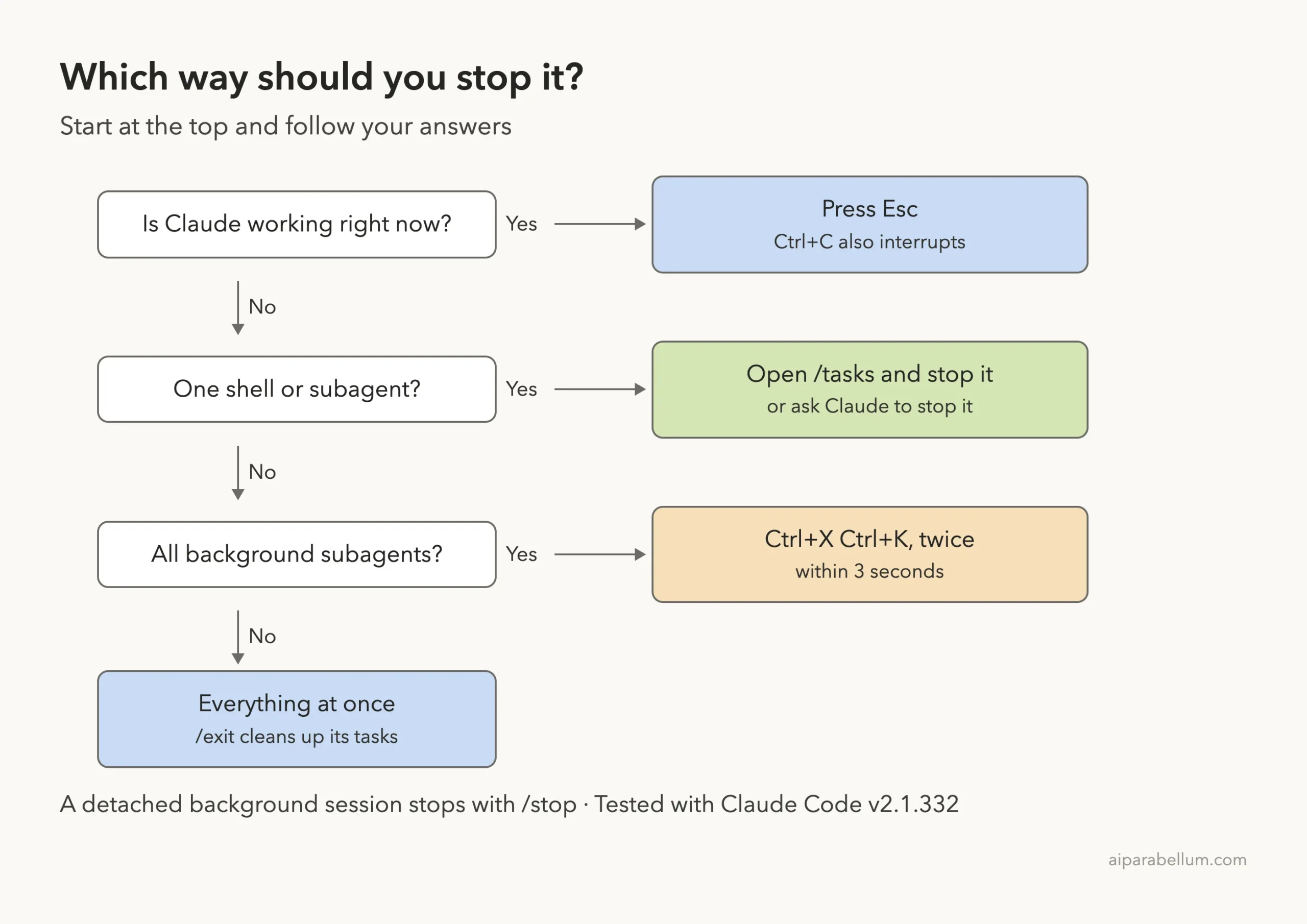
Don’t mix up Esc with the methods above. Esc interrupts Claude’s current response or tool call, but it does not reach tasks that are already in the background. If Esc does nothing at all in your terminal, see our fix for Esc not interrupting.
How to Turn Off Background Tasks Completely
If you’d rather Claude never runs anything in the background, set the CLAUDE_CODE_DISABLE_BACKGROUND_TASKS environment variable to 1. You can do it for one run from your shell:
CLAUDE_CODE_DISABLE_BACKGROUND_TASKS=1 claudeOr keep it in a settings file, such as the project’s .claude/settings.json:
{
  "env": {
    "CLAUDE_CODE_DISABLE_BACKGROUND_TASKS": "1"
  }
}
Know the trade-offs first. The environment variables reference and the interactive mode docs list what changes:
Ctrl+Bno longer moves anything to the background.- A command that reaches its timeout is stopped instead of being moved to the background.
- Claude waits for subagents to finish before it continues.
- Other background features, such as running skills in the background, are off too.
Starting Claude Code in bare mode has the same effect. For a gentler option, just ask Claude to run long commands in the foreground.
Other Ways Background Tasks Stop on Their Own
Not every stop is yours. The docs list several cases where Claude Code ends a background task by itself, which helps explain a server that “just died”:
| Situation | What happens |
|---|---|
| Output passes 5GB | The task is stopped, with a note in stderr |
| Critical memory pressure on macOS or Linux | Running tasks stop if the session has been idle 30+ minutes with nothing running |
| A foreground subagent’s run ends | Background commands it started stop with it |
Unattended runs (-p, cloud, CI) | A background time limit applies; local interactive sessions have none |
| Claude Code exits | Background tasks are cleaned up |
To keep tasks safe from the memory-pressure stop, the docs name CLAUDE_CODE_DISABLE_BG_SHELL_PRESSURE_REAP=1. Leave it alone unless you have a clear reason; that stop protects your machine.
Try It Yourself
Practice in an empty folder, never a real project. Create a script that loops forever, then paste this prompt into Claude Code:
Start ./tick.sh as a background task, then start
python3 -m http.server 8765 as a second background task.
Reply in one short line with both task IDs.
Now run /tasks, press Enter on one task to read its output, press x to stop it, and ask Claude to stop the other one. Finish by checking from your shell that nothing is left on port 8765.
Common Mistakes
- Pressing
Ctrl+Tand expecting the task list. That toggles Claude’s to-do checklist, not background work; the docs point you to/tasks. - Pressing
Escto stop a dev server.Esconly interrupts the current turn. - Assuming
/exitalways quits. With subagents still working, you may have moved the session to the background instead. - Killing processes with
kill -9from another terminal first. Stopping from/tasksalso ends child processes that detached, and Claude learns the task ended. - Pressing
Ctrl+X Ctrl+Konce and walking away. It needs a second press within 3 seconds.
Pro Tips
- Ask Claude to name background tasks clearly, such as “dev server on 8765”, so the
/taskslist is easy to scan. - Press the footer’s “↓ to manage” shortcut to jump to running work without typing a command.
- If you rely on custom keys, the stop actions are rebindable; see our guide to keyboard shortcuts.
- For work that should outlive the terminal on purpose, use
/backgroundand stop it later withclaude stop. - Learn what runs behind the scenes in our agent loop guide; the Bash and Agent tools explain most background tasks.
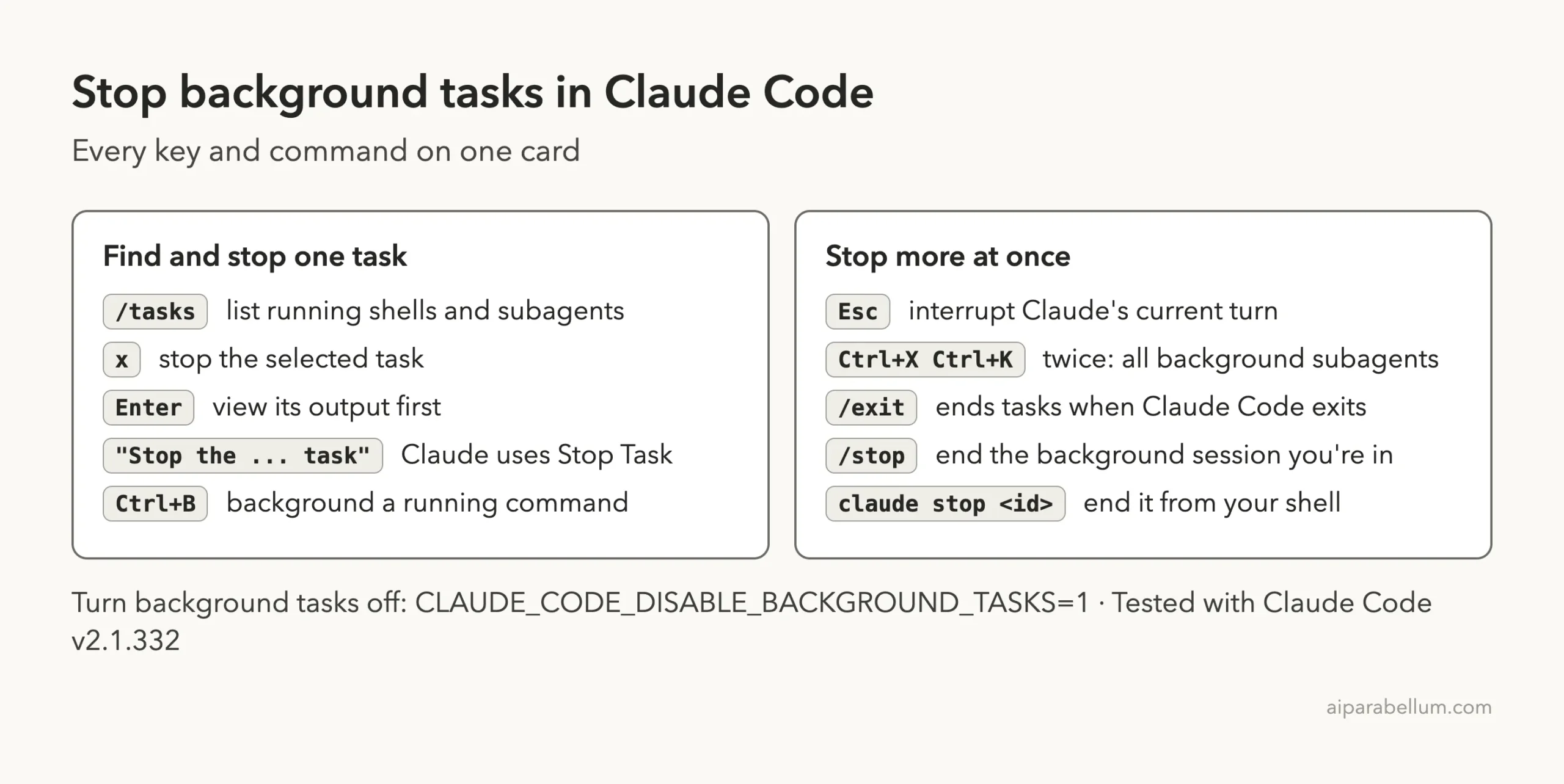
Claude Code Background Task Cheat Sheet
Frequently Asked Questions
How do I see background tasks in Claude Code?
Type /tasks. It lists the session’s running shells and subagents, plus subagents that finished recently. The footer under the prompt also shows a running count, such as “2 shells”.
What is the shortcut to stop a background task?
Inside /tasks, highlight the task and press x. To stop all background subagents at once, press Ctrl+X Ctrl+K twice within 3 seconds.
Does Esc stop background tasks?
No. Esc interrupts what Claude is doing in the current turn. Tasks that are already in the background keep running until you stop them from /tasks, ask Claude, or exit.
Do background tasks keep running after I close Claude Code?
Normally no; Claude Code cleans them up when it exits. The exception is when you move the session to the background, for example with /background or the “Move to background and exit” choice. Then they keep running until you run claude stop <id>.
Is /bashes still a command?
Yes. The docs list /bashes as another name for /tasks, so both open the same panel.
Conclusion
Stopping a background task in Claude Code comes down to one habit: open /tasks, highlight the task, and press x. When stopping is part of a bigger request, ask Claude and it will use its Stop Task tool; when several subagents are running, Ctrl+X Ctrl+K pressed twice clears them all; and when you leave, /exit cleans up, as long as you watch for the move-to-background choice and finish a background session with claude stop. For other problems, our list of common errors and our Claude overview are good next stops.