
If Claude Code deleted files in your project, stop and check Git first. Run git status --short in the folder. Any deleted file that was committed shows a D, and git restore <file> brings it back in seconds, even if Claude removed it with rm.
If Claude wiped or overwrote a file with its own Write or Edit tool, open /rewind and choose Restore code. If the file was never committed and Claude deleted it with a shell rm command, neither Git nor checkpoints saved a copy, so your only hope is the Trash (if it was used), a backup such as Time Machine, or your editor’s local history.
Below, we delete files on purpose in a small demo project, recover them each way, and then set up the guards that stop it happening again: approval prompts, a deny rule for rm, a “use the Trash” rule, Plan mode and the sandbox.
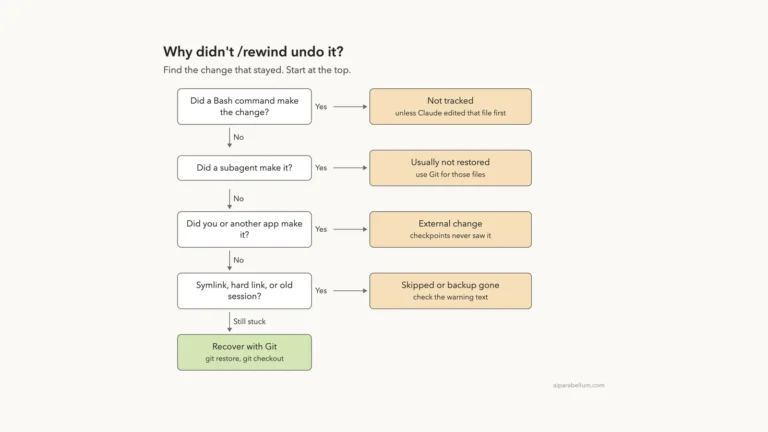
Browse all our Claude Code tutorials for more fixes and how-tos. If rewind left a change behind, our guide on checkpoint blind spots goes deeper on that one problem.
Tested with Claude Code v2.1.332 on macOS on November 26, 2026. Every test ran in a throwaway demo folder called recipes-app with its own Git repository, never on real files.
Quick Summary
| How the file disappeared | Can you get it back? | What to do |
|---|---|---|
rm on a committed file | Yes | git restore <file> |
| Write or Edit wiped or overwrote it | Yes | /rewind, then Restore code |
Moved to the Trash with trash | Yes | Open the Trash and put it back |
rm on a file never committed | Only from a backup | Time Machine or editor history |
| Deleted by a background subagent | Usually through Git only | git restore <file> |
Why Claude Code Deletes Files in the First Place
Claude Code can change your files in two ways. It edits files with its own Write and Edit tools, and it runs shell commands through its Bash tool. A delete almost always happens through Bash, with rm, rm -r, find -delete or a cleanup script.
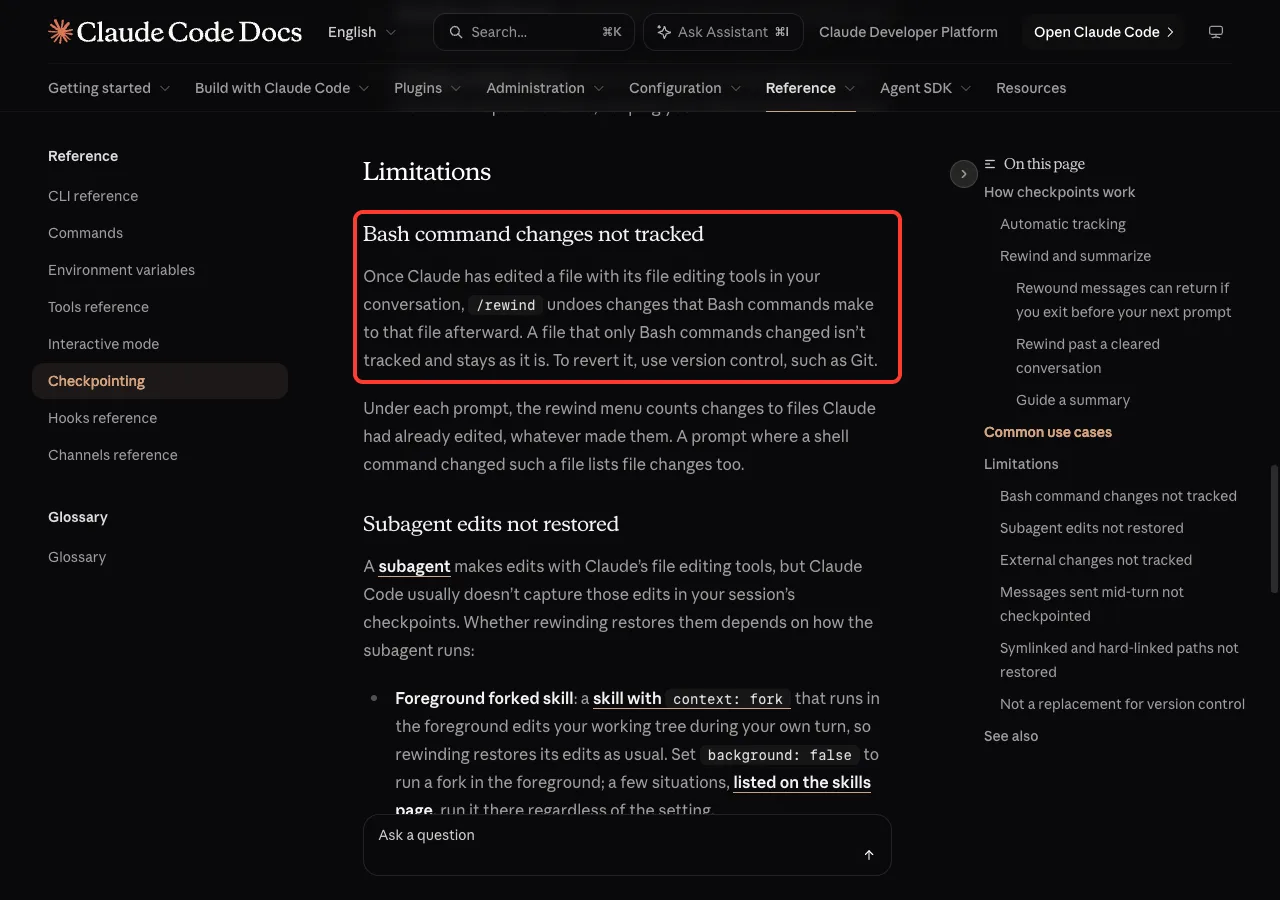
That difference matters for recovery. Anthropic’s checkpointing docs say a file that only Bash commands changed isn’t tracked, and they tell you to use version control, such as Git, to revert it.
Most deletes that surprise people come from one of these situations:
- You asked for a “clean up” and Claude decided some files were clutter.
- You approved an
rmprompt without reading the full command. - You picked “Yes, and don’t ask again” for a delete command earlier, so later ones ran without a prompt.
- You worked in auto mode or
bypassPermissionsmode, where routine prompts don’t appear. - A script or build tool Claude ran removed a folder as part of its normal job.
Step 1: Stop and See What Claude Code Deleted
First, don’t let Claude keep working. Press Esc to stop the current turn, and don’t run new tasks in that folder until you know what is missing.
To see this for real, we asked Claude in our demo project to delete a committed folder, old-logs, and an uncommitted note, drafts/idea.txt. In the default permission mode (labeled Manual in the CLI), Claude stopped and asked first.
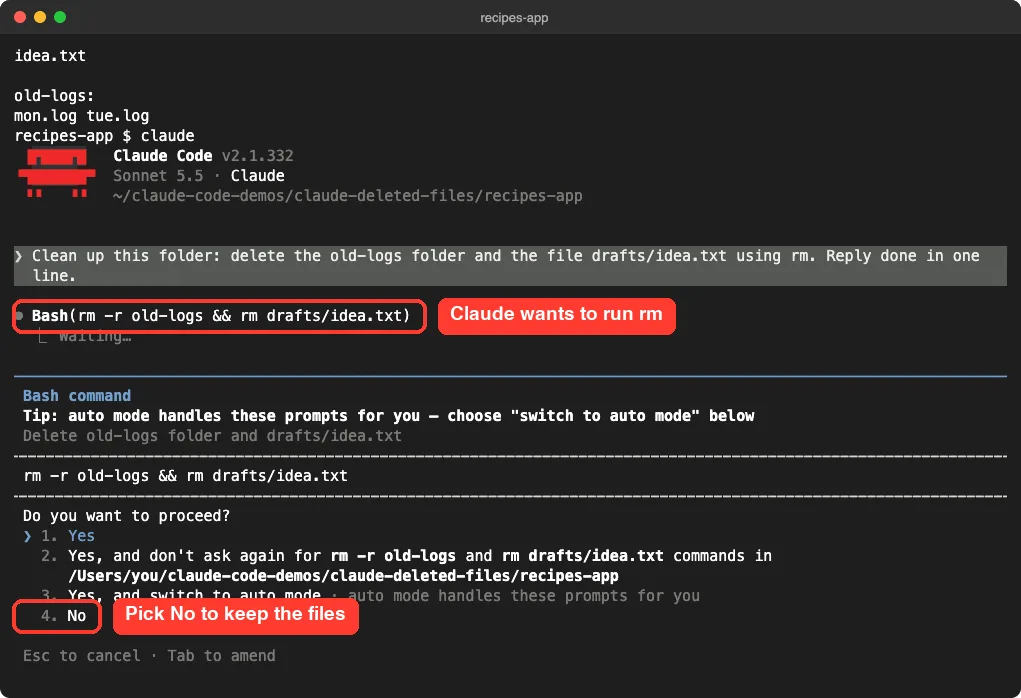
This prompt is your best defense. It shows the exact command, rm -r old-logs && rm drafts/idea.txt, and option 4 is No. We picked Yes to create the problem on purpose.
Next, open a normal terminal in the project folder and run:
git status --short
git diff --stat
Lines that start with D are committed files that are now missing. Files that were never committed won’t appear at all, which is the first sign they may be hard to get back.
Fix 1: Recover Deleted Files With Git
Git keeps a copy of every committed file, so it doesn’t matter how the file was deleted. In our test, git status --short listed both log files as deleted, and one command restored them.
git restore old-logs
git status --short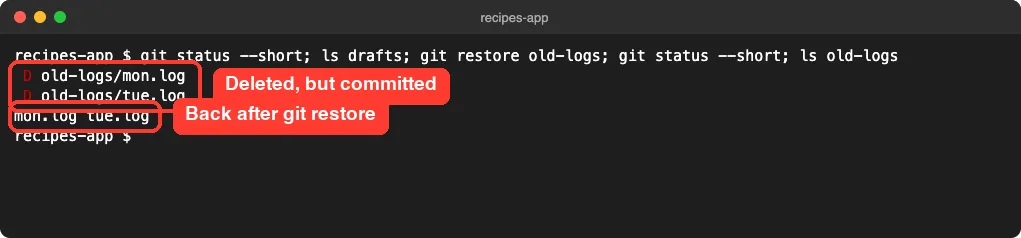
Notice what is missing from that output. drafts/idea.txt doesn’t show up anywhere, because it was never committed. Git had nothing to restore, and that file was gone.
A few more Git commands help in harder cases:
git restore .brings back every deleted and changed tracked file. Rungit difffirst, because it also throws away your uncommitted edits.git log --diff-filter=D --name-onlyshows commits that deleted files, if Claude also committed the delete.git checkout <commit>^ -- <file>restores a file from the commit before it was deleted.git stash listis worth a look if Claude stashed work instead of deleting it.
Fix 2: Use /rewind When Claude Wiped a File With Write or Edit
Sometimes a file isn’t removed but emptied or replaced. That happens through Claude’s Write or Edit tools, and checkpoints do cover those. Claude Code saves a snapshot before it edits a file with those tools, so you can roll the file back.
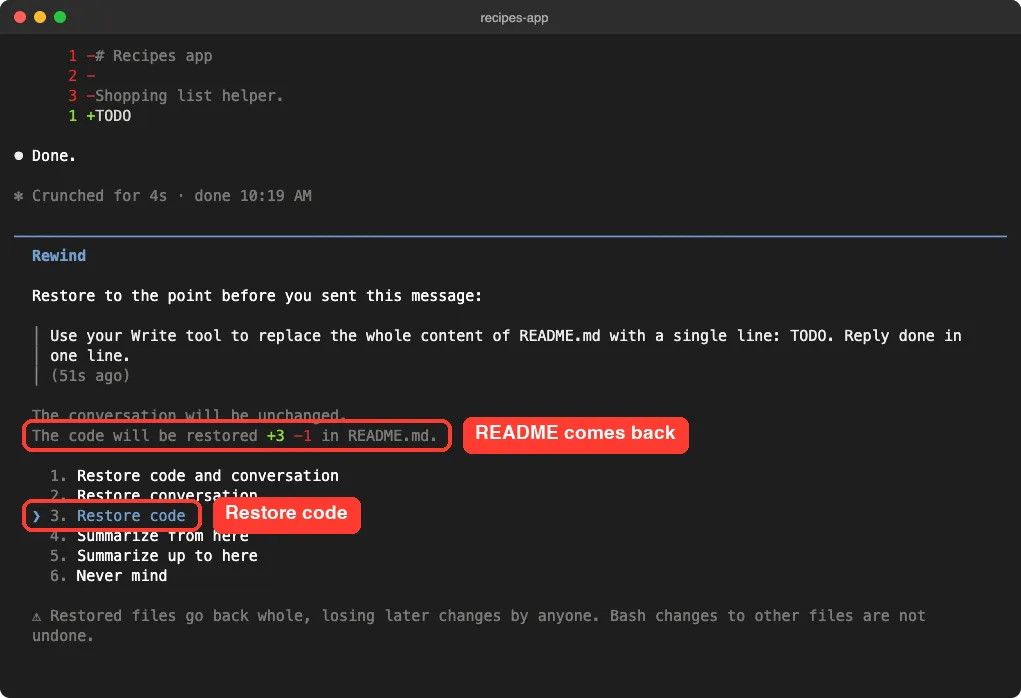
We asked Claude to use its Write tool to replace our three-line README.md with the single word TODO. The diff shows exactly what was lost.
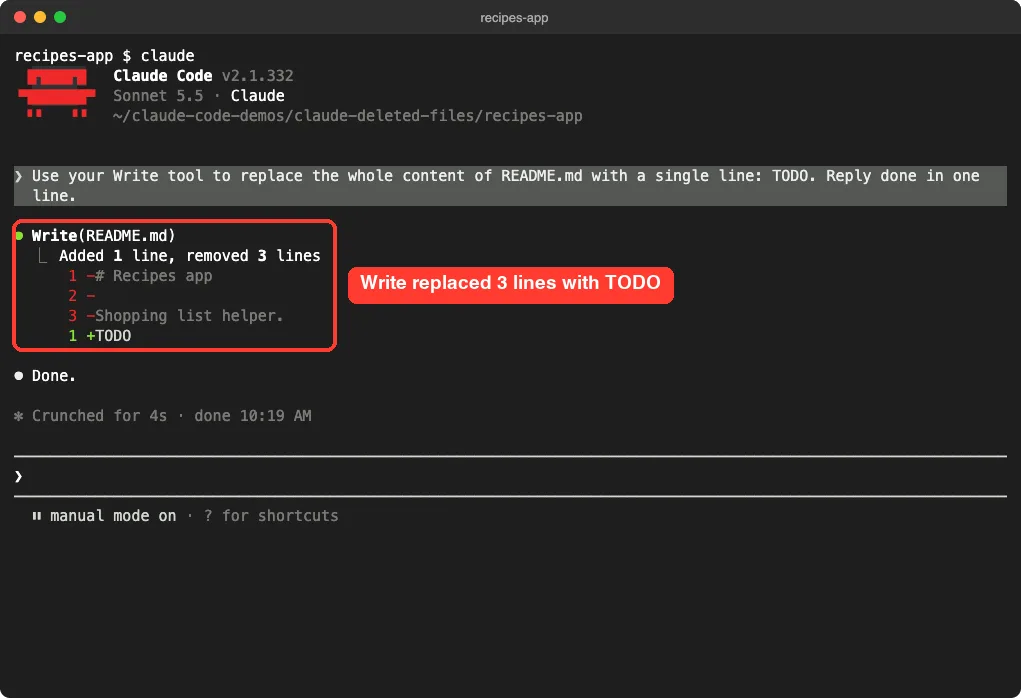
Then we typed /rewind (you can also press Esc twice with an empty prompt), picked the prompt that caused it and moved to Restore code. The screen says which file will come back before you confirm.
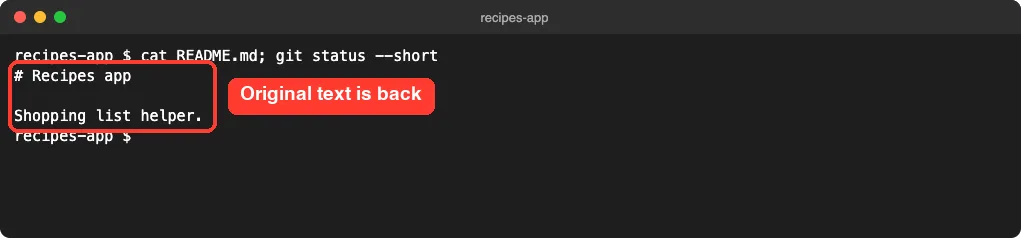
After the restore, we checked the file from a normal terminal. The original text was back and git status was clean.
Checkpoints are saved with the conversation, so this still works after you close the terminal. Run claude --continue and open /rewind.
The docs say snapshots are removed about 30 days after the session last saved one, unless you raise cleanupPeriodDays. For the full menu, see our guide to checkpoints and rewind.
Checkpoints undo Claude’s file edits. They are not a backup of your project.
Fix 3: Check the Trash, Backups and Editor History
A plain rm doesn’t move anything to the macOS Trash or the Windows Recycle Bin. So only check the Trash if Claude used a command that sends files there, such as the macOS trash command we set up later in this guide.
If the file was never committed and wasn’t trashed, try these, in order:
- Time Machine or any other backup tool you run. Restore the file from the latest backup before the delete.
- Your editor’s local history. VS Code’s Timeline view and JetBrains Local History often keep copies of files you had open.
- Cloud sync. If the folder lives in iCloud Drive, Dropbox or OneDrive, check its deleted files or version history.
- The conversation itself. If Claude read the file earlier in the session, it can often rewrite it from what it saw. Ask it to recreate the file, then check every line.
If none of these apply, the file is most likely gone for good. That is why the prevention steps below matter more than any recovery trick.
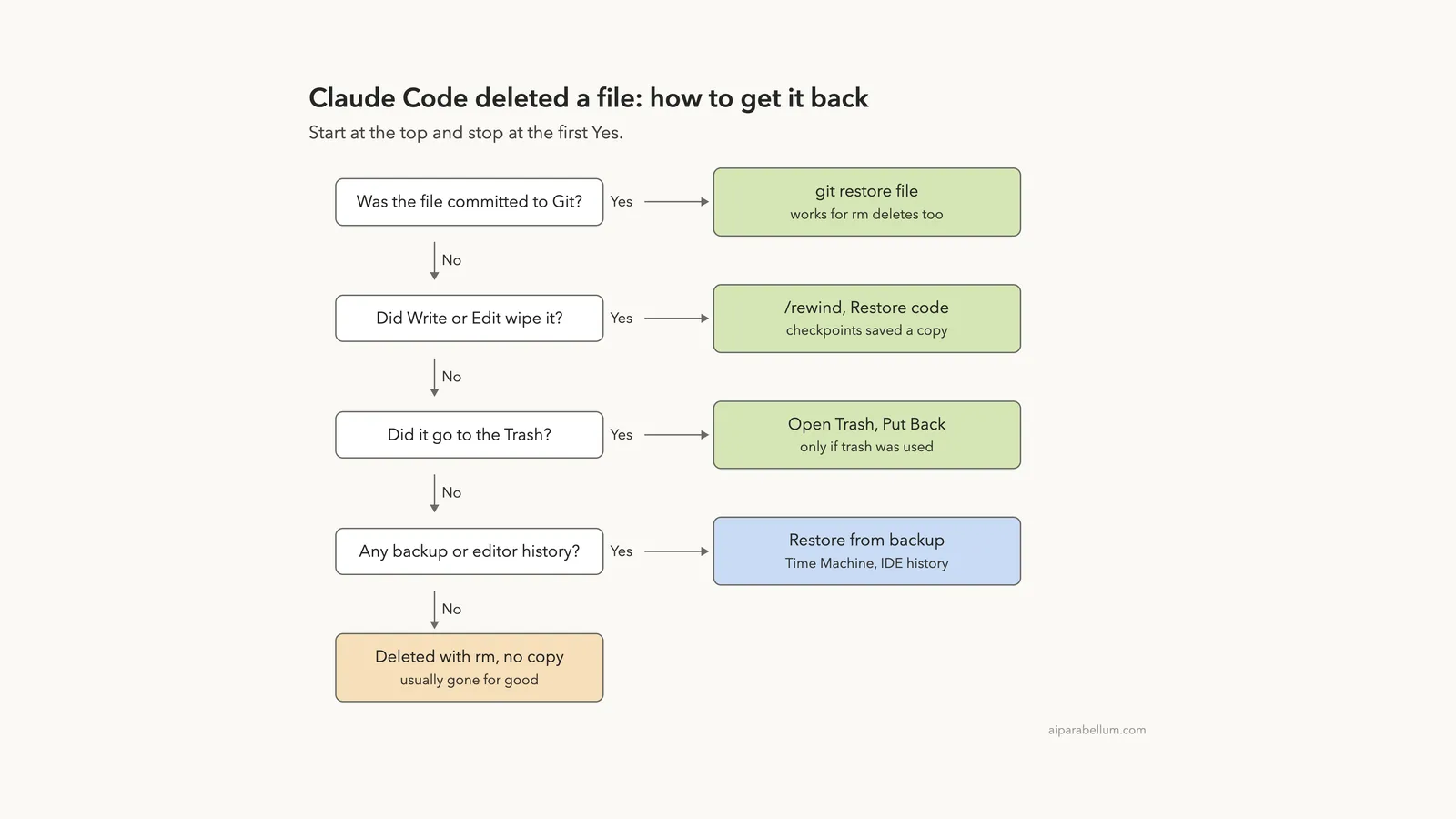
Which Recovery Method Should You Try?
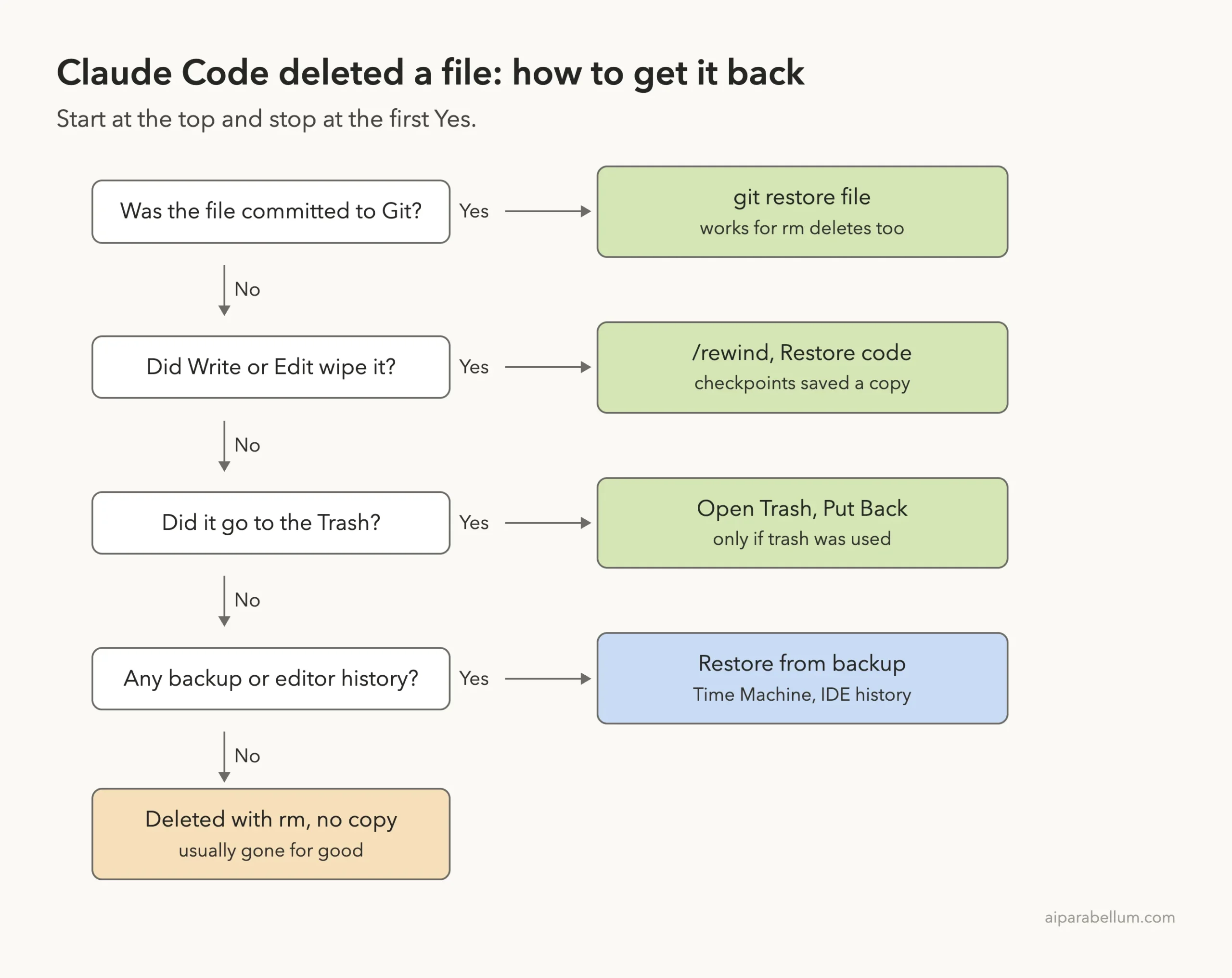
Use this ladder when you’re not sure where to start. Stop at the first Yes.
How to Stop Claude Code Deleting Files
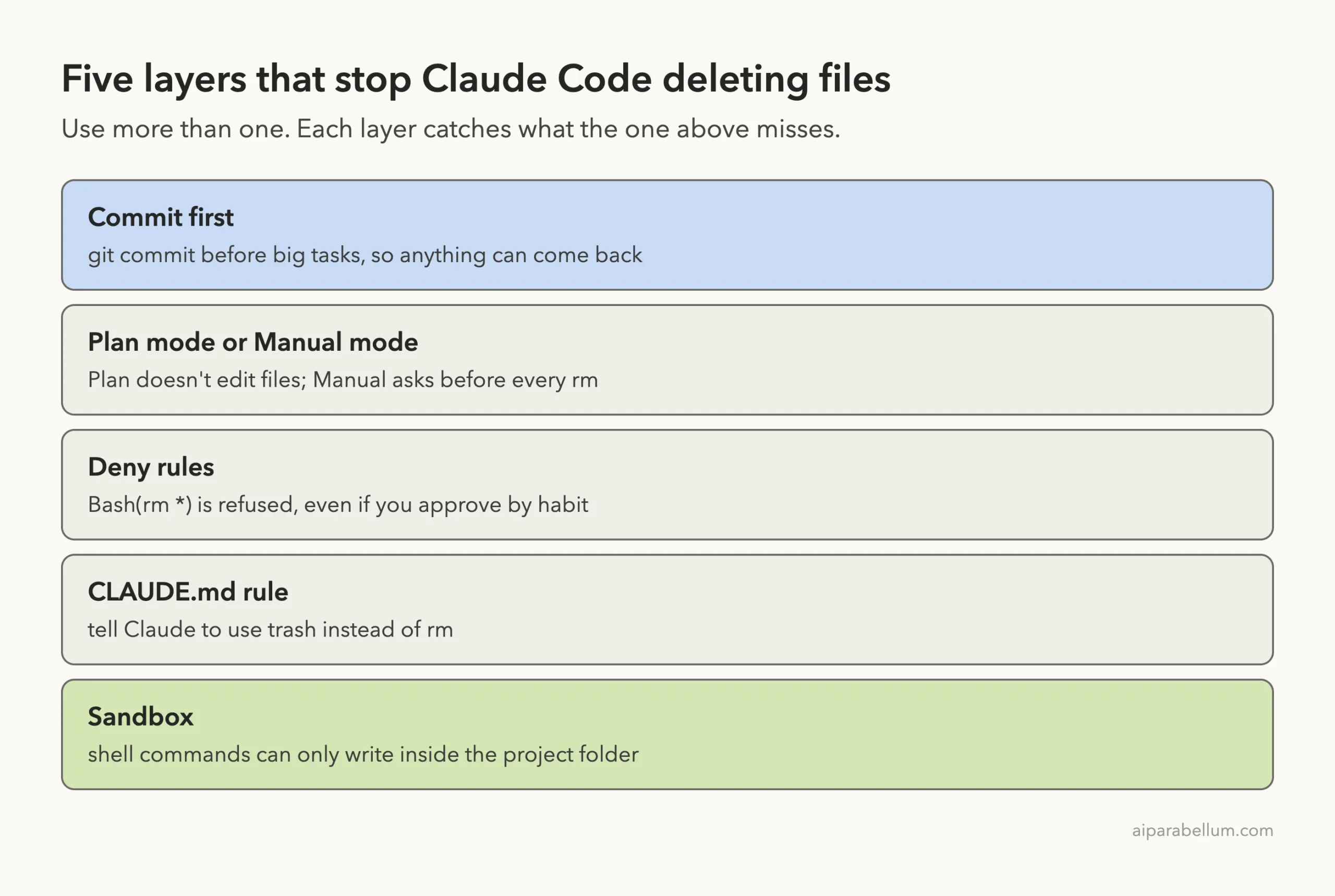
No single setting covers every case, so stack a few guards. Each one below was either tested in our demo project or checked against Anthropic’s docs, and we say which.
Read Every rm Prompt and Say No
In Manual mode, Bash commands need approval except for a built-in set of read-only commands. We saw this in Step 1: the prompt shows the full command, and No is always an option.
Be careful with option 2, “Yes, and don’t ask again.” The permissions docs say a Bash approval like that is saved to .claude/settings.local.json and applies to future sessions in that repository. If you saved one for a delete command by mistake, remove it with /permissions.
Add a Deny Rule for rm
A deny rule refuses a command even if you would have approved it by habit. We added this to our project’s .claude/settings.json:
{
  "permissions": {
    "deny": [
      "Bash(rm *)",
      "Bash(rmdir *)"
    ]
  }
}
Then we told Claude to run rm app.py and not to try any other way if it was blocked. Claude Code refused the command before it ran.
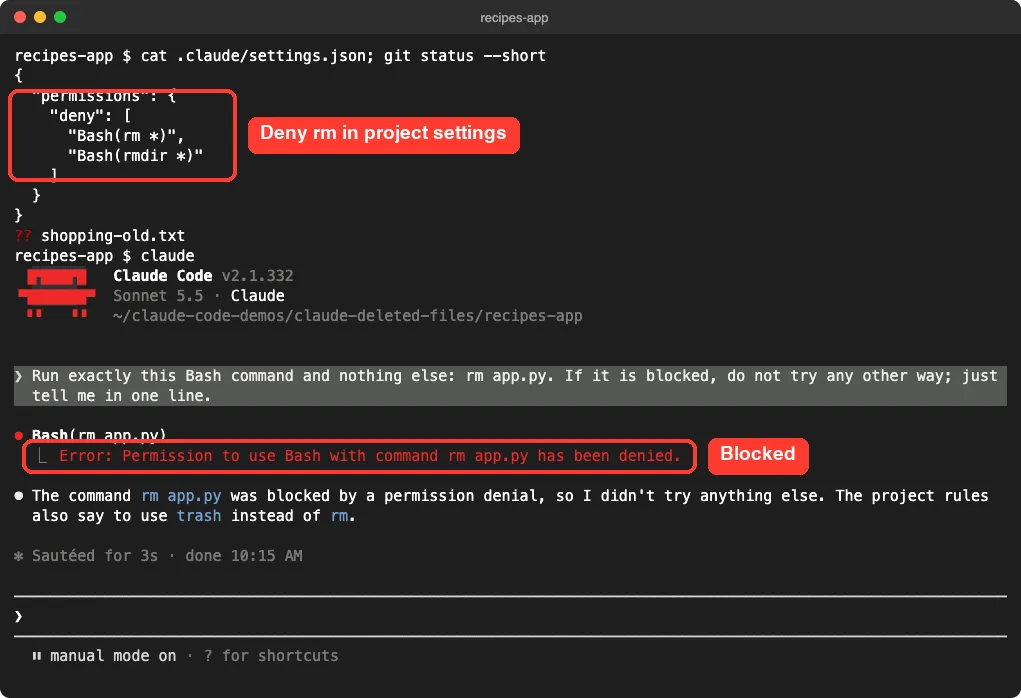
Per the docs, a trailing * with a space before it also matches the bare command, and deny rules apply to any part of a compound command, so cd src && rm x is still blocked. Our guide to permission rules covers the full syntax.
There is an honest limit here. The docs state that Bash(rm *) doesn’t stop /bin/rm or bash -c 'rm ...', and they call these rules not a security boundary around the program.
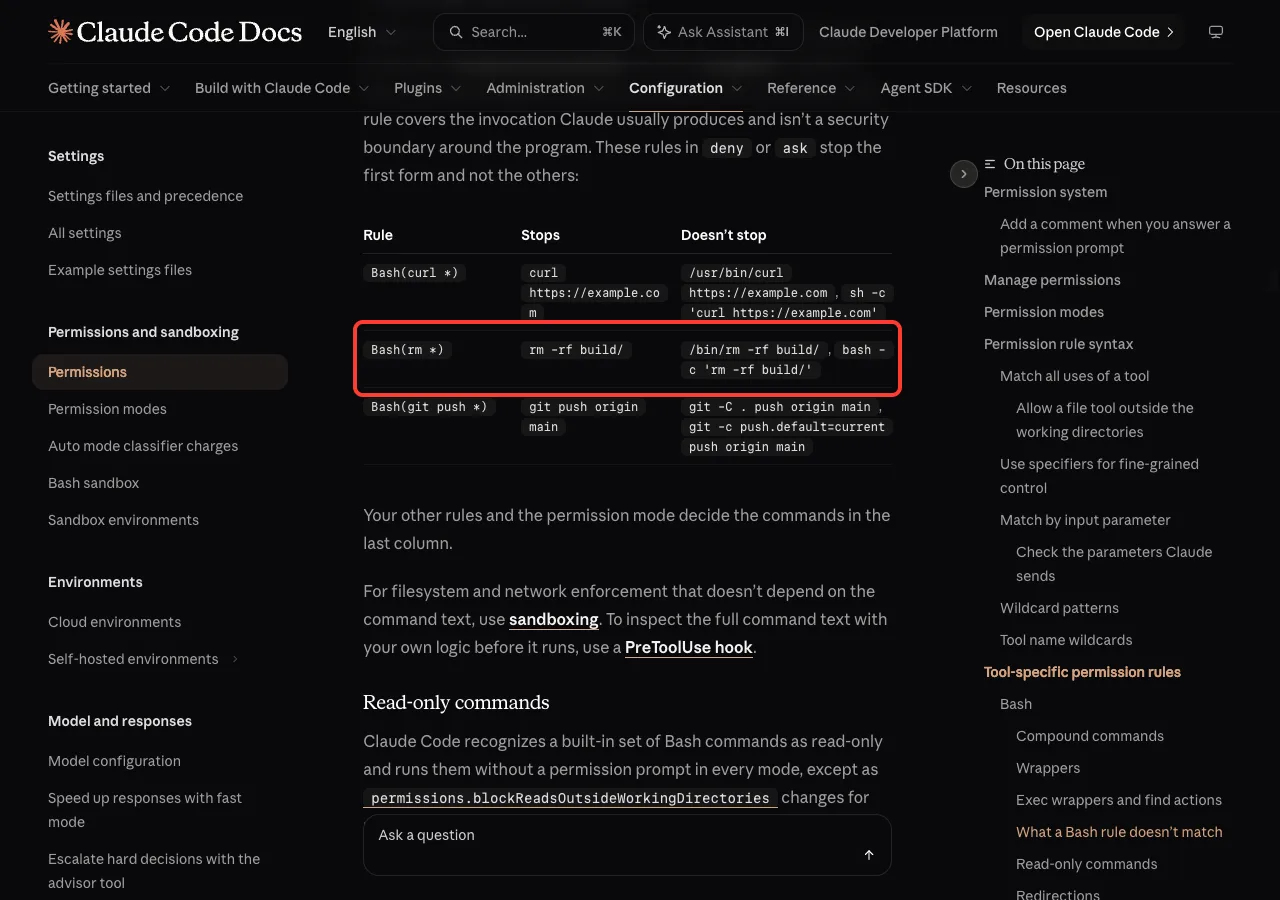
Other delete paths, like find with -delete, still prompt in Manual mode according to the docs. For a stronger wall, add a hook or the sandbox. Our post on blocking dangerous commands tests one hook-based option, and these ready-made hooks include a PreToolUse example you can adapt.
Tell Claude to Use the Trash Instead
Blocking rm works better when Claude knows what to do instead. Recent macOS versions include a trash command, so we added two lines to the project’s CLAUDE.md:
# Rules for this project

- Never use rm to delete files.
- To delete a file, run the macOS trash command (for example: trash old.txt) so it goes to the Trash and can be put back.
Then we asked Claude to delete an uncommitted file, shopping-old.txt. It followed the rule and asked to run trash shopping-old.txt instead of rm.
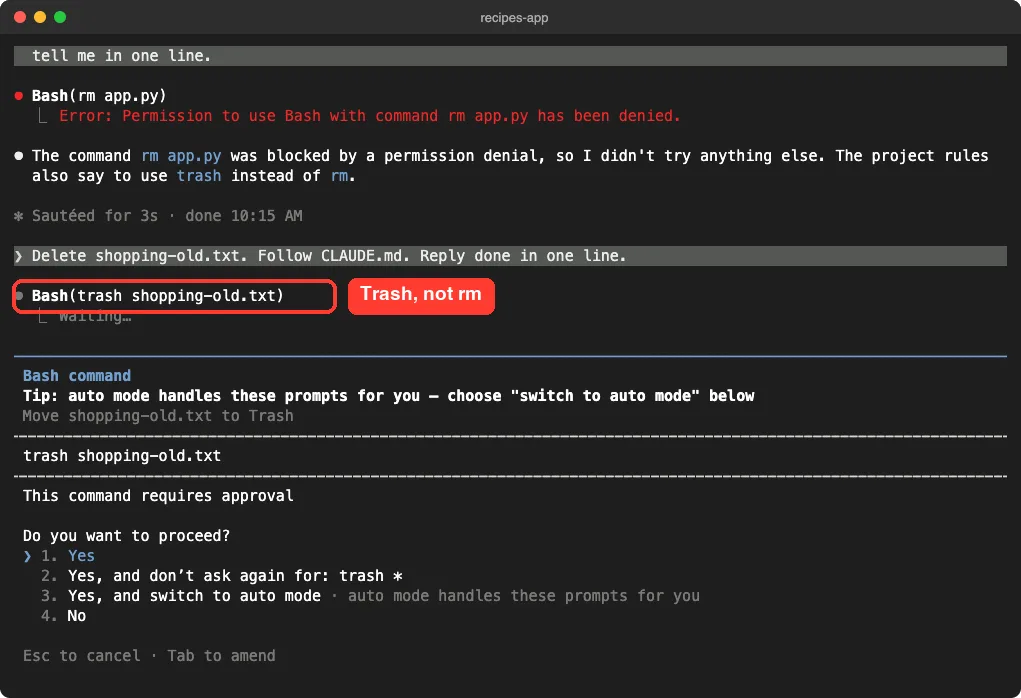
After we approved it, the file left the folder, but it went to the Trash, where Finder’s Put Back can return it. Keep in mind that CLAUDE.md shapes what Claude tries, it doesn’t enforce anything, so keep the deny rule too. Our CLAUDE.md template shows where rules like this fit.
Turn On the Sandbox
The sandbox enforces limits at the operating system level, so it doesn’t depend on how a command is written. The sandboxing docs say sandboxed commands can write only to the working directory and its subfolders, folders you added, and the temp directory. Run /sandbox to open its settings panel.
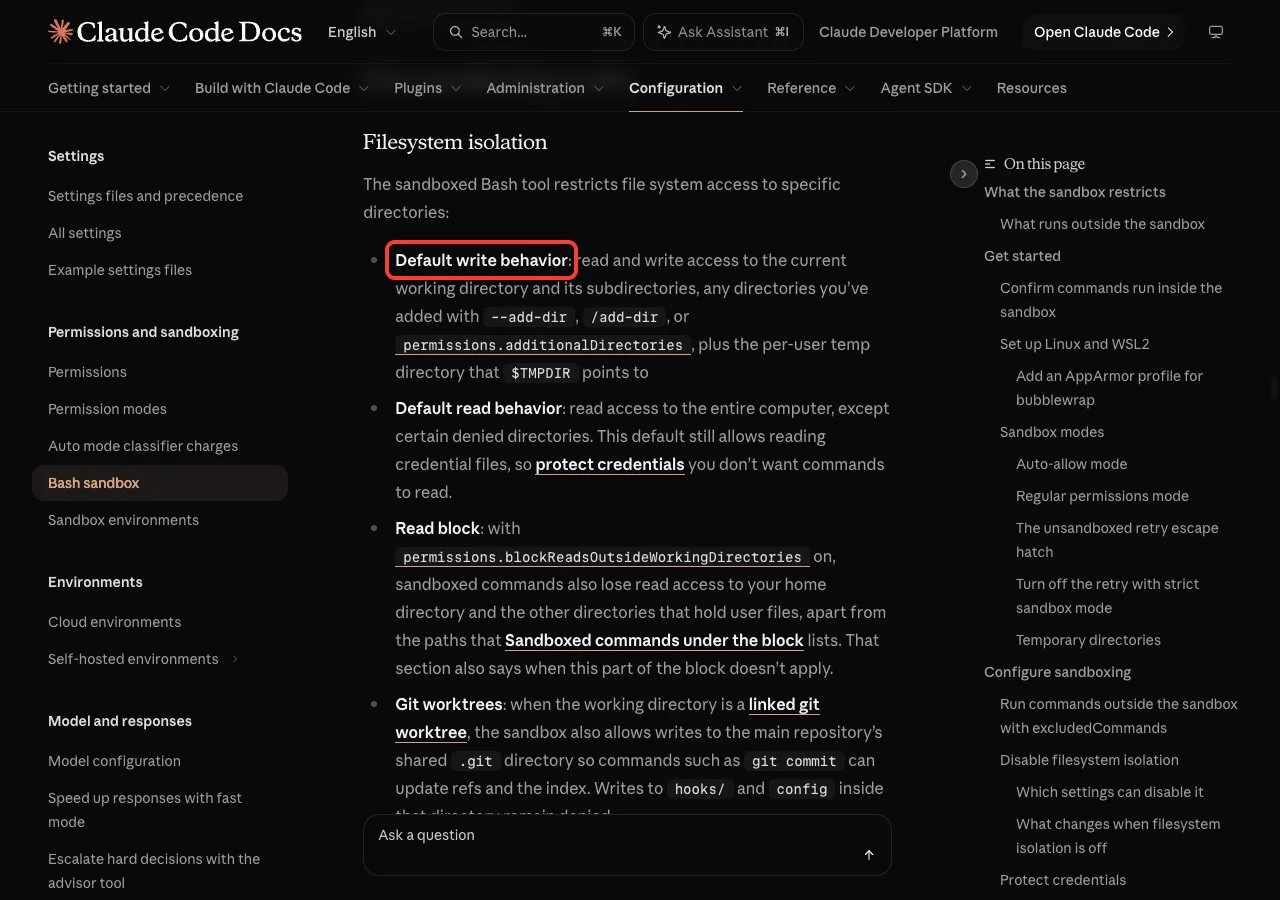
That won’t save files inside the project, but it stops a bad command from deleting anything outside it, like your home folder.
On macOS it uses the built-in Seatbelt framework; on Linux and WSL2 it needs bubblewrap and socat. We tested on macOS; the Linux steps follow Anthropic’s official instructions. Our sandbox guide walks through the setup.
Use Plan Mode for Risky Requests
Before a big cleanup or refactor, press Shift+Tab until the mode shows Plan. The modes table in the permissions docs describes Plan as reading files and running read-only commands without editing your source files. The permission modes page explains how to switch.
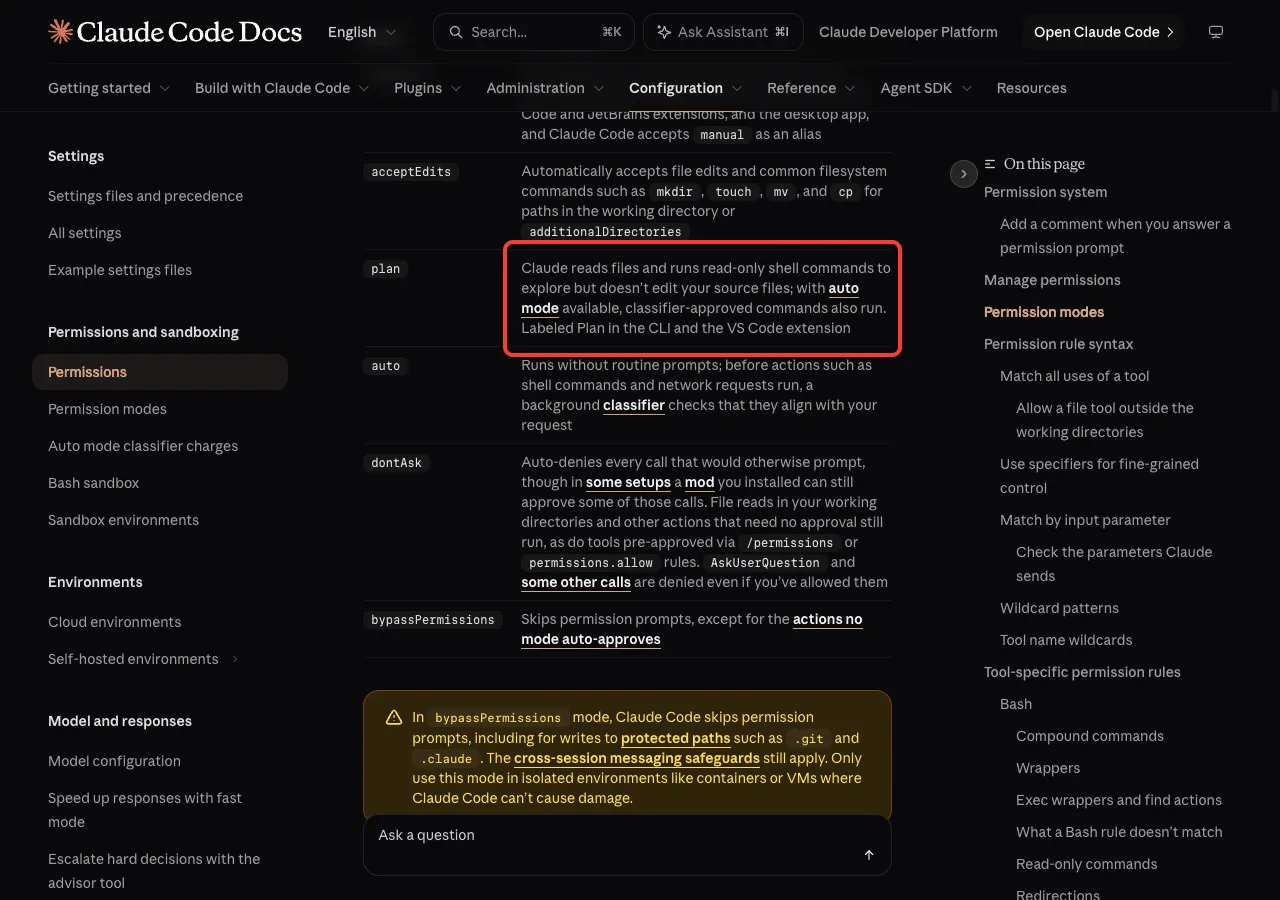
Read the plan, check which files it wants to remove, and only then switch back to Manual mode. Our permission modes guide compares every mode, including why bypassPermissions belongs only in containers or VMs.
Commit Before Big Tasks
The cheapest guard is a commit. With a clean git status, every file Claude deletes can come back with one command, as Fix 1 showed. For risky experiments, a separate Git worktree keeps your main folder untouched; see our worktrees workflow.
Try It Yourself
Make a throwaway folder with two or three small files, run git init, commit them, and add one file you don’t commit. Add the deny rule above to .claude/settings.json, start claude, and paste this prompt:
Run exactly this Bash command and nothing else: rm notes.txt.
If it is blocked, do not try any other way; just tell me in one line.
You should see the same “has been denied” error we got. Then remove the rule, let Claude delete a committed file, and bring it back with git restore.
Common Mistakes
- Expecting
/rewindto bring back a file removed withrm. Checkpoints only cover Claude’s own file edits. - Looking in the Trash after a plain
rm. It never goes there. - Running
git restore .withoutgit difffirst and losing your own uncommitted work. - Saving “don’t ask again” for a delete command and forgetting about it.
- Treating a CLAUDE.md rule as enforcement. Pair it with a deny rule or the sandbox.
- Letting Claude keep working after a bad delete, which makes later recovery harder.
Pro Tips
- Phrase cleanup requests narrowly: “delete only these two files” beats “clean up the folder.”
- Ask Claude to list what it plans to delete and wait for your OK before it runs anything.
- Put deny rules in the project’s
.claude/settings.jsonso teammates get them too. Not sure which file to edit? See where settings.json lives. - Commit untracked files you care about, or add them to Git before a long session.
- Keep Time Machine or another backup running. It’s the only fix for an uncommitted
rm.
Hitting a different problem? Our list of common errors covers the usual ones, and our Claude overview explains the wider product.
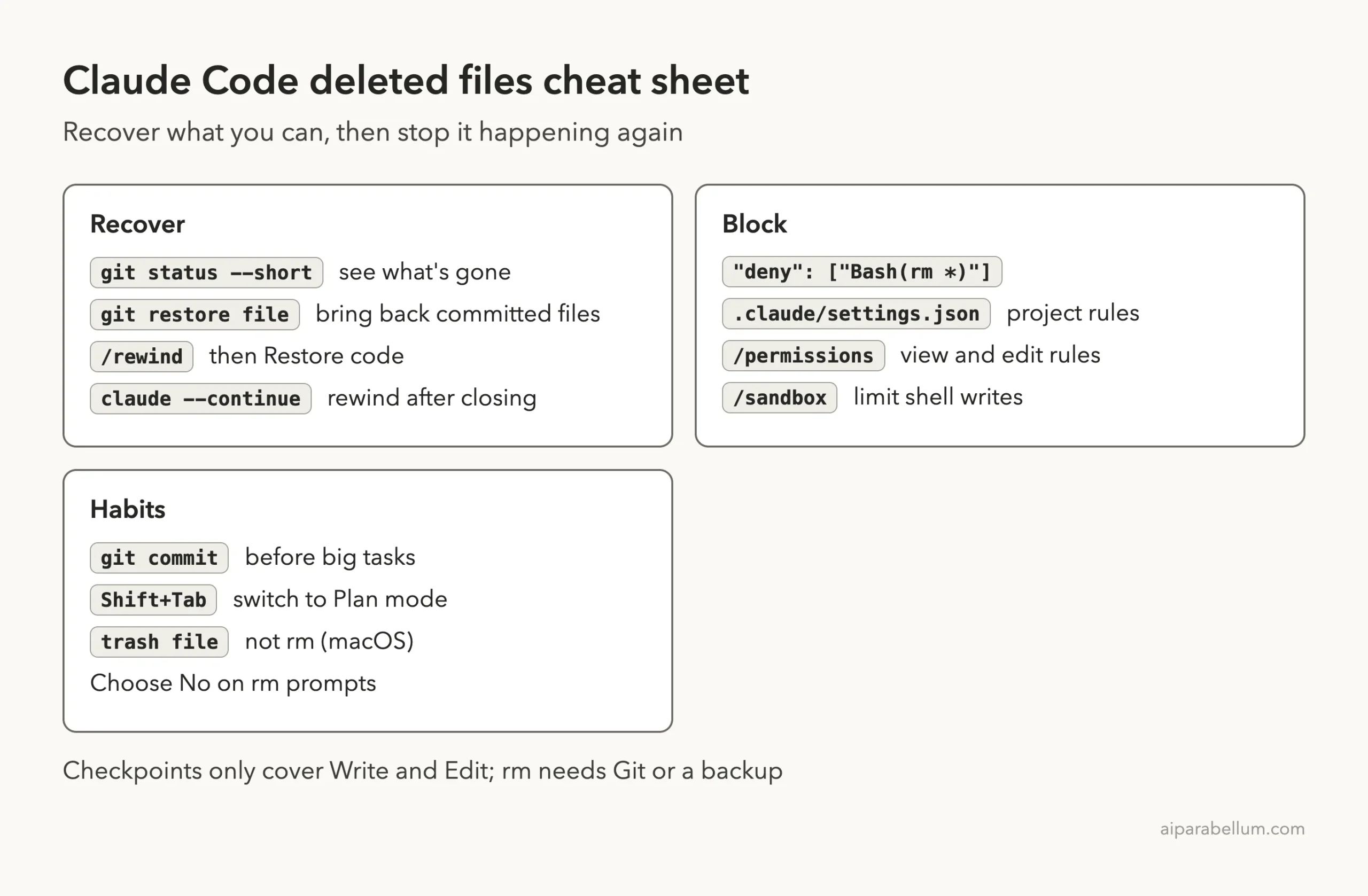
Cheat Sheet
Frequently Asked Questions
Can Claude Code delete files without asking?
In Manual mode, it asks before Bash commands like rm. It can run them without a prompt if you saved a “don’t ask again” rule, or in auto or bypassPermissions mode.
Does /rewind restore deleted files?
Only files Claude changed with its Write or Edit tools. A file removed by a Bash rm isn’t tracked, so use git restore if it was committed.
Do files deleted by Claude Code go to the Trash?
Not with rm. They only go to the Trash if Claude uses a command that moves them there, such as trash on macOS.
How do I block rm in Claude Code?
Add "Bash(rm *)" to permissions.deny in .claude/settings.json. For stronger protection, add the sandbox or a PreToolUse hook, since the rule doesn’t match forms like /bin/rm.
Can I recover an uncommitted file Claude deleted with rm?
Only from a copy outside Git and checkpoints, such as Time Machine, your editor’s local history or cloud sync. Without one of those, it is usually gone.
Conclusion
When Claude Code deleted files you needed, the way back depends on how they disappeared: git restore handles any committed file, /rewind handles files Claude wiped with its own Write or Edit tools, and the Trash or a backup covers the rest, while a plain rm on an uncommitted file is usually final. So the real fix is prevention: read every rm prompt, deny Bash(rm *), steer Claude toward the Trash in CLAUDE.md, use Plan mode and the sandbox for risky work, and commit before every big task.