
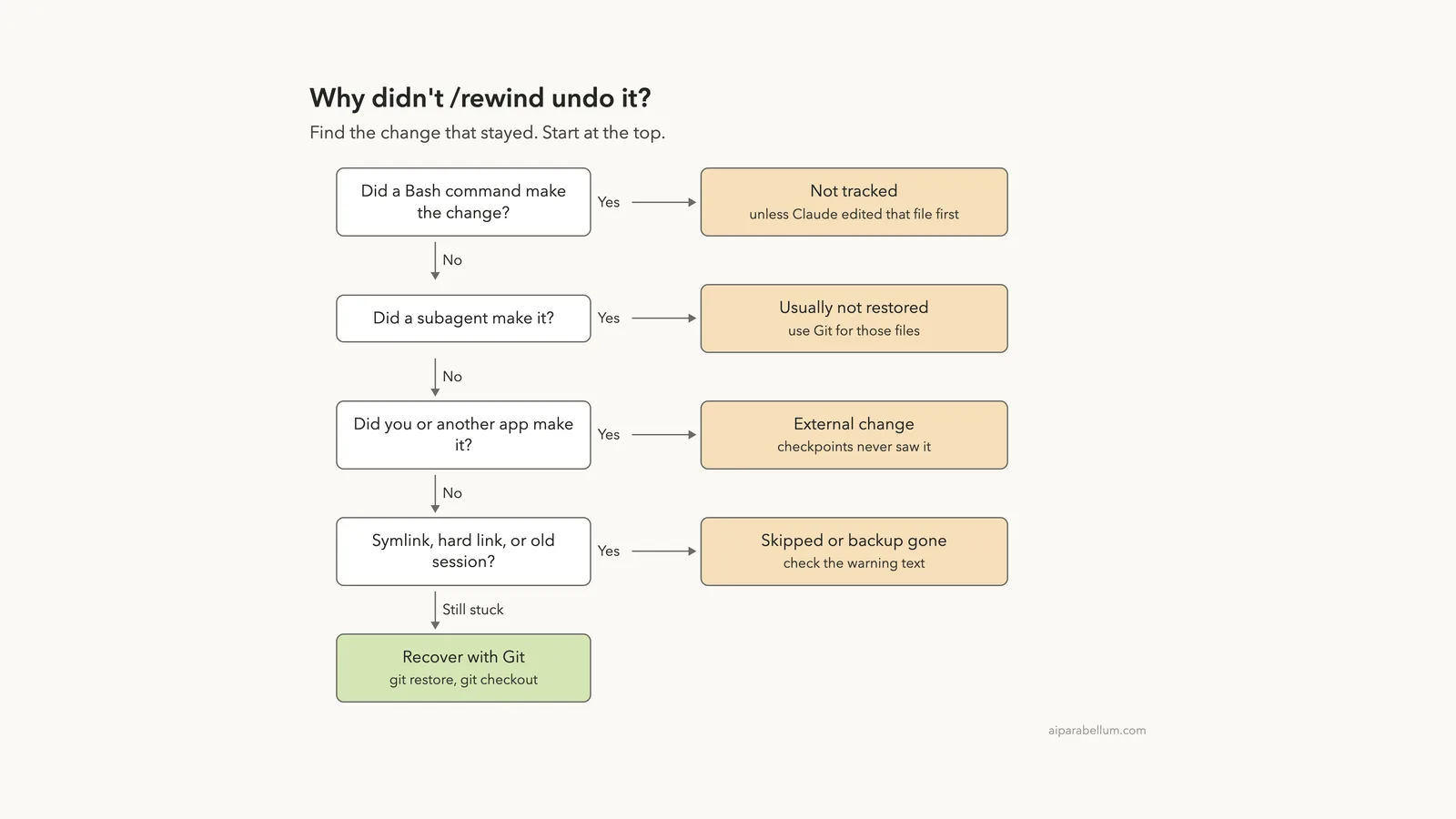
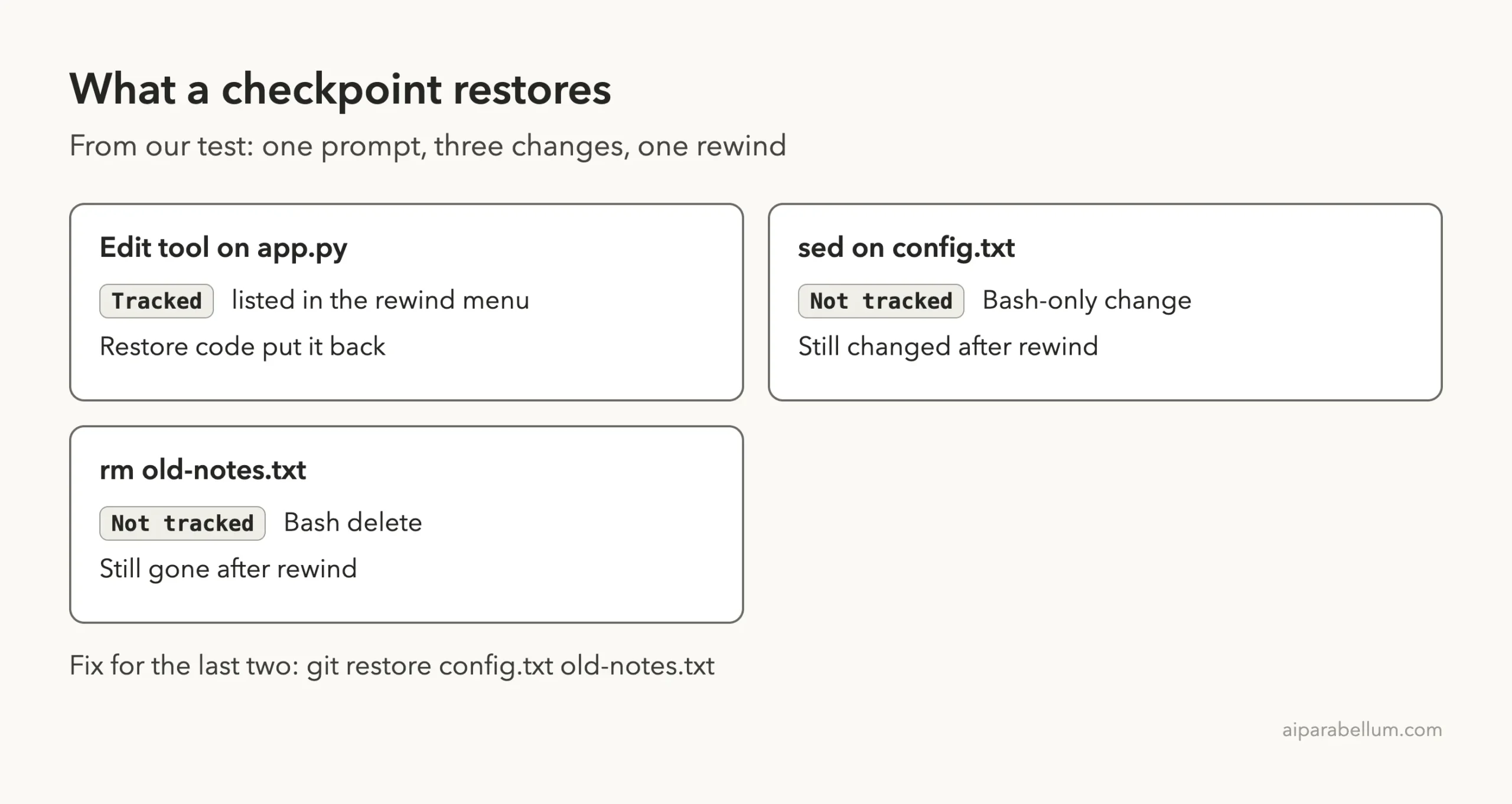
Is Claude Code rewind not working for you? Most of the time, the reason is simple: checkpoints only track changes Claude makes with its own file editing tools. If a Bash command like sed, rm or mv changed or deleted a file, /rewind leaves that file alone, so the change “stays” after you restore.
Checkpoints also skip most subagent edits, edits you or another app make outside the session, symlinked and hard-linked files, and old sessions whose backups were cleaned up after about 30 days. For any of those, the fix is version control: run git status to see what stayed, then git restore <file> to undo it or bring a deleted file back.
Below, we reproduce the problem for real in a small demo project, show exactly what the rewind menu lists and what it ignores, and walk through every fix, step by step.
Browse all our Claude Code tutorials for more fixes and how-tos. If you are new to the feature itself, start with our guide to checkpoints and rewind.
Tested with Claude Code v2.1.332 on macOS on November 26, 2026. Every test ran in a throwaway demo folder with its own Git repository.
Quick Summary
| What changed the file | Does /rewind undo it? | How to get it back |
|---|---|---|
| Claude’s Edit or Write tool | Yes | /rewind, then Restore code |
| A Bash command on a file Claude never edited | No | git restore <file> |
| A Bash command on a file Claude already edited | Yes | /rewind, then Restore code |
A file deleted with rm | No | git restore <file> if it was committed |
| A background subagent | Usually not | Git, or ask Claude to reverse it |
| You, your editor or another session | Usually not | Git or your editor’s undo |
| A symlink or hard link | Skipped with a warning | Edit it back yourself or ask Claude |
| A session older than about 30 days | Can fail: No files were restored | Git; raise cleanupPeriodDays for next time |
Why Claude Code Rewind Is Not Working: How Checkpoints Really Work
Every prompt you send that starts a turn creates a checkpoint. Before Claude touches a file with its file editing tools, Claude Code saves a snapshot, so /rewind can put that file back later.
The key word is “editing tools.” Claude Code watches its own Edit and Write actions. It does not watch your whole disk, so anything that changes files another way is invisible to the checkpoint system.
Anthropic’s checkpointing docs say it plainly: a file that only Bash commands changed isn’t tracked and stays as it is. They also say checkpoints are for quick, session-level recovery and are not a replacement for Git.
Think of checkpoints as an undo button for Claude’s edits, not a backup of your project.
Here is what a checkpoint keeps, according to the docs:
- File snapshots for the 100 most recent checkpoints in a session.
- Checkpoints saved with the conversation, so
/rewindstill works after you resume withclaude --continue. - Snapshots deleted in a cleanup sweep, by default about 30 days after the session last saved one.
We Reproduced It: Edit vs. sed vs. rm
To see the gap for real, we made a tiny project called notes-app with three files: app.py, config.txt and old-notes.txt. We committed them to Git first, so we had a safety net.
Then we sent Claude one prompt with three steps. The exact prompt was:
Do exactly these three steps, nothing else.
1) Use your Edit tool to change Hello to Hi in app.py.
2) Run this Bash command: sed -i '' 's/debug=false/debug=true/' config.txt
3) Run this Bash command: rm old-notes.txt.
Then reply done in one line.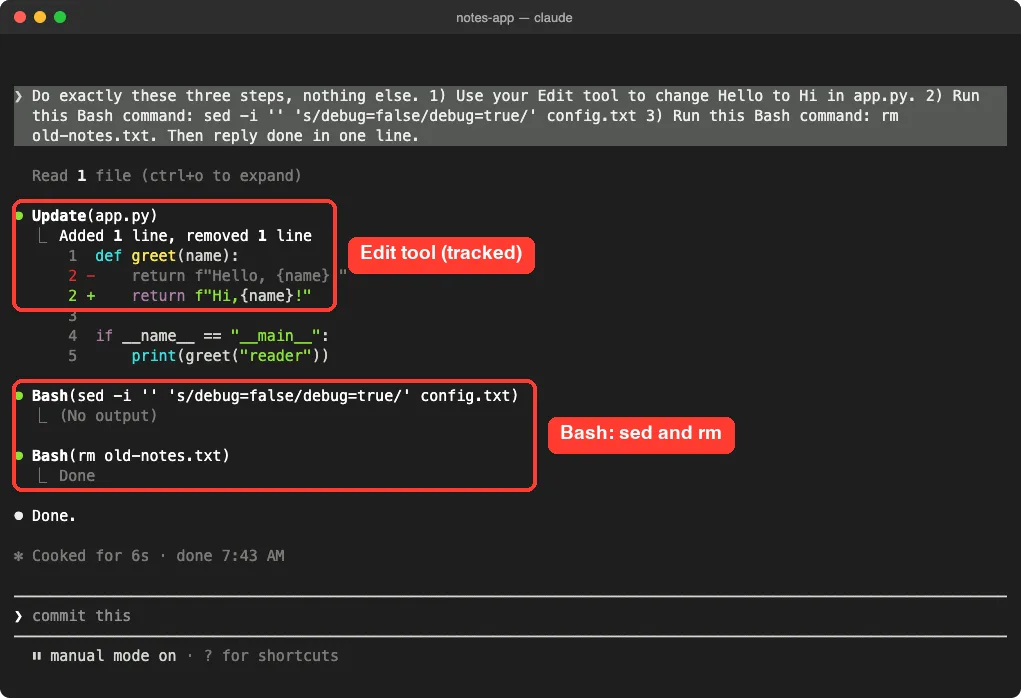
Claude did all three. The terminal shows Update(app.py) for the Edit tool, then two Bash(...) lines for the sed and rm commands.
Step 1: Open the rewind menu
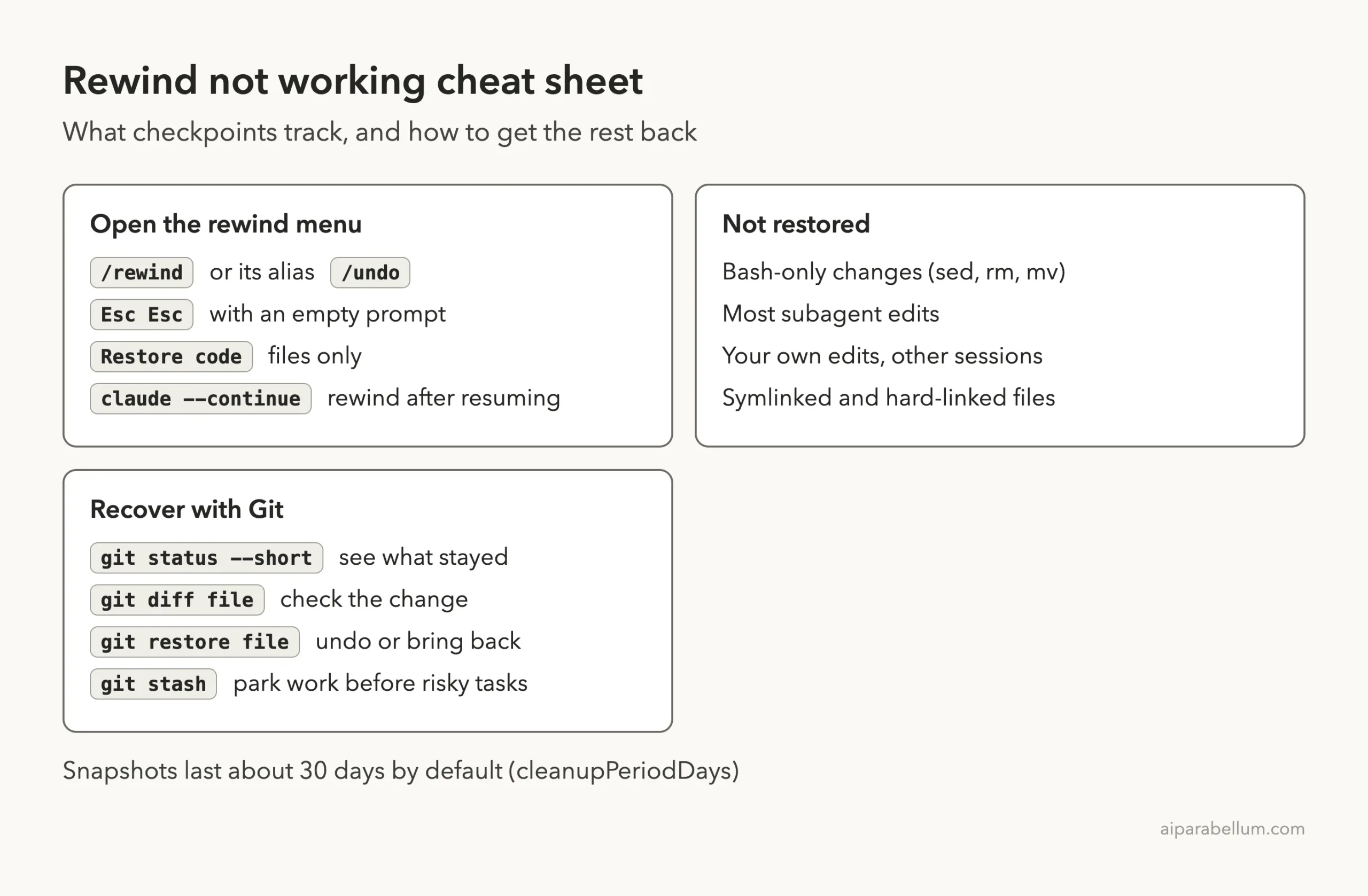
Next, we typed /rewind (you can also press Esc twice with an empty prompt, or use the alias /undo). The menu lists your prompts, and under each one it shows which tracked files changed.
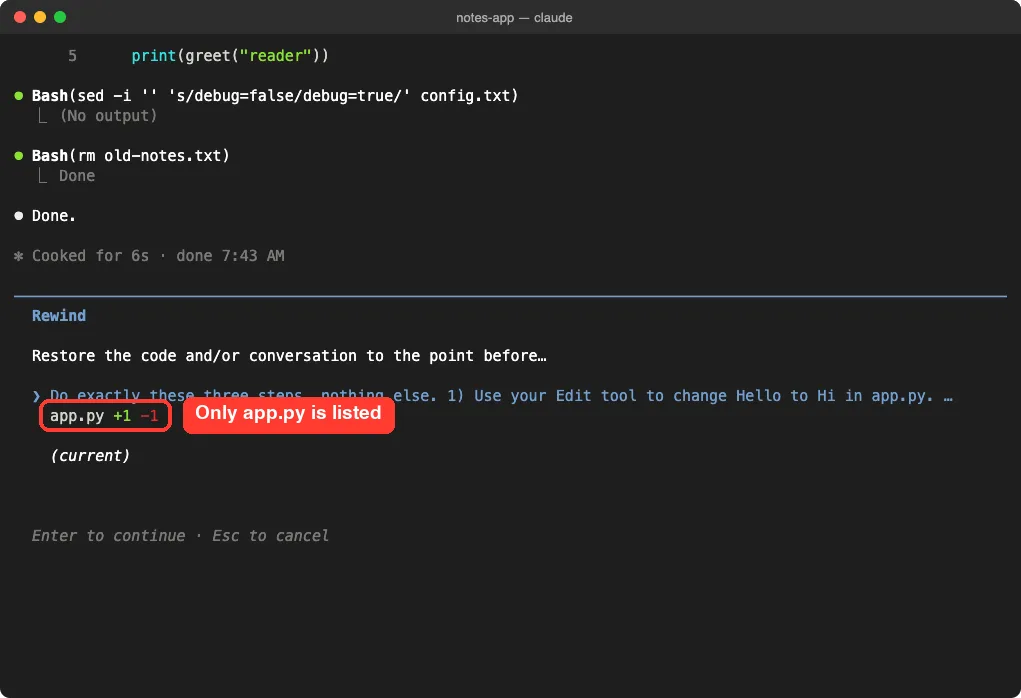
This is the first clue. Under our prompt, the menu shows app.py +1 -1 and nothing else. config.txt and old-notes.txt aren’t listed, because Claude never touched them with its editing tools.
Step 2: Read the restore screen before you confirm
We actually exited at this point and came back later with claude --continue, to confirm that checkpoints survive a resume. They did. Selecting the prompt opened the action screen.
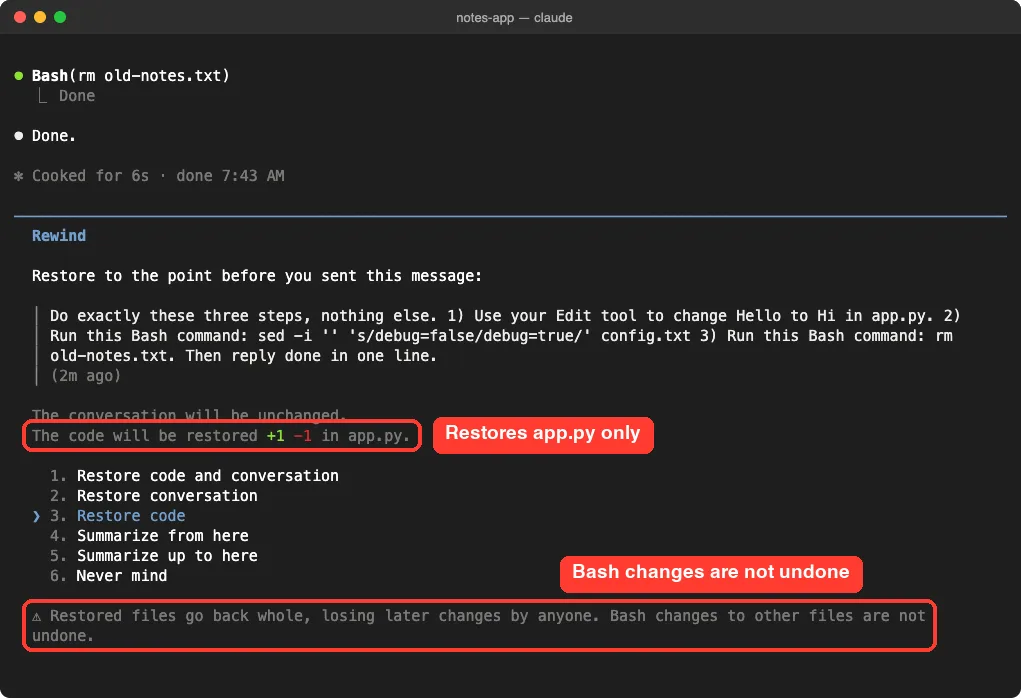
Two lines on this screen tell you everything. “The code will be restored +1 -1 in app.py” lists the only file it will touch. The warning at the bottom says Bash changes to other files are not undone.
The six actions match the docs: Restore code and conversation, Restore conversation, Restore code, Summarize from here, Summarize up to here, and Never mind. We picked Restore code to keep the chat and roll back files.
Step 3: Check what actually came back
After the restore, we left Claude Code and checked the folder from a normal terminal with git status --short and cat.
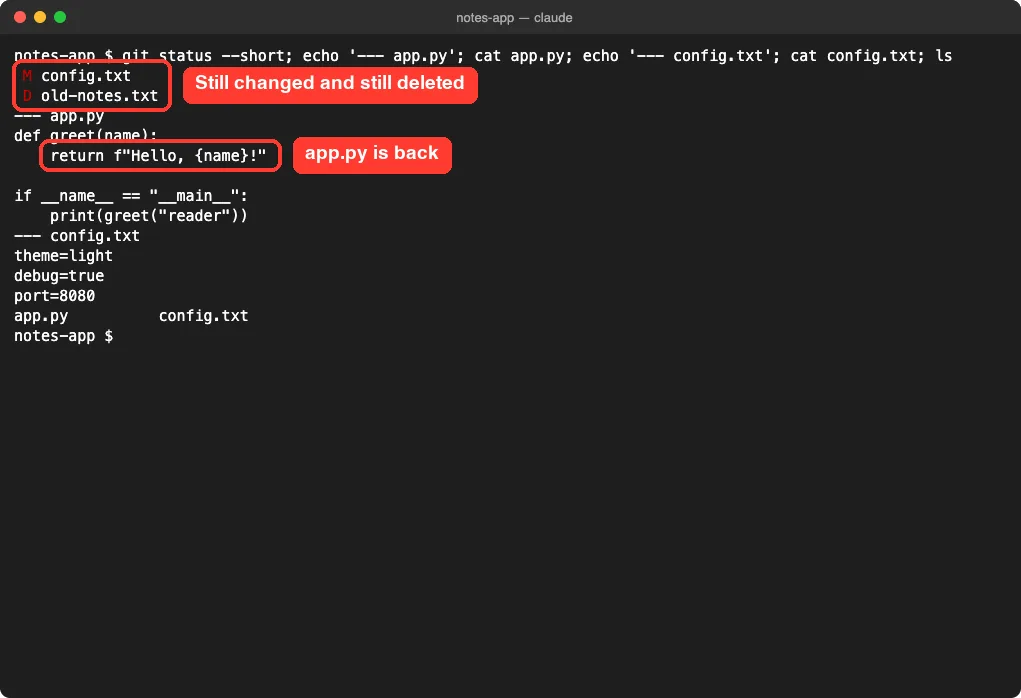
This is exactly the “rewind didn’t undo it” moment. app.py says Hello again, but Git still shows M config.txt (modified) and D old-notes.txt (deleted). The debug=true line is still there.
Step 4: Recover the rest with Git
Because the project was committed, the fix took one command. We checked the change with git diff config.txt, then ran git restore config.txt old-notes.txt.
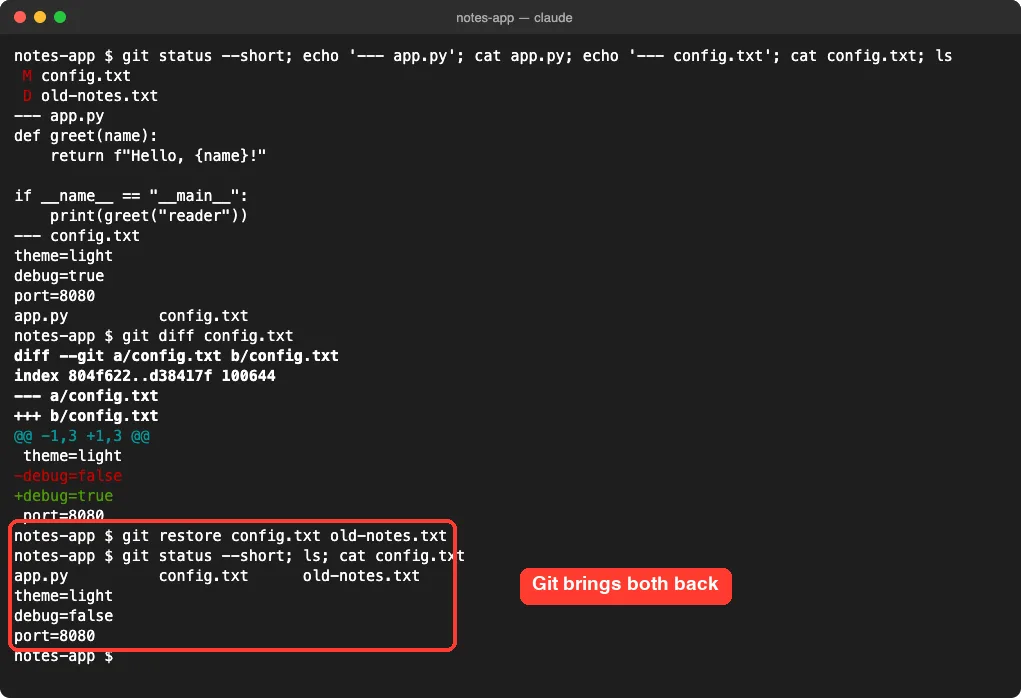
After that, all three files were listed again and debug=false was back. Git restored what checkpoints never saw.
The Exception: Bash Changes to a File Claude Already Edited
The docs add a detail that surprises people. Once Claude has edited a file with its editing tools in your conversation, /rewind also undoes Bash changes made to that same file afterward. We tested that too, in a fresh session.
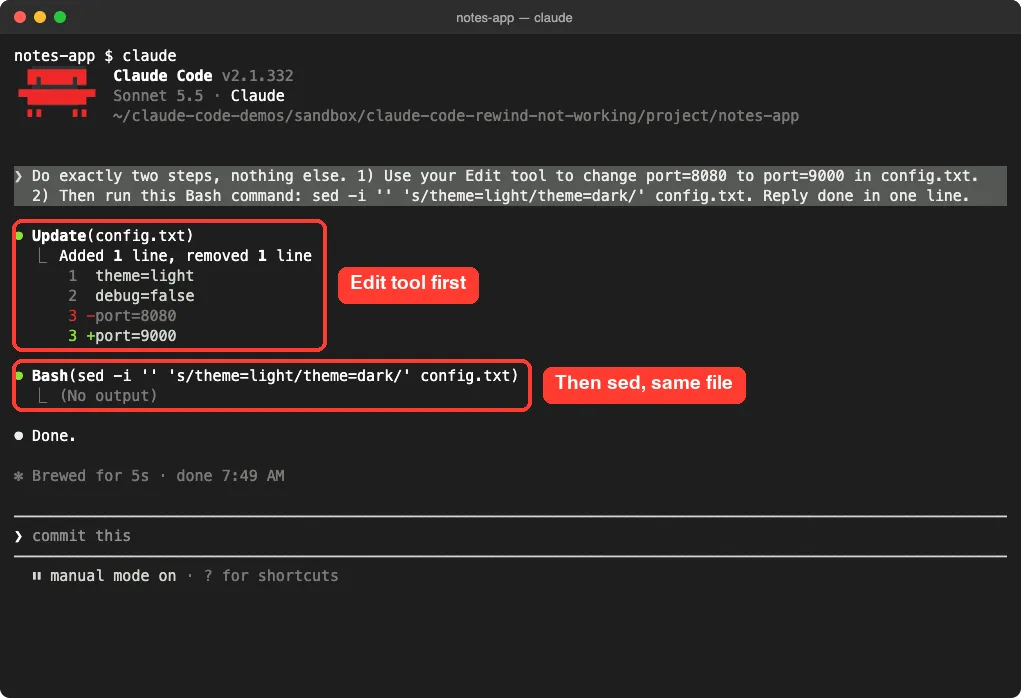
This time the prompt was: use the Edit tool to change port=8080 to port=9000 in config.txt, then run sed to change theme=light to theme=dark in the same file.
When we opened /rewind, the restore screen counted both changes: “+2 -2 in config.txt.” Under each prompt, the menu counts changes to files Claude had already edited, whatever made them.
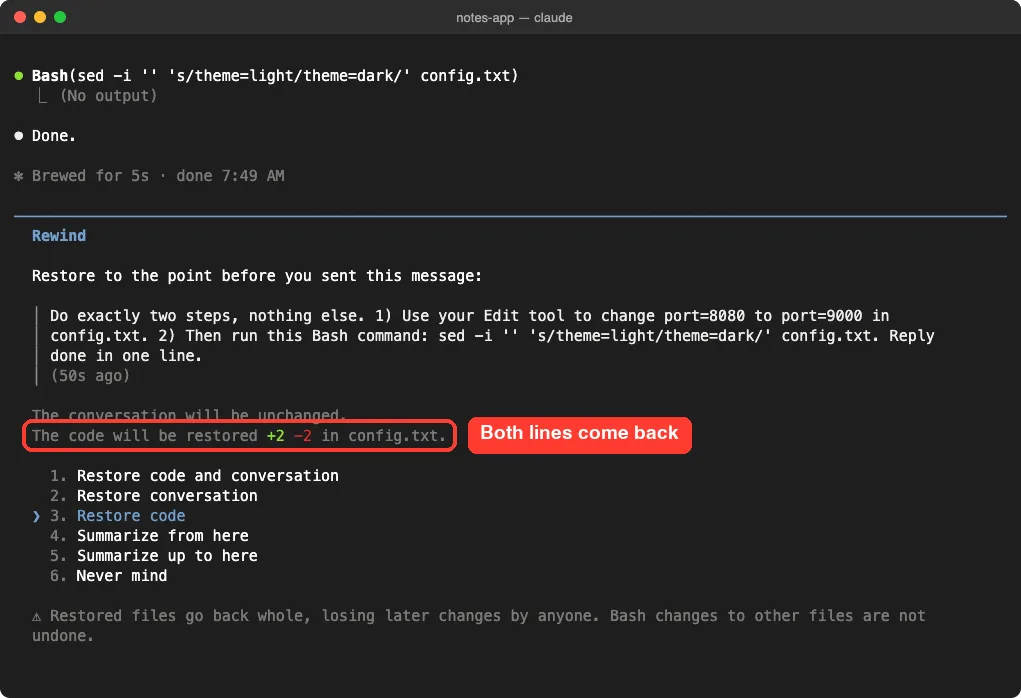
After Restore code, git status was clean and the file read theme=light and port=8080 again. So the rule is about which files are tracked, not which tool made each change.
Every Reason Rewind Leaves Changes Behind
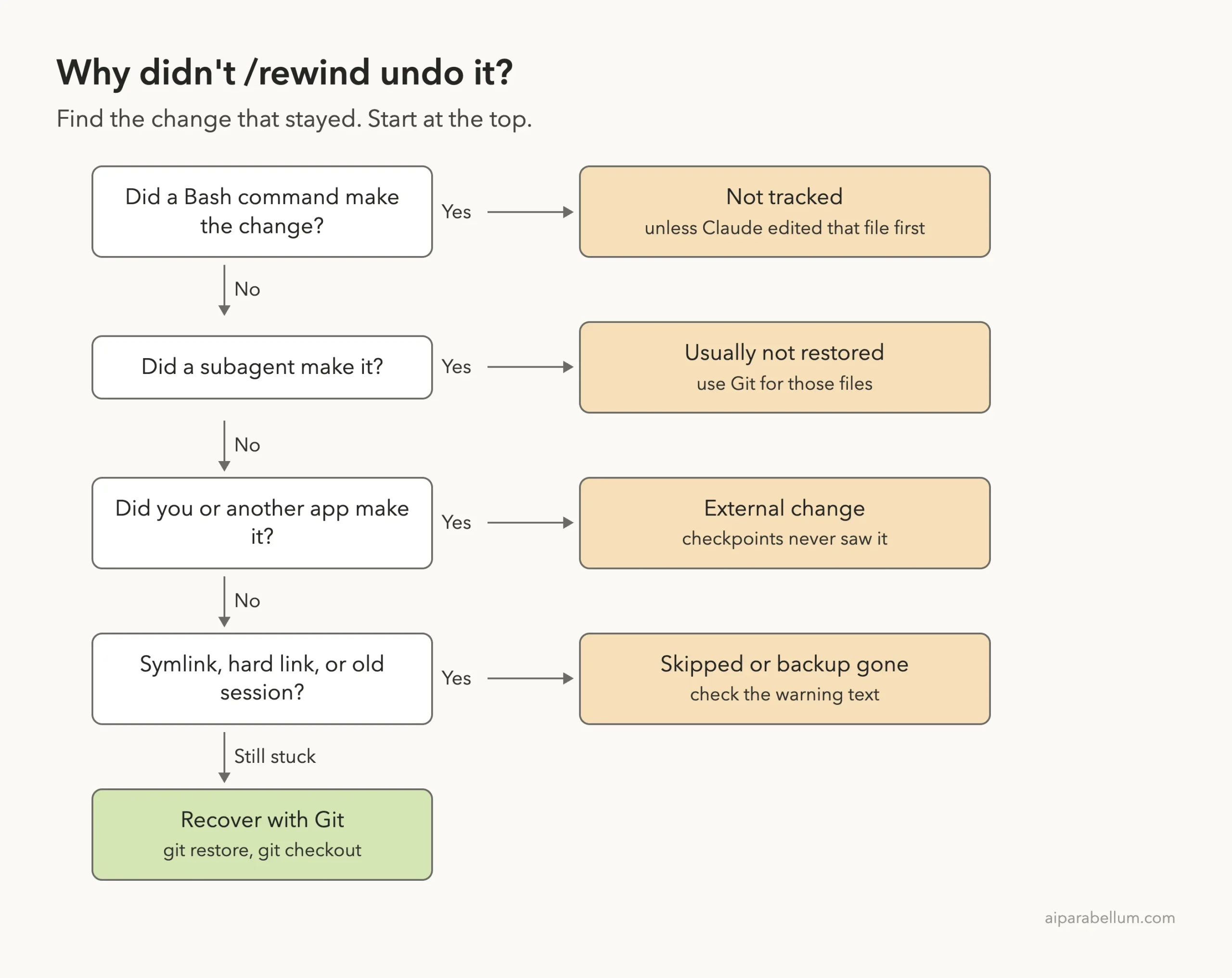
Bash commands are the most common cause, but not the only one. Here is every case the official docs list, with what to do.
Bash-only file changes
Any file that only a shell command touched is untracked. That includes sed -i, rm, mv, cp, formatters, code generators, npm install and build scripts. Use git restore or git checkout to undo them.
Subagent edits
A Claude Code subagent uses the same editing tools, but its edits are usually not captured in your session’s checkpoints. Rewinding restores only files Claude had already edited in your main conversation.
The docs name one exception: a skill with context: fork that runs in the foreground edits your files during your own turn, so rewind restores those. Background forks, the default, and a background /code-review --fix run are not restored.
Edits made outside the session
If you changed a file in your editor, or another Claude Code session edited it, checkpoints normally don’t see it. The exception is when those changes hit a file the current session already edited.
Be careful here, because the warning on the restore screen says restored files “go back whole.” If you edited a tracked file by hand after Claude did, Restore code rolls back your edit too.
Messages you typed while Claude was working
A message queued mid-turn can show “No code restore” in the menu, because it has no checkpoint of its own. Select the prompt that started the turn instead and choose Restore code.
Symlinks and hard links
Rewind won’t write through a symlink or hard link. You’ll see this warning from the error reference:
Restored the code, but skipped 2 files: the tracked path is (or became) a link or other non-regular file, its directory changed since the checkpoint, or its backup could not be safely read. Skipped files were left untouched — run with --debug for the paths.To find the links on macOS or Linux, run find . -type l for symlinks and find . -type f -links +1 for hard links.
Dotfile managers and pnpm commonly create these, so ask Claude to reverse the edit or fix the file yourself.
Old sessions and missing backups
If you resume an old session, the menu can still list checkpoints whose backups were already deleted. Rewinding then fails like this:
Failed to restore the code:
No files were restored: 1 file failed (backup missing, or the file could not be updated)
Backups are removed in a cleanup sweep, by default about 30 days after the session last saved one. The same error can appear in a fork made with /branch or --fork-session if a backup couldn’t be copied, for example on a full disk.
How to Fix It: Recover Changes Rewind Missed
Work through these fixes in order. The first two cover nearly every case.
- Run
git status --shortto list every file that is still changed (M) or deleted (D). - Run
git diff <file>to check the exact lines before you throw anything away. - Run
git restore <file>to undo a change or bring back a deleted, committed file. This discards uncommitted work in that file, so check the diff first. - If a file was never committed, Git can’t help. Try your editor’s local history, or ask Claude to recreate it from the conversation.
- For a skipped symlink or hard link, ask Claude to reverse the edit, or fix the file yourself.
- For
No files were restored, use Git for those files and raisecleanupPeriodDaysin your settings so future backups last longer.
The settings reference shows cleanupPeriodDays as a plain number of days. A longer value keeps transcripts and snapshots longer, at the cost of more disk space:
{
  "cleanupPeriodDays": 60
}
How to Prevent It Next Time
A few small habits make the gap almost harmless.
- Commit before you hand Claude a big or risky task. A clean
git statusmeans you can always get back. - Use
git stashto park unfinished work before a large change. - Ask Claude to use its editing tools instead of
sedfor file changes when you want rewind to cover them. - Use the default permission modes so you see and approve each Bash command, especially
rmandmv. - Try risky experiments in a separate Git worktree, so your main folder never changes.
- Add a PreToolUse hook that blocks or warns on destructive commands if you work in auto-accept modes.
Try It Yourself
Want to see the gap with your own eyes? Make a throwaway folder with a few small files, run git init, commit them, start claude, and paste this prompt:
Do exactly these three steps, nothing else.
1) Use your Edit tool to change one word in app.py.
2) Run a Bash sed command that changes one line in config.txt.
3) Run a Bash rm command on old-notes.txt.
Then reply done in one line.
Open /rewind, choose Restore code, and run git status --short. You should see the same result we did, and git restore will clean up the rest.
Common Mistakes
- Treating
/rewindas a full project backup. It only covers files Claude edited with its tools. - Assuming the menu lists everything. If a file isn’t under the prompt, rewind won’t touch it.
- Choosing Restore conversation when you meant Restore code. That option rewinds the chat but keeps your current files.
- Running
git restorewithout checkinggit difffirst and losing your own uncommitted work. - Letting Claude run
rmon files that were never committed, so neither rewind nor Git can bring them back.
Pro Tips
- Read the line “The code will be restored … in
file” before you confirm. It is the fastest way to spot what will stay. - To see which files a restore skipped, turn on
/debugbefore you restore; the debug log names each skipped path. - Checkpoints survive
claude --continue, so you can still rewind after closing the terminal, as long as backups haven’t expired. - If you run
/clearby mistake, the rewind menu shows a/resume <session-id> (previous session)entry at the top while the same process is running. - If a rewound conversation comes back after you exit, send one more prompt before quitting next time, so the rewind is saved.
Rewind Not Working Cheat Sheet
For other errors you might hit along the way, see our list of common Claude Code errors.
Frequently Asked Questions
Why didn’t /rewind restore my deleted file?
If Claude deleted it with a Bash rm command, checkpoints never tracked it. Run git restore <file> to bring it back from your last commit.
Does Claude Code rewind undo Bash commands?
Only on files Claude had already edited with its editing tools in that conversation. A file that only Bash commands changed stays as it is.
Can I rewind after closing Claude Code?
Yes. Checkpoints are saved with the conversation, so resume with claude --continue or claude --resume and open /rewind. Backups are cleaned up after about 30 days by default.
What does “No files were restored” mean?
The restore failed on at least one file, so nothing was restored. Usually the backup is gone because the session is old; use Git for those files.
Is /undo different from /rewind?
No. /undo is an alias that opens the same rewind menu.
Conclusion
When Claude Code rewind is not working, it is almost always doing exactly what it was built to do: restoring files Claude changed with its own editing tools and leaving everything else alone, including Bash edits, rm deletions, most subagent work, outside edits, links and expired backups. Read the restore screen before you confirm, check git status afterward, and use git restore for whatever stayed; better still, commit before big tasks so nothing is ever truly lost. For /rewind, /undo and related commands, see Anthropic’s commands list, and visit our Claude AI page for more on Claude.