
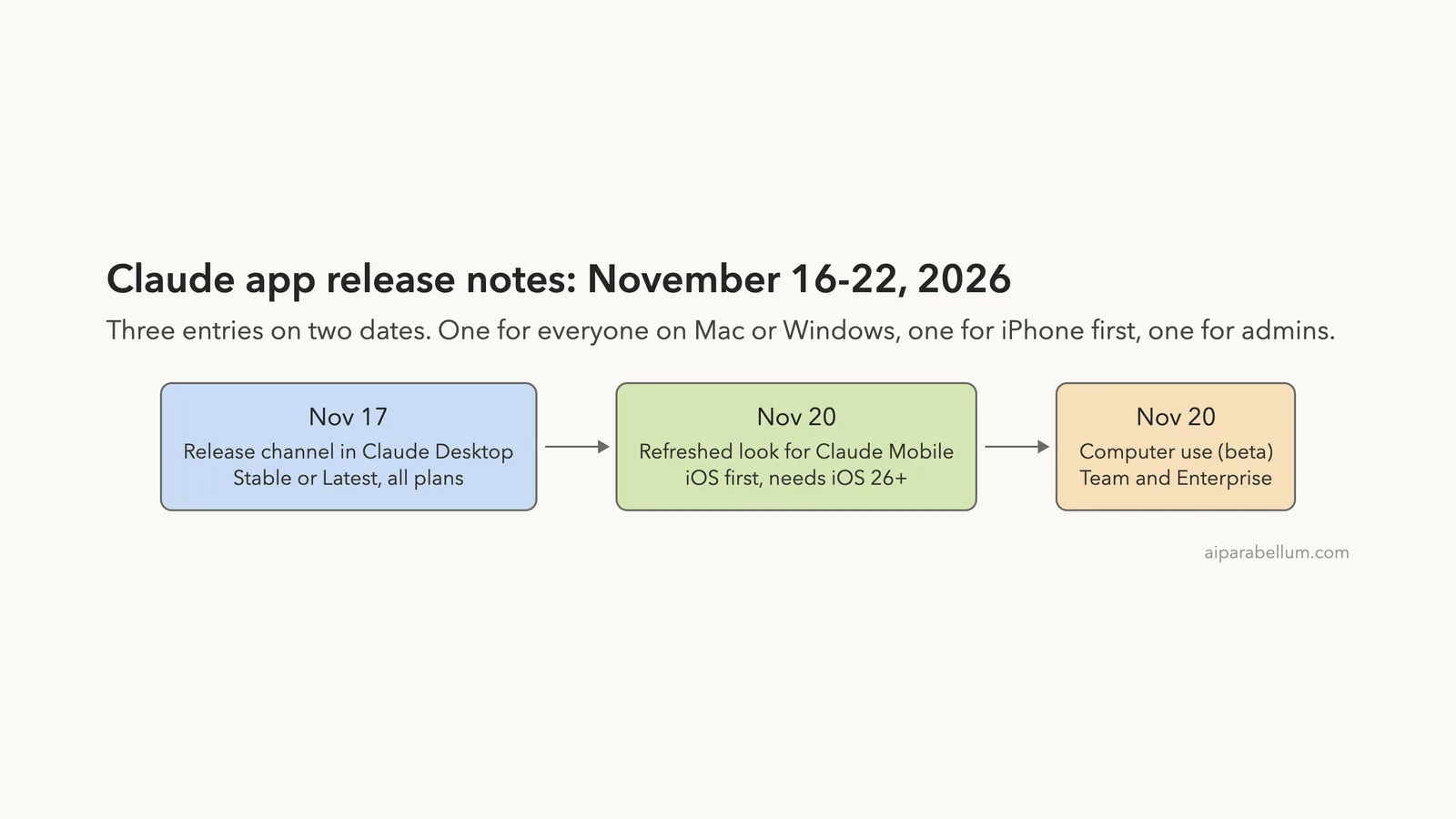
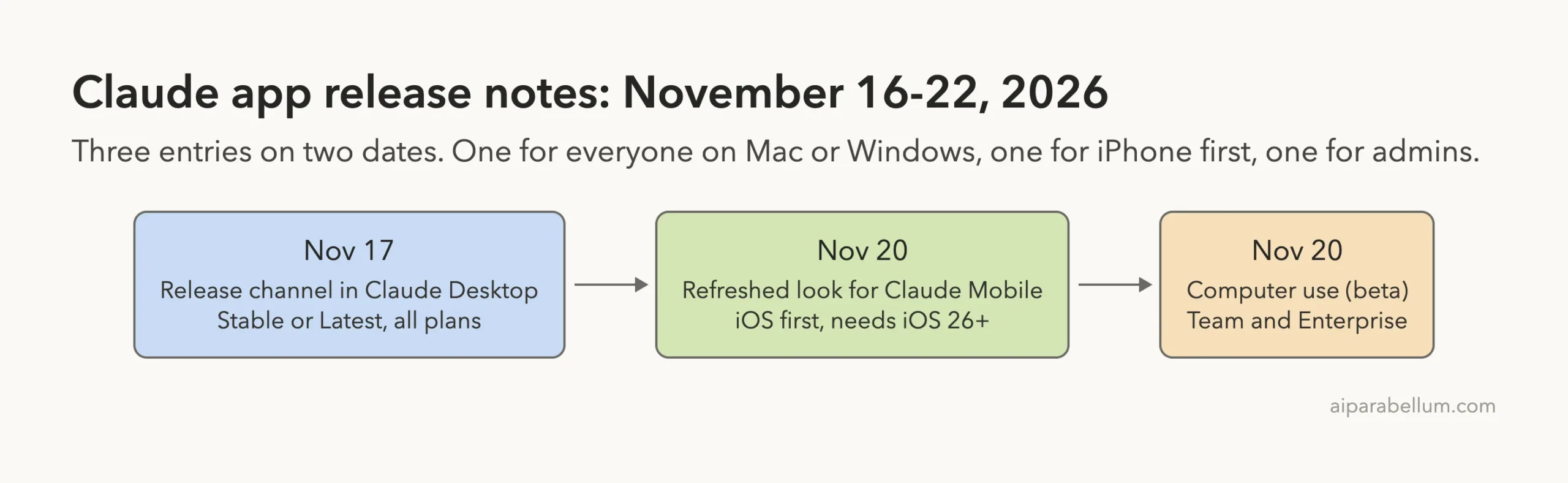
If you want to know what’s new in Claude this week, here is the short answer: you can now pick a release channel in Claude Desktop, Claude Mobile is getting a refreshed look starting on iPhone, and computer use has reached Team and Enterprise plans in beta. Anthropic’s official release notes list three entries for the week, dated November 17 and November 20, 2026.
We read the release notes and then opened the help articles they link to, so every detail below comes from Anthropic’s own pages. We could not use the Claude apps’ own screens for this roundup, so the screenshots are highlighted captures of the official pages.
For more on the assistant itself, visit our Claude tool page. If you also use the terminal tool, our Claude Code roundup covers the same week, and last time we covered the November 2-8 updates.
What’s New in Claude: The Week at a Glance
Here is every entry the release notes dated inside the week, with who gets it and its status.
| Date | Change | Who gets it | Status |
|---|---|---|---|
| November 17 | Choose a release channel in Claude Desktop | All plans, Claude for Mac and Claude for Windows | Available |
| November 20 | A refreshed look for Claude Mobile | Claude for iOS first, needs iOS 26 or later | Rolling out gradually |
| November 20 | Computer use for Team and Enterprise plans | Team and Enterprise organizations | Beta, off by default, rolling out gradually |
The release notes page also shows Claude Meetings on November 12 and three entries on November 24, such as installing artifacts as apps. Those fall outside November 16 through 22, so we leave them for other roundups.
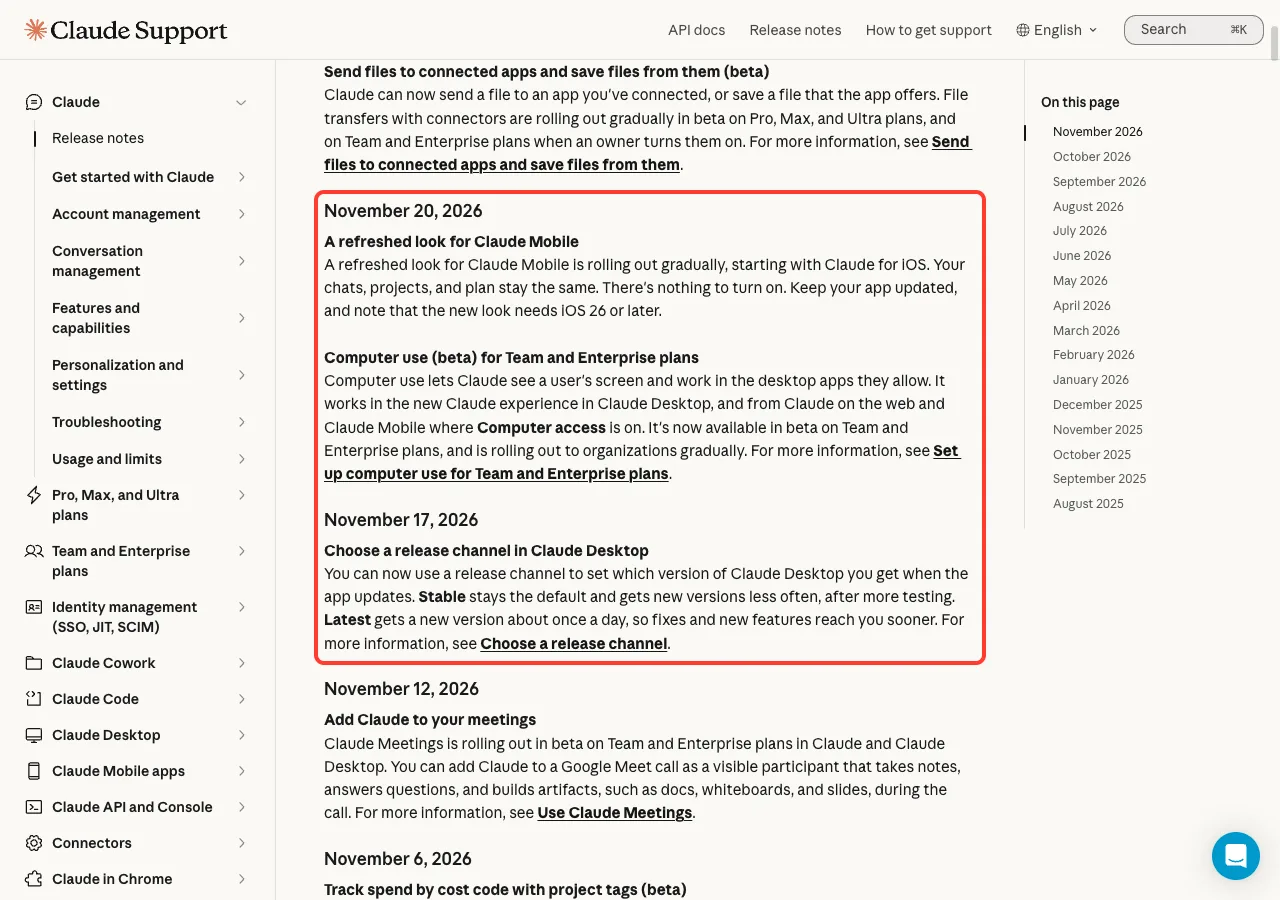
Only one of this week’s changes needs you to do anything: the release channel is a choice, while the mobile refresh just arrives and computer use depends on your admin.
Choose a Release Channel in Claude Desktop
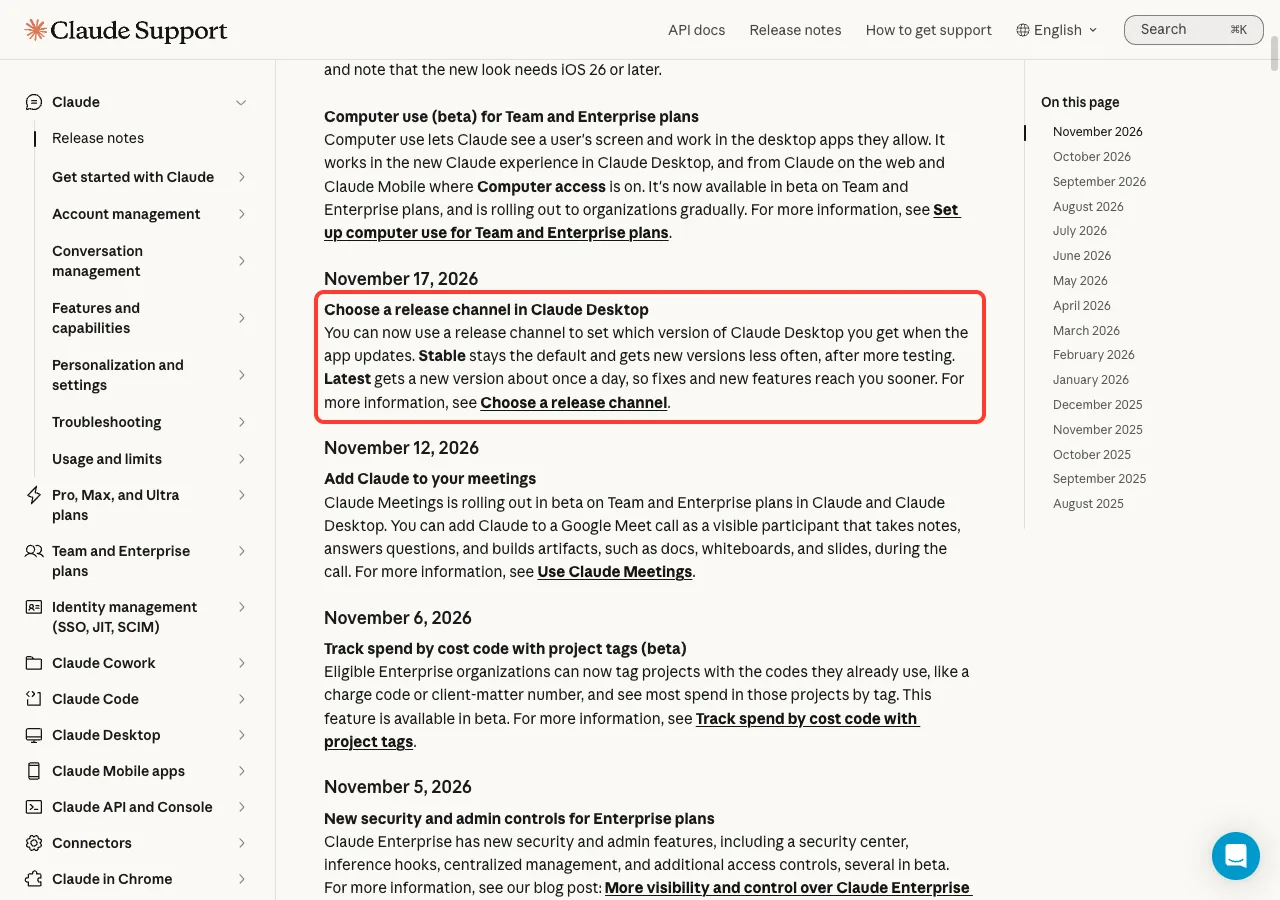
On November 17, Anthropic added a release channel setting to Claude Desktop. It decides which version of the app you get when it updates.
Stable versus Latest
There are two channels. The help article explains the trade-off in plain terms, and it is worth reading before you switch.
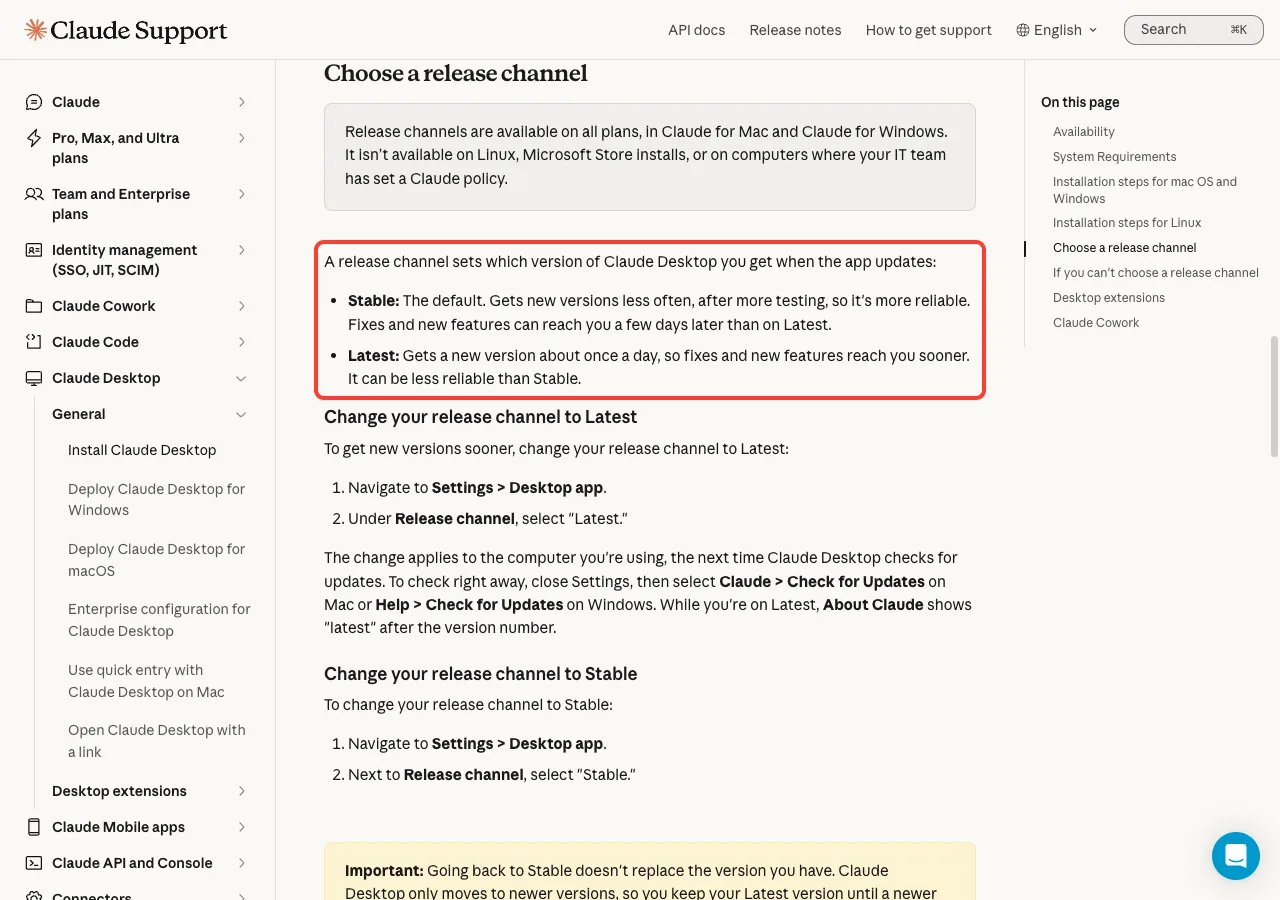
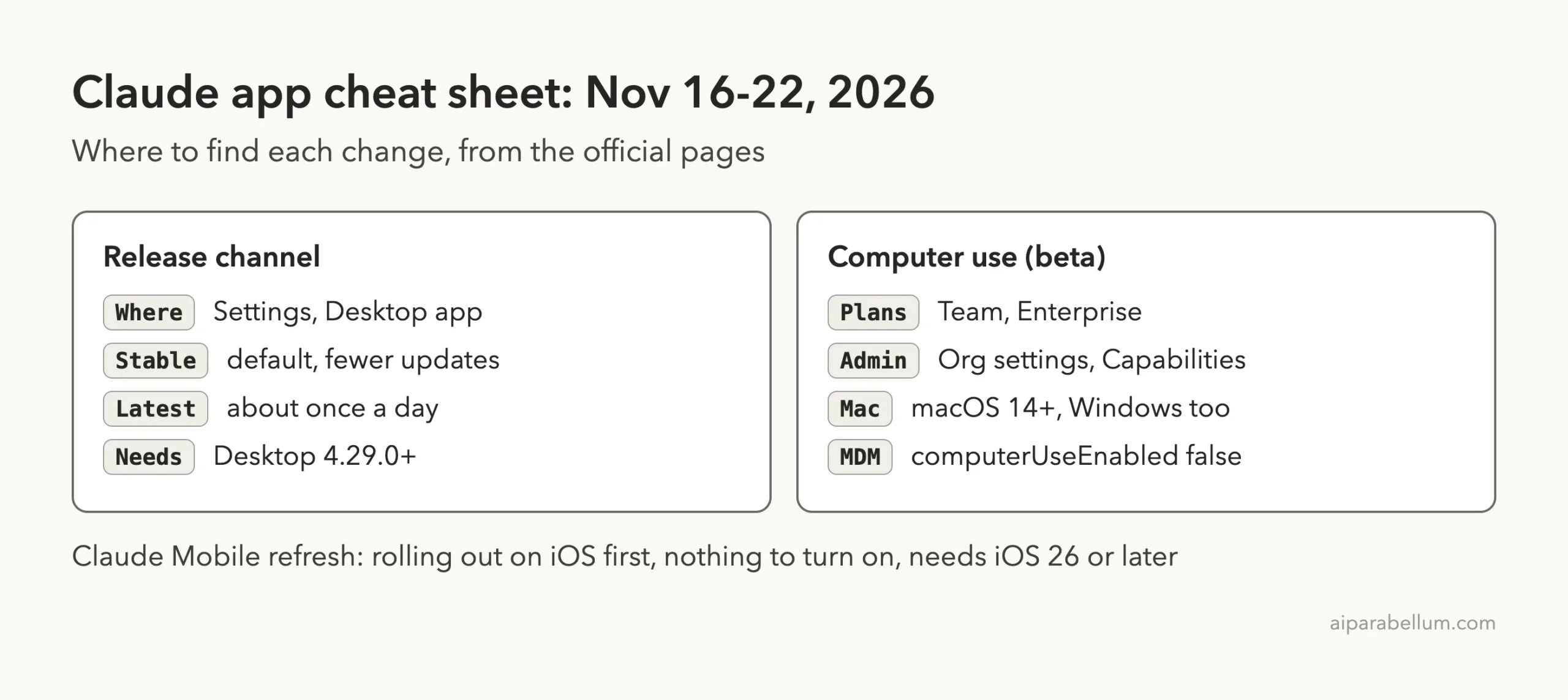
- Stable is the default. It gets new versions less often, after more testing, so it is more reliable. Fixes and new features can reach you a few days later than on Latest.
- Latest gets a new version about once a day, so fixes and new features reach you sooner. It can be less reliable than Stable.
Who can use it
Release channels are available on all plans, in Claude for Mac and Claude for Windows. They are not available on Linux, on Microsoft Store installs, or on computers where your IT team has set a Claude policy.
How to switch to Latest
- Open Claude Desktop and go to
Settings, thenDesktop app. - Next to Release channel, select “Latest.”
- To check for the new version right away, close Settings and choose
ClaudethenCheck for Updateson a Mac, orHelpthenCheck for Updateson Windows.
The change applies to the computer you are using, the next time Claude Desktop checks for updates. While you are on Latest, About Claude shows “latest” after the version number, which is an easy way to confirm the switch worked.
Going back to Stable has a catch
You can switch back the same way by selecting “Stable.” But the help article warns that this does not replace the version you already have.
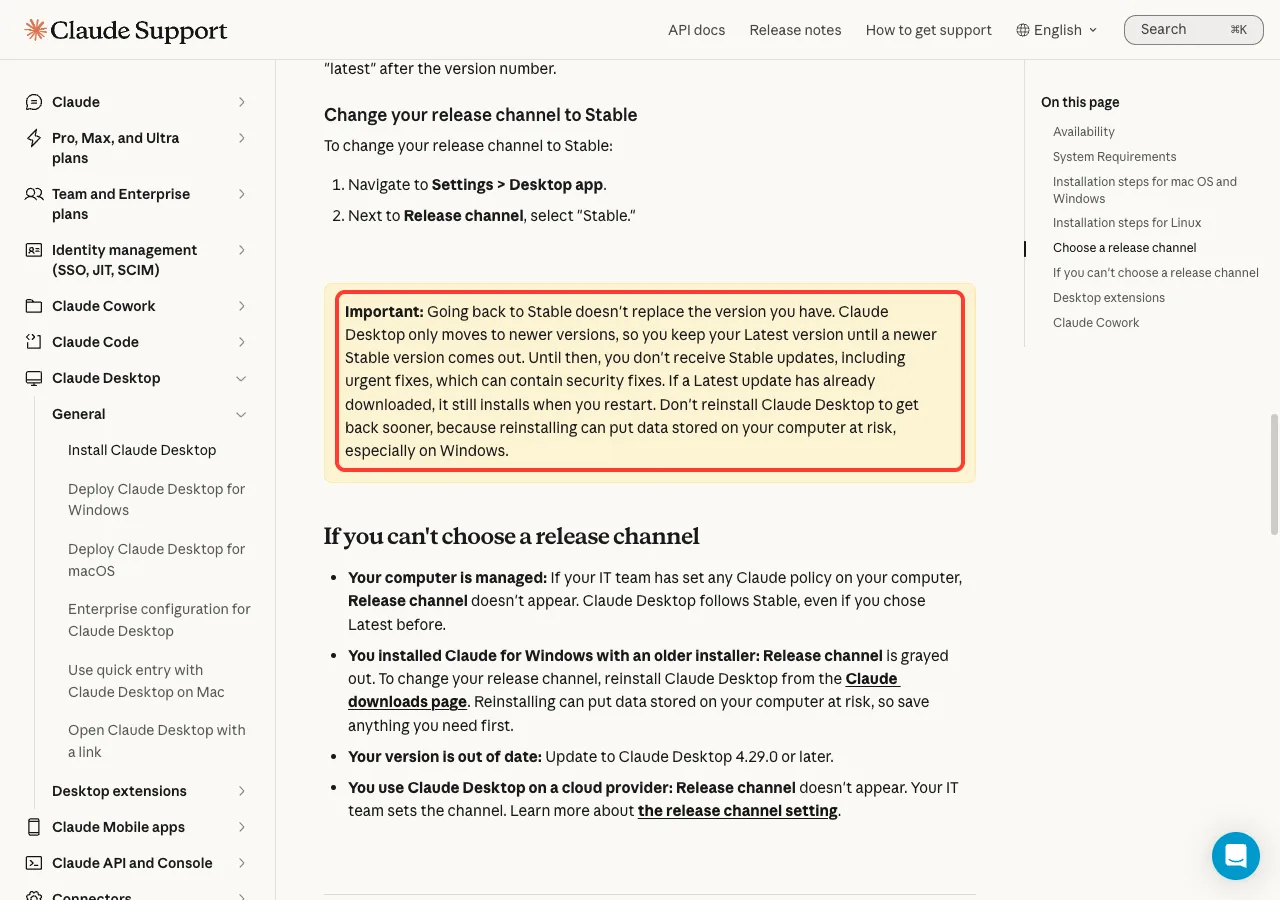
Claude Desktop only moves to newer versions, so you keep your Latest version until a newer Stable version comes out. Until then, you don’t receive Stable updates, including urgent fixes, which can contain security fixes. If a Latest update has already downloaded, it still installs when you restart.
Anthropic also says not to reinstall Claude Desktop to get back sooner. Reinstalling can put data stored on your computer at risk, especially on Windows.
If you can’t find the setting
| What you see | Why, per the help article | What to do |
|---|---|---|
| Release channel doesn’t appear | Your IT team set a Claude policy on the computer | Nothing; the app follows Stable |
| Release channel is grayed out on Windows | You installed with an older installer | Reinstall from the Claude downloads page, after saving anything you need |
| Setting is missing | Your version is out of date | Update to Claude Desktop 4.29.0 or later |
| Release channel doesn’t appear | You use Claude Desktop on a cloud provider | Your IT team sets the channel |
A Refreshed Look for Claude Mobile
On November 20, the release notes said a refreshed look for Claude Mobile is rolling out gradually, starting with Claude for iOS. This is the shortest entry of the week, and it has no linked help article.
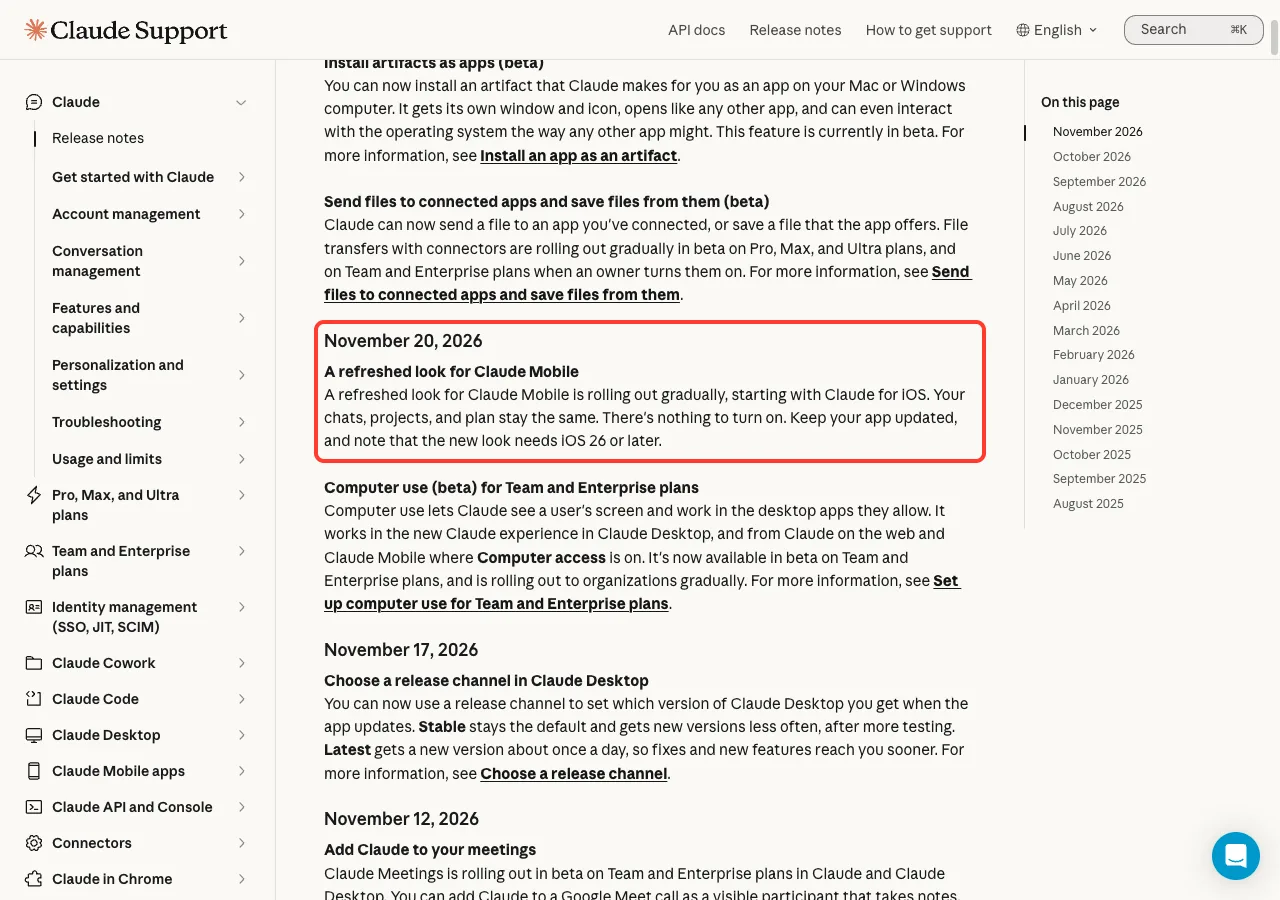
Here is everything the note says, in plain terms:
- Your chats, projects and plan stay the same.
- There’s nothing to turn on.
- Keep your app updated to get it.
- The new look needs iOS 26 or later.
The note says the rollout starts with iOS, but it does not give a date for Android, and it does not list what the new design changes. We won’t guess at either. If your iPhone runs an older iOS version, you will need to update the system before the new look can appear.
Computer Use (Beta) for Team and Enterprise Plans
Also on November 20, computer use reached Team and Enterprise plans in beta. Computer use lets Claude see a user’s screen and work in the desktop apps they allow, clicking and typing the way you would.
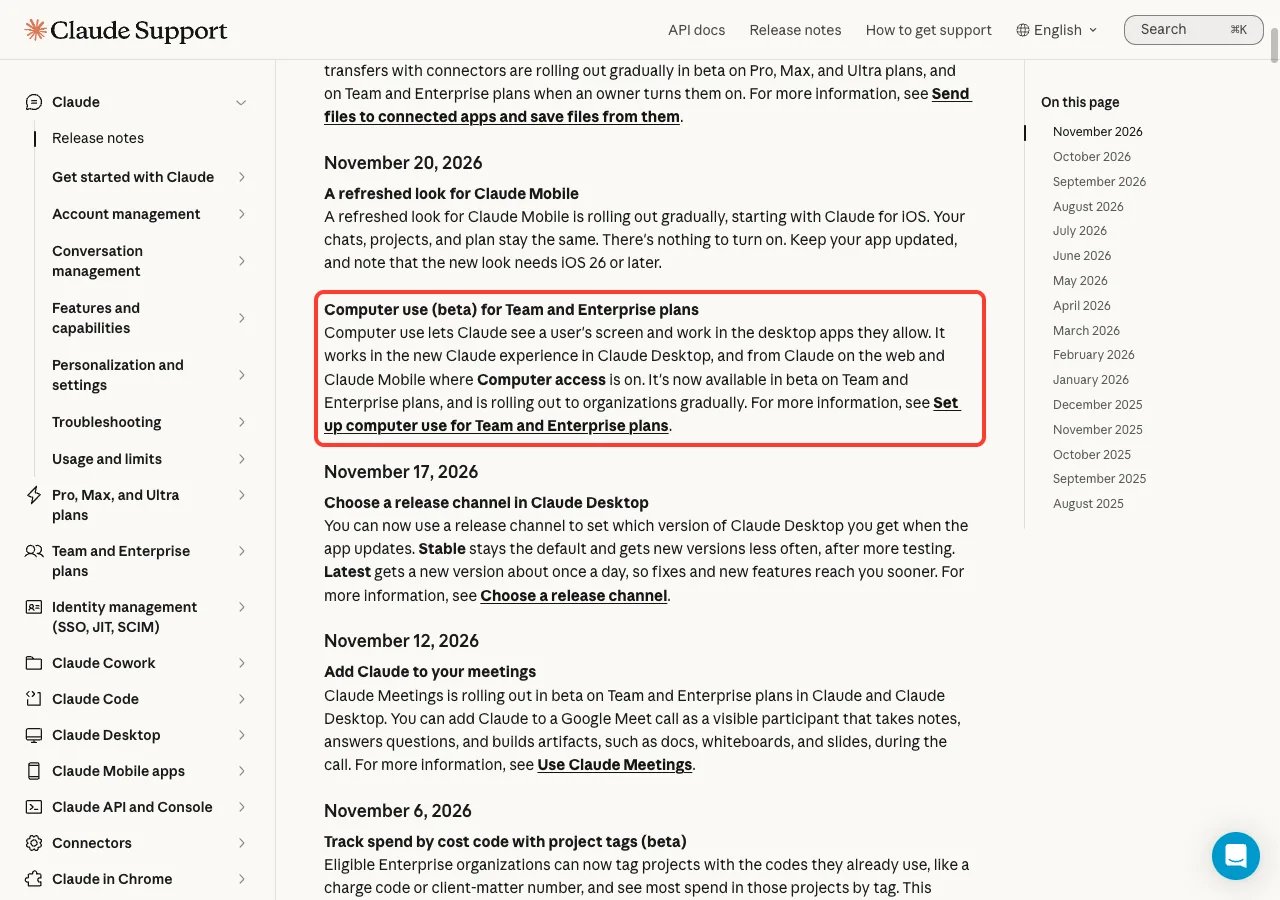
A separate help article says computer use is already available for Pro, Max and Ultra plans in Claude Desktop on macOS and Windows. This week’s news is that business plans can now turn it on too. If you want to see how a similar agent works on a personal Mac, our look at Perplexity Computer covers a comparable idea.
Where it works
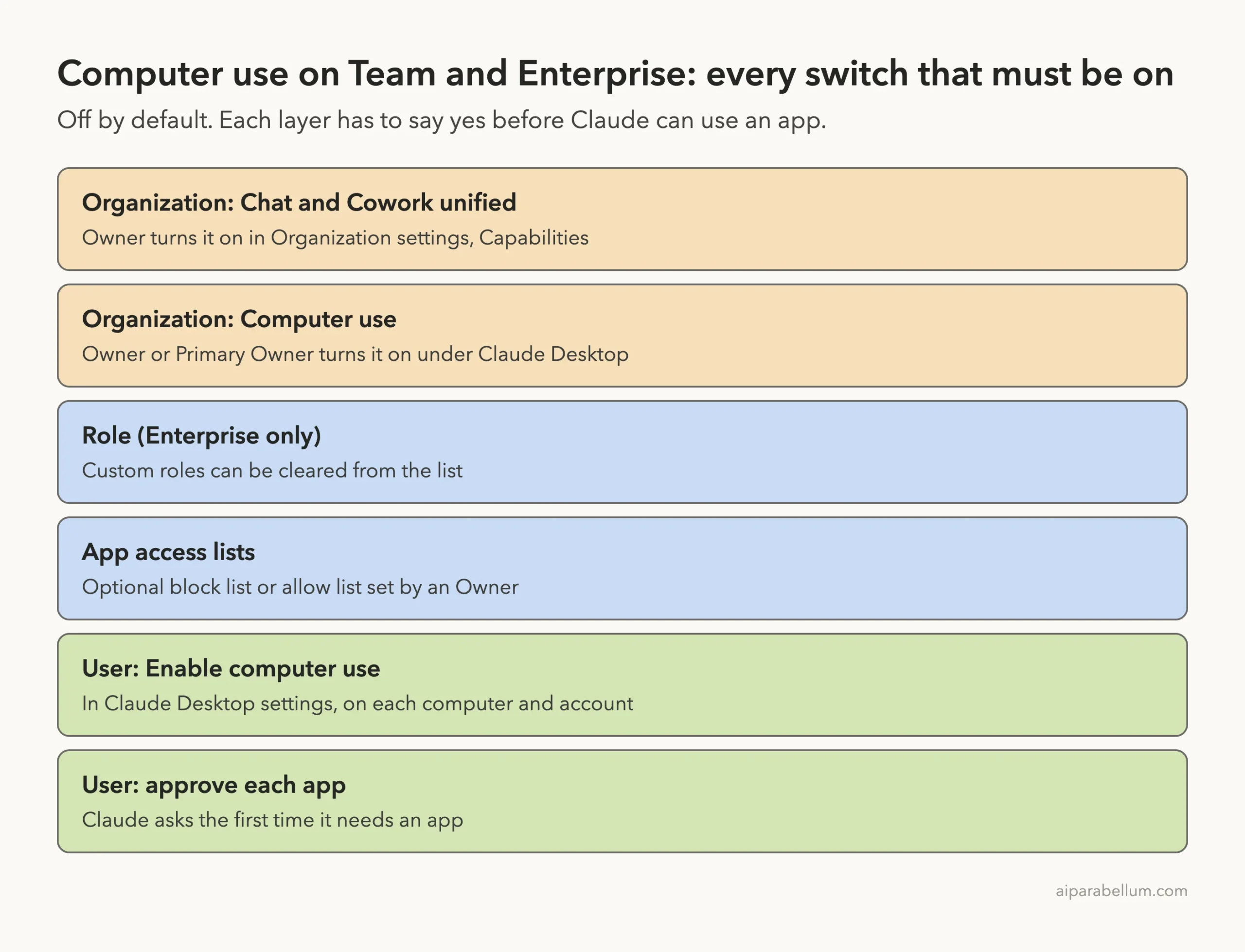
The admin help article says computer use is in beta on Team and Enterprise plans, it is off by default, and it is rolling out to organizations gradually.
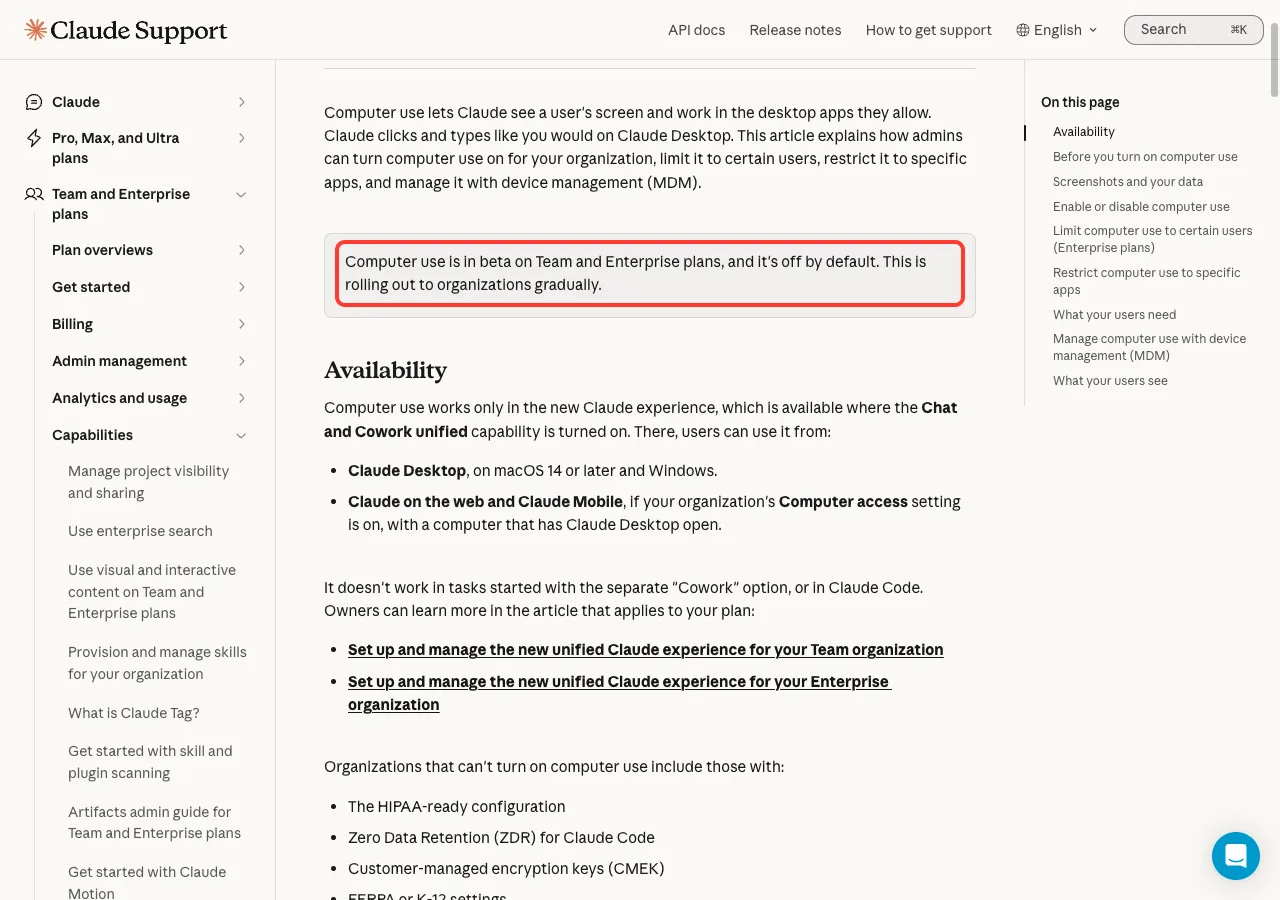
It works only in the new Claude experience, where the Chat and Cowork unified capability is on. From there, users can use it in two ways:
- In Claude Desktop, on macOS 14 or later and on Windows.
- From Claude on the web and Claude Mobile, if the organization’s Computer access setting is on, with a computer that has Claude Desktop open.
It does not work in tasks started with the separate “Cowork” option, or in Claude Code. Organizations with Zero Data Retention for Claude Code are among those that can’t turn it on.
Computer use and Computer access are different
The two names are easy to mix up. Computer use lets Claude see the screen and work in apps. Computer access lets users reach their computer from scheduled tasks, Claude on the web or Claude Mobile.
How admins turn it on
Only an Owner or Primary Owner can change this setting. The steps from the help article are short.
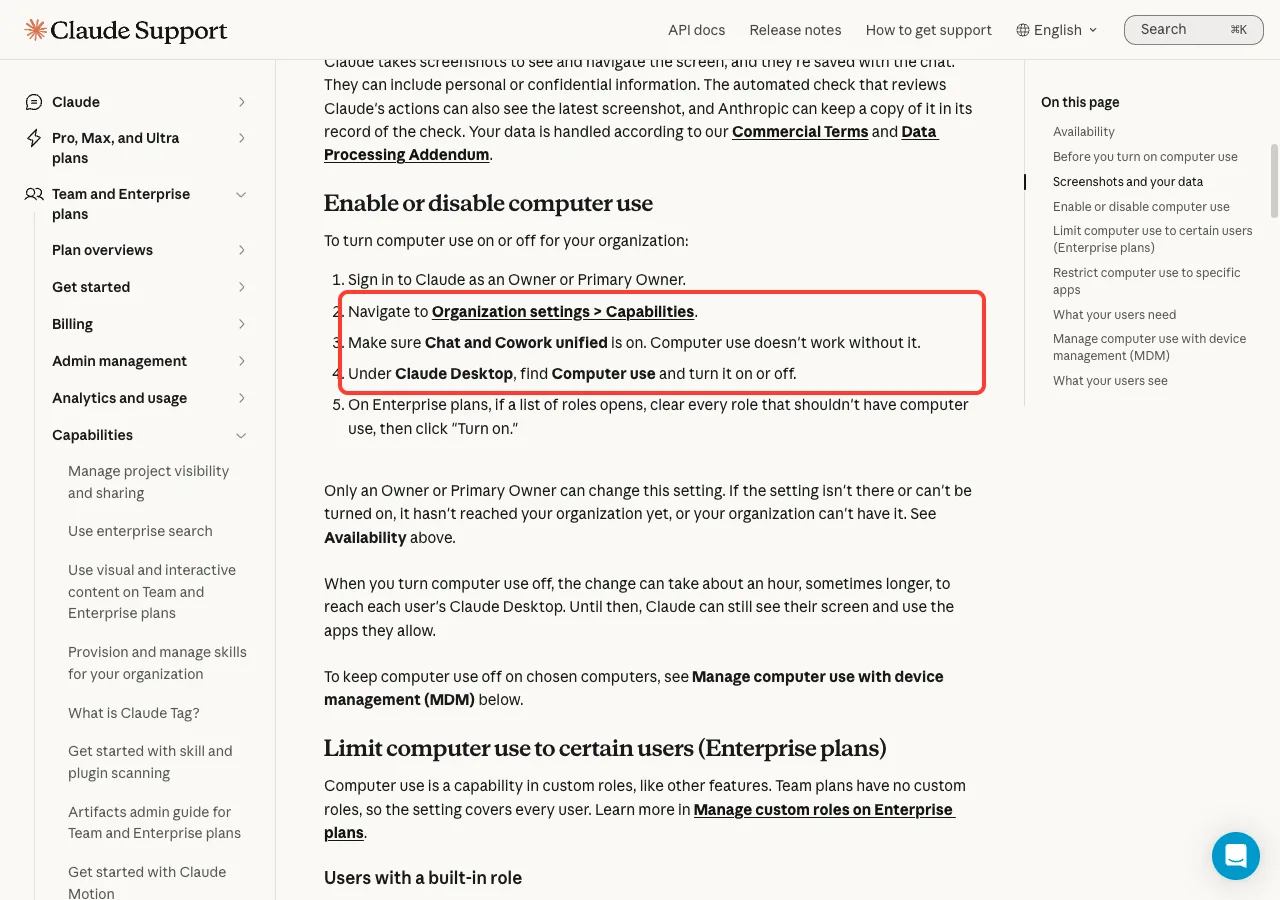
- Go to
Organization settings, thenCapabilities. - Make sure Chat and Cowork unified is on. Computer use doesn’t work without it.
- Under Claude Desktop, find Computer use and turn it on.
- On Enterprise plans, if a list of roles opens, clear every role that shouldn’t have computer use, then click “Turn on.”
If the setting isn’t there, it hasn’t reached your organization yet, or your organization can’t have it. Turning it off can take about an hour, sometimes longer, to reach each user’s Claude Desktop.
Limit it to certain apps
The App access setting, just below Computer use, has two lists. Only an Owner or Primary Owner can change it.
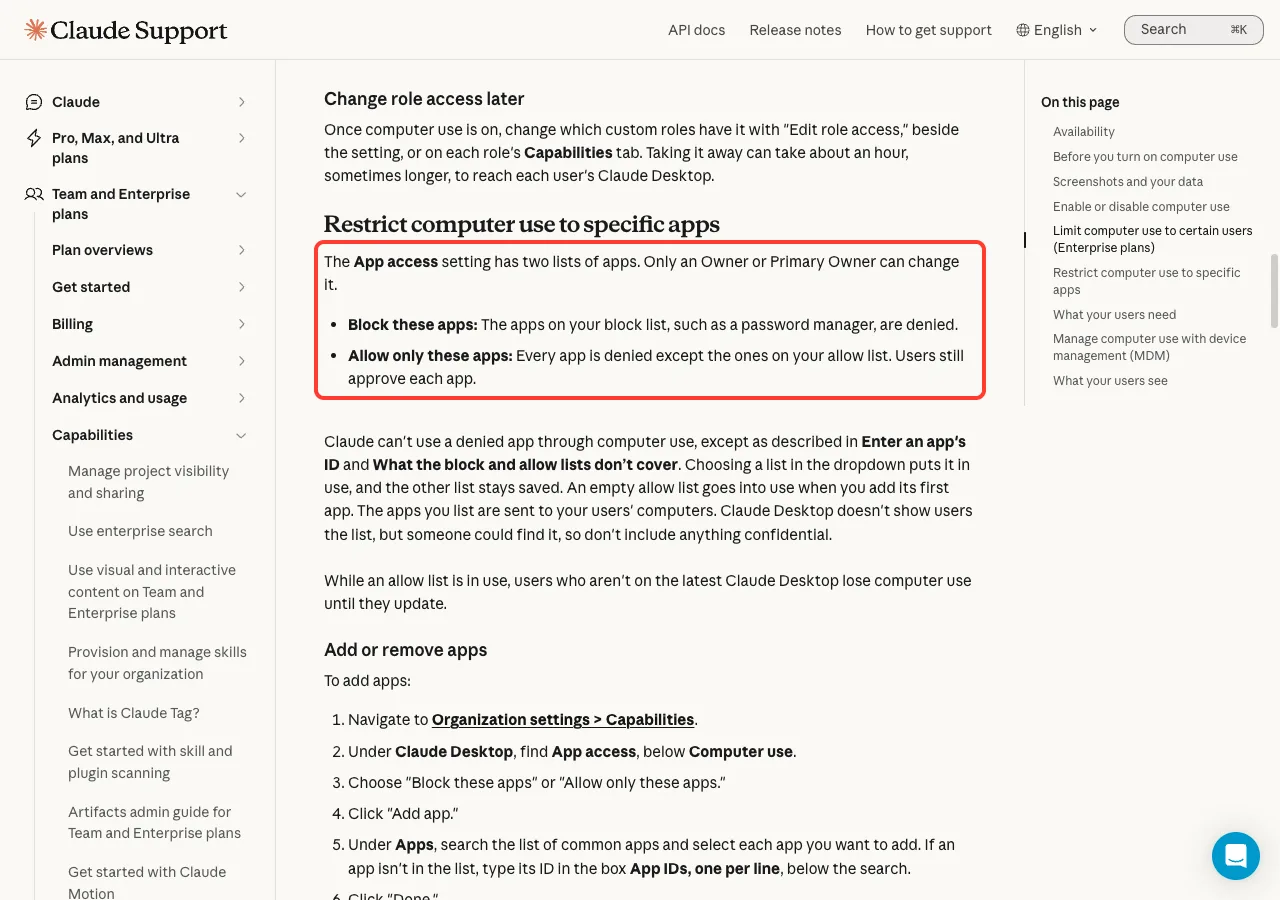
- Block these apps: the apps on your list, such as a password manager, are denied.
- Allow only these apps: every app is denied except the ones on your list. Users still approve each app.
To add an app that isn’t in the search list, you type its ID. On a Mac that is the bundle ID, such as com.microsoft.Excel. On Windows it is the program’s file name, such as excel.exe, or a Microsoft Store app’s Application User Model ID.
The lists have clear limits. They don’t cover Claude in Chrome, the built-in browser, Claude Code or desktop extensions, and they don’t cover websites, browser extensions, or apps inside a remote desktop or virtual machine window.
Keep it off on chosen computers
Organizations that manage computers with tools such as Jamf or Intune can set the Claude Desktop policy key computerUseEnabled to false. It needs Claude Desktop 5.1231.0 or later, and it should be deployed at the computer level, not to a user.
On a Mac, the key goes in a configuration profile for the preference domain com.anthropic.claudefordesktop. On Windows, it is a DWORD value of 0 under HKEY_LOCAL_MACHINE\SOFTWARE\Policies\Claude. Claude Desktop reads the key only when it starts, so users must quit and reopen the app.
Safety points the help article stresses
Anthropic is direct about the risks, and admins should read these before turning anything on.
- Computer use has no sandbox between Claude and a user’s applications. Content on the screen, such as web pages or emails, could cause Claude to take unintended actions.
- It isn’t limited to the folders a user has connected, and folder limits or “Read only” marks don’t apply to it.
- Claude takes screenshots to see the screen, and they are saved with the chat, so they can include personal or confidential information.
If you want a broader view of how to judge tools that act on your machine, our guide on whether Desktop Commander safety walks through the same kinds of questions.
What users need to do
Even after an admin turns it on, each user has a few steps. They need the latest Claude Desktop, open on the computer Claude will use, and they turn on Enable computer use there for each computer and account.
On macOS, computer use also needs the Accessibility and Screen Recording permissions in System Settings, then Privacy & Security. Users who aren’t administrators on their Mac may need an administrator’s name and password to turn them on. Claude then asks for approval the first time it needs each app.
What This Means for You
Each change this week targets a different group, so here is a quick way to decide what to do.
- If you use Claude Desktop on a Mac or Windows PC and like new features early, switch to Latest. If reliability matters more, stay on Stable and do nothing.
- If you switch to Latest, remember that going back to Stable won’t downgrade you, so decide before you try it.
- If you use Claude on an iPhone, keep the app updated and make sure your phone runs iOS 26 or later.
- If you are a Team or Enterprise Owner, read the safety section of the admin article first, then decide whether to turn computer use on and which apps to block.
- If you are a Team or Enterprise user and don’t see computer use, your organization hasn’t turned it on or it hasn’t reached you yet.
If you are still choosing an assistant, our three-way comparison and our Claude vs Gemini guide are good starting points. For the models behind these apps, see our Opus 5.5 coverage.
Cheat Sheet: What’s New in Claude This Week
Keep this card handy. It collects where to find each change and the main limits from the official pages.
Frequently Asked Questions
What’s new in Claude this week?
The official release notes list three entries for November 17 and 20, 2026. They cover release channels in Claude Desktop, a refreshed look for Claude Mobile, and computer use in beta for Team and Enterprise plans.
Should I switch Claude Desktop to the Latest channel?
Only if you want fixes and features sooner and can accept less reliability. Latest updates about once a day, while Stable is the default and gets more testing first.
How do I go back to Stable?
Go to Settings, then Desktop app, and select “Stable.” You keep your current version until a newer Stable version comes out, and Anthropic says not to reinstall to get back sooner.
When will Android get the new Claude Mobile look?
The release note doesn’t say. It only says the refresh is rolling out gradually, starting with Claude for iOS, and that it needs iOS 26 or later.
Can I use computer use on a Team plan now?
It is in beta and rolling out gradually, and it is off by default. An Owner or Primary Owner must turn it on in Organization settings, along with the Chat and Cowork unified capability.
Conclusion
This was a quiet but practical week for the Claude apps: a release channel that lets Mac and Windows users choose between faster updates and safer ones, a refreshed mobile design that starts on iPhone with nothing to turn on, and computer use for Team and Enterprise organizations, with a long list of admin controls and safety warnings attached. Check the plan, platform and version limits before you expect each feature, and read the official release notes, the guide to release channel guide, and the admin article on computer use setup for the full text, then check back next week for the next roundup.