
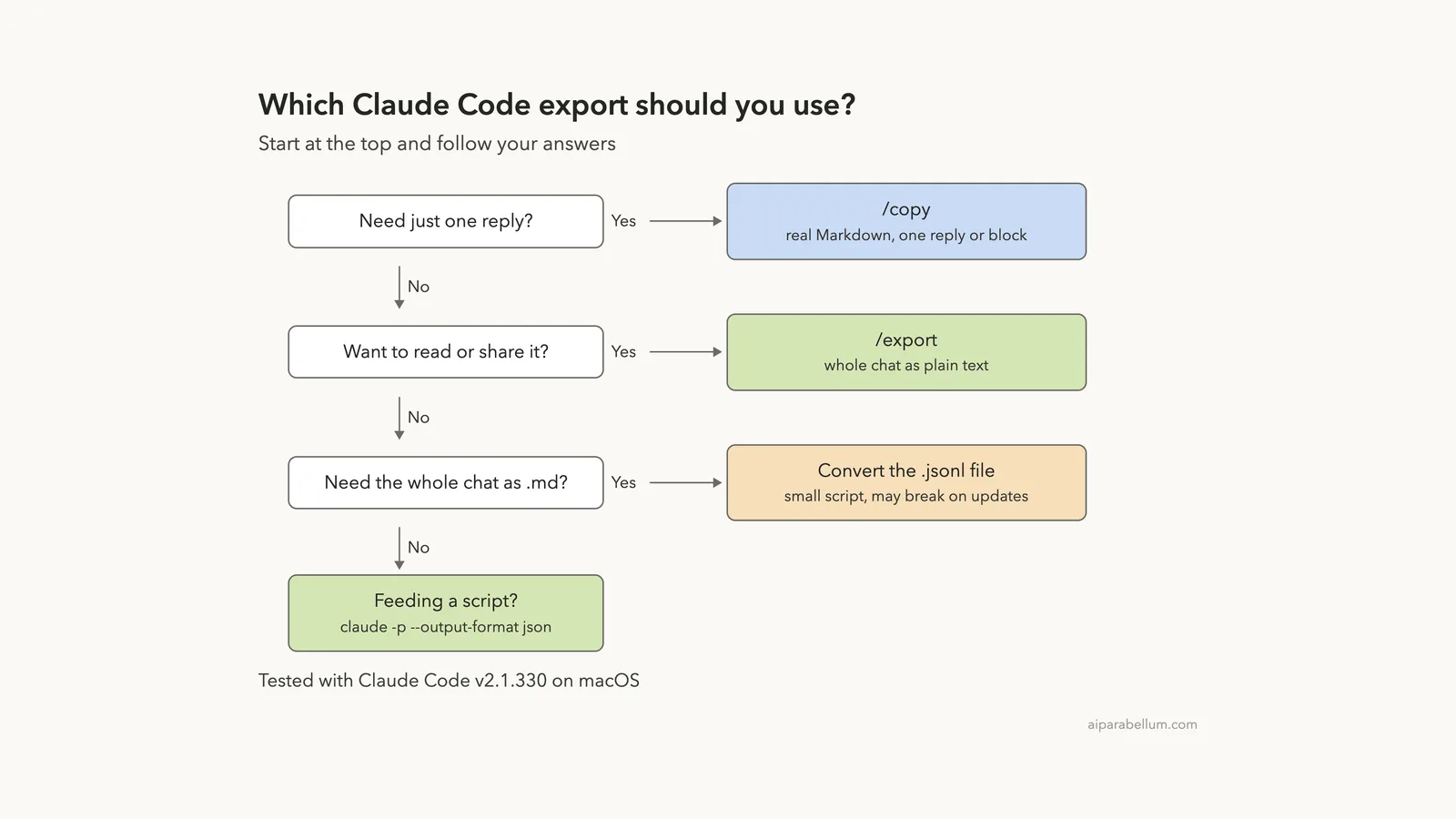
To export a Claude Code conversation, type /export inside the session and pick Copy to clipboard or Save to file, or type /export chat.md to write the whole chat straight to a file with the name you choose. That covers most people who search “claude code export conversation”, and it takes about two seconds.
There is one catch worth knowing up front. /export writes a plain-text copy of what you saw on screen, so code blocks lose their Markdown fences even if you name the file .md. If you want real Markdown, use /copy, which copies Claude’s last reply with every backtick and code fence intact, or convert the session’s raw .jsonl transcript with a short script.
Below, we run all three in a real session, show exactly what each one produces and where the files land, and cover the errors you might hit along the way.
Browse all our Claude Code tutorials for more fixes and how-tos.
Tested with Claude Code v2.1.330 on macOS on November 25, 2026, in a throwaway demo project with one short prompt. Every screenshot shows a real session. We tested on macOS; the commands work the same way inside Claude Code on Windows and Linux, following Anthropic’s official instructions.
Quick Summary
| What you want | Command | What you get |
|---|---|---|
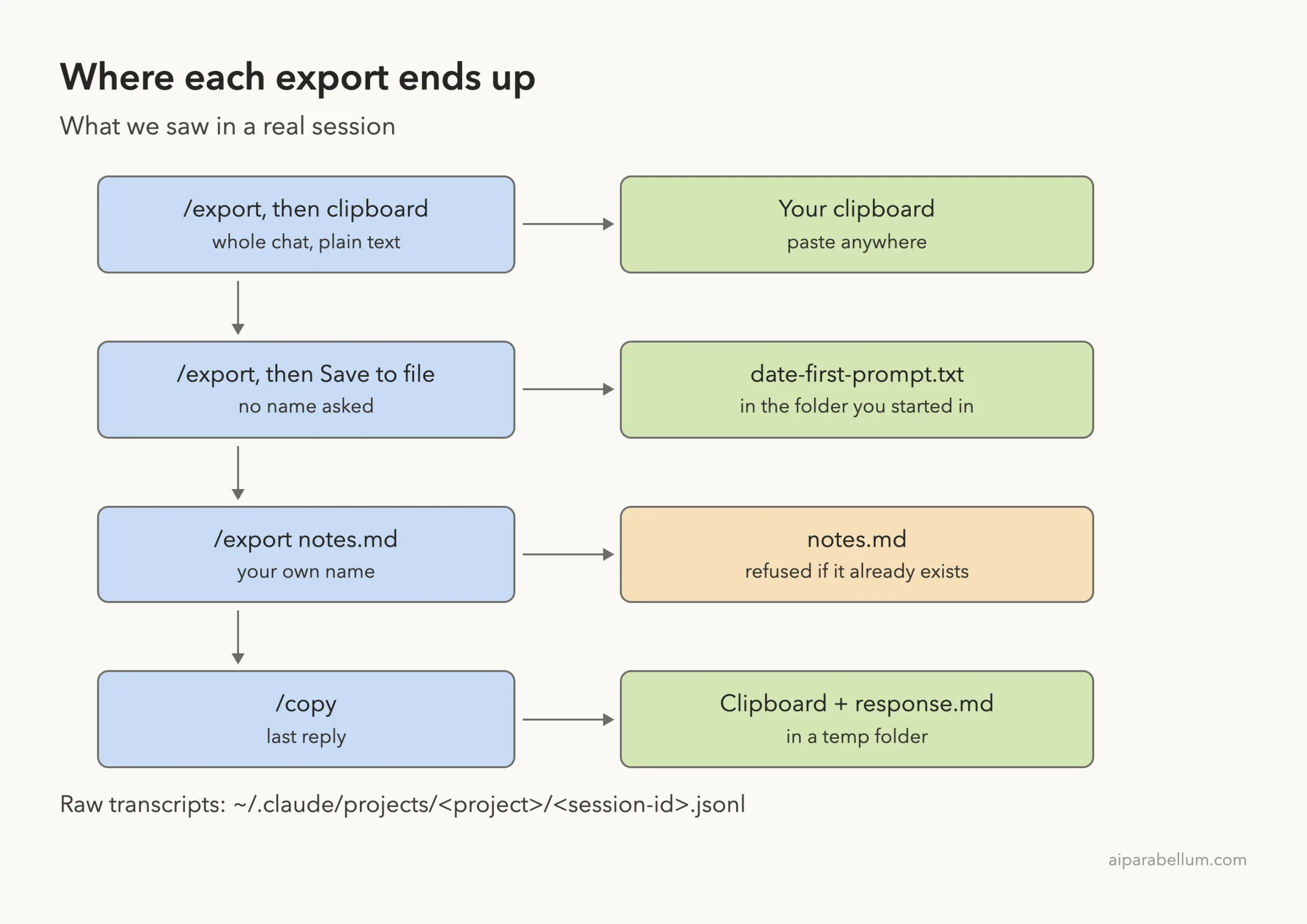
| Whole conversation on the clipboard | /export, then Copy to clipboard | Plain text you can paste anywhere |
| Whole conversation as a file | /export, then Save to file | A .txt file named after the date and your first prompt |
| Whole conversation under your own file name | /export notes.md | Plain text saved as notes.md (refused if it exists) |
| Claude’s last reply as real Markdown | /copy | Clipboard plus a response.md copy |
| An older reply | /copy 2 | The second-to-last reply |
| Just one code block | /copy, pick the block | Only that code, on the clipboard or in a file |
| Whole conversation as real Markdown | Convert the .jsonl transcript | A .md file with headings and code fences |
What /export and /copy Actually Do
Claude Code has two built-in commands for getting text out of a session. The official commands reference describes /export [filename] as exporting the current conversation as plain text, and /copy [N] as copying the last assistant response to the clipboard.
They solve different problems. /export is for the whole conversation, written the way a person would read it on screen. /copy is for one answer, and it keeps the original Markdown source that Claude wrote, which is what you want when pasting into a README, a ticket or notes app.
Behind both, Claude Code saves every session automatically as a JSONL transcript on your disk. That file is how /resume works, and it is also the raw material if you need a full Markdown copy. If sessions are new to you, our guide to Claude Code sessions explains naming, resuming and branching.
How to Export a Claude Code Conversation With /export
For our test, we started a session with a name, claude -n greet-review, in a tiny demo folder holding one Python file. We asked Claude one question: explain greet.py in two sentences and show an improved version in a code block. Then we tried every way of exporting that chat.
Step 1: Open the export menu
Type /export with no file name and press Enter. A small menu opens below the prompt with two choices.
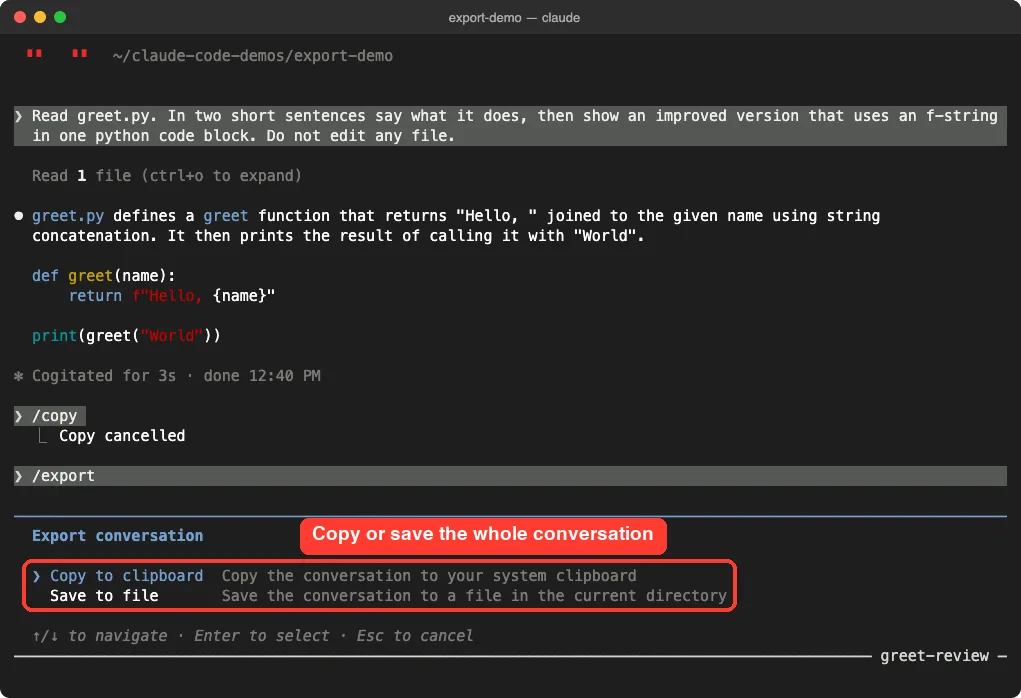
Use the arrow keys to move, Enter to pick, and Esc to cancel. Cancelling prints “Export cancelled” and changes nothing.
Step 2: Copy to clipboard or save to a file
Copy to clipboard printed “Conversation copied to clipboard” and put the full transcript on the Mac clipboard, ready to paste into an email or a chat. Save to file did not ask for a name. It wrote a file straight into the folder where we started Claude Code, named with the date, the time and the first words of our first prompt, ending in .txt.
Step 3: Choose your own file name
To skip the menu, put a file name after the command, such as /export greet-review.md. Claude Code writes the file right away and prints its full path. A relative name lands in the folder you started Claude Code in.
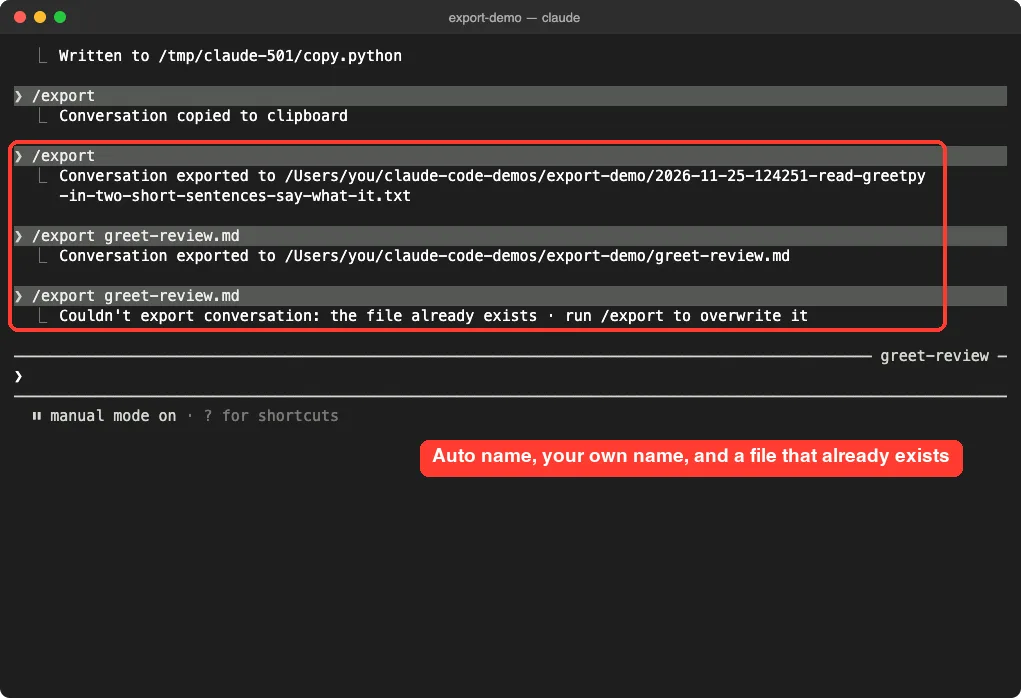
Running the same command a second time failed with “Couldn’t export conversation: the file already exists”. The commands reference confirms that from v2.1.327 onward, /export with a file name refuses one that already exists, so you can’t wipe an older export by accident.
Pick a new name, or delete or rename the old file first. The message itself points you to the plain /export menu if you do want to overwrite; we didn’t test that path.
Why the Exported File Isn’t Real Markdown
Naming the file .md doesn’t change what goes inside it. We opened greet-review.md and found the same text you see in the terminal: the welcome header, our prompt after a ❯ sign, the “Read 1 file” line, and Claude’s answer.
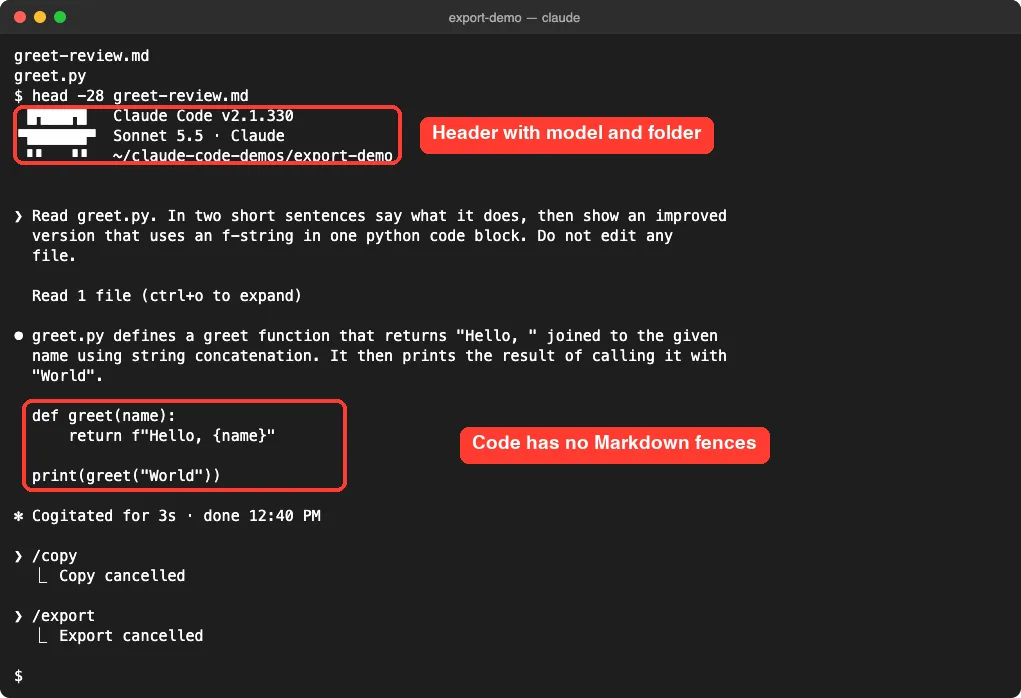
The code block came out indented, with no triple backticks and no language tag, and the inline code lost its backticks too. That matches the official sessions guide, which says /export produces a rendered transcript for a person to read. Some symbols, such as the prompt arrow and the header logo, are special characters that may show up oddly in some editors.
Look at the header before you share an export. In our file, the first lines listed the Claude Code version, the model, the account’s plan name and the working folder. Trim those lines if you don’t want them in a shared document.
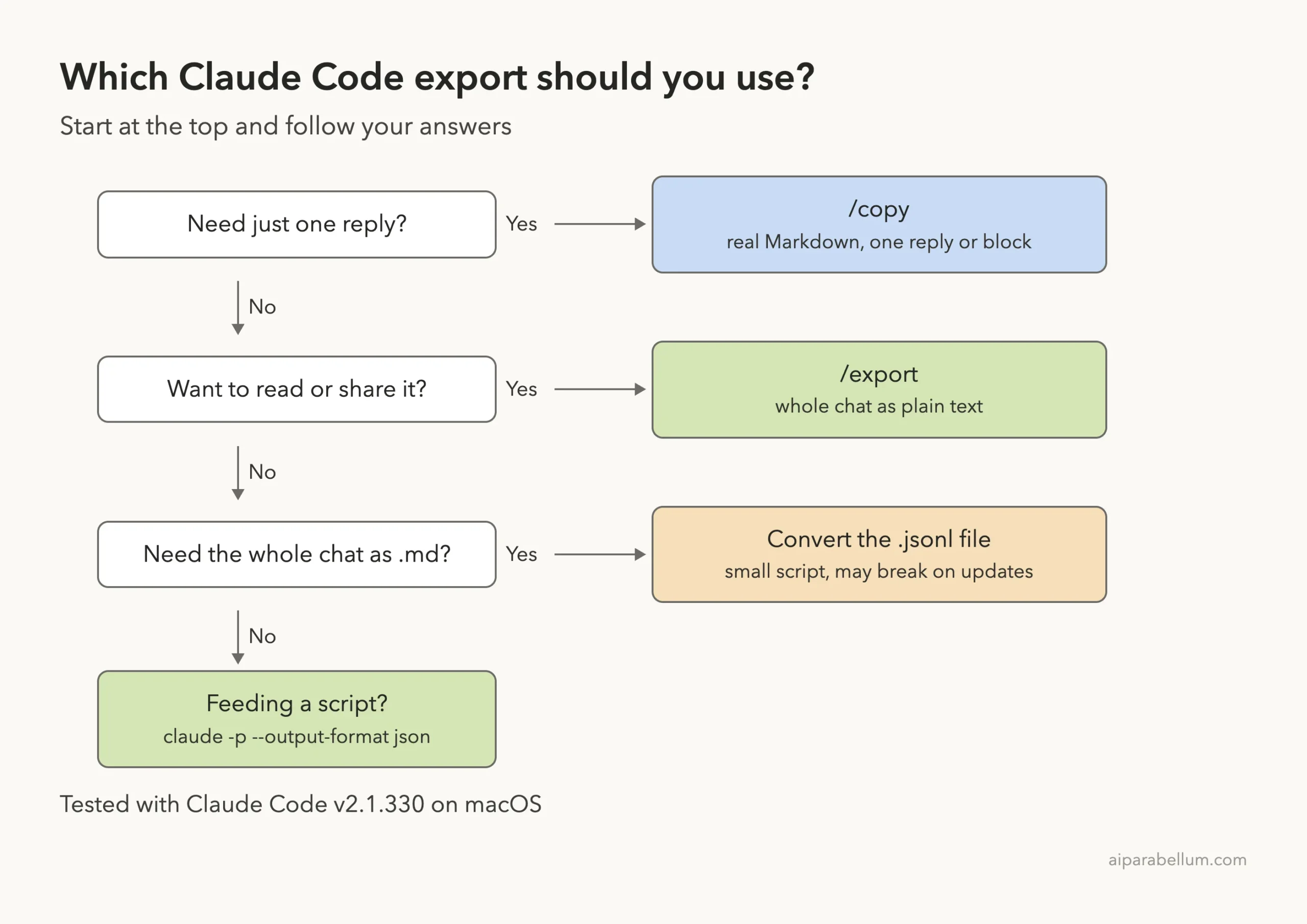
Use /export when a person will read the result. Use /copy or the transcript when the result must stay valid Markdown.
How to Copy a Reply as Markdown With /copy
/copy is the fastest way to get real Markdown out of Claude Code. It grabs the last reply, not the whole chat, and keeps the source text exactly as Claude wrote it.
The /copy picker
When the reply contains code blocks or blockquotes, /copy opens a picker instead of copying at once. Ours offered the full response (250 characters, 8 lines) and the single Python block (4 lines), plus two extra options: always copy the full response, or skip this picker in the future, which you can undo later in /config.
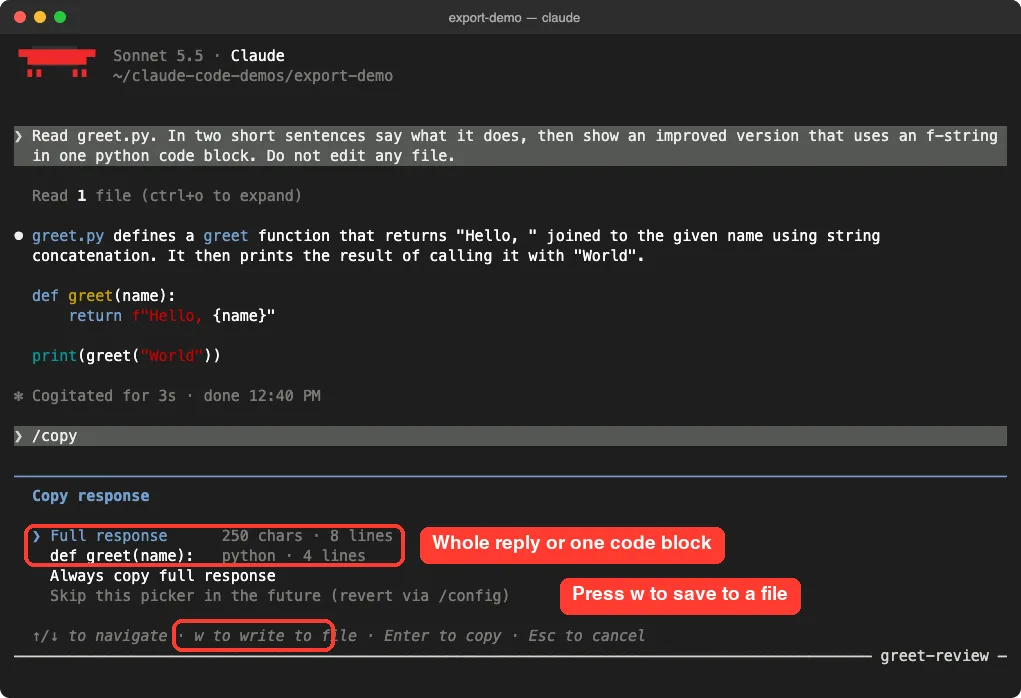
Press Enter to copy the highlighted choice. Press w to write it to a file instead of the clipboard, which the commands reference recommends over SSH, where the remote clipboard may not reach your own computer.
What /copy produced
Copying the full response printed “Copied to clipboard (250 characters, 8 lines)” and “Also written to” a response.md file in a temporary folder. On our Mac, that folder was under /tmp. Choosing the code block and pressing w wrote just the code to a file named copy.python in the same temporary folder.
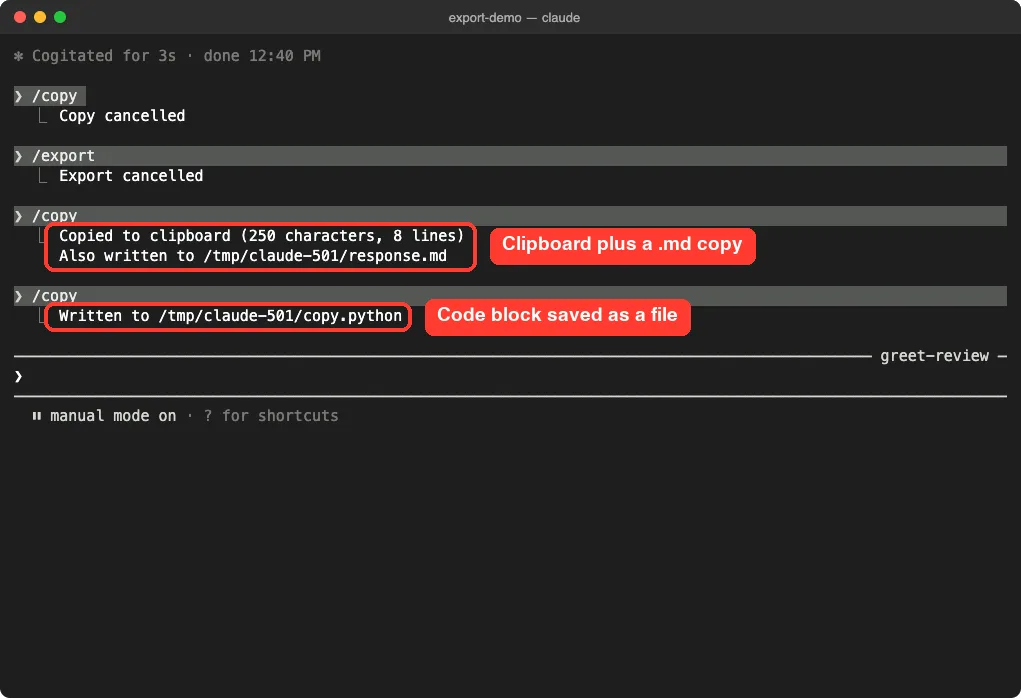
The response.md file kept the backticks around greet.py and the full fenced python code block. Because that file lives in a temporary folder, move it somewhere permanent if you want to keep it.
To copy an older answer, add a number. /copy 2 copies the second-to-last reply, /copy 3 the one before that, and so on.
Where Claude Code Saves Conversations
You don’t need to export anything to keep a chat. Claude Code saves each session as it goes, as a JSONL file at ~/.claude/projects/<project>/<session-id>.jsonl.
The <project> part is your working folder path with every non-letter, non-number character turned into a dash. For our demo, that was a folder named like -Users-you-claude-code-demos-export-demo holding one .jsonl file.
Each line of that file is one JSON object: a message, a tool call or result, a record of a request sent to the model, or metadata. The sessions guide warns that this format is internal and can change in any release, so treat any script that reads it as a convenience that may need fixing later.
Transcripts aren’t kept forever. The default clean-up window is 30 days, and the cleanupPeriodDays setting changes it. If you moved or renamed a project folder and your chats seem gone, our lost history fix walks through why, and our guide to deleting session history covers the opposite need.
Export the Whole Conversation as Real Markdown
Claude Code has no built-in “whole chat as Markdown” button. To get one, we wrote a 20-line Python script that reads the session’s .jsonl file and keeps only your typed prompts and Claude’s text replies. It skips tool calls, slash command records and metadata.
import json, sys

# Turn a Claude Code session transcript (.jsonl) into a simple Markdown file.
# The transcript format is internal and can change between versions.
out = []
for line in open(sys.argv[1], encoding="utf-8"):
    entry = json.loads(line)
    kind = entry.get("type")
    if kind not in ("user", "assistant"):
        continue
    content = entry["message"]["content"]
    if kind == "user" and isinstance(content, str) and not content.startswith("<"):
        out.append("## You\n\n" + content + "\n")
    elif kind == "assistant":
        for block in content:
            if block.get("type") == "text":
                out.append("## Claude\n\n" + block["text"] + "\n")
print("\n".join(out))
Save it as jsonl2md.py, then point it at a transcript and send the output to a file:
python3 jsonl2md.py ~/.claude/projects/<project>/<session-id>.jsonl > chat.md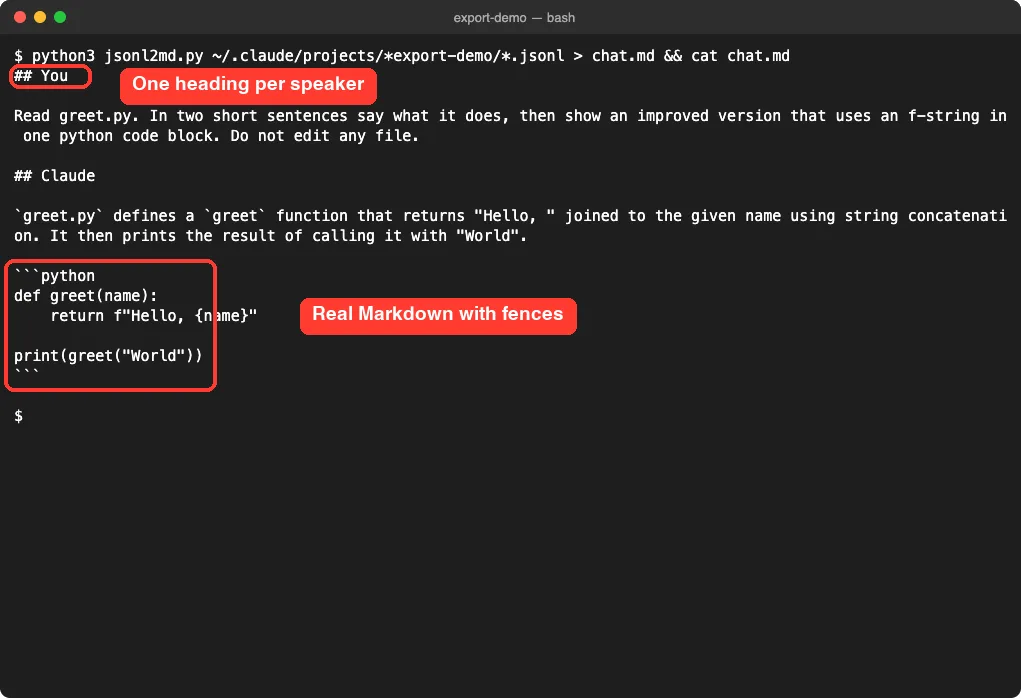
The result had a ## You heading for our prompt, a ## Claude heading for the reply, and the fenced Python block intact. It worked on v2.1.330. Because the transcript format is internal, test it again after big updates.
If you’d rather not touch the transcript, there are two supported routes from the sessions guide. Run claude -p --resume <session-id> --output-format json "summarize what we changed" to ask an old session for a summary as JSON. Or have a SessionEnd hook copy the file from its transcript_path input when each session ends; our Claude Code hooks guide shows how hooks are set up, and headless mode covers the -p flag.
Fixes When Export or Copy Doesn’t Work
Most problems come from the clipboard or from file names. Here are the ones we saw or that the official docs describe.
- “Couldn’t export conversation: the file already exists”. We triggered this ourselves. Since v2.1.327, a named
/exportwon’t overwrite a file. Use a new name, such as one with today’s date. /copysays it copied, but nothing pastes in iTerm2. iTerm2 blocks apps from writing to the clipboard by default. The terminal configuration docs say/terminal-setupturns on clipboard access in iTerm2 so/copyworks (docs-based; we used a plain terminal).- Working over SSH. The clipboard you copy to may be on the remote machine. Press
win the/copypicker or use/export file.md, then download the file. - You can’t find the saved file. A plain
/exportfile lands in the folder you launched Claude Code from, not your home folder. The success message always prints the full path. - Mouse-selecting text gives broken lines. Selecting in the terminal copies the wrapped screen, not the source. Use
/copyinstead; our copy-paste fixes post has more terminal fixes. - An old chat is missing from
~/.claude/projects. It may be past the 30-day clean-up window. RaisecleanupPeriodDaysinsettings.jsonto keep future chats longer.
Try It Yourself
Make a new empty folder, start Claude Code in it with a session name, and paste this prompt. It is short, so it costs very little.
Write a three-line Python function that adds two numbers and show it in one code block. Do not create or edit any files.Then run /copy and paste into a notes app to see the Markdown fences. Run /export practice.md and open the file to compare. Finally, find the session’s .jsonl file under ~/.claude/projects and run the script above on it.
Common Mistakes
- Expecting
/export file.mdto produce Markdown. It produces plain text with a.mdname. - Sharing an export without reading the header, which can show your model, plan name and folder path.
- Leaving
response.mdin the temporary folder and losing it later. - Running
/exportwith the same file name twice and thinking it failed for another reason. - Building a tool on the
.jsonlformat and not testing it after updates.
Pro Tips
- Name sessions with
claude -n nameor/rename. The name makes old chats easy to find in/resumebefore you export them. - Choose “Always copy full response” in the
/copypicker if you never want single code blocks. - Use dated export names, such as
/export 2026-11-25-auth-fix.md, so the no-overwrite rule never blocks you. - Keep a copy of the conversion script in your dotfiles so it is ready on every machine.
- For a team record, ask Claude for a written summary and save that, rather than sharing a raw transcript.
Claude Code Export Cheat Sheet
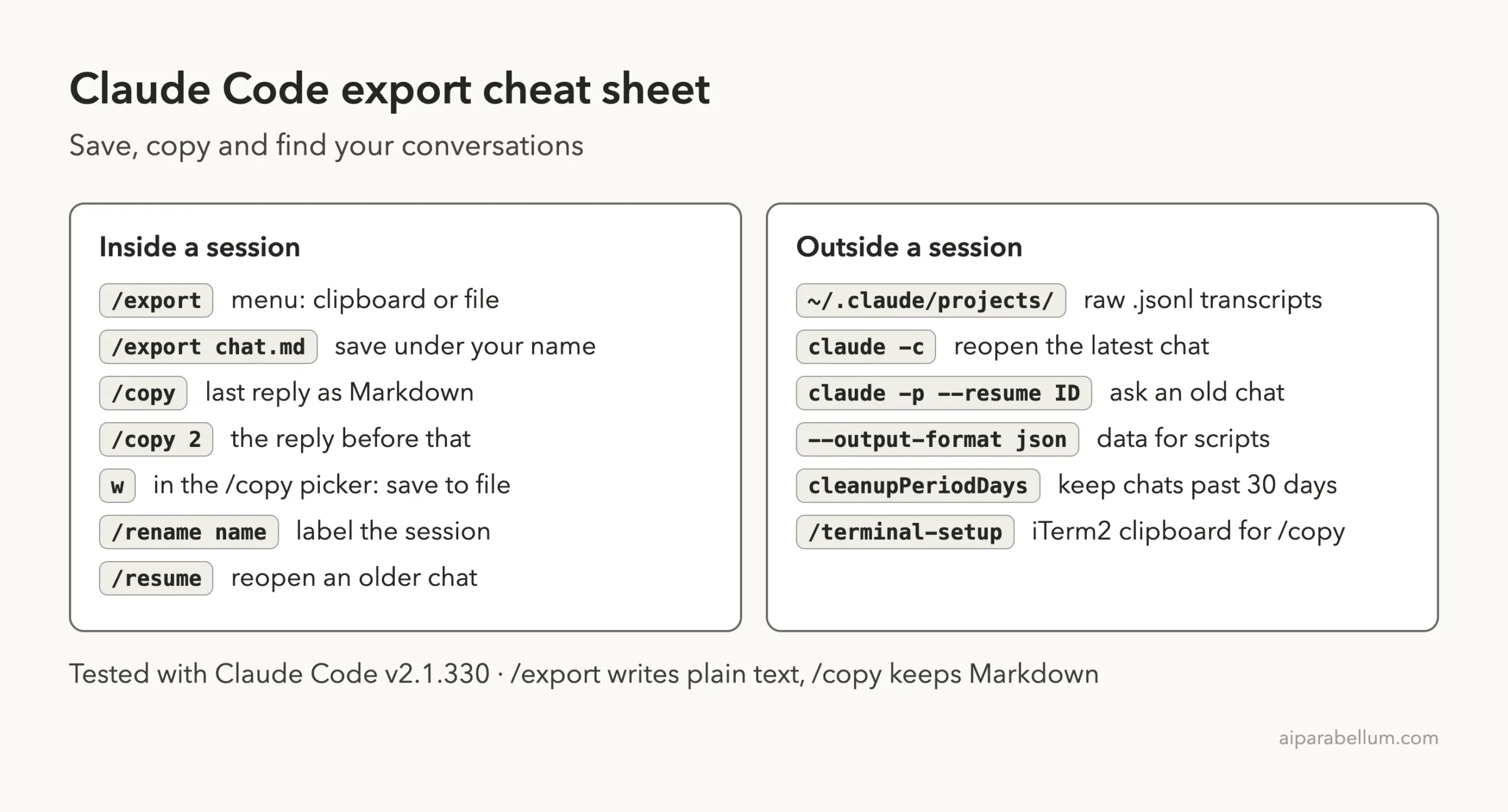
For every other command, see our full commands cheat sheet and the slash commands guide.
Frequently Asked Questions
How do I export a Claude Code conversation?
Type /export in the session and pick Copy to clipboard or Save to file. To set the file name yourself, type /export name.md instead.
Does /export save Markdown?
No. It saves a plain-text copy of the screen, so code blocks lose their fences. Use /copy for one reply in Markdown, or convert the .jsonl transcript for the whole chat.
Where does Claude Code store chat history?
In ~/.claude/projects/<project>/<session-id>.jsonl, one file per session, kept for 30 days by default. The cleanupPeriodDays setting changes that.
Can I copy only one code block from a reply?
Yes. Run /copy, pick the code block in the picker and press Enter, or press w to save just that block to a file.
Why does /export say the file already exists?
Since v2.1.327, a named export refuses to overwrite an existing file. Use a different name or move the old file first.
Conclusion
Exporting a Claude Code conversation comes down to picking the right tool: /export gives you the whole chat as readable plain text on the clipboard or in a file, /copy gives you one reply or code block as true Markdown, and a small script over the .jsonl transcript gives you the whole chat as Markdown when you really need it. Check the header before you share, keep the temporary response.md if it matters, and learn more about Claude itself on our Claude overview page.