
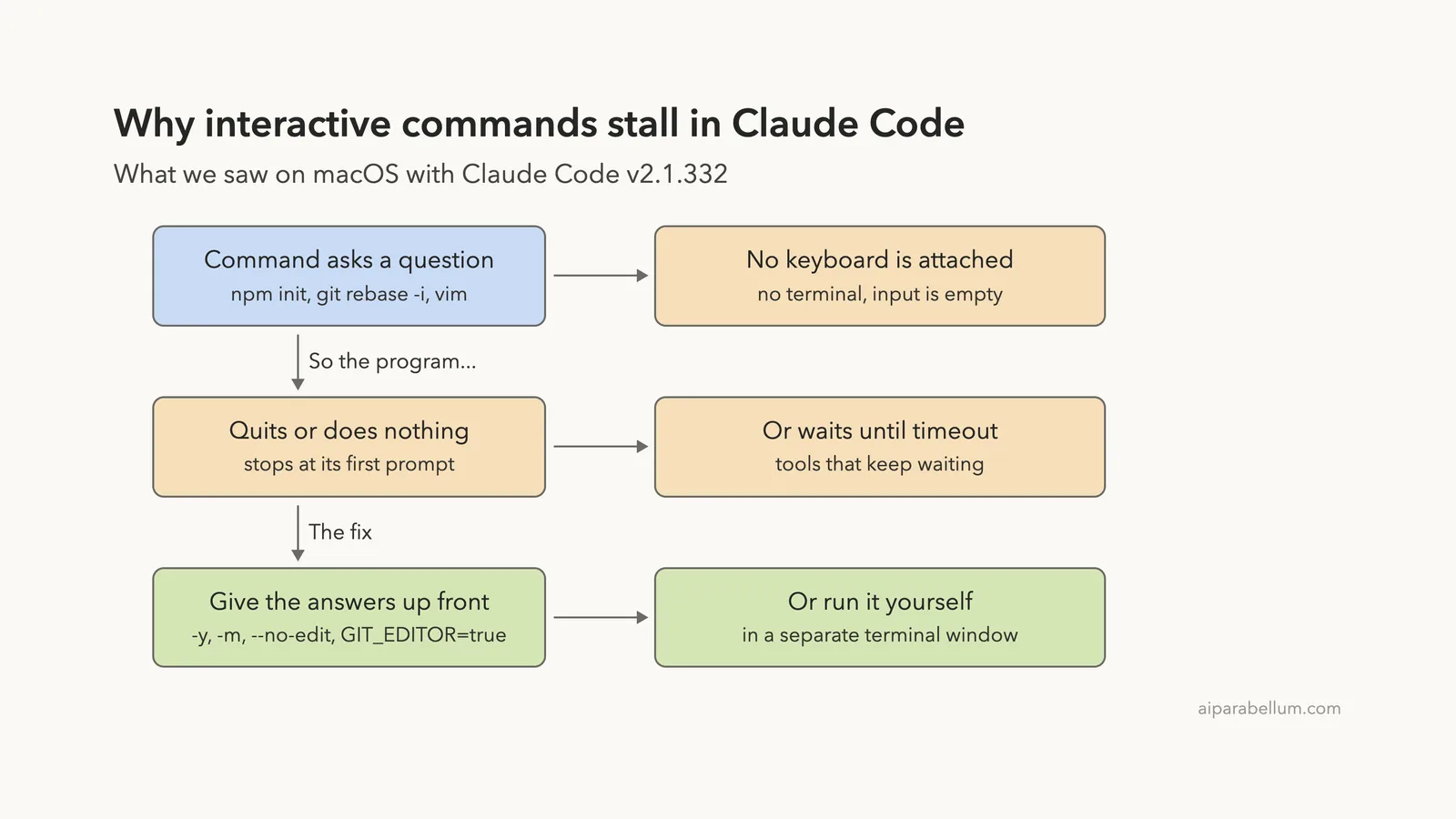
If a Claude Code interactive command hangs or seems to do nothing, the cause is almost always the same: commands that run inside Claude Code have no keyboard attached. Tools like npm init, git rebase -i and vim print a question or open an editor, but nobody can type the answer, so they quit early, finish without changing anything, or sit there until a timeout.
The fix is to give the answers up front. Use npm init -y, git commit -m "message", git merge --no-edit or GIT_EDITOR=true, ask Claude to make editor changes with its own file tools, or run truly interactive tools yourself in a separate terminal window. If a command is stuck right now, press Esc or Ctrl+C, or Ctrl+B to move it to the background.
Below we reproduce all three examples for real, show what Claude Code actually does with each one, and walk through every fix.
Browse all our Claude Code tutorials for more fixes and how-tos.
Tested with Claude Code v2.1.332 on macOS on November 27, 2026. Every run used a throwaway demo folder called greeter: a small git repo with three one-line files (hello.js, bye.js and notes.txt) and three commits. We tested on macOS; the Windows and Linux notes follow Anthropic’s official documentation.
Quick Summary
| Command | What we saw in Claude Code | Fix |
|---|---|---|
npm init | Printed “package name: (greeter)” and stopped; no package.json | npm init -y |
git rebase -i HEAD~2 | “Successfully rebased” but nothing changed | git reset --soft HEAD~2 plus git commit -m |
vim notes.txt | “Vim: Error reading input, exiting…” | Let Claude edit the file, or use vim in your own terminal |
| Password or “Continue?” prompts | No terminal to read from | Run the step yourself, then tell Claude |
| Anything still running | Spinner that never ends | Esc, Ctrl+C or Ctrl+B |
Why Interactive Commands Hang in Claude Code
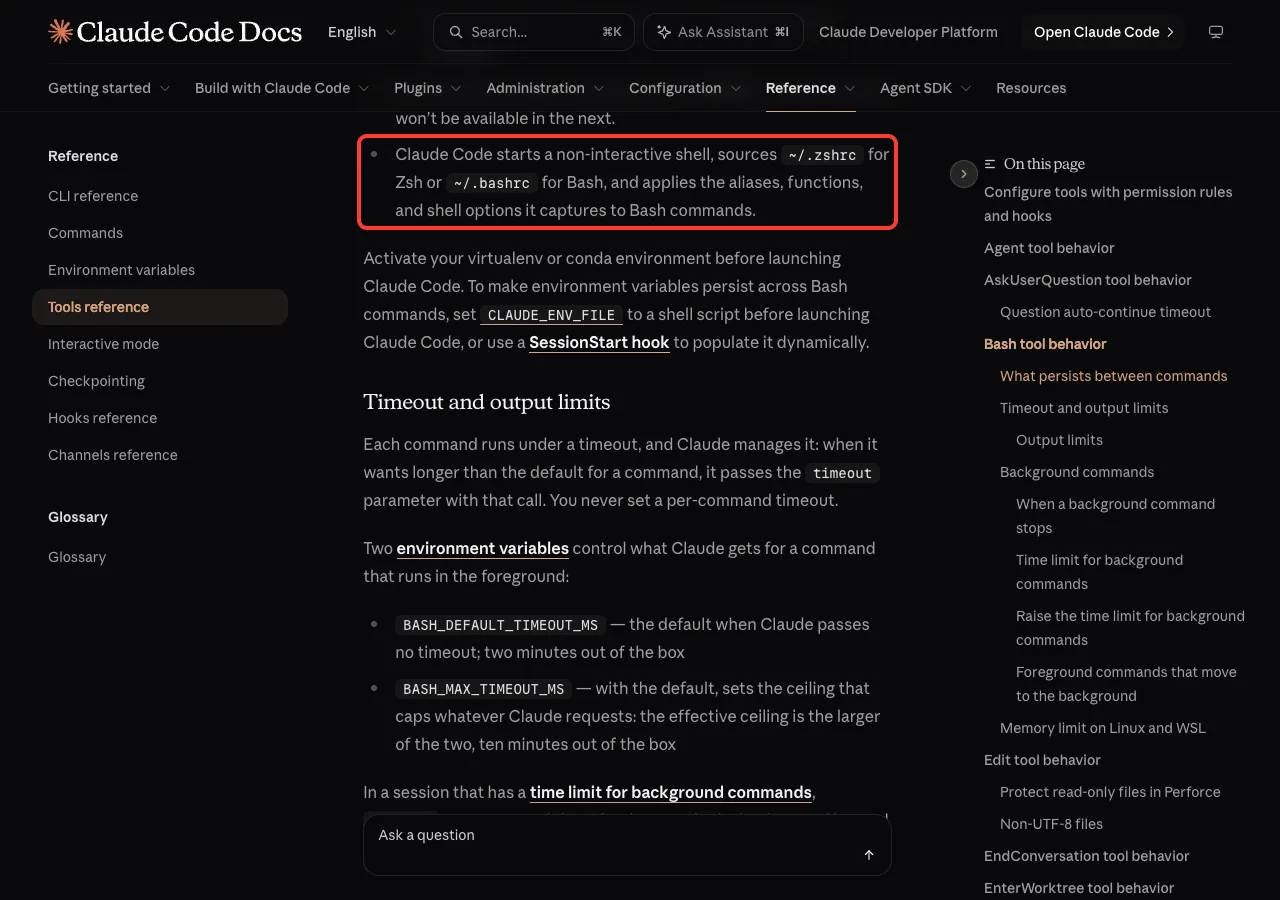
When Claude runs a command, Claude Code starts it in a separate process with a non-interactive shell. Anthropic’s tools reference says so directly. There is no terminal for the command to talk to, and you can’t type into it while it runs.
We confirmed this from inside a Claude Code session. A command that tried to read from the terminal directly failed at once with /dev/tty: Device not configured. Standard input was empty too, so any program that waits for you to type gets nothing.
What happens next depends on the program. Most of the tools we tried noticed the empty input and gave up. A few tools keep waiting, and those are the ones that make the session look frozen until the Bash timeout kicks in.
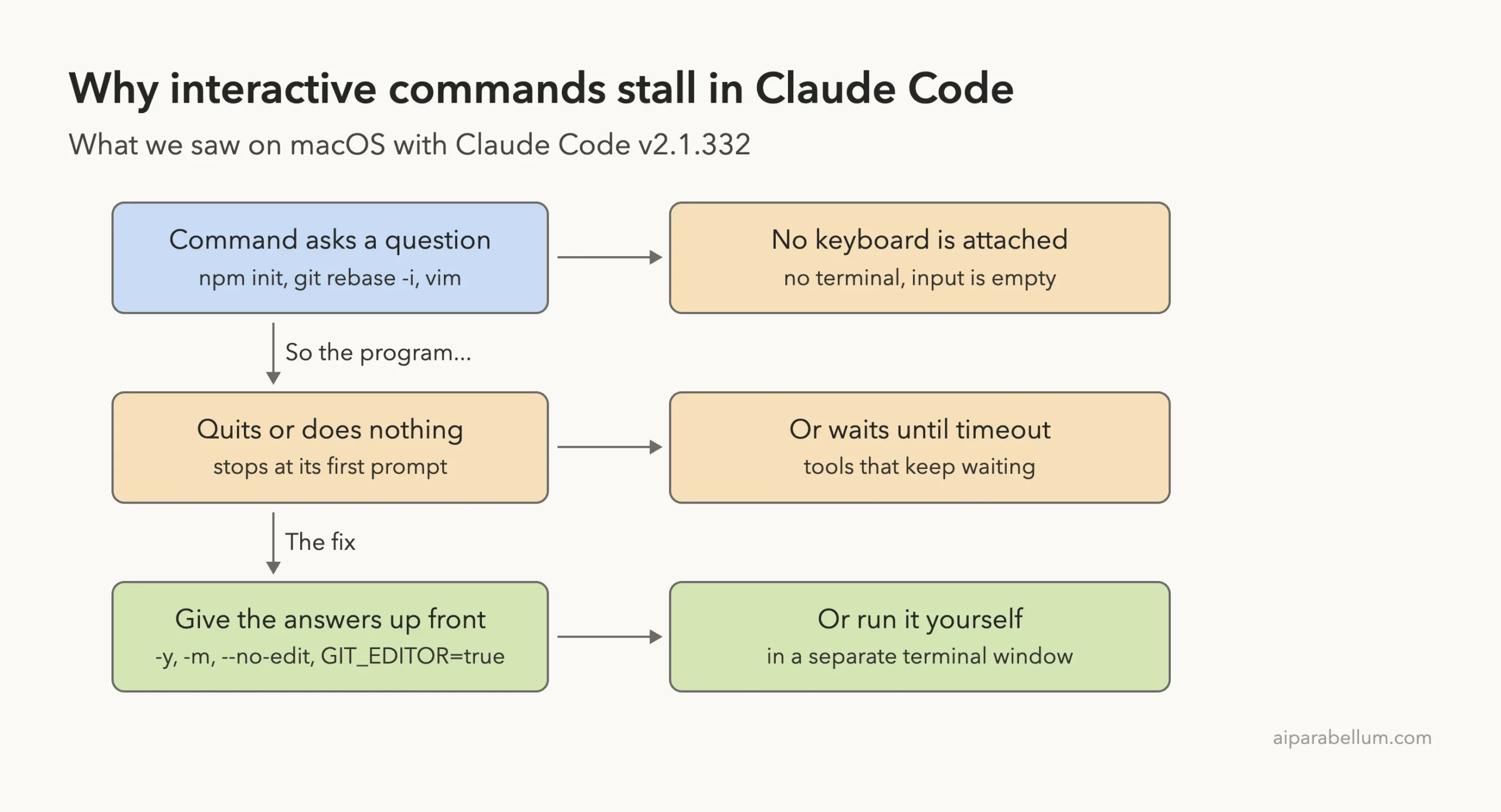
Inside Claude Code, a command can print a question, but it can’t read your answer.
Example 1: npm init Stops at the First Question
We started a session in the demo folder and used shell mode, typing ! npm init. Shell mode runs your command directly instead of asking Claude to run it.
npm printed its usual welcome text and the first question, package name: (greeter). Then it stopped. No package.json was created, and Claude read the output and explained that the command was waiting for input it could never receive.
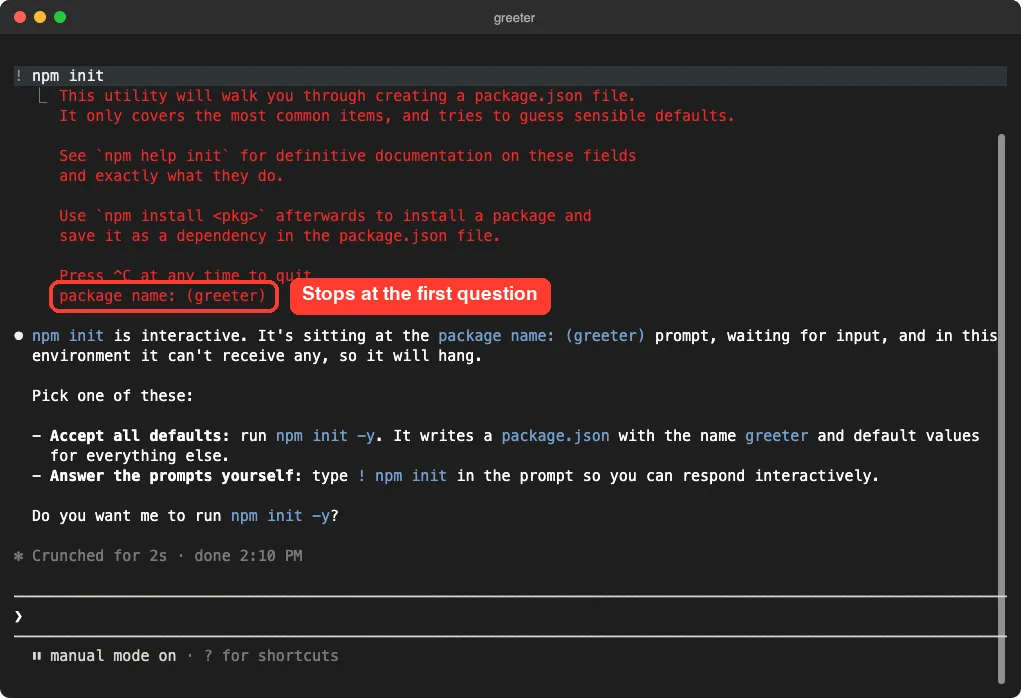
Claude suggested typing ! npm init to answer the prompts yourself, but that is exactly what we had just done. In our test, shell mode didn’t give the command a keyboard either, so the advice didn’t hold up.
The fix: npm init -y
The -y flag tells npm to accept every default without asking. We ran ! npm init -y and it wrote a complete package.json right away, with the name greeter, version 1.0.0 and a placeholder test script.
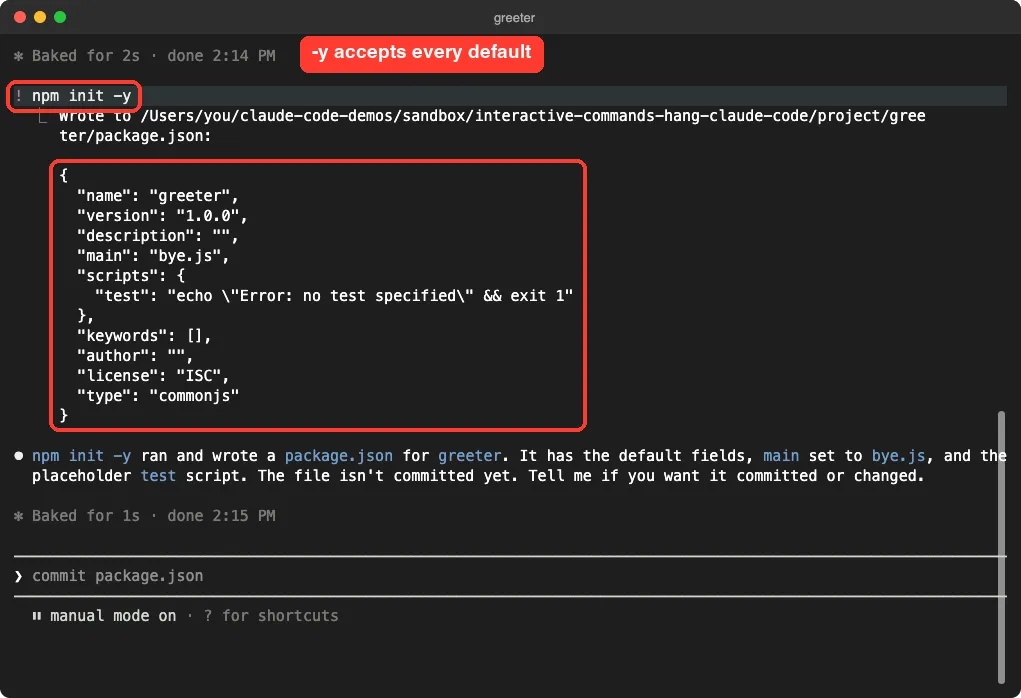
You can then ask Claude to change any field you care about, like the description or the entry file. That is usually faster than answering ten prompts anyway.
Example 2: git rebase -i Finishes but Changes Nothing
Next we asked Claude to run exactly git rebase -i HEAD~2 with no extra flags. Claude showed the command in a normal permission prompt, and we approved it.
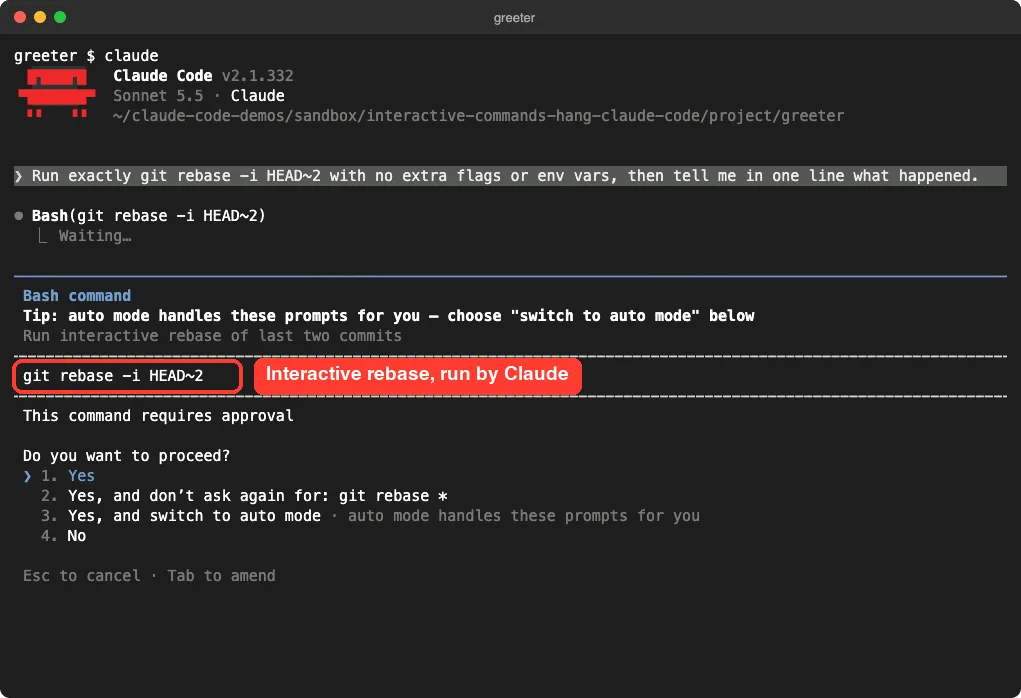
The command didn’t hang. It printed Successfully rebased and updated refs/heads/main. and returned in about two seconds.
Claude then pointed out the catch: the to-do list was applied unchanged, so the two commits were exactly the same as before.
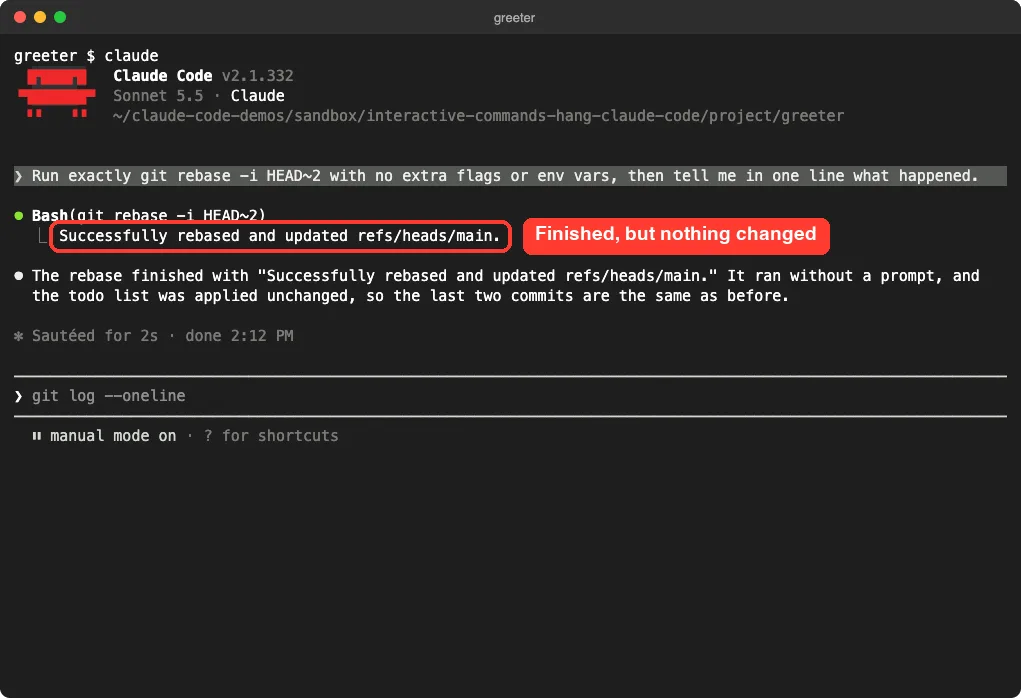
This silent no-op can be worse than a hang, because it looks like success.
Why did no editor open? In the Claude Code shell we checked, the environment had GIT_EDITOR=true set, and true is a command that exits at once. Git takes that as “the user saved the file unchanged.” This setting isn’t described in the docs, so treat it as what we observed, not a promise.
The fix: squash without an editor
We then asked Claude to squash the last two commits into one called “Add bye.js and notes” without opening any editor. It chose git reset --soft HEAD~2 followed by git commit -m, all in one command.
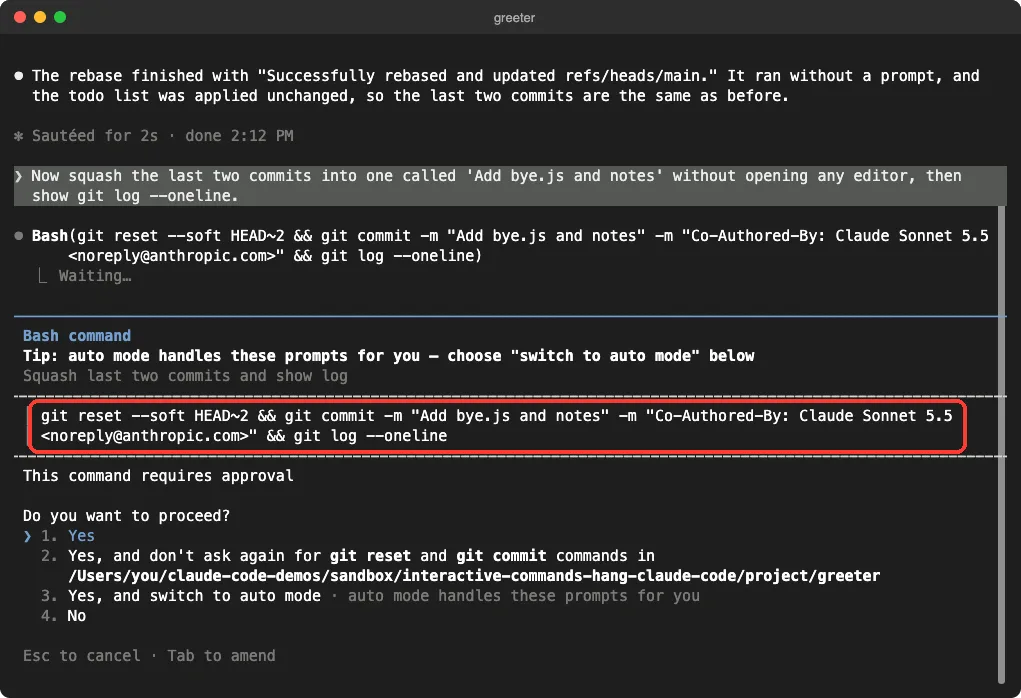
After we approved it, git log --oneline showed two commits instead of three. The newest one, “Add bye.js and notes”, now held both changes.
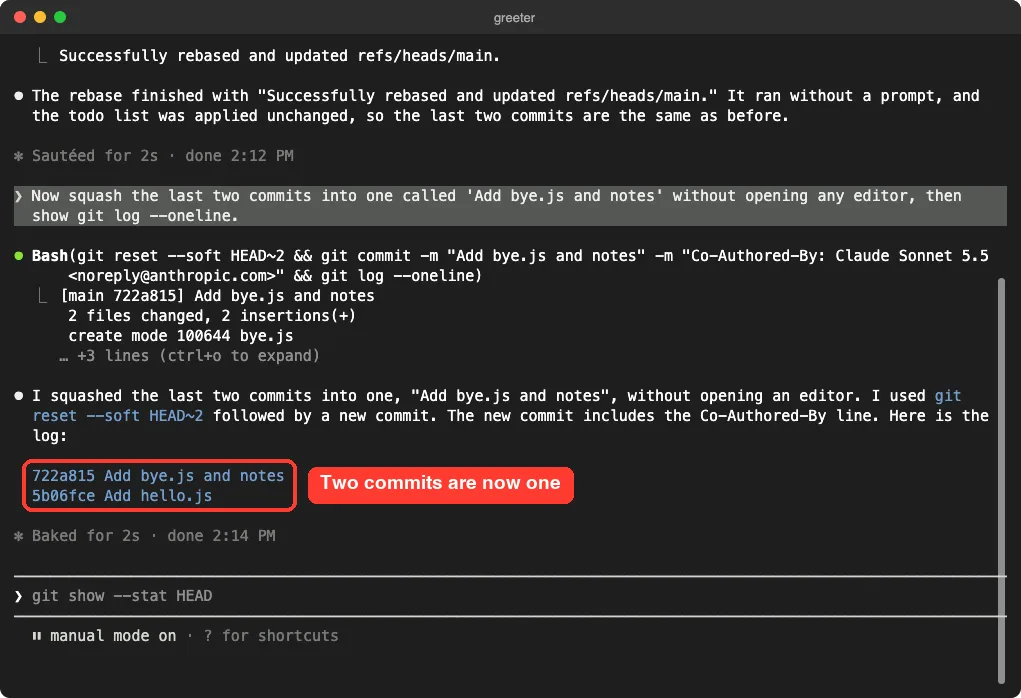
Note that Claude also added its usual co-author line to the commit message. If you don’t want it, say so in your prompt.
Example 3: vim Exits With “Error Reading Input”
Last, we typed ! vim notes.txt.
Vim drew a broken, staircase-shaped screen for a moment, then printed Vim: Error reading input, exiting... and Vim: Finished.
The file was not changed.
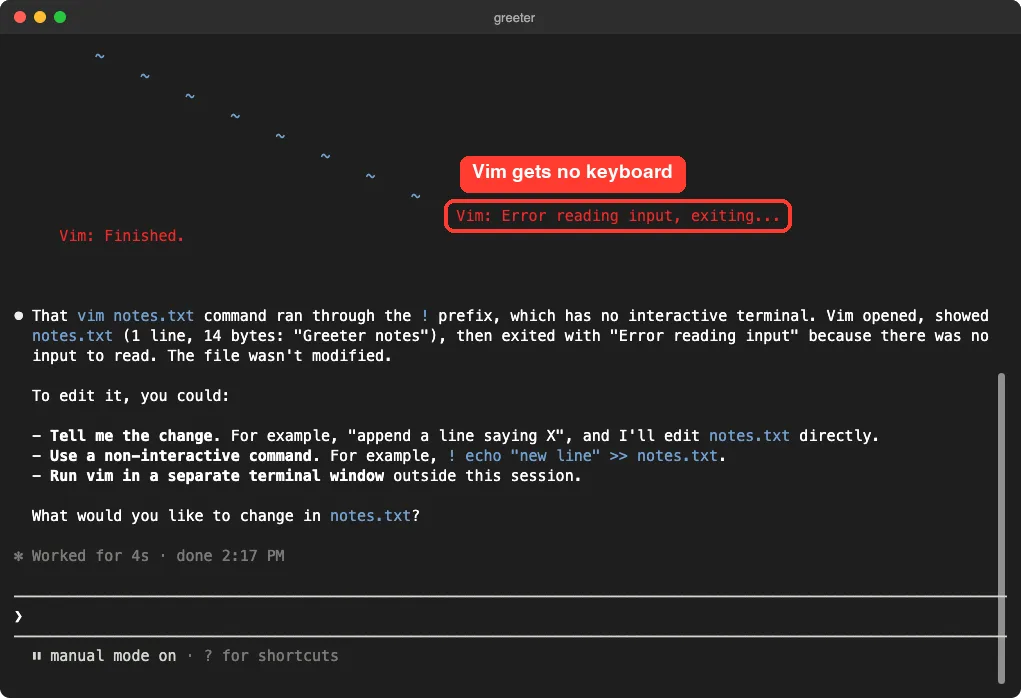
Claude offered three better paths: describe the change and let it edit the file, use a one-line shell command such as echo "new line" >> notes.txt, or run vim in a separate terminal window. All three work. The first is usually best, because Claude’s Edit tool shows you a diff before anything is saved.
Editing your prompt in an editor is different
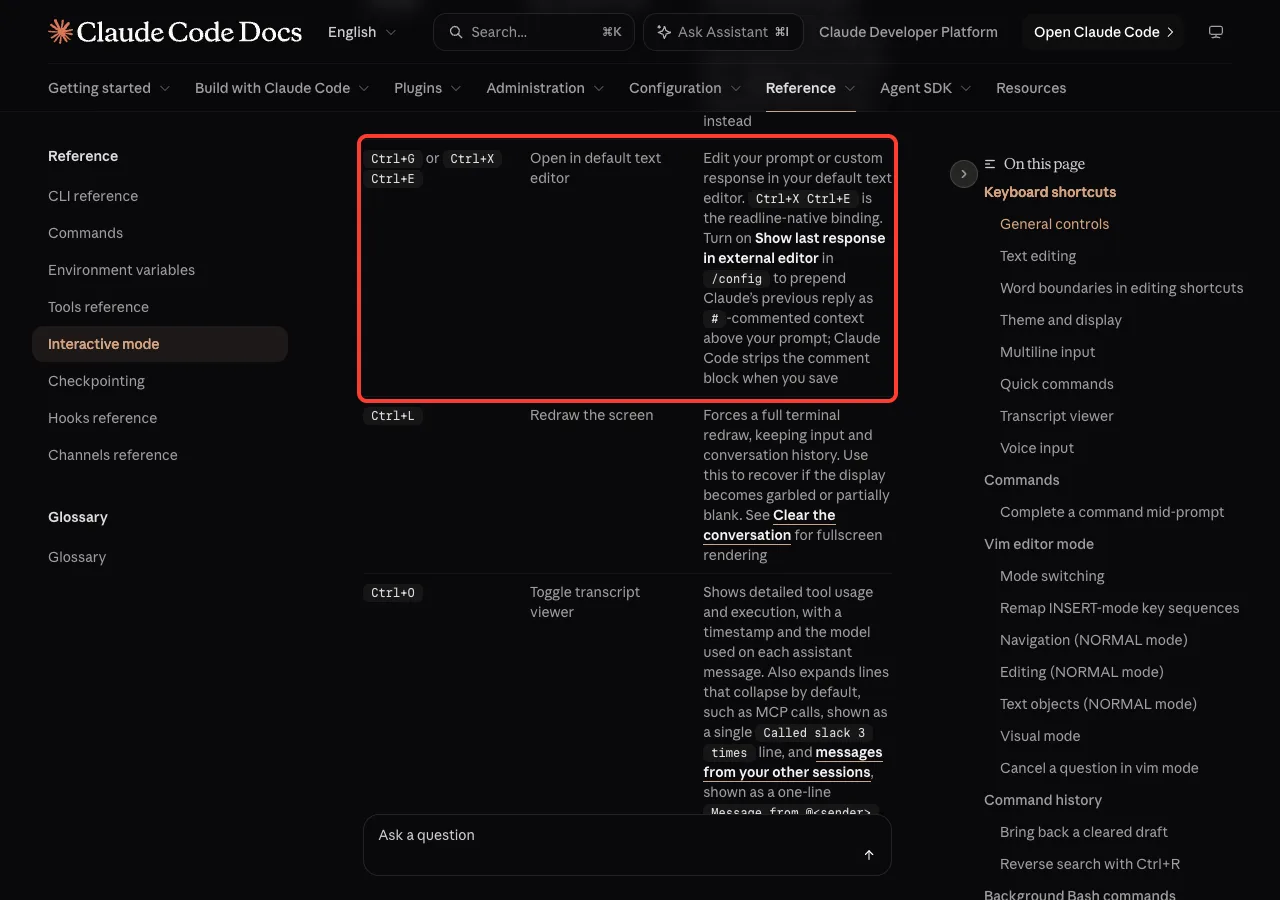
If what you really want is your favorite editor for writing long prompts, Claude Code has that built in. Press Ctrl+G (or Ctrl+X Ctrl+E) to open the current prompt in your default text editor, per the interactive mode docs. That editor runs with a real keyboard, because Claude Code opens it for you.
How to Fix a Command That Hangs in Claude Code
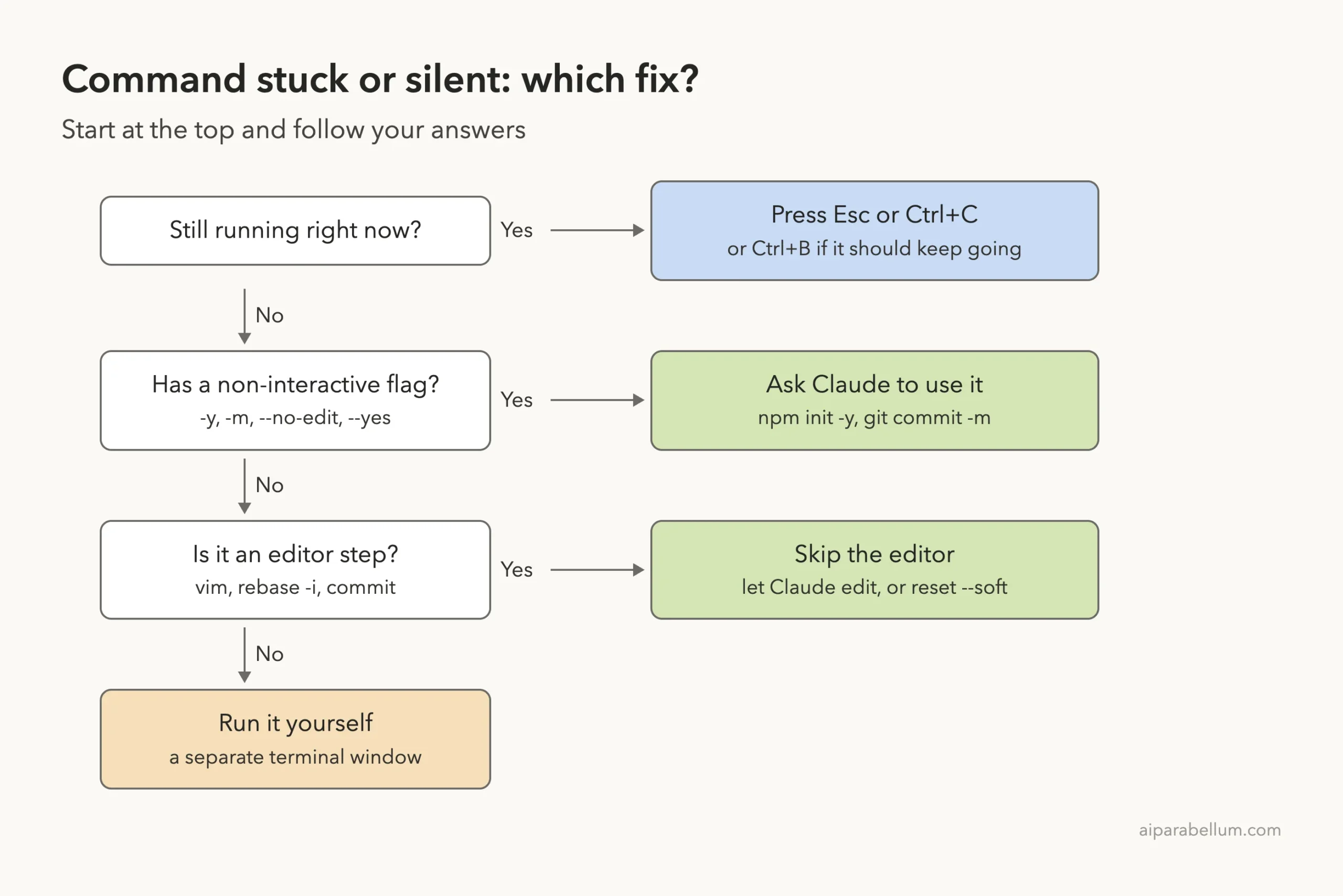
Not every tool gives up as politely as npm and vim. Some keep waiting, and then the spinner just runs. Here are the fixes in the order you should try them.
Fix 1: Stop the stuck command
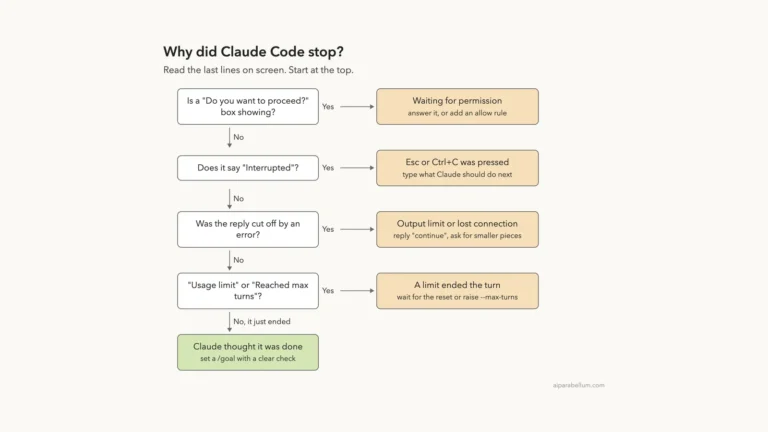
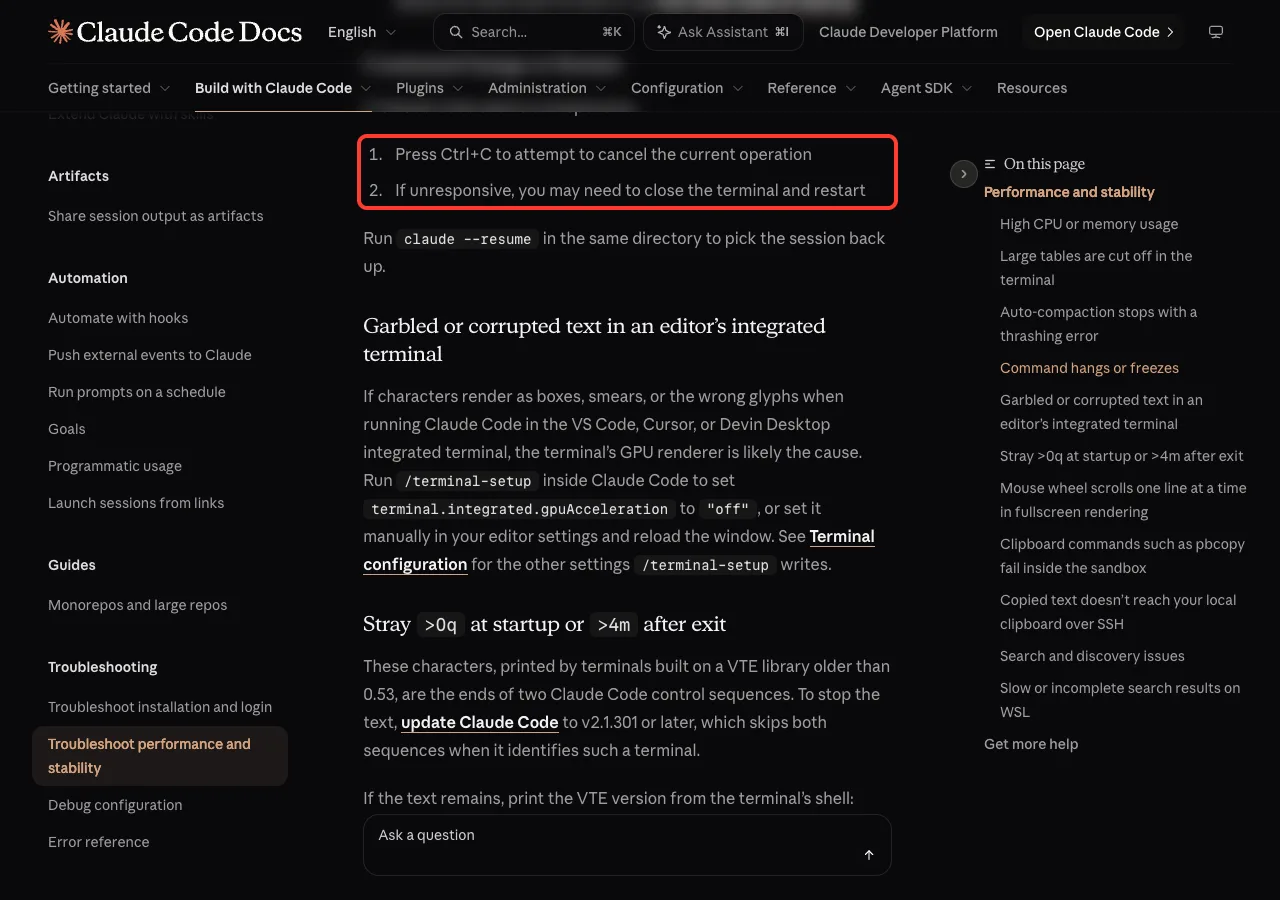
Press Esc to stop Claude’s current turn. If that doesn’t work, Anthropic’s troubleshooting guide says to press Ctrl+C to cancel the current operation. If nothing responds, close the terminal and run claude --resume in the same folder to pick the session back up.
Fix 2: Move it to the background
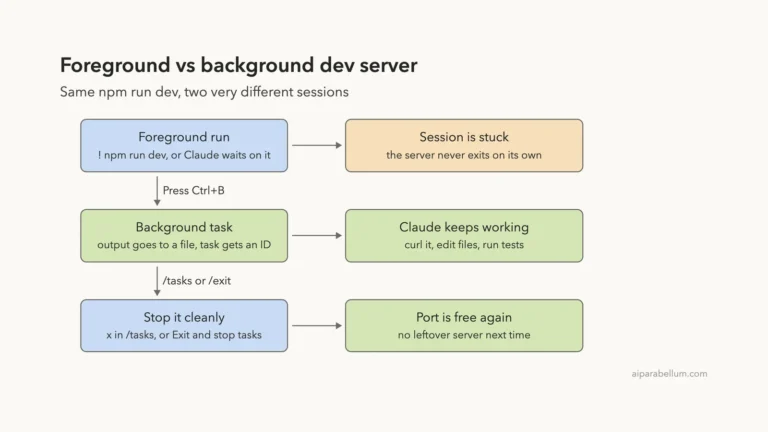
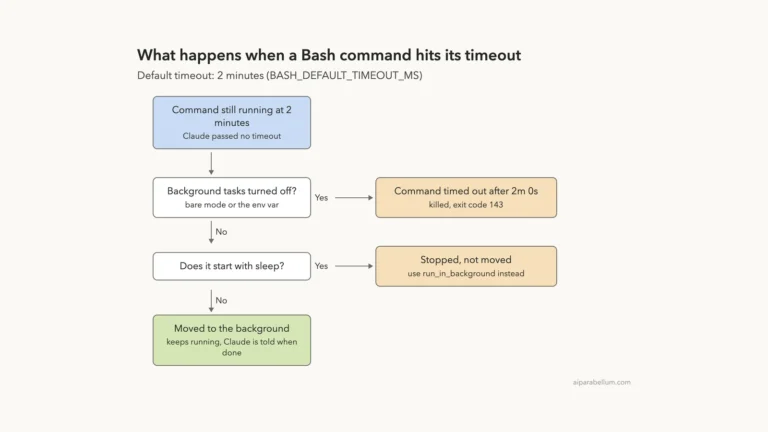
If the command is actually doing useful work, like a watch build, press Ctrl+B to move it to the background so you get your prompt back. Also know that you don’t have to wait forever: per the tools reference, a foreground command that runs past its timeout (two minutes by default) is moved to the background automatically. Our guide to the Bash timeout explains those limits.
Fix 3: Use the non-interactive flag
Most tools that ask questions also have a flag to skip them. Ask Claude to use it, or add it yourself:
| Instead of | Use | What it does |
|---|---|---|
npm init | npm init -y | Accepts all defaults (tested) |
git commit | git commit -m "message" | Message on the command line (tested) |
git merge branch | git merge --no-edit branch | Keeps the default merge message |
git rebase -i to squash | git reset --soft HEAD~N then commit | Squashes without a to-do list (tested) |
| Any git command that opens an editor | GIT_EDITOR=true git ... | Accepts the text as written |
| A setup wizard | Check --help for --yes or -y | Skips the questions where supported |
The flags beyond the ones we tested are standard options of those tools, not Claude Code features. Always check a tool’s own help if you aren’t sure what its flag does.
Fix 4: Let Claude do the editor part
For anything that would open vim, nano or a git to-do list, describe the result you want instead. “Squash the last two commits into one called X” worked better in our test than asking for git rebase -i, because Claude picked a command that needs no editor.
Fix 5: Run truly interactive tools yourself
Some steps really need you: a password prompt, a login flow, an ssh host check, or a full-screen tool. Run those in a separate terminal tab, then tell Claude what you did so it can carry on. This is also the safest choice for anything involving credentials.
Shell Mode: What the ! Prefix Can and Can’t Do
Typing ! at the start of the prompt switches to shell mode. Per the docs, it runs the command without Claude interpreting or approving it, adds the command and its output to the conversation, and supports the same Ctrl+B backgrounding.
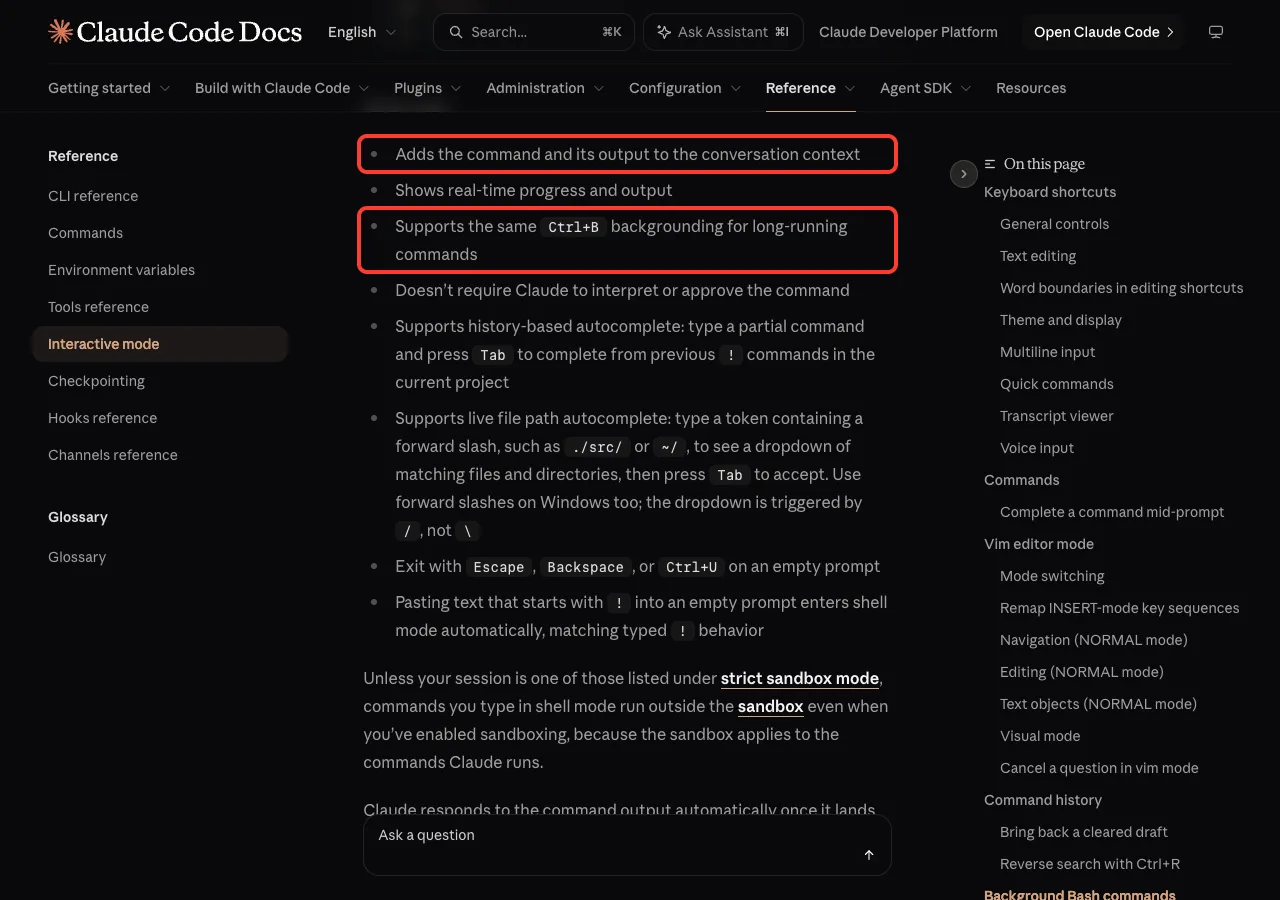
What it didn’t do in our tests is give the command a keyboard.
Both ! npm init and ! vim notes.txt got no input.
So treat shell mode as a fast way to run non-interactive commands and share their output with Claude, not as a way to answer prompts.
One more thing to know: after a shell-mode command, Claude replies to the output automatically, and the docs say that reply costs the same as a normal prompt. Set respondToBashCommands to false in settings.json if you only want the output added to the conversation.
Real Prompts That Avoid the Problem
- “Create a package.json with npm init -y, then set the description to ‘A tiny greeting app’.”
- “Squash the last two commits into one called ‘Add bye.js and notes’ without opening any editor.”
- “Commit the staged changes with the message ‘Fix typo’. Don’t open an editor.”
- “Append a line saying ‘Done’ to notes.txt” (instead of asking to open it in vim).
- “Never run commands that wait for keyboard input; use non-interactive flags instead.”
The last one is a good line for your project’s CLAUDE.md file, so Claude sees it in every session.
Try It Yourself
Make a throwaway folder so you can see the behavior without touching a real project. Open Claude Code in an empty folder and paste this:
Set up a practice git repo here: create hello.js, bye.js and notes.txt with
one line each, and commit each file separately (three commits). Then run
npm init -y and tell me in one line what it created.
Then try ! npm init without the flag and watch it stop at the first question.
Finish by asking Claude to squash the last two commits without an editor, and check the result with ! git log --oneline.
Common Mistakes
- Waiting on a command that is asking a question nobody can answer. If nothing happens after a few seconds, read the last line of output.
- Trusting “Successfully rebased” after
git rebase -i. Checkgit log; the list may have been applied unchanged. - Assuming
!shell mode lets you type answers. It runs the command for you, but there is still no keyboard. - Typing a password into Claude’s prompt so it can pass it along. Run login and password steps yourself in your own terminal.
- Killing the whole terminal first. Try
EscandCtrl+Cbefore you close anything.
Pro Tips
- Add “Use non-interactive flags such as -y and -m; never open an editor” to
CLAUDE.md. - Pre-approve safe commands like
Bash(npm init -y)in.claude/settings.jsonso they run without a prompt. Our guide on how to stop permission prompts shows the format. - Keep a second terminal tab open next to Claude Code for logins,
sshand full-screen tools. - When scripting with
claude -p, the same rule applies even more strictly. Our claude -p fixes cover hangs there. - Learn the other keyboard shortcuts;
Esc,Ctrl+C,Ctrl+BandCtrl+Gare the ones that matter here.
Interactive Commands Cheat Sheet
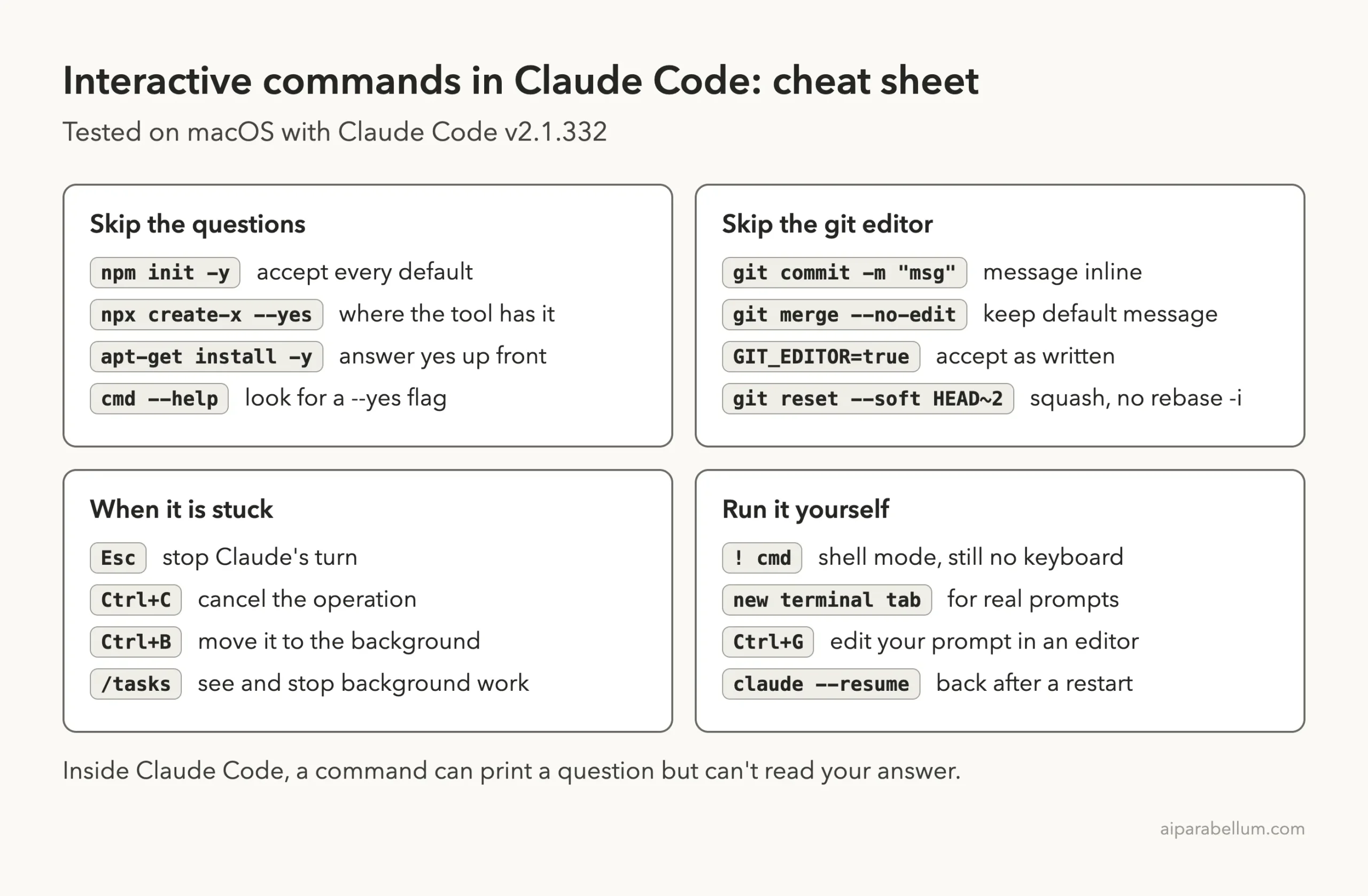
If the whole app freezes rather than one command, see our guide on why Claude Code keeps freezing. For servers that never finish, read how to keep a dev server running in the background, and our list of common Claude Code errors covers the rest.
Frequently Asked Questions
Why does my command hang in Claude Code but work in my terminal?
Your terminal has a keyboard attached and Claude Code’s commands don’t. A command that waits for you to type gets no input inside Claude Code, so it quits, does nothing, or waits until the timeout.
Can I answer an interactive prompt from Claude Code?
Not in our tests: neither Claude’s commands nor ! shell mode could read keyboard input. Use a flag that skips the prompt, or run the command in a separate terminal.
How do I run git rebase -i in Claude Code?
Describe the result instead, such as “squash the last two commits into one.” Claude used git reset --soft plus git commit -m in our test. For complex reordering, run git rebase -i yourself in another terminal.
How do I stop a hung command in Claude Code?
Press Esc or Ctrl+C. If the command should keep running, press Ctrl+B to background it. If nothing responds, close the terminal and run claude --resume.
Does this happen on Windows too?
We tested on macOS. On Windows, the docs say the PowerShell tool gives a child process that waits on input an end-of-file instead of letting it hang, so you should see the same “quits early” behavior rather than a freeze.
Conclusion
A Claude Code interactive command hangs or goes quiet because nothing can type into it: in our tests npm init stopped at its first question, git rebase -i reported success without changing anything, and vim exited with “Error reading input”. The reliable fix is to remove the question, with flags like -y, -m and --no-edit, with editor-free commands like git reset --soft, or by letting Claude edit files directly, and to run true login and full-screen tools yourself in another terminal. When something is stuck, Esc, Ctrl+C and Ctrl+B get you your session back. For more on the model behind the tool, see our Claude AI overview.