
If Claude Code shows Command timed out after 2m 0s, the command hit the default Claude Code Bash timeout of two minutes and was stopped. To raise it, set BASH_DEFAULT_TIMEOUT_MS (in milliseconds) in the env block of .claude/settings.json, for example "300000" for five minutes, and start a new session.
If your command needs more than ten minutes, raise BASH_MAX_TIMEOUT_MS too, because that is the ceiling for any single foreground command. For dev servers, watchers and very long builds, the better fix is to run the command in the background so Claude keeps working while it runs.
In recent versions you usually only see the hard timeout error when background tasks are turned off, because Claude Code normally moves a slow command to the background at the two-minute mark instead of killing it. Below we reproduce both behaviors for real, then fix the error and show the test finishing.
Browse all our Claude Code tutorials for more fixes and how-tos.
Tested with Claude Code v2.1.332 on macOS on November 27, 2026. Every run used a throwaway demo folder called test-runner with one script, slow-test.sh, that prints a line, sleeps for 150 seconds and then prints “All 12 tests passed”.
Quick Summary
| What you see | What it means | Fix |
|---|---|---|
Command timed out after 2m 0s with Exit code 143 | The command was killed at the default timeout | Raise BASH_DEFAULT_TIMEOUT_MS |
Running in the background after two minutes | The command was moved, not killed | Nothing to fix; Claude gets the result later |
Blocked: sleep 150 followed by: ... | A long foreground sleep is refused | Let Claude run it in the background |
| Still timing out at ten minutes | You hit the foreground ceiling | Raise BASH_MAX_TIMEOUT_MS as well |
Background job stopped in claude -p or CI | The background time limit for unattended runs | Raise the same two variables above 30 minutes or 2 hours |
Why Claude Code Has a Bash Timeout
Every command Claude runs through its Bash tool runs under a timer. Without one, a command that waits for input, a server that never exits or a stuck network call would freeze the whole session. The timer keeps Claude moving and tells it when something took too long.
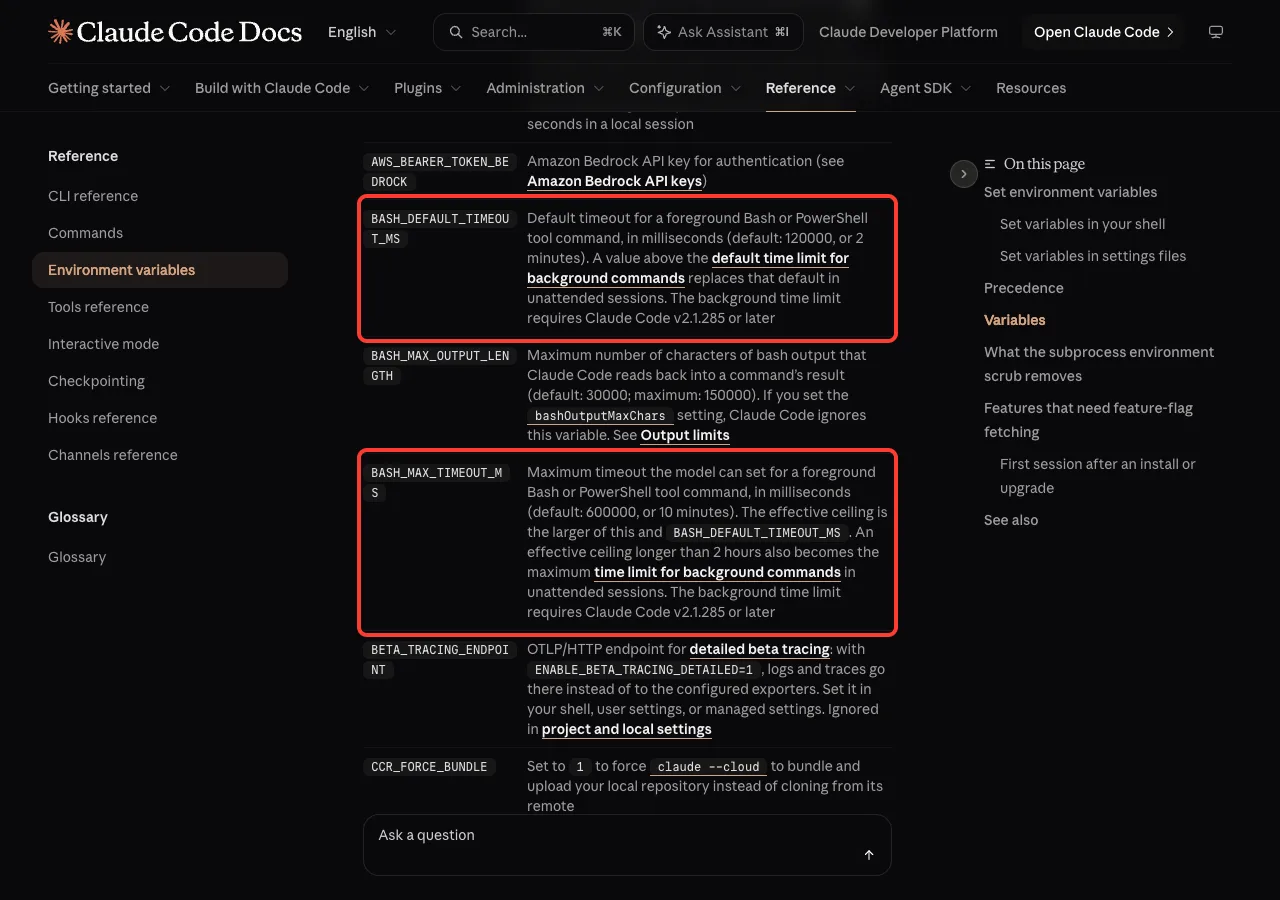
According to Anthropic’s tools reference, Claude manages the timeout itself. When it expects a command to be slow, it passes a longer timeout with that one call. You never type a per-command timeout yourself; instead, you control the defaults with two environment variables.
| Variable | What it controls | Default |
|---|---|---|
BASH_DEFAULT_TIMEOUT_MS | The timeout when Claude passes none | 120000 (2 minutes) |
BASH_MAX_TIMEOUT_MS | The highest timeout Claude may ask for | 600000 (10 minutes) |
The effective ceiling is the larger of the two values, so setting only the default above ten minutes also lifts the ceiling. Both variables apply to the PowerShell tool on Windows too, so the fix is the same there. We tested on macOS; the Windows and Linux steps follow Anthropic’s official instructions.
What Happens When a Command Hits Two Minutes
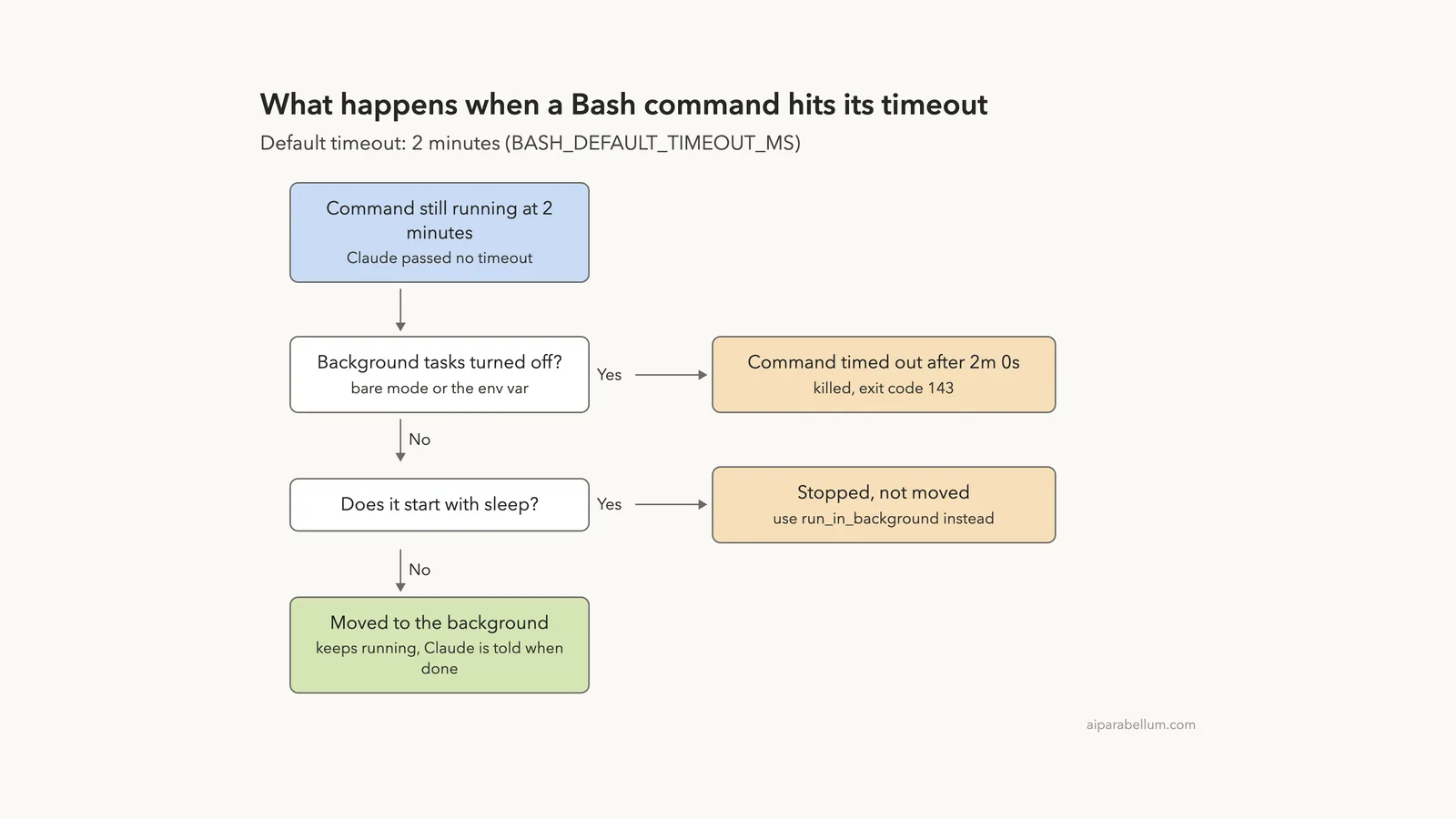
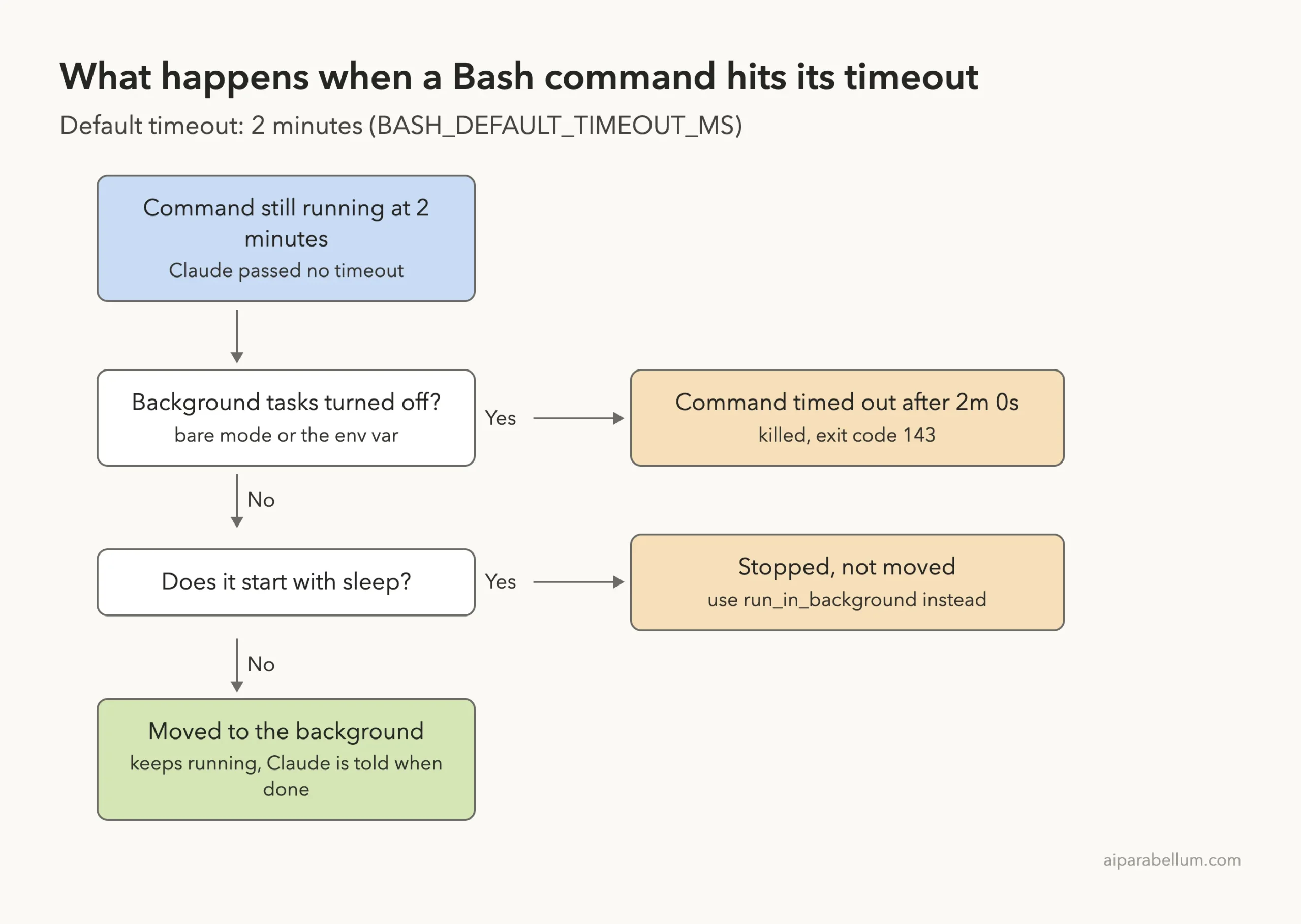
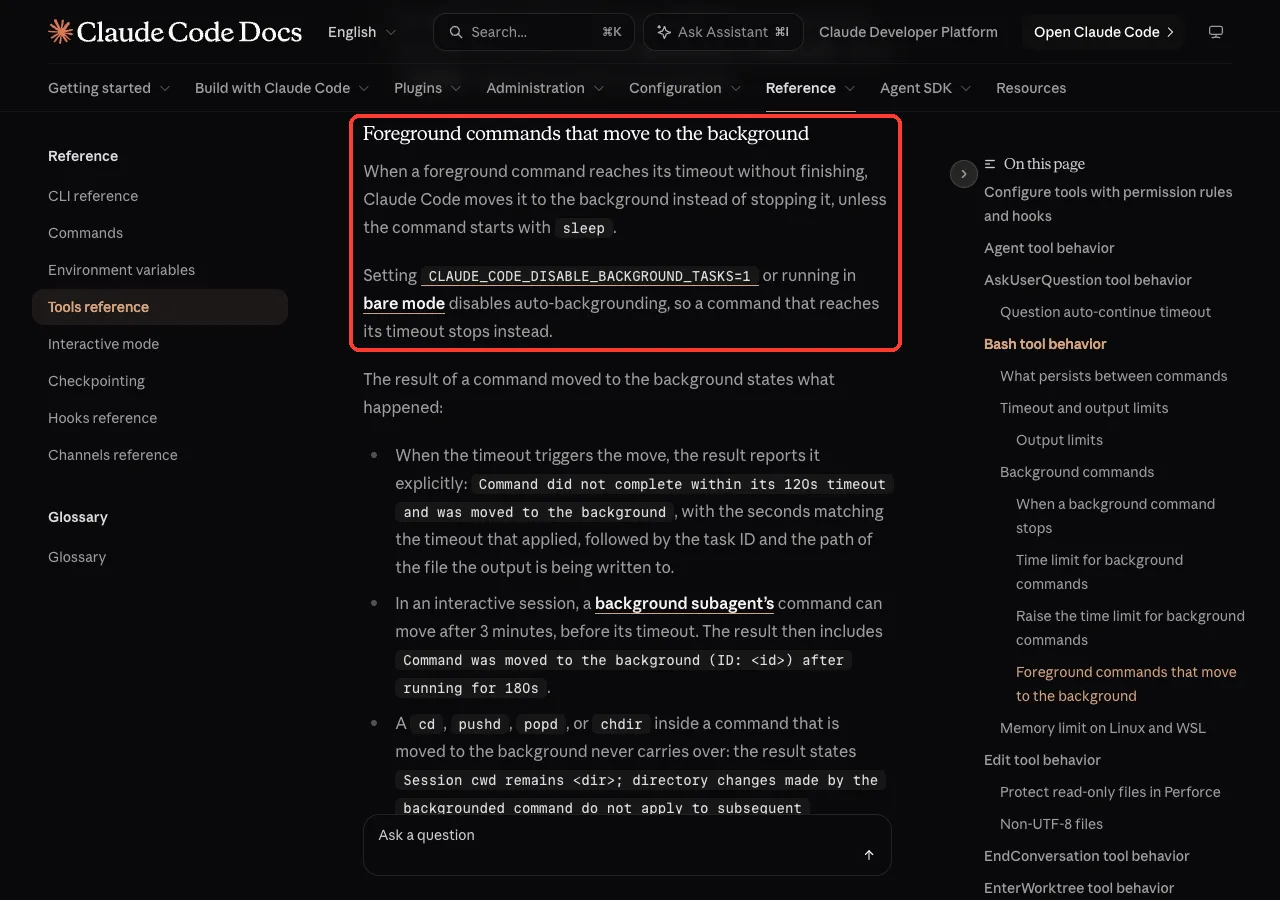
The error in the title is not what most people see today. Since Claude Code learned to move slow commands to the background, a foreground command that reaches its timeout keeps running as a background task instead of being killed. Claude is told when it finishes and reads the output then.
There are two exceptions in the docs. If background tasks are turned off, with CLAUDE_CODE_DISABLE_BACKGROUND_TASKS=1 or by running in bare mode (claude --bare), the command stops at the timeout and you get the error. A command that starts with sleep is also stopped rather than moved.
Reproducing the Default Behavior
We started with no timeout settings at all. We asked Claude to run ./slow-test.sh in the foreground and not to pass a timeout, so the two-minute default applied.
At 120 seconds the command was not killed. The screen switched to “Running in the background”, and Claude explained that the harness moved it after the default timeout. About 30 seconds later a notice said the background command completed with exit code 0, and Claude reported that all 12 tests passed.
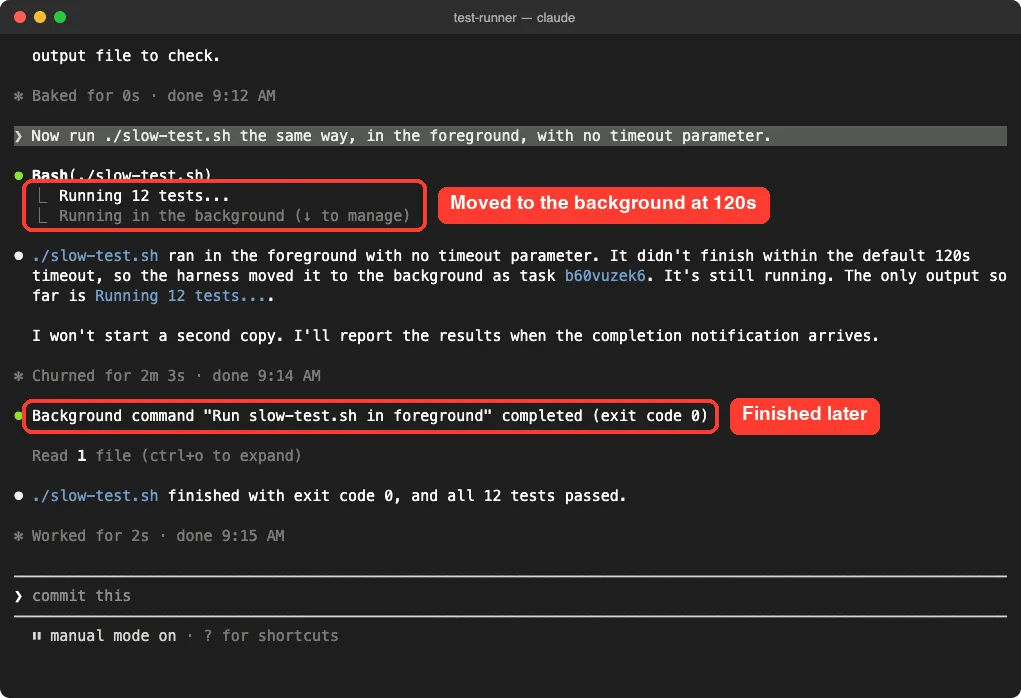
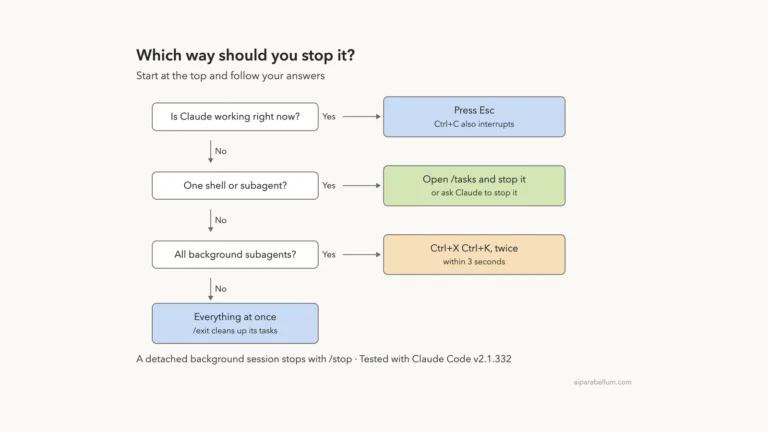
So if you see “moved to the background”, nothing is broken. You can list or stop the job with /tasks, and our guide on how to stop background tasks covers that part in detail.
The sleep case
We also asked Claude to run sleep 150 && echo done in the foreground. In our session, Claude Code blocked it right away with a message saying a long foreground sleep isn’t allowed and pointing to run_in_background or the Monitor tool instead. Claude then ran the same command in the background, and it completed normally.
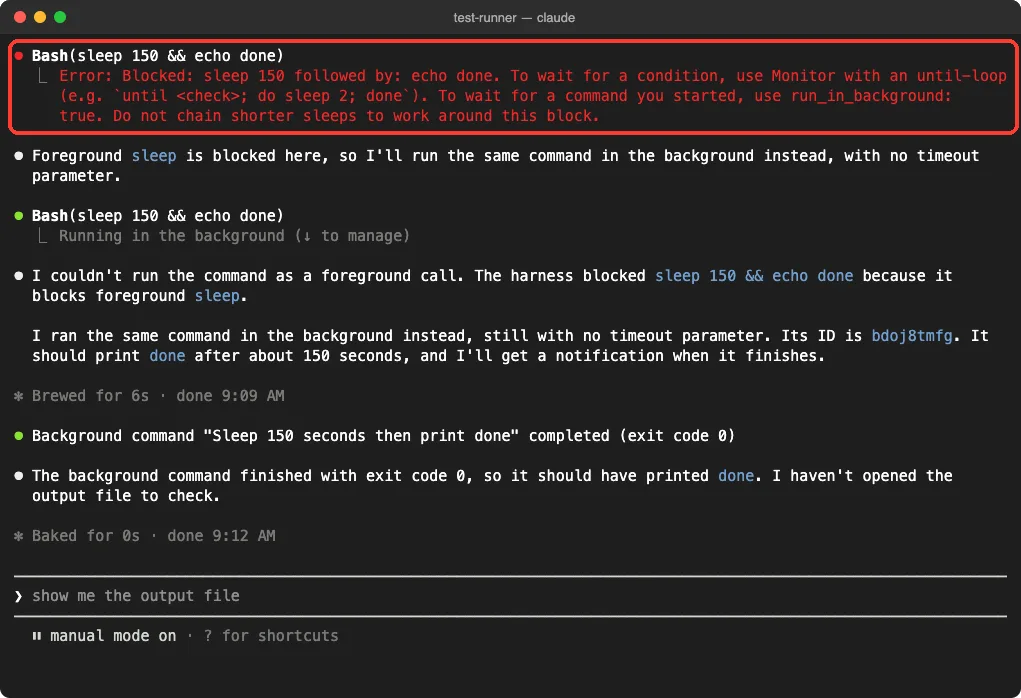
That matters if you are trying to test timeouts yourself. A bare sleep is a poor test command; wrap the wait inside a script, as we did, to see the real timeout behavior.
Reproducing the “Command Timed Out After 2m” Error
To get the hard error, we turned off background tasks for the demo project. We added this to .claude/settings.json in the demo folder:
{
  "env": {
    "CLAUDE_CODE_DISABLE_BACKGROUND_TASKS": "1"
  }
}
Then we started a fresh session and sent the same request: run ./slow-test.sh in one foreground call with no timeout. The command ran normally for the first minute.
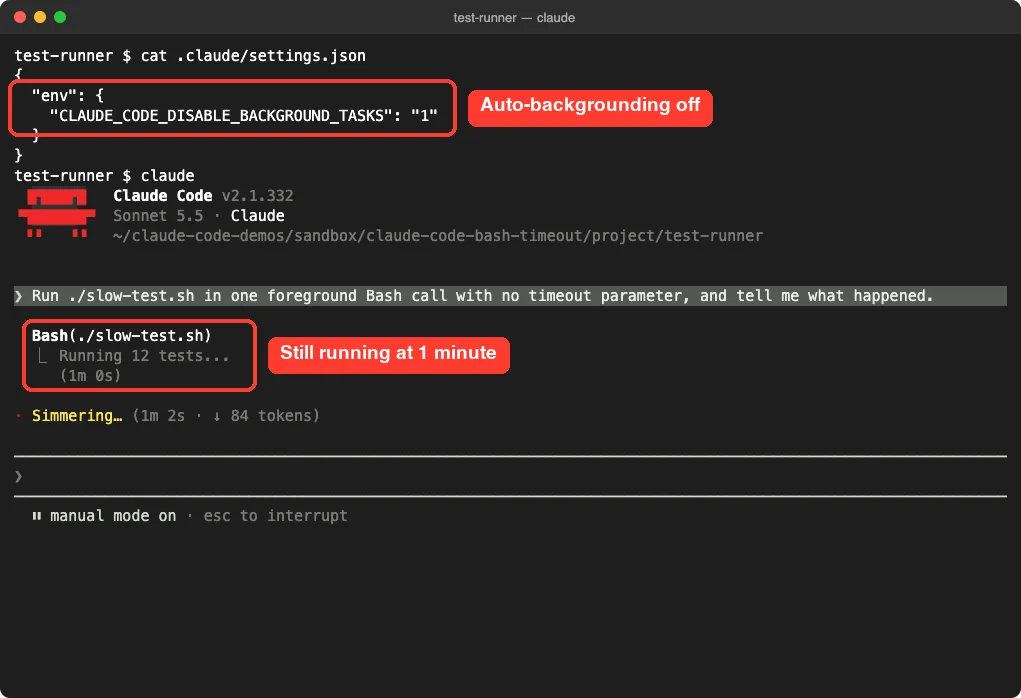
At exactly two minutes the tool call failed with Error: Exit code 143 and Command timed out after 2m 0s. Exit code 143 means the process was ended with SIGTERM, which is how the timeout stops it. Only the first line of output, “Running 12 tests…”, made it back.
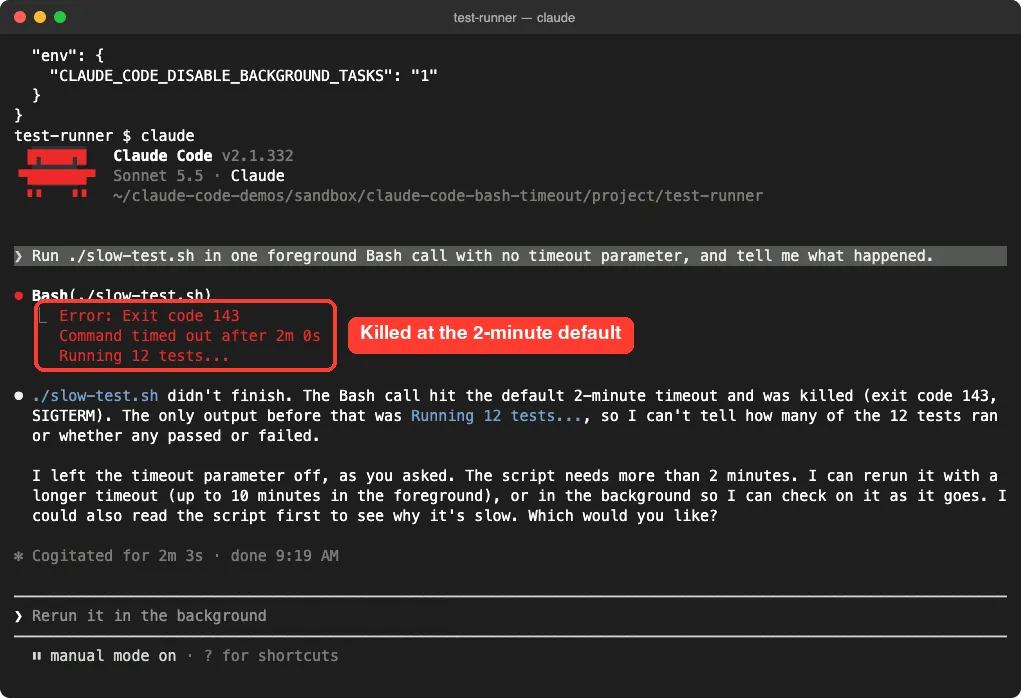
Claude’s reply was helpful here. It offered to rerun with a longer timeout (up to ten minutes in the foreground), to run it in the background, or to read the script first to see why it was slow.
How to Raise the Claude Code Bash Timeout
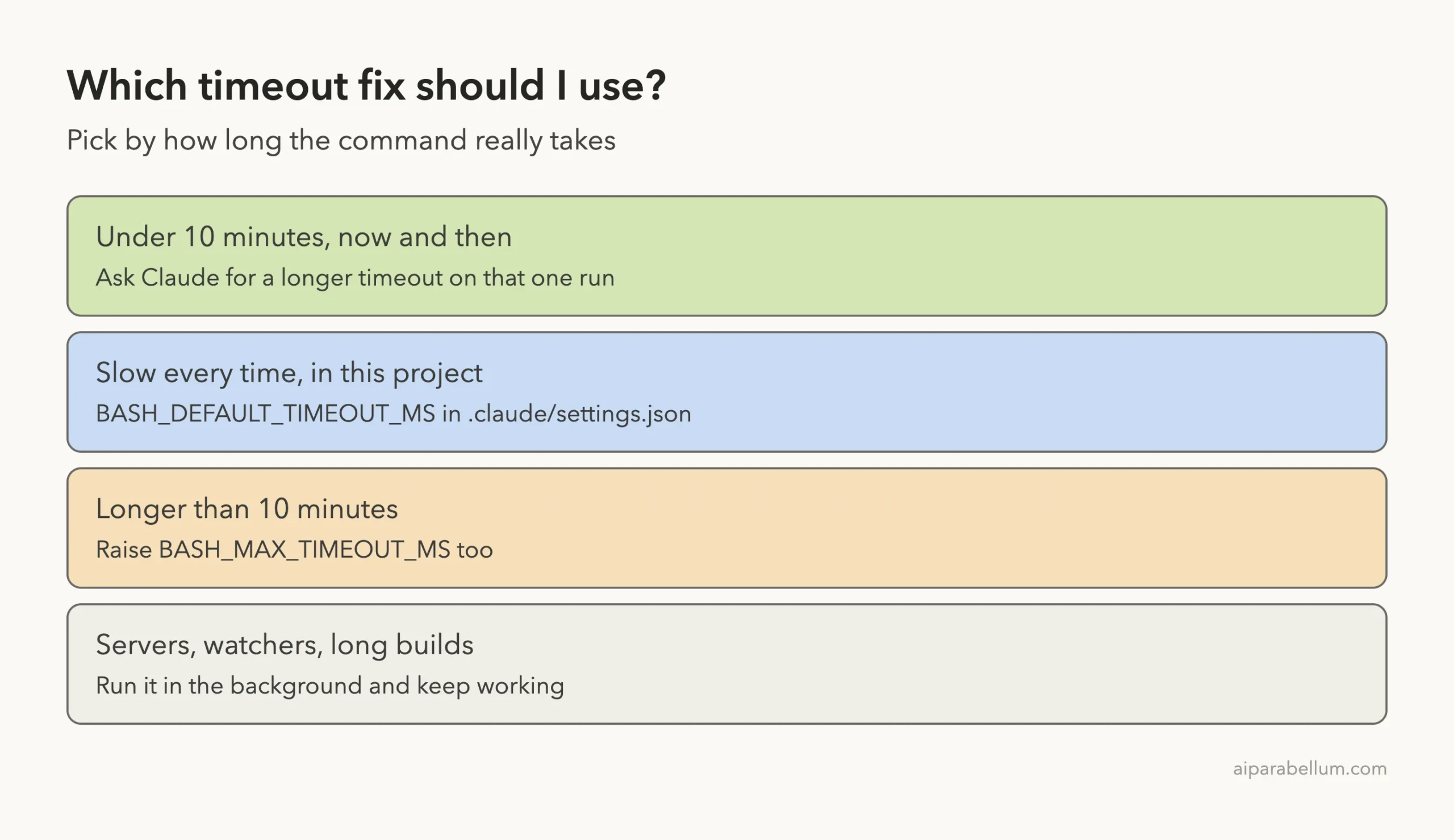
There are four fixes. Pick the one that matches how long your command really runs.
Fix 1: Raise the default in project settings
This is the fix we tested. Add BASH_DEFAULT_TIMEOUT_MS to the env block of .claude/settings.json in your project. Values are strings in milliseconds. We used five minutes for the default and twenty minutes for the ceiling:
{
  "env": {
    "BASH_DEFAULT_TIMEOUT_MS": "300000",
    "BASH_MAX_TIMEOUT_MS": "1200000"
  }
}
We kept background tasks turned off, started a new session and sent the exact same request. This time the script ran for its full 150 seconds in the foreground and printed “All 12 tests passed”, with no error and no move to the background.
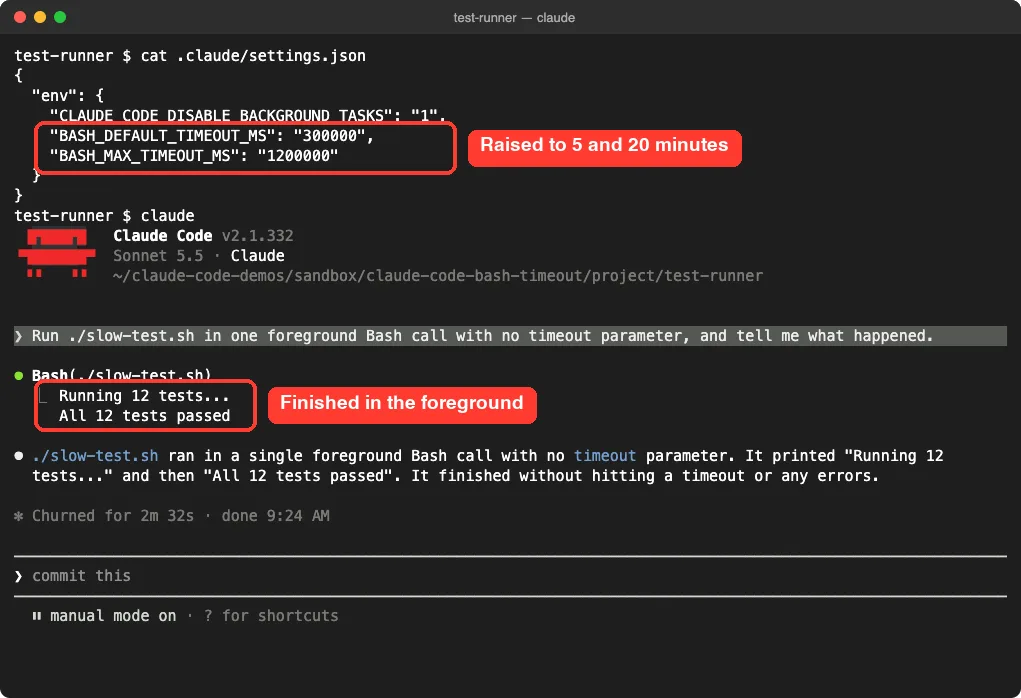
Use .claude/settings.json when the whole team runs the same slow suite, since it can be committed. Use .claude/settings.local.json for a personal value in one project, or ~/.claude/settings.json to apply it to every project. Our settings guide explains how these scopes stack.
Fix 2: Set it in your shell for one session
The environment variables docs also let you set the variables in your shell before you start Claude Code. That suits a one-off long job:
export BASH_DEFAULT_TIMEOUT_MS=300000
claude
On Windows PowerShell, the same idea is $env:BASH_DEFAULT_TIMEOUT_MS = "300000" before running claude. The value only lasts for that shell window. For the full list of variables, see our environment variables guide.
Fix 3: Ask Claude for a longer timeout on one run
If a command is slow only now and then, you don’t need to change any settings. Tell Claude something like “run the test suite with an 8-minute timeout”. Per the docs, Claude passes that timeout with the call, as long as it stays under the ceiling, which is ten minutes unless you raised BASH_MAX_TIMEOUT_MS.
Fix 4: Run it in the background
For dev servers, file watchers and builds that take a long time, a bigger timeout is the wrong tool. Ask Claude to “run it in the background”, or press Ctrl+B while a command is running to move it there. Claude keeps working and is told when the job finishes, and /tasks lists or stops running jobs.
Timeouts in claude -p, CI and Cloud Sessions
Unattended runs add one more limit. In claude -p, Agent SDK apps, CI jobs and cloud sessions, background commands also have a time limit. Local sessions in a terminal, the desktop app or VS Code have none.
A command Claude starts in the background gets 30 minutes by default and at most 2 hours. In a -p run whose prompt you pass as plain text, the default drops to 10 minutes.
When the limit hits, you see Background command "<description>" was stopped after reaching its background time limit.
Set BASH_DEFAULT_TIMEOUT_MS above 1800000 to replace the 30-minute default, and set BASH_MAX_TIMEOUT_MS above 7200000 to lift the 2-hour maximum.
Lower values never shorten a limit. Our headless mode guide covers -p runs in more depth.
Two minutes is the default, not a hard wall. Raise it for slow tests, and use the background for anything that never really ends.
Try It Yourself
Make a new empty folder, add a script that prints a line, waits 150 seconds and prints “done”, and make it executable. Start Claude Code there and paste this prompt:
Run ./slow-test.sh in one foreground Bash call with no timeout parameter,
and tell me what happened.
With default settings you should see it move to the background at two minutes. Then add the env block from Fix 1 to .claude/settings.json, start a new session, send the same prompt, and watch it finish in the foreground.
Common Mistakes
- Writing seconds instead of milliseconds.
300is a third of a second, not five minutes; use300000. - Raising only
BASH_MAX_TIMEOUT_MS. That changes the ceiling Claude may ask for, not the timeout it uses when it passes none. - Putting the variables at the top level of
settings.jsoninstead of inside"env": { }. - Editing the file and testing in the same old session. We started a fresh session after each change, and that is the safe way to check it.
- Testing with a bare
sleepcommand, which is blocked or stopped instead of showing the normal timeout path. - Raising the timeout to an hour for a dev server. A server never exits, so it belongs in the background.
Pro Tips
- Commit the timeout in
.claude/settings.jsonwhen your test suite is slow for everyone, so teammates never meet the error. - Pick a timeout a little above your slowest real run. A huge value hides commands that are truly stuck.
- If a command keeps timing out, ask Claude to read it first. Our test showed Claude offering exactly that, and the real cause is often a prompt waiting for input.
- Long output is a separate limit.
BASH_MAX_OUTPUT_LENGTHand thebashOutputMaxCharssetting control how much output Claude reads back, not how long a command runs. - Want a ping when a long job ends? See how to get a finish notification.
Cheat Sheet
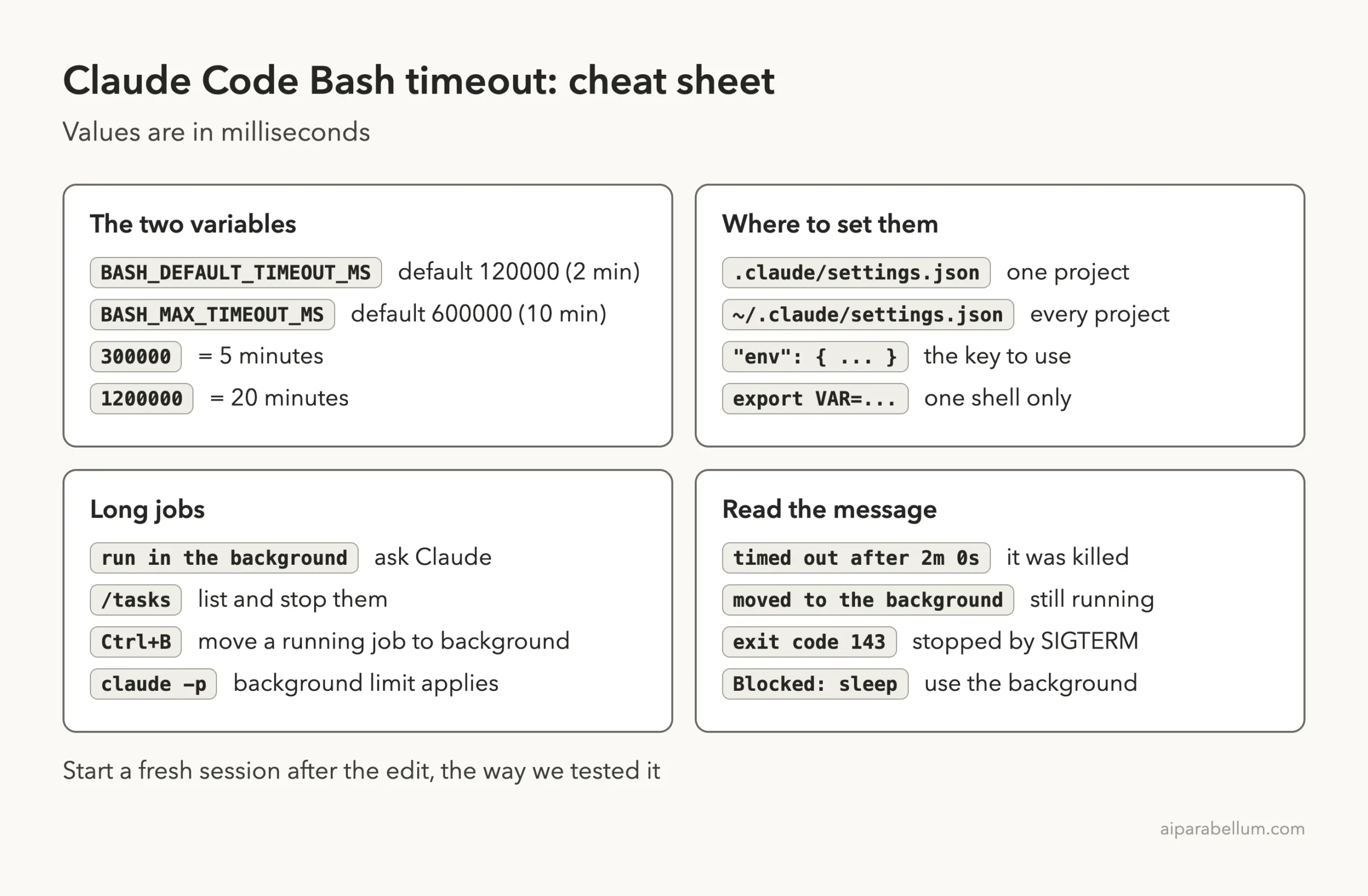
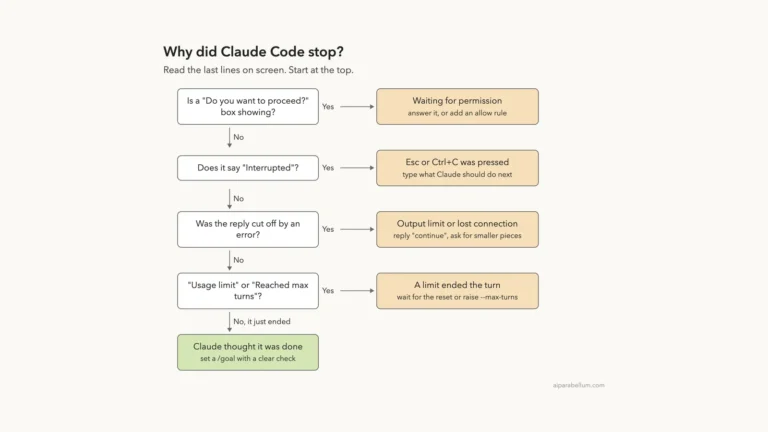
Similar-looking errors have different fixes. “Request timed out” comes from the API connection, which our guide to API_TIMEOUT_MS covers, and slow MCP servers have their own MCP timeout fix. For other messages, see our list of common Claude Code errors, and if Claude seems to stop for other reasons, read why Claude Code keeps stopping.
Frequently Asked Questions
What is the default Bash timeout in Claude Code?
Two minutes (120000 milliseconds) when Claude passes no timeout. The most Claude can ask for on one foreground command is ten minutes (600000) by default.
What is the maximum Bash timeout I can set?
The docs give no fixed upper value for BASH_MAX_TIMEOUT_MS. We tested 20 minutes as the ceiling. For anything that long, a background run is usually the better choice.
Why does my command move to the background instead of timing out?
That is the normal behavior in current versions. At its timeout, a foreground command moves to the background and keeps running, unless background tasks are off or the command starts with sleep.
What does exit code 143 mean?
The process got SIGTERM. In our test it appeared together with “Command timed out after 2m 0s”, which means the timeout stopped it.
Does this work on Windows?
Yes. Per the docs, the PowerShell tool follows the same timeout rules and reads the same two variables. We tested on macOS only.
Conclusion
The Claude Code Bash timeout is two minutes by default, and when a command is killed you see “Command timed out after 2m 0s” with exit code 143. In our tests, raising BASH_DEFAULT_TIMEOUT_MS to five minutes in .claude/settings.json let the same slow script finish in the foreground, while default settings simply moved it to the background. Raise BASH_MAX_TIMEOUT_MS for anything past ten minutes, keep servers and watchers in the background, and check Anthropic’s settings docs for where each file lives. For more on Claude itself, visit our Claude AI page.