If Claude Code keeps crashing or freezing, the cause is usually one of a few things: a context window that is too full, too much memory use, a plugin or hook that misbehaves, or a terminal that cannot draw the screen properly. Each one has a documented fix, and most take less than a minute.
The quick answer is to press Ctrl+C, restart, and run claude --resume to get your conversation back. If it happens again, start with claude --safe-mode to see whether one of your own add-ons is the problem. The rest of this guide walks through every check in the order we recommend.
We read Anthropic’s performance and configuration troubleshooting pages in full and tested the safe mode, context and compact steps in a real session. We could not safely make Claude Code crash on purpose, so where a problem needs a real fault, we show the official docs instead of a made-up error.
This is a Claude Code fix guide, part of our Claude Code tutorials. If your problem is a stuck message rather than a crash, our guide on compacting problems may fit better.
Tested with Claude Code v2.1.312 on October 30, 2026. We tested on macOS; the Windows and Linux steps follow Anthropic’s official instructions.
Quick Answer: Match Your Symptom to the Fix
Find what you see in the first column, then jump to that section.
| What you see | Likely cause | Fix |
|---|---|---|
| The screen stops responding | A long operation or a stuck process | Press Ctrl+C, then restart and run claude --resume |
| Fan spins, laptop gets hot, slow answers | High CPU or memory use | Run /compact, restart between tasks, add build folders to .gitignore |
| Critical memory usage warning | Heap memory above 2.5GB | Restart and run claude --continue |
Autocompact is thrashing | A big file keeps refilling the context | Read the file in chunks, then /compact or /clear |
| Boxes or smeared text in an editor terminal | The GPU renderer | Run /terminal-setup |
| Crashes only with your setup | A hook, plugin, MCP server or skill | Start with claude --safe-mode |
Restarting never costs you the conversation. Run
claude --resumein the same folder and pick the session back up.
Why Claude Code Freezes or Crashes
Claude Code is a terminal program that reads files, runs commands, and keeps a growing conversation in memory. When any of those grow too large, it can slow down or stop responding.
Anthropic’s docs say Claude Code is designed to work with most development environments but may use a lot of resources on large codebases. That is the honest starting point: freezes are usually about size, not a broken install.
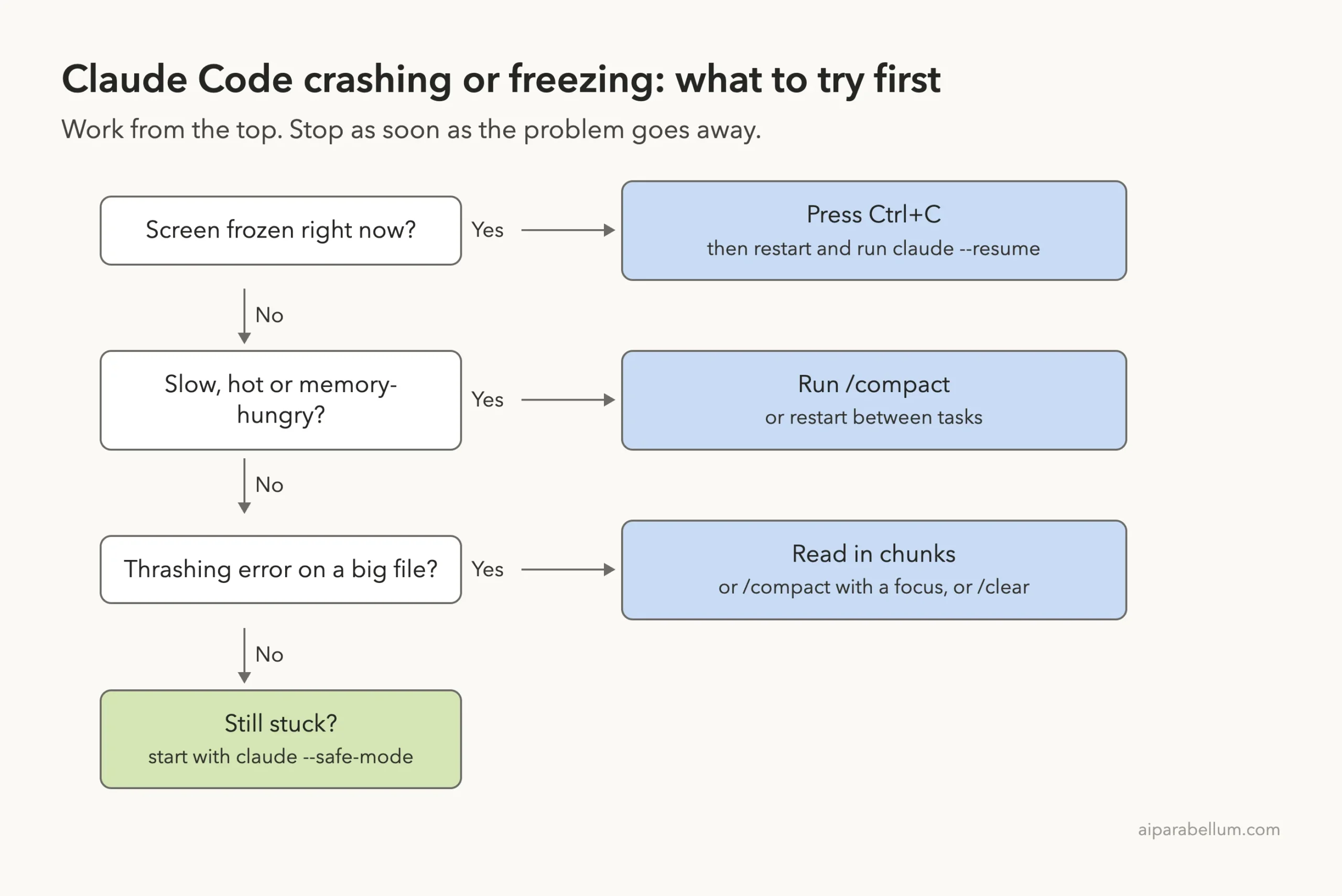
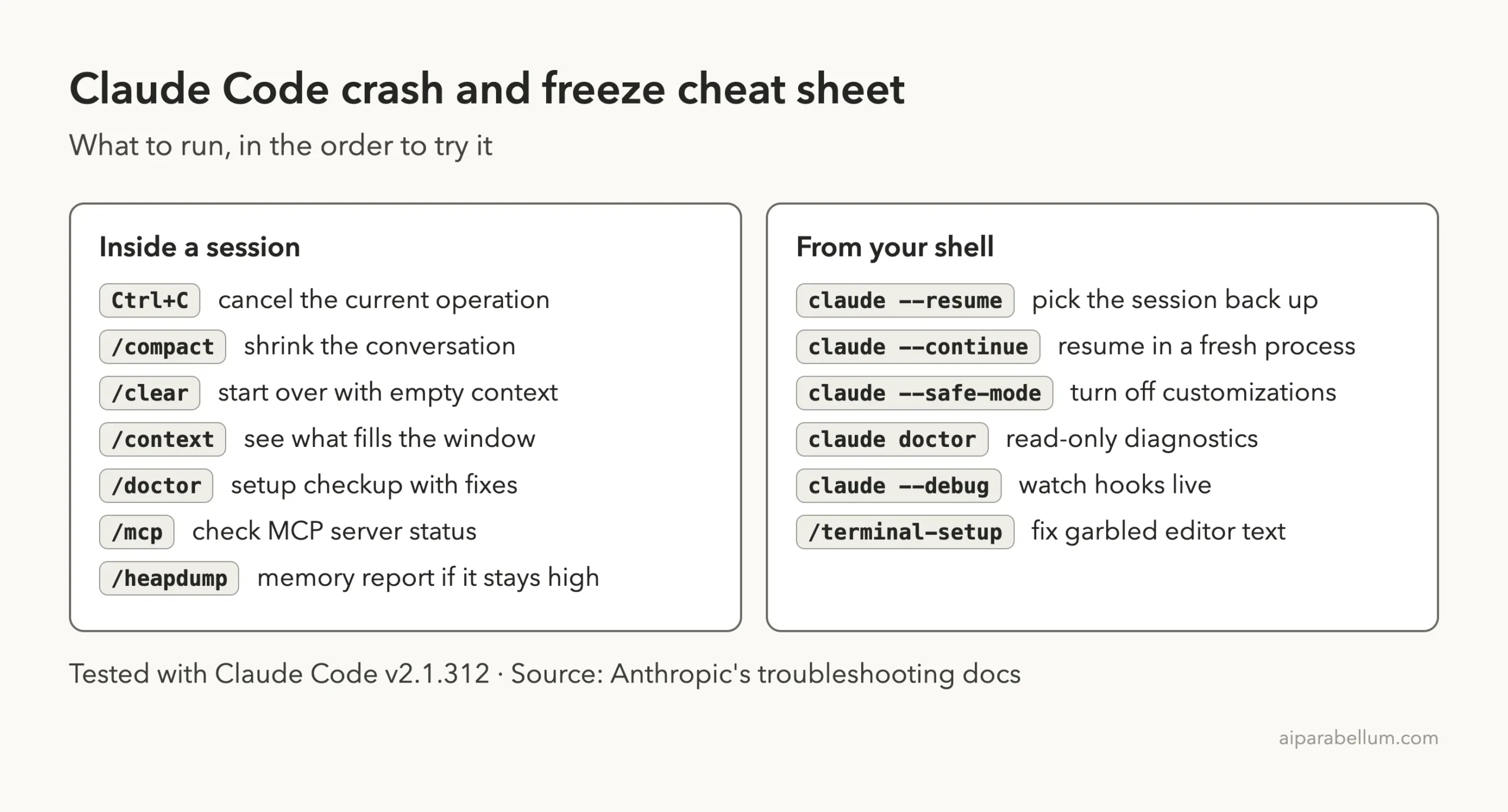
The picture below shows the order we suggest. Start at the top and stop as soon as the problem goes away.
Fix 1: Cancel, Restart and Resume
If Claude Code seems unresponsive, the docs give two steps. Press Ctrl+C to try to cancel the current operation. If it still does not respond, close the terminal and restart.
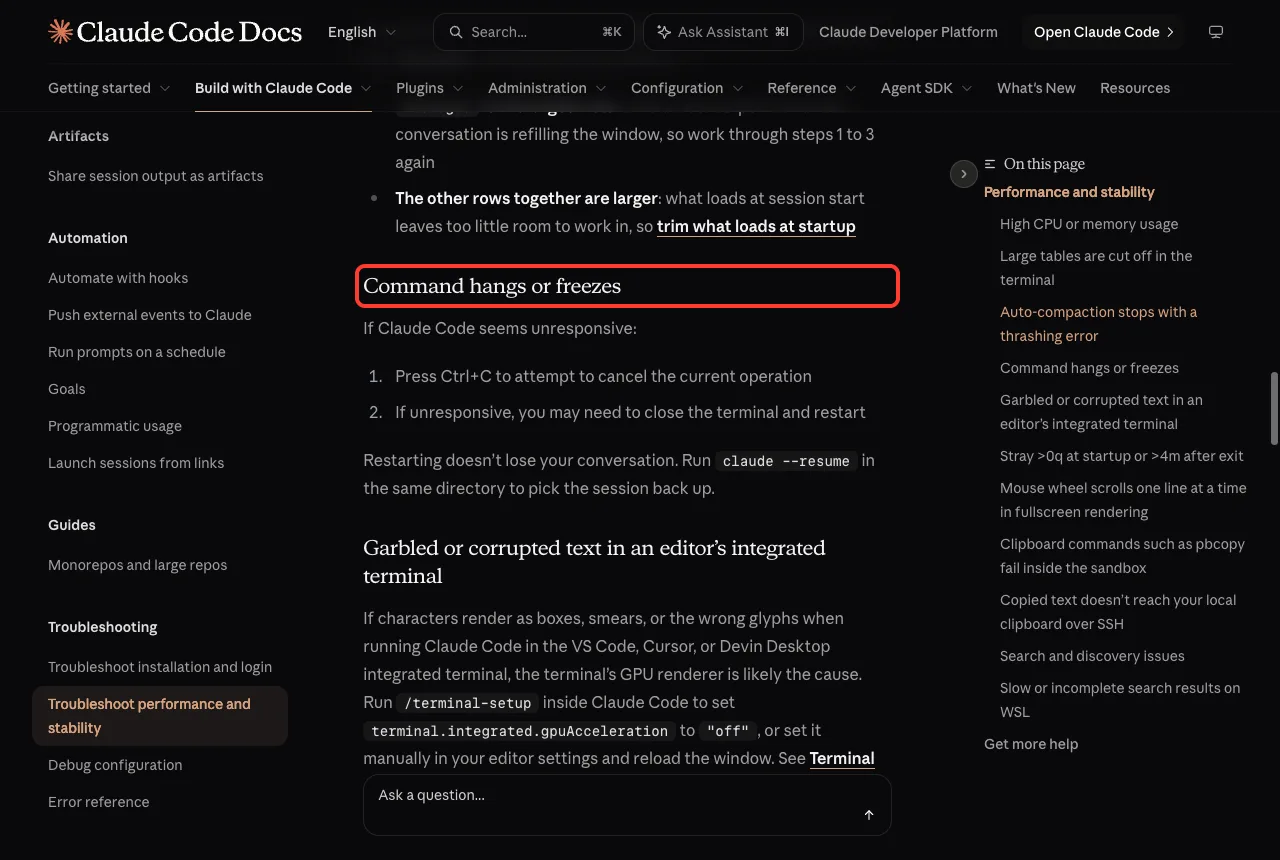
The good news is that your work is not gone. Anthropic’s docs say restarting does not lose your conversation, and claude --resume in the same directory picks the session back up.
- Press
Ctrl+Conce and wait a few seconds. - If nothing happens, close the terminal tab or window.
- Open a new terminal and move to the same project folder.
- Run
claude --resumeand choose your session.
When It Freezes Right After You Resume
The docs mention one rare case. Before version 2.1.208, Claude Code drew every row of a very large table, so resuming a session that held one could stall while it redrew. Newer versions cap the display at 200 rows and show a line saying how many rows are hidden.
If you are on an older version, update first. Our guide on updating Claude Code shows the right way to do it.
Fix 2: Claude Code Using Too Much CPU or Memory
High CPU and memory use is the most common reason Claude Code feels slow or crashes. The official page lists a short set of habits that keep usage down.
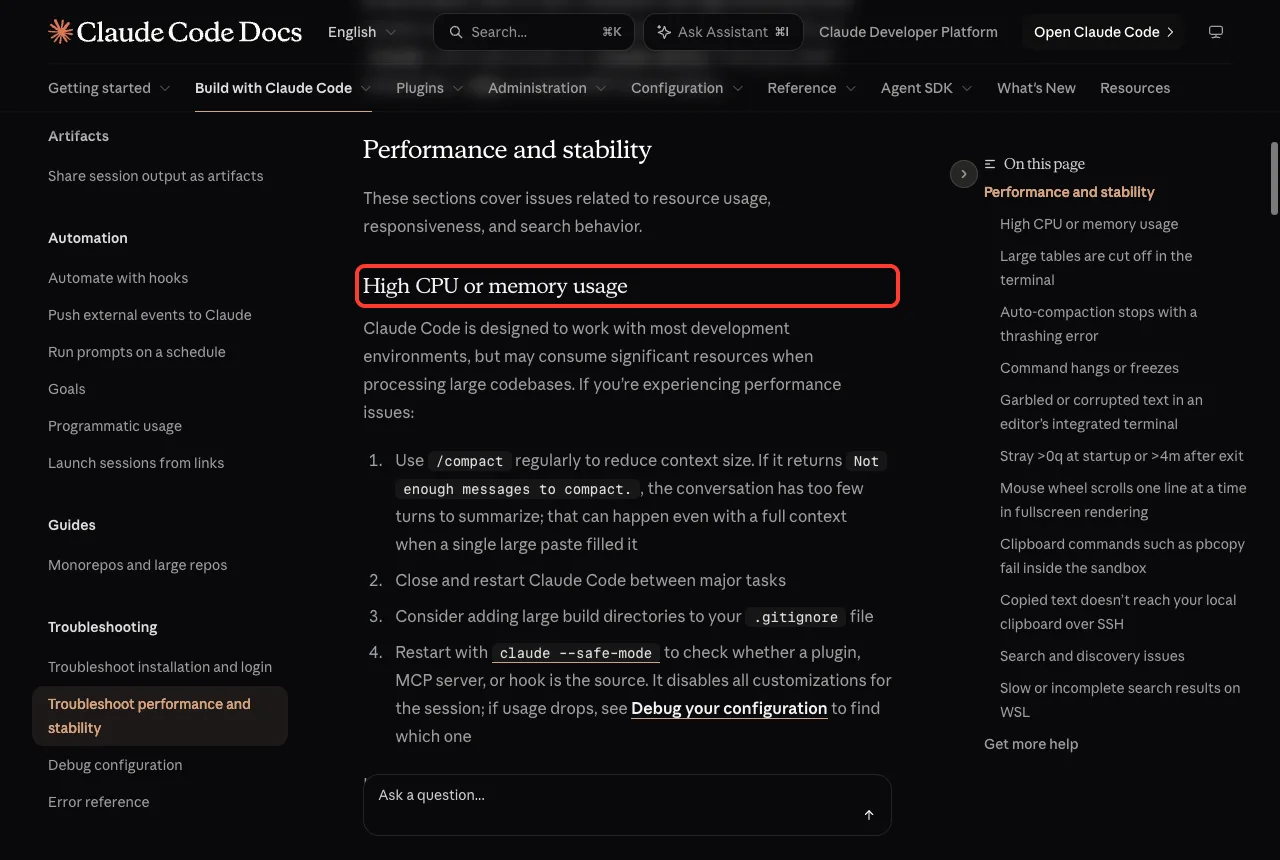
- Run
/compactregularly to reduce the size of the conversation. - Close and restart Claude Code between major tasks.
- Add large build directories to your
.gitignorefile. - Restart with
claude --safe-modeto see whether a plugin, MCP server or hook is the source.
Our prompt-too-long fix explains more about keeping the window small.
The Critical Memory Usage Warning
If a session’s heap memory passes 2.5GB, a critical memory usage warning appears. The fix from the docs is to restart Claude Code and run claude --continue, which resumes the conversation in a fresh process.
Outside fullscreen rendering, running /compact also frees memory. The warning goes away once memory use drops below 2.5GB.
When Memory Stays High
If usage stays high after those steps, the docs describe a hidden command. Type /heapdump in full, because it does not show in the command menu. It writes two files to your Desktop: a heap snapshot and a diagnostics file.
Be careful with the snapshot. The docs warn that it contains every string in the process, including your full conversation and credentials, so never attach it to a public issue. If you want to report the problem, attach only the diagnostics file, which holds statistics and no conversation content.
Fix 3: Use /compact and /context Before Things Get Heavy
The two commands that help most are /context and /compact. We ran both in a fresh session. The context view breaks down what fills the window, and the key row to watch is Messages next to Free space.
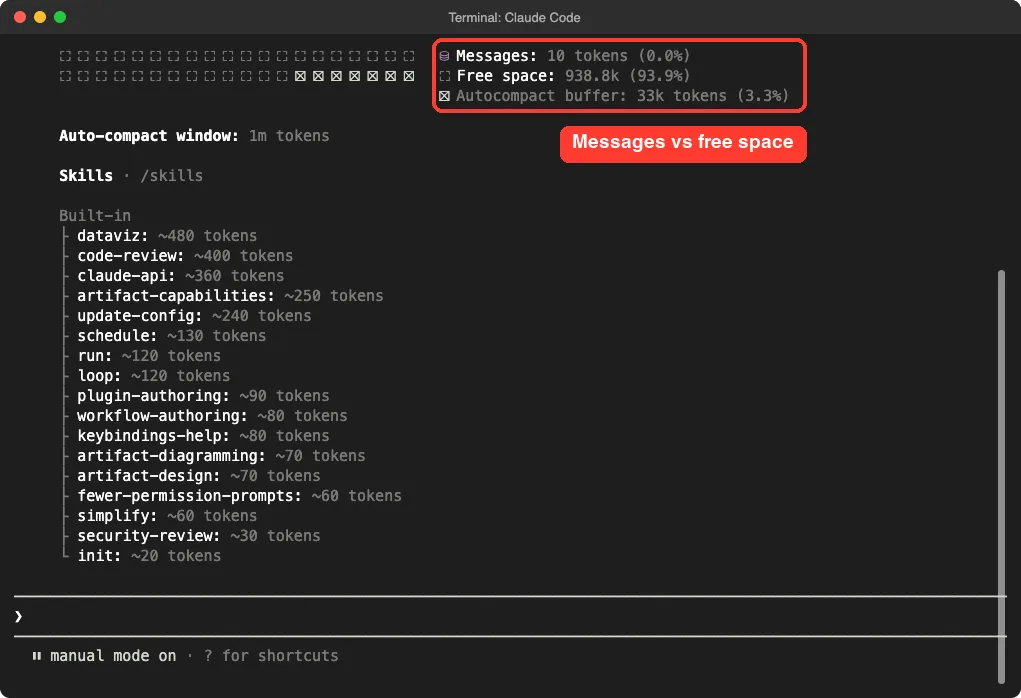
In our fresh demo, messages used only 10 tokens, and about 93.9 percent of the window was free. In a long real session, that Messages row grows, and that is your signal to compact.
The docs also mention a message you may meet. If /compact says Not enough messages to compact., the conversation has too few turns to summarize. We saw exactly this in our new session.
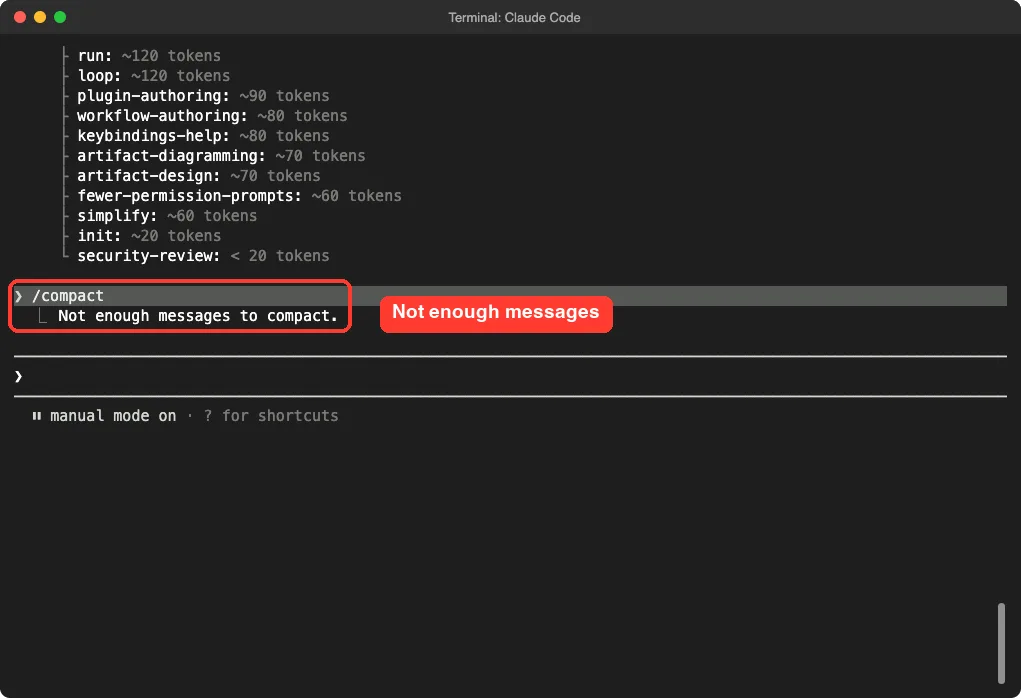
The docs add a twist: this can happen even when the context is full, if a single large paste filled it. In that case, /clear or reading the content in smaller pieces works better than compacting.
Fix 4: The Autocompact Thrashing Error
You may see Autocompact is thrashing: the context refilled to the limit.... The docs explain that automatic compaction worked, but a file or tool output immediately refilled the window several times in a row. Claude Code stops retrying so it does not waste API calls on a loop that is going nowhere.
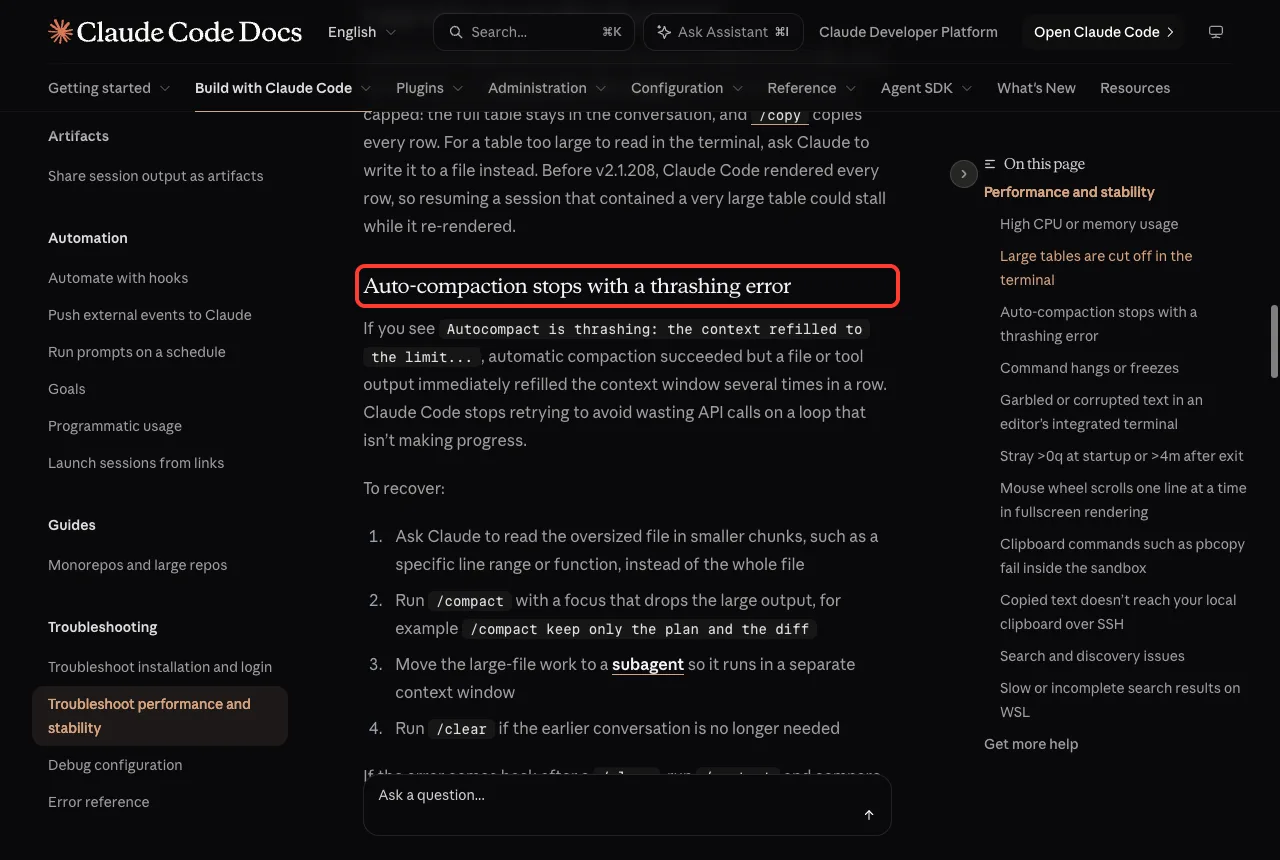
To recover, work through these steps in order:
- Ask Claude to read the oversized file in smaller chunks, such as a line range or one function.
- Run
/compactwith a focus that drops the large output, for example/compact keep only the plan and the diff. - Move the large-file work to a subagent, which uses its own context window.
- Run
/clearif you no longer need the earlier conversation.
If the Error Comes Back After /clear
Run /context and compare the Messages row with the rows above it. If Messages is the largest, a file or tool output in the new conversation is refilling the window, so repeat steps 1 to 3.
If the other rows together are larger, what loads at startup leaves too little room to work. Trim your startup items, such as big CLAUDE.md files, unused skills and extra MCP servers.
Fix 5: Garbled Text in an Editor Terminal
A crash is not always a crash. If characters show as boxes, smears or wrong glyphs inside the integrated terminal of VS Code, Cursor or Devin Desktop, the terminal’s GPU renderer is the likely cause.
The docs fix is to run /terminal-setup inside Claude Code. It sets terminal.integrated.gpuAcceleration to "off". You can also set that value by hand in your editor settings and reload the window.
Scrolling problems have their own cause, so see our guide on scrolling and copy-paste. If the extension itself is the issue, try VS Code fixes.
Strange Characters at Startup
Some older terminals built on a VTE library before version 0.53 print stray >0q at startup or >4m after exit. Updating Claude Code to v2.1.301 or later skips those control sequences. If the text stays, print $VTE_VERSION; a result below 5300 means you should update or replace the terminal.
Fix 6: Find the Cause With Safe Mode
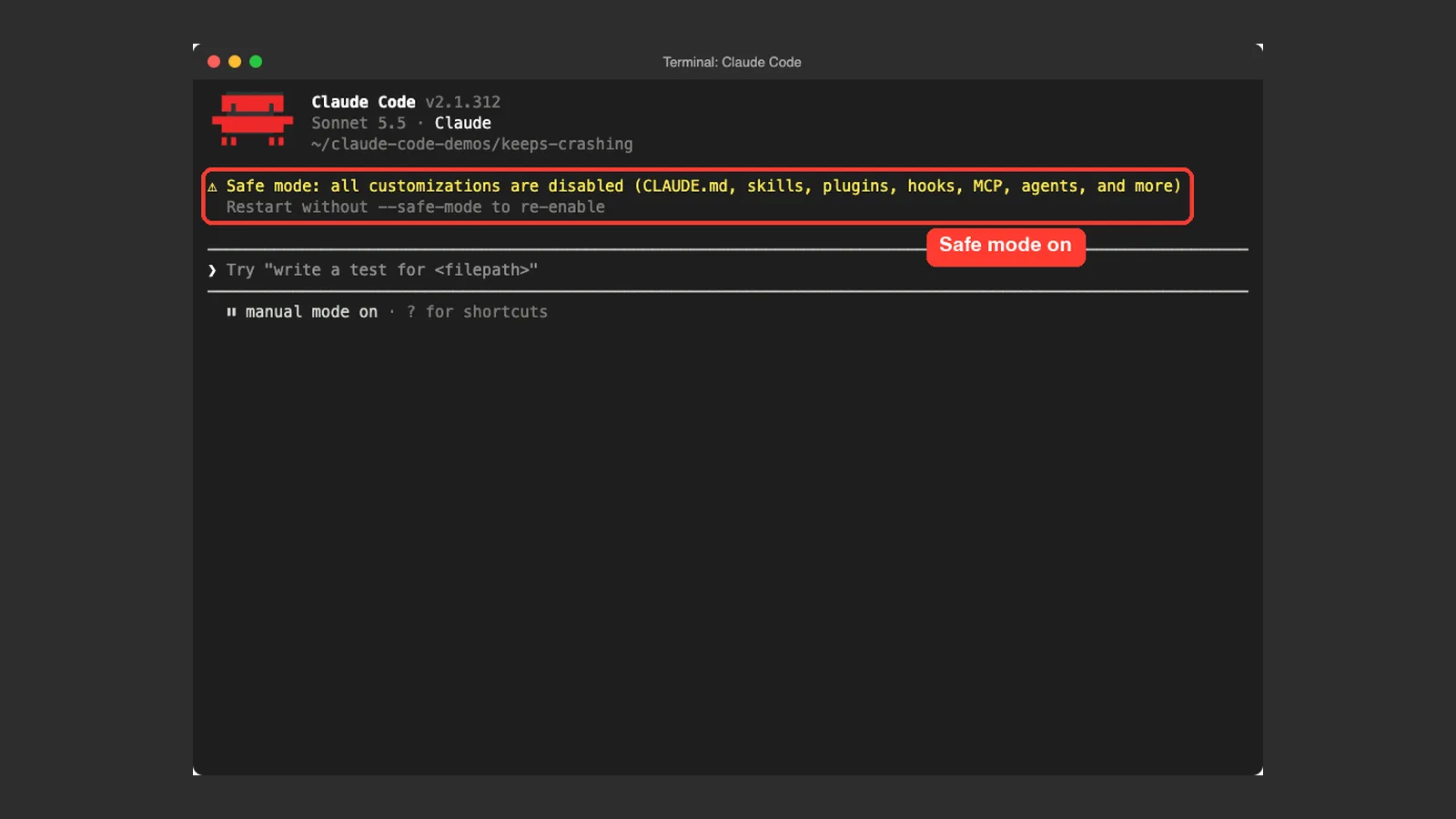
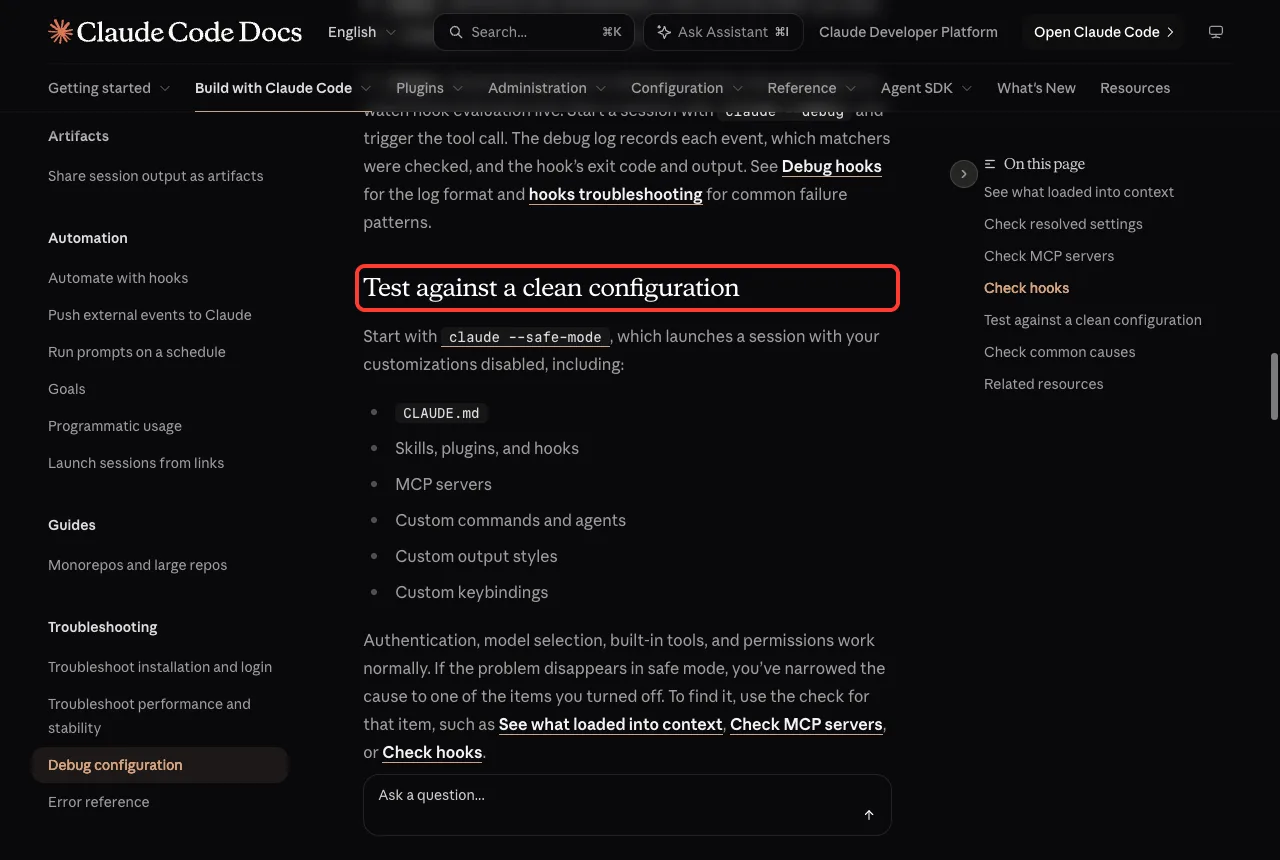
If the crash only happens with your own setup, safe mode is the fastest test. Start Claude Code with claude --safe-mode. It disables CLAUDE.md, skills, plugins, hooks, MCP servers, custom commands and agents, output styles and keybindings.
Login, model choice, built-in tools and permissions still work normally. We started a session this way and the banner confirms it.
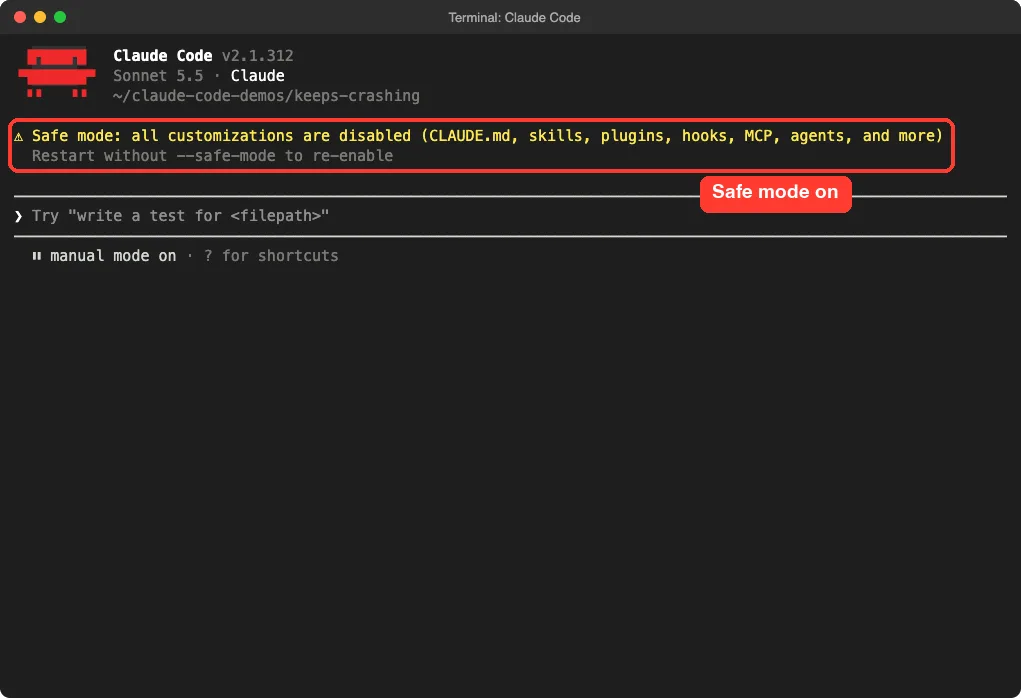
If the problem disappears, you have narrowed the cause to one of the things that were switched off. The docs say safe mode still applies managed hooks and policy from your organization, but turns off managed plugins, skills, CLAUDE.md and MCP servers.
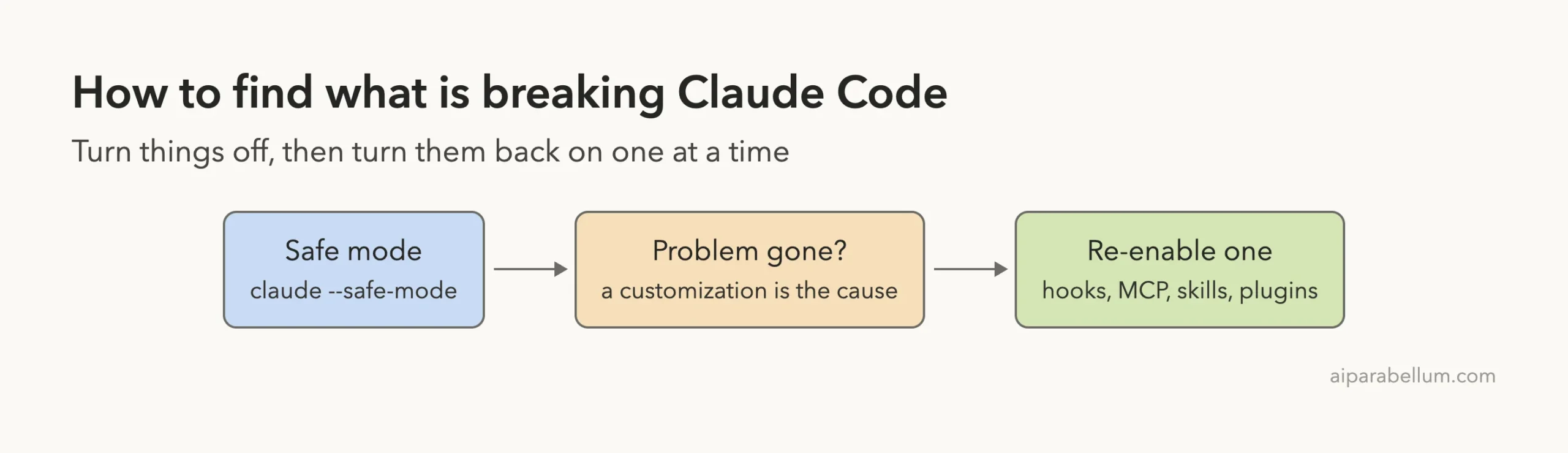
Check One Add-On at a Time
Use the matching command for each kind of add-on, as listed on the configuration debugging page.
| Suspect | Command | What it shows |
|---|---|---|
| Everything loaded | /context | System prompt, tools, memory files, skills and messages |
| MCP servers | /mcp | Each server and its status, such as failed |
| Hooks | /hooks | Every active hook, grouped by event |
| Settings | /status | Which settings sources are active |
| Whole setup | /doctor | A checkup that proposes fixes and asks first |
For a hook that never fires, our ready-to-copy hooks show correct matcher syntax.
Test With a Clean Configuration
If safe mode does not help, or you suspect your settings, the docs describe a clean test. You create an empty folder, then start Claude Code with a fresh configuration directory.
mkdir -p ~/claude-clean/empty && cd ~/claude-clean/empty
CLAUDE_CONFIG_DIR=~/claude-clean/config claude --setting-sources user
Your first launch will show the first-run setup screens again, which tells you the clean directory is in use. If the problem is gone, it lives in your user or project configuration. If it stays, check /status for managed settings and look at your shell environment variables.
Fix 7: Search Tool Not Finding Files
Sometimes the symptom is not a freeze but a search that finds nothing. The docs say the bundled ripgrep binary may not run on your system. On a Mac you can install it with brew install ripgrep.
Then set USE_BUILTIN_RIPGREP to 0, either in your shell or in the env block of your settings file:
{
  "env": {
    "USE_BUILTIN_RIPGREP": "0"
  }
}
To confirm the switch worked, run claude doctor and check that the Search line shows the path of your system ripgrep. On our Mac, with the bundled version, that line read Search: OK (bundled).
On WSL, searches can return fewer matches because of slow disk reads across file systems. The docs suggest narrower searches, moving the project onto the Linux filesystem, or using native Windows.
When Claude Code Will Not Start at All
If claude will not start, run claude doctor from your shell. It prints read-only diagnostics about your installation and settings without opening a session. Inside a session, /doctor goes further and offers fixes after you confirm.
For install, PATH and login trouble, use Anthropic’s separate page on installation and login. Our login loop guide covers repeat sign-in problems. For API errors, see our posts on error 529 and error 429.
Try It Yourself
You can practice the safe checks without breaking anything. Open a new session in a small test folder, then run these in order:
/context
/compact
/status
Then exit, start again with claude --safe-mode, and run /context once more. Compare the two outputs and notice how many skills and tools load in a normal session.
Common Mistakes
- Closing the terminal and starting a brand new chat instead of using
claude --resume. - Pasting a huge file into the prompt, then wondering why compaction fails.
- Sharing a
.heapsnapshotfile in a public issue, even though it can hold your conversation and credentials. - Removing your whole configuration folder when safe mode would have answered the question safely.
- Putting hooks in a standalone file instead of under the
hookskey insettings.json.
Pro Tips
- Check
/contextbefore a long task, not after something breaks. - Use one session per task, and restart between big jobs.
- Add folders such as build output to
.gitignoreso searches stay quick. - Give
/compacta focus so it keeps what matters. - Use
/feedbackinside Claude Code to report a real bug to Anthropic.
Cheat Sheet
Frequently Asked Questions
Why does Claude Code keep freezing on my computer?
Most often the conversation or a large file has filled the context window, or memory use has grown too high. Run /compact, restart between tasks, and use safe mode to rule out your add-ons.
Will I lose my work if I restart Claude Code?
No. Per the docs, restarting does not lose your conversation. Run claude --resume in the same directory to continue it.
What does the Autocompact is thrashing error mean?
It means compaction worked, but a file or tool output refilled the window several times in a row. Claude Code stops retrying so it does not waste API calls. Read the file in chunks or move that work to a subagent.
What is safe mode in Claude Code?
It is a session started with claude --safe-mode that turns off your customizations, such as CLAUDE.md, hooks, plugins and MCP servers. If the crash stops, one of those was the cause.
How do I report a crash to Anthropic?
Use /feedback inside Claude Code, or open a GitHub issue. For a memory problem, attach only the diagnostics file from /heapdump, never the snapshot.
Conclusion
When Claude Code keeps crashing or freezing, work from the simplest fix to the deepest: cancel and resume, compact or clear the context, check memory, then use safe mode to find the add-on that is causing trouble. Anthropic documents each step on its troubleshooting page, and we confirmed the context, compact and safe mode steps in a real session. Keep the cheat sheet nearby, and your next freeze should cost you a minute instead of an afternoon.