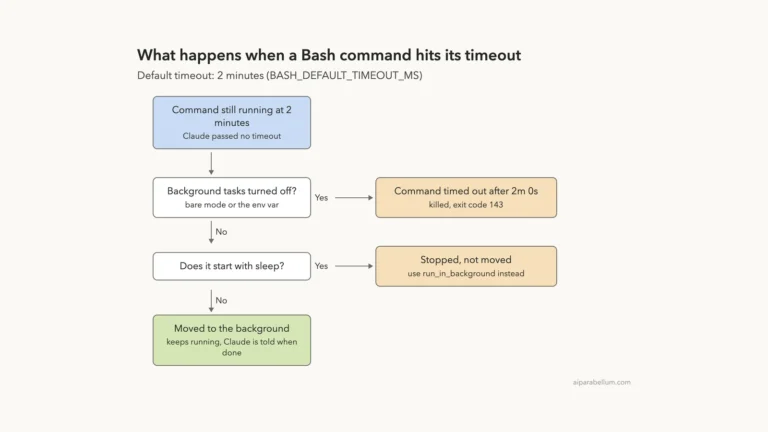

To run a dev server in Claude Code without freezing your session, run it as a background task. Ask Claude to start it “in the background”, or press Ctrl+B while a command like npm run dev is running in the foreground. The server keeps going, the prompt comes back, and Claude can keep editing files and testing against it.
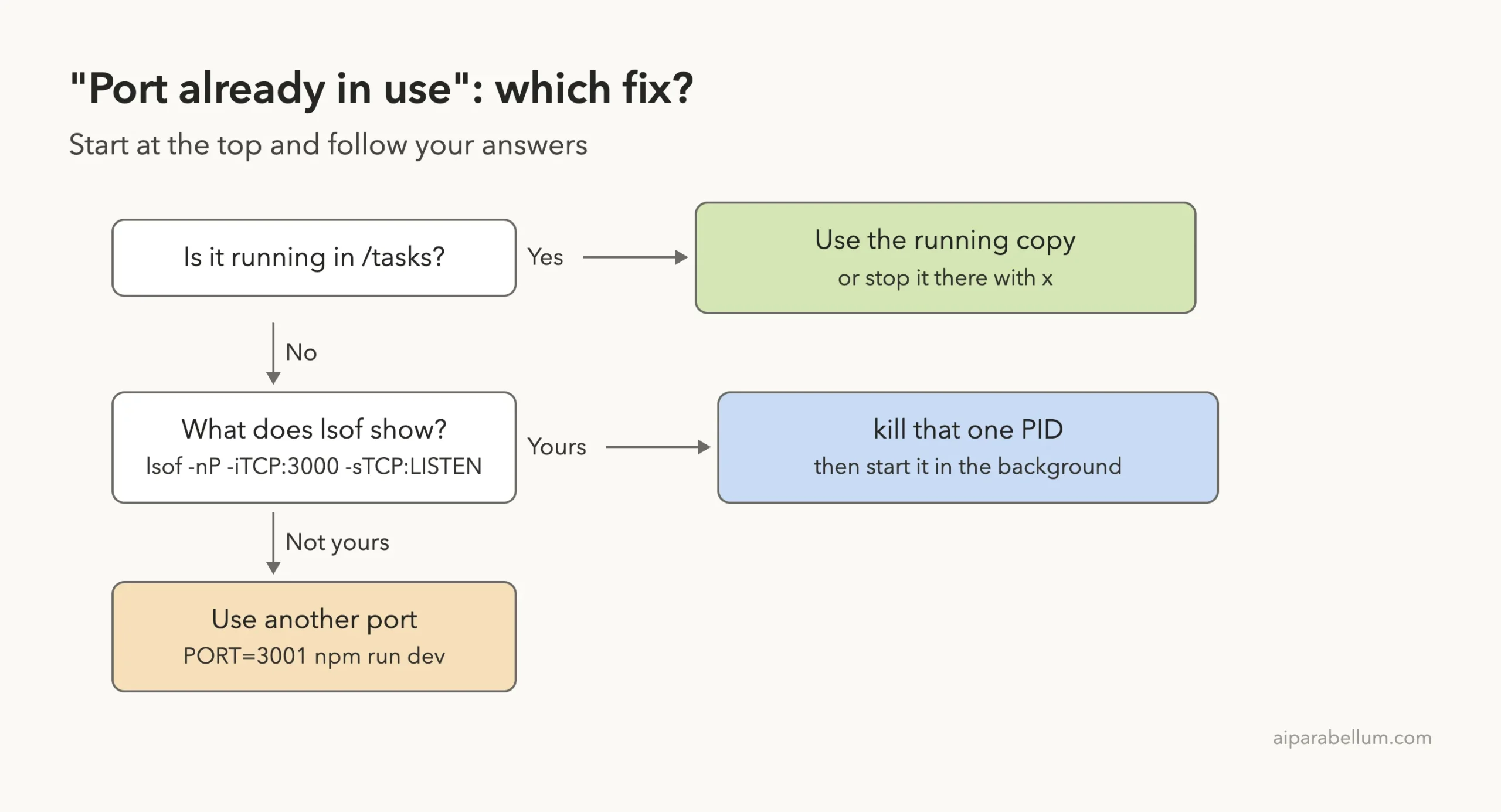
If you see Error: listen EADDRINUSE: address already in use :::3000, another process already holds that port, most often an older copy of your own server. Find it with lsof -nP -iTCP:3000 -sTCP:LISTEN, check what it is with ps, and stop it with kill <PID> only if it is yours. Or start your server on another port.
Below we reproduce all of it for real: a blocking server, moving it to the background, a leftover server causing EADDRINUSE, finding and stopping it, and how exiting Claude Code cleans up after itself.
Browse all our Claude Code tutorials for more fixes and how-tos.
Tested with Claude Code v2.1.332 on macOS on November 27, 2026. Every run used a throwaway demo folder called my-site with three files we wrote: a 12-line Node server.js that serves index.html on port 3000, and a package.json whose dev script runs node server.js. Nothing needed to be installed.
Quick Summary
| Situation | What you see | Fix |
|---|---|---|
| Server started in the foreground | (ctrl+b to run in background) and a busy prompt | Press Ctrl+B |
| Server running in the background | 1 shell in the footer | Nothing; manage it with /tasks |
| Old copy still holds the port | EADDRINUSE: address already in use | Find it with lsof, then kill that PID |
| Claude started a second copy | failed with exit code 1 for the new task | Use the copy that is already running |
| Port owned by another app | Same EADDRINUSE error | Run on another port, for example PORT=3001 |
| Done for the day | Background work is running on /exit | Choose “Exit and stop tasks” |
Why a Dev Server Blocks Claude Code
A dev server is built to run forever. It starts, prints a “running at” line, and then waits for requests until you stop it. Tests, builds and scripts finish and return; a server never does.
When a command runs in the foreground, Claude Code waits for it to end before it can do anything else. With a server, that wait never ends on its own. Your session looks frozen, even though the server is working fine.
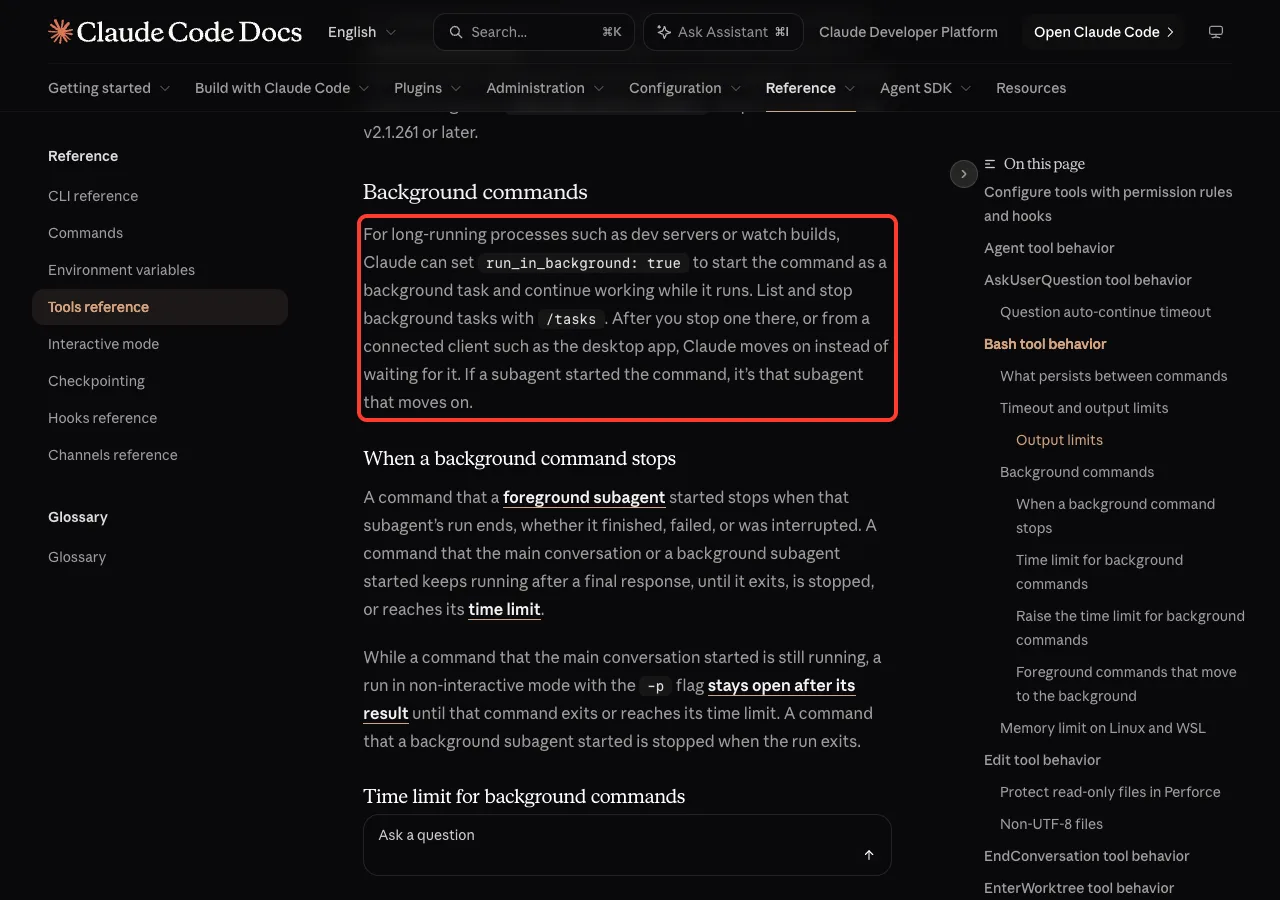
Claude Code solves this with background tasks. Anthropic’s tools reference names dev servers and watch builds as the main use case: Claude starts the command as a background task and keeps working while it runs. The output goes to a file that Claude can read whenever it needs to.
How to Run a Dev Server in Claude Code Without Blocking
There are three ways to get a server into the background. They all end in the same place: a background task with its own ID that you can see in /tasks.
| Method | How | Best for |
|---|---|---|
| Ask Claude | “Start the dev server with npm run dev in the background” | Most sessions |
Press Ctrl+B | While any foreground command is running | When a command is already stuck |
Shell mode plus Ctrl+B | Type ! npm run dev, then press Ctrl+B | Starting it yourself without a prompt |
Method 1: Ask Claude to run it in the background
The simplest way is to say so in your prompt. In our test we typed “Start npm run dev as a background task, then run curl -s localhost:3000 once.” Claude started the server with the status “Running in the background”, then fetched the page while the server kept running.
Claude often picks the background on its own for commands it recognizes as servers. Saying it out loud just removes any doubt, and it costs you three words.
Method 2: Press Ctrl+B on a running command
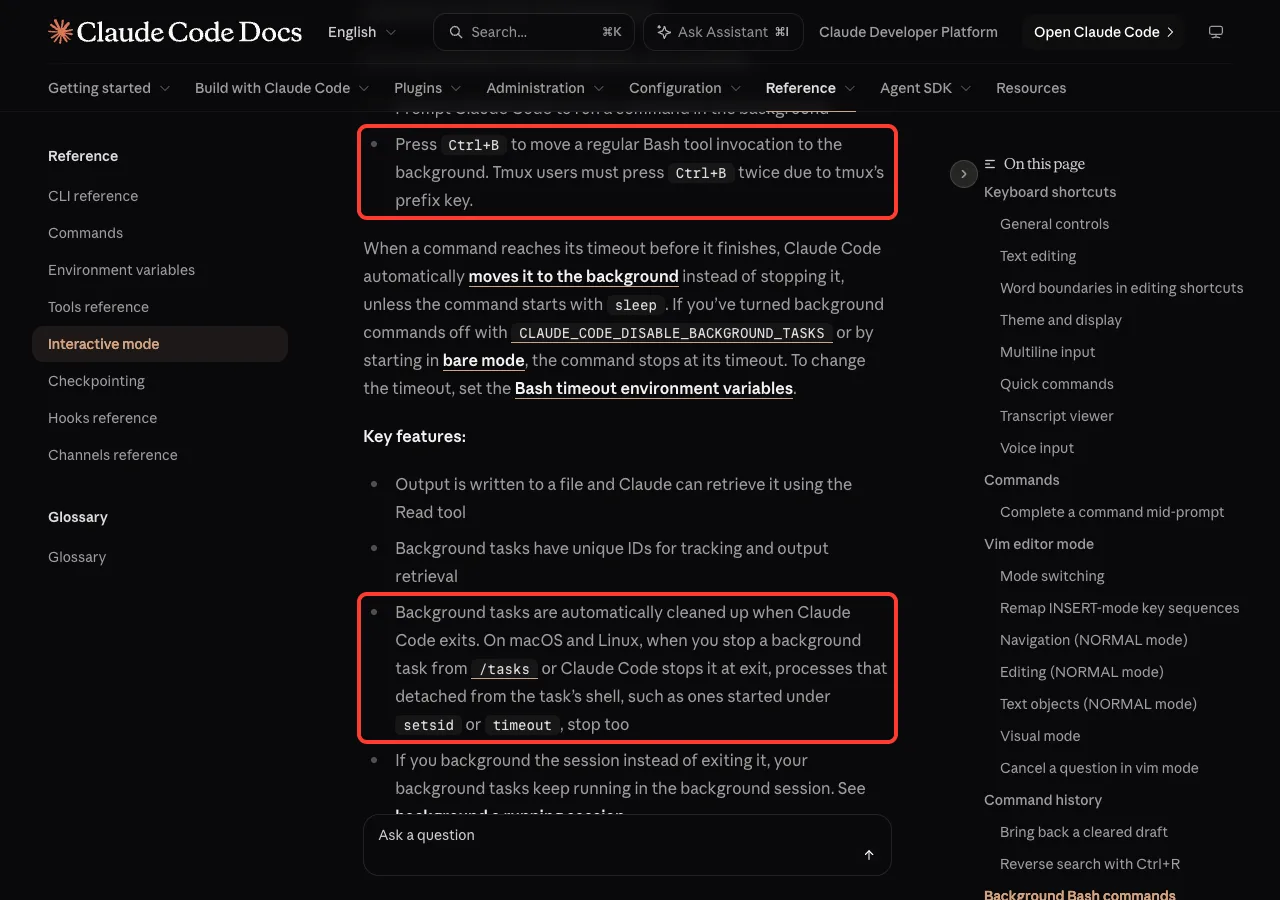
If a command is already running in the foreground, press Ctrl+B. The interactive mode docs say this moves a regular Bash tool call to the background. If you use tmux, press Ctrl+B twice, because tmux uses that key as its prefix.
Method 3: Start it yourself with shell mode
Typing ! at the start of the prompt switches to shell mode, where your command runs directly without Claude choosing how.
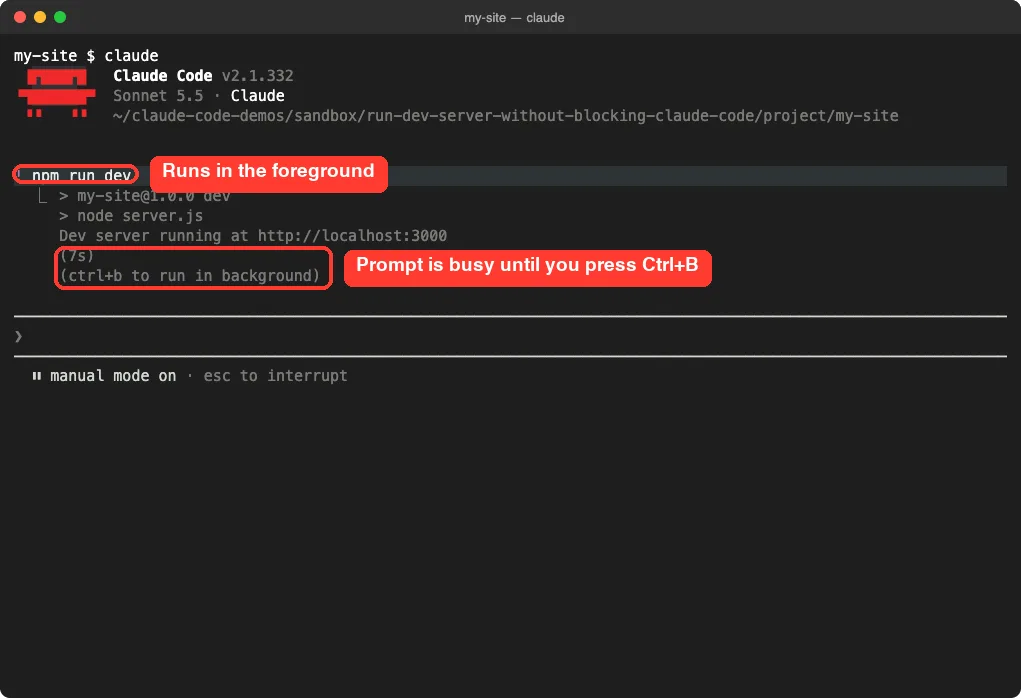
We typed ! npm run dev. The server printed “Dev server running at http://localhost:3000”, and Claude Code showed a running timer with the hint (ctrl+b to run in background).
Until we acted, the session was tied up by that one command.
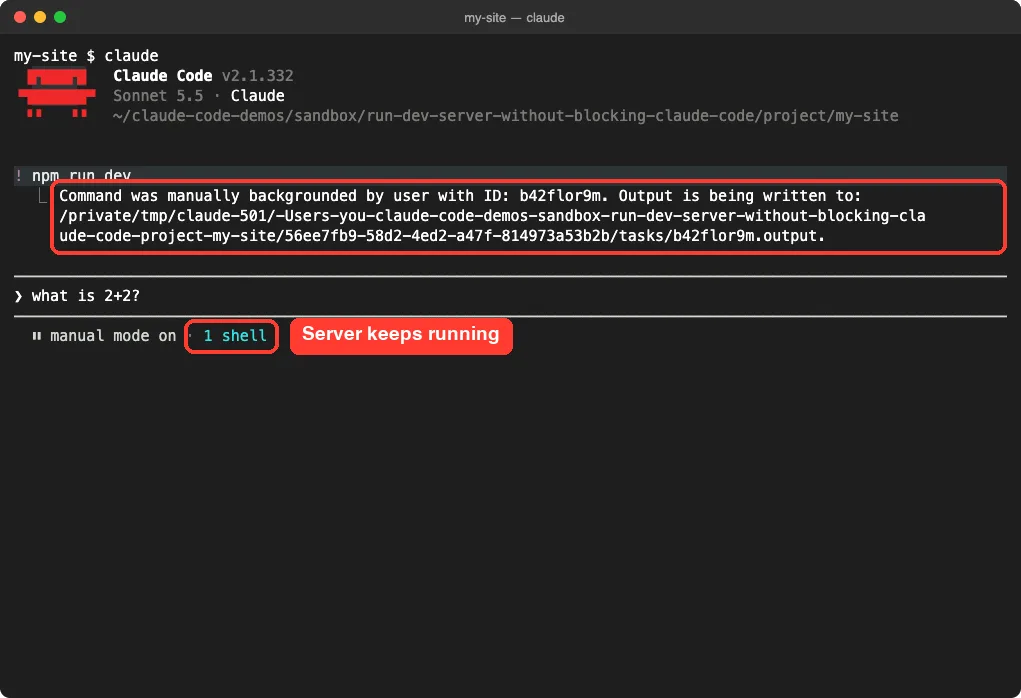
We pressed Ctrl+B. The output was replaced with “Command was manually backgrounded by user with ID: b42flor9m”, plus the path of the file where the server’s output is being written. The footer changed to 1 shell, which tells you a background task is alive.
Check that Claude can still work
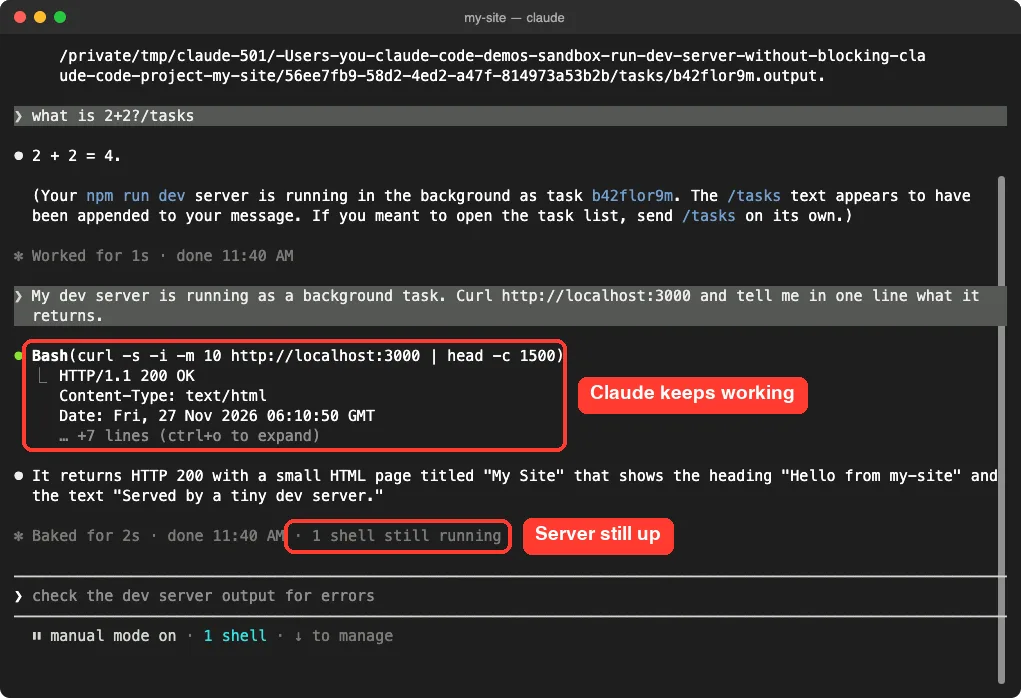
Next we asked Claude to curl http://localhost:3000 and describe what came back. It ran the request, got HTTP/1.1 200 OK and summarized the page, all while the status line still read “1 shell still running”. That is the whole point: the server stays up and the session stays free.
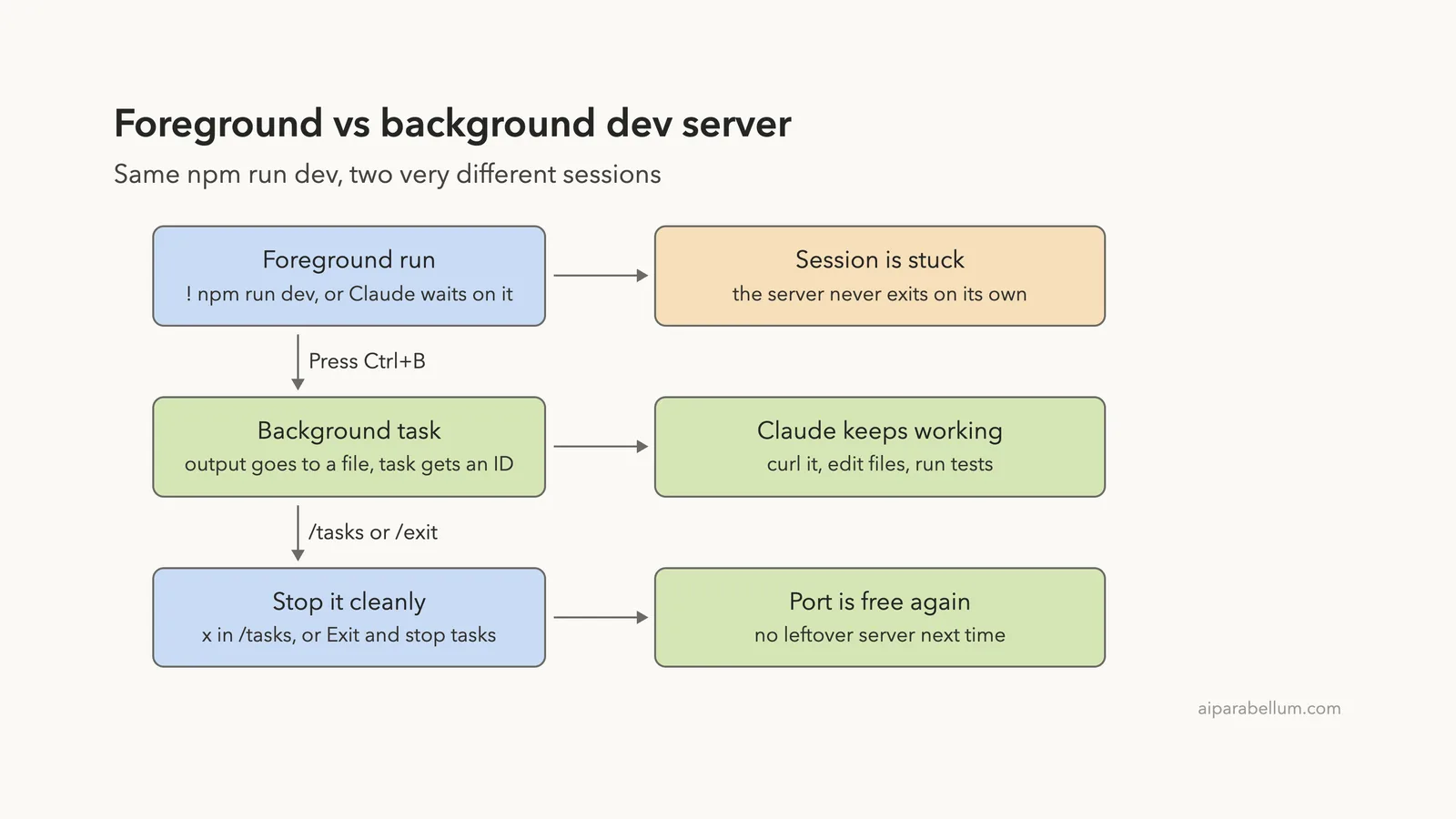
Foreground vs Background at a Glance
Here is the whole lifecycle in one picture. The left column is what you do; the right column is what you get.
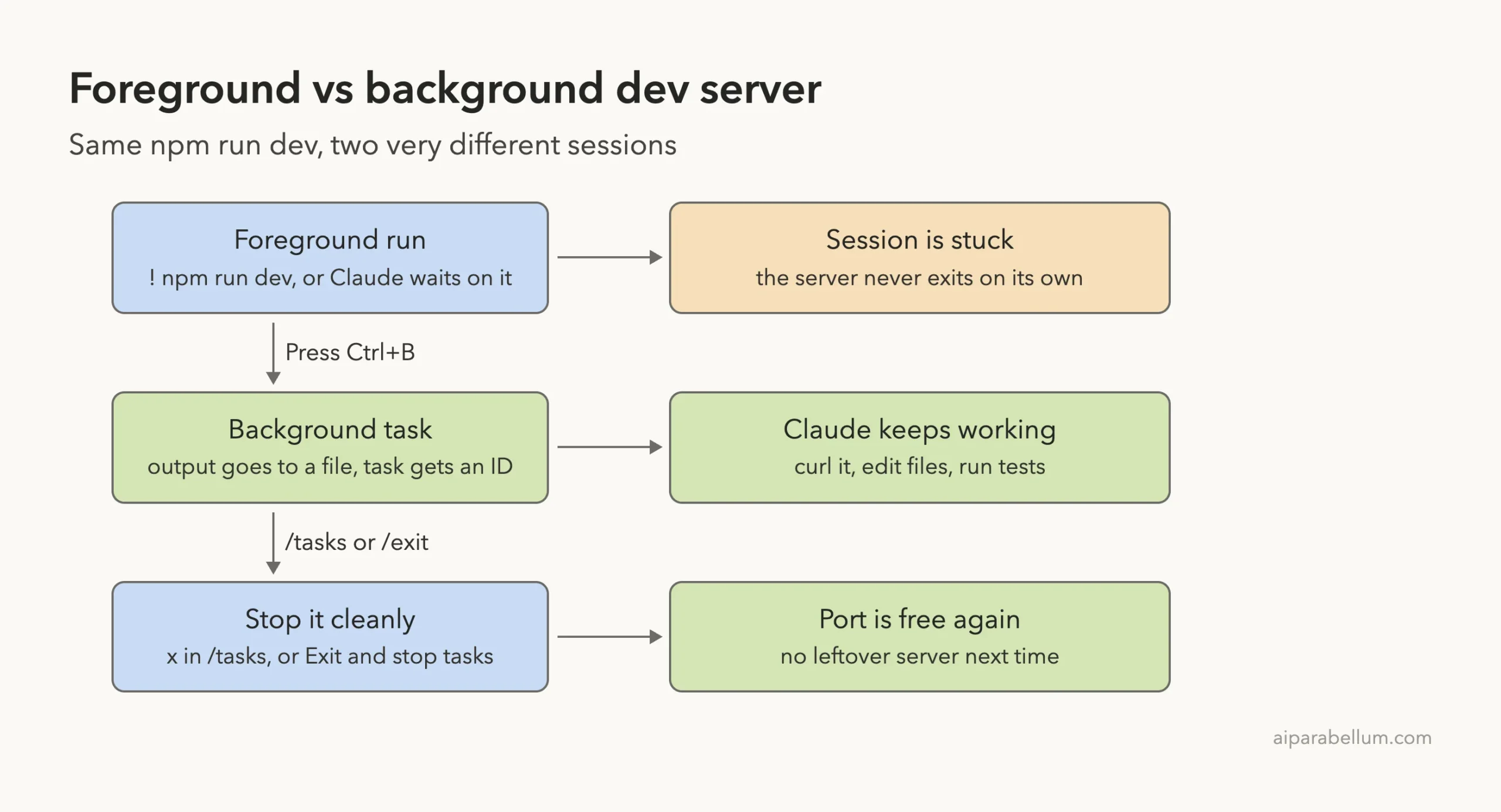
Managing the Server With /tasks
Type /tasks to see every background task. Selecting our server opened a detail view with its status (“running”), how long it had run (1m 6s), the command (npm run dev) and the latest output, including one GET / line for each request it had served.
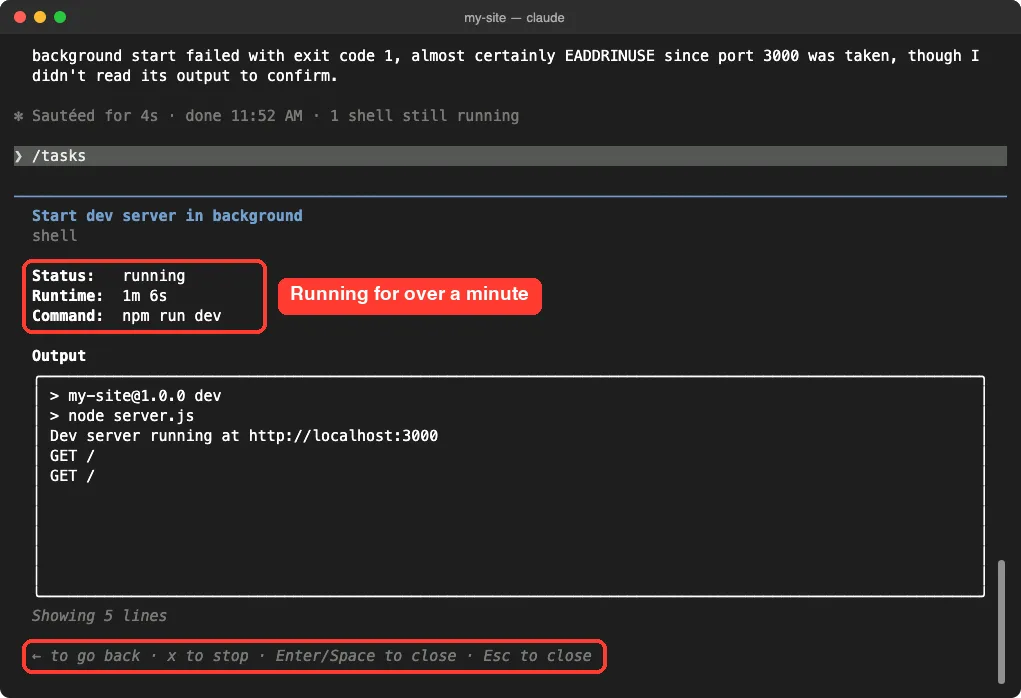
The footer of that view lists the keys: x to stop, the left arrow to go back, and Enter, Space or Esc to close. Stopping a server here is the cleanest way to free its port mid-session. Our guide on stopping background tasks covers that screen in more detail.
Fix “Port Already in Use” (EADDRINUSE)
The second half of the problem shows up the next time you start the server. To reproduce it, we left a copy of server.js running in a normal terminal, the way you might after closing a tab or forgetting an old session. Then we ran npm run dev again.
Node crashed at once with Error: listen EADDRINUSE: address already in use :::3000. The error object at the bottom spells it out: code: 'EADDRINUSE', errno: -48 and port: 3000. Only one process can listen on a port at a time, and the old copy got there first.
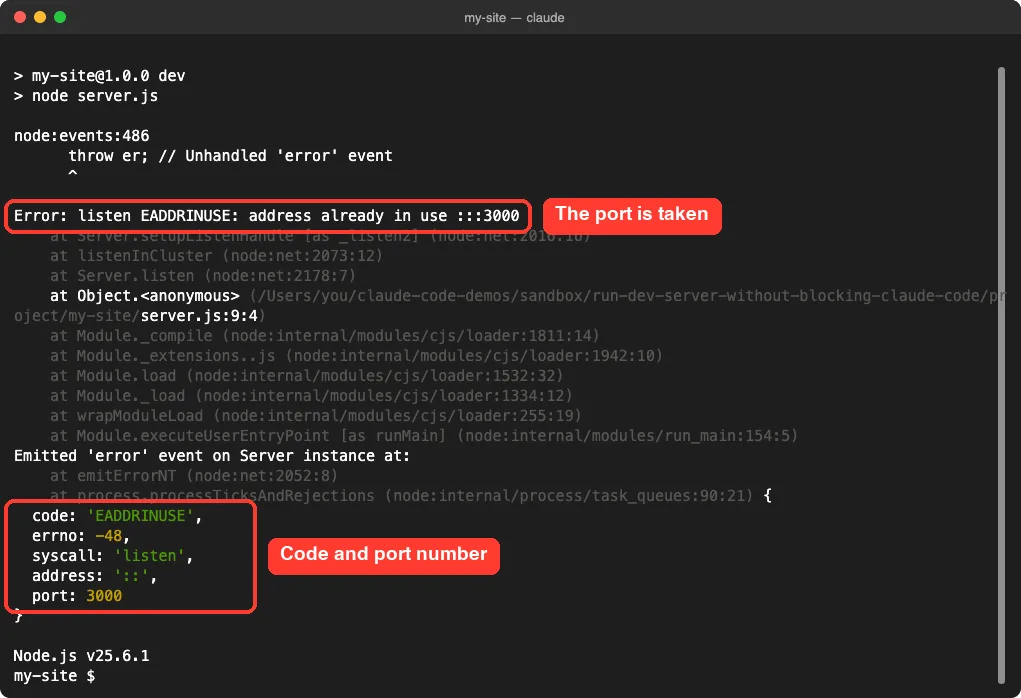
Other tools word it differently. Python’s built-in server, for example, reports “Address already in use”. The cause and the fixes below are the same.
Common causes
- A leftover copy of your server from another terminal tab or an earlier session
- Claude, or you, started the same server twice in one session
- A session that you moved to the background, which keeps its tasks running
- A different app that happens to use the same port
Fix 1: Find what is using the port
We ran the same npm run dev inside Claude Code with shell mode. Claude read the crash and, without being asked, checked the port with lsof and then looked up the process with ps. It found PID 86462, node server.js, running from our my-site folder.
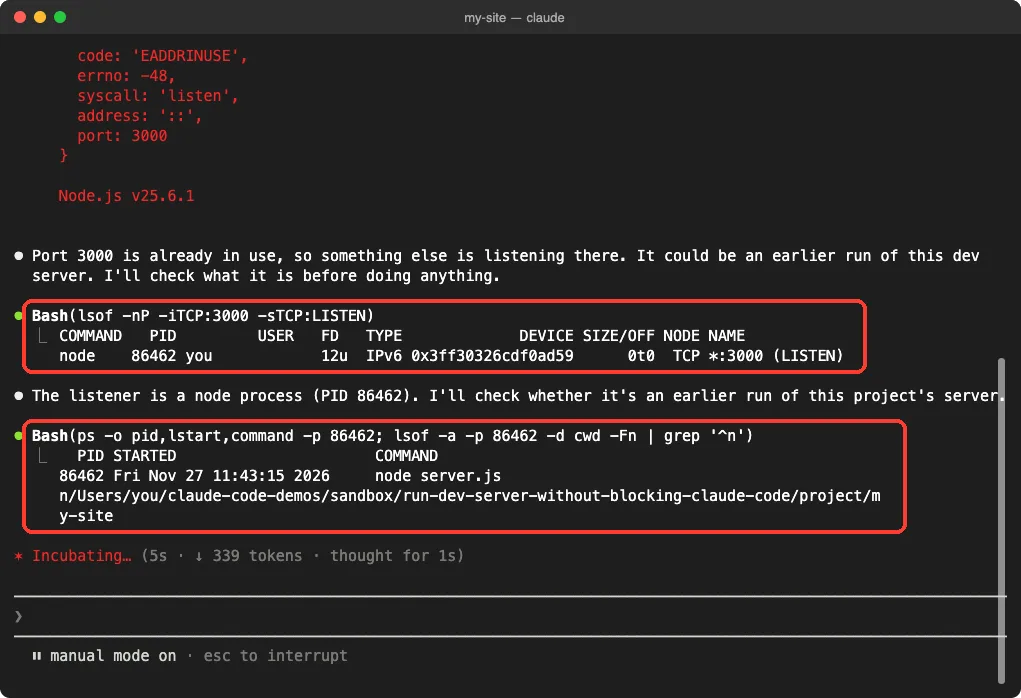
You can run the same two commands yourself, in a normal terminal or after ! in Claude Code:
lsof -nP -iTCP:3000 -sTCP:LISTEN
ps -o pid,command -p 86462
The first shows the process listening on port 3000 and its PID. The second shows the full command line, so you can tell your own dev server apart from something you should leave alone. Replace 3000 and the PID with your own values.
These commands work on macOS and Linux; Windows has its own tools for this. We tested on macOS; the Windows and Linux steps follow Anthropic’s official instructions.
Fix 2: Stop the leftover server
Once you know the process is your own old server, stop just that PID. We ran kill 86462 and checked the port again, which printed “port 3000 is free”. Claude then started the server again as a background task, as it had offered to.
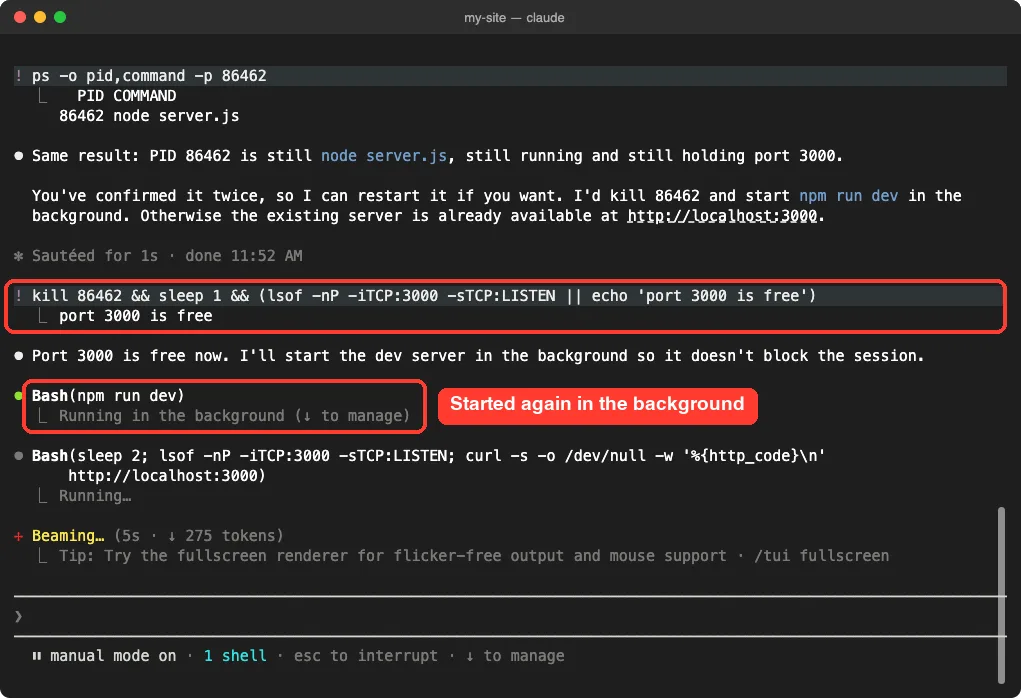
Kill one PID that you have checked, not every process with a matching name. A careless kill can close another app’s server or a database you need.
Notice that Claude did not kill anything on its own. In our session it found the process, explained what it was, and waited for us to confirm before stopping it.
Fix 3: Don’t start a second copy
Right after that restart, we sent our prompt asking Claude to start npm run dev in the background again. The new task failed: “Background command ‘Start dev server in background’ failed with exit code 1”. The curl still worked, because it reached the copy Claude had started a minute earlier.
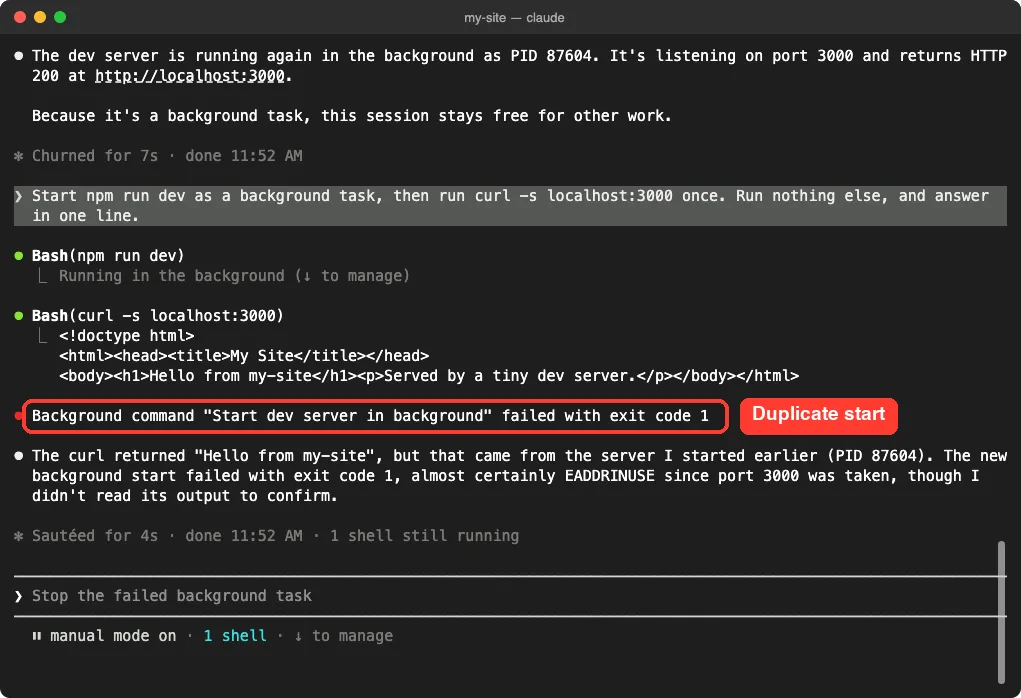
This is the most common way to hit EADDRINUSE inside one session. Check /tasks or the 1 shell footer before asking for a new server. If one is already running, reuse it, or stop it first if you need a fresh start after changing settings.
Fix 4: Use a different port
If the port belongs to an app you want to keep, move your server instead. Most dev servers accept a port setting; our demo reads the PORT environment variable, so this works:
PORT=3001 npm run devCheck your framework’s docs for its own flag or setting. Then tell Claude the new address so its tests and curl calls hit the right port.
Prevent Leftover Servers: Exit Cleanly
The best fix is not leaving servers behind. According to the interactive mode docs, background tasks are cleaned up automatically when Claude Code exits, and on macOS and Linux that includes processes that detached from the task’s shell.
We tested this. With the server running in the background, we typed /exit. Claude Code showed “Background work is running” and listed the server under “The following will stop when you exit”, with three choices: Exit and stop tasks, Move to background and exit, or Stay.
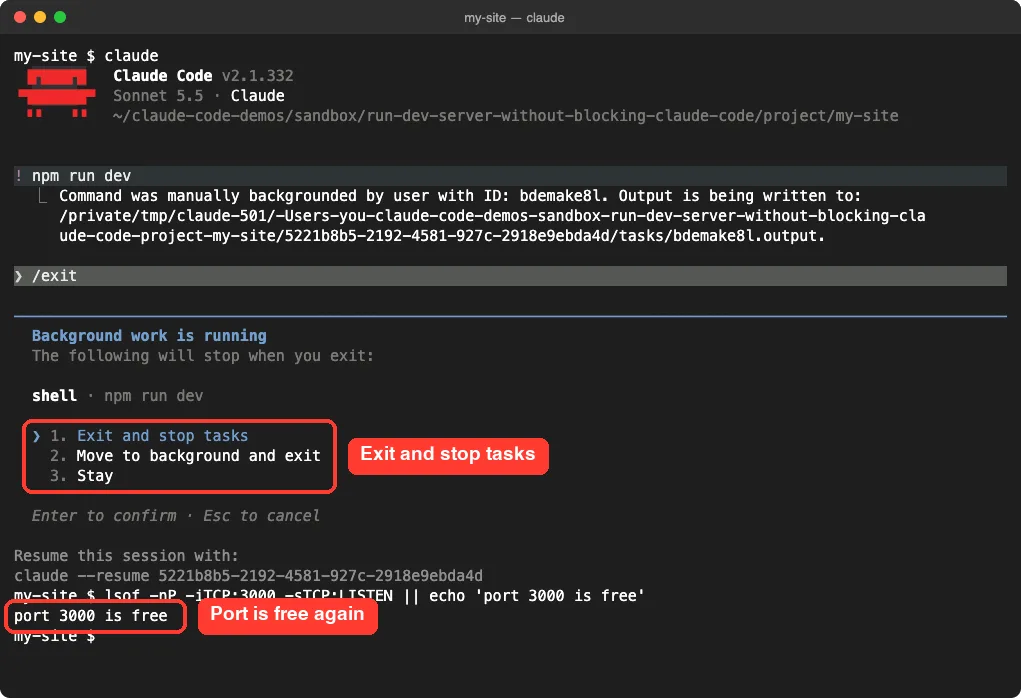
We chose “Exit and stop tasks”, then ran lsof in the plain terminal. It printed “port 3000 is free”. The second choice is different: per the docs, a session moved to the background keeps its background tasks running, so the server stays up and the port stays taken.
| Exit choice | What happens to the server |
|---|---|
| Exit and stop tasks | Stopped; the port is free (tested) |
| Move to background and exit | Keeps running in the background session (per the docs) |
| Stay | Nothing changes; you return to the session |
Local sessions vs unattended runs
In a local session you work in from a terminal, the desktop app or the VS Code extension, background commands have no time limit. In unattended runs such as claude -p, CI jobs or cloud sessions, the docs say background commands stop at a time limit, 30 minutes by default. Our guide on the Bash timeout explains those limits and how to raise them.
Real Examples You Can Reuse
These are the prompts that worked best in our sessions. Each keeps the server in the background and asks for a short answer.
- “Start the dev server with npm run dev in the background, then curl localhost:3000 once.”
- “Is a dev server already running in this session? If so, use it instead of starting a new one.”
- “Use lsof to find what is listening on port 3000 and show its full command line with ps. Don’t kill anything yet.”
- “Read the dev server’s output and tell me if there are any errors.”
The last one works because the output file is always there. Claude can read it whenever you ask, without restarting the server.
Try It Yourself
Make a folder with a tiny server so you can practice without touching a real project. Open Claude Code in an empty folder and paste this:
Create server.js: a Node http server that serves index.html on the port
from the PORT env var (default 3000) and logs each request. Add index.html
with a heading, and a package.json with a "dev" script that runs node server.js.
Then start npm run dev in the background and curl localhost:3000 once.
Then practice the rest on your own: open /tasks and look at the output, start node server.js in a second terminal to see EADDRINUSE, find it with lsof, and finish with /exit and “Exit and stop tasks”.
Common Mistakes
- Running a server in the foreground and waiting for it to finish. It never will; press
Ctrl+B. - Asking Claude to start the server again when it is already running. Check the
1 shellfooter first. - Killing every
nodeprocess to free a port. Check the command line withpsand kill one PID. - Choosing “Move to background and exit” and then wondering why the port is still busy tomorrow.
- Pressing
Ctrl+Bonce inside tmux. You need to press it twice. - Changing the port but not telling Claude, so its tests keep hitting the old address.
Pro Tips
- Add a line to your project’s
CLAUDE.mdsuch as “The dev server runs with npm run dev on port 3000; always start it in the background.” Claude reads it every session. - Pre-approve safe commands like
Bash(npm run *)andBash(curl *)in.claude/settings.jsonso starting and testing the server doesn’t ask every time. Our permissions guide shows the format. - Keep
killoff your allow list, so Claude still asks before stopping a process. - Use shell mode for quick checks.
! lsof -nP -iTCP:3000 -sTCP:LISTENruns at once and puts the result in the conversation. - Learn the other keyboard shortcuts too;
Ctrl+Bis the one you will use most with servers.
Dev Server Cheat Sheet
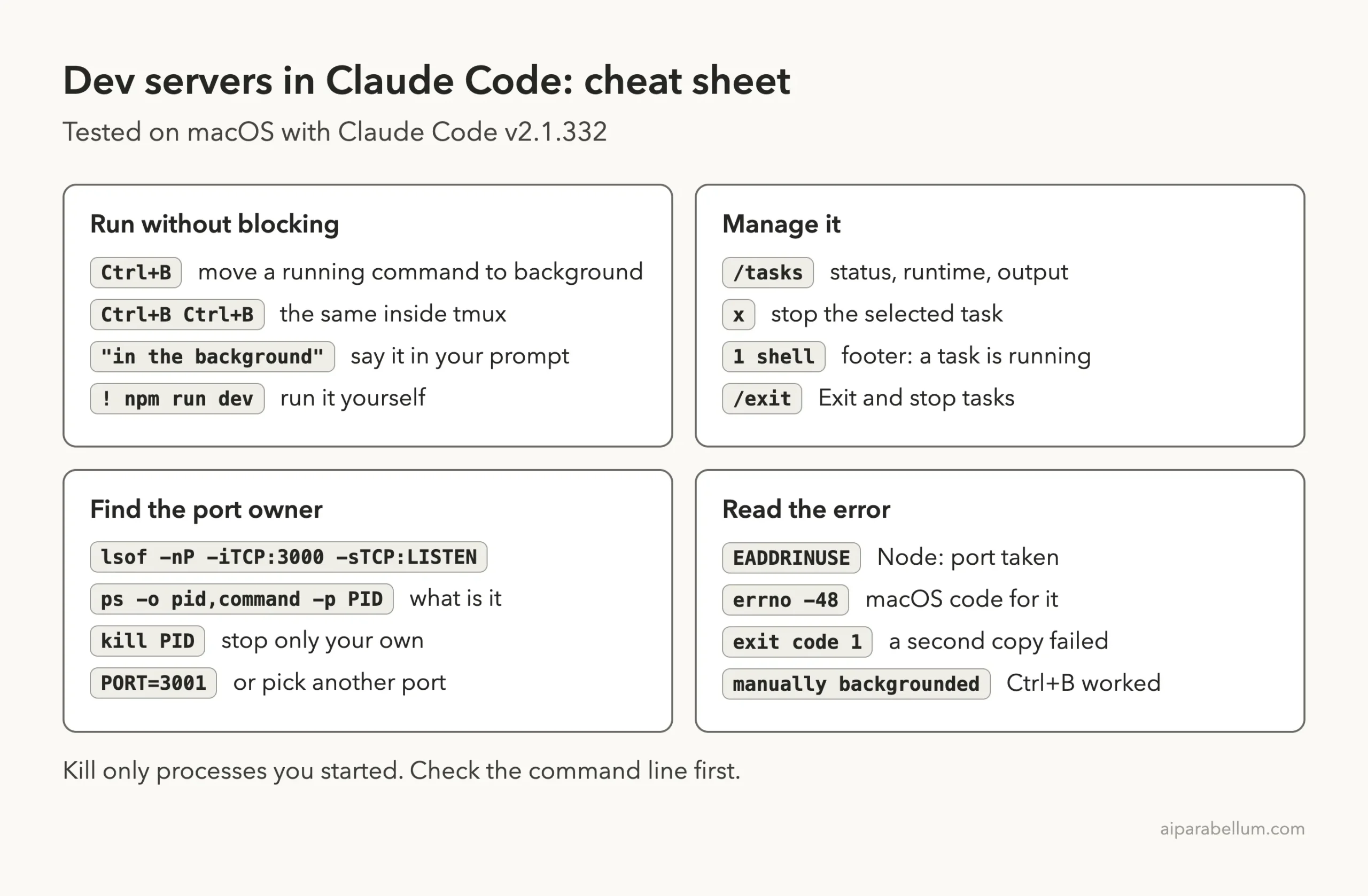
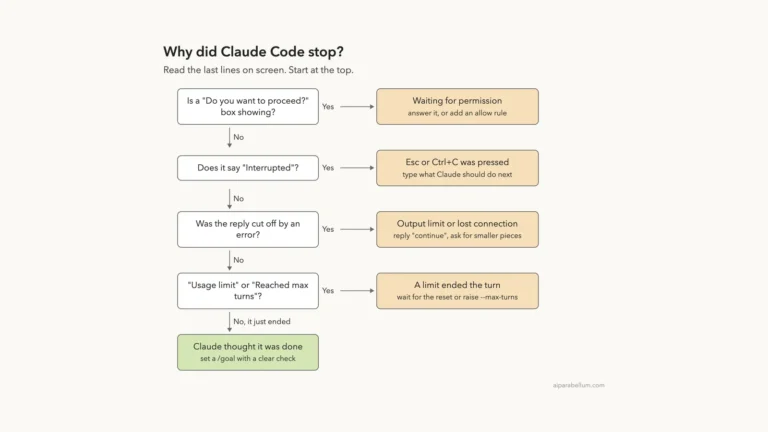
If you hit a different message along the way, our list of common Claude Code errors covers the rest, and our guide on why Claude Code keeps stopping helps when the session pauses for other reasons.
Frequently Asked Questions
How do I run a dev server in Claude Code without it hanging?
Run it as a background task. Ask Claude to start it “in the background”, or press Ctrl+B while it is running in the foreground. The server keeps going and the prompt comes back.
What does EADDRINUSE mean?
It means “address already in use”: another process is already listening on that port. In our tests it was always an older copy of the same server.
Does closing Claude Code stop my dev server?
Yes, if you choose “Exit and stop tasks” when you exit. We tested it and the port was free afterward. If you move the session to the background instead, the server keeps running.
Can Claude read my dev server’s logs?
Yes. A background task writes its output to a file, and Claude can read it with the Read tool. Just ask it to check the server output for errors.
Is there a time limit on background dev servers?
Not in a local terminal, desktop app or VS Code session. Unattended runs such as claude -p or cloud sessions stop background commands at a time limit, per the docs.
Conclusion
The way to run a dev server in Claude Code without blocking is to keep it in the background: ask for it in your prompt, or press Ctrl+B on a running command, then manage it with /tasks. When you hit “address already in use”, find the owner with lsof, confirm it is your own leftover server with ps, and stop that one PID, or move to another port. In our tests, a duplicate start was the most common cause, and choosing “Exit and stop tasks” on /exit left the port free every time. For more on the model behind it all, see our Claude AI overview.