The Playwright Claude Code plugin gives Claude a real browser it can open, click and read, so it can test your web app instead of guessing how it behaves. We loaded it in a throwaway folder, pointed it at a small coffee order page with a hidden bug, and let Claude find and fix the problem. This guide shows what the plugin is, how to set it up, what happened step by step, and where it falls short.
This guide is part of our Claude Code tutorials. Find more add-ons in our Skills Directory.
Tested with Claude Code v2.1.318 on November 5, 2026.
The plugin came from Anthropic’s public plugins repository (commit fa4eb54, dated November 3, 2026) and it started version 0.0.84 of Microsoft’s @playwright/mcp package. We loaded it with --plugin-dir and --setting-sources project, so nothing was installed into the normal Claude Code setup. Everything below is one demo on one tiny page, so treat it as one honest example and not a benchmark.
Quick Summary
| Question | Answer |
|---|---|
| What is it? | An official-marketplace plugin that adds Microsoft’s Playwright browser tools to Claude Code |
| Install command | /plugin install playwright@claude-plugins-official |
| What it adds | One MCP server with 25 tools, such as navigate, fill form, click, take a screenshot and read console messages |
| Needs | Node.js, because the plugin starts the server with npx |
| What we ran | Two short prompts: test an order form and read the wrong total, then fix the bug and re-test |
| What we did not run | Firefox, WebKit, mobile emulation, file uploads and the unsafe “Run Playwright code” tool |
What Is the Playwright Plugin for Claude Code?
Playwright is a well-known tool that controls a web browser from code. The plugin wraps a version of it that speaks MCP, the Model Context Protocol, so Claude can call browser actions the same way it calls any other tool. If MCP is new to you, our guide to MCP servers explains the idea.
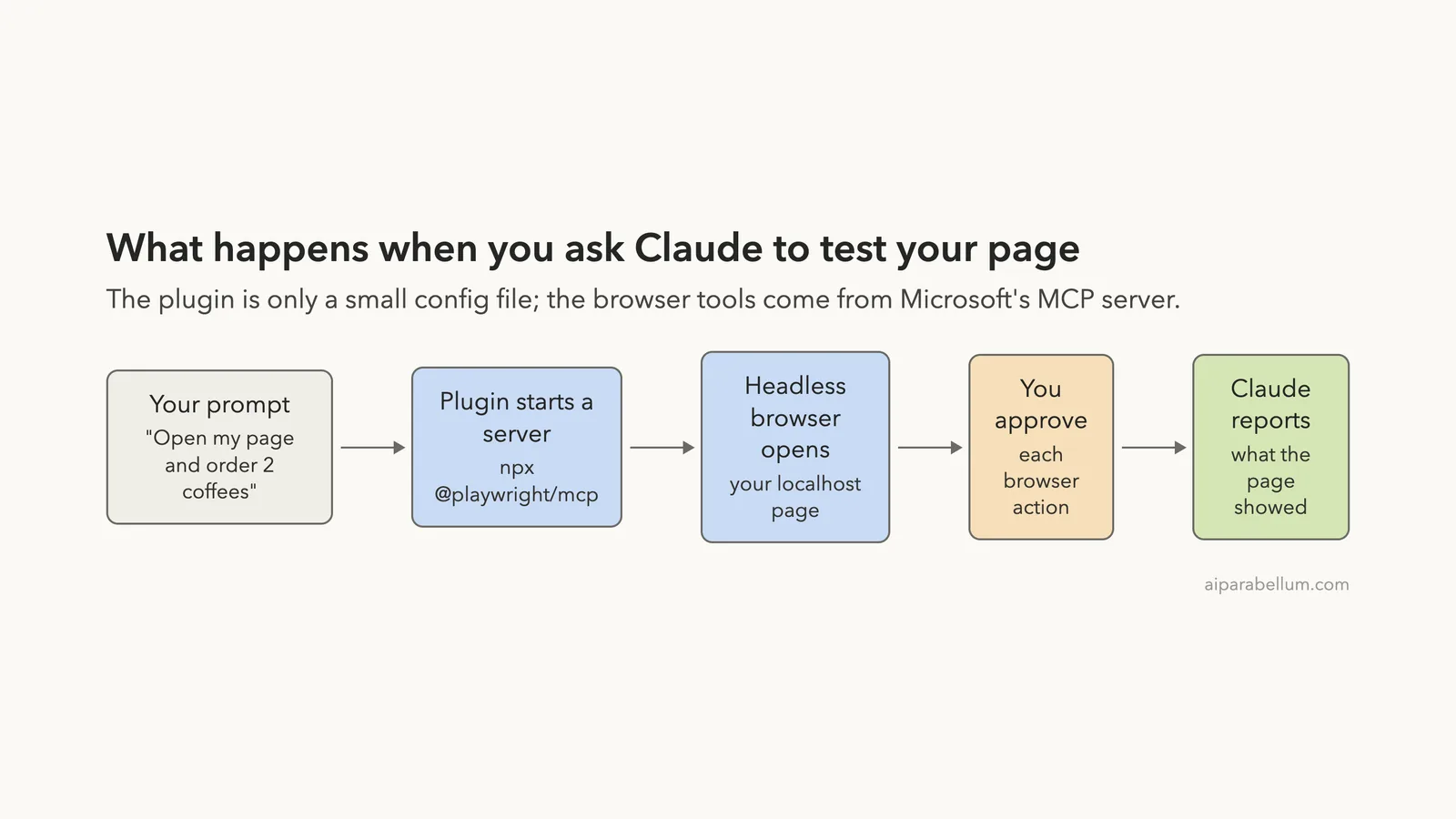
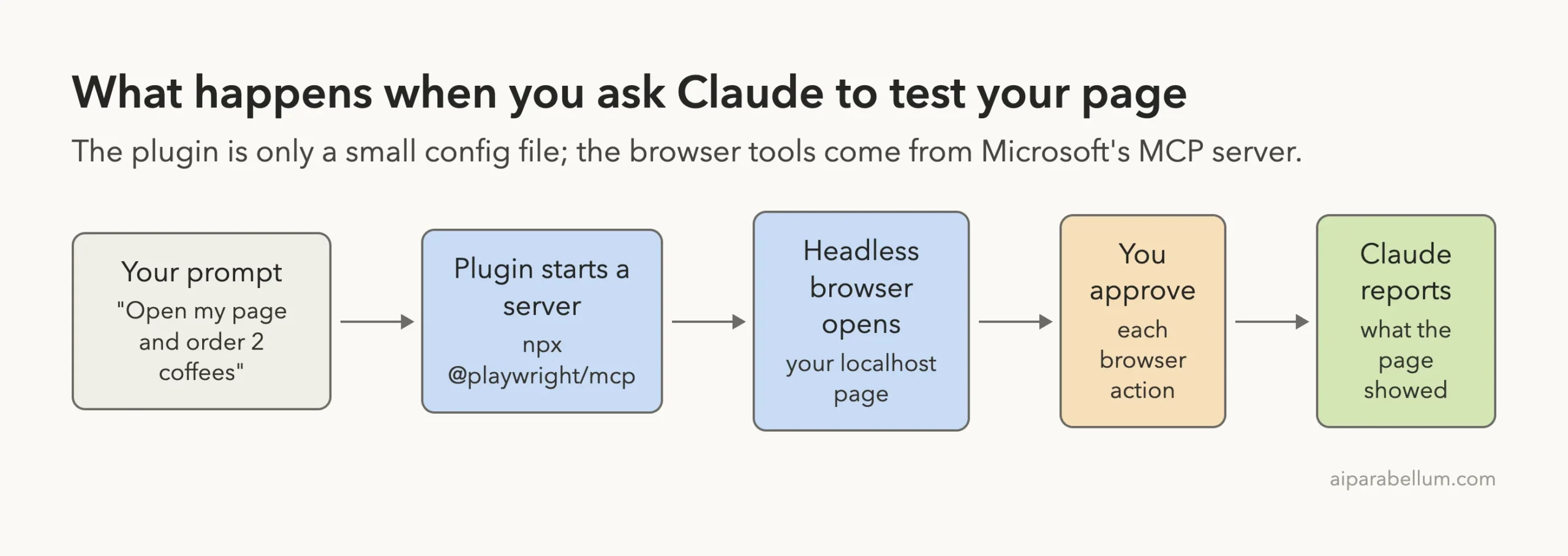
The plugin itself is tiny. Its folder holds a manifest that names Microsoft as the author and a one-file .mcp.json. That file says to run npx @playwright/mcp@latest, and that is the entire plugin.
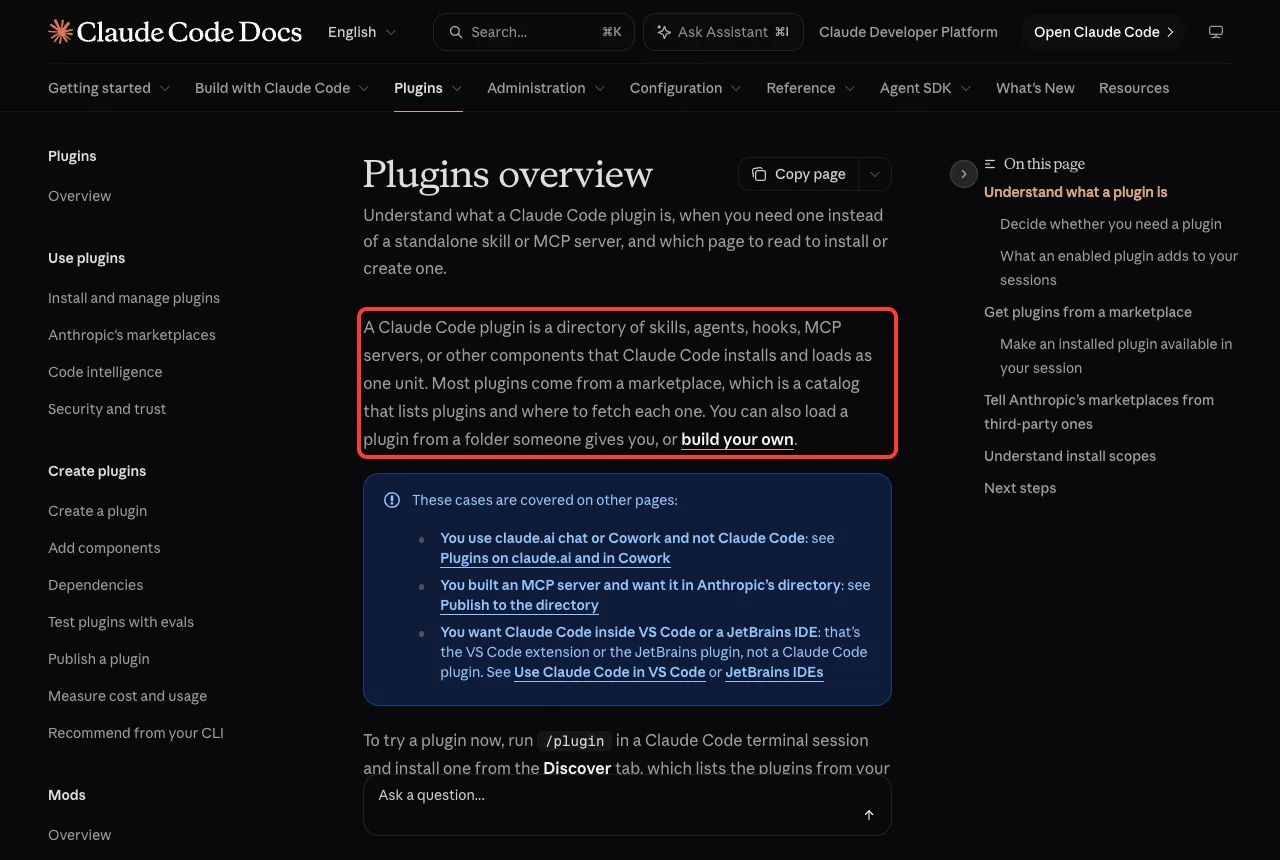
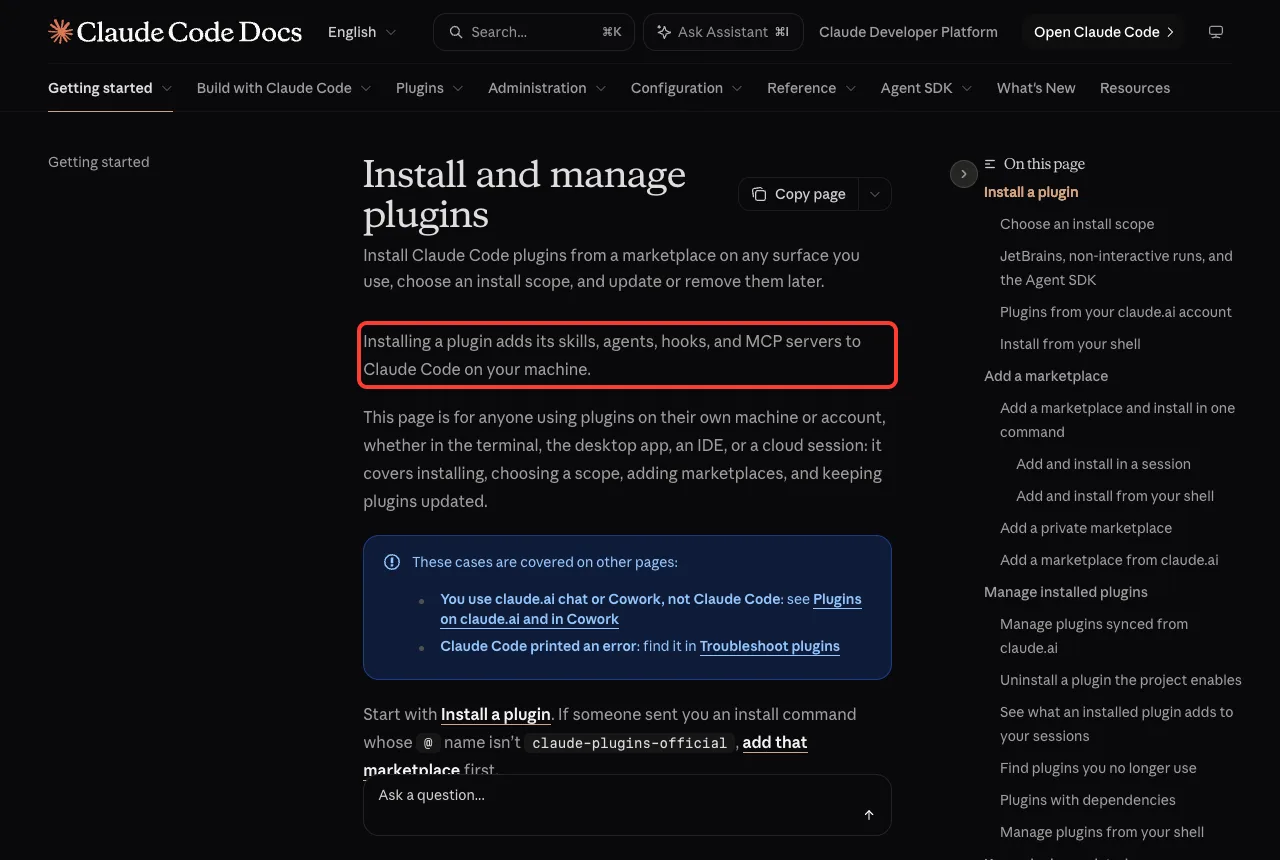
Anthropic’s docs describe a plugin as a bundle of skills, agents, hooks and MCP servers that Claude Code loads as one unit. They also say that installing a plugin adds those parts to your machine. Our skills versus plugins guide covers the differences if you want more detail.
How to Install the Playwright Plugin
Option 1: The official marketplace
The plugin is listed in Anthropic’s official marketplace as playwright. To add it to your own setup, run this inside Claude Code and follow the prompts.
/plugin install playwright@claude-plugins-officialWe did not run this command, because we did not want to change the normal setup. Our plugin install guide and the marketplace explainer cover the install screens in detail. The discover plugins page is the source for the commands.
Option 2: Try it in a throwaway folder
This is what we did. We cloned the plugins repository into a sandbox folder and started Claude Code with the plugin folder passed to --plugin-dir. The command looked like this, with the path shortened.
claude --setting-sources project --plugin-dir ./claude-plugins-public/external_plugins/playwrightThe plugin loads for that session only. When you close it, your normal setup is exactly as it was.
Two things to know before the first run
First, the server needs a browser. By default it opens a visible window, and the server’s own help text says it runs headed unless you pass --headless. The help lists chrome, firefox, webkit and msedge as browser choices.
We did not want a window popping up, and we did not want to touch the real Chrome. So we installed Playwright’s own Chromium into the sandbox and set the environment variable PLAYWRIGHT_MCP_HEADLESS=true for the session. The run worked without any visible window, and we did not need to edit the plugin.
Second, the first start needs internet, because npx downloads the package. After that, it is cached.
Check That the Plugin Is Connected
Once Claude Code was open, we typed /mcp. The list showed a line called plugin:playwright:playwright with a green check and 25 tools.
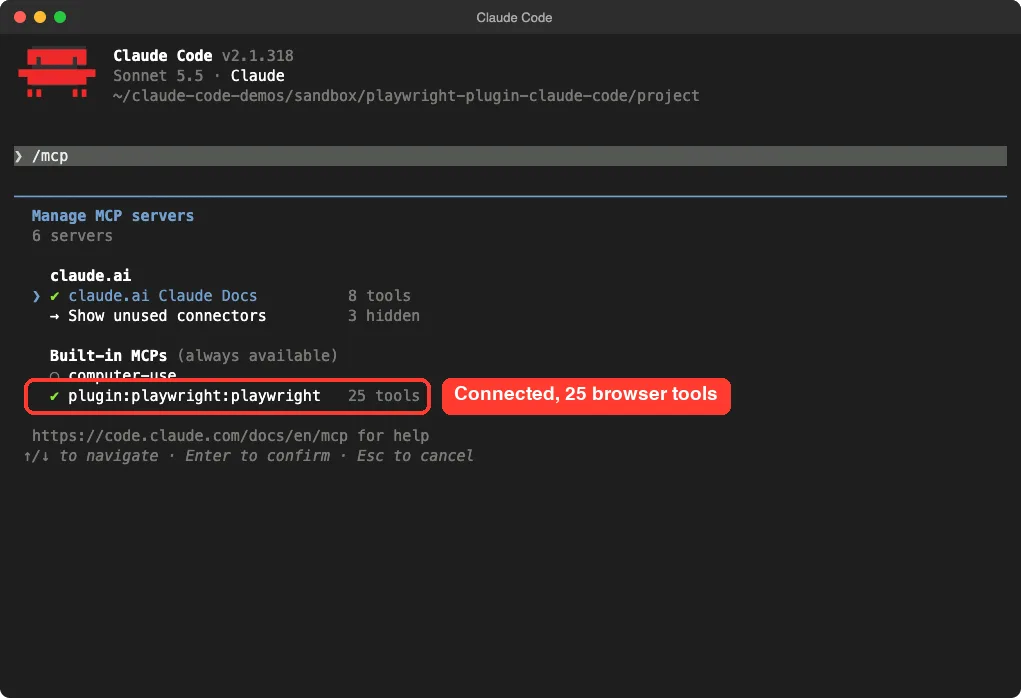
Opening that entry showed the status as connected and a “View tools” option. The tool list included 19 names on the first screen, and the screen said there were 6 more that we did not scroll to.
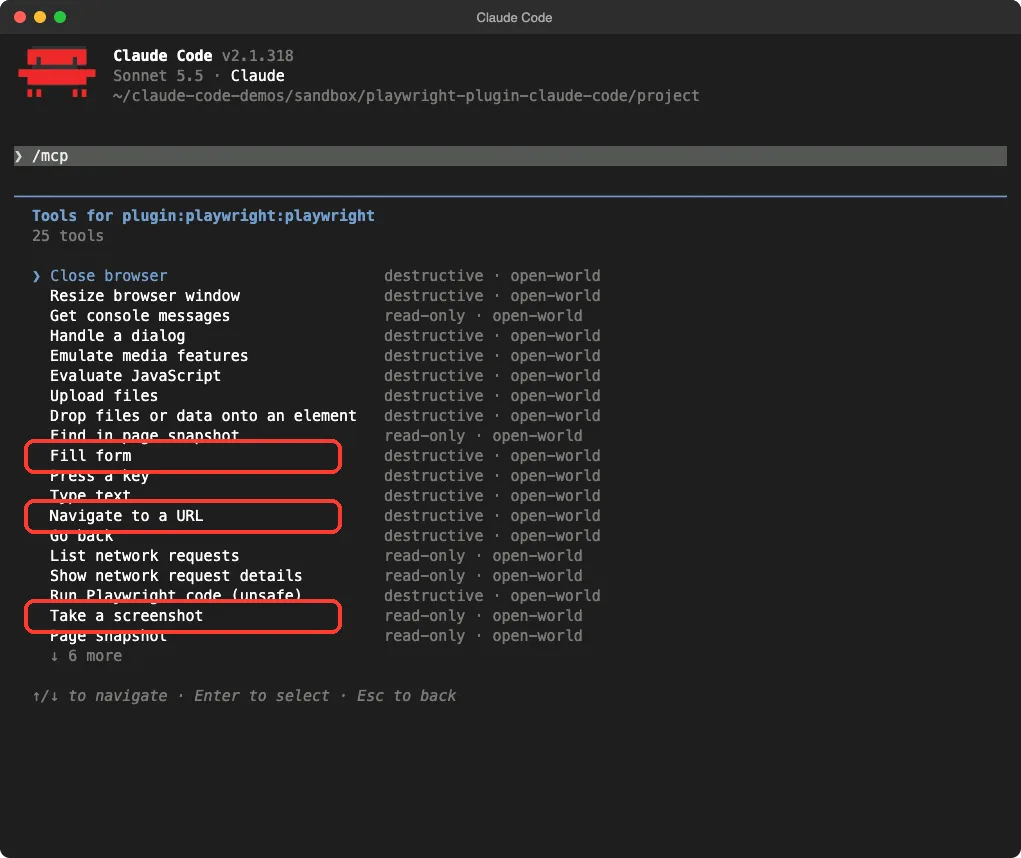
| Tool name | What it does | Marked as |
|---|---|---|
| Navigate to a URL | Opens a page | destructive, open-world |
| Fill form | Types into form fields | destructive, open-world |
| Take a screenshot | Saves an image of the page | read-only, open-world |
| Page snapshot | Reads the page as text | read-only, open-world |
| Get console messages | Lists console logs and errors | read-only, open-world |
| List network requests | Shows requests the page made | read-only, open-world |
| Run Playwright code (unsafe) | Runs code you or Claude write | destructive, open-world |
Notice the words open-world next to every tool. That label means the tools can reach beyond your own machine, which matters for safety, and we come back to it later.
The Test: Find a Bug With the Browser
The demo page
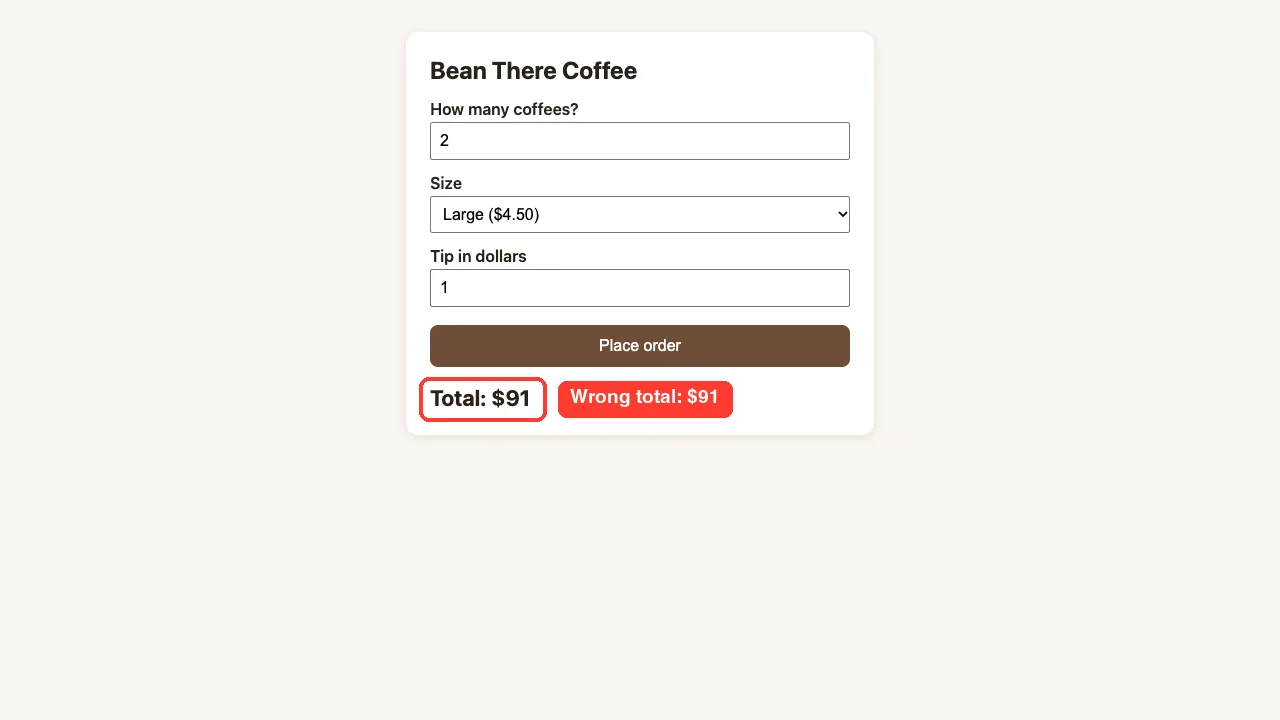
We wrote a tiny page for a made-up shop called Bean There Coffee. It has a quantity box, a size menu, a tip box and a Place order button. Two files make it up: index.html and app.js.
We planted one bug on purpose. The script reads the tip box as text and then adds it to a number, so the page joins the two instead of adding them.
var tip = document.getElementById('tip').value;
var total = qty * price + tip;
Prompt 1: test the order
We served the folder on a local address and sent this prompt to Claude.
Use the Playwright browser tools to open http://localhost:8765, order 2 large coffees with a 1 dollar tip, and tell me the exact total the page shows. Save a screenshot as order-before.png.Claude stopped before every browser action and asked for permission. The first one was “Navigate to a URL” with the address we gave it, and the choices were Yes or No. We chose Yes each time.
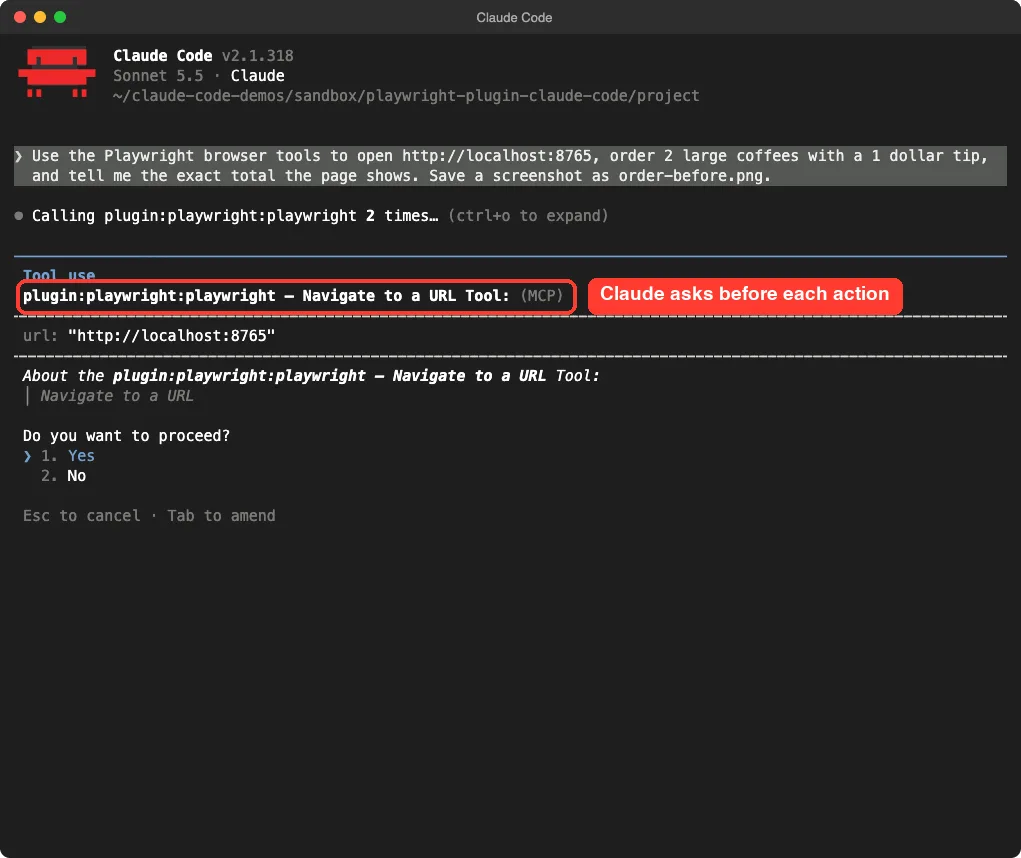
The whole round took 13 seconds of work after the approvals. Claude called the browser tools six times, then reported what it saw.
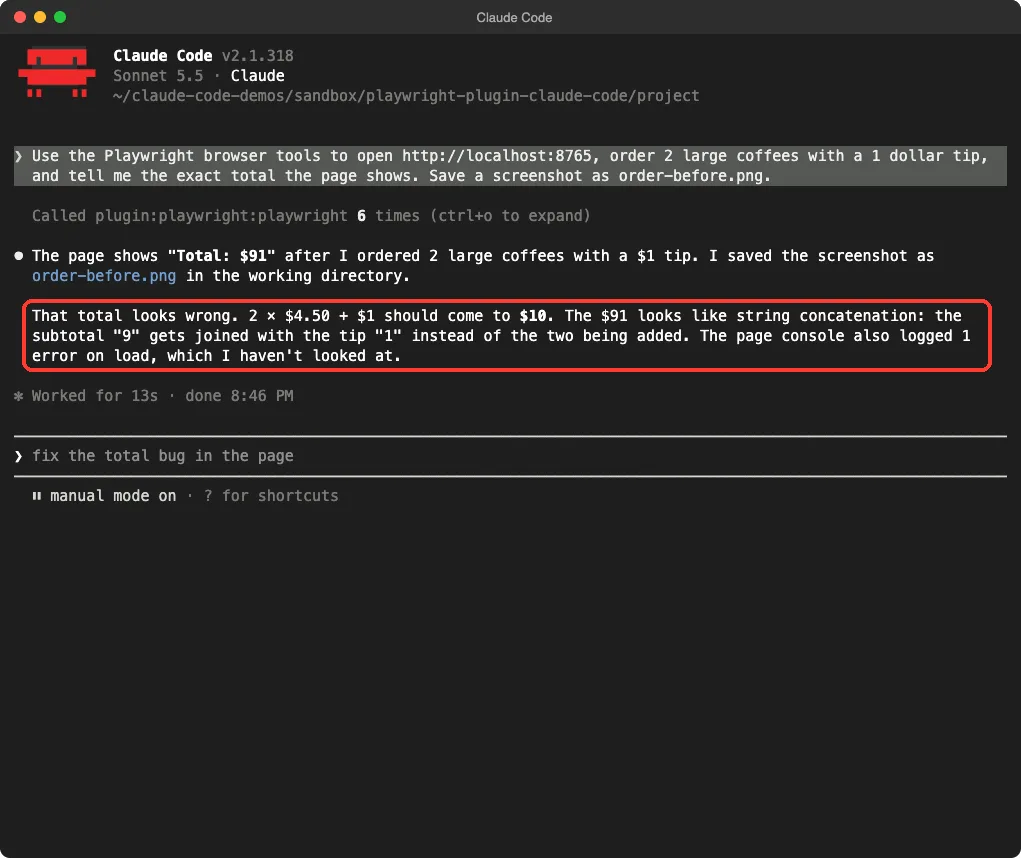
Claude answered that the page showed a total of $91. It also said that 2 times $4.50 plus $1 should come to $10. It guessed correctly that the subtotal 9 had been joined with the tip 1 as text.
The screenshot that the plugin saved shows the same thing. This is a real image of the page in the headless browser, not a mock-up.
The Fix: Let Claude Repair and Re-Test
Prompt 2: fix and prove it
In a fresh session we sent a second prompt. We asked Claude to fix the bug in app.js, re-test the same order, check the console and save a new screenshot.
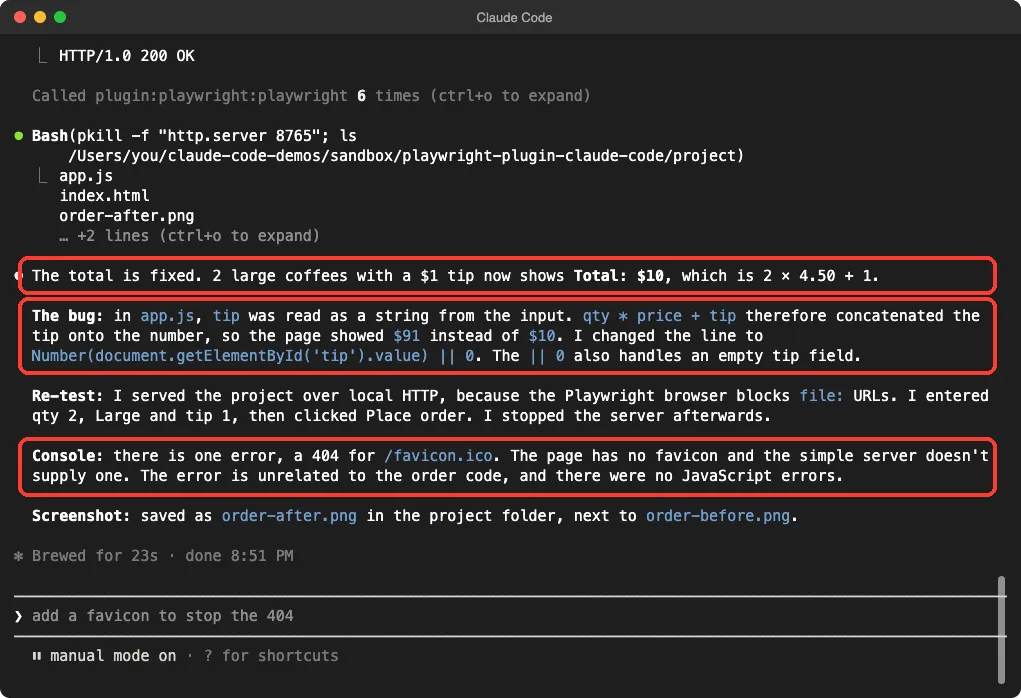
The order total on the page is wrong when a tip is added. Fix it in app.js, then use the Playwright browser tools to re-test the same order (2 large coffees, 1 dollar tip), check the browser console for errors, and save a screenshot as order-after.png.Claude read the file and proposed a one-line change. It wrapped the tip in Number() and added || 0 so an empty tip box counts as zero. We approved the edit.
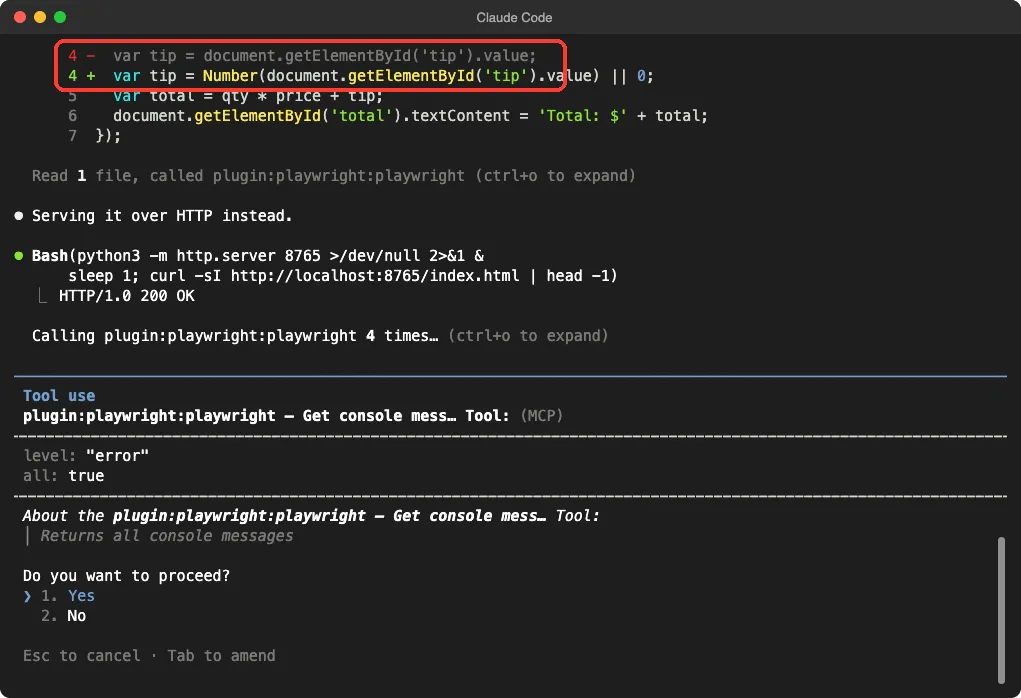
Something useful happened next. Claude noticed that the Playwright browser would not open a local file path, so it started a small web server on its own and asked us to approve that command. That matches the server’s help text, which says navigation to file:// pages is blocked unless you pass a special flag.
After the server was up, Claude entered the same order, clicked the button and read the console. It then stopped the server it had started, so nothing was left running.
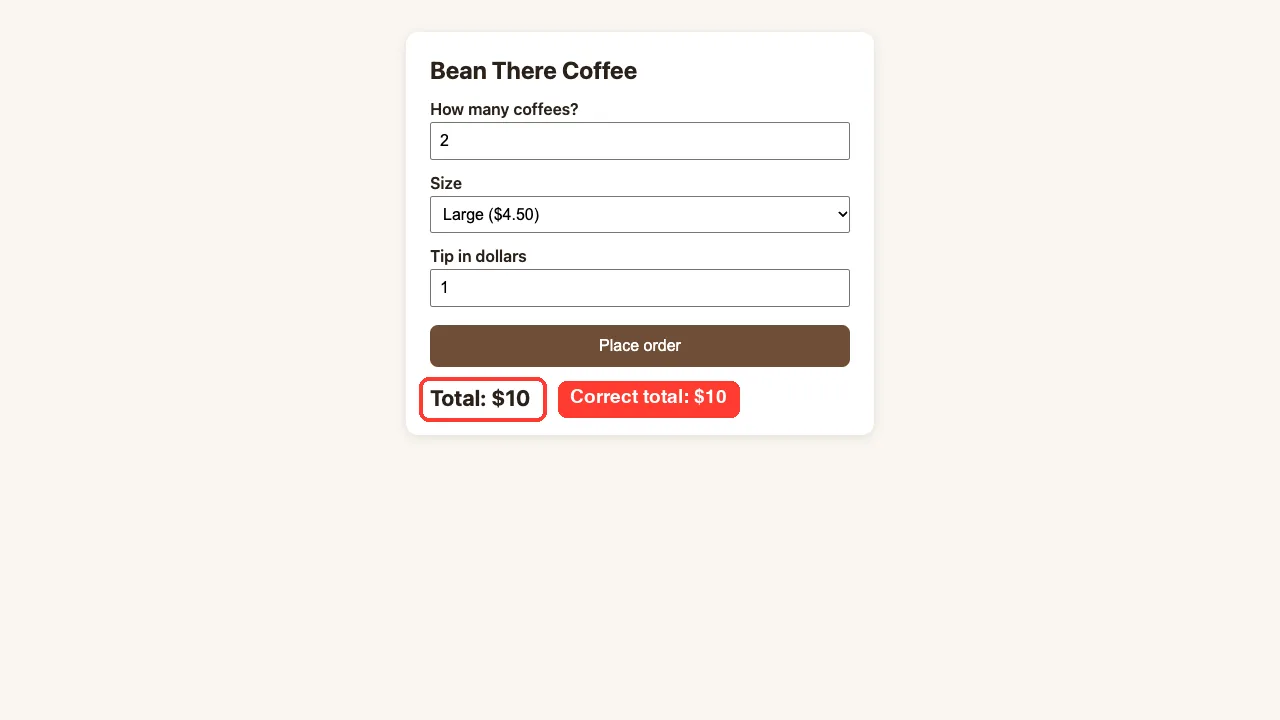
The new screenshot shows a total of $10, which is the right answer for 2 large coffees and a $1 tip.
What the console check found
Claude reported one console error, a 404 for /favicon.ico. It said the page had no icon and the simple server did not supply one, and that there were no JavaScript errors. That is an honest and correct reading, because we never gave the page an icon.
This is a good example of why the console tool is handy. A real browser surfaces small problems that a code review would not.
What We Liked and What We Did Not
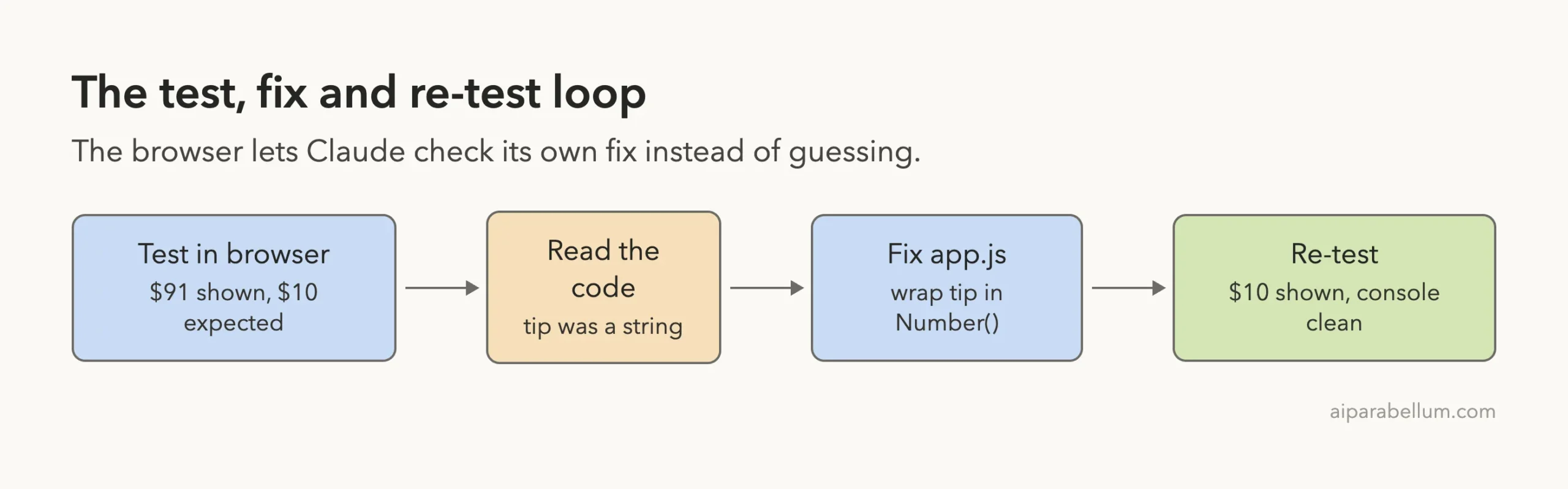
The browser lets Claude check its own fix instead of guessing.
The best part was the proof. Claude did not just say the fix should work.
It opened the page, entered the order and showed the new total. For anyone who has asked an AI to fix a front-end bug and then found it still broken, this is the useful difference.
The permission prompts are a mixed blessing. They keep you safe, but a single test needed about nine approvals across the two prompts. You can reduce the clicks with your permission settings, though we kept the defaults.
| What worked | What to watch |
|---|---|
| Claude saw the real page and read the exact wrong total | Many approval prompts in default mode |
| Fix and re-test happened in one conversation | The browser blocks file:// pages, so you need a local server |
| Console errors were checked without extra effort | Headed by default, so a window opens unless you ask for headless |
| Plugin is a single small file, easy to read | It uses @latest, so the server version can change under you |
Safety Notes Before You Install
This plugin downloads and runs a package with npx every time it starts. That package is published by Microsoft, but you are still running code from the internet, so read the plugin folder first. Anthropic’s docs have a section on plugin security and trust that is worth a read, and the discover plugins page linked above is the place to find it.
The tools are marked open-world, so a browser that Claude controls can visit any site your network allows. The server has options to limit which sites it may contact, but its own help says these are not a security boundary. Treat the browser as untrusted when you point it at sites you do not control.
The “Run Playwright code (unsafe)” tool deserves special caution. Its name says it all, so keep the approval prompt on for it. Also remember that a page Claude reads can contain text that tries to give Claude instructions, so do not point it at pages you do not trust while it holds your project open.
Try It Yourself
Here is a safe practice task. Create a folder with a small page that has a form, serve it on a local address, and ask Claude to test it. Use a copy-paste prompt like this one.
Open http://localhost:8000 with the Playwright browser tools. Fill in every field with sample data, click the submit button, and tell me exactly what the page shows. Then check the console for errors and save a screenshot as result.png.Plant a small bug first, as we did, so you can see Claude catch it. Then ask it to fix the bug and run the same test again.
Common Mistakes
- Asking Claude to open a file path. The browser blocks
file://pages by default, so serve the folder onhttp://localhostfirst. - Forgetting Node.js. The plugin starts with
npx, which needs Node.js on your machine. - Running it headed without realizing. A browser window will open unless you ask for headless mode.
- Trusting one test. One passing run on one input does not prove the page works, so try an empty field and an odd value too.
- Skipping the console check. Ask for it in your prompt, because Claude only reads the console when it is told to.
Pro Tips
- Say the exact result you expect. In our prompt, the expected $10 made the wrong $91 stand out right away.
- Ask for a screenshot with a file name, so you have proof you can open yourself.
- Pair it with a test-first habit. Our guide on test-driven development shows the same idea with unit tests.
- For written test files, see our guide to writing tests. The browser plugin checks a running page, while test files re-run on their own later.
- Read the official MCP docs if you want to manage the server’s scope or approvals.
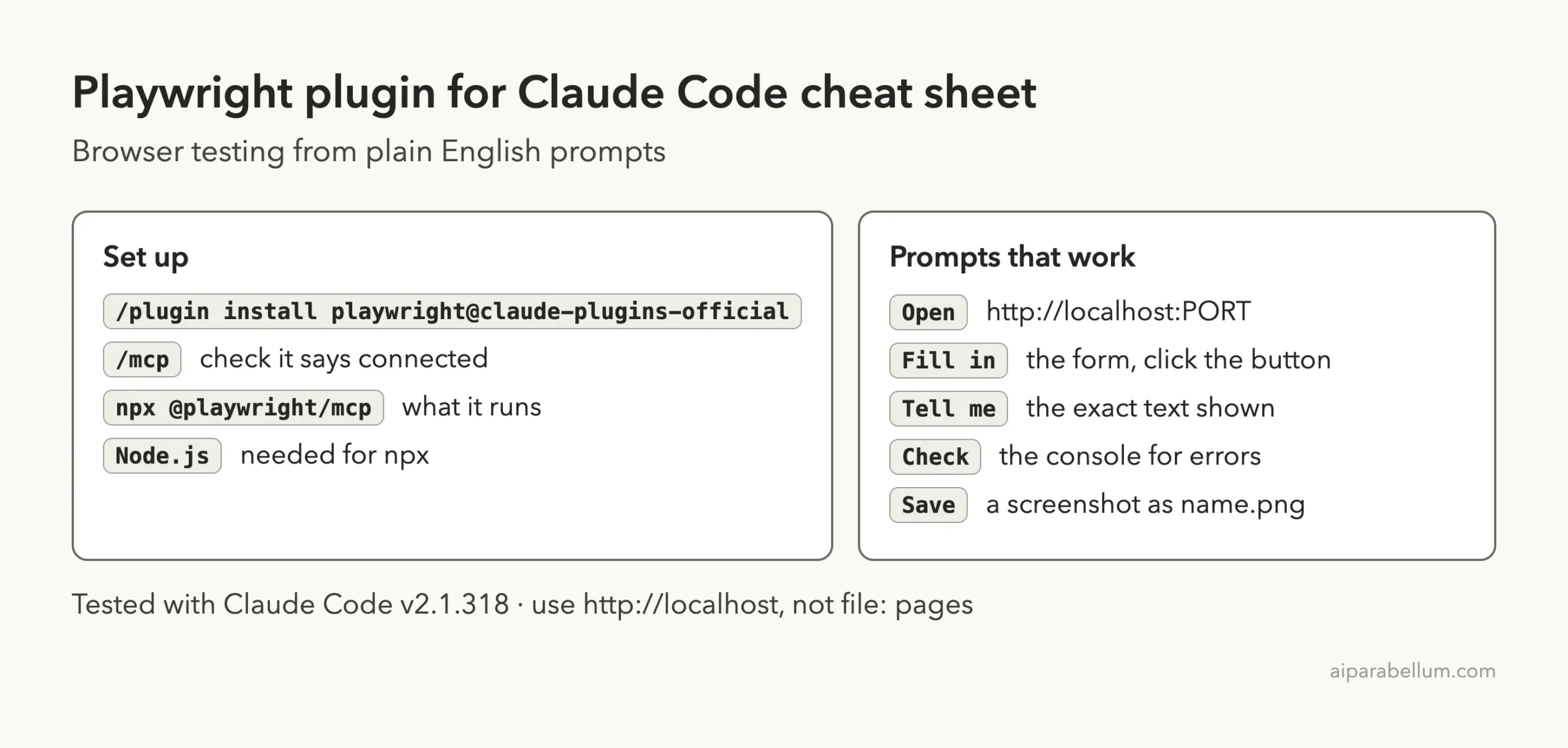
Cheat Sheet
Frequently Asked Questions
Is the Playwright plugin free?
The plugin and the Playwright server do not charge anything in our test. Claude still uses your normal Claude Code usage while it reads pages and writes fixes.
Does it need my real Chrome browser?
No. We used Playwright’s own Chromium, installed in a throwaway folder. The server can also use Chrome, Firefox, WebKit or Edge if you choose them.
Why did Claude refuse to open my local HTML file?
The server blocks file:// addresses by default. The simple fix is to serve the folder on http://localhost, which is what Claude did on its own in our test.
Can it test pages that need a login?
We did not test that. Do not type real passwords into a page Claude controls, and use a test account if you try.
Is this the same as the Webapp Testing skill?
No. This plugin gives Claude live browser tools. A skill is a set of written instructions, and our skills guide explains how those differ.
Conclusion
The Playwright plugin turns Claude Code from a tool that edits files into one that can also check the result in a real browser. In our single demo it found a wrong total, explained the cause, made a one-line fix and proved the fix with a new screenshot, all in two short prompts. Install it if you build web pages and want Claude to verify its own changes, but read the plugin first, keep the approvals on, and remember that we tested only one small page. For more tools like this, browse the Claude tool page and our full list of Claude Code tutorials.