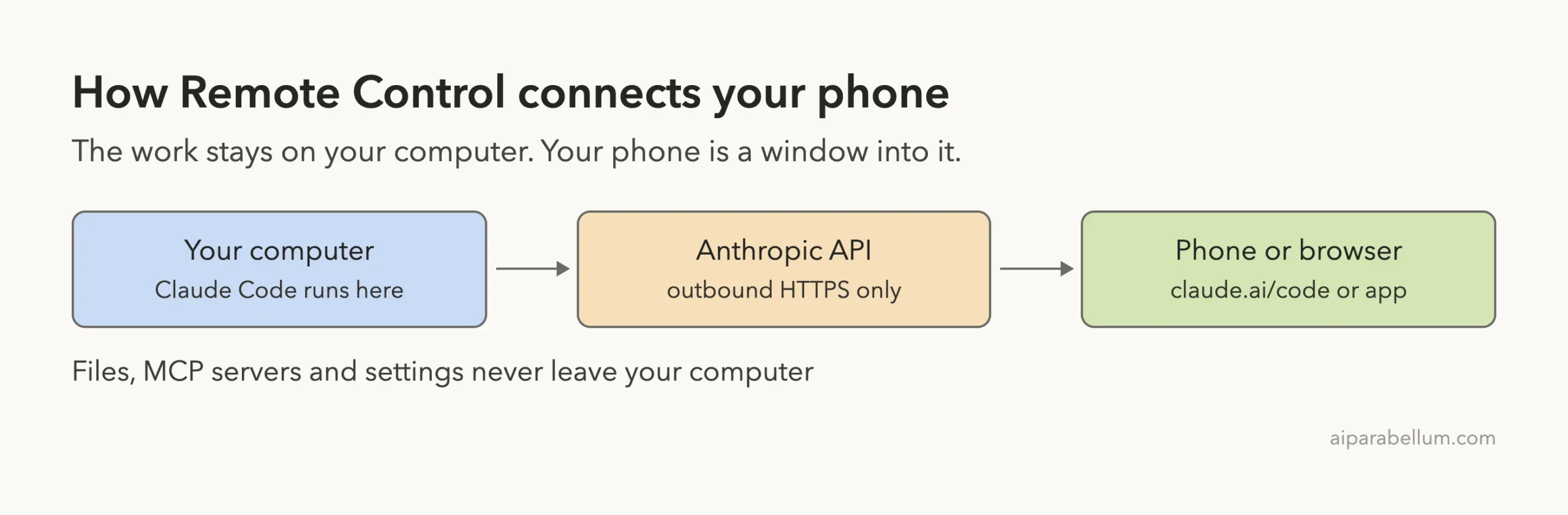
Claude Code remote control lets you start a task on your computer, walk away, and keep steering it from your phone or any browser. The session keeps running on your own machine, so your files, tools and settings stay exactly where they are. Your phone simply becomes a second screen for it.
This guide shows the three ways to turn it on, how to connect from your phone, what you can do once connected, and how to fix the most common problems. This is Part 1 of 10 in our Advanced Claude Code series, part of our Claude Code tutorials. If you are new to sessions and modes, start with our guide to permission modes first.
Tested with Claude Code v2.1.310 on October 27, 2026, on macOS. We captured the real command help from this version and used highlighted screenshots of the official docs for the rest, because starting a live session would register a real session on a personal account. We tested on macOS; the Windows and Linux steps follow Anthropic’s official instructions.
Quick Summary: Claude Code Remote Control
| Question | Short answer |
|---|---|
| What does it do? | Lets you drive a Claude Code session on your computer from claude.ai/code or the Claude mobile app |
| Where does the work run? | On your own computer, not in the cloud |
| Which plans work? | Pro, Max, Team and Enterprise. API keys are not supported |
| How do you start it? | claude remote-control, claude –remote-control, or /remote-control |
| How do you connect? | Open the session URL, scan the QR code, or pick the session in the app |
| What must stay on? | The Claude Code process on your computer |
What Remote Control Is and Why It Exists
Normally a Claude Code session lives in one terminal window. If you leave your desk, you can only wait. Remote Control fixes that by connecting the running session to claude.ai/code and the Claude mobile app.
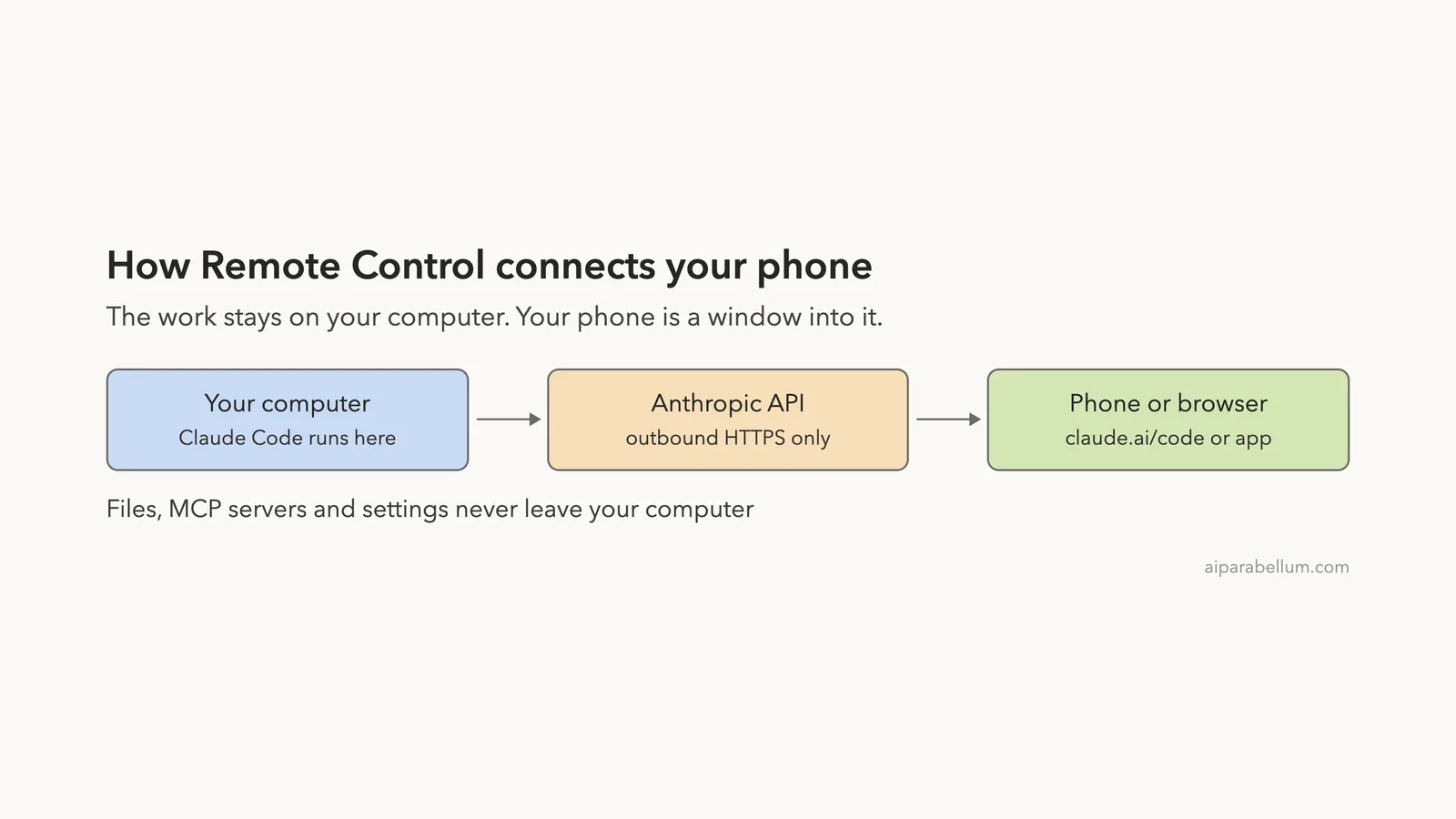
According to the official Remote Control documentation, your filesystem, MCP servers, tools and project configuration all stay available. The conversation also stays in sync across every connected device, so you can send messages from your terminal, browser and phone interchangeably.
The docs list a few other handy behaviors:
- Typing @ on a connected device still autocompletes file paths from your local project
- You can send photos and files from your phone, and Claude sees attached photos directly
- If your laptop sleeps or the network drops, Claude Code reconnects automatically when it is back online
Remote Control moves the steering wheel, not the engine. The engine stays on your computer.
Before You Start: Requirements
Remote Control needs a few things to be true. The official requirements section lists them, and the first two catch most people.
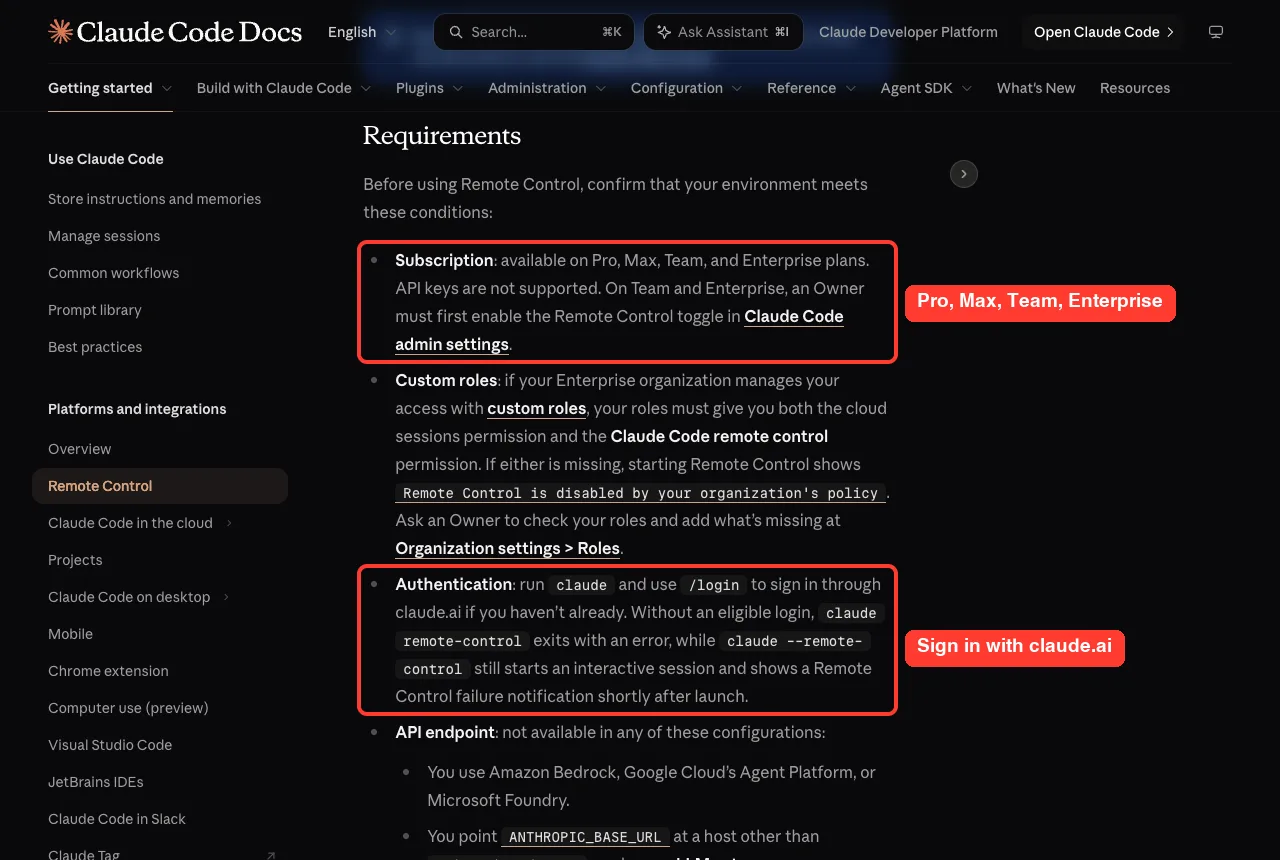
- A subscription: Pro, Max, Team or Enterprise. API keys are not supported. On Team and Enterprise, an Owner must first turn on the Remote Control toggle in admin settings.
- A claude.ai login: run claude and use /login to sign in through claude.ai.
- The Anthropic API endpoint: it does not work with Amazon Bedrock, Google Cloud’s Agent Platform or Microsoft Foundry. It also does not work if ANTHROPIC_BASE_URL points at another host.
- Feature flags on: setting CLAUDE_CODE_DISABLE_NONESSENTIAL_TRAFFIC or DISABLE_GROWTHBOOK makes Remote Control unavailable.
- A trusted folder: in a folder you have not trusted yet, claude remote-control asks Trust directory? before it starts.
If you only set DISABLE_TELEMETRY or DO_NOT_TRACK, Remote Control stays available, unless your organization requires Trusted Devices. Using it with either variable set needs Claude Code v2.1.283 or later.
Step 1: Install the Claude App on Your Phone
You do not need the app to use a browser, but the app makes this much nicer. If you do not have it yet, run /mobile inside Claude Code. It shows a QR code for claude.ai/mobile that opens the right app store for your phone.
Sign in with the same account you use for Claude Code in the terminal. You can read more about the product on our Claude AI page.
Step 2: Start Remote Control (Three Ways)
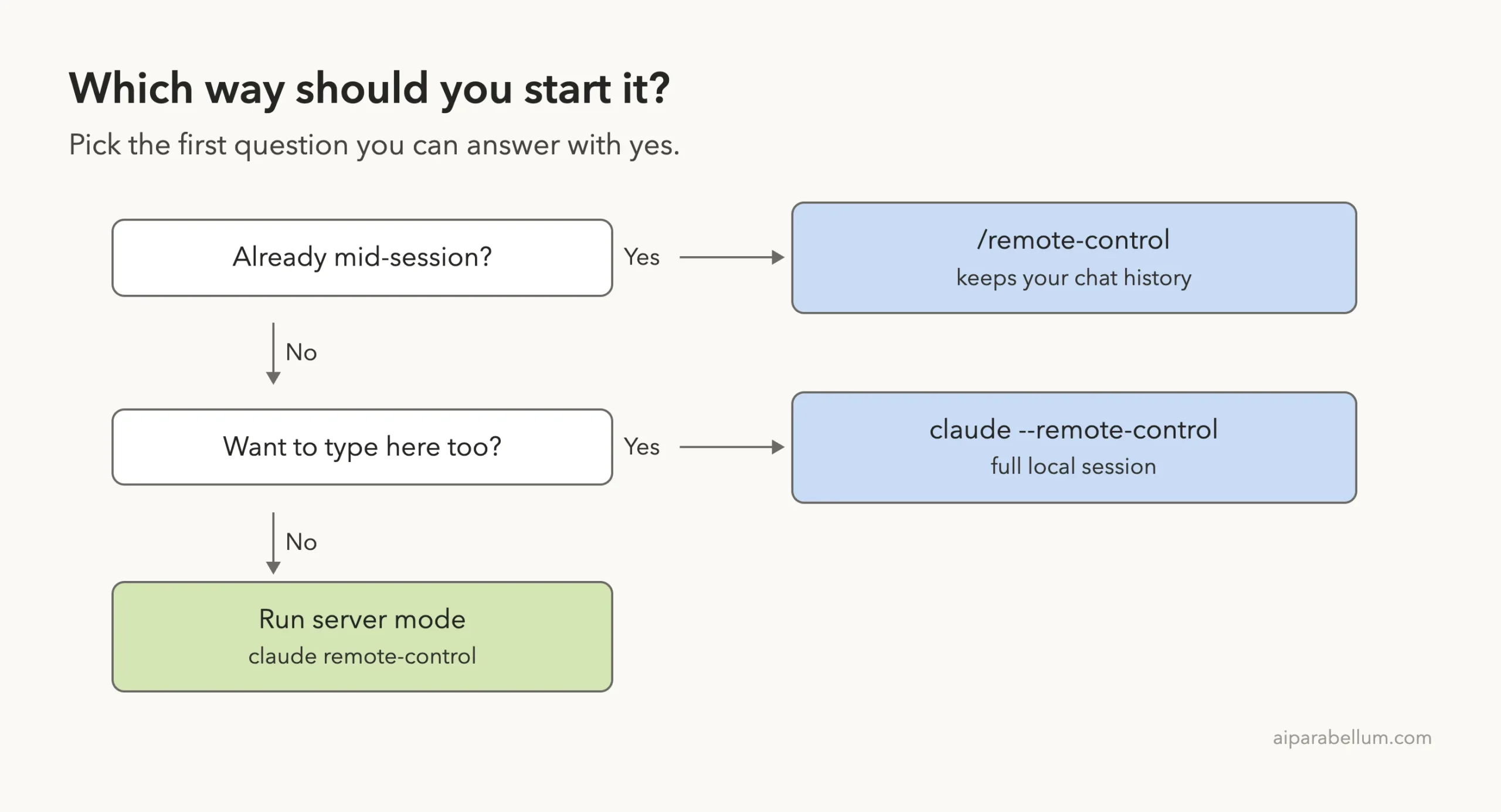
You can start a session from the command line, the Claude Desktop app or the VS Code extension. The command line has three invocation modes, and the right one depends on what you are doing.
Server Mode: claude remote-control
Server mode is built for walking away. In your project folder, run claude remote-control.
The first time, it explains what it does and asks Enable Remote Control? (y/n). Answer y to continue.
cd my-project
claude remote-control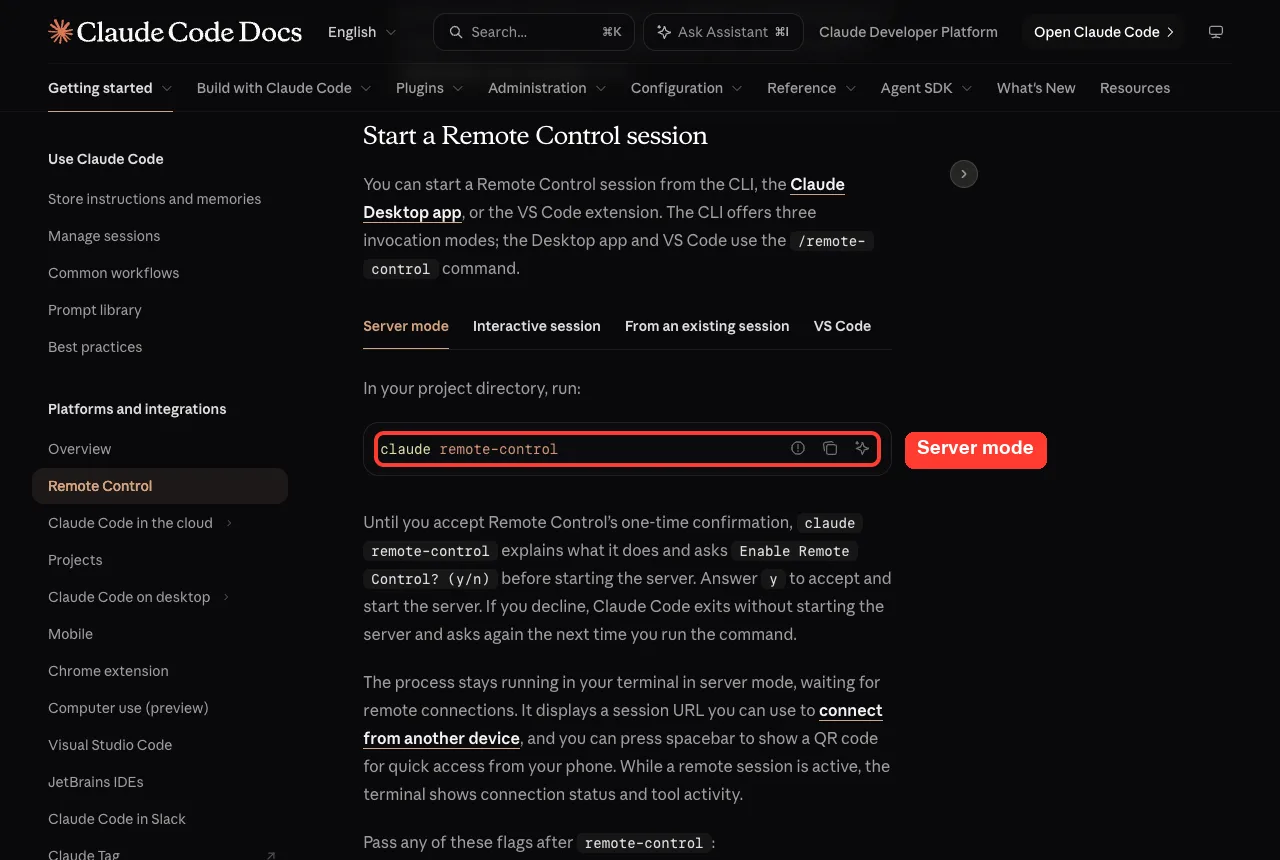
The process stays running in your terminal and waits for connections. It prints a session URL, and you can press the spacebar to show a QR code. While a remote session is active, the terminal shows connection status and tool activity.
Server mode can serve several sessions at once. By default it pre-creates one session in the current folder so you have somewhere to type right away.
Interactive Session: claude –remote-control
Use this when you want a normal Claude Code session that you can also reach remotely. You type locally as usual, and the same session is available from your phone. The short flag is –rc.
claude --remote-control
claude --remote-control "My Project"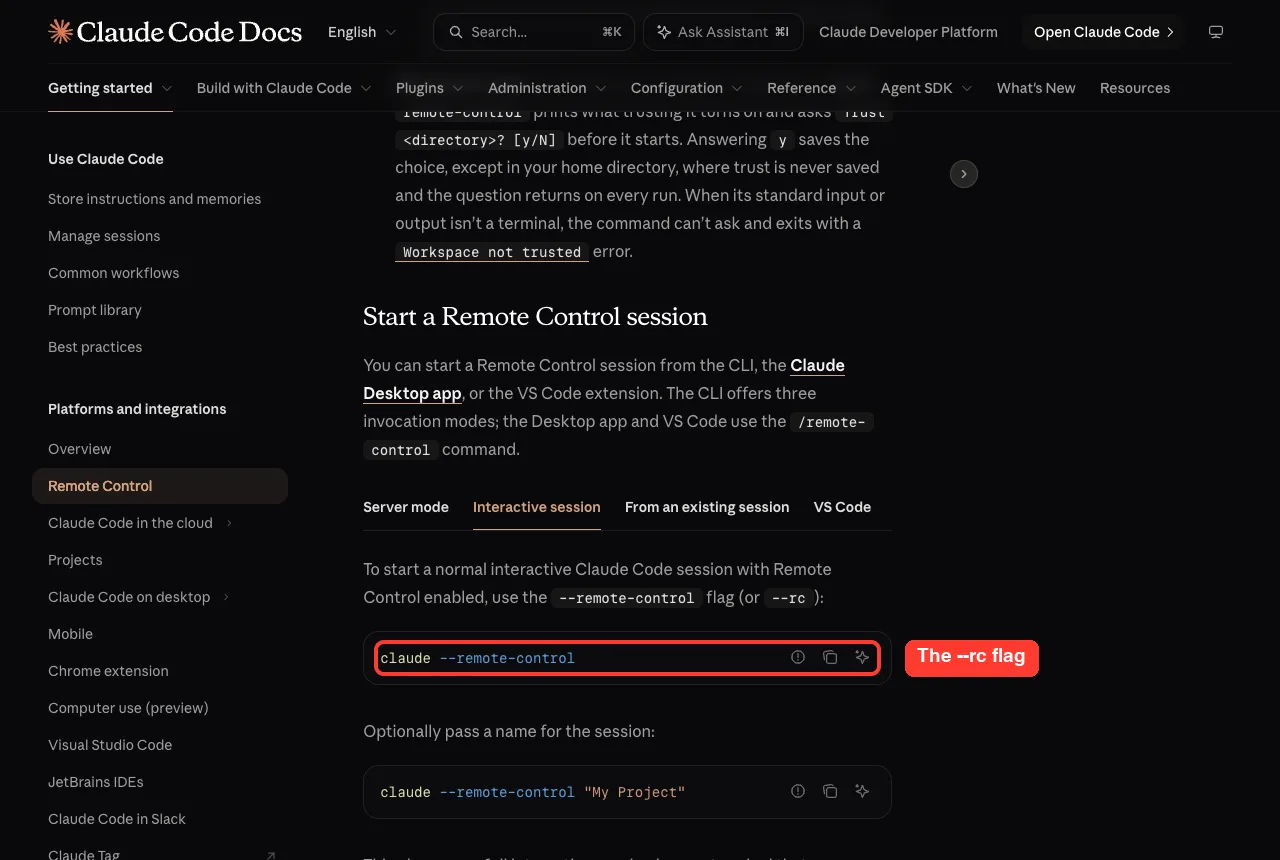
From an Existing Session: /remote-control
Already deep in a task? Type /remote-control, or /rc for short, inside the session. The docs say this carries over your current conversation history.
/remote-control
/remote-control My Project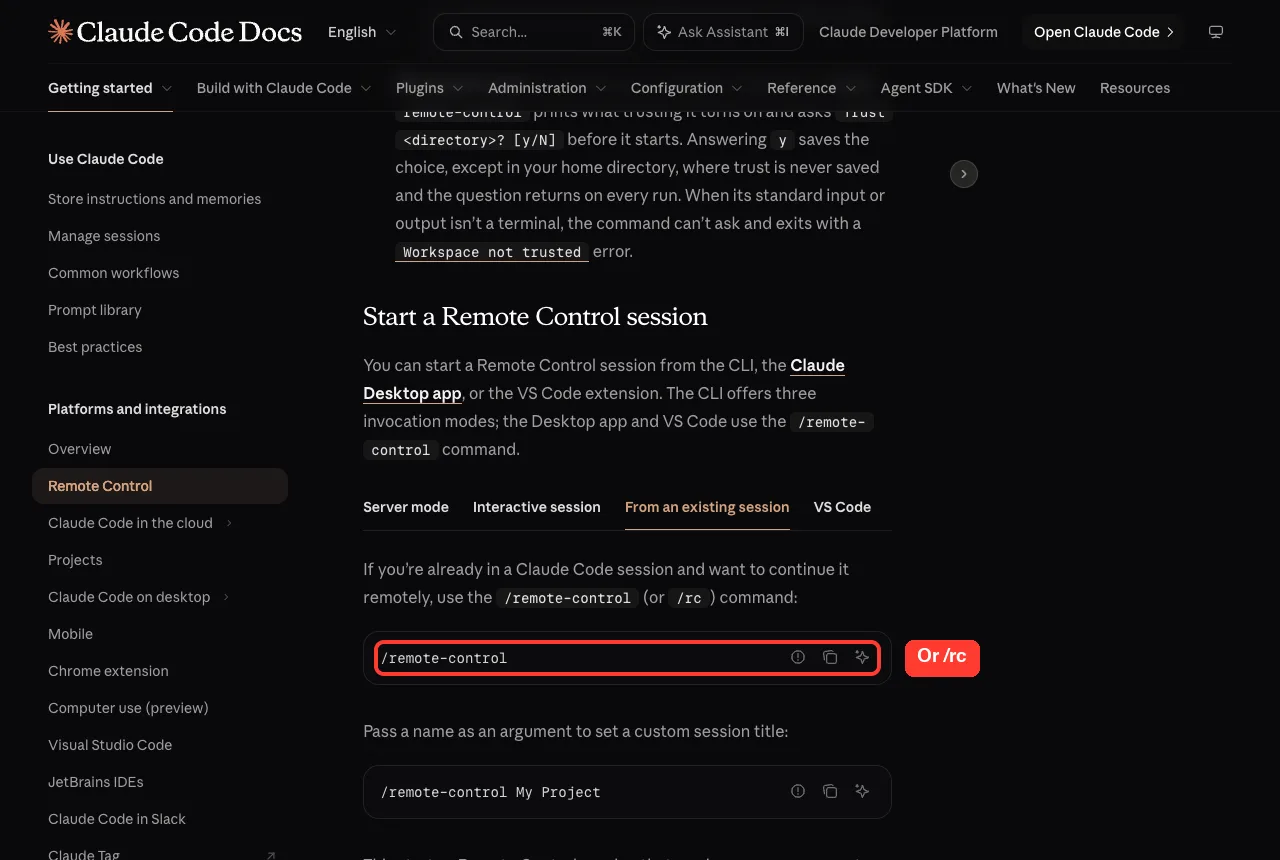
In the VS Code extension, type /remote-control or /rc in the prompt box. In a local session in the Claude Desktop app’s Code tab, type the same command. Run it again to disconnect.
The Flags Worth Knowing
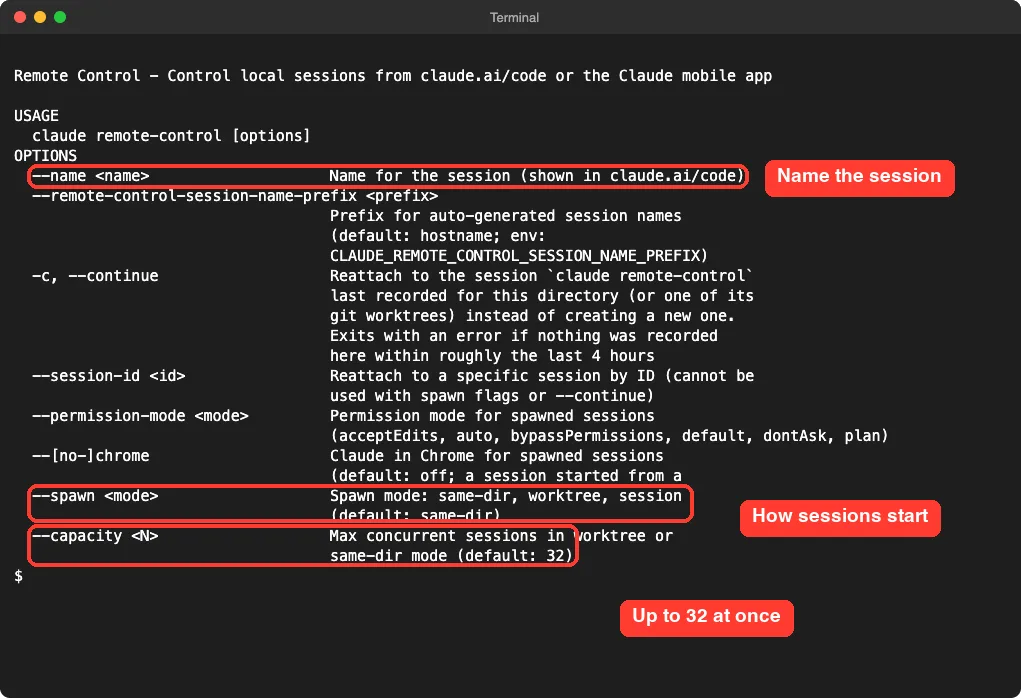
We ran claude remote-control –help on a real Mac to see the options for this version. The output matches what the docs describe.
| Flag | What it does |
|---|---|
| –name “My Project” | Sets the session title shown in the session list |
| –spawn same-dir | All sessions share the current folder. This is the default |
| –spawn worktree | Each on-demand session gets its own git worktree |
| –spawn session | Single-session mode that serves exactly one session |
| –capacity N | Limits concurrent sessions. The default is 32 |
| –permission-mode mode | Sets the starting permission mode, such as acceptEdits |
| –continue | Brings back the session the last server in this folder started with |
| –session-id id | Brings back one specific session |
While the server runs, press w to switch between same-dir and worktree. Worktree mode needs a git repository. If you are curious how that works, see our guide to git worktrees guide.
Step 3: Connect From Your Phone
Once a session is active, you have three ways to connect. Pick whichever is easiest at the moment.
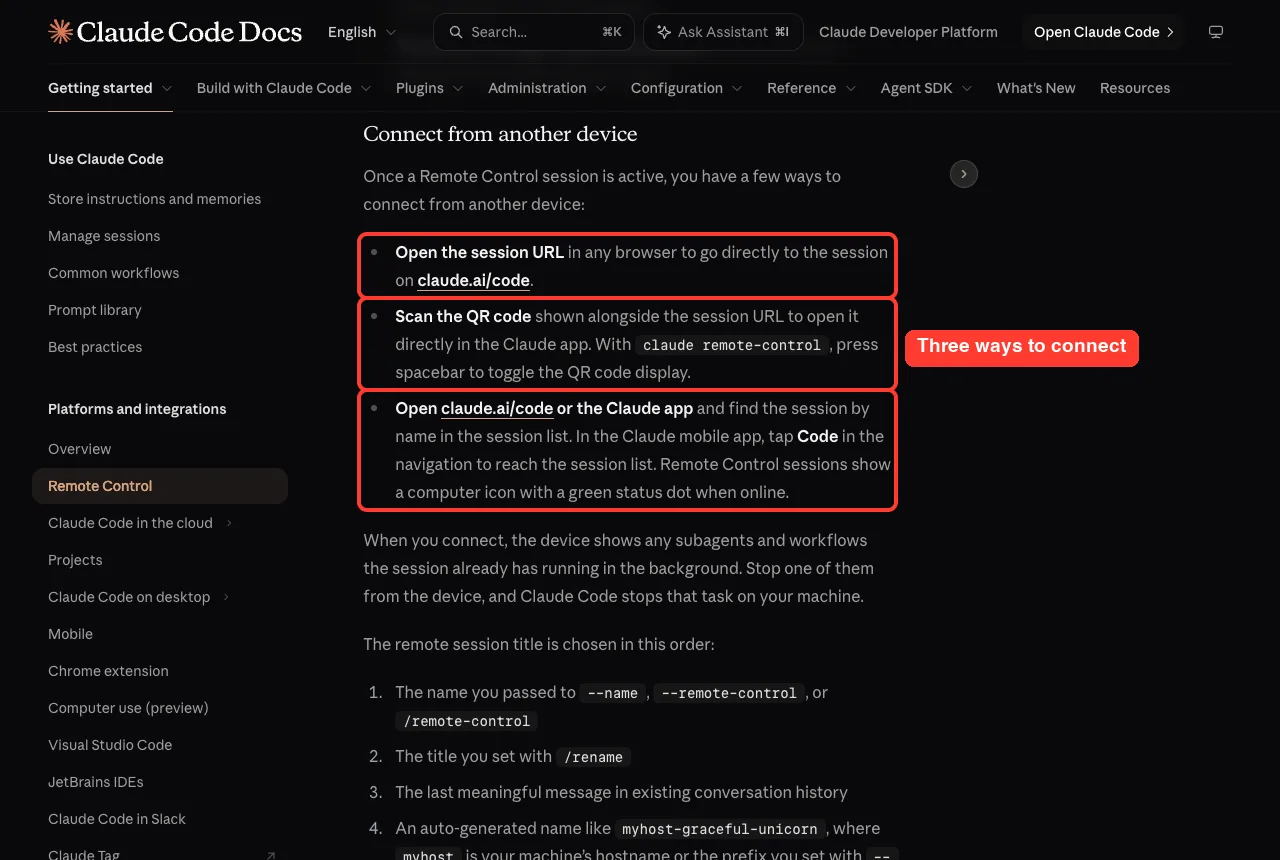
- Open the session URL in any browser to go straight to the session on claude.ai/code.
- Scan the QR code to open the session directly in the Claude app. With claude remote-control, press the spacebar to show or hide the QR code.
- Open claude.ai/code or the Claude app and find the session by name. In the mobile app, tap Code in the navigation. Online sessions show a computer icon with a green status dot.
The session name comes from the first of these that exists: the name you passed, the title you set with /rename, the last meaningful message, or an auto-generated name like myhost-graceful-unicorn.
What You Can Do From Your Phone
The connected device shows the conversation as it happens, including subagents and workflows that are already running in the background. If you stop one of them from your phone, Claude Code stops that task on your machine.
Beyond chatting, the docs list these abilities:
- Pick a model: choosing a model on the device runs the session on it (needs v2.1.238 or later)
- Set the effort level with /effort or the device control (needs v2.1.234 or later)
- See a diff pane of your changes when the folder is a git repository
- Send commands such as /compact, /clear, /context and /usage, which return text output
Some commands that open pickers in a terminal behave differently on mobile. For example, you pass the value directly, as in /model sonnet or /effort high. Our guide to the context window explains what /context and /compact show.
Send a Photo or File to Claude
You can attach a photo or file in the Claude app or at claude.ai/code, with or without a caption. Claude sees photos directly. Other files are downloaded to your computer and passed to Claude as @ file references.
If a file cannot be downloaded, Claude still receives your message and the files that did arrive. A note such as [1 of 3 attachments did not arrive] is added in place of the missing ones.
Is It Safe? Connection and Security
Many people worry that opening a door to their computer is risky. The docs describe a design with no open door at all.
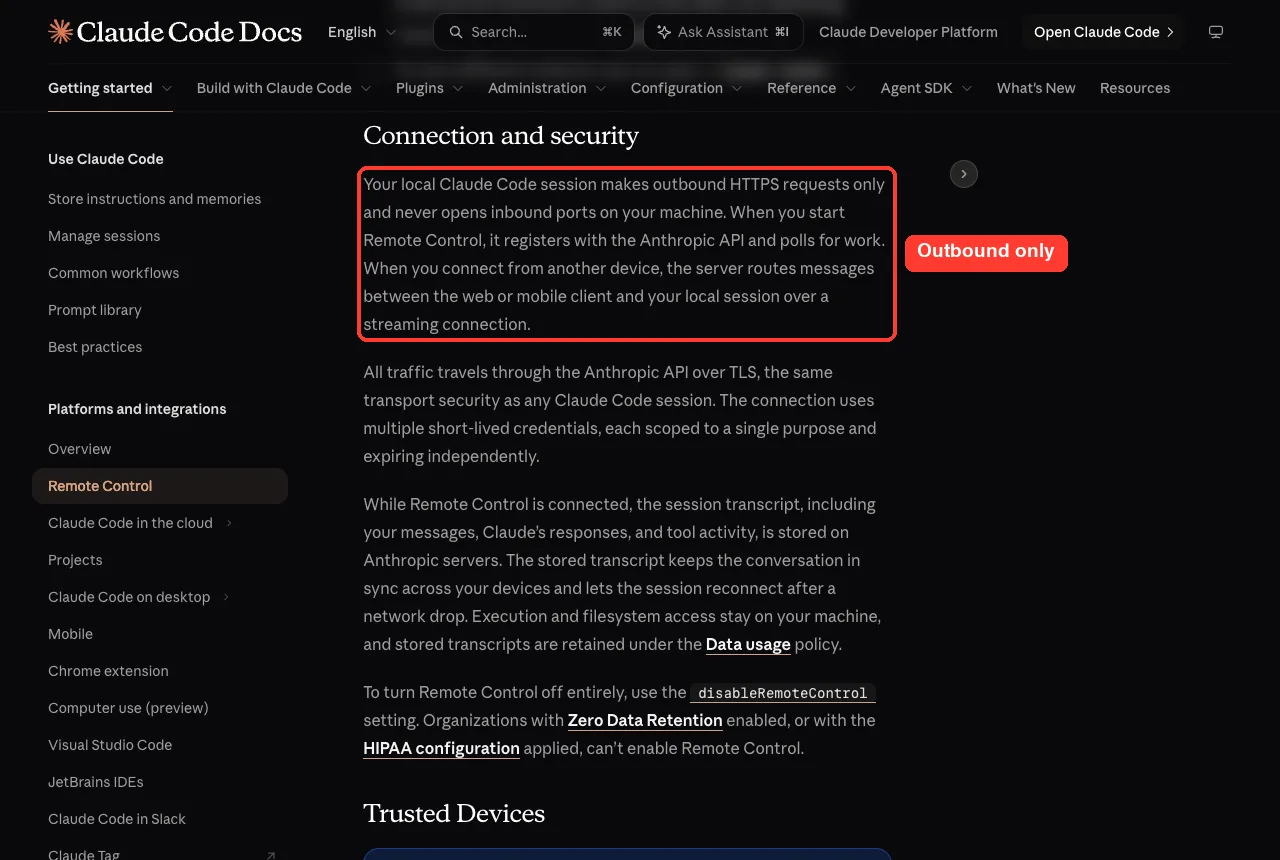
Your local session makes outbound HTTPS requests only and never opens inbound ports. It registers with the Anthropic API and polls for work. All traffic goes through the Anthropic API over TLS, using short-lived credentials that each cover a single purpose.
One thing to know: while Remote Control is connected, the session transcript is stored on Anthropic servers. That includes your messages, Claude’s replies and tool activity. Execution and file access stay on your machine.
Organizations with Zero Data Retention or the HIPAA configuration cannot enable Remote Control. To turn it off entirely, use the disableRemoteControl setting.
Remote Control vs Cloud Sessions
Both use the claude.ai/code interface, so they look similar. The difference is where the session runs.
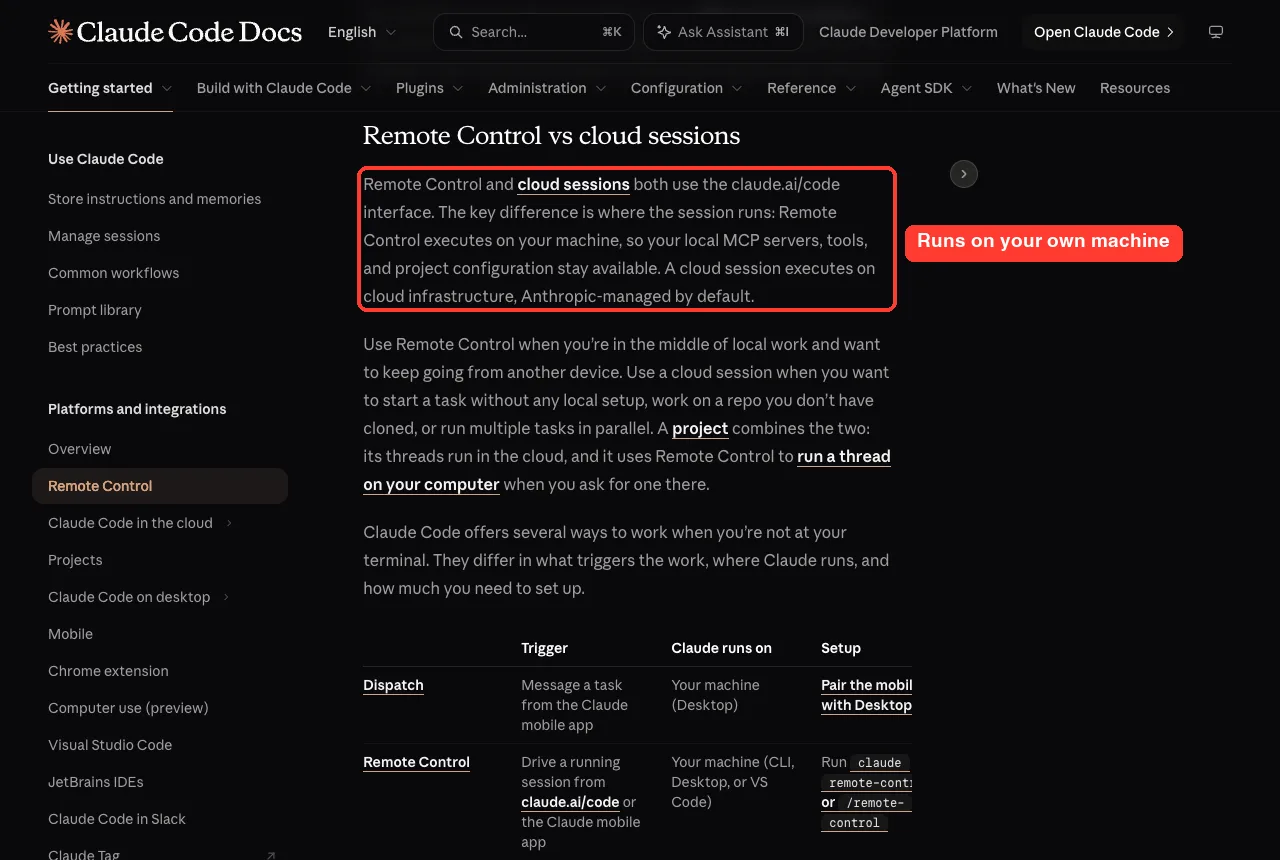
| Situation | Better choice |
|---|---|
| You are mid-task and want to keep going from your phone | Remote Control |
| You need your local MCP servers and settings | Remote Control |
| You have no local setup, or the repo is not cloned | Cloud session |
| You want to run many tasks in parallel | Cloud session |
We cover the cloud option in the next part of this series.
Get Push Notifications on Your Phone
When Remote Control is active, Claude can send push notifications. It typically does so when a long task finishes or when it needs a decision from you. You can also ask in your prompt, for example notify me when the tests finish.
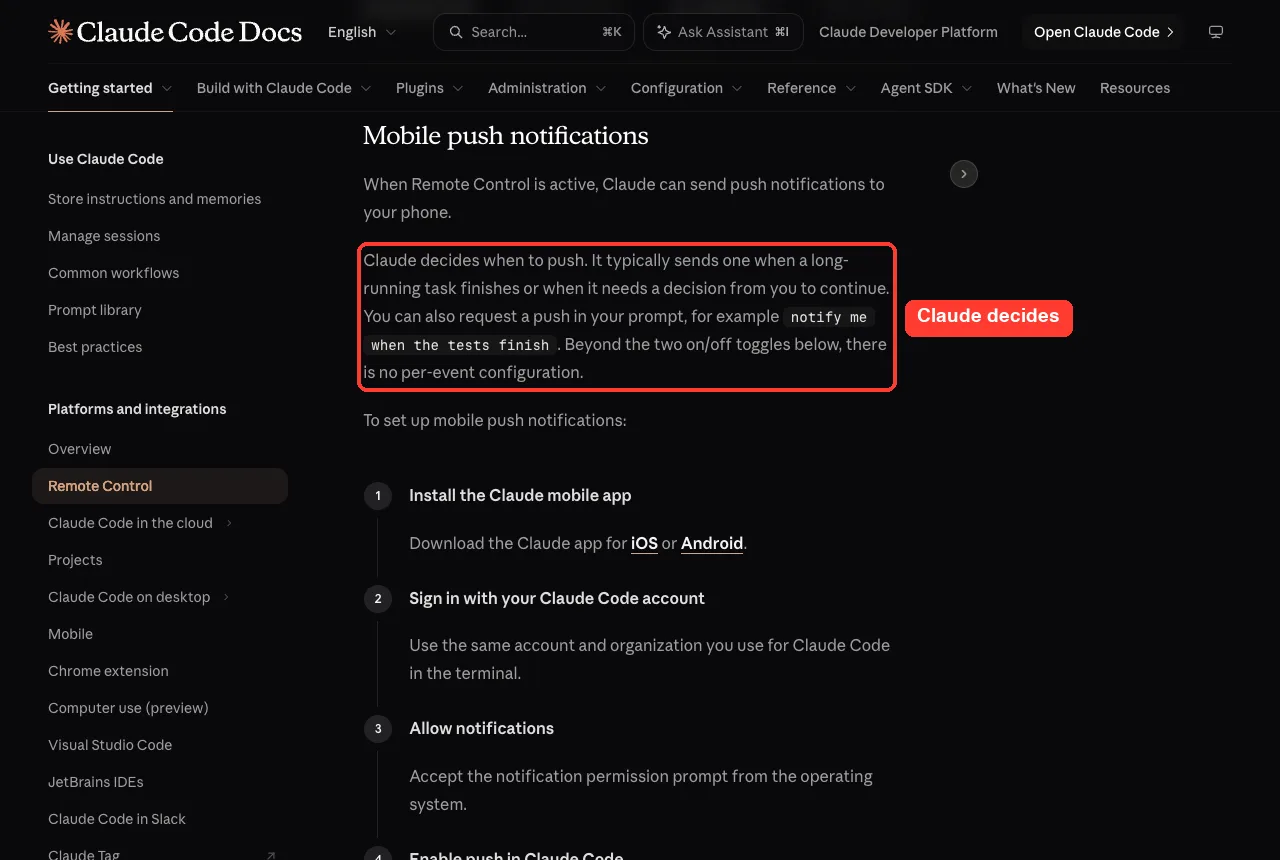
The setup has four steps:
- Install the Claude mobile app for iOS or Android
- Sign in with your Claude Code account and organization
- Allow notifications when your phone asks
- In Claude Code, run /config and enable the push options
If nothing arrives and /config shows No mobile registered, open the Claude app once so it can refresh its push token. On iOS, check that Focus modes are not hiding the alerts. On Android, exempt the app from battery optimization.
Bring a Session Back After You Stop the Server
If you press Ctrl+C on claude remote-control, the sessions stop answering from your phone. They are not archived, as long as you did not use –no-create-session-in-dir. You can bring them back from the same folder.
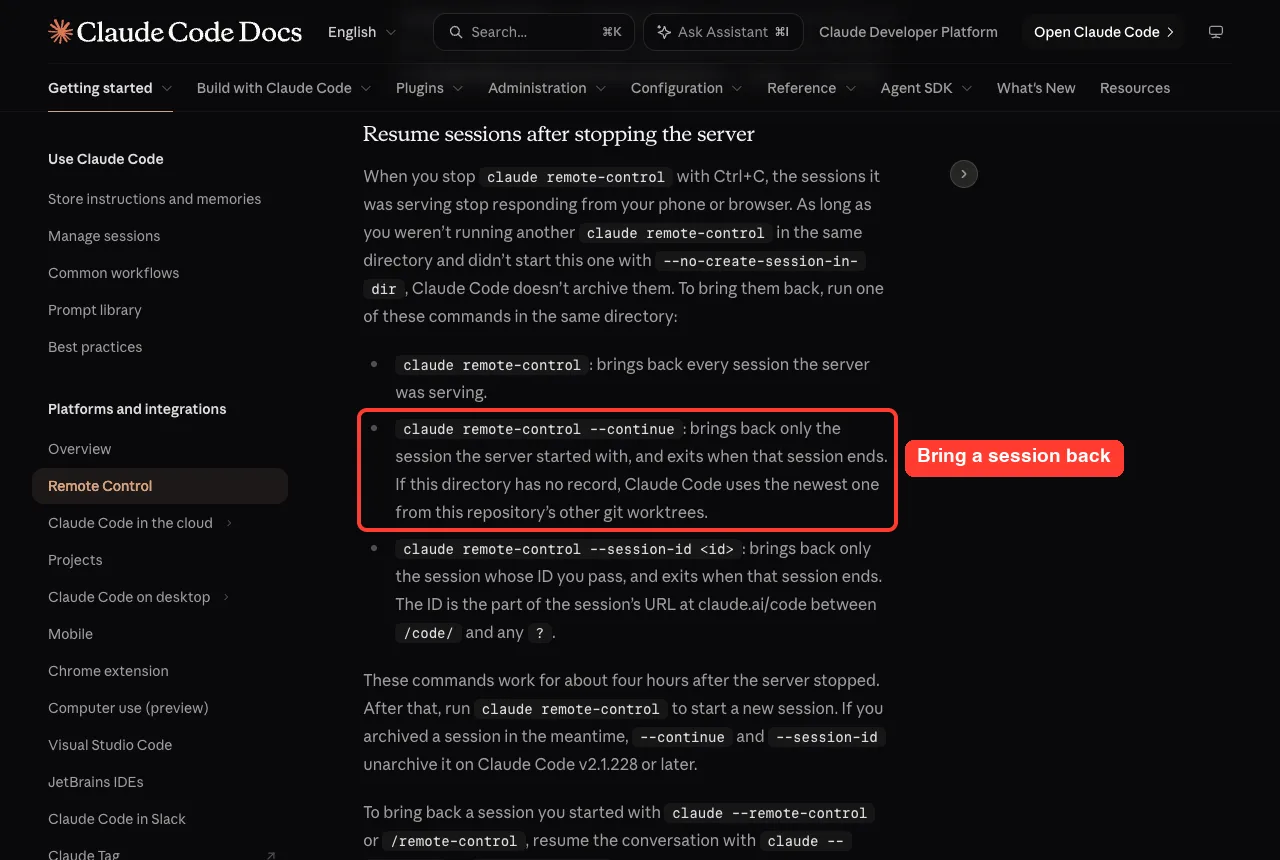
claude remote-control
claude remote-control --continue
claude remote-control --session-id <id>
These commands work for about four hours after the server stopped. After that, start a fresh session.
Turn On Remote Control for Every Session
If you always want it, run /config and set Enable Remote Control for all sessions to true. You can also set remoteControlAtStartup to true in your user settings file. A true in a project settings file is ignored, so a checked-in file cannot turn it on for everyone who opens the repo.
With this on, each interactive Claude Code process registers one remote session. Use server mode if you want many sessions from one process.
Try It Yourself
Here is a safe practice task. Make a throwaway folder, start server mode, and connect from your phone.
mkdir ~/rc-practice
cd ~/rc-practice
claude remote-control --name "Practice"
Press the spacebar to show the QR code and scan it with the Claude app. Then send this message from your phone:
Create a file called hello.txt that says hello from my phone.Check your computer. The file should appear in the folder, because the work runs on your machine.
Common Mistakes
- Using an API key. Remote Control needs a claude.ai login, so API-key auth will not work.
- Closing the terminal. The session runs as a local process, so closing it takes the session offline.
- Forgetting tmux on a remote machine. If you run claude over SSH, start it inside tmux or screen.
- Expecting two sessions from one interactive process. Outside server mode, each Claude Code instance supports one remote session.
- Leaving the QR code up on a shared screen. Anyone who scans it reaches your session link, so hide it when others are around.
Pro Tips
- Use –name so sessions are easy to find in the list on your phone.
- Use –spawn worktree when you will start several tasks, so they do not edit the same files.
- Start Claude Code in plan mode or set a safe –permission-mode before you leave your desk.
- Ask Claude to notify you when a long task finishes, then put the phone down.
Troubleshooting Quick Fixes
The official page has a long troubleshooting list. These are the ones you are most likely to meet.
| Message | What to check |
|---|---|
| Remote Control requires a claude.ai subscription | Sign in with /login. If an API key or token is set, the message names it |
| Remote Control is disabled by your organization’s policy | An Owner may need to enable it, or your role may be missing a permission |
| Remote Control disconnected | Run /remote-control to reconnect, unless another device took over the session |
| Remote Control is only available when using Claude via api.anthropic.com | Unset ANTHROPIC_BASE_URL if it points elsewhere |
We could not safely trigger these errors on a real account, so the list comes from the official docs. If your Claude Code is stuck while working remotely, our fix for stuck compacting may help.
Limitations to Know About
- One remote session per interactive process, outside server mode
- The local process must keep running
- In server mode, an extended network outage of roughly 10 minutes ends the process. An interactive session keeps retrying instead
- Some commands, such as /reload-plugins, only work when the session runs in an interactive terminal
Cheat Sheet
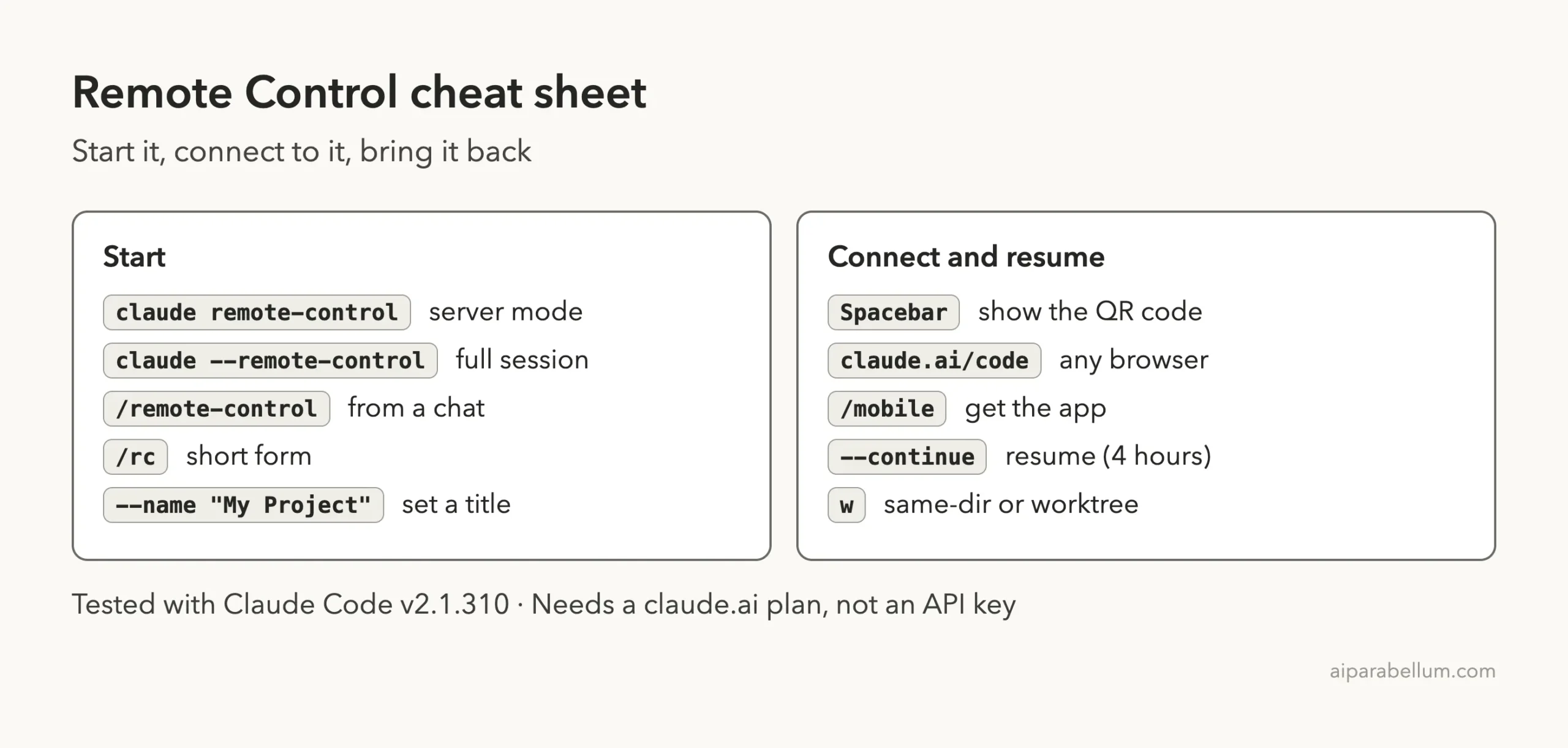
Frequently Asked Questions
Does Remote Control work with an API key?
No. The docs say API keys are not supported. You need a claude.ai login on Pro, Max, Team or Enterprise.
Does my code go to the cloud?
Execution and file access stay on your machine. The session transcript, including messages and tool activity, is stored on Anthropic servers while Remote Control is connected.
What happens if my laptop sleeps?
Claude Code reconnects automatically when the machine comes back online. In server mode, a long outage of roughly 10 minutes can end the process, so you would run the command again.
Can I use it from a browser instead of the app?
Yes. Open the session URL or go to claude.ai/code and pick the session from the list.
Is it the same as Claude Code on the web?
No. Claude Code on the web runs in the cloud, while Remote Control drives a session that runs on your own computer.
Conclusion
Claude Code remote control turns a session on your computer into one you can steer from your phone, with the work, files and tools staying on your machine. Pick server mode to walk away, the –remote-control flag for a session you also type in, or /remote-control to carry on a chat you already started, then connect by URL, QR code or the Claude app. Browse all our Claude Code tutorials for the rest of the series.
Next in the series: Part 2, Use Claude Code on the Web: A Beginner Guide, is coming soon.