Claude Code on the web lets you run Claude Code in the cloud from your browser or phone, with no setup on your own computer. You connect a GitHub repository, describe a task, and Claude does the work on a virtual machine that Anthropic manages.
This guide walks you through the whole flow in plain English: connecting GitHub, starting a task, choosing a permission mode, reviewing the changes, creating a pull request, and moving a session to your terminal. It also covers the limits you should know about before you rely on it.
This is Part 2 of 10 in our Advanced Claude Code series, part of our Claude Code tutorials. The previous part showed how to Remote Control.
Tested with Claude Code v2.1.310 on October 28, 2026. We tested on macOS; the Windows and Linux steps follow Anthropic’s official instructions. Cloud sessions need a GitHub repository and a signed-in account that we did not connect for this guide, so every screenshot below is a highlighted capture of the official Claude Code docs, not a capture of our own cloud session.
Quick Summary: Claude Code on the Web
| Question | Short answer |
|---|---|
| Where does the code run? | On an isolated, Anthropic-managed virtual machine |
| Where do you start it? | claude.ai/code, the Claude mobile app, the Desktop app, or claude –cloud in a terminal |
| What do you need? | A claude.ai account and a GitHub repository |
| Does it keep going if you close the tab? | Yes, according to the official comparison table |
| Which permission modes are offered? | Auto (when allowed), Accept edits, and Plan |
| How do you get the result? | Review the diff, then click Create PR |
With cloud sessions, you describe the task, step away, and come back to review a finished branch.
What Claude Code on the Web Is
Normally Claude Code runs on your own computer, inside your terminal or editor. Claude Code on the web moves that work to the cloud. You type a task in the browser at claude.ai/code, and Claude runs it on a fresh virtual machine, which Anthropic calls a cloud session.
The docs list a few good uses.
You can run several independent tasks at once, each in its own session and branch. You can work on a repository you do not have on your computer, because Claude clones it fresh every time. You can hand off a clearly described task and review the result later.
You can also ask questions about a codebase without checking it out.
If you have used our guide to Slack and mobile, this article goes deeper into the web workflow and the terminal handoff.
How a Cloud Session Runs
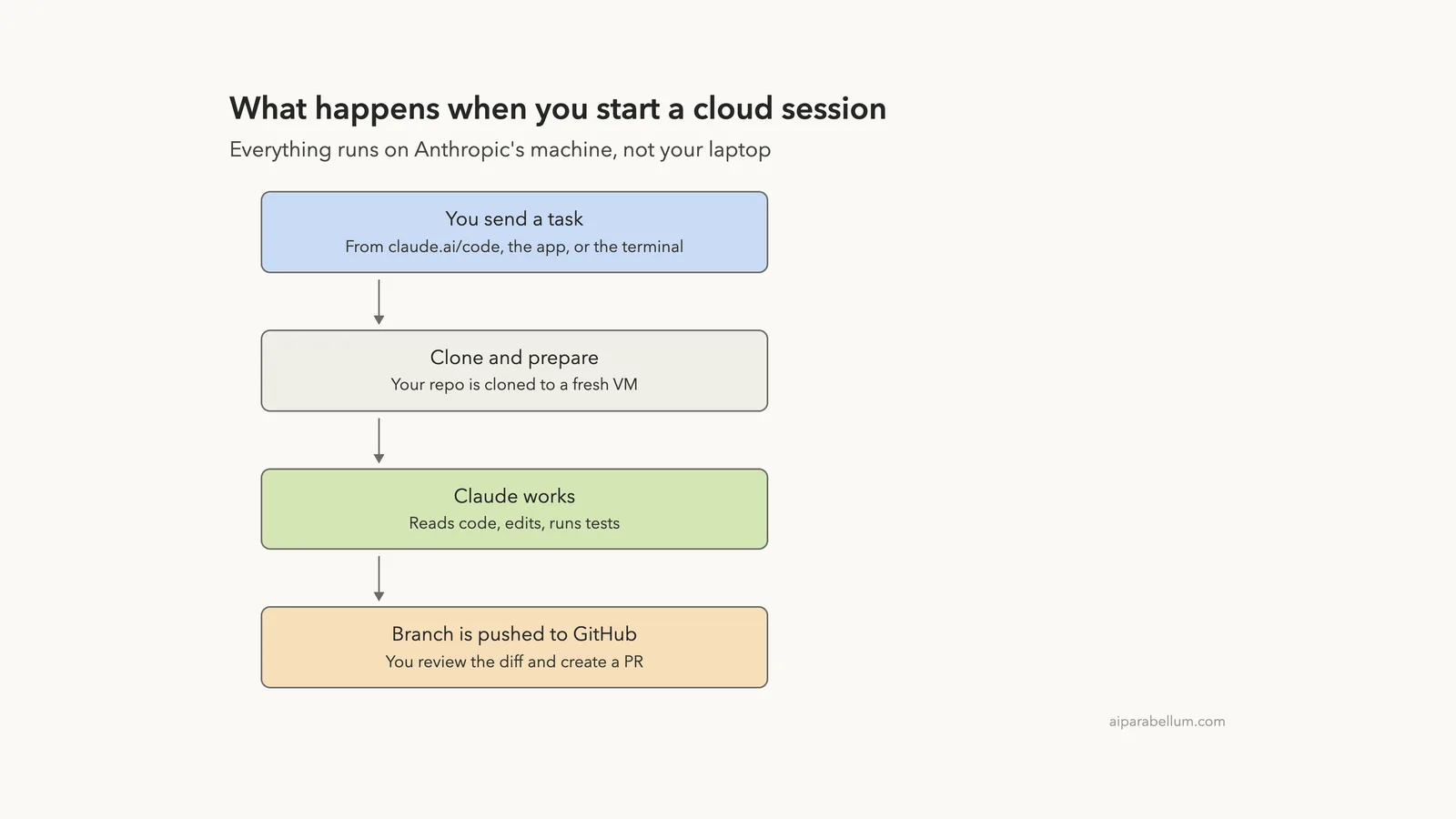
The official quickstart describes four steps that happen when you submit a task. Knowing them makes the rest of the guide easy to follow.
- Clone and prepare: your repository is cloned to an Anthropic-managed VM, and your setup script runs if you configured one.
- Configure network: internet access is set by your environment’s access level.
- Work: Claude analyzes code, makes changes, runs tests, and checks its work. You can watch and steer, or step away.
- Push the branch: when Claude reaches a stopping point, it pushes its branch to GitHub.
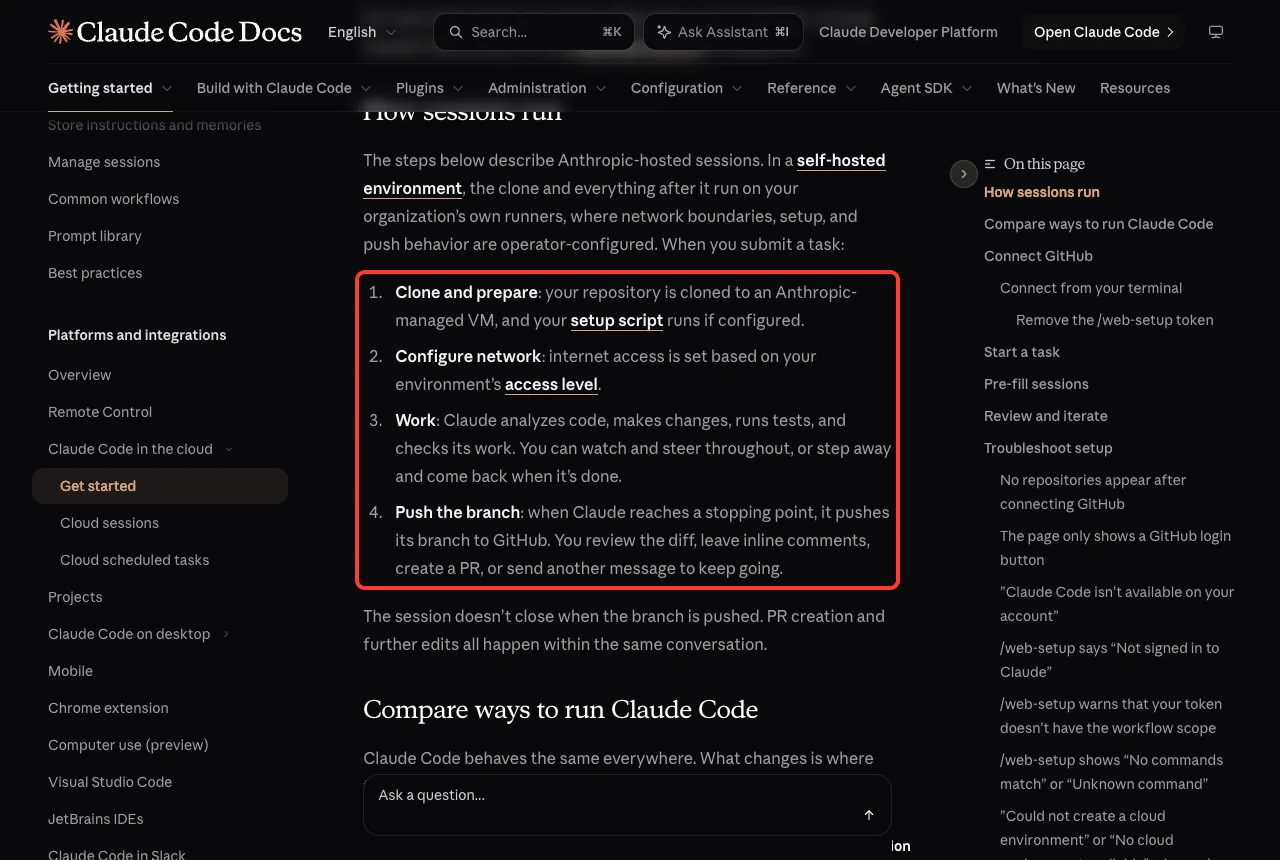
One detail matters here. The session does not close when the branch is pushed. You can create the pull request and keep sending messages in the same conversation.
Cloud Session or Local Session?
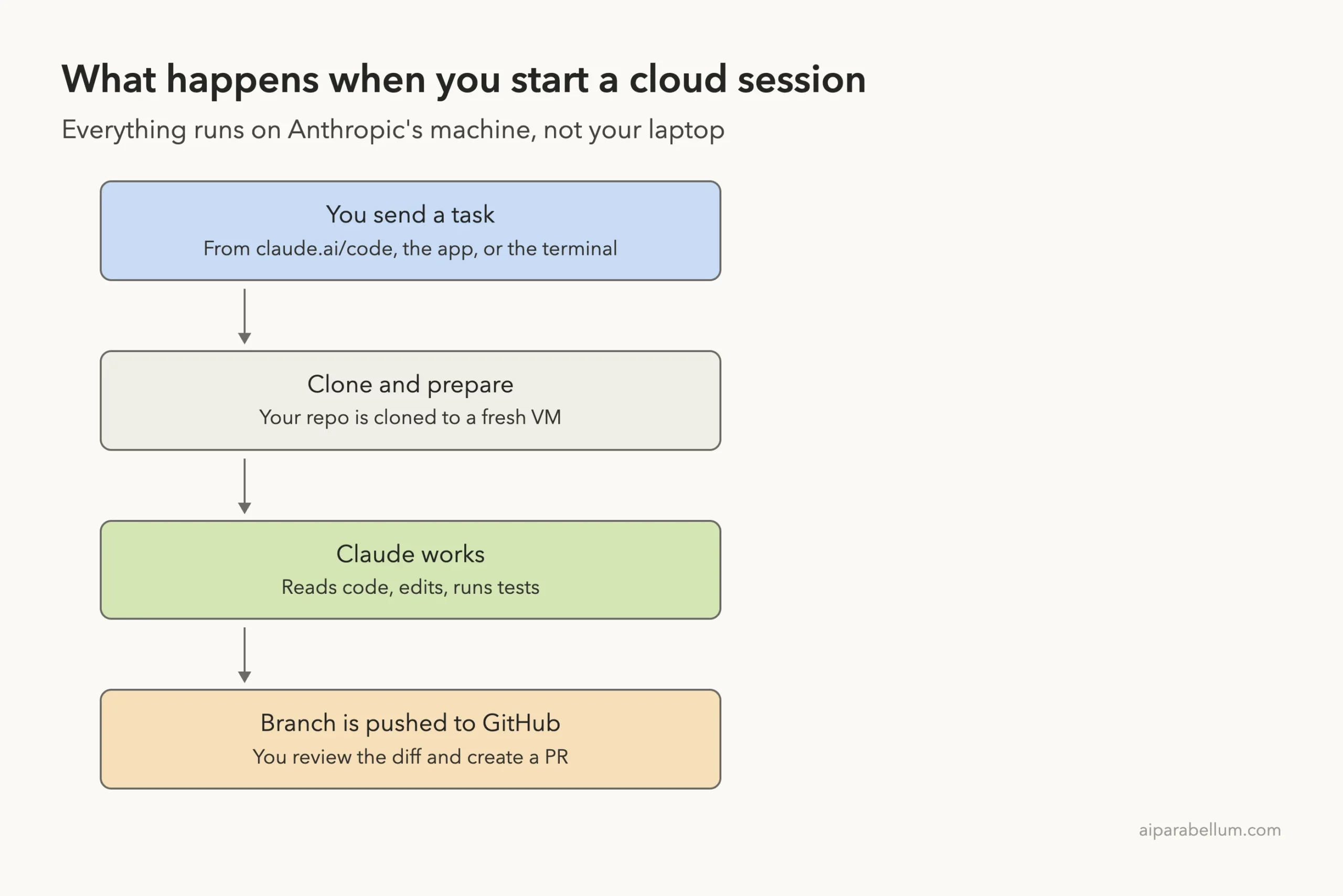
Claude Code behaves the same way everywhere. What changes is where the code runs. The docs compare cloud sessions with local ones, and a few rows decide most choices.
| Topic | Cloud session | Local session |
|---|---|---|
| Code runs on | Anthropic-managed VM by default | Your machine |
| Uses your local config | No, repo only | Yes |
| Requires GitHub | Yes, or bundle a local repo with –cloud | No |
| Keeps running if you disconnect | Yes | No |
| Permission modes | Accept edits, Plan, Auto | All modes in the terminal |
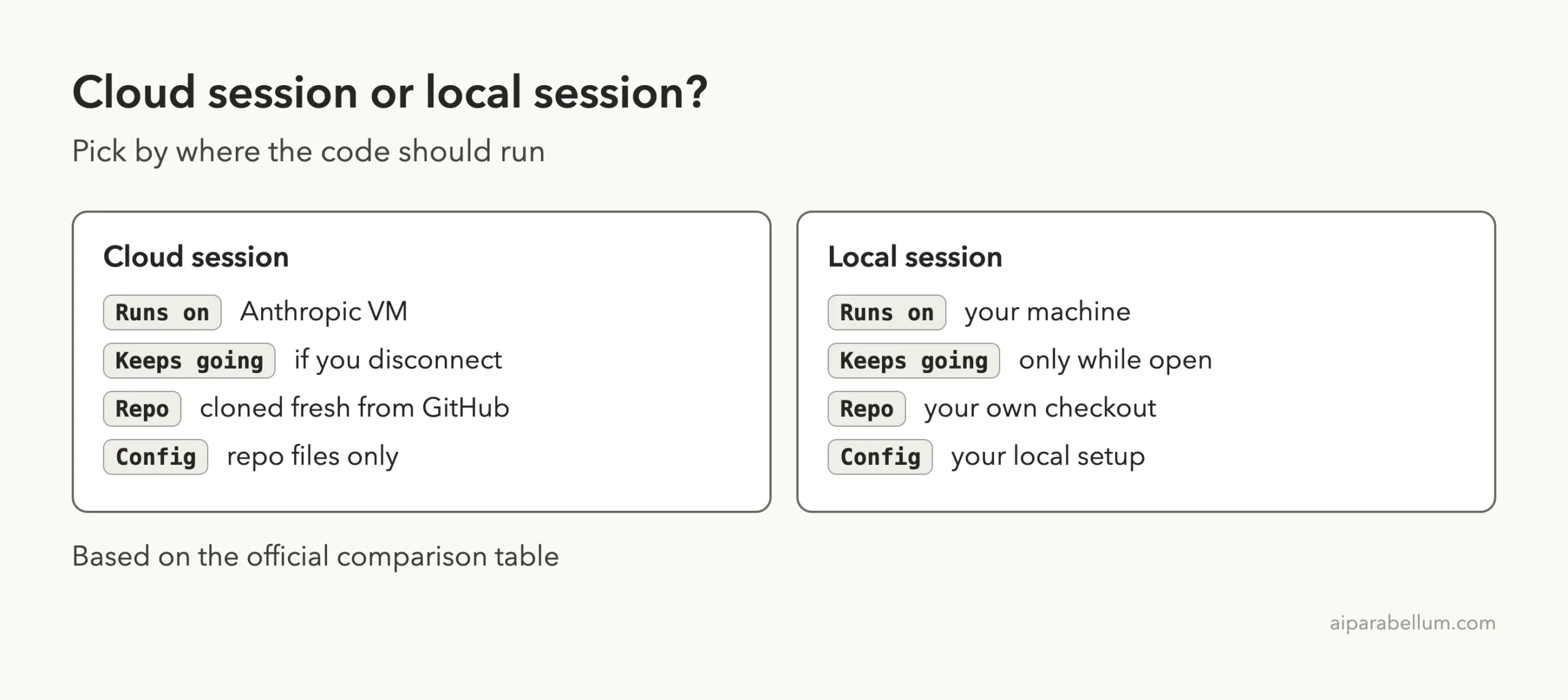
The row about local config is easy to miss. A cloud session does not see your personal settings, so anything Claude needs must live in the repository, such as a CLAUDE.md file. Our guide to CLAUDE.md explains how to write one.
Step 1: Connect GitHub
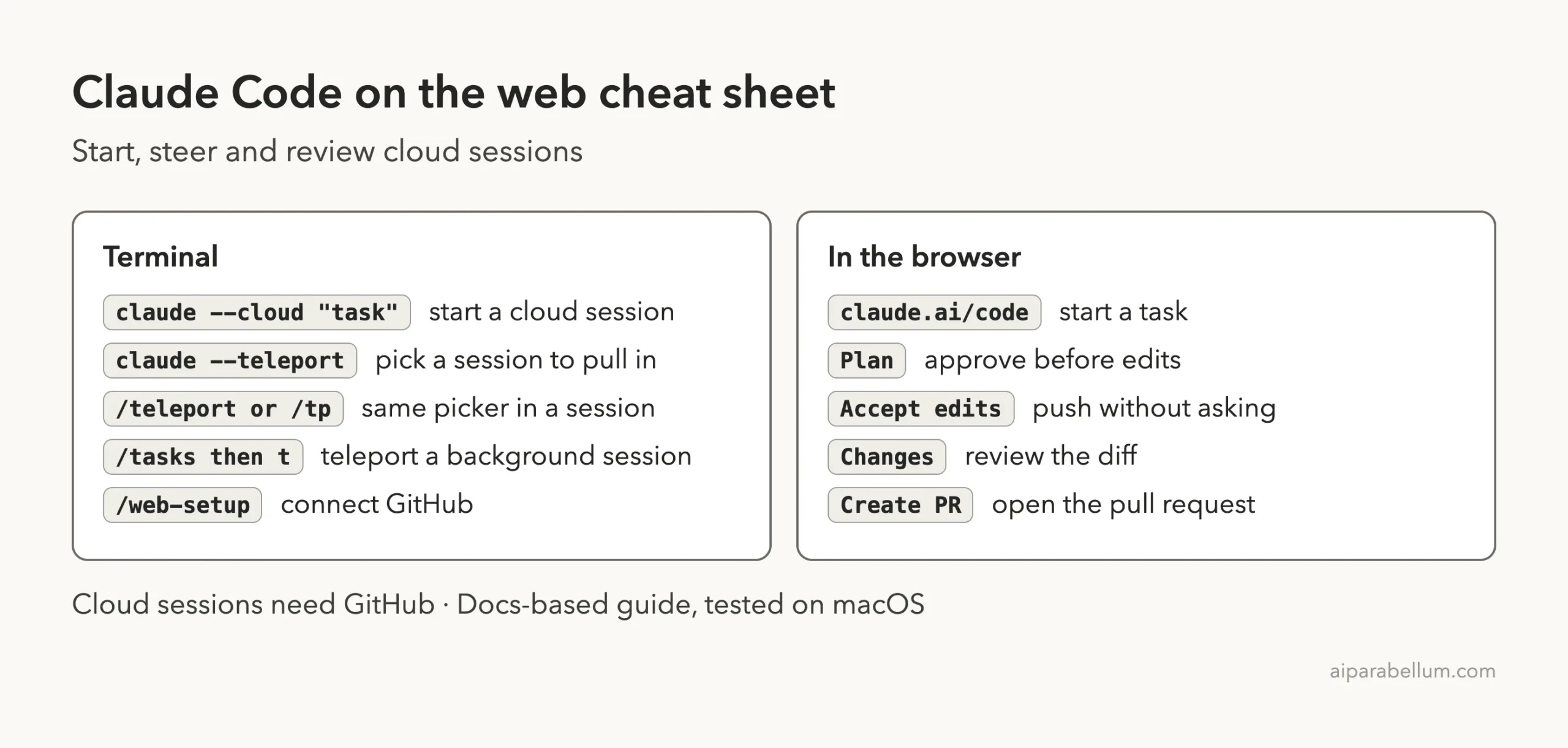
Cloud sessions clone from GitHub, so you connect your account first. You can do this in the browser at claude.ai/code, where onboarding walks you through it. You can also do it from the terminal by running /web-setup inside Claude Code.
If you hit a problem, the quickstart has a troubleshooting section. It covers cases such as no repositories appearing after connecting GitHub, a page that only shows a GitHub login button, and a message that Claude Code is not available on your account.
Step 2: Set Up Your Default Environment
A cloud environment is the saved configuration that controls what network access Claude has during sessions and what runs when a session starts. What happens after you connect GitHub depends on your plan.
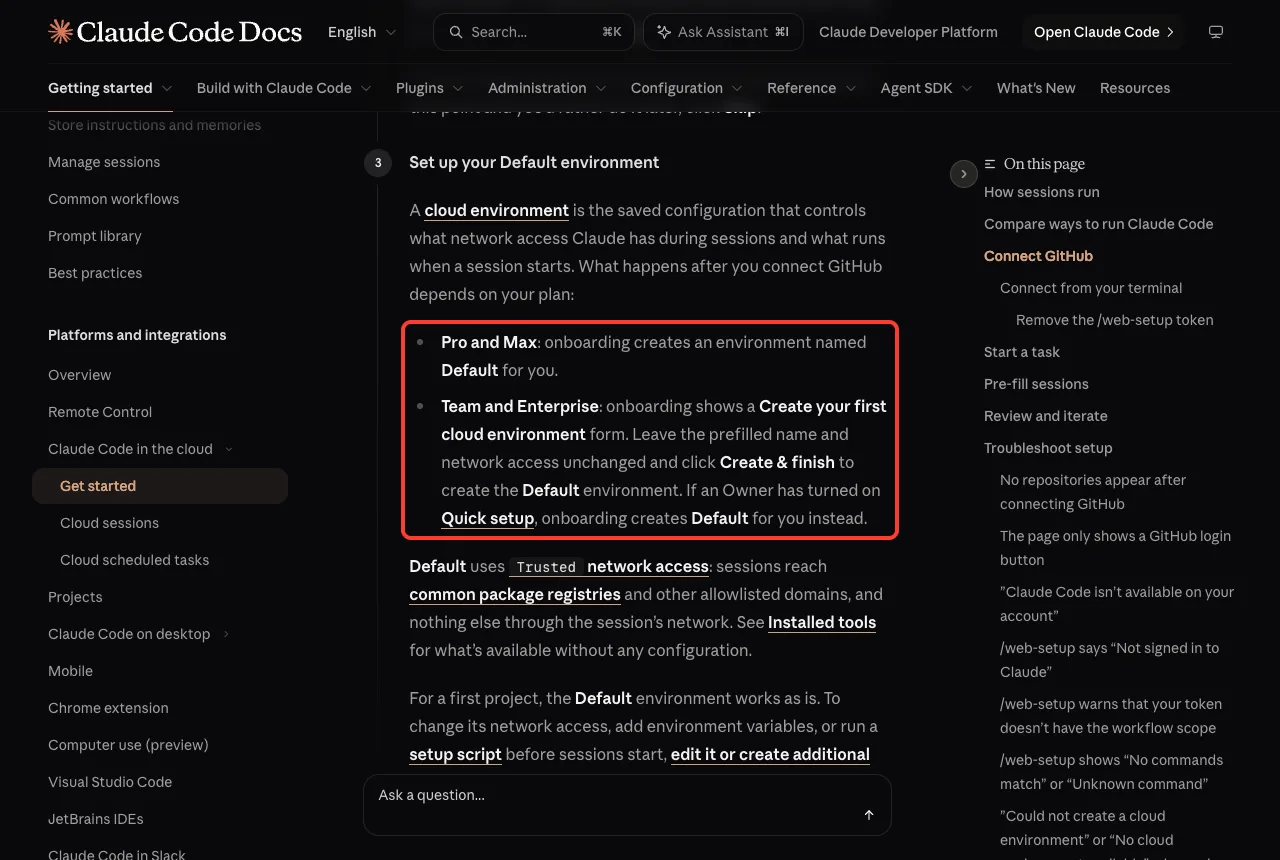
- Pro and Max: onboarding creates an environment named Default for you.
- Team and Enterprise: you see a Create your first cloud environment form. Leave the prefilled name and network access alone and click Create and finish.
The Default environment uses Trusted network access. Sessions can reach common package registries and other allowlisted domains, and nothing else through the session’s network. For a first project, the docs say Default works as it is.
Step 3: Start Your First Task
Open claude.ai/code, pick your repository, and choose a permission mode. Then type what you want and press Enter. The docs ask you to be specific, so name the file or function and describe the behavior you expect.
For example, “Add a README with setup instructions” or “Fix the failing auth test in tests/test_auth.py” works much better than “fix tests.”
Choose a permission mode
Cloud sessions offer three modes. The docs also say cloud sessions do not offer Manual or Bypass permissions.
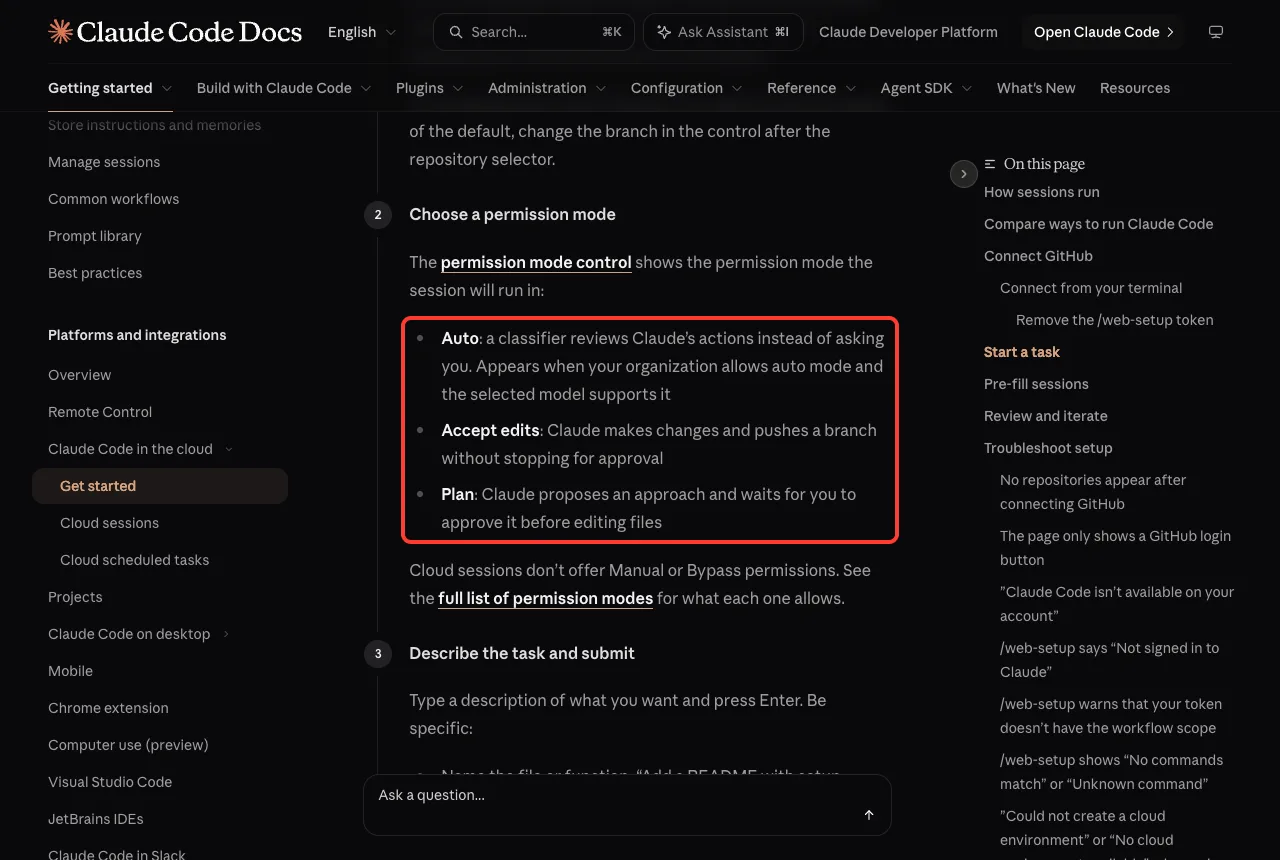
| Mode | What it does | Good for |
|---|---|---|
| Auto | A classifier reviews Claude’s actions instead of asking you | Hands-off work, when your organization allows it |
| Accept edits | Claude makes changes and pushes a branch without stopping for approval | Small, clear tasks |
| Plan | Claude proposes an approach and waits for approval before editing files | Bigger or riskier changes |
If you are new, start with Plan. You will see the approach before any file changes, and it is the closest thing to a safety net. Our guide to plan mode explains the idea in more detail.
Step 4: Review the Changes and Create a Pull Request
While Claude works, you can watch and steer. When it reaches a stopping point it pushes a branch. A Changes card shows the diff against the base branch, and you can leave inline comments on specific lines and send them with your next message.
When the diff looks right, click Create PR. Claude Code creates the pull request with a generated title and description. If you prefer a draft, right-click Create PR, choose Create draft PR, and then click the button.
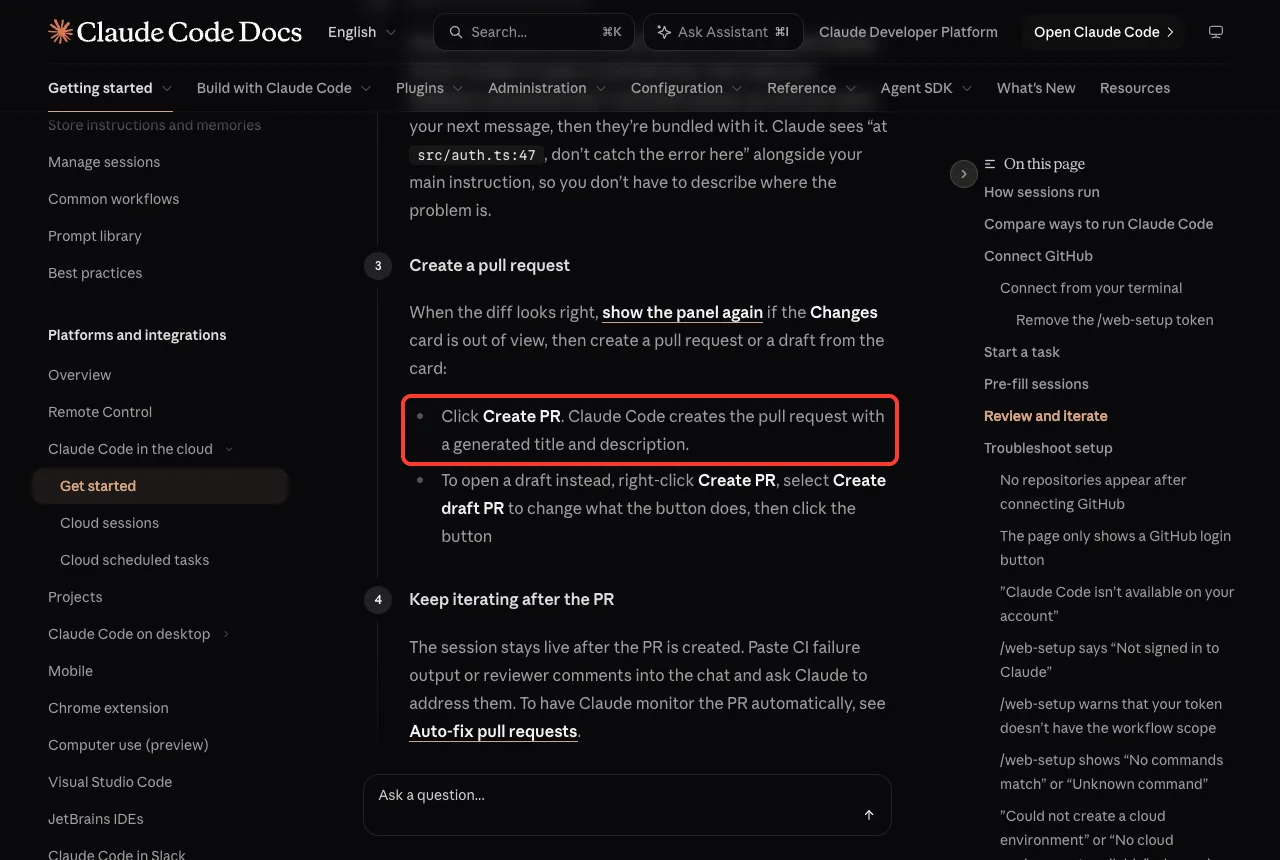
The session stays live after the PR exists.
You can paste CI failure output or reviewer comments into the chat and ask Claude to handle them. If you want Claude to watch the PR for you, the docs describe an Auto-fix option that responds to CI failures and review comments. Related reading: our guide to GitHub Actions.
Start a Cloud Session From Your Terminal
You do not have to use the browser. From the command line, the –cloud flag creates a new cloud session for your current repository.
claude --cloud "Fix the authentication bug in src/auth/login.ts"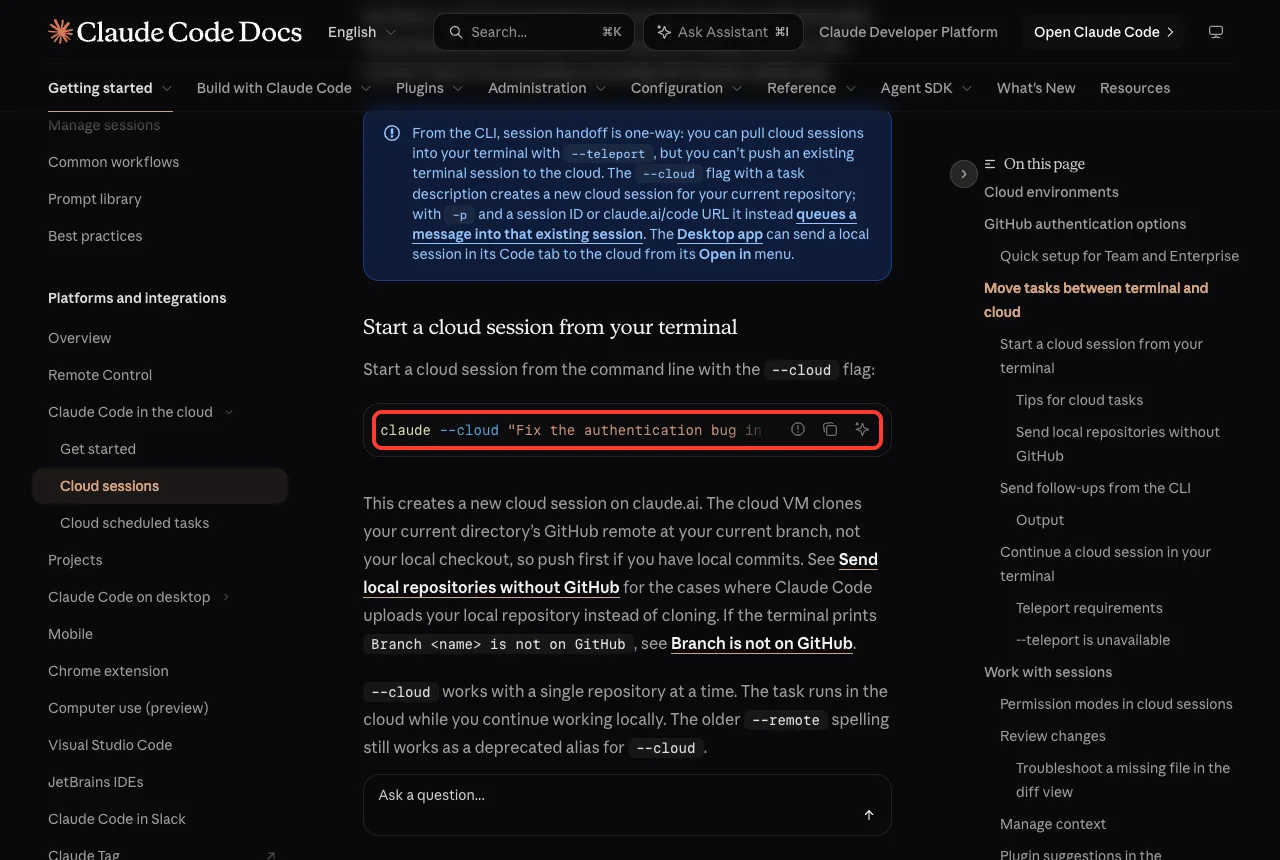
The docs explain what happens next.
The cloud VM clones your current directory’s GitHub remote at your current branch, not your local checkout, so push first if you have local commits. The task runs in the cloud while you keep working locally. The older –remote spelling still works as a deprecated alias.
No GitHub remote? Bundle the repo
You can send a local repository without GitHub as a bundle. The docs set a few limits: the directory must be a git repository with at least one commit, the bundle must be under 100 MB, and untracked files are not included, so run git add on files you want the session to see. A session created from a bundle can push back only to a GitHub remote you have push access to.
For files with secrets, macOS, Linux and WSL leave uncommitted changes to files named like credentials or keys out of the upload, such as .env files and key files. A notice tells you which files were left out.
Bring a Cloud Session Back to Your Terminal
Handoff from the command line goes one way. You can pull a cloud session into your terminal, but you cannot push an existing terminal session to the cloud. The Desktop app can send a local session to the cloud from its Open in menu.
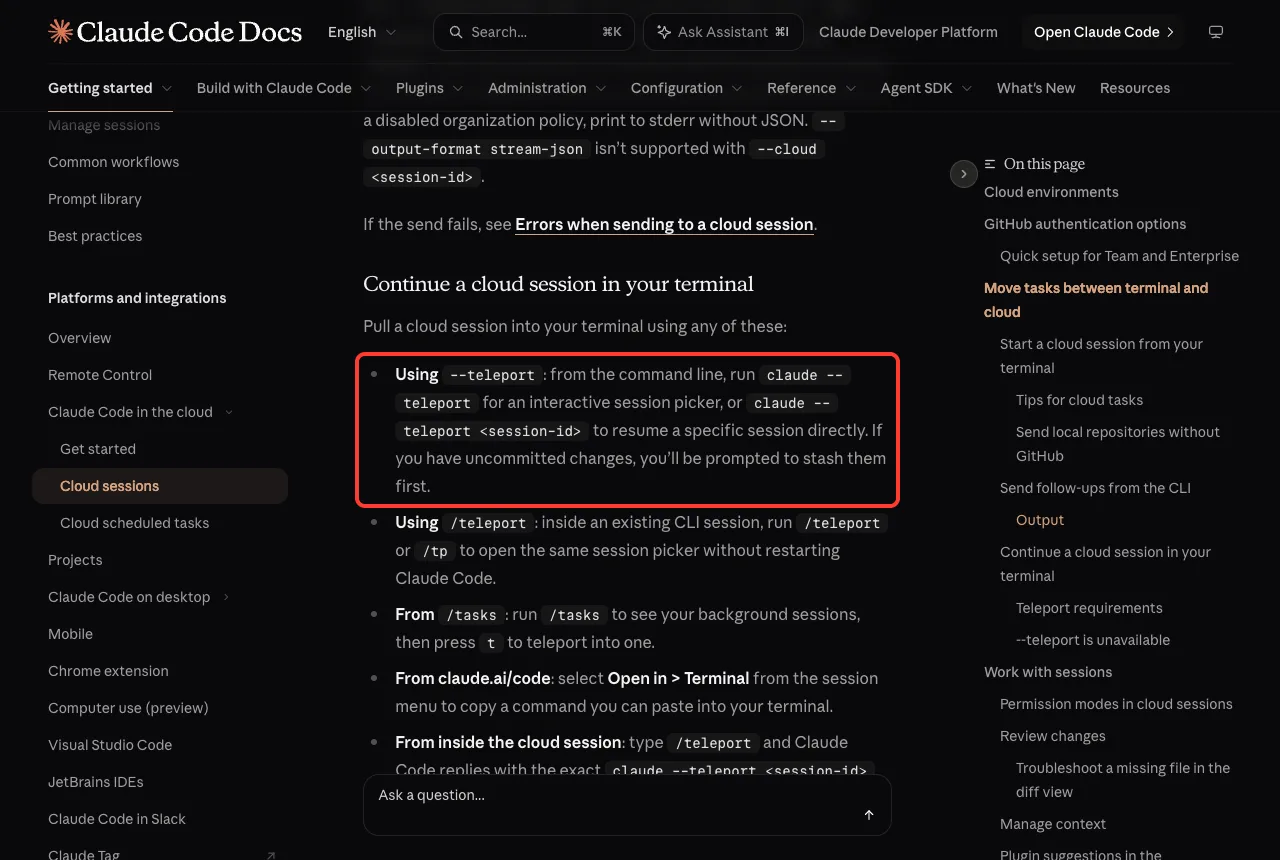
There are several ways to teleport a session:
- Run claude –teleport for a picker, or claude –teleport followed by a session ID to resume a specific one.
- Inside a session, run /teleport or /tp.
- Run /tasks, then press t on a background session.
- On claude.ai/code, choose Open in, then Terminal, and paste the copied command.
If you have uncommitted changes, Claude Code asks you to stash them first. You can only pull a session into your terminal when you are signed in to the same account that owns it.
Is It Safe? Security and Isolation
The docs describe several protections for Anthropic-hosted sessions.
Each session runs in its own isolated VM. Network access is limited by default and can be turned off. Git credentials and signing keys stay outside the sandbox, and a proxy signs in on the session’s behalf with scoped credentials.
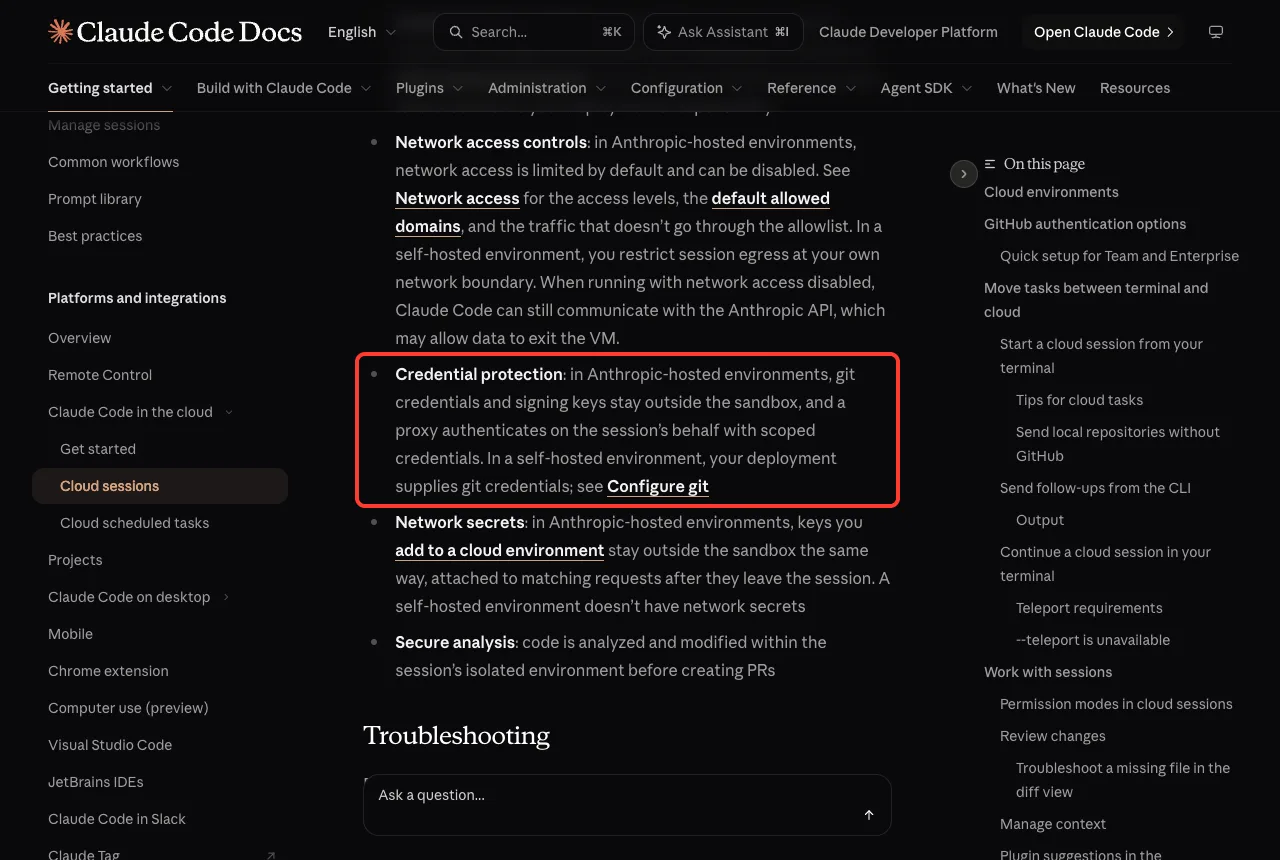
Keys you add to a cloud environment as network secrets are kept outside the sandbox the same way. One caution from the docs: with network access disabled, Claude Code can still talk to the Anthropic API, which may allow data to leave the VM. If your repository is sensitive, read the security page before you start.
Limits to Know Before You Start
| Limit | What it means |
|---|---|
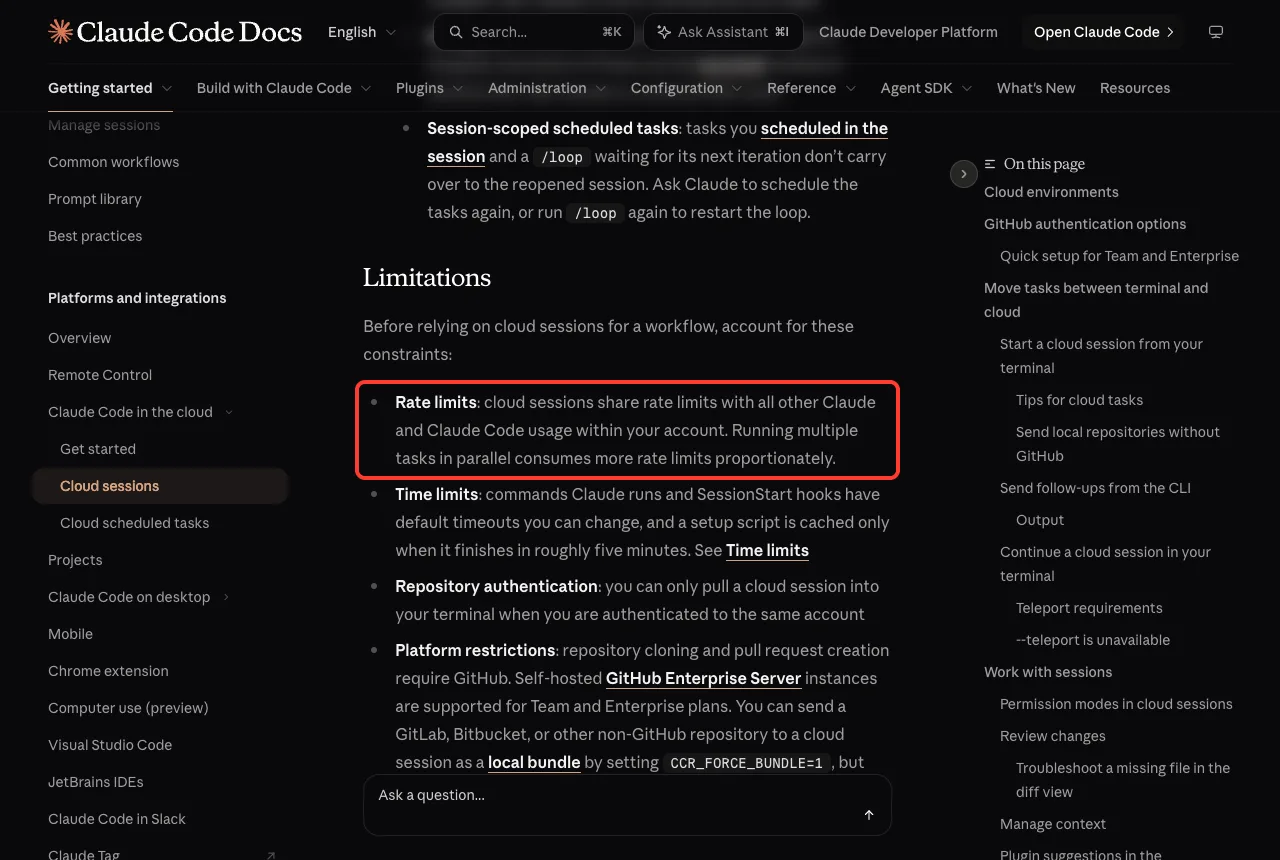
| Rate limits | Cloud sessions share limits with all your other Claude and Claude Code usage, so parallel tasks use more |
| Time limits | Commands and SessionStart hooks have default timeouts, and setup scripts are cached only if they finish in about five minutes |
| Same account | You can pull a session into your terminal only when signed in to the same account |
| GitHub | Cloning and pull requests need GitHub; GitHub Enterprise Server is supported on Team and Enterprise |
| IP allowlists | If your organization uses IP allowlisting, Anthropic-hosted sessions fail with an authentication error |
Try It Yourself
Pick a small throwaway repository on GitHub, so nothing important is at risk. Open claude.ai/code, choose that repository, and set the mode to Plan. Then paste this prompt:
Add a README.md with a short project description and setup instructions. Do not change any other file.Read the plan, approve it, review the diff in the Changes card, and click Create PR. Then try the terminal route in a repository whose latest commit is pushed:
claude --cloud "Add a .gitignore for this project"Common Mistakes
- Forgetting to push first. A –cloud session clones your GitHub remote, not your local checkout.
- Expecting untracked files to appear. Run git add on files you want a bundled session to see.
- Counting on personal settings. Cloud sessions use the repo only, so put instructions in CLAUDE.md.
- Running many tasks at once without thinking about limits. Parallel sessions use your rate limits faster.
- Vague prompts. Name the file and describe the expected behavior.
Pro Tips
- Start with Plan mode until you trust how Claude handles your repository.
- Leave inline comments on specific diff lines; Claude sees the file and line for you.
- Use claude –teleport when a task needs your local tools or a deeper look.
- Check status.claude.com if sessions fail to start; the docs say capacity is provisioned on demand, so retrying after a minute can help.
- Learn what is available inside the cloud VM in the official cloud sessions reference.
Claude Code on the Web Cheat Sheet
Frequently Asked Questions
What is Claude Code on the web?
It is Claude Code running in the cloud. You start tasks from claude.ai/code or your phone, and Claude works on an Anthropic-managed VM with your GitHub repository cloned into it.
Do I need GitHub?
Yes for normal use, since cloning and pull requests rely on GitHub. The docs also describe sending a local repo as a bundle with –cloud, but that session cannot push to a non-GitHub remote.
Does it keep running if I close my browser?
Yes. The official comparison says cloud sessions keep running if you disconnect, while a plain local session does not.
Can I move a cloud session to my own computer?
Yes. Run claude –teleport, or use /teleport inside a session. The reverse is not possible from the command line, though the Desktop app can send a local session to the cloud.
Does it use my usage limits?
Yes. Cloud sessions share rate limits with all your other Claude and Claude Code usage, and parallel tasks use them faster.
Conclusion
Claude Code on the web gives you a hands-off way to run coding tasks: connect GitHub, describe the job, pick Plan or Accept edits, review the diff, and create a pull request. You can start from the browser, your phone or claude –cloud, and pull any session back with claude –teleport. Remember the limits, especially shared rate limits and the repo-only setup. For more, browse our Claude AI page and the full web quickstart.
Previous in the series: Part 1, Use Claude Code Remote Control From Your Phone
Next in the series: Part 3: Build 5 Useful Claude Code Skills Step by Step.