If you keep pasting the same instructions into Claude Code, a skill can do that job for you. These Claude Code skills examples are built from scratch and tested in a real session, so you learn which kind of skill fits which job. Each one is a single text file, so you can copy it and adapt it in minutes.
We use a tiny demo project with a receipt calculator, and every screenshot comes from a real Claude Code session. You will see a skill that reads your live changes, one that takes an argument, one that only you can start, one that Claude loads on its own, and one that runs in a helper agent.
This is Part 3 of 10 in our Advanced Claude Code series, part of our Claude Code tutorials. The previous part showed how to cloud sessions.
Tested with Claude Code v2.1.310 on October 28, 2026. We tested on macOS; the Windows and Linux steps follow Anthropic’s official instructions.
Quick Summary: The Five Skills
| Skill | Type | What it does | How it starts |
|---|---|---|---|
| changes-digest | Live data | Summarizes your uncommitted changes and flags risks | You type /changes-digest, or Claude loads it when you ask what changed |
| explain-file | Argument | Explains any file in plain English | /explain-file app.py |
| release-check | Manual task | Runs a pre-release checklist and says READY or NOT READY | Only you, with /release-check |
| house-style | Reference | Applies your Python style rules | Only Claude, when it works on .py files |
| project-map | Helper agent | Maps the project in a separate subagent | /project-map |
A skill is a folder with one file. The file holds the instructions, and Claude Code turns the folder name into a command.
What a Claude Code Skill Is
A skill is a folder that contains a file named SKILL.md. The file has two parts: a short header between two lines of three dashes, and the instructions Claude follows when the skill runs. The official docs say custom commands have been merged into skills, so a file in .claude/commands/ and a skill folder both create the same kind of slash command.
The main benefit is cost. Unlike a long CLAUDE.md file, a skill body loads only when it is used, so long procedures cost almost nothing until you need them. If you want the basics first, read our earlier guide on creating reusable skills, then come back here for five practical builds.
Skills follow the open Agent Skills standard, and Claude Code adds extras such as invocation control, subagent execution and live command output. You can read the full reference in the official skills documentation.
Set Up the Demo Project
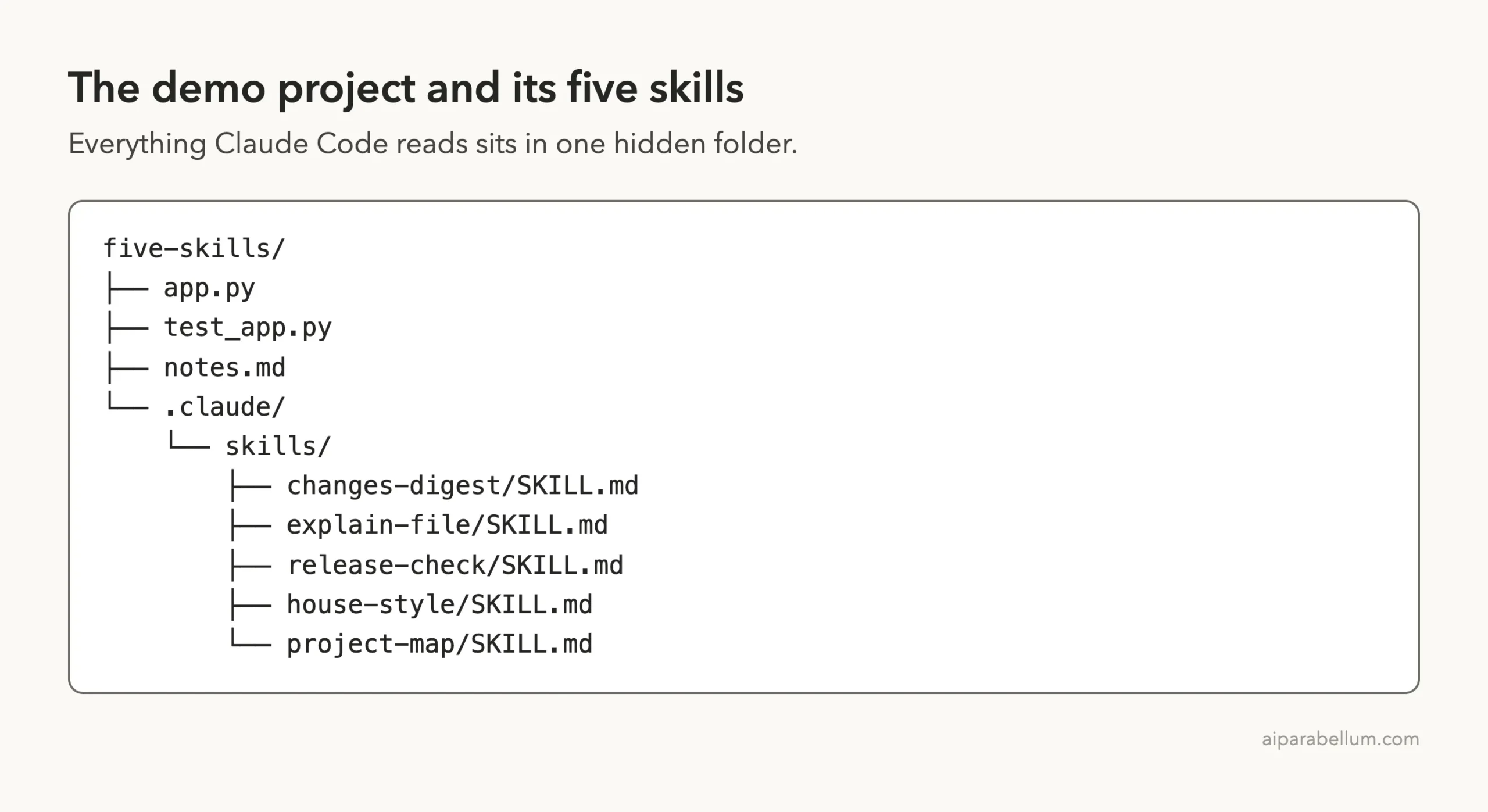
Never practice in a real project. We made a throwaway folder, ran git init, and added three small files: app.py with two receipt functions, test_app.py with one unit test, and notes.md. Then we made one extra commit and later added a function without committing it, so there was a live change for the skills to read.
Each skill sits in its own folder under .claude/skills/. That is a project skill, so it works only in this project and you can commit it for your team. A personal skill in ~/.claude/skills/ works in all your projects instead.
Claude Code watches existing skill folders and picks up edits without a restart. If you create a brand-new top-level skills folder while a session is running, type /reload-skills once. Our own demo folder existed before we launched Claude, so no reload was needed.
Skill 1: A Changes Digest That Reads Your Live Diff
The first skill answers the question “what did I change?” It uses dynamic context: a line that starts with an exclamation mark and a command in backticks. Claude Code runs the command first and pastes the output into the skill before Claude reads it.
---
description: Summarizes uncommitted changes and flags anything risky. Use when the user asks what changed, wants a commit message, or asks to review their diff.
---

## Current changes

!`git diff HEAD`

## Instructions

Summarize the changes above in two or three bullet points, then list any risks such as missing error handling, hardcoded values, or tests that need updating. If the diff is empty, say there are no uncommitted changes.
Save it as .claude/skills/changes-digest/SKILL.md. There is no name field, so the folder name becomes the command. The description matters most, because Claude uses it to decide when to load the skill by itself.
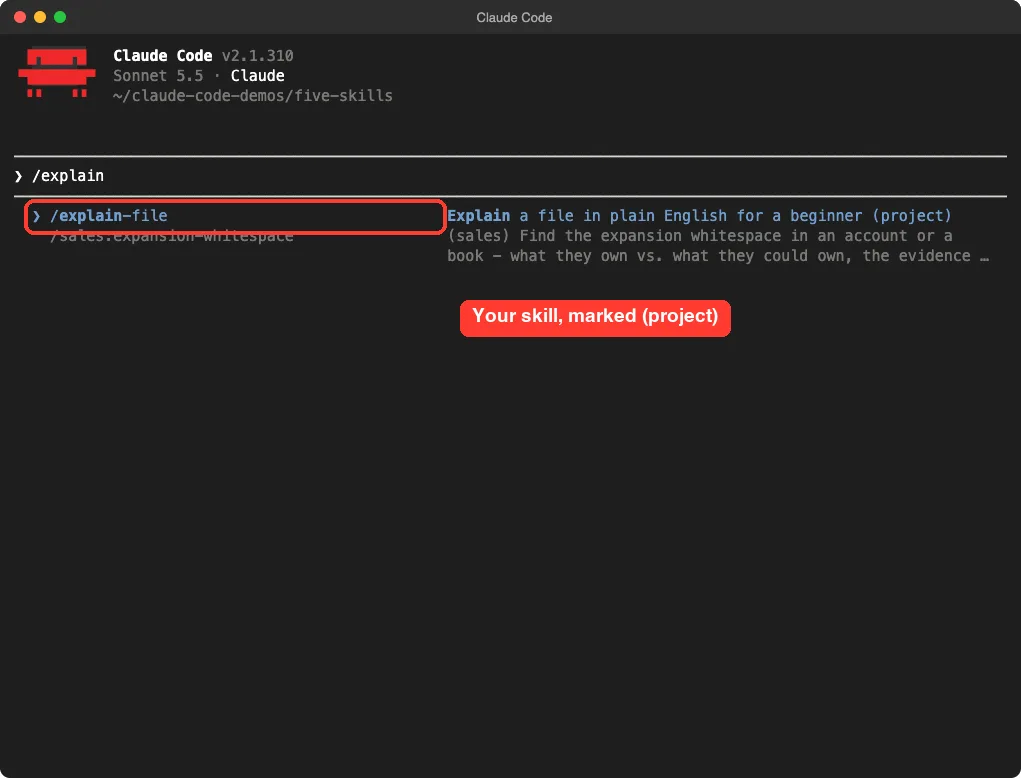
Type the command and look at the menu first. Claude Code shows your skill with its description, as the next screenshot shows for a different skill.
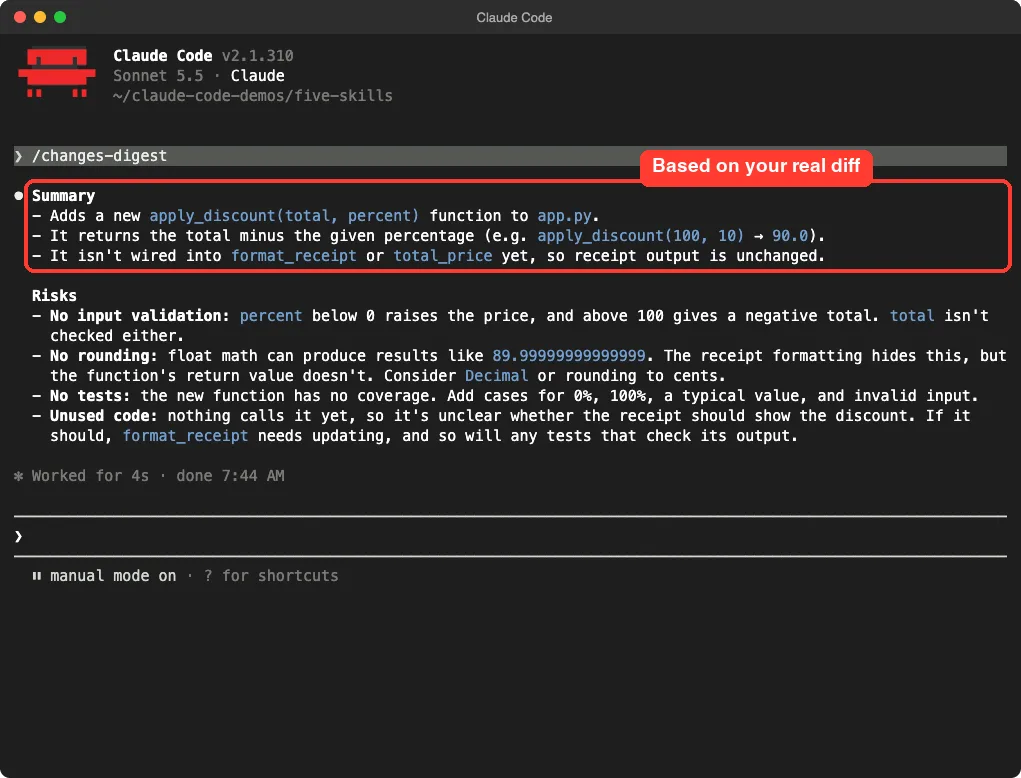
Now run /changes-digest. Claude summarized the new apply_discount function and listed risks such as no input validation, float rounding and missing tests. Those facts came from the real diff, not from a guess.
Skill 2: Explain Any File With an Argument
The second skill takes a value you type after the command. The placeholder $ARGUMENTS in the body is replaced with that text. This is ideal for repeatable tasks such as explaining, translating or reviewing one file.
---
name: explain-file
description: Explain a file in plain English for a beginner
argument-hint: [filename]
---

Read the file $ARGUMENTS and explain it in plain English for someone who has never programmed.

1. One sentence: what the file is for.
2. A short bullet list: what each function does.
3. One thing a beginner could safely change to see a different result.

Do not edit any files.
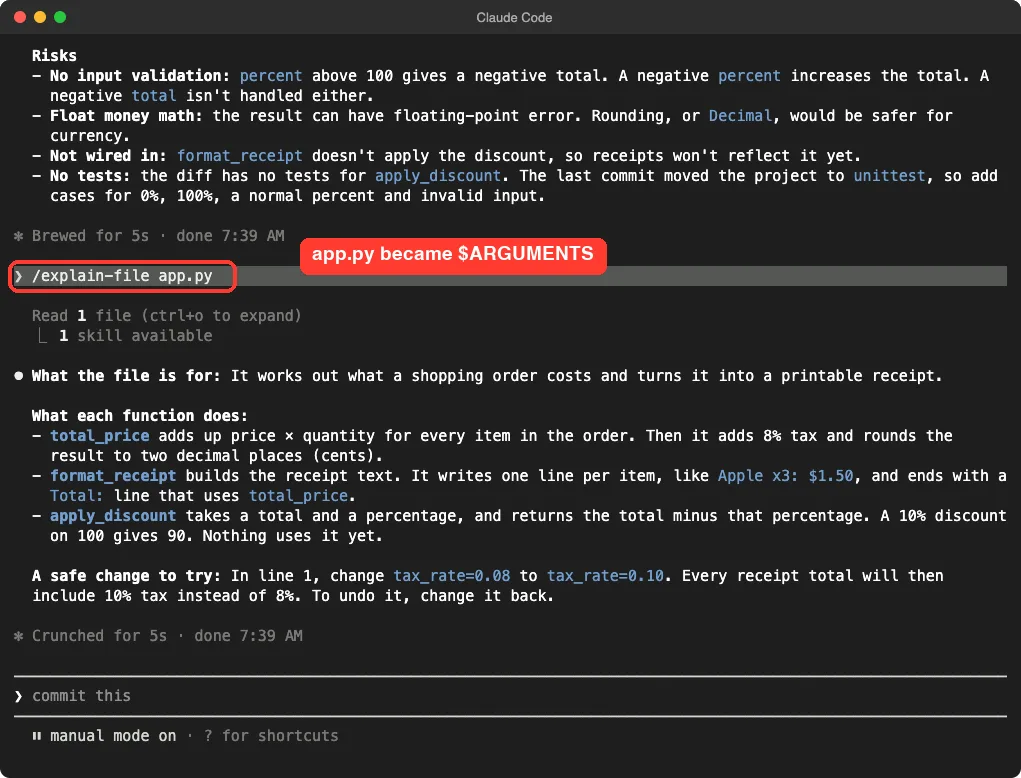
The argument-hint field shows a hint while you type. We ran /explain-file app.py, and Claude read only that file and answered with the three parts we asked for, including a safe change to try.
If you need more than one value, the docs also describe $0, $1 and named arguments. For example, a migration skill could read the component name from $0 and the target language from $1.
Skill 3: A Release Check Only You Can Start
Some jobs should never start on their own, such as deploying or publishing. Adding disable-model-invocation: true tells Claude it cannot run the skill automatically. The official docs give /commit and /deploy as examples.
This skill also uses allowed-tools, which lets Claude run the listed commands without a permission prompt during that turn.
---
name: release-check
description: Run the pre-release checklist for this project
disable-model-invocation: true
allowed-tools: Bash(python3 -m unittest *) Bash(git status *)
---

Run the release checklist, one step at a time:

1. Run `git status --short` and report uncommitted files.
2. Run `python3 -m unittest -v` and report the result.
3. End with one line: READY or NOT READY, and why.
In our run, Claude ran git status and the unit tests without stopping to ask, then gave its verdict: NOT READY, because app.py had uncommitted changes and the new function had no tests. That is exactly the kind of answer you want before shipping.
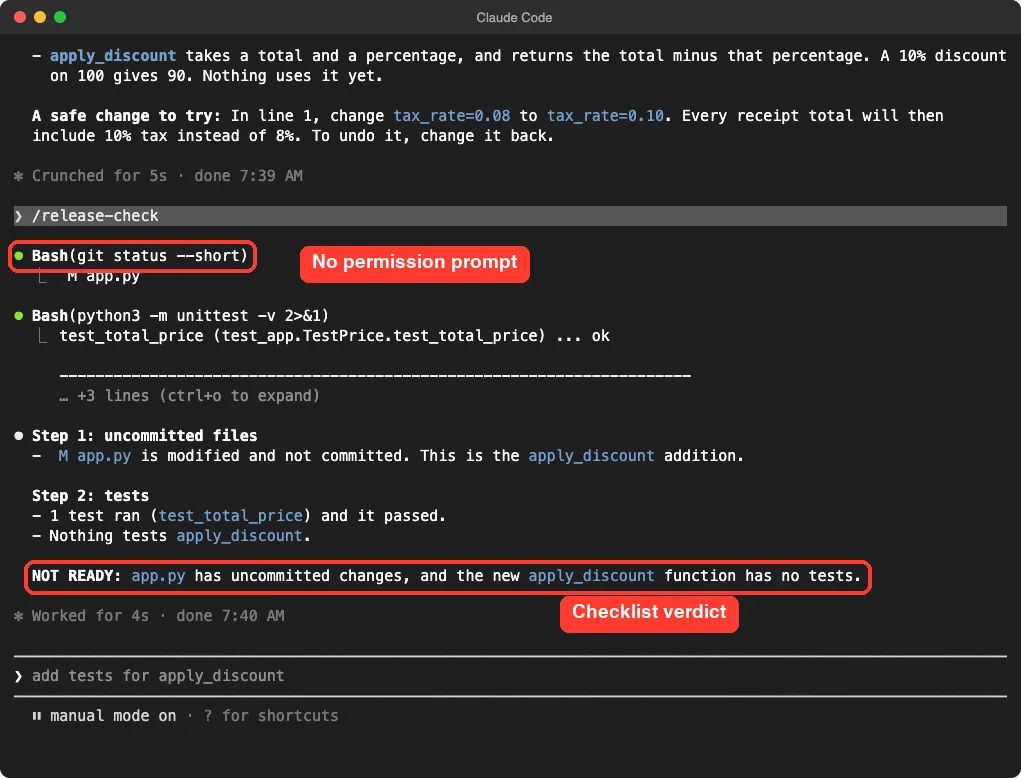
The grant lasts only for the turn that runs the skill and clears when you send your next message. Your normal permission modes still apply to everything else. Also, review the allowed-tools line of any skill you copy from a repository, because a skill can grant itself tool access.
Skill 4: A Style Guide Claude Loads by Itself
The fourth skill is background knowledge. Setting user-invocable: false hides it from the slash menu, so only Claude can load it. Adding paths limits it to files that match a pattern, here every Python file.
---
name: house-style
description: Coding style rules for this project. Use when writing or changing Python code here.
user-invocable: false
paths: "**/*.py"
---

When you write or edit Python in this project:

- Add a short docstring to every function.
- Use type hints on all parameters and return values.
- Keep each function under 15 lines.
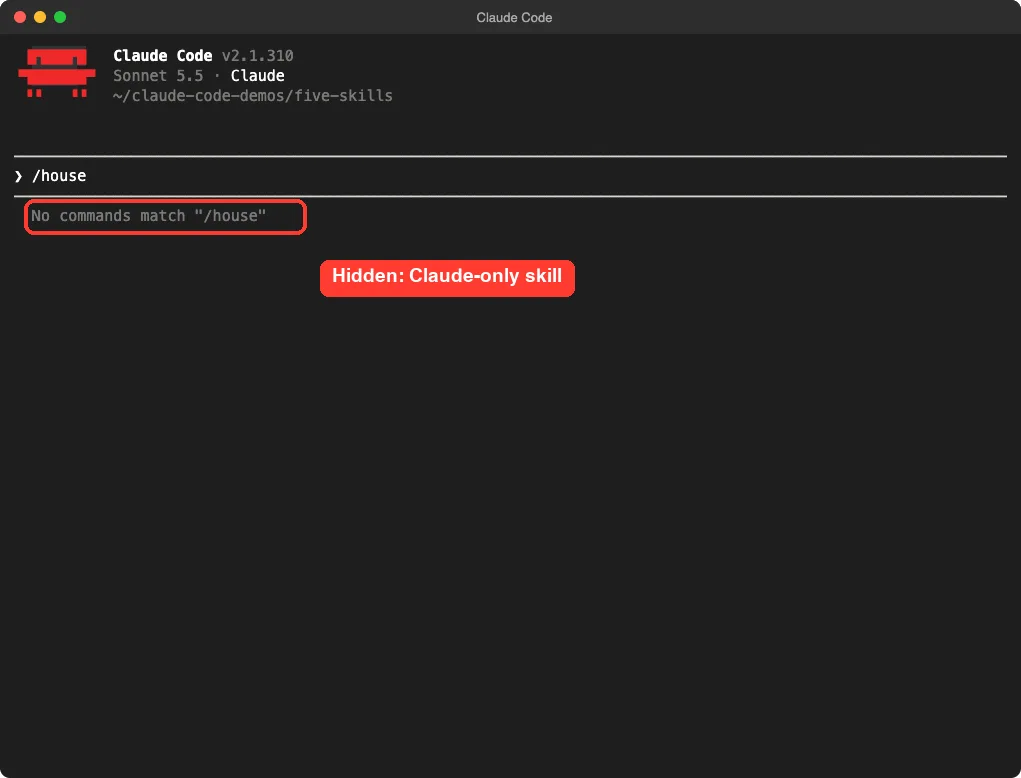
First, check that it is hidden. When we typed /house, the menu answered that no commands match, which is the expected result for a Claude-only skill.
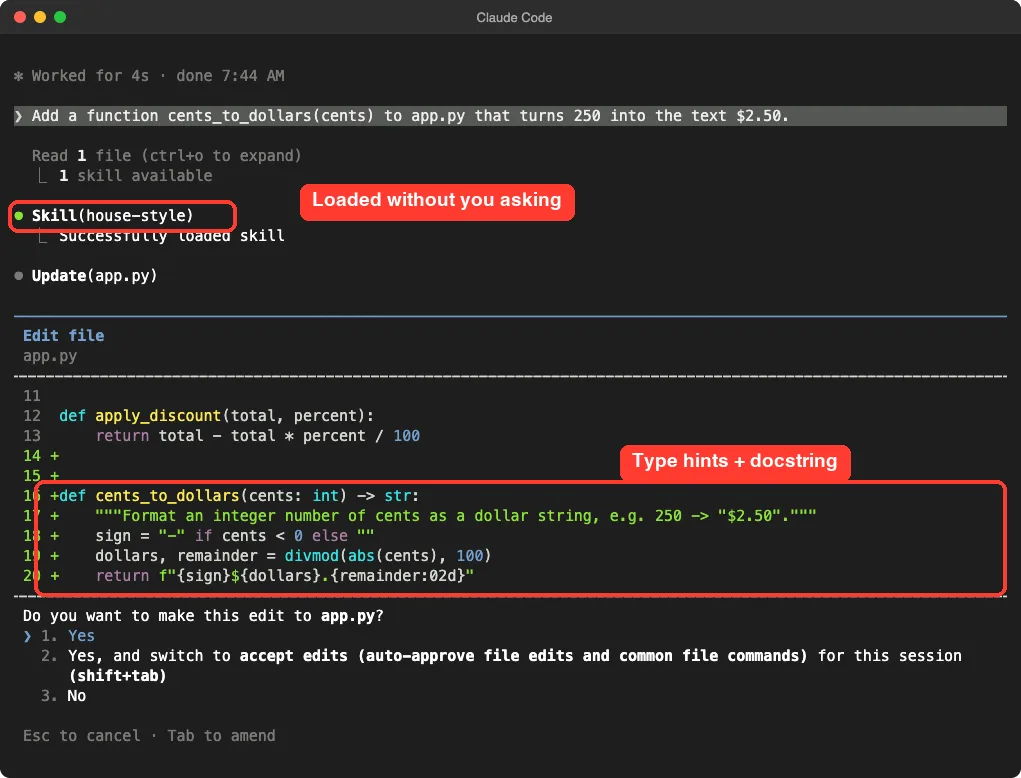
Next, we asked for a new function in plain words: add cents_to_dollars to app.py. Claude read the file, loaded the house-style skill on its own, and wrote the function with type hints and a docstring, as our rules say.
One caution from the docs: a skill is guidance, not a guarantee. If a rule must hold every single time, move it into a hook. Our guide on Claude Code hooks shows how.
Skill 5: A Project Map Built by a Helper Agent
The last skill runs in its own subagent. Setting context: fork gives the work a fresh context, and the agent field picks the type, here the read-only Explore agent. The skill instructions become the helper’s task, and it sends back a summary.
---
name: project-map
description: Map the project files and say what each one does
context: fork
agent: Explore
---

List every file in this project in a short table (file, purpose). Read each file briefly to be accurate. Finish with the one file a newcomer should open first.
We ran /project-map. Claude Code reported that it was running in the background as an agent, then asked once before running a shell command that it could not check in advance. After we approved it, the table of files appeared.
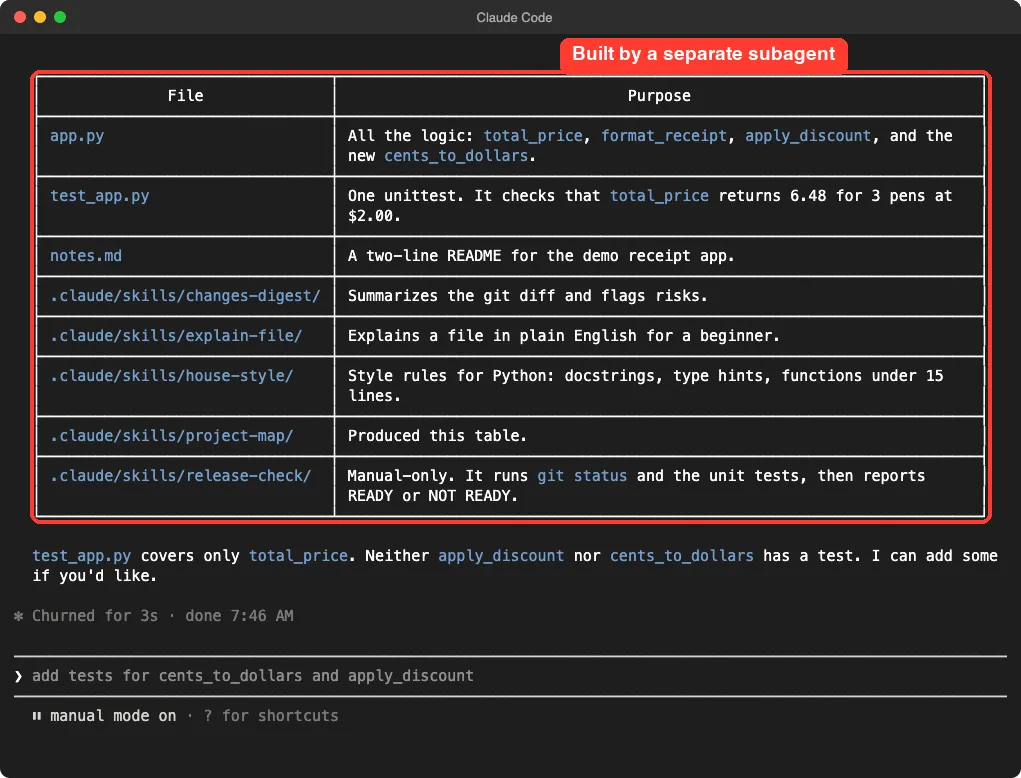
Use a forked skill when the job reads many files and you only want the answer. The mess stays in the helper’s context, and your main chat stays short. For more on helpers, see our subagents guide.
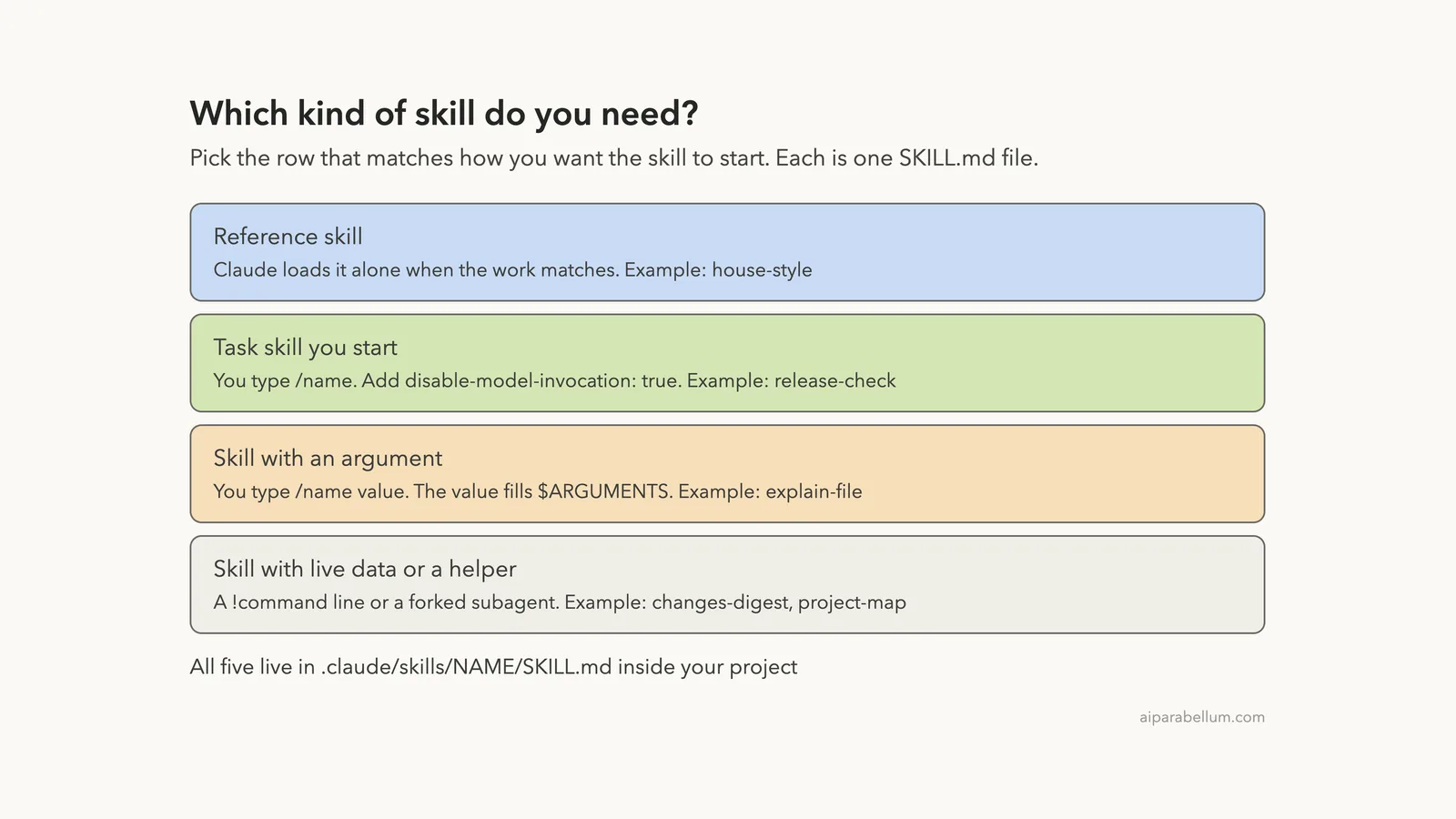
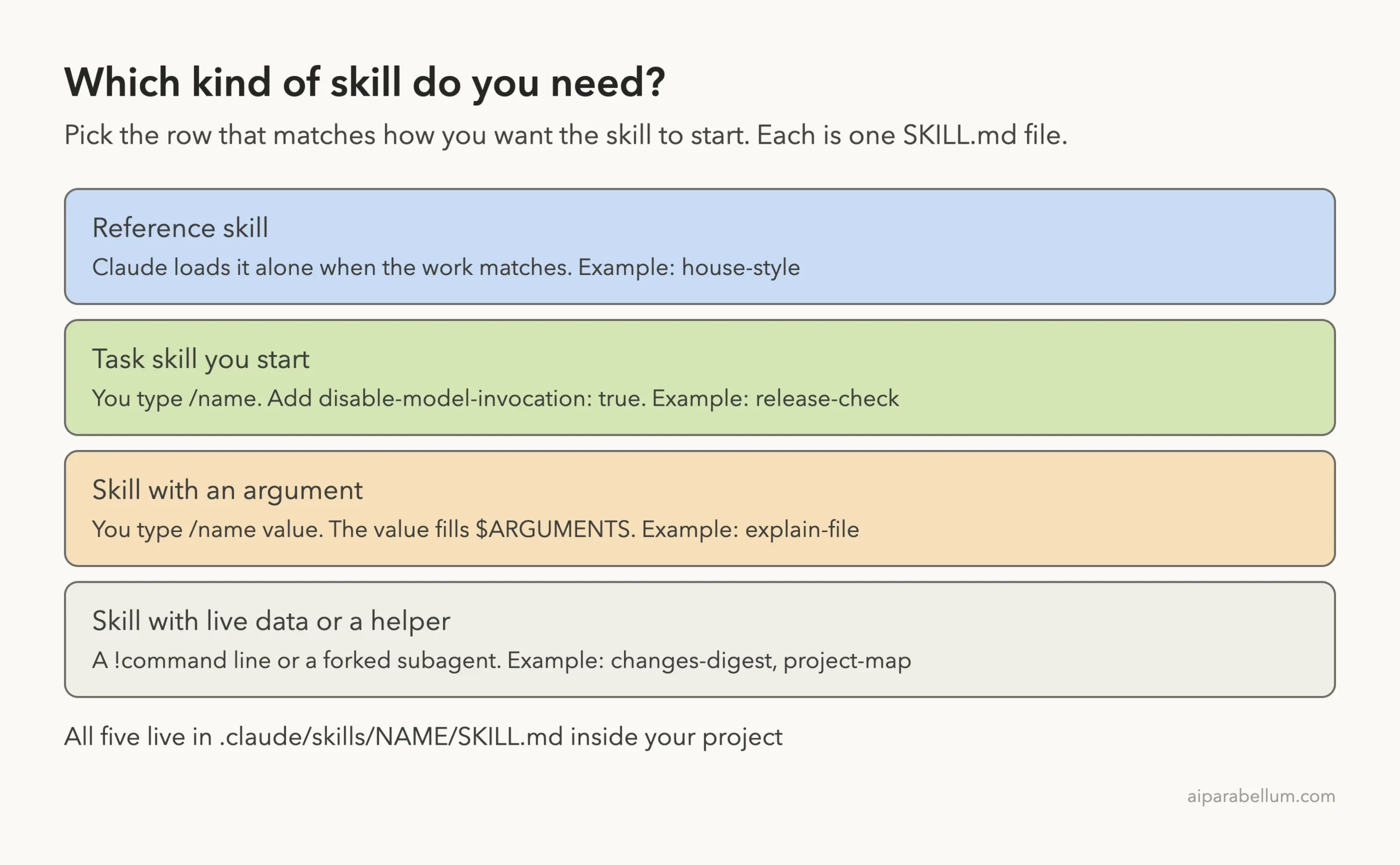
Which Kind of Skill Should You Write?
Start from how you want the skill to begin. If Claude should notice the need itself, write a reference skill with a good description.
If you want full control, use disable-model-invocation. If the task needs a value, use $ARGUMENTS, and if it needs fresh data, use an exclamation-mark command line.
Where to Save a Skill
The docs list several places. Pick by who needs the skill.
| Location | Path | Who gets it |
|---|---|---|
| Personal | ~/.claude/skills/NAME/SKILL.md | All your projects on this machine |
| Project | .claude/skills/NAME/SKILL.md | Everyone who works in the repository, if you commit it |
| Plugin | plugin folder, skills/NAME/SKILL.md | Wherever the plugin is enabled |
| Enterprise | managed settings directory | All users in an organization |
If two skills share a name, the enterprise one wins over personal, and personal wins over project. Your skill also replaces a bundled command of the same name, so avoid names like code-review unless you mean it.
Try It Yourself
Make a throwaway folder, run git init, and add one small file. Then ask Claude to create a skill for you with this prompt.
Create a project skill at .claude/skills/todo-scan/SKILL.md. When I type /todo-scan, it should list every TODO comment in this project with the file and line, grouped by file. Use a ! command with grep to collect them first. Keep the file under 15 lines.Run /todo-scan, then add a TODO to a file and run it again. Watch how the result updates without you changing the skill.
Common Mistakes
- A vague description. Claude uses the description to decide when to load the skill, so name the trigger phrases a person would really say.
- Misspelled field names. Claude Code silently ignores a field it does not recognize, so check hyphens and spelling.
- Frontmatter not on line one. The header only counts if the opening three dashes are the first line of the file.
- A huge SKILL.md. Once loaded, the content stays in context, so every line is a recurring cost. Keep it under 500 lines and move details to supporting files.
- Expecting a rule to be enforced. A skill is guidance Claude applies with judgment; use a hook for rules that must always run.
- Putting a skill in the wrong place. A skill in ~/.claude/skills/ is not read by cloud sessions, which load skills from your claude.ai account instead.
Pro Tips
- Put the key use case first in the description, because the listing text is cut at 1,536 characters.
- Write standing instructions, such as “run the tests after every edit,” rather than one-time steps, since Claude Code does not re-read the file on later turns.
- Put the most important lines at the top. After a long session is compacted, Claude Code keeps only the start of each invoked skill.
- Run /skills to see what is loaded, and stack several skills at the start of one message when you want them together.
- If a skill does not trigger, invoke it directly with its name, then rephrase the description.
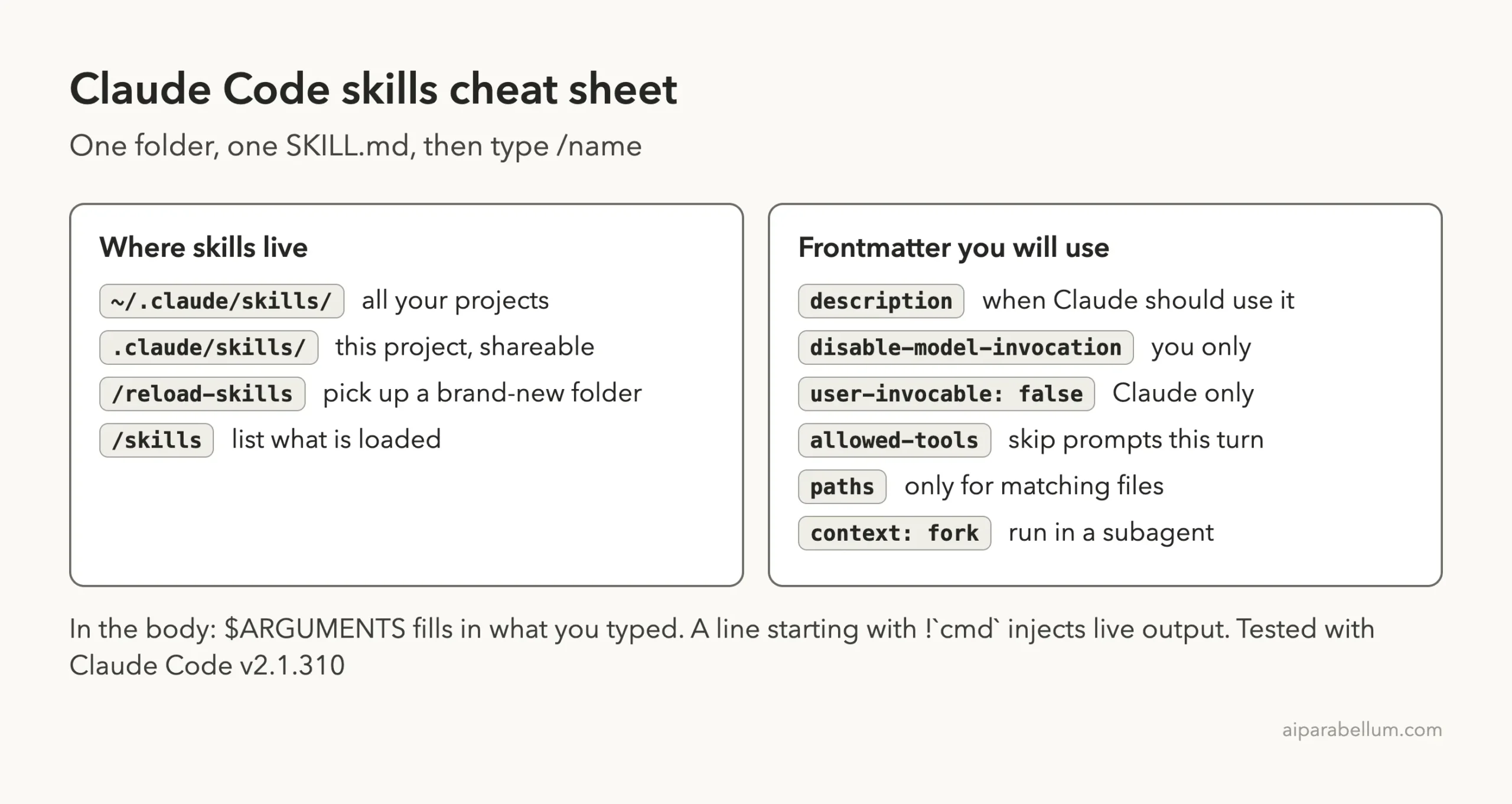
Claude Code Skills Cheat Sheet
Frequently Asked Questions
What is the difference between a skill and a slash command?
Custom commands have been merged into skills. A file in .claude/commands/ and a skill folder both create a slash command, but skills add supporting files and invocation control.
Do I need to restart Claude Code after adding a skill?
Not for existing skill folders, because Claude Code picks up edits in the session. If the top-level skills folder is brand new, run /reload-skills once.
Can I stop Claude from running a skill on its own?
Yes. Set disable-model-invocation: true in the header. Then only you can start it with /name.
How do I pass a value into a skill?
Type it after the name, such as /explain-file app.py, and use $ARGUMENTS in the body. You can also use $0 and $1 for individual values.
Do skills work in cloud sessions?
Skills saved only in your home folder are not read there. Commit the skill to the repository, or enable it for your claude.ai account, as the docs describe.
Conclusion
You built five useful Claude Code skills: a live changes digest, an argument-based file explainer, a manual release check, a hidden style guide and a forked project map. Each is a short SKILL.md file, and the header decides who can start it and what it may do. Start with one task you repeat every week, save it under .claude/skills/, and refine the description until it triggers when you expect. For more on the assistant behind it all, visit our Claude AI page, and see the commands in slash commands explained.
Previous in the series: Part 2, Use Claude Code on the Web: A Beginner Guide
Next in the series: Part 4, Change How Claude Code Looks With Mods, is coming soon.