Have you ever wished Claude Code showed one more thing on screen, like a running count next to the spinner? That is what Claude Code mods are for. A mod is a small add-on that changes how Claude Code looks and behaves, and you can ask Claude to write one for you in plain English.
In this tutorial, we ask Claude to build a tiny mod, turn it on, and watch it work for real. You do not need to know how to program. If you can type a sentence and press Enter, you can follow along.
This is Part 4 of 10 in our Advanced Claude Code series, part of our Claude Code tutorials.
Tested with Claude Code v2.1.312 on October 29, 2026.
Claude Code Mods at a Glance
| Question | Short answer |
|---|---|
| What is a mod? | A plugin made of small JavaScript or TypeScript functions that Claude Code calls when something happens |
| What can it change? | The interface (panes, the spinner, buttons), tool calls, prompts, and your own /commands |
| How do I get one? | Describe it to Claude, install a sample, or write it yourself |
| Which version do I need? | Claude Code v2.1.287 or later in the terminal |
| Is it safe? | A mod runs with your access, so only turn on mods you trust |
| How do I switch them off? | Disable one in /plugin, or start with –safe-mode |
What Is a Claude Code Mod?
A mod is a plugin that changes how Claude Code looks and behaves. Under the hood it is a few functions, called hooks. Claude Code runs one of your hooks when an event happens, such as a tool call, a prompt you submit, or a part of the screen being drawn.
Each hook can watch the event, change it, or take it over. That is a lot of power in a small package. It is also why this tutorial spends a whole section on safety.
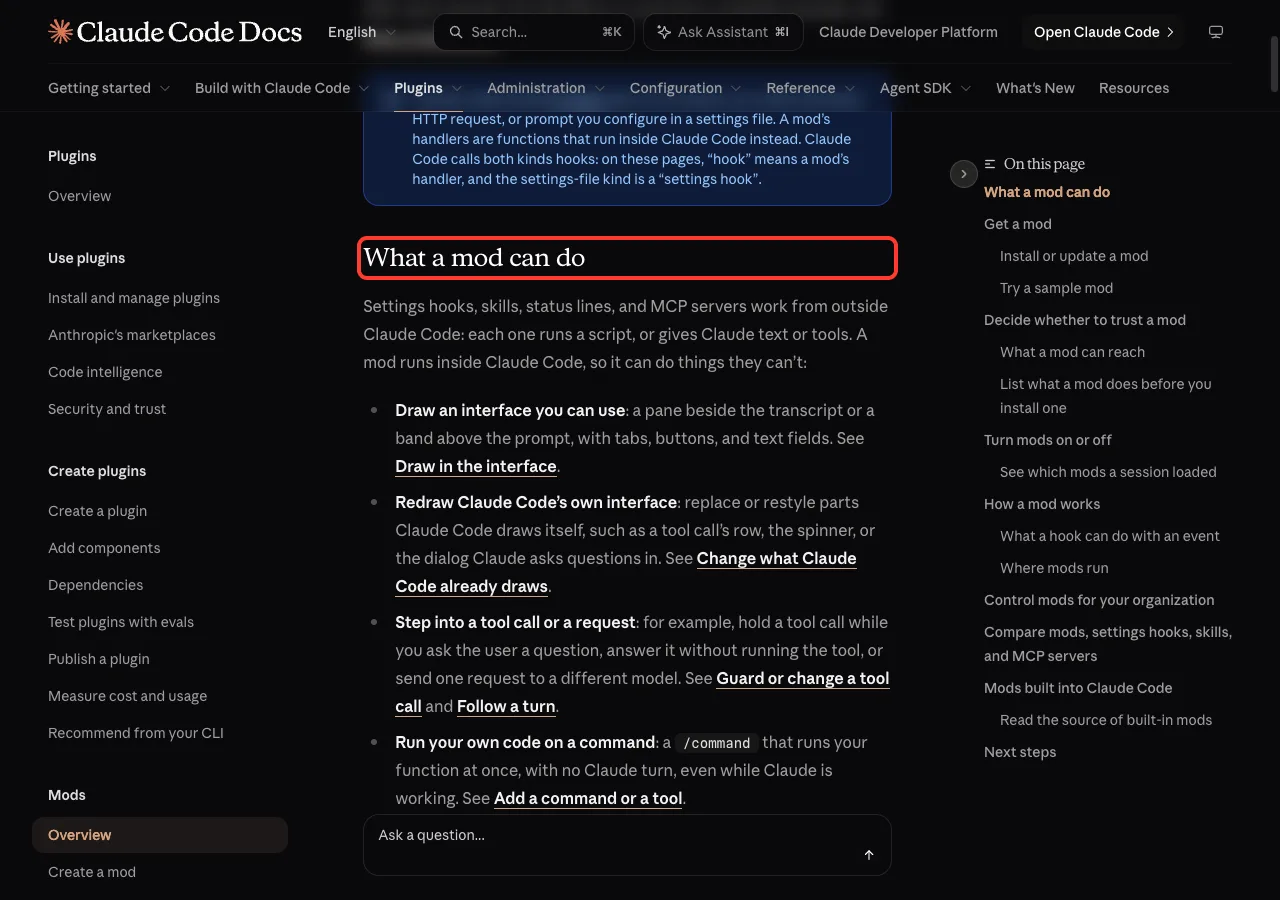
What a mod can do
According to the official mods overview, a mod can do several things.
- Draw its own interface, such as a pane beside the conversation or a band above the prompt
- Redraw parts Claude Code draws itself, such as a tool call row, the spinner, or a question dialog
- Step into a tool call or a request, for example to hold a tool call while it asks you a question
- Add a /command that runs your own code right away, with no Claude turn
- Share data between hooks, so one hook can count things while another shows the count
Some features you may already use are mods. The docs say Claude Code’s own /diff pane is one. If you like to tune your setup, this is the same family as the status line and output styles, only much more flexible.
How a Claude Code Mod Works
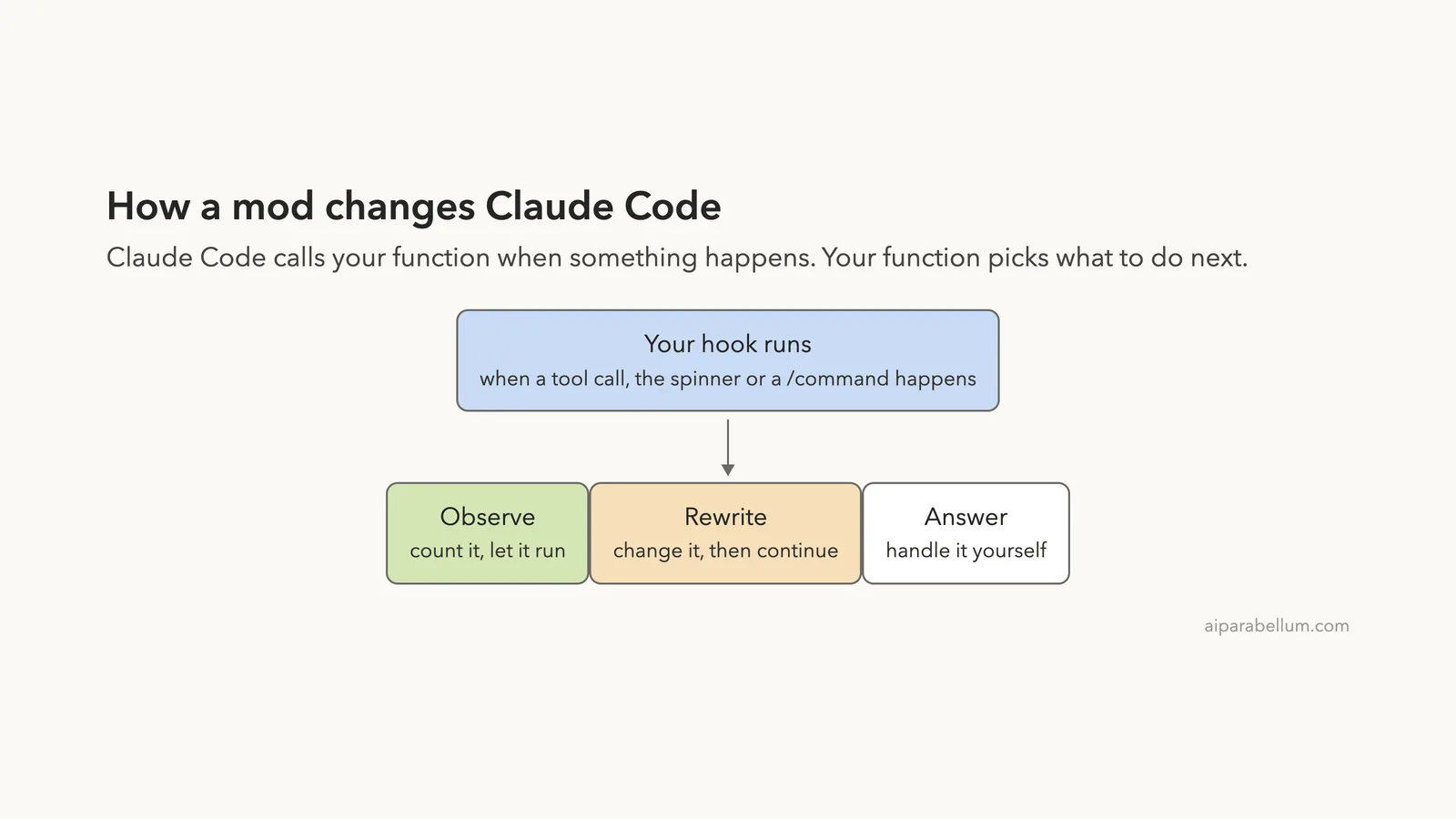
Every mod follows the same simple idea. Something happens, your hook runs, and your hook picks one of three moves. The diagram below shows the three moves the docs describe.
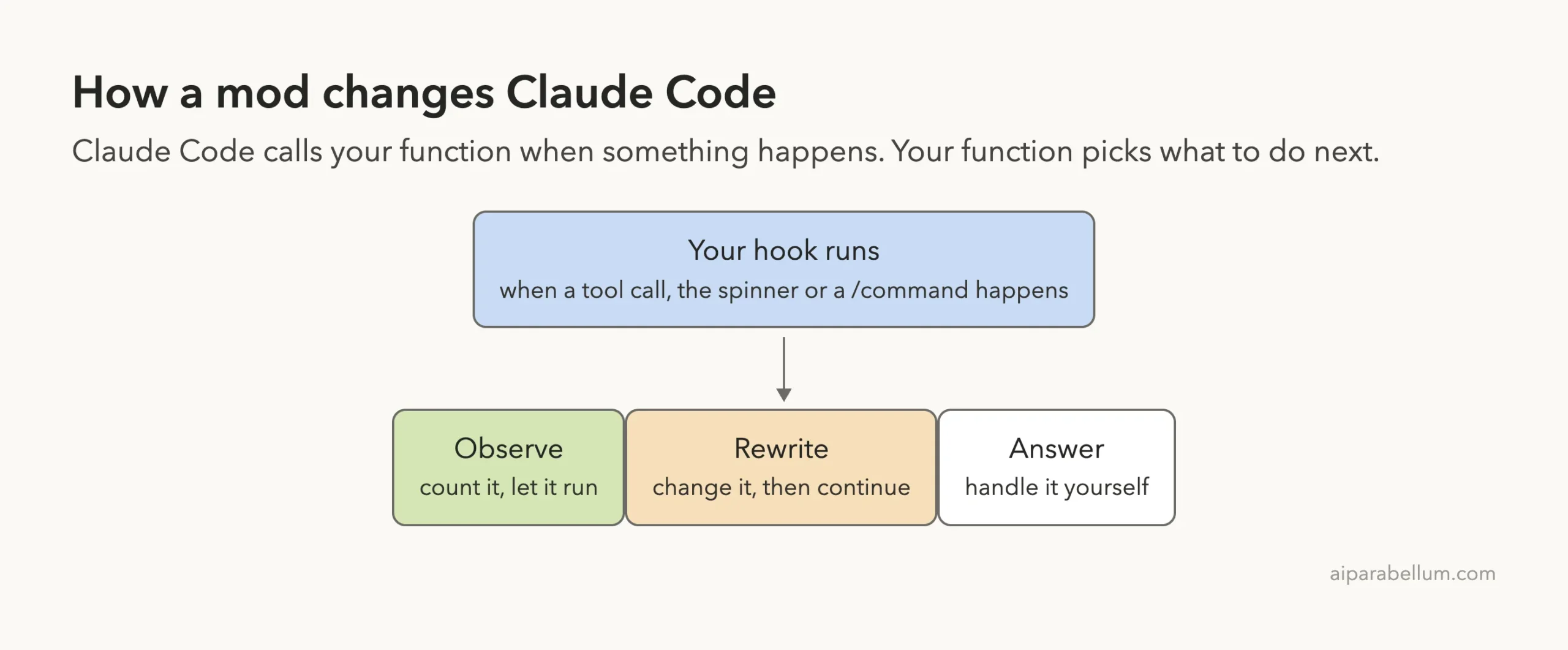
- Observe: note what happened and let it continue, like counting a tool call
- Rewrite: change the event first, like adding text after the spinner word
- Answer: handle the event yourself, so Claude Code’s usual behavior does not run
The mod we build below uses all three. It counts tool calls (observe), adds the count to the spinner (rewrite), and prints the count when you type /tally (answer).
Ask Claude to Write Your First Claude Code Mod
The easiest way to make a mod is to describe it. Claude works from a built-in skill named plugin-authoring, which tells it where to put the mod and which events your version supports. The create guide calls this the Ask Claude path.
We made a small demo folder with two sample files, a grocery note and a tiny score table. Then we started Claude Code there and typed this prompt.
Make me a Claude Code mod that counts my tool calls this session, shows the count beside the spinner, and adds a /tally command that prints it. Keep it tiny.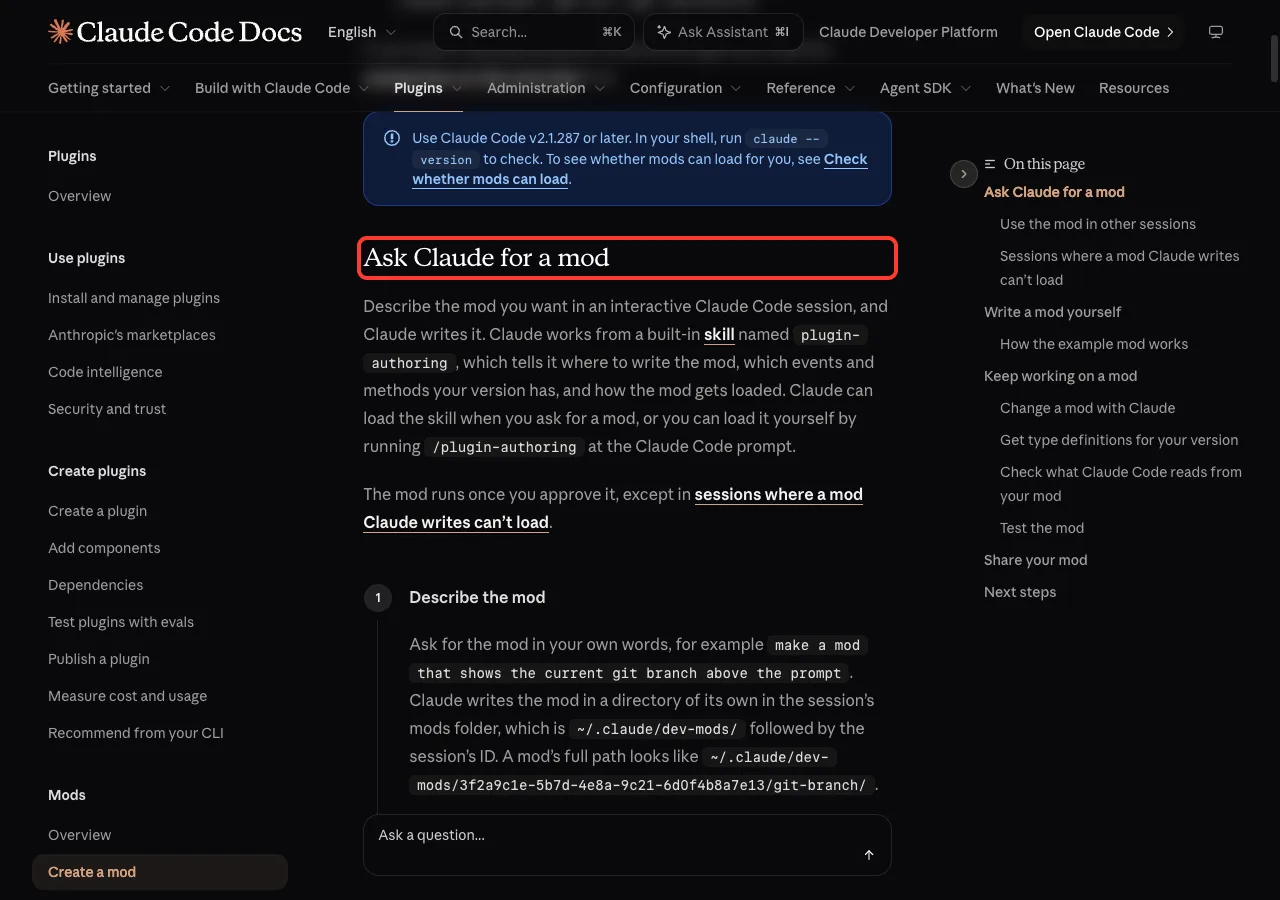
Claude loaded the plugin-authoring skill first. It then asked permission to run a shell command that read files bundled with that skill. That is a normal approval prompt, so you read it and say yes.
After a short wait, Claude wrote the mod, checked it with the plugin validator, and explained what it made. Our run took about two minutes the first time and under half a minute another time, so expect some variation.
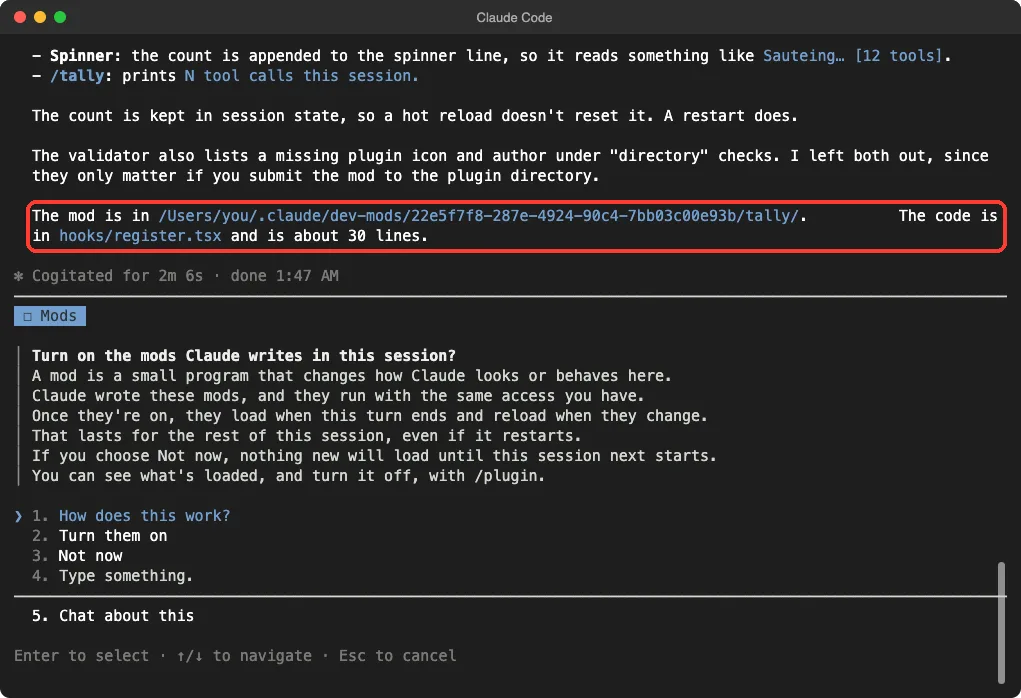
Claude saved the mod in a folder under ~/.claude/dev-mods/, inside a subfolder named after the session. The code lives in one file, hooks/register.tsx, and it was only about 25 lines. Short mods are easy to read and easy to trust.
Turn On the Mod Safely
A mod does not load just because Claude wrote it. When the turn ends, Claude Code asks whether to turn on the mods Claude wrote in this session. You get four choices, and the first one explains how mods work.
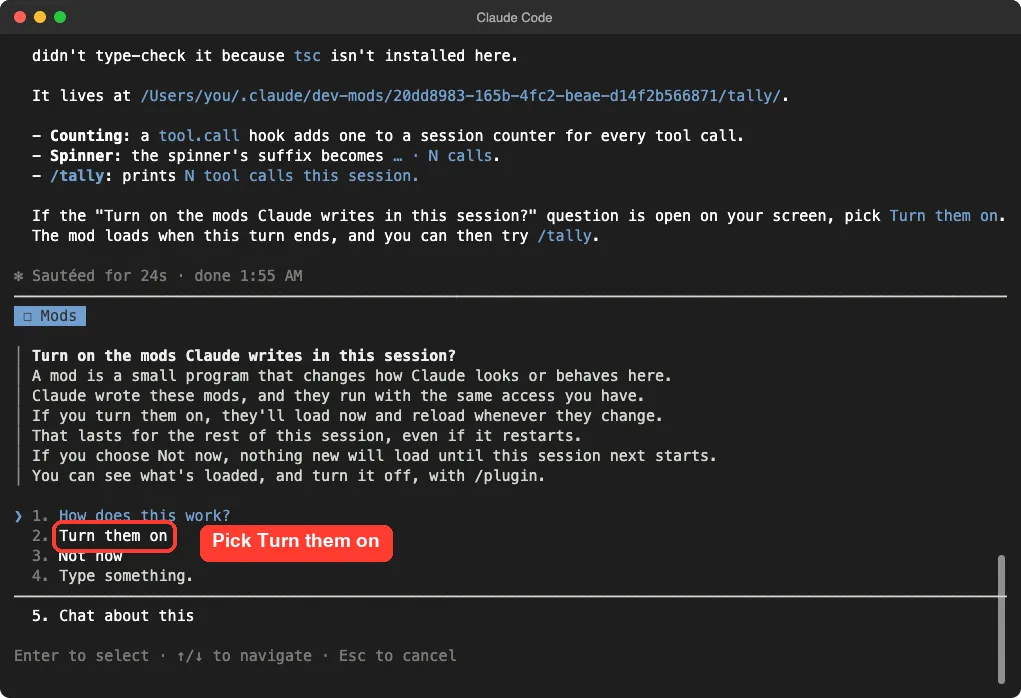
Here is what each answer does, based on the dialog and the docs.
- Turn them on: the mod loads when the turn ends and reloads whenever Claude changes it. The answer lasts for the rest of the session, even if you resume it.
- Not now: nothing loads for now. The files stay where Claude wrote them and load the next time that session starts.
To keep a mod from ever loading, delete its folder. You can also turn off any loaded mod later from /plugin, which we cover in the safety section.
When Claude cannot load a mod
The docs list a few sessions where a mod Claude writes will not load. There is no one to approve it in a claude -p run or in dontAsk mode. It also will not load if you have not accepted the trust prompt for the folder, or if mods are disabled with –safe-mode, –bare, or an organization setting.
See Your Claude Code Mod Work
For a clean demo, we loaded the finished mod by hand with the documented flag for sessions you start yourself. We copied the mod folder into the demo project and ran this in the terminal.
claude --plugin-dir mods/tallyFirst we typed /tally before doing anything. It printed zero tool calls. Then we asked Claude to read both sample files.
Read notes.md and scores.csv, then tell me in one sentence what each contains.Claude read the two files and answered. When we typed /tally again, it printed two tool calls. The mod had counted every read.
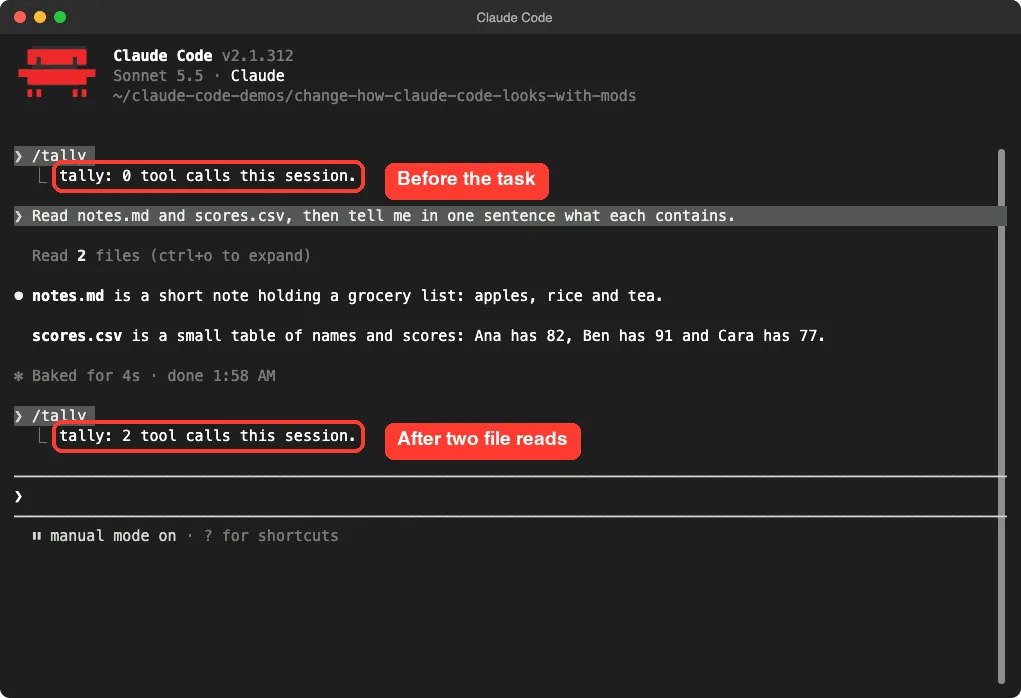
That is the answer move at work. The command.run hook ran our code and returned the text, and no model call was needed.
Watch the spinner change
The second feature is the spinner. We ran a slightly longer task that read three files one at a time. While Claude worked, the spinner line read Mulling… · 3 calls.
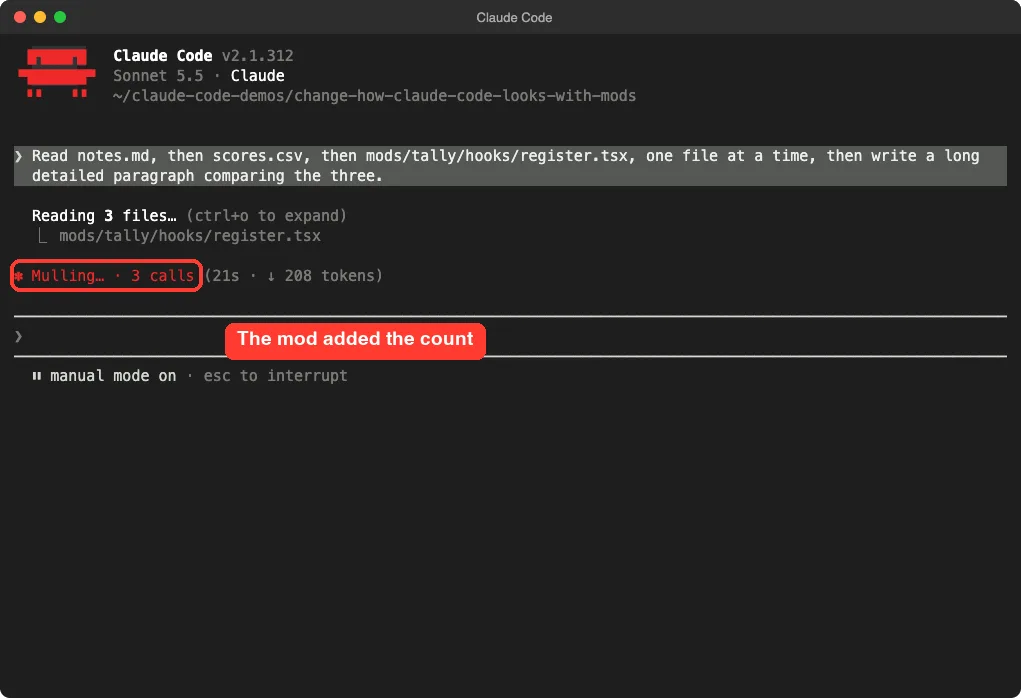
Look closely at the line. The word Mulling and the timer are Claude Code’s own, and only the dot and the count came from the mod.
That is the rewrite move at work: Claude Code draws its usual spinner, and the mod adds its own text after the word.
Read the Mod You Just Made
You do not have to read the code, but it helps you trust it. Here is the whole file Claude wrote for us. It is short enough to read in one minute.
import { atom, read, update } from 'claude-code'
import type { Register } from 'claude-code'

const count = atom({ plugin: 'tally', key: 'count' } as const, 0, { shape: 'count-1' })

export const register: Register = on => {
  on('session.start', async ($, e, next) => {
    await $.command.register({ name: 'tally', description: 'Print the tool calls made this session' })
    return next(e)
  })

  on('tool.call', async ($, e, next) => {
    await update($, count, n => n + 1)
    return next(e)
  })

  on('command.run', { command: 'tally' }, async $ => ({
    text: `${await read($, count)} tool calls this session.`,
  }))

  on('ui.render', { component: 'Spinner' }, async ($, e, next) => {
    const n = await read($, count)
    return next({ ...e, props: { ...e.props, suffix: `${e.props.suffix} · ${n} calls` } })
  })
}
Here is how to read it in plain English.
- session.start adds the /tally command when the session begins.
- tool.call adds one to the counter each time Claude is about to use a tool, then lets the tool run as usual.
- command.run answers /tally by returning the count and never calls next.
- ui.render copies the spinner’s settings and adds the count to the end.
The word next in the code means pass the event along. A hook that calls next lets everything else run. A hook that skips it takes over, just like our /tally command does.
Can You Trust a Mod? Read This Before You Install One
This is the most important section in the article. A mod is code, and it runs with the same access you have. The docs say a loaded mod can do all of the following.
- Read and write files anywhere your user account can, start programs, and use the network
- Read your secrets, including environment variables and settings files
- See every prompt you send and every tool call Claude makes
- Rewrite a prompt or a tool call, or send a prompt as if you had typed it
- Approve a tool call before you are asked
- Spend your usage by calling a model on your plan or API key
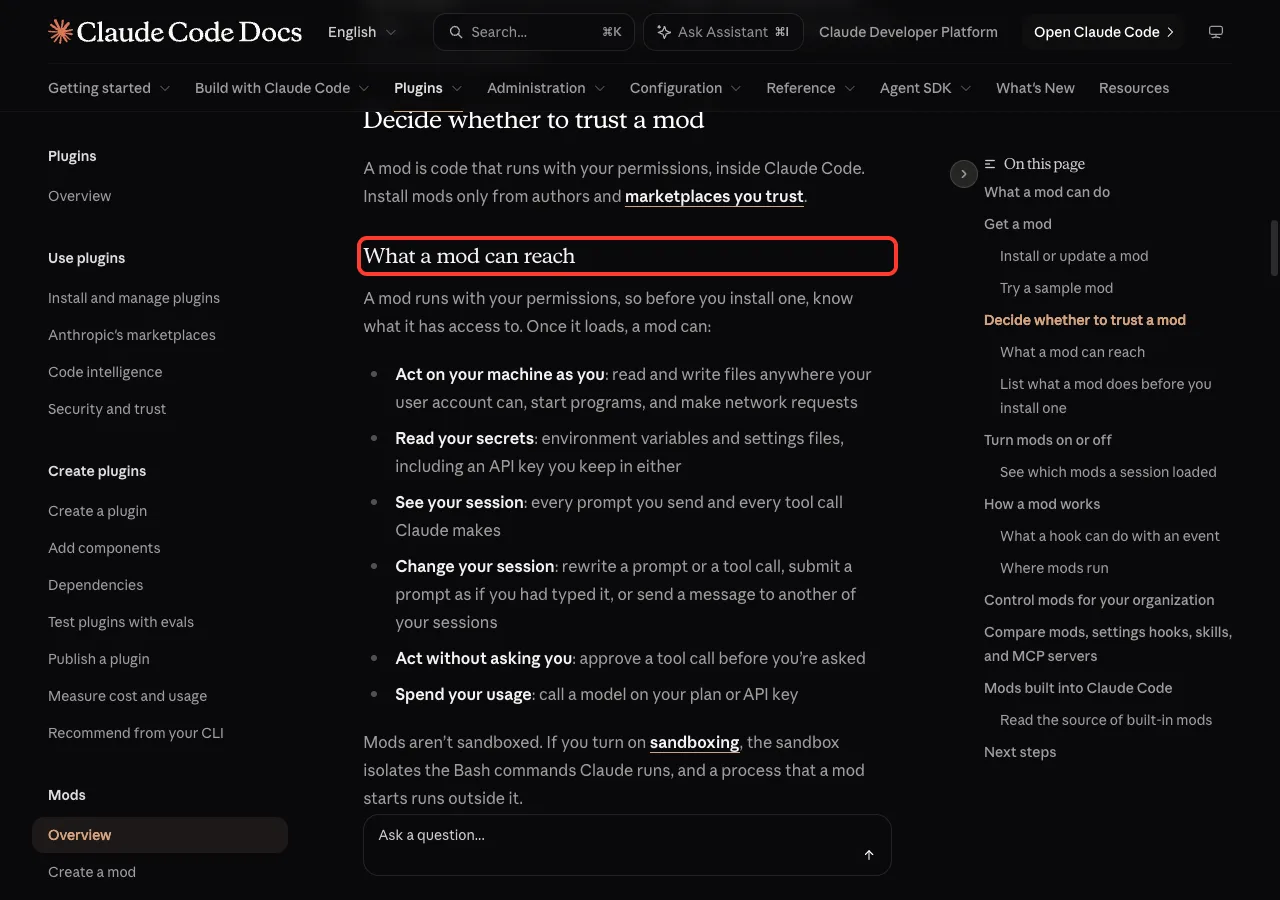
The docs also note that mods are not sandboxed. If you turn on sandboxing, it isolates the Bash commands Claude runs, but a process that a mod starts runs outside it.
So treat a mod like any program you download. Install only from authors and marketplaces you trust. If you want a deeper look at keeping your setup tight, read our guide to settings files.
Switch mods off
You can turn mods off at three levels, as described in the docs.
- One mod: disable or uninstall its plugin from the Installed tab in /plugin
- Every mod for one session: start Claude Code with –safe-mode, which also disables your other customizations
- Every mod in every session: set “disableAllHooks”: true in ~/.claude/settings.json, which also stops your settings hooks and custom status line
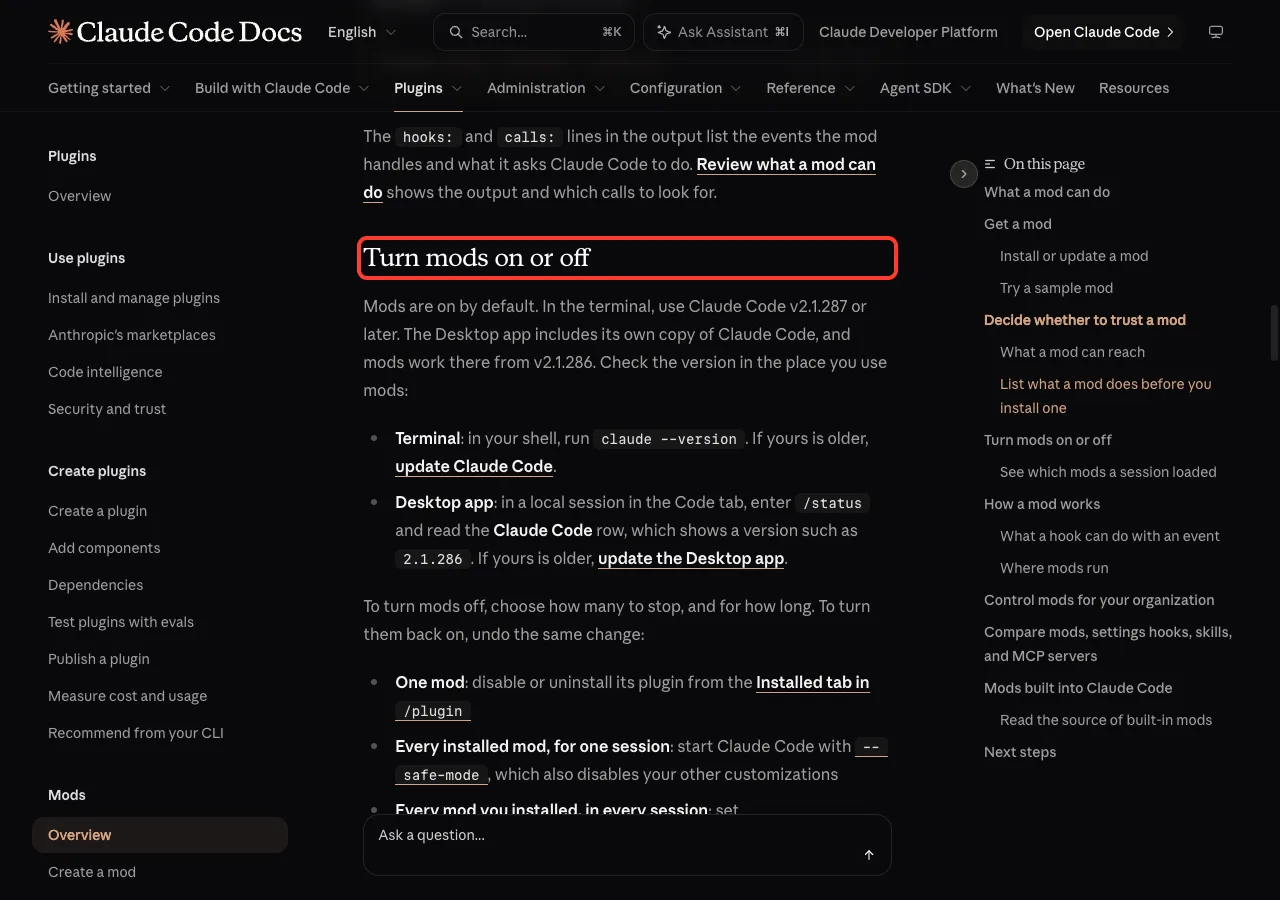
The same page says mods are on by default and need Claude Code v2.1.287 or later in the terminal. Run claude –version to check. In our session, /plugin showed a line saying one mod was active, tally.
Other Ways to Get a Mod
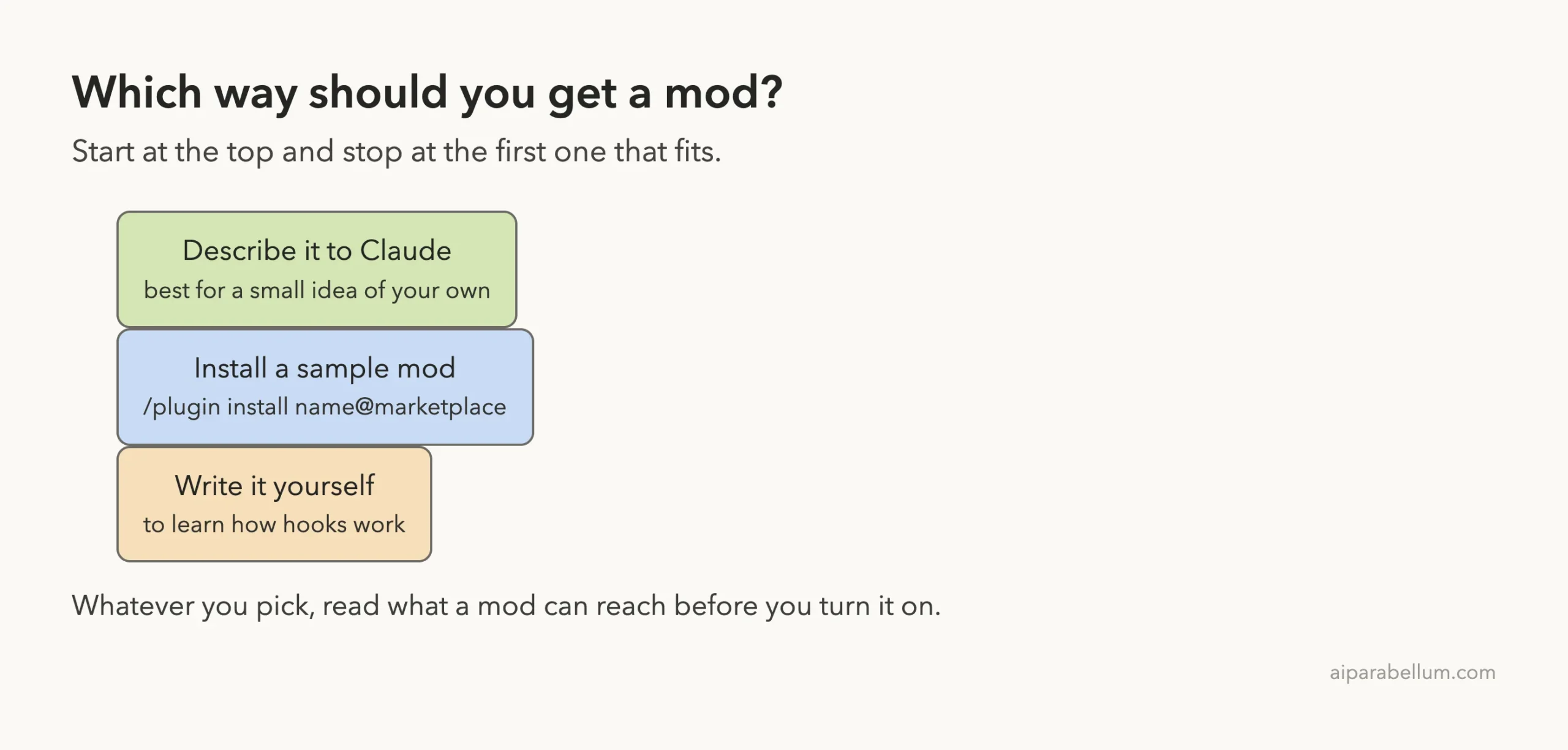
Asking Claude is only one route. The diagram below shows the three ways the docs describe.
Install a sample mod
Mods ship as plugins, so you install them the way you install any plugin. In a session you run /plugin install followed by the mod name and marketplace, such as token-chart@your-org. In your shell the matching command is claude plugin install with the same name.
The docs mention three sample mods you can try. One draws a forecast of your context window above the prompt.
Another holds a risky shell command, such as rm -rf or a force push, and shows what it would change. A third adds a /replay command that steps through the file edits Claude made in the last turn.
New to plugins? Start with our guide to Claude Code plugins, then learn how a plugin marketplace works.
Write one yourself
The create guide walks through writing the same kind of counter by hand. The docs say you do not need Node.js, a bundler, or a build step, because Claude Code loads .js and .ts files directly.
Even if you plan to ask Claude for every mod, reading the code once makes you a better reviewer. Our guide to creating plugins covers the plugin side.
Mods, Hooks, Skills and More: What Is the Difference?
Claude Code has several ways to customize it, and they overlap a little. Here is a simple way to tell them apart.
| Tool | Best for | Runs as |
|---|---|---|
| Mod | Changing the interface, tool calls and commands | Functions inside Claude Code |
| Settings hook | Running a shell command, request or prompt on an event | A command you configure |
| Skill | Teaching Claude a repeatable task | Instructions Claude reads |
| MCP server | Connecting to outside tools and data | A separate server |
The docs point out that Claude Code calls both mod hooks and settings hooks hooks, but a mod’s handler is a function inside Claude Code, while a settings hook is a shell command, web request or prompt you list in a settings file. If you want the shell-command kind, read our guide to Claude Code hooks. For repeatable tasks, see our skills tutorial.
Try It Yourself
Here is a practice task you can finish in about ten minutes. Make a new empty folder with one or two small text files, start Claude Code there, and paste this prompt.
Make me a Claude Code mod that adds a /hello command. When I type /hello it should print a friendly greeting and the number of prompts I have sent this session. Keep it tiny and explain what you made.When the Mods question appears, read it, then pick Turn them on. Type /hello, send a prompt, and type /hello again. The count should go up.
Then try a change. Ask Claude to show the greeting beside the spinner instead. The mod reloads when it changes, so you can see the result at once.
Common Mistakes
- Turning on a mod without reading what it does. Ask Claude to explain the code first, or open the file yourself.
- Expecting a mod to load in a claude -p run, in dontAsk mode, or in a folder you have not trusted.
- Choosing Not now and wondering why nothing loads. The mod waits until the session next starts.
- Using an old version. Run claude –version and update if it is below v2.1.287.
- Installing a mod from an author you do not know. Mods can read your secrets and your session.
Pro Tips
- Ask for tiny mods. A 25-line mod is easy to read and easy to remove.
- Use /plugin to see which mods your session loaded and to turn one off.
- Try a new mod first in a throwaway folder, as we did here.
- If something looks strange, start with –safe-mode to rule out your mods.
- Check the slash commands guide to see which commands already exist before you add your own.
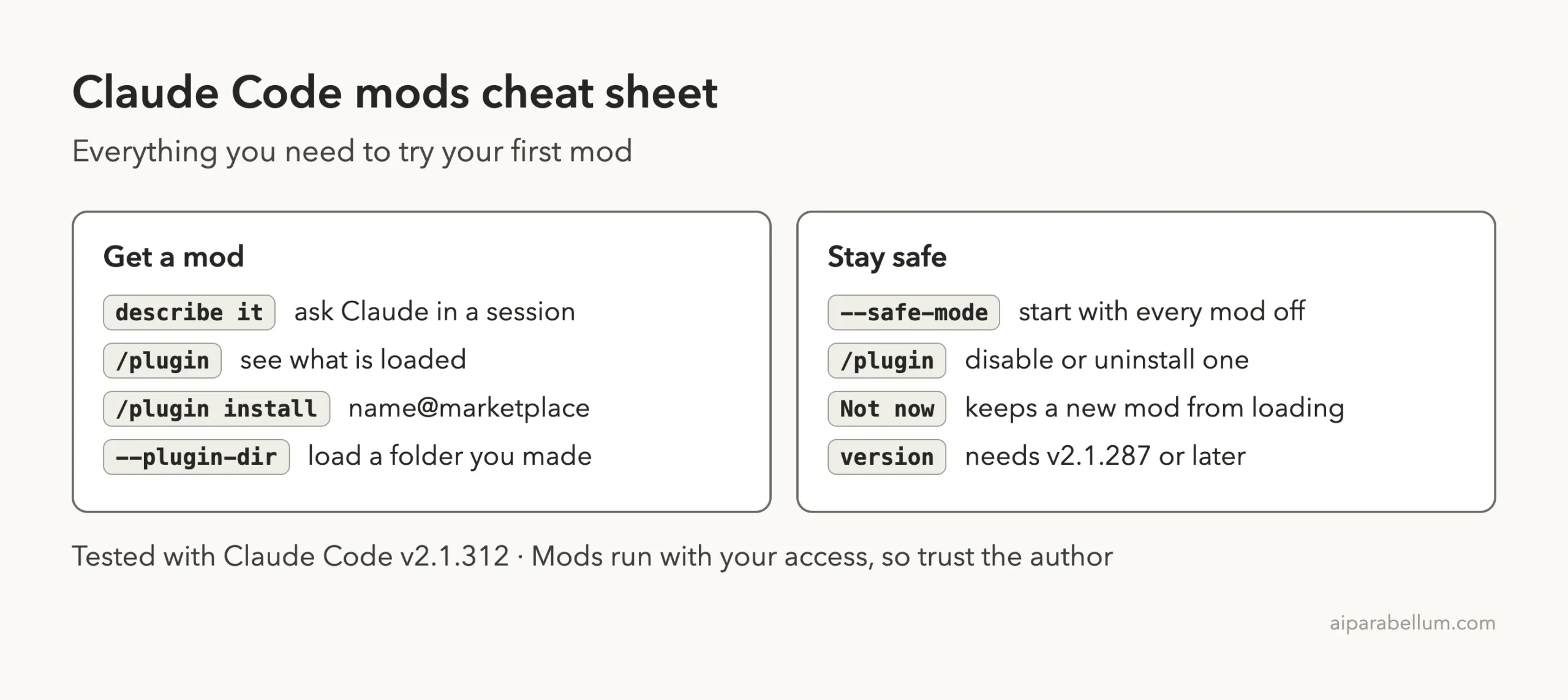
Claude Code Mods Cheat Sheet
Frequently Asked Questions
What are Claude Code mods?
Mods are plugins made of small JavaScript or TypeScript functions. Claude Code runs them when events happen, and they can add panes, commands, and rules for tool calls.
Do I need to know how to code to use a mod?
No. You can describe the mod you want and Claude writes it. We did this with one sentence, and the whole mod was about 25 lines.
Are Claude Code mods safe?
A mod runs with the same access you have, so it is only as safe as its author. Read the code or ask Claude to explain it, and install only from sources you trust.
How do I turn mods off?
Disable one in the Installed tab of /plugin, start with –safe-mode to turn all of them off for one session, or set disableAllHooks to true in your user settings to turn off every installed mod in every session.
Which Claude Code version do I need?
The docs say the terminal needs v2.1.287 or later. The Desktop app includes its own copy of Claude Code, and mods work there from v2.1.286.
Conclusion
Claude Code mods let you reshape the tool with a plain English request. We asked for a counter, turned it on, and watched it add a count to the spinner and answer a /tally command. Keep your mods tiny, read what they do before you turn them on, and remember you can always switch them off. To explore more about the assistant behind it all, visit our Claude AI page.
Previous in the series: Part 3: Build 5 Useful Claude Code Skills Step by Step
Next in the series: Part 5, Use Dynamic Workflows in Claude Code in Practice, is coming soon.