Want to build a weather app with Claude Code but not sure how to begin? A weather dashboard is a perfect first web project. It has a clear goal, a few cards on a page and a bit of logic, and you can see the result in your browser in minutes.
This is Project 7 of 20 in our Build with Claude Code series, part of our Claude Code tutorials. In Project 6 we made a REST API with a database that had no screen at all. This time we go back to something you can look at and click.
Tested with Claude Code v2.1.310 on October 26, 2026, on macOS.
Everything below really happened. The Claude Code screenshots are real, the prompts are the exact ones we typed, and the dashboard screenshots show the finished page open in a browser on this Mac. We tested on macOS; the Windows and Linux steps follow Anthropic’s official instructions.
What We Built
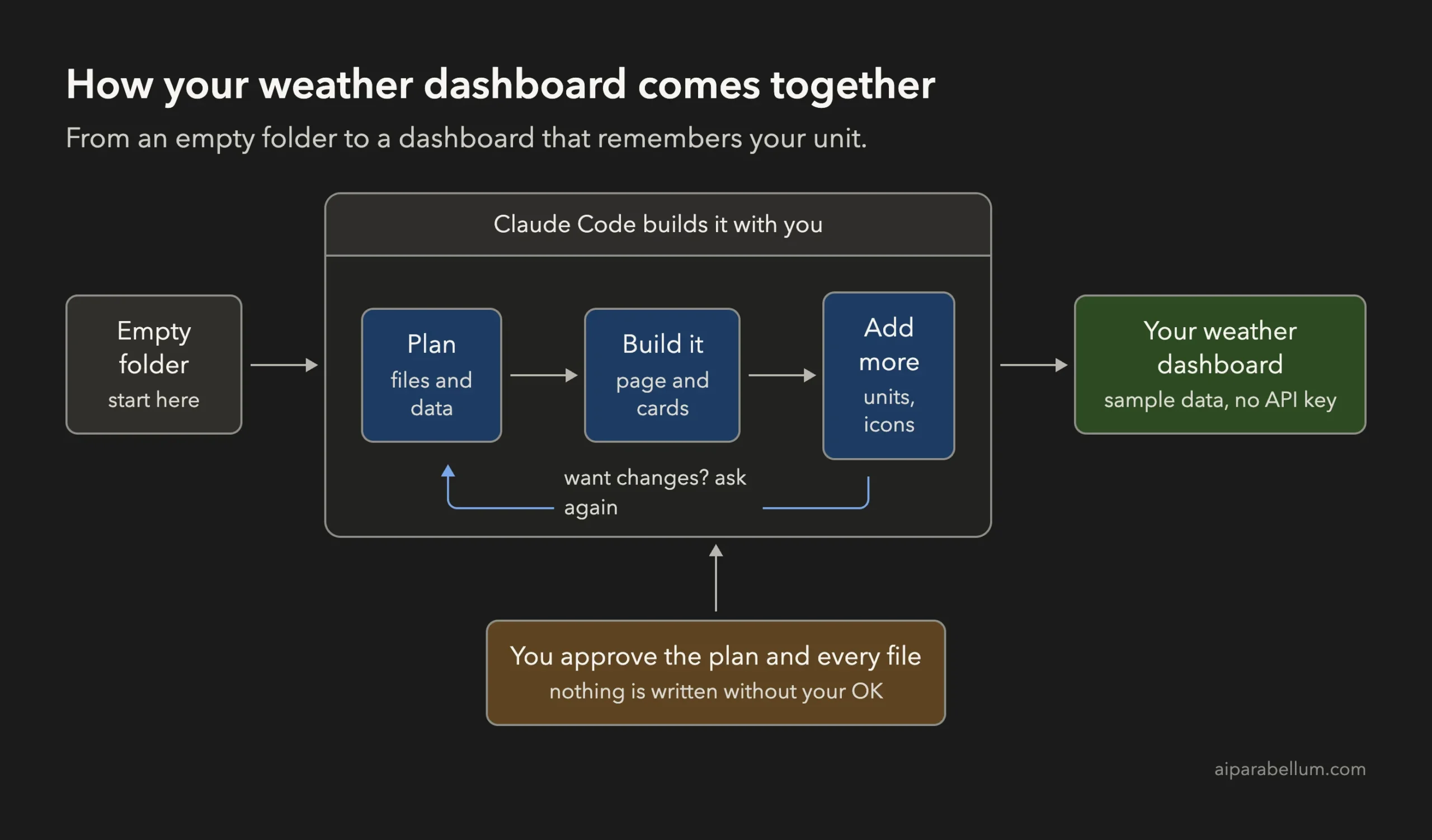
A dashboard is just data on one side and a page that draws it on the other, and keeping the two apart makes it easy to swap in real data later.
| Item | Details |
|---|---|
| Project | A weather dashboard for three cities |
| Tools | Plain HTML, CSS and JavaScript, no frameworks |
| Data | Made-up sample weather in a data.js file, so no account or API key is needed |
| Features | City dropdown, current weather, 5-day forecast, Celsius and Fahrenheit toggle, emoji icons and a warmest-day highlight |
| Prompts used | 3 short prompts, plus the approvals |
| Install needed | Nothing, only a web browser |
The weather numbers are invented. We chose that on purpose, because it keeps the project free of sign-ups and secret keys. Later we show how to swap in real data.
What Is a Weather Dashboard?
A weather dashboard is a single page that shows the weather in one glance. It usually has the current temperature, a short description such as cloudy or sunny, and a forecast for the next few days.
Under the hood, it has two parts. One part is the data: a list of cities with their temperatures and conditions. The other part is the page, which reads that data and draws cards on the screen.
Real weather sites get their data from a weather service over the internet. Most of those services ask you to create an account and use a private key. For a learning project, sample data does the same job and is much simpler.
Why Build a Weather App With Claude Code?
A page like this has many small details: unit conversion, rounding, a dropdown that updates every card and a layout that fits a phone. Claude Code handles those details for you, and you stay in charge of the idea.
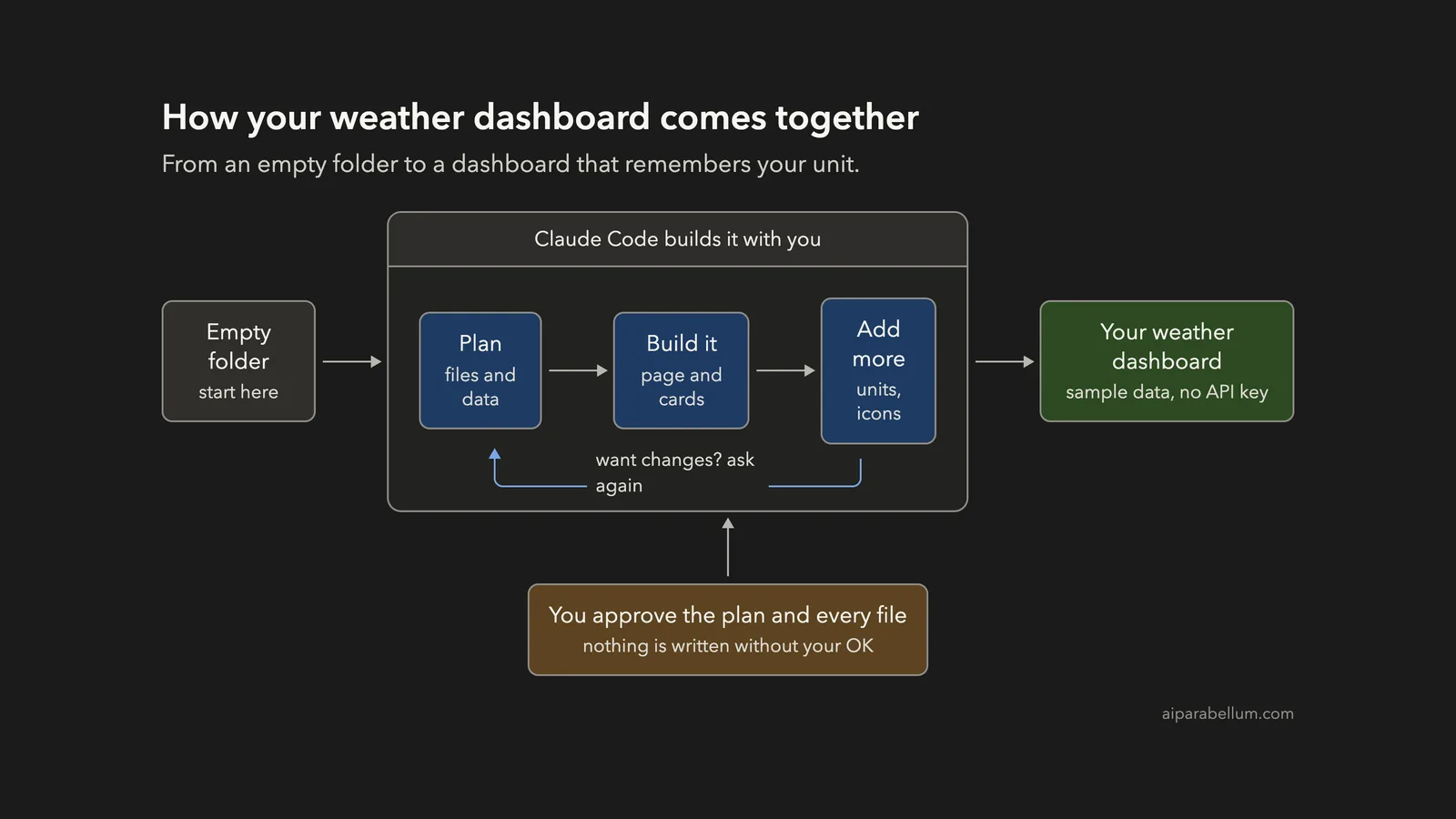
Anthropic’s own workflow advice is to explore and plan first, then build, then verify. This project follows that order. If you are new to the tool, read our first session guide and our guide to permission modes before you start.
Step 1: Start in Plan Mode in an Empty Folder
Make a new folder, open a terminal inside it and start Claude Code in plan mode. In plan mode Claude can read and think, but it cannot change files until you approve its plan.
mkdir my-weather-dashboard
cd my-weather-dashboard
claude --permission-mode plan
The first time you open a folder, Claude Code asks if you trust it. Say yes, because you just made it.
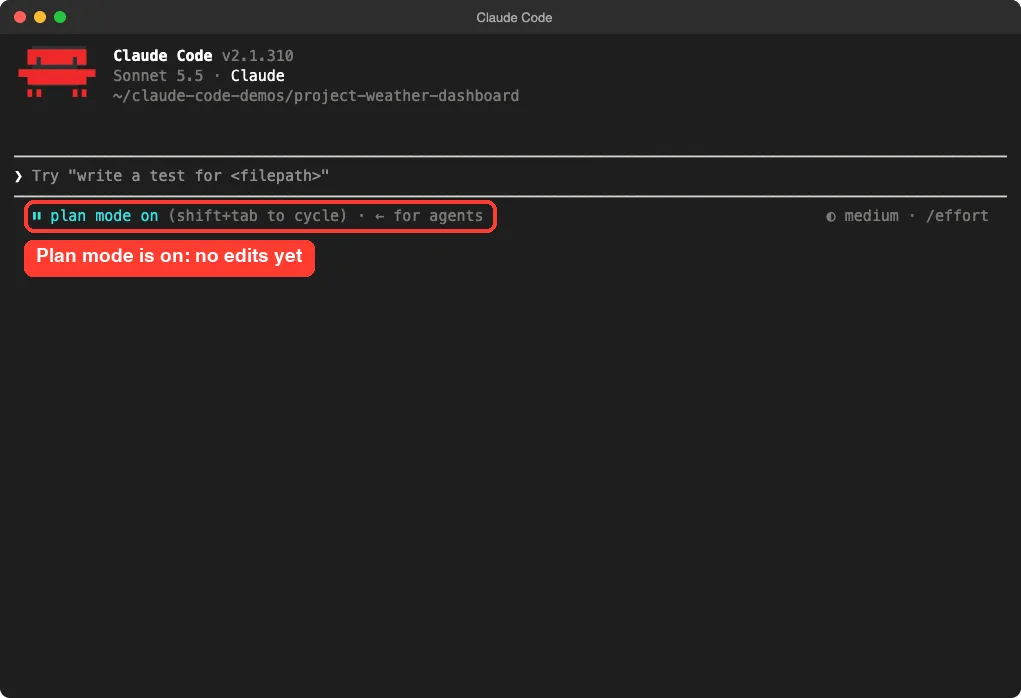
Our guide to plan mode explains the approval flow in more detail.
Step 2: Describe Your Weather App With Claude Code
A good prompt names the tools, the data and the features. This is the first prompt we used:
Build a weather dashboard web page with plain HTML, CSS and JavaScript, no frameworks and no API key. Use made-up sample data for 3 cities in a data.js file loaded with a script tag, so the page works when I double-click index.html. Show a city dropdown, the current temperature, condition, humidity and wind, and a 5-day forecast. Plan the files first, keep it small.The prompt does four jobs.
It limits the tools, so Claude does not pull in a big framework. It says “no API key”, so nothing needs an account.
It asks for the data in a script tag, which matters more than it looks, as the next section explains. And the last sentence asks for a plan and a small result.
Why Not Load the Data With fetch?
Many tutorials load a data file with the fetch command. Browsers often block that when you open a page straight from your disk, so the page would stay empty when you double-click it. A script tag has no such problem, which is why we asked for it.
Step 3: Review the Plan
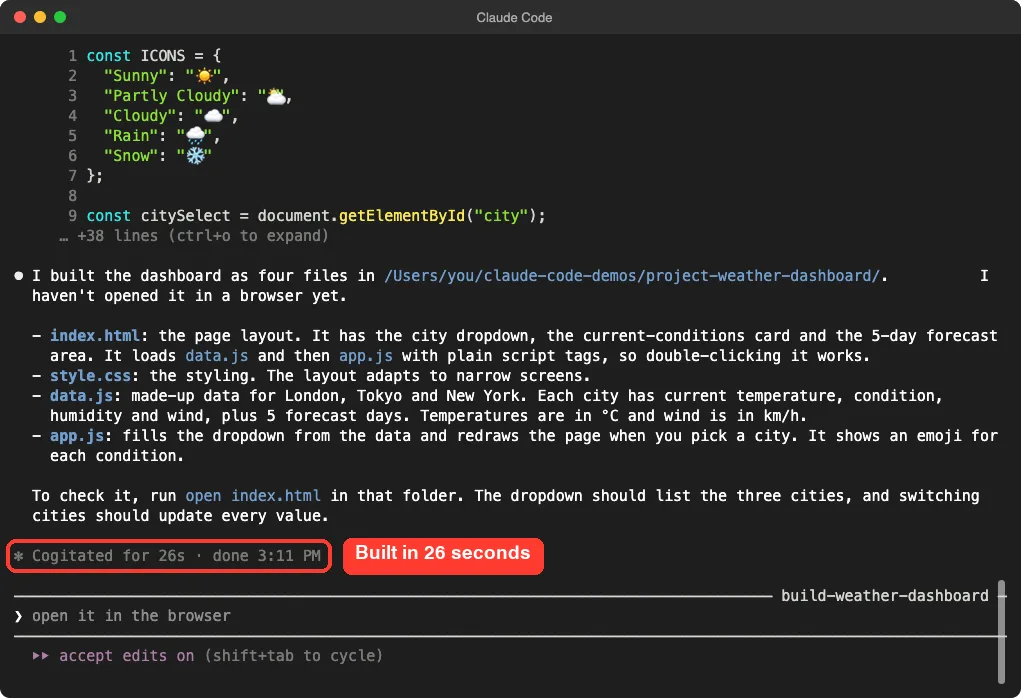
Claude’s plan listed four files and explained what each one does. It described the shape of the data, with a current block and a five-day forecast list for each city. It also planned the page: a dropdown filled from the data, and one function that redraws the cards when you pick a city.
The plan ended with a short list of checks, such as opening the page directly from disk and resizing it to a phone width. After the plan, Claude Code asked how to continue.
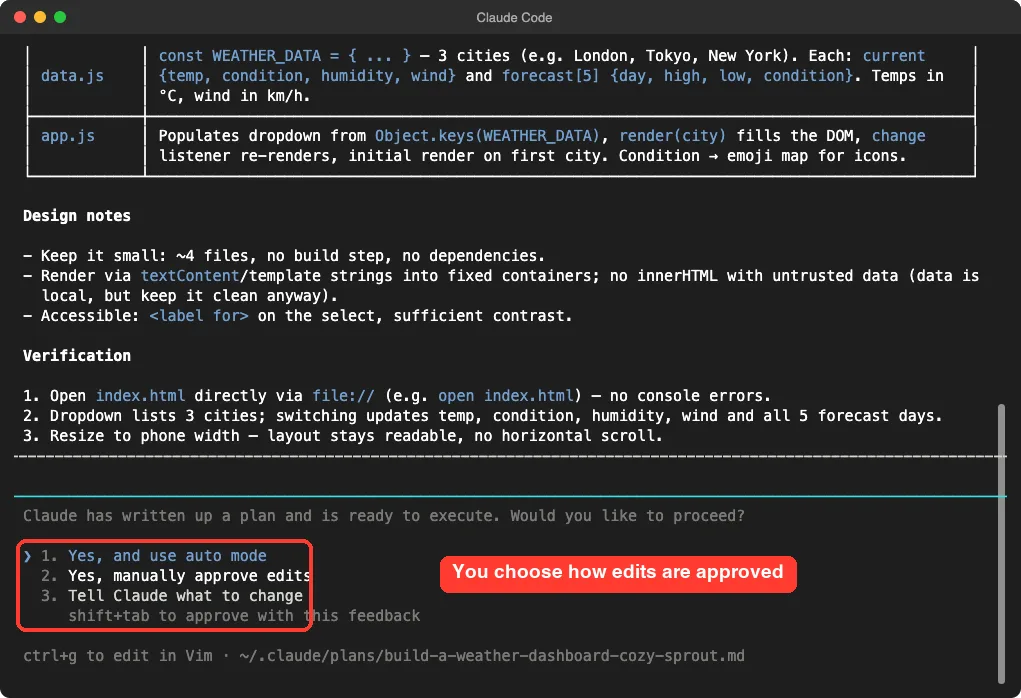
We chose to approve edits manually so we could read each file before it was written.
Step 4: Approve the Files
Claude showed the full data.js and asked, “Do you want to create data.js?” You can say yes once, switch to accept edits for the session, or say no.
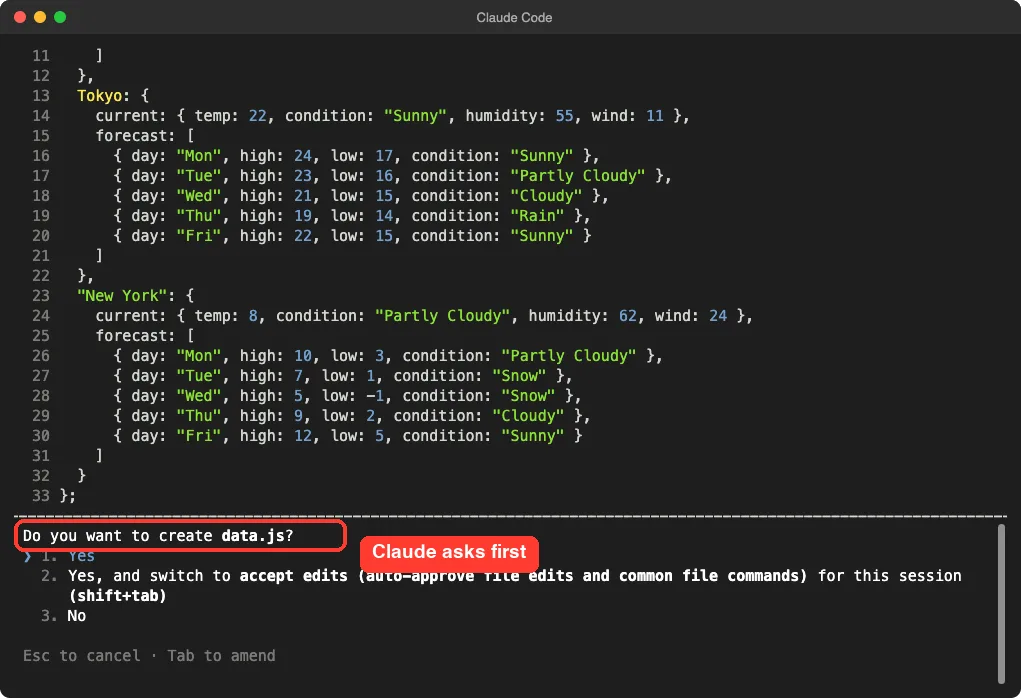
For this throwaway demo we switched to accept edits so the other files went through. For a real project, keep approving by hand until you trust the flow. Our permissions guide covers safer setups.
Claude wrote four files and finished in 26 seconds. Its summary was honest about one thing: it had not opened the page in a browser yet. So the next step is ours.
Step 4b: Open the Dashboard
On a Mac, run this command in the folder, or just double-click index.html:
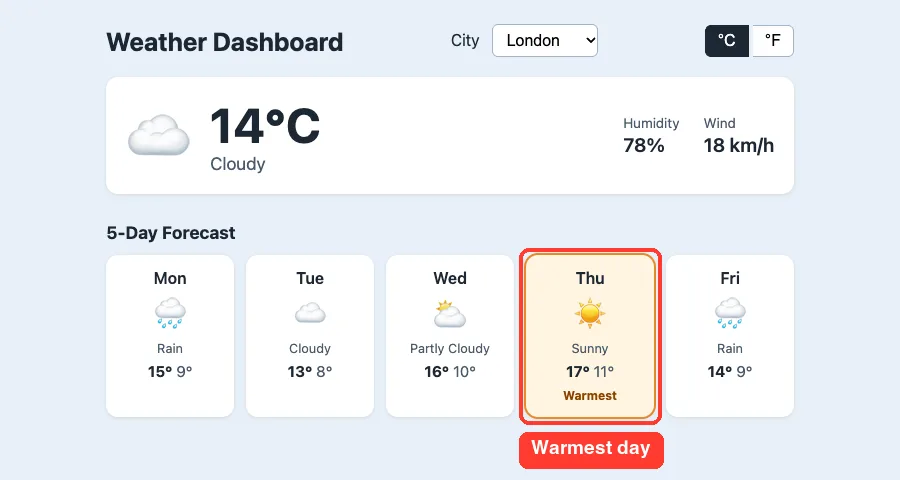
open index.htmlThe dashboard opened with London first.
It showed 14°C and cloudy, with humidity and wind on the right and a five-day forecast below. The highlighted card is the warmest day, which came from our third prompt. Here is the finished page.
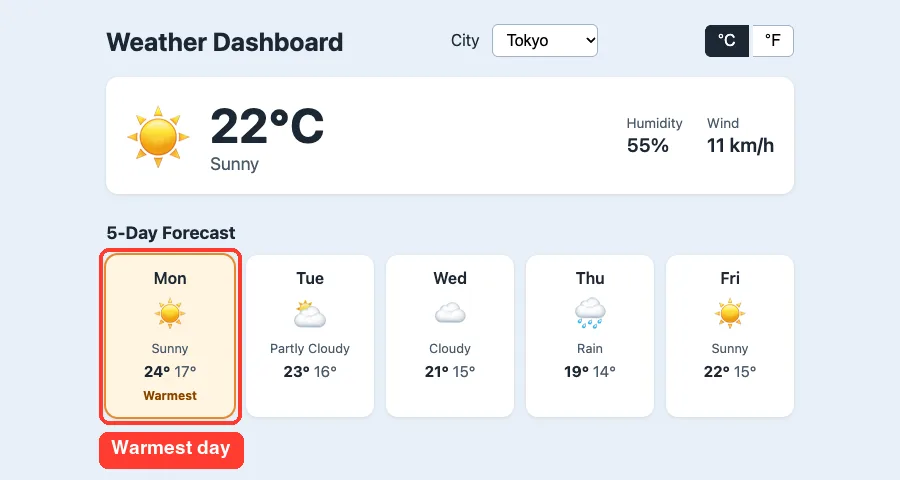
Picking Tokyo from the dropdown changed every number at once: 22°C, sunny, 55% humidity and a new set of forecast cards.
Step 5: Add a Celsius and Fahrenheit Toggle
Once the base works, add one feature at a time. Our second prompt was short:
Add a Celsius and Fahrenheit toggle that remembers my choice after a refresh.Claude kept the stored data in Celsius and converted the numbers when it draws them. That is a good design, because you never lose accuracy by converting back and forth. It saved your choice in the browser’s localStorage, a small storage area that stays after a refresh.
Claude also warned that some browsers treat storage for local files differently, and that the page still works if storage is blocked. It finished in 11 seconds.
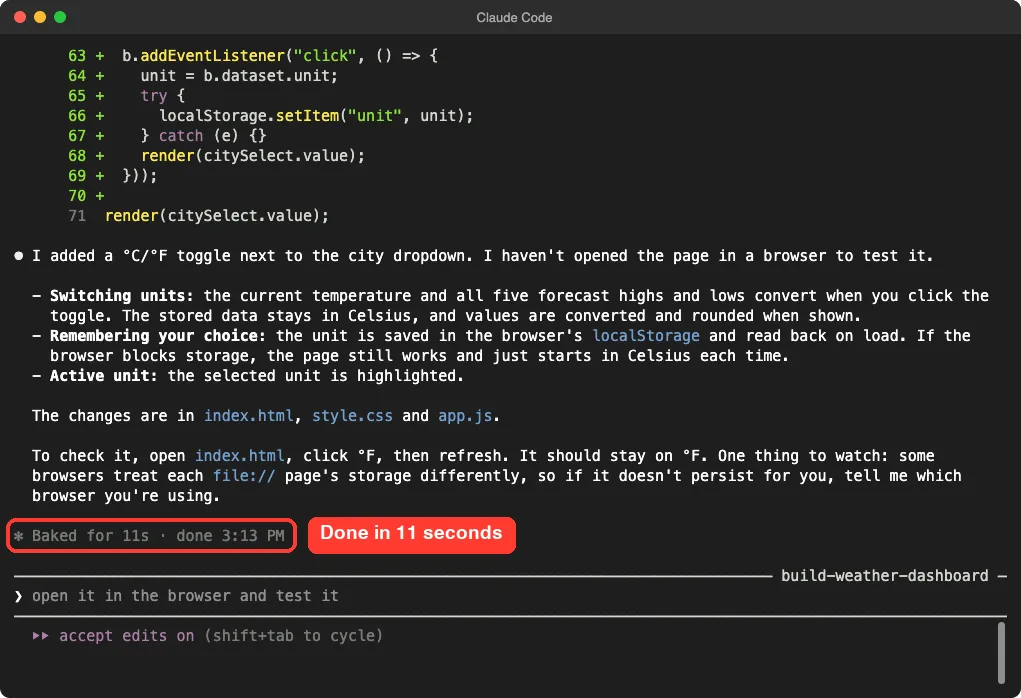
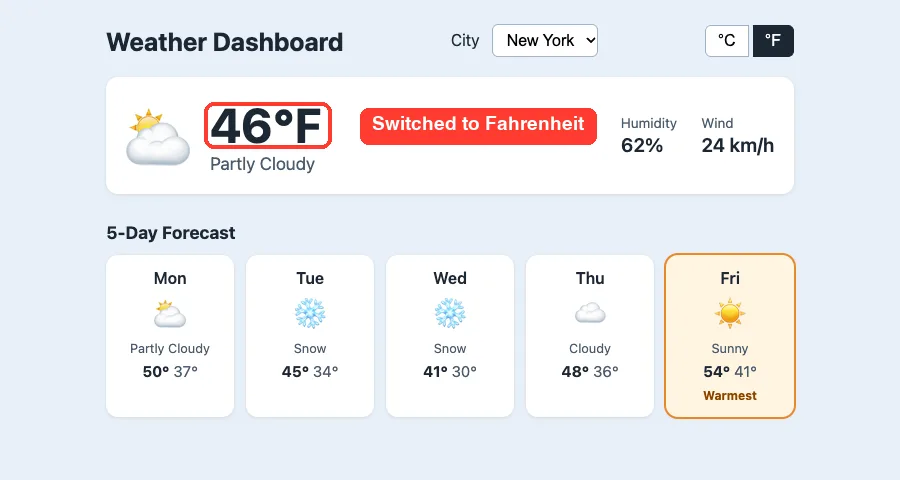
We then picked New York and clicked °F. The 8°C became 46°F, and every forecast number changed too.
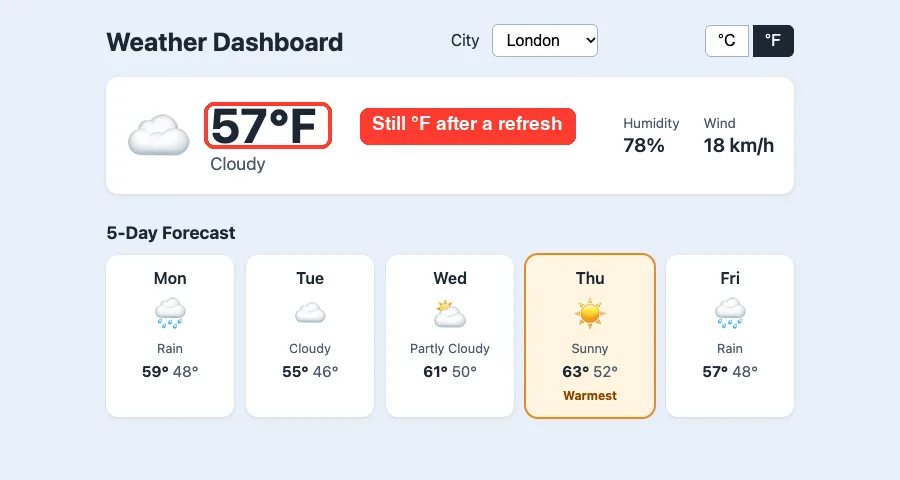
Then we refreshed the page. It came back in Fahrenheit, so London showed 57°F. The page returns to the first city on reload, but the unit was remembered.
Step 6: Polish With Icons and a Warmest Day
Our third prompt asked for two small improvements:
Add an emoji icon for each weather condition and highlight the warmest day in the forecast.Here Claude surprised us in a good way.
It said the emoji icons were already in the first version, so it only made the condition name visible under each icon. Then it added the warmest-day highlight: an orange outline, a warm background and a small badge. If two days tie, both are highlighted.
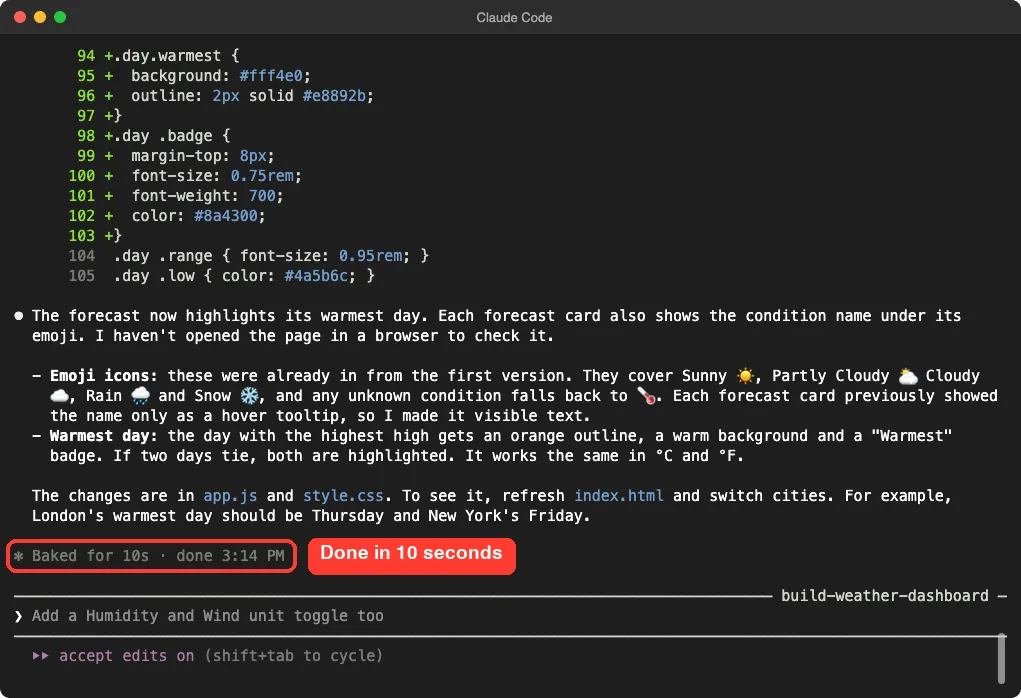
This took 10 seconds. It is a nice reminder to read the summary, not just the result. Claude tells you what it really did.
The Final Project Files
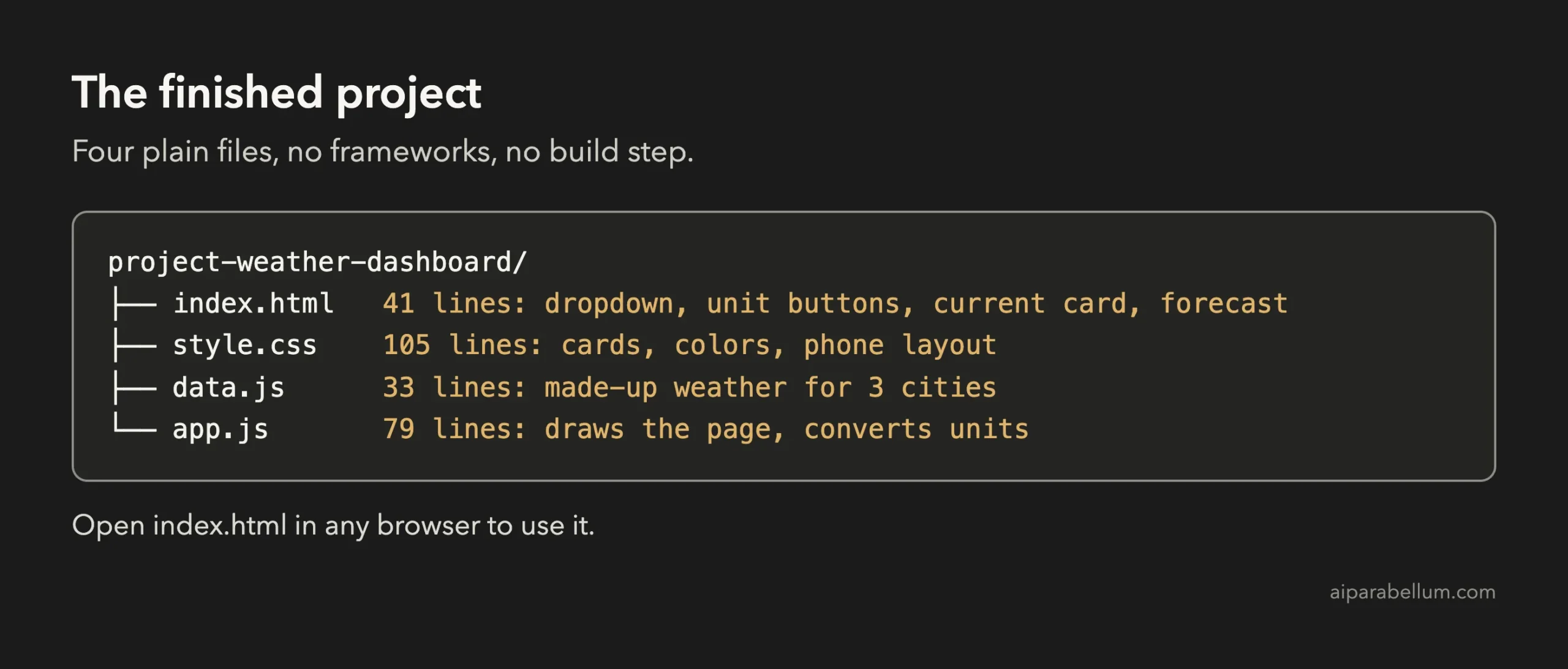
Here are the key pieces.
First, the start of data.js. Each city has a current block and a forecast list. We trimmed the other two cities.
// Made-up sample data. Temps in °C, wind in km/h.
const WEATHER_DATA = {
  London: {
    current: { temp: 14, condition: "Cloudy", humidity: 78, wind: 18 },
    forecast: [
      { day: "Mon", high: 15, low: 9, condition: "Rain" },
      { day: "Tue", high: 13, low: 8, condition: "Cloudy" },
      { day: "Wed", high: 16, low: 10, condition: "Partly Cloudy" },
      { day: "Thu", high: 17, low: 11, condition: "Sunny" },
      { day: "Fri", high: 14, low: 9, condition: "Rain" }
    ]
  },
  // Tokyo and New York follow the same shape
};
Second, the unit conversion and the warmest-day check from app.js:
function formatTemp(c) {
  return Math.round(unit === "F" ? c * 9 / 5 + 32 : c);
}

const maxHigh = Math.max(...forecast.map((d) => d.high));
forecast.forEach((d) => {
  // ...
  if (d.high === maxHigh) {
    el.classList.add("warmest");
  }
});
Here is how to read it.
The data file only describes the weather.
The first function turns Celsius into Fahrenheit when needed and rounds the result. The second block finds the highest forecast high and marks every day that matches it. The rest of app.js fills the dropdown and redraws the cards when you change a city or a unit.
Make Your Weather App With Claude Code Use Real Data
Because the data lives in one place, you can swap it. Ask Claude Code to replace data.js with a call to a weather service of your choice. You would create your own account and key with that service, and keep the key out of any page you share.
We did not do this in the demo, since we never create accounts or use private keys in a tutorial. You would need to add your own key, and a page that calls a service from the browser may need a small local server. Ask Claude to explain both before you begin.
Try It Yourself
Build your own version with this starter prompt. Start Claude Code in plan mode in an empty folder first.
Build a weather dashboard web page with plain HTML, CSS and JavaScript, no frameworks and no API key. Use made-up sample data for 3 cities in a data.js file loaded with a script tag, so the page works when I double-click index.html. Show a city dropdown, the current temperature, condition, humidity and wind, and a 5-day forecast. Plan the files first, keep it small.Then try these variations, one at a time:
- Use the cities you care about, such as your home town and a place you want to visit.
- Ask for a dark theme and a button to switch between light and dark.
- Ask for a chance-of-rain percentage on each forecast day.
- Ask for a wind unit toggle between km/h and mph.
- Ask for a simple bar chart of the five daily highs.
Common Mistakes
- Loading the data with fetch and then wondering why the page is empty. Opening a local file often blocks it, so use a script tag or a small local server.
- Skipping the check. Claude said it had not opened the page, so always open it yourself.
- Asking for too much at once. Small prompts are easier to review and to undo.
- Treating sample data as real. Our numbers are invented and should never be used to plan your day.
- Putting a private key inside a page you share. Anyone can read a page’s code.
Pro Tips
- Keep data and layout in separate files. It makes later changes much easier.
- Ask Claude to say what it did not change. It told us the icons already existed, which saved a pointless edit.
- Test on a narrow window as well. Claude’s plan included a phone-width check, and the layout is built to adapt.
- Make one change at a time and look at the page after each one.
- If a change goes wrong, the rewind feature can roll your files back, and our costs guide helps you watch your usage.
Cheat Sheet
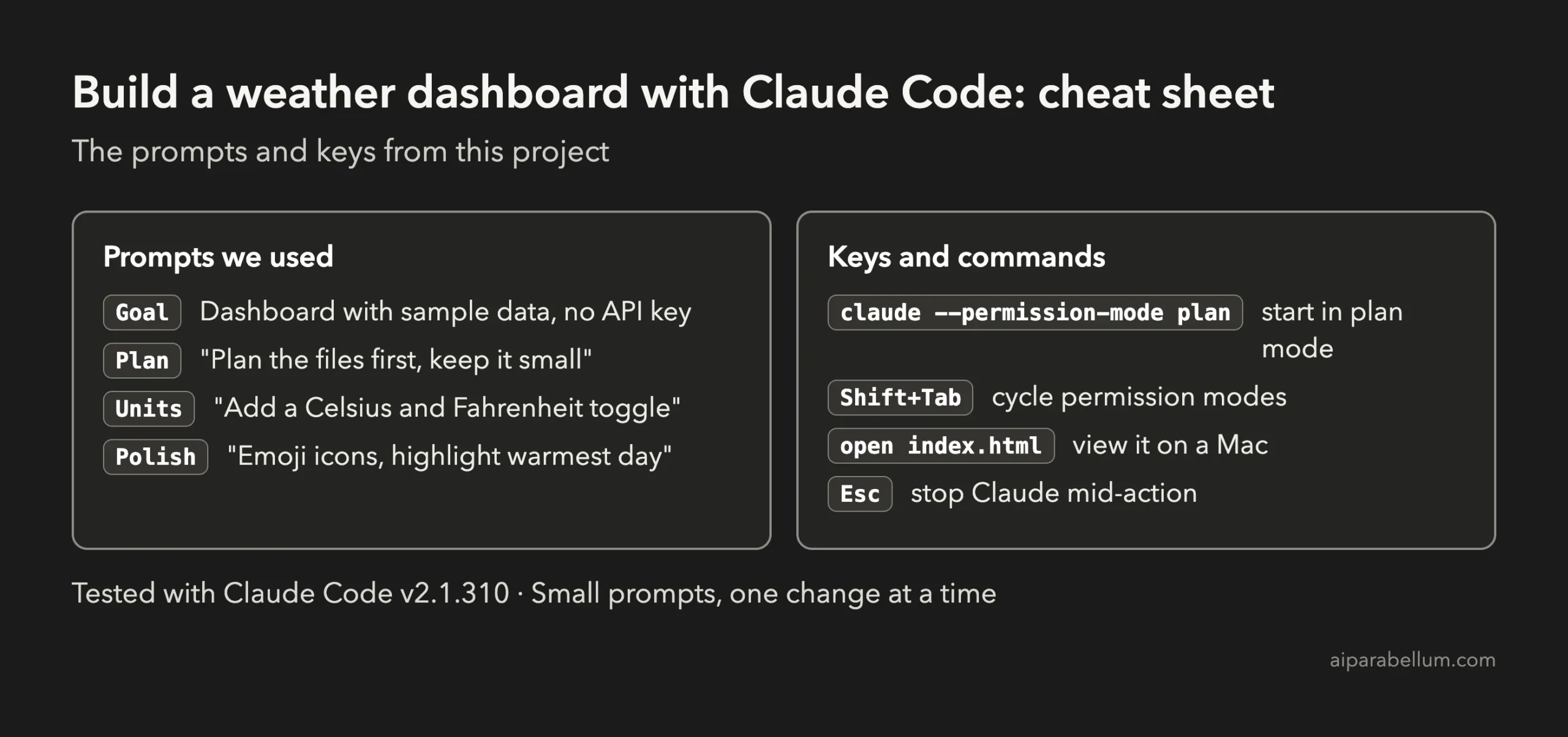
For the official reference, see Anthropic’s page on common workflows. To learn more about the assistant behind the tool, read our Claude AI overview. Project 5, our Snake game, is a good companion because it also runs from a plain HTML file.
Frequently Asked Questions
Do I need to know JavaScript to build a weather app with Claude Code?
No. You describe the page in plain English and Claude writes the code. Reading the code it shows you is a good way to start learning.
Is the weather data real?
No. We made up the numbers on purpose, so the project needs no account or key. You can ask Claude to connect a real weather service later.
Why does the page work when I double-click it?
We loaded the data with a script tag instead of fetch. Browsers allow that for local files, while fetch is often blocked.
Can I add more cities?
Yes. Add another block to data.js with the same shape, and the dropdown picks it up. You can also ask Claude to add the city for you.
What if something does not work?
Describe what you see, for example “the forecast cards are empty”, and paste any error from the browser console. Claude can then fix that one problem.
Conclusion
You now know how to build a weather app with Claude Code: plan first, keep the data in its own file, approve the files, open the page yourself and then add one feature at a time. It took three short prompts and a few approvals, and you end up with a dashboard you own and can read. Try the starter prompt, then come back for the next project in the series.
Previous in the series: Project 6: Build a REST API With a Database Using Claude Code
Next in the series: Project 8: Build a WordPress Plugin With Claude Code.