Want to build a game with Claude Code but have never made one before? You are in the right place. A classic Snake game is small enough to finish in one sitting, and it teaches the ideas behind almost every game: a loop that keeps running, keys that steer, rules that end the round and a score you want to beat.
This is Project 5 of 20 in our Build with Claude Code series, part of our Claude Code tutorials. In Project 4 we built a Python command-line tool that ran in the terminal. This time we make something you can play in your browser.
Tested with Claude Code v2.1.310 on October 26, 2026, on macOS.
Everything below really happened in one Claude Code session. The terminal screenshots are real, the prompts are the exact ones we typed, and the game screenshots show the files Claude wrote, running in a real browser. We tested on macOS; the Windows and Linux steps follow Anthropic’s official instructions.
What We Built
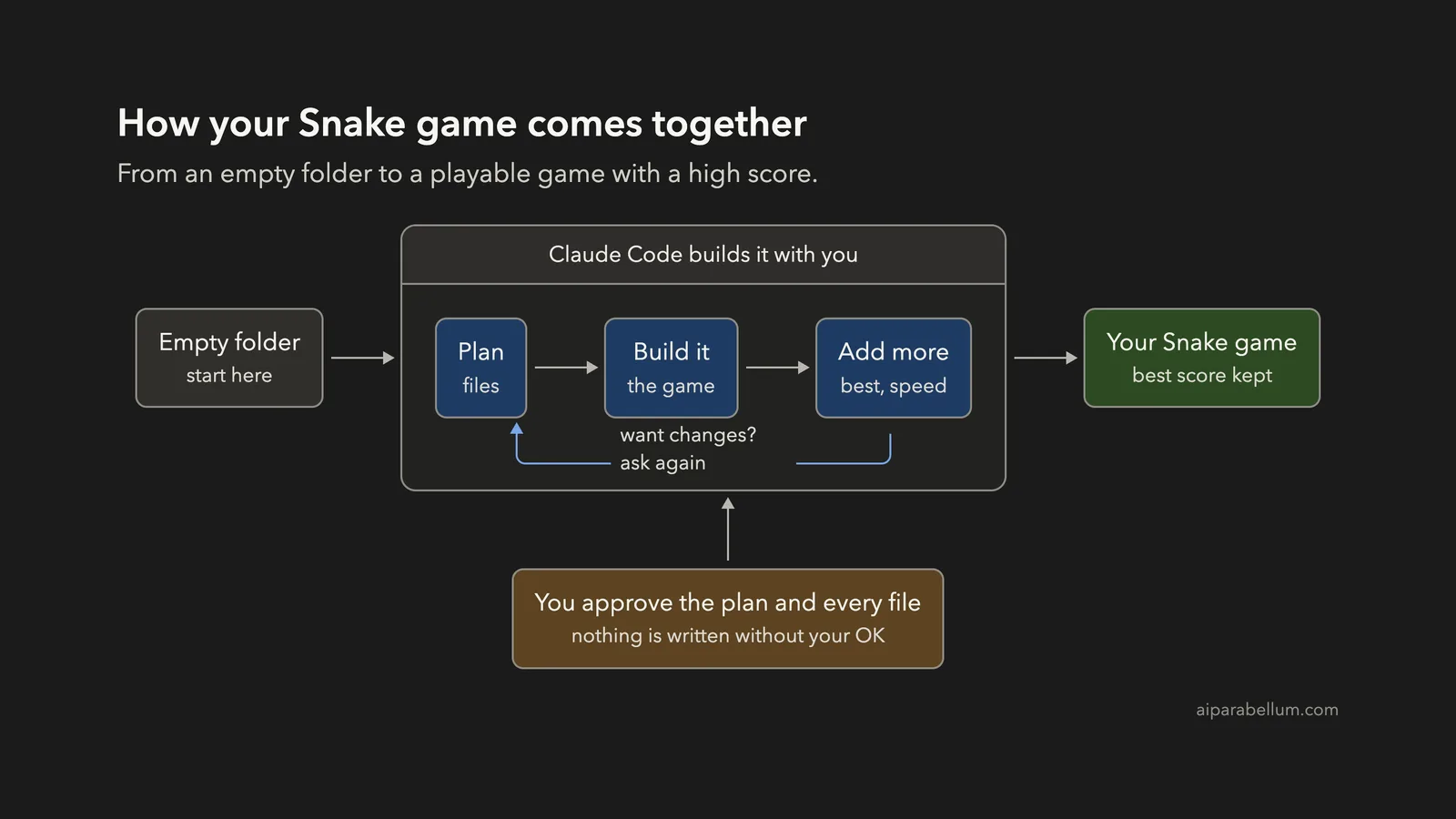
A browser game is a canvas, a timer and a few rules, and Claude Code can write all three while you review the plan and approve each file.
| Item | Details |
|---|---|
| Project | A Snake game that runs in any browser |
| Tools | Plain HTML, CSS and JavaScript on a canvas, no frameworks, no build step |
| Features | Arrow keys, growing snake, score, best score, pause, speed-up, Game Over screen |
| Saving | The best score is stored in the browser with localStorage |
| Prompts used | 3 short prompts, plus the approvals |
| Time | 19 seconds for the first version, then 14 and 8 seconds for the extras |
The game has no accounts and no server, so nothing leaves your computer.
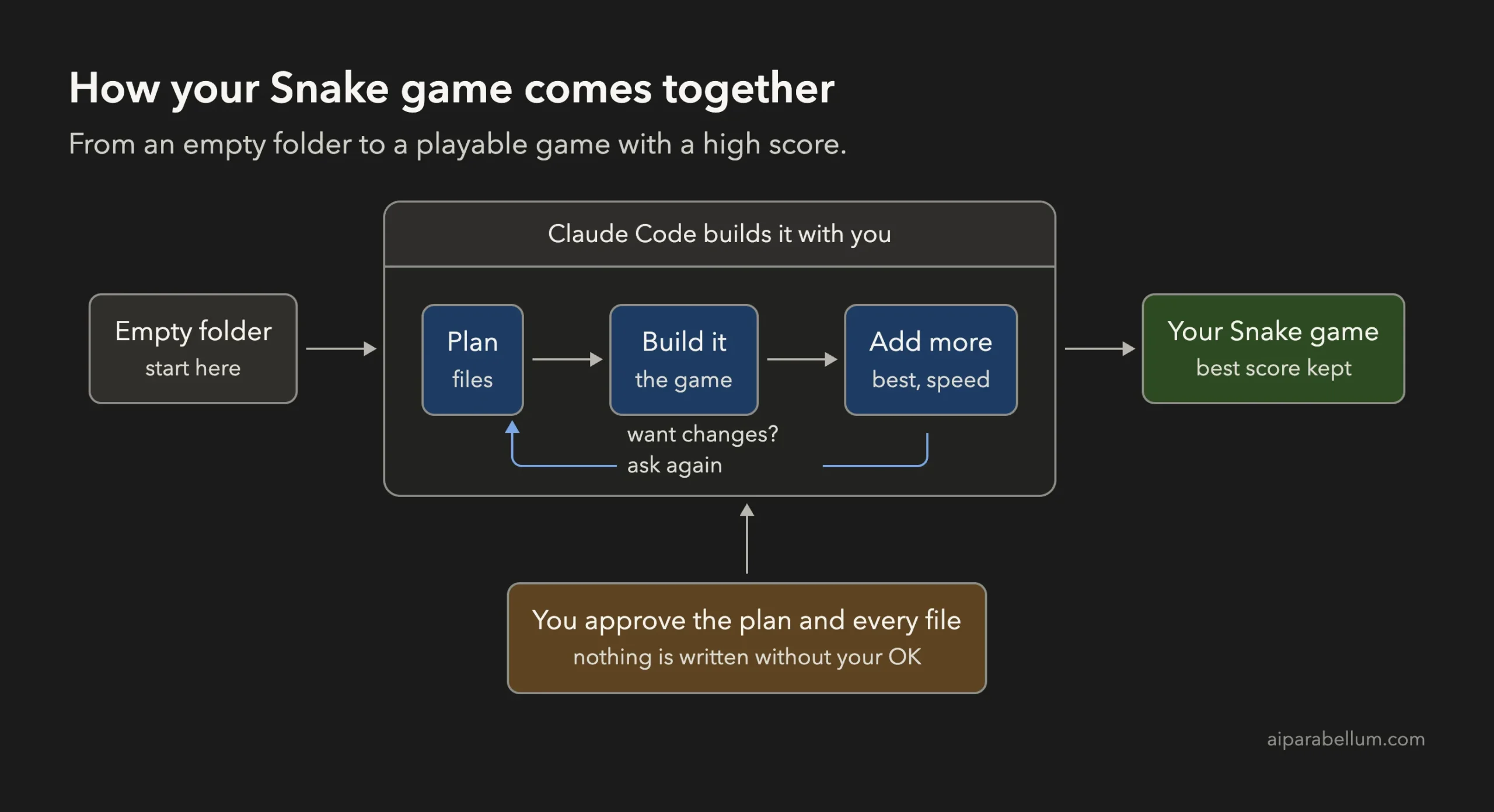
Why Build a Game With Claude Code?
Games are a friendly way to learn what Claude Code can do. You see the result right away, you can tell at a glance if something is wrong, and every new idea, like a high score or a faster snake, is a small prompt away.
Anthropic’s own workflow advice is to explore and plan first, then build, then check the result. A game follows that pattern nicely. If you are new to the tool, read our first session guide before you start, and keep our guide to permission modes handy.
Step 1: Start in Plan Mode in an Empty Folder
Create a new folder, open a terminal inside it and start Claude Code in plan mode. In plan mode Claude can read and think, but it cannot change files until you approve its plan.
mkdir my-snake-game
cd my-snake-game
claude --permission-mode plan
The first time you open a folder, Claude Code asks if you trust it. Say yes, because you just made it. Then check the bottom of the screen for the plan mode indicator.
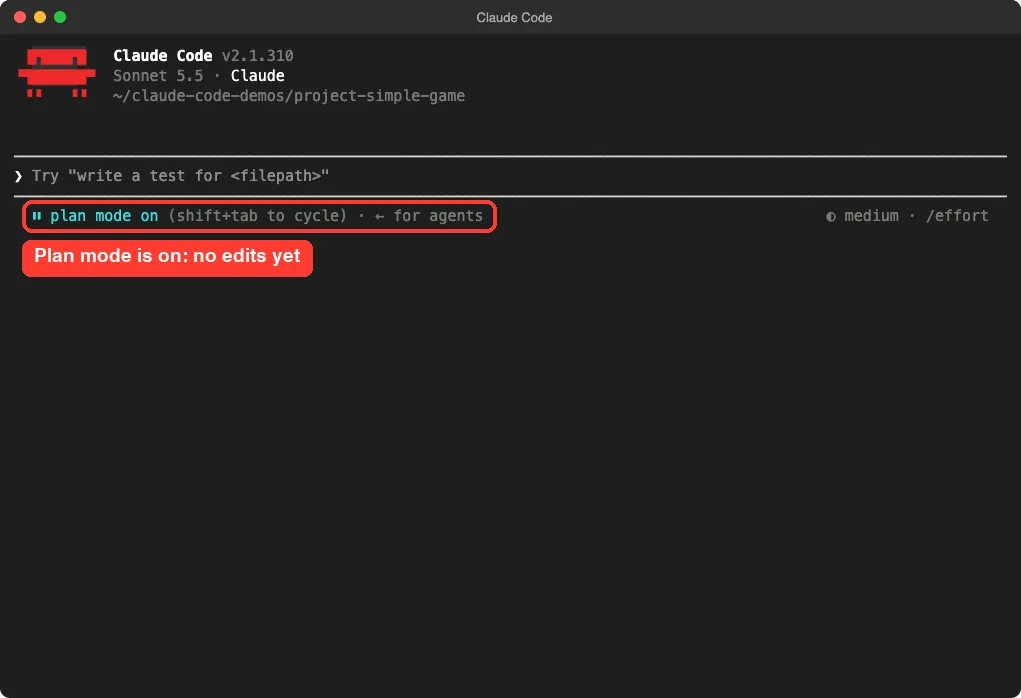
Our guide to plan mode explains the approval flow in more detail.
Step 2: Describe the Game With Claude Code
Now type your goal. A good game prompt names the tools, the controls, the rules and what the screen should show. This is the first prompt we used:
Build a simple Snake game that runs in the browser. Plain HTML, CSS and JavaScript on a canvas, no frameworks. Arrow keys steer the snake, eating food makes it longer, and hitting a wall or itself ends the game. Show a score. Plan the files first, keep it small.Notice the three parts.
The tools are plain HTML, CSS and JavaScript. The rules are growing on food and ending on a wall or the snake’s own body. The last sentence asks for a plan and a small result, which keeps the project easy to read.
Step 3: Review the Plan and Approve It
Claude wrote a plan with three files and described how the game would work.
The board is a 20 by 20 grid of 20 pixel cells. A timer calls a step function, which moves the snake, and then a draw function, which paints the screen. Arrow keys set the next direction, and a direct reversal is ignored so you cannot turn back into yourself.
The plan even ended with a checklist for testing: arrows steer, eating grows the snake, a wall or its own body ends the game and Space restarts.
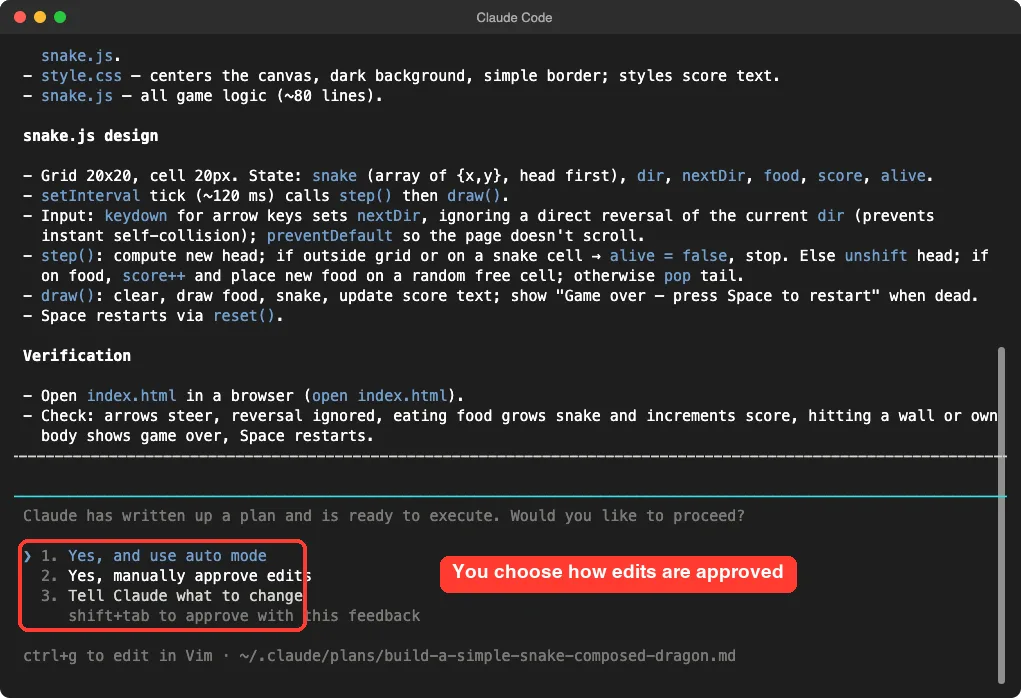
At the end you choose how to proceed: use auto mode, approve edits manually, or tell Claude what to change. We chose to approve edits manually so we could read the first file before it was written.
Step 4: Approve the Files
Claude showed the full index.html and asked, “Do you want to create index.html?” You can say yes once, switch to accept edits for the session, or say no.
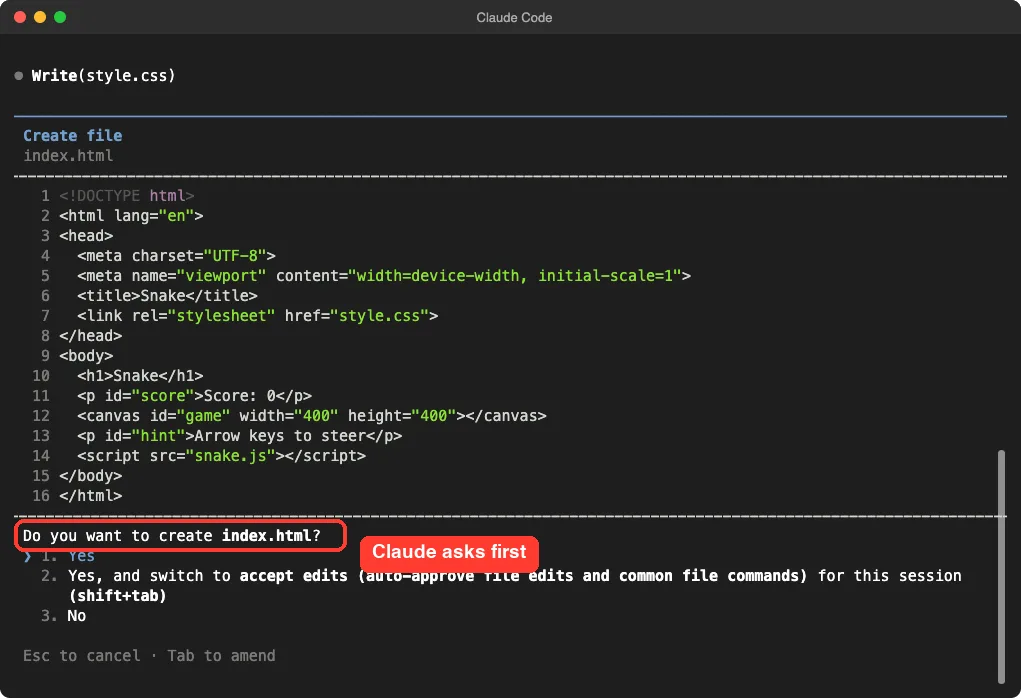
For this throwaway demo we picked accept edits so the other files were written without more questions. For a real project, keep approving by hand until you trust the flow. Our permissions guide covers safer setups.
Step 5: Read Claude’s Report
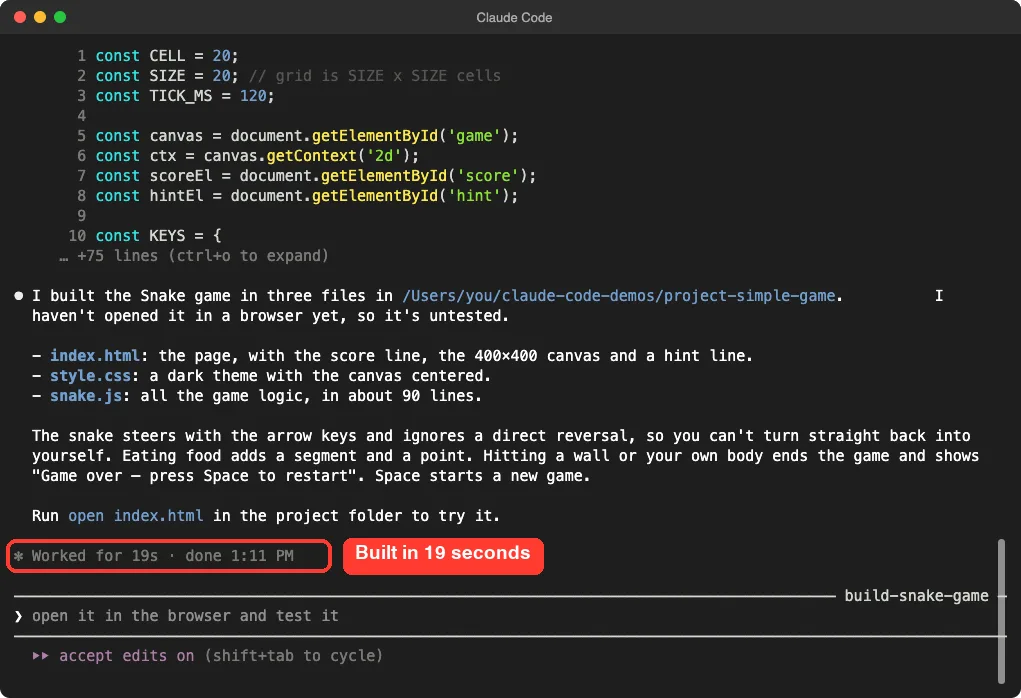
Claude wrote index.html, style.css and snake.js in 19 seconds.
Its summary was honest about one thing: it had not opened the game in a browser, so it was untested. That is a useful reminder. A summary tells you what Claude wrote, not that it works.
Step 6: Play Your Game With Claude Code
On a Mac, type this in the project folder, or double-click index.html:
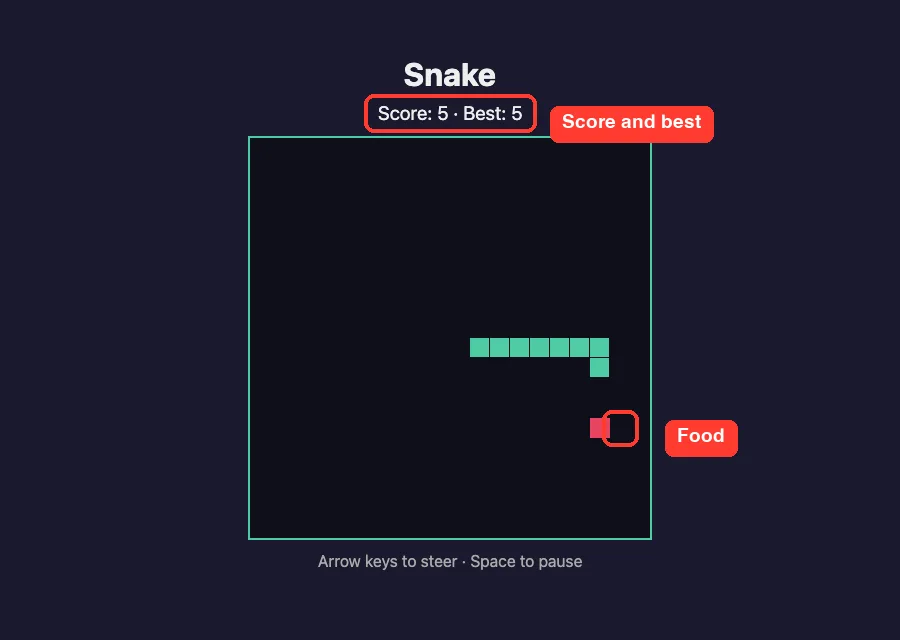
open index.htmlWe loaded the page in a headless browser and sent real key presses to it. To make the test repeatable, we placed the food in front of the snake with a small script instead of hunting for it by hand. The snake grew with every bite, and the score line counted up.
Step 7: Add a High Score and a Pause Key
Games get better with small extras. Our second prompt was:
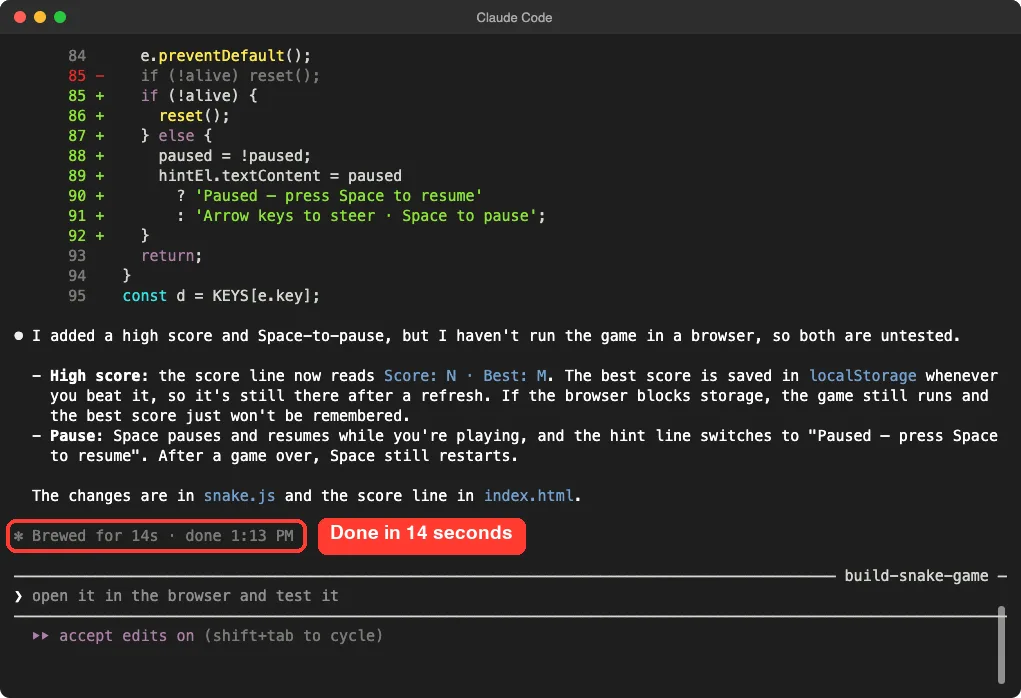
Add a high score that survives a refresh, and let me press Space to pause and resume.Claude changed the score line to read “Score: N · Best: M”, saved the best score in localStorage and added a pause toggle. It also planned for a problem you might not think about: if the browser blocks storage, the game still runs and the best score just is not remembered.
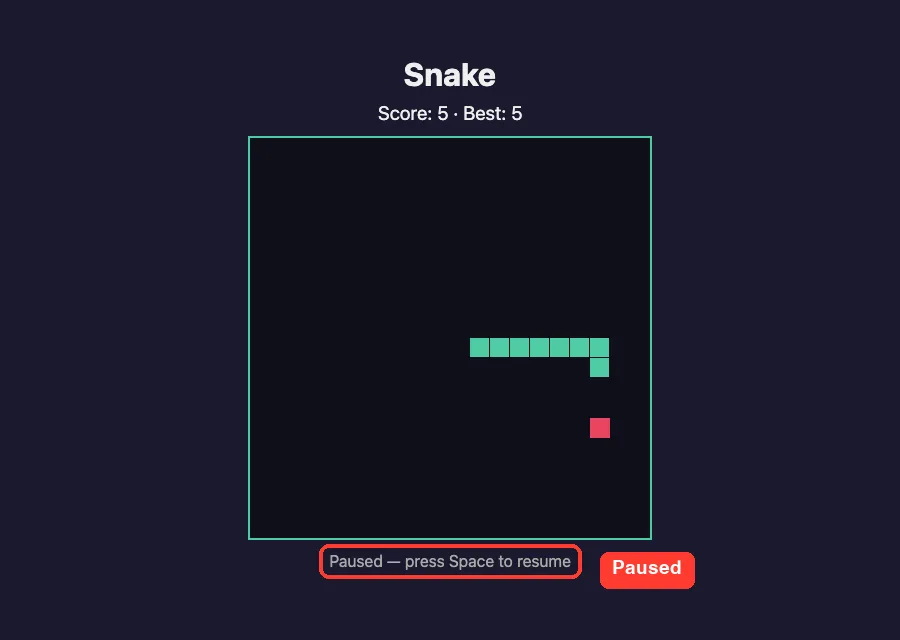
In the browser, pressing Space freezes the snake and the hint line under the board changes to tell you how to resume.
Step 8: Add Speed and a Game Over Screen to the Game
Our third prompt made the game harder and clearer:
Make the snake speed up a little every time it eats food, and show a Game Over message with the final score and how to restart.Claude explained its choices.
Each food cuts 4 milliseconds from the delay between moves, starting at 120 and stopping at 50. To make that possible it swapped setInterval for setTimeout, so the delay can change after every move. The numbers sit at the top of the file, so you can tune them.
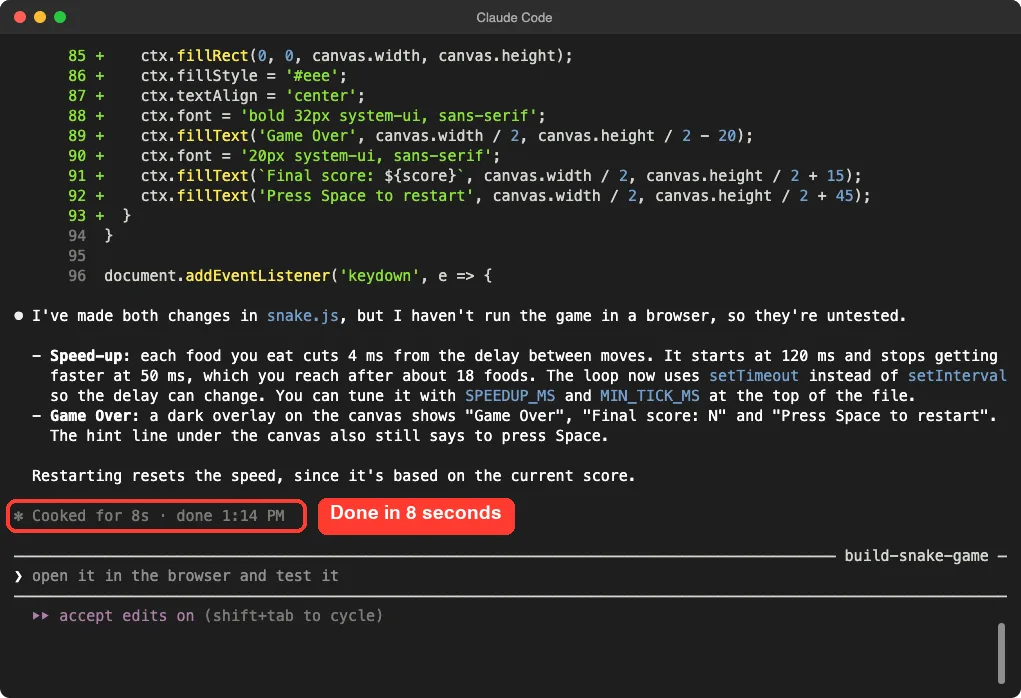
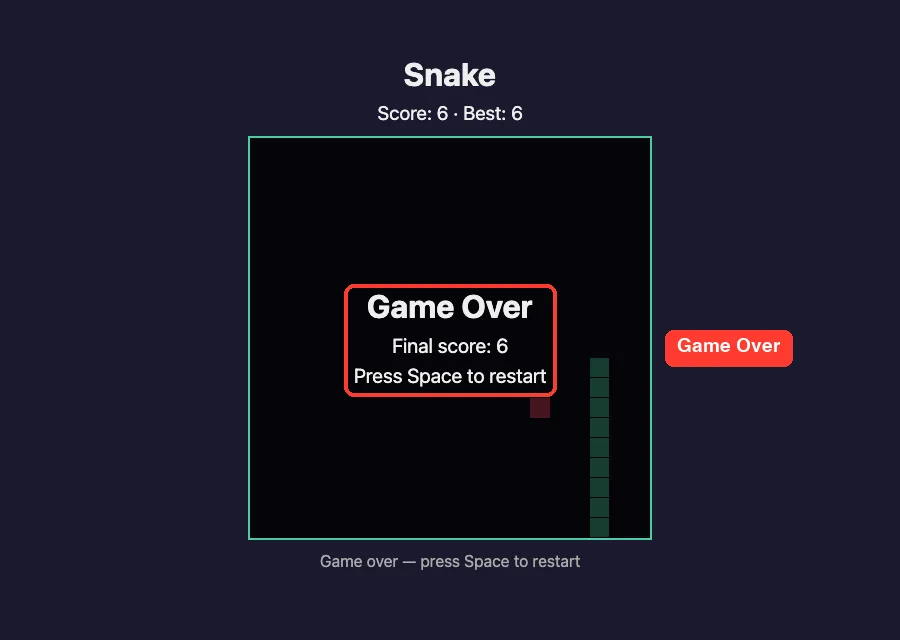
We then steered the snake into a wall. The game stopped, dimmed the board and showed the final score with instructions to restart.
Check the Best Score After a Refresh
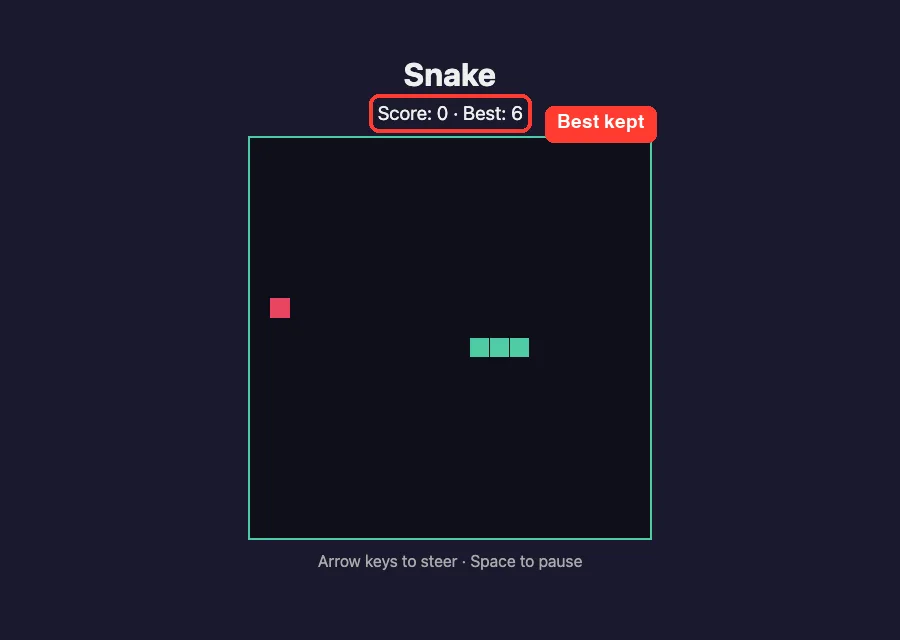
This is the test that proves saving works. We reloaded the page. The score was back at 0, but the best score of 6 was still there.
The Final Project Files
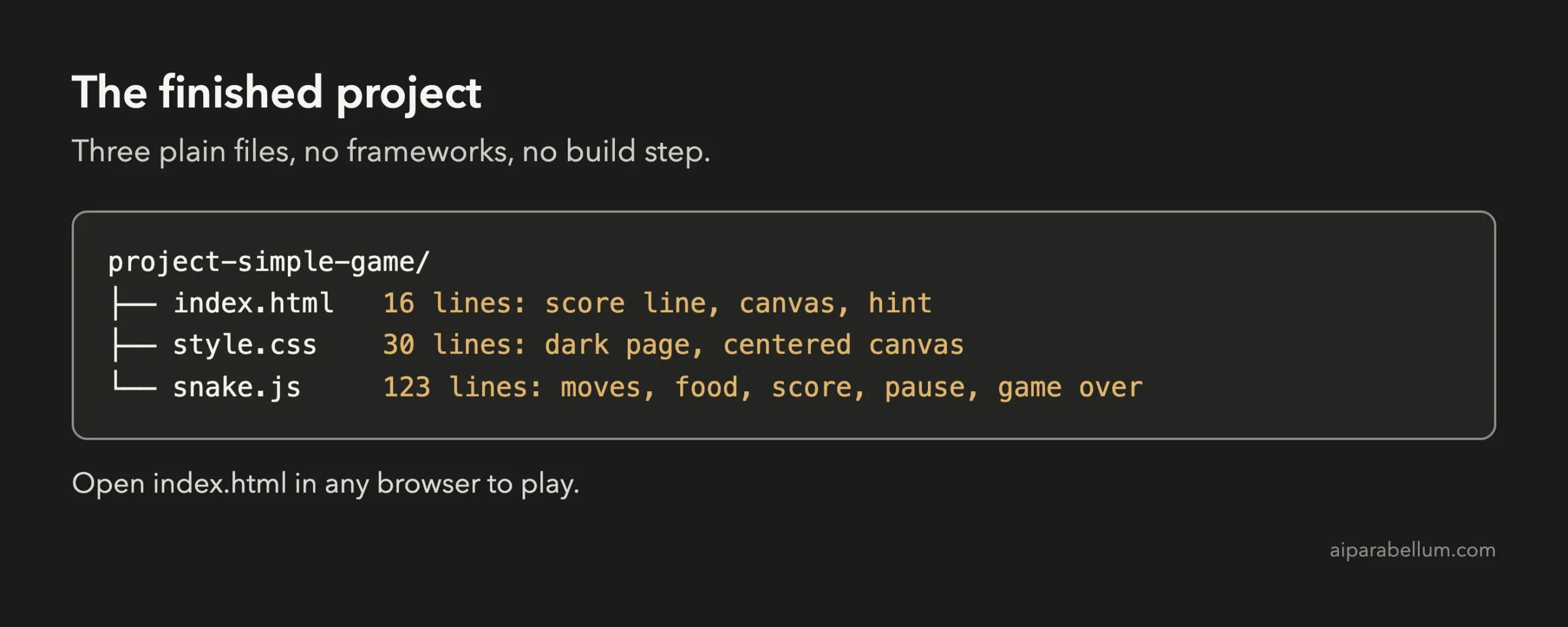
The page is tiny. Here is the full index.html:
<!DOCTYPE html>
<html lang="en">
<head>
  <meta charset="UTF-8">
  <meta name="viewport" content="width=device-width, initial-scale=1">
  <title>Snake</title>
  <link rel="stylesheet" href="style.css">
</head>
<body>
  <h1>Snake</h1>
  <p id="score">Score: 0 · Best: 0</p>
  <canvas id="game" width="400" height="400"></canvas>
  <p id="hint">Arrow keys to steer</p>
  <script src="snake.js"></script>
</body>
</html>
The brain of the game is snake.js, which has 123 lines. We trimmed it to the parts that explain the idea: the settings, one move of the snake and the game loop.
const CELL = 20;
const SIZE = 20; // grid is SIZE x SIZE cells
const TICK_MS = 120; // starting delay between moves
const SPEEDUP_MS = 4; // delay removed per food eaten
const MIN_TICK_MS = 50;

function step() {
  if (!alive || paused) return;
  dir = nextDir;
  const head = { x: snake[0].x + dir.x, y: snake[0].y + dir.y };

  const hitWall = head.x < 0 || head.y < 0 || head.x >= SIZE || head.y >= SIZE;
  if (hitWall || onSnake(head)) {
    alive = false;
    hintEl.textContent = 'Game over — press Space to restart';
    return;
  }

  snake.unshift(head);
  if (head.x === food.x && head.y === food.y) {
    score++;
    if (score > best) saveBest();
    placeFood();
  } else {
    snake.pop();
  }
}

function tick() {
  step();
  draw();
  setTimeout(tick, Math.max(MIN_TICK_MS, TICK_MS - score * SPEEDUP_MS));
}
Here is how to read it.
The snake is a list of squares, with the head first. Each tick adds a new head in the direction of travel. If that square is a wall or part of the snake, the game ends.
If it holds food, the score goes up and the tail stays, so the snake grows. Otherwise the tail is removed, so the snake just slides forward.
The last function is the heartbeat. It moves, draws and then schedules itself again, a little sooner for every point you score.
Try It Yourself
Build your own version with this starter prompt. Start Claude Code in plan mode in an empty folder first.
Build a simple Snake game that runs in the browser. Plain HTML, CSS and JavaScript on a canvas, no frameworks. Arrow keys steer the snake, eating food makes it longer, and hitting a wall or itself ends the game. Show a score. Plan the files first, keep it small.Then try these variations, one at a time:
- Ask for walls that wrap around, so the snake comes out on the opposite side.
- Ask for touch controls so the game works on a phone with swipes.
- Ask for a second kind of food that is worth three points but disappears after five seconds.
- Ask for a start screen with a Play button and a choice of easy, normal or hard speed.
- Ask for a different game altogether, such as Pong, Tic-Tac-Toe or a memory card match.
Common Mistakes
- Skipping the controls in your prompt. Say which keys do what, or Claude has to guess.
- Asking for a huge game in one prompt. Start with the core loop and add features one by one.
- Trusting the summary without playing. Claude told us itself that it had not run the game, so always test.
- Forgetting that games run on a timer. If the game feels too fast or too slow, ask Claude to change the delay at the top of the file.
- Expecting your best score on another device. localStorage keeps data in one browser on one computer.
Pro Tips
- Name the limits you want, like no frameworks. Claude follows them well.
- Ask for settings to live at the top of the file. Our game kept the speed numbers there, so tuning it is easy.
- Give Claude a way to check its work. Anthropic recommends tests, a build or a screenshot so Claude can see a pass or fail.
- If a change goes wrong, the rewind feature can roll your files back.
- Keep sessions short and watch your usage with our costs guide.
Cheat Sheet
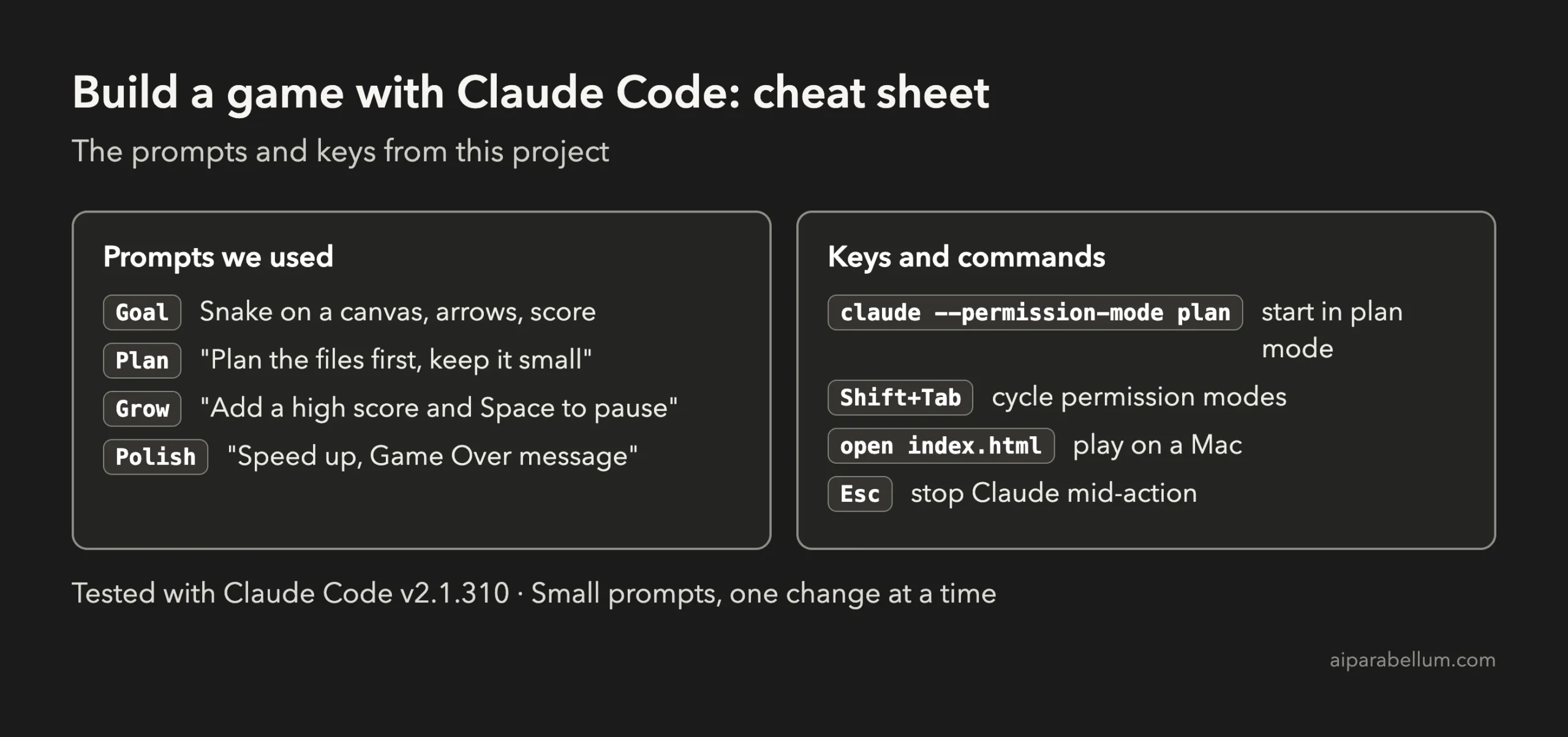
For the official reference, see Anthropic’s page on common workflows. If you want to understand the assistant behind the tool, our Claude AI overview is a good start. You can also revisit Project 2, our to-do list app, which uses the same saving trick.
Frequently Asked Questions
Do I need to know JavaScript to build a game with Claude Code?
No. You describe the game in plain English and Claude writes the code. Reading the code it shows you is a great way to start learning.
Can I build a different game?
Yes. The same steps work for Pong, a memory game or a quiz. Start small, get the core loop working and add one feature per prompt.
Where is my best score stored?
It is stored in your browser using localStorage, on your own computer. Nothing is sent to a server, and clearing your browser data will erase it.
How do I put the game online?
This project only builds the files. To publish them, upload the three files to a static hosting service. We did not publish this demo.
What if the game does not work?
Describe what you see, for example “the snake does not turn when I press the left arrow”, and paste any error from your browser. Claude can then fix that one problem. Because every file needs your approval, you stay in control.
Conclusion
You now know how to build a game with Claude Code: plan first, name the tools, controls and rules, approve the files, play it yourself and add one feature per prompt. It took three short prompts and a few approvals, and you end up with three plain files that you own and can read. Try the starter prompt yourself, then come back for the next project in the series.
Previous in the series: Project 4: Build a Python Command-Line Tool With Claude Code
Next in the series: Project 6: Build a REST API With a Database Using Claude Code.