Want to build a Python CLI with Claude Code but not sure where to begin? Good news: a command-line tool is one of the easiest first projects, because it is usually just one small script.
A command-line tool, or CLI, is a program you run by typing its name in the terminal. In this project we build a tiny one called wordfreq.py that reads a text file and prints its most common words. Then we run it for real and see what Claude Code got right.
This is Project 4 of 20 in our Build with Claude Code series, part of our Claude Code tutorials. In Project 3 we built a Chrome extension that runs inside the browser. This time everything runs in your terminal.
Tested with Claude Code v2.1.310 on October 26, 2026, on macOS, with Python 3.
Everything below really happened. The screenshots come from real sessions, and the prompts are the exact ones we typed.
We used three short sessions in the same folder, so Claude starts fresh each time and reads the existing file. We tested on macOS; the Windows and Linux steps follow Anthropic’s official instructions.
What We Built
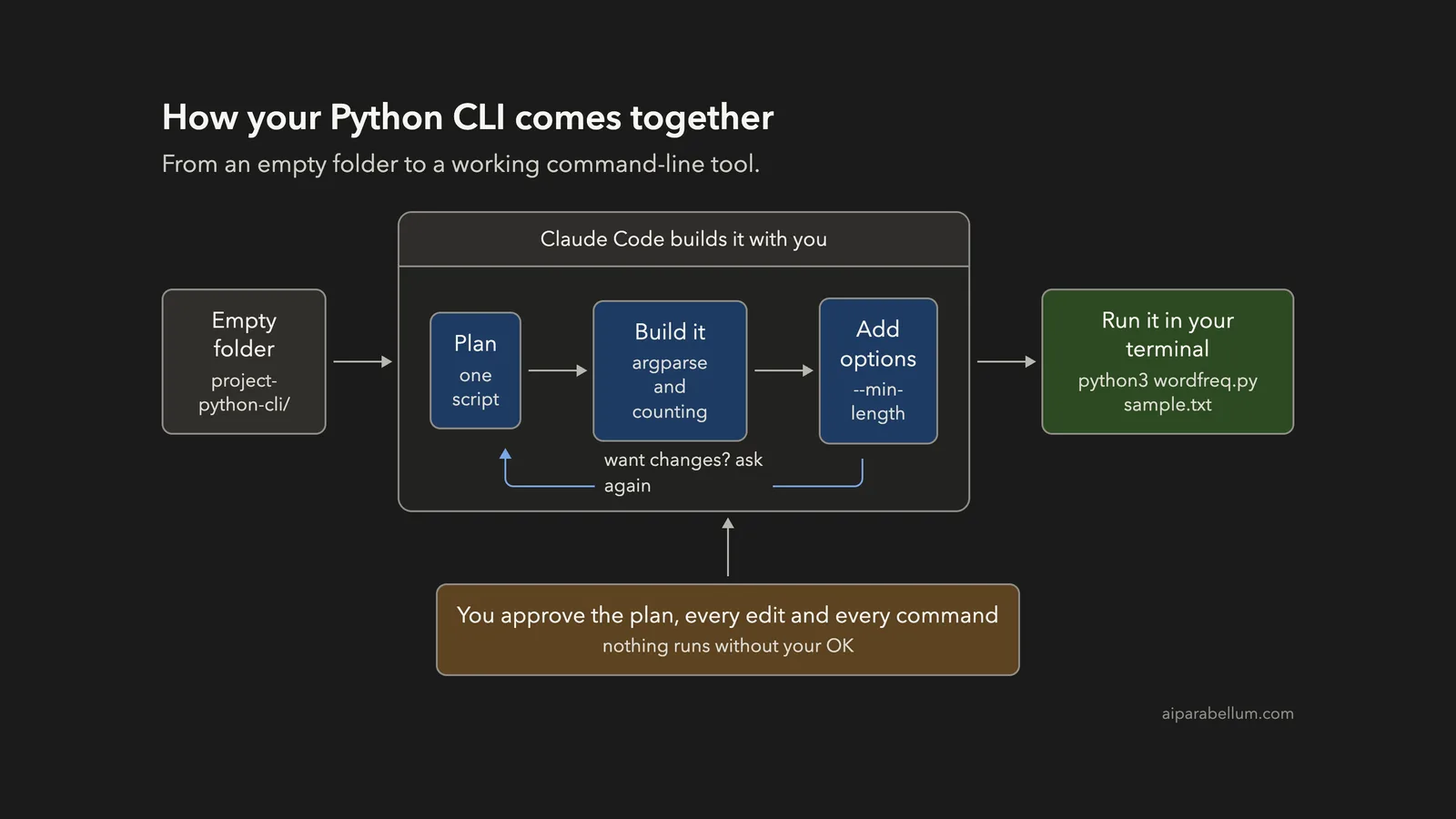
A Python CLI can be one small script, and Claude Code can write it, test it and extend it while you approve each step.
| Item | Details |
|---|---|
| Project | A command-line tool called wordfreq.py |
| Tools | Python 3, the standard library only, argparse for the options |
| Features | Top words by count, –top option, –min-length option, clear error for a missing file |
| Prompts used | 3 short prompts, plus the approvals |
| Final size | 40 lines in one file, plus a sample text file |
The tool installs nothing and talks to no servers. It reads one file on your computer and prints a list.
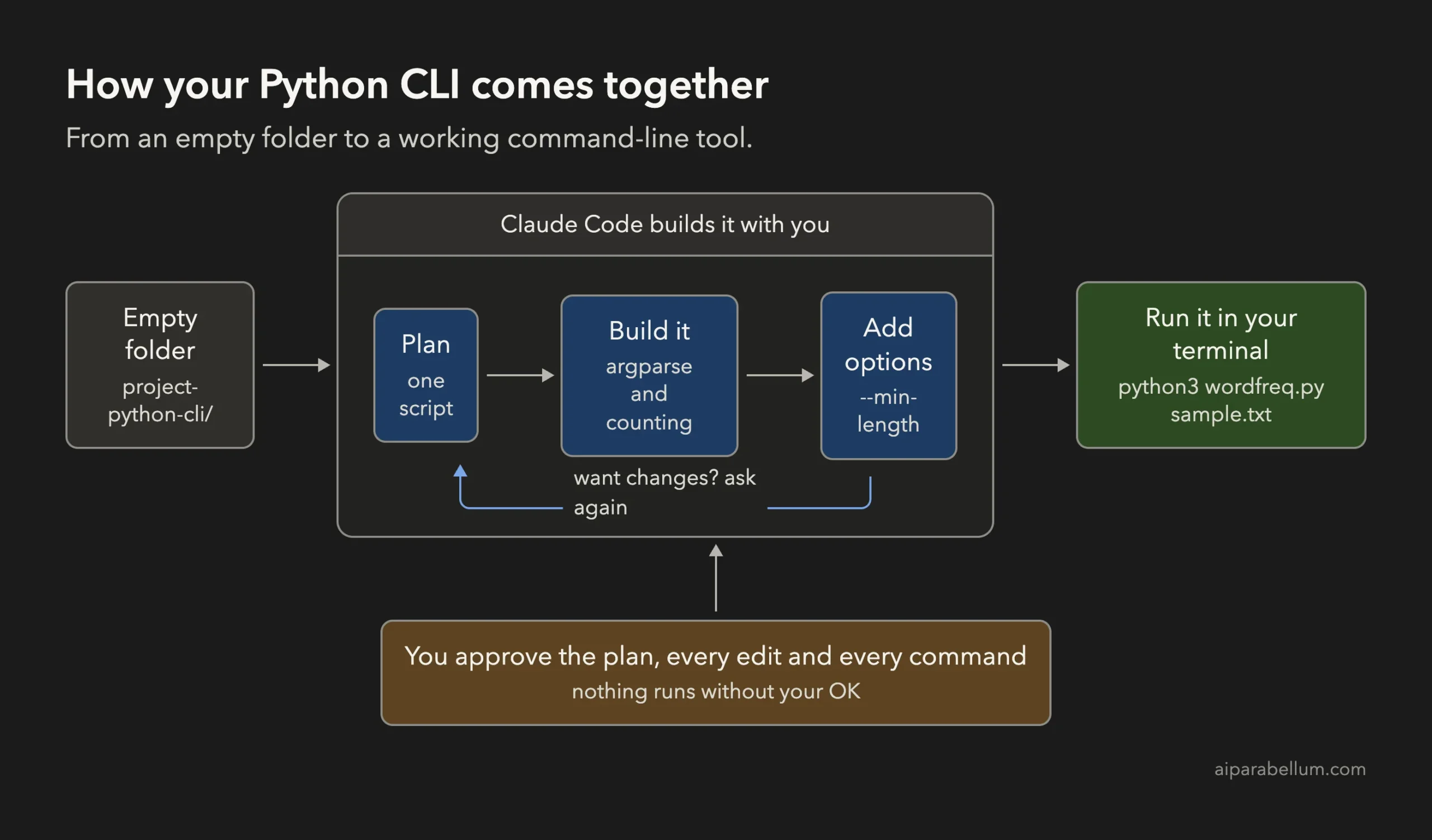
What Is a Python CLI, Really?
A Python CLI is a script that takes input from the command line instead of from buttons and windows. You type something like python3 wordfreq.py sample.txt, and the program reads the file name you gave it.
Options such as –top 5 are called arguments. Python has a built-in module named argparse that reads them for you, and it even writes a –help screen for free.
That is why this is a nice starter project. It shows how arguments, files, errors and exit codes work, all in under 50 lines. If you are new to the tool itself, read our first session guide before you start.
Step 1: Start in Plan Mode in an Empty Folder
Create a new folder, open a terminal in it and start Claude Code in plan mode. In plan mode Claude can read and think, but it cannot change files until you approve its plan.
mkdir my-python-cli
cd my-python-cli
claude --permission-mode plan
The first time you open a folder, Claude Code asks if you trust it. Say yes, because you just made it. Then look at the bottom of the screen for the plan mode indicator.
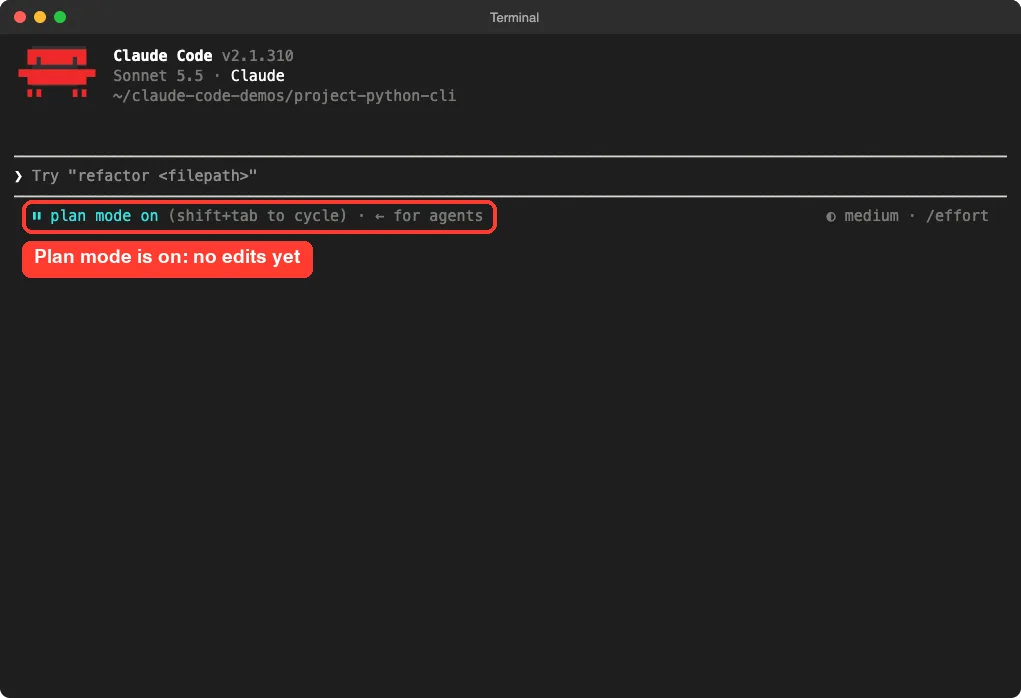
Our guide to plan mode explains the approval flow, and our page on permission modes lists every mode.
Step 2: Describe the Python CLI You Want
A good prompt names the file, the tools and the default behavior. This is the first prompt we used:
Build a Python command-line tool called wordfreq.py that reads a text file and prints the most common words with their counts. Use only the standard library and argparse. Take the file path as an argument, ignore upper and lower case, and show the top 10 words by default. Plan the files first, keep it small.Three phrases do most of the work. “Only the standard library” means you do not have to install anything.
“Ignore upper and lower case” tells Claude that The and the are the same word. “Top 10 by default” sets what happens when you give no options.
Step 3: Review the Plan and Approve It
Claude’s plan was short, which matched our “keep it small” request. It chose a single script with no package. It said it would read the file as UTF-8, lowercase the text, split it into words with a regular expression and count them with Counter from the collections module.
It also planned how errors would work: a missing file prints a message and exits with code 1, and a –top value below 1 is rejected. Then it listed four test steps it wanted to run.
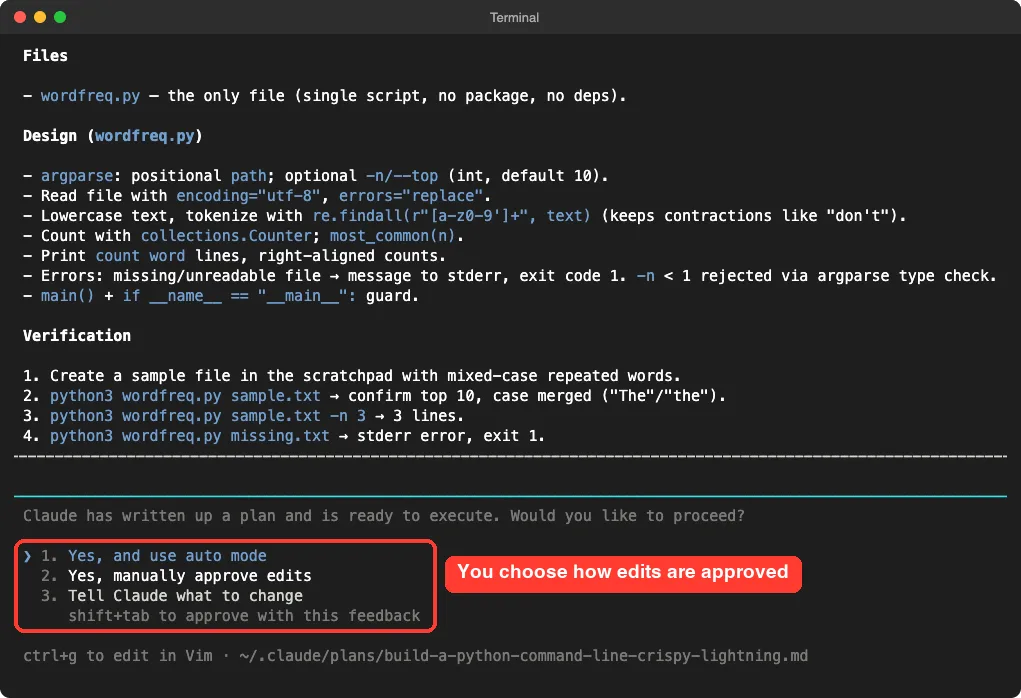
The plan took a few minutes to appear, which is normal when Claude thinks first. We chose to approve edits manually so we could read the code before it was written.
Step 4: Approve the File
Claude showed the whole script and asked, “Do you want to create wordfreq.py?” You can say yes once, switch to accept edits for the session, or say no.
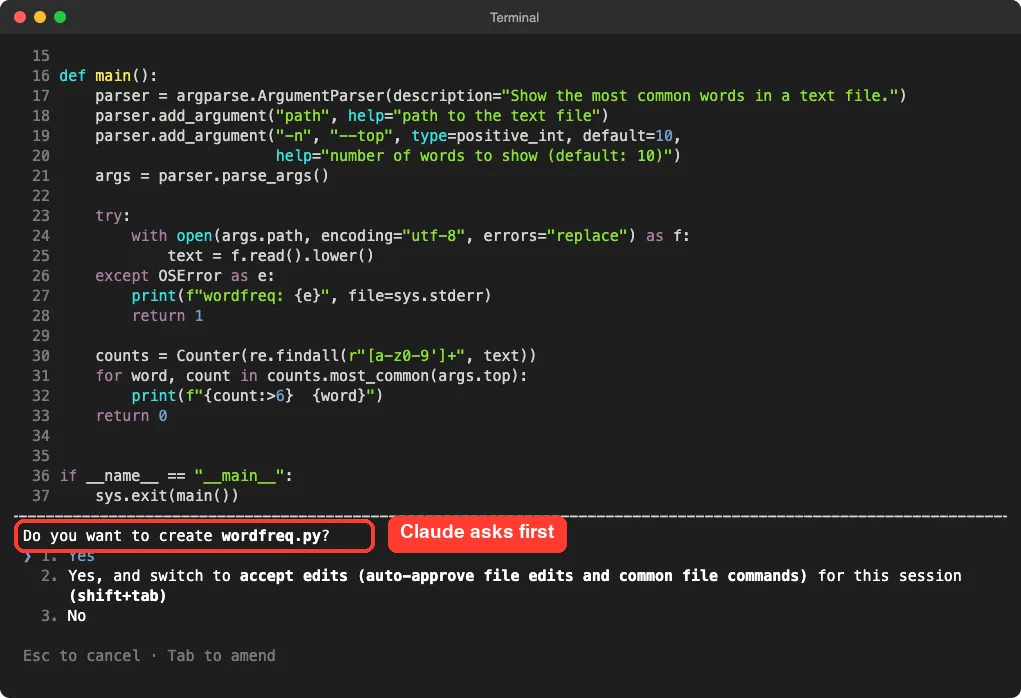
This is a good moment to read the code, which is only about 37 lines. For real projects, keep approving by hand until you trust the flow. Our permissions guide shows safer setups.
Step 5: Watch Claude Test Its Own Work
After writing the file, Claude did something we like. It asked to run a Bash command that created a small sample file in a scratch folder and ran wordfreq.py on it, including a missing-file case. That is exactly the “Verification” part of its plan.
Notice that Claude asked first. Running commands needs your approval in the default mode, just like editing files.
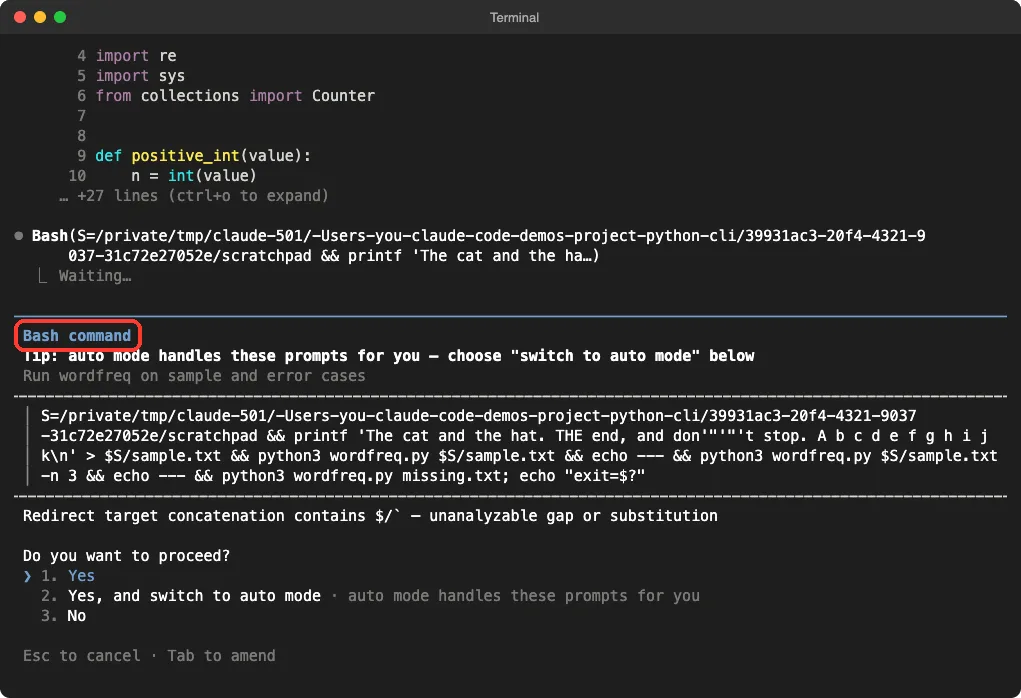
In this first session we stopped here, so we did not approve that test. We ran the tool ourselves in later steps, which is the check that matters most.
Step 6: Add an Option With One Small Prompt
In a new session in the same folder, our second prompt was one sentence:
Add a --min-length option that skips words shorter than that many letters (default 1). Keep the change small.Claude read the existing file and showed a small edit before touching anything. The old counting line was replaced by two lines: one finds all the words, and one counts only the words that are long enough.
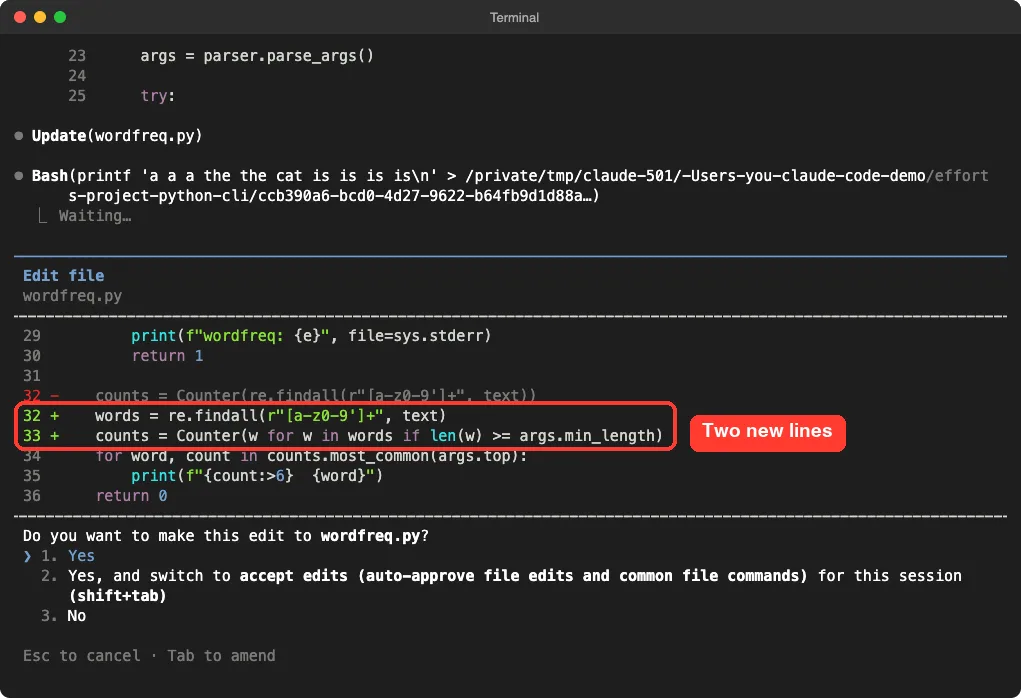
Reading a diff like this is the best habit you can build. Red lines leave, green lines arrive, and nothing else moves.
Step 7: Read Claude’s Report
Claude finished the change in 15 seconds. Its report said it reused the same positive-number check as –top, so a value below 1 is rejected too. It also said it tested the option on a tiny file with –min-length 3, where only “the” and “cat” were left.
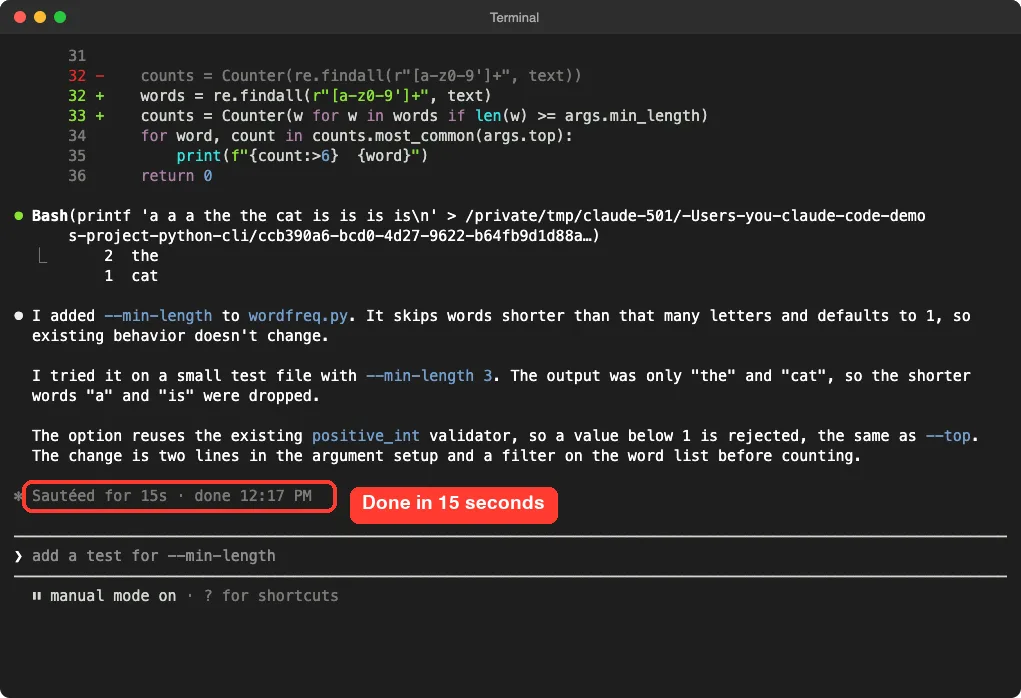
Claude’s test ran in a scratch folder, so nothing extra was left in our project.
Step 8: Create a Sample File and Run the Tool
The third prompt asked for test data and a real run in one go:
Create sample.txt with a short paragraph about coffee (about 60 words, repeat a few words on purpose), then run python3 wordfreq.py sample.txt --top 5 --min-length 4 and show me the output.Claude wrote the file, then asked permission to run the command. The menu offered “Yes”, “Yes, and don’t ask again” for python3 commands, or “No”. We picked a single Yes.
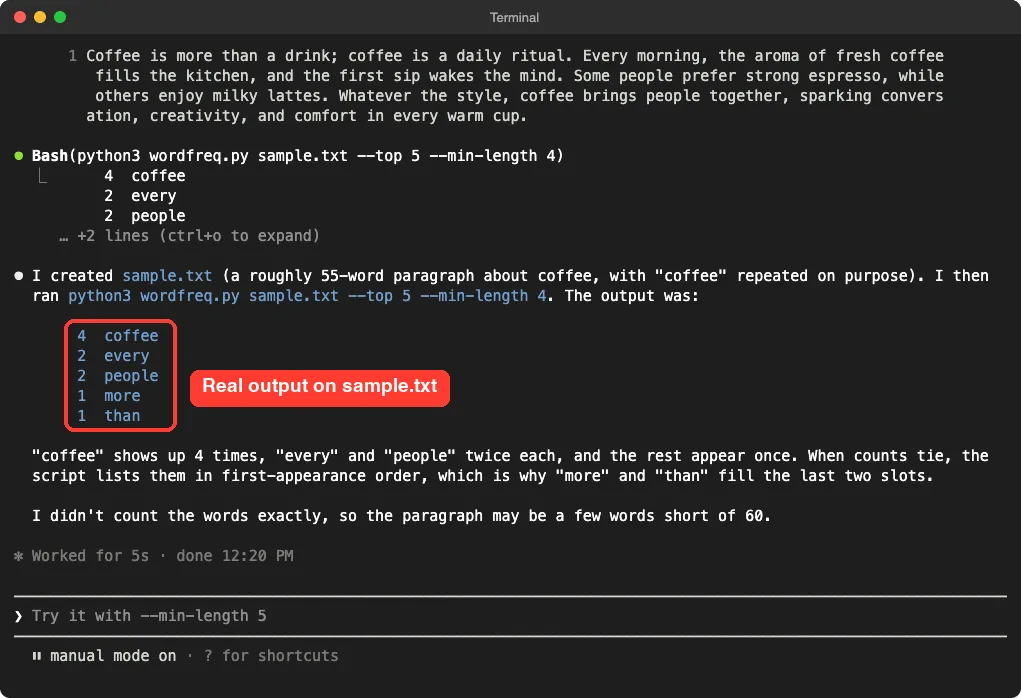
The word “coffee” appeared 4 times, “every” and “people” twice each. Claude also pointed out two honest details. When counts tie, words appear in the order they first show up, and the paragraph was probably a few words short of 60 because it did not count them exactly.
Step 9: Run It Yourself in the Terminal
Do not stop at Claude’s report. Open a normal terminal in the project folder and run the tool the way a user would. First ask for help:
python3 wordfreq.py --help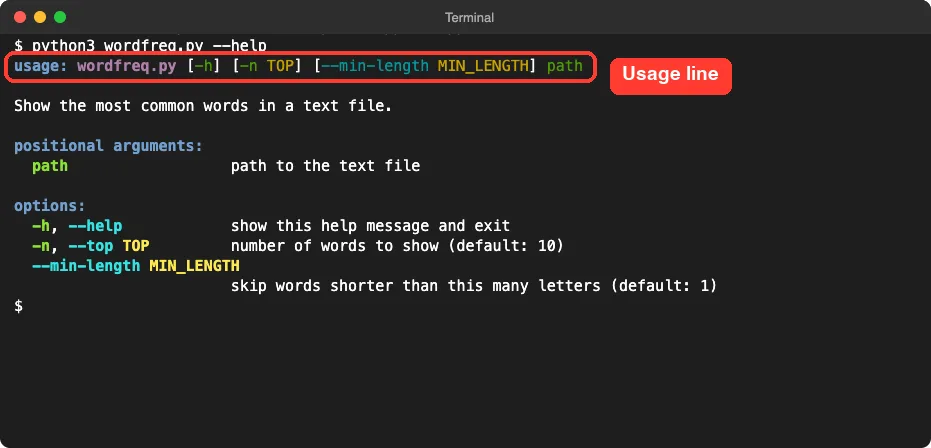
Then run the real command, and also try a file that does not exist:
python3 wordfreq.py sample.txt --top 5 --min-length 4
python3 wordfreq.py missing.txt; echo exit code: $?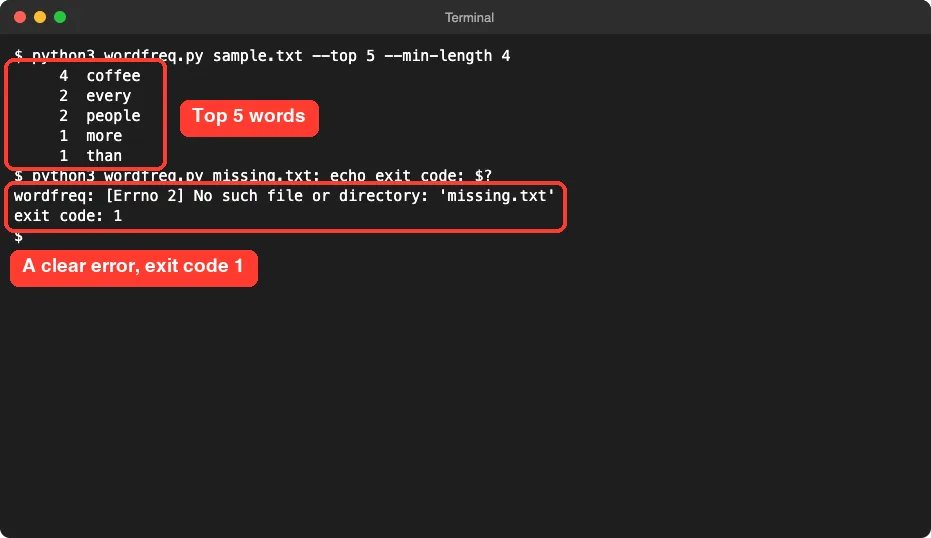
The missing file gives a short message instead of a long Python error, and the exit code is 1. Exit code 0 means success and anything else means failure, which other programs rely on.
The Final Project Files
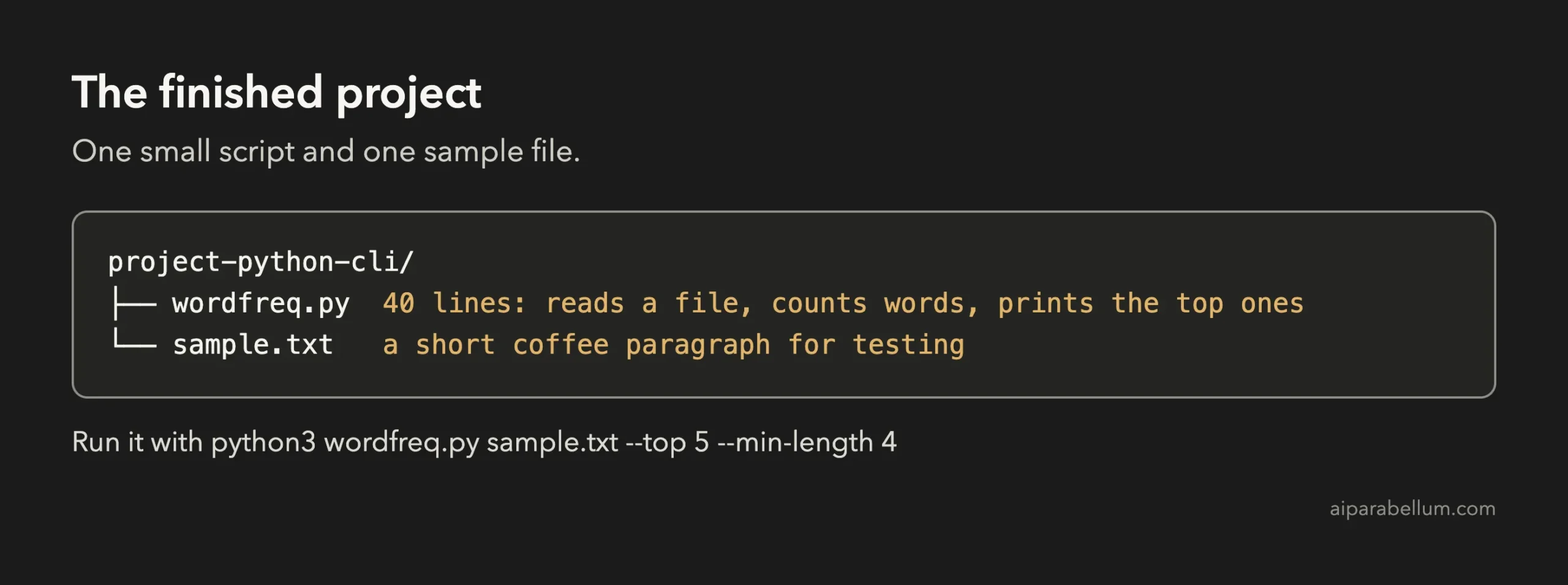
Here is the complete wordfreq.py as it stands after our three prompts:
#!/usr/bin/env python3
"""Print the most common words in a text file."""
import argparse
import re
import sys
from collections import Counter


def positive_int(value):
    n = int(value)
    if n < 1:
        raise argparse.ArgumentTypeError("must be at least 1")
    return n


def main():
    parser = argparse.ArgumentParser(description="Show the most common words in a text file.")
    parser.add_argument("path", help="path to the text file")
    parser.add_argument("-n", "--top", type=positive_int, default=10,
                        help="number of words to show (default: 10)")
    parser.add_argument("--min-length", type=positive_int, default=1,
                        help="skip words shorter than this many letters (default: 1)")
    args = parser.parse_args()

    try:
        with open(args.path, encoding="utf-8", errors="replace") as f:
            text = f.read().lower()
    except OSError as e:
        print(f"wordfreq: {e}", file=sys.stderr)
        return 1

    words = re.findall(r"[a-z0-9']+", text)
    counts = Counter(w for w in words if len(w) >= args.min_length)
    for word, count in counts.most_common(args.top):
        print(f"{count:>6}  {word}")
    return 0


if __name__ == "__main__":
    sys.exit(main())
Here is how to read it. The parser block defines the path, –top and –min-length. The try block reads the file and turns a missing file into a friendly message.
The last part finds words, counts them and prints each one with its count. The final if line lets the file run as a program while still being importable by other code.
Try It Yourself
Build your own version with this starter prompt. Start Claude Code in plan mode in an empty folder first.
Build a Python command-line tool called wordfreq.py that reads a text file and prints the most common words with their counts. Use only the standard library and argparse. Take the file path as an argument, ignore upper and lower case, and show the top 10 words by default. Plan the files first, keep it small.Then try these variations, one at a time:
- Ask for an –ignore option that takes a list of words to skip, such as the, and, of.
- Ask for a –json flag that prints the result as JSON instead of plain text.
- Ask Claude to read from standard input when no file is given, so you can pipe text into the tool.
- Ask for tests with the unittest module. Our guide on writing tests shows how.
- Ask Claude to explain each line of the script so you learn what it does.
Common Mistakes
- Typing python instead of python3. On many Macs only python3 exists, so use that name.
- Forgetting to run it yourself. Claude’s report tells you what it tried, but only your own run proves the tool works for you.
- Asking for too much at once. One option per prompt keeps each diff small and easy to read.
- Skipping the empty and error cases. Always try a missing file and a bad value, like –top 0.
- Running from the wrong folder. The file path you give is relative to where your terminal is.
Pro Tips
- Say which libraries you allow. “Standard library only” kept our tool free of installs.
- Ask Claude to test its own work, then check the result yourself. It is faster and safer than doing either alone.
- Read every diff before you approve it. A small change should look small.
- If a change goes wrong, the rewind feature can roll your files back.
- Keep sessions short and watch your usage with our costs guide.
Cheat Sheet
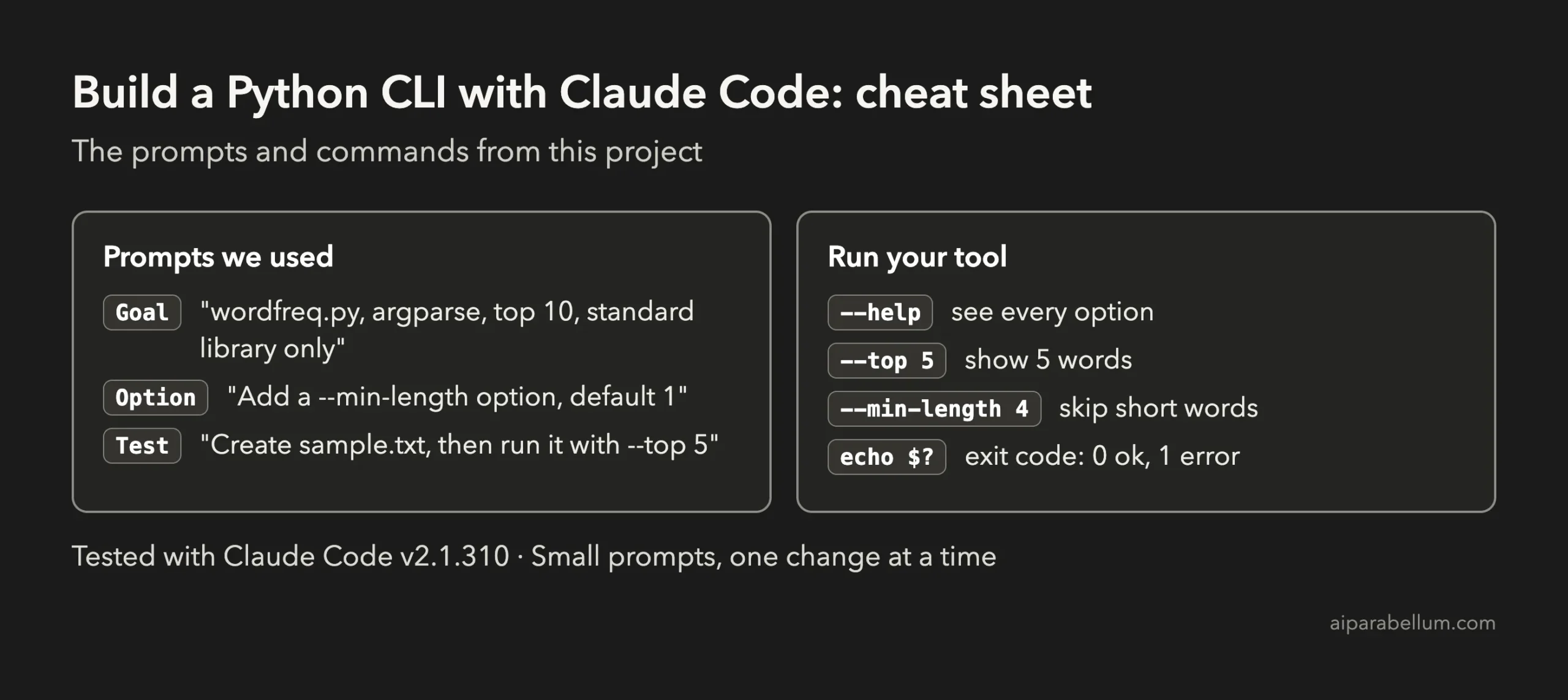
For the official reference on everyday workflows, see Anthropic’s page on common workflows. If you want to understand the assistant behind the tool, our Claude AI overview is a good start.
Frequently Asked Questions
Do I need to know Python to build a Python CLI with Claude Code?
No. You describe what you want in plain English and Claude writes the code. Reading the script it shows you is a great way to start learning.
Do I need to install anything extra?
You need Python 3 and Claude Code. Our tool uses only the standard library, so there are no packages to install.
Why use argparse?
It is built into Python and handles options, error messages and the –help screen for you. We asked for it by name so Claude would not pick a library you need to install.
Will it work on Windows or Linux?
We only tested on macOS. The script is plain Python, so it should run elsewhere, but on Windows you may type python or py instead of python3. We did not test that.
Why did the plan take a few minutes?
Plan mode makes Claude think and write a full plan before any file changes. Short follow-up prompts, like our –min-length request, finished in seconds.
Conclusion
You now know how to build a Python CLI with Claude Code: plan first, name the tools you allow, approve the file, add options one small prompt at a time and run the tool yourself in the terminal. It took three short prompts and a few approvals, and you end up with one small script that you own and can read. Try the starter prompt yourself, then come back for the next project in the series.
Previous in the series: Project 3: Build a Chrome Extension With Claude Code
Next in the series: Project 5: Build a Simple Game With Claude Code.