Want to build a Chrome extension with Claude Code but think extensions are only for experts? They are not.
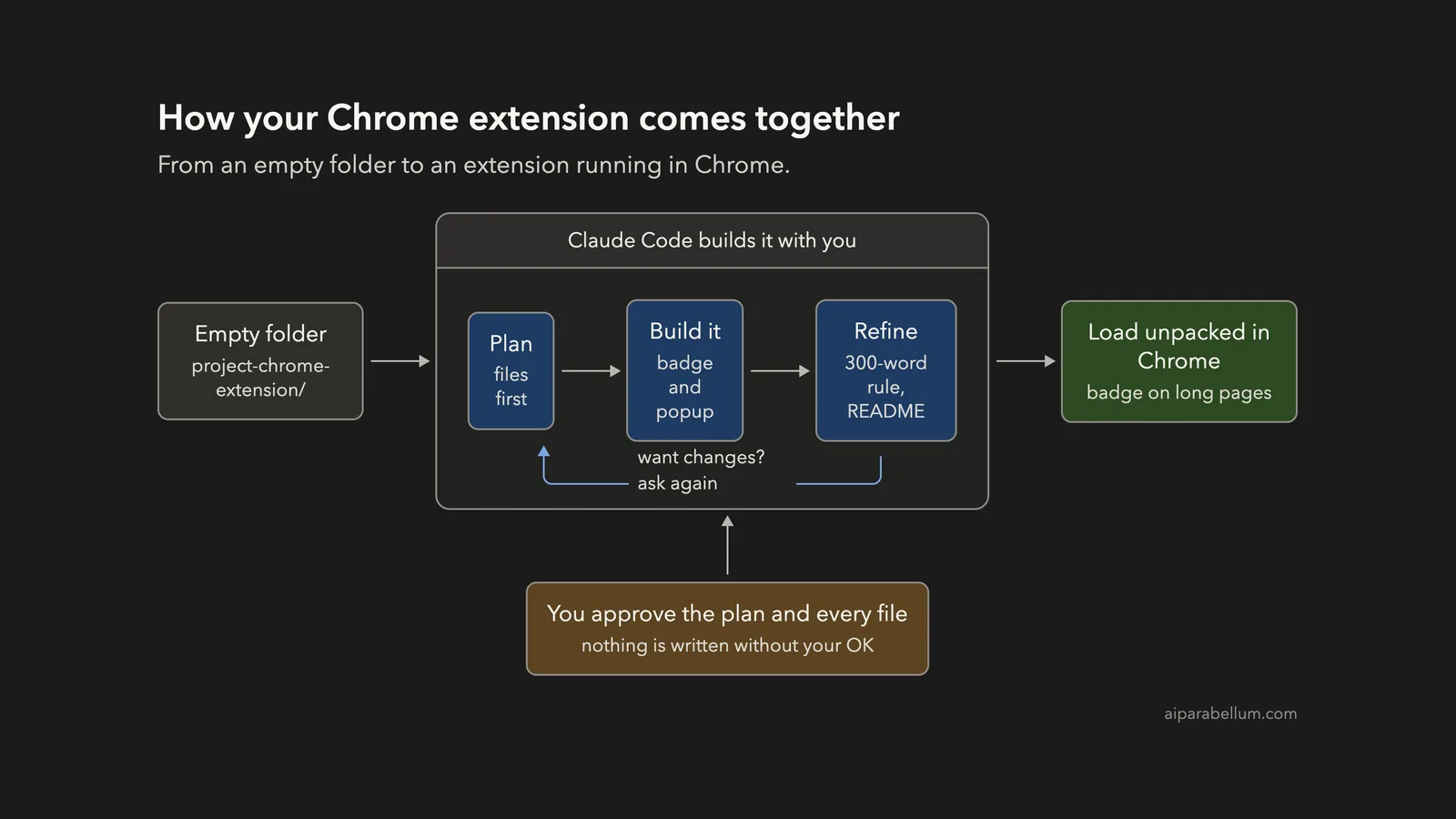
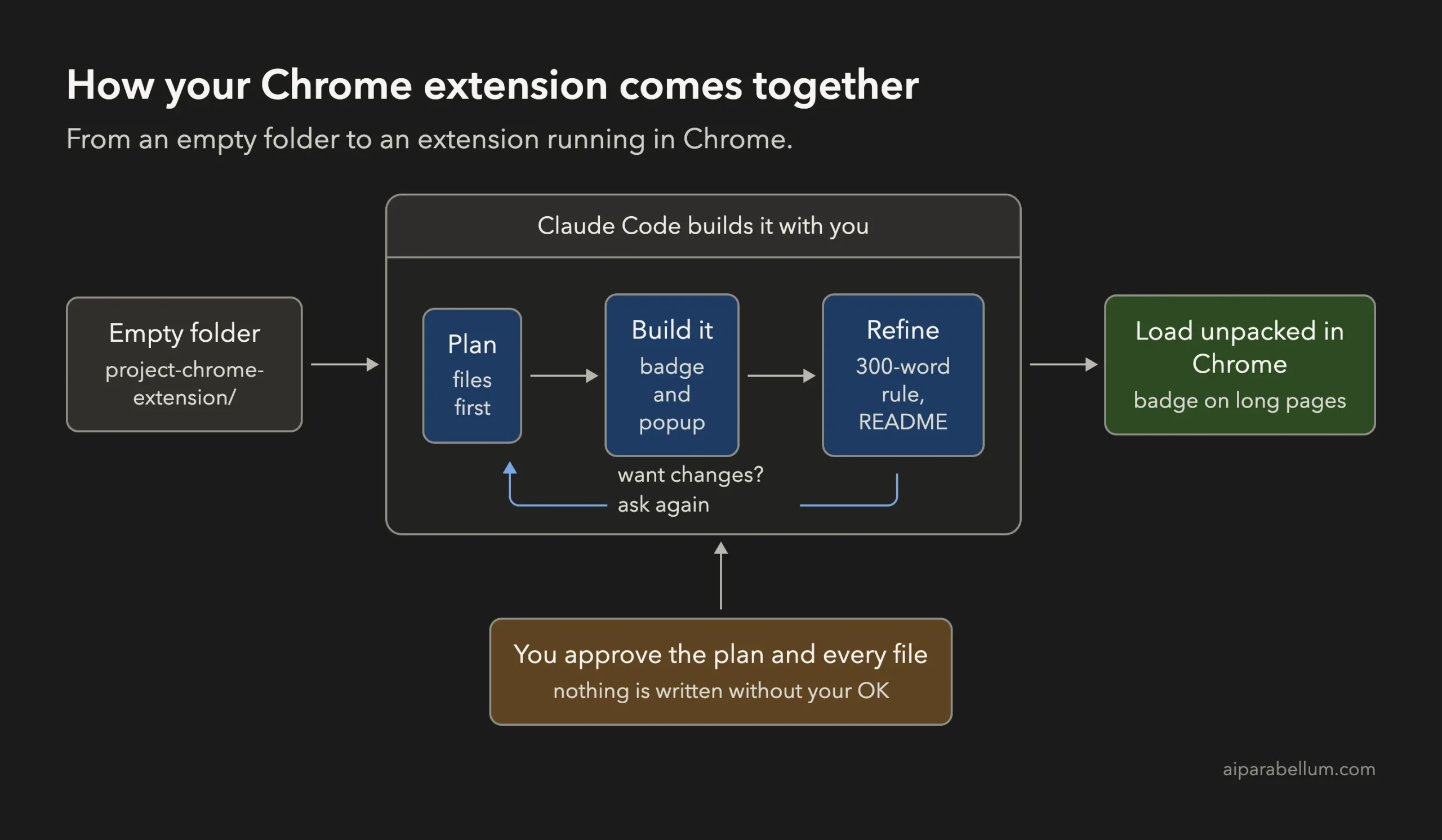
A Chrome extension is just a small folder of files that Chrome loads, and Claude Code can write all of them while you review the plan. In this project we build a tiny extension that shows an “X min read” badge on long web pages, then load it in Chrome and watch it work.
This is Project 3 of 20 in our Build with Claude Code series, part of our Claude Code tutorials. In Project 2 we built a to-do app that saves its data in the browser. This time the code runs inside Chrome itself.
Tested with Claude Code v2.1.310 on October 26, 2026, on macOS, with Chrome 156.
Everything below really happened. The terminal screenshots come from one real Claude Code session, and the prompts are the exact ones we typed.
The browser screenshots show the files Claude wrote, running as a real extension in Chrome. We tested on macOS; the Windows and Linux steps follow Anthropic’s official instructions.
What We Built
A Chrome extension is a folder with a manifest file and a few scripts, and Claude Code can write the whole folder from one clear prompt.
| Item | Details |
|---|---|
| Project | A Chrome extension called Reading Time Badge |
| Tools | Manifest V3, plain JavaScript, no build step, no icons, no network requests |
| Features | Reading-time badge, 300-word minimum, popup checkbox to turn it on or off |
| Saving | The checkbox setting is kept in chrome.storage |
| Prompts used | 3 short prompts, plus the approvals |
| Time | 19 seconds for the first version, then 4 and 10 seconds for the extras |
The extension never sends anything over the internet. It reads the words on the page you are viewing, does the math on your own computer and draws a small badge.
What Is a Chrome Extension, Really?
An extension is a folder. Inside it, one file called manifest.json tells Chrome the extension’s name, what it is allowed to do and which other files to use. The other files are ordinary web files: JavaScript that runs inside pages, and small HTML pages for things like a popup.
Our extension uses two of those parts:
- A content script, which is JavaScript that Chrome injects into the pages you visit. Ours counts the words and draws the badge.
- A popup, which is the small window that opens when you click the extension’s toolbar button. Ours holds one checkbox.
That is a good first project because it touches the main ideas without any servers or accounts. If you are new to the tool, read our first session guide before you start.
Step 1: Start in Plan Mode in an Empty Folder
Create a new folder, open a terminal inside it and start Claude Code in plan mode. In plan mode Claude can read and think, but it cannot change files until you approve its plan.
mkdir my-chrome-extension
cd my-chrome-extension
claude --permission-mode plan
The first time you open a folder, Claude Code asks if you trust it. Say yes, because you just made it. Then look at the bottom of the screen for the plan mode indicator.
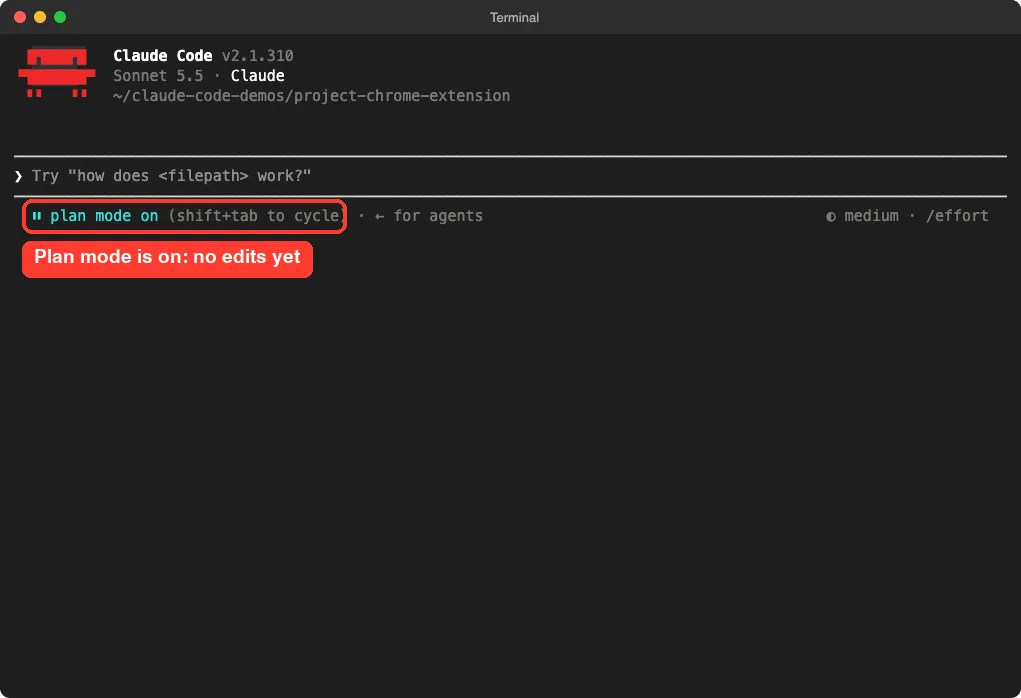
You can press Shift+Tab inside a session to cycle modes. Our guide to plan mode explains the approval flow, and our page on permission modes lists them all.
Step 2: Describe the Chrome Extension You Want
A good prompt names the extension type, the features and the limits. This is the first prompt we used:
Build a Chrome extension (Manifest V3) that adds a small 'X min read' badge at the top of any web page, based on the word count of the page text at 200 words per minute. Plain JavaScript, no build step, no icons, no network requests. Add a popup with a checkbox that turns the badge on or off, saved in chrome.storage. Plan the files first, keep it small.Three phrases do most of the work here. “Manifest V3” tells Claude to use the current extension format.
“No network requests” keeps the extension private. “Saved in chrome.storage” says how the setting should be remembered, so it survives closing the popup.
Step 3: Review the Plan and Approve It
Claude wrote a plan with four files and described what each would do. It listed its own known limits too: the word count happens once when the page loads, it counts menus and footers along with the article, and Chrome does not allow extensions on chrome:// pages or the Web Store. It even wrote a short checklist for testing.
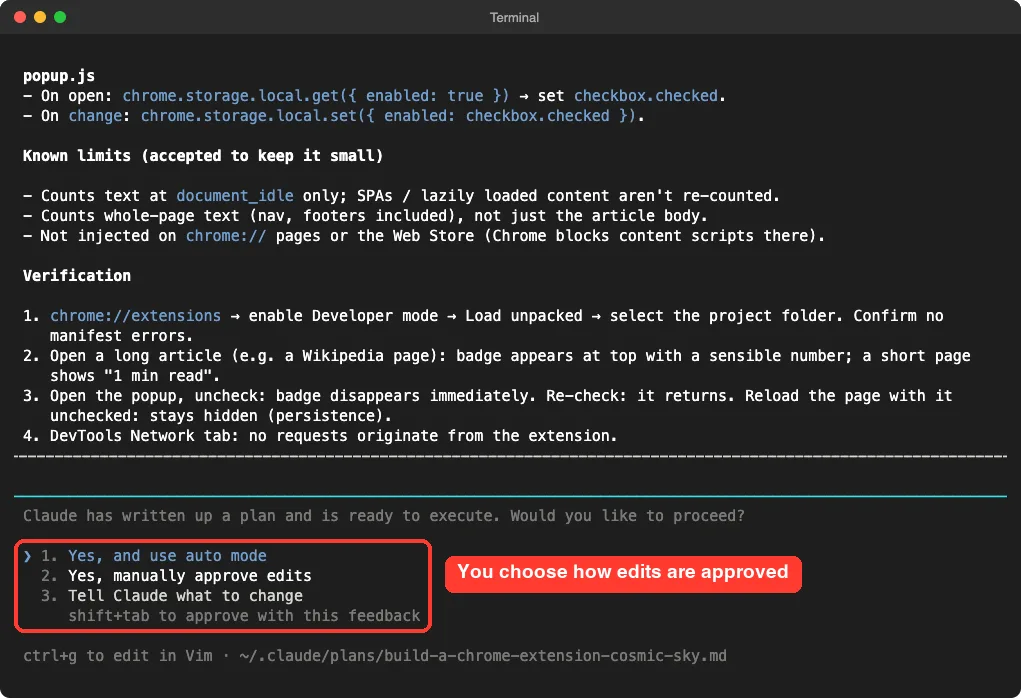
We chose to approve edits manually so we could read each file before it was written.
Step 4: Approve the Files
Claude showed the full manifest.json and asked, “Do you want to create manifest.json?” You can say yes once, switch to accept edits for the session, or say no.
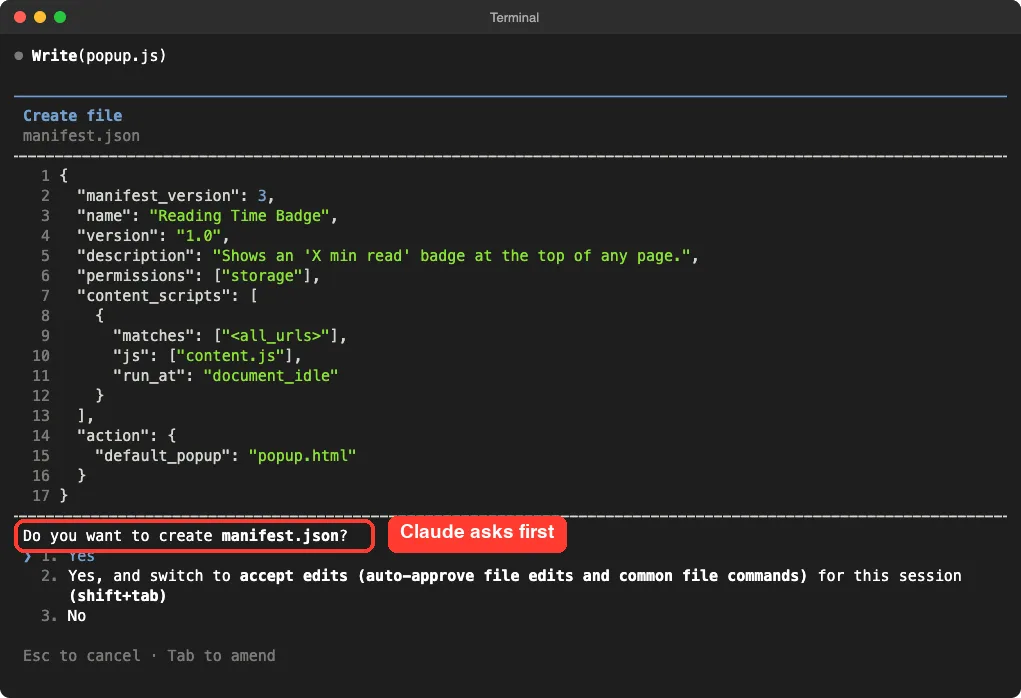
This is also a nice moment to read the manifest. It asks for only one permission, storage, and it matches every web address so the badge can appear anywhere.
If an extension ever asks for far more than it needs, that is a red flag. Our permissions guide covers safer setups for Claude Code itself.
For this throwaway demo we picked accept edits so the rest of the files were written without more questions. For a real project, keep approving by hand until you trust the flow.
Step 5: Read Claude’s Report
Claude wrote four files in 19 seconds and then did something we like. It said plainly that it had not loaded the extension in Chrome, so none of it had been run or tested. It also repeated the three limits and told us how to try the extension.
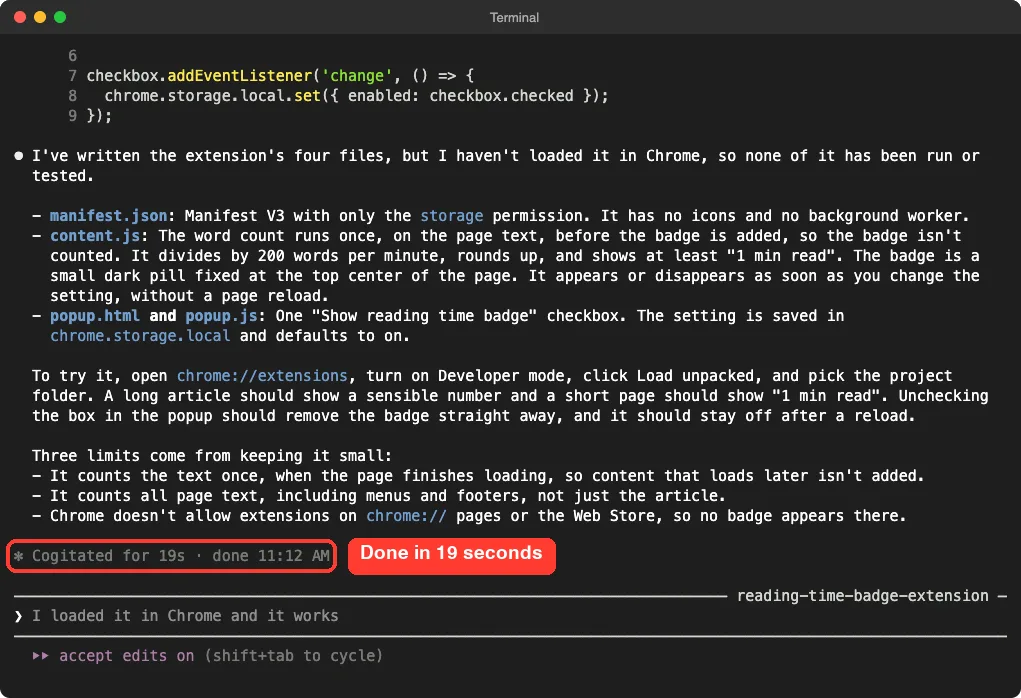
That honesty matters. A summary tells you what Claude wrote, not that it works. So we loaded the extension ourselves.
Step 6: Load the Extension in Chrome
Here are the steps Claude later put into the README, and the ones you follow on your own computer:
- Open Chrome and go to chrome://extensions.
- Switch on Developer mode, in the top-right corner.
- Click Load unpacked.
- Pick the folder that contains manifest.json.
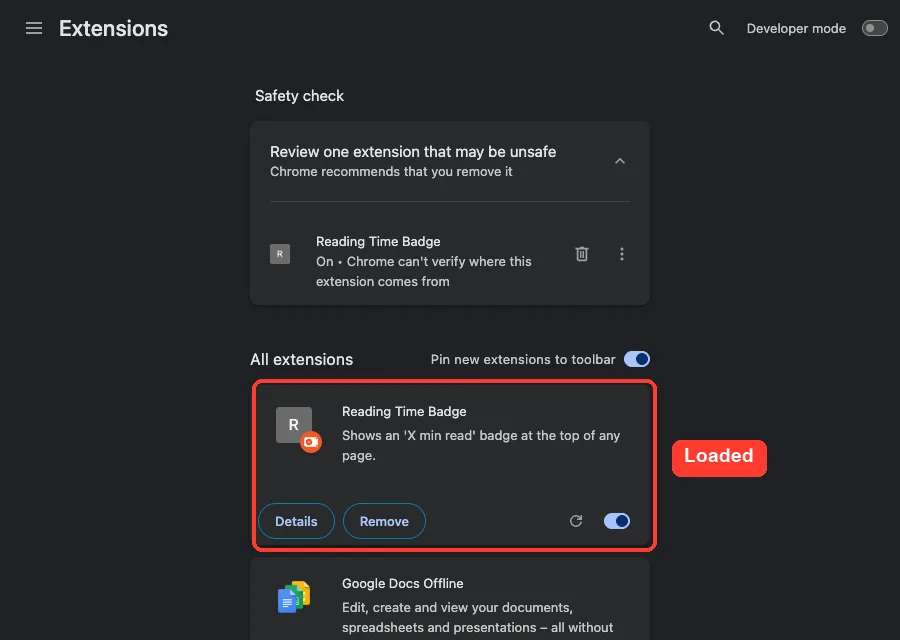
For our screenshots we loaded the same folder into a headless Chrome with a test script, which is why the Developer mode switch still looks off in the picture. The result is the same: the extension appears in the list.
Chrome adds a safety note that it cannot verify where an unpacked extension comes from. That is normal for something you built yourself.
Step 7: See the Badge on a Long Page
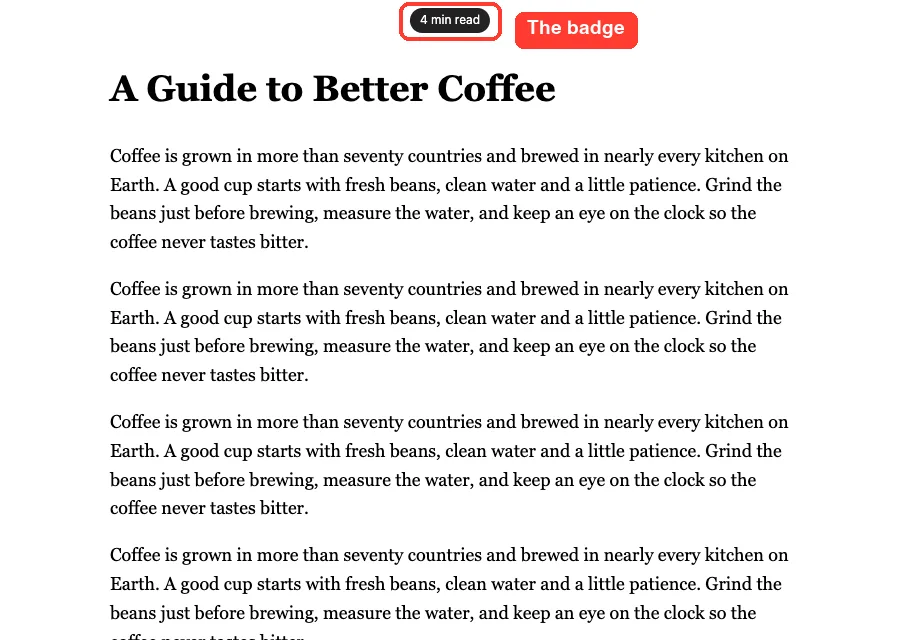
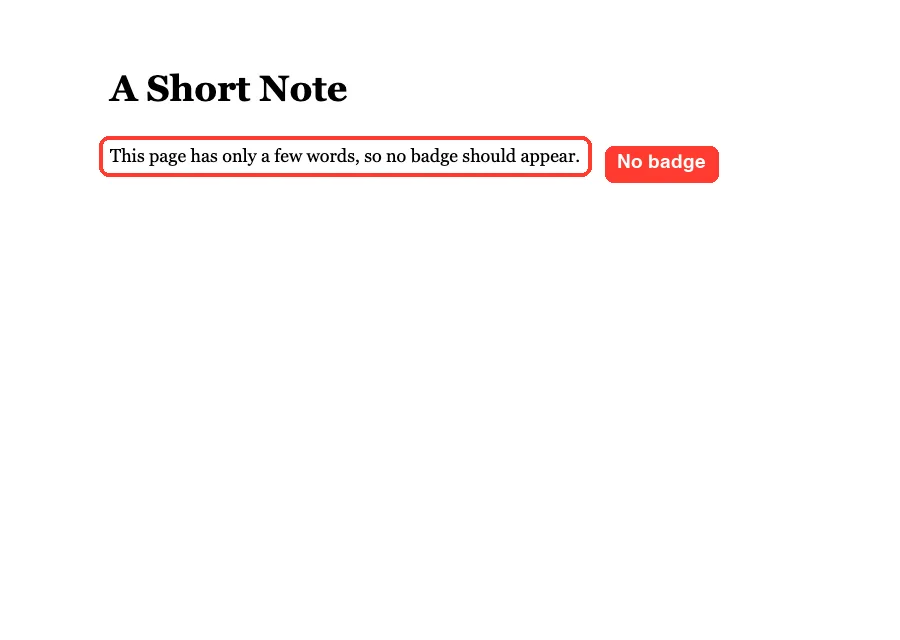
We made two simple test pages on our own computer: a long one about coffee with about 700 words, and a short one with a single sentence. On the long page, a dark pill at the top center says “4 min read”. That is 700 words divided by 200, rounded up.
On the short page, nothing appears. That is the next change we asked for.
Step 8: Add a 300-Word Minimum
Our second prompt was one short sentence:
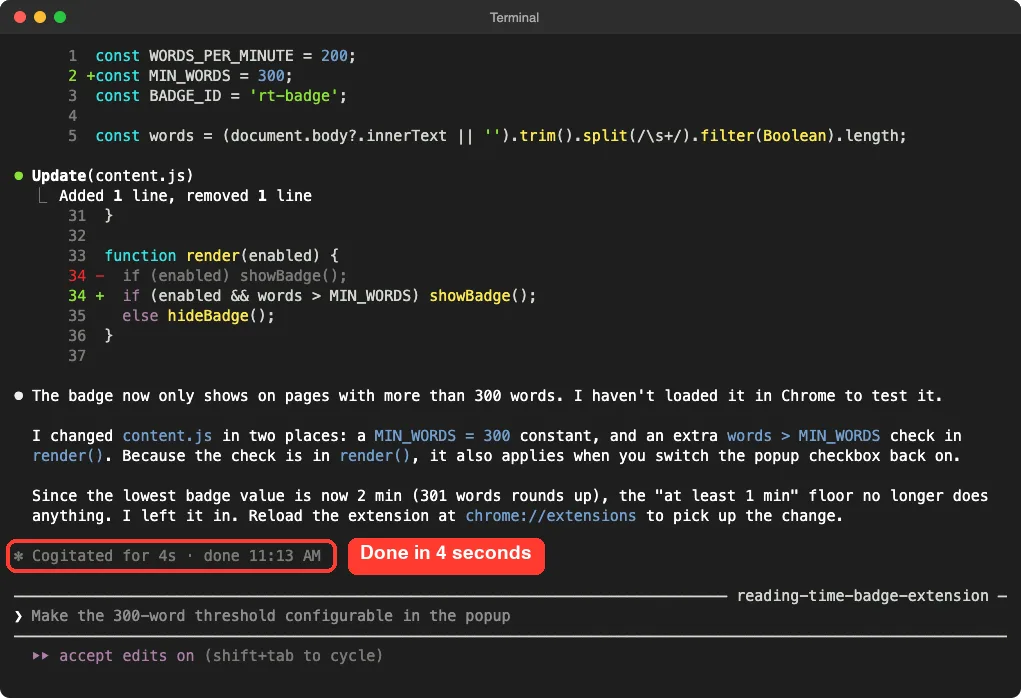
Only show the badge on pages with more than 300 words.Claude changed content.js in two places: a new constant and one extra check. It finished in 4 seconds.
It also noticed a side effect. Because the lowest possible badge is now “2 min read”, its old rule of showing at least “1 min read” no longer does anything, and it told us it left that line in. Always read these notes, because they show what really changed.
Remember to click the reload icon on the extension’s card after changing code, then refresh the page you are testing.
Step 9: Try the Popup Checkbox
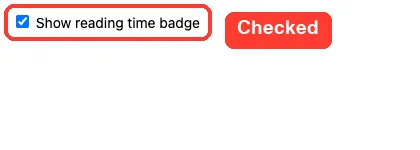
The popup is a tiny page with one checkbox, “Show reading time badge”. It is checked by default.
Normally you click the extension’s toolbar button to open it. In our test we opened the same popup page in a tab so we could screenshot it.
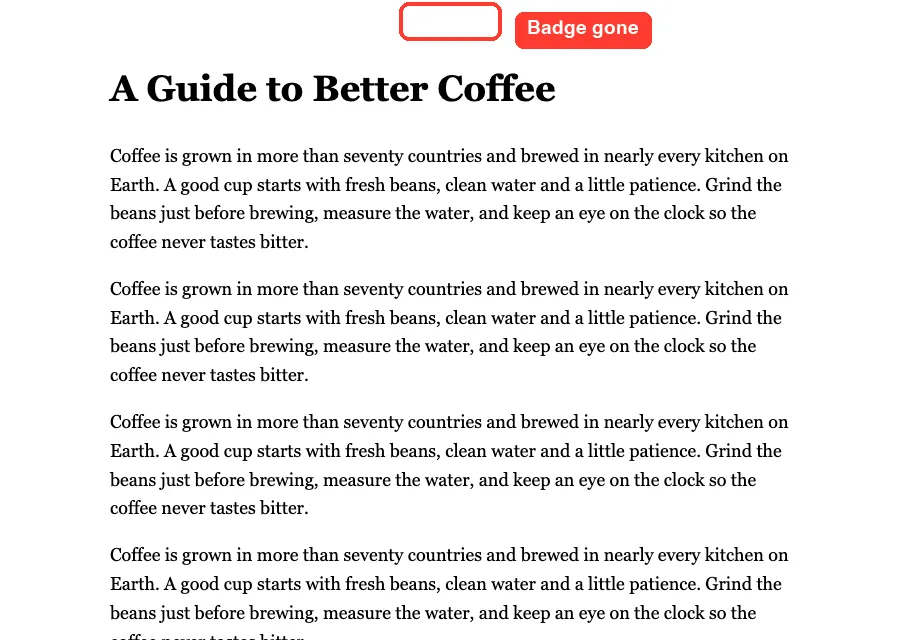
We unchecked the box, then reloaded the long page. The badge was gone, which also proves the setting was saved. We checked the box again afterwards to restore it.
Step 10: Ask for a README
Our third prompt asked Claude to write down how to use the project:
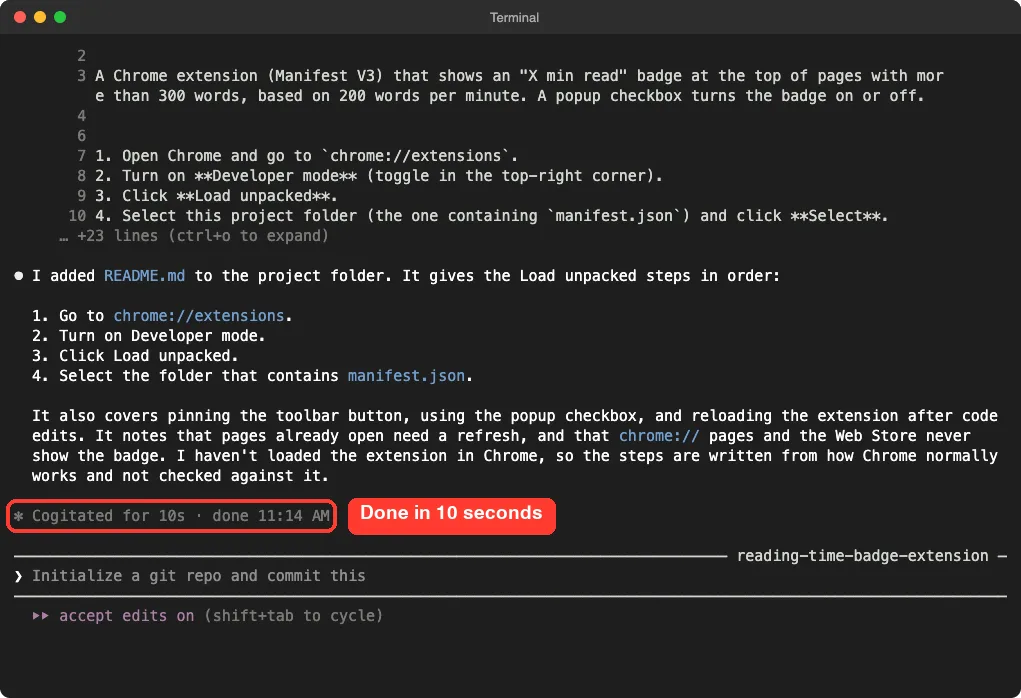
Add a README.md with the exact steps to load this extension in Chrome with Load unpacked.It took 10 seconds. Claude added the four loading steps, a tip to pin the toolbar button, and a note to reload the extension after editing code.
It also said the steps came from how Chrome normally works and had not been checked against Chrome. That is why we ran the steps ourselves above.
The Final Project Files
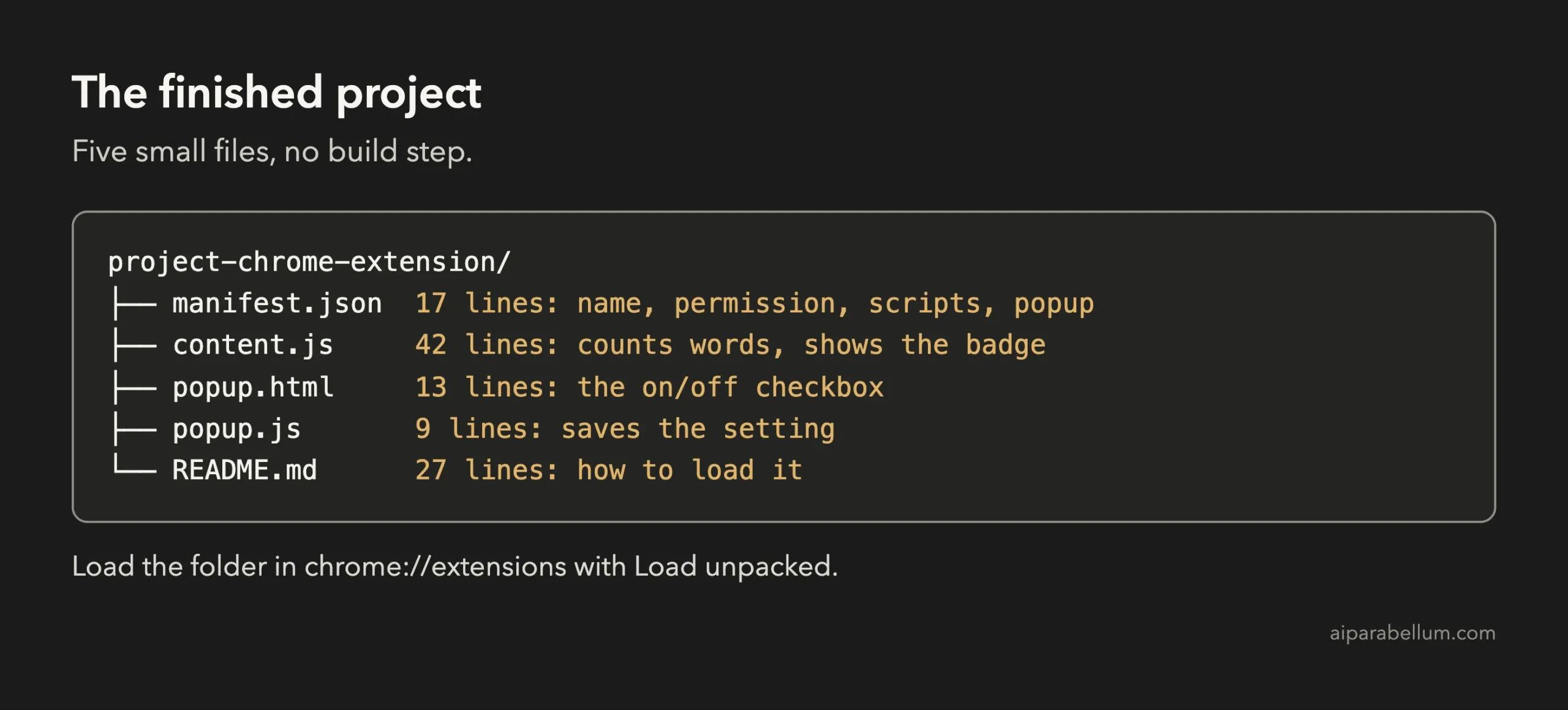
Here is manifest.json in full. It is the file Chrome reads first.
{
  "manifest_version": 3,
  "name": "Reading Time Badge",
  "version": "1.0",
  "description": "Shows an 'X min read' badge at the top of any page.",
  "permissions": ["storage"],
  "content_scripts": [
    {
      "matches": ["<all_urls>"],
      "js": ["content.js"],
      "run_at": "document_idle"
    }
  ],
  "action": {
    "default_popup": "popup.html"
  }
}
The permissions line is the privacy story. Only storage is requested.
The content_scripts block says to run content.js on every page once it has finished loading. The action block connects the toolbar button to the popup.
Next is content.js. We trimmed the badge styling to a few lines, but the logic is all here.
const WORDS_PER_MINUTE = 200;
const MIN_WORDS = 300;
const BADGE_ID = 'rt-badge';

const words = (document.body?.innerText || '').trim().split(/\s+/).filter(Boolean).length;
const minutes = Math.max(1, Math.ceil(words / WORDS_PER_MINUTE));

function showBadge() {
  if (document.getElementById(BADGE_ID)) return;
  const badge = document.createElement('div');
  badge.id = BADGE_ID;
  badge.textContent = `${minutes} min read`;
  badge.style.cssText = 'position:fixed;top:8px;left:50%;transform:translateX(-50%);z-index:2147483647;padding:4px 10px;border-radius:999px;background:#222;color:#fff;font:12px/1.4 system-ui,sans-serif;pointer-events:none';
  document.documentElement.appendChild(badge);
}

function hideBadge() {
  document.getElementById(BADGE_ID)?.remove();
}

function render(enabled) {
  if (enabled && words > MIN_WORDS) showBadge();
  else hideBadge();
}

chrome.storage.local.get({ enabled: true }, ({ enabled }) => render(enabled));

chrome.storage.onChanged.addListener((changes, area) => {
  if (area === 'local' && changes.enabled) render(changes.enabled.newValue);
});
Here is how to read it. The script counts the words once, turns them into minutes and then asks chrome.storage whether the badge is enabled.
The last block listens for changes, so when you click the popup checkbox the badge appears or disappears at once, with no reload. The badge also has pointer-events set to none, so it never blocks clicks on the page underneath.
The popup is the smallest part. Here is popup.js:
const checkbox = document.getElementById('enabled');

chrome.storage.local.get({ enabled: true }, ({ enabled }) => {
  checkbox.checked = enabled;
});

checkbox.addEventListener('change', () => {
  chrome.storage.local.set({ enabled: checkbox.checked });
});
The popup and the content script never talk to each other directly. They both read and write the same saved setting, and Chrome tells the content script when it changes. That is a clean, simple pattern.
Try It Yourself
Build your own version with this starter prompt. Start Claude Code in plan mode in an empty folder first.
Build a Chrome extension (Manifest V3) that adds a small 'X min read' badge at the top of any web page, based on the word count of the page text at 200 words per minute. Plain JavaScript, no build step, no icons, no network requests. Add a popup with a checkbox that turns the badge on or off, saved in chrome.storage. Plan the files first, keep it small.Then try these variations, one at a time:
- Ask for the 200 words per minute to be a number the user can change in the popup.
- Ask Claude to count only the text inside the main article, not menus and footers.
- Ask for the badge to change color for very long pages, such as over 15 minutes.
- Ask for a simple icon so the toolbar button looks nicer.
- Ask Claude to explain each line of manifest.json so you learn what it does.
Common Mistakes
- Forgetting to reload. After you change code, click the reload icon on the extension’s card in chrome://extensions, then refresh the page.
- Testing on the wrong pages. Extensions do not run on chrome:// pages or the Chrome Web Store, so no badge appears there.
- Choosing the wrong folder. Load unpacked wants the folder that directly contains manifest.json, not its parent.
- Trusting the summary. Claude told us itself it had not run the extension, so always load it and test.
- Asking for too many permissions. Tell Claude to request only what the feature needs, as we did with storage.
Pro Tips
- Name the limits you want, like no network requests. Claude follows them and states the result in its plan.
- Read the manifest before you approve it. It is short and it shows exactly what the extension may do.
- Use tiny test pages on your own computer, like our long and short pages, to check each rule.
- If a change goes wrong, the rewind feature can roll your files back.
- Keep sessions short and watch your usage with our costs guide.
Cheat Sheet
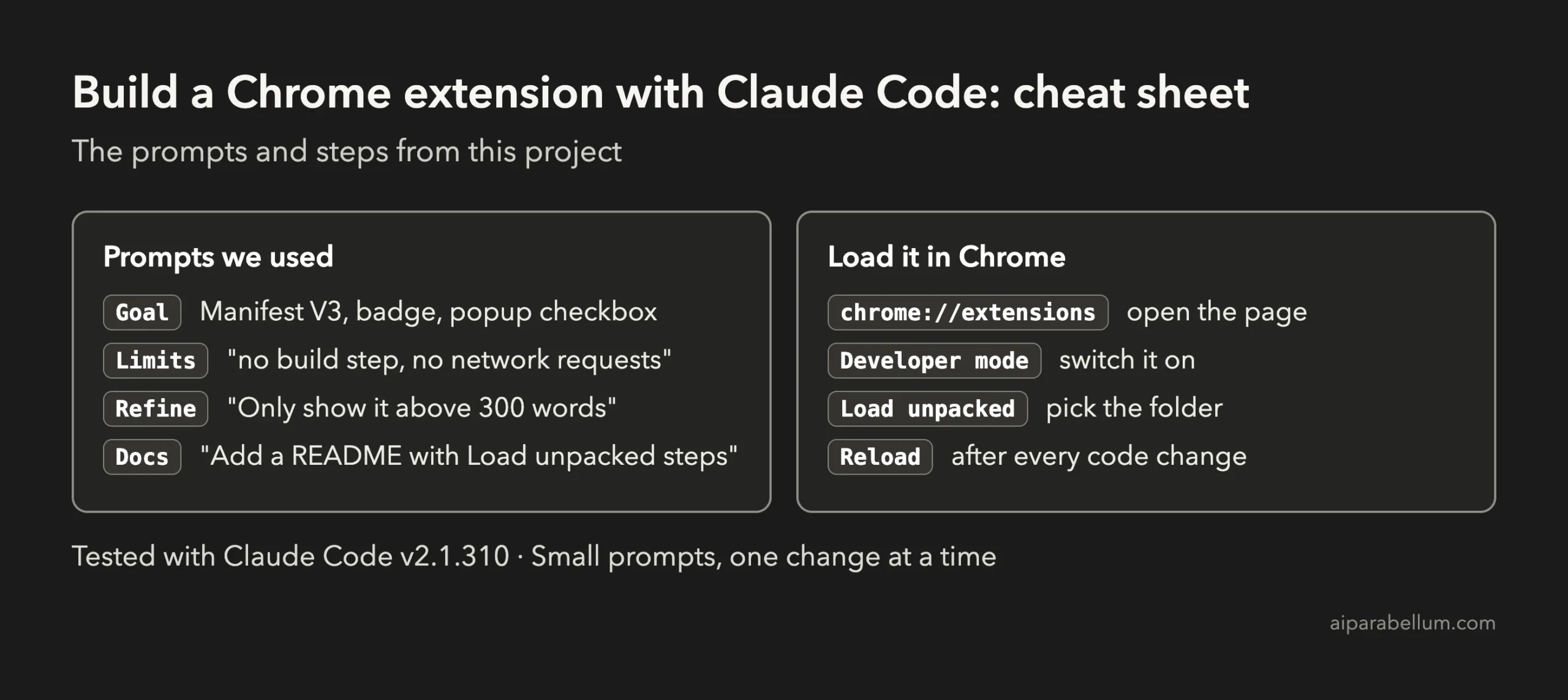
For the official reference on everyday workflows, see Anthropic’s page on common workflows. If you want to understand the assistant behind the tool, our Claude AI overview is a good start.
Frequently Asked Questions
Do I need to know JavaScript to build a Chrome extension with Claude Code?
No. You describe what you want in plain English and Claude writes the code. Reading the files it shows you is a great way to start learning.
Can I publish this extension in the Chrome Web Store?
This project only builds a local extension that you load yourself. Publishing needs a developer account and a review, which we did not do. Check Google’s official instructions if you want to publish.
Does the extension send my browsing data anywhere?
No. We asked for no network requests, and the code only counts words on the page and saves one setting. You can confirm this by reading the files, which total about 100 lines.
Why does Chrome say it cannot verify the extension?
Chrome shows that note for any unpacked extension that did not come from the Web Store. It is expected for your own projects.
Will it work in other browsers?
We only tested Chrome. Other browsers based on Chrome may accept the same folder, but we did not try them.
Conclusion
You now know how to build a Chrome extension with Claude Code: plan first, name the permissions and limits you want, approve the files, load the folder with Load unpacked and test on real pages. It took three short prompts and a few approvals, and you end up with five small files that you own and can read. Try the starter prompt yourself, then come back for the next project in the series.
Previous in the series: Project 2: Build a To-Do List Web App With Claude Code
Next in the series: Project 4: Build a Python Command-Line Tool With Claude Code.