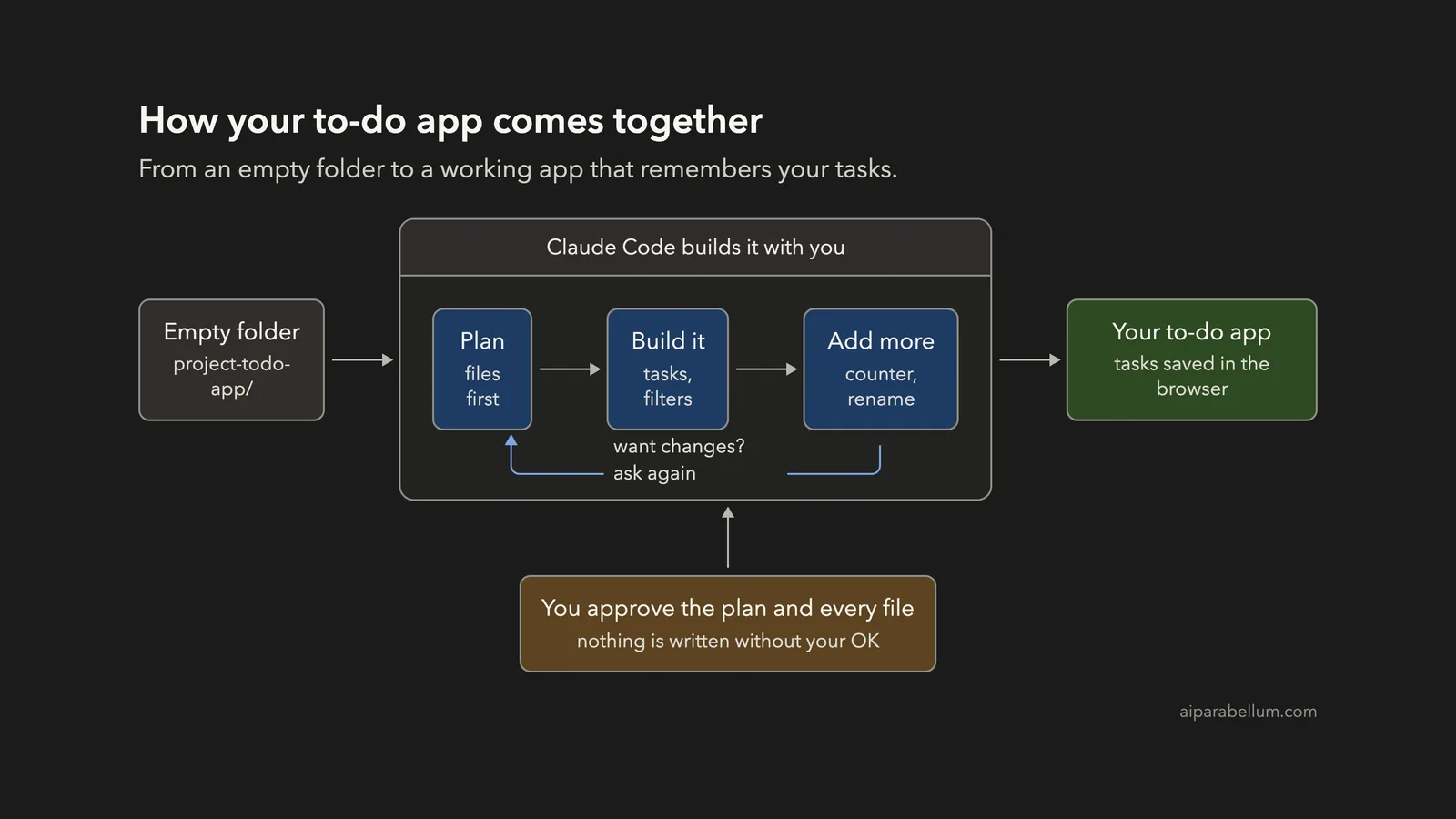
Want to build a todo app with Claude Code but not sure where to start? A to-do list is the perfect second project, because it teaches the three things almost every app needs: showing a list, reacting to clicks and remembering data. In this post we go from an empty folder to a working app that keeps your tasks even after you refresh the page.
This is Project 2 of 20 in our Build with Claude Code series, part of our Claude Code tutorials. In Project 1 we built a personal website with two plain files. Now we add real behavior with JavaScript.
Tested with Claude Code v2.1.310 on October 26, 2026, on macOS.
Everything below really happened in one Claude Code session. The terminal screenshots are real, the prompts are the exact ones we typed, and the app screenshots show the files Claude wrote, running in a real browser. We tested on macOS; the Windows and Linux steps follow Anthropic’s official instructions.
What We Built
A to-do app is a small page plus a little JavaScript, and Claude Code can write both while you review the plan and approve each file.
| Item | Details |
|---|---|
| Project | A to-do list web app that runs in any browser |
| Tools | Plain HTML, CSS and JavaScript, no frameworks, no build step |
| Features | Add, mark done, delete, filter, counter, clear completed, rename |
| Saving | Tasks are stored in the browser with localStorage |
| Prompts used | 3 short prompts, plus the approvals |
| Time | 22 seconds for the first version, then 11 and 12 seconds for the extras |
The app has no accounts and no server, so nothing leaves your computer. Your tasks live only in your browser.
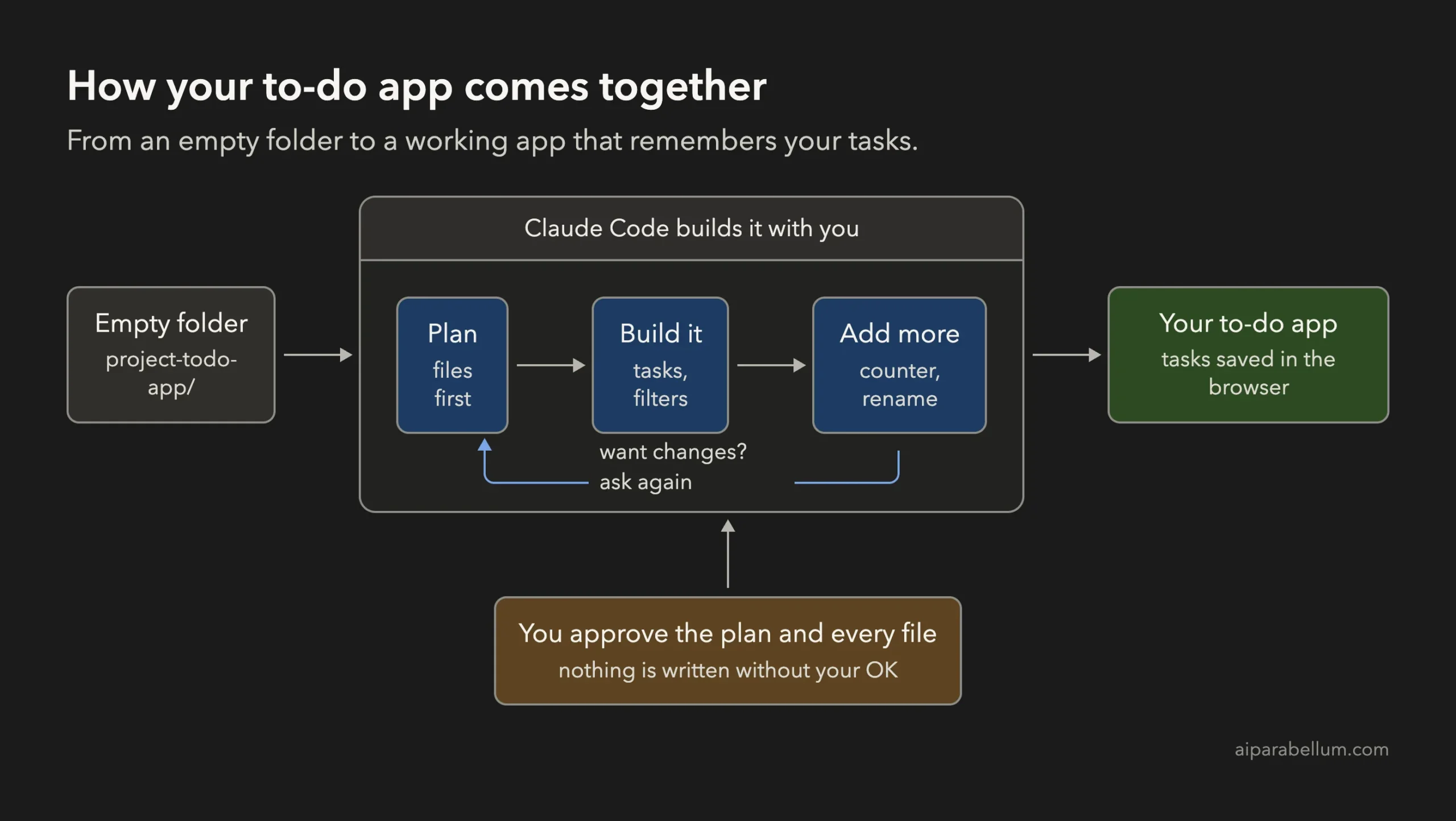
Why Build a Todo App With Claude Code?
A to-do list is small enough to finish in one sitting, yet it covers the ideas behind much bigger apps. You keep a list of items in memory, draw them on screen, change them when the user clicks, and save them so they survive a refresh.
It is also a good way to practice working with Claude Code. Anthropic’s workflow advice is to explore and plan first, then build, then check the result. If you are new to the tool, read our first session guide before you start, and keep our guide to permission modes handy.
Step 1: Start in Plan Mode in an Empty Folder
Create a new folder, open a terminal inside it and start Claude Code in plan mode. In plan mode Claude can read and think, but it cannot change files until you approve its plan.
mkdir my-todo-app
cd my-todo-app
claude --permission-mode plan
The first time you open a folder, Claude Code asks if you trust it. Say yes, because you just made it. Then check the bottom of the screen for the plan mode indicator.
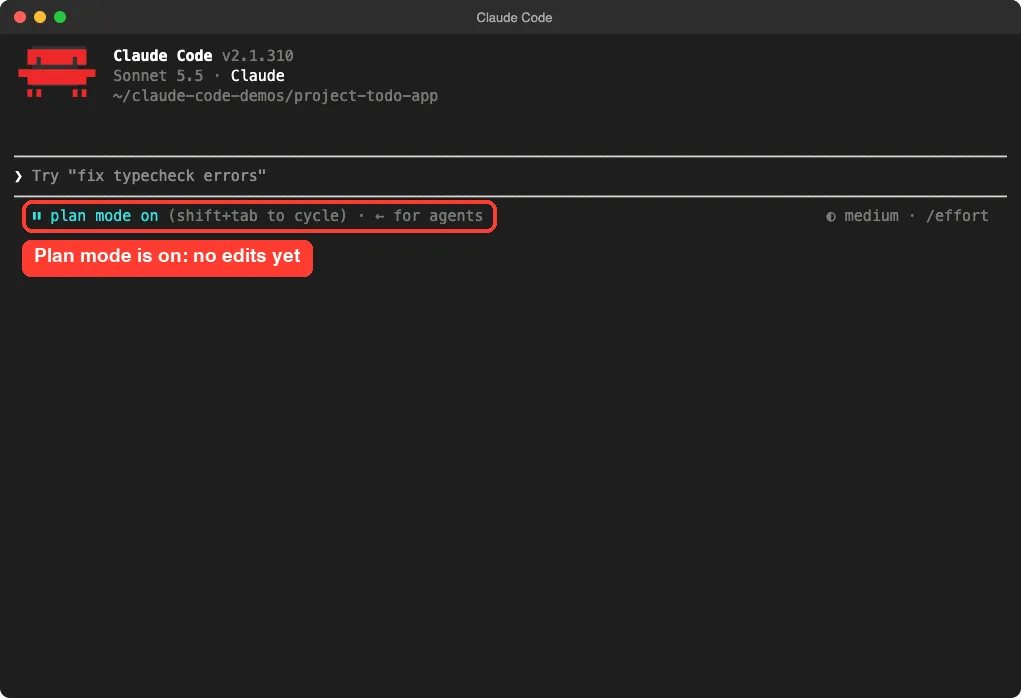
You can also press Shift+Tab inside a session to cycle modes. Our guide to plan mode explains the approval flow in more detail.
Step 2: Describe the Todo App You Want Claude Code to Build
Now type your goal. A good prompt names the features, limits the tools and asks for a plan first. This is the first prompt we used:
Build a simple to-do list web app. Plain HTML, CSS and JavaScript, no frameworks. Features: add a task, mark it done, delete it, filter by All, Active and Done, and keep the tasks in localStorage so they survive a refresh. Plan the files first, keep it small.Notice the phrase “keep the tasks in localStorage”. That is the browser’s built-in storage, and naming it tells Claude exactly how you want saving to work. Without it, the app would forget everything on refresh.
Step 3: Review the Plan and Approve It
Claude explored the empty folder and wrote a plan. It listed three files, described the data as a list of tasks with an id, some text and a done flag, and named the functions it would write. It even planned how to check the result: add a few tasks, including an empty one, then refresh the page.
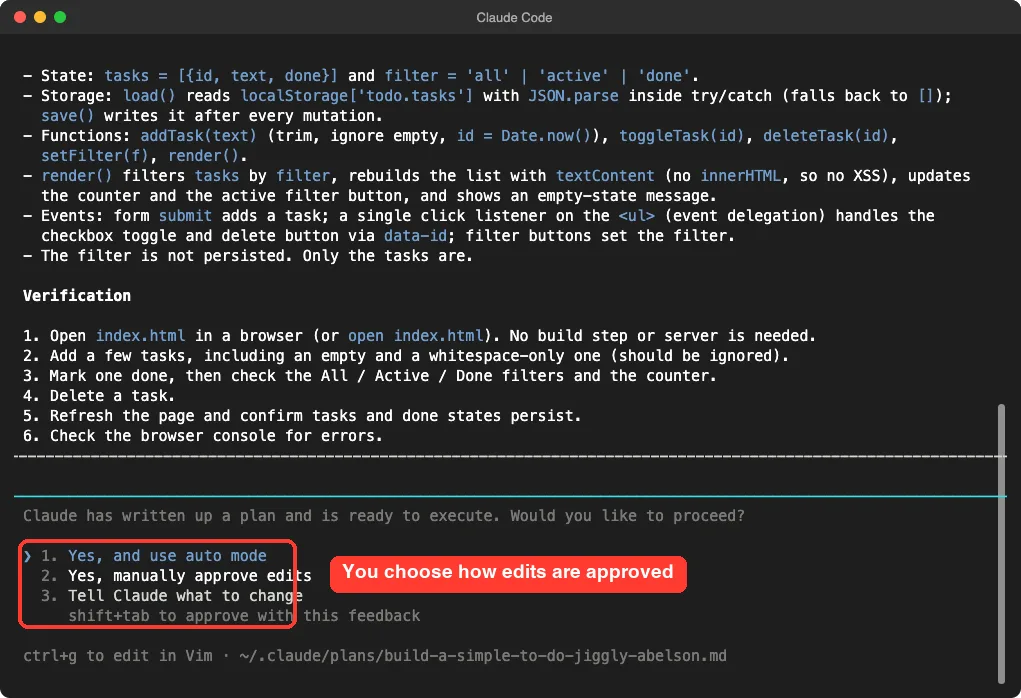
At the end you choose how to proceed: use auto mode, approve edits manually, or tell Claude what to change.
We chose to approve edits manually so we could read the first file before it was written. Reading the plan is your best chance to catch a wrong idea early.
Step 4: Approve the First File
Claude showed the full index.html and asked, “Do you want to create index.html?” You can say yes once, switch to accept edits for the session, or say no.
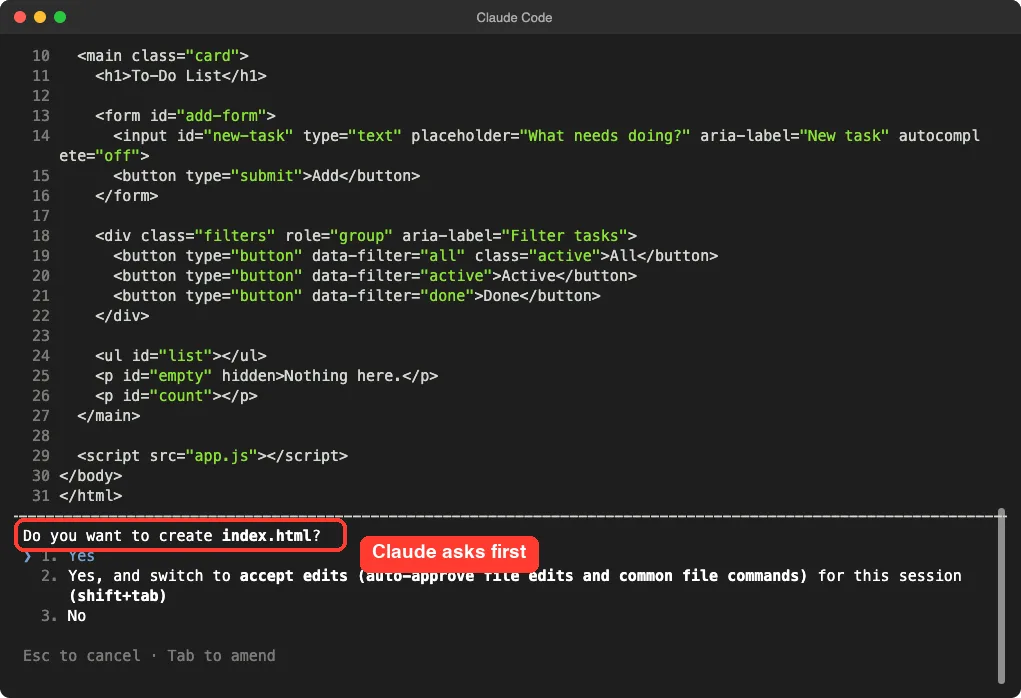
For this throwaway demo we picked accept edits so the rest of the files were written without more questions. For a real project, keep approving by hand until you trust the flow. Our permissions guide covers safer setups.
Step 5: Let Claude Build, Then Read Its Report
Claude wrote index.html, style.css and app.js in 22 seconds. Its summary was honest about one thing: it had not opened the app in a browser, so nothing had been run yet. It also pointed out that the selected filter is not saved, so after a refresh you see All again, and only the tasks are stored.
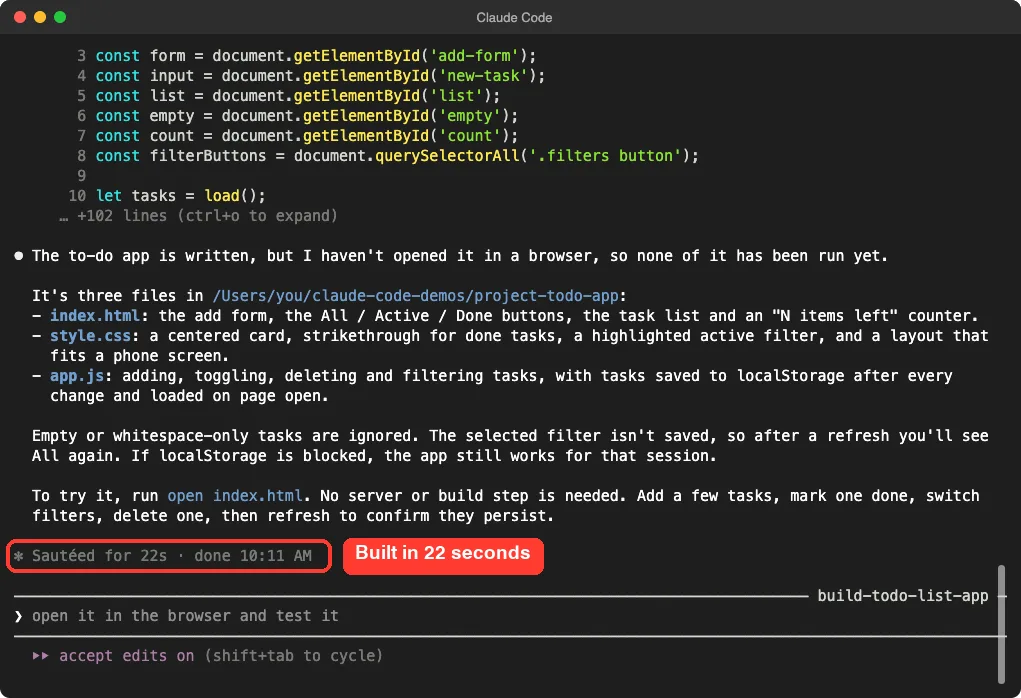
That honesty matters. A summary from Claude tells you what it wrote, not that it works. So we opened the app ourselves.
Step 6: Open Your Todo App and Try It
On a Mac, type this in the project folder, or double-click index.html:
open index.htmlWe loaded the page in a headless browser, added four tasks and ticked two of them as done. Done tasks get a strikethrough, the filter buttons sit above the list, and the counter at the bottom says how many tasks are still open.
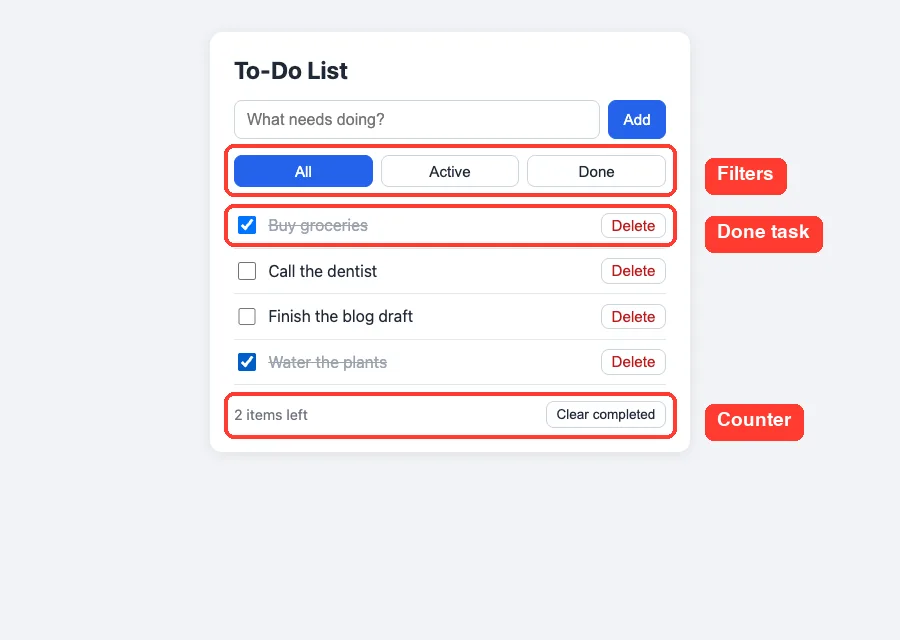
Check the Filters
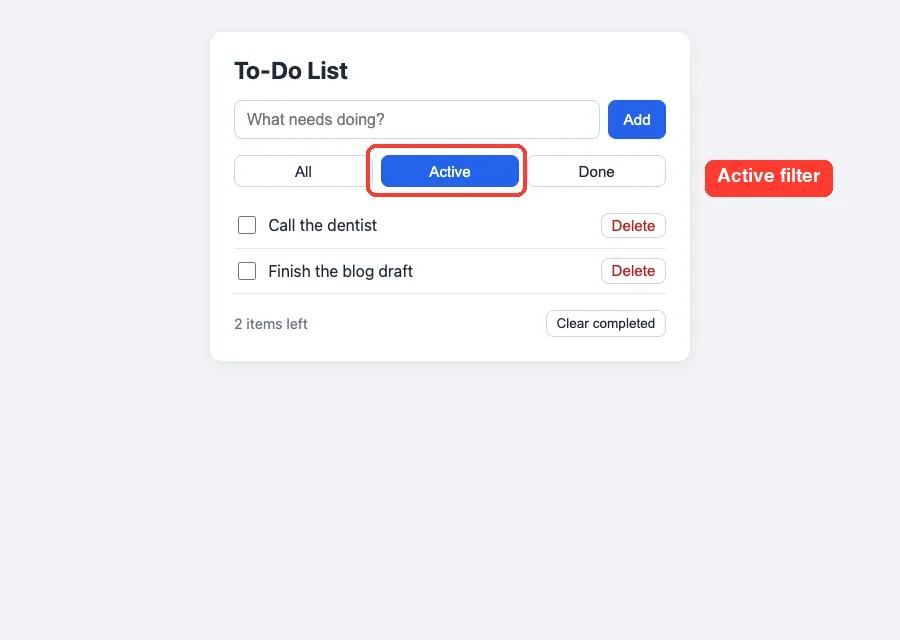
Click Active and the list shows only the open tasks. The Done button shows the finished ones, and All shows everything again.
Refresh the Page
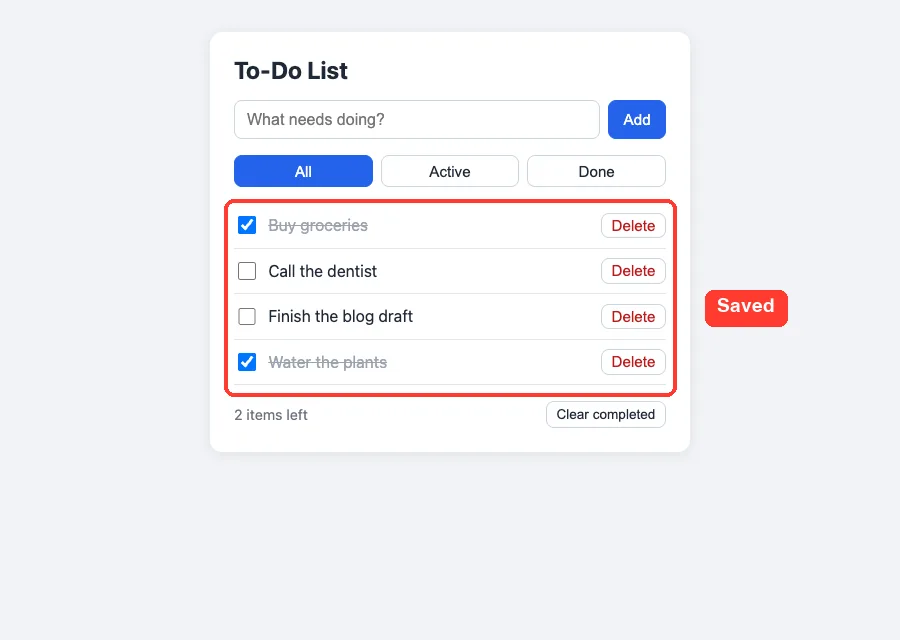
This is the test that proves saving works. We reloaded the page and all four tasks came back with their done states intact. That is localStorage doing its job.
Step 7: Add a Counter and a Clear Completed Button
The best way to grow an app is one small request at a time. Our second prompt was:
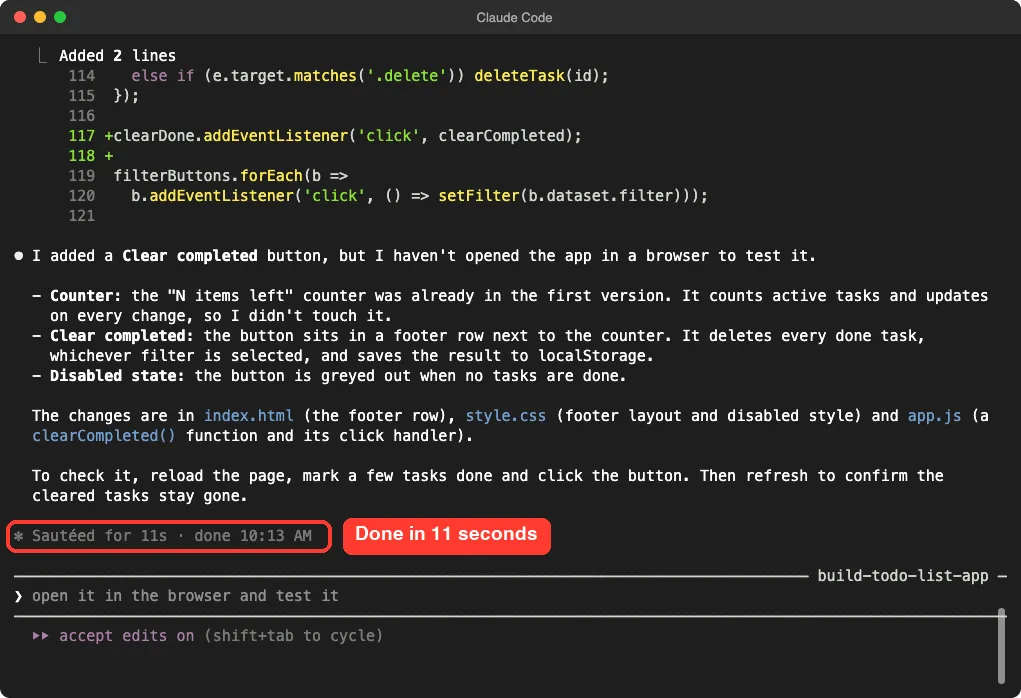
Add a counter that shows how many tasks are left, and a Clear completed button.Here is a nice surprise.
Claude told us the counter already existed in the first version, so it left it alone and only added the button. It also greyed the button out when no task is done. Always read these notes, because they tell you what actually changed.
Step 8: Add a Rename Feature
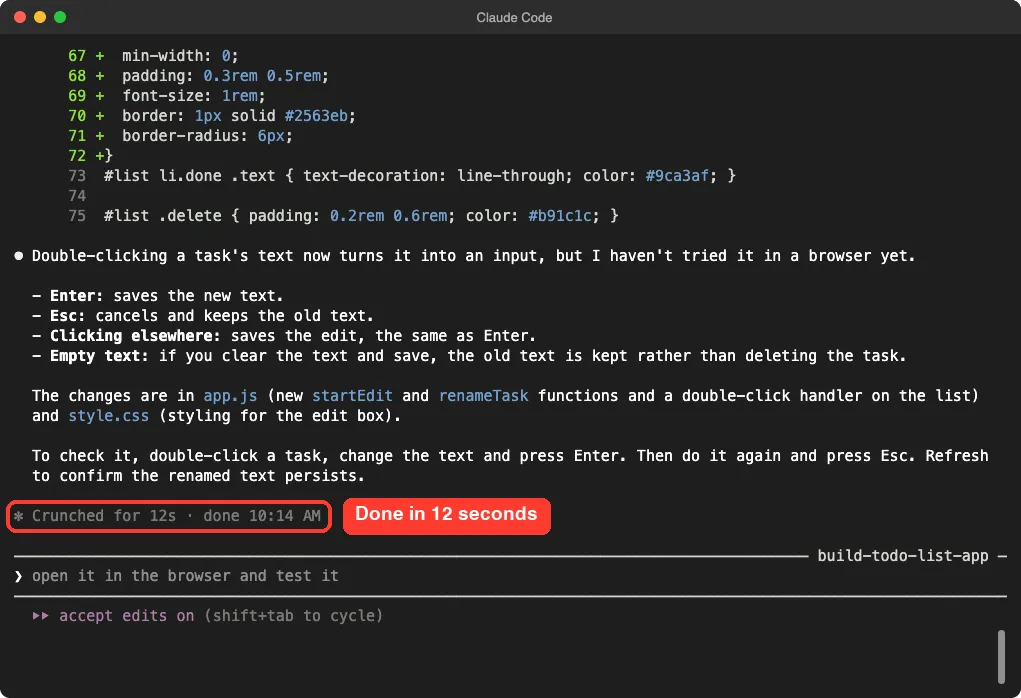
Our third prompt added editing:
Double-clicking a task should let me rename it. Press Enter to save and Esc to cancel.Claude added two functions, startEdit and renameTask, plus a double-click handler and some styling for the edit box. It also made decisions you did not ask for: clicking elsewhere saves the edit, and clearing the text keeps the old text instead of deleting the task.
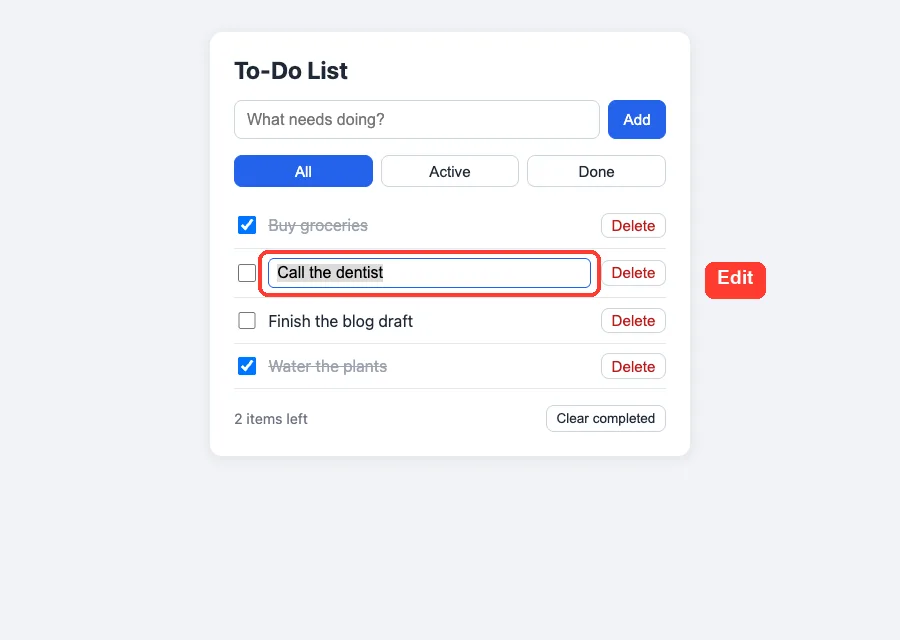
In the browser, double-clicking a task turns it into a text box with the old text selected, ready to type over.
The Final Project Files
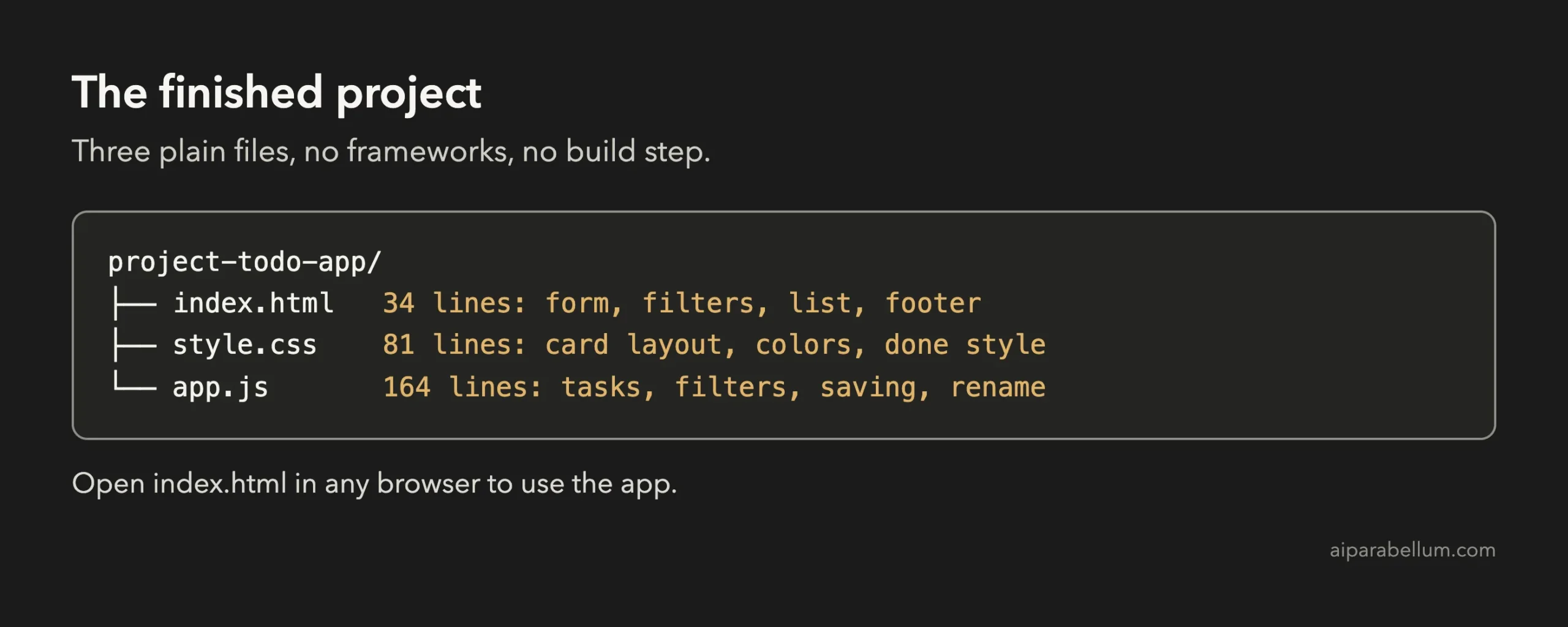
The HTML is short. Here is the main part of index.html, which has a form, three filter buttons, an empty list and a footer. The list stays empty because JavaScript fills it.
<main class="card">
  <h1>To-Do List</h1>

  <form id="add-form">
    <input id="new-task" type="text" placeholder="What needs doing?" aria-label="New task" autocomplete="off">
    <button type="submit">Add</button>
  </form>

  <div class="filters" role="group" aria-label="Filter tasks">
    <button type="button" data-filter="all" class="active">All</button>
    <button type="button" data-filter="active">Active</button>
    <button type="button" data-filter="done">Done</button>
  </div>

  <ul id="list"></ul>
  <p id="empty" hidden>Nothing here.</p>
  <div class="footer">
    <p id="count"></p>
    <button type="button" id="clear-done">Clear completed</button>
  </div>
</main>
The brain of the app is app.js, which has about 160 lines. We trimmed it here to the parts that explain the idea: loading and saving tasks, and adding one.
const STORAGE_KEY = 'todo.tasks';
let tasks = load();
let filter = 'all';

function load() {
  try {
    const data = JSON.parse(localStorage.getItem(STORAGE_KEY));
    return Array.isArray(data) ? data : [];
  } catch {
    return [];
  }
}

function save() {
  try {
    localStorage.setItem(STORAGE_KEY, JSON.stringify(tasks));
  } catch {
    // storage unavailable; the app still works for this session
  }
}

function addTask(text) {
  text = text.trim();
  if (!text) return;
  tasks.push({ id: Date.now(), text, done: false });
  save();
  render();
}
Here is how to read it. The tasks list lives in memory.
Every change calls save(), which writes the list into the browser as text, and render(), which redraws the page. When the page loads, load() reads the saved text back.
Claude also wrapped the saving code in a try and catch, so the app does not crash if the browser blocks storage. Empty tasks are ignored.
Try It Yourself
Build your own version with this starter prompt. Start Claude Code in plan mode in an empty folder first.
Build a simple to-do list web app. Plain HTML, CSS and JavaScript, no frameworks. Features: add a task, mark it done, delete it, filter by All, Active and Done, and keep the tasks in localStorage so they survive a refresh. Plan the files first, keep it small.Then try these variations, one at a time:
- Ask for a due date on each task, and a different color when a task is overdue.
- Ask for a dark mode that follows the system setting.
- Ask for tasks to be sorted so done ones sink to the bottom.
- Ask Claude to add a short message when the list is empty, such as “All clear”.
- Ask Claude to write a few simple tests for the add and filter logic, and run them.
Common Mistakes
- Forgetting to say how to save data. If you do not mention localStorage, you may get an app that forgets everything on refresh.
- Asking for every feature in one prompt. Small steps are easier to review and undo.
- Trusting the summary without opening the app. Claude told us itself that it had not run the page, so always test.
- Testing only the happy path. Try an empty task, a very long task and a refresh in the middle of editing.
- Expecting your tasks on another device. localStorage keeps data in one browser on one computer.
Pro Tips
- Name the limits you want, like no frameworks. Claude follows them well.
- Give Claude a way to check its work. Anthropic recommends tests, a build or a screenshot so Claude can see a pass or fail.
- Read the diff before you approve it. The code is short, and reading it teaches you the basics.
- If a change goes wrong, the rewind feature can roll your files back.
- Keep sessions short and watch your usage with our costs guide.
Cheat Sheet
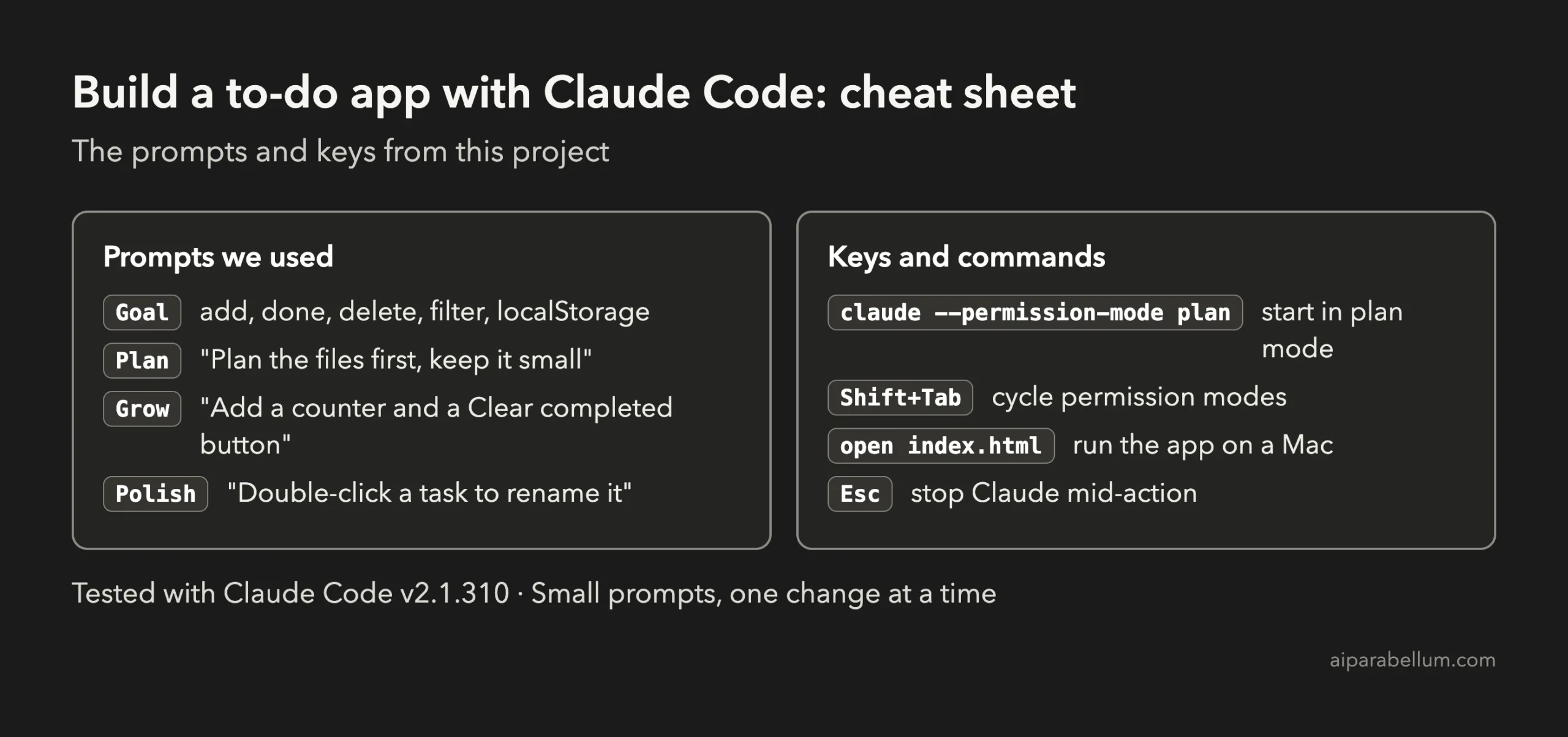
For the official reference, see Anthropic’s page on common workflows. If you want to understand the assistant behind the tool, our Claude AI overview is a good start.
Frequently Asked Questions
Do I need to know JavaScript to build a todo app with Claude Code?
No. You describe the features in plain English and Claude writes the code. Reading the code it shows you is a great way to start learning.
Where are my tasks stored?
They are stored in your browser using localStorage, on your own computer. Nothing is sent to a server, and clearing your browser data will erase them.
Can I use this app on my phone?
You can open the files in a phone browser, but the tasks will be saved separately on that device. Claude wrote the layout to fit a phone screen, though we only tested it on a computer in this project.
How do I put the app online?
This project only builds the files. To publish them, upload the three files to a static hosting service. We did not publish this demo.
What if Claude gets something wrong?
Press Esc to stop it, or describe the problem in a new prompt. Because every file needs your approval, you stay in control of what lands in the folder.
Conclusion
You now know how to build a todo app with Claude Code: plan first, name the features and the saving method, approve the files, test in the browser and add one feature per prompt. It took three short prompts and a few approvals, and you end up with three plain files that you own and can read. Try the starter prompt yourself, then come back for the next project in the series.
Previous in the series: Project 1: Build a Personal Website From Scratch With Claude Code
Next in the series: Project 3: Build a Chrome Extension With Claude Code.