Can you build a website with Claude Code if you have never written a line of HTML? Yes, and it takes a lot less time than you might think. In this project we start from an empty folder and end with a finished one-page portfolio site, using plain English prompts and a few approvals.
This is Project 1 of 20 in our Build with Claude Code series, part of our Claude Code tutorials. The 53 feature guides came first, and the last one covered the Claude Agent SDK. From here on, every post builds one small project from zero.
Tested with Claude Code v2.1.310 on October 26, 2026, on macOS.
Everything below really happened in one Claude Code session. The screenshots are real, the prompts are the exact ones we typed, and the website you see at the end is the file Claude wrote. We tested on macOS; the Windows and Linux steps follow Anthropic’s official instructions.
What We Built
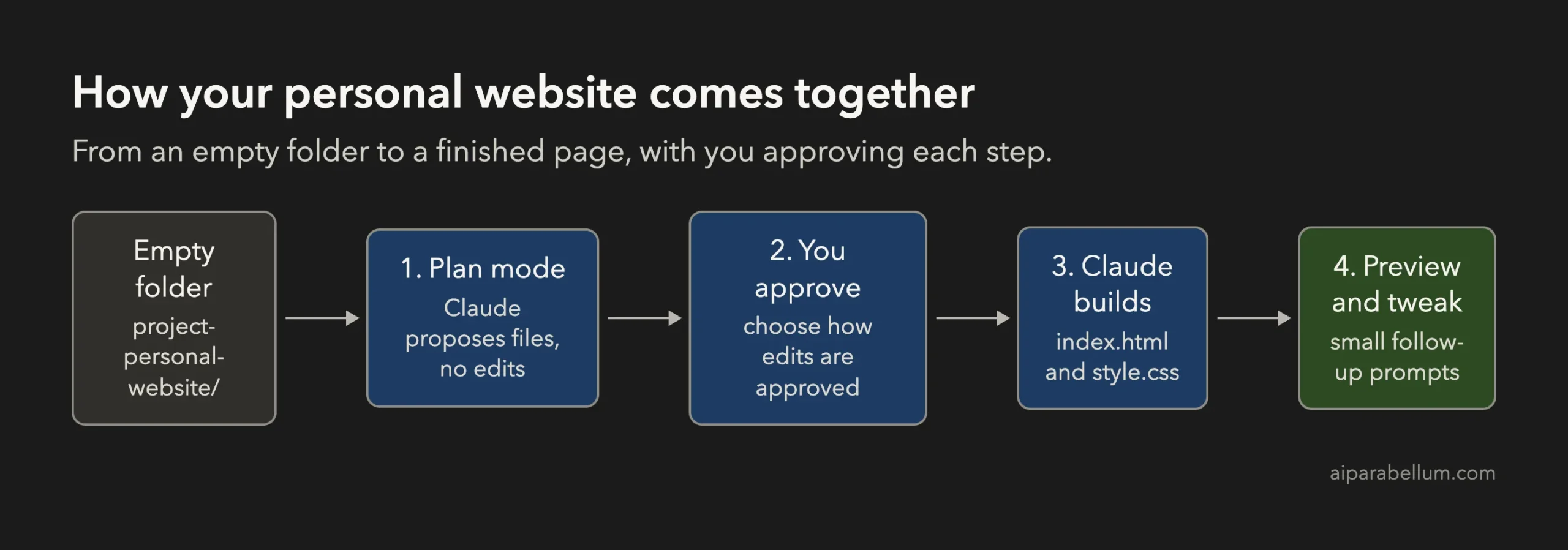
A complete personal website is just two plain files, and Claude Code can plan, write and adjust them while you stay in charge of every step.
| Item | Details |
|---|---|
| Project | One-page portfolio for a fictional photographer named Sam Rivera |
| Tools | Plain HTML and CSS, no frameworks, no build step |
| Sections | Hero, about, three portfolio cards, services, contact |
| Prompts used | 3 short prompts, plus the approvals |
| Time | About 24 seconds to build, then 7 seconds for each change |
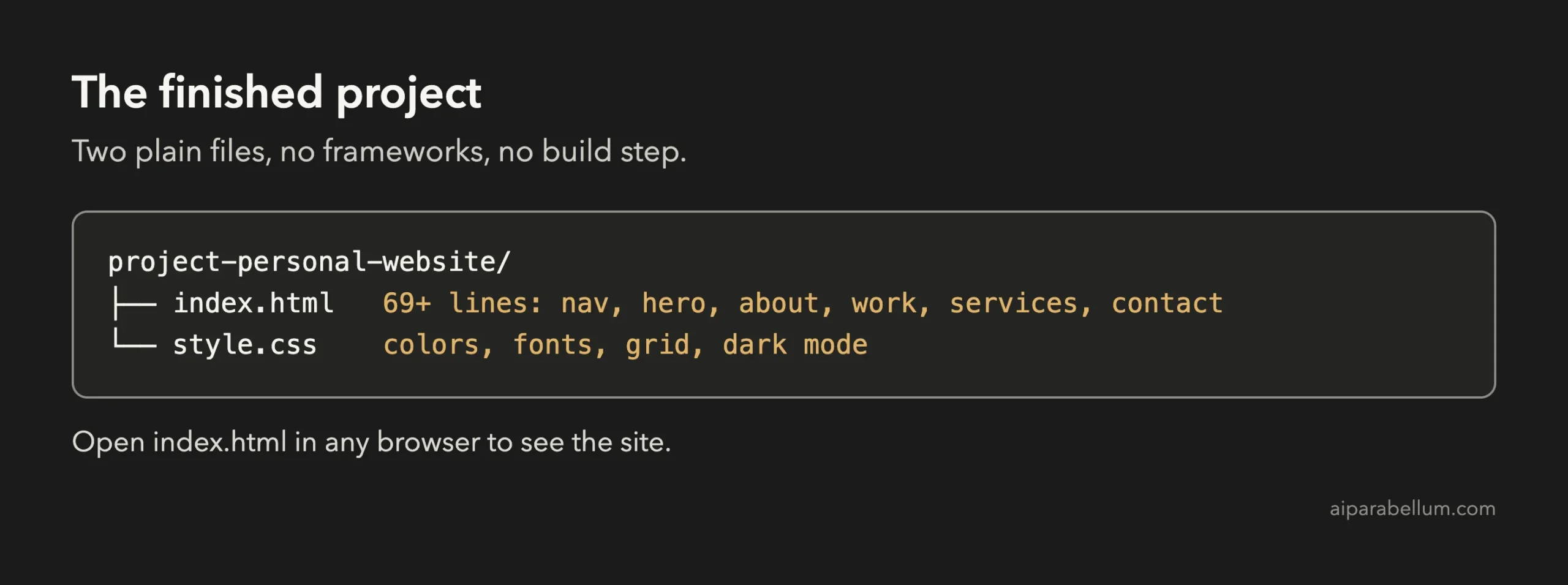
| Result | index.html and style.css, ready to open in any browser |
We used a made-up photographer so there is no personal data anywhere. Swap in your own name and story when you try it.
Why Build a Website With Claude Code?
Claude Code reads your folder, writes files and can run commands, so it can do the typing while you decide what the site should be. Anthropic’s own advice is to explore and plan first, then code, so you do not end up with a page that solves the wrong problem. We follow that advice here by starting in plan mode.
If you are new to the tool, read our first session guide before you start. For the full picture of how the permission levels work, see our guide to permission modes.
Step 1: Create an Empty Folder and Start in Plan Mode
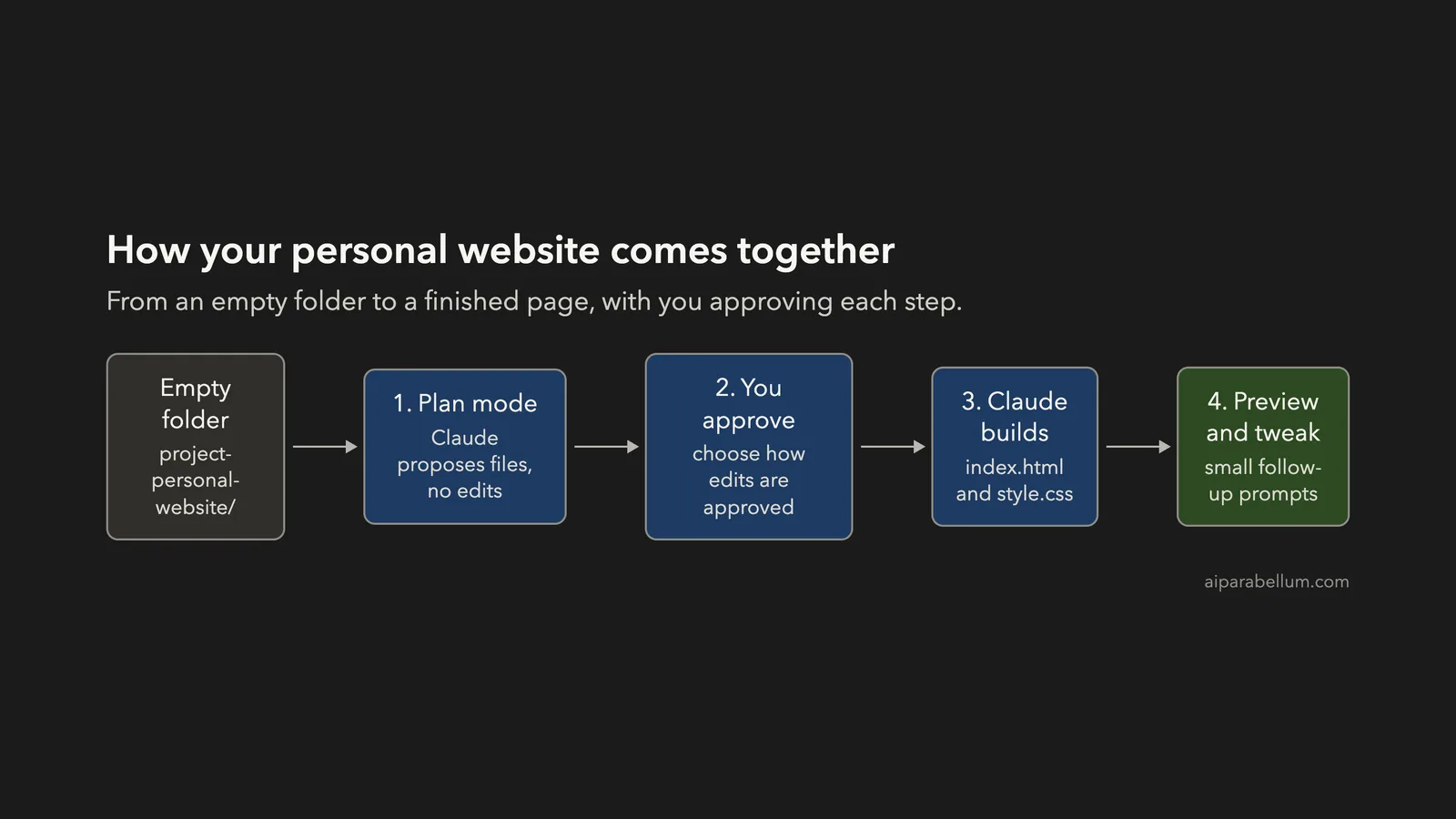
Make a new folder, open a terminal inside it and start Claude Code in plan mode. Plan mode lets Claude read and think but not change anything until you approve.
mkdir my-website
cd my-website
claude --permission-mode plan
The first time you open a folder, Claude Code asks whether you trust it. Choose the trust option, because this is a folder you just created. Then look at the bottom of the screen: it should say plan mode is on.
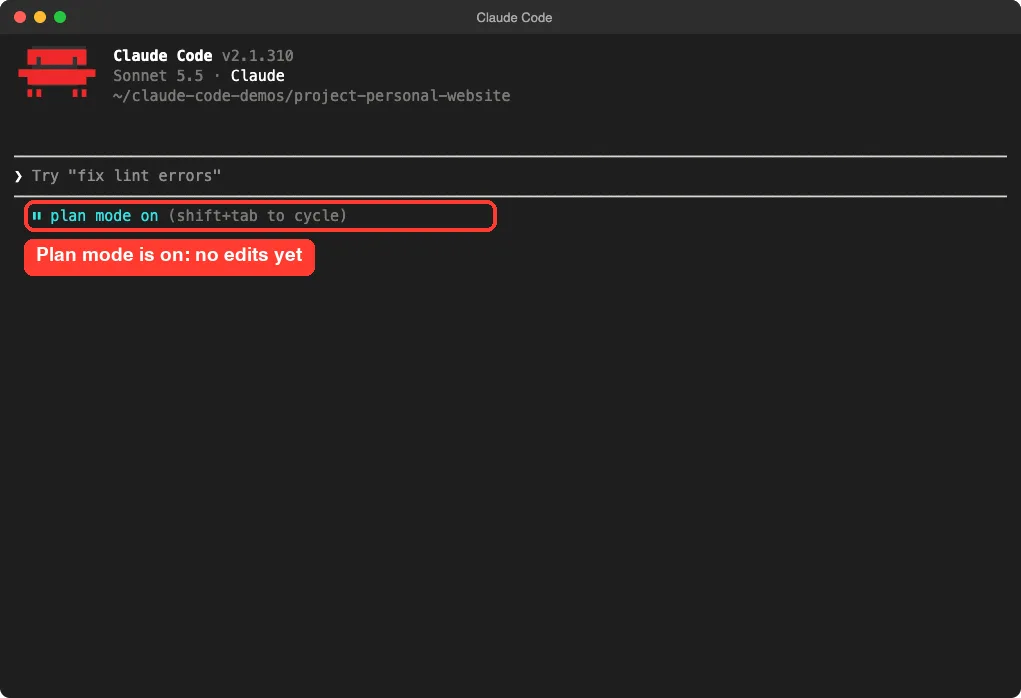
You can also press Shift+Tab inside a running session until the status bar shows plan mode. Our guide to plan mode explains the approval flow in more detail.
Step 2: Describe the Website You Want Claude Code to Build
Now type your goal. Be specific about the sections, the tech and the limits. This is the first prompt we used:
I want a one-page personal website for a fictional photographer named Sam Rivera. Sections: hero, about, three portfolio cards, contact. Plain HTML and CSS only, no frameworks. Do not put any email address in it, use a Say hello button that links to #contact. Plan the files first, keep it small.Three things make this prompt work. It names the sections, it limits the tools to plain HTML and CSS, and it asks for a plan first. The line about the email address is a safety choice, because we did not want any contact details in a demo.
Step 3: Review the Plan and Approve It
Claude explored the empty folder and wrote a short plan. It listed two files, described the sections in order, and proposed a way to check the result, such as opening the page and resizing the window. It even decided on its own that a form needs a backend, so it skipped the form.
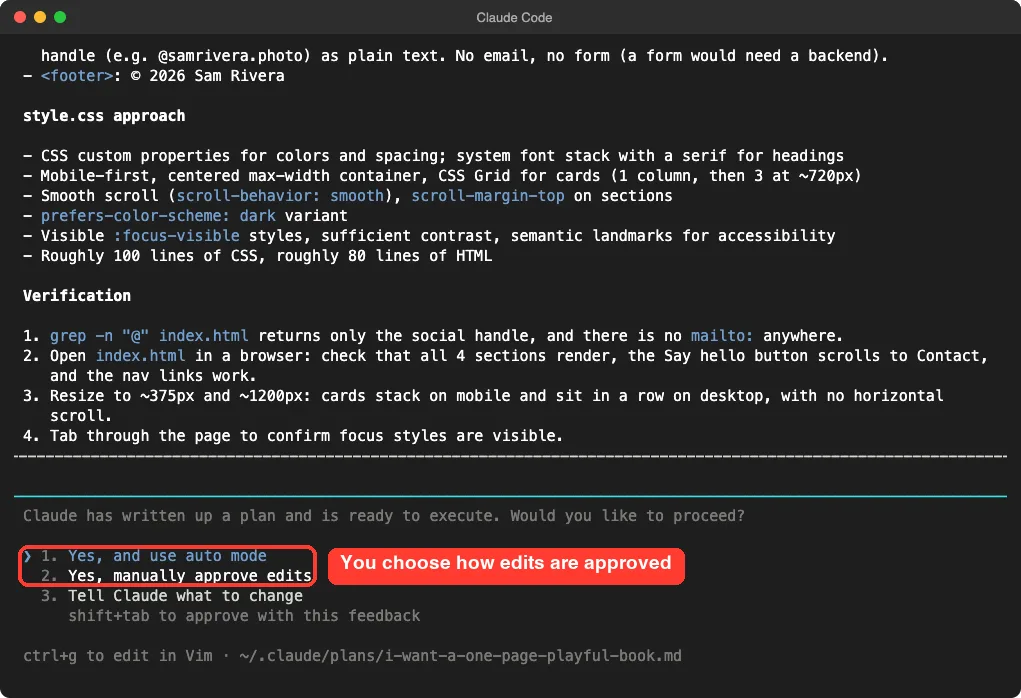
At the end of the plan you get choices. You can approve with auto mode, approve and keep approving edits by hand, or tell Claude what to change. We chose to approve edits manually, because we wanted to see the first file before it was written.
Step 4: Approve the First File
Claude showed the full index.html and asked, “Do you want to create index.html?” This is the moment to read what is about to land on your disk. You can answer yes once, say no, or switch to accept edits for the rest of the session.
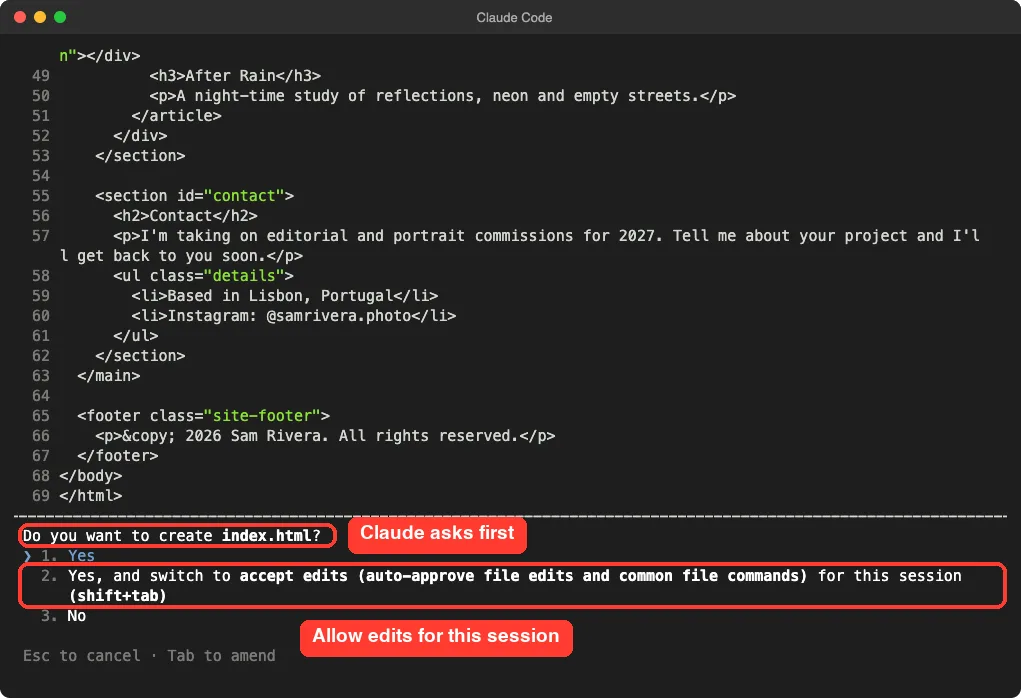
We picked accept edits for this session, which auto-approves file edits and common file commands. That is fine for a throwaway project. For a real one, keep approving by hand, and read our permissions guide for safer setups.
Step 5: Let Claude Build, Then Read Its Report
Claude created index.html and style.css, then checked its own work by searching the page for an @ sign to prove no email address was included. Its summary was honest about one thing: it had not opened the page in a browser, so the layout was untested.
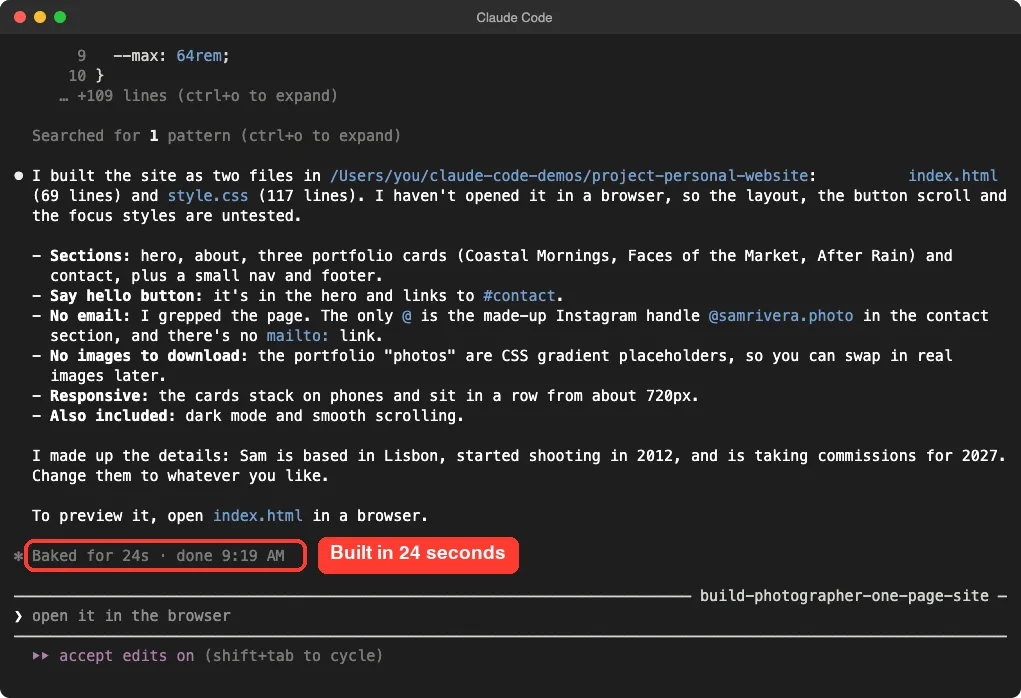
Claude also told us which details it made up, such as the city and the year Sam started shooting. Always read that part. Anything the model invents can look real, so replace it with your own facts.
Step 6: Open the Website Claude Code Built
On a Mac, type this in the same folder, or just double-click the file:
open index.htmlWe loaded the file in a headless browser and took these screenshots ourselves. Your browser follows your system theme, so you may see the light version instead. Claude wrote both a light and a dark color set.
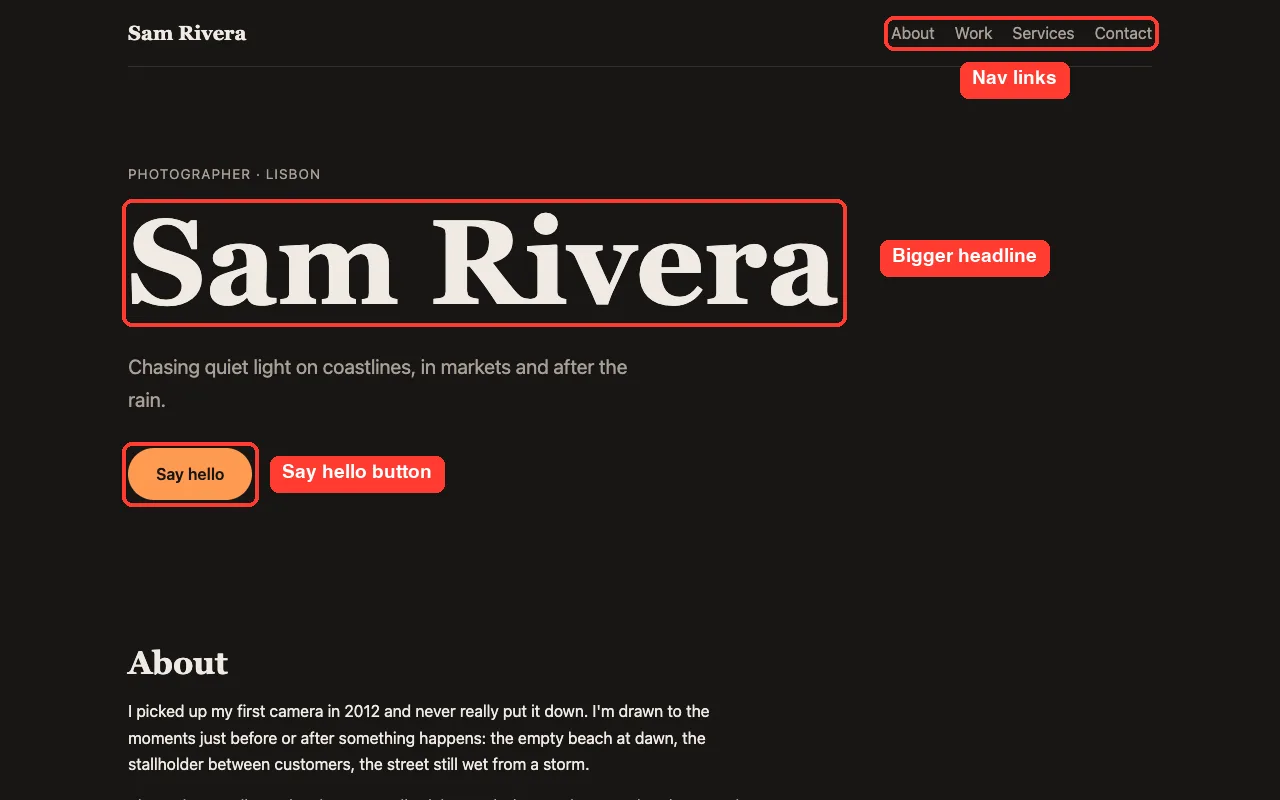
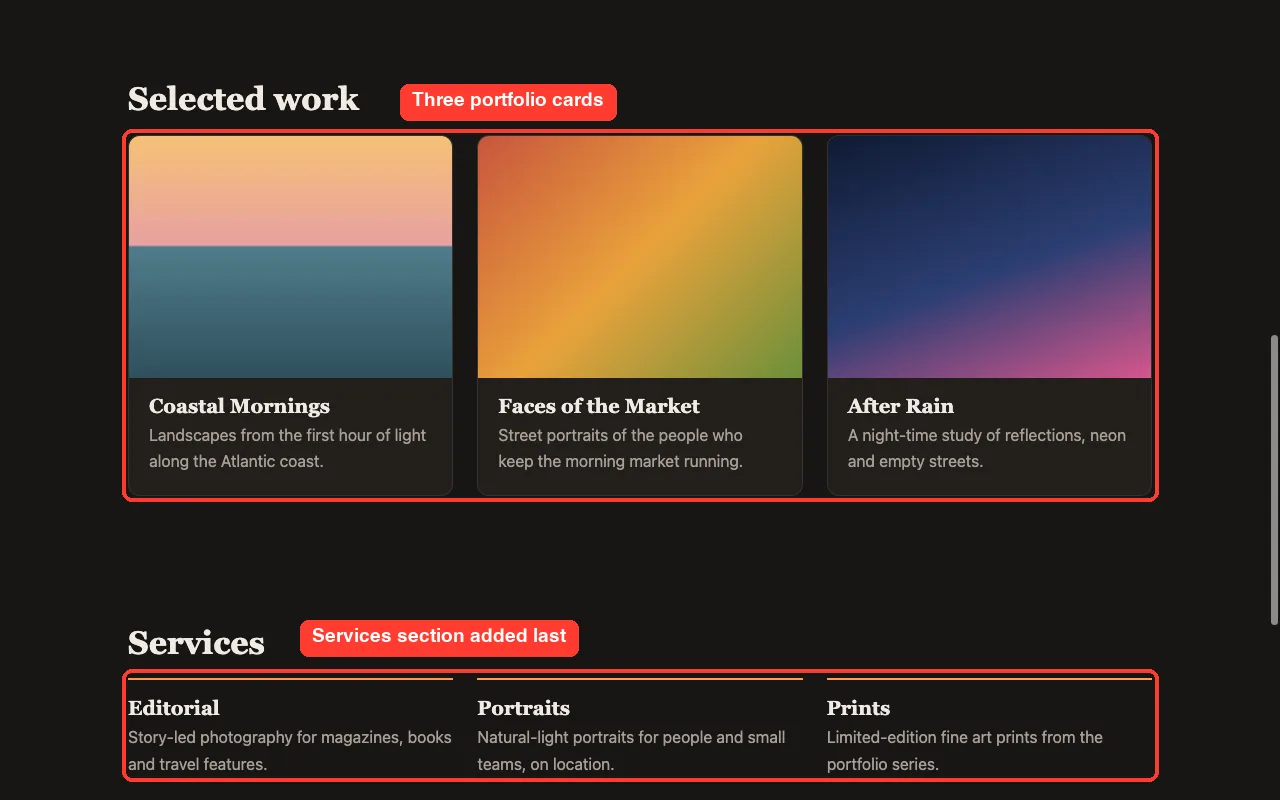
The three portfolio cards use colored gradients as stand-in photos. That means there is nothing to download, and you can swap in real images later.
Step 7: Make a Small Change
The best way to improve a site is to ask for one small thing at a time. Our second prompt was:
Change the accent color to warm orange and make the hero headline larger.Claude edited style.css and showed the exact line it changed, with the old value in red and the new one in green. Reading these small diffs is how you learn what the code does.
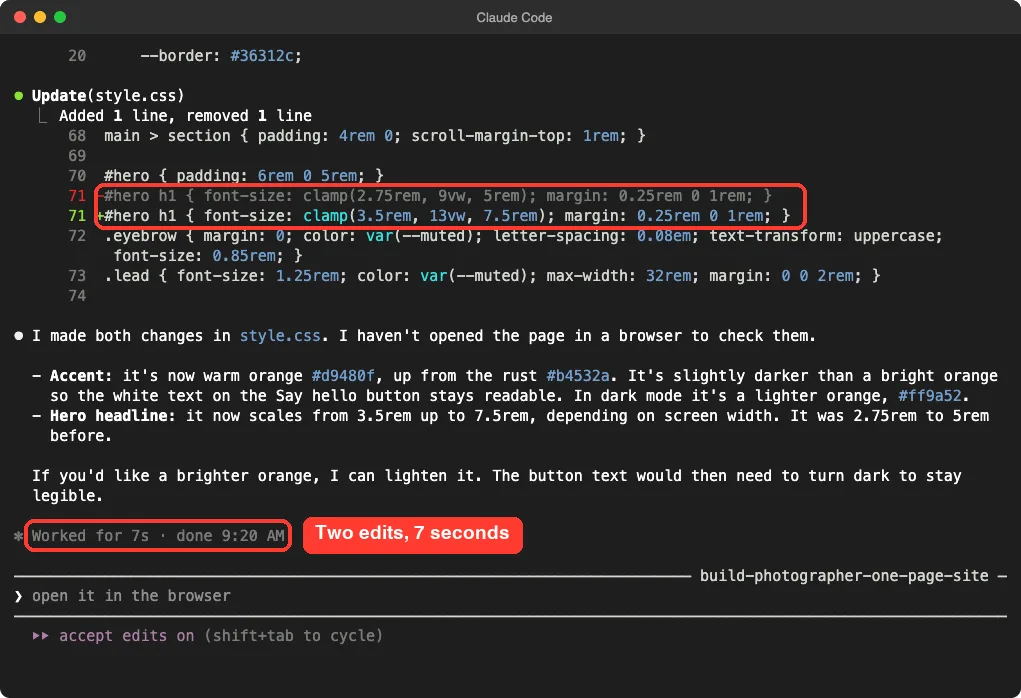
Claude also explained a design choice: it made the orange slightly darker so the white button text stays readable in light mode, and lighter in dark mode. If you want a brighter orange, you just ask.
Step 8: Add a New Section
Our third prompt grew the site:
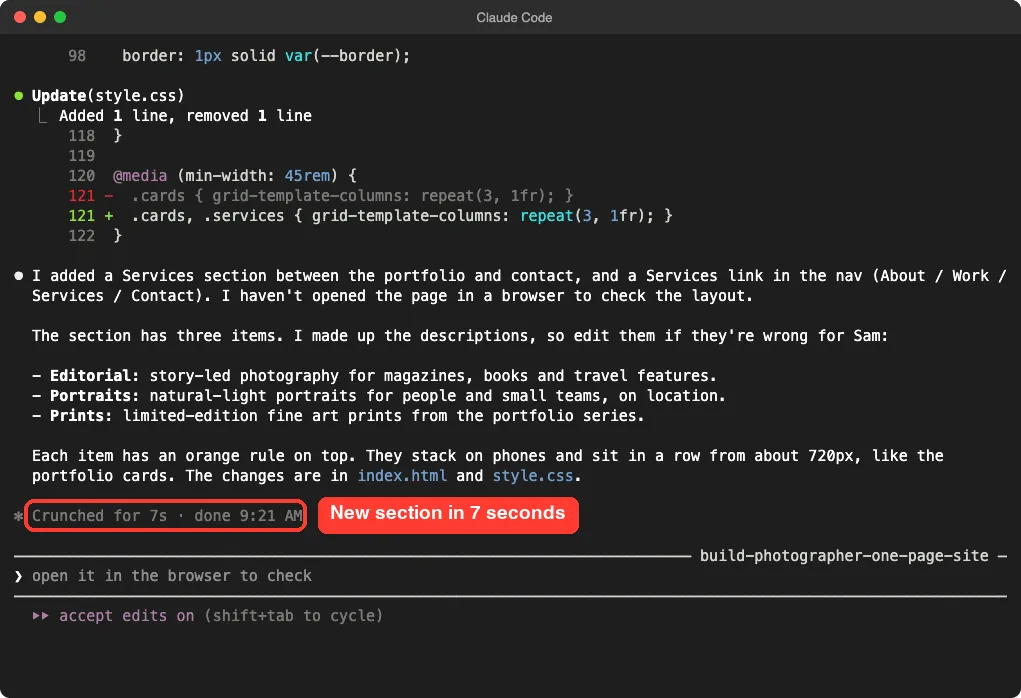
Add a short Services section with three items between the portfolio and the contact sections, and add it to the nav.Claude updated both files, added Editorial, Portraits and Prints, and extended the grid so the services sit in a row on wide screens and stack on phones.
Check It on a Phone-Sized Screen
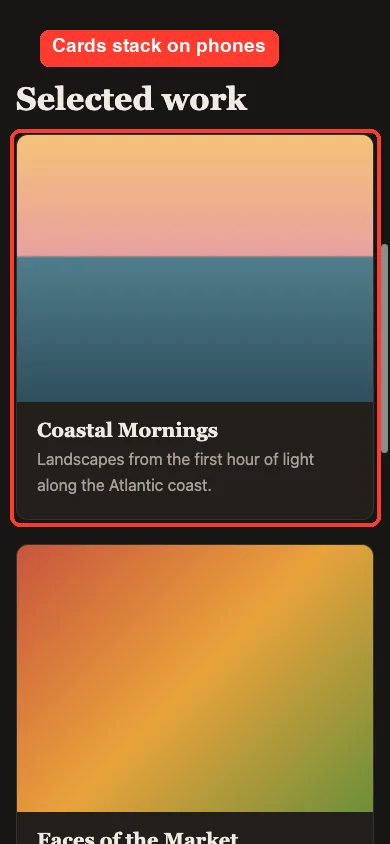
Many visitors will arrive on a phone, so always check a narrow view. In your browser, make the window narrow or use the device toolbar in developer tools. Our test at 390 pixels wide showed the cards stacking into one column with no sideways scrolling.
The Final Project Files
Here is the top of style.css, which shows how Claude set up colors with CSS variables and a dark mode. The full file is about 120 lines, so we trimmed it.
:root {
  --bg: #faf8f5;
  --text: #2b2724;
  --muted: #6b645d;
  --accent: #d9480f;
  --accent-text: #fff;
  --card: #fff;
  --border: #e6e0d8;
  --max: 64rem;
}

@media (prefers-color-scheme: dark) {
  :root {
    --bg: #181614;
    --text: #efeae3;
    --accent: #ff9a52;
    --accent-text: #181614;
    --card: #221f1c;
  }
}

html { scroll-behavior: smooth; }
The HTML is just as readable. Each section is a block with an id, and the nav links jump to those ids. This is the start of the page:
<header class="site-header">
  <a class="brand" href="#hero">Sam Rivera</a>
  <nav aria-label="Main">
    <a href="#about">About</a>
    <a href="#work">Work</a>
    <a href="#services">Services</a>
    <a href="#contact">Contact</a>
  </nav>
</header>
Try It Yourself
Build your own version with this starter prompt. Start Claude Code in plan mode in an empty folder first.
I want a one-page personal website for [your name or a made-up one]. Sections: hero, about, three project cards, contact. Plain HTML and CSS only, no frameworks. Do not put any email address or phone number in it. Plan the files first, keep it small.Then try these variations:
- Ask for a different color theme, such as deep green with a cream background.
- Ask Claude to add a short FAQ section with three questions.
- Ask for a simple fade-in effect on the cards, with reduced motion respected.
- Replace the gradient cards with your own pictures and ask Claude to wire them in.
Common Mistakes
- Asking for everything in one giant prompt. Small steps are easier to review and undo.
- Skipping plan mode. Without a plan, you may get a framework you did not want.
- Trusting made-up details. Claude invents placeholder text, so check every fact.
- Never opening the page. Claude told us itself that it had not tested the layout in a browser, so you need to look.
- Typing real contact details into a demo. Keep personal data out until you are ready to publish.
Pro Tips
- Say what you do not want, such as no frameworks or no email address. Claude follows limits well.
- Give Claude a way to check its work. Anthropic recommends tests, a build or a screenshot so Claude can see a pass or fail.
- Press Esc to stop Claude if it heads the wrong way, then redirect it.
- If a change goes wrong, the rewind feature can roll your files back.
- Keep prompts short and one change at a time, and watch your usage with our costs guide.
Cheat Sheet
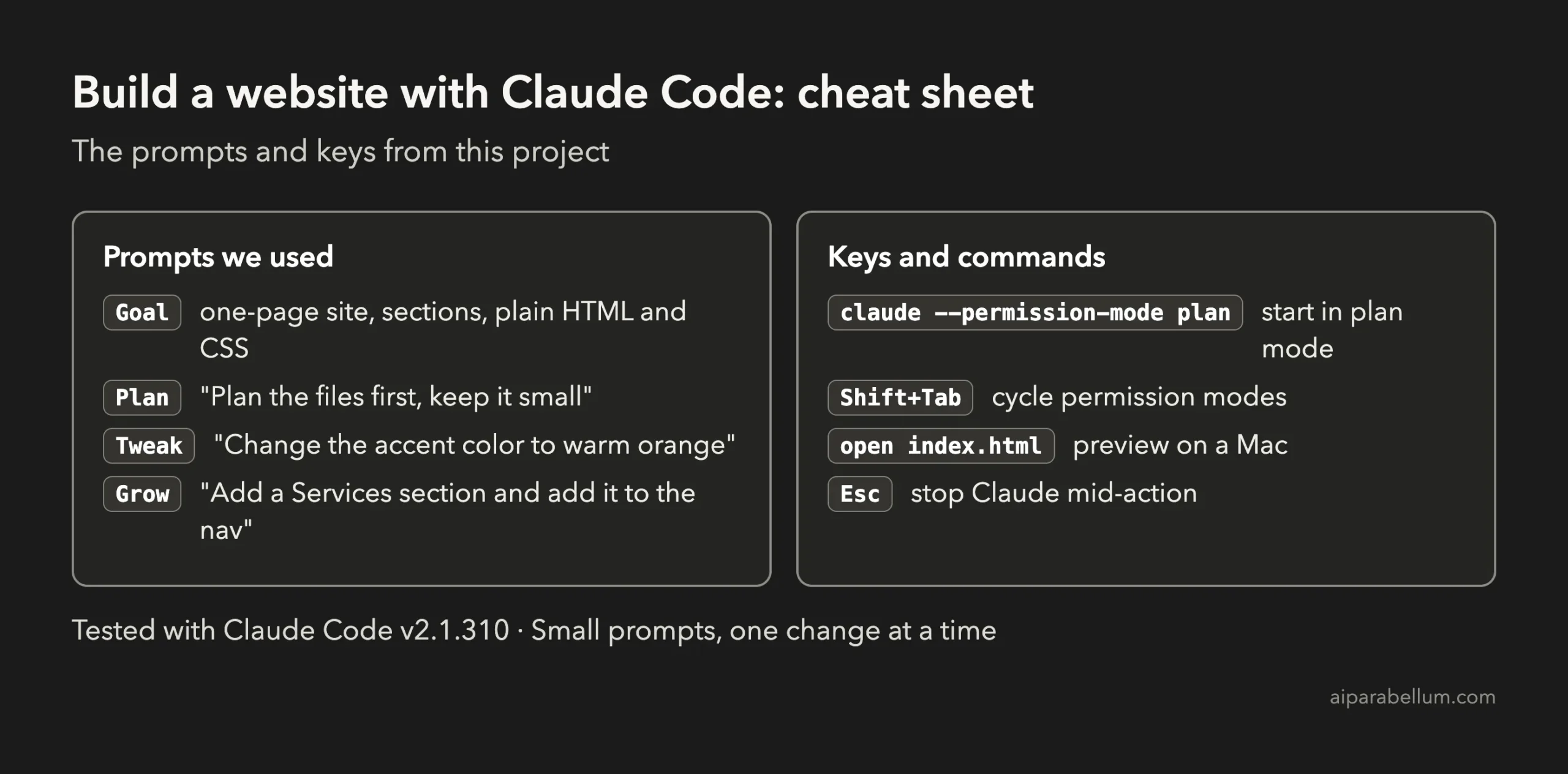
For the official reference, see Anthropic’s pages on common workflows and best practices. If you want to understand the assistant behind it, our Claude AI overview is a good start.
Frequently Asked Questions
Do I need to know HTML to build a website with Claude Code?
No. You describe what you want in plain English, and Claude writes the code. Reading the diffs it shows will teach you the basics as you go.
How do I put the website online?
This project only builds the files. To publish them, you upload the two files to a static hosting service of your choice. We did not publish this demo site anywhere.
Is it safe to let Claude create files in my folder?
Claude Code asks before it writes files unless you choose to accept edits. Use a fresh folder for projects like this one, and keep approving by hand until you are comfortable.
Why did we use plan mode?
Plan mode makes Claude read and propose before it changes anything. It prevents surprises and gives you a chance to correct the idea before any code exists.
Can I use a framework like React instead?
Yes, just say so in your prompt. We chose plain HTML and CSS here because it keeps the project to two files you can read in minutes.
Conclusion
You now know how to build a website with Claude Code: start in plan mode, describe the sections, approve the files, look at the result and ask for one small change at a time. The whole project took three short prompts and a couple of approvals, and the final site is just two files you fully own. Try the starter prompt with your own name, then come back for the next project in the series.
Next in the series: Project 2: Build a To-Do List Web App With Claude Code.