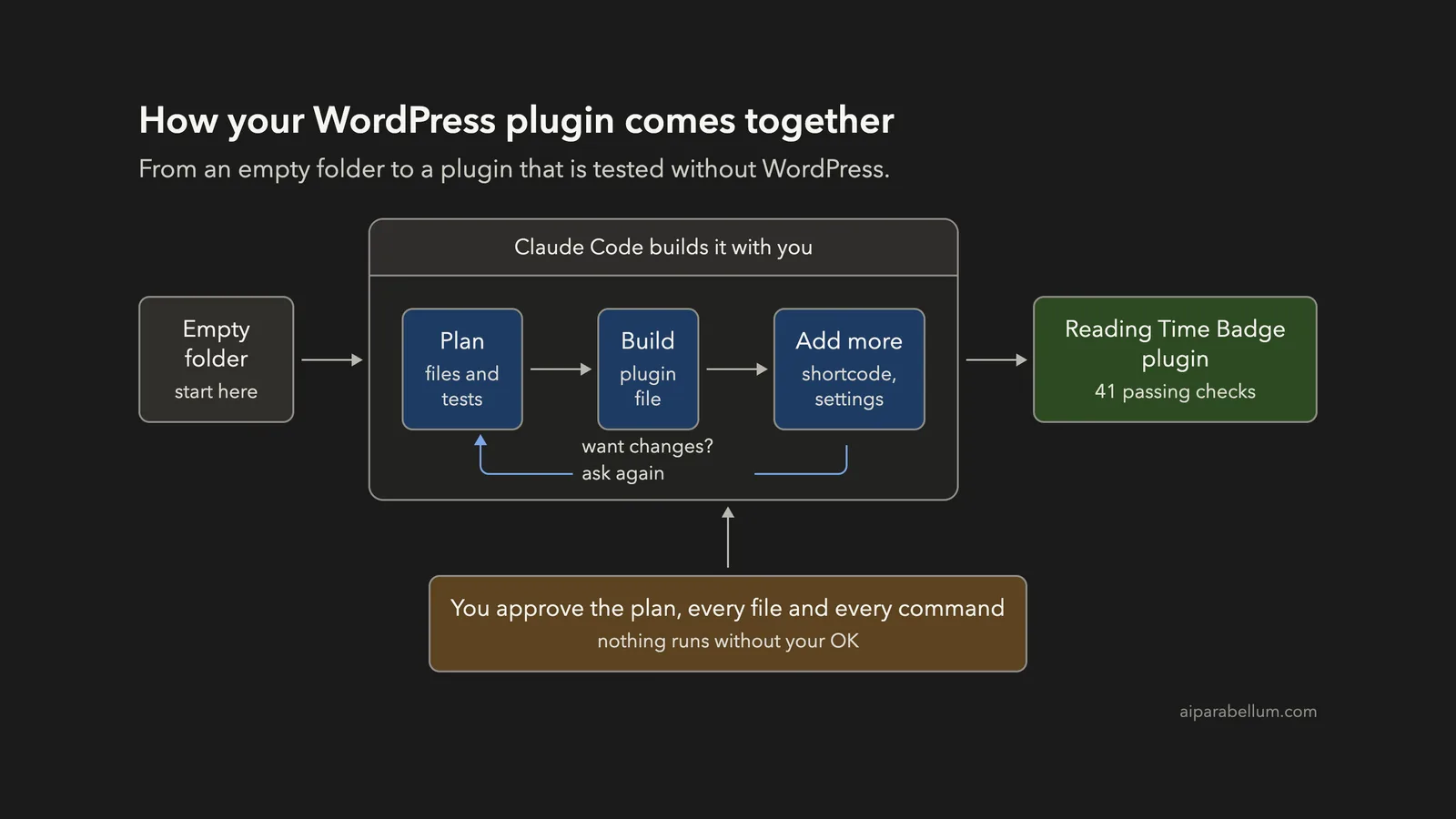
Want to build a WordPress plugin with Claude Code, but you do not have a WordPress site ready for testing? Good news: you can plan, write and check a small plugin from an empty folder, and you only need PHP on your computer to see it pass its tests.
This is Project 8 of 20 in our Build with Claude Code series, part of our Claude Code tutorials. In Project 7 we made a weather dashboard you could open in a browser. This time we write PHP that lives inside WordPress, which is a different kind of project.
Tested with Claude Code v2.1.310 on October 26, 2026, on macOS.
One honest note before we start. We did not install WordPress for this tutorial. Instead, Claude wrote a test file that fakes the few WordPress functions the plugin uses, and we ran it with PHP.
That proves the logic works, but not that the plugin works inside a real WordPress site, so try it on a test site first. We tested on macOS; the Windows and Linux steps follow Anthropic’s official instructions.
What We Built
A WordPress plugin is just a PHP file that hooks into WordPress at the right moments, so a small plugin is a very good first project.
| Item | Details |
|---|---|
| Project | A plugin called Reading Time Badge |
| What it does | Adds a line such as “3 min read” above single posts |
| Extras | A [reading_time] shortcode and a Settings page for words per minute |
| Files | One main PHP file, a test file and a readme.txt |
| Prompts used | 3 short prompts, plus the approvals |
| Install needed | Claude Code and PHP. WordPress is only needed for the final real-world check. |
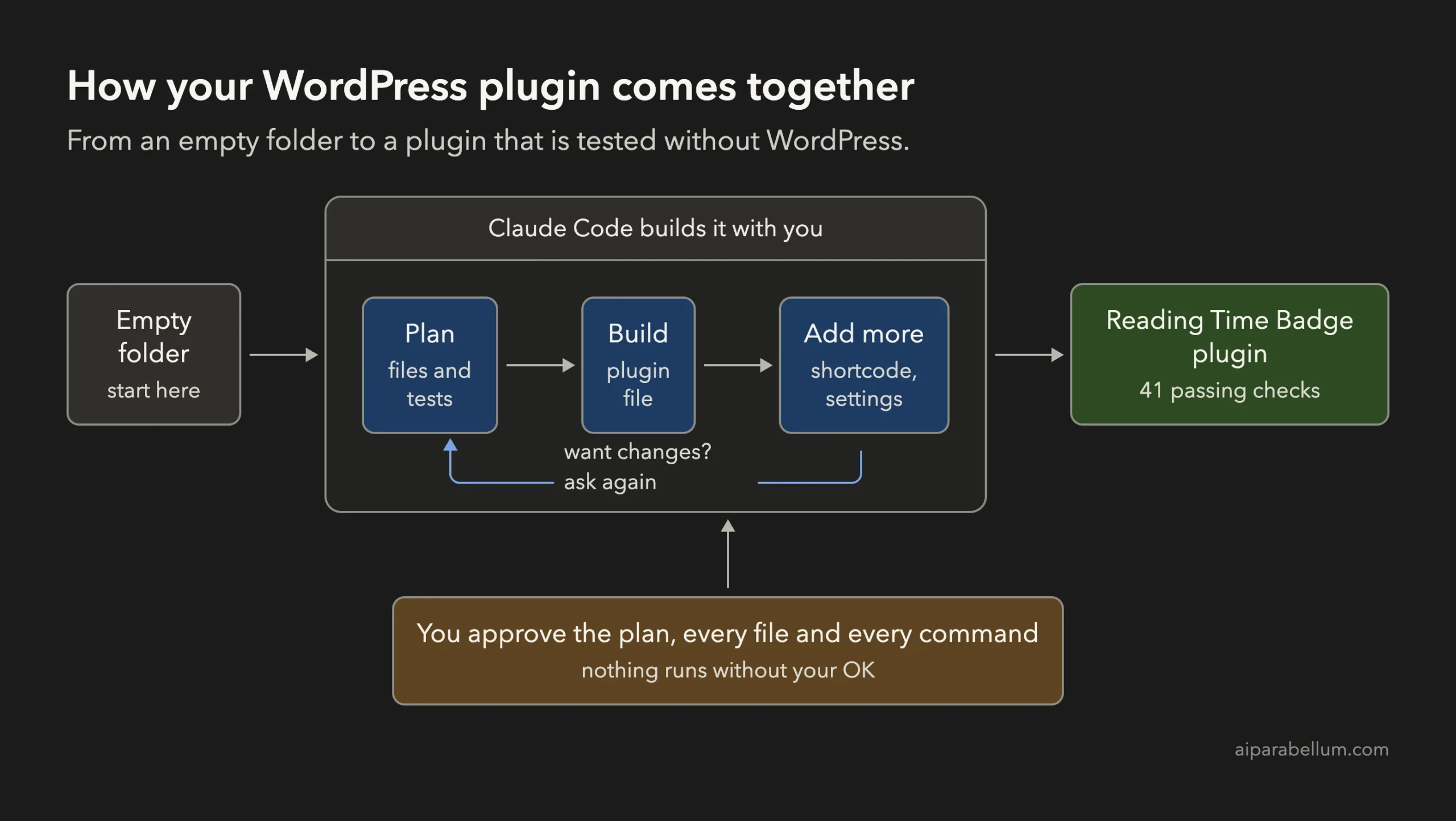
What Is a WordPress Plugin?
A plugin adds a feature to a WordPress site without touching the site’s core files. It is a folder with a main PHP file. A comment at the top of that file tells WordPress the plugin’s name and version.
Plugins work through hooks. A filter hook lets a plugin change something, such as the text of a post before it is shown. An action hook lets a plugin run code at a moment, such as when the admin menu is built.
Our plugin uses both kinds. A filter on the post content adds the badge, and two actions create the settings page.
Why Build a WordPress Plugin With Claude Code?
WordPress has its own coding rules, its own functions and some real security traps. For example, anything you print should be escaped, and a settings page should check that the user is allowed to see it. Claude Code knows these habits, and you can ask it to follow them in the prompt.
It can also write and run tests for you. If you are new to the tool, our first session guide is a good place to start, and our guide to permission modes explains the approval screens you will see below.
Step 1: Start in Plan Mode in an Empty Folder
Make a folder, open a terminal inside it and start Claude Code in plan mode. In plan mode Claude can read and think, but it cannot change files until you approve its plan.
mkdir my-wp-plugin
cd my-wp-plugin
claude --permission-mode plan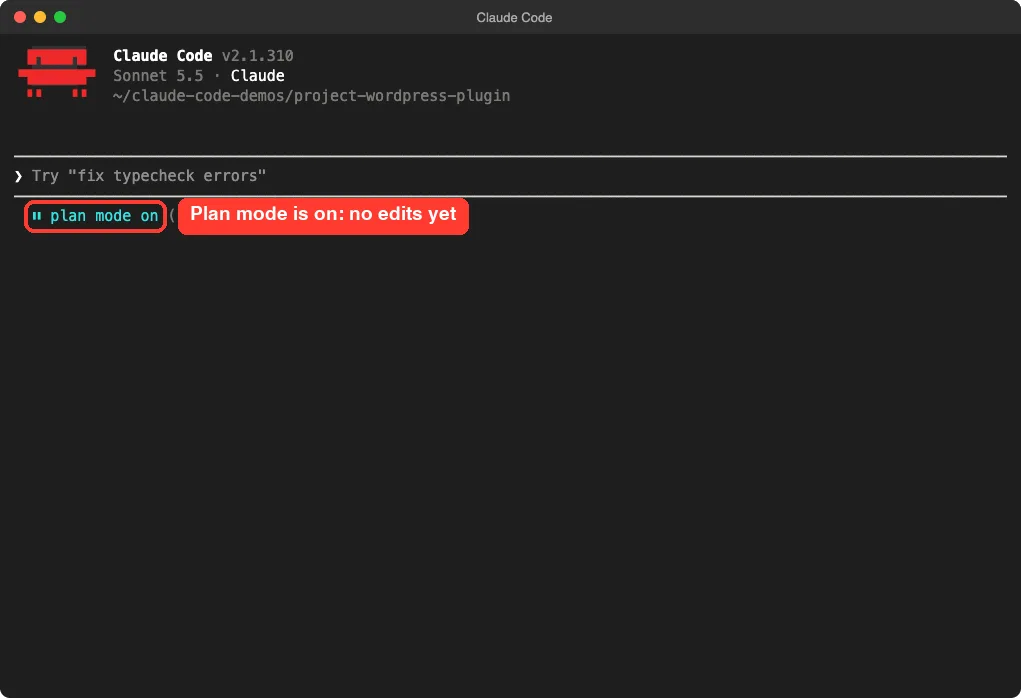
Our guide to plan mode covers the approval flow in more detail.
Step 2: Describe Your Plugin to Claude Code
A good plugin prompt names the plugin, the one thing it does, the file layout and the safety rules. This is the first prompt we used:
Build a small WordPress plugin called Reading Time Badge. It adds a line like '3 min read' above the content of single posts, based on 200 words per minute. Use plain PHP with one main file and a readme.txt, follow WordPress coding standards and escape all output. I have no WordPress installed, so also write test.php that stubs the few WordPress functions it needs and checks the plugin from the command line. Plan the files first, keep it small.Each part of the prompt matters.
“One main file” keeps the plugin easy to read. “Escape all output” asks for a basic security habit. And the sentence about having no WordPress installed is what makes the test file happen, so Claude does not just hope its code works.
Step 3: Review the Plan
Claude’s plan listed three files and what each one would do. For the main file it planned a function that strips HTML tags and shortcodes, counts the words and divides by 200, rounding up with a minimum of one minute. It also planned to add the badge only on single posts, inside the main loop.
For test.php, it listed the cases it would check, such as 200 words giving 1 minute and 201 words giving 2. The plan also said plainly that the test only checks logic against stubs and that the plugin has not run in real WordPress. After the plan, Claude Code asked how to continue.
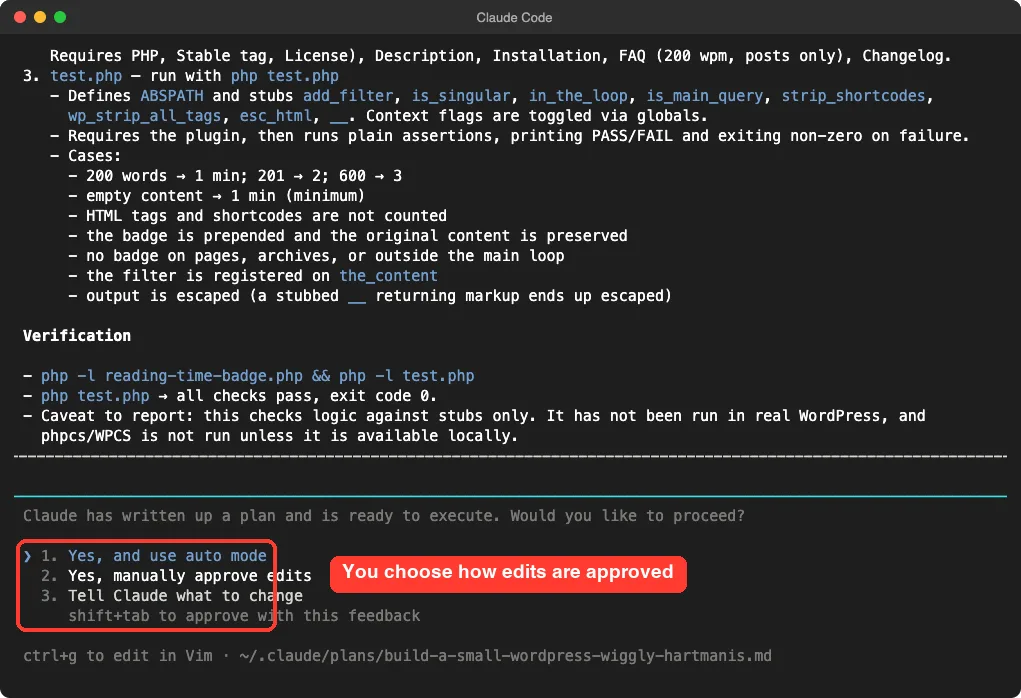
We chose to approve edits manually so we could read each file first.
Step 4: Approve the Files
Claude showed the full plugin file and asked, “Do you want to create reading-time-badge.php?” You can say yes once, switch to accept edits for the session, or say no.
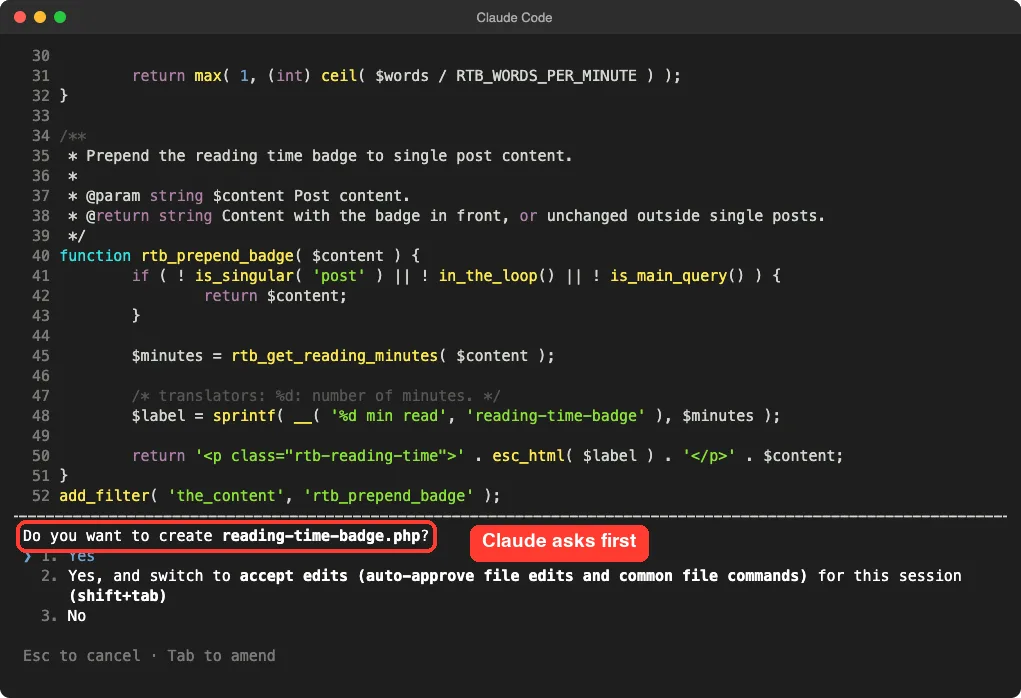
For this throwaway demo we switched to accept edits so the other files went through. For a real project, keep approving by hand until you trust the flow. Our permissions guide covers safer setups.
Claude then ran the checks by itself. It asked first, because running a command needs approval too, and we said yes. It finished in 31 seconds and reported that both PHP files passed the syntax check and that its 12 test checks passed.
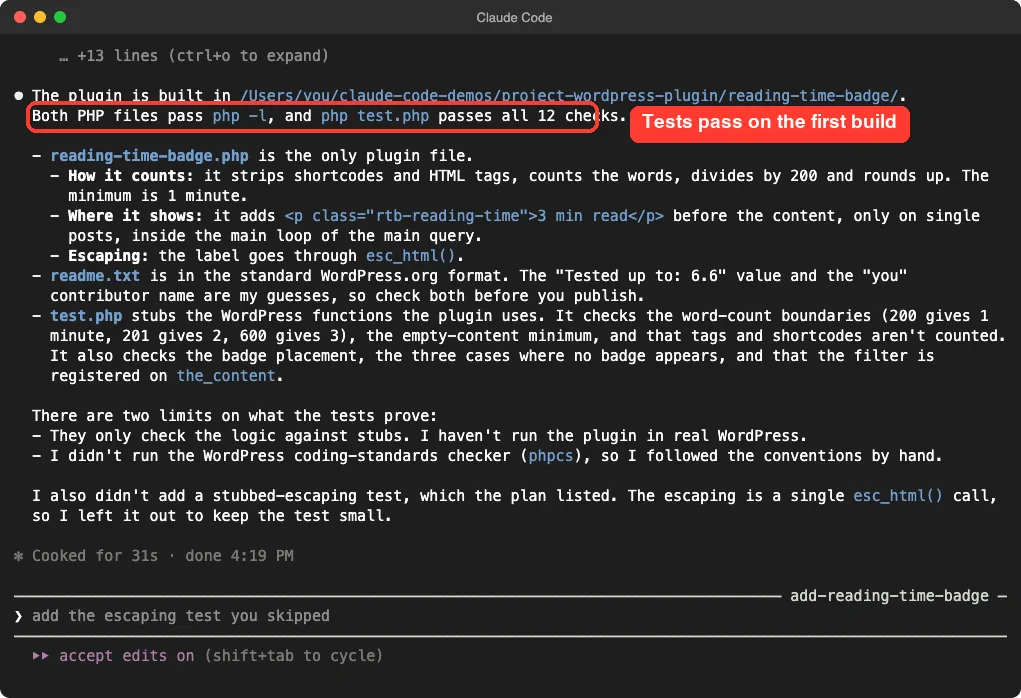
The summary was also honest about limits. It said it had not run the plugin in real WordPress and had not run the official coding-standards checker. It skipped one planned test, the escaping test, to keep things small, and told us so.
Step 5: Add a Shortcode and a Settings Page
Our second prompt asked for two features at once, which is fine here because they share one setting:
Add a [reading_time] shortcode that prints the same text anywhere in a post, and a Settings page under Settings > Reading Time where I can change the words per minute. Update test.php to cover both.Claude edited the plugin and the test file. The plugin grew from 52 to 167 lines, and the test file from 102 to 240 lines. Because we had switched to accept edits, the file changes went through without questions.
Our first attempt at this prompt was swallowed by an approval screen that was still open, so we continued the same session with the continue option and sent it again. This is a reminder to look at the screen before you type.
Step 6: Run the Checks
Our third prompt was a simple request:
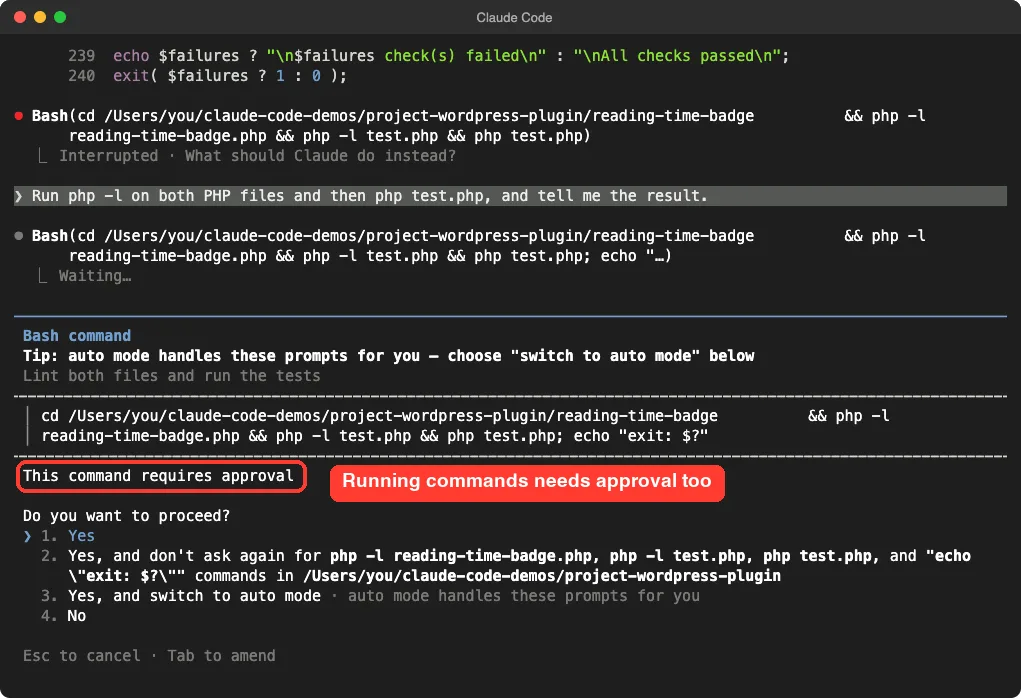
Run php -l on both PHP files and then php test.php, and tell me the result.The command php -l only checks the syntax of a PHP file. It does not run the code. Claude asked for approval before running it, which is the default behavior for shell commands.
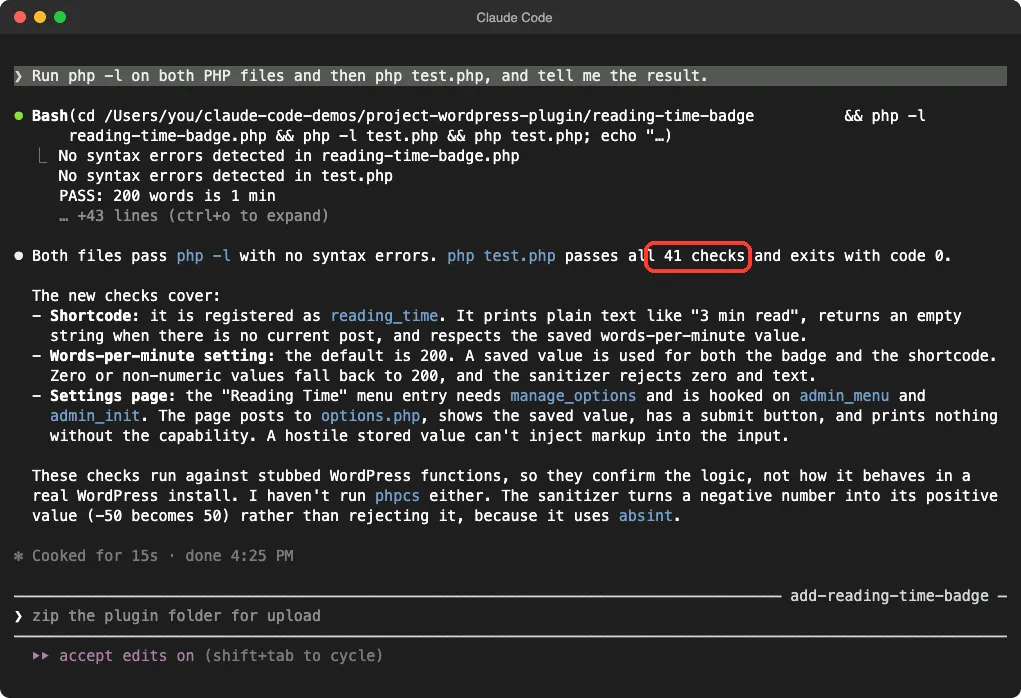
After we approved it, Claude reported that both files had no syntax errors and that 41 checks passed. It explained what the new checks cover and repeated its warning that the tests use stubs, not real WordPress.
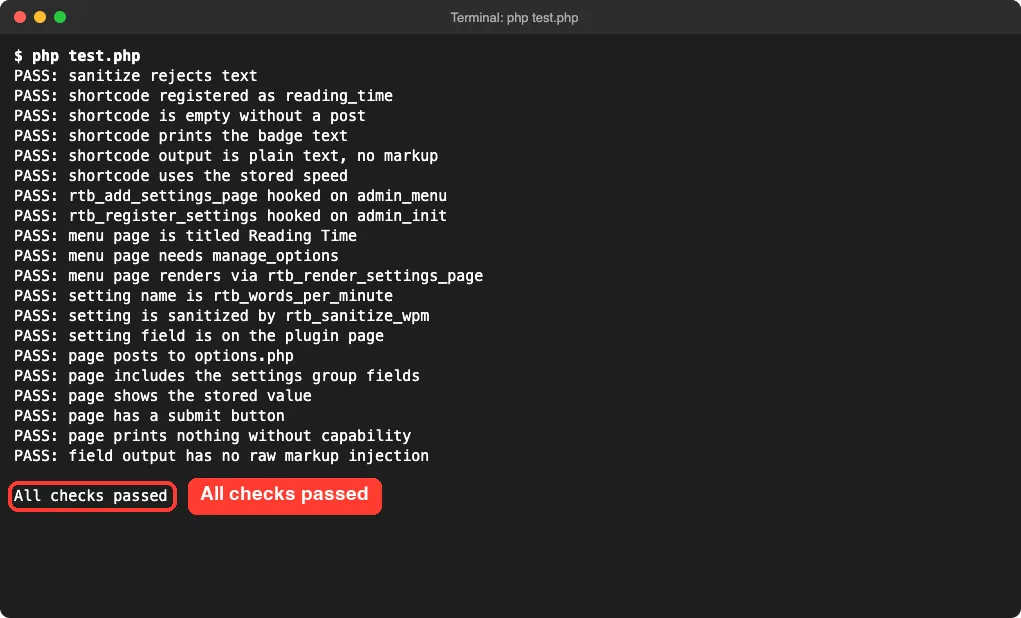
We then ran php test.php ourselves, outside Claude Code, to see the raw output. This screenshot is our own terminal, not Claude’s.
The Final Project Files
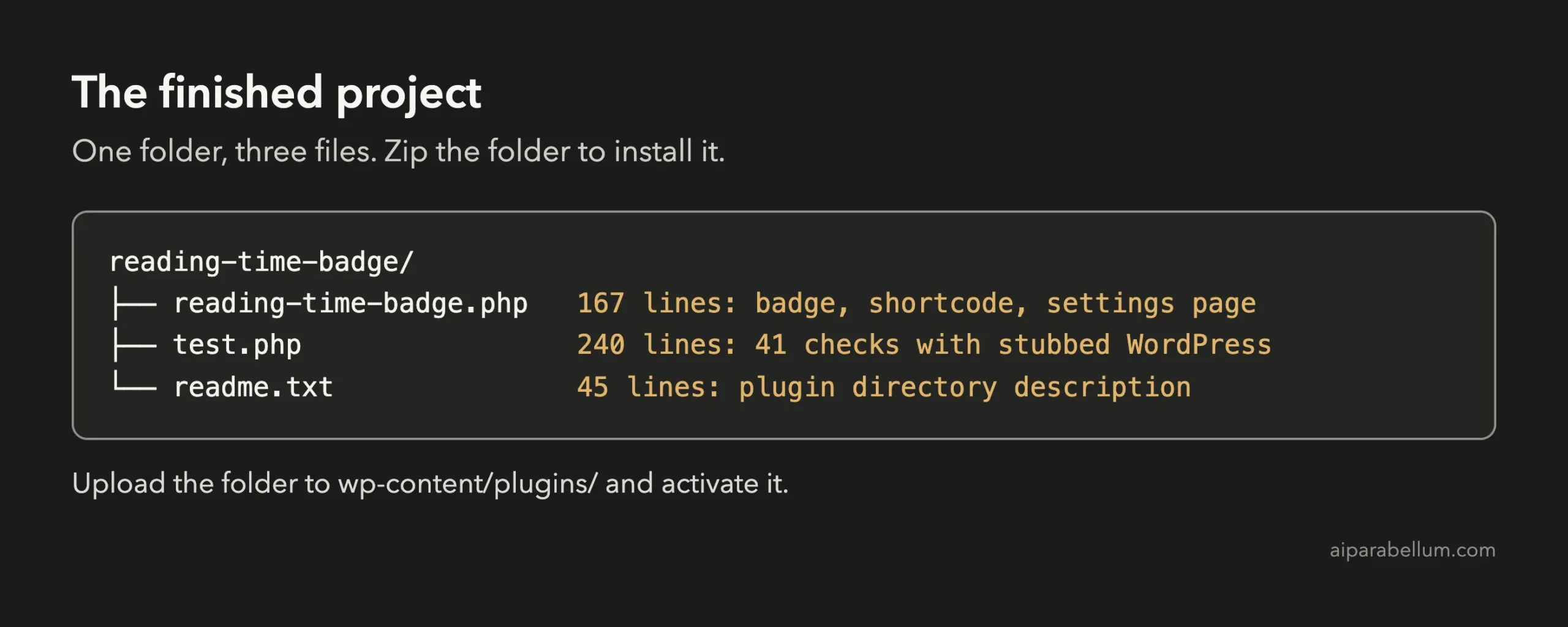
Here are the key parts of reading-time-badge.php. The first function counts the words and works out the minutes:
function rtb_get_reading_minutes( $content ) {
	$text  = wp_strip_all_tags( strip_shortcodes( $content ) );
	$words = str_word_count( $text );

	return max( 1, (int) ceil( $words / rtb_get_words_per_minute() ) );
}
The second part adds the badge to single posts, and only there:
function rtb_prepend_badge( $content ) {
	if ( ! is_singular( 'post' ) || ! in_the_loop() || ! is_main_query() ) {
		return $content;
	}

	return '<p class="rtb-reading-time">' . esc_html( rtb_get_label( $content ) ) . '</p>' . $content;
}
add_filter( 'the_content', 'rtb_prepend_badge' );
The third part is the shortcode and the safe handling of the setting. We trimmed the rest of the settings page code, which registers the menu and prints a small form.
add_shortcode( 'reading_time', 'rtb_shortcode' );

function rtb_sanitize_wpm( $value ) {
	$value = absint( $value );

	return $value > 0 ? $value : RTB_DEFAULT_WPM;
}
Here is how to read it.
The guard line at the top of the badge function stops the badge from showing on pages, archives or sidebar widgets. The esc_html call makes sure the label is printed as plain text. The sanitize function turns a bad value, such as zero or text, back into the default of 200, so a typo on the settings page cannot break your posts.
Try Your WordPress Plugin on a Real Site
The tests passed, but a real site is the final judge. Make a staging copy of your site, or a local test site, never your live one. Zip the plugin folder, upload it on the Plugins screen and activate it.
Then open a single post and look for the badge above the text. Visit Settings and Reading Time, change the speed to 100 and check that the badge number goes up. If anything looks wrong, copy the message or describe what you see and ask Claude to fix that one problem.
We did not do this step in the demo, because we did not install WordPress. We also did not run the official WordPress coding-standards checker, so run it yourself if you plan to publish the plugin.
Try It Yourself
Build your own version with this starter prompt. Start Claude Code in plan mode in an empty folder first.
Build a small WordPress plugin called Reading Time Badge. It adds a line like '3 min read' above the content of single posts, based on 200 words per minute. Use plain PHP with one main file and a readme.txt, follow WordPress coding standards and escape all output. I have no WordPress installed, so also write test.php that stubs the few WordPress functions it needs and checks the plugin from the command line. Plan the files first, keep it small.Then try these variations, one at a time:
- Add a checkbox on the settings page to turn the badge off for pages.
- Let the badge show on custom post types as well as posts.
- Ask for a small CSS file so the badge has a color and a clock symbol.
- Change the plugin into a “word count” badge instead.
- Ask Claude to explain every hook it used, in plain English.
Common Mistakes
- Trusting stub tests too much. They check logic, not real WordPress behavior, so always try the plugin on a test site.
- Testing on your live site. A broken plugin can show an error to every visitor.
- Printing values without escaping them. Ask Claude to escape output and check that it did.
- Asking for too much at once. Small prompts are easier to review and to undo.
- Typing while an approval screen is open. Your text can end up in the wrong place, as ours did.
Pro Tips
- Tell Claude Code what you do not have. Saying “I have no WordPress installed” is what led to the test file.
- Read the summary, not just the result. Claude told us what it skipped and what it could not prove.
- Check the readme.txt before you share the plugin. Claude said some values in it were guesses, such as the tested-up-to version.
- Keep secrets out of plugin files. Never put a private key in code you share.
- If a change goes wrong, the rewind feature can roll your files back, and our costs guide helps you watch your usage.
Cheat Sheet
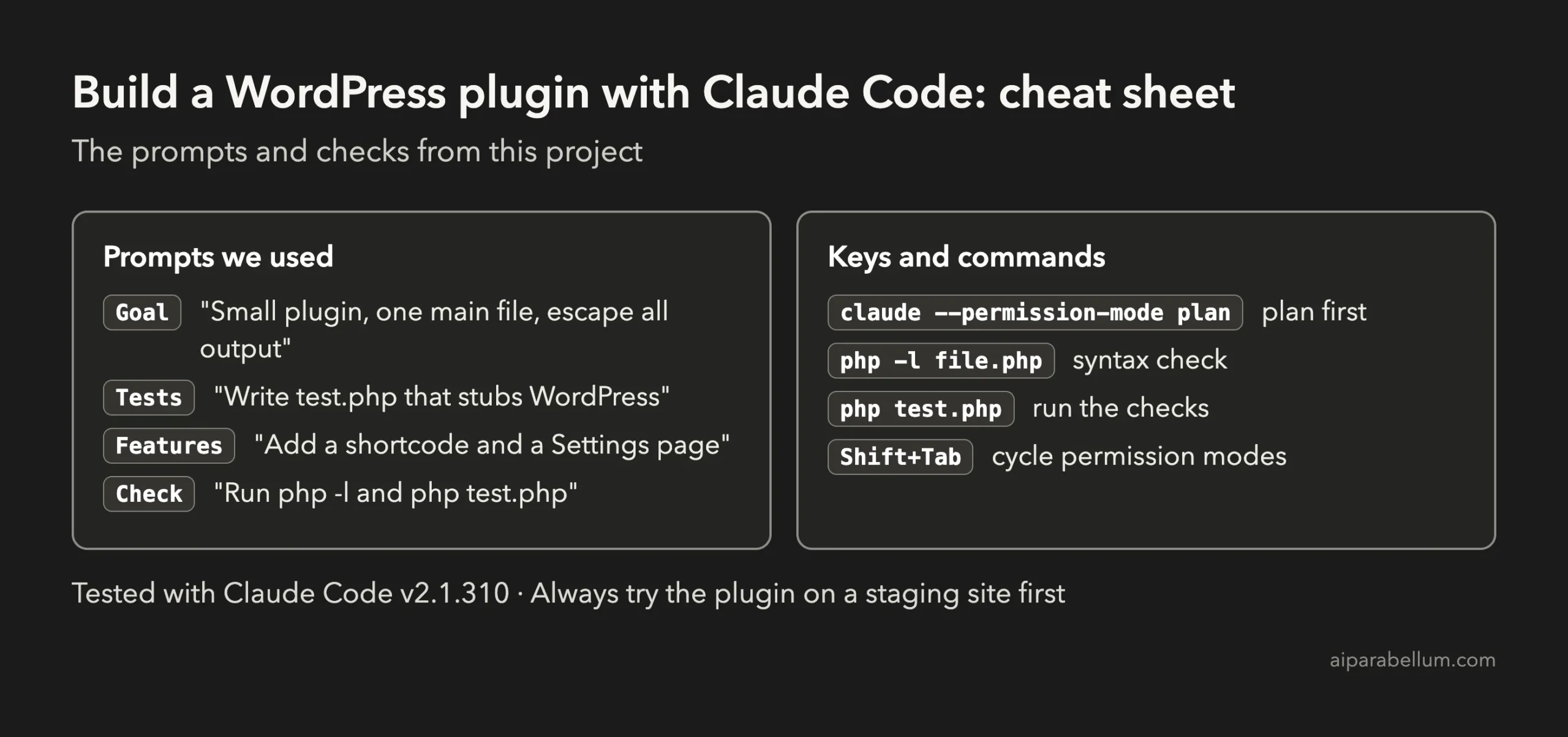
For the official reference, see Anthropic’s page on common workflows. To learn more about the assistant behind the tool, read our Claude AI overview. Project 7, the weather dashboard, is a good companion if you want a result you can click.
Frequently Asked Questions
Can I build a WordPress plugin with Claude Code without installing WordPress?
Yes, you can write the code and test its logic with a stub file, as we did. You still need a real WordPress test site before you trust the plugin.
Do I need to know PHP?
No. You describe the plugin in plain English and Claude writes the PHP. Reading the code it shows you is a good way to learn.
What does php -l do?
It checks a PHP file for syntax errors without running it. It is a quick first test, but it cannot tell you if the plugin behaves correctly.
How do I install the plugin?
Zip the plugin folder, then upload it on the Plugins screen of a WordPress site and activate it. You can also copy the folder into wp-content/plugins.
Is the plugin safe to publish?
Not yet. Review the code, run the official coding-standards checker and test it on a real site first. Claude itself said it had not done those last two steps.
Conclusion
You now know how to build a WordPress plugin with Claude Code: plan first, ask for safe habits like escaping, request a test file when you have no site, approve each file and command, and read the summary for what was not proven. Three short prompts gave us a working plugin with a badge, a shortcode and a settings page, and 41 passing checks. Try the starter prompt, test it on a staging site, then come back for the next project in the series.
Previous in the series: Project 7: Build a Weather Dashboard With Claude Code
Next in the series: Project 9: Build a Discord Bot With Claude Code.