The Claude Code plugin not found error almost always means one of three things: the marketplace that lists the plugin was never added on your machine, the plugin or marketplace name is misspelled, or your local copy of the catalog is out of date. The full message reads: Plugin “name” not found in marketplace “marketplace”.
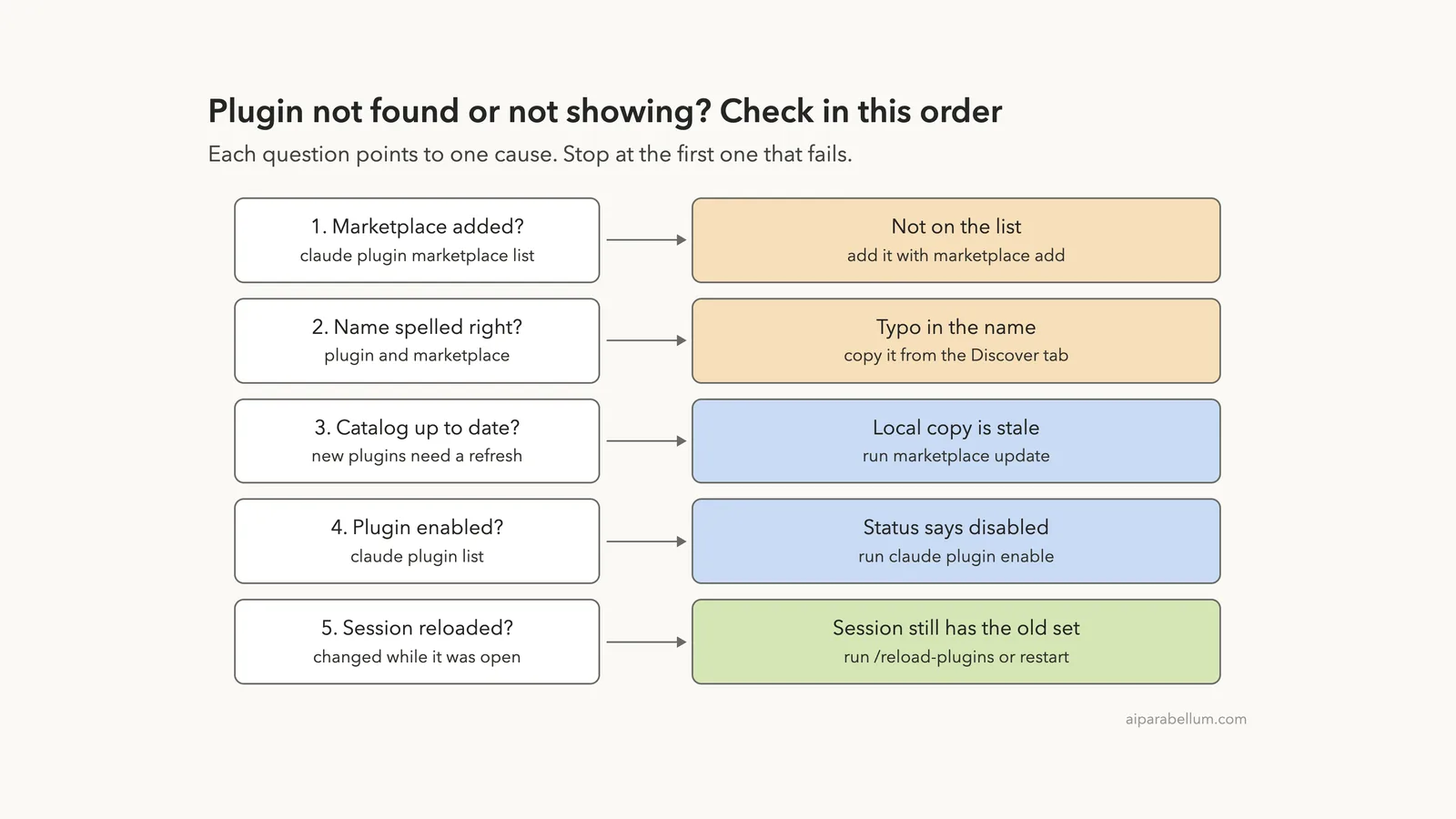
The short fix: run claude plugin marketplace list in your terminal. If the marketplace is not on that list, add it with claude plugin marketplace add, then install again with the exact name in the form plugin@marketplace. If the marketplace is listed, refresh it with claude plugin marketplace update and check the spelling.
If the plugin installed fine but its commands are not showing, the cause is different. The plugin is either disabled, or your open session has not reloaded yet, and claude plugin enable or /reload-plugins fixes it.
This guide is part of our help series. Browse all our Claude Code tutorials for more fixes and how-tos.
Tested with Claude Code v2.1.322 on macOS on November 14, 2026. Every message below marked as tested was reproduced in a throwaway project with a separate, empty config folder. The parts marked as coming from the docs follow Anthropic’s official plugin troubleshooting notes, and the Windows note follows the official instructions as well.
Claude Code Plugin Not Found: Quick Summary
Find your symptom in the first column. The first six rows are messages we triggered ourselves, so the wording is what Claude Code v2.1.322 prints.
| What you see | Cause | Fix |
|---|---|---|
| Plugin not found in marketplace, with a hint that your local copy may be out of date | Marketplace not added, or catalog is stale | claude plugin marketplace add or marketplace update |
| Marketplace not found, followed by Available marketplaces | That marketplace is not registered here | Add it from its source |
| Invalid marketplace source format | Bare name or folder used as the source | Use owner/repo, a URL or ./path |
| Plugin not found in marketplace, no hint | Typo in the plugin name | Copy the name from the Discover tab |
| Plugin not found in any configured marketplace | No @marketplace given and no catalog has it | Install as plugin@marketplace |
Installed, but No commands match in the / menu | Plugin is disabled, or session not reloaded | claude plugin enable, then /reload-plugins |
| Marketplace “claude-plugins-official” not found | Official marketplace not registered yet | Add anthropics/claude-plugins-official (from the docs) |
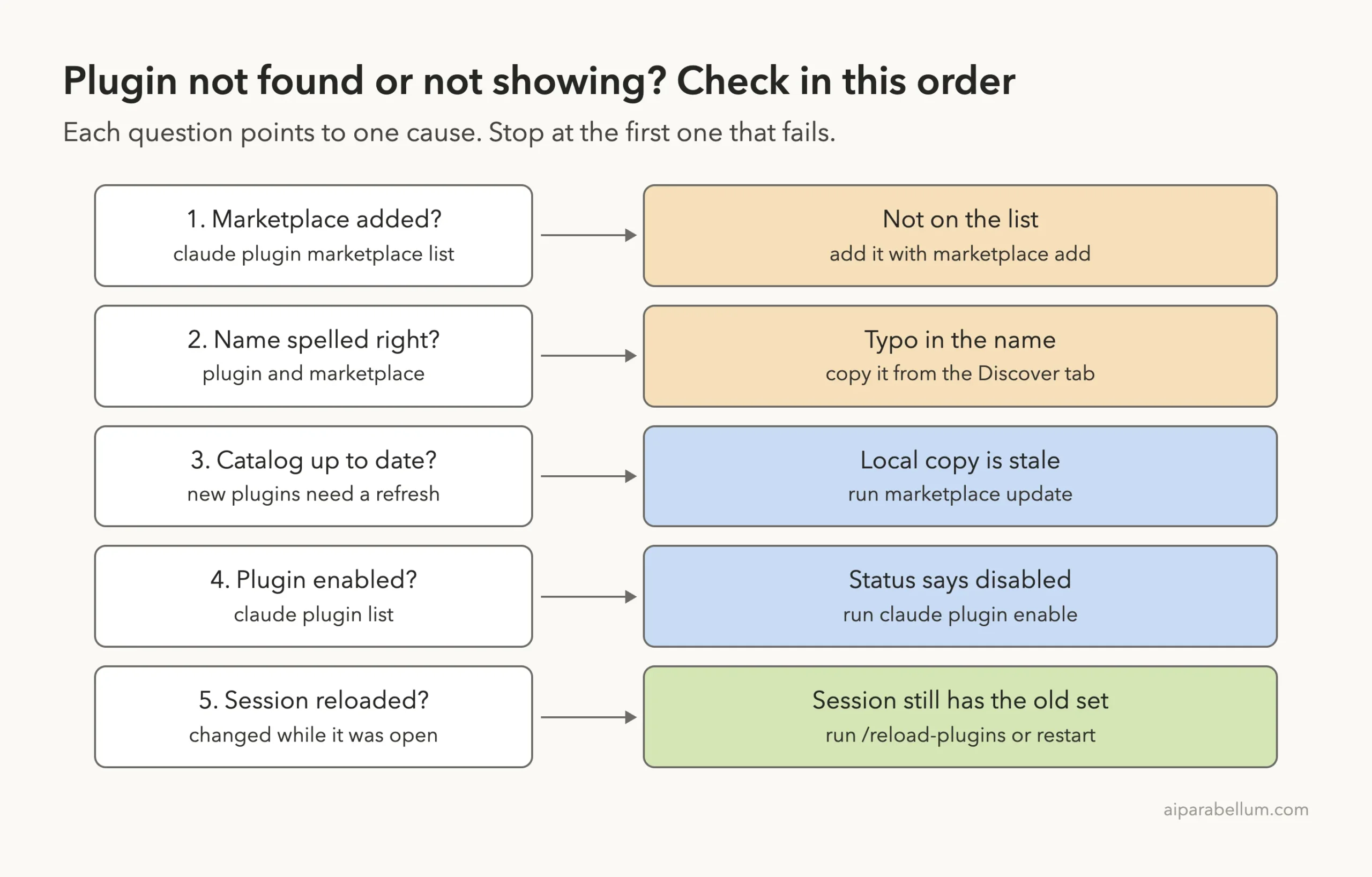
Why a Claude Code Plugin Goes Missing
A plugin is a bundle of skills, agents, hooks and MCP servers that you add to Claude Code. If you are new to them, our plugins guide covers finding and installing them.
Plugins come from marketplaces. A marketplace is just a catalog, and Claude Code has to know about a catalog before it can install anything from it. Our explainer on plugin marketplaces goes deeper on how they work.
The official docs describe three stages a plugin passes through. Your settings declare it, Claude Code fetches its files to disk, and the running session loads it.
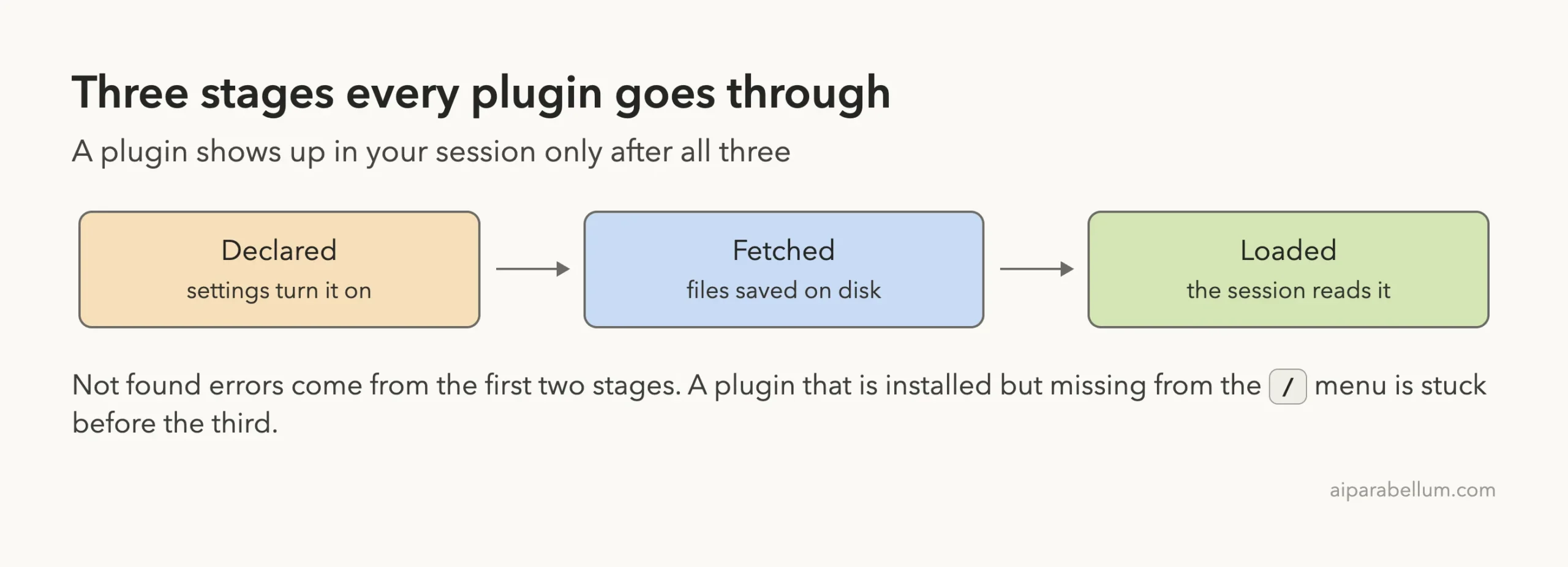
That gives you two families of problems. Not found errors happen at install time, in the first two stages. Not showing problems happen later, when the plugin is on disk but the session did not load it.
A not found message rarely means the plugin does not exist. It means Claude Code looked in the catalogs on your machine and the name was not there.
For our test we wrote a tiny marketplace called team-tools in a local folder. It lists one plugin, hello-tools, which has a single skill named greet. We also used Anthropic’s commit-commands plugin.
Cause 1: The Marketplace Was Never Added
This is the most common cause, and the message is misleading. We ran an install for a plugin whose marketplace had not been added yet:
claude plugin install hello-tools@team-toolsClaude Code answered: Plugin “hello-tools” not found in marketplace “team-tools”. Your local copy may be out of date, try claude plugin marketplace update team-tools.
So we followed the hint and ran the update. That is where the real cause appeared: Marketplace ‘team-tools’ not found. Available marketplaces: anthropic-plugin-directory.
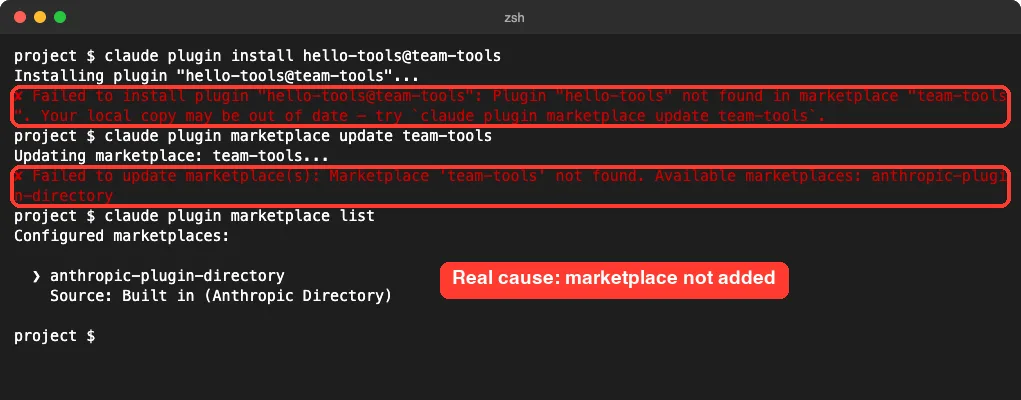
The docs confirm this behavior. In your shell, claude plugin install prints the same not found message when you have not added the marketplace at all.
How to fix it
- Run
claude plugin marketplace listand check whether the marketplace name after the@is there. - If it is missing, add it from its source:
claude plugin marketplace add owner/repofor GitHub, a fullhttps://clone URL for other hosts, or./folderfor a local folder. - Run the install again.
We hit one more trap here. Our first attempt used the bare folder name, team-marketplace, and Claude Code refused it with: Invalid marketplace source format. Try: owner/repo, https://…, or ./path.
With ./team-marketplace it worked and printed “Successfully added marketplace: team-tools”. The same install command then succeeded.
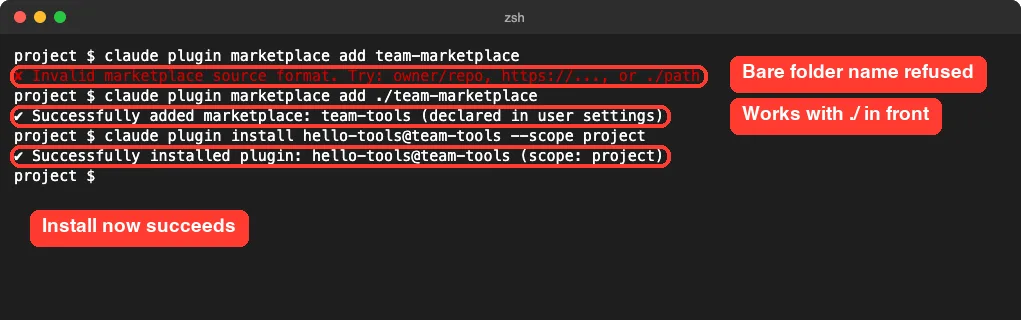
./ in front. After the add, the install went through.An install line that someone sends you only names the marketplace. It does not say where the marketplace lives, and the docs note that Claude Code has no index to look a name up in. Ask the sender for the source, which is a GitHub owner/repo, a git URL or a path.
The official marketplace is missing
The docs list a special case: Marketplace “claude-plugins-official” not found. Claude Code normally registers Anthropic’s official marketplace the first time you start an interactive terminal session, so this shows up when that step has not run yet, for example if you only used the VS Code extension.
The fix from the docs is one line inside a session:
/plugin marketplace add anthropics/claude-plugins-officialWe did not run this one ourselves. In our empty test setup, the marketplace list showed a built-in entry named anthropic-plugin-directory, and commit-commands installed from it without any add step.
Cause 2: A Typo in the Plugin Name
Plugin names must match the catalog exactly. We dropped one letter and asked for commit-command instead of commit-commands.
The answer was: Plugin “commit-command” not found in marketplace “anthropic-plugin-directory”. Notice that this time there is no hint about an out-of-date copy.
The docs treat that difference as a clue. With a refresh hint, your catalog may be stale. With no hint, the name is the likeliest problem.
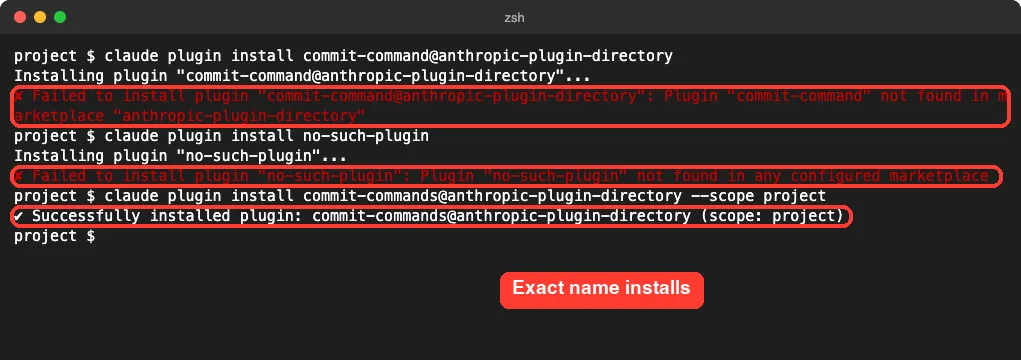
We also tried a name with no marketplace at all, no-such-plugin. That printed a third variant: Plugin “no-such-plugin” not found in any configured marketplace.
How to fix it
- Open
/plugininside Claude Code, go to the Discover tab, and copy the name from the list. - Always install in the full form,
plugin@marketplace. The docs say Claude Code refreshes the named marketplace before it looks the plugin up. - Check the marketplace spelling against
claude plugin marketplace listtoo.
The docs explain why the full form matters. With a name alone, claude plugin install reads the catalogs it already has and refreshes nothing, so a brand-new plugin can be missed.
Cause 3: An Out-of-Date Marketplace Catalog
Claude Code keeps a local copy of each marketplace catalog. If a plugin was added to the marketplace after your copy was made, the lookup can miss it.
This section comes from the docs, because our local test marketplace is read straight from its folder and cannot go stale. The fix is the command from the hint, with the marketplace’s name:
claude plugin marketplace update team-toolsIn our test, updating a marketplace that was registered printed “Successfully updated marketplace”. Inside a session, the matching command is /plugin marketplace update followed by the name.
The docs list cases where the automatic refresh before an install is skipped. The main ones are being offline, a refresh within the last 30 seconds, and a marketplace added from a local folder.
Cause 4: The Plugin Is Installed but Disabled
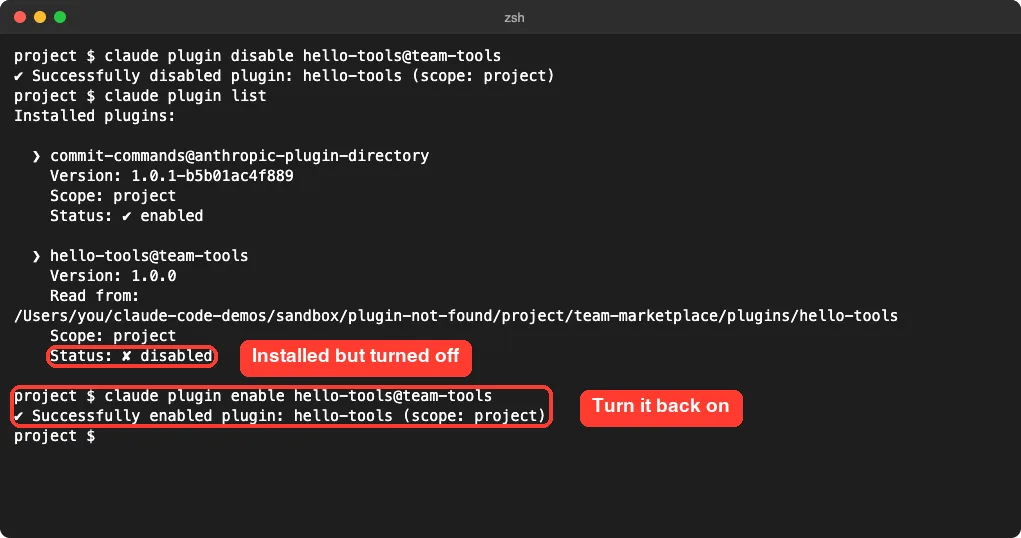
Here the install worked, yet nothing from the plugin shows up. We disabled hello-tools and opened a new session.
Typing /hello gave “No commands match”. The skill was simply gone from the menu, with no warning anywhere.
The quickest check is claude plugin list in your shell. It prints every installed plugin with its version, scope and status, and ours read “Status: disabled”.
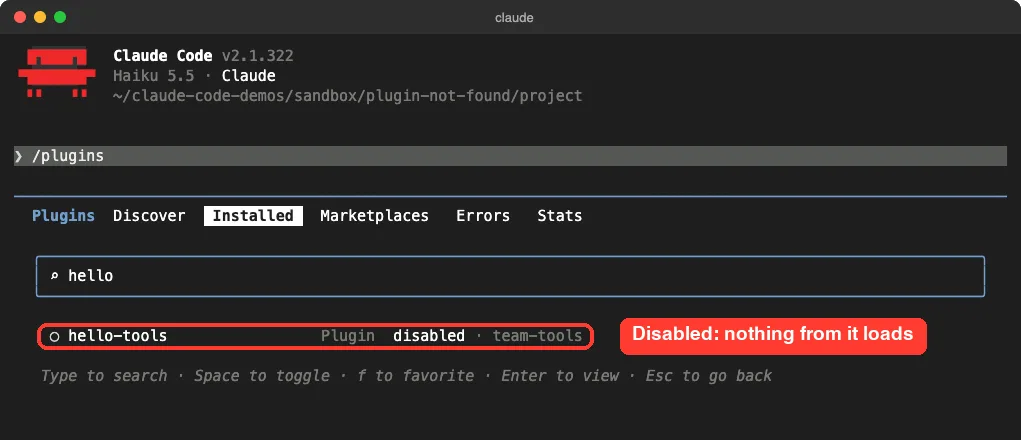
Inside a session, the same information lives in /plugin on the Installed tab. Type part of the name to filter the list, and a disabled plugin is marked as such.
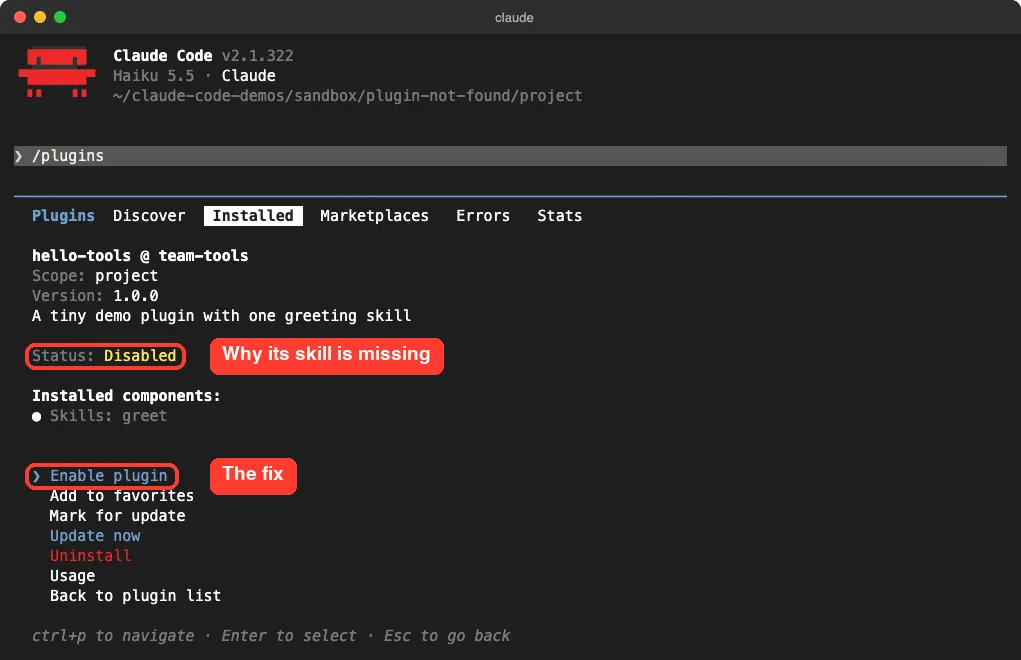
Press Enter on the plugin to open its details. Ours showed Status: Disabled, the skill it contains, and an Enable plugin action at the top of the menu.
How to fix it
- Run
claude plugin enable hello-tools@team-toolswith your own plugin’s name, or choose Enable plugin in the details view. - Reload the session, as the next section shows.
- Type
/and look for the plugin’s skills, which appear as/plugin:skill.
The docs add that some plugins are set by their author to start turned off. Such a plugin installs fine and stays off until you enable it.
Disabled in one file, enabled in another
A plugin can be switched on or off in several settings files. The docs say the local file overrides the project file, and the project file overrides your user file.
So if a plugin stays off no matter what you do, look for a false next to its name under enabledPlugins in .claude/settings.local.json or .claude/settings.json. Our guide on settings file locations shows where each file lives.
Cause 5: The Session Needs a Reload
Plugins load when a session starts. If you install or enable one from another terminal while a session is open, that session keeps its old set.
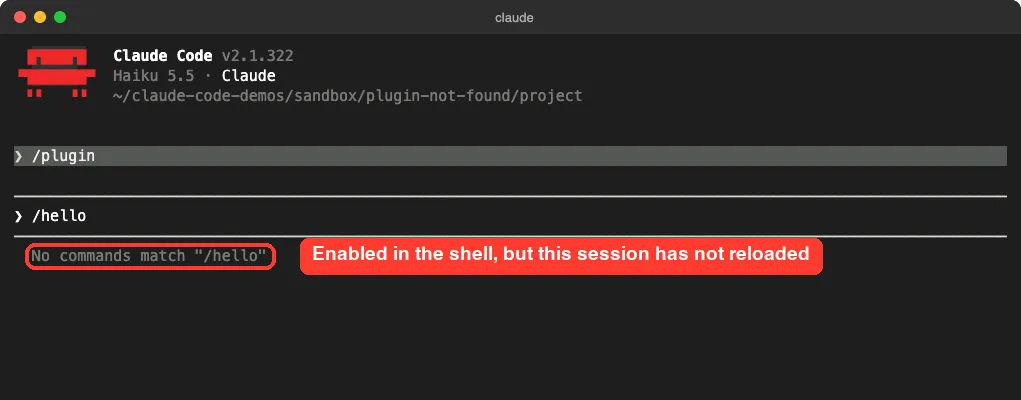
We tested exactly that. With a session open, we enabled hello-tools from a second shell, then typed /hello in the session. It still said “No commands match”.
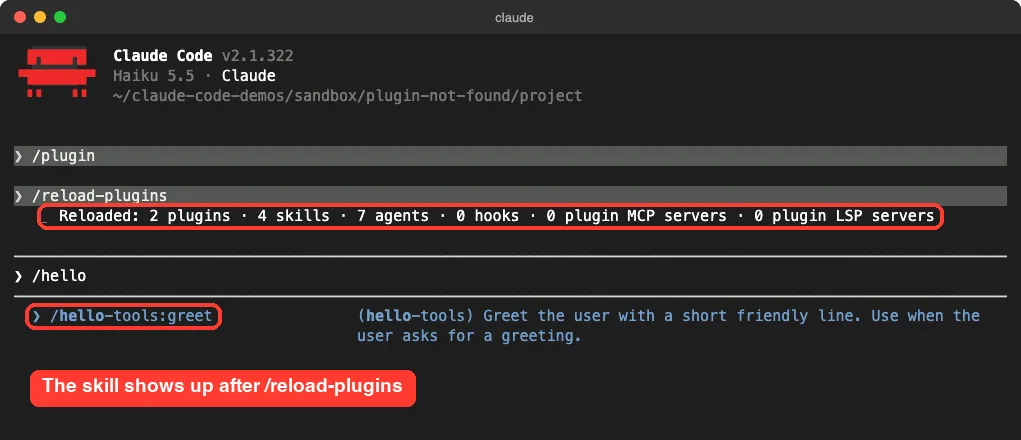
Then we ran /reload-plugins. It printed “Reloaded: 2 plugins” with counts of skills, agents and hooks, and /hello-tools:greet appeared in the menu right away.
How to fix it
- Run
/reload-pluginsin the open session. - Or quit and start
claudeagain, which loads the current set. - If the reload line ends with a note about errors during load, open
/pluginand read the Errors tab.
The docs mention one more message. If a reload would add or remove a plugin’s MCP server, Claude Code warns that the next message will re-read the whole conversation, and asks you to run /reload-plugins --force to apply it.
Other Plugin Not Found Messages From the Docs
We did not trigger these ourselves. They come from Anthropic’s troubleshooting page, and each has a clear fix.
| Message | What it means | Fix |
|---|---|---|
zsh: no such file or directory: /plugin | You typed a session command at the shell prompt | Start claude first, or use claude plugin install |
/plugin isn't available in this environment | No terminal panel, as in claude -p or the desktop app | Use that app’s plugin browser, or the shell command |
| Plugin not cached at a path | Enabled in settings, but the files are not on disk | Run the install again, then /reload-plugins |
| Enabled in project settings but isn’t installed here | A teammate enabled it, but you never installed it | claude plugin install plugin@marketplace --scope project |
| No marketplaces configured | Nothing is registered, so Discover is empty | Add the official marketplace |
The team case catches many people. Committing a plugin to a repository’s .claude/settings.json turns it on for everyone, but the docs are clear that it does not download it. Each person runs the install once per clone.
On Windows, PowerShell reports the first row differently, saying the term /plugin is not recognized as the name of a cmdlet. We tested on macOS; the Windows wording follows Anthropic’s official instructions.
One command also trips people up. We ran claude plugin add and got “error: unknown command ‘add'”. There is no such command, so use claude plugin marketplace add for a catalog and claude plugin install for a plugin.
Try It Yourself
You can run the same health check on your own setup in under a minute. Paste these into your terminal, not into Claude Code:
claude plugin marketplace list
claude plugin list
Then open a session and ask Claude to explain what it sees. This prompt works well:
Run "claude plugin list" and "claude plugin marketplace list" in the shell.
Tell me which plugins are disabled and which marketplace each one comes from.
Do not change anything.
If you want a safe plugin to practice on, our walkthrough of the commit commands plugin uses the same one we installed here.
Common Mistakes
- Trusting the first error. The out-of-date hint appears even when the marketplace was never added, so always check the marketplace list.
- Using a bare name as a marketplace source. A source must be
owner/repo, a URL or a path that starts with./. - Leaving off the
@marketplacepart. Without it, nothing is refreshed before the lookup. - Typing
/pluginat the shell prompt, orclaude plugininside a session. They are two different places. - Expecting an open session to notice changes made in another terminal. It needs
/reload-plugins. - Assuming a project-enabled plugin is installed for every teammate. Each person installs it once.
Pro Tips
- Run
claude plugin list --jsonwhen you need details. The docs say plugins with problems carry anerrorsfield there. - Use
--scope projectfor plugins a whole repository needs, and the default user scope for your personal ones. - Read the last line of the install summary. The docs list “Plugin is now active” and “Run /reload-plugins to apply” as the two normal endings.
- Review a third-party marketplace before you add it, since a plugin can run hooks and MCP servers as you.
- If a plugin’s hooks or servers misbehave after loading, see our fixes for hooks not working and for MCP not working.
For other error messages outside plugins, our list of common Claude Code errors is the place to start. To find add-ons worth installing, browse the Skills Directory.
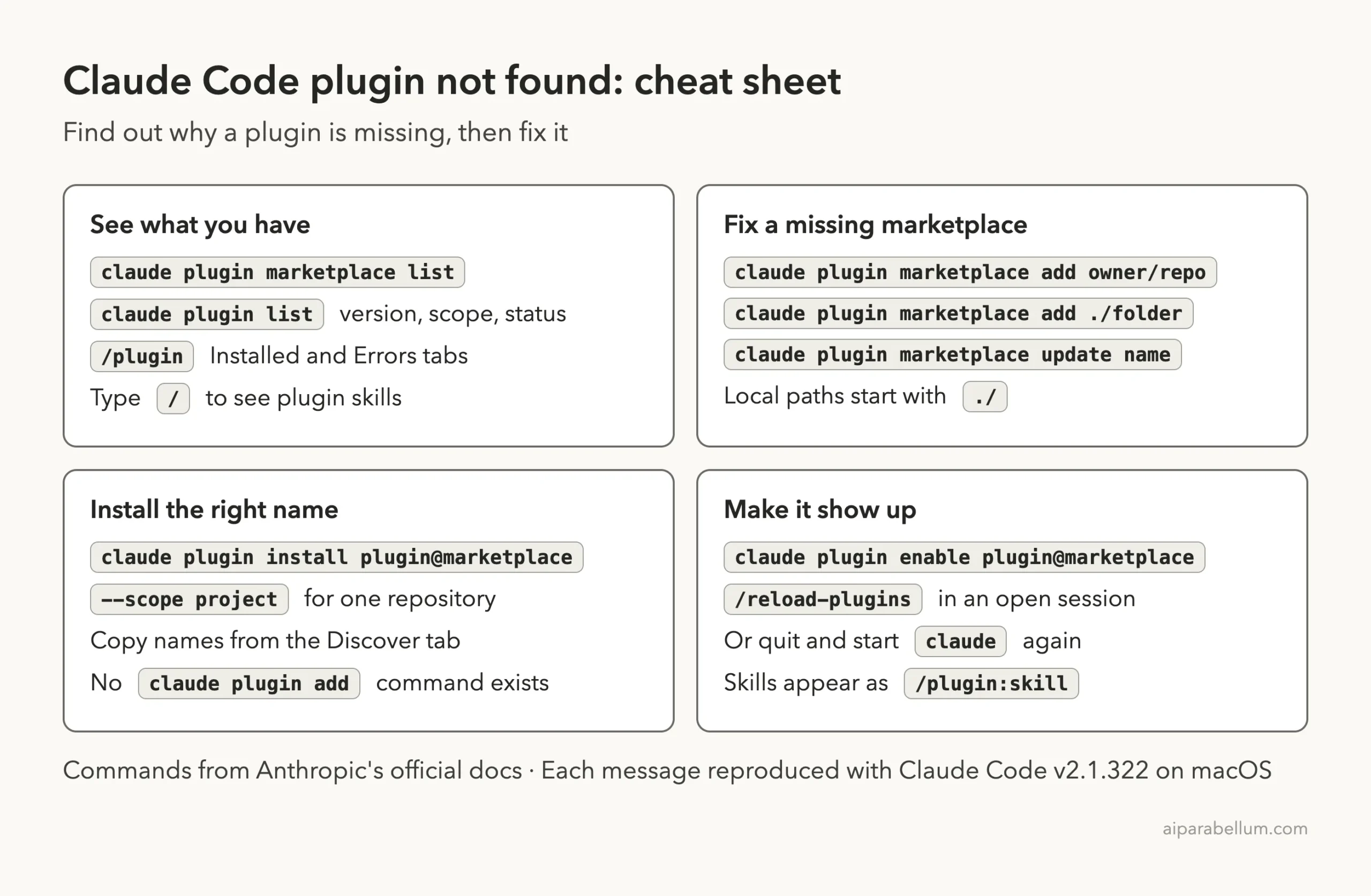
Plugin Not Found Cheat Sheet
Keep this card handy. It groups the commands by the job they do.
Frequently Asked Questions
Why does Claude Code say plugin not found in marketplace?
The plugin name is not in the copy of that marketplace’s catalog on your machine. In our tests the usual reasons were a marketplace that was never added and a typo in the plugin name. Check claude plugin marketplace list first, then the spelling.
How do I add the official Claude Code plugin marketplace?
According to the docs, run /plugin marketplace add anthropics/claude-plugins-official inside a session. Claude Code normally registers it on its own the first time you start an interactive terminal session.
Why are my plugin’s slash commands not showing?
The plugin is either disabled or not loaded in this session. Run claude plugin list to check its status, enable it if needed, and then run /reload-plugins. In our test the missing skill appeared right after the reload.
Do I need to restart Claude Code after installing a plugin?
Not always. An install made in the /plugin panel usually activates on its own or reloads for you, the docs say. An install or enable made from another terminal needs /reload-plugins or a new session.
Is there a claude plugin add command?
No. We ran it and got “error: unknown command ‘add'”. Use claude plugin marketplace add to add a catalog and claude plugin install to install from it.
You can read more about the assistant itself on the Claude AI page.
Conclusion
When you see a Claude Code plugin not found message, check the catalog side first: is the marketplace on your list, is the name spelled exactly, and is your copy up to date. When a plugin installs but does not show, check the session side: is it enabled, and has the session reloaded. In our tests the first error message often pointed at the wrong thing, while claude plugin marketplace list and claude plugin list showed the real state every time. For messages we did not cover, see the official plugin troubleshooting page, the plugin install guide and the plugins overview.