Starting a new Claude Code project can feel like walking into a huge toolbox with no labels, because it is hard to know which hooks, skills, subagents or MCP servers fit your code. The Claude Code setup plugin is Anthropic’s answer: it reads your project and tells you what to add. We ran it on a small demo app and show exactly what it said.
This guide is part of our Claude Code tutorials. Find more add-ons in our Skills Directory.
Tested with Claude Code v2.1.318 on November 7, 2026. We read the plugin from the anthropics/claude-plugins-official repository at commit 0412be7 (committed November 6, 2026).
Quick Summary
| Question | Answer |
|---|---|
| What it is | An official Anthropic plugin with one skill, claude-automation-recommender |
| What it does | Scans your project and recommends hooks, skills, MCP servers, subagents and plugins |
| Does it change files? | No. Its own instructions say it is read-only, and our demo folder had no new files afterward |
| How many picks? | The top 1-2 in each category |
| Account needed? | No extra account, only Claude Code itself |
| Install command | /plugin install claude-code-setup@claude-plugins-official |
| Our verdict | Worth running once on any project that has no Claude setup yet |
What the Claude Code Setup Plugin Is
The setup plugin is a filter, not a catalog: it reads your project and suggests only the top picks.
The Claude Code setup plugin is a tiny plugin with a big job. It contains a single skill called claude-automation-recommender plus a few reference files full of common patterns. When you ask for help setting up Claude Code, Claude loads that skill and follows its steps.
The steps are simple. Claude looks at your project files, notes the language, frameworks and tools you use, and then matches those signals to a list of useful add-ons. At the end it writes a report with a short reason for each pick.
The skill covers five kinds of automation. You can read more about each one in our guides, but here is the short version:
- MCP servers connect Claude to outside tools such as documentation sites, GitHub or a database.
- Skills are saved instructions that Claude loads when they fit the task. See our guide to the Claude Code plugins system for how they ship.
- Hooks are commands that run automatically at set moments, such as after every file edit.
- Subagents are specialist helpers that handle one kind of job, like reviewing code for security.
- Plugins bundle several of these together so you can install them in one step.
The skill’s own description says it is meant for people who want automation recommendations or who ask how to set up Claude Code for a project for the first time. That is the best way to think about it: a first-day checklist written for your code instead of a generic one.
Why This Plugin Exists
Most people never explore half of what Claude Code can do. They install it, type prompts, and never add a hook or a skill. The setup plugin closes that gap by showing you concrete options tied to your own files.
There is also a cost reason to be picky. Anthropic’s plugin documentation explains that every skill and agent Claude can use on its own adds its name and description to Claude’s context on every turn. Those tokens count toward your usage even when nothing runs.
A short, targeted list of picks is better than installing everything you find online.
That is exactly why the plugin recommends only one or two items per category. It is a filter, not a catalog.
Our Demo Project
We built a tiny throwaway project called bookshelf-api in a sandbox folder. It has just enough in it to give the plugin something to notice:
- A
package.jsonlisting Express, Prisma, Stripe and React as dependencies, plus Jest, Prettier and ESLint for development. - A one-route
src/server.jsfile. - One tiny test in
tests/books.test.js. - A
.prettierrcfile withsingleQuoteturned on. - A
.envfile holding a fake test key, not a real one. - A GitHub Actions workflow in
.github/workflows/ci.yml.
The folder had no .claude folder, no CLAUDE.md, no .gitignore and no commits. That makes it a good stand-in for the kind of project where you have not set anything up yet.
How We Loaded the Plugin Safely
You can install the plugin in your own setup with the /plugin command. We did not do that, because we test third-party add-ons without touching our real Claude Code settings. Instead we cloned the official repository into a sandbox folder and pointed Claude Code at the plugin folder for one session only.
claude --permission-mode default \
  --setting-sources project \
  --plugin-dir path/to/claude-plugins-official/plugins/claude-code-setup
The --plugin-dir flag loads a plugin folder for the current session. The --setting-sources project flag tells Claude Code to read only the project’s settings during the run. Before running anything we read the plugin’s files and found no hooks or scripts, only the skill and its reference notes.
For a normal install, the official docs describe it this way: open /plugin, pick the plugin from the Marketplaces tab, and choose where to install it. Anthropic’s official marketplace shows a context cost estimate for each plugin before you install. You can read the steps in the official plugin guide.
Step 1: Find the Plugin’s Skill
Once the session started, we typed the beginning of the skill’s command. Claude Code showed the plugin’s skill in the suggestion list, labeled with the plugin name in parentheses. That told us the plugin had loaded.
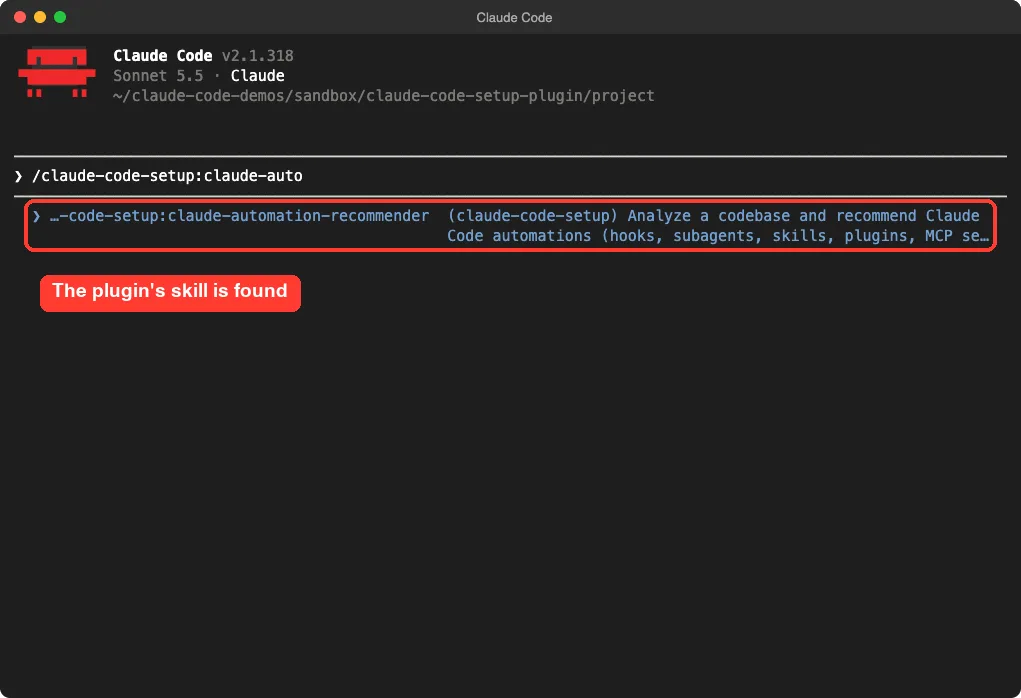
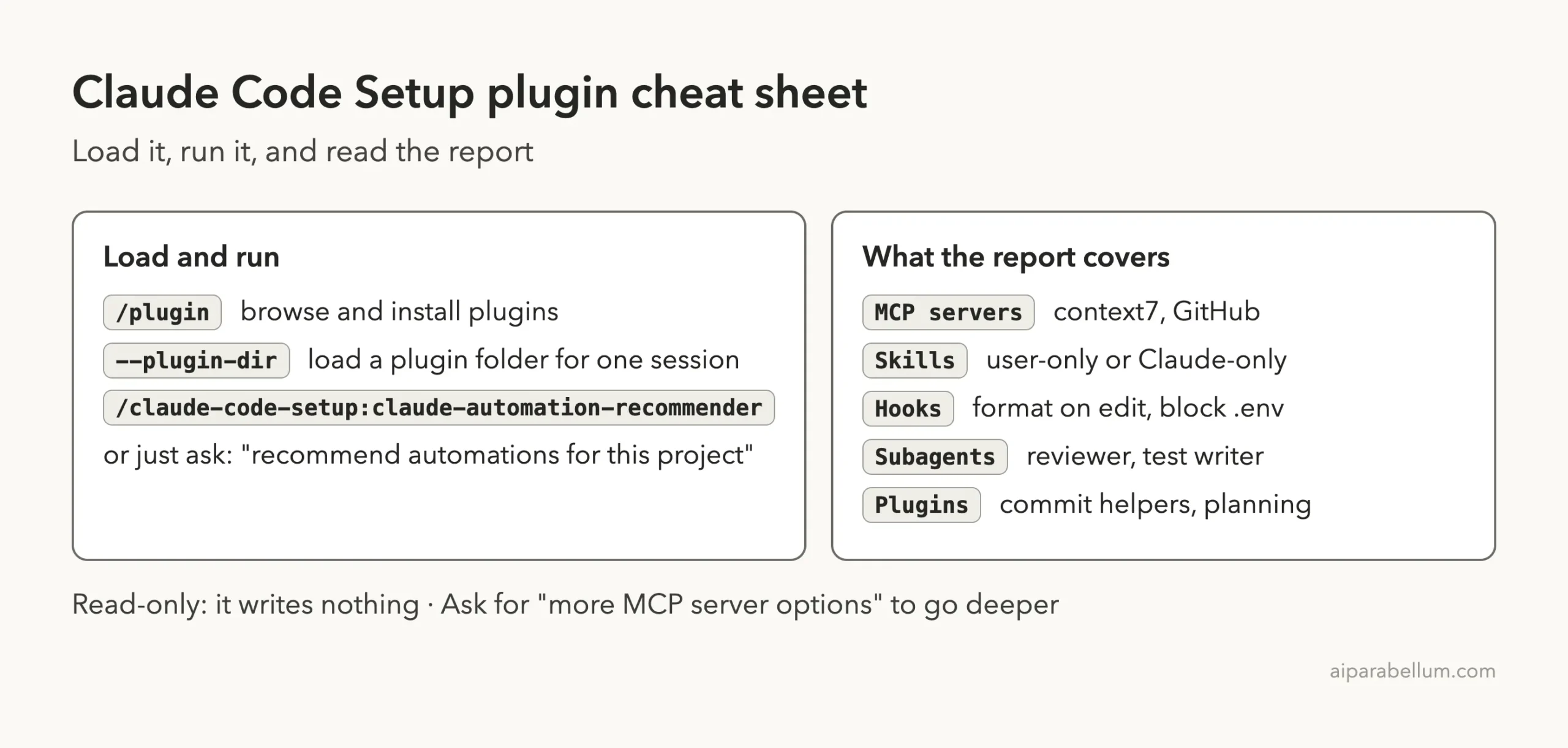
The full command is /claude-code-setup:claude-automation-recommender. Plugin skills are namespaced with the plugin name first, so they never clash with your own commands. You can also skip the command and ask in plain words, such as “recommend automations for this project”.
Step 2: Run It and Approve Its Read-Only Checks
We ran the command and the skill started its first phase, looking around the project. It ran a few shell commands to read package.json, list the folders and check whether any Claude files already existed.
Because we started in the default permission mode, Claude Code asked before running those shell commands. We approved each one. In an earlier practice run the same prompts appeared, so expect a handful of approval questions the first time.
One detail we liked: the command the skill used to peek at the .env file replaced every value with a placeholder. It checked that the file existed without printing the secret. That is a careful touch for a tool that scans your files.
Step 3: Read the Claude Code Setup Plugin Report
The finished report starts with a short profile of the project. Ours listed Node.js, Express, the key libraries, the Stripe key in .env and the lack of any Claude setup.
Then it moved through each category. We will walk through them one at a time.
MCP Server Picks
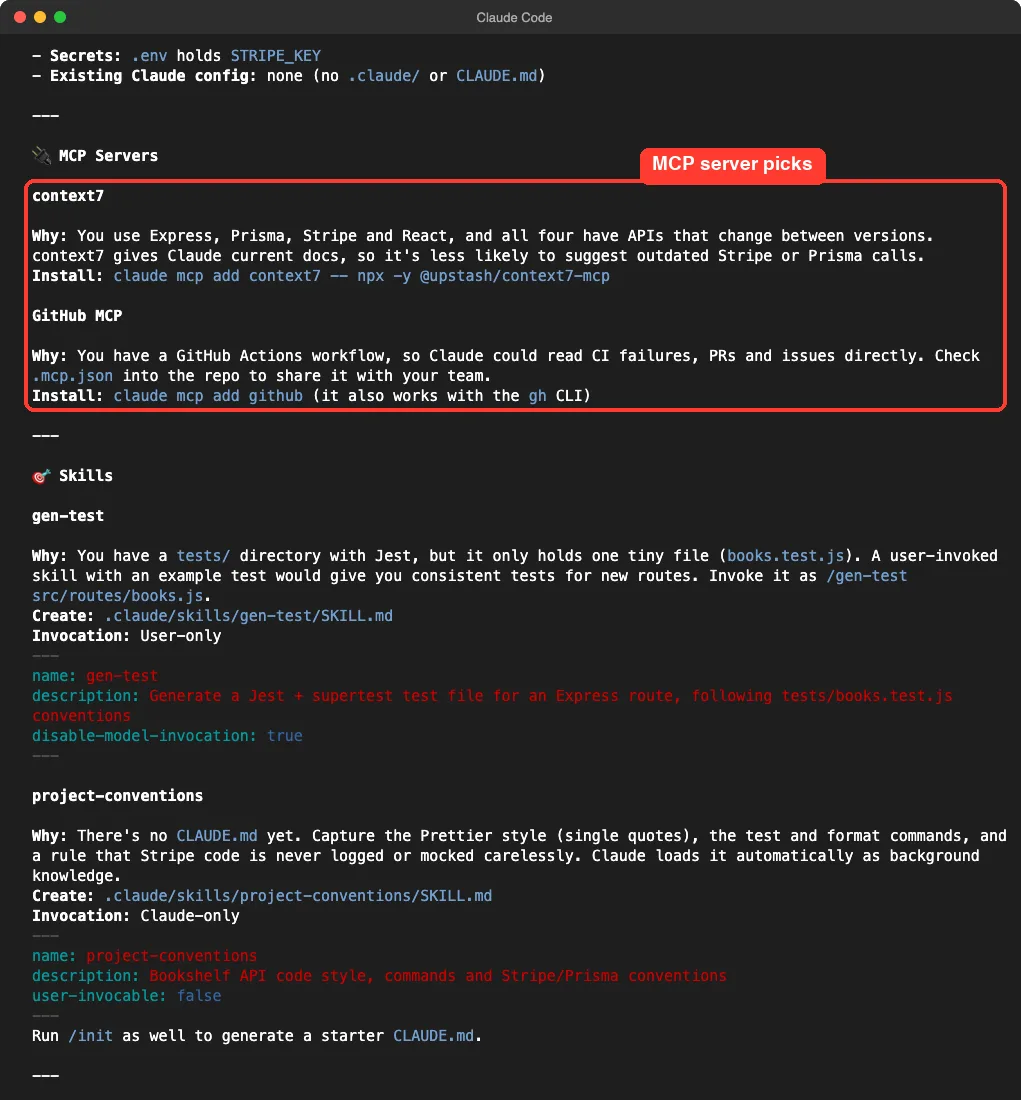
The plugin picked two MCP servers. The first was context7, because our app uses Express, Prisma, Stripe and React, and all four change their APIs over time. The report explained that live documentation makes it less likely for Claude to suggest outdated Stripe or Prisma calls.
The second was a GitHub server, because we have a GitHub Actions workflow. Each pick came with an install line you can copy.
We did not install either server, so we cannot vouch for how they behave. We only checked that the reasons matched our files, and they did. For a wider comparison, see our guide to the best MCP servers.
Skill Picks
For skills, the plugin did not point to a download. It suggested two custom skills for us to create. The first, gen-test, would write Jest tests in the style of our existing test file, and it was marked user-only so Claude never runs it on its own.
The second, project-conventions, would hold our Prettier style, our test and format commands and a rule about handling Stripe code. It was marked Claude-only, so Claude loads it as background knowledge. The report even printed the starting front matter for each skill, including the disable-model-invocation and user-invocable settings that control who can call them.
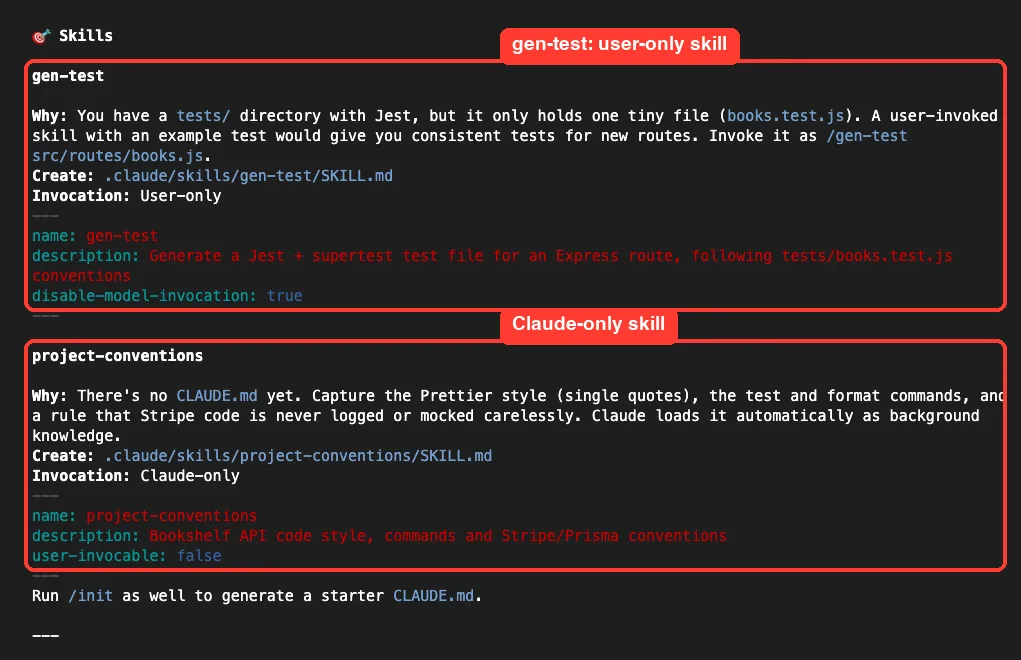
This is a helpful way to learn how skills work. The report shows the difference between a skill you trigger and a skill Claude uses quietly, using your own project as the example.
Hook Picks
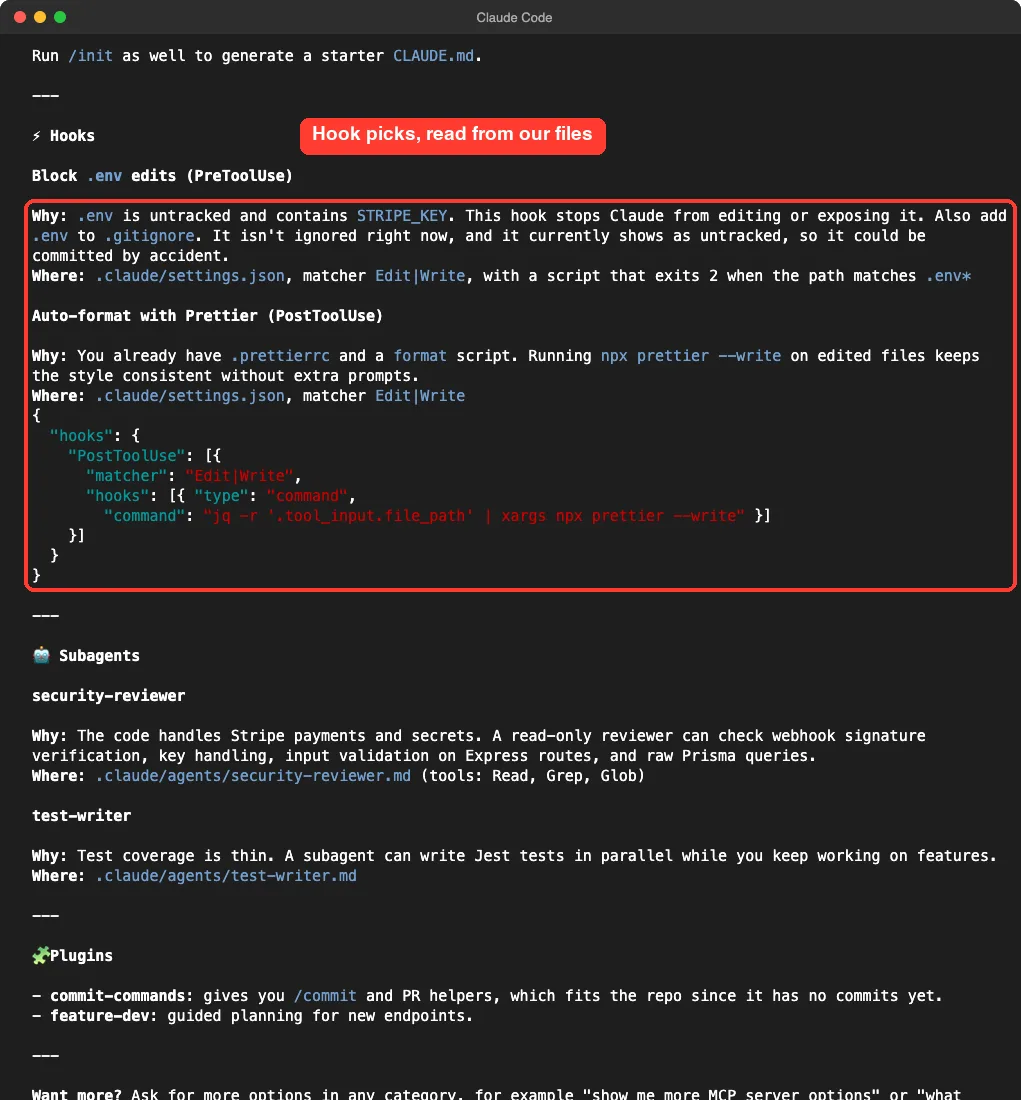
The hook section was the most useful for us. It suggested blocking edits to the .env file with a pre-edit hook, and it also pointed out that .env was not ignored by Git. In our demo that was true, since the file showed up as untracked and could be committed by accident.
The second hook runs Prettier after Claude edits a file, because the project had a .prettierrc and a format script.
The report included a ready-made settings snippet. It uses the jq tool to read the edited file path, so you need jq installed if you copy it. We did not run that hook ourselves.
If you want to go deeper on hooks, our Hookify plugin guide shows an easier way to create them from plain-English rules.
Subagent and Plugin Picks
For subagents, the plugin chose a read-only security-reviewer, because our code handles Stripe payments and secrets, and a test-writer, because test coverage was thin. Each one came with the file path where it would live, under .claude/agents/. Our guide to the subagent file format explains how to write them.
For plugins, it suggested commit-commands, because the repo had no commits yet, and feature-dev for guided planning of new endpoints. We cover both in separate posts: commit commands and feature dev.
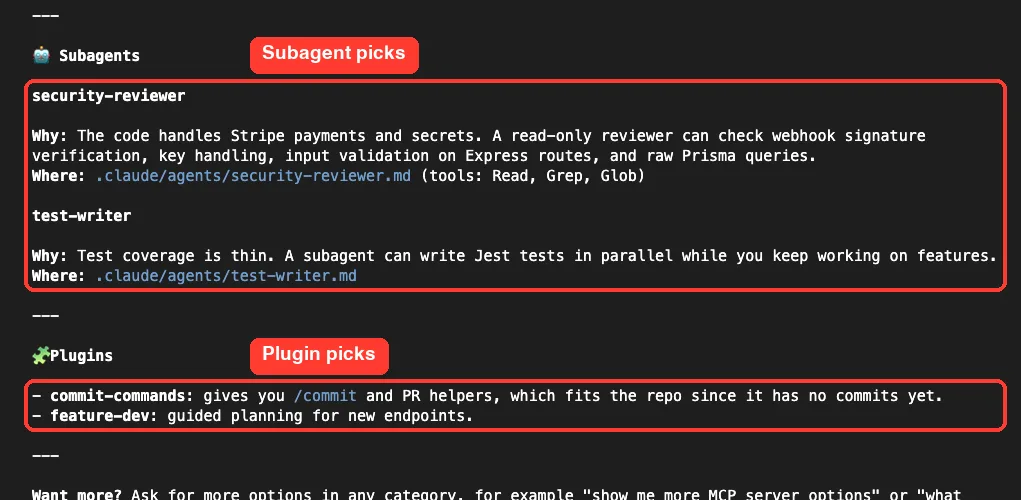
The report ended by reminding us we could ask for more options in any category, and by suggesting we run /init to create a starter CLAUDE.md. If you do that later, our CLAUDE.md management guide shows how to keep that file healthy.
How the Claude Code Setup Plugin Makes Its Picks
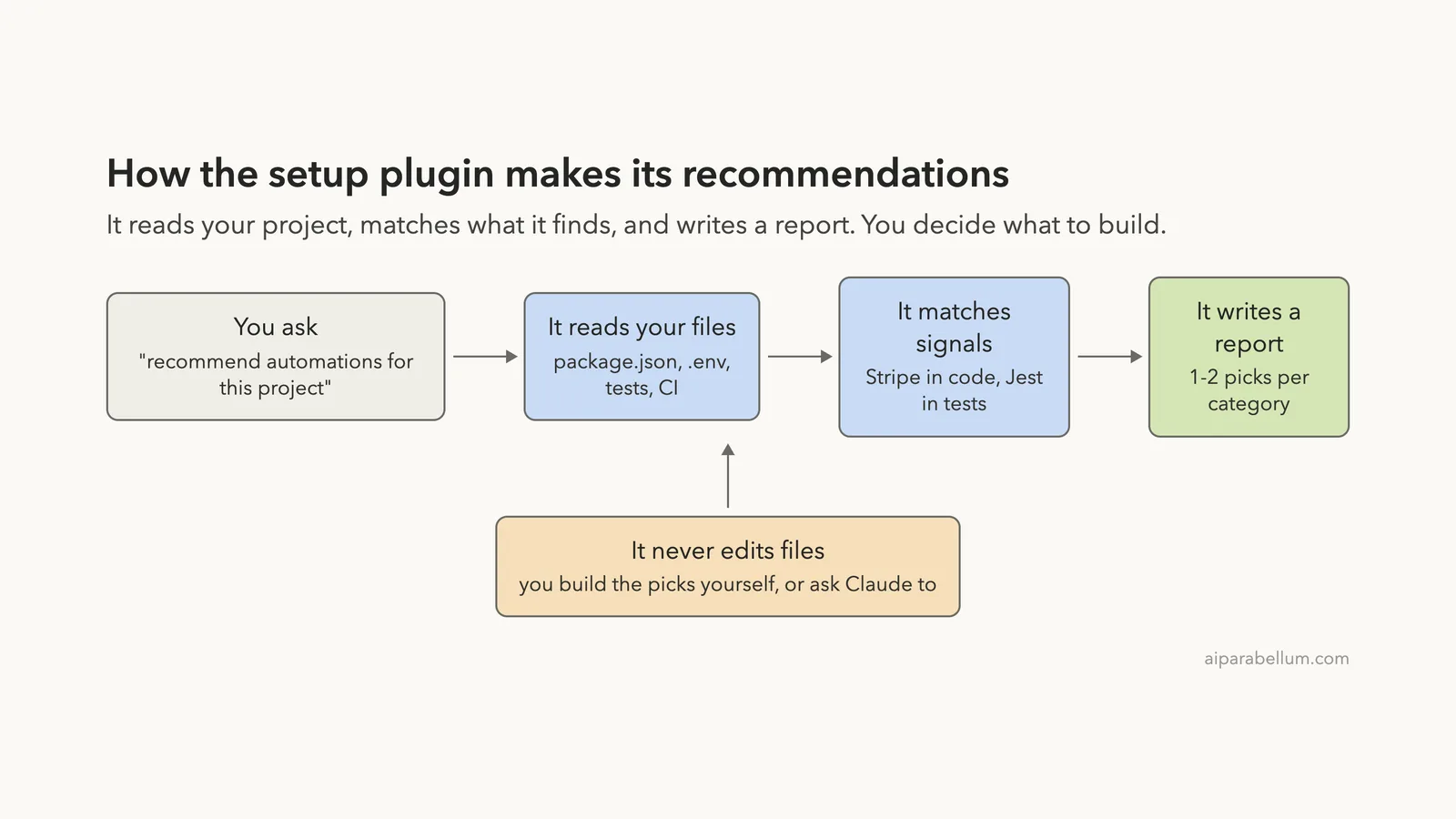
The diagram below shows the whole flow. The important part is the orange box: the plugin only reads and reports. It never writes a hook or creates a skill file on its own.
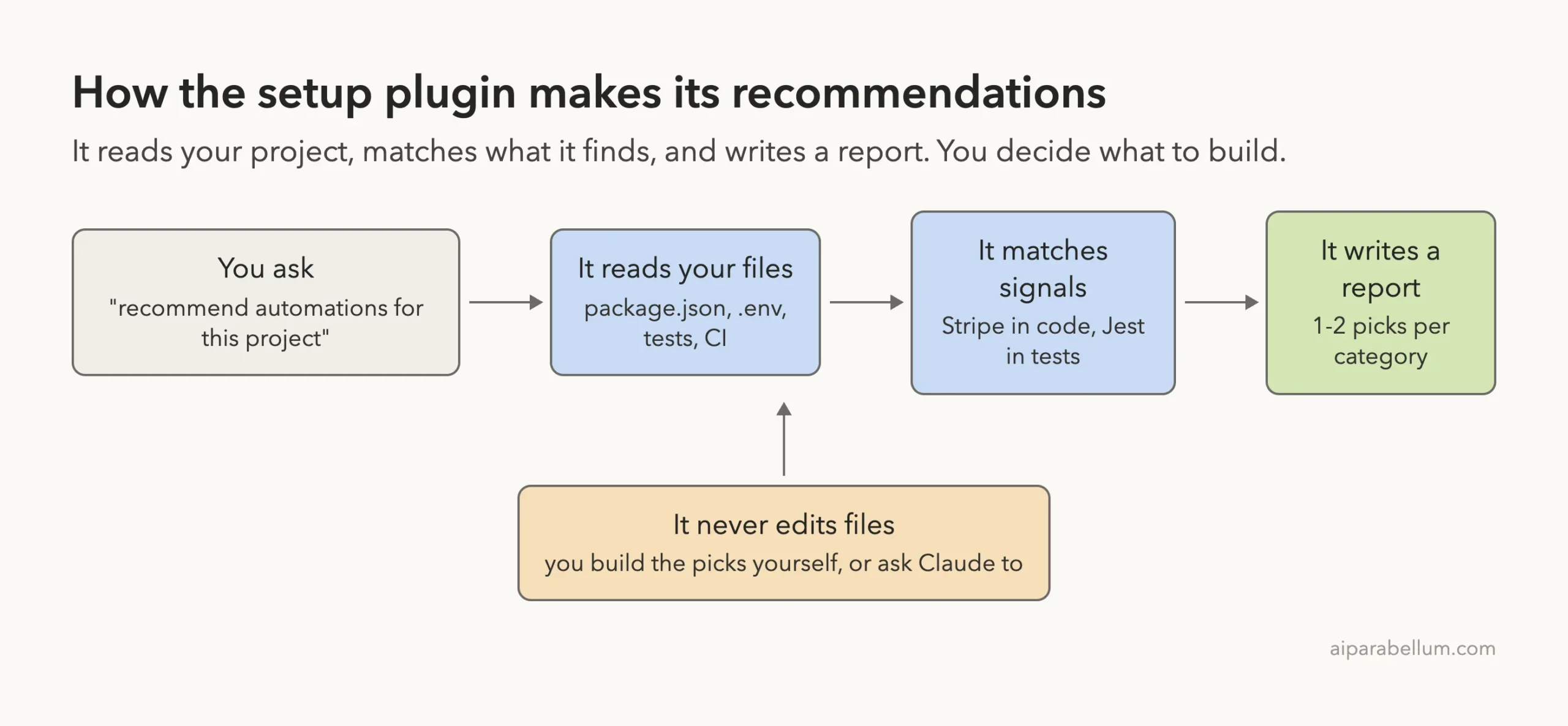
Its instructions contain tables that connect signals to picks. For example, a project with Prettier set up leads to a format-on-edit hook, and a project with a GitHub Actions folder leads to a GitHub MCP server. The skill also tells Claude to go beyond those lists when your tools call for it, which is why the report mentioned details like Stripe and Prisma.
What We Ran and What We Did Not
We want to be clear about our testing, because a recommendation tool is easy to overpraise. We really ran the plugin against our demo project and read its full report. We confirmed that the demo folder had no new files after the run.
We did not install the MCP servers, create the skills, add the hooks or build the subagents it suggested.
We also saw that the wording of the report changes from run to run. In one earlier practice run the subagent text and the extra tips were worded differently. Treat the report as a smart starting point, not a fixed answer.
Should You Use the Claude Code Setup Plugin?
Run it once if you are starting Claude Code on a project with no .claude folder and no CLAUDE.md. The report gives you a short, reasoned to-do list, and a few of its findings, like the unignored .env file, are worth fixing even if you ignore the rest.
It is less useful if you already have a mature setup. In that case you will likely see items you already use. You can also ask it for a single category, such as “show me more hook options”, and it will give three to five ideas for that type.
Anthropic’s docs also remind you that plugins run with your permissions, so it makes sense to read what a plugin does before you enable it. This one is small and easy to check, which is a point in its favor.
Try It Yourself
Make a throwaway folder with a package.json, a small source file and one test. Load the plugin with the flag shown above, then paste this prompt:
recommend automations for this projectThen try a follow-up to dig into one category:
show me more hook options for this projectCompare each pick with your files. Ask yourself whether the reason it gave matches something real in your project.
Common Mistakes
- Installing every recommendation at once. Add one at a time so you can see what each one does.
- Copying the Prettier hook without installing
jq. The snippet depends on it. - Expecting the plugin to build things. It only recommends, so ask Claude separately to create a pick.
- Skipping the
.gitignoreadvice. If it flags a secrets file, fix that first. - Running it on a project you are about to rewrite. The picks come from the files that exist today.
Pro Tips
- Ask for one category when you already know what you need. The skill gives more options for a single type.
- Start with the cheapest picks. Hooks and a small
CLAUDE.mdcost nothing in everyday context, while extra skills add descriptions to every turn. - Check the context cost estimate in
/pluginbefore you install any plugin it recommends. - Share project-wide picks by committing them to the repository, so your team gets the same setup.
- Run it again after big changes, such as adding a database or a frontend.
Cheat Sheet
Frequently Asked Questions
Is the Claude Code setup plugin free?
The plugin itself has no separate price, and it needs no extra account. You still use Claude Code normally, so the run counts toward your usual usage.
Does the setup plugin change my files?
No. Its instructions describe it as read-only, and our demo project had no new files after the run. It only asks to run commands that read your project.
How do I install it?
Open /plugin and find it in the official marketplace, or run /plugin install claude-code-setup@claude-plugins-official. Plugins load at startup, or when you run /reload-plugins in an open session.
Can I ask for more than two picks?
Yes. Ask for one category, such as MCP servers or hooks, and the skill is set up to give a longer list of three to five ideas for it.
Will it give the same report every time?
Not word for word. In our runs the picks followed the same files, but the wording and some extra tips changed between runs.
Conclusion
The Claude Code setup plugin is a simple, safe way to turn a blank Claude Code setup into a short list of useful next steps. On our demo app it found a real problem with the .env file and matched hooks, skills, MCP servers and subagents to the files it saw. Run it once on a new project, pick one or two ideas, and build them one at a time. For more add-ons, browse our Claude hub and the official plugins overview.