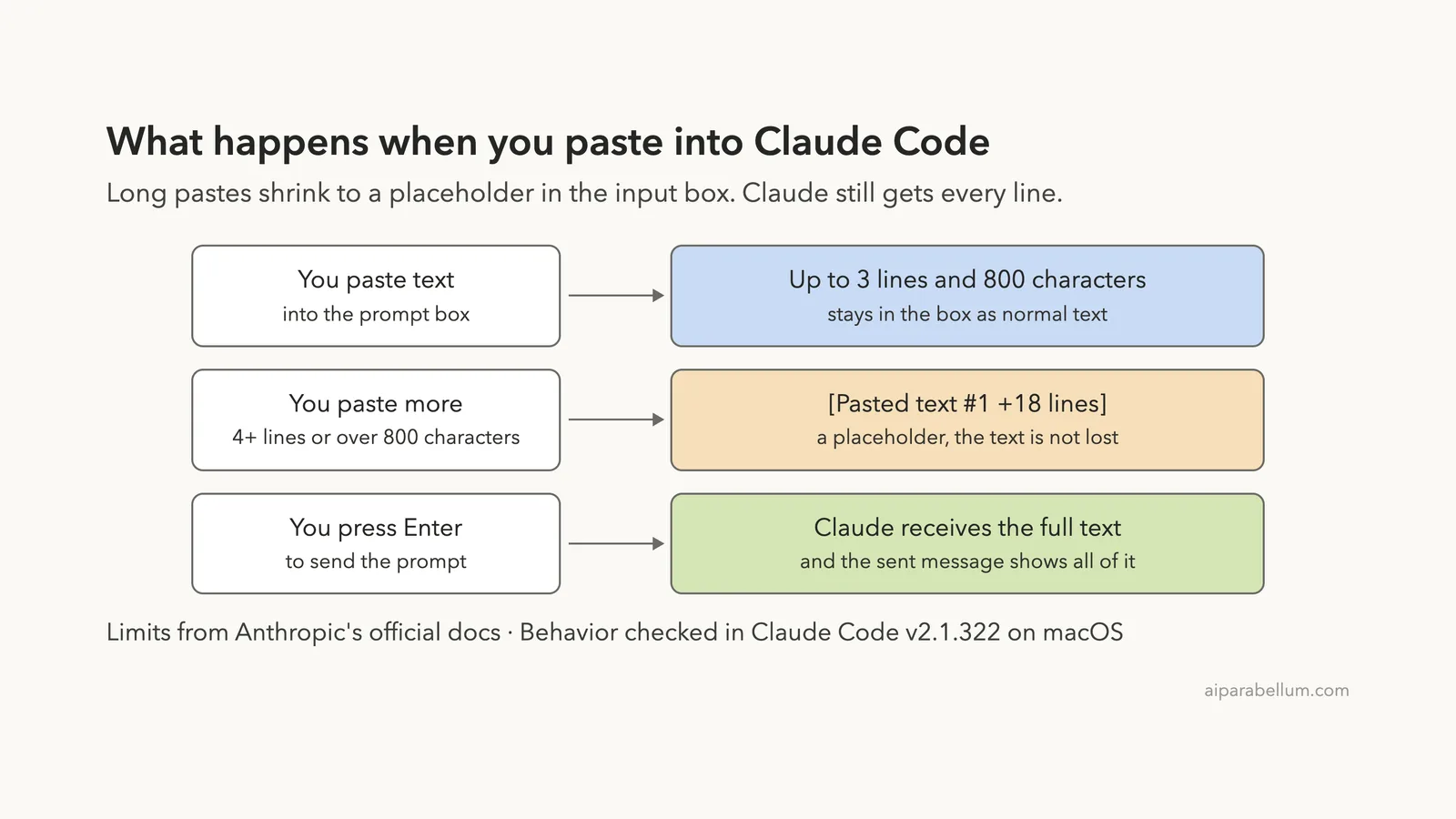
You paste an error log into the terminal and Claude Code shows [Pasted text #1 +18 lines] instead of your text. Nothing is broken and nothing is lost. The Claude Code pasted text placeholder is a space saver for the input box, and Claude still receives every line when you press Enter.
The short answer: to see what you pasted, paste the same text again and the placeholder expands in the box. To read or edit it in a full editor, press Ctrl+G. If you already sent the prompt, scroll up, because the sent message shows the whole paste.
There is no setting that turns the collapsing off. If you never want to see the placeholder, keep the paste to three lines and 800 characters, or save the text to a file and point Claude at it with @filename.
This guide is part of our help series. Browse all our Claude Code tutorials for more fixes and how-tos.
Tested with Claude Code v2.1.322 on macOS on November 14, 2026. We pasted real logs into Claude Code inside a throwaway folder and captured every screen below. We tested on macOS; the Windows and Linux steps follow Anthropic’s official instructions.
Claude Code Pasted Text: Quick Summary
| Question | Answer | Source |
|---|---|---|
Why do I see [Pasted text #1]? | The paste was over three lines or over 800 characters, so the input box collapsed it | Official docs, confirmed in our test |
| Is my text lost? | No. The full content is sent when you submit | Official docs, confirmed in our test |
| How do I expand it? | Paste the same text again | Our test |
| How do I edit it? | Press Ctrl+G to open the full text in your editor | Our test |
| Can I turn collapsing off? | No setting for it in the official settings reference | Official docs |
| How do I avoid it? | Save the text to a file and use @filename | Official docs, confirmed in our test |
What the [Pasted text #1] Placeholder Looks Like
We started Claude Code in a small demo folder, typed a question, and pasted a 19-line Node.js crash log. The log never appeared in the box. This is what showed up instead.
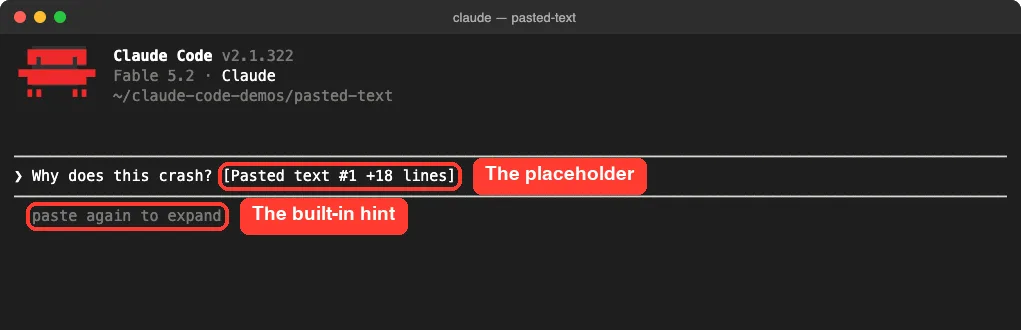
Each part of the placeholder means something:
Pasted texttells you this spot holds content from your clipboard, not words you typed.#1is a counter. A second paste in the same session becomes#2, so you can tell them apart.+18 linesis the number of line breaks in the paste. Our 19-line log showed +18, and a four-line paste showed +3.
A long paste with no line breaks gets a shorter label. When we pasted 1,019 characters on a single line, the box showed only [Pasted text #3] with no line count.
Why Claude Code Collapses Pasted Text
This is by design. Anthropic’s terminal configuration docs say that when you paste more than 800 characters or more than three lines into the prompt, Claude Code collapses the input to a placeholder so the input box stays usable. The same sentence adds that the full content is still sent when you submit.
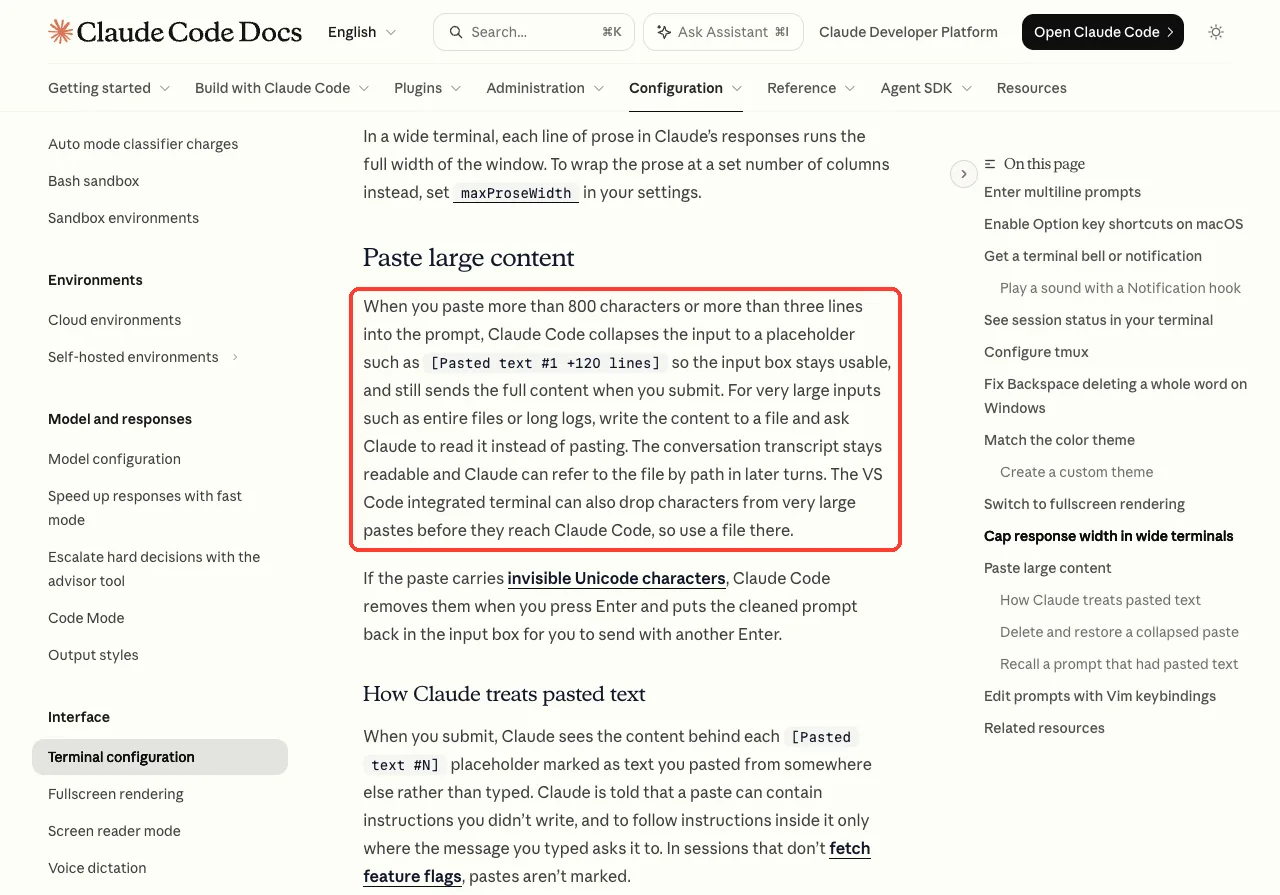
Think about what would happen without it. A 300-line stack trace would push your question off the screen, and you could not see or edit what you typed. The placeholder keeps your prompt readable while the heavy content rides along behind it.
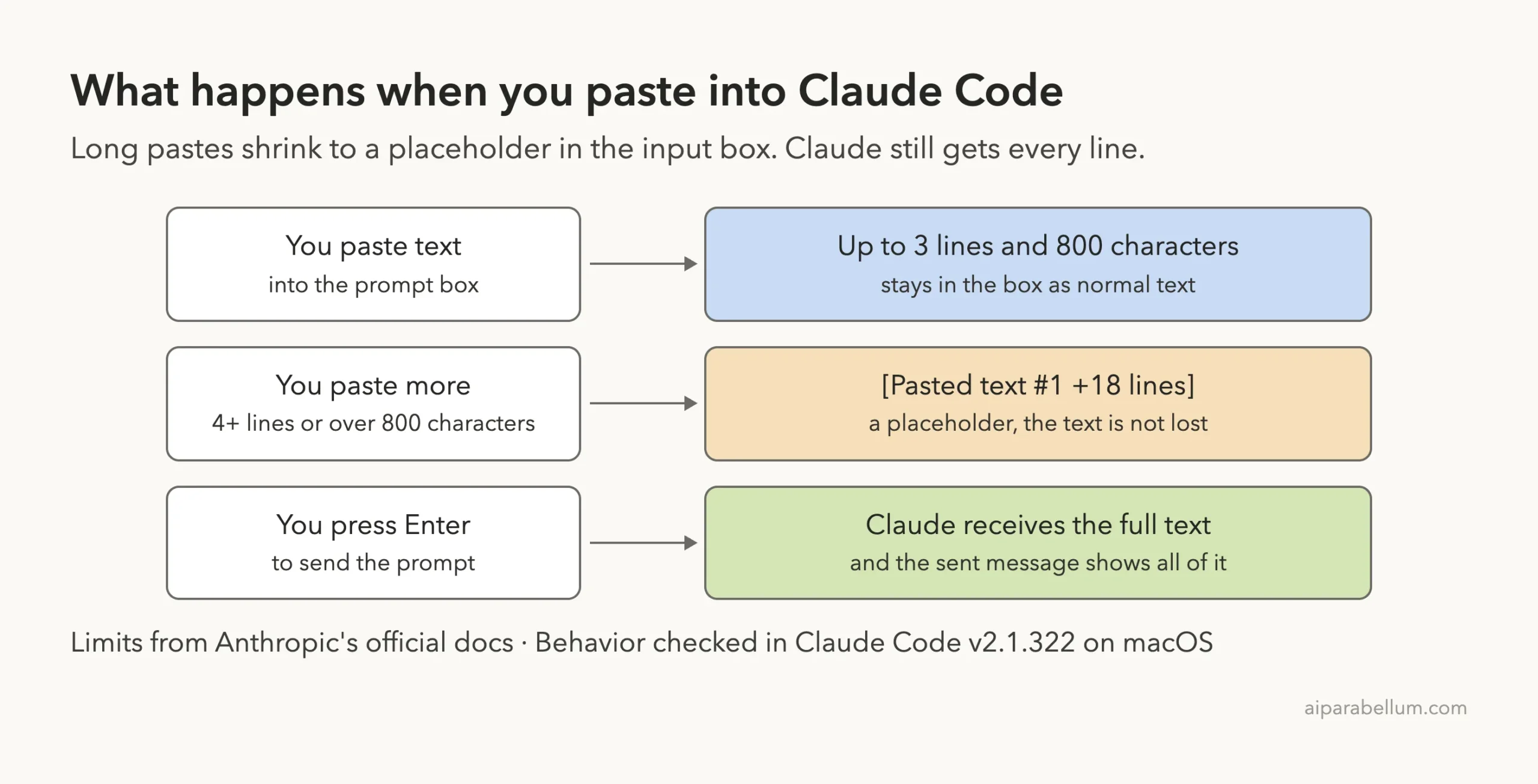
We Checked Both Limits
We tested the edges to see where the switch happens. A three-line paste stayed in the box as normal text.
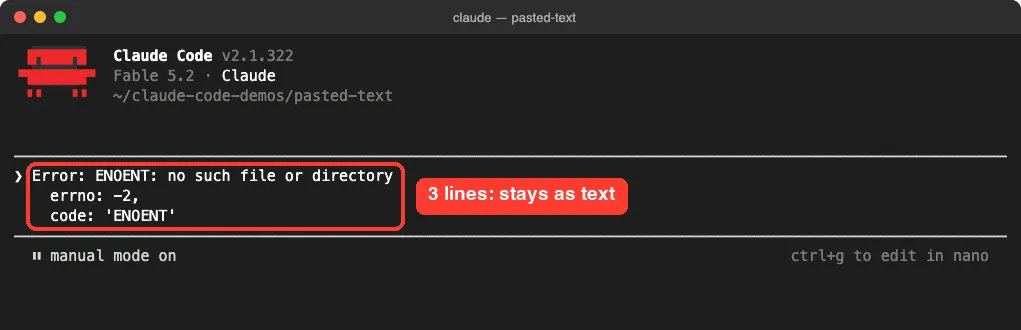
Adding one more line was enough to collapse it.
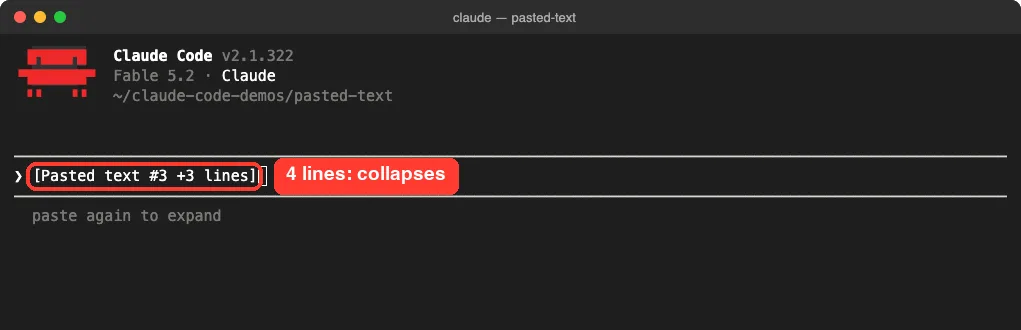
The character limit works on its own too. A single line of 780 characters stayed as text, while a single line of 1,019 characters collapsed.
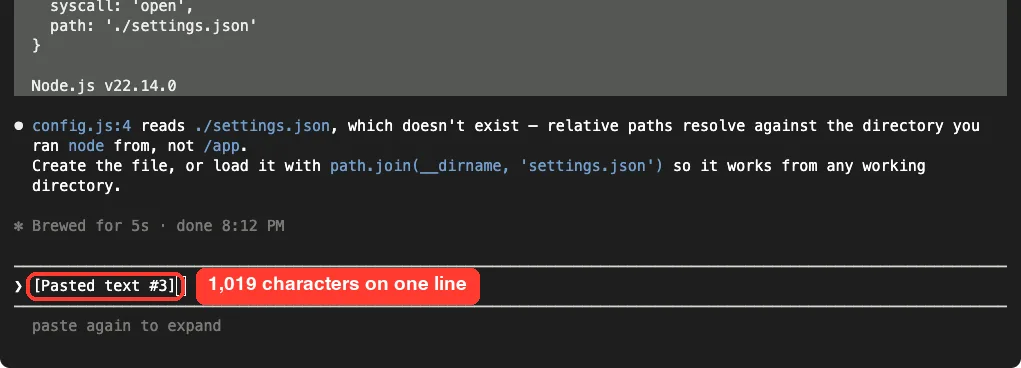
The placeholder is a label on the box, not a cut. Everything you pasted is still attached to the prompt.
Way 1: Paste Again to Expand the Text
Look under the input box in the first screenshot. Right after a paste collapses, Claude Code shows a small hint that reads “paste again to expand”. We followed it and pasted the same log a second time.
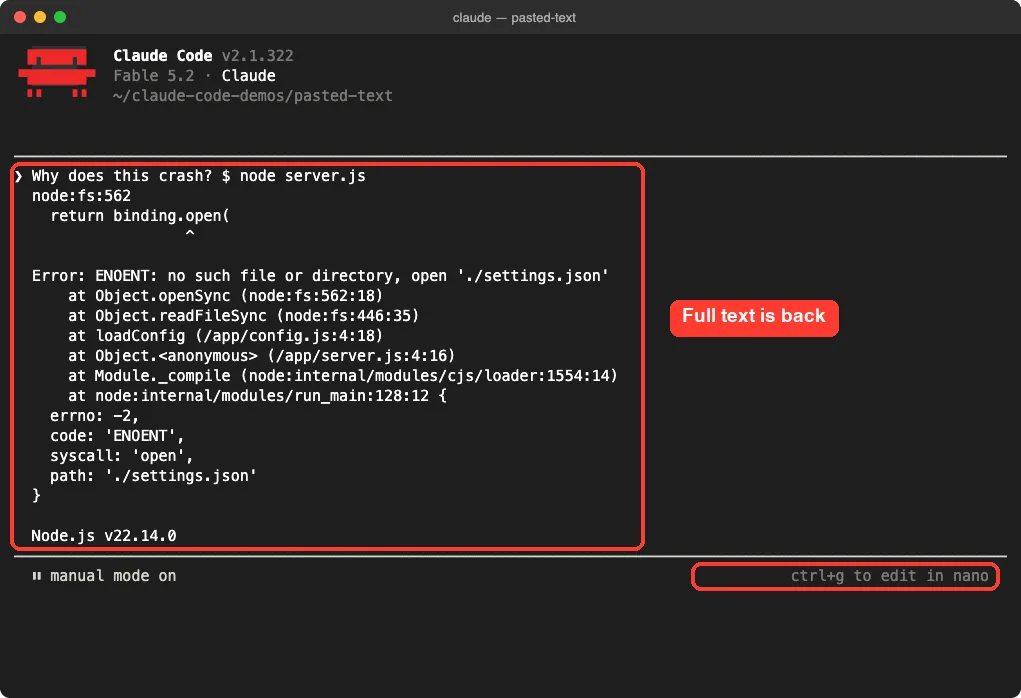
The placeholder was replaced by all 19 lines, right in the prompt. You can now move the cursor through the text, delete lines you don’t need, and send it. This is the fastest way to check that you pasted the right thing.
One note on sources. We saw this hint and behavior in v2.1.322, but we did not find it described on the official terminal configuration page. Treat it as how the current version works, and check for the hint under your own input box.
Way 2: Press Ctrl+G to Open It in Your Editor
For a long paste, the input box is a cramped place to read. Ctrl+G opens your prompt in your default text editor, and the official shortcuts table lists Ctrl+X Ctrl+E as a second binding for the same action. We wanted to know what the editor would get: the placeholder or the real text.
With the collapsed placeholder still in the box, we pressed Ctrl+G. Our editor for the test was nano.
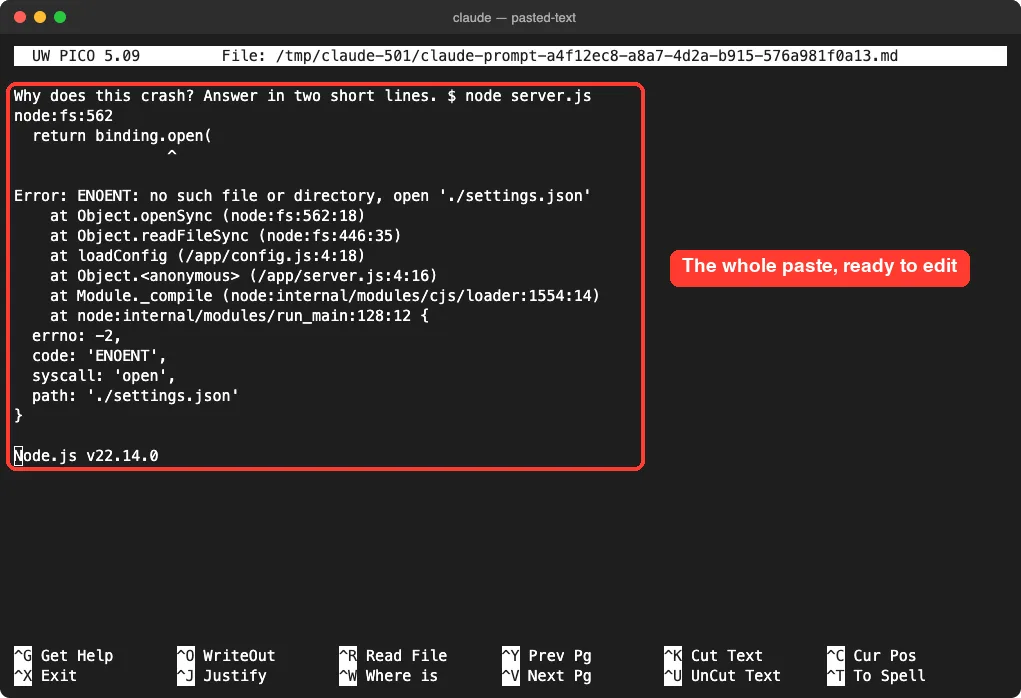
The file held our question plus every pasted line. That makes Ctrl+G the best choice when you want to trim a log down to the useful part before sending. Save and close the editor, and the edited prompt goes back to Claude Code.
When we closed nano without changing anything, the box showed the placeholder again. So opening the editor is a safe way to peek: it does not change your prompt unless you edit it.
Way 3: Check the Sent Message
Maybe you already pressed Enter and now wonder what Claude received. We sent our question with the collapsed placeholder and looked at the conversation.
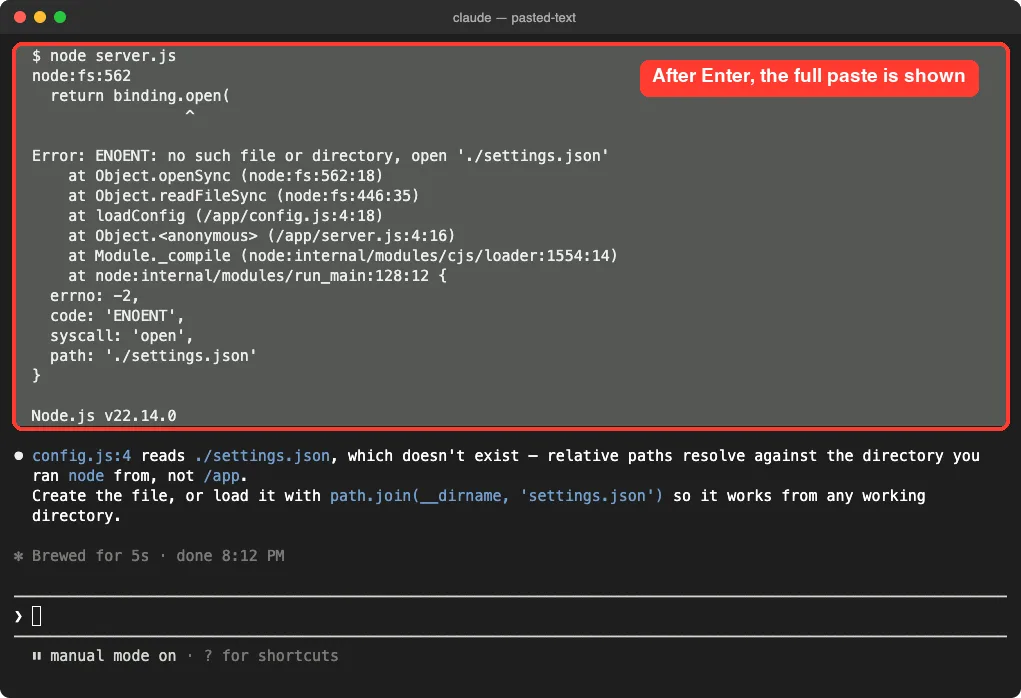
The sent message displayed the whole log, not the placeholder, and Claude’s reply named the missing file from line six of the paste. That is direct proof that the full content reached the model. If the message is long, scroll up in your terminal to read it from the top.
If scrolling itself is the problem, our guide to terminal scroll fixes covers that.
The Up Arrow Brings the Paste Back
Press the Up arrow on an empty prompt to recall your last message. We did, and the prompt came back with its placeholder attached.
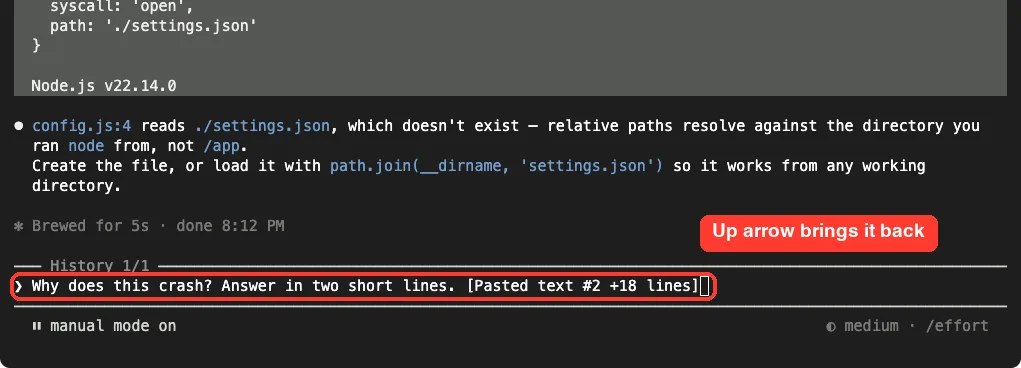
The docs confirm that when you resubmit a recalled prompt, the full pasted content is sent again. From here you can press Ctrl+G to open it, change the question, and send it a second time. Our shortcuts guide covers more history tricks.
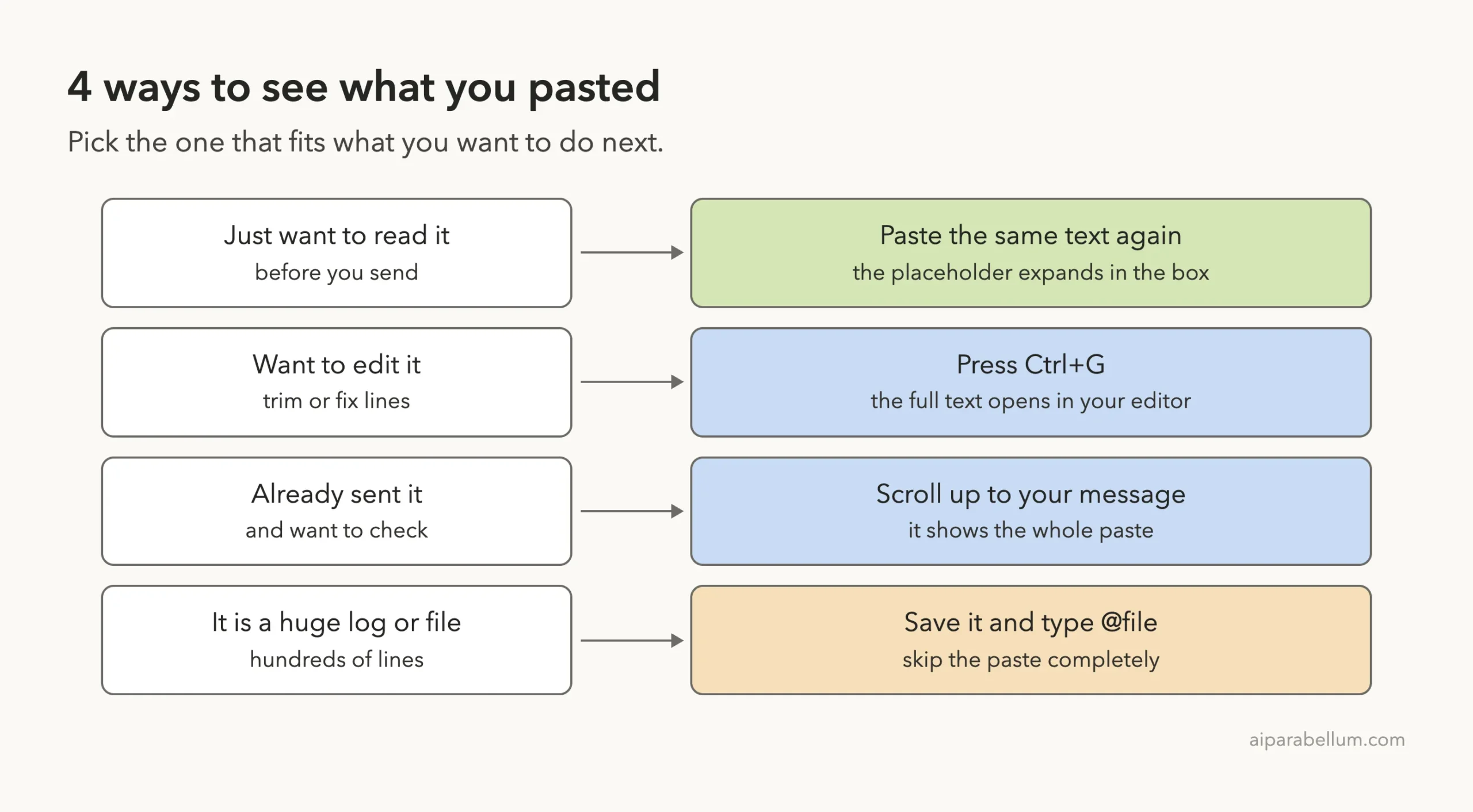
How to Paste Without the Placeholder
We searched the official settings reference and the environment variables page for a switch that disables collapsing. There isn’t one. You have two real options instead.
Keep the Paste Small
Anything up to three lines and 800 characters stays visible. If you only need Claude to see one error line, copy that line and not the whole trace. Smaller pastes also use fewer tokens, which our token saving tips explain in detail.
Use a File Instead of a Paste
For very large inputs, the docs recommend writing the content to a file and asking Claude to read it. The reasons given are that the conversation stays readable and Claude can refer to the file by path in later turns.
We tried both in one session. First we pasted a 60-line server log, which filled the screen once sent. Then we asked about a saved log with @error-log.txt.
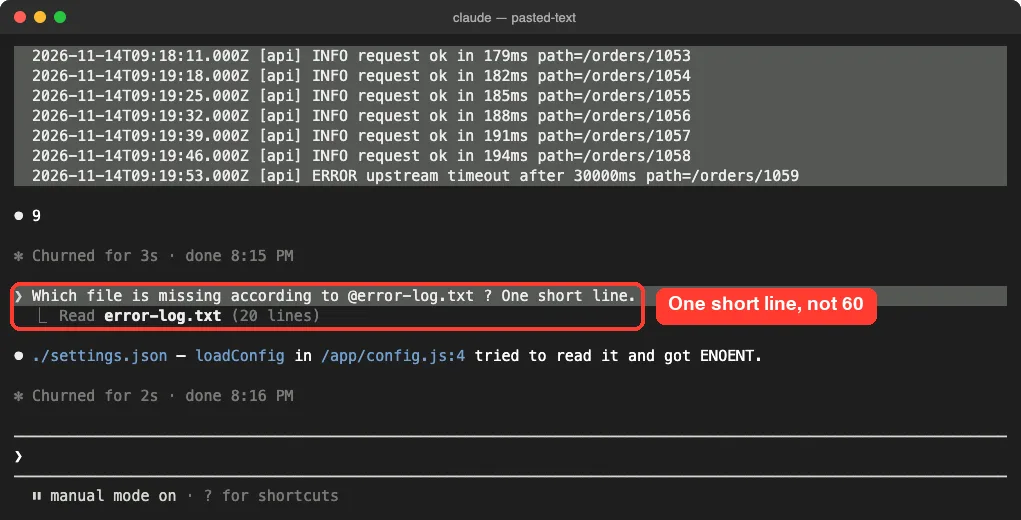
The file version took a single line in the conversation, and Claude Code showed a short “Read error-log.txt” note. On a Mac you can turn your clipboard into a file with one command before you start:
pbpaste > error.logThen ask your question with @error.log in the prompt. Windows and Linux have their own clipboard commands, such as Get-Clipboard in PowerShell. These are system tools, not Claude Code features, and we only used the file reference step in our test.
The docs add one more reason to prefer files. The VS Code integrated terminal can drop characters from very large pastes before they reach Claude Code, so a file is the safer route there.
Delete or Restore a Collapsed Paste
A placeholder behaves like one single word when you delete. We typed a question, pasted the log, and pressed Ctrl+W, the delete-word shortcut.
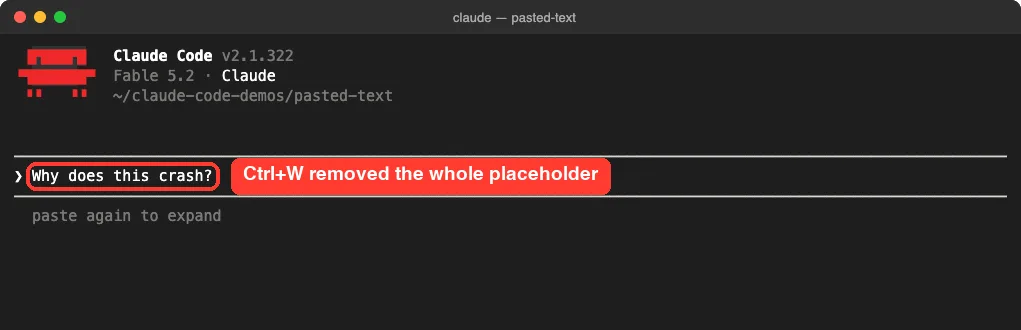
Deleted it by accident? Press Ctrl+Y, which pastes back the text you last deleted with a word or line shortcut.
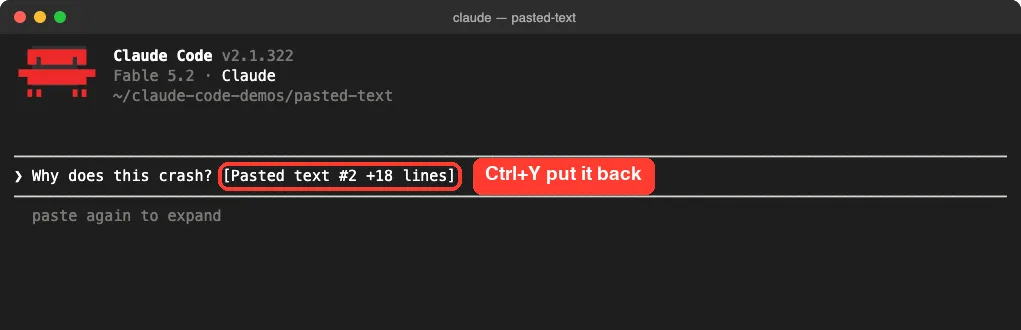
This matches the docs, which say Claude Code removes the placeholder whole when a word or line deletion reaches inside it. In Vim mode, the docs say p in NORMAL mode restores it after a Vim delete. We tested the Ctrl+W and Ctrl+Y pair only.
Where Claude Code Stores Pasted Text
According to the docs, Claude Code keeps the content behind each placeholder under ~/.claude/paste-cache/. That is how a recalled prompt can send the full paste again, even in a later session.
We looked in that folder after our tests. It held one text file, and its contents matched our 60-line log.
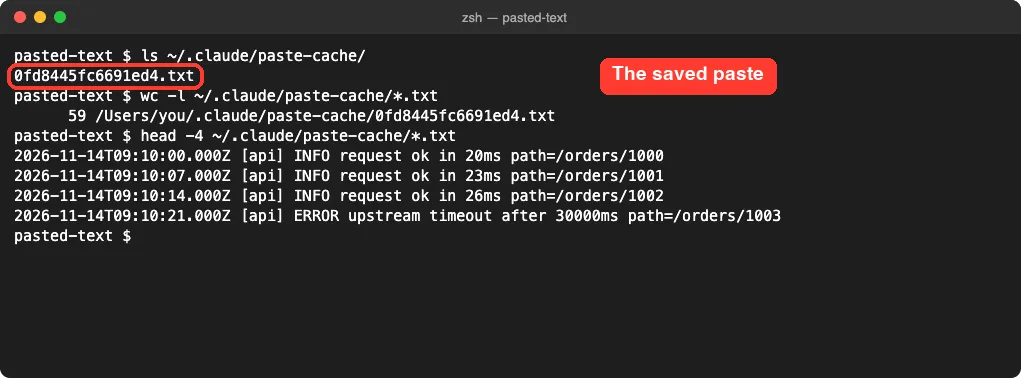
Two honest notes from this check. Our smaller 518-character paste did not get a file there, only the 4,524-character one did, so don’t expect every paste to appear. And the files are plain text, so treat the folder like any place that may hold copied secrets.
The cache does not last forever. The docs say cache files older than the cleanupPeriodDays setting are deleted. If you recall an old prompt whose paste is gone, Claude Code shows a notification naming the missing paste and does not send the literal placeholder text.
How Claude Reads a Pasted Text Block
The docs describe one more detail worth knowing. When you submit, Claude sees the content behind each placeholder marked as text you pasted from somewhere else. Claude is told that a paste can contain instructions you did not write, and to follow them only where your typed message asks it to.
This protects you when you paste a web page or an email that contains hidden commands. It also means your typed question matters. Say what you want done with the paste, such as “explain this error” or “follow the steps in this text”.
Claude Code also strips invisible Unicode characters from pastes when you press Enter. If it removed any, that first Enter sends nothing, a notice appears, and a second Enter sends the cleaned prompt.
Try It Yourself
Open Claude Code in any test folder and copy a block of five or more lines from anywhere. Then run through this short practice:
- Type a question and paste the block. Confirm the placeholder appears.
- Paste the same block again and watch it expand.
- Clear the box with
Ctrl+C, paste once more, and pressCtrl+Gto see it in your editor. - Close the editor, then send this prompt with the placeholder still collapsed:
Summarize the text I pasted in one sentence, and tell me how many lines it has.If Claude’s line count matches your clipboard, you have seen for yourself that the full text was sent.
Common Mistakes
- Thinking the paste failed because the text is not visible. The placeholder means the paste worked.
- Deleting the placeholder to “clean up” the prompt. That removes the content, and Claude gets only your typed words.
- Typing
[Pasted text #1]by hand. The label only works when Claude Code creates it from a real paste. - Pasting one giant log into a new session and then running
/compact. The troubleshooting docs note that a single large paste can fill the context while/compactanswers “Not enough messages to compact”. - Expecting image pastes to act the same way. Images use an
[Image #N]chip, covered in our guide on how to paste images.
Pro Tips
- Type your question first, then paste. The placeholder lands after your words, and the prompt reads naturally.
- Use
Ctrl+Gto cut a long log down to the failing part before you send it. - Can’t find an old prompt? The docs say you can press
Ctrl+Rand type a word from the paste. This needs v2.1.314 or later. - Need to park a prompt with a paste? The docs list
Ctrl+S, which stashes the prompt and restores it later with its pasted content. - Watch your context after big pastes. Our context window guide shows how to check it.
- If a paste triggers an error message instead of a placeholder, start with our list of common errors in Claude Code.
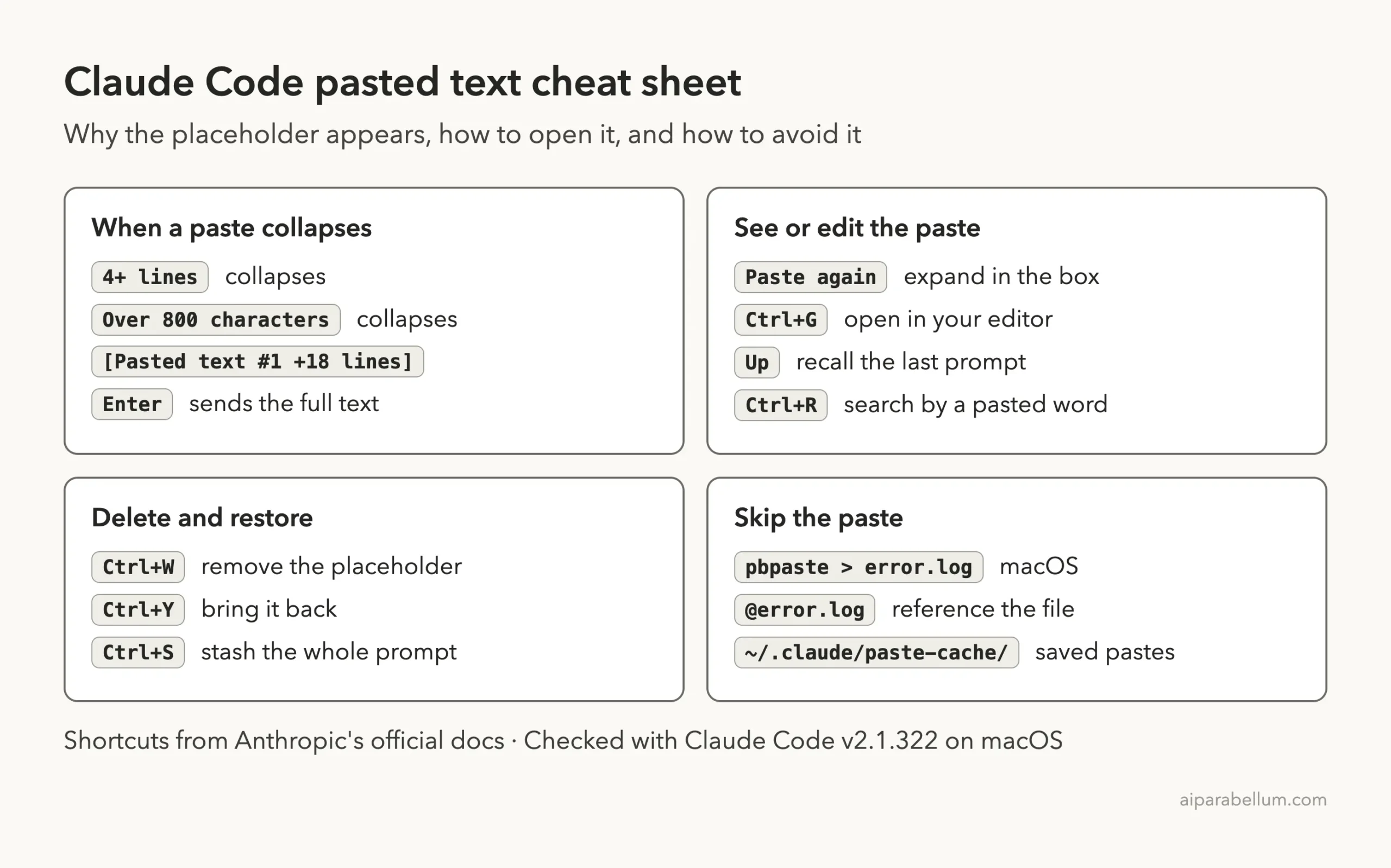
Pasted Text Cheat Sheet
Frequently Asked Questions
Does Claude see the full text behind [Pasted text #1]?
Yes. The official docs say the full content is sent when you submit. In our test, the sent message showed the whole log and Claude answered from a line inside it.
How do I expand pasted text in Claude Code?
Paste the same text again while the placeholder is in the box. In v2.1.322 a hint under the input box says “paste again to expand”, and the full text replaces the placeholder. You can also press Ctrl+G to open it in your editor.
Can I disable the pasted text placeholder?
We found no setting or environment variable for it in the official references. Keep pastes to three lines and 800 characters, or put the content in a file and reference it with @filename.
What does the +18 lines number mean?
It counts the line breaks in your paste. Our 19-line log showed +18 lines, and a single long line showed no count at all.
Is this the same in the Claude desktop app?
This guide covers Claude Code in the terminal only. The Claude app handles long pastes in its own way, and we did not test it here.
Conclusion
The [Pasted text #1] label in Claude Code is a tidy stand-in for a paste longer than three lines or 800 characters, and the full text is still sent when you press Enter. To see it, paste the same text again, press Ctrl+G to open it in your editor, or scroll up to the sent message. There is no switch to turn the collapsing off, so for big logs save the text to a file and reference it with @filename. Once you know the placeholder is only a label, pasting into Claude Code stops being a guessing game.