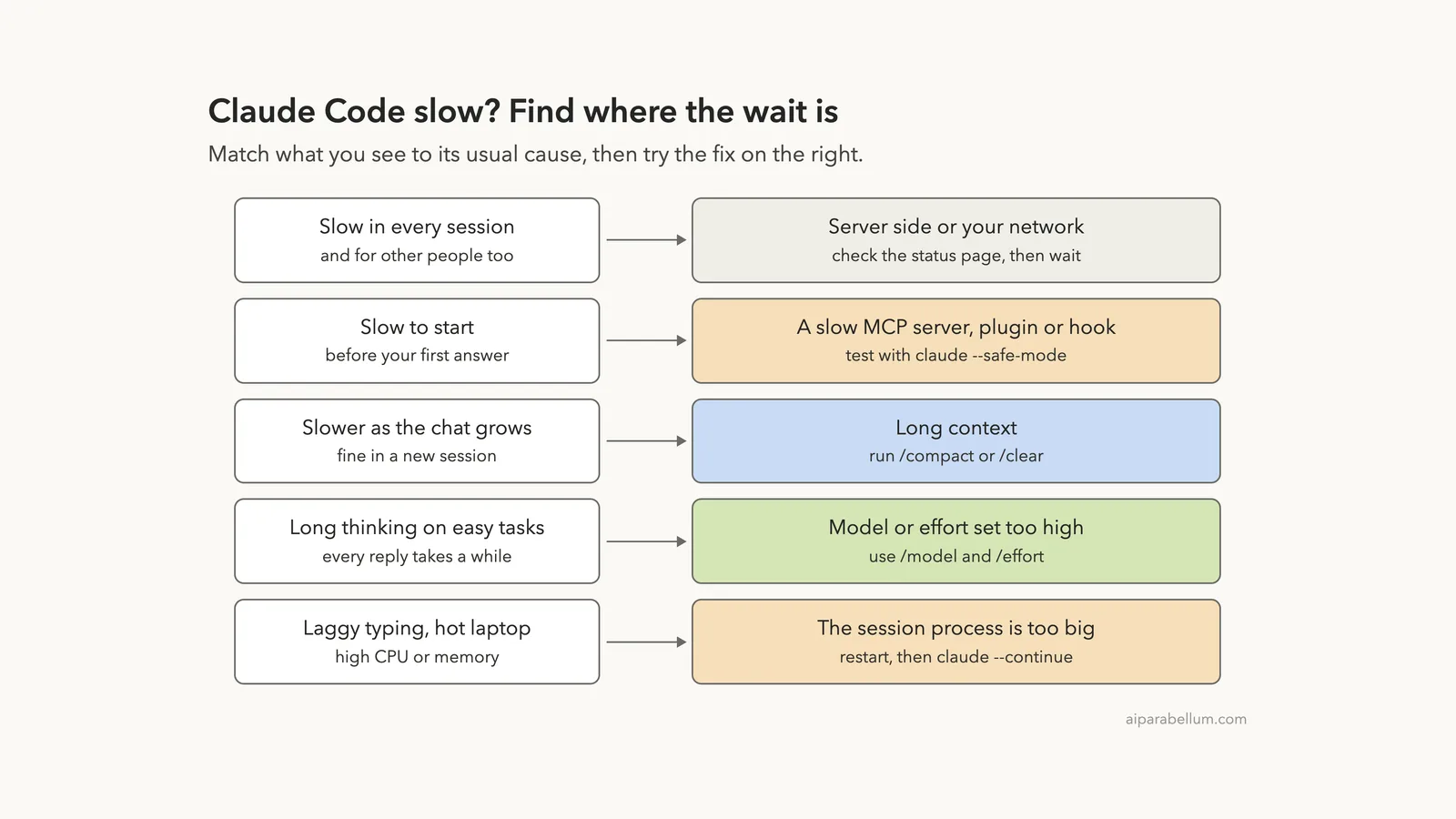
Is Claude Code slow for you today? The short answer: most slowness comes from one of four places, and three of them are on your side. A long conversation, a slow add-on such as an MCP server, or a model and effort level that is heavier than the task needs.
The fourth place is the server side, and you cannot fix that one. So the first job is to find where the wait is. Then you fix only that part.
The fastest fixes, in order: run /compact or /clear if the session is long, start with claude --safe-mode to see if an add-on is the cause, and lower the model or effort with /model and /effort for simple work. We measured each of these in a test folder, and the numbers are below.
This guide is part of our help series. Browse all our Claude Code tutorials for more fixes and how-tos.
Tested with Claude Code v2.1.322 on macOS on November 14, 2026. We timed startup and short prompts in throwaway folders, with and without a long CLAUDE.md and three slow test MCP servers, and we measured /compact on a session that had read a 700-line log file. The numbers are from single runs, so treat them as rough, and steps we did not run ourselves follow Anthropic’s official docs.
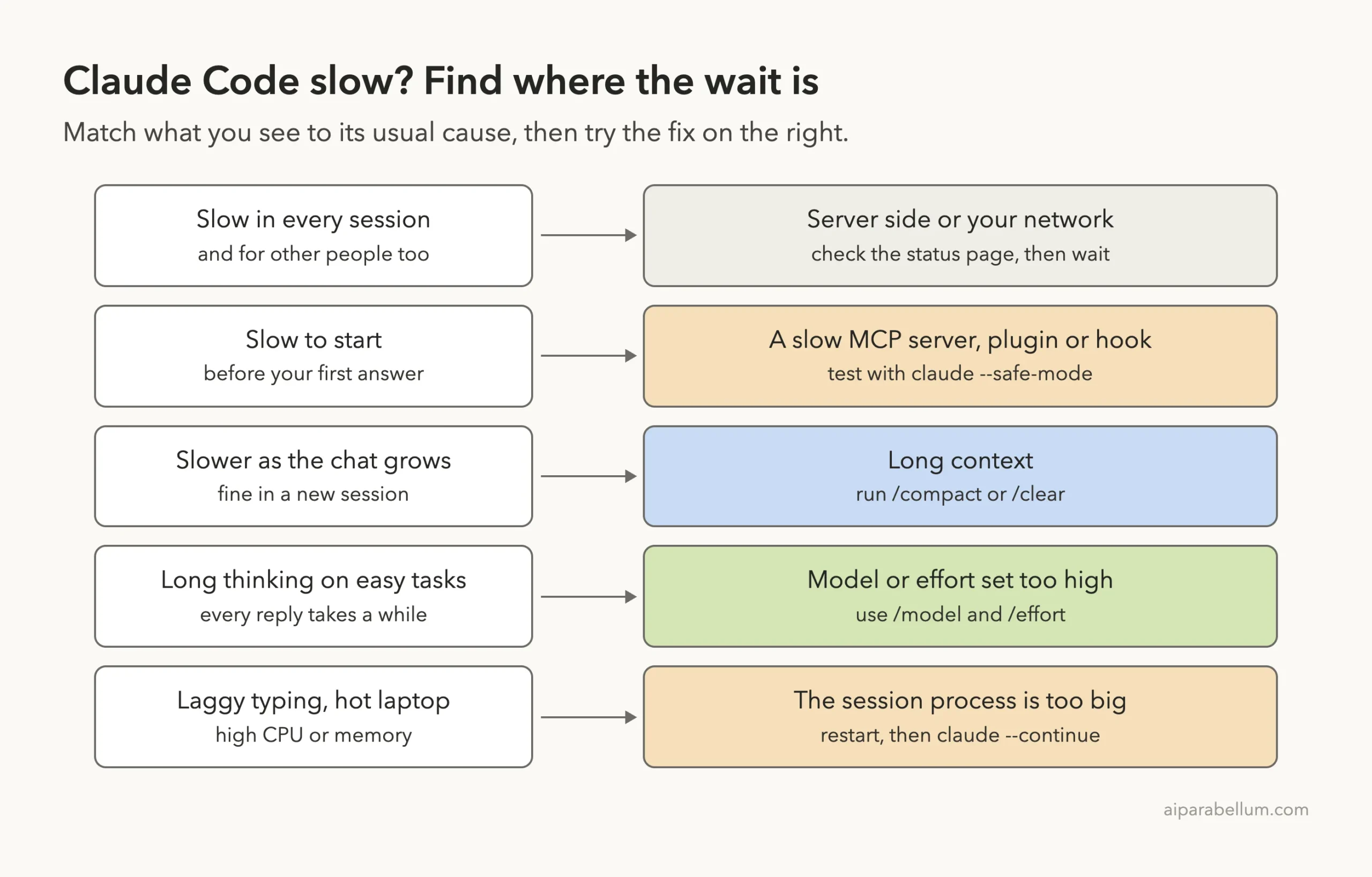
Claude Code Slow: Quick Summary
| What you see | Likely cause | What to try first |
|---|---|---|
| Slow everywhere, even in a new session | Server side or your network | Check status.claude.com, then wait |
| Slow before the first answer | A slow MCP server, plugin or hook | claude --safe-mode, then /mcp |
| Slower as the conversation grows | Long context | /compact or /clear |
| Long thinking on easy tasks | Model or effort set too high | /model and /effort |
| Laggy typing, fan noise, high memory | The session process has grown large | Restart, then claude --continue |
| Search is slow or misses files on WSL | Project sits on the Windows file system | Move it to the Linux file system |
Why Claude Code Feels Slow
Claude Code does two kinds of work. Some of it happens on your computer: starting up, loading settings, connecting add-ons, drawing the screen. The rest happens on Anthropic’s servers, where the model reads your request and writes the answer.
Each side can be the slow one. A hot laptop and laggy typing point to your computer. A long pause with the spinner turning points to the model, which is working through a large request or thinking hard.
The size of the request matters more than most people expect. Anthropic’s cost guide says Claude Code sends your full conversation with every request, and each tool use sends another request with the tool results. So a one-line question late in a long session still carries the whole history with it.
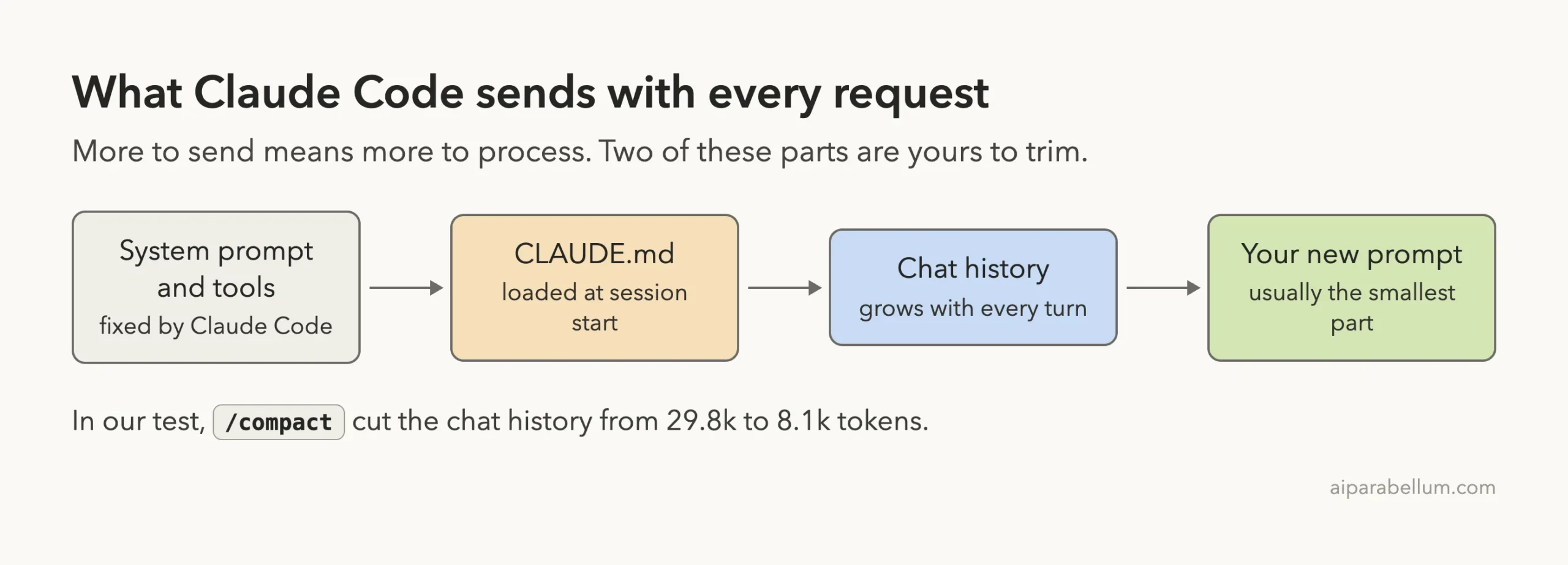
A slow tool is rarely slow everywhere. Find the slow part first, and the fix is usually one command.
What We Measured
We built three small folders. The first had a five-line CLAUDE.md, and the second had a 394-line one. The third had three test MCP servers that we wrote to wait four seconds before answering.
We started Claude Code with only project settings, so our own plugins did not change the results. Here is what we saw.
| Test | Plain folder | Long CLAUDE.md | Three slow MCP servers |
|---|---|---|---|
| Time until the input box appeared | 0.25 s | 0.25 s | 0.26 s |
One short prompt with claude -p, start to finish | 2.25 s | 2.35 s | 4.20 s |
CLAUDE.md size shown by /context | 43 tokens | 18.6k tokens | 43 tokens |
Two things stand out. The input box appeared in about a quarter of a second in every folder, so the interactive screen does not wait for add-ons. And the slow servers added about two seconds to a one-shot prompt, while the long CLAUDE.md added almost nothing to the clock.
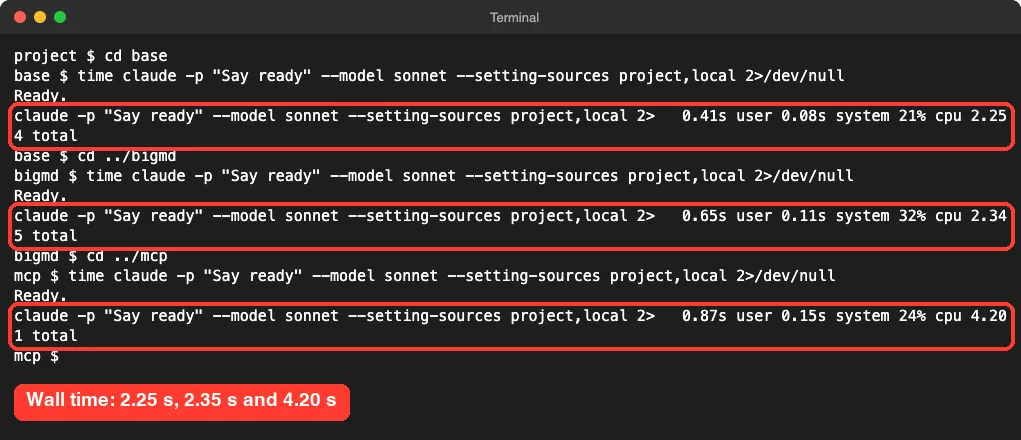
A second pass gave similar numbers: 2.54, 2.53 and 4.06 seconds. These are small tests on one Mac and one network, so your numbers will differ.
Fix 1: Check Whether the Slowness Is on the Server Side
Start here, because it saves you from changing settings that were never the problem. If Claude Code is slow in a brand new session, in an empty folder, with a tiny prompt, your setup is probably fine.
Anthropic’s error reference points to status.claude.com for active incidents. Open it in a browser. If there is an incident, waiting is the only real fix.
Busy periods can also show up as errors instead of slowness. Our guide to Error 529 overloaded covers that case, and the list of common errors covers the rest. We did not try to reproduce a server slowdown, since that is not something you can trigger safely.
Your own network counts too. The error reference says a slow network or proxy can be given more time with the API_TIMEOUT_MS environment variable. That stops timeouts, but it does not make answers arrive faster.
Fix 2: Shrink a Long Session With /compact or /clear
This is the fix that helps most people. If Claude Code was quick in the morning and slow by the afternoon, the conversation is the cause.
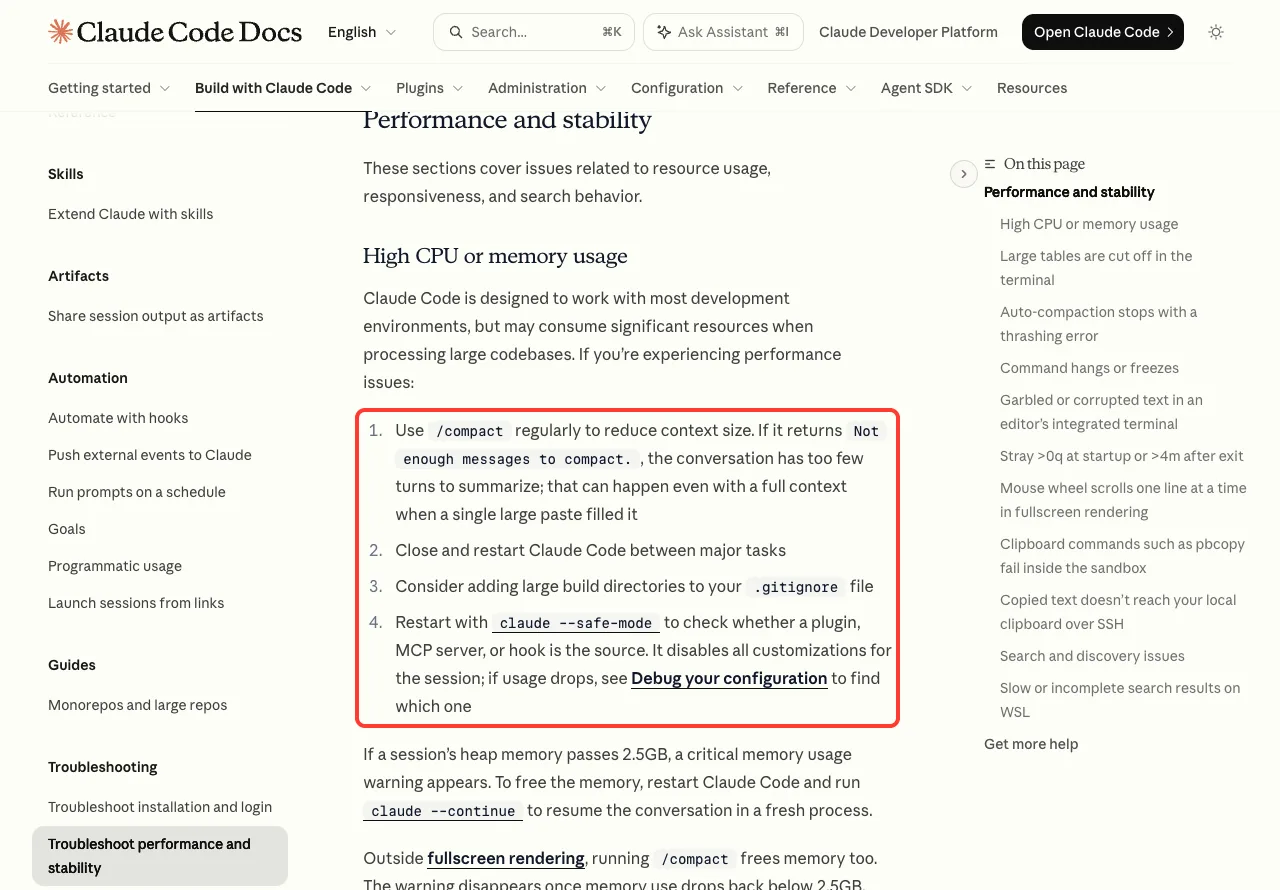
The official troubleshooting page lists it as step one for performance problems: use /compact regularly to reduce context size. Step two is to close and restart Claude Code between major tasks.
Our /compact Test
We asked Claude to read a 700-line log file in full. Then we ran /context to see what the session held.
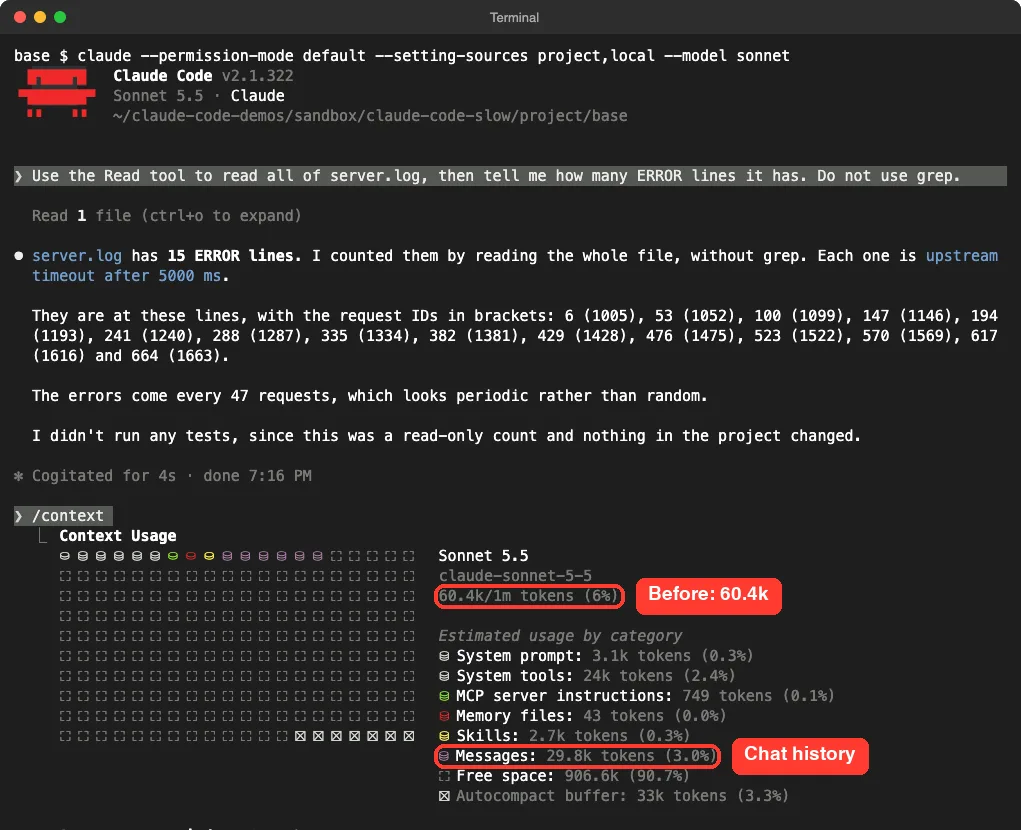
Next we ran /compact, then /context again. The conversation part dropped from 29.8k tokens to 8.1k, and the total went from 60.4k to 37.9k.
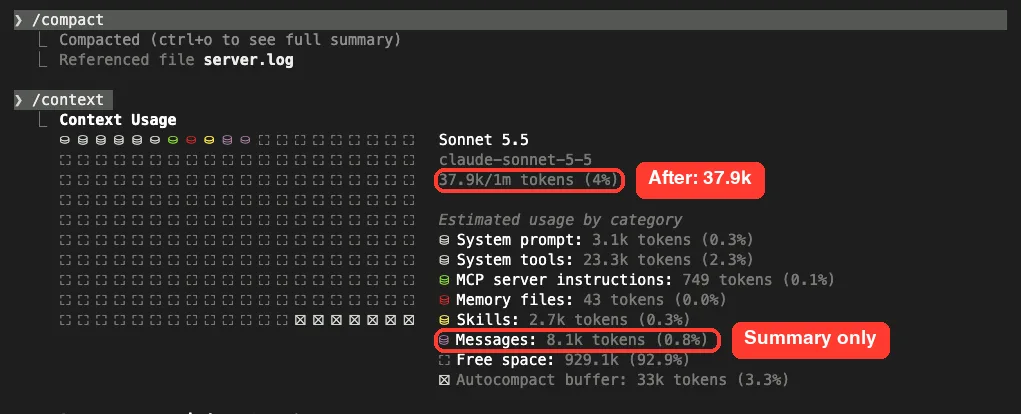
/compact, the same session held 37.9k tokens. The file contents were replaced by a short summary.The parts that did not shrink are the system prompt and tools, which Claude Code needs in every session. So the floor in our setup was about 30k tokens, and /compact brought us close to it.
When /compact Is the Wrong Choice
We also ran /compact on a very short session, and it did nothing useful. The messages went from 7.1k to 7.6k tokens, because the summary was about as long as the chat it replaced.
Compacting has a cost of its own. The cost guide notes that /compact reads the conversation it summarizes, so compacting a large context is itself a large request. When you are switching to unrelated work, /clear is the better choice, and the same guide says it costs nothing.
- Use
/compactwhen you are in the middle of a task and need Claude to remember the plan. - Use
/clearwhen you are starting something new. - Run
/renamebefore/clearif you may want to return, then/resumelater.
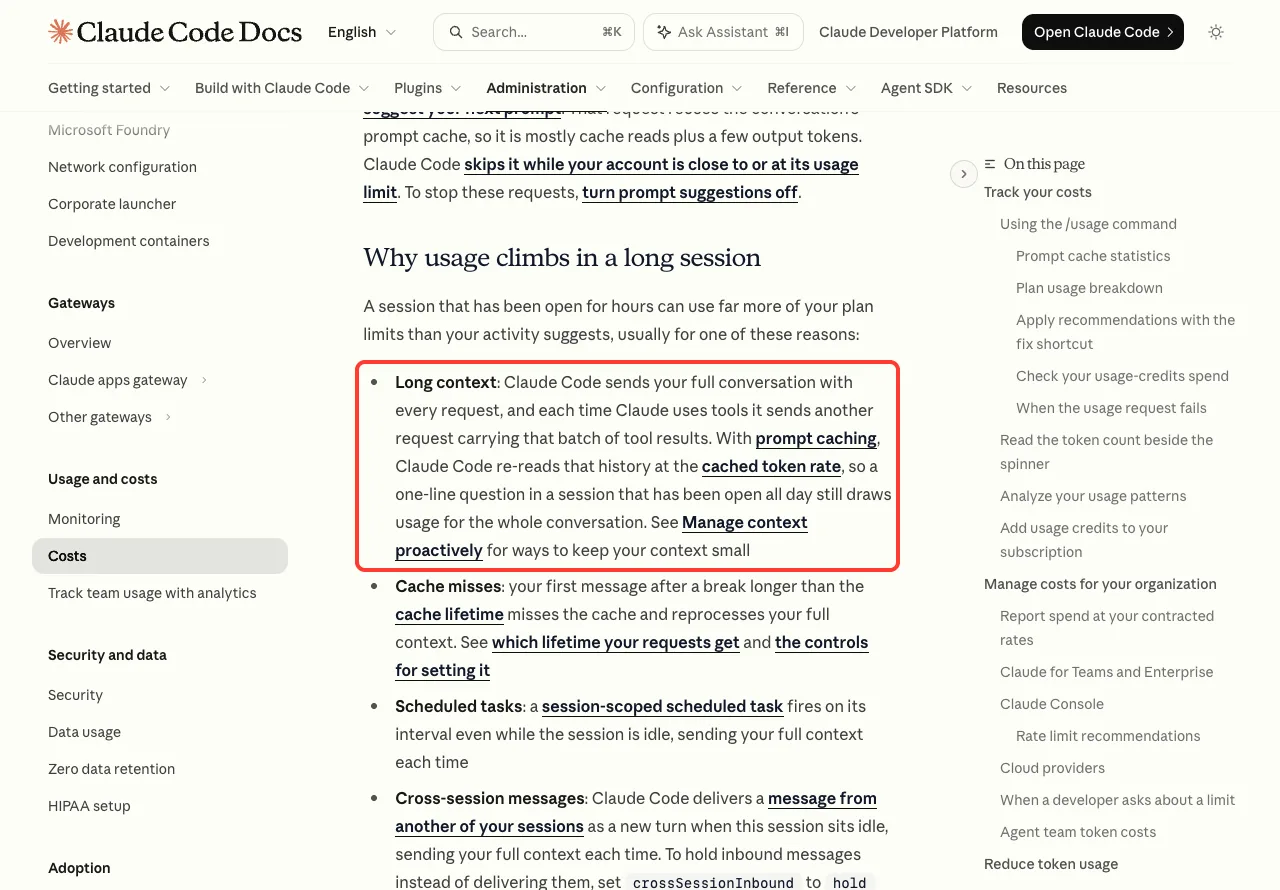
For a deeper look at these two commands, see our guide to the context window. If a compact itself gets stuck, that is a different problem with its own fixes.
Fix 3: Find the Slow Add-On With Safe Mode
MCP servers, plugins and hooks all run on your machine. One slow add-on can hold up a session, and it is hard to guess which one.
The official fix is to restart with claude --safe-mode. It turns off all customizations for that session. If Claude Code is quick in safe mode, one of your add-ons is the cause.
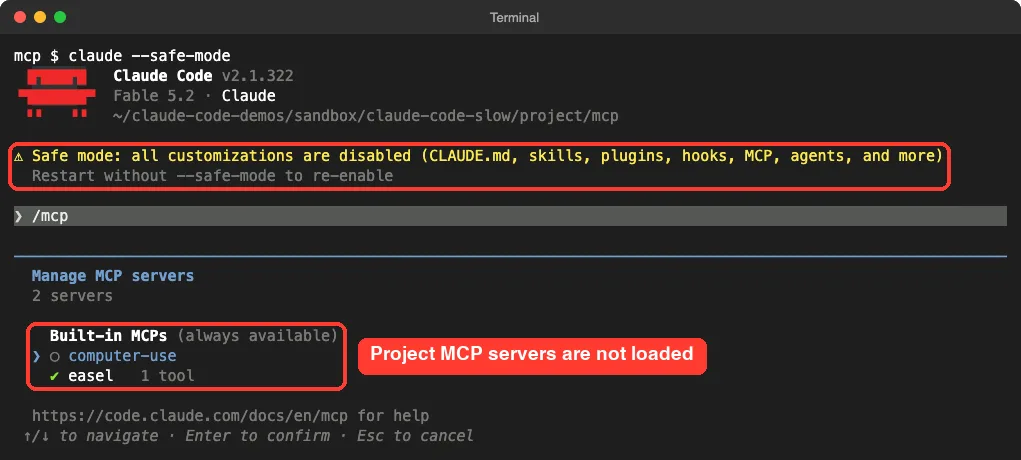
In our test folder, safe mode showed a yellow notice and /mcp listed only the built-in servers. The three slow project servers were gone, along with CLAUDE.md, skills, plugins and hooks.
What a Slow MCP Server Looks Like
In a normal session, a slow server is easy to miss. The input box showed up right away in our test, while the servers were still starting in the background.
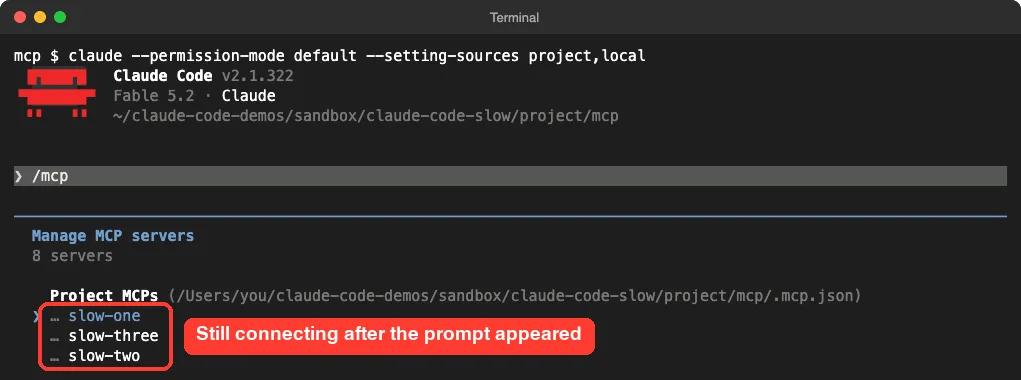
/mcp right after startup. All three test servers were still connecting.A few seconds later, the same screen showed all three connected. So in an interactive session, slow servers did not delay the prompt. In a one-shot claude -p run they did, by about two seconds in our test.
Here is how to track down the slow one:
- Run
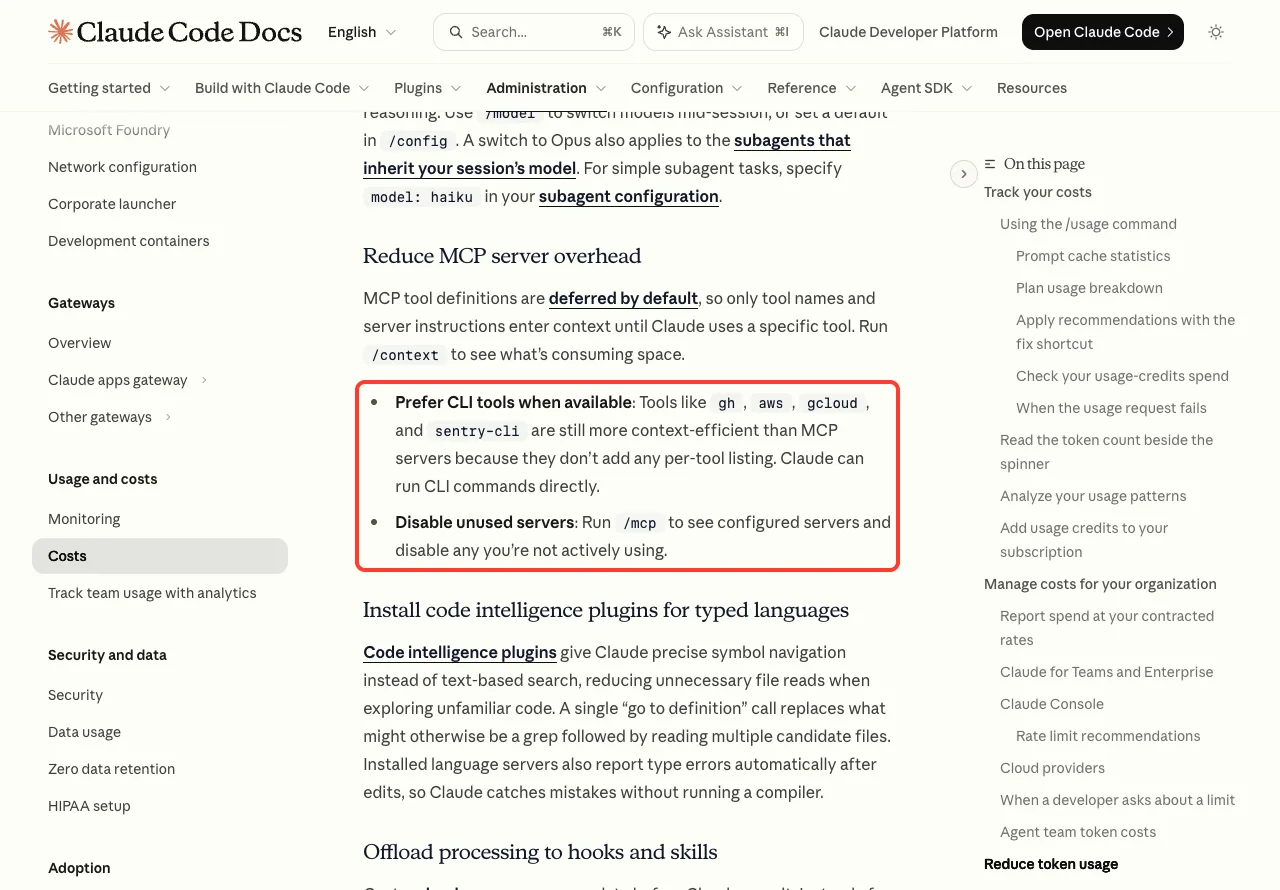
/mcpand look for servers that are still connecting or have failed. - Disable the servers you are not using right now.
- Start a new session and see if the delay is gone.
- Turn servers back on one at a time until the delay returns.
If a server takes too long to start or answer, our guide to MCP timeouts goes through the settings. Hooks deserve a look too, since a hook that runs before every tool call adds its own run time to each step.
Fix 4: Trim What Loads at Startup
Your CLAUDE.md is loaded when a session starts and then travels with every request. Our 394-line file came to 18.6k tokens. The five-line one came to 43.

/context and look under Memory files. Our long test file used 18.6k tokens.To be fair to long files, ours did not make a short prompt slower in any way we could measure. The time went from 2.25 to 2.35 seconds, which is within normal variation. The real cost is space and usage: those tokens ride along on every request and leave less room before the session needs compacting.
Anthropic’s advice is to keep CLAUDE.md under 200 lines and move detailed workflow instructions into skills, which load only when they are used. Our guide to the CLAUDE.md file shows what belongs in it.
The troubleshooting page also suggests adding large build directories to your .gitignore file. We did not test that step, but it is on the official list for performance problems.
Fix 5: Match the Model and Effort to the Task
A bigger model with a high effort level thinks longer before it answers. That is what you want for a hard design problem. It is wasted time for renaming a variable.
The docs put it plainly: lower effort is faster and cheaper for straightforward tasks, while higher effort gives deeper reasoning for complex ones. Change it with /effort, and change the model with /model.
We timed one tiny prompt on three models to see the gap.
| Model | Time for one short haiku |
|---|---|
| Haiku | 2.42 s |
| Sonnet | 2.94 s |
| Opus | 3.03 s |
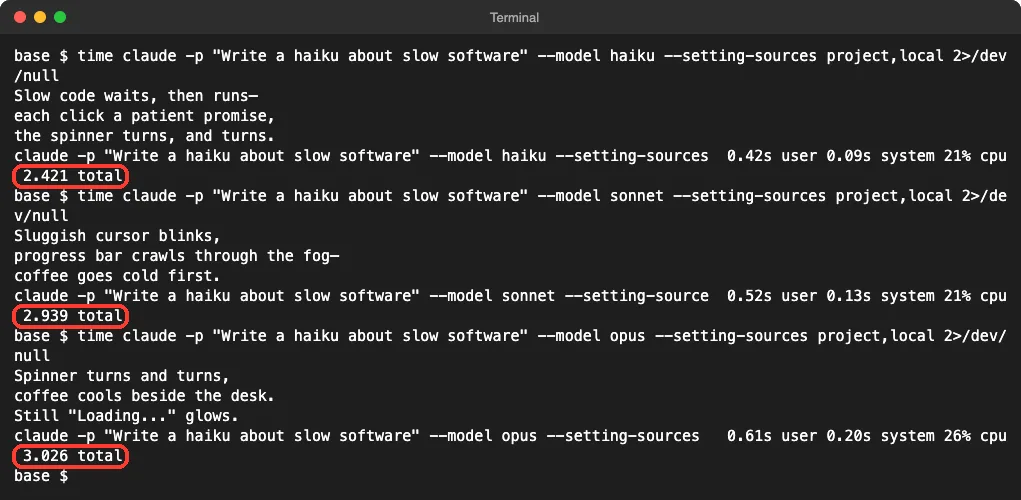
On a task this small, the gap was about half a second. That is one run each, so do not read much into it. The difference grows on real work, where a larger model at a higher effort level thinks through many more steps.
Some practical rules:
- For everyday coding, the cost guide says Sonnet handles most tasks well.
- Save Opus for complex design decisions and multi-step reasoning.
- For simple subagent jobs, the docs suggest setting
model: haikuin the subagent file. - Drop the effort level for quick edits, and raise it again when you need careful thinking.
Our guides on choosing a model and effort levels go into detail. If one reply never seems to finish, see the guide for a session stuck on thinking.
What About Fast Mode?
Claude Code has a /fast command. The docs describe fast mode as a high-speed setup that makes supported models up to 2.5 times faster at a higher cost per token.
It works on Opus and Fable models, not on Sonnet or Haiku. We did not test it for this post. Our fast mode guide explains who can use it and what it costs.
Fix 6: Restart When the App Itself Lags
Sometimes the model is fine and the program is the slow part. Typing lags, scrolling stutters, and your fan spins up. That points to the Claude Code process using a lot of memory.
The troubleshooting page says a warning appears if a session’s heap memory passes 2.5GB. The fix it gives is to restart Claude Code and run claude --continue, which resumes the same conversation in a fresh process.
If a command hangs, press Ctrl+C to cancel it. If the whole window stops responding, close the terminal and run claude --resume in the same folder. The docs confirm that restarting does not lose your conversation.
When memory stays high after a restart, /heapdump writes a memory report you can attach to a bug report. Share only the diagnostics file. The docs warn that the snapshot file contains your full conversation and credentials.
We did not push a session to that memory level, so these steps come from the official page. For more on freezes, see our guide for when Claude Code keeps crashing.
Slow Search on WSL
We tested on macOS. For Windows users on WSL, the official page notes that a project stored on the Windows file system under /mnt/c/ is slow to read, and search can return fewer results.
The suggested fixes are to move the project to the Linux file system under /home/, to make searches more specific, or to run Claude Code natively on Windows.
Try It Yourself
You can check your own setup in about two minutes. Open a project where Claude Code has felt slow and start a session. Then run these commands one at a time.
/context
/mcp
/doctor
Look at the Messages line and the Memory files line in /context. Look for servers that are not connected in /mcp. Then let the /doctor command check your install and settings.
To time your own startup the way we did, run this from your terminal. It sends one tiny prompt and prints the total time.
time claude -p "Say ready"Run it once in your project and once in an empty folder. If the project run is much slower, something that loads in that project is the cause.
Common Mistakes
- Changing settings during an outage. If the service is having a bad hour, nothing on your side will help.
- Keeping one session open all day. The history keeps growing, and every request carries it.
- Running
/compactwhen you really want a fresh start. Use/clearfor unrelated work. - Leaving every MCP server on. Turn off the ones you are not using in this project.
- Using the largest model at the highest effort for small edits.
- Blaming
CLAUDE.mdfor slow replies. In our test it cost space, not seconds.
Pro Tips
- Give
/compacta focus, such as/compact keep only the plan and the diff, so the summary keeps what matters. - Ask for a specific file or function. The cost guide notes that vague requests trigger broad scanning.
- Hand long jobs like test runs to a subagent, so the long output stays out of your main session.
- Prefer command-line tools such as
ghover an MCP server when both can do the job. - Check
/contextafter a big file read. It tells you when a compact will pay off.
Many of these habits also lower your usage. Our list of ways to reduce token usage has more. If you are new to the tool behind all this, start with our Claude overview.
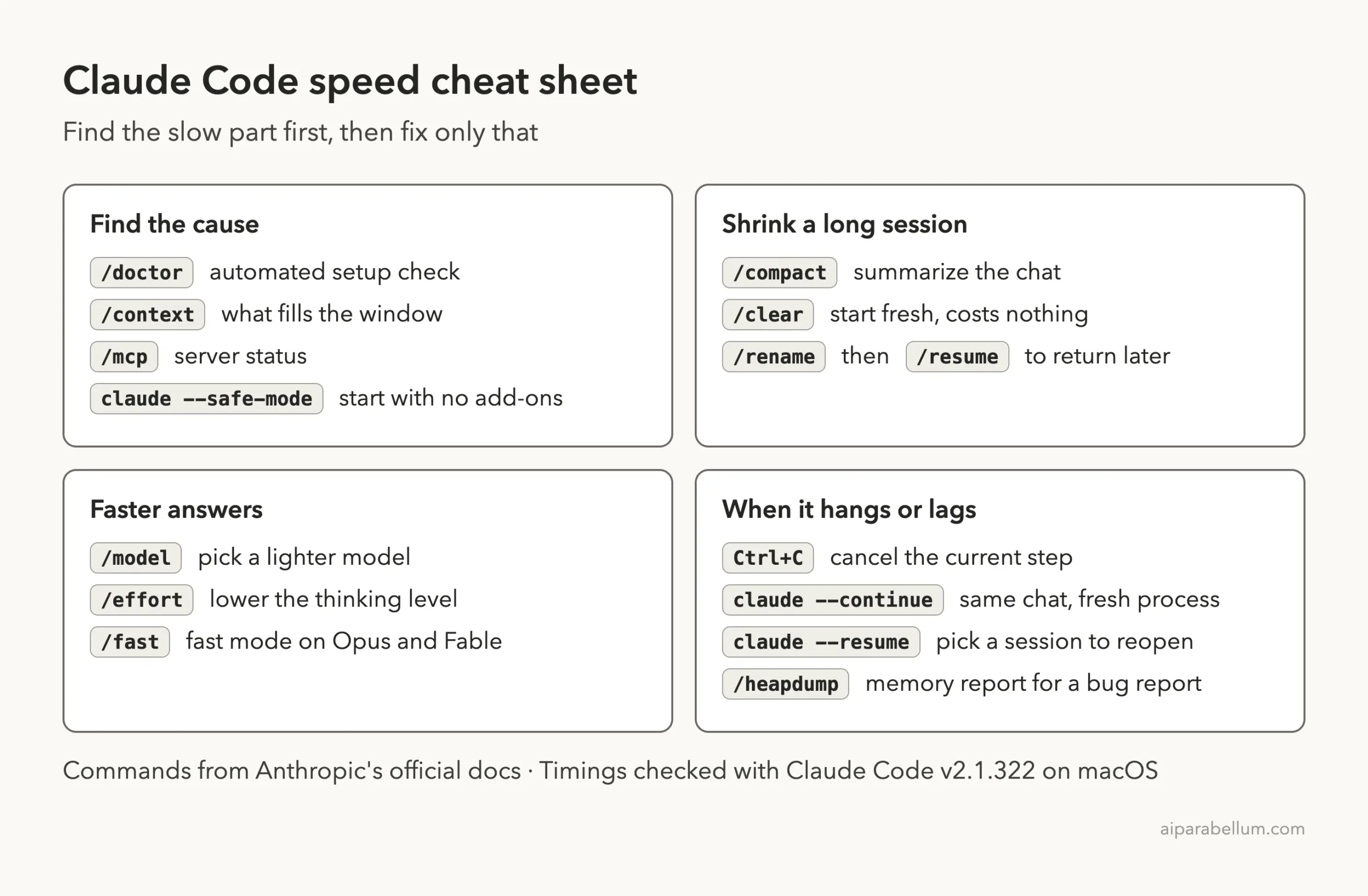
Claude Code Speed Cheat Sheet
Frequently Asked Questions
Why is Claude Code so slow today?
If it is slow in a new session with a short prompt, the cause is likely on the server side or your network. Check status.claude.com for incidents. If only one long session is slow, run /compact or /clear.
Does /compact make Claude Code faster?
It makes each request smaller, which helps long sessions. In our test it cut a session from 60.4k to 37.9k tokens. On a short session it did nothing useful, so save it for conversations that have grown.
Do MCP servers slow down Claude Code?
They can. In our test, three slow servers added about two seconds to a one-shot prompt. The interactive input box still appeared right away, because the servers connected in the background.
Does a large CLAUDE.md slow Claude Code down?
Not in a way we could measure on a short prompt. A 394-line file added a tenth of a second. It did add 18.6k tokens to every request, which uses up space and usage, so shorter is still better.
Which model is fastest in Claude Code?
Haiku was the quickest in our small test, followed by Sonnet and Opus. The gap was about half a second on a tiny prompt. On harder tasks the effort level matters as much as the model.
Conclusion
When Claude Code is slow, find where the wait is before you change anything. Check the status page first, shrink long sessions with /compact or /clear, use claude --safe-mode to catch a slow add-on, and match the model and effort to the task. In our tests, a long conversation and slow MCP servers made a clear difference, while a long CLAUDE.md cost space more than time. For the full official list, see Anthropic’s troubleshooting page and its cost guide.