Vercel Agent Desktop is a new open-source tool that lets an AI agent read and use the apps on your computer. We installed it with Claude Code on a Mac and gave it four real tasks in Calculator and TextEdit.
The short answer is that it works well for reading an app and pressing its buttons, all in the background. It struggled with anything that needs the app in front, like saving a file or selecting a word.
Here is how to set it up, what each test showed, and how to remove it cleanly when you’re done.
What Vercel Agent Desktop Does
Agent Desktop is a command-line tool from Vercel Labs, released under the Apache 2.0 license. It runs on macOS, Windows and Linux, and its GitHub repo has passed 10,000 stars.
It doesn’t look at screenshots or click on pixels. Instead, it reads the app’s accessibility tree, the same data a screen reader uses, and gives every button and field a short ref like @s8f3k2p9:e1.
Claude then acts on that ref and reads the app again to check the result. The tool itself has no AI inside, so the thinking stays in Claude Code.
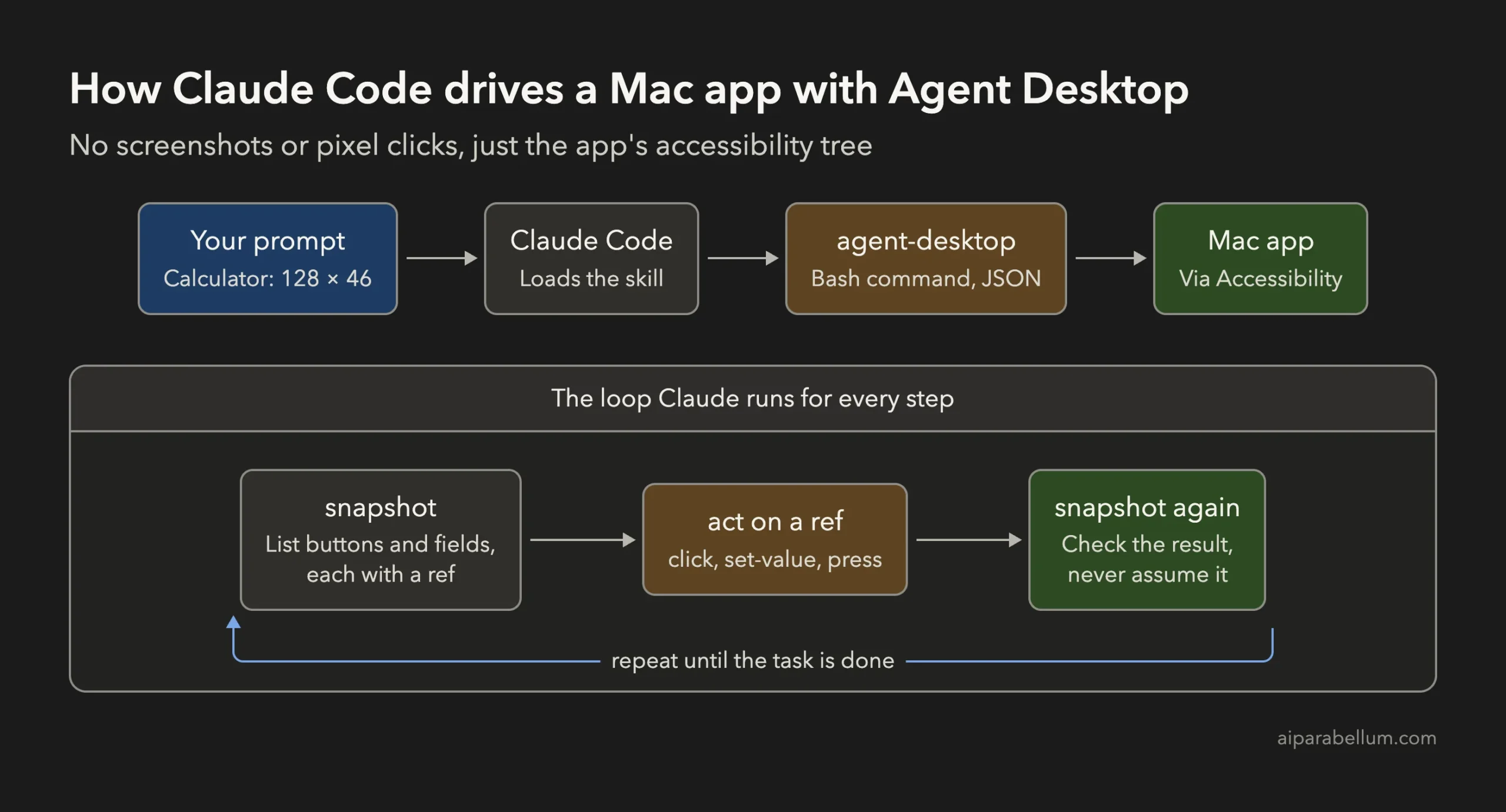
By default, every action is headless. That means it uses accessibility calls and doesn’t move your mouse, type keys or take focus from what you’re doing.
A --headed flag allows real clicks and keys when a task needs them. The tool’s own skill tells Claude to use it only when you allow it.
What We Tested and How
We ran Claude Code 2.1.316 with Opus 5.5 on macOS 26.5, using Agent Desktop 1.0.2. Each task ran once, one at a time, in Claude Code’s print mode.
We kept the test setup tight so nothing else could get involved:
- Claude could run only
agent-desktopcommands and read files. - No MCP servers and no user settings were loaded.
- The official skill sat in the test project’s own
.claude/skillsfolder. - Every run stayed in the default background mode.
The four tasks were simple on purpose. We wanted to see where background control works and where it stops.
Agent Desktop Test Results
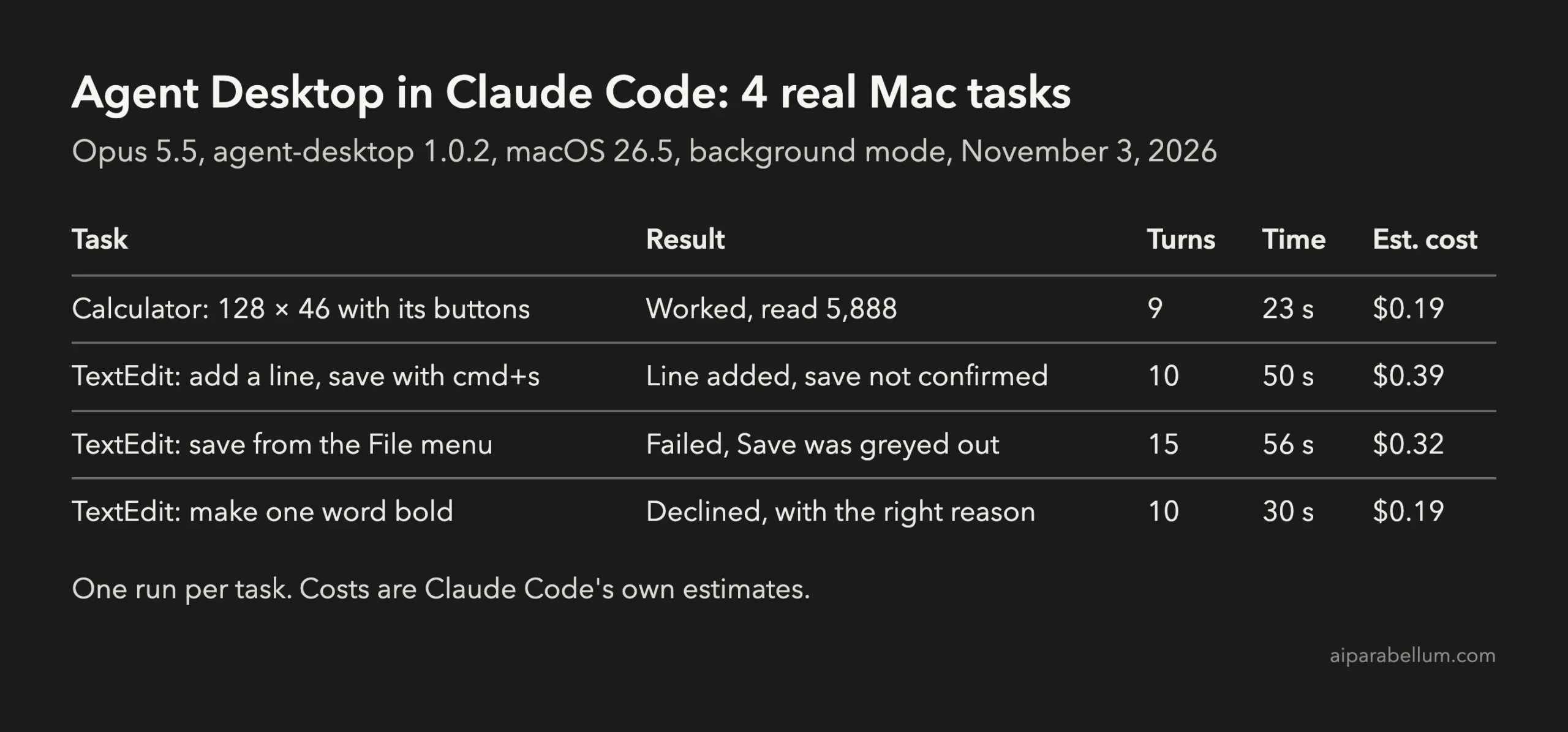
One task fully worked, one half worked, one failed, and one was correctly refused. Here is what happened in each.
Calculator: It Worked
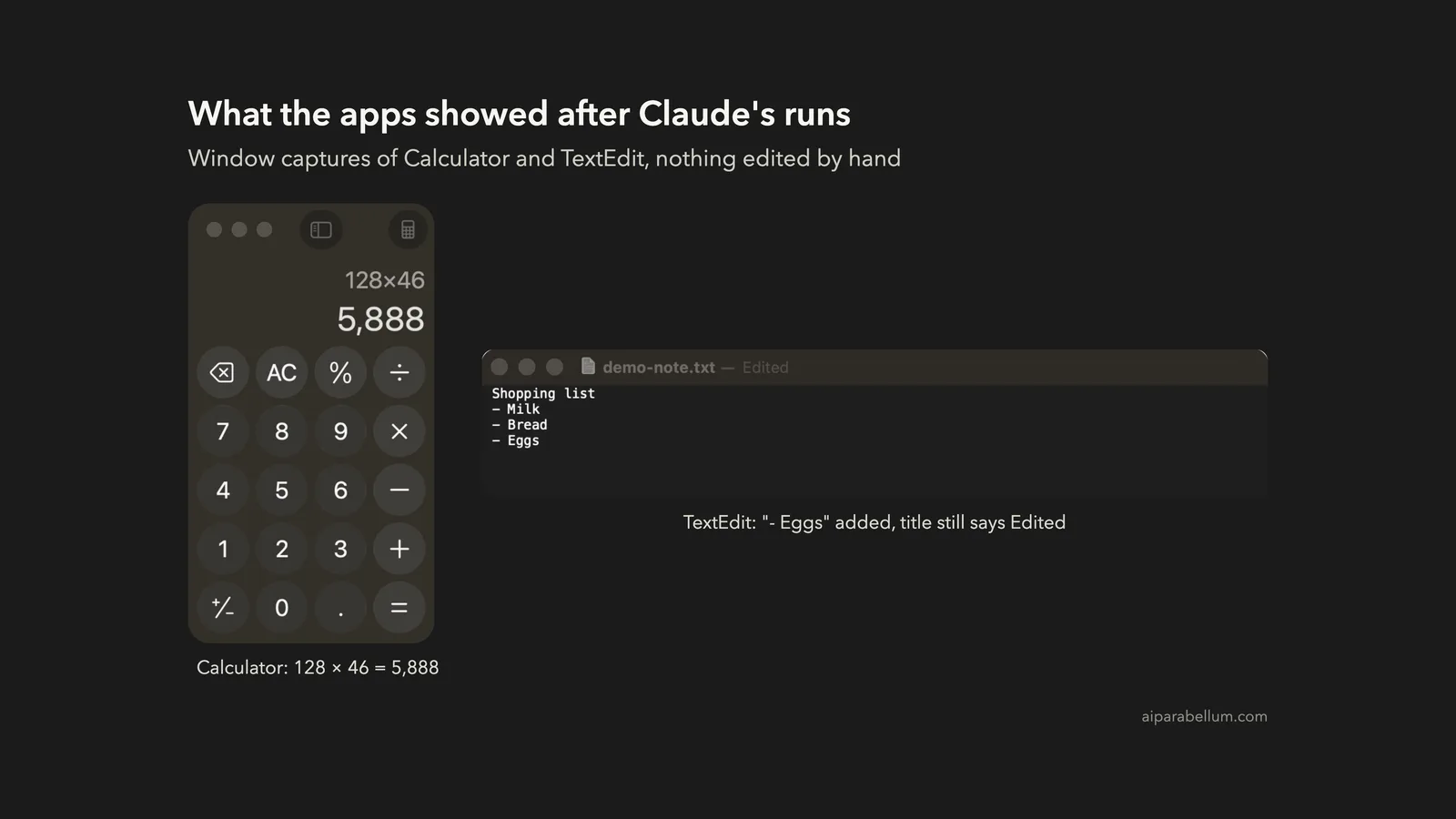
We asked Claude to work out 128 × 46 by pressing Calculator’s buttons and then read the display. It opened Calculator, pressed AC, the digits, times and equals, and read 5,888.
That took 9 turns and 23 seconds, for an estimated $0.19. Calculator never needed to come to the front.
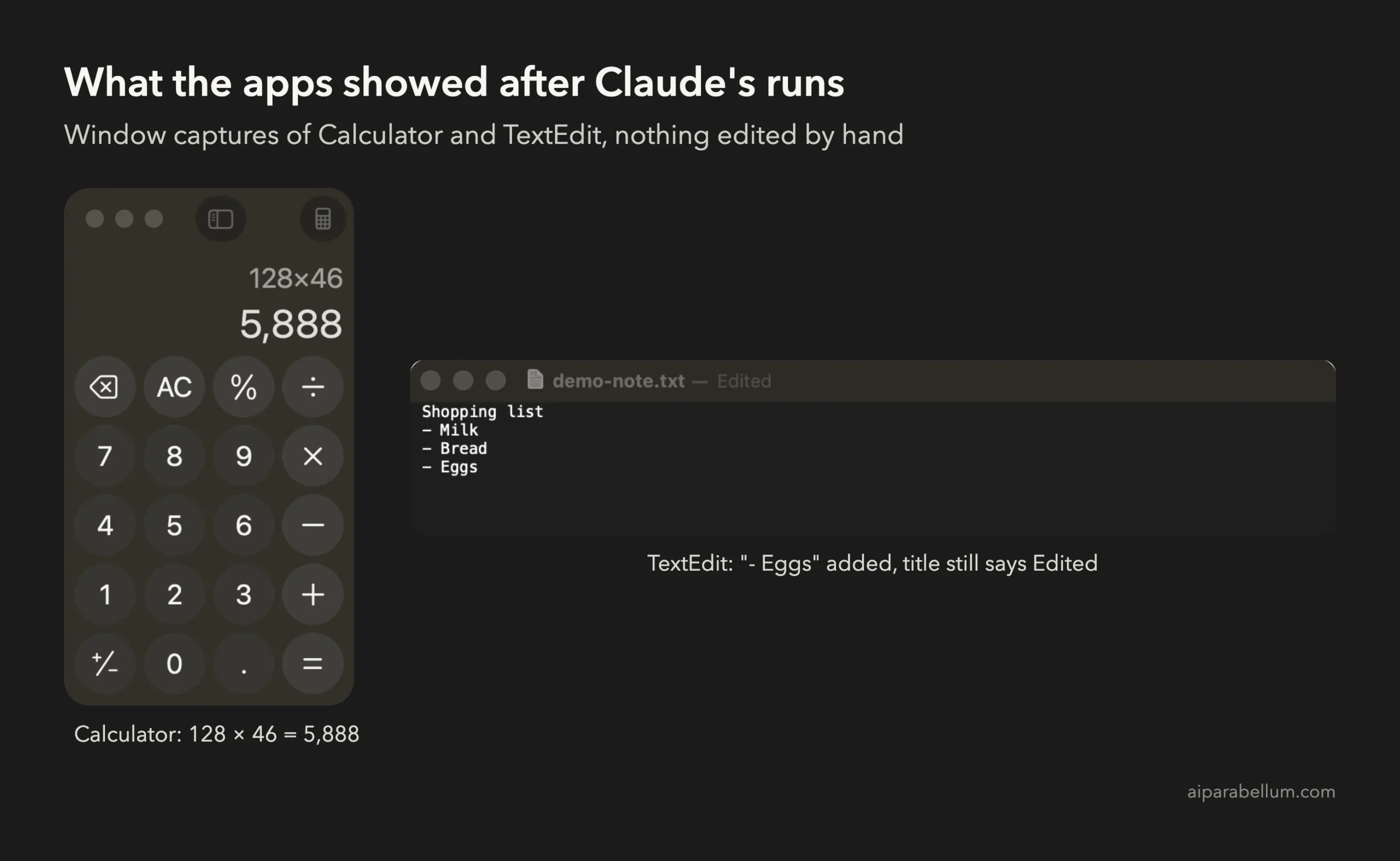
We ran the same task a second time to capture Calculator’s window right after Claude finished. It gave the same answer in 9 turns and 20 seconds, and that is the Calculator capture you see above.
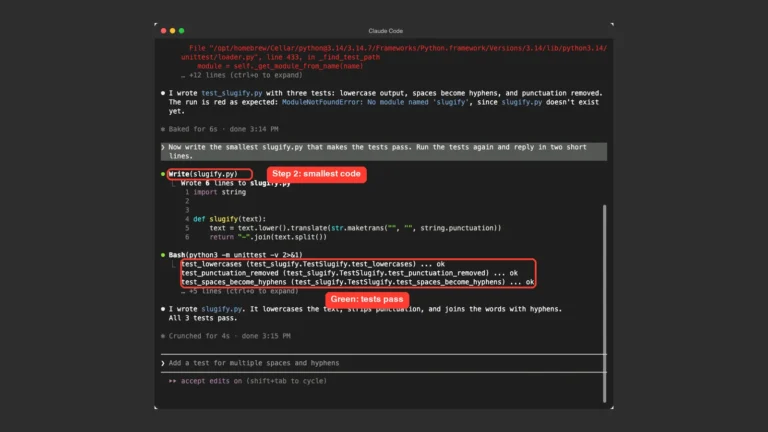
We also ran a second Calculator task in an interactive session, so you can see the loop on screen. Claude’s first try failed because of a shell quoting mistake, and the tool refused the bad refs before anything was clicked.
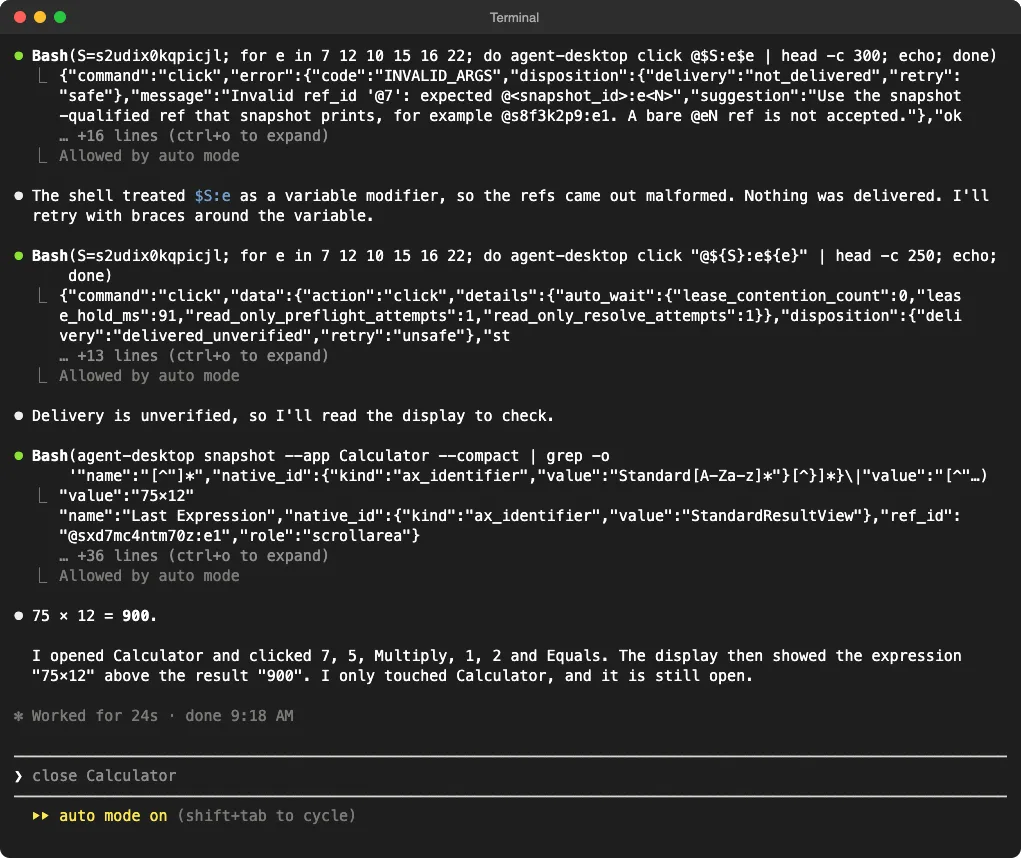
That refusal matters. Each result tells Claude whether an action was delivered and whether a retry is safe, so it doesn’t press the same button twice by accident.
TextEdit: Editing Worked, Saving Didn’t
We opened a small note in TextEdit and asked Claude to add a line that says “- Eggs” and save it with cmd+s. It read the text and added the line in the background with set-value.
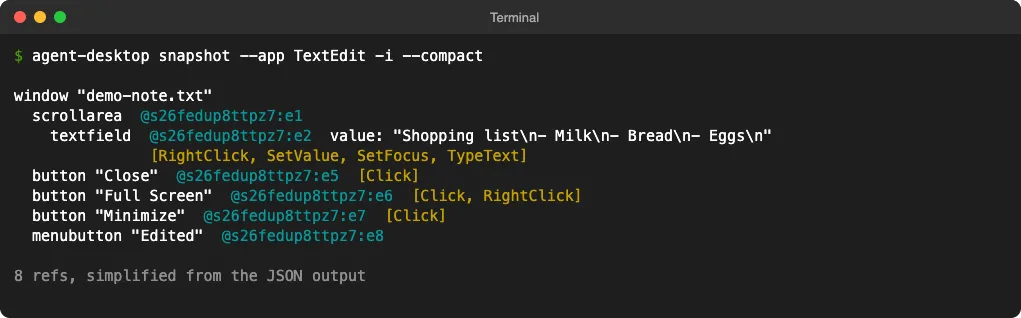
The save was a different story. The keypress was sent, but the tool couldn’t confirm TextEdit got it, and the title bar still said “Edited.”
Claude reported that honestly and didn’t claim the file was saved. The new line did show up in the file a short time later, most likely from TextEdit’s own autosave rather than from Agent Desktop.
TextEdit: Saving From the File Menu Failed
Next, we asked Claude to save through the File menu without bringing TextEdit to the front. Save and Save As were both greyed out while the window stayed in the background.
Claude’s click on Save was refused before it reached the app, so nothing happened twice. After 15 turns and 56 seconds, it stopped and explained that saving needs TextEdit in front.
TextEdit: Bold Text Was Correctly Declined
Last, we asked Claude to make the word “Milk” bold. It found that the note was plain text, which can’t hold bold formatting, because TextEdit’s Format menu offered Make Rich Text.
It also explained that selecting one word would need real keyboard or mouse input through --headed. It didn’t try a workaround we hadn’t allowed, which is the right call.
How to Set Up Agent Desktop With Claude Code
You need a Mac with macOS 13 or later and Claude Code already installed. If you haven’t done that yet, see our guide on how to install Claude Code.
Step 1: Install the CLI
The README installs it with npm:
npm install -g agent-desktopThe npm package is about 29.5 MB because it holds builds for every platform. We used the 2.2 MB macOS ARM64 archive from the official GitHub release page instead and kept it in a test folder.
Step 2: Grant Accessibility Permission
Run this command and follow the panel it opens:
agent-desktop permissions --guideAccessibility goes to the app that launches Claude Code, such as Terminal, iTerm2 or VS Code. Check that it worked with agent-desktop permissions, which should report granted.
Screen Recording is only needed for the screenshot command. We didn’t need it for any of our tasks.
Step 3: Add the Skill
The skill teaches Claude the snapshot, act and check loop. The README suggests this command:
npx skills add https://github.com/vercel-labs/agent-desktop --skill agent-desktopWe copied the skills/agent-desktop folder from the v1.0.2 release into our test project’s .claude/skills folder instead. That keeps it in one project, and our guide to Claude Code skills explains where skills can live.
Step 4: Allow the Commands
Claude runs Agent Desktop through Bash, so it will ask before each command. You can allow just this tool for a session:
claude --allowedTools "Bash(agent-desktop:*)"One catch: that rule doesn’t cover commands piped into grep or head, and some of those were denied in our print-mode runs. Our guide to permission rules shows how to write broader ones.
What It’s Good For, and What It Isn’t
Based on our runs, here is where background control fits:
| Task type | Background mode | What we saw |
|---|---|---|
| Read an app’s text or display | Works | Calculator and TextEdit were read correctly |
| Press buttons | Works | Every Calculator click landed |
| Fill a text field | Works | set-value added the new line |
| Save a document | Not reliable | Save was greyed out, and cmd+s wasn’t confirmed |
| Select text or change its style | Needs --headed | Claude declined instead of guessing |
That makes it a good fit for checking an app’s state, pressing through simple steps and filling fields. For saving, selecting and formatting, expect to use --headed, which takes over your mouse and keyboard while it runs.
If you mainly want to automate repetitive Mac tasks, start with the background-friendly ones. They let you keep working while Claude runs.
Token Use Adds Up
Snapshots are JSON, and a full app tree can be long. The File menu run used about 550,000 input tokens, most of them cached, and Calculator used about 280,000.
Narrow snapshots help. Use --app to read one app, -i --compact to keep only the parts Claude can act on, and --root to look at one region.
Privacy and Safety Tips
A snapshot holds whatever text is on screen in that app. Everything Claude reads becomes part of its context, so keep sensitive apps closed or out of the task.
Here are a few habits that helped in our tests:
- Name the app in your prompt, and tell Claude to touch only that app.
- Keep the default background mode unless a task really needs real input.
- Watch for “delivered_unverified” results, because they mean the tool couldn’t confirm the action.
- Don’t use auto mode for apps that send money, messages or emails.
The README also mentions an optional helper called JEV that sends screen descriptions to a model provider. It’s separate from the CLI, and we didn’t use it.
How to Remove Agent Desktop
We removed everything after our tests. To do the same, follow these steps:
- Run
npm uninstall -g agent-desktop, or delete the folder if you used the release archive. - Delete the
agent-desktopfolder from your project’s.claude/skills. - Delete the tool’s state folder, which is
~/.agent-desktopunless you setAGENT_DESKTOP_HOME. - Turn off the app you added in System Settings, under Privacy & Security, then Accessibility.
The last step is easy to forget. That permission lets the app control your Mac, so remove it if you no longer need it.
Conclusion
Vercel Agent Desktop gives Claude Code a clean way to read and use Mac apps without screenshots, and in our tests it did that well in the background. It pressed Calculator’s buttons, filled TextEdit’s text and refused unsafe retries, but saving, selecting and styling needed the app in front. Use it for reading app state and simple button work, plan on --headed for the rest, and remove the Accessibility permission when you’re finished.