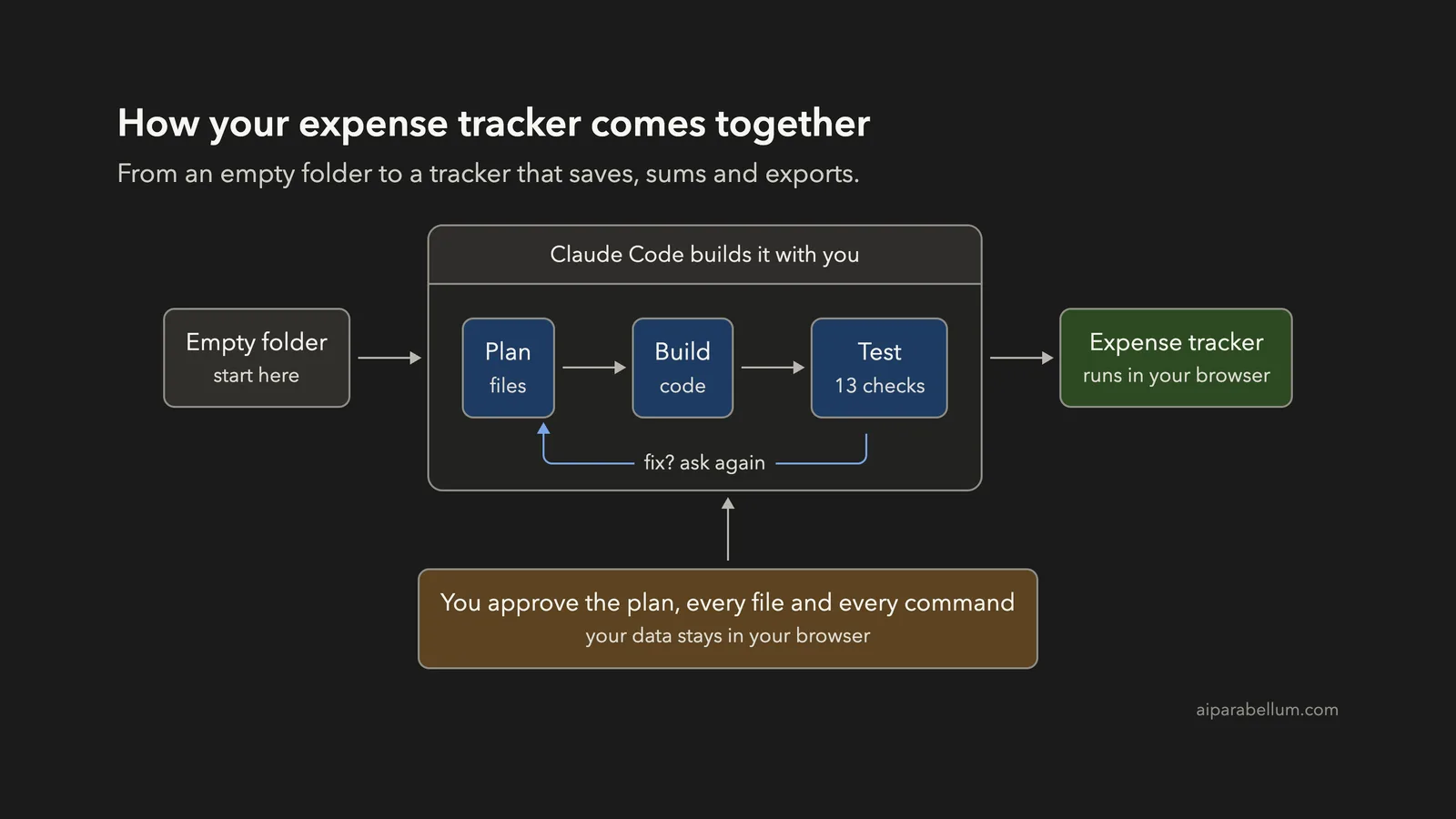
Want an expense tracker with Claude Code that runs in your own browser, keeps your numbers private and needs no sign-up? You can build one from an empty folder with a handful of short prompts, and you do not need to write the code yourself.
This is Project 10 of 20 in our Build with Claude Code series, part of our Claude Code tutorials. In Project 9 we built a Discord bot and tested it without a live account. This time the result is something you can open and use right away: a page where you add expenses, filter by month, see a bar chart and export a CSV file.
Tested with Claude Code v2.1.310 on October 26, 2026, on macOS. We tested on macOS; the Windows and Linux steps follow Anthropic’s official instructions.
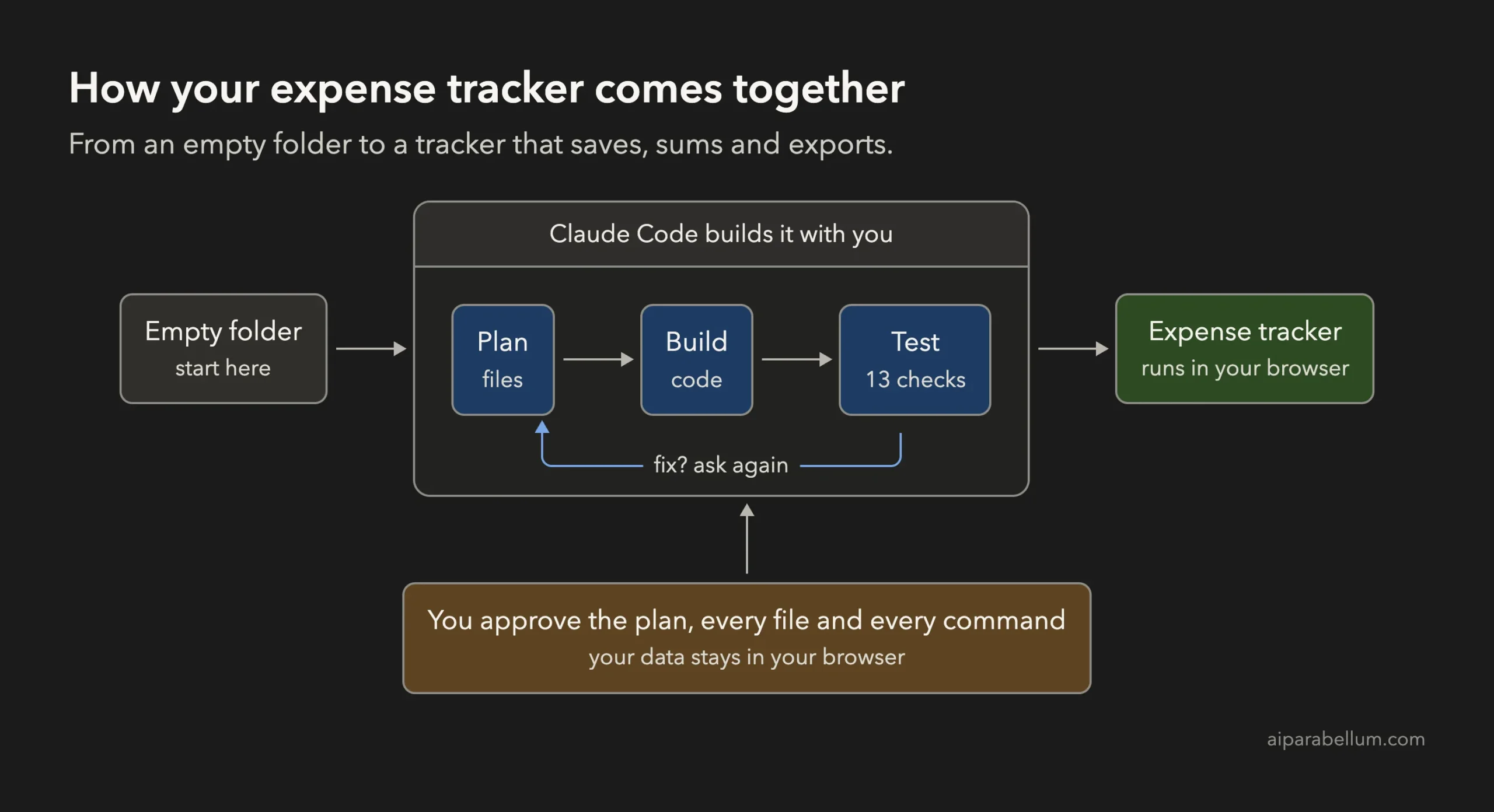
What We Built
Keep the money math in its own file, store amounts in whole cents, and the tracker becomes easy to test and hard to break.
| Item | Details |
|---|---|
| Project | A personal expense tracker web page with no libraries |
| Features | Add and delete expenses, month filter, total, bar chart by category, Export CSV |
| Files | index.html, style.css, app.js, tracker.js and test.js |
| Prompts used | 4 short prompts, plus the approvals |
| Install needed | Claude Code and Node.js (only to run the tests). The page itself needs only a browser. |
| Checks | 13 passing tests with node:test, plus a real run in headless Chrome |
What Is an Expense Tracker, and Why Build One Yourself?
An expense tracker is a list of what you spent, with a date, a short description, an amount and a category. It can then add things up for you, for example how much went to food this month.
Plenty of apps do this, but they usually want an account and keep your data on their servers. A tracker you build yourself stores everything in your own browser, so nothing leaves your computer. It is also a perfect first “real” project, because you will use the result.
The page we build keeps its data in localStorage. That is a small storage area inside your browser that remembers data for one website, or here, one file on your computer. It survives closing the tab, but it is not a backup, so export a CSV now and then.
Why Build It With Claude Code?
Money tools have a few classic traps. Computers add decimals badly, so 0.10 plus 0.20 can come out as 0.30000000000000004.
Bad input such as “abc” in the amount box must not crash the page. And data from a form must never be pasted into the page as raw HTML.
If you tell Claude Code about these risks in your prompt, it plans around them. If you are new to the tool, our first session guide is a good start, and the guide to permission modes explains the approval screens you will see below.
Step 1: Start in Plan Mode in an Empty Folder
Make a folder, open a terminal inside it and start Claude Code in plan mode. In this mode Claude can read and think, but it cannot change files until you approve its plan.
mkdir my-expense-tracker
cd my-expense-tracker
claude --permission-mode plan
Our guide to plan mode covers the approval flow in more detail.
Step 2: Describe Your Tracker to Claude Code
A good prompt names the features, the storage, the safety rule for the money and the test plan. This is the first prompt we used:
Build a personal expense tracker as a web page with no libraries: index.html, app.js and style.css. I can add an expense (date, description, amount, category), see a table, see the total per category as a simple bar chart, and filter by month. Save everything in localStorage. Put the money logic in tracker.js as plain functions that do not touch the page (store amounts in cents), so I can test them with node:test in test.js. Do not install any packages. Plan the files first, keep it small.Each part has a job.
“No libraries” keeps the project to plain files you can read. “Store amounts in cents” avoids the decimal trap before any code exists. “Plain functions that do not touch the page” makes the math testable without a browser, and “do not install any packages” keeps the tests free of outside code.
Step 3: Review the Plan
Claude’s plan listed the five files and what each one would do. It said the form would run the typed amount through a parse function, add the expense, save the list and redraw the page, and that a bad amount would show an inline message. It also planned to use textContent instead of innerHTML for anything you type, so a description such as a bit of HTML cannot change the page.
The plan named the test cases too, including the classic 0.10 plus 0.20 sum that must come out as exactly 30 cents. It ended with a verification list that included opening index.html in a browser. After the plan, Claude asked how to continue.
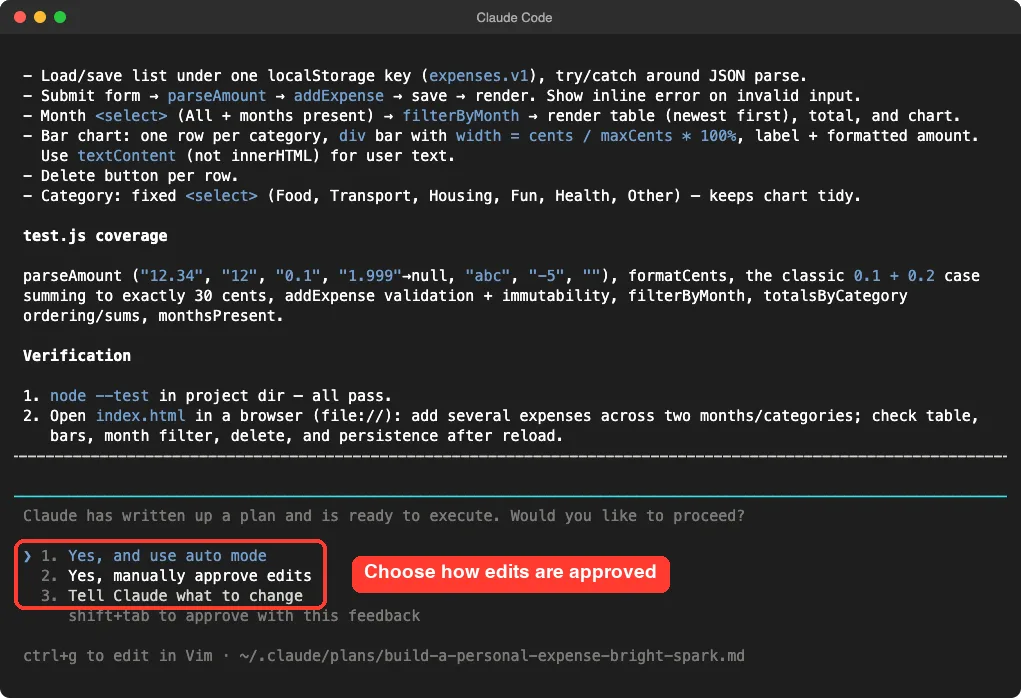
We chose to approve edits manually so we could read each file first.
Step 4: Approve the Files
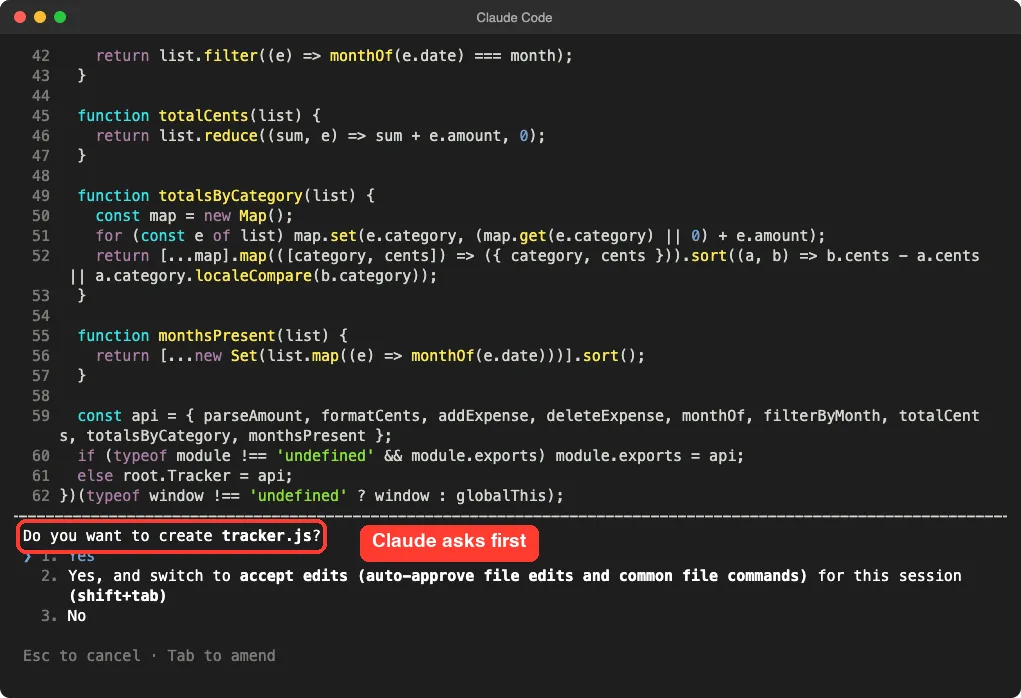
Claude showed each file and asked before creating it. Here it shows the money logic in tracker.js and asks, “Do you want to create tracker.js?” You can say yes once, switch to accept edits for the session, or say no.
After the files were written, Claude wanted to run the tests itself. Running a command needs approval too, just like editing a file.
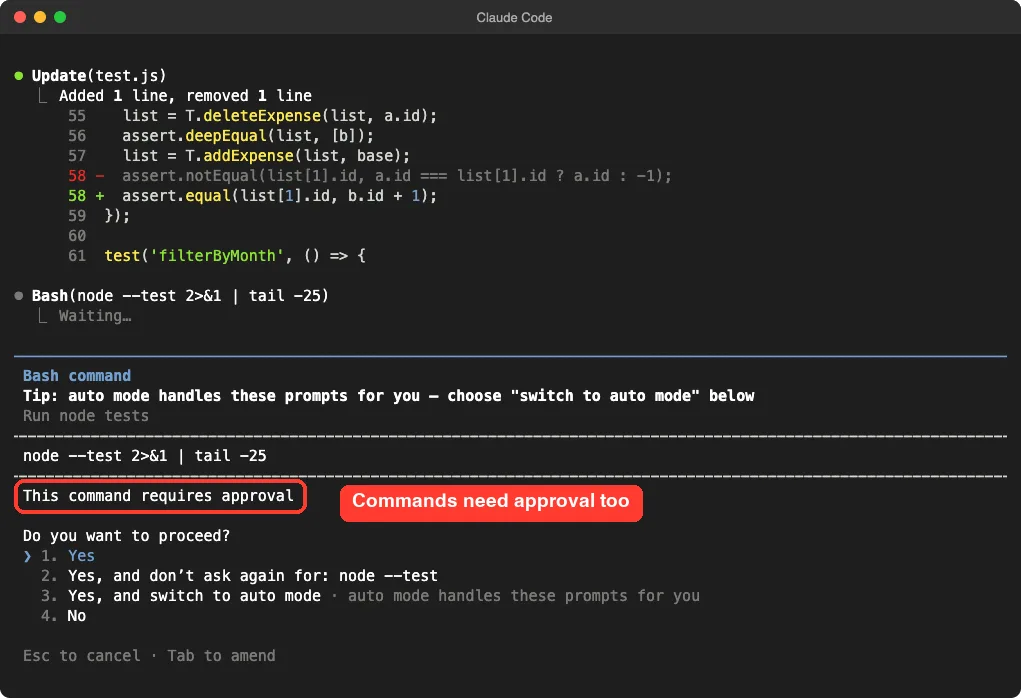
Our script ended the session while this approval was open, so that first run was cut off, and Claude marked it as interrupted. An unapproved command does not run. We resumed the same session with the continue option and asked again.
Step 5: Run the Tests
The second prompt was a plain request:
Run node --test and tell me the result.Claude reported that all 10 tests passed with 0 failures. It also said plainly that it had not opened the page in a browser, so the page itself was untested, and it listed what to check by hand: the table, the bars, the month filter, delete, and that the data is still there after a reload.
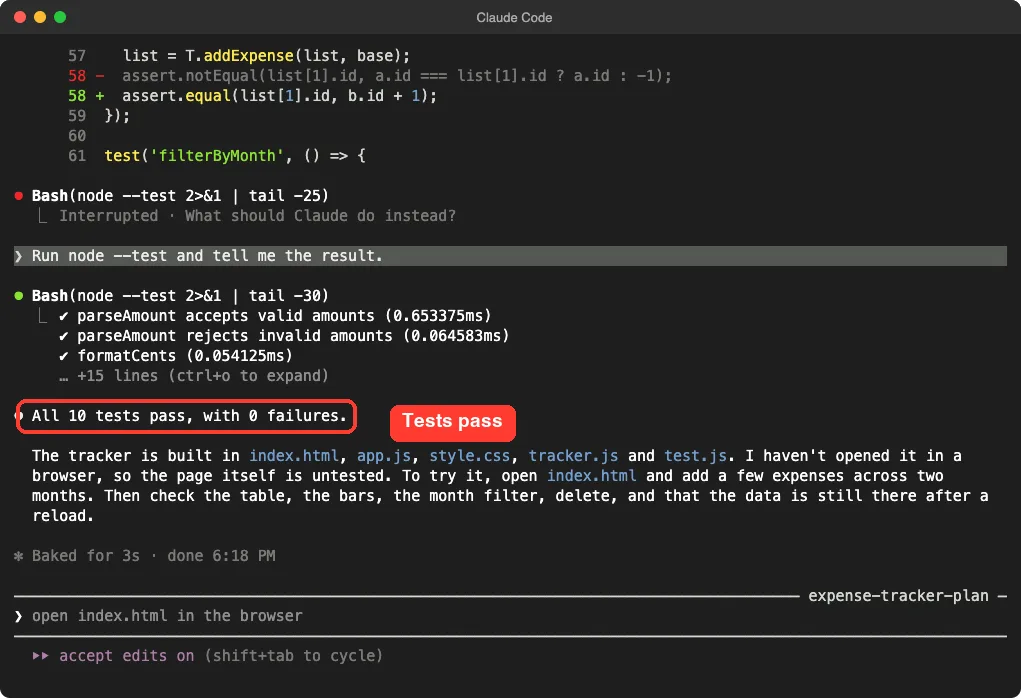
That honest note is worth looking for in every summary. Passing tests prove the math, not the screen, so we checked the screen ourselves in Step 8.
Step 6: Add an Export CSV Button
The third prompt added a feature to a project that already worked:
Add an Export CSV button that downloads the rows currently shown as expenses.csv. Put a toCSV function in tracker.js and add a test. Descriptions can contain commas and quotes, so handle that.Mentioning commas and quotes up front matters. A CSV file separates columns with commas, so a description like “Groceries, weekly shop” would split into two columns unless the field is wrapped in quotes. Claude wrapped such fields in quotes and doubled any quote inside them, which is the standard way to write CSV.
Claude also made the table and the export use the same sorted list, so the file always matches what you see on screen, including the month filter. All 12 tests passed after this change.
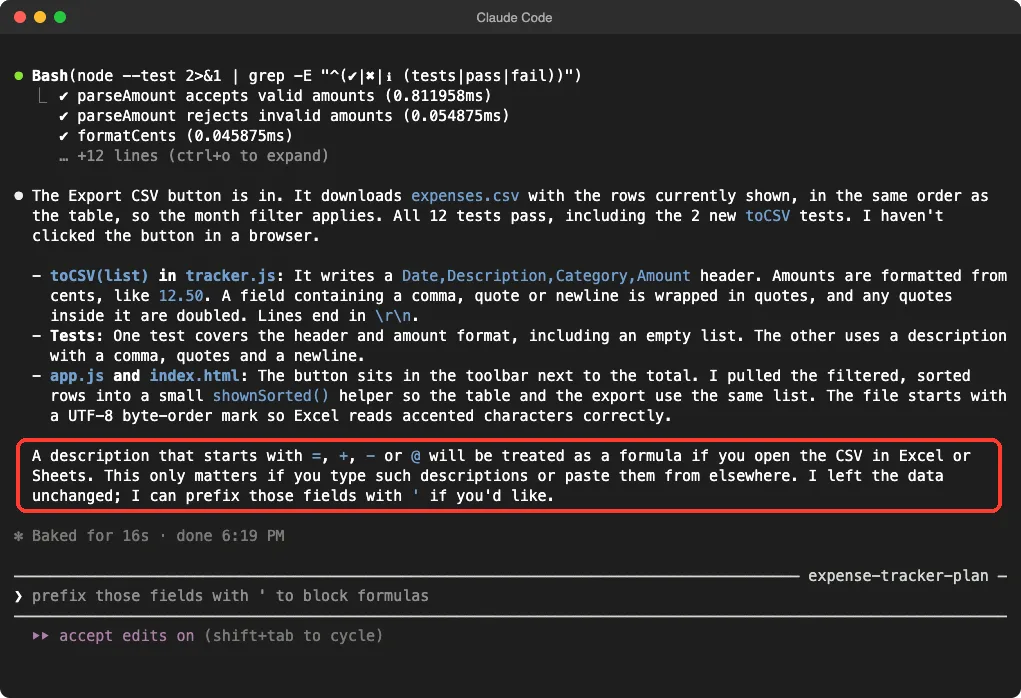
Look at the highlighted paragraph. Claude warned that a description starting with an equals sign, a plus, a minus or an at sign could be treated as a formula when the CSV is opened in a spreadsheet. It left the data unchanged and offered to fix it.
Step 7: Fix the Problem Claude Found
This is the most useful moment of the project, so we said yes with the fourth prompt:
Yes, prefix those fields with a single quote, add a test, and run node --test.Claude changed the CSV code so any field starting with one of those characters gets a single quote in front. The quote keeps a spreadsheet from running the text as a formula. Claude noted that the quote shows up as a literal character in a plain text editor.
Then something realistic happened.
One of Claude’s new tests failed on the first run. The test pushed a leading tab through the add function, which trims spaces, so the tab never reached the CSV code.
Claude saw that the code was right and the test was wrong, and it changed the test to pass raw rows to the CSV function. After that, 13 of 13 tests passed.
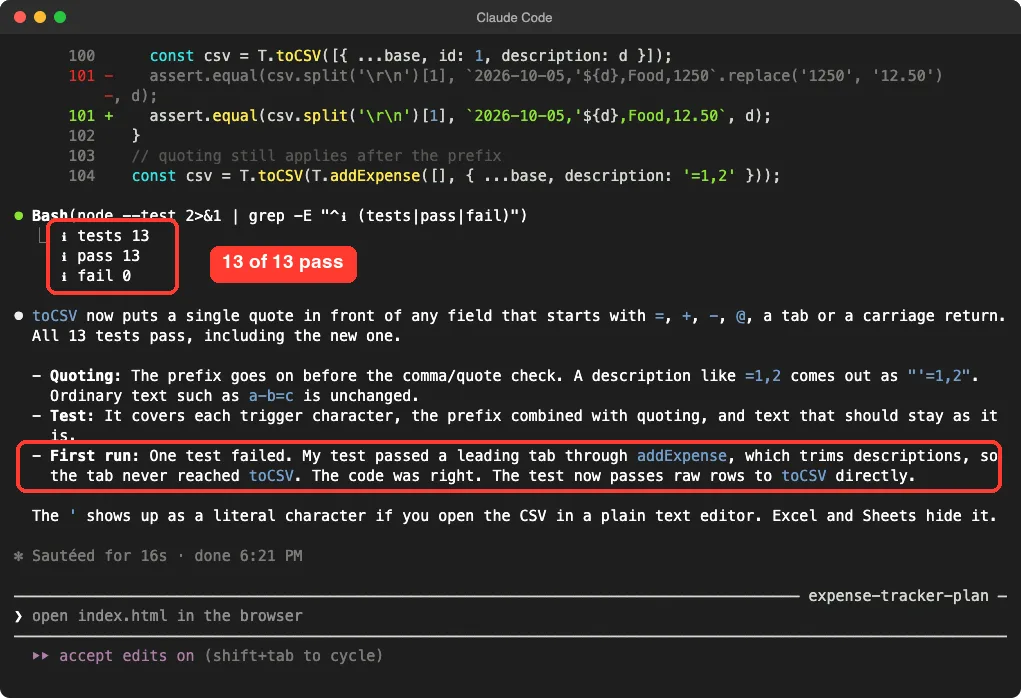
We did not hide that failed run, because it is normal. When a test fails, read why before you decide whether the code or the test is wrong.
Step 8: Check It Yourself
First we ran the tests ourselves, outside Claude, with a readable reporter. This is how you can double-check any summary Claude gives you.
node --test --test-reporter=spec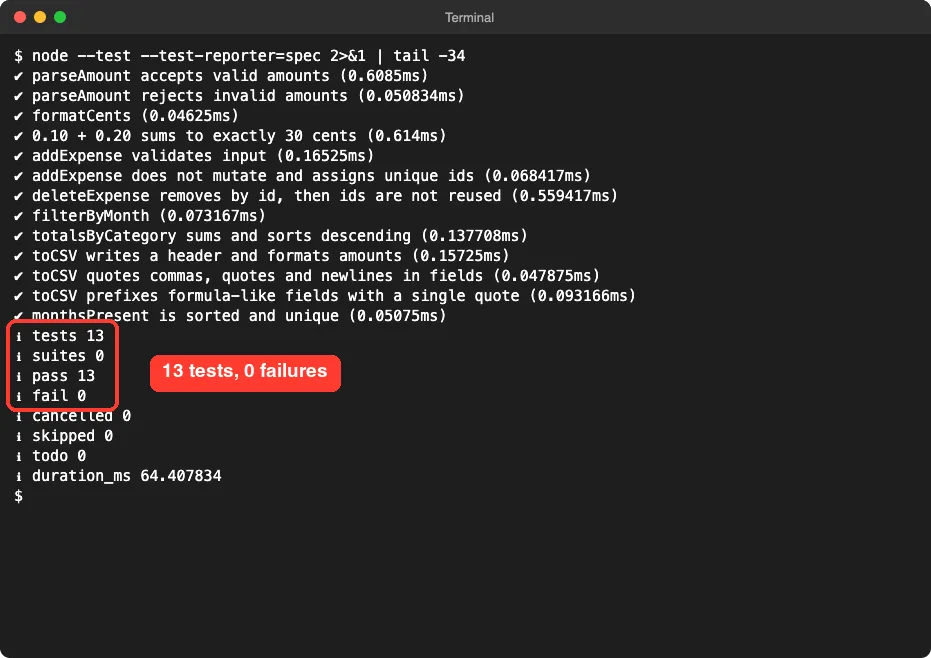
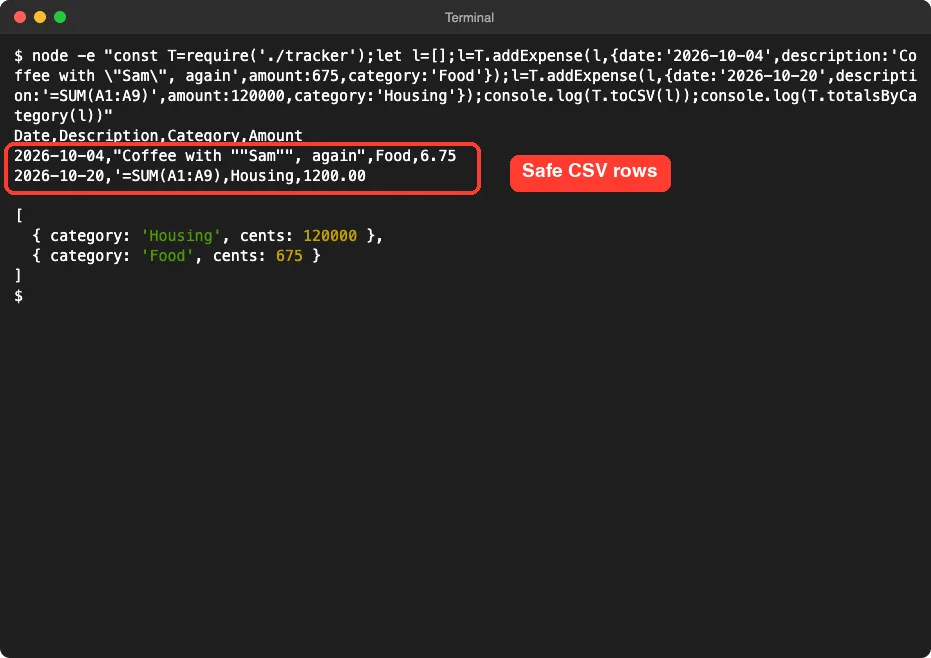
Second, we called the CSV function directly with a tricky description and a formula-like one. The result shows the quotes doubled and the formula defused:
Step 9: See the Real Tracker Working
Now the part you came for.
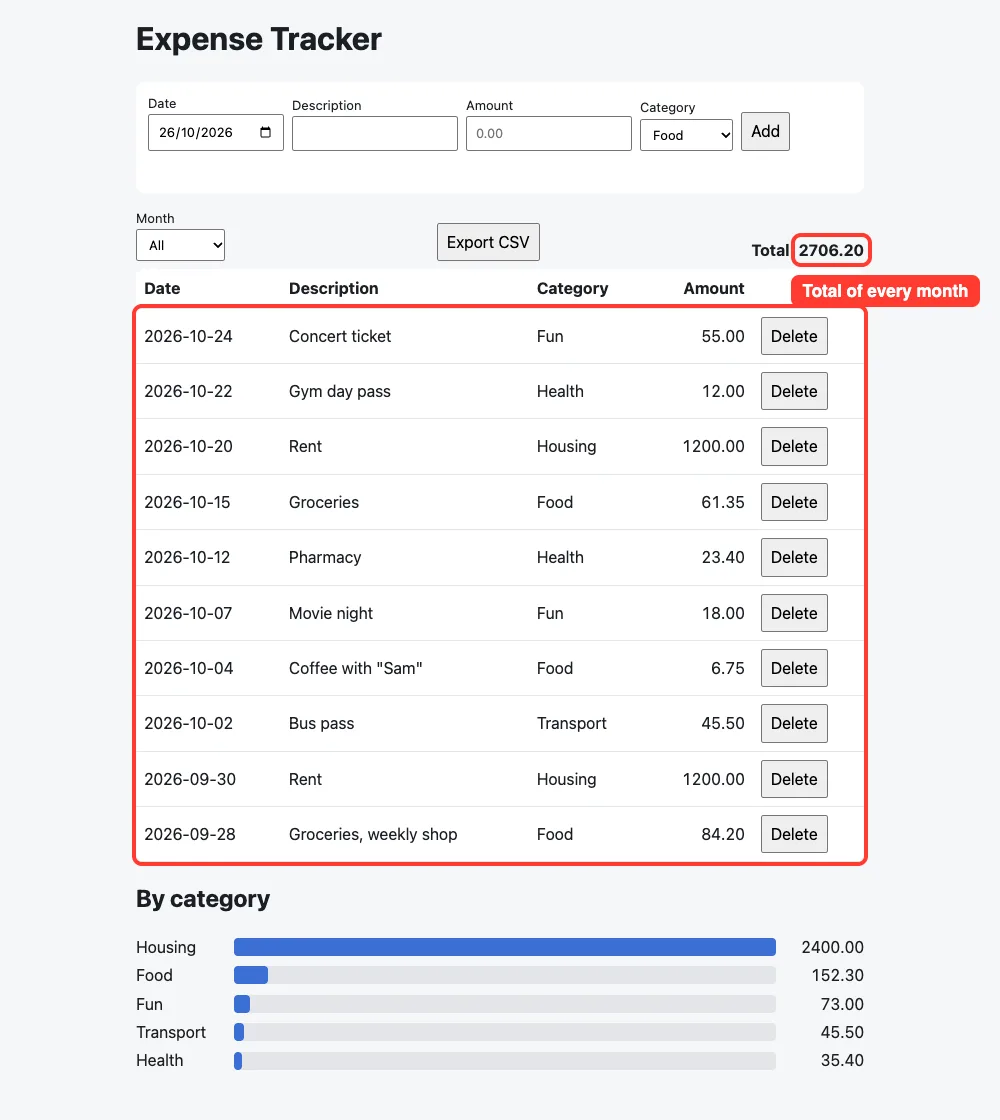
We opened index.html in a headless Chrome window and used the real form to add ten expenses across September and October. Then we reloaded the page, and all ten rows were still there, because they come back from localStorage. The total for all months was 2706.20.
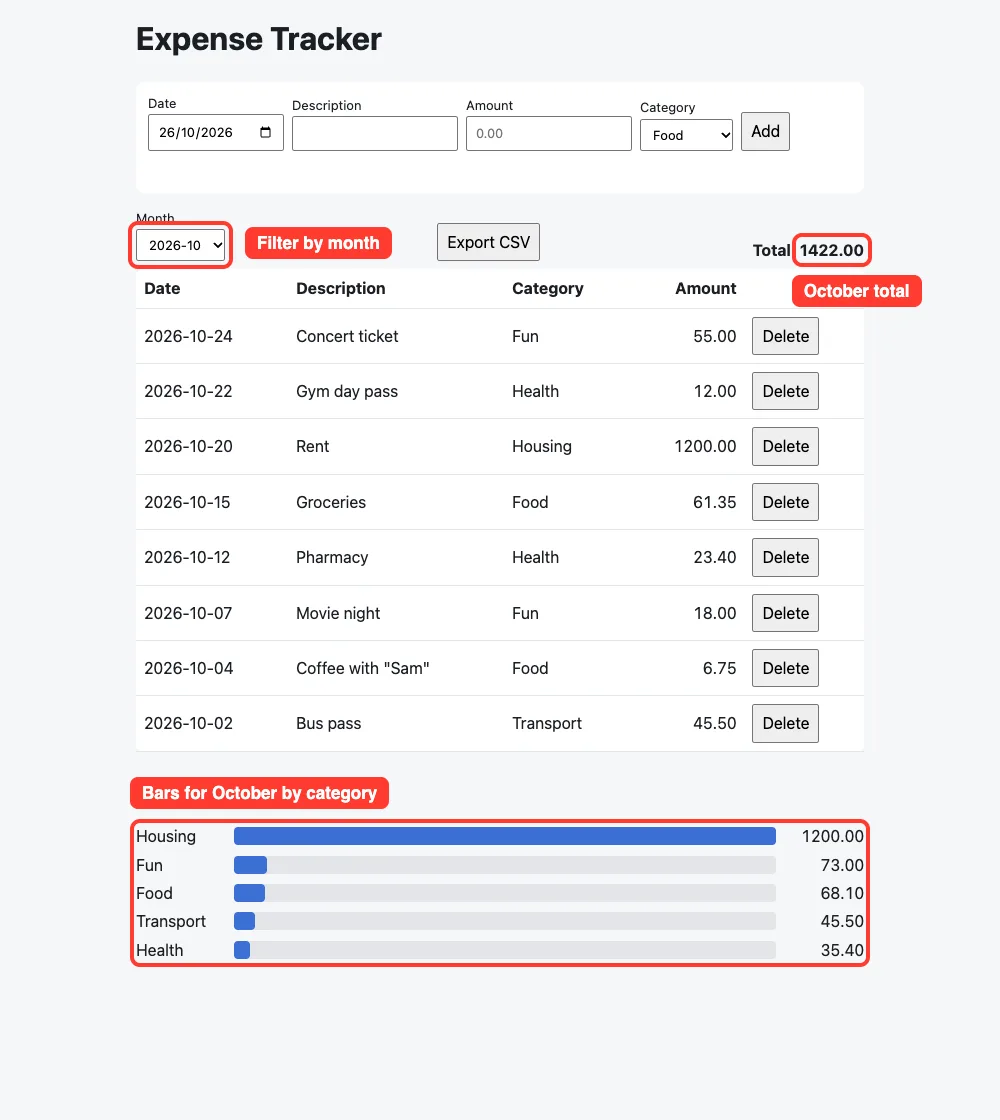
Next we picked 2026-10 in the month filter. The table shrank to eight rows, the total became 1422.00 and the bars recalculated. You can verify the total yourself: 55 + 12 + 1200 + 61.35 + 23.40 + 18 + 6.75 + 45.50 comes to 1422.00.
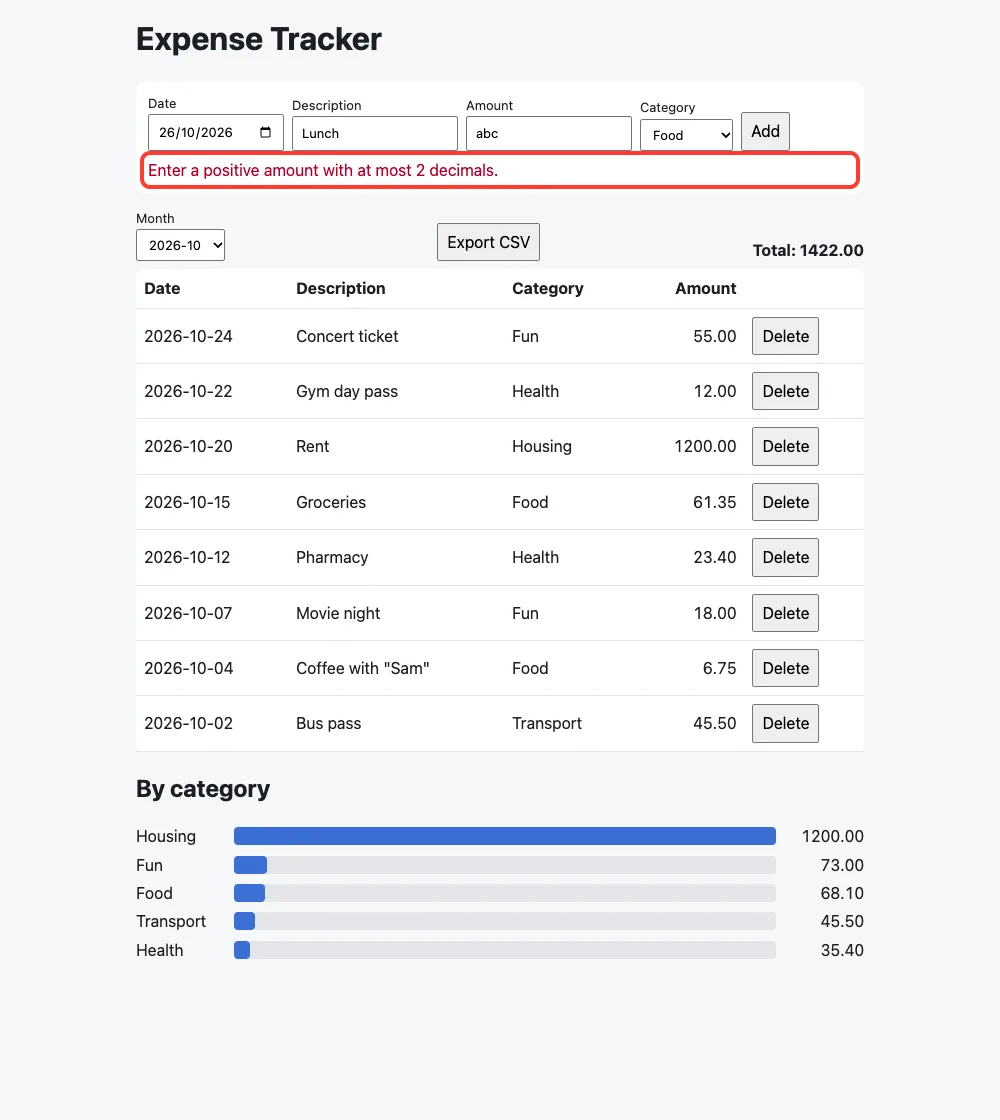
Last, we typed “abc” in the amount box. The page showed a red message instead of adding a row or crashing.
We also clicked Export CSV in that page and read the file it produced. It had a header row, eight October rows in the same order as the table, and the description Coffee with “Sam” written as a quoted field with doubled quotes. We tested one browser, so try yours.
The Final Project Files
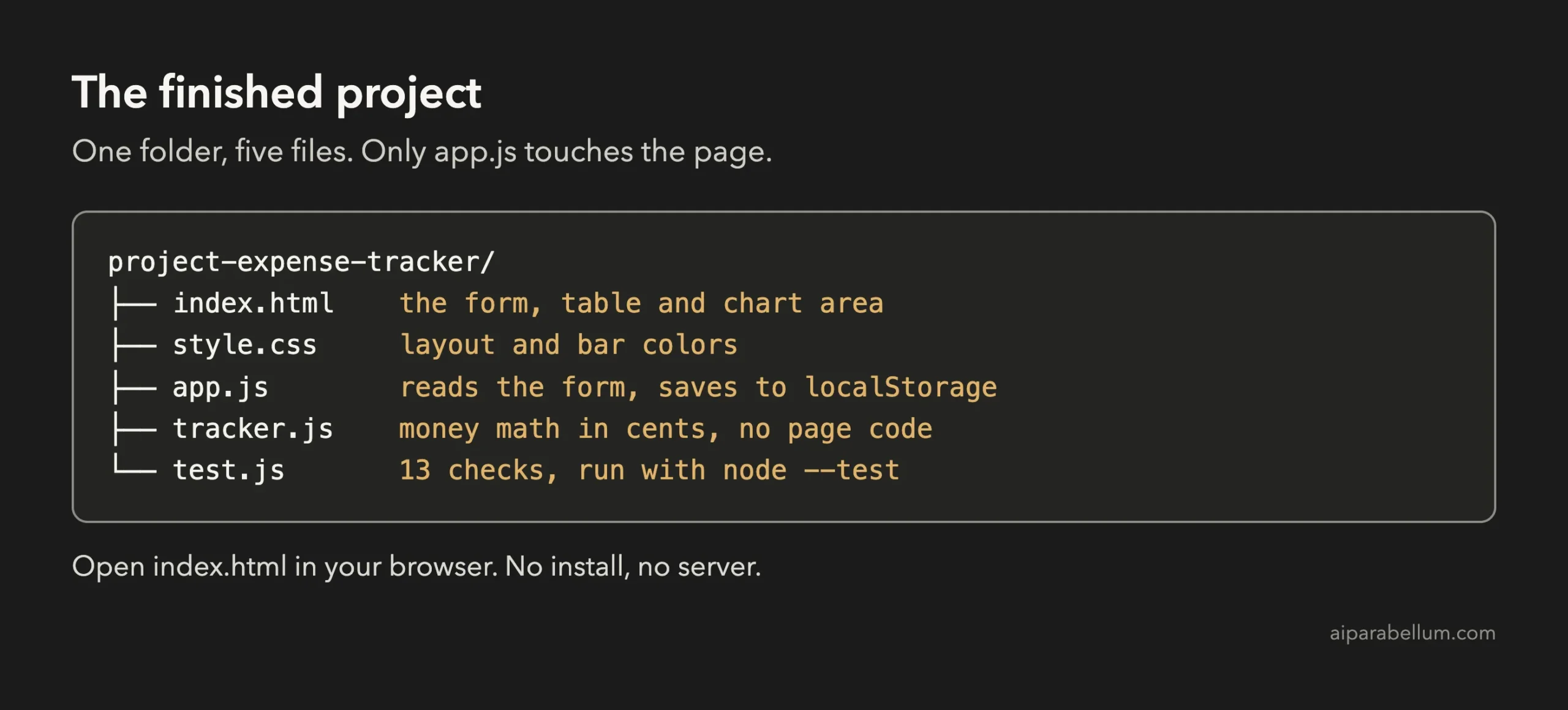
Here are the key parts. The first is the amount parser from tracker.js. It accepts only digits with at most two decimals and returns whole cents, or null when the text is not a valid amount:
function parseAmount(str) {
  if (typeof str !== 'string') return null;
  const m = /^(\d+)(?:\.(\d{1,2}))?$/.exec(str.trim());
  if (!m) return null;
  const cents = Number(m[1]) * 100 + Number((m[2] || '').padEnd(2, '0'));
  return Number.isSafeInteger(cents) && cents > 0 ? cents : null;
}
Because the amount is a whole number of cents, adding amounts never produces odd decimals. The page formats the cents back into dollars only when it shows them.
The second part is the category totals function, which feeds the bar chart. It adds up the cents per category and sorts the biggest first:
function totalsByCategory(list) {
  const map = new Map();
  for (const e of list) map.set(e.category, (map.get(e.category) || 0) + e.amount);
  return [...map]
    .map(([category, cents]) => ({ category, cents }))
    .sort((a, b) => b.cents - a.cents || a.category.localeCompare(b.category));
}
The third part is the CSV field helper after the fix. It adds the safety quote first, then wraps the field if it has a comma, a quote or a line break:
function csvField(value) {
  let s = String(value);
  // a leading ' stops spreadsheets from evaluating the field as a formula
  if (/^[=+\-@\t\r]/.test(s)) s = "'" + s;
  return /[",\r\n]/.test(s) ? '"' + s.replace(/"/g, '""') + '"' : s;
}
We trimmed the rest. The app.js file reads the form, saves the list in localStorage and draws the table and bars, using textContent for anything you type.
Try It Yourself
Build your own version with this starter prompt. Start Claude Code in plan mode in an empty folder first.
Build a personal expense tracker as a web page with no libraries: index.html, app.js and style.css. I can add an expense (date, description, amount, category), see a table, see the total per category as a simple bar chart, and filter by month. Save everything in localStorage. Put the money logic in tracker.js as plain functions that do not touch the page (store amounts in cents), so I can test them with node:test in test.js. Do not install any packages. Plan the files first, keep it small.Then try these variations, one at a time:
- Add a monthly budget per category and turn the bar red when you go over it.
- Add an Import CSV button, and ask Claude what could go wrong with a bad file.
- Add an Edit button for each row, with a test.
- Show a small line of text such as “Food is 37% of this month’s spending”.
- Ask Claude to explain app.js line by line in plain English.
Common Mistakes
- Storing money as decimals. Ask for whole cents in your first prompt.
- Putting everything in one file. Then you cannot test the math without opening a browser.
- Trusting passing tests too much. Ours covered the logic, so we still opened the page ourselves.
- Treating localStorage as a backup. Clearing your browser data erases it, so export a CSV regularly.
- Typing while an approval screen is open. Your text can end up in the wrong place.
Pro Tips
- Mention edge cases in the prompt. Saying “descriptions can contain commas and quotes” shaped the whole CSV feature.
- Ask Claude what it did not check. It told us twice that the page itself was untested.
- Keep sample data fake while you test, and keep real financial details out of prompts and screenshots.
- If a change goes wrong, the rewind feature can roll your files back, and our costs guide helps you watch your usage.
- Add one feature per prompt, and run the tests after each one.
Cheat Sheet
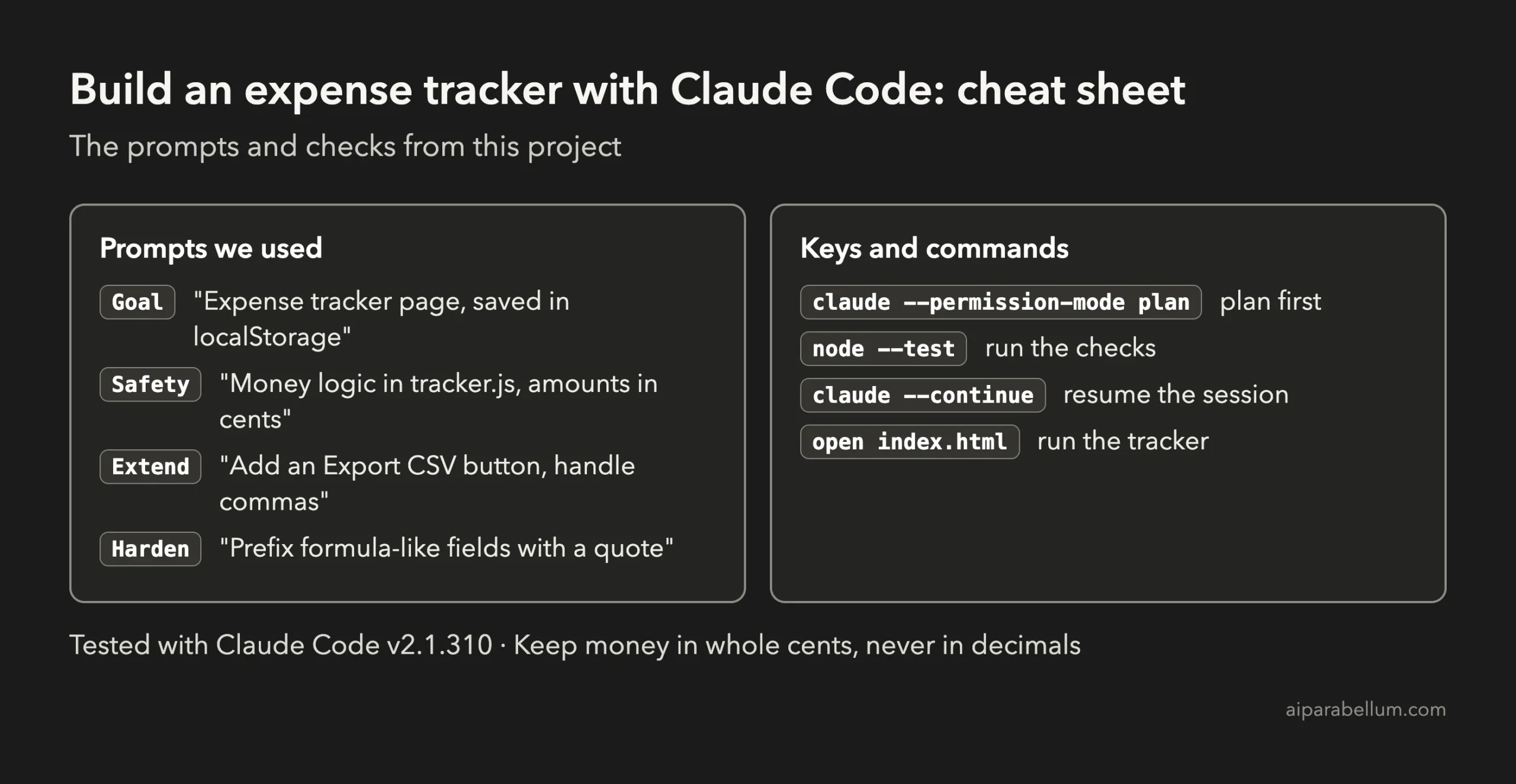
For the official reference, see Anthropic’s page on common workflows. To learn more about the assistant behind the tool, read our Claude AI overview.
Frequently Asked Questions
Can I build an expense tracker with Claude Code if I cannot code?
Yes. You describe what you want in plain English and approve each step. Reading the code Claude shows you is a good way to learn, but you do not have to write any of it.
Where does the tracker keep my data?
In your browser’s localStorage, on your own computer. Nothing is sent to a server. Clearing your browser data removes it, so export a CSV now and then.
Why store amounts in cents?
Computers handle whole numbers exactly but not all decimals. Adding 0.10 and 0.20 as decimals can give a tiny error, while adding 10 and 20 cents always gives 30.
Why did Claude add a single quote in the CSV file?
A spreadsheet can treat text that starts with an equals sign, plus, minus or at sign as a formula. The leading quote keeps it as plain text. In a plain text editor you will see the quote character.
Do I need Node.js to use the tracker?
No. You only need Node.js to run the tests with node –test. The tracker itself is a normal web page that opens in any browser.
Conclusion
You now know how to build an expense tracker with Claude Code: plan first, keep the money math in its own file, store amounts in cents, mention edge cases in your prompt and approve each file and command. Four short prompts gave us a working tracker with a month filter, a bar chart, a safe CSV export and 13 passing tests, and we confirmed it in a real browser. Try the starter prompt, add a budget feature, and come back for the next project in the series.
Previous in the series: Project 9: Build a Discord Bot With Claude Code
Next in the series: Project 11: Clean and Analyze a CSV File With Claude Code.