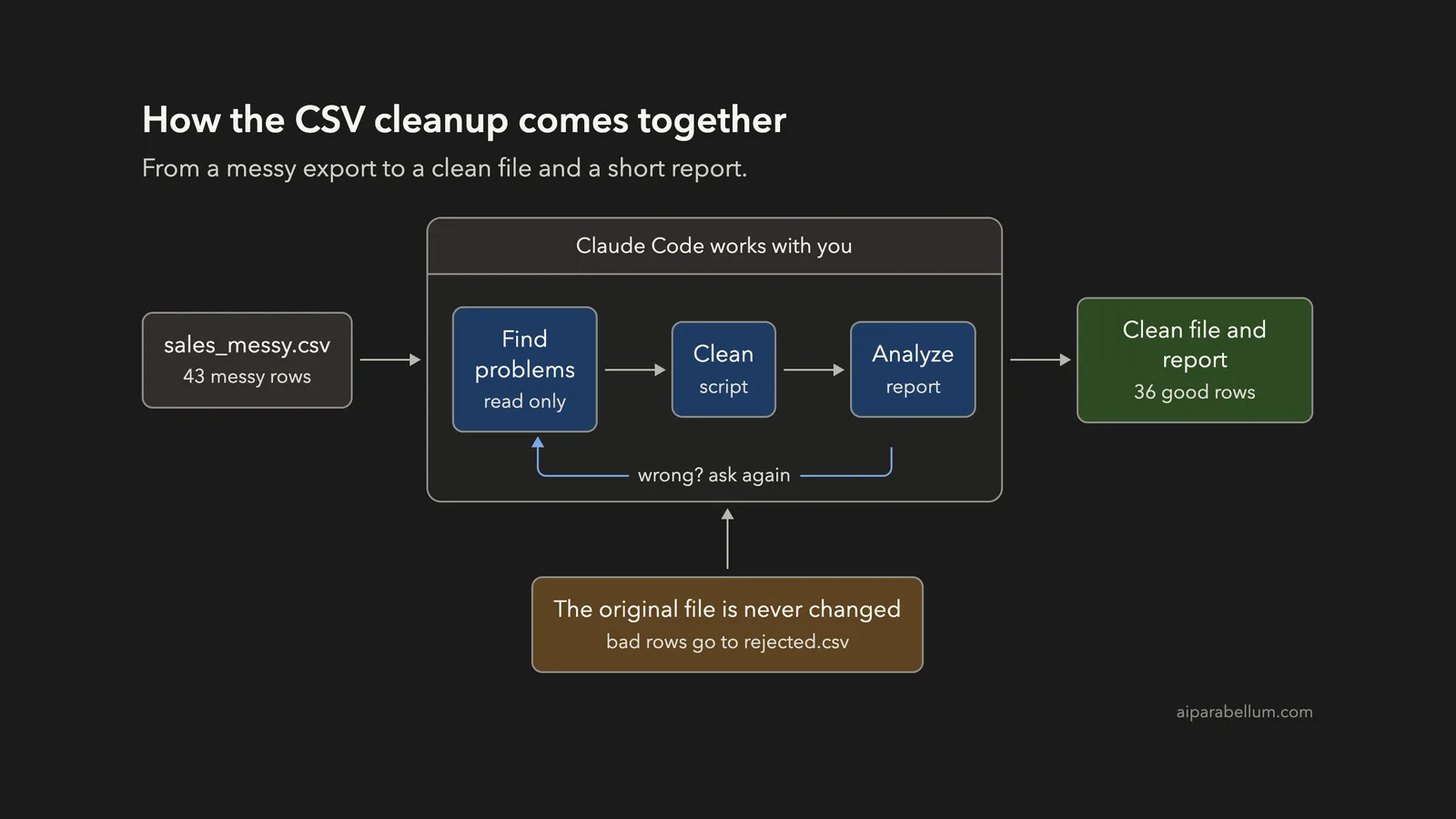
Want to analyze CSV with Claude Code but your file is full of mixed date formats, stray spaces and duplicate rows? You can hand Claude Code a messy export, let it find the problems, and end up with a clean file and a short report, all without writing the code yourself.
This is Project 11 of 20 in our Build with Claude Code series, part of our Claude Code tutorials. In Project 10 we built a personal expense tracker that exports a CSV file. This time we go the other way: we take a messy CSV in and clean it up.
Tested with Claude Code v2.1.310 on October 26, 2026, on macOS. We tested on macOS; the Windows and Linux steps follow Anthropic’s official instructions.
What We Built
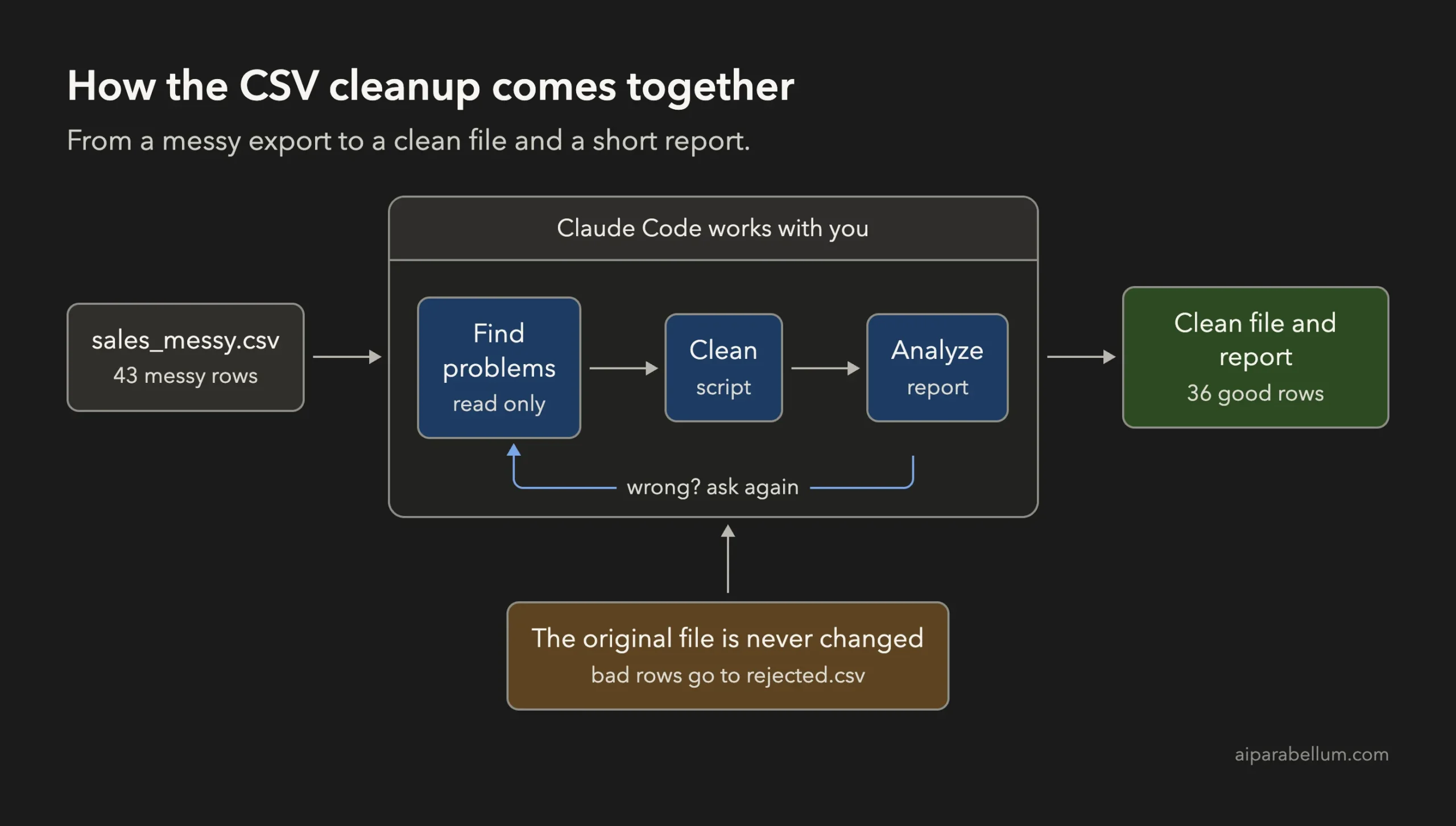
Look first, clean with a script, keep the original, and send anything doubtful to a rejected file instead of guessing.
| Item | Details |
|---|---|
| Project | A cleaner and a small analysis report for a messy sales CSV |
| Input | sales_messy.csv, a made-up file with 43 data rows and about a dozen kinds of problems |
| Output | sales_clean.csv (36 rows), rejected.csv (5 rows with reasons) and report.md |
| Files written by Claude | clean_sales.py and analyze_sales.py |
| Prompts used | 4 short prompts, plus the approvals |
| Install needed | Claude Code and Python 3. No packages. |
Why Clean a CSV File Before You Analyze It?
A CSV file is a plain text table. Each line is a row and commas separate the columns. Almost every tool can export one, which is why almost every export is a little messy.
If you add up numbers from a messy file, you get wrong answers without any error message. A price written as “$12.50 ” with a space will not add up like a number.
The same region written as “North”, “NORTH” and ” north ” will be counted as three regions. A row that appears twice will be counted twice.
Cleaning is the boring part of data work, and it is where Claude Code helps the most. It can read the file, spot the patterns and write a small script that fixes them. The script is the important part, because you can run it again next month on a new export.
Why Use Claude Code for This?
You could paste data into a chat window, but a real CSV can be long. In Claude Code you point at the file by name, and Claude reads it from your folder. Anthropic’s page on common workflows describes this with the at sign: you type @ followed by a file path and the file is included in the conversation.
Our demo uses exactly that. If you are new to the tool, start with our first session guide, and read about permission modes so the approval screens below make sense.
The Messy File We Used
Every name, order and price in this tutorial is made up. We wrote the file ourselves so we know exactly which problems are hiding inside. It has seven columns: order_id, date, customer, region, product, quantity and unit_price.
We planted these problems on purpose: three date formats, region names in mixed capitals with extra spaces, prices with and without a dollar sign, four rows with a missing value, an impossible date (September 31), a junk “Zed Test” row and two exact duplicate rows. The original file stays untouched for the whole project.
Always work on a copy of real data. Your real exports are not made-up files, so keep the raw file safe and let every cleaning step write a new one.
Step 1: Start Claude Code in the Data Folder
Create a folder, put the CSV inside and start Claude Code there. On the first run you will see a question about trusting the folder. Answer yes only for folders you made or trust.
mkdir my-sales-project
cd my-sales-project
claude
Step 2: Ask Claude to Look, Not Touch
The first prompt asks for a list of problems and says clearly not to change anything. This is a safe way to start, because Claude can read a file without editing it.
Look at @sales_messy.csv and list the data quality problems you find, one short line each, at most 10 lines, with a row example. Do not change any file yet.Claude read the file and returned ten numbered problems. It found the three date formats, the impossible date, the junk test row, the inconsistent capitals, the padded regions, the four missing values, the price formatting and the exact duplicates. It also noticed something we had not planned: two rows with different order IDs but the same customer, product, quantity and date written two ways.
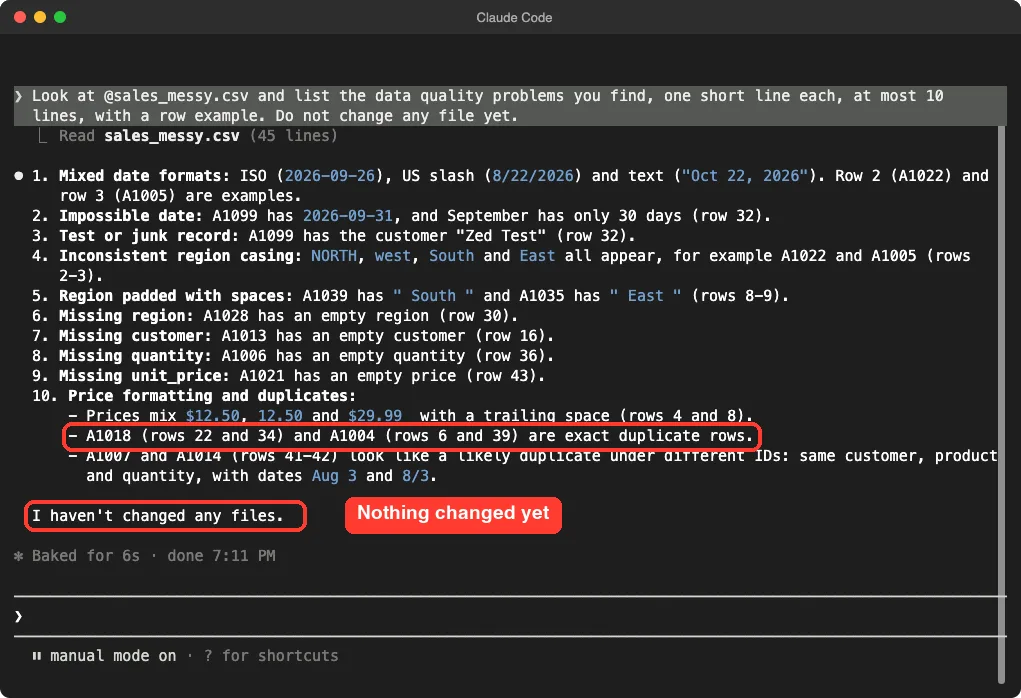
That last finding is a judgment call.
Those two rows might be one order entered twice, or two real orders. Claude cannot know, and it said so.
In the next prompt we told it what we wanted.
Step 3: Write a Cleaning Script
Notice how the second prompt makes every decision for Claude. This is the key skill in data cleaning with an assistant: you decide the rules, and Claude writes the code.
Write clean_sales.py using only the Python standard library. It reads sales_messy.csv and never changes it. It writes sales_clean.csv with dates as YYYY-MM-DD, regions trimmed and in title case, prices as plain numbers, a new line_total column, and exact duplicate rows removed (keep A1007 and A1014, they have different IDs). Rows that cannot be fixed (impossible date, the Zed Test row, or a missing customer, region, quantity or price) go to rejected.csv with a reason column. Print a short summary, then run it.Each part has a job.
“Never changes it” protects your raw data. “Only the standard library” means nothing to install. Naming the exact rules for rows you cannot fix stops Claude from inventing values, such as a guessed price.
Claude wrote the script and then asked to run it. Writing a file was approved automatically because we started this session with accept edits turned on, but running a command still needs your approval.
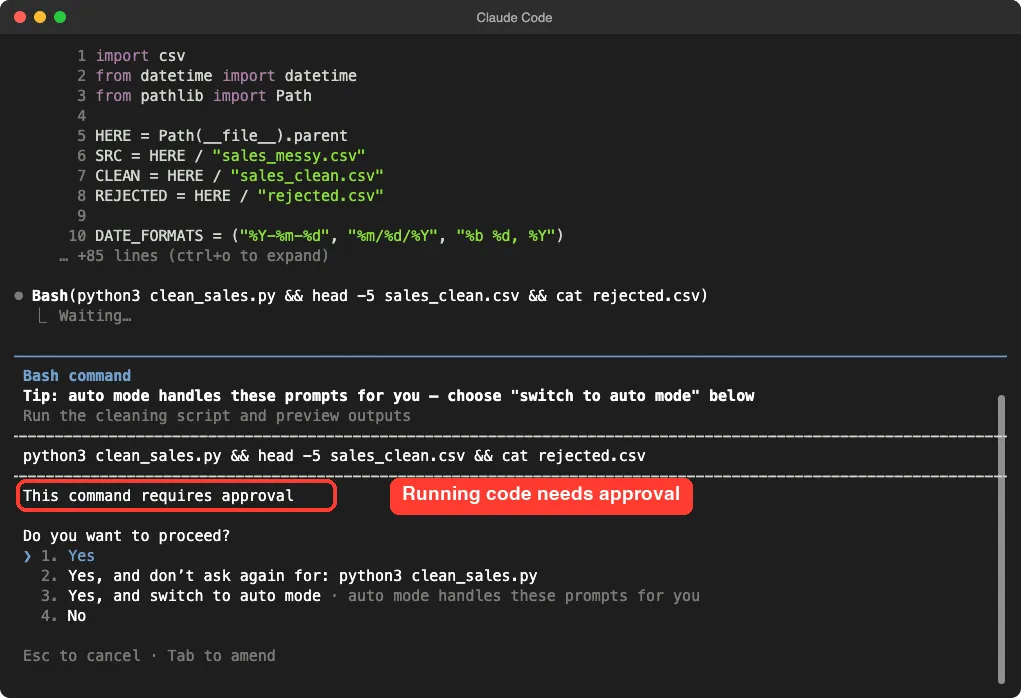
We chose the second option, which allows that one command for the rest of the session. Claude then printed a summary table of the rejected rows.
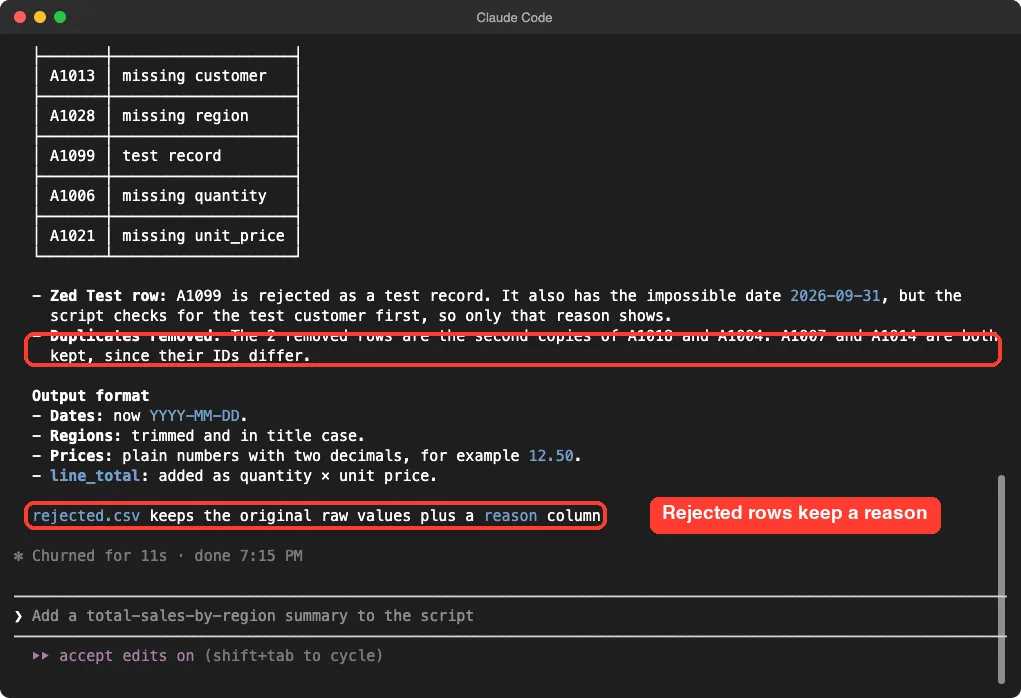
Read the highlighted lines. The Zed Test row also had the impossible date, but the script checks for the test customer first, so only that reason shows. Two duplicates were removed, and A1007 and A1014 were both kept, as we asked.
Step 4: Check the Result Yourself
Do not trust a cleaning run until you have looked at the output. We opened a plain terminal and printed the first rows of both files.
head -8 sales_messy.csv
head -8 sales_clean.csv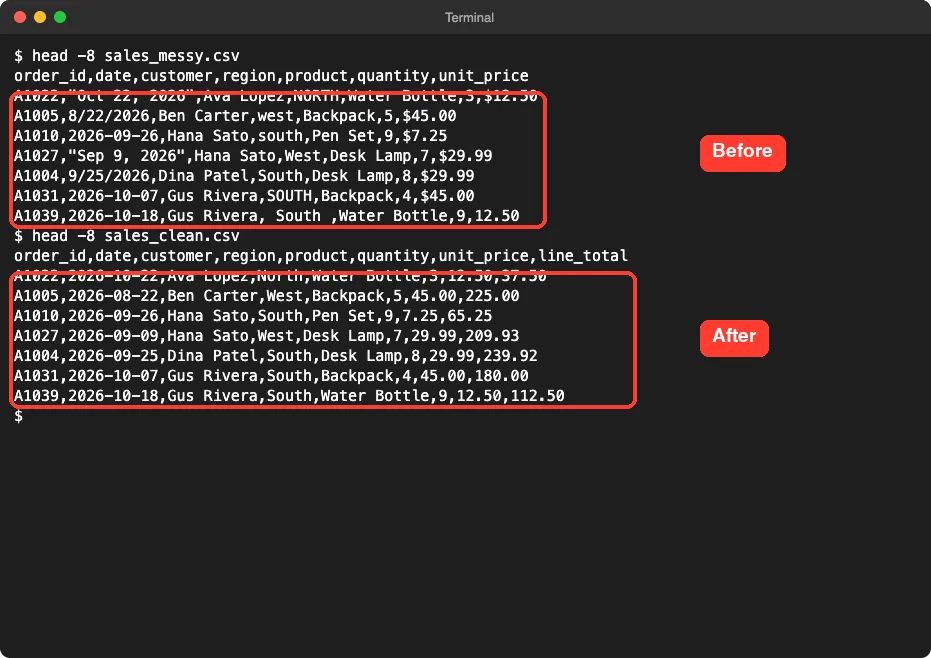
The first row shows the change well. “Oct 22, 2026” became 2026-10-22, NORTH became North, and the price lost its dollar sign. A new line_total column holds quantity times price, here 37.50.
Then we looked at the rejected rows and counted the lines in each file.
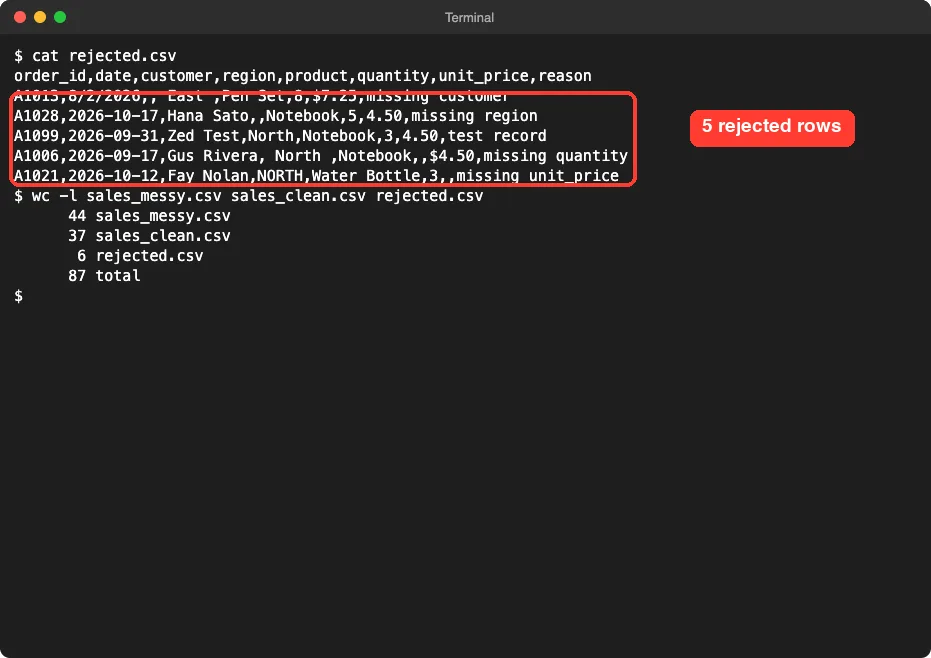
The numbers add up.
The original has 43 data rows. The clean file has 36, the rejected file has 5, and 2 duplicates were removed: 36 plus 5 plus 2 is 43.
A check like this takes ten seconds and catches most mistakes.
Step 5: Analyze the Clean Data
Now the fun part. The third prompt asks for the numbers you actually care about.
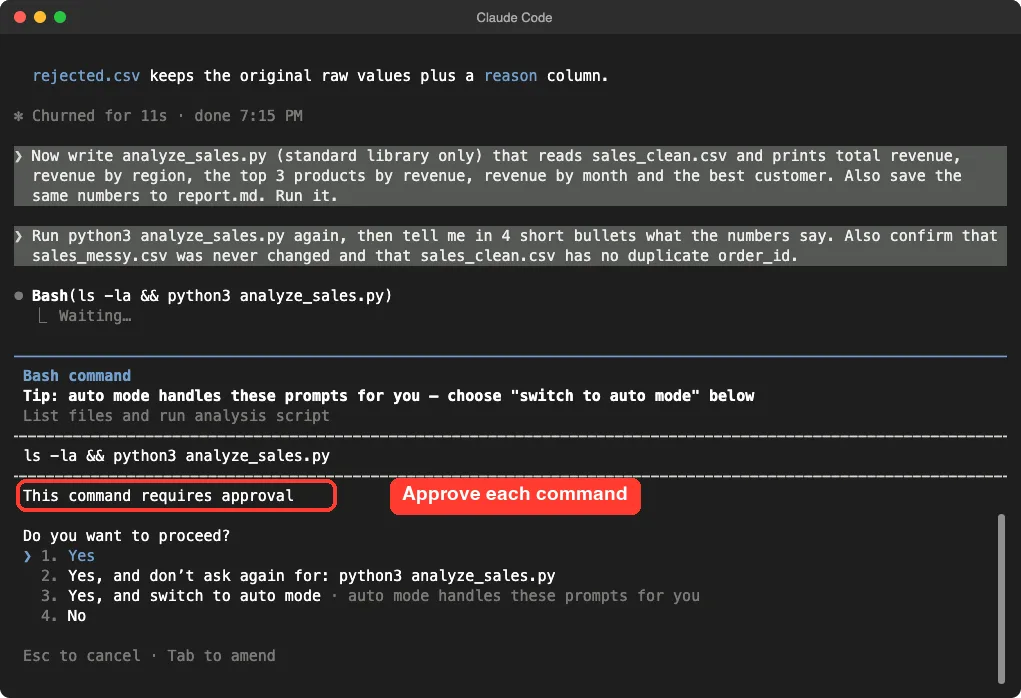
Now write analyze_sales.py (standard library only) that reads sales_clean.csv and prints total revenue, revenue by region, the top 3 products by revenue, revenue by month and the best customer. Also save the same numbers to report.md. Run it.Claude wrote the analysis script and asked to run it. Our automated session ended while this approval was open, so Claude’s first run was cut off.
An unapproved command does not run, which is the approval system working as designed. We resumed the same session with the continue option and asked again.
Step 6: Let Claude Explain the Numbers and Check Itself
The fourth prompt asks for a plain-English summary and a self-check. Asking Claude to verify its own work is a habit worth building.
Run python3 analyze_sales.py, then give me 4 short bullets on what the numbers say. Also check that sales_messy.csv still has all 43 data rows and that sales_clean.csv has no duplicate order_id.Claude ran the report, wrote its own small check script for the duplicate IDs and the row count, and then summarized everything.
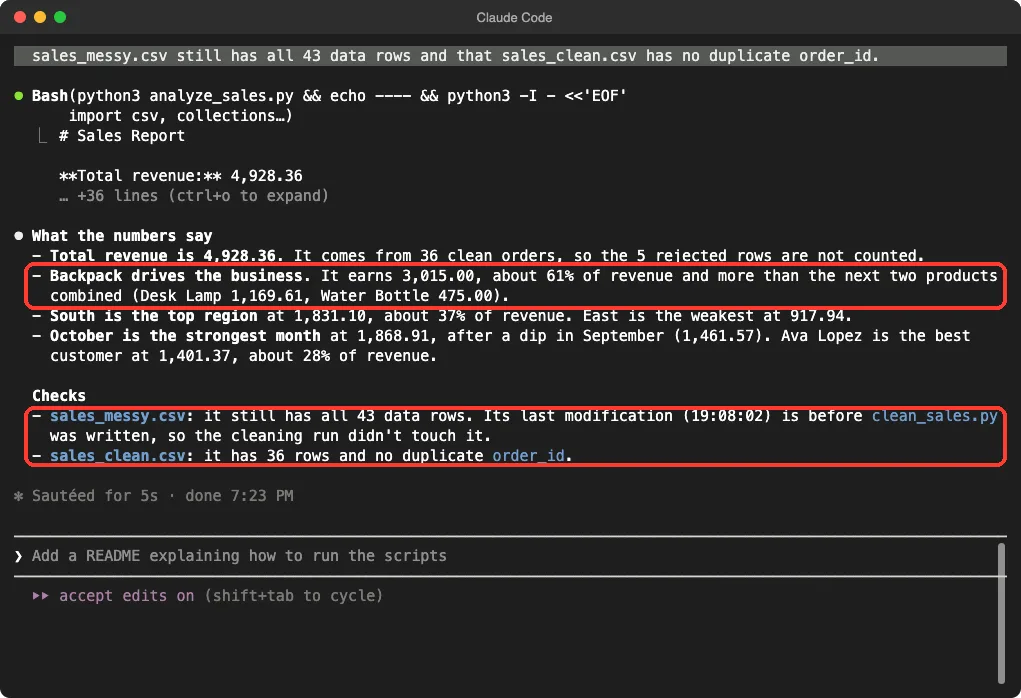
Total revenue was 4,928.36 from 36 clean orders.
Backpack earned 3,015.00, about 61 percent of the total. South was the top region at 1,831.10. October was the best month at 1,868.91, and Ava Lopez was the best customer at 1,401.37.
We did not take that on trust. We recomputed the same totals with a separate short Python snippet of our own and got the same numbers: 4,928.36 in total, 1,831.10 for South, 3,015.00 for Backpack, and 1,597.88, 1,461.57 and 1,868.91 for August, September and October.
One caution is worth knowing. The check said the original file was unchanged because its modified time was earlier than the script, plus the row count still matched. That is good evidence, but if the file matters, keep a copy or a backup too.
The Final Project Files
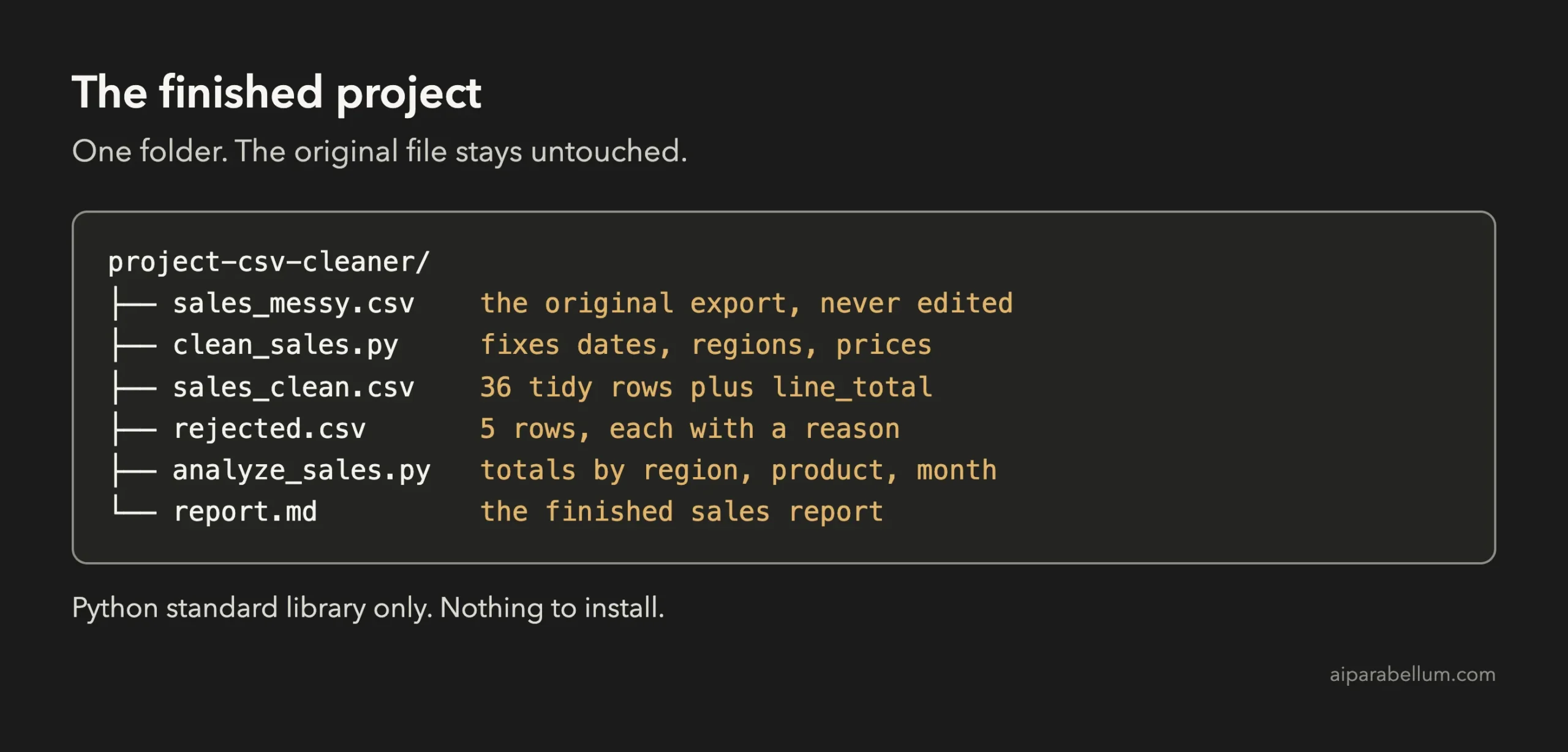
Here are the key parts of clean_sales.py. The first function tries three date formats in turn and returns a standard date, or nothing when the date is impossible. September 31 fails all three, so that row is rejected:
DATE_FORMATS = ("%Y-%m-%d", "%m/%d/%Y", "%b %d, %Y")

def parse_date(text):
    for fmt in DATE_FORMATS:
        try:
            return datetime.strptime(text, fmt).strftime("%Y-%m-%d")
        except ValueError:
            continue
    return None
The second part cleans one row. It trims every value, rejects a test customer, checks the date and the required fields, strips the dollar sign from the price and builds the new row. We trimmed the code here, but the idea is simple: return either a clean row or a reason.
def clean_row(row):
    row = {k: (v or "").strip() for k, v in row.items()}
    if "test" in row["customer"].lower().split():
        return None, "test record"
    date = parse_date(row["date"])
    if date is None:
        return None, f"invalid date: {row['date']!r}"
    for field in ("customer", "region", "quantity", "unit_price"):
        if not row[field]:
            return None, f"missing {field}"
    quantity = int(row["quantity"])
    price = float(row["unit_price"].replace("$", "").replace(",", ""))
    return {"order_id": row["order_id"], "date": date,
            "customer": row["customer"], "region": row["region"].title(),
            "product": row["product"], "quantity": quantity,
            "unit_price": f"{price:.2f}",
            "line_total": f"{quantity * price:.2f}"}, None
The third part is how the analysis adds things up. It loops through the clean rows once and keeps a running total for each region, product, month and customer:
for row in csv.DictReader(f):
    amount = float(row["line_total"])
    total += amount
    by_region[row["region"]] += amount
    by_product[row["product"]] += amount
    by_month[row["date"][:7]] += amount
    by_customer[row["customer"]] += amount
Because dates are now in one format, the first seven characters are the month, such as 2026-10. That is a good example of why cleaning comes first.
Try It Yourself
Use your own export, or ask Claude to make a messy sample file first. Start with the read-only prompt, then adapt this cleaning prompt:
Write clean_data.py using only the Python standard library. It reads my file and never changes it. It writes a clean copy with one date format and trimmed, consistent text, removes exact duplicates, and sends rows it cannot fix to rejected.csv with a reason column. Print a short summary, then run it.Then try these variations, one at a time:
- Ask Claude to show every region spelling it found before it merges them.
- Ask for a second report that compares months side by side.
- Ask Claude to write tests for the date parser with five tricky dates.
- Ask for a simple bar chart as an SVG file, then open it in your browser.
- Ask Claude what it would do differently with a file of one million rows.
Common Mistakes
- Letting Claude edit the original file. Always write to a new file and keep the raw one.
- Skipping the look-first step. The read-only prompt found a problem we had not planned.
- Guessing missing values. A fake price is worse than a rejected row. Send doubtful rows to a rejected file.
- Not checking the totals. Compare row counts and recompute one number by hand.
- Using real customer data in a demo. Use made-up files while you learn.
Pro Tips
- Make the decisions yourself. Say what to do with duplicates, blanks and bad dates, and name the rule for each.
- Ask for a rejected file with a reason column. You will see at once what was dropped and why.
- Keep the script. Running it again on next month’s export takes seconds.
- For large files, ask Claude to work on a sample first, and watch your usage with our costs guide.
- If a change goes wrong, the rewind feature can roll your files back, and plan mode is a good way to review a bigger cleanup before it starts.
Cheat Sheet
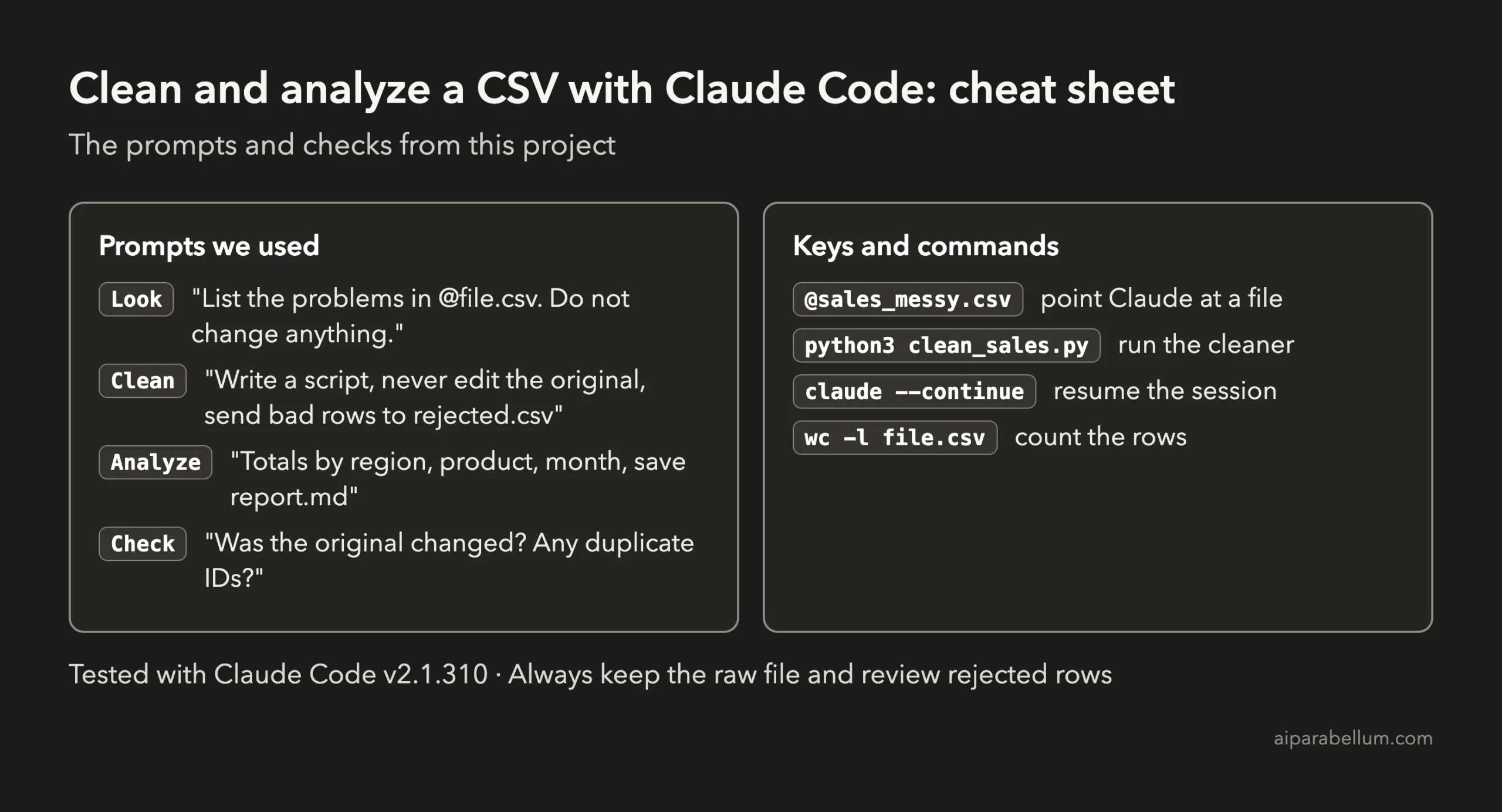
To learn more about the assistant behind the tool, read our Claude AI overview.
Frequently Asked Questions
Can Claude Code clean a CSV file if I cannot code?
Yes. You describe the problems and the rules in plain English, and Claude writes the script. You still need to check the result, so look at the first rows and compare the row counts.
Will Claude Code change my original CSV?
Only if you let it. In our demo we told Claude never to change the original, and we asked it to confirm afterward. Keep a backup of anything important.
Is my data sent anywhere?
When Claude reads a file, its contents become part of the conversation with the model. Use made-up or anonymized data while you learn, and read our guide to privacy and security before you use real customer data.
What should I do with rows that cannot be fixed?
Send them to a separate rejected file with a reason, as we did. Then fix the source or decide by hand. Guessing a value can quietly corrupt every number that follows.
Do I need Python installed?
Our scripts used Python 3 and only its standard library, so there was nothing else to install. You can ask Claude to use another language if you prefer.
Conclusion
You now know how to analyze CSV with Claude Code: ask it to look first, make the cleaning rules yourself, write the results to new files, keep the original safe and check the totals before you trust them. Four short prompts took our messy file from 43 rows with about a dozen kinds of problems to 36 clean rows, five rejected rows with reasons and a report we confirmed ourselves. Try the starter prompt on your own sample file, and come back for the next project in the series.
Previous in the series: Project 10: Build a Personal Expense Tracker With Claude Code
Next in the series: Project 12: Turn a Spreadsheet Into Charts With Claude Code.