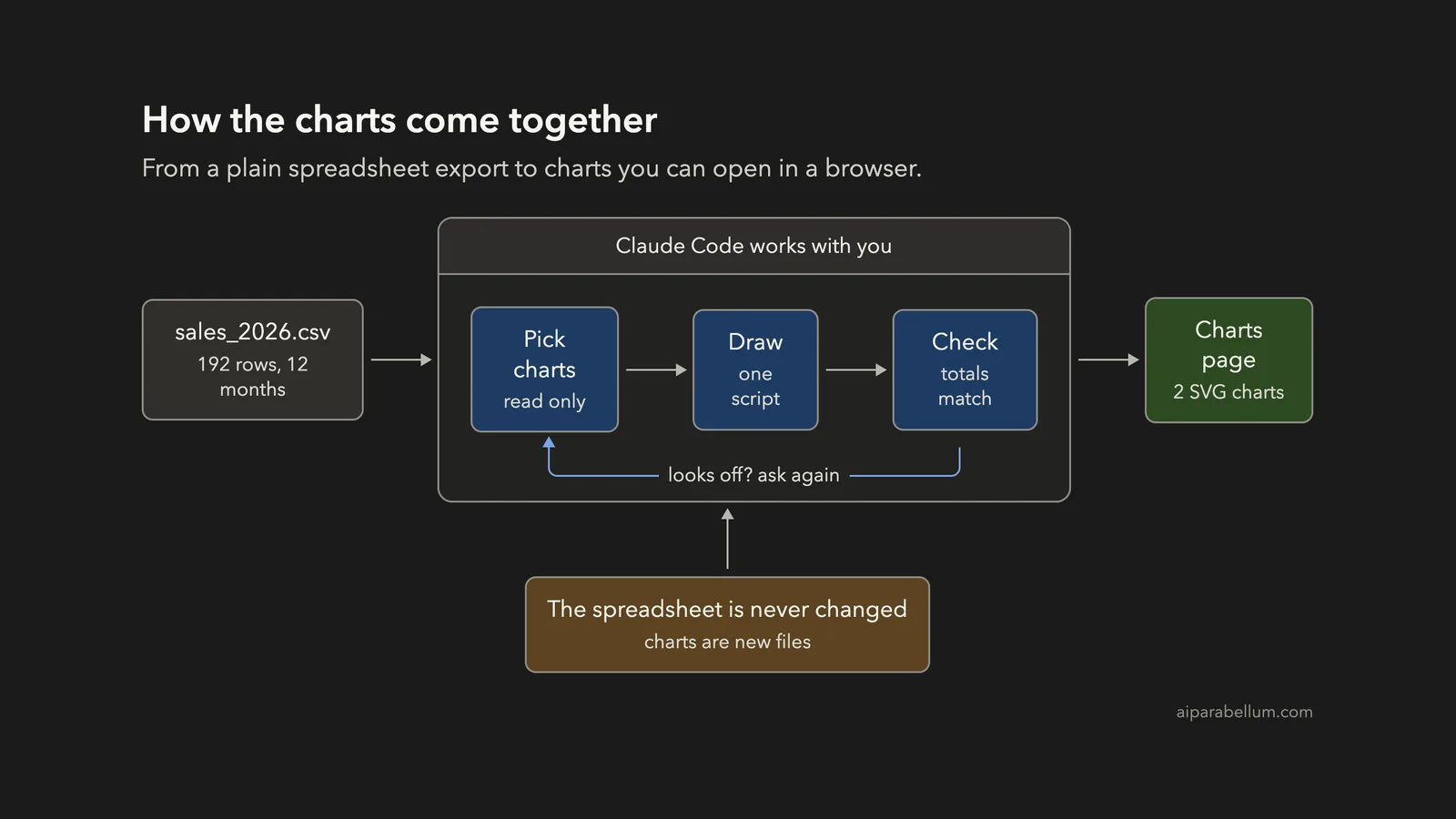
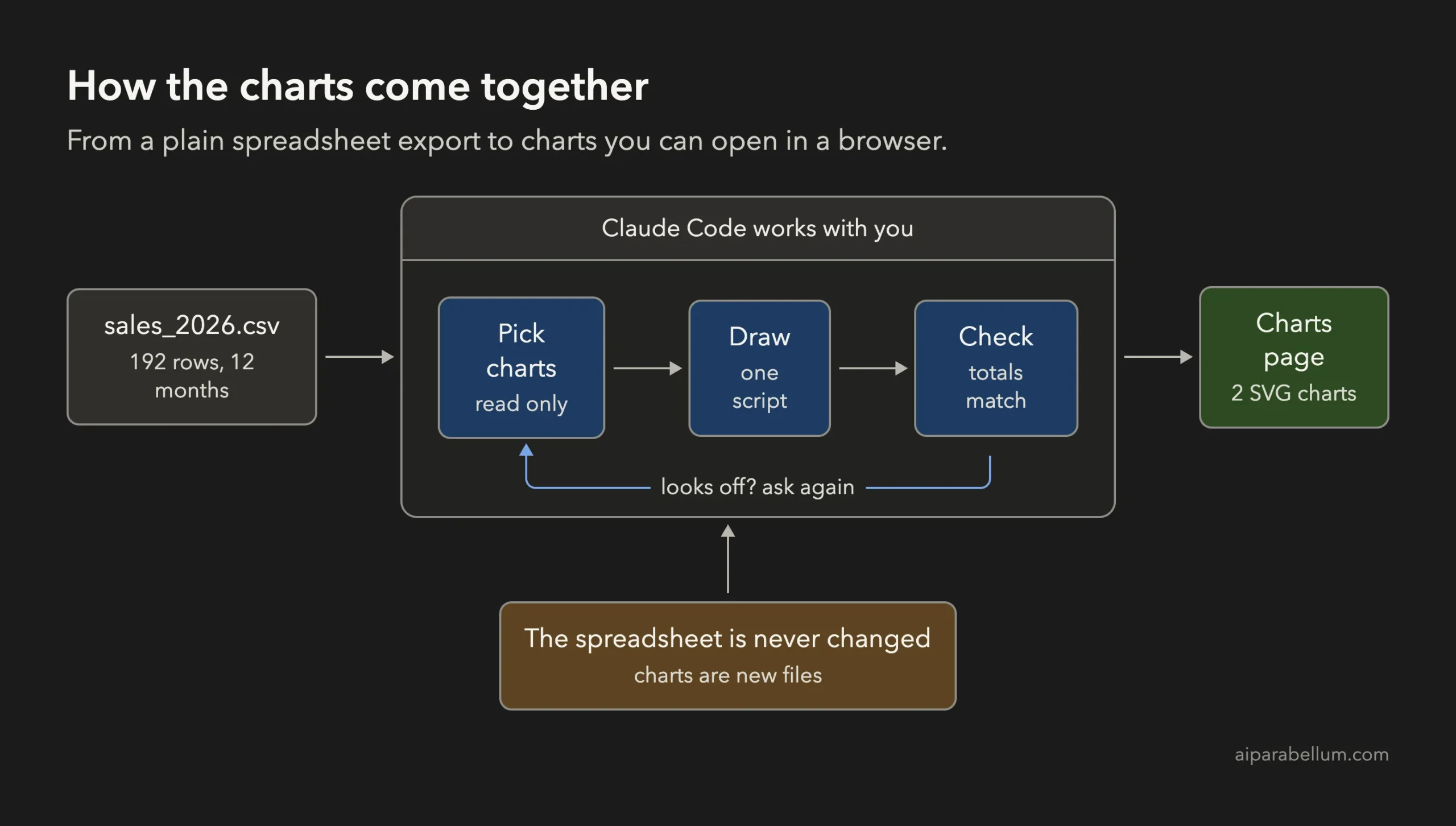
Want to make charts with Claude Code from a spreadsheet, but you do not want to learn a plotting library first? You can point Claude Code at a sales file, let it suggest the right charts, and end up with a web page that shows a line chart, a bar chart and a heatmap, all drawn by a script you can run again next month.
This is Project 12 of 20 in our Build with Claude Code series, part of our Claude Code tutorials. In Project 11 we learned to analyze a CSV. Now we take a tidy spreadsheet and turn it into pictures.
Tested with Claude Code v2.1.310 on October 26, 2026, on macOS. We tested on macOS; the Windows and Linux steps follow Anthropic’s official instructions.
What We Built
Ask for ideas first, draw with a script, and never trust a chart until you have read its numbers and its labels.
| Item | Details |
|---|---|
| Project | Three charts and one web page made from a yearly sales spreadsheet |
| Input | sales_2026.csv, a made-up export with 192 rows (12 months, 4 products, 4 regions) |
| Output | line_chart.svg, bar_chart.svg, heatmap.svg and charts.html |
| Files written by Claude | One script, make_charts.py, plus the web page |
| Prompts used | 5 short prompts, plus the approvals |
| Install needed | Claude Code and Python 3. No packages. |
Why Make Charts From a Spreadsheet?
A spreadsheet full of numbers is hard to read. You can scan 192 rows and still not know which product is growing or which region is ahead.
A chart answers that in a second. A line shows a trend, a bar shows a total and a heatmap shows which combinations are strong. The skill is picking the right picture for the question.
That is a good job for an assistant. Claude Code can read the file, suggest which chart fits which question, and write the drawing code. You stay in charge of the questions and you check the result.
Why Use Claude Code Instead of a Chart Tool?
Chart tools are great for one chart. A script is better when you have to repeat the work, because next month you run one command and every chart updates.
In Claude Code you name the file with the at sign, as Anthropic’s common workflows page explains, and Claude reads it from your folder. If you are new to the tool, begin with our first session guide, and read about permission modes so the approval screens below make sense.
We asked for SVG files. SVG is an image format made of text, so any browser can open it and Python can write it without extra packages. That is why this project needs nothing installed.
The Spreadsheet We Used
Every number in this tutorial is made up. We generated the file ourselves, so we can check Claude’s work against it. It has five columns: month, month_name, product, region and revenue.
The four products are Backpack, Water Bottle, Notebook and Desk Lamp. The four regions are North, South, East and West. We gave Backpack a bump in November and December on purpose, so we know what a good chart should show.
The total revenue in the file is 51,365.37. We will compare that against the charts at the end.
Step 1: Start Claude Code in the Project Folder
Create a folder, put the CSV inside and start Claude Code there. On the first run you will see a question about trusting the folder. Answer yes only for folders you made or trust.
mkdir my-charts-project
cd my-charts-project
claude
Step 2: Ask for Chart Ideas First
Do not ask for charts straight away. Ask Claude what charts would fit, and say clearly that no files should be created yet. This costs one short answer and often gives you a better plan than your own first idea.
Look at @sales_2026.csv and suggest 3 charts that would show this data well. One short line each, say which chart type and why. Do not create any files yet.Claude read the file and suggested three charts. It even noticed the Backpack jump in November without being told.
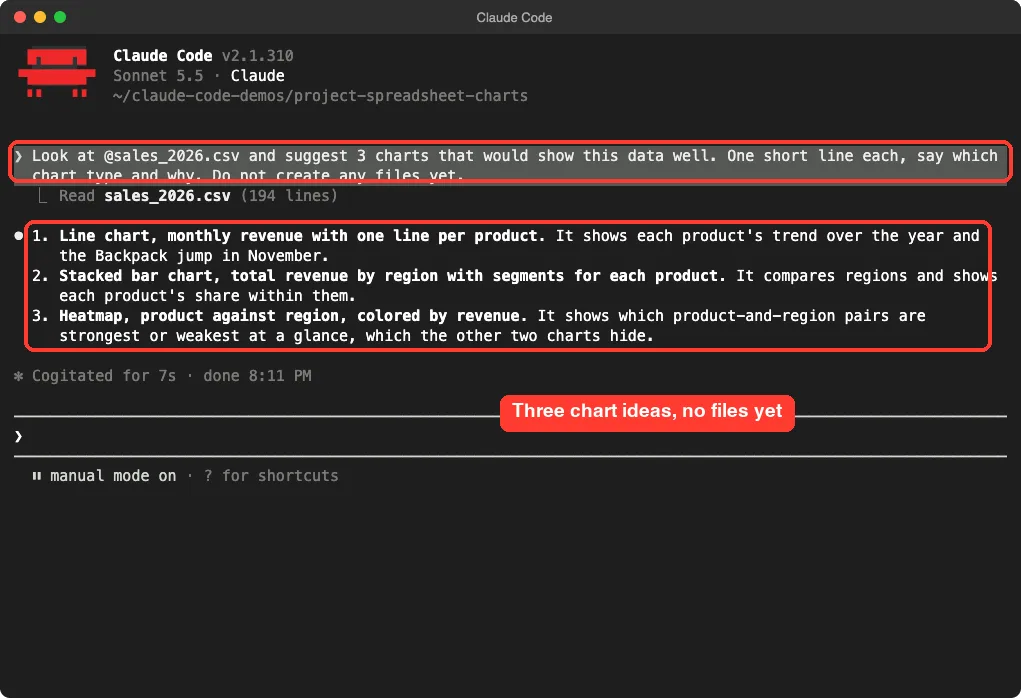
Here is what it proposed, and why each one earns its place.
| Chart | Question it answers |
|---|---|
| Line chart | How does each product change month by month? |
| Stacked bar chart | Which region earns the most, and what is it made of? |
| Heatmap | Which product and region pairs are strongest or weakest? |
Step 3: Draw the First Charts With a Script
Now we asked for charts 1 and 2. Notice how the prompt makes the decisions: standard library only, never change the spreadsheet, which files to write, and what every chart needs.
Build charts 1 and 2. Write make_charts.py using only the Python standard library (no installs). It reads sales_2026.csv, never changes it, and writes line_chart.svg (monthly revenue, one line per product) and bar_chart.svg (stacked bars by region). Give each chart a title, axis labels, a legend and light grid lines. Then write charts.html that shows both charts on one page. Run the script.We started this session with accept edits turned on, so writing files was automatic. Running a command still needs your approval.
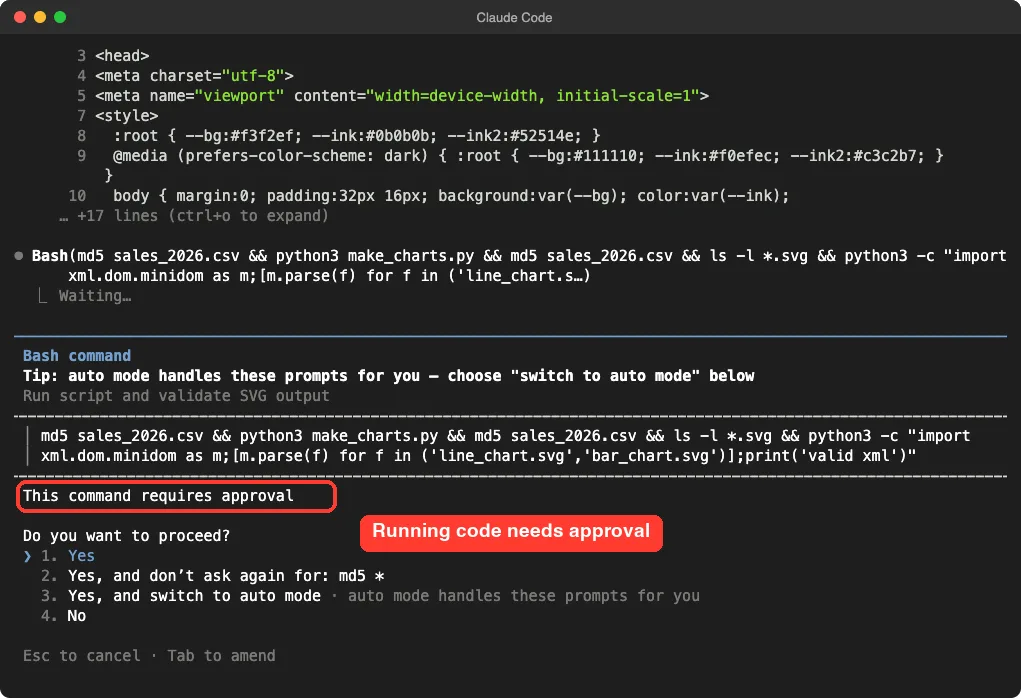
Read the command before you approve it. This one does three things: it prints a checksum of the spreadsheet, runs the script, then prints the checksum again. Claude added that check by itself.
If both checksums match, the file was not changed. We saw the same value before and after.
Step 4: Open the Page and Look at It
Do not stop at “the script ran”. Open charts.html in your browser and look. We opened it in a headless Chrome and took a screenshot.
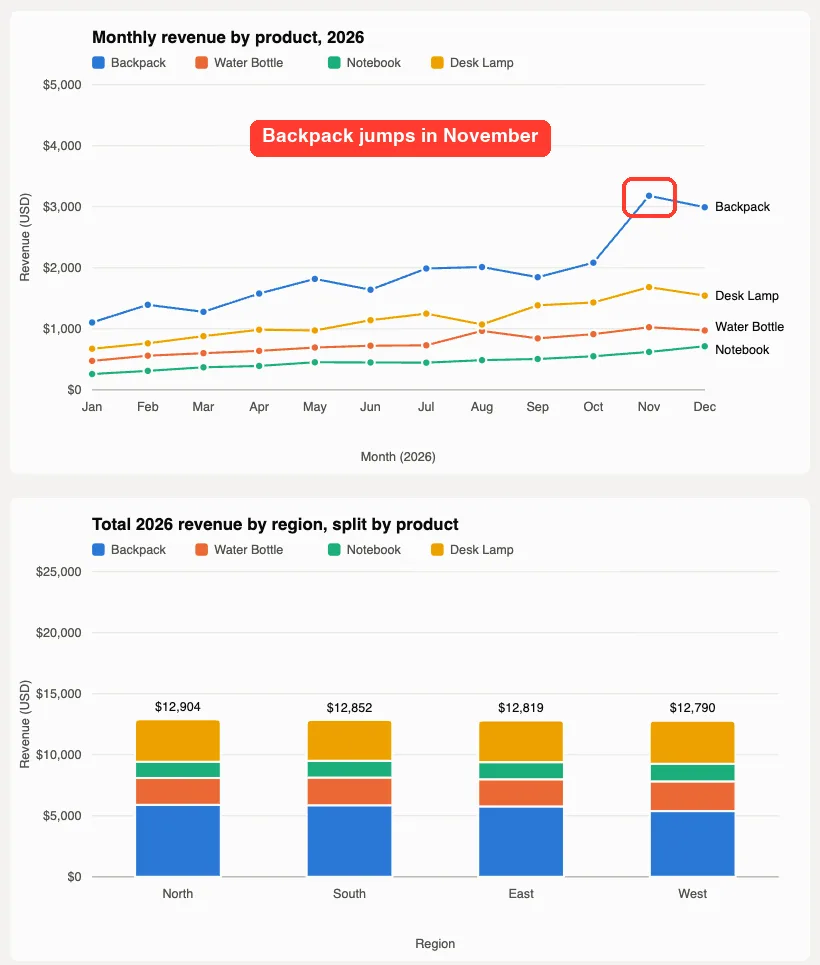
The line chart does what we planted. Backpack climbs slowly, then jumps from about 2,100 in October to about 3,200 in November.
The bar chart shows four regions with almost the same total, between 12,790 and 12,904. That is a real finding: in our made-up data, no region stands out.
Step 5: Fix a Small Problem and Add the Third Chart
Our first view showed a small flaw. On the right edge of the line chart, the labels Water Bottle and Notebook sat almost on top of each other. Looking closely at your charts is how you catch things like this.
In line_chart.svg the end labels for Water Bottle and Notebook almost touch. Fix that. Then add chart 3 as heatmap.svg (product against region, colored by total revenue, with the dollar value written in each cell) and add it to charts.html. Run make_charts.py again.This session was a good lesson in how approvals work. Claude made several edits and then asked to run a longer command. Our automated session ended while that approval was open, so the command never ran.
That is the system working as designed: nothing runs without a yes. We resumed the same conversation with the continue option and asked Claude to finish.
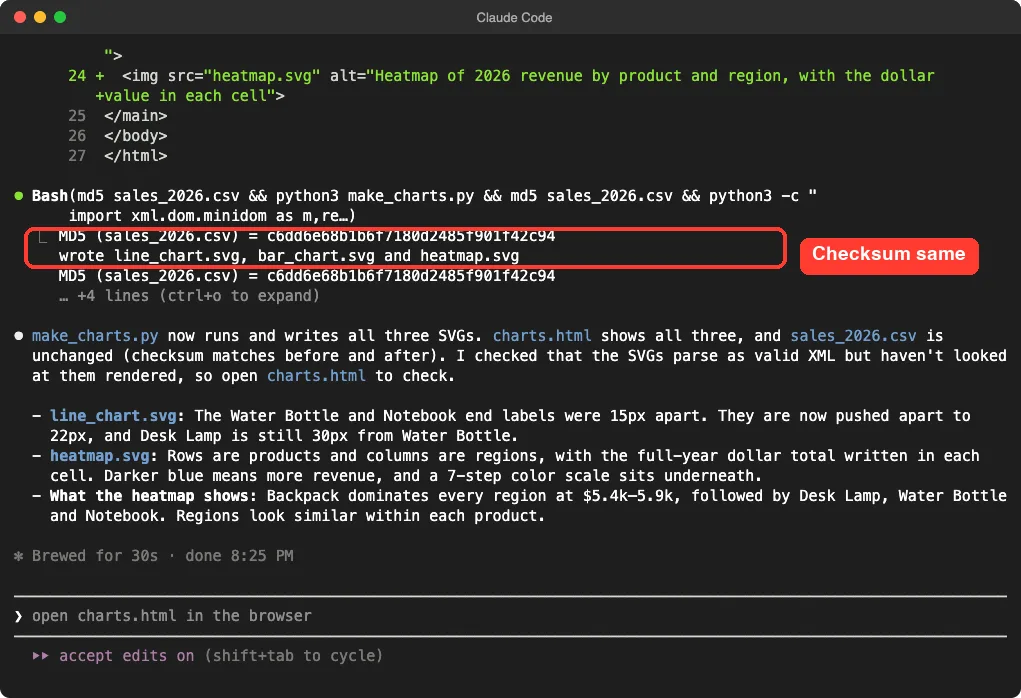
Claude said it checked that the SVG files are valid XML but had not looked at them rendered. That honesty is useful: it tells you exactly what is still your job.
Step 6: Catch a Mistake in the Heatmap
We opened the page and looked at the heatmap in dark mode. Many browsers switch to dark mode automatically, so your readers may see it too.
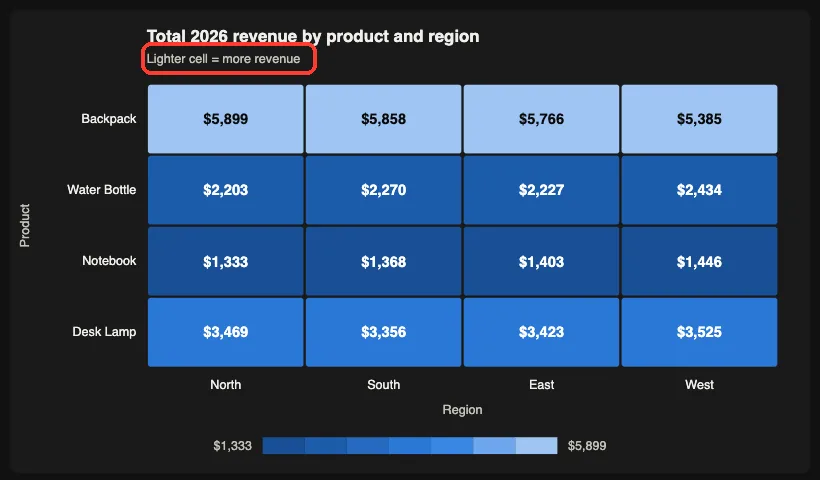
The note under the title said “Darker cell = more revenue”. But the biggest cells, the Backpack row, were the lightest ones. The note was wrong.
We asked Claude to check both modes instead of guessing.
In charts.html opened in dark mode, the heatmap note says darker cells mean more revenue, but the biggest cells (Backpack) look the lightest. Check the colors in light and dark mode, make the note true in both, and run make_charts.py again. Keep the answer under 6 lines.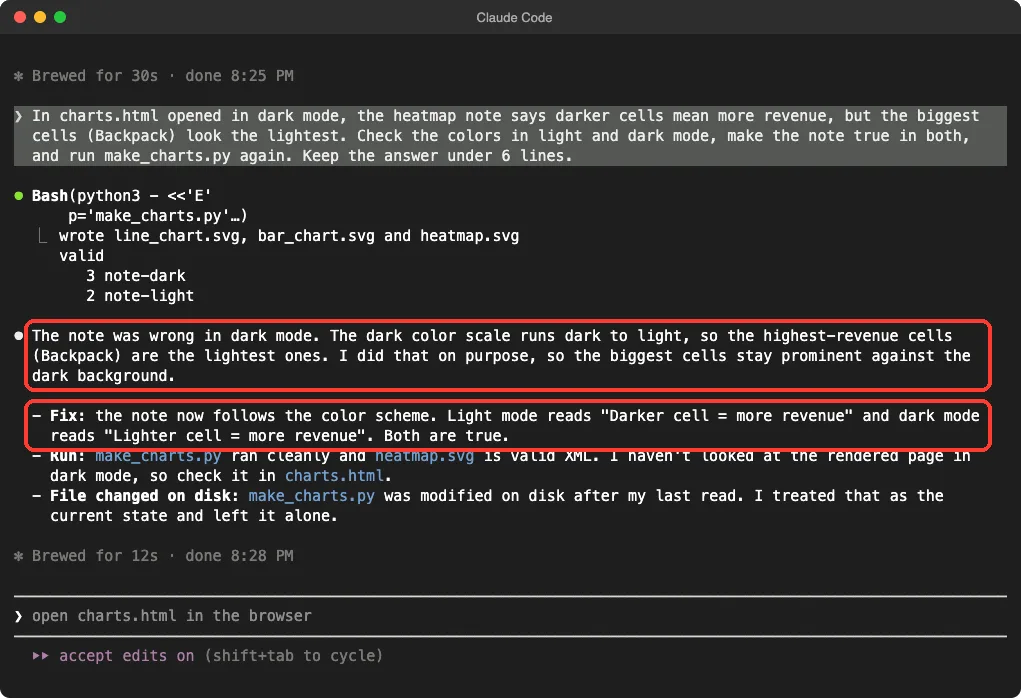
Claude agreed and explained why. The dark color scale runs from dark to light on purpose, so the biggest cells stand out on a dark background. The fix was to make the note follow the color scheme.
In light mode it reads “Darker cell = more revenue”. In dark mode it reads “Lighter cell = more revenue”. We confirmed both in the browser.
Step 7: Check the Numbers Yourself
A pretty chart can still be wrong. We recomputed the totals with a separate short Python snippet of our own and compared them with the charts.
| Check | Our own total | On the chart |
|---|---|---|
| North region | 12,904 | 12,904 |
| South region | 12,852 | 12,852 |
| East region | 12,819 | 12,819 |
| West region | 12,790 | 12,790 |
| Backpack in North | 5,899 | 5,899 |
| Notebook in North | 1,333 | 1,333 |
The four regions add up to 51,365, which matches the 51,365.37 total of the file. Everything agreed.
The Final Project Files
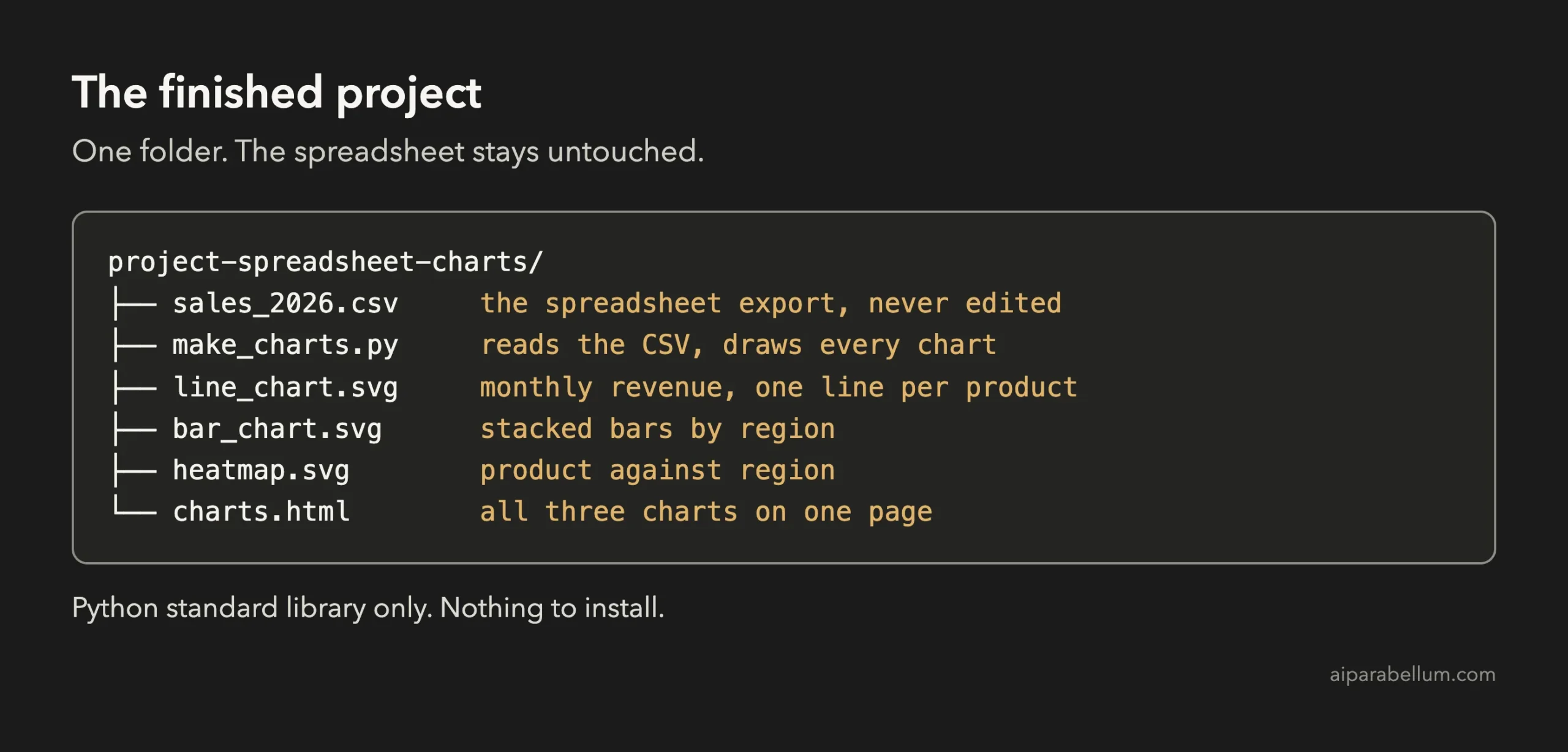
The script is about 260 lines, so we show only the key parts. The first function reads the CSV once and adds up revenue two ways: by month and product, and by region and product.
def load():
    months, by_month, by_region = [], defaultdict(float), defaultdict(float)
    regions = []
    with open(SRC, newline="") as f:
        for row in csv.DictReader(f):
            m, p, r, v = row["month_name"], row["product"], row["region"], float(row["revenue"])
            if m not in months:
                months.append(m)
            if r not in regions:
                regions.append(r)
            by_month[(m, p)] += v
            by_region[(r, p)] += v
    return months, regions, by_month, by_region
The file is opened for reading only, which is why the spreadsheet stays safe. Each chart function then turns those totals into SVG text. This small helper picks a round top value for the axis, so the tick marks land on numbers like 5,000 instead of 4,873:
def nice_ceiling(top, steps=5):
    raw = top / steps
    mag = 10 ** (len(str(int(raw))) - 1)
    for mult in (1, 2, 2.5, 5, 10):
        step = mult * mag
        if step * steps >= top:
            return step * steps, step
    return top, raw
The last piece writes every file when you run the script. This is also why updating next month is easy: replace the CSV and run one command.
def main():
    months, regions, by_month, by_region = load()
    (HERE / "line_chart.svg").write_text(line_chart(months, by_month))
    (HERE / "bar_chart.svg").write_text(bar_chart(regions, by_region))
    (HERE / "heatmap.svg").write_text(heatmap(regions, by_region))
    print("wrote line_chart.svg, bar_chart.svg and heatmap.svg")
One honest note: the heatmap file also contains a hidden description for screen readers that still says darker cells mean more revenue. We did not ask Claude to change it, so it was not fixed in our run. If you care about accessibility, add that to your prompt.
Try It Yourself
Use your own export, or ask Claude to make a sample one first. Start with the read-only prompt, then adapt this drawing prompt:
Write make_charts.py using only the Python standard library. It reads my CSV and never changes it. It writes one SVG file per chart, each with a title, axis labels, a legend and a readable color for every series. Then write charts.html that shows every chart. Print the file names, then run it.Then try these variations, one at a time:
- Ask for a pie or donut chart of one month and decide if a bar chart would have been clearer.
- Ask Claude to add the best month for each product as a text label on the line chart.
- Ask for a version for printing, with black and white patterns instead of colors.
- Ask Claude to read the page title and alt text and rewrite them for a screen reader.
- Ask for a small test that checks the region totals against the CSV every time you run the script.
Common Mistakes
- Asking for charts before asking what to chart. The suggestion step is cheap and gives you better choices.
- Not opening the result. A script that runs without errors can still draw overlapping labels.
- Trusting the legend and notes. Our heatmap note was wrong in dark mode until we read it.
- Skipping a number check. Recompute two or three totals by hand or with your own snippet.
- Letting Claude edit the source data. Tell it to read the file only, and check the checksum.
Pro Tips
- Say which question each chart answers. A chart with no question usually turns into a decoration.
- Ask for a checksum or row count before and after. It takes seconds and proves the data was untouched.
- Look at the page in light mode and dark mode, and at a narrow phone width.
- Keep the script. Next month you replace the CSV and run one command.
- Use plan mode when the request is large, and the rewind feature to undo a change that went wrong.
- Watch your usage with our costs guide. Our whole project used five short prompts.
Cheat Sheet
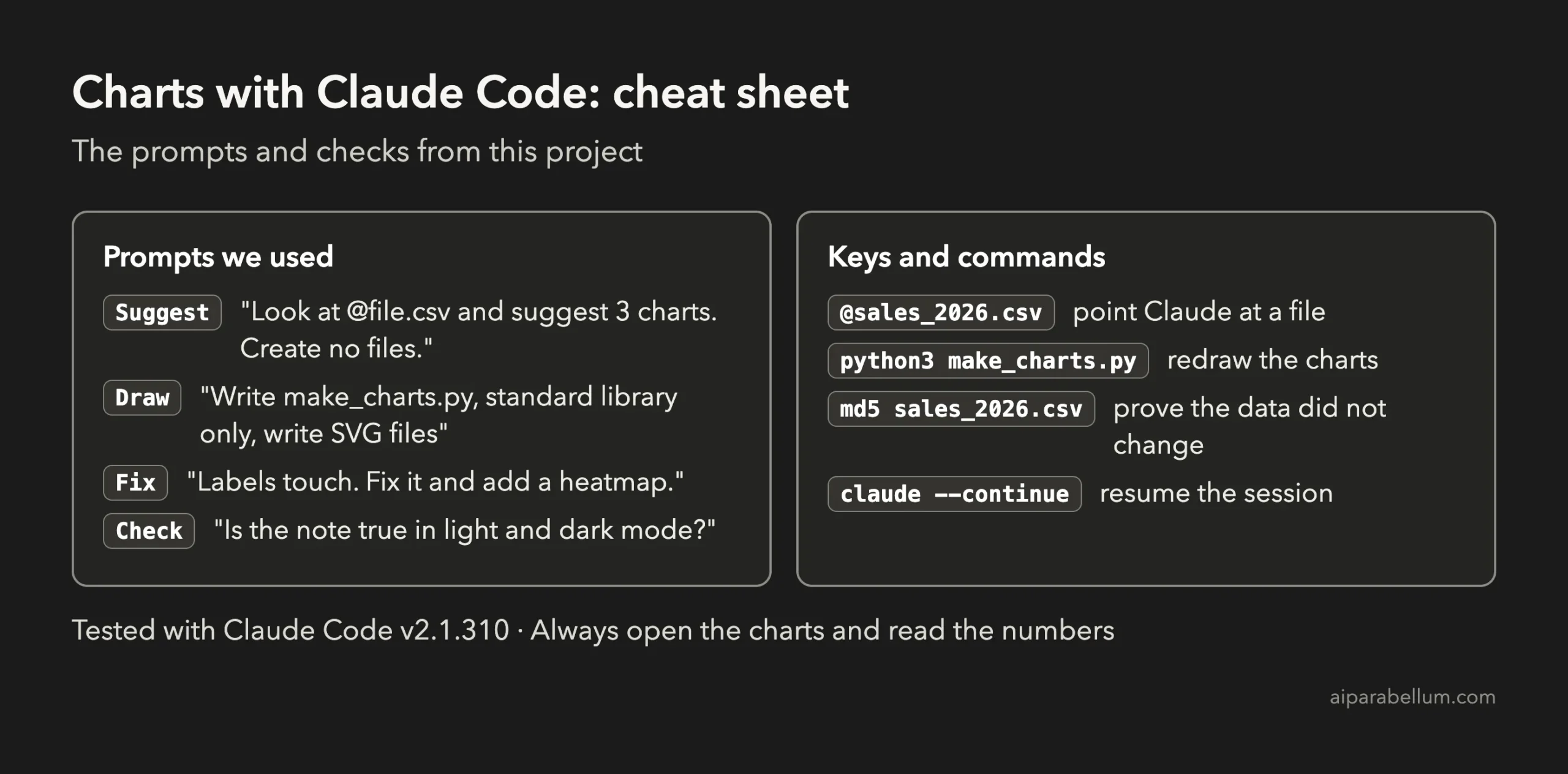
To learn more about the assistant behind the tool, read our Claude AI overview. If your data came from your own spending, our expense tracker project makes a good source for charts.
Frequently Asked Questions
Can Claude Code make charts from a spreadsheet?
Yes. It reads a CSV file, writes a script that draws the charts, and saves them as image files you can open in a browser. You need to check the result yourself, as we did with the totals and the heatmap note.
Do I need to install matplotlib or another library?
Not for this project. Our script used only the Python standard library and wrote SVG files, so there was nothing to install. If you want a library such as matplotlib, you can ask Claude to use it, but you must install it first.
Can Claude Code read an Excel file?
We did not test that here. Our demo used a CSV file, which almost every spreadsheet program can export. Save your sheet as CSV first, then point Claude at it.
Will Claude Code change my spreadsheet?
Only if you let it. We told Claude to never change the file, and its own checksum before and after the run showed the same value. Keep a backup of anything important.
Is my data sent anywhere?
When Claude reads a file, its contents become part of the conversation with the model. Use made-up or anonymized data while you learn, and read our guide to privacy and security before you use real data.
Conclusion
You now know how to make charts with Claude Code: ask for ideas first, let one script draw every chart, keep the spreadsheet read-only, open the result and check both the numbers and the labels. Five short prompts took our 192-row spreadsheet to a line chart, a stacked bar chart and a heatmap on one page, and our own checks caught a wrong note in dark mode. Try the starter prompt on your own sample file, and come back for the next project in the series.
Previous in the series: Project 11: Clean and Analyze a CSV File With Claude Code
Next in the series: Project 13: Write Tests for Old, Untested Code With Claude Code.