
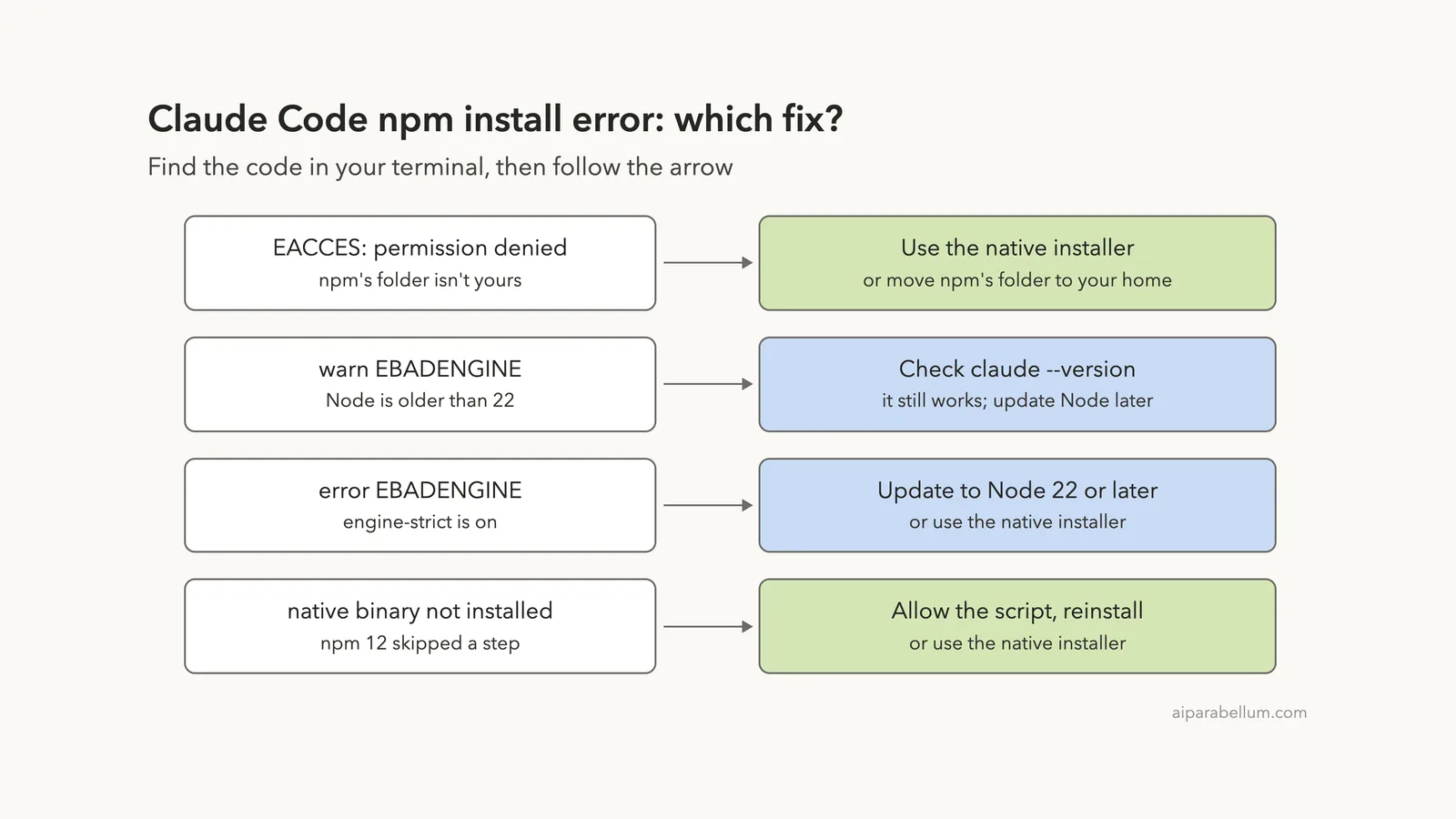
The Claude Code EACCES permission denied error means npm tried to write to a folder your user account doesn’t own. Nothing is wrong with Claude Code itself. The fix Anthropic recommends is to skip npm and use the native installer, which puts everything in your home folder:
curl -fsSL https://claude.ai/install.sh | bashIf you want to stay on npm, point its global folder at a place you own, such as ~/.npm-global, and install again. Don’t put sudo in front of the command, even though npm’s own message suggests running as root.
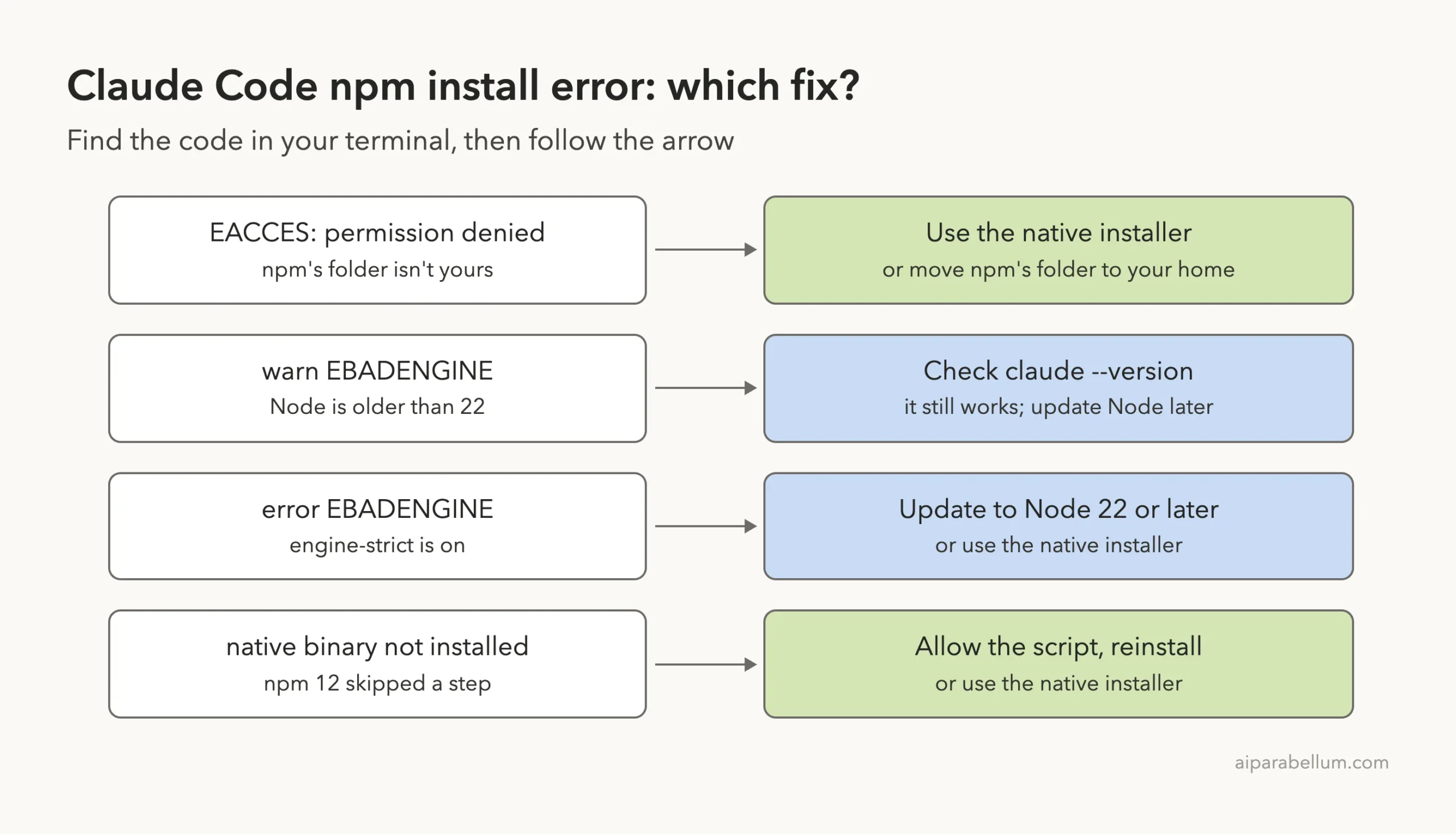
An EBADENGINE message is a different problem: your Node.js is older than version 22. As a warning it’s harmless, and Claude Code still runs. If you see claude native binary not installed instead, npm 12 most likely skipped a setup step.
Browse all our Claude Code tutorials for more fixes and how-tos.
Tested with Claude Code v2.1.330 on macOS on November 23, 2026, with npm 11.9.0 and 12.2.3, and Node.js 20, 22 and 25. We triggered each error in a throwaway home folder, then fixed it. The Linux, WSL and Windows steps follow Anthropic’s official instructions.
Quick Summary
| What you see | What it means | Fix |
|---|---|---|
npm error code EACCES, path in node_modules | npm’s global folder isn’t writable | Native installer, or your own npm folder |
npm error code EACCES, path in .npm/_cacache | npm’s cache isn’t writable | Take back ownership of the cache |
npm warn EBADENGINE | Node.js is older than 22 | Nothing urgent; update Node.js later |
npm error code EBADENGINE | Same, with engine-strict on | Update Node.js, or use the native installer |
claude native binary not installed | npm skipped the postinstall step | Allow the script, then reinstall |
npm error code ENOTEMPTY | Leftovers from an earlier install | Remove the leftover folders |
What EACCES Permission Denied Means in a Claude Code Install
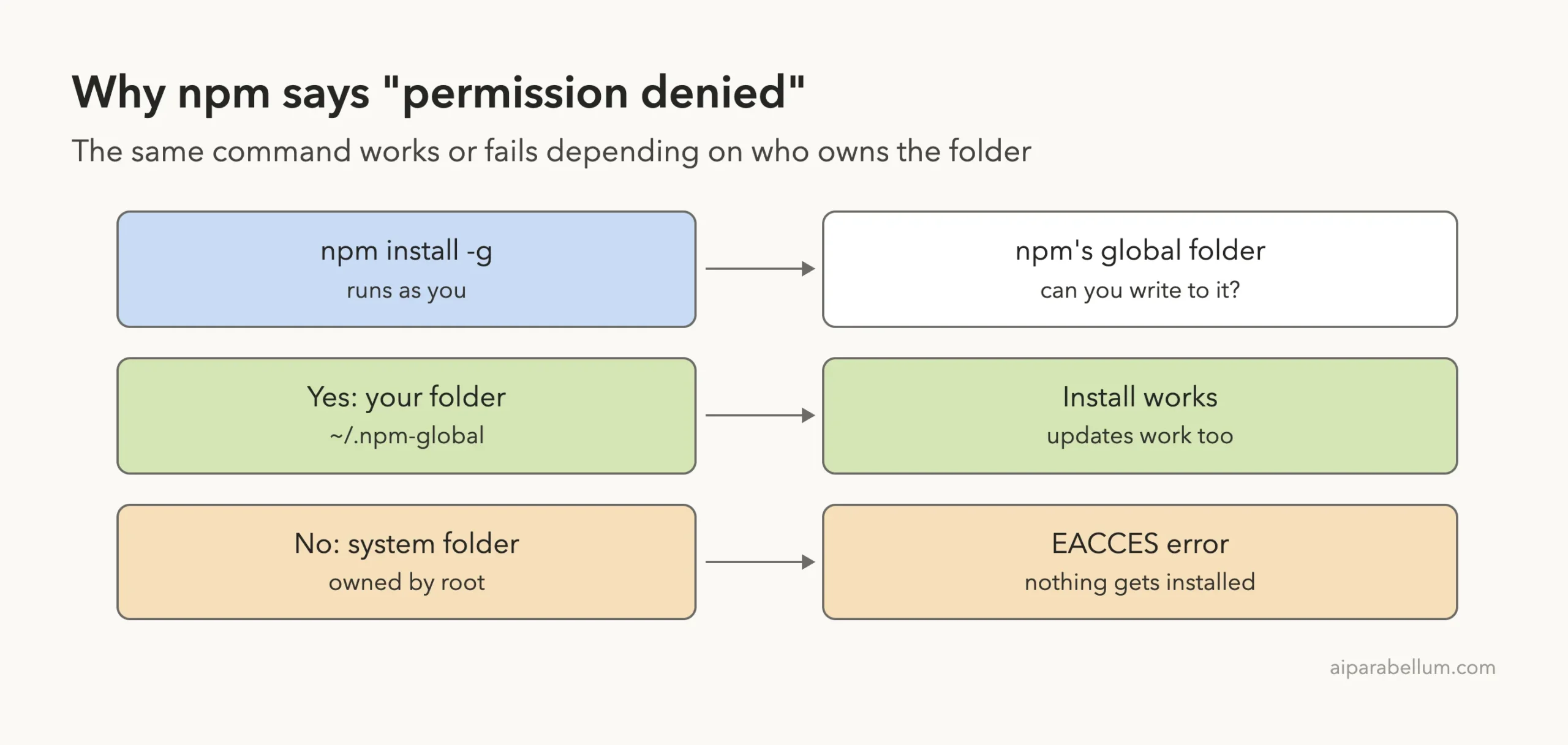
A global npm install puts packages in one shared folder, called the prefix. On many systems that folder belongs to the administrator account, known as root. npm runs as you, so it can’t create anything there.
EACCES is simply the system’s code for “access denied.” It shows up before any Claude Code files land on your disk, so a failed install leaves nothing to clean up in a fresh setup.
We reproduced the error
We pointed npm at a folder with write access turned off and ran the normal install command. Two quick checks told us it would fail before we even tried:
npm config get prefix
test -w "$(npm root -g)" && echo writable || echo not writable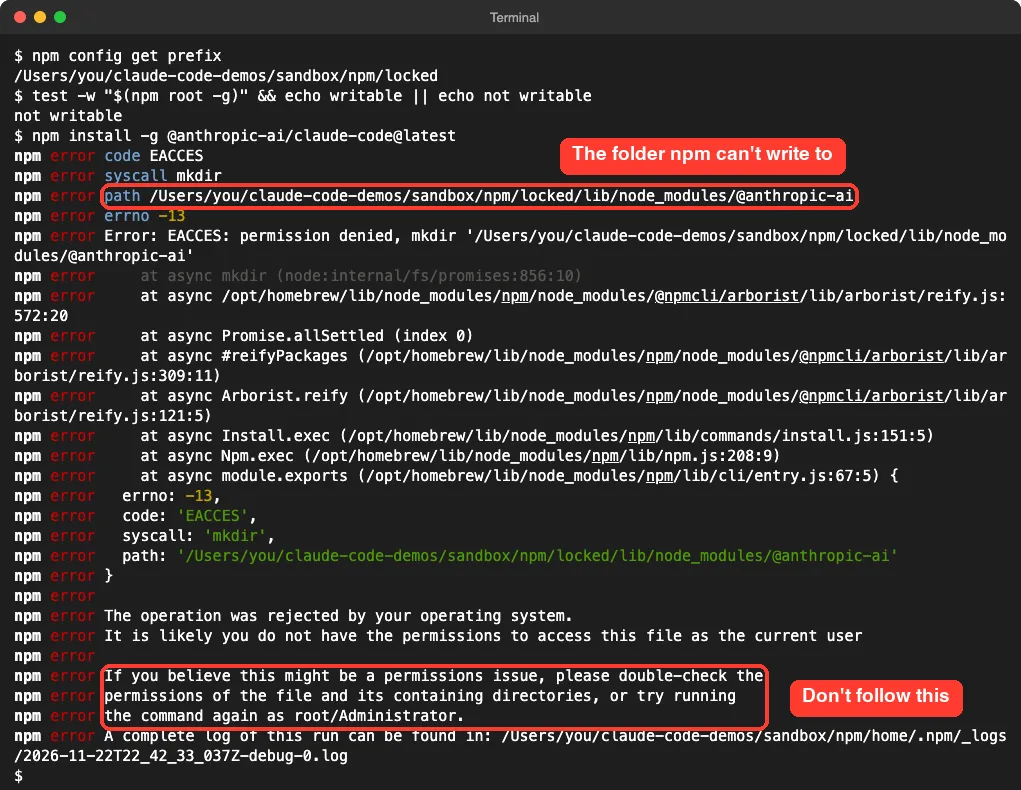
Read the line that starts with npm error path. It names the exact folder npm couldn’t write to, which decides your fix. On your computer it often starts with a system location such as /usr/local/lib/node_modules.
Why you shouldn’t use sudo
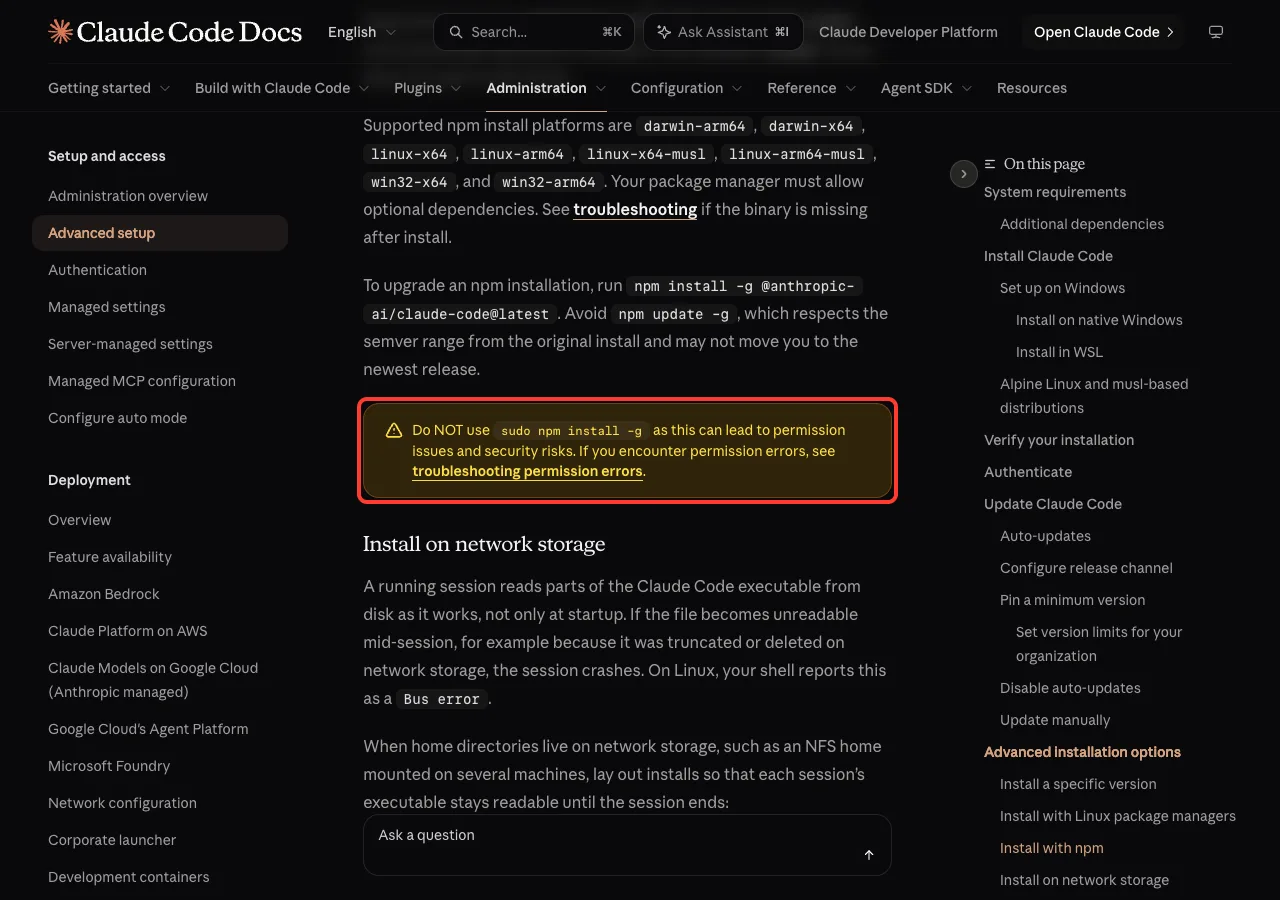
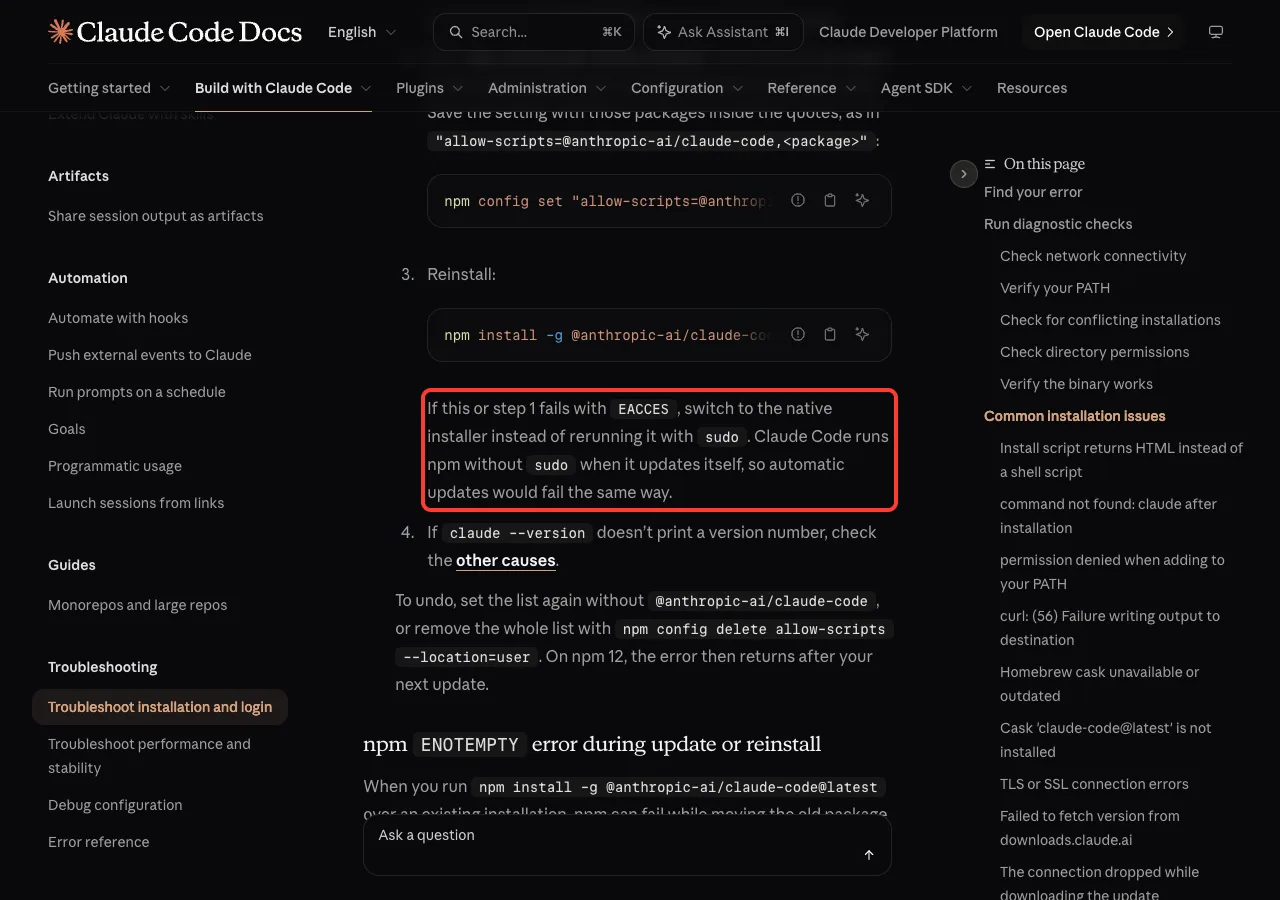
npm’s error text ends by suggesting you run the command as root. Anthropic’s docs say the opposite, in a warning box on the setup page: never use sudo npm install -g, because it can cause permission issues and security risks.
There’s a practical reason too. Claude Code runs npm without sudo when it updates itself. An install that needed sudo can’t update on its own, so the same error comes back later.
If a fix starts with sudo npm, it isn’t a fix. It only moves the error to your next update.
Fix 1: Use the Native Claude Code Installer (Recommended)
The docs tell you to switch to the native installer when npm gives you permission errors. It needs no Node.js, no npm and no sudo.
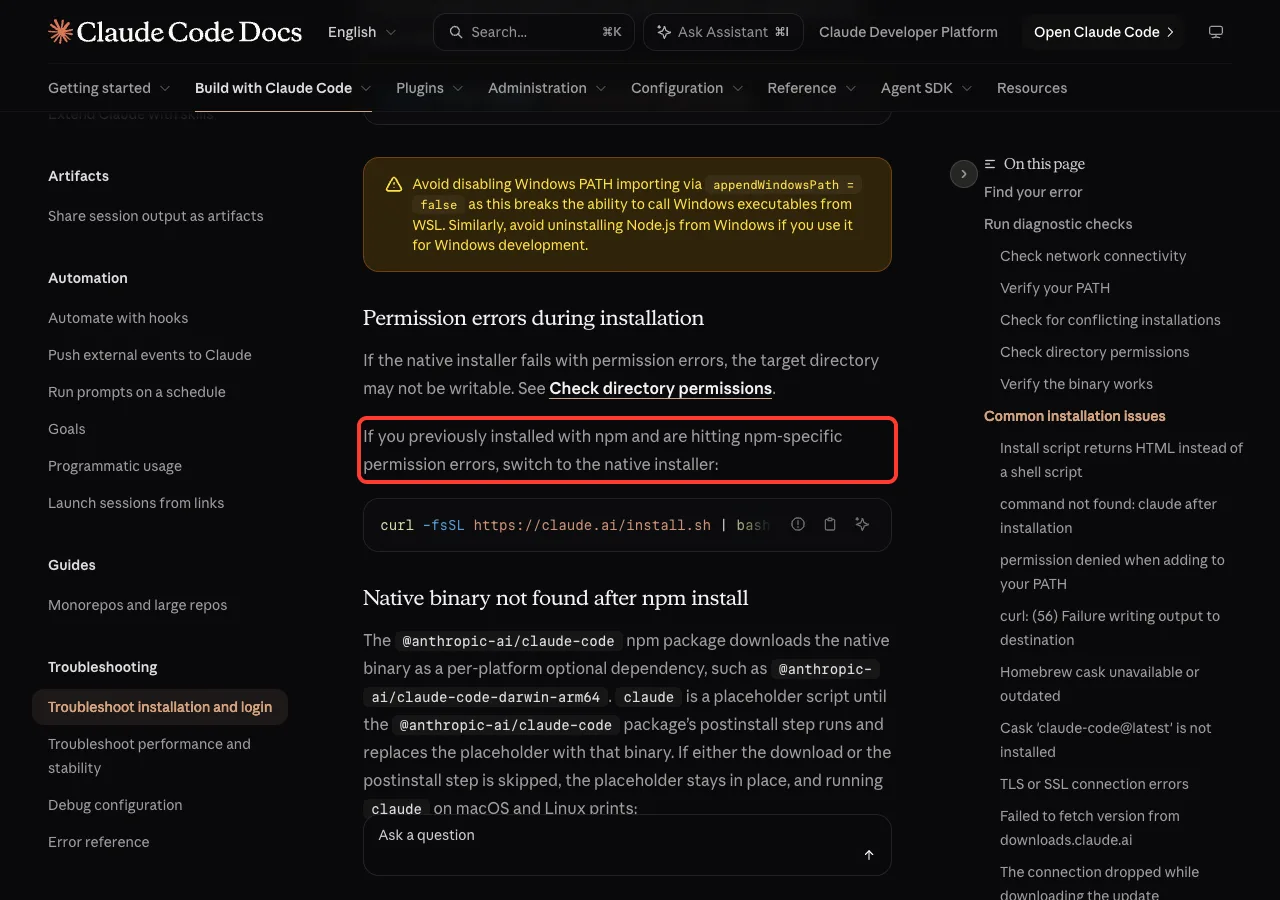
On macOS, Linux and WSL, run this:
curl -fsSL https://claude.ai/install.sh | bashOn Windows, use PowerShell:
irm https://claude.ai/install.ps1 | iexWe ran the first command in a clean home folder right after the npm failure. It installed v2.1.330 into ~/.local/bin/claude without asking for a password.
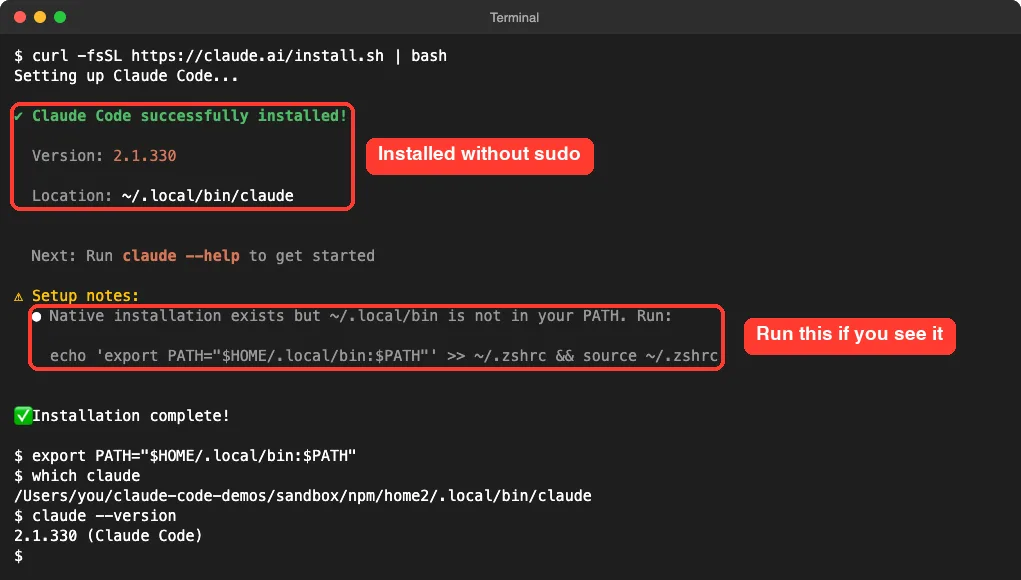
If the installer prints a setup note about PATH, run the line it gives you. Should your terminal still not find the program, our guide to command not found covers it. For a full walkthrough on each system, see how to install Claude Code.
Already have an npm copy that runs? Try claude install
When an npm copy of Claude Code already works but can’t update, you can switch from inside it. Run claude install. In our test it added the native copy and removed the npm one for us.
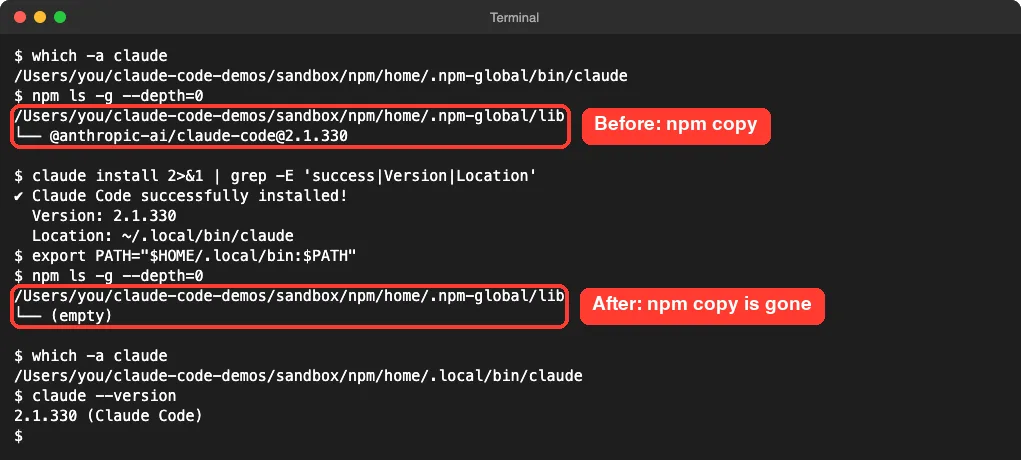
That cleanup depends on write access. When we locked the npm folder and ran claude install again, the native copy installed fine, but the npm copy stayed behind and which -a claude listed both.
In that case the native copy has to come first in your PATH. Our guide to removing Claude Code shows how to find and clear old copies.
Fix 2: Clear EACCES Permission Denied by Moving npm’s Folder
Some teams need npm. You can keep it by moving the global folder into your home folder, where you already have write access. Run these in order:
mkdir -p ~/.npm-global
npm config set prefix ~/.npm-global
export PATH="$HOME/.npm-global/bin:$PATH"
npm install -g @anthropic-ai/claude-code@latest
claude --version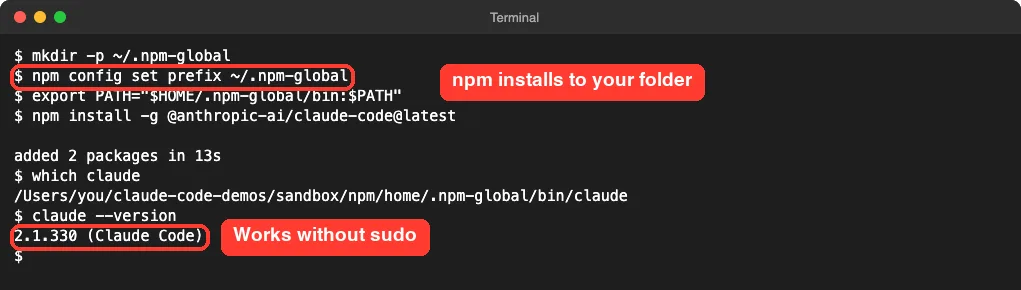
The export line only lasts for the current terminal window. Add it to your shell file to keep it, which is usually ~/.zshrc on a Mac and ~/.bashrc on Linux:
echo 'export PATH="$HOME/.npm-global/bin:$PATH"' >> ~/.zshrcKeep in mind that the prefix applies to every global package, not only Claude Code. Tools you installed globally before stay in the old folder, and new ones go to the new one.
Claude doctor suggests the same thing
You don’t have to take our word for it. We locked the npm folder of a working install and ran claude doctor. It spotted the problem and listed three ways out:
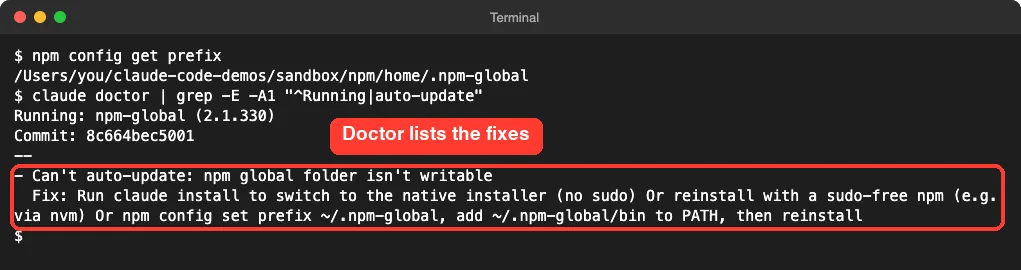
One detail surprised us. Doctor’s warning only appeared once the whole npm folder was locked. With just lib/node_modules and the package inside it locked, doctor stayed quiet, so check the npm error path line as well.
Our guide to claude doctor explains the rest of its report.
When an EACCES Permission Denied Error Blames Your Cache
Sometimes the EACCES message says your cache folder contains root-owned files and gives you a sudo chown command. That’s good advice only if the path really is in the cache, which is ~/.npm by default.
We made the cache unwritable to check. The error path then pointed inside ~/.npm/_cacache, and the advice fit the problem. Changing the owner of your own cache back to you is safe, and it isn’t the same as installing with sudo.
But the message can be wrong. In this test the cache was fine, and the locked folder was ~/.npm-global:
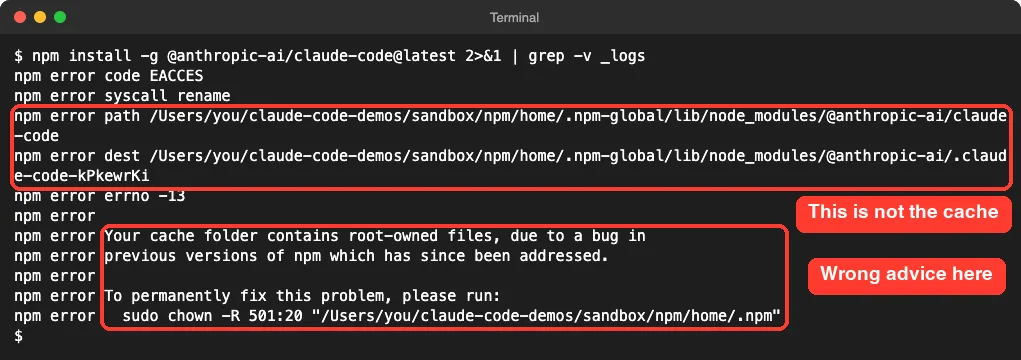
We looked at npm’s code to see why. It checks whether the failing path starts with the cache path as plain text, and ~/.npm-global starts with ~/.npm. So the name alone triggers the wrong advice.
The lesson is short: trust the path line over the explanation. If the path is in .npm-global, fix that folder instead.
Fix the Node Version Error (EBADENGINE)
The npm package asks for Node.js 22 or later. Check yours with node --version. On an older version, npm prints an EBADENGINE warning but finishes the install.
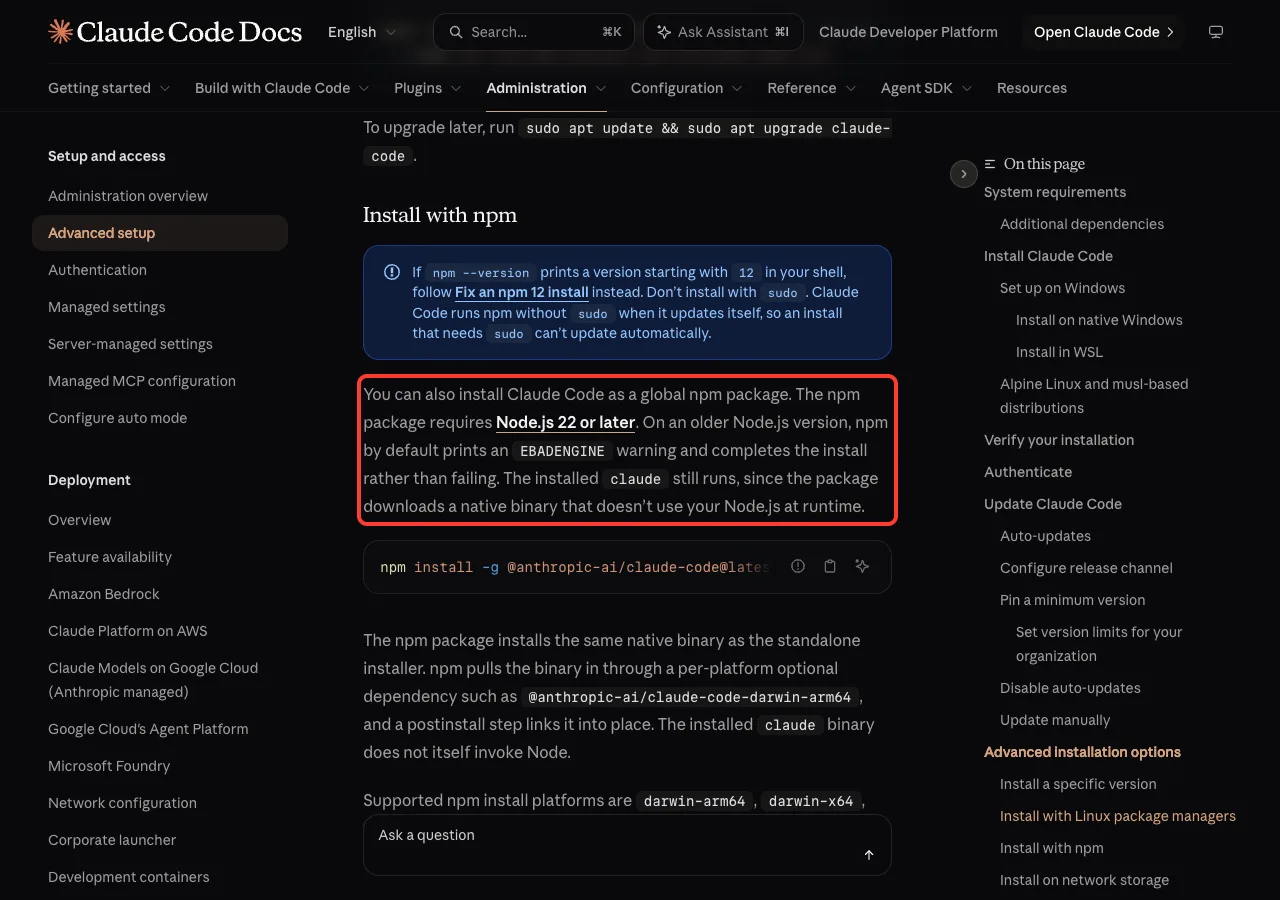
We tried it on Node.js 20.20.2, and that’s exactly what happened. The warning appeared, the install finished and claude --version worked. The docs explain why: the package downloads a ready-made program that doesn’t use your Node.js at runtime.
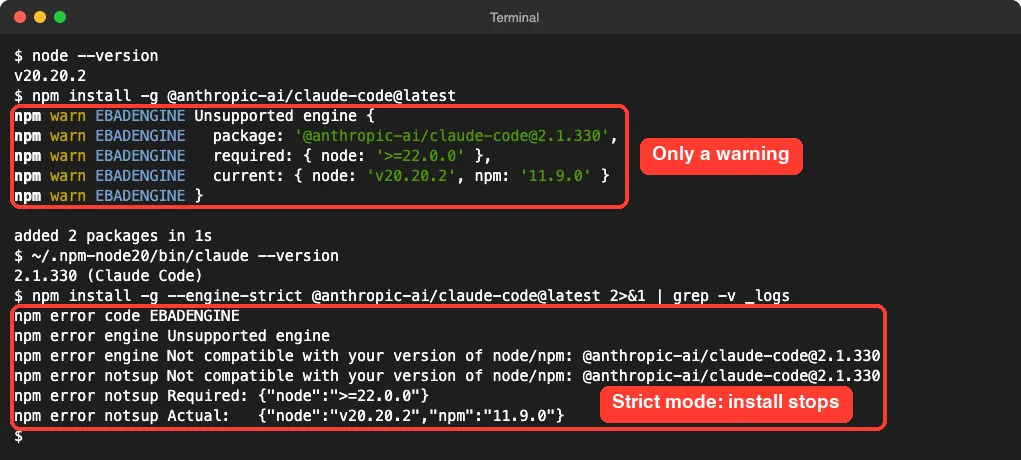
The bottom half shows the case that does block you. With engine-strict turned on, npm turns the warning into an error and installs nothing. Check whether yours is on:
npm config get engine-strictYou have two clean options. Update to Node.js 22 or later, or use the native installer, which doesn’t involve Node.js at all.
Fix “Claude Native Binary Not Installed” on npm 12
This one is sneaky because the install looks fine. npm 12 doesn’t run install scripts unless you allow them, and Claude Code needs one to put its program in place. The install says it added 2 packages, and then claude refuses to start.
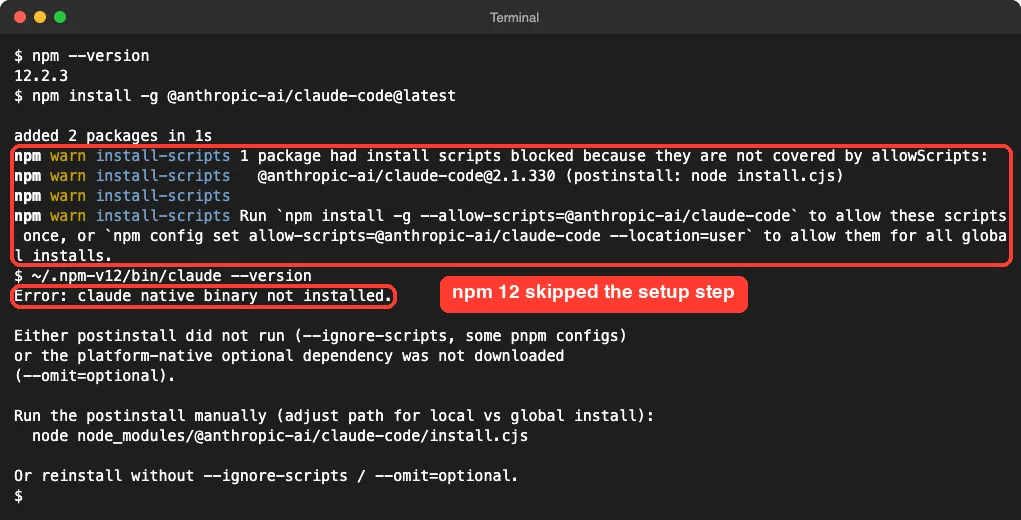
Run npm --version. If it starts with 12, allow the script and install again. The docs say to look at your current list first, because the second command replaces the whole value:
npm config get allow-scripts
npm config set "allow-scripts=@anthropic-ai/claude-code" --location=user
npm install -g @anthropic-ai/claude-code@latest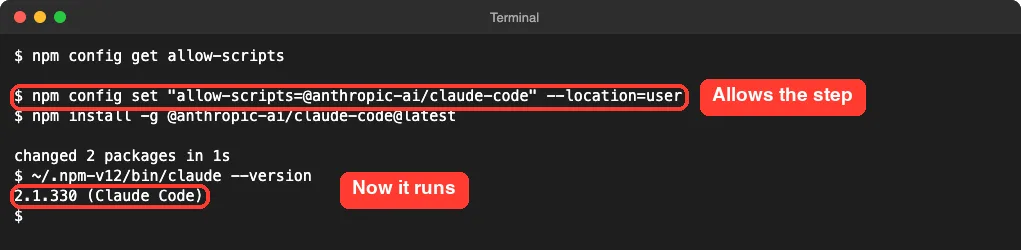
If the first command lists other packages, keep them in the new value, separated by commas. On npm 12.0.x, the docs tell you to update npm to 12.1 or later before you save the setting.
Using --ignore-scripts causes the same error on any npm version. We saw it on npm 11.9.0, and running the package’s install.cjs file with node, as the message suggests, fixed it. The troubleshooting page lists the rarer causes, such as disabled optional dependencies.
Other npm Install Errors on Linux, WSL and Windows
These come from Anthropic’s docs. We didn’t trigger them ourselves.
ENOTEMPTY during an update or reinstall
npm failed to move the old package aside. The docs say to delete the folder named in the npm error path line, along with any .claude-code-* folders next to it, then reinstall. Read the path carefully before you delete anything.
The native installer also says permission denied
Then a folder in your home belongs to someone else, often because of an old sudo command. The docs give a writable check for ~/.local/bin and ~/.claude:
test -w ~/.local/bin && echo "writable" || echo "not writable"
test -w ~/.claude && echo "writable" || echo "not writable"
If the install folder isn’t writable, the docs have you create it and make yourself the owner with sudo mkdir -p ~/.local/bin and sudo chown -R $(whoami) ~/.local. Using sudo here only repairs ownership.
exec: node: not found in WSL
Your WSL shell is probably using the Windows copy of Node.js. Run which npm and which node. Paths starting with /mnt/c/ are Windows programs, and the docs say to install Node.js inside Linux or with nvm.
Running scripts is disabled on Windows
PowerShell is blocking npm’s launcher scripts. The docs offer npm.cmd and claude.cmd as a way around it, or the PowerShell installer, which isn’t affected.
Try It Yourself
You can find out in a few seconds whether a global npm install would fail. This only reads your setup and changes nothing:
node --version
npm --version
npm config get prefix
test -w "$(npm root -g)" && echo "npm folder: writable" || echo "npm folder: not writable"
which -a claude
Already have Claude Code running somewhere? Paste this prompt with your output:
Here is the output of my Node, npm and PATH checks. Tell me if a global npm install of Claude Code would fail with EACCES, EBADENGINE or a skipped postinstall step, and why. Do not change anything or run sudo.Common Mistakes
- Running the install again with
sudobecause npm mentioned root. Updates then fail the same way. - Copying the
sudo chownline without checking that the path is really your cache. - Setting the prefix but forgetting PATH, which turns EACCES into command not found.
- Treating the
EBADENGINEwarning as a failure. Runclaude --versionbefore you change anything. - Upgrading with
npm update -g. The docs say to use the install command with@latest.
Pro Tips
- Keep one copy. Two installs make it hard to know which one you’re running or updating.
- If updates are what’s failing, our guide on Claude Code updates goes further.
- Downloads blocked at work? That’s a network problem, covered in our corporate proxy guide.
- Claude Code installs but shows a different message? Look it up in our list of common errors.
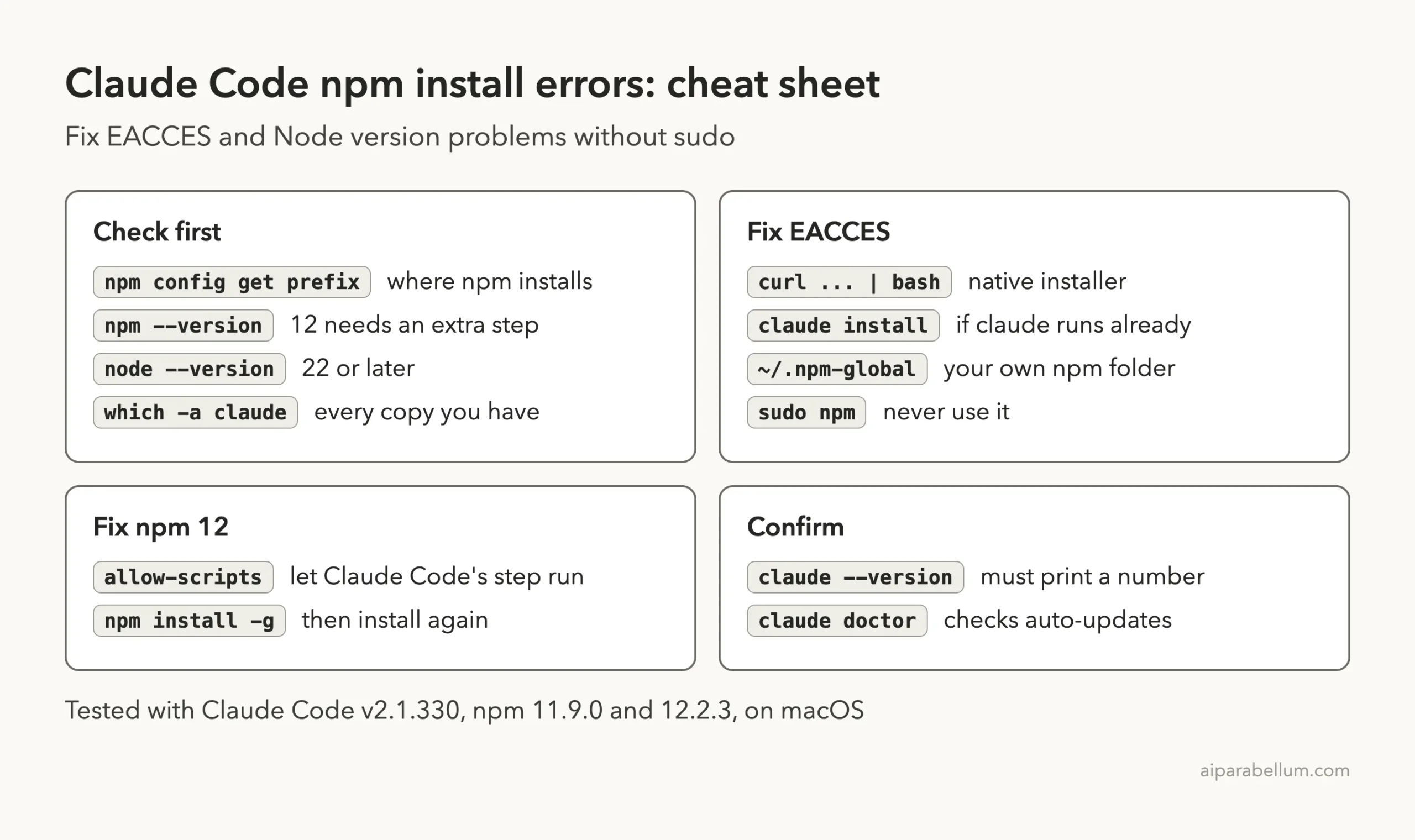
Claude Code npm Install Errors Cheat Sheet
Frequently Asked Questions
How do I fix Claude Code EACCES permission denied?
Use the native installer, which writes only to your home folder. To stay on npm, set its prefix to a folder you own, add that folder’s bin to your PATH and install again.
Can I use sudo npm install for Claude Code?
No. Anthropic warns against it, and Claude Code can’t update itself later because it runs npm without sudo.
Which Node.js version does Claude Code need?
The npm package requires Node.js 22 or later. The native installer doesn’t need Node.js.
Does Claude Code work after an EBADENGINE warning?
Yes. On Node.js 20.20.2, npm warned us and Claude Code v2.1.330 still ran. It only fails when engine-strict is on.
Why does npm 12 say claude native binary not installed?
npm 12 skips install scripts by default, so the program is never put in place. Allow @anthropic-ai/claude-code in allow-scripts and reinstall, or use the native installer.
Conclusion
A Claude Code EACCES permission denied error is about who owns a folder, so the fix is to install somewhere you own. The native installer is the shortest route, and an npm prefix in your home folder worked just as well in our tests. Treat the EBADENGINE warning as a reminder to update Node.js, allow the install script on npm 12, and leave sudo out of it. If you’re new to the tool, our Claude overview is a good next stop.