
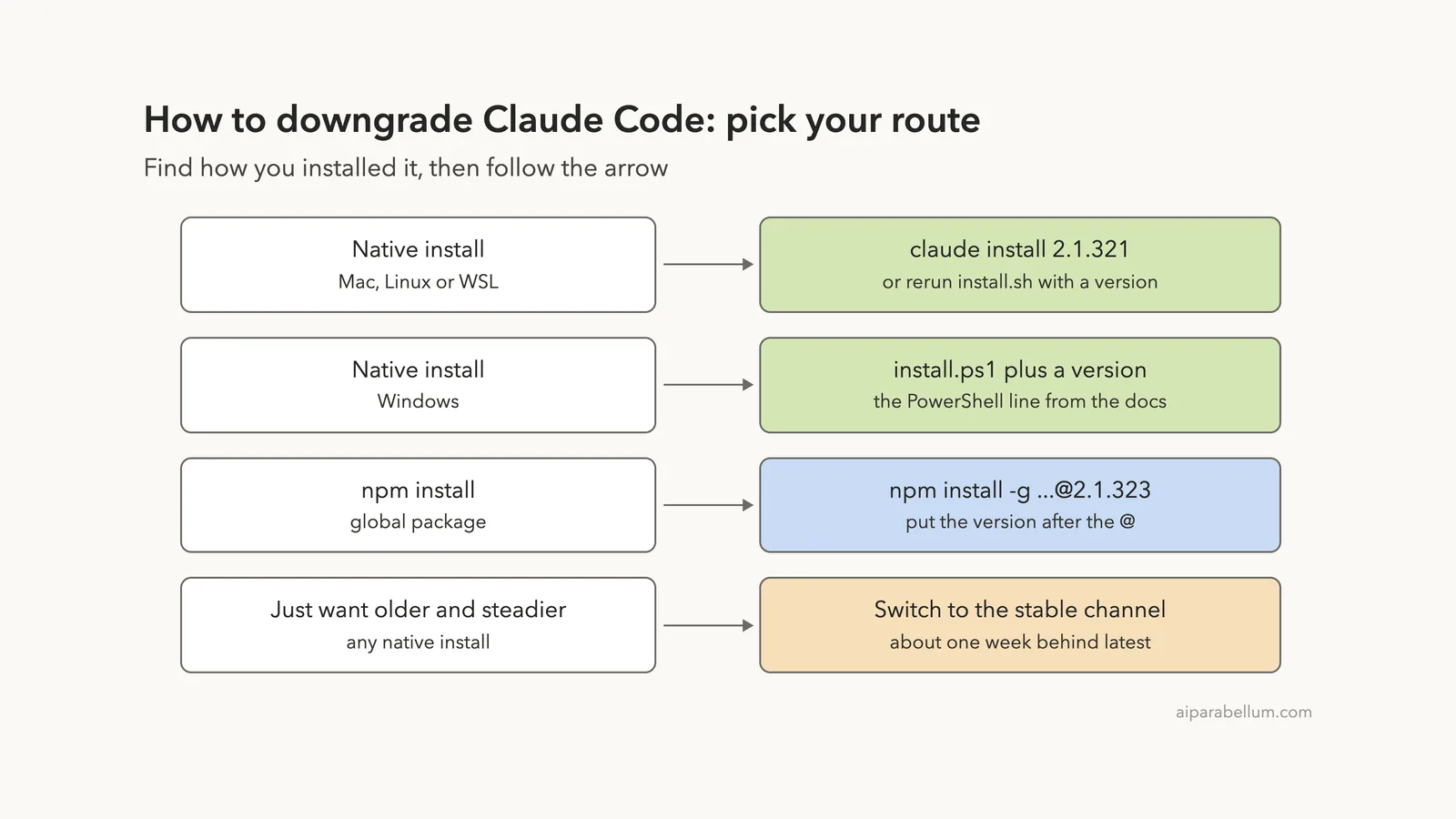
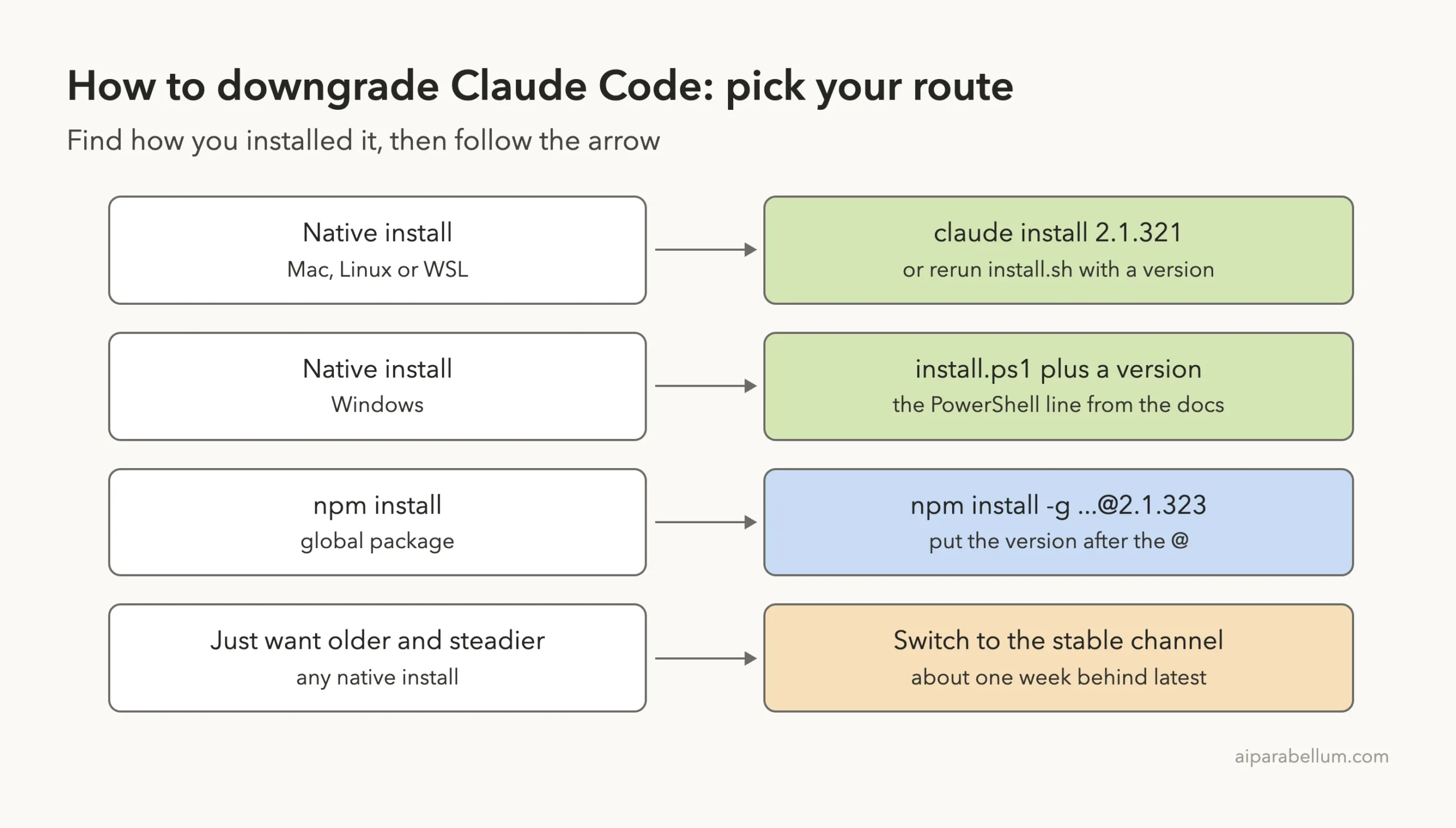
If a new release broke something you rely on, here is how to downgrade Claude Code in under a minute. On a native install, run claude install with the version you want, then check it:
claude install 2.1.321
claude --version
If you installed with npm, put the version after an @ instead: npm install -g @anthropic-ai/[email protected]. The step people forget comes next. Claude Code updates itself in the background, so you also need to switch updates off, or it will quietly move you forward again.
To pin the version, add "DISABLE_AUTOUPDATER": "1" (stops background updates) or "DISABLE_UPDATES": "1" (blocks every update path) to the env section of ~/.claude/settings.json. We ran every command below on a real Mac and show you the output.
Browse all our Claude Code tutorials for more fixes and how-tos.
Tested with Claude Code v2.1.330 on macOS on November 23, 2026. We installed versions 2.1.326, 2.1.323 and 2.1.321 with the native installer and 2.1.323 with npm 11.9.0, all inside a throwaway home folder so the working install was never touched. We tested on macOS; the Windows and Linux steps follow Anthropic’s official instructions.
Quick Summary
| What you want | Command or setting | Works on |
|---|---|---|
| Go back to an exact version | claude install 2.1.321 | Native install |
| Fresh install of an exact version | curl -fsSL https://claude.ai/install.sh | bash -s 2.1.326 | Mac, Linux, WSL |
| Exact version on Windows | The PowerShell install line with the version at the end | Windows |
| Exact version with npm | npm install -g @anthropic-ai/[email protected] | npm install |
| A slightly older, steadier build | "autoUpdatesChannel": "stable" | Native install |
| Stop background updates | "DISABLE_AUTOUPDATER": "1" in env | Native and npm |
| Block all updates (a real pin) | "DISABLE_UPDATES": "1" in env | Native and npm |
| Never drop below a version | "minimumVersion": "2.1.326" | Native and npm |
Why You Might Need to Downgrade Claude Code
Claude Code ships new versions very often. On the default latest channel you get each one as soon as it’s out, which is great for new features. Now and then, though, a release changes a behavior your workflow depends on or adds a bug you hit every day.
Rolling back to the last version that worked is the fastest way to keep going. You can read the official Claude Code changelog to find the release where things changed, and our weekly Claude Code roundup sums up the big changes in plain English.
A downgrade has two halves: install the older version, then stop updates from undoing it.
First, check which install you have
The right command depends on how Claude Code got onto your computer. Run claude doctor and read the Running line. It says native, npm-global or package-manager, plus the version.
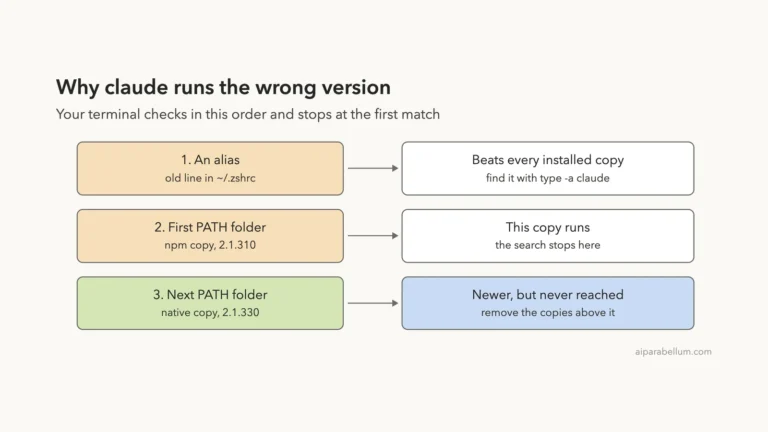
If more than one copy shows up, fix that first. A downgrade on one copy does nothing if your terminal launches the other. Our guide to duplicate installs walks through it.
Method 1: Install a Specific Version With the Native Installer
Anthropic’s native installer accepts a version number at the end. On Mac, Linux and WSL, add bash -s and the version after the usual install line:
curl -fsSL https://claude.ai/install.sh | bash -s 2.1.326We ran exactly that and then checked the result. The installer printed the version and location, and claude --version confirmed 2.1.326 (Claude Code).
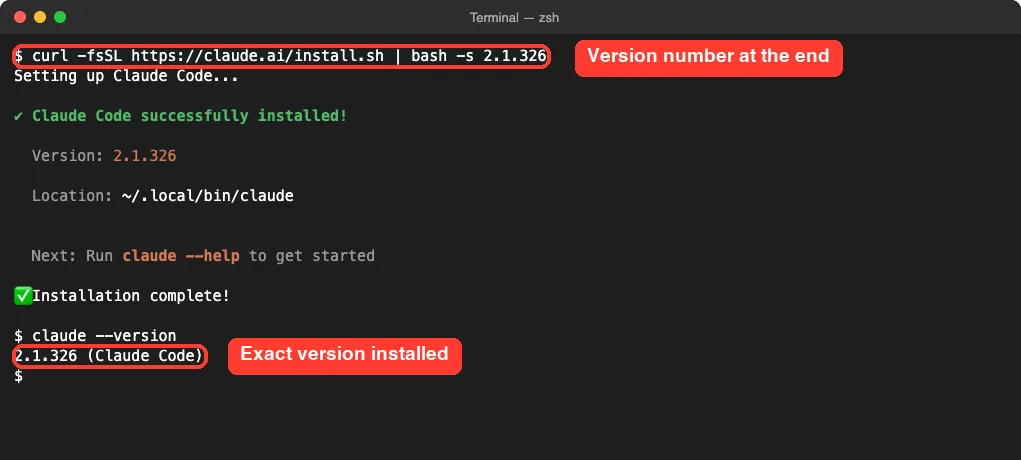
One detail we noticed while reading the script before running it: it always downloads the newest build first, then uses that build to install the version you asked for. So the download is a bit bigger than you might expect, but the end result is the exact version you named.
Where the native install keeps versions
On Mac and Linux, ~/.local/bin/claude is a link that points into ~/.local/share/claude/versions/. Each version gets its own folder there, and the link decides which one runs.
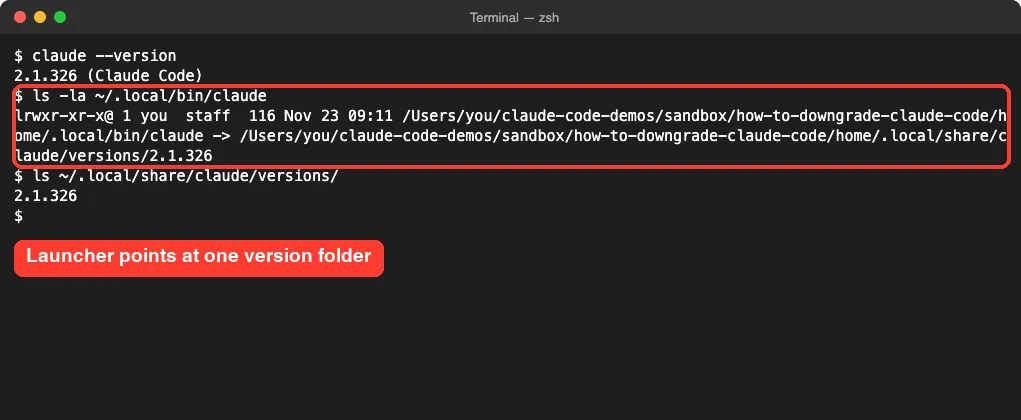
Anthropic’s setup guide says the installer keeps the version the link points to, any version a running session uses and the two newest ones, then cleans up the rest. Don’t edit that link by hand unless you plan to manage versions yourself, which we cover in the pro tips.
Install a specific version on Windows
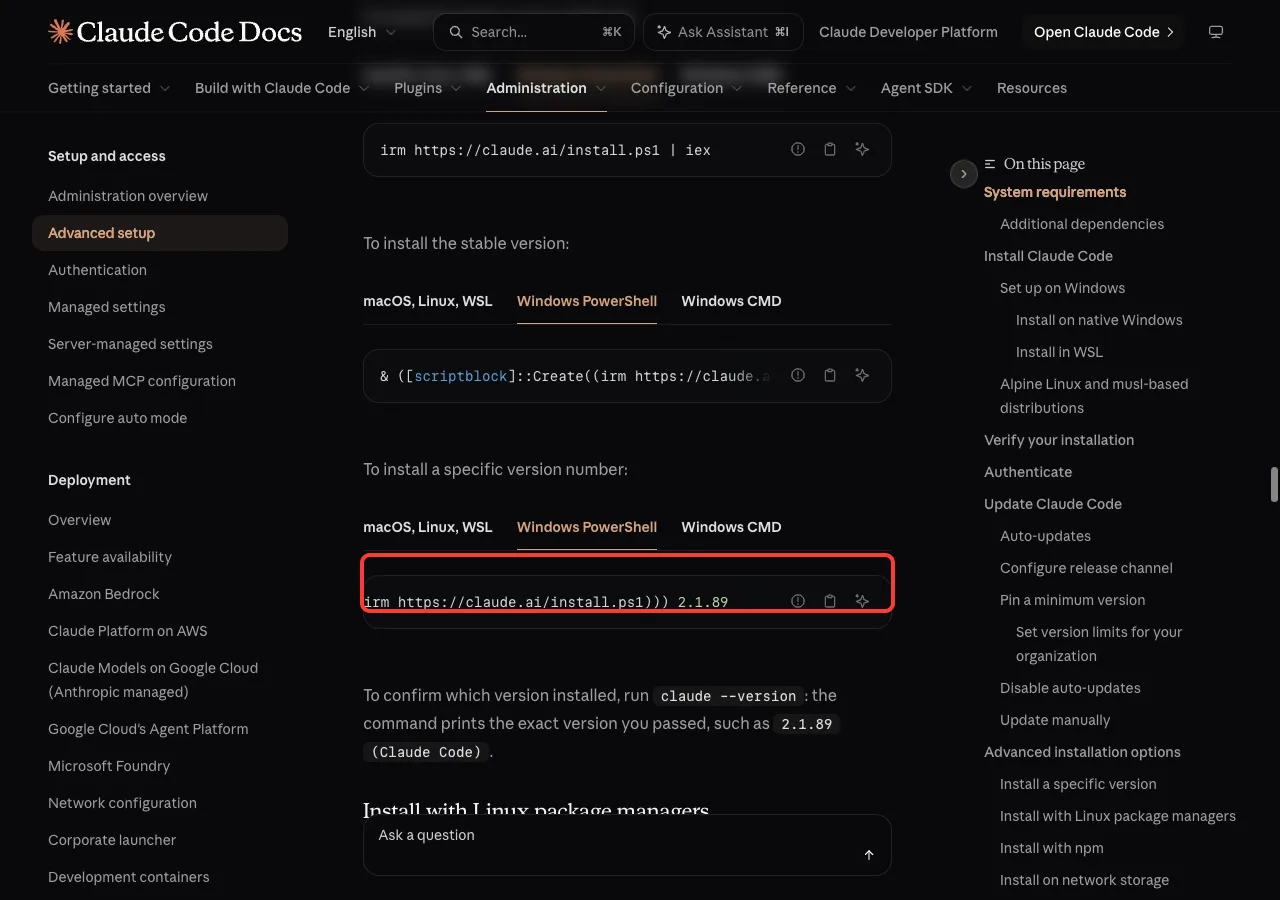
Windows uses the same idea with a PowerShell script. The official command puts the version after the script block, and a CMD version exists too. You’ll find both under “Install a specific version” in the official setup guide.
Method 2: Use claude install on an Existing Install
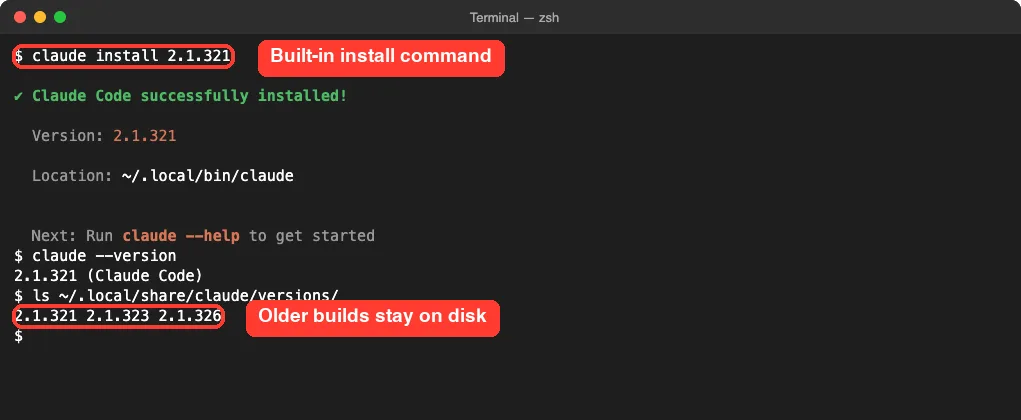
If the native version is already installed, you don’t need the script at all. The built-in claude install command takes a target, which can be stable, latest or a version number. Its help text says exactly that.
claude install 2.1.321
claude --version
In our test this moved the install from 2.1.323 down to 2.1.321 in a few seconds. Listing the versions folder showed all three builds side by side, with the link now pointing at 2.1.321.
Close any open Claude Code session and start a new one afterward. A session that was already running keeps the build it started with.
Method 3: Downgrade an npm Install of Claude Code
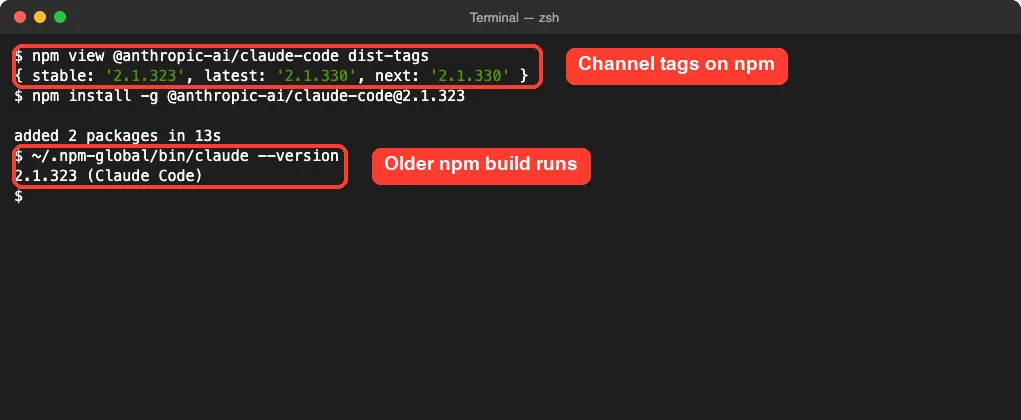
For npm installs, ask for the version with an @. You can also check which version each channel points to first:
npm view @anthropic-ai/claude-code dist-tags
npm install -g @anthropic-ai/[email protected]
claude --version
On test day the tags read stable: 2.1.323 and latest: 2.1.330. The install took 13 seconds, and the npm copy reported 2.1.323 (Claude Code).
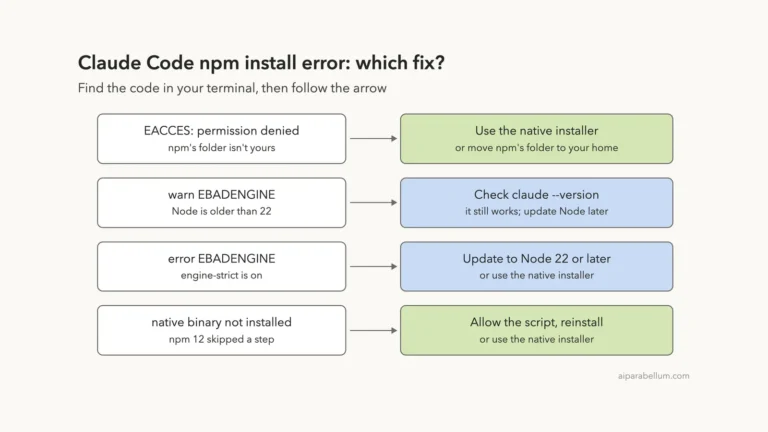
Anthropic’s docs say the npm package needs Node.js 22 or later and should never be installed with sudo. If npm throws a permission error, our guide to npm install errors has the fix.
Homebrew, WinGet and Linux packages
Anthropic’s setup guide doesn’t give a version option for Homebrew, WinGet or the apt, dnf and apk repositories. What it does give is a channel choice. The Homebrew claude-code cask follows stable, claude-code@latest follows latest, and the Linux repositories come in stable and latest flavors.
If you need one exact version, the cleanest path is to remove the package manager copy and use the native installer with a version. Our guide on how to uninstall Claude Code covers each package manager.
Method 4: Switch to the Stable Channel
Sometimes you don’t need an exact number. You just want something a little older that has had time to settle. That’s what the stable channel is for: the docs describe it as a version that is “typically about one week old,” skipping releases with major regressions.
We set "autoUpdatesChannel": "stable" on an install running 2.1.326 and ran claude update. Claude Code noticed stable was at 2.1.323, older than ours, and moved us down to it.
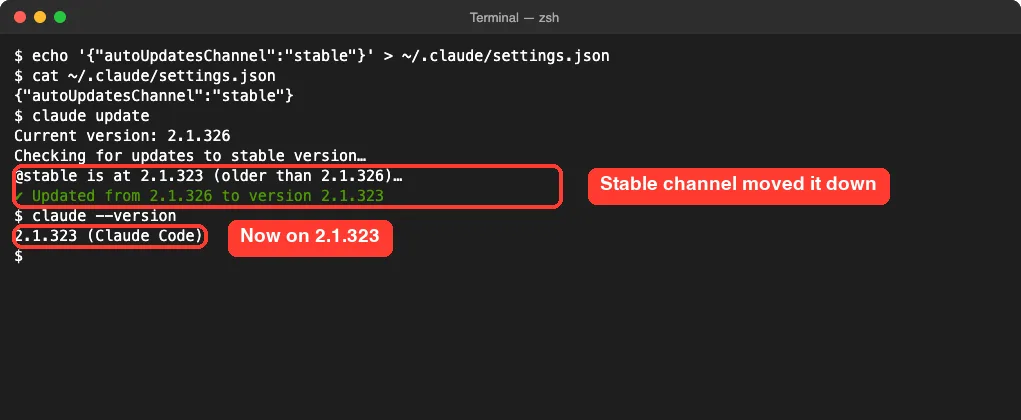
You can also pick it in /config under Auto-update channel, or run claude install stable, which the settings reference says saves the channel too. The docs add one catch: a brand-new model can need a newer Claude Code than stable serves, so switch back to latest if a new model doesn’t show up.
How to Pin Claude Code So It Stays on Your Version
Installing an older version is only half the job. Native installs check for updates when Claude Code starts and from time to time while it runs, and npm installs can update themselves too. Without a pin, your downgrade may last only until the next check.
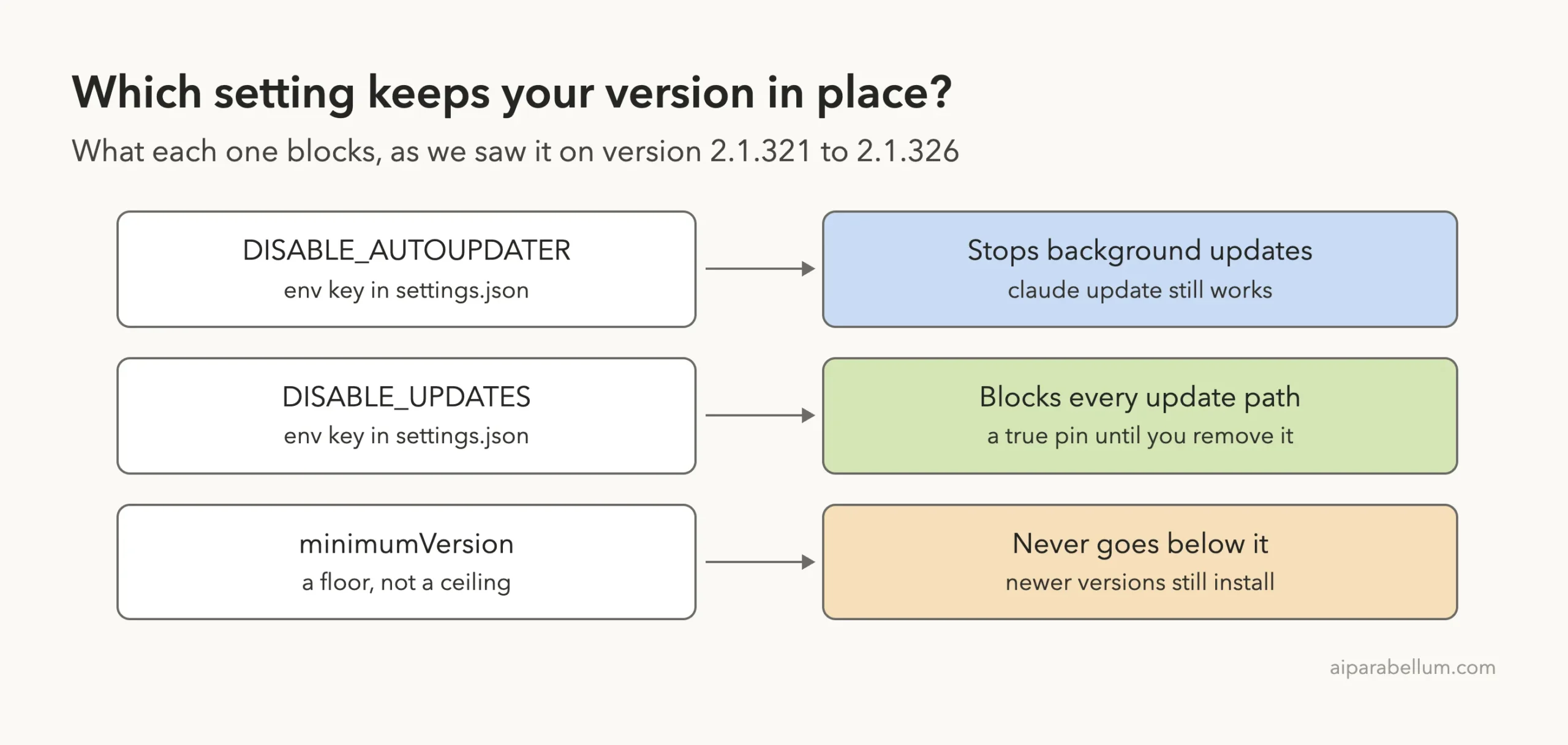
Claude Code gives you three settings, and each one stops a different thing. This diagram sums up what we saw when we tried them.
Option A: DISABLE_AUTOUPDATER (stop background updates)
Add this to your settings file. If the file already has an env section, add the line inside it rather than creating a second one.
{
  "env": {
    "DISABLE_AUTOUPDATER": "1"
  }
}
Then run claude doctor. Our report showed Auto-updates: disabled (set by env: DISABLE_AUTOUPDATER), the exact line Anthropic says to look for.
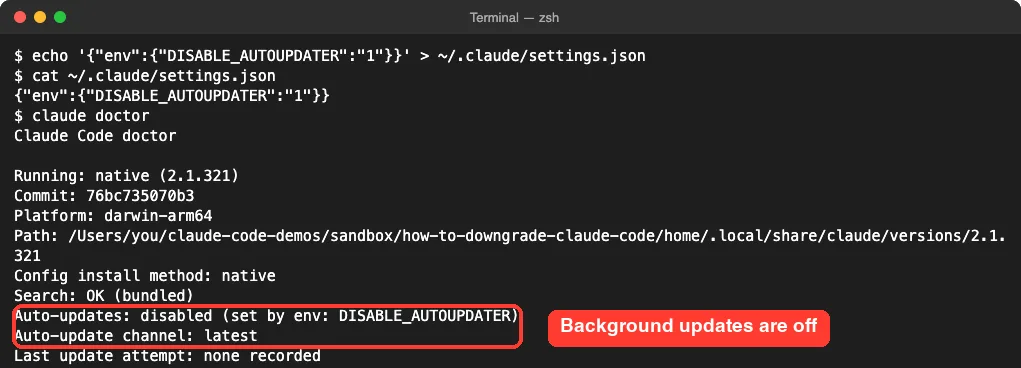
This is the right choice for most people. You stay on your version, and you can still run claude update by hand when you’re ready to move on.
Option B: DISABLE_UPDATES (block everything)
If you want a hard pin, use DISABLE_UPDATES instead. The docs say it blocks background updates, claude update and claude install, which makes it stricter.
{
  "env": {
    "DISABLE_UPDATES": "1"
  }
}
We tested both commands with it on. Each one stopped with the same message, and the version stayed put.
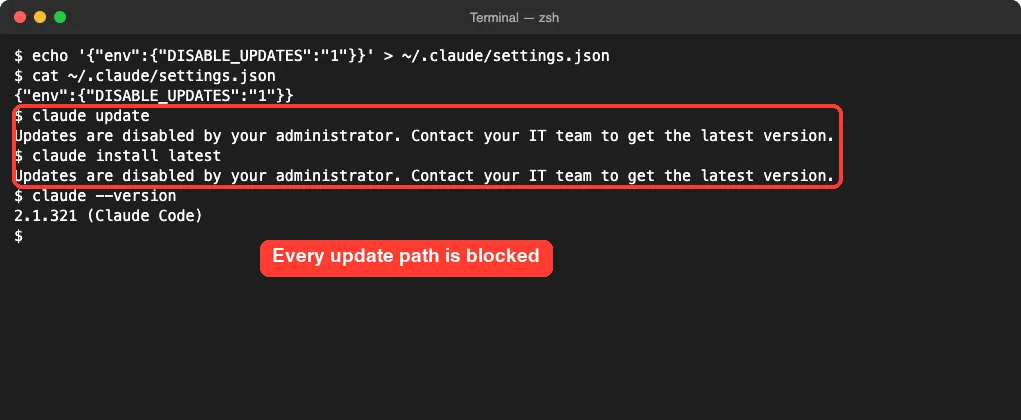
Don’t let the wording confuse you. The message says “disabled by your administrator” even when you set it yourself. Remove the line when you want to update again.
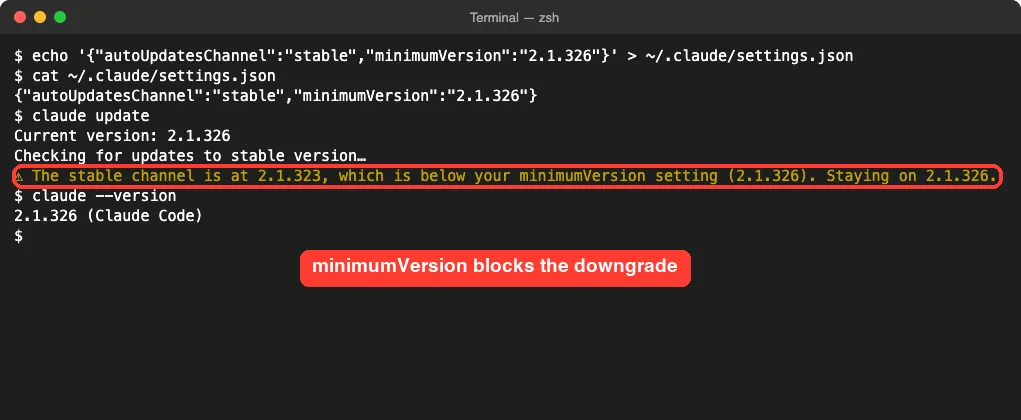
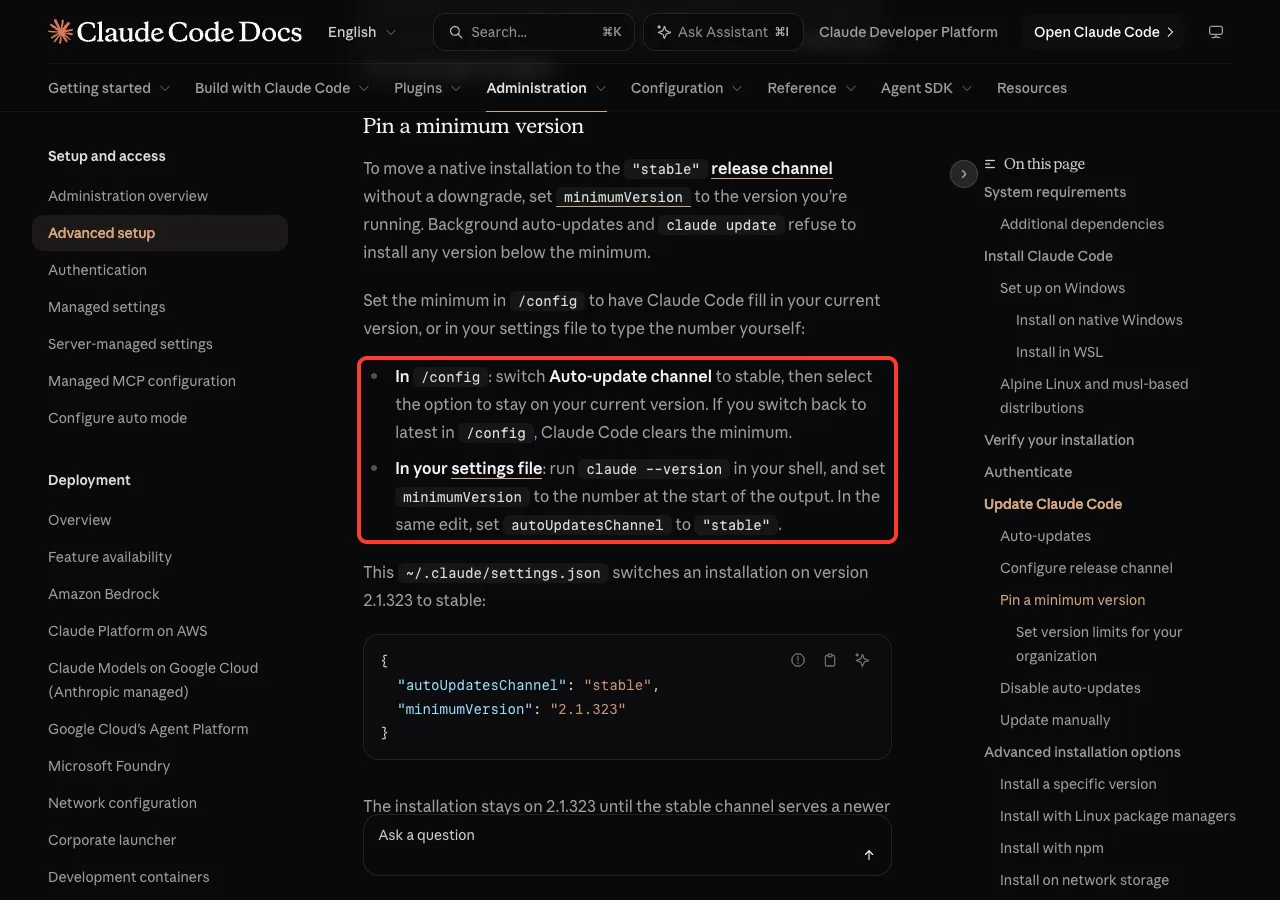
Option C: minimumVersion (a floor, not a pin)
minimumVersion sounds like a pin, but it only works in one direction. Updates refuse to install anything below it, while newer versions still come in. Anthropic suggests it for moving to the stable channel without going backward.
{
  "autoUpdatesChannel": "stable",
  "minimumVersion": "2.1.326"
}
With this in place on 2.1.326, claude update saw stable at 2.1.323 and refused to go there. It printed a clear warning and stayed on 2.1.326.
For teams: lock a version range
Admins get two extra keys that only work in managed settings: requiredMinimumVersion and requiredMaximumVersion. Unlike minimumVersion, these make Claude Code refuse to start outside the range. The settings reference says claude update, claude install and claude doctor keep working so people can recover.
Try It Yourself
You can practice the whole flow without touching your real install by giving the installer a temporary home folder. This is how we tested every step in this guide.
mkdir -p ~/cc-test/home
HOME=~/cc-test/home bash -c 'curl -fsSL https://claude.ai/install.sh | bash -s 2.1.326'
HOME=~/cc-test/home ~/cc-test/home/.local/bin/claude --version
HOME=~/cc-test/home ~/cc-test/home/.local/bin/claude install 2.1.323
HOME=~/cc-test/home ~/cc-test/home/.local/bin/claude --version
When you’re done, move ~/cc-test to the Trash. Your normal claude, settings and login are never involved.
Common Mistakes
- Downgrading without a pin. The next background check moves you forward again, and it looks like the downgrade “didn’t work.”
- Overwriting
settings.json. Our demo used a fresh file, but your real one may hold permissions, hooks and other keys. Add the new line instead of replacing the file. - Trusting
minimumVersionas a pin. It only stops downgrades; newer versions still install. - Keeping an old session open. A running session keeps its build, so restart before you test.
- Fixing the wrong copy. If you have two installs, the one your terminal runs may not be the one you changed.
- Forgetting the pin later. Months on, you’ll miss fixes. Put a reminder somewhere you’ll see it.
Pro Tips
- Write down the version you’re on before any change:
claude --version. It makes going back trivial. - Prefer
DISABLE_AUTOUPDATERfor personal use. It pins you but still lets you update by hand in one step. - Put the pin in project settings if only one project needs the old version. Our guide to settings.json locations explains which file wins.
- Power users can point their own launcher at a version folder. The docs say auto-update and
claude updatethen leave your launcher alone, and Claude Code keeps every version on disk. - To return to normal, remove the pin and run
claude update. Our guide on updating Claude Code covers what to do if it won’t move.
Cheat Sheet
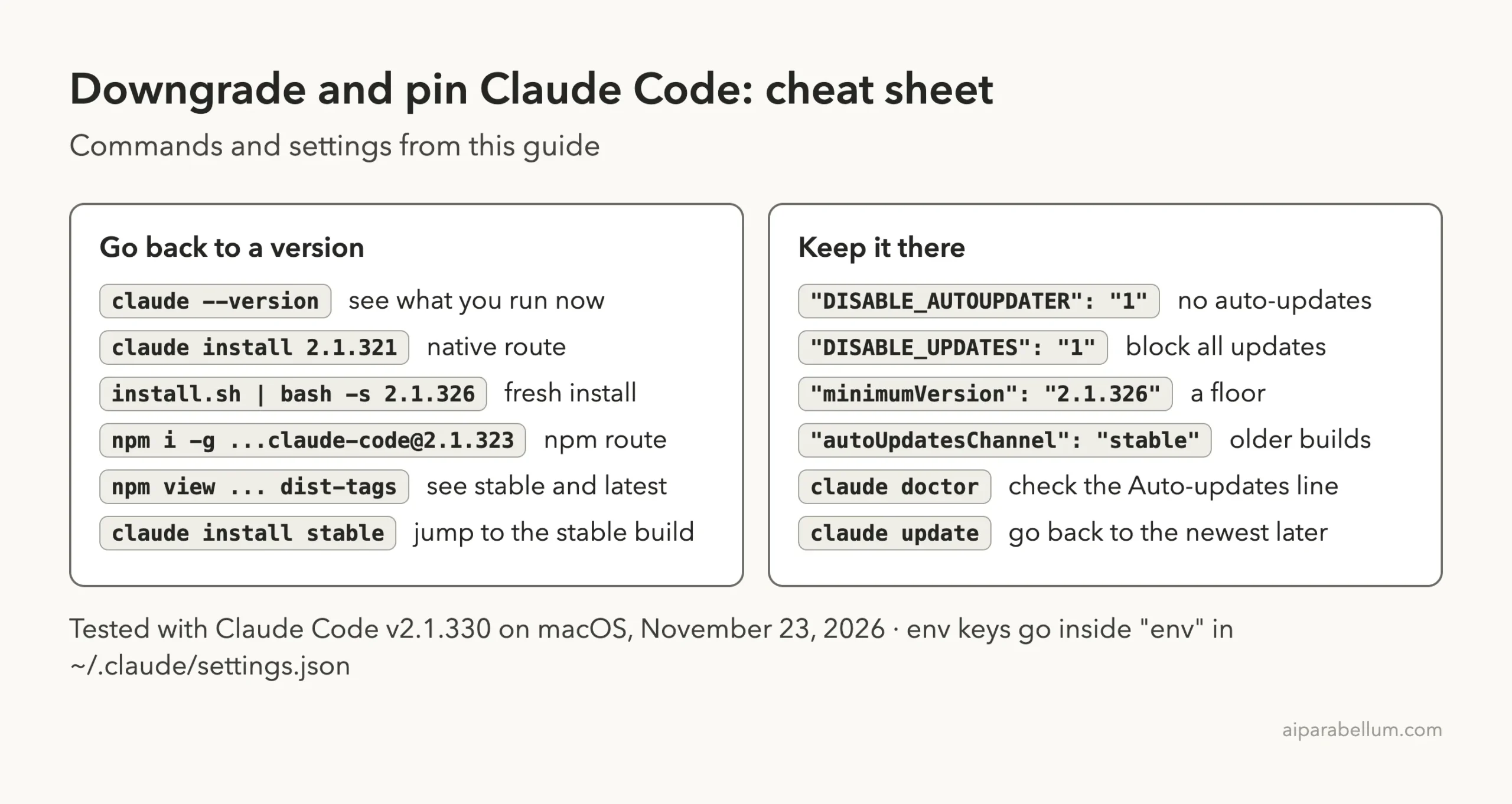
For more ready-made settings files, see our settings.json examples.
Frequently Asked Questions
How do I downgrade Claude Code to a specific version?
On a native install, run claude install followed by the version, such as claude install 2.1.321. On npm, run npm install -g @anthropic-ai/[email protected]. Then set DISABLE_AUTOUPDATER so it stays there.
Will Claude Code update itself after I downgrade?
Yes, unless you turn updates off. Native installs check on startup and while running. Set DISABLE_AUTOUPDATER or DISABLE_UPDATES in the env section of your settings file.
What’s the difference between DISABLE_AUTOUPDATER and DISABLE_UPDATES?
DISABLE_AUTOUPDATER stops background updates only, so claude update still works. DISABLE_UPDATES also blocks claude update and claude install, which we confirmed in our test.
Does downgrading Claude Code delete my settings or history?
No. Your settings live in ~/.claude, separate from the program files, and changing versions doesn’t remove them. Keep in mind that an older build may not know about settings added in newer releases.
How do I go back to the latest version later?
Remove the pin from your settings file and run claude update, or run claude install latest. Restart Claude Code and check with claude --version.
Conclusion
Knowing how to downgrade Claude Code is a quick safety net when a release gets in your way. Install the version you want with claude install, the install script or npm, confirm it with claude --version, then pin it with DISABLE_AUTOUPDATER or, for a hard lock, DISABLE_UPDATES. Remember that minimumVersion is only a floor, and remove your pin when the fix you’re waiting for lands. If something else goes wrong, check our list of Claude Code errors, or start with our Claude overview if you’re new to the tool.