
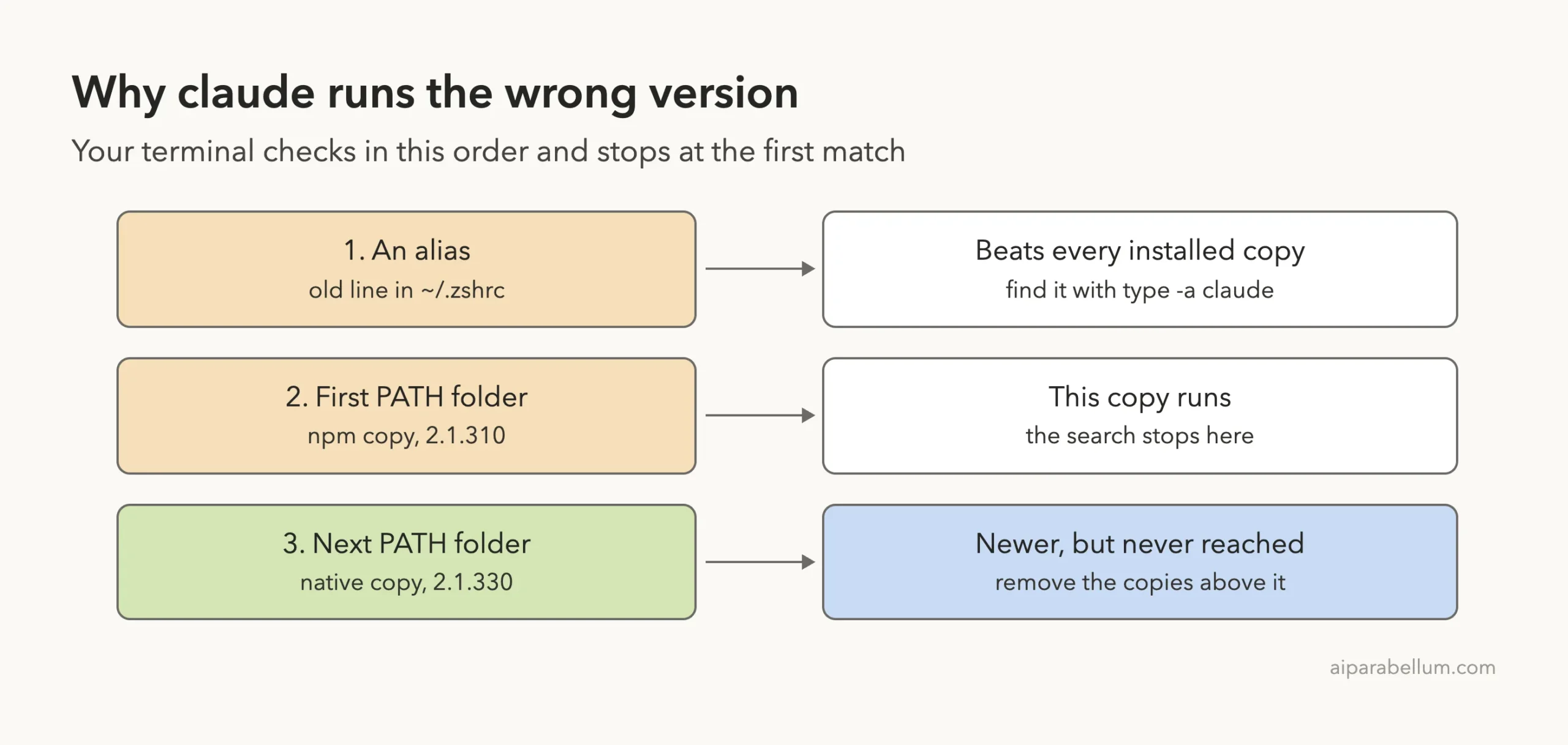
When you have the Claude Code wrong version installed, or claude keeps printing an old number after an update, you almost always have two copies on your computer. Your terminal runs the first one it finds, not the newest. List every copy with these two commands:
type -a claude
claude doctor
If you see more than one path, keep the native copy at ~/.local/bin/claude and remove the rest. This command does most of that for you:
~/.local/bin/claude installIn our test it removed an npm copy, an old local copy and a leftover alias in one go. It left a Homebrew copy and an npm copy from another Node folder alone, so check again afterward. Both have their own fix below.
Browse all our Claude Code tutorials for more fixes and how-tos.
Tested with Claude Code v2.1.330 on macOS on November 23, 2026, with npm 11.9.0. We installed older npm copies (2.1.300 to 2.1.329), the Homebrew cask (2.1.323) and the native copy side by side in a throwaway home folder. The Windows and Linux package steps follow Anthropic’s official instructions.
Quick Summary
| What you see | Likely cause | Fix |
|---|---|---|
which -a claude prints two or more different paths | Two installs | Keep the native one, remove the others |
claude update says it worked, but the version stays old | npm updated a different folder | npm uninstall -g --prefix with the old folder |
type -a claude says “alias” | A leftover line in your shell file | claude install, then unalias claude |
| Homebrew copy is about a week behind | Its cask follows the stable channel | Use one install, or the claude-code@latest cask |
No such file or directory right after removing a copy | Bash remembers the old path | hash -r or a new window |
claude opens the Desktop app on Windows | An older Claude Desktop | Update Claude Desktop |
Why You Get the Claude Code Wrong Version
Claude Code can be installed in several ways: the native installer, Homebrew, WinGet, npm and Linux package managers. Each puts its own claude in its own folder, and they don’t know much about each other.
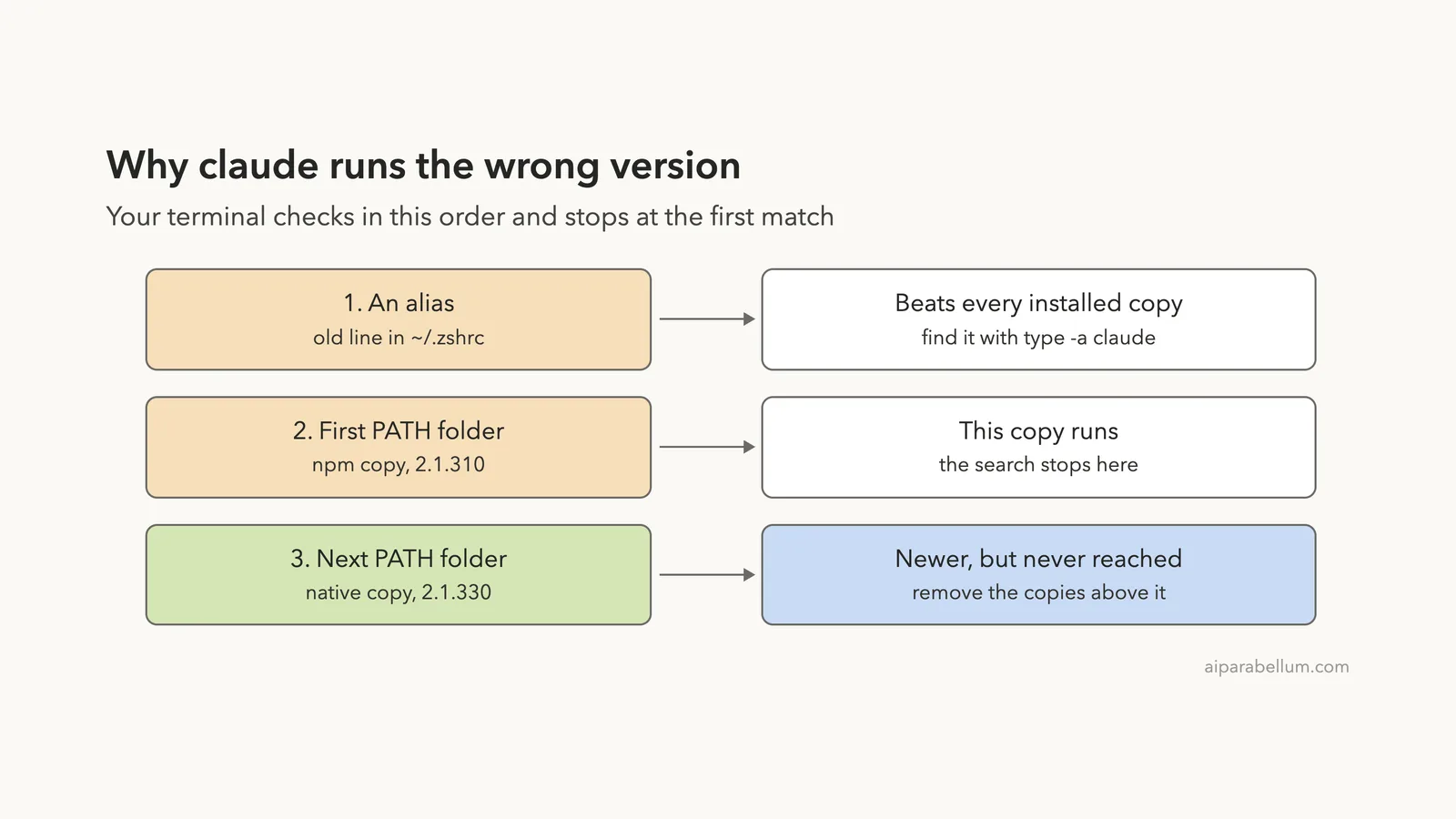
Your terminal has a list of folders called the PATH. It checks them in order and stops at the first claude. A shell alias beats the whole list.
That’s why an update can succeed and change nothing you can see. You updated one copy and launched another.
How people end up with two copies
- You installed with npm long ago and switched to the native installer later.
- You switched Node versions with a tool like nvm, so an old global npm folder is still around.
- You ran a Homebrew install on top of an existing one.
- An older Claude Code set up a copy in
~/.claude/localplus an alias.
The native installer tries to prevent the first case. When we ran it with an npm copy already in place, that npm copy was gone afterward. It can only clean up what it finds, though, and installing npm again later brings the second copy right back.
Step 1: Find Every Claude Code Copy
Start with the version, then the list of copies. The loop on the third line asks each copy for its own version number:
claude --version
which -a claude
for c in $(which -a claude); do echo "$c"; "$c" --version; done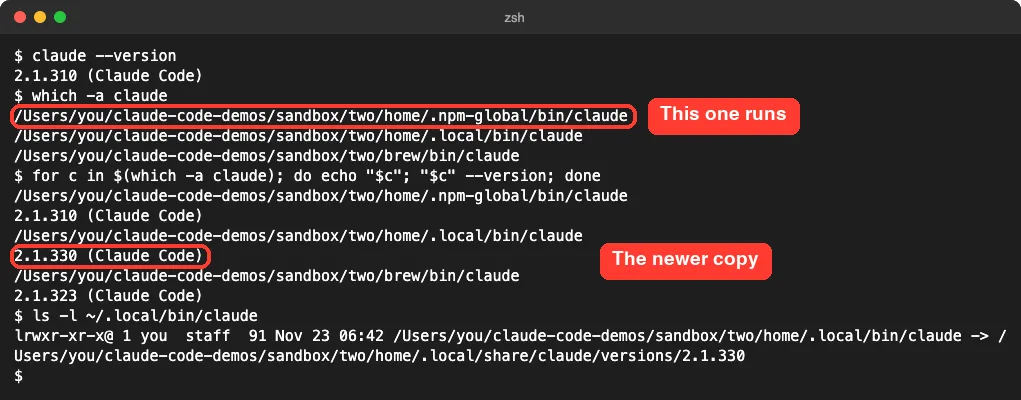
The order matters most here. Our npm copy came first, so typing claude gave 2.1.310 while 2.1.330 sat one line lower.
If which -a prints an “aliased to” line in Zsh, skip the loop and go to Fix 4. Is nothing printed at all? Then it’s a PATH problem, and our guide to command not found is the better place to start.
Tell npm, Homebrew and native copies apart
The folder name alone can mislead you, so look at where the file points. Run ls -l on each path from the list:
ls -l ~/.local/bin/claude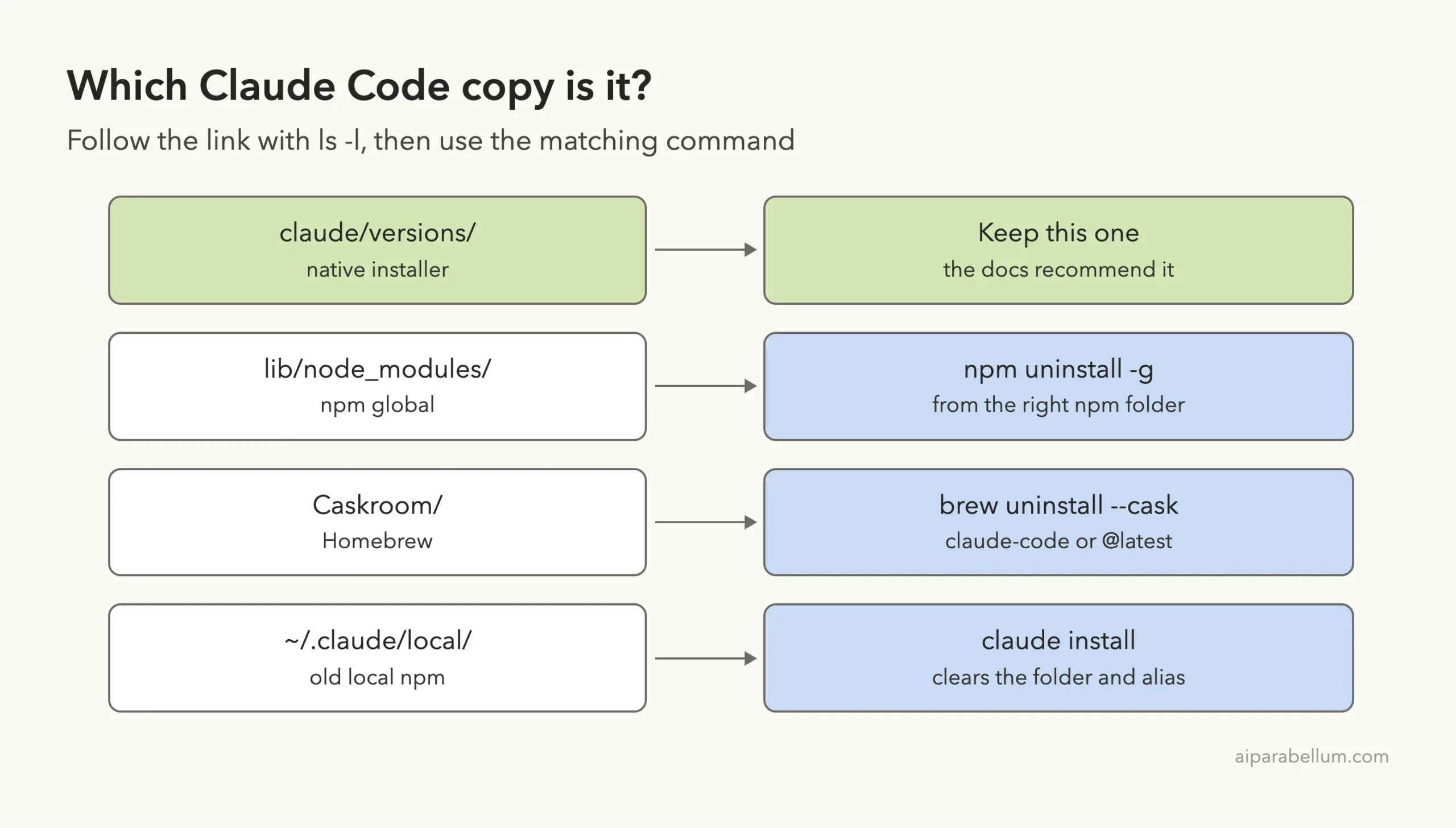
| The link points to | Installed by | Updates itself? |
|---|---|---|
~/.local/share/claude/versions/ | Native installer | Yes |
lib/node_modules/@anthropic-ai/claude-code/ | npm global | Yes, if npm’s folder is writable |
Caskroom/claude-code/ | Homebrew | Not by default |
~/.claude/local/ (often through an alias) | Old local npm install | Remove it |
Let claude doctor confirm it
Run claude doctor and read two parts. The Running line names the copy you just launched, and Multiple installations found lists the conflicts it can see.
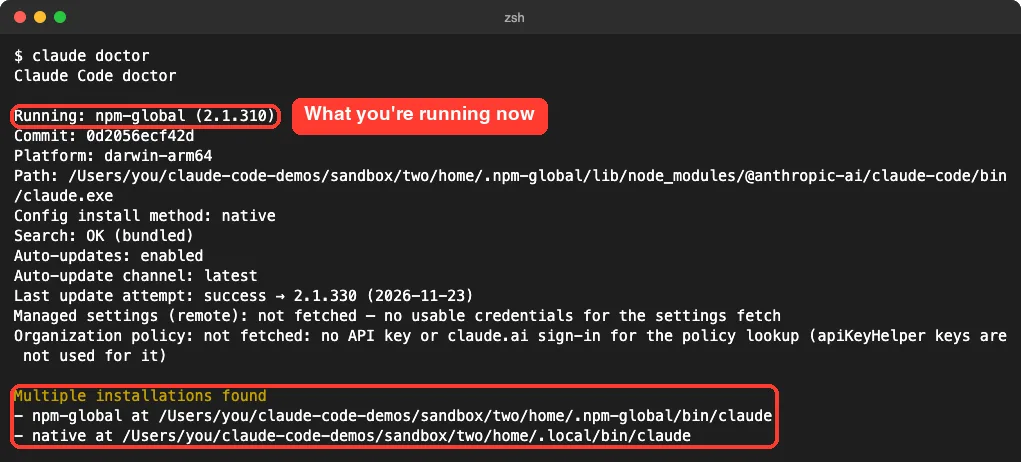
The native copy’s doctor report went one step further. It printed Leftover npm global installation with the exact removal command.
Don’t rely on doctor alone. It didn’t list our Homebrew copy, which sat in a non-standard folder, and it missed an npm copy in a second npm folder. Our guide to claude doctor covers the other lines.
Use doctor to learn what is running. Use which -a to learn what else is there.
Step 2: Pick the Copy to Keep
Anthropic’s troubleshooting page is clear about this: keep only one, and the native install is the recommended one.
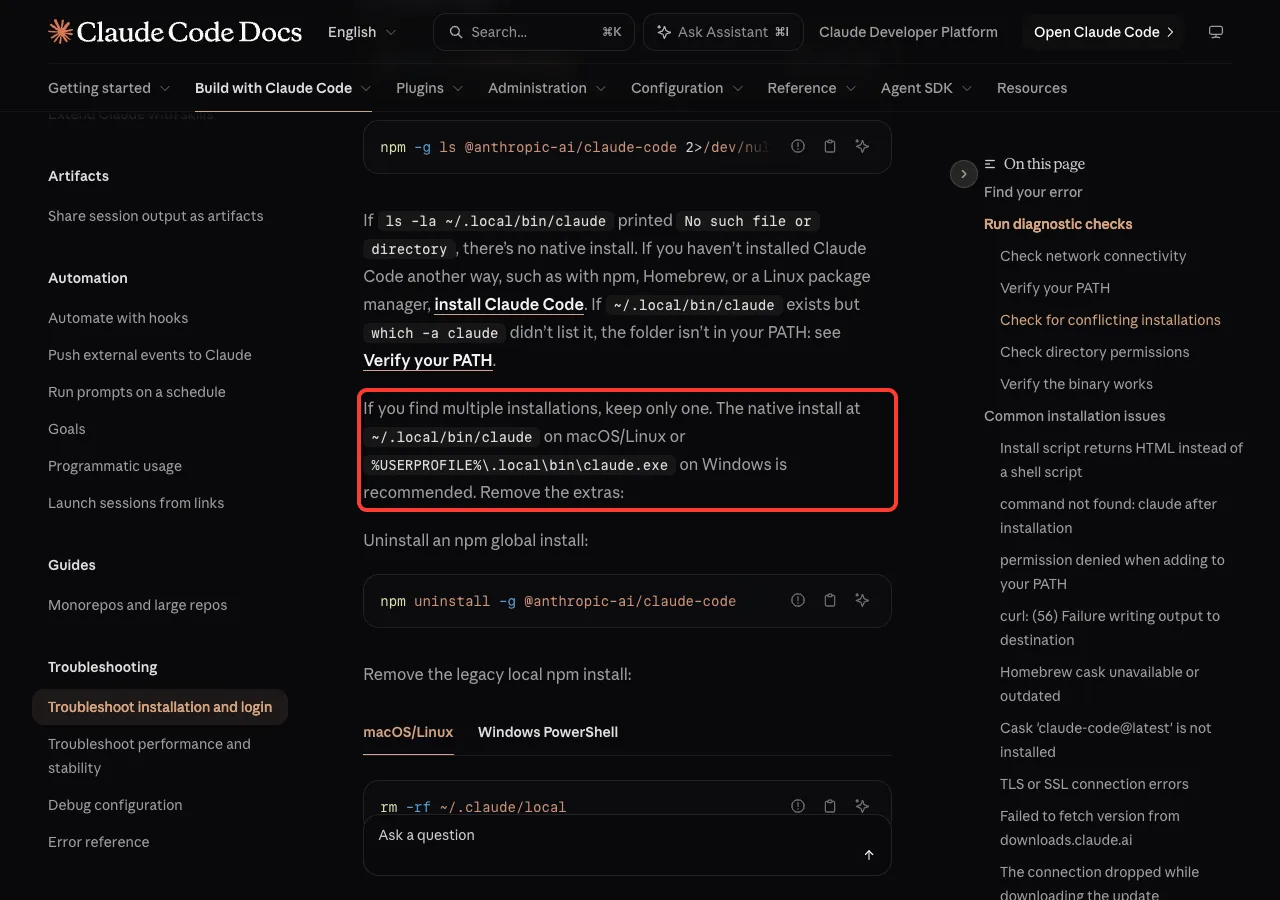
You can keep Homebrew or npm instead if your team needs it. The rule that matters is one copy. Close your running Claude Code sessions before you remove anything.
No native copy yet? Our guide to install Claude Code walks through it on each system. Removing the extra program doesn’t touch your settings, which live in ~/.claude and ~/.claude.json.
Fix 1: Run claude install to Clean Up Two Claude Code Installs
This is the fastest fix on macOS and Linux. Call the native copy by its full path so you know which one does the work:
~/.local/bin/claude installWe gave it a messy setup: an alias, a copy in ~/.claude/local, an npm global copy, a native copy and a Homebrew copy.
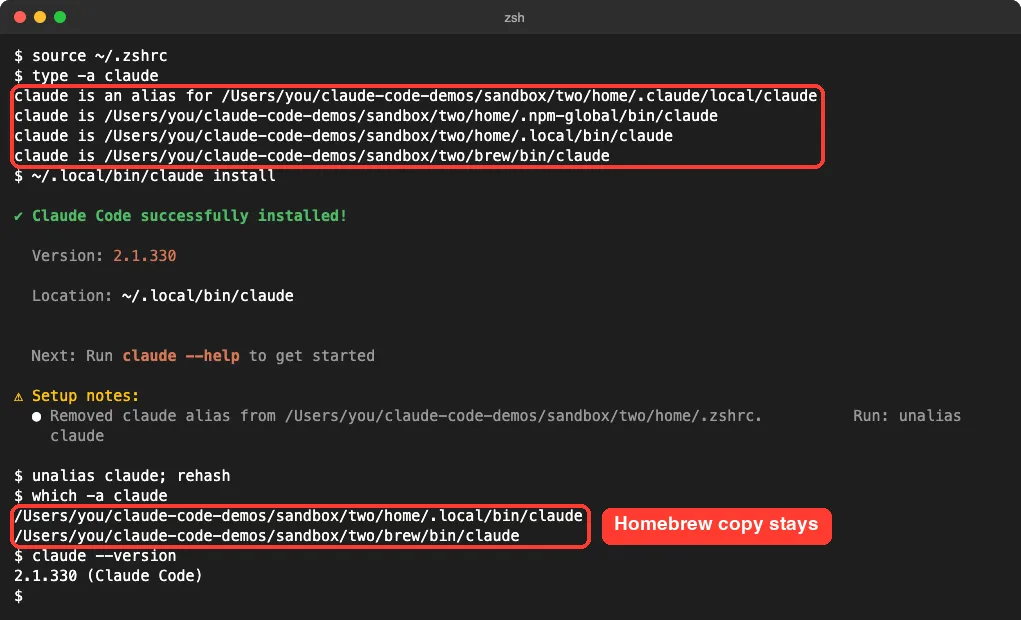
It removed the alias line from ~/.zshrc, deleted the ~/.claude/local folder and uninstalled the npm package. The alias still lives in your open window, so run unalias claude there, as the note says, or open a new one.
The Homebrew copy stayed. So did an npm copy in a second npm folder when we tried that. Run which -a claude again and use the next two fixes for whatever is left.
Fix 2: Remove the npm Copy From the Right Folder
For a plain npm copy, the official command is enough:
npm uninstall -g @anthropic-ai/claude-codeYou should see removed 2 packages. If npm prints up to date instead, nothing was removed, even though there’s no error. Your copy belongs to a different npm folder.
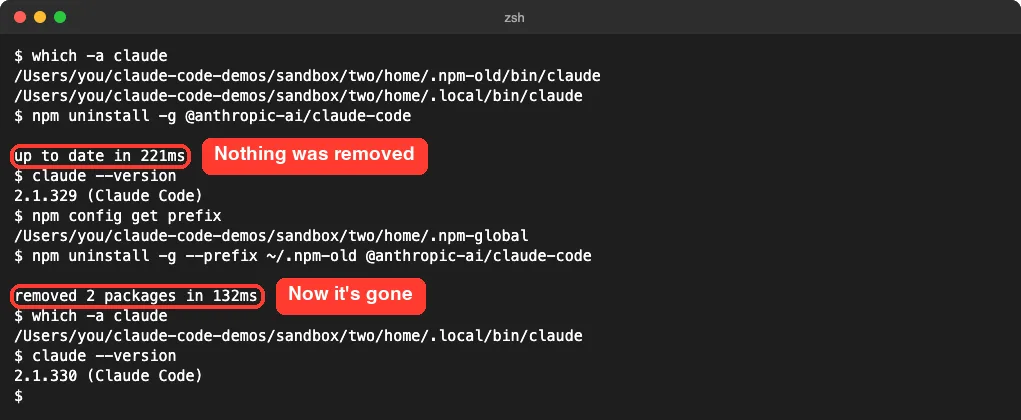
Compare the folder in which -a claude with npm config get prefix. If they differ, give npm the folder from the path, without the /bin/claude ending:
npm config get prefix
npm uninstall -g --prefix ~/.npm-old @anthropic-ai/claude-code
Replace ~/.npm-old with your own folder. With nvm you can also switch to the Node version that owns the copy and run the normal command there.
Why claude update says it worked but the version is the same
This is the most confusing version of the problem, and we reproduced it. The old copy was in one npm folder, while npm was set to use another. The update reported success and the version didn’t move:
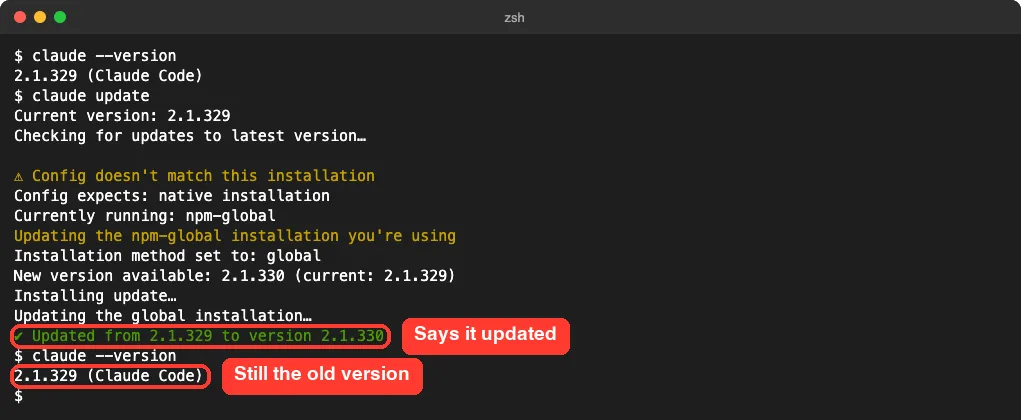
The update wasn’t lying. It asked npm to install 2.1.330, and npm put it in its own current folder. The copy you launch was never touched.
Look for the yellow Config doesn't match this installation warning above it. It means the copy you’re running isn’t the kind Claude Code has on record. If you only have one copy and it won’t move forward, see our guide to Claude Code updates.
Fix 3: Remove the Homebrew Copy or Put It Second
Check which cask you have, then remove that one. The docs list two names, claude-code and claude-code@latest:
brew list --cask | grep claude-code
brew uninstall --cask claude-code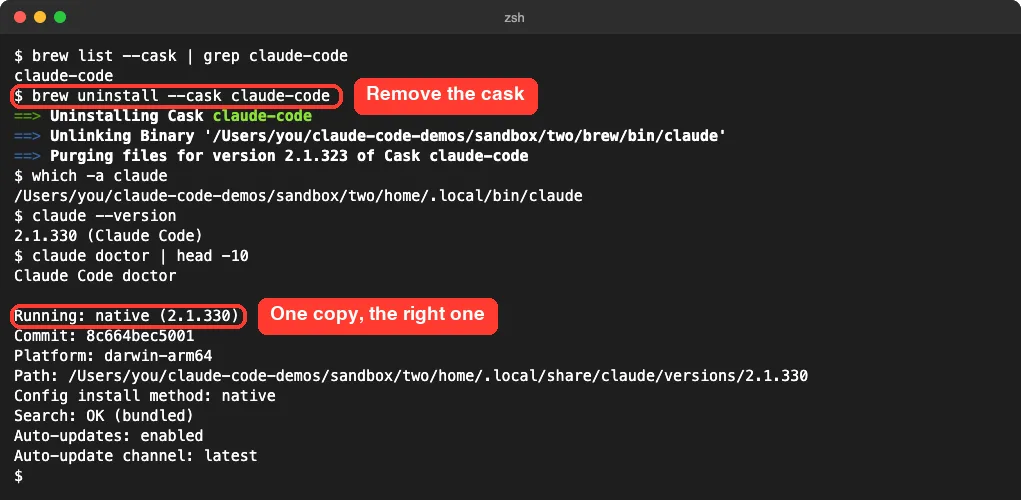
An older Homebrew version isn’t always a fault. The claude-code cask follows the stable channel, which the docs describe as about a week behind. On our test day it was 2.1.323 while the native copy was 2.1.330.
If you’d rather keep Homebrew and want the newest release, the docs point to the claude-code@latest cask. Remember that Homebrew copies don’t update themselves by default.
Need both for now? Change the order
Sometimes you can’t remove a copy yet. Put the native folder at the front of your PATH so it wins:
export PATH="$HOME/.local/bin:$PATH"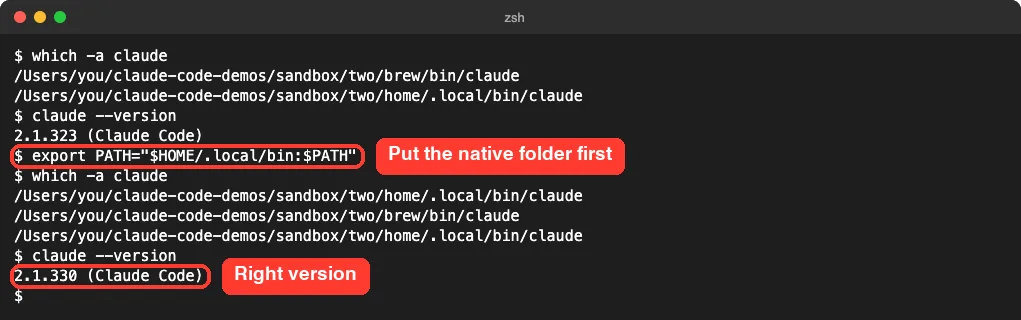
That lasts for one window. To keep it, add the line to ~/.zshrc on a Mac or ~/.bashrc on most Linux systems, below anything else that changes PATH. Treat it as a stopgap, since the older copy is still there to surprise you later.
Fix 4: Clear a Leftover claude Alias
An alias is a nickname in your shell file. It runs before any PATH folder is checked, so you can fix your PATH all day and still get the old version. Only type -a reliably shows it:
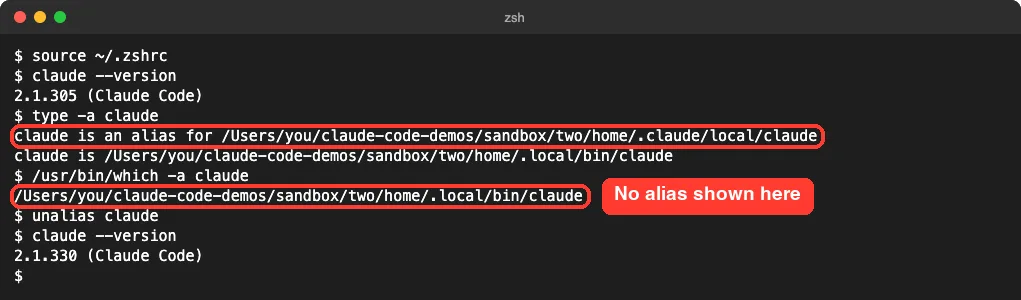
In Zsh, the built-in which -a also shows aliases. In Bash it doesn’t, and neither does the /usr/bin/which program. That’s why type -a is the safer habit.
To remove it for good, run claude install as in Fix 1, or delete the line yourself:
grep -n "alias claude" ~/.zshrc ~/.bashrc ~/.bash_profile 2>/dev/null
unalias claude
The first line shows the file and line number to delete. The second clears the alias from the window you’re in. If the copy in ~/.claude/local remains, the docs say to delete that folder; check the path twice, because ~/.claude itself holds your settings.
Fix 5: Reset the Terminal’s Memory
You removed the old copy and now Bash says No such file or directory. Nothing is broken. Bash remembers where it last found a command and doesn’t look again.
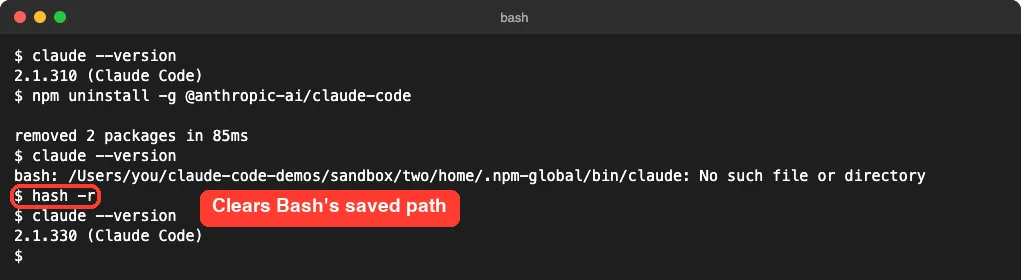
Run hash -r or open a new window. Zsh found the right copy without help in our test. Terminals inside an editor keep the editor’s old PATH, so quit and reopen the editor too.
Fix the Wrong Claude Code Version on Windows and Linux
We tested on macOS; the Windows and Linux steps follow Anthropic’s official instructions.
Windows
List the copies and check for the native one in PowerShell:
where.exe claude
Test-Path "$env:USERPROFILE\.local\bin\claude.exe"
Then remove the extra copy with the command that matches it:
npm uninstall -g @anthropic-ai/claude-code
winget uninstall Anthropic.ClaudeCode
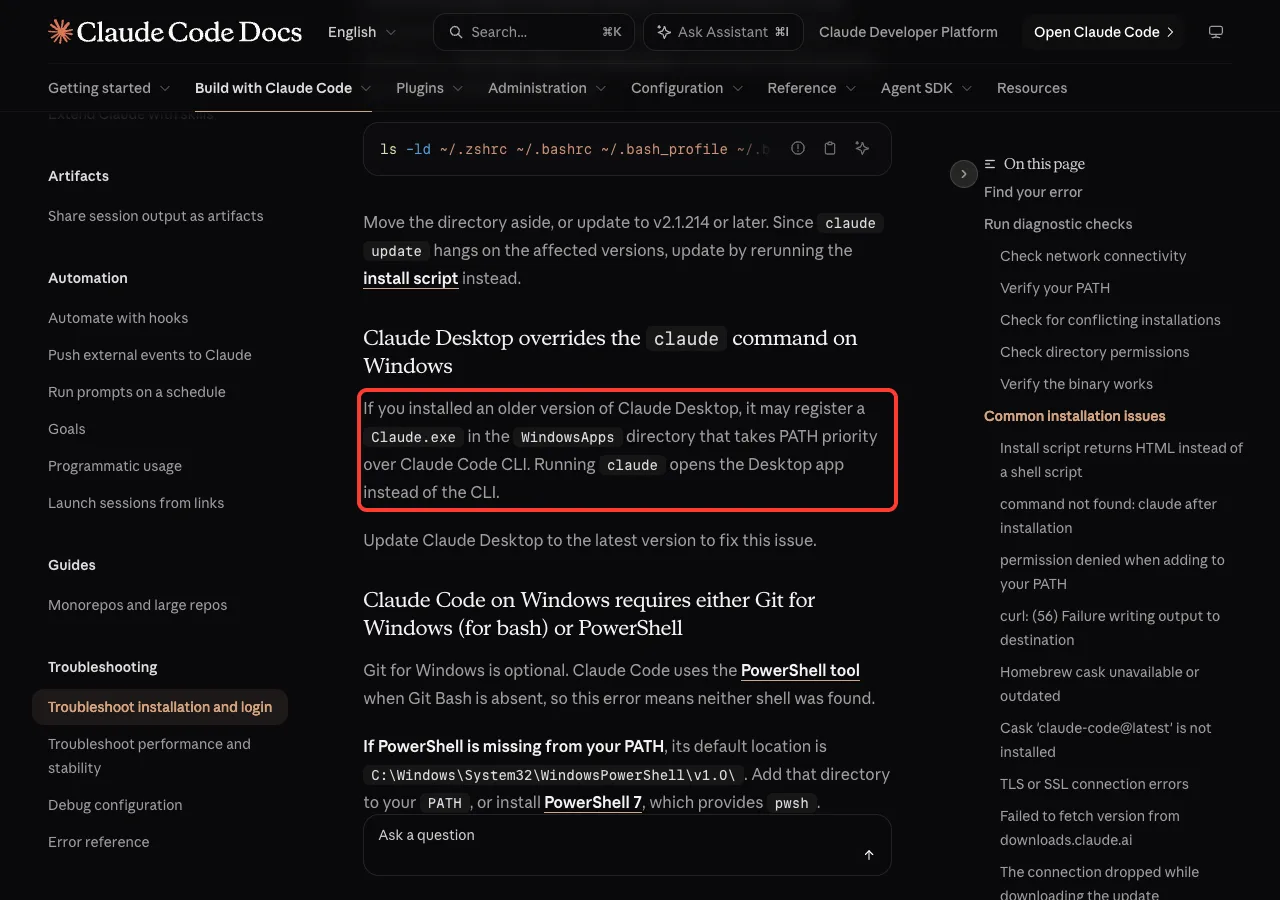
Run only the line you need. One special case looks like a wrong version but isn’t: an older Claude Desktop can take over the claude command and open the app instead. Updating Claude Desktop fixes that.
Linux packages
If you used a package manager, remove the copy with the same tool: sudo apt remove claude-code, sudo dnf remove claude-code or apk del claude-code. The setup page also lists the repository files to delete. Our guide on how to uninstall Claude Code goes through every method.
Other Reasons claude Shows an Old Version
The session was already open
Updates take effect the next time you start Claude Code. An open session keeps its old version until you restart it.
A custom launcher sits in ~/.local/bin
We replaced ~/.local/bin/claude with a small script that started an older copy. Doctor spotted it and said the file was not created by the native installer. The docs’ fix is to remove that file and run claude update; run it through another working copy, since the command you’d normally type is the one you just removed.
npm refuses with EEXIST
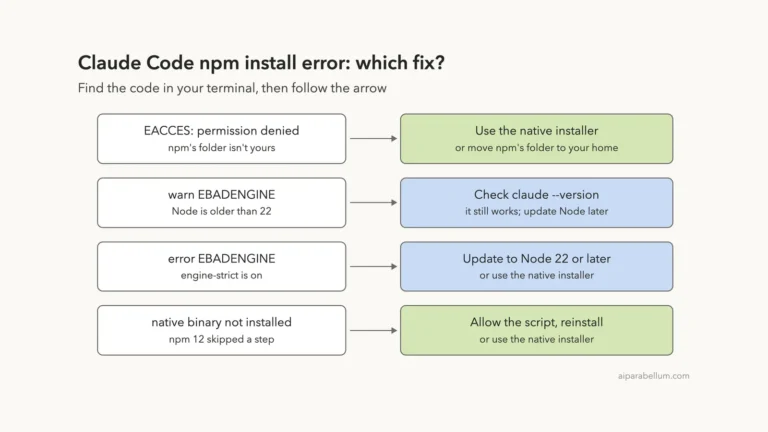
If npm’s folder is set to ~/.local, it collides with the native launcher. Our npm install stopped with EEXIST: file already exists, and the native copy kept working. Don’t add --force; for permission problems, see our npm install errors guide.
VS Code shows another number
The docs say the VS Code extension carries its own private copy for its chat panel and doesn’t add it to your PATH. A different version there isn’t a conflict in your terminal.
Try It Yourself
This check only reads your setup. It takes a few seconds and changes nothing:
type -a claude
claude --version
npm config get prefix
npm -g ls @anthropic-ai/claude-code
claude doctor
Want a second opinion? Start Claude Code and paste this prompt with the output:
Here is my output from type -a claude, claude --version, npm config get prefix and claude doctor. Tell me how many Claude Code copies I have, who installed each one, which one runs when I type claude, and the exact command to remove the extras. Do not run or delete anything.Common Mistakes
- Running
claude updateagain and again. It updates one copy, and that may not be the one you launch. - Reading
up to datefromnpm uninstallas success. It means npm found nothing to remove. - Deleting
~/.claudewhen you meant~/.claude/local. The first one holds your settings and session history. - Checking in the same old window. Saved paths and aliases can hide a fix that worked.
- Installing again with a different method. That adds a copy instead of replacing one.
Pro Tips
- Start the right copy by its full path while you clean up, such as
~/.local/bin/claude. - Use
\claudeto skip an alias once without removing it. - After you change Node versions, run
which -a claudeonce. It’s the moment a hidden copy tends to come back. - Write down the install method you chose and always update that way.
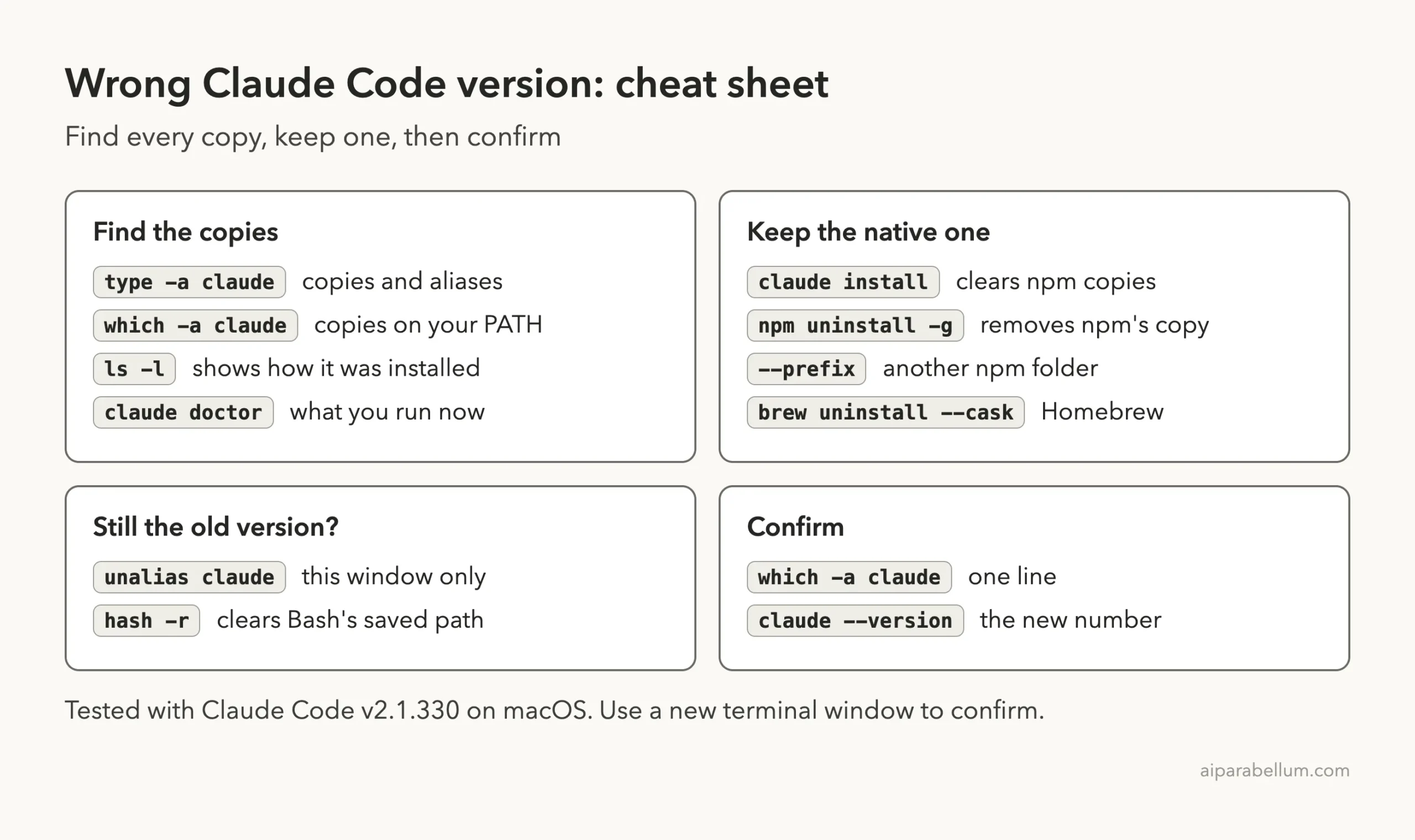
Cheat Sheet
Frequently Asked Questions
Why is the Claude Code wrong version installed on my computer?
You probably have two copies, and the older one comes first in your PATH. Run type -a claude to see all of them, then keep one.
How do I check which Claude Code install is running?
Run claude doctor and read the Running line. It names the install type, such as native, npm-global or package-manager, and the version.
Is it safe to remove the npm copy of Claude Code?
Yes, once another copy works. npm uninstall -g removes the program only. Your settings in ~/.claude stay.
Can I keep both Homebrew and native Claude Code?
You can, with the native folder first in your PATH, but Anthropic recommends one install. Homebrew copies don’t update by default, so the gap between them grows.
Why does claude update succeed but the version stays the same?
The update went to a different copy from the one you launch. In our test npm wrote 2.1.330 to its current folder while claude kept starting 2.1.329 from another one.
Conclusion
Fixing the wrong Claude Code version comes down to finding every copy and keeping one. List them with type -a claude, run ~/.local/bin/claude install to clear npm copies and old aliases, then remove what’s left with npm or Homebrew. Confirm in a new window that which -a claude shows one path. For other messages, see our list of Claude Code errors, or start with our Claude overview if you’re new to the tool.