
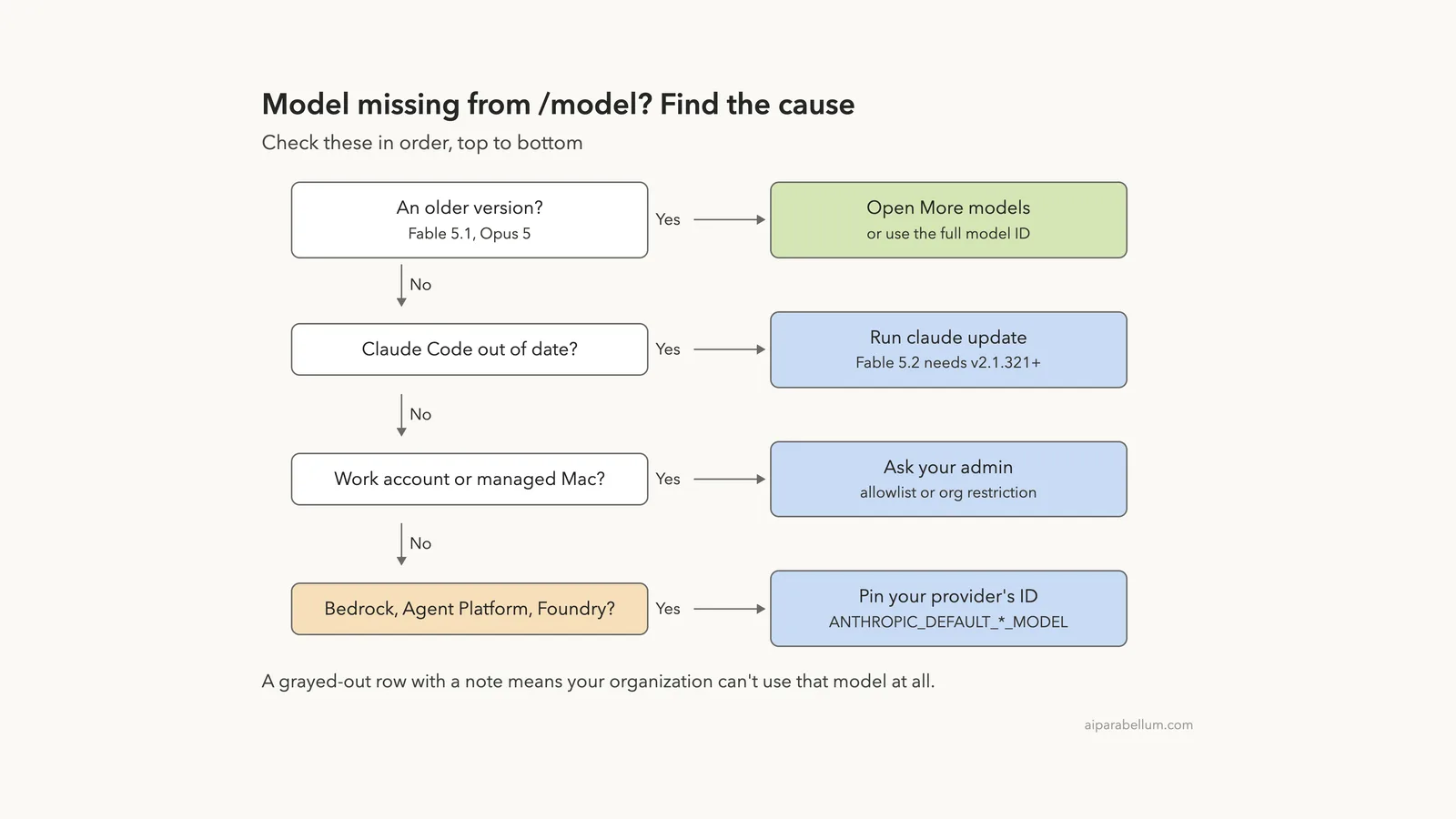
If you see the Claude Code model not showing in the /model list, the model usually isn’t gone. It is either tucked under “More models”, blocked by your organization, not supported by your Claude Code version, or named differently by your cloud provider. Fable is also never the default on any plan, so you have to pick it on purpose.
Open /model and expand “More models” to find older versions like Fable 5.1 or Opus 5. If a model is missing from both lists, run claude update, then restart, because the picker only refreshes when a new session starts.
On a work account, a missing Opus or Fable almost always means an admin allowlist or an organization restriction, and only your admin can change that.
You can also skip the picker entirely and select a model by name, such as /model fable, /model opus or claude --model claude-fable-5-1. If Claude Code refuses the switch, the message tells you why.
This guide is part of our help series. Browse all our Claude Code tutorials for more fixes and how-tos.
Tested with Claude Code v2.1.328 on macOS on November 20, 2026. We opened the /model picker in a throwaway demo folder, expanded “More models”, hid Opus and Fable with a project allowlist, tried to switch to them anyway, and started a session on an older Fable by its full ID. All terminal captures below are genuine.
Quick Summary
| Question | Short answer |
|---|---|
| Where are older models? | Under “More models” at the bottom of /model |
| Why is Fable not my default? | No Fable model is the default on any plan or provider; pick it with /model fable |
| Fable 5.2 missing entirely? | It needs Claude Code v2.1.321 or later; run claude update |
| Opus missing on a work account? | An availableModels allowlist or an Enterprise model restriction hides it |
| Fable row grayed out? | Your organization can’t use Fable at all, for example under zero data retention |
| Using Bedrock, Agent Platform or Foundry? | Aliases can point to older models; pin your provider’s ID |
| Changed something and nothing happened? | Start a new session; the picker refreshes at startup |
Why a Claude Code Model Is Not Showing in /model
The /model picker is not a fixed list. Claude Code builds it at startup from several layers: your Claude Code version, your provider, your organization’s rules, and your plan. Each layer can remove a model before the list reaches you.
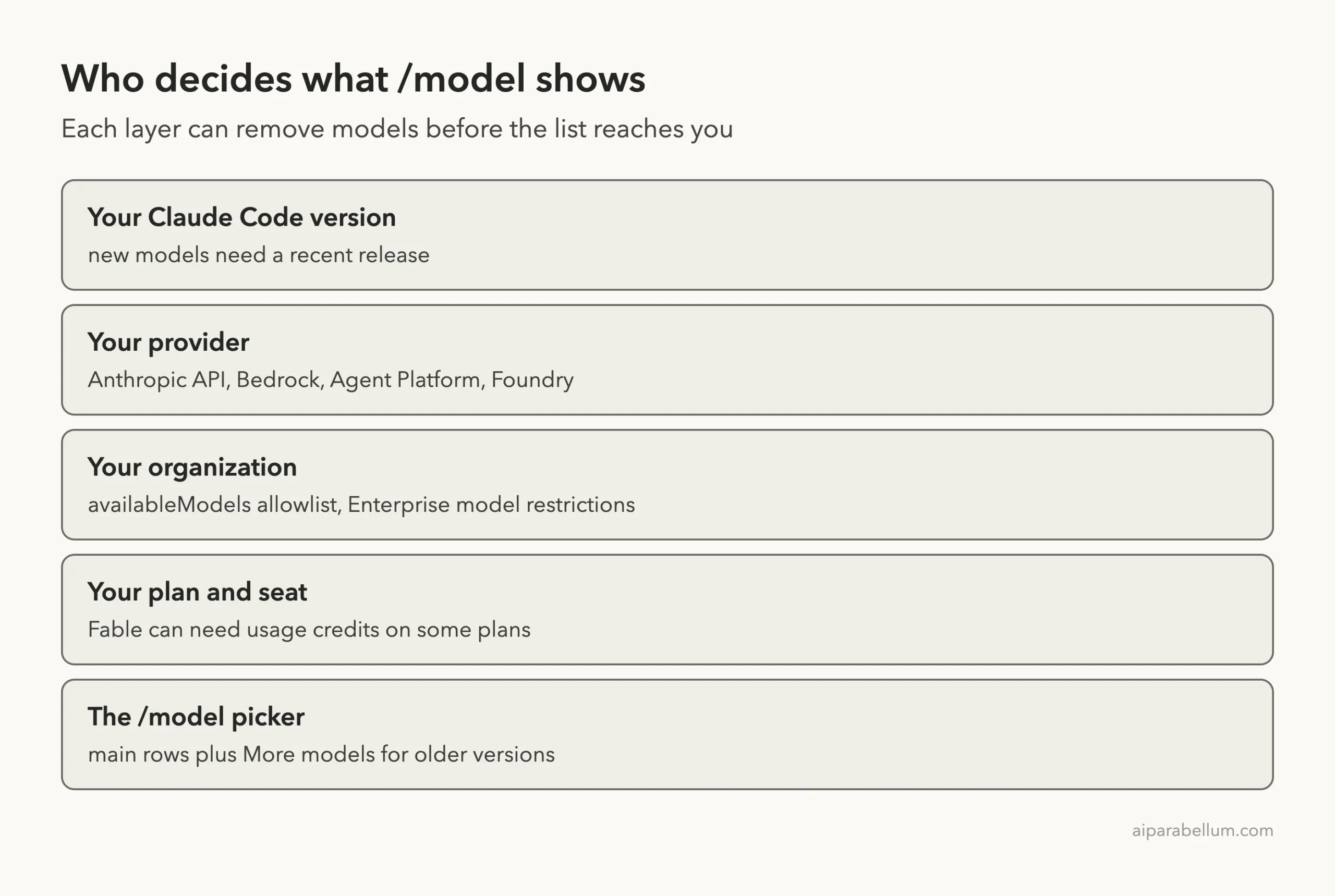
According to the official model configuration docs, Claude Code hides models that an allowlist excludes. On the Anthropic API, a Fable model appears in the picker unless an allowlist or organization restriction excludes it. So “missing” is almost always a filter doing its job, not a bug.
A missing model is usually filtered, not broken. Find the layer that removed it.
If you are still choosing between models, our overview of the Claude Code model options explains what Opus, Sonnet, Haiku and Fable are each good at.
What a Normal /model Picker Looks Like
Before you hunt for a cause, check what a healthy picker shows. In our demo session on the Anthropic API, the main list had five rows: Default (recommended), Opus 5.5, Fable 5.2, Sonnet 5.5 and Haiku 5.5. Below them sat a collapsed “More models” row.
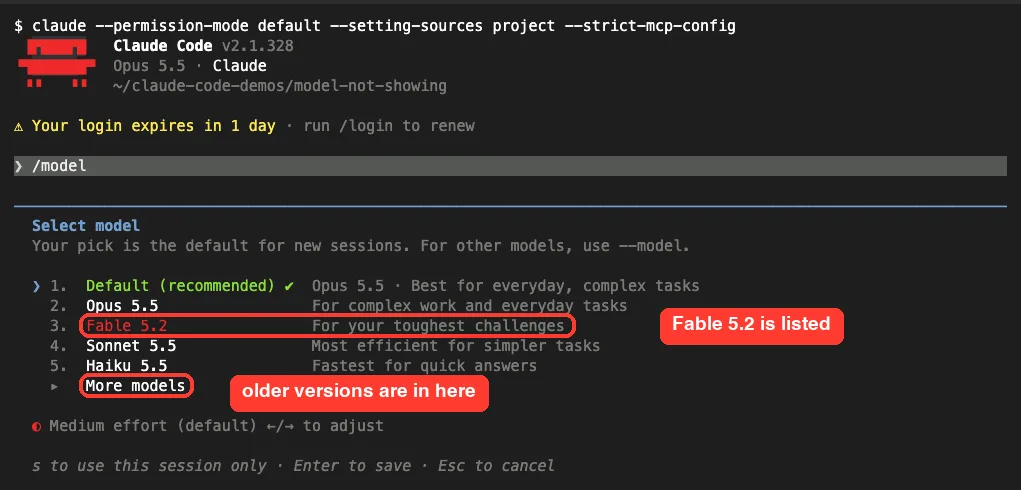
Notice that Default resolves to Opus 5.5 here. The docs say Pro, Max, Ultra, Team, Enterprise and Anthropic API accounts all default to Opus 5.5. Fable is listed, but it is never the default, so a new session won’t start on it unless you choose it.
Older versions hide under More models
This is the most common reason people think a model vanished. When a new version comes out, the older one moves down into “More models”. Use the arrow keys to reach that row, then press Enter to expand it.
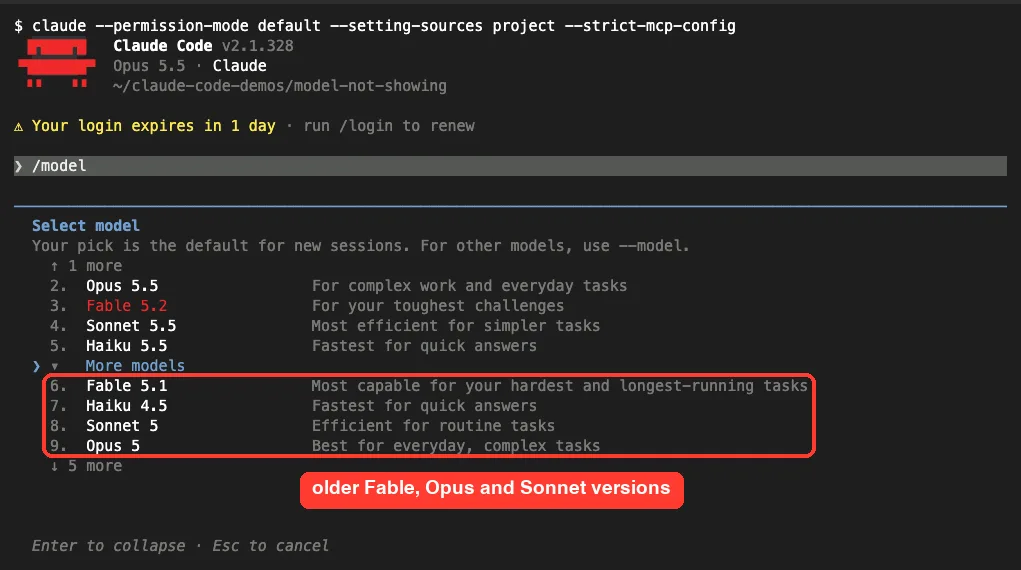
In our session, the expanded list showed Fable 5.1, Haiku 4.5, Sonnet 5 and Opus 5, plus five more rows further down. If you were looking for “the old Opus” or “the old Fable”, it is probably here.
Claude Code Model Not Showing: 6 Causes and Fixes
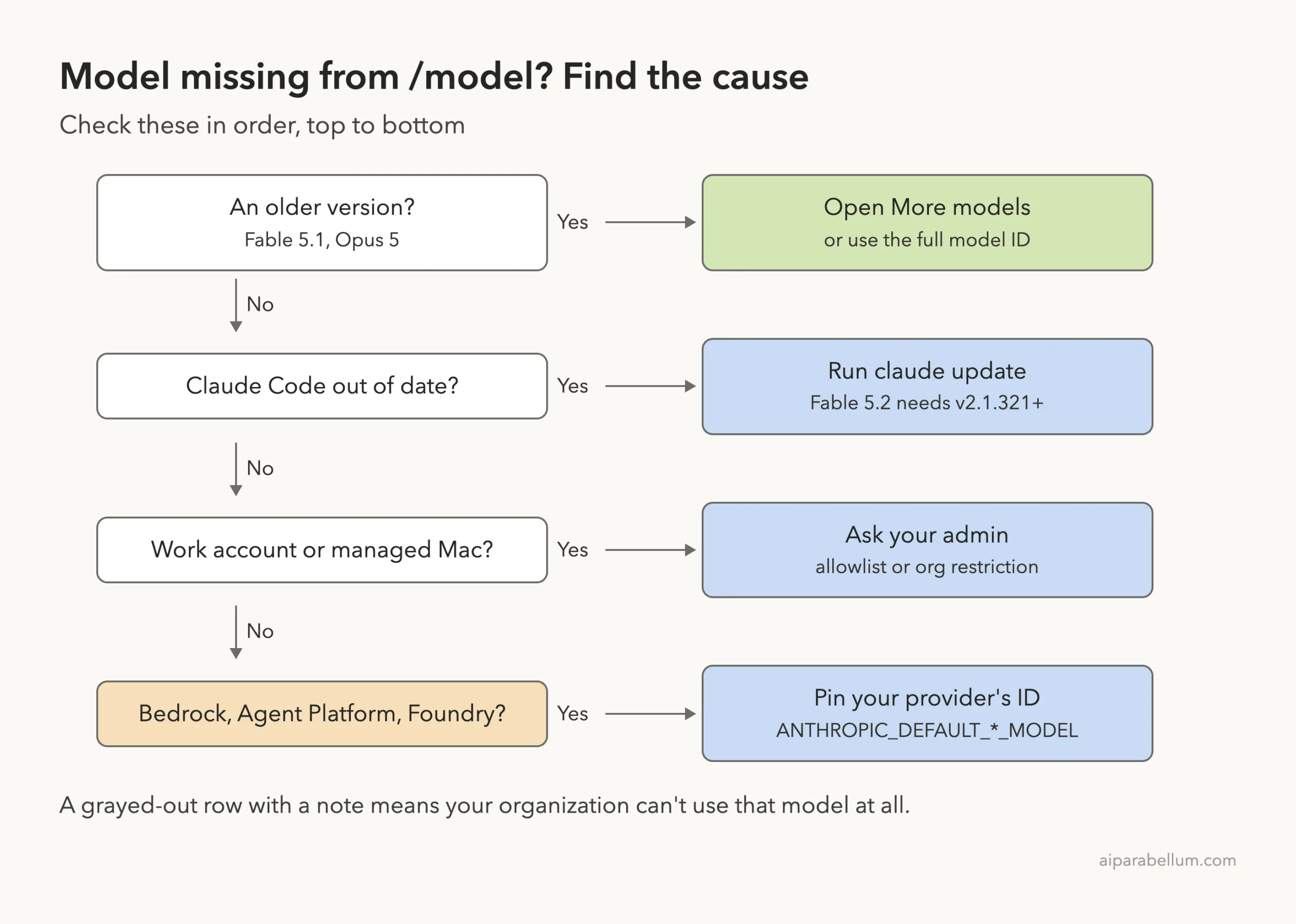
Work through these in order. Fixes 1, 2 and 4 we ran ourselves in the demo; fixes 3, 5 and 6 come from Anthropic’s official docs, since they need a company plan or a cloud provider.
Fix 1: Select the model by name or full ID
You don’t need a picker row to use a model. Type the alias or ID straight after /model, or pass it at launch:
/model fable
/model opus
/model claude-fable-5-1
claude --model claude-fable-5-1
The docs say Fable 5.2 is selected with the fable alias, while Fable 5.1 and Fable 5 are selected by model ID. We launched with claude --model claude-fable-5-1, and the startup header showed Fable 5.1 straight away.
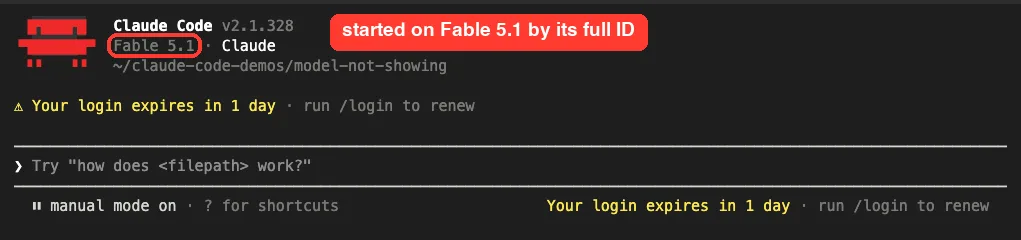
A --model flag applies to that one session only, so your saved default stays the same. That makes it a safe way to test.
Fix 2: Update Claude Code, then restart
New models need new Claude Code releases. The docs list these minimum versions:
| Model | Minimum Claude Code version |
|---|---|
| Fable 5.2 | v2.1.321 |
| Fable 5.1 | v2.1.257 |
| Opus 5.5 | v2.1.280 |
| Sonnet 5.5 | v2.1.284 |
| Haiku 5.5 | v2.1.293 (recommended) |
Check your version and update with two commands:
claude --version
claude update
After updating, quit and start a fresh session. If claude update fails or keeps installing the old version, our guide to update fixes walks through each install method.
Fix 3: Check for an admin allowlist or organization restriction
Companies can limit which models people use, in two ways. The first is availableModels in managed settings, which works on any plan and provider. The second is Enterprise model restrictions set in the claude.ai admin console, which need Claude Code v2.1.187 or later.
To show you what an allowlist does, we put this file in the demo project’s .claude/settings.json. In real companies the same key lives in managed settings, where you can’t override it.
{
  "availableModels": ["sonnet", "haiku"]
}
The next session’s picker dropped Opus and Fable completely. Only Default, Sonnet 5.5 and Haiku 5.5 were left.
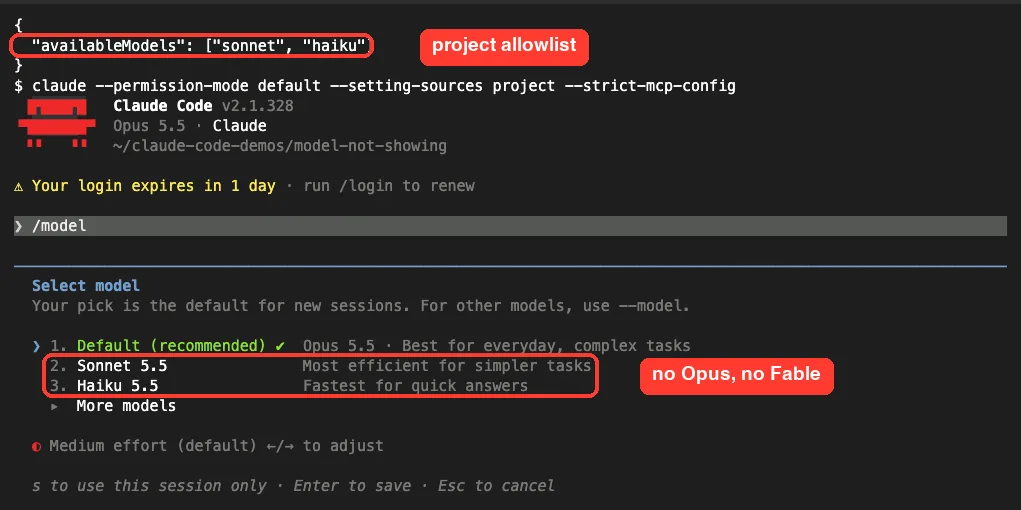
Default still said Opus 5.5. That matches the docs: an allowlist alone leaves Default on the normal account default unless the admin also sets enforceAvailableModels.
What the refusal messages look like
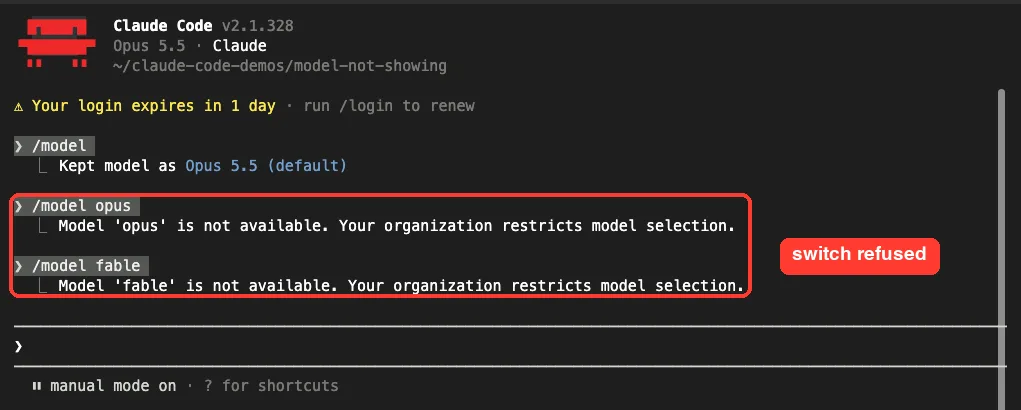
Typing the model name doesn’t get around an allowlist. Both /model opus and /model fable were refused with “Your organization restricts model selection”, and the session kept its model.
Launching with claude --model fable behaved differently. Instead of failing, Claude Code warned at startup that the model was restricted and used claude-opus-5-5 instead.
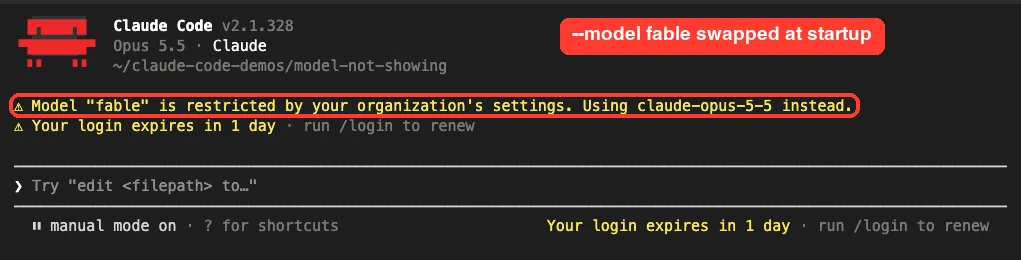
If you see either message on a work machine, the fix is a conversation, not a setting. Ask your admin to add the model to the allowlist or to your role. The docs note that Enterprise access changes reach new requests within about a minute, and the picker updates the next time a session starts.
Fix 4: Restart after any change
This sounds too simple, but it trips up a lot of people. The picker is built when a session starts, so updating Claude Code, changing an env var or getting new access does nothing to a session that is already open.
Type /exit, then run claude again. In our tests, each settings change showed up only in the next session.
Fix 5: On Bedrock, Agent Platform or Foundry, pin your provider’s ID
Aliases don’t point to the same model everywhere. The docs show opus resolving to Opus 5.5 on Amazon Bedrock and Google Cloud’s Agent Platform but to Opus 4.6 on Microsoft Foundry, and sonnet resolving to Sonnet 4.5 on all three. So “Opus 5.5 is missing” on Foundry may just mean the alias is older.
| Provider | opus | sonnet | haiku |
|---|---|---|---|
| Anthropic API | Opus 5.5 | Sonnet 5.5 | Haiku 5.5 |
| Bedrock, Agent Platform | Opus 5.5 | Sonnet 4.5 | Haiku 4.5 |
| Microsoft Foundry | Opus 4.6 | Sonnet 4.5 | Haiku 4.5 |
To use a newer model there, set it explicitly with your provider’s ID, for example in ANTHROPIC_DEFAULT_OPUS_MODEL or ANTHROPIC_DEFAULT_FABLE_MODEL. Also confirm the model is enabled for your account and region in the provider console.
The docs say that when the default is unavailable on Bedrock or Agent Platform, the session falls back to an earlier version with a notice. See the official Amazon Bedrock setup for the exact ID format.
One more provider detail: through a Claude apps gateway, the fable alias resolves to Fable 5, not Fable 5.2. Use /model claude-fable-5-2 there if your gateway serves it.
Fix 6: Grayed out or “Requires usage credits”
Sometimes Fable is in the list but looks wrong. The docs describe two cases:
- Grayed out with a note: your organization can’t use Fable at all, for example under zero data retention. The row stays visible so you know why.
- “Requires usage credits”: depending on your plan and seat tier, Fable usage can bill to usage credits instead of your plan’s included limits.
Neither one is fixed by updating or restarting. The first needs a change on your organization’s side, and the second needs usage credits on your account.
Add a Missing Model Back to the Picker
If you can use a model but it has no row, you can add one. The docs describe ANTHROPIC_CUSTOM_MODEL_OPTION, which adds a single extra entry after the built-in rows without replacing them:
export ANTHROPIC_CUSTOM_MODEL_OPTION="my-gateway/claude-opus-5-5"
export ANTHROPIC_CUSTOM_MODEL_OPTION_NAME="Opus via Gateway"
claude
Claude Code skips validation for this ID, so any string your endpoint accepts works. If an availableModels list is set, the custom ID must be in it too, or the row is filtered out.
For LLM gateways, the docs mention CLAUDE_CODE_ENABLE_GATEWAY_MODEL_DISCOVERY=1, which fills the picker from the gateway’s model list. To list several models in your own order, use the modelPicker setting. Our list of environment variables covers the other model variables.
Model Not Showing vs. Model Error in Claude Code
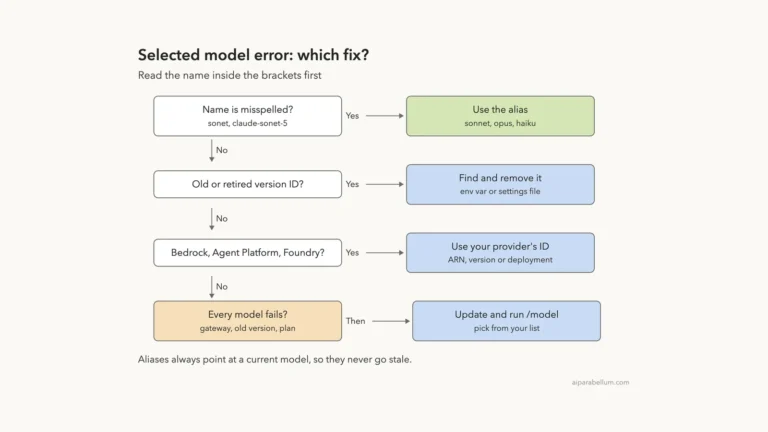
A model missing from the picker is a different problem from a model that is listed but fails. If your session starts and then shows “There’s an issue with the selected model”, the name you set isn’t accepted. Our guide to the selected model error covers that case step by step.
| What you see | Likely cause | Where to look |
|---|---|---|
| Model not in main list | Older version | “More models” |
| Model not in any list | Old Claude Code, allowlist, provider | Fixes 2, 3 and 5 |
| “Your organization restricts model selection” | Allowlist blocks the switch | Your admin |
| “restricted by your organization’s settings. Using … instead” | Blocked model swapped at startup | Your admin |
| “There’s an issue with the selected model” | Bad or stale model name | Env vars and settings files |
For a wider list of messages, see our roundup of common errors.
Try It Yourself
You can see an allowlist hide models without touching your real setup. Make an empty folder, add a project allowlist, and open the picker:
mkdir model-test && cd model-test
mkdir .claude
echo '{"availableModels": ["sonnet", "haiku"]}' > .claude/settings.json
claude
Inside the session, run /model and press Esc to close it without saving. Then try /model opus and read the refusal. Delete the folder when you’re done, and remember that pressing Enter in the picker saves your pick as the default for new sessions.
Common Mistakes
- Expecting Fable to be the default. It never is; you choose it with
/model fable. - Updating Claude Code but staying in the old session. The picker only refreshes at startup.
- Missing the “More models” row and assuming an older version was removed.
- Trying to bypass a company allowlist with
--modelorANTHROPIC_MODEL. Blocked values are swapped at startup. - Pressing Enter in the picker just to look around. Enter saves; Esc cancels, and
sswitches for this session only. - Using Anthropic aliases on Foundry and expecting the newest Opus.
Pro Tips
- Read the startup header. It shows the model the session is actually on, so you can confirm a switch worked.
- Use
/statusto see the current model at any time. - Prefer aliases like
opusandfablefor everyday use; they move to new versions for you. - Pin full IDs only when you need one exact version, such as a comparison test.
- Different models suit different effort levels. Our guide to effort levels explains the picker’s effort slider.
- If you change models for helpers, our subagent models guide shows where those names live.
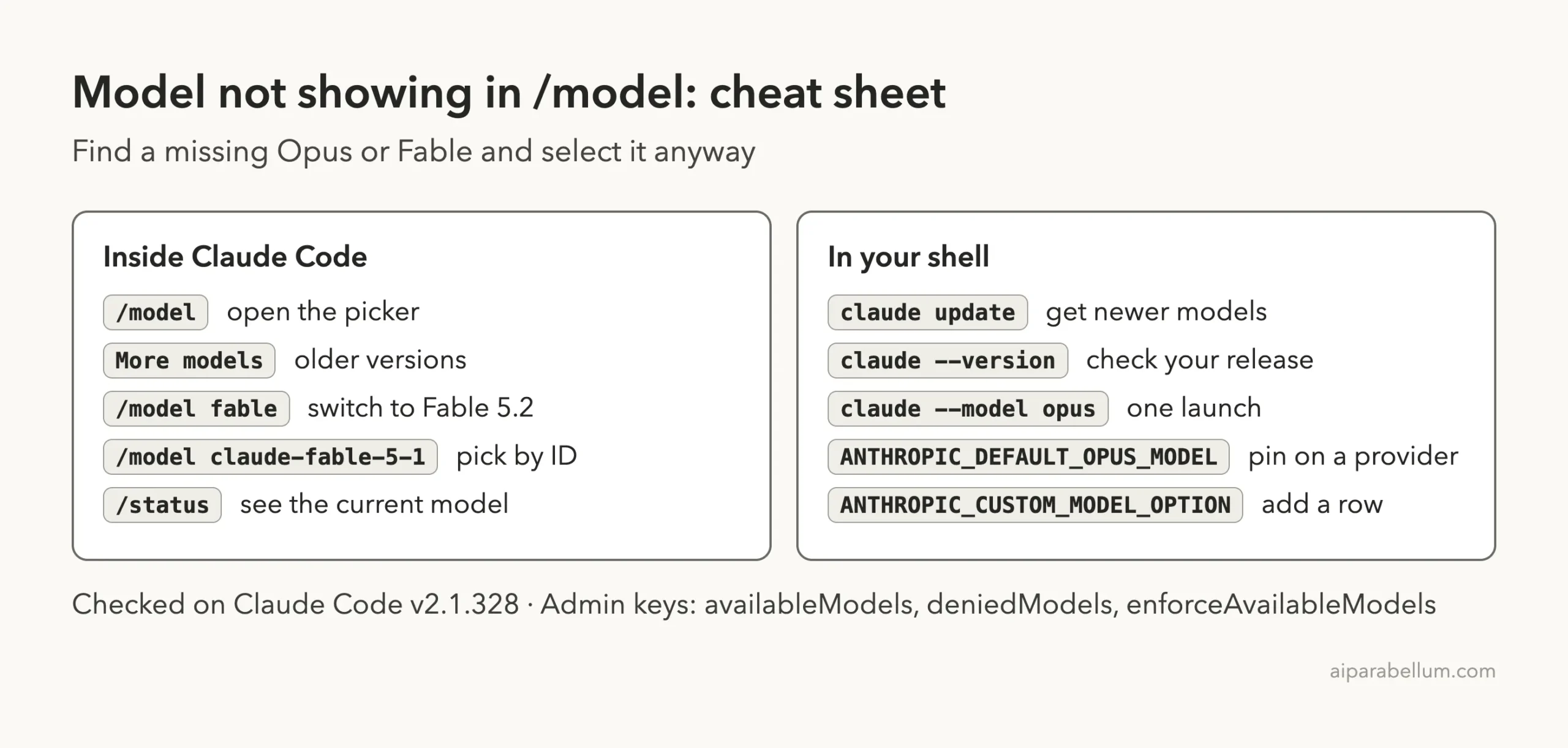
Cheat Sheet
Frequently Asked Questions
Why doesn’t Claude Code start on Fable?
No Fable model is the default on any plan or provider. Pick it with /model fable; the docs say choosing it with /model saves it in your user settings so later sessions start on it.
Where did Fable 5.1 or Opus 5 go?
Older versions move under “More models” at the bottom of the picker. You can also select them by ID, such as /model claude-fable-5-1.
Can I use a model my admin blocked?
No. Switching with /model is refused, and --model, ANTHROPIC_MODEL or a model setting is swapped for an allowed model at startup. Ask your admin for access.
Does every plan get Haiku?
On Enterprise model restrictions, yes. The docs say Haiku models are always available and can’t be disabled, so every member keeps at least one usable model.
I updated Claude Code and Fable 5.2 still isn’t listed. Why?
Start a new session first. If it’s still missing, check you’re on v2.1.321 or later, then look for an allowlist, an organization restriction or a provider that doesn’t serve it.
Conclusion
When the Claude Code model not showing problem hits, the model is usually filtered rather than gone: older versions sit under “More models”, new ones need a recent release like v2.1.321 for Fable 5.2, company allowlists and Enterprise restrictions hide what they block, and cloud providers can map aliases to older models. In our tests, expanding the picker, launching by full ID and a restart solved the personal cases, while a blocked model needed an admin, so start with /model, run claude update, and only then look at your organization or provider. To learn more about the models themselves, see our overview of Claude AI.