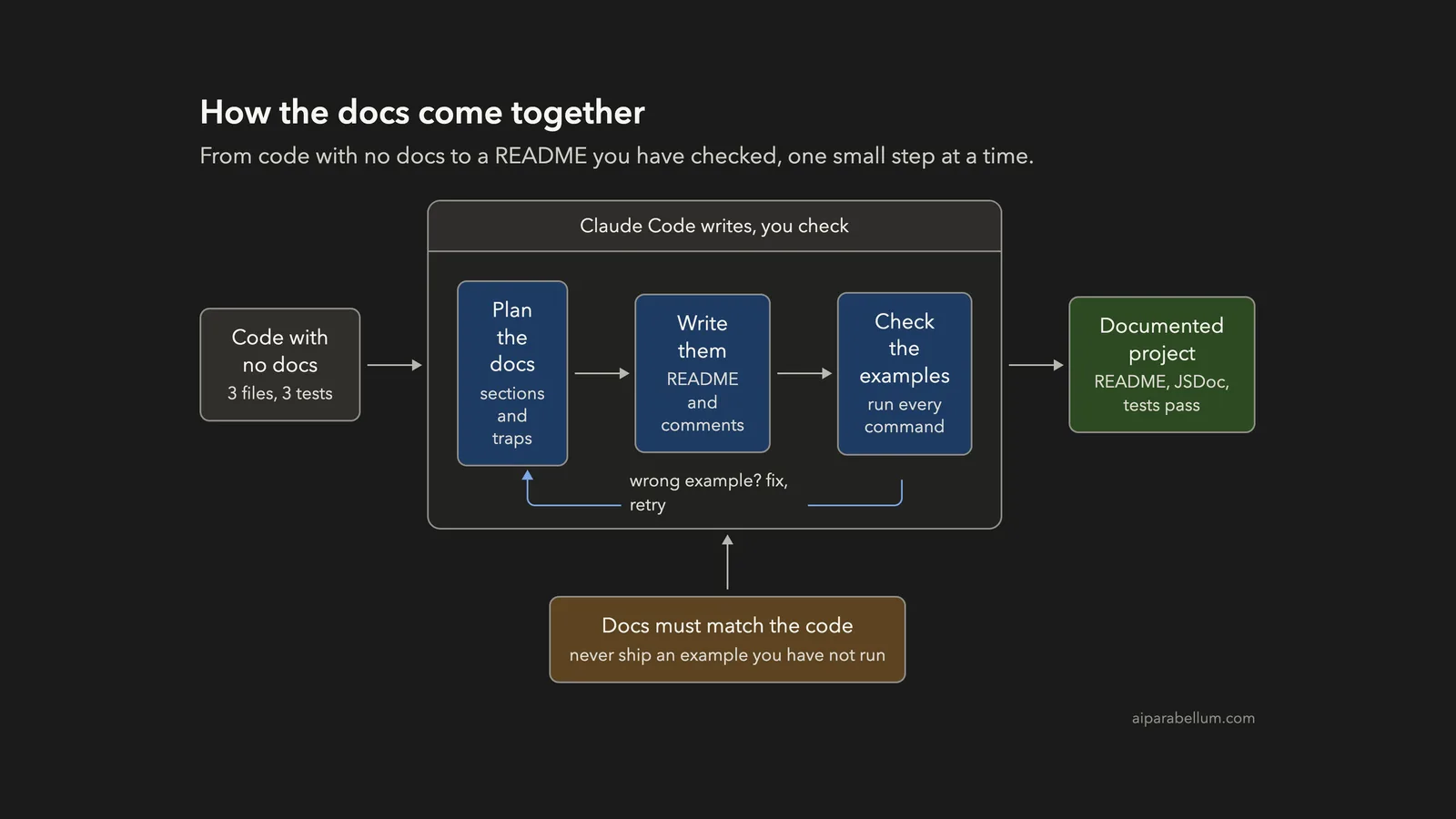
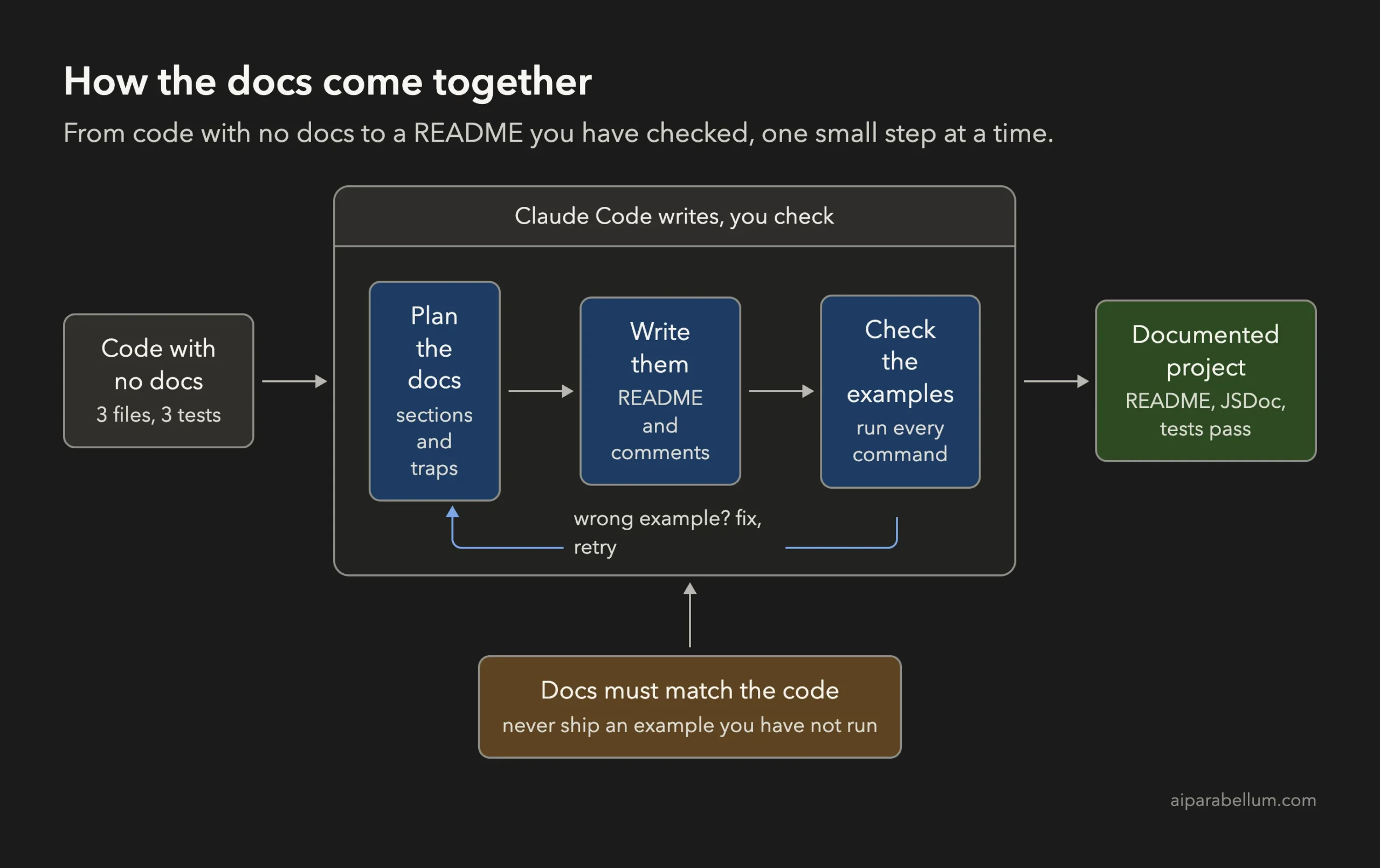
Have you ever finished a small tool and then put off the README for weeks? You can write documentation with Claude Code in three short steps: let it read your code and plan the docs, let it write the README and code comments, and then make it run every example to prove the docs are true. In this project we took a tiny bill-splitting tool with no documentation at all and ended with a 67-line README, doc comments on every function, and three tests still passing.
This is Project 16 of 20 in our Build with Claude Code series, part of our Claude Code tutorials. In Project 15 we learned to convert JavaScript. Here we use the same habits again: plan first, one job per prompt, and a check at the end.
Tested with Claude Code v2.1.310 on October 27, 2026, on macOS. We tested on macOS; the Windows and Linux steps follow Anthropic’s official instructions.
What We Built
Good docs are a promise about your code. Claude Code can write the promise in minutes, but you still have to check that it is true.
| Item | Details |
|---|---|
| Project | Document a small command-line tool and library that has no docs |
| Input | A made-up bill splitter called split-bill: src/split.js, src/cli.js, a sample items file and 3 tests |
| Output | README.md (67 lines), JSDoc comments in split.js and a header comment in cli.js |
| Tools | Node.js and its built-in test runner, nothing to install |
| Result | Every README example checked by running it, and 3 of 3 tests still passing |
| Prompts used | 3 short prompts |
Why Let Claude Code Write Your Documentation?
Most people skip docs for a simple reason: they are slow to write and easy to forget. The code is fresh in your head, so the README feels obvious. A month later, it is not obvious to anyone, including you.
Claude Code is a good fit for this job because it reads the whole project before it writes a word. It sees the real function names, the real default values and the real error messages. It also runs commands, which means it can test its own claims.
That last part matters most. A model that writes docs from memory can invent a flag or a number. A model that reads your code and runs your examples can catch its own mistakes.
What Anthropic Recommends
Anthropic’s common workflows page has a short section on documentation. It says to specify the documentation style you want, such as JSDoc or docstrings, and to ask for documentation for public APIs, interfaces and complex logic. It does not give a full README recipe, so the plan below is our own, built on those two tips and checked in a real session.
If you are new to the tool, read our first session guide first. We also use plan mode for the opening step and permission modes so we approve every file.
The Code We Started With
Everything here is made up. The tool splits a restaurant bill in two ways: evenly between a number of people, or by the items each person ordered. It has no README and no comments at all.
| File | What it does |
|---|---|
| src/split.js | splitEvenly, splitByItems, round and the TAX_RATE constant (26 lines) |
| src/cli.js | Reads the command line and prints the result (20 lines) |
| test/split.test.js | Three tests that use Node’s built-in test runner |
| bill.json | A sample list of items for the items command |
The code has a few traps that a good README must explain. We did not tell Claude about them. We wanted to see if it would find them on its own.
Step 1: Ask for a Documentation Plan First
We started Claude Code in plan mode, where it can read files but cannot change them.
claude --permission-mode planThe first prompt asked for a short answer: the sections a README should have, which functions need comments, and two things a reader could easily misunderstand.
Read @src/split.js, @src/cli.js and @package.json. Do not change any file. Keep the answer short: what should the README of this project contain (a list of 6 sections, one line each), and which functions need doc comments? Also name 2 things in the code that a reader could easily misunderstand and that the docs must explain.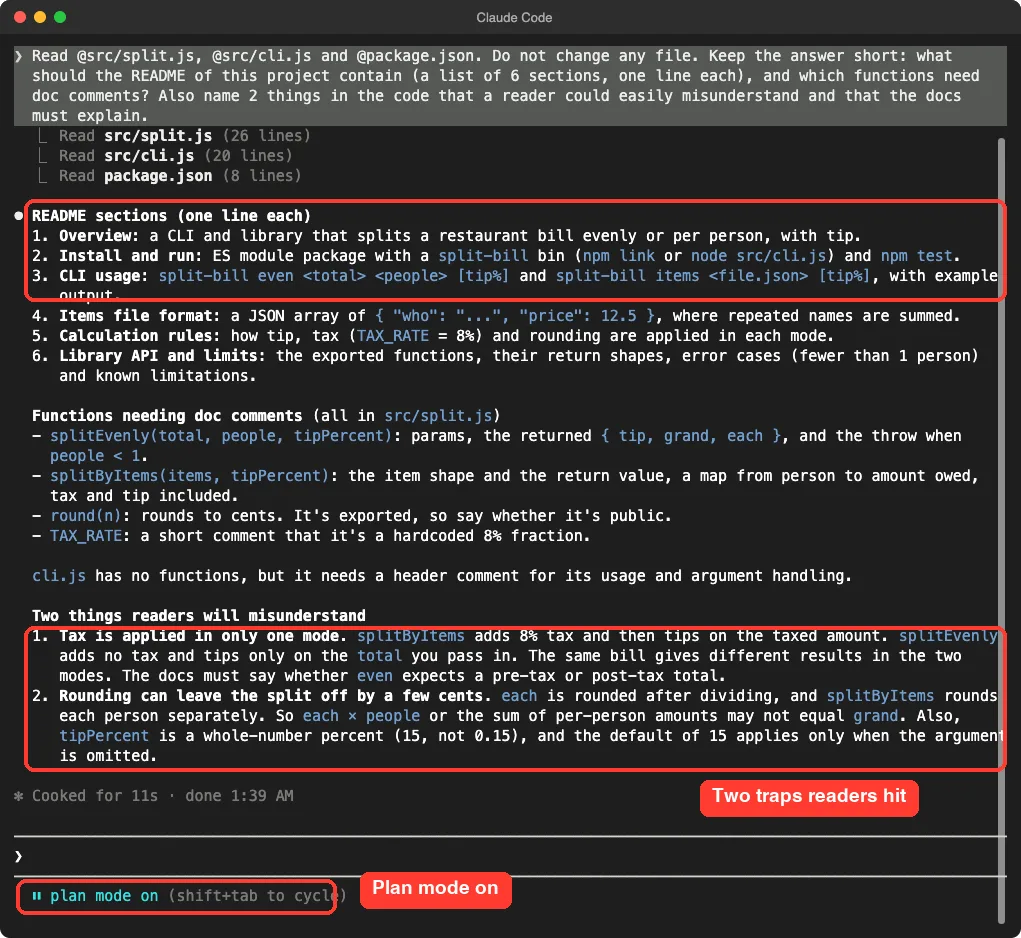
Claude’s plan had six sections: an overview, install and run, command-line usage, the items file format, the calculation rules, and the library API with its limits. It also listed which functions needed comments, including the exported round function and the TAX_RATE constant.
The two traps were the real prize. First, tax is added in only one mode: the items command adds 8 percent tax and then tips on the taxed amount, but the even command adds no tax at all. The same bill gives different results in the two modes.
Second, rounding can leave the split off by a few cents, because each share is rounded on its own. Claude also noted that the tip is a whole-number percent, so you type 15 and not 0.15.
Those are exactly the things a new user gets wrong. A plan step is cheap, and it told us what the docs had to say before any file existed.
Step 2: Write the README and the Code Comments
Now we started a normal session where Claude asks before it acts. The prompt did four things at once, but all of them are documentation, and none changes behavior.
Now write README.md using your 6 sections. Use only commands and numbers you can check in the code. Then add JSDoc comments to the exported functions and TAX_RATE in src/split.js, and a short header comment in src/cli.js. Do not change any behavior. Stay short: the README under 70 lines.Three phrases in that prompt are worth copying. “Use only commands and numbers you can check in the code” stops invented examples.
“Do not change any behavior” keeps the job to comments. “Under 70 lines” stops a wall of text.
Claude showed the whole README before it created the file and asked for approval. This is the moment to read it, not to click yes.
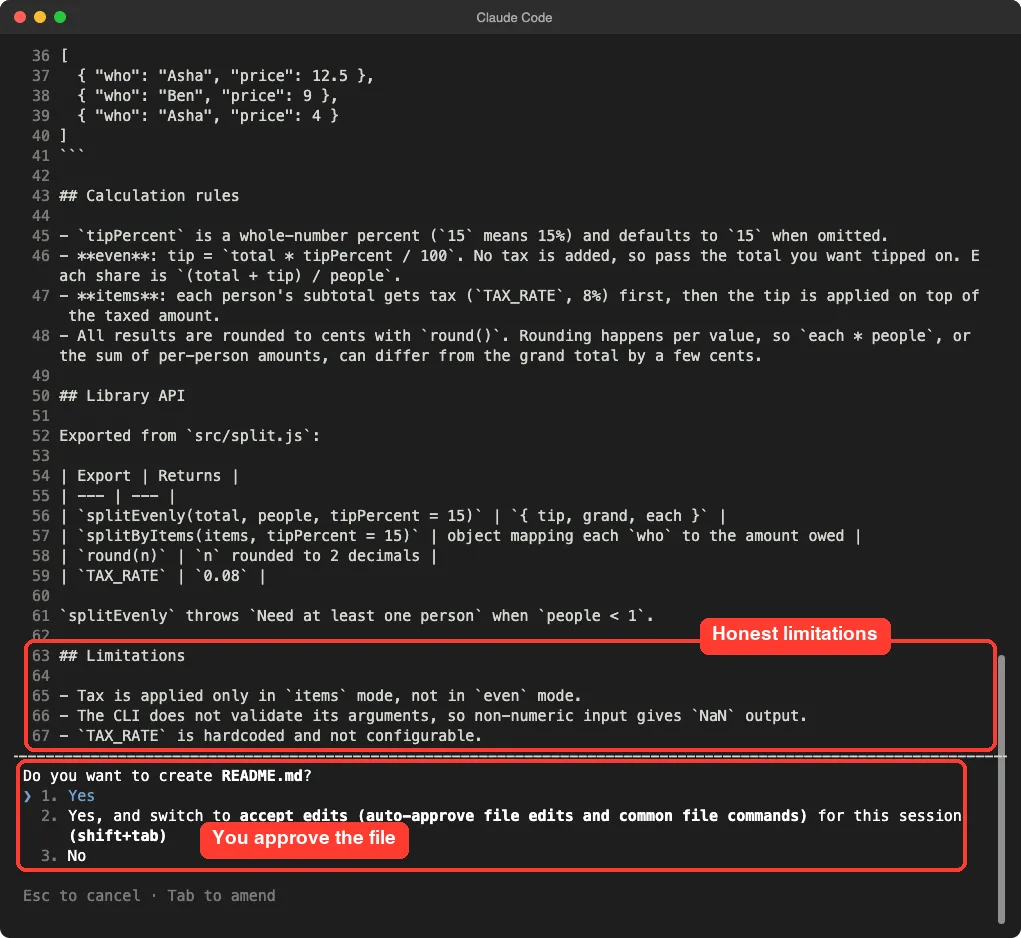
We liked what we saw at the bottom. The Limitations section says that tax applies only in items mode, that the command line does not check its arguments so a bad value prints NaN, and that the tax rate is fixed in the code. A README that lists its own weak spots is a trustworthy README.
The README came out at 67 lines. It has a short install section, two usage lines, a table for the items file format, the calculation rules from the plan, a library table and the limitations.
The JSDoc Comments
Next came the code comments. Claude showed each one as a diff, so you can see exactly what is added before you approve it. JSDoc is the comment style that many editors use to show tooltips, and it is the style Anthropic’s page names for JavaScript.
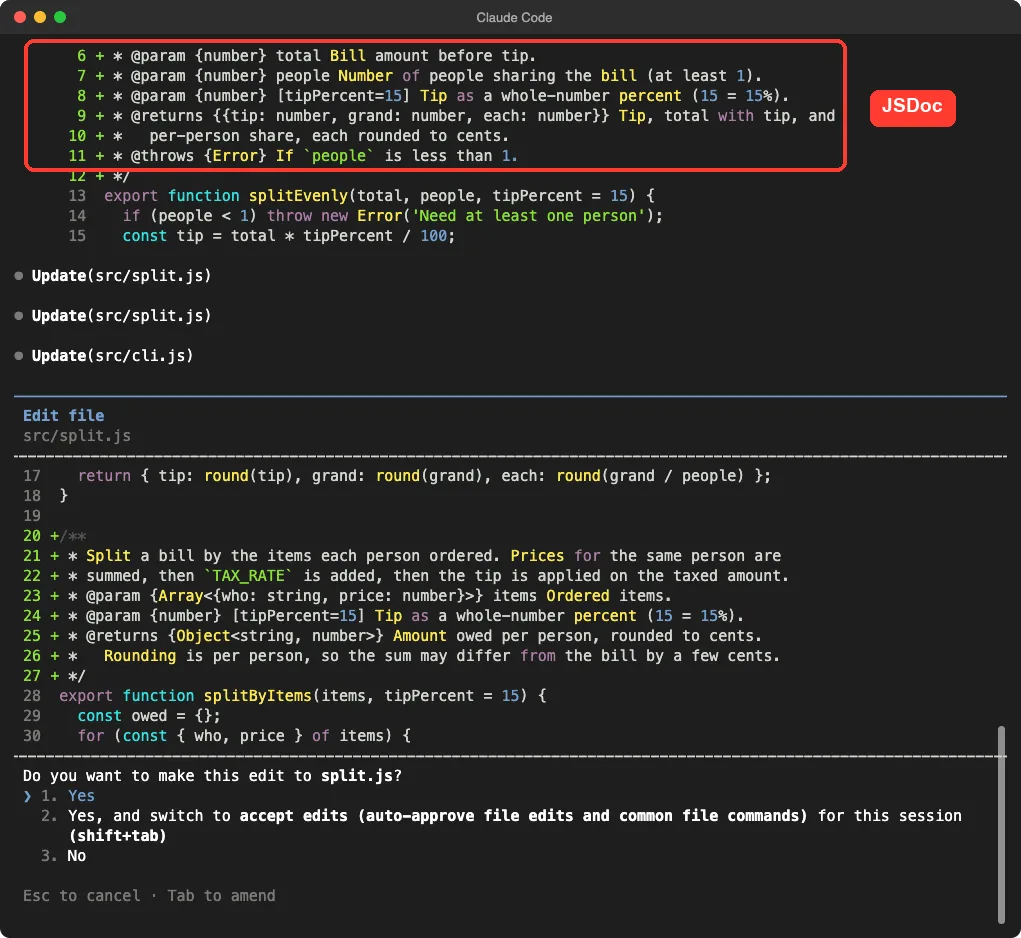
The comment for splitEvenly lists its three parameters, says the tip is a whole-number percent, describes the object it returns and notes that it throws an error if people is less than 1. All of that came from the real code.
The comment for splitByItems explains the order of the math: prices are added per person, then tax, then tip on the taxed amount. It also says that rounding is per person, so the total may differ from the bill by a few cents.
One note about our run. Our script stopped before the last edit, the header comment for cli.js, was approved. That is why the third prompt below starts by finishing it.
Step 3: Make Claude Check Its Own Docs
This is the step that most people skip, and it is the most important one. Docs that nobody has run are only a guess. We asked Claude to run the README examples and compare the output.
Finish the header comment in src/cli.js if it is not there yet. Then check the README: run the two CLI examples (even 100 4, and items with the README items format saved as a temp file in /tmp) and tell me in 3 short lines whether each printed result matches what the README says. Also run npm test.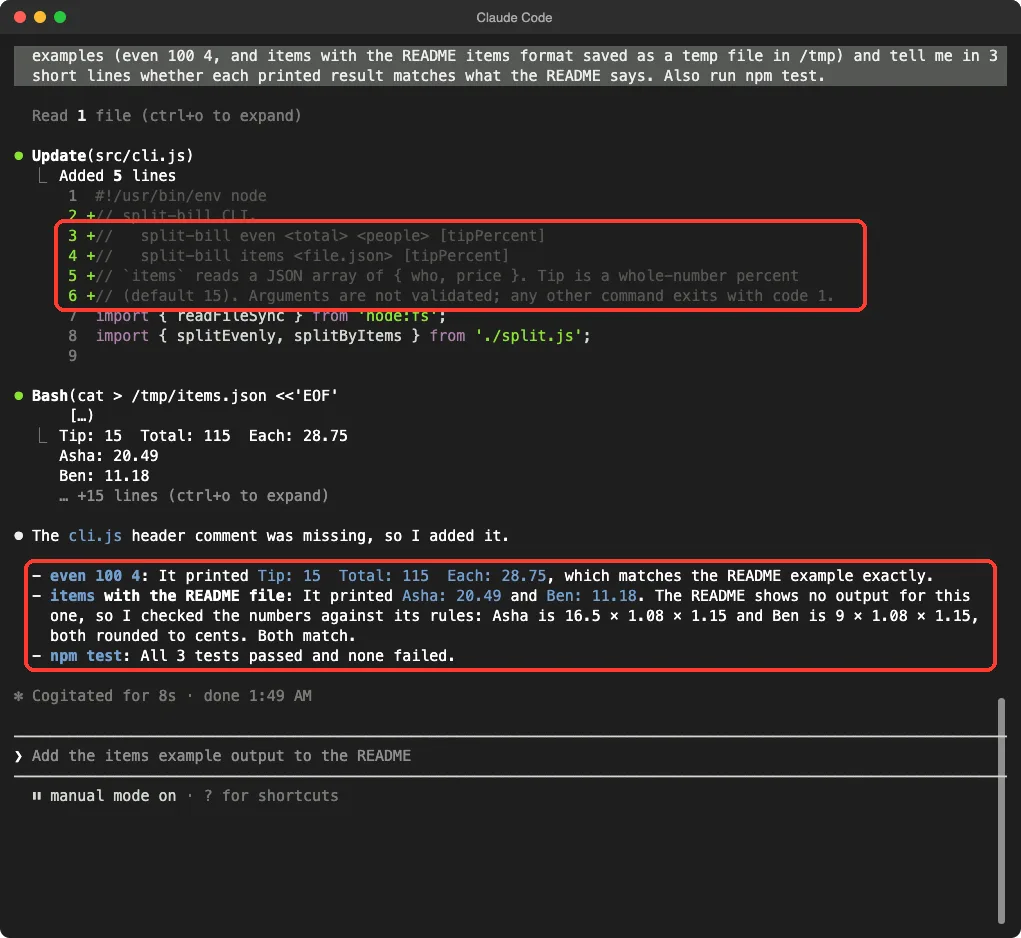
The result was clean. The even example printed Tip: 15, Total: 115 and Each: 28.75, which is exactly what the README shows. For the items example, Claude noticed that the README shows no output for it, so it checked the numbers against the stated rules instead: Asha owes 16.5 with tax and tip, Ben owes 9, and both round to the printed amounts.
That honest remark points to a small gap. The README describes the items command but never shows its output.
If you want to close it, a follow-up prompt such as “add the items example output to the README” does the job. Claude even suggested it in its prompt box.
Step 4: Check It Yourself
Claude saying “matches” is useful. Running the check yourself is better. We opened a plain terminal in the project folder.
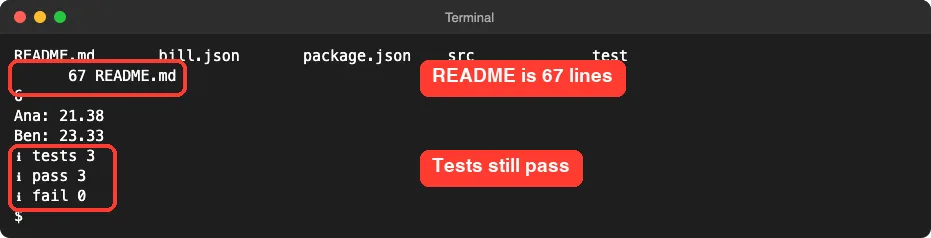
The listing shows the new README.md next to the original files. The items command on our own sample file prints the expected two lines, and the three tests pass. Because we asked for no behavior changes, the test result is the proof that only comments and a README were added.
| Check | Before | After |
|---|---|---|
| README | None | 67 lines, 6 sections |
| Doc comments | None | Every export in split.js, header in cli.js |
| Tests | 3 passing | 3 passing |
| Behavior | Original | Unchanged |
The Final Project Files
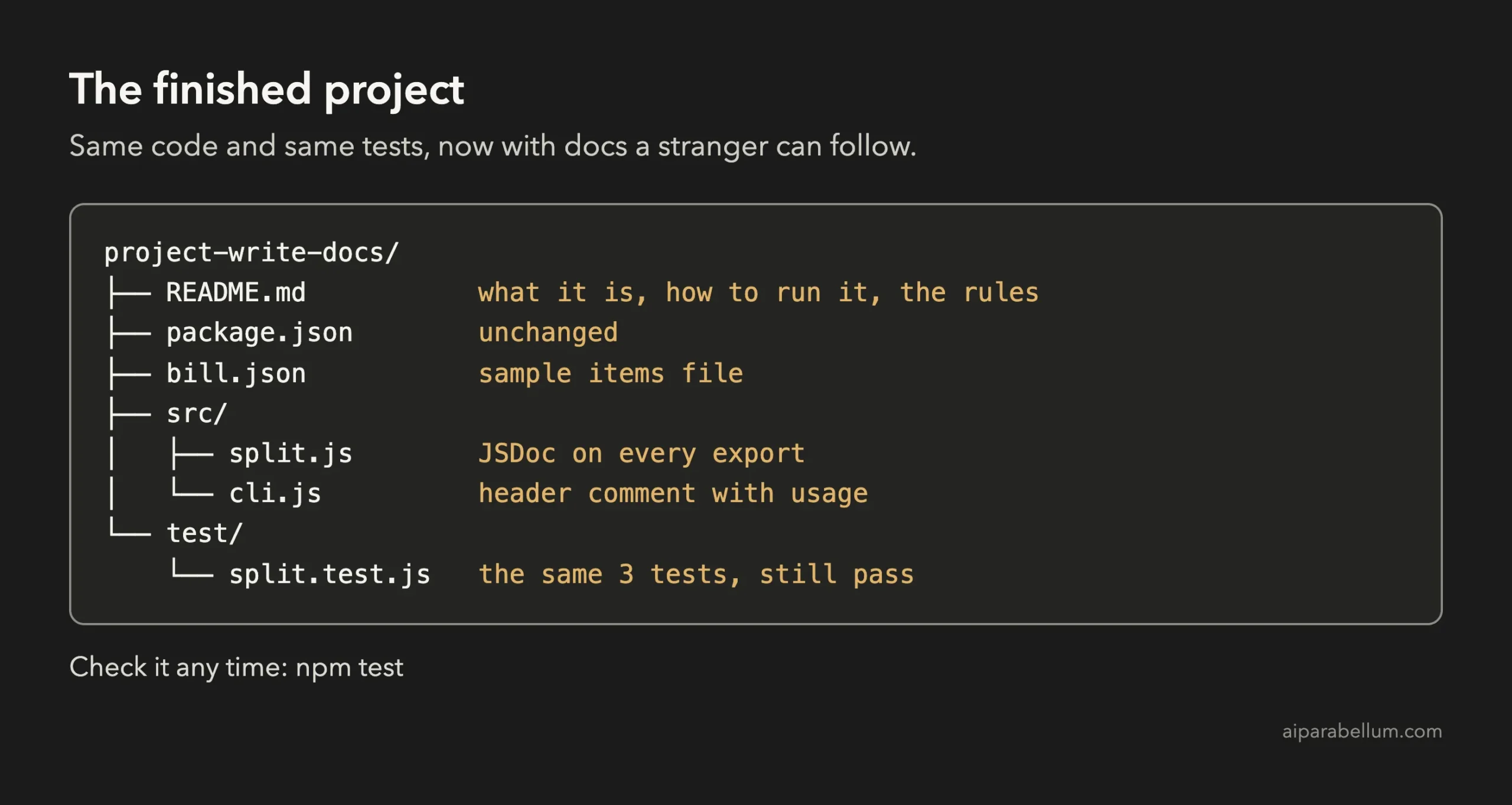
Here is the heart of the finished src/split.js. The code itself is unchanged; only the comments are new.
/** Sales tax as a fraction (0.08 = 8%). Applied only by `splitByItems`. */
export const TAX_RATE = 0.08;

/**
 * Split a bill equally. No tax is added; the tip is computed on `total` as given.
 * @param {number} total Bill amount before tip.
 * @param {number} people Number of people sharing the bill (at least 1).
 * @param {number} [tipPercent=15] Tip as a whole-number percent (15 = 15%).
 * @returns {{tip: number, grand: number, each: number}} Tip, total with tip, and
 *   per-person share, each rounded to cents.
 * @throws {Error} If `people` is less than 1.
 */
export function splitEvenly(total, people, tipPercent = 15) {
  if (people < 1) throw new Error('Need at least one person');
  const tip = total * tipPercent / 100;
  const grand = total + tip;
  return { tip: round(tip), grand: round(grand), each: round(grand / people) };
}
And here is the new header comment at the top of src/cli.js:
#!/usr/bin/env node
// split-bill CLI.
//   split-bill even <total> <people> [tipPercent]
//   split-bill items <file.json> [tipPercent]
// `items` reads a JSON array of { who, price }. Tip is a whole-number percent
// (default 15). Arguments are not validated; any other command exits with code 1.
We left a few things alone on purpose. We did not fix the missing argument check, even though the docs now admit it. Documenting a weakness and fixing it are two separate jobs, and mixing them makes a change harder to review.
Try It Yourself
Pick a small project of your own that has no README. Copy it to a scratch folder first, start Claude Code in plan mode, and use this prompt:
Read the main files of this project. Do not change any file. List the sections a README should have (one line each), which functions need doc comments, and 2 things in the code that a new reader could easily misunderstand.Then write the files with a second prompt and finish with a third that runs the examples. Try these variations:
- Ask for a CONTRIBUTING file with the steps to run the tests.
- Ask for docstrings instead of JSDoc if your project is in Python.
- Ask for a short “Troubleshooting” section built from the errors the code can throw.
- Ask Claude to add the missing example output for each command in the README.
Common Mistakes
- Approving the README without reading it. The Limitations section and the numbers are where mistakes hide.
- Skipping the run step. An example nobody has run may not work for your reader.
- Not saying “do not change any behavior”. Without it, Claude may tidy the code while it comments.
- Asking for a huge README. A line limit such as “under 70 lines” keeps it readable.
- Letting the docs promise more than the code does. Ask for a Limitations section.
- Forgetting the comments go stale. When the code changes, ask Claude to update the docs in the same prompt.
Pro Tips
- Start in plan mode. The two traps it found shaped the whole README.
- Say which comment style you want, such as JSDoc, as Anthropic’s docs suggest.
- Ask it to use only things it can check in the code. This one sentence cuts invented details.
- Run the tests after a documentation job. If they still pass, you know no behavior changed.
- Use our rewind guide if a step goes too far, and our costs guide to watch usage. This project used three short prompts.
- If your code has no tests yet, read our project on writing tests first, so you can prove docs changes are safe.
Cheat Sheet
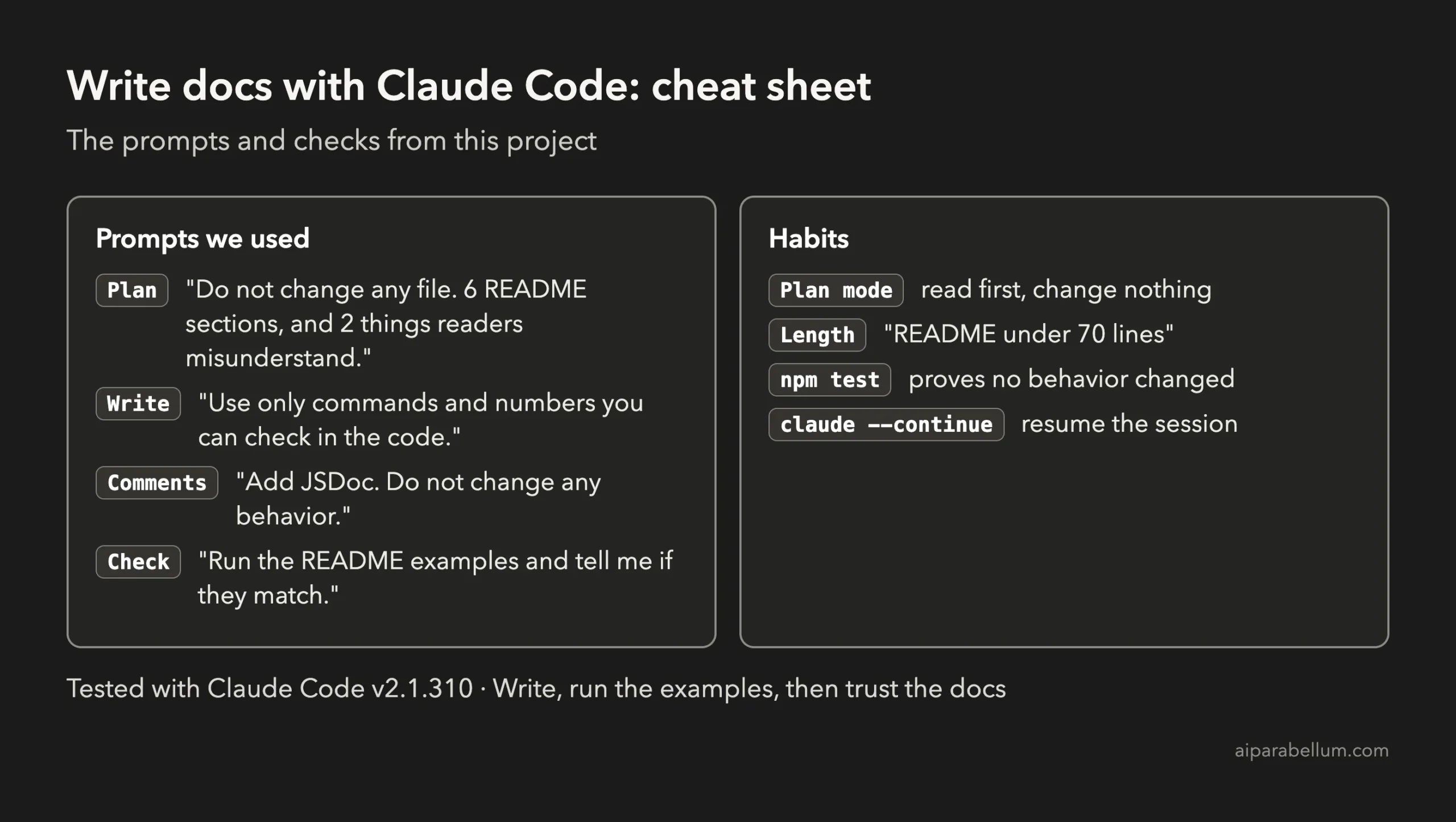
To learn more about the assistant behind the tool, read our Claude AI overview.
Frequently Asked Questions
Can Claude Code write a README for me?
Yes. In our project it read the code, proposed six sections, wrote a 67-line README and added doc comments. You still read and approve the file, which keeps the result accurate.
Will Claude Code invent things that are not in my code?
It can, like any model, if you let it write from memory. Ask it to use only commands and numbers it can check in the code, and make it run the examples. In our run, every example matched.
Which comment style should I ask for?
Use the style your language and tools expect. Anthropic’s workflow tips name JSDoc and docstrings as examples. Say it in the prompt, and Claude follows it.
Will writing docs change how my code behaves?
It should not. Add the sentence “do not change any behavior” to your prompt, then run your tests. Our three tests passed before and after.
How do I keep the docs up to date?
Add docs to your habits. When you change a function, ask Claude to update its comment and the matching README line in the same prompt, then run the examples again.
Conclusion
You can now write documentation with Claude Code without guessing: plan the sections and the traps in plan mode, ask for a short README and comments with a clear “do not change behavior” rule, and make Claude run every example before you trust the result. Three short prompts took our bill splitter from no docs to a 67-line README, full JSDoc comments and three passing tests. Try the starter prompt on a small project of your own, and come back for the next project in the series.
Previous in the series: Project 15: Convert a JavaScript Project to TypeScript With Claude Code
Next in the series: Project 17: Set Up a GitHub Actions Workflow With Claude Code.